Operating System Concepts
1
What is an operating system?
• A program that acts as an intermediary between a user of a computer and the
computer hardware.
• An operating system is a powerful and usually extensive program that controls
and manages the hardware and other software on a computer.
• All computers and computer-like devices require operating systems, including
laptop, tablet, desktop, smartphone, smartwatch, and router.
2
Examples of operating systems
• There are different operating systems that are in use today such as:
• Windows
• Linux and UNIX
• Mac OS
• JunOS, VRP, IOS
• Android OS, iOS, Windows phone OS
3
Client and Server Operating Systems
• Desktop Operating Systems (Client Operating System)
• Windows 10, Ubuntu, Mac OS
• Server Operating Systems
• Windows server 2019, Ubuntu Server, UNIX
4
Goals of an operating system
• An operating system is usually designed to meet the following goals:
 Execute user programs and solve user problems
 Make the computer system convenient to use
 Use the computer hardware in an efficient manner
5
Role of operating system in Computer System
Structure
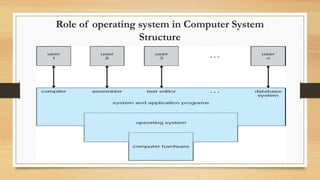
• Hardware provides basic computing resources such as CPU, memory, I/O
devices.
• Operating system controls and coordinates use of hardware among various
applications and users.
• Application programs are used to solve the computing problems of the users.
• Users are people, machines and other computers.
6
Role of operating system in Computer System
Structure
7
Open Source & Closed Source Operating Systems
• Open source operating system - Open-source operating system is a type of
computer software in which source code is released under a license in which the
copyright holder grants users the rights to use, study, change, and distribute the
software to anyone and for any purpose.
• Examples of open source operating systems are Linux, Open Solaris, Open BSD,
Free BSD.
8
Open Source & Closed Source Operating Systems
• Closed source operating system - Closed-source operating systems use code that
is proprietary and kept secret to prevent its use by other entities. Traditionally, they
are sold for a profit.
• Examples of closed source operating systems are Mac OS, UNIX, Windows.
9
Computing Environments
• Traditional computing
• Office environment - PCs connected to a network, terminals attached to
mainframe or minicomputers using time-sharing.
• Home networks - Used to be single system, then modems, now firewalled &
networked.
10
Computing Environments
• Client-Server Computing
• Dumb terminals supplanted by smart PCs. Many systems such as servers,
responding to requests generated by clients.
Server Computer provides an interface to client to request services (i.e.
database)
File-server provides interface for clients to store and retrieve files.
11
Computing Environments
• Peer to Peer Computing / Workgroup Computing
• P2P does not distinguish clients and servers
• Instead all nodes are considered peers.
• Each peer may each act as client, server or both;
• A node must join P2P network to use its resources.
• Operating systems used in peer to peer computing are clients which may belong to
same or different vendors.
12
Computing Environments
• Web based Computing system
• Web has become ubiquitous & PCs are most prevalent devices.
• More devices becoming networked to allow web access.
• Use of operating systems like Windows 95 has evolved into Linux and Windows,
which can be clients and servers.
13
Computing Environments
• Cloud computing

Cloud computing is the delivery of computing as service rather than a
product.

Cloud computing means storing and accessing data and programs over the
internet instead of your computer's hard drive.

It allows on-demand network access to shared computing resources over the
internet from a remote location.
14
What is a User Interface?
• User interface is a medium or the screen thru which a user interacts with an
application, website or an operating system in order to complete the tasks.
• The user interface is of two types
• Command Line Interface (CLI)
• Graphical User Interface (GUI)
15
User Interface
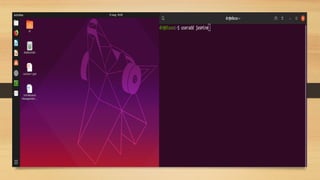
• Command Line Interface - CLI allows a user to perform tasks by entering
commands at prompts by using the keyboard keys.
• Its working mechanism is very easy, but it is not user friendly.
• Users enter the specific command, press “Enter”, and then wait for a response.
• After receiving the command, the CLI processes it accordingly and shows the
output/result on the same screen; command line interpreter is used for this
purpose.
16
User Interface
• Graphical User Interface - A GUI uses windows, icons, and menus to perform
tasks such as opening, deleting, and moving files.
• Although many GUI operating systems are through the use of a mouse, the
keyboard can also be utilized by using keyboard shortcuts or arrow keys.
• GUI operating systems are much easier to learn and use because commands do not
need memorized.
17
User Interface
18
Distributed Operating System
• A distributed operating system (DOS) is an essential type of operating system. A
distributed operating system is an extension of the network operating system that
supports higher levels of communication and integration of the machines on the
network.
• This system looks to its users like an ordinary centralized operating system but
runs on multiple, independent central processing units (CPUs).
19
Distributed Operating System
• The Distributed operating system involves a collection of autonomous computer
systems, capable of communicating and cooperating with each other through a
LAN / WAN.
• A DOS is used in the distributed system where it manages the system shared
resources used by multiple processes, the process scheduling activity, the
communication and synchronization between running processes etc.
• It is also helps in resource sharing, improves the reliability, communication and
computation speedup.
20
Distributed Operating System
• Examples of distributed operating system are:
• LOCUS
• MICROS
• IRIX
• OSF/1
21
History of Operating Systems
Generations:
(1945–55) Vacuum Tubes
(1955–65) Transistors and Batch Systems
(1965–1980) ICs and Multiprogramming
(1980–Present) Personal Computers, Tablets, Phones
The First Generation (1945–55) Vacuum Tubes
• Invention of ABC, Z3 computer, Colossus, Mark 1, ENIAC
• Machine language was used
• There were no programming languages
• Computers were enormous & generated much heat
23
2nd Generation (1955–65)
Transistors and Batch Systems
• Mainframes were manufactured (Used by large organizations)
• Transistors were used in place of vacuum tubes
• Concept of batch system was there
24
3rd Generation (1965–1980)
• Introduction of IC and IBM 360 computers
• Multiprogramming was introduced
• Concept of timesharing was introduced
• MULTICS (MULTiplexed Information and Computing Service)
• Linux and UNIX were written
25
4th
Generation (1980–To Date)
PC, Tablets, Phones
• Introduction of VLSI and Microcomputers
• Creation of DOS (Disk Operating System) in 1980's for 80386 & 80486
• Creation of GUI by Apple company
• Windows 95, 98, ME, NT in the 1990's
• And now we have modern technological devices such as ..................
26
Virtual Machines
• A virtual machine is a virtual computer that is installed on the host
machine and uses all resources of the host machine. A virtual machine
works the same way as a physical computer.
• A virtual machine uses the memory and processor for executing different
types of programs and carrying out the user and OS tasks.
27
Virtual Machines
• The resources of the physical computer are shared to create the virtual machines
and each virtual machine is completely isolated from another VM in order to
protect their system resources.
• A virtual machine is a complete vehicle for operating system R & D.
28
Virtual Machines
29
Operating system design and implementation
• There are problems in the design and implementation of the operating system and the reasons
are:
• Internal structure of the operating systems vary widely.
• Operating system is designed by defining goals and specifications.
• Choice of hardware and type of system.
• Defining the user goals and system goals
• User Goals - Convenience, easy to learn, reliable, safe and fast
• System Goals - Reliable, error free, efficient, easily designed & implemented
30
Operating system design and implementation
• Implementation of an operating system means that how an operating system is written and
installed on the system. Now a days operating systems are written in higher level programming
languages such as C/C++.
• Advantages of higher-level programming languages:
• Development of the operating system is faster and easier to port
• Disadvantages of higher level languages:
• Reduced speed and increased storage requirements
31
System Boot
32
System Boot
• A motherboard has a program called BIOS which starts when the computer is booted
and it checks RAM, keyboard and other basic devices.
• These basic devices and plug & play devices are also checked to see whether they are
connected or not.
• If the devices present are different from when the system was last booted, the new devices
are configured.
• The BIOS then determines the boot device and the first sector of the boot device is
read and executed.
33
System Boot
• This sector contains a program that checks the partition table at the end of the boot
sector to see which partition is active.
• A boot loader is read from active partition which reads the operating system from the
active partition and starts that.
• The operating system queries the BIOS to get the configuration information and then
for each device, it checks and then loads all the device drivers into the kernel.
• The OS initializes its tables, creates background processes and starts up the GUI and a
login program.
34
System Programs
• System programs are also known as system utilities. These programs provide a
convenient environment for the execution and development of programs. There
are system programs for the following tasks:
a. File Management & Modification
b. Status Information
c. Data Encryption
d. Communication over the Network
35
System Calls
• System call provides an interface to the services made available by the OS and to
understand system calls, we must know about the two modes of OS.
• Kernel Mode 2. User Mode
• If a program runs in user mode, it does not have direct access to resources
(memory, CPU, I/O)
• If a program runs in Kernel mode, it has direct access to the resources.
36
System Calls
 Whenever user mode calls to the system that it need certain resources this call is
called the system call.
 System calls are made by the programs that it need resources.
 System call is the programmatic way in which a computer program requests a
service from the kernel of the operating system
 These calls are generally available as routines written in C and C++.
37
Types of System Calls
 System calls can be grouped roughly into five major categories
 Process Control System Call: The system calls which happen in process control are:
 End, abort (end: end a process in normal way when it completes it execution and abort we
means to halt abnormally (error occurs).
 Load, execute
 Allocate and free memory
38
Types of System Calls
 File manipulation System Call
 Create file, delete file, Open, close
 Read, write, Get & set file attributes
 Device management System Call
 Request device, release device
 Read, Write
 Logically attach or detach devices
39
Types of System Calls
 Information maintenance system calls: All the information about our system we have made
must be updated.
 Get time or date, set time or date
 Get system data, set system data
 Communication system calls: which are used for communication between different processes or
different devices.
 Create, delete communication connection
 Send, receive messages
 Transfer status information 40

Operating System Introduction for university

  • 1.
  • 2.
    What is anoperating system? • A program that acts as an intermediary between a user of a computer and the computer hardware. • An operating system is a powerful and usually extensive program that controls and manages the hardware and other software on a computer. • All computers and computer-like devices require operating systems, including laptop, tablet, desktop, smartphone, smartwatch, and router. 2
  • 3.
    Examples of operatingsystems • There are different operating systems that are in use today such as: • Windows • Linux and UNIX • Mac OS • JunOS, VRP, IOS • Android OS, iOS, Windows phone OS 3
  • 4.
    Client and ServerOperating Systems • Desktop Operating Systems (Client Operating System) • Windows 10, Ubuntu, Mac OS • Server Operating Systems • Windows server 2019, Ubuntu Server, UNIX 4
  • 5.
    Goals of anoperating system • An operating system is usually designed to meet the following goals:  Execute user programs and solve user problems  Make the computer system convenient to use  Use the computer hardware in an efficient manner 5
  • 6.
    Role of operatingsystem in Computer System Structure • Hardware provides basic computing resources such as CPU, memory, I/O devices. • Operating system controls and coordinates use of hardware among various applications and users. • Application programs are used to solve the computing problems of the users. • Users are people, machines and other computers. 6
  • 7.
    Role of operatingsystem in Computer System Structure 7
  • 8.
    Open Source &Closed Source Operating Systems • Open source operating system - Open-source operating system is a type of computer software in which source code is released under a license in which the copyright holder grants users the rights to use, study, change, and distribute the software to anyone and for any purpose. • Examples of open source operating systems are Linux, Open Solaris, Open BSD, Free BSD. 8
  • 9.
    Open Source &Closed Source Operating Systems • Closed source operating system - Closed-source operating systems use code that is proprietary and kept secret to prevent its use by other entities. Traditionally, they are sold for a profit. • Examples of closed source operating systems are Mac OS, UNIX, Windows. 9
  • 10.
    Computing Environments • Traditionalcomputing • Office environment - PCs connected to a network, terminals attached to mainframe or minicomputers using time-sharing. • Home networks - Used to be single system, then modems, now firewalled & networked. 10
  • 11.
    Computing Environments • Client-ServerComputing • Dumb terminals supplanted by smart PCs. Many systems such as servers, responding to requests generated by clients. Server Computer provides an interface to client to request services (i.e. database) File-server provides interface for clients to store and retrieve files. 11
  • 12.
    Computing Environments • Peerto Peer Computing / Workgroup Computing • P2P does not distinguish clients and servers • Instead all nodes are considered peers. • Each peer may each act as client, server or both; • A node must join P2P network to use its resources. • Operating systems used in peer to peer computing are clients which may belong to same or different vendors. 12
  • 13.
    Computing Environments • Webbased Computing system • Web has become ubiquitous & PCs are most prevalent devices. • More devices becoming networked to allow web access. • Use of operating systems like Windows 95 has evolved into Linux and Windows, which can be clients and servers. 13
  • 14.
    Computing Environments • Cloudcomputing  Cloud computing is the delivery of computing as service rather than a product.  Cloud computing means storing and accessing data and programs over the internet instead of your computer's hard drive.  It allows on-demand network access to shared computing resources over the internet from a remote location. 14
  • 15.
    What is aUser Interface? • User interface is a medium or the screen thru which a user interacts with an application, website or an operating system in order to complete the tasks. • The user interface is of two types • Command Line Interface (CLI) • Graphical User Interface (GUI) 15
  • 16.
    User Interface • CommandLine Interface - CLI allows a user to perform tasks by entering commands at prompts by using the keyboard keys. • Its working mechanism is very easy, but it is not user friendly. • Users enter the specific command, press “Enter”, and then wait for a response. • After receiving the command, the CLI processes it accordingly and shows the output/result on the same screen; command line interpreter is used for this purpose. 16
  • 17.
    User Interface • GraphicalUser Interface - A GUI uses windows, icons, and menus to perform tasks such as opening, deleting, and moving files. • Although many GUI operating systems are through the use of a mouse, the keyboard can also be utilized by using keyboard shortcuts or arrow keys. • GUI operating systems are much easier to learn and use because commands do not need memorized. 17
  • 18.
  • 19.
    Distributed Operating System •A distributed operating system (DOS) is an essential type of operating system. A distributed operating system is an extension of the network operating system that supports higher levels of communication and integration of the machines on the network. • This system looks to its users like an ordinary centralized operating system but runs on multiple, independent central processing units (CPUs). 19
  • 20.
    Distributed Operating System •The Distributed operating system involves a collection of autonomous computer systems, capable of communicating and cooperating with each other through a LAN / WAN. • A DOS is used in the distributed system where it manages the system shared resources used by multiple processes, the process scheduling activity, the communication and synchronization between running processes etc. • It is also helps in resource sharing, improves the reliability, communication and computation speedup. 20
  • 21.
    Distributed Operating System •Examples of distributed operating system are: • LOCUS • MICROS • IRIX • OSF/1 21
  • 22.
    History of OperatingSystems Generations: (1945–55) Vacuum Tubes (1955–65) Transistors and Batch Systems (1965–1980) ICs and Multiprogramming (1980–Present) Personal Computers, Tablets, Phones
  • 23.
    The First Generation(1945–55) Vacuum Tubes • Invention of ABC, Z3 computer, Colossus, Mark 1, ENIAC • Machine language was used • There were no programming languages • Computers were enormous & generated much heat 23
  • 24.
    2nd Generation (1955–65) Transistorsand Batch Systems • Mainframes were manufactured (Used by large organizations) • Transistors were used in place of vacuum tubes • Concept of batch system was there 24
  • 25.
    3rd Generation (1965–1980) •Introduction of IC and IBM 360 computers • Multiprogramming was introduced • Concept of timesharing was introduced • MULTICS (MULTiplexed Information and Computing Service) • Linux and UNIX were written 25
  • 26.
    4th Generation (1980–To Date) PC,Tablets, Phones • Introduction of VLSI and Microcomputers • Creation of DOS (Disk Operating System) in 1980's for 80386 & 80486 • Creation of GUI by Apple company • Windows 95, 98, ME, NT in the 1990's • And now we have modern technological devices such as .................. 26
  • 27.
    Virtual Machines • Avirtual machine is a virtual computer that is installed on the host machine and uses all resources of the host machine. A virtual machine works the same way as a physical computer. • A virtual machine uses the memory and processor for executing different types of programs and carrying out the user and OS tasks. 27
  • 28.
    Virtual Machines • Theresources of the physical computer are shared to create the virtual machines and each virtual machine is completely isolated from another VM in order to protect their system resources. • A virtual machine is a complete vehicle for operating system R & D. 28
  • 29.
  • 30.
    Operating system designand implementation • There are problems in the design and implementation of the operating system and the reasons are: • Internal structure of the operating systems vary widely. • Operating system is designed by defining goals and specifications. • Choice of hardware and type of system. • Defining the user goals and system goals • User Goals - Convenience, easy to learn, reliable, safe and fast • System Goals - Reliable, error free, efficient, easily designed & implemented 30
  • 31.
    Operating system designand implementation • Implementation of an operating system means that how an operating system is written and installed on the system. Now a days operating systems are written in higher level programming languages such as C/C++. • Advantages of higher-level programming languages: • Development of the operating system is faster and easier to port • Disadvantages of higher level languages: • Reduced speed and increased storage requirements 31
  • 32.
  • 33.
    System Boot • Amotherboard has a program called BIOS which starts when the computer is booted and it checks RAM, keyboard and other basic devices. • These basic devices and plug & play devices are also checked to see whether they are connected or not. • If the devices present are different from when the system was last booted, the new devices are configured. • The BIOS then determines the boot device and the first sector of the boot device is read and executed. 33
  • 34.
    System Boot • Thissector contains a program that checks the partition table at the end of the boot sector to see which partition is active. • A boot loader is read from active partition which reads the operating system from the active partition and starts that. • The operating system queries the BIOS to get the configuration information and then for each device, it checks and then loads all the device drivers into the kernel. • The OS initializes its tables, creates background processes and starts up the GUI and a login program. 34
  • 35.
    System Programs • Systemprograms are also known as system utilities. These programs provide a convenient environment for the execution and development of programs. There are system programs for the following tasks: a. File Management & Modification b. Status Information c. Data Encryption d. Communication over the Network 35
  • 36.
    System Calls • Systemcall provides an interface to the services made available by the OS and to understand system calls, we must know about the two modes of OS. • Kernel Mode 2. User Mode • If a program runs in user mode, it does not have direct access to resources (memory, CPU, I/O) • If a program runs in Kernel mode, it has direct access to the resources. 36
  • 37.
    System Calls  Wheneveruser mode calls to the system that it need certain resources this call is called the system call.  System calls are made by the programs that it need resources.  System call is the programmatic way in which a computer program requests a service from the kernel of the operating system  These calls are generally available as routines written in C and C++. 37
  • 38.
    Types of SystemCalls  System calls can be grouped roughly into five major categories  Process Control System Call: The system calls which happen in process control are:  End, abort (end: end a process in normal way when it completes it execution and abort we means to halt abnormally (error occurs).  Load, execute  Allocate and free memory 38
  • 39.
    Types of SystemCalls  File manipulation System Call  Create file, delete file, Open, close  Read, write, Get & set file attributes  Device management System Call  Request device, release device  Read, Write  Logically attach or detach devices 39
  • 40.
    Types of SystemCalls  Information maintenance system calls: All the information about our system we have made must be updated.  Get time or date, set time or date  Get system data, set system data  Communication system calls: which are used for communication between different processes or different devices.  Create, delete communication connection  Send, receive messages  Transfer status information 40

Editor's Notes

  • #30 system goals means what the hardware expects from the operating system.
  • #31 reduced speed means that compilation is needed to create the object code which is then converted to machine code and machine code is easy to understand.
  • #35 1. File creation, deletion, edit etc 2. system clock, calendar, date, time, user information, disk space, 3. Notepad, 4. compiler, assemblers, interpreter 5. Web browsers, email tools