Hyperion Web Analysis Amit Sharma Hyperion Trainer learnhyperion.wordpress.com
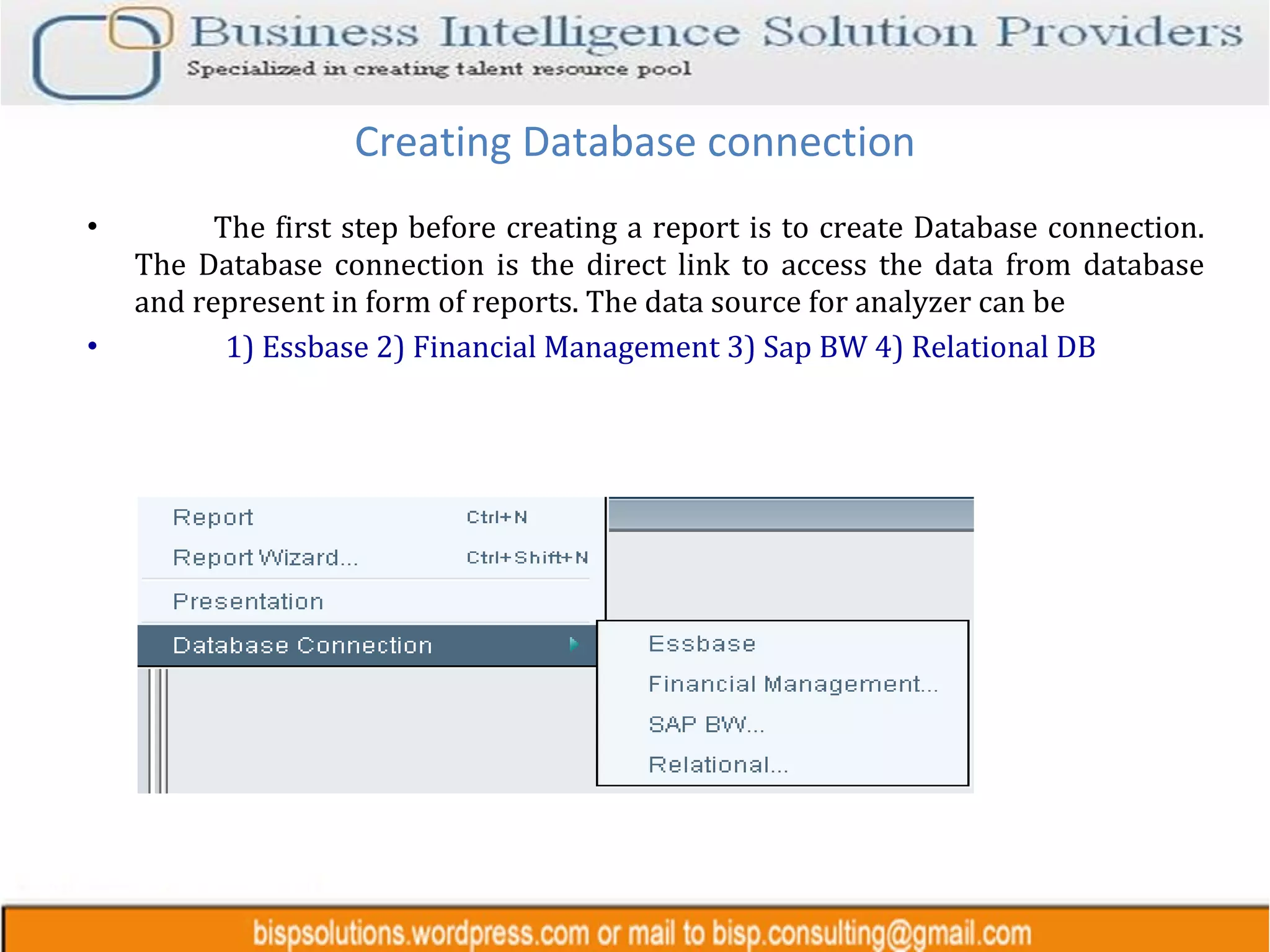
Creating Database connection The first step before creating a report is to create Database connection. The Database connection is the direct link to access the data from database and represent in form of reports. The data source for analyzer can be  1) Essbase 2) Financial Management 3) Sap BW 4) Relational DB
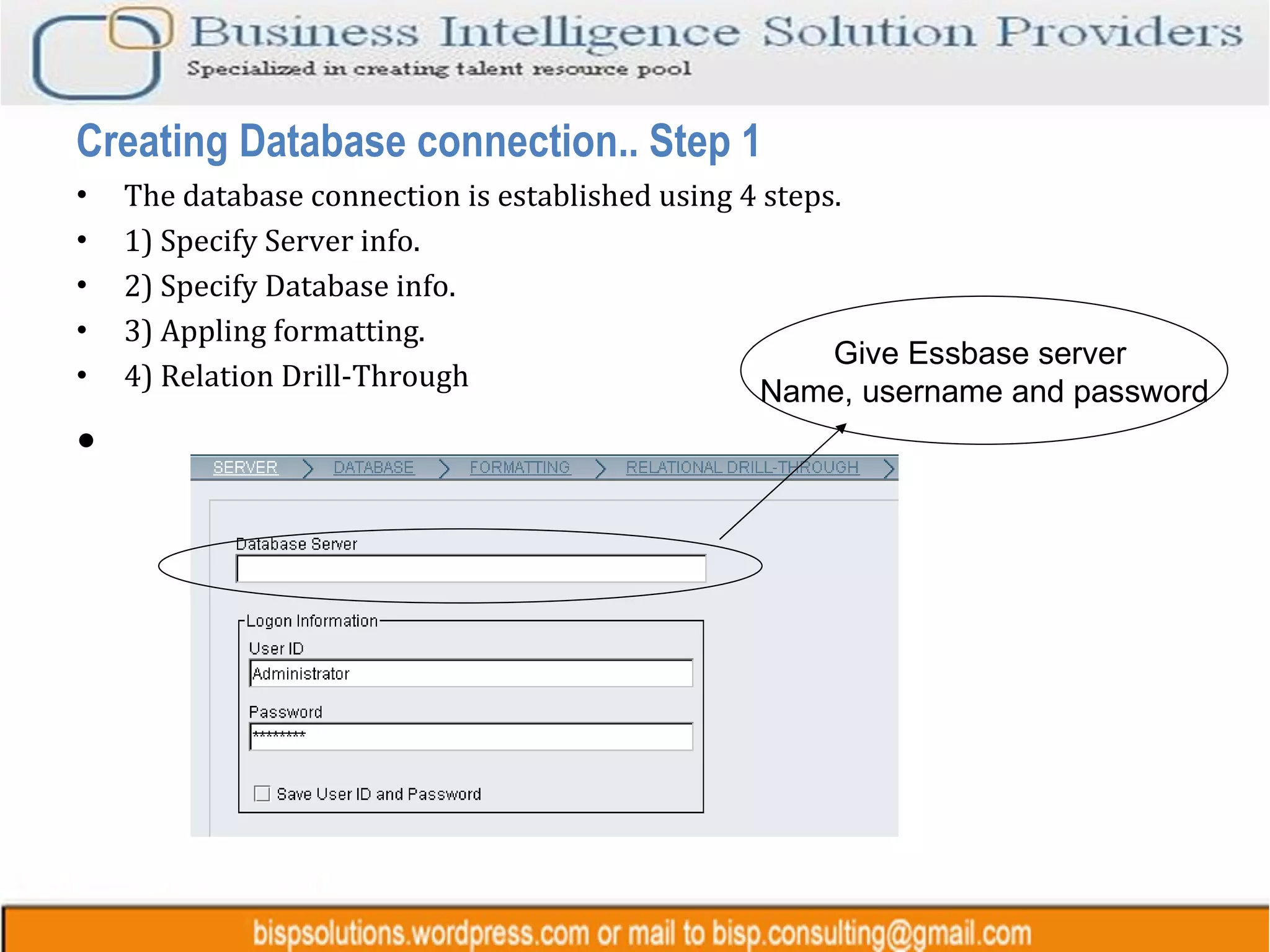
The database connection is established using 4 steps. 1) Specify Server info. 2) Specify Database info. 3) Appling formatting. 4) Relation Drill-Through Creating Database connection.. Step 1 Give Essbase server  Name, username and password
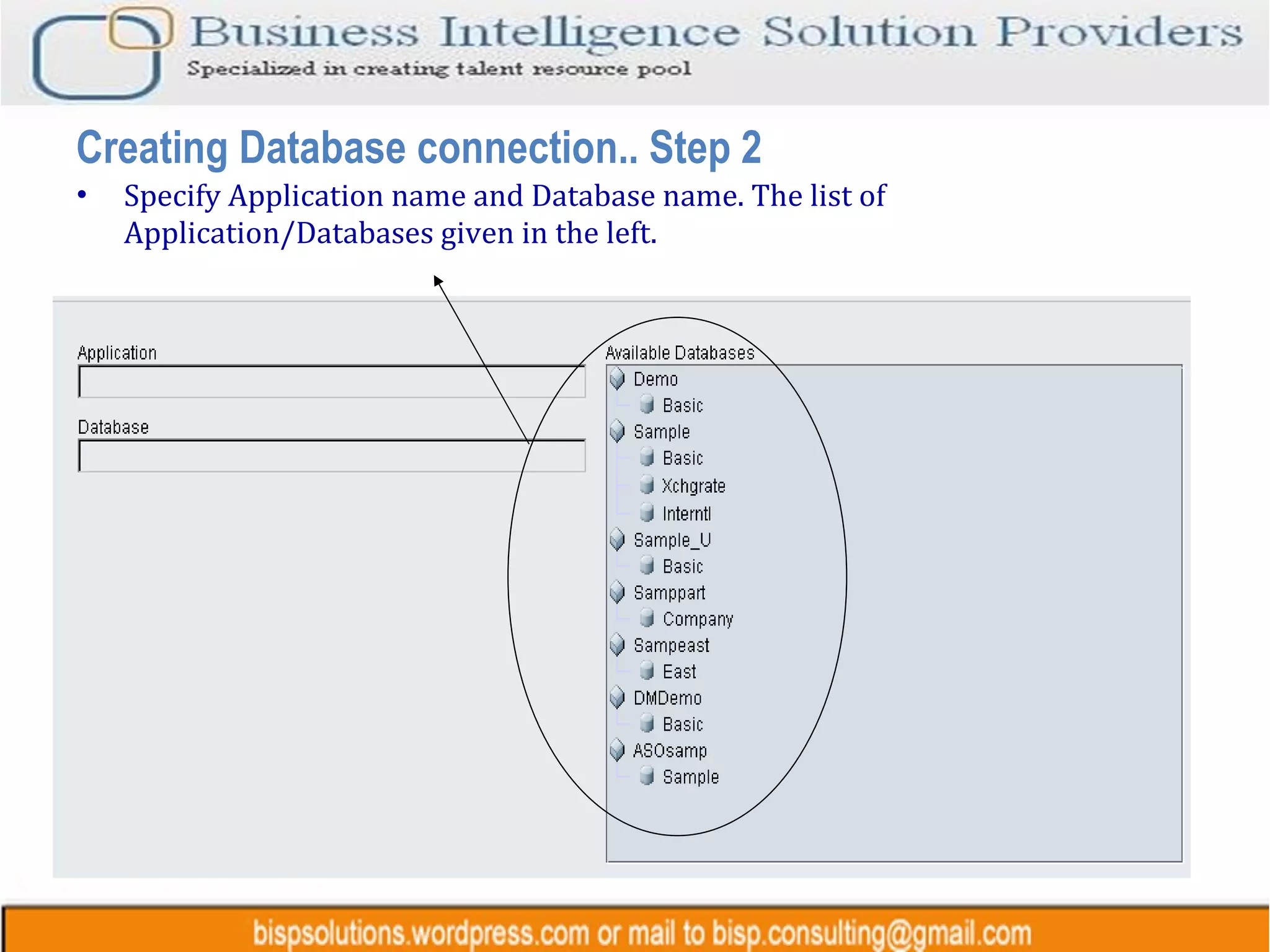
Specify Application name and Database name. The list of Application/Databases given in the left. Creating Database connection.. Step 2
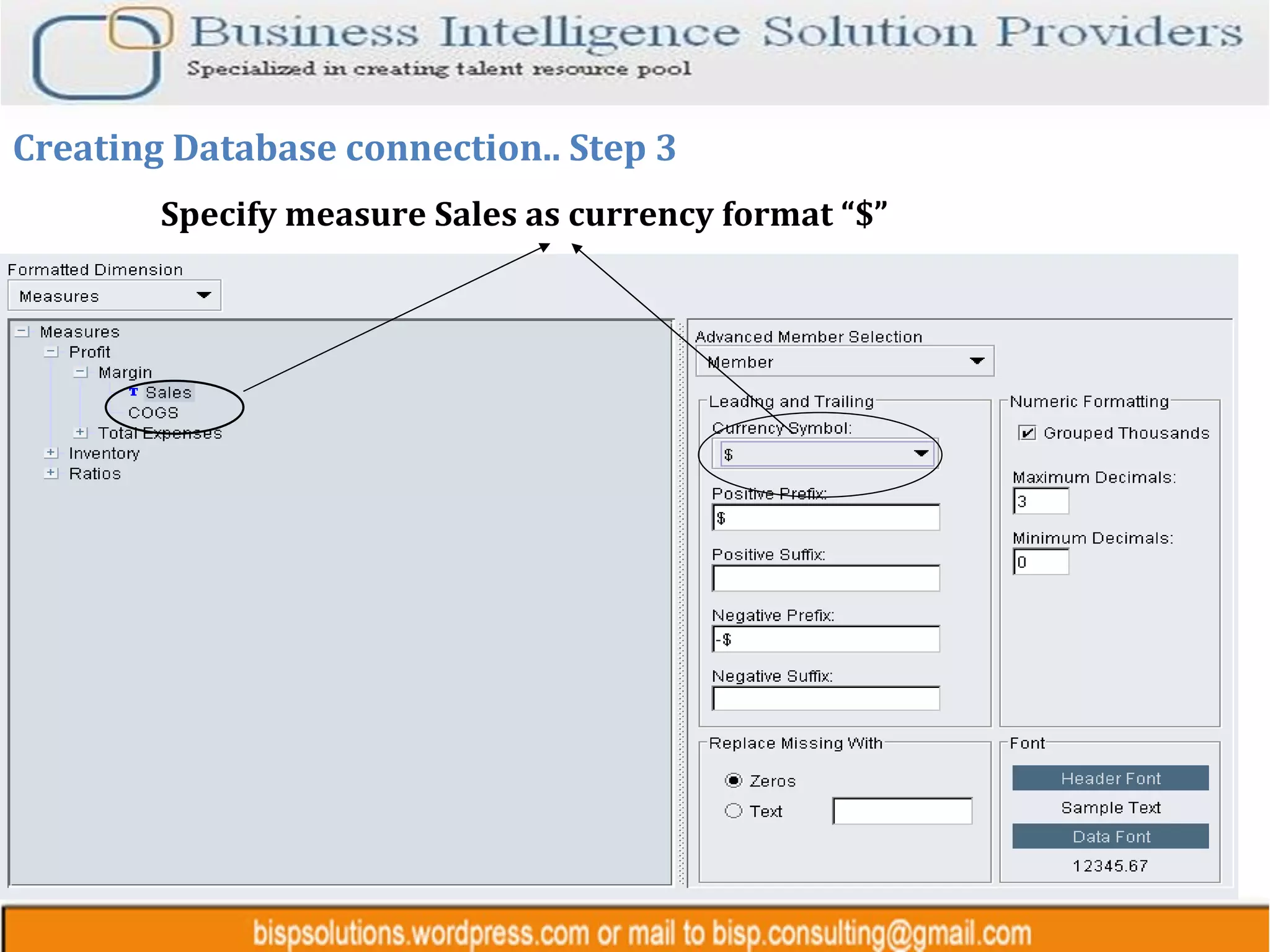
Creating Database connection.. Step 3 Specify measure Sales as currency format “$”
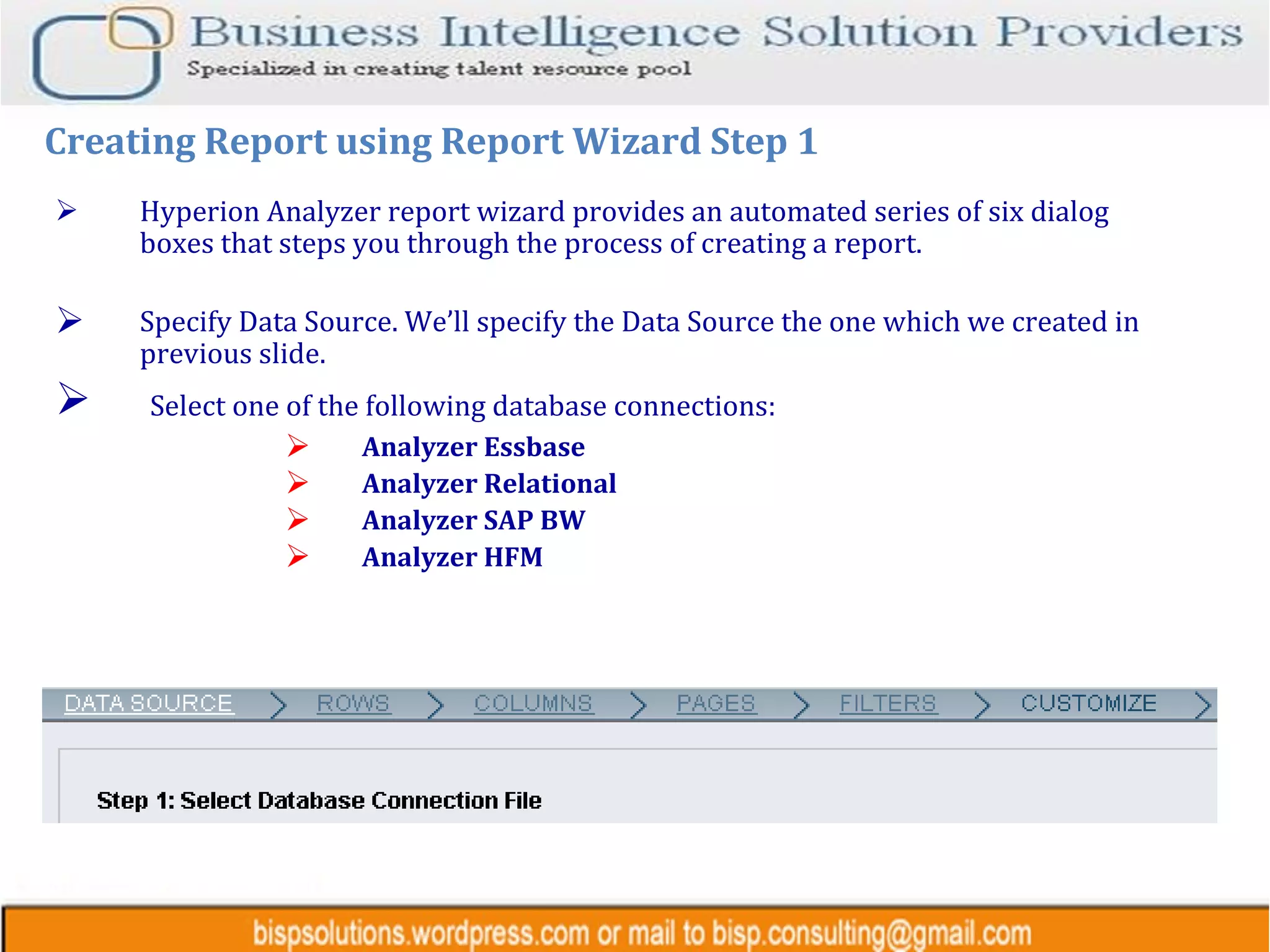
Hyperion Analyzer report wizard provides an automated series of six dialog boxes that steps you through the process of creating a report. Specify Data Source. We’ll specify the Data Source the one which we created in previous slide. Select one of the following database connections: Analyzer Essbase  Analyzer Relational  Analyzer SAP BW Analyzer HFM Creating Report using Report Wizard Step 1
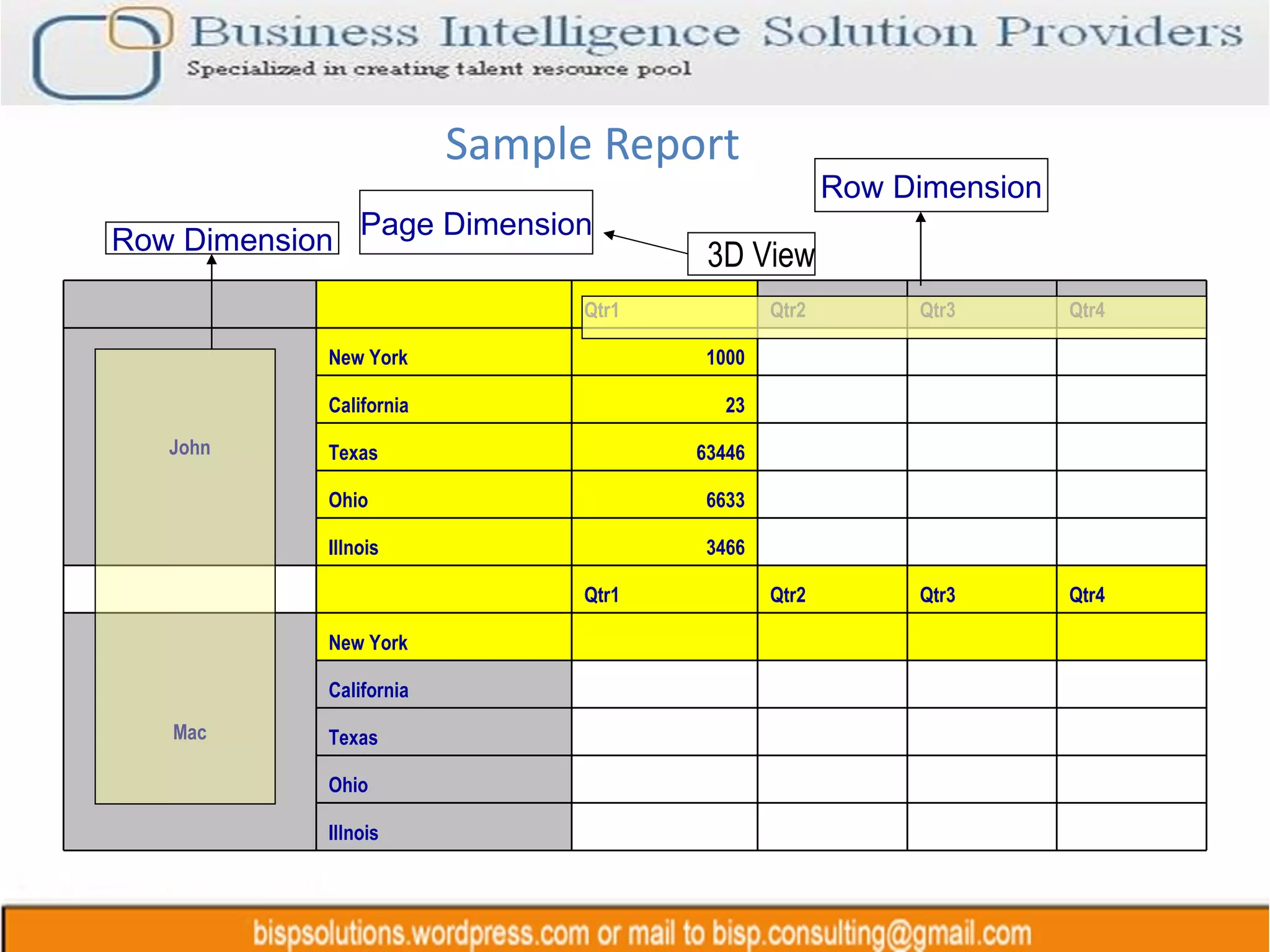
Sample Report Row Dimension Row Dimension Page Dimension 3D View     Qtr1 Qtr2 Qtr3 Qtr4 John New York 1000       California 23       Texas 63446       Ohio 6633       Illnois 3466           Qtr1 Qtr2 Qtr3 Qtr4 Mac New York         California         Texas         Ohio         Illnois        
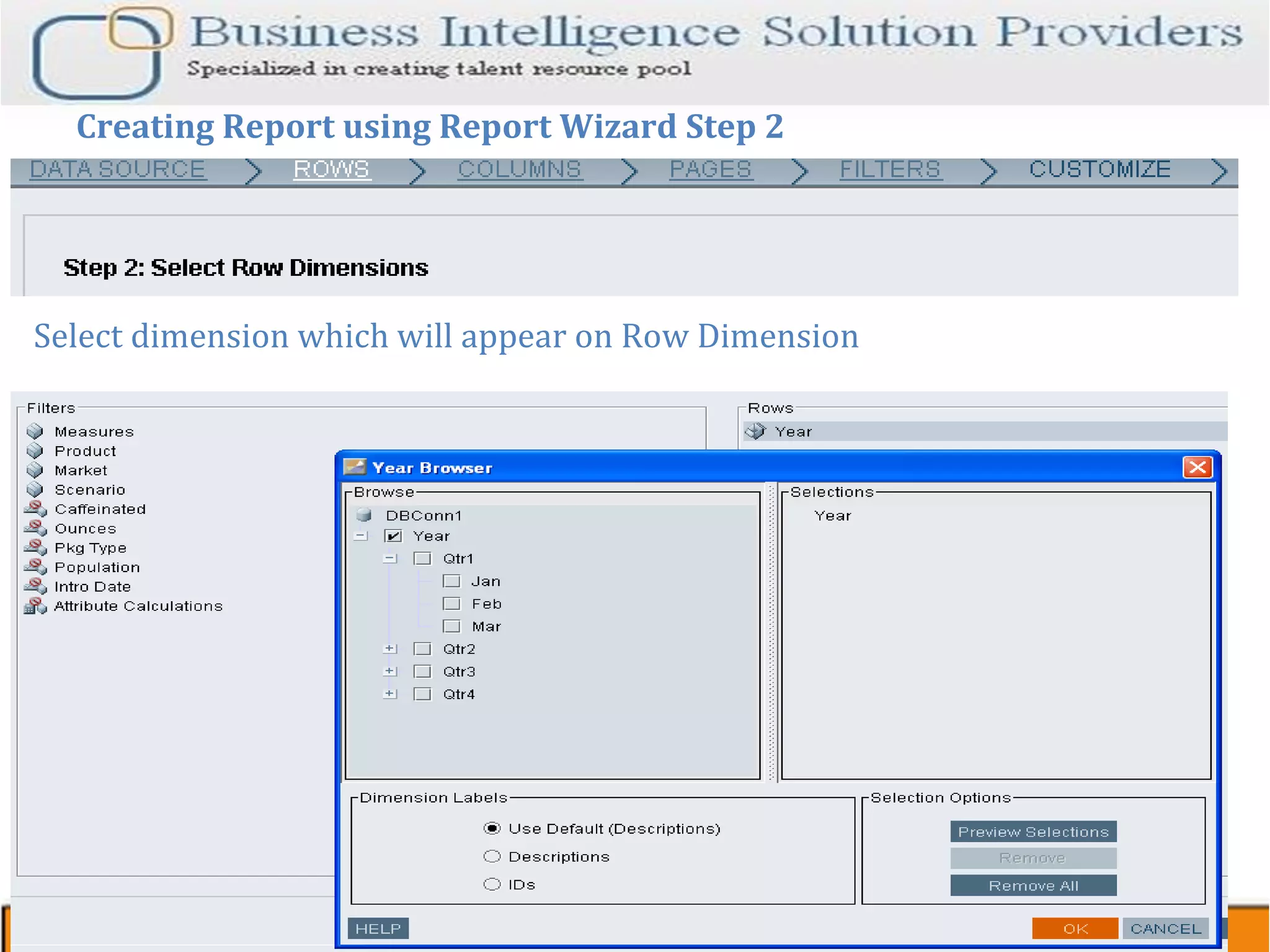
Creating Report using Report Wizard Step 2 Select dimension which will appear on Row Dimension
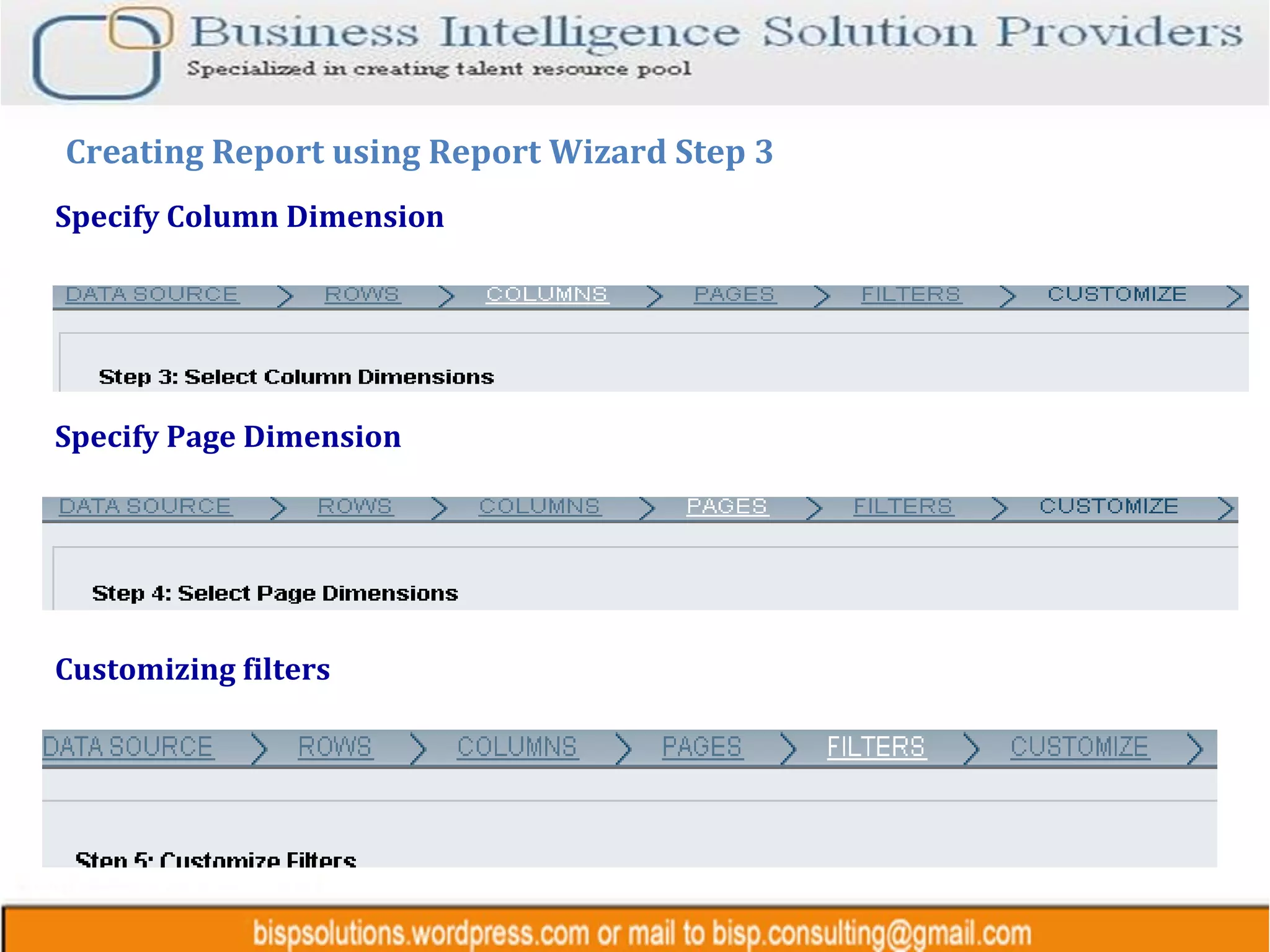
Specify Column Dimension Creating Report using Report Wizard Step 3 Specify Page Dimension Customizing filters
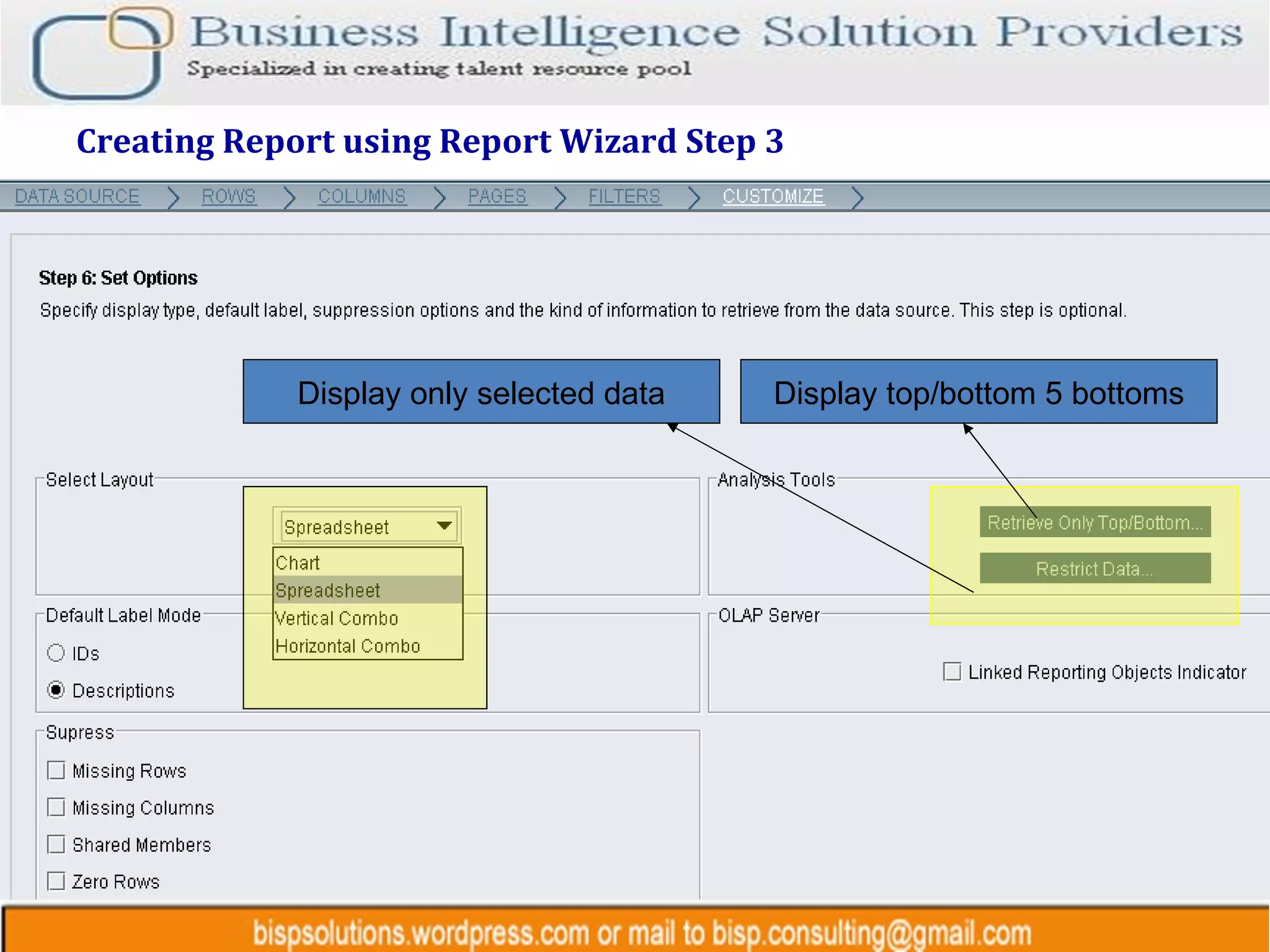
Creating Report using Report Wizard Step 3 Display top/bottom 5 bottoms Display only selected data
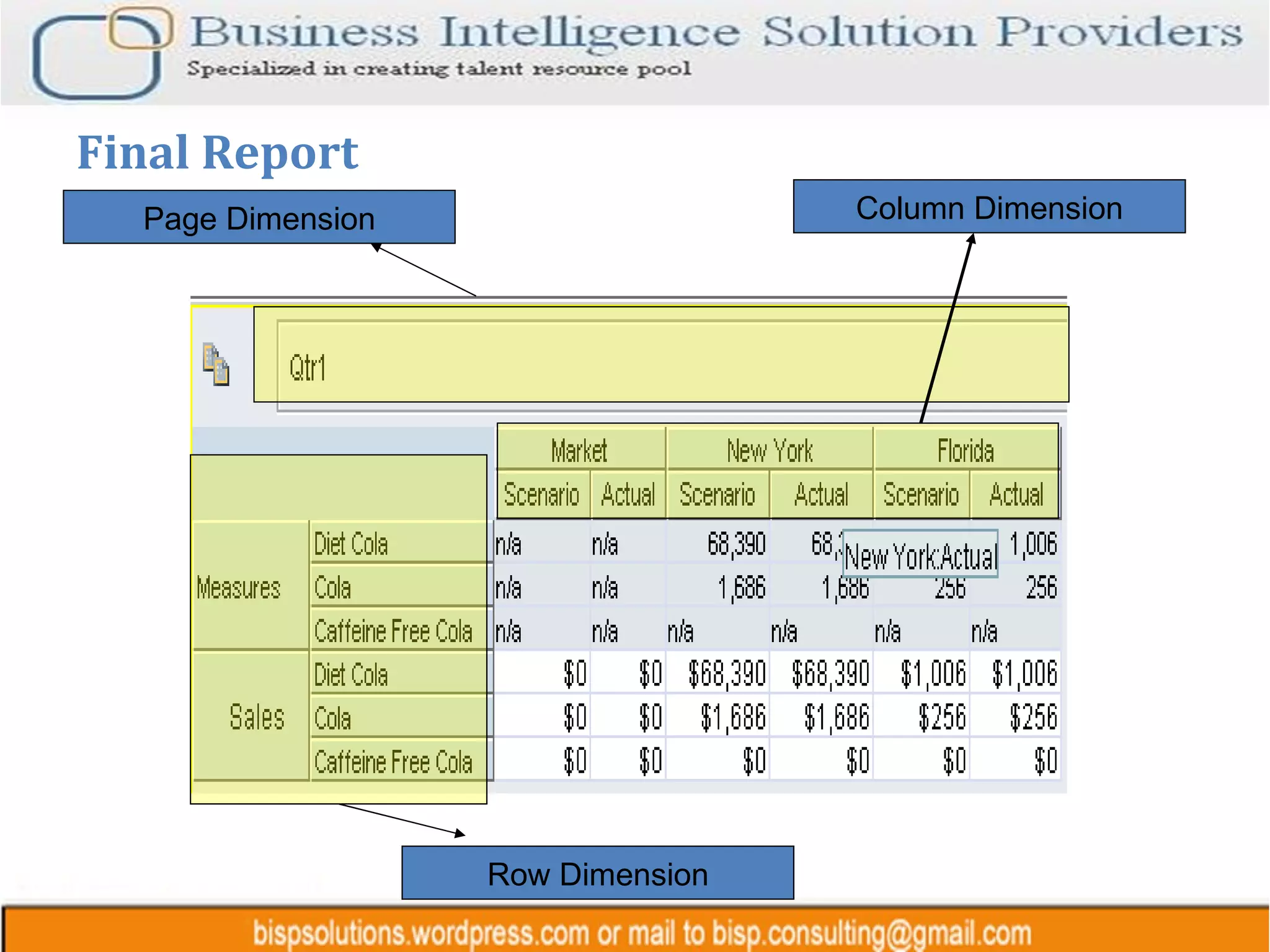
Final Report Row Dimension Page Dimension Column Dimension
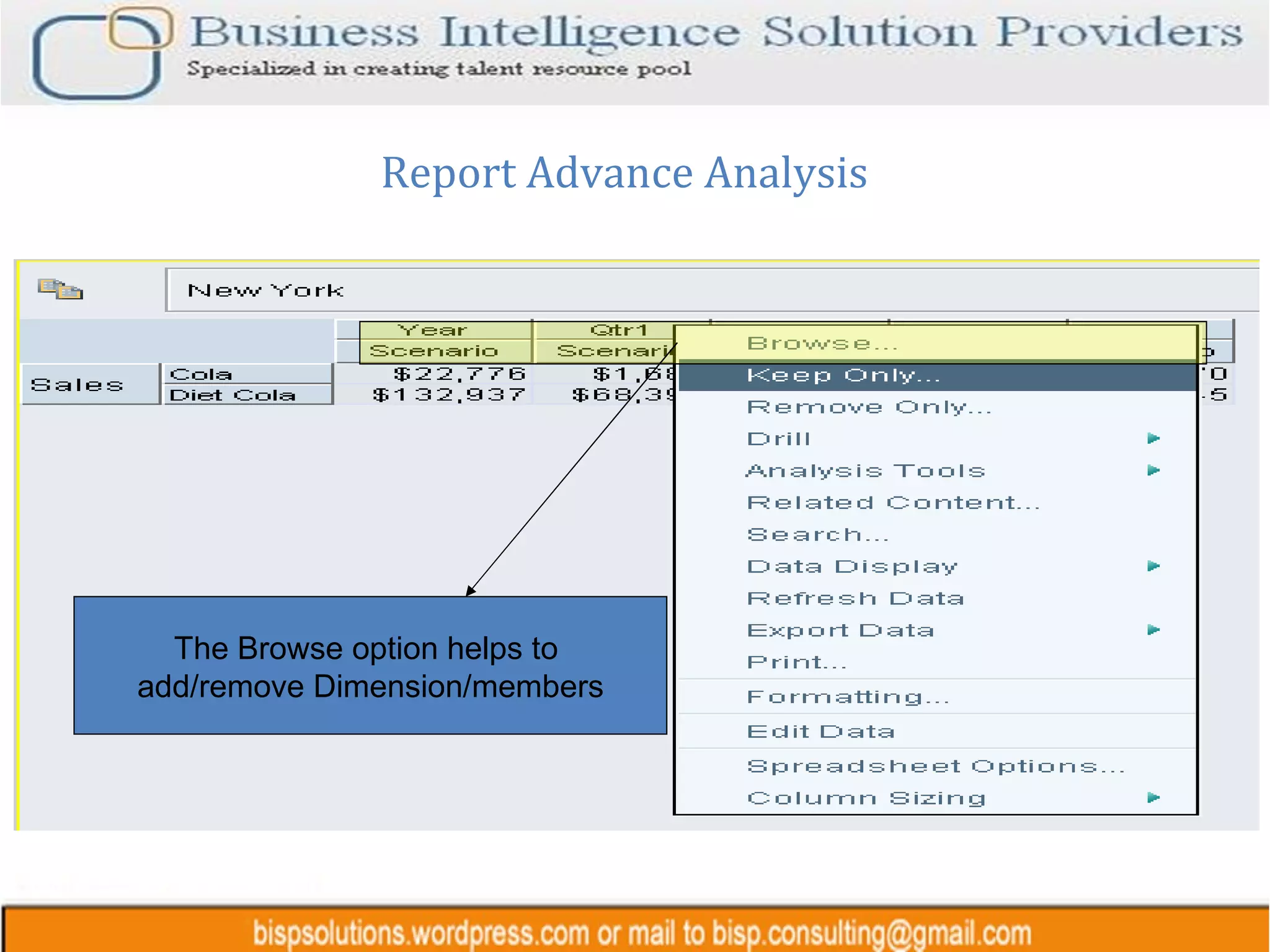
Report Advance Analysis The Browse option helps to  add/remove Dimension/members
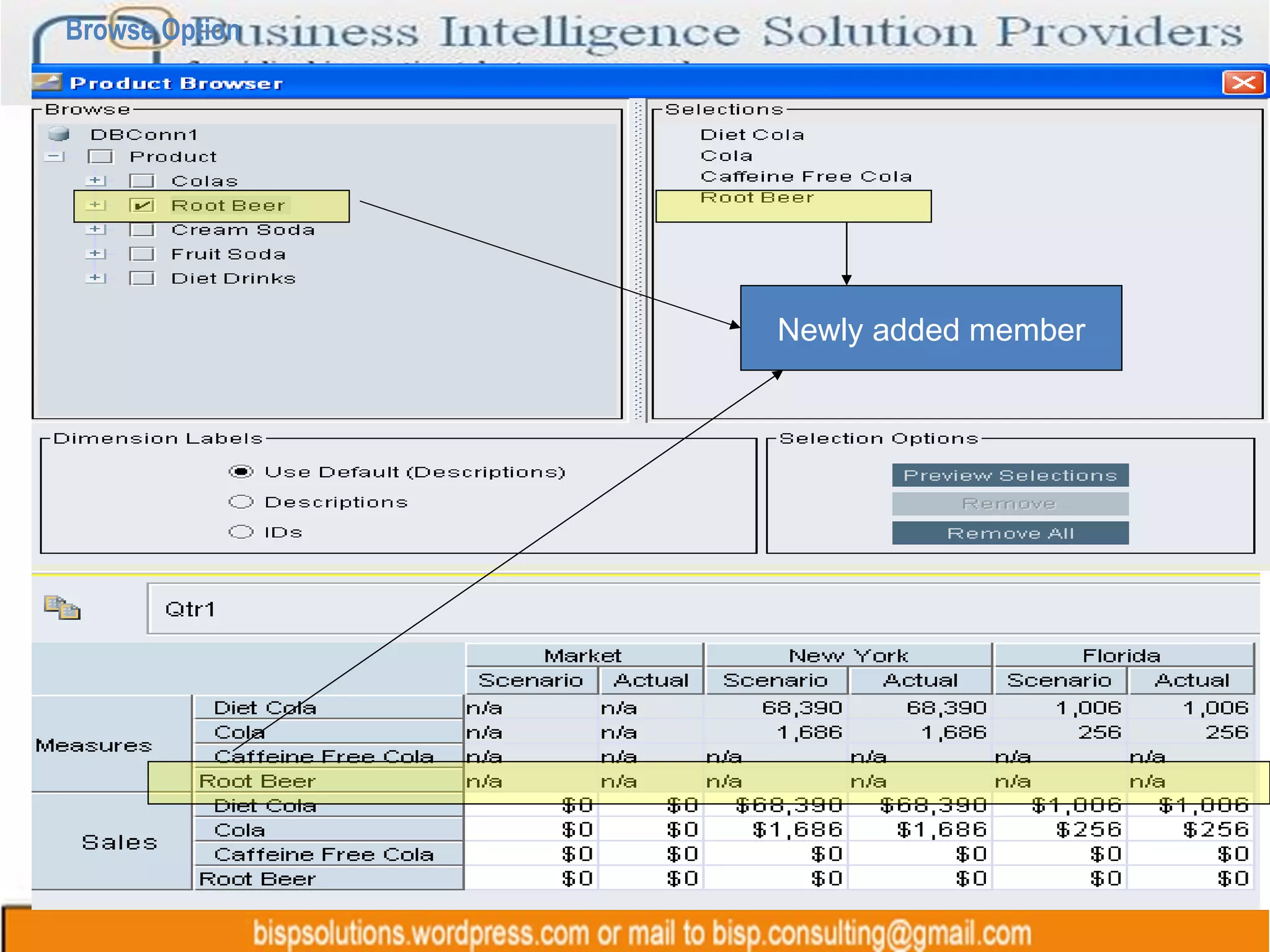
Browse Option Newly added member
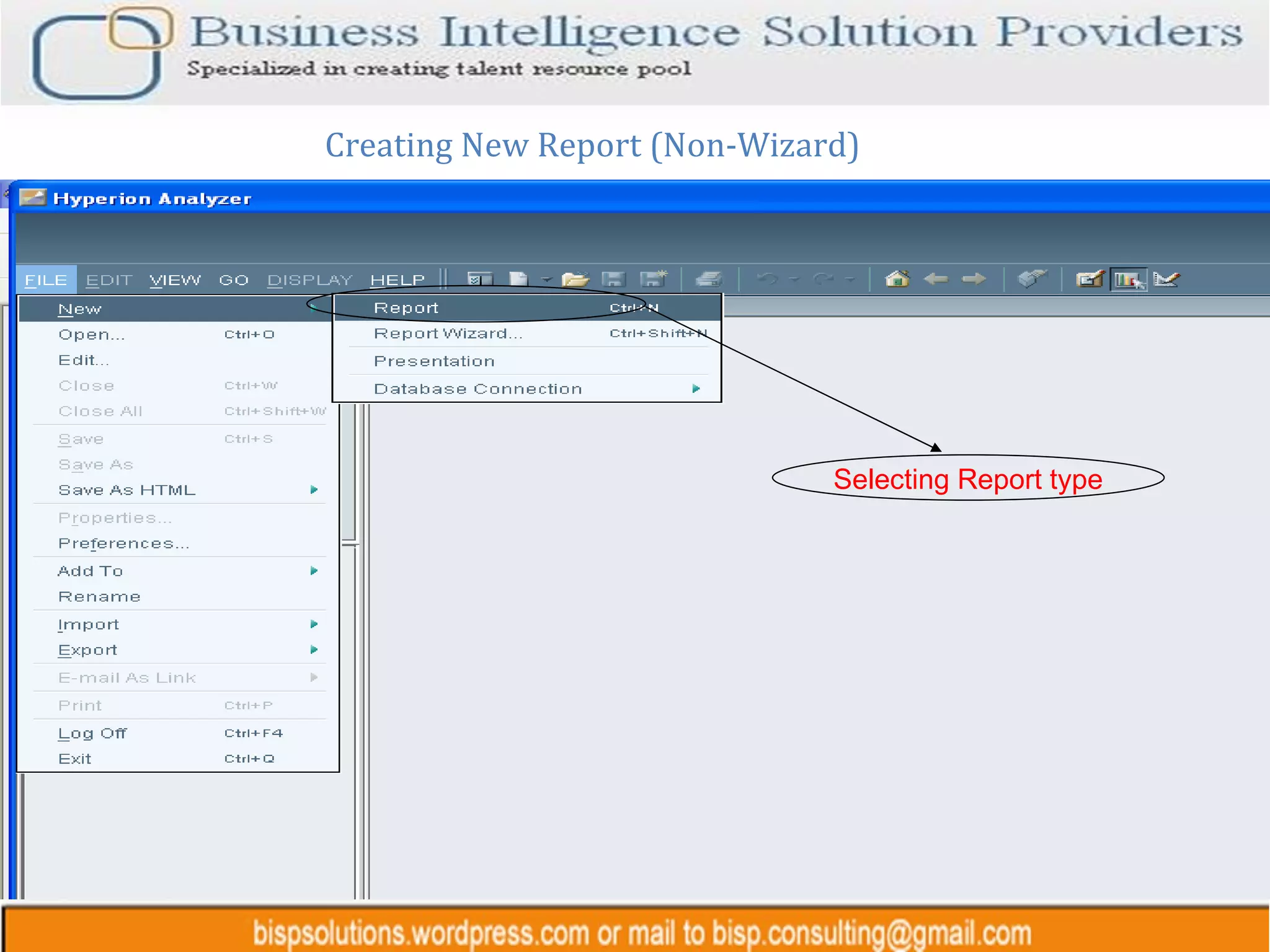
Creating New Report (Non-Wizard) Selecting Report type
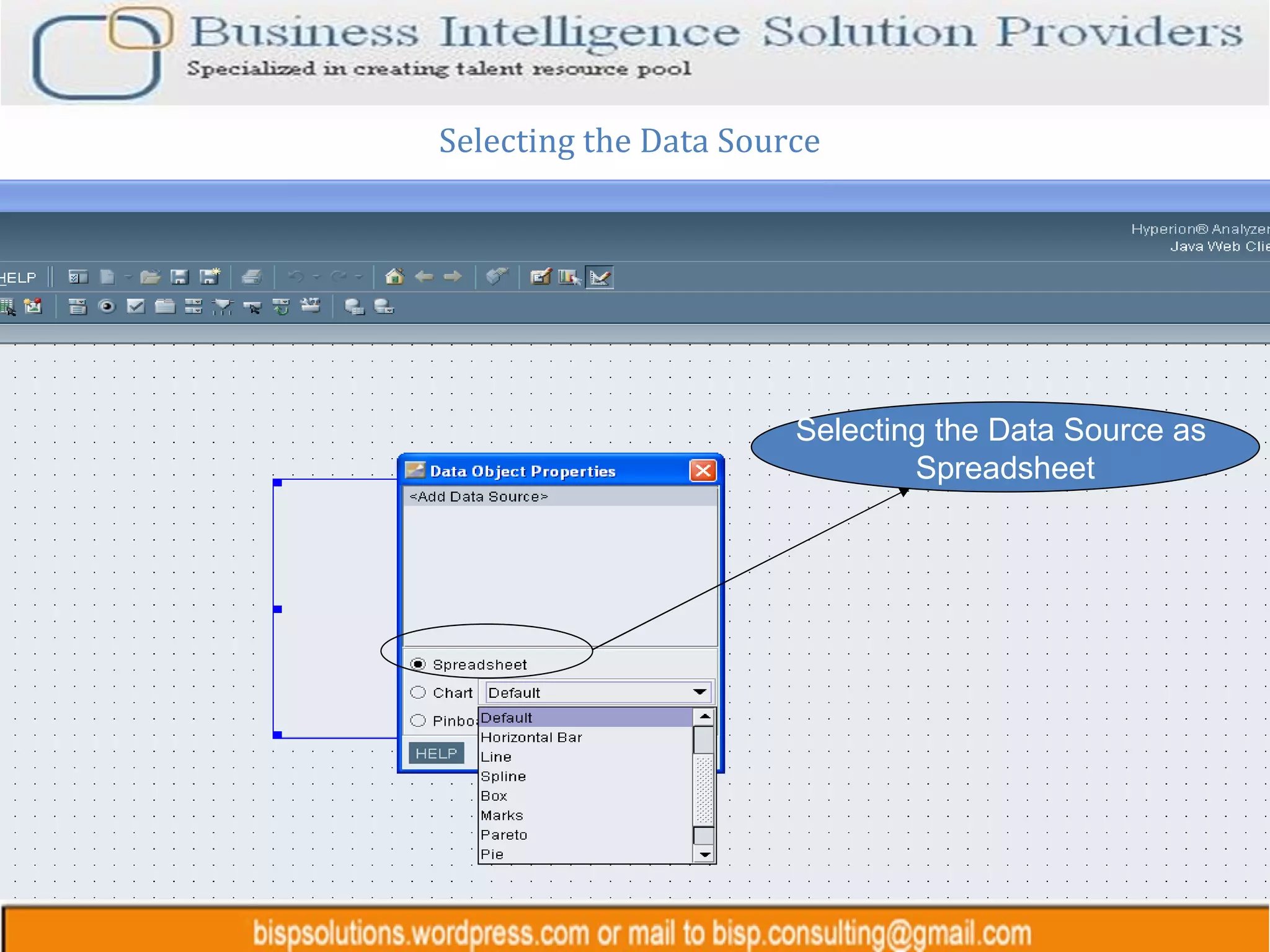
Selecting the Data Source Selecting the Data Source as  Spreadsheet
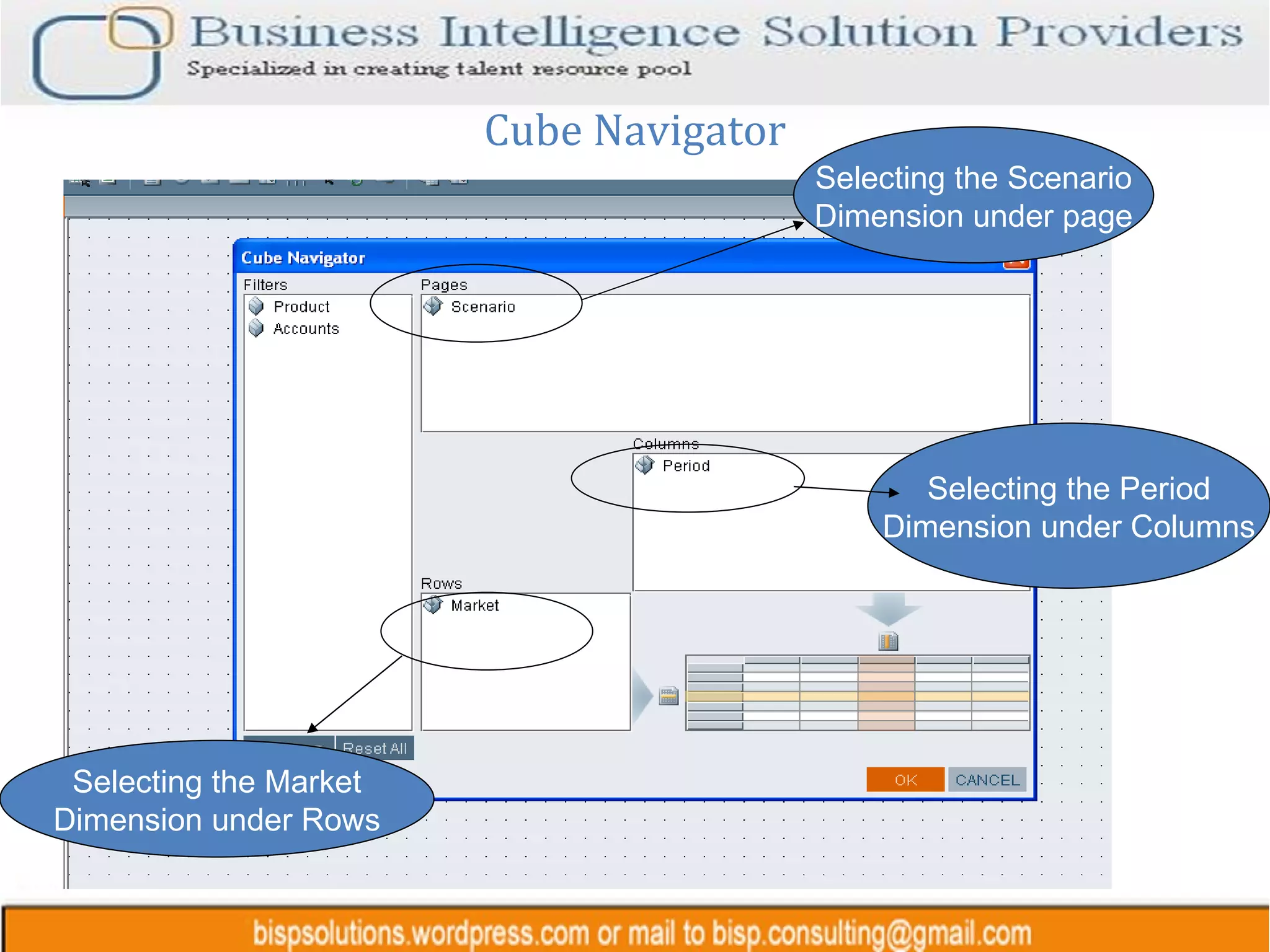
Cube Navigator Selecting the Scenario Dimension under page Selecting the Period Dimension under Columns Selecting the Market Dimension under Rows
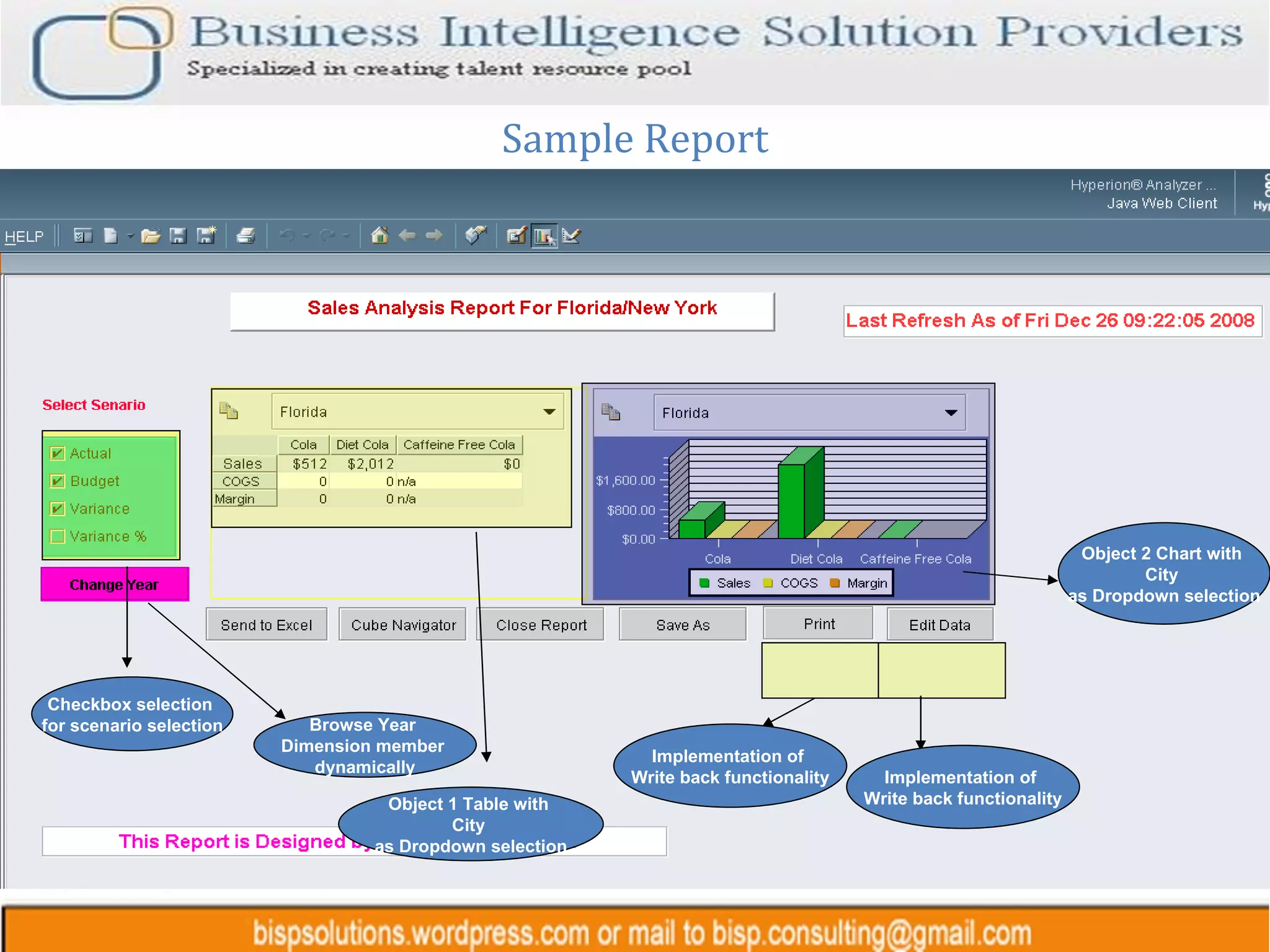
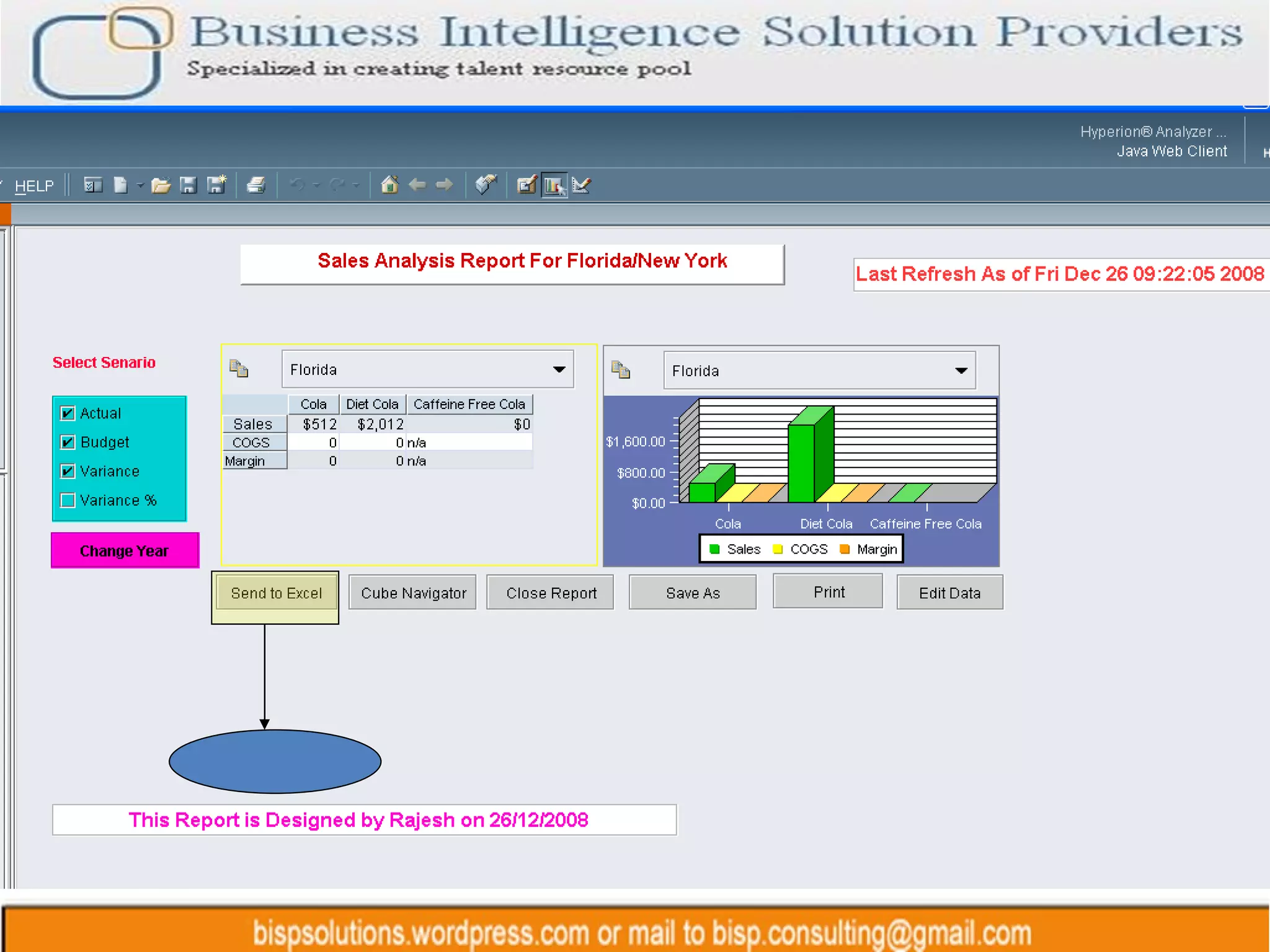
Sample Report Checkbox selection  for scenario selection Browse Year  Dimension member  dynamically Implementation of  Write back functionality Implementation of  Write back functionality Object 1 Table with  City  as Dropdown selection Object 2 Chart with  City  as Dropdown selection
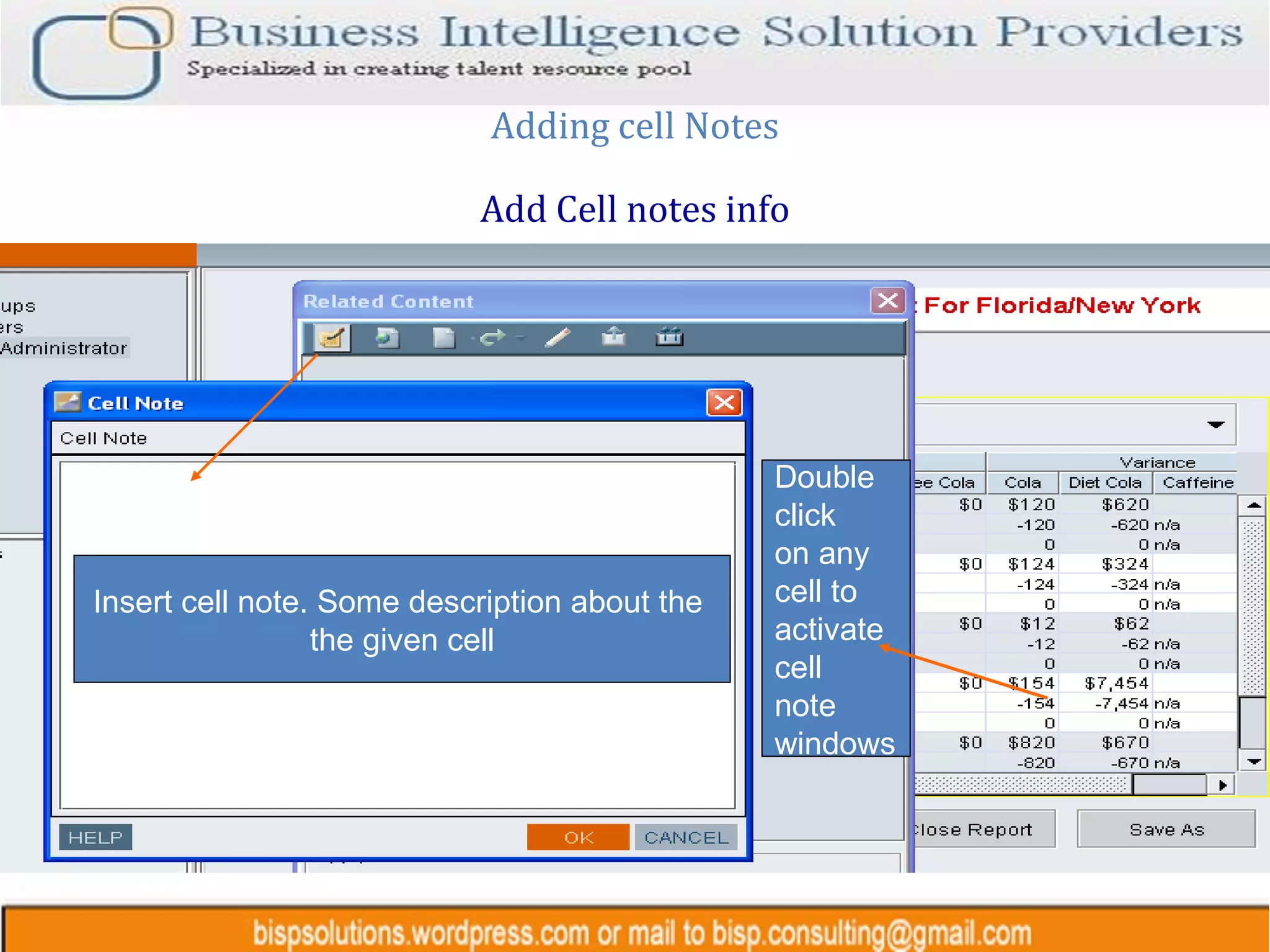
Adding cell Notes Add Cell notes info Double  click  on any  cell to  activate  cell  note  windows Insert cell note. Some description about the  the given cell
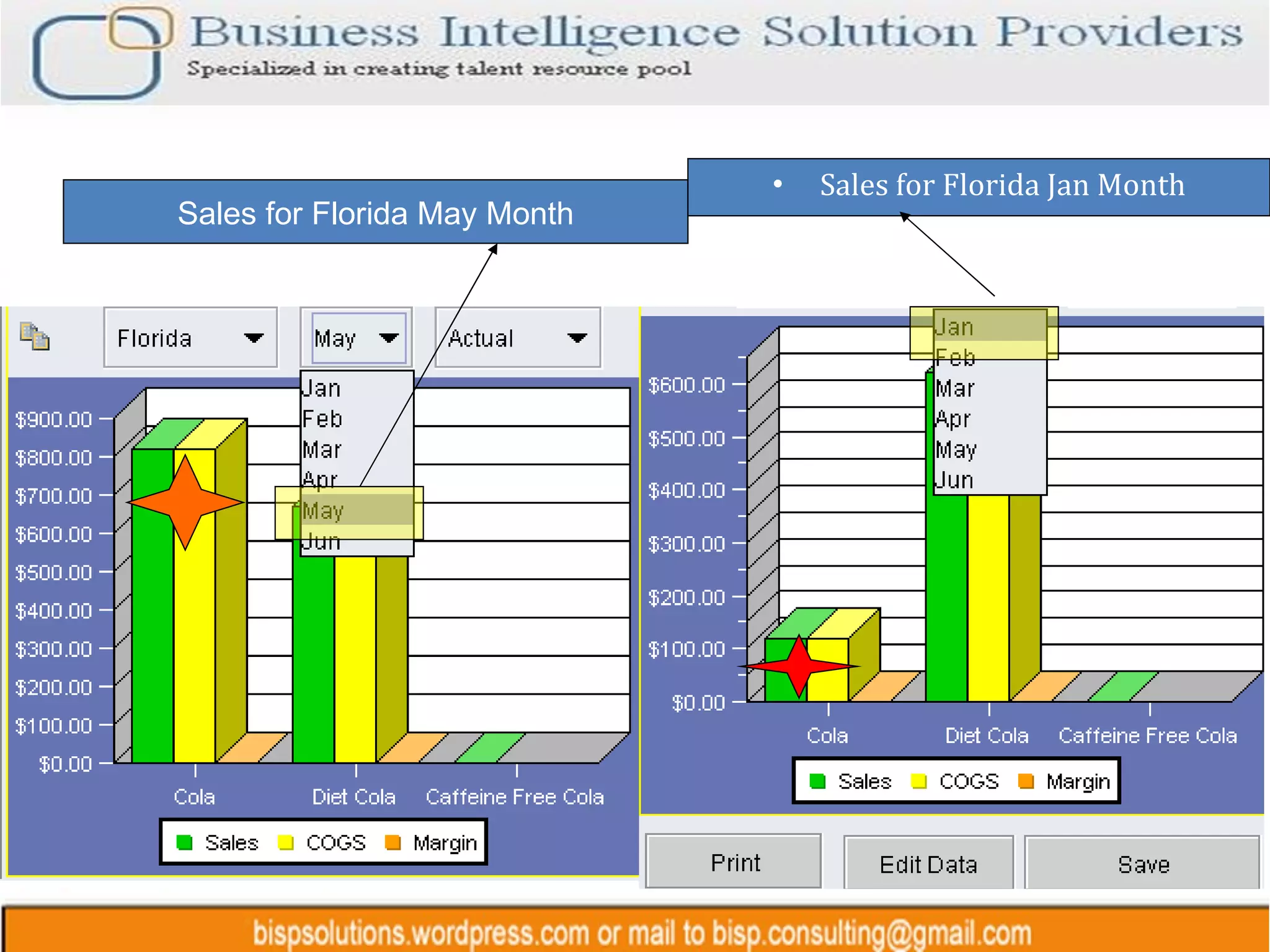
Sales for Florida Jan Month Sales for Florida May Month
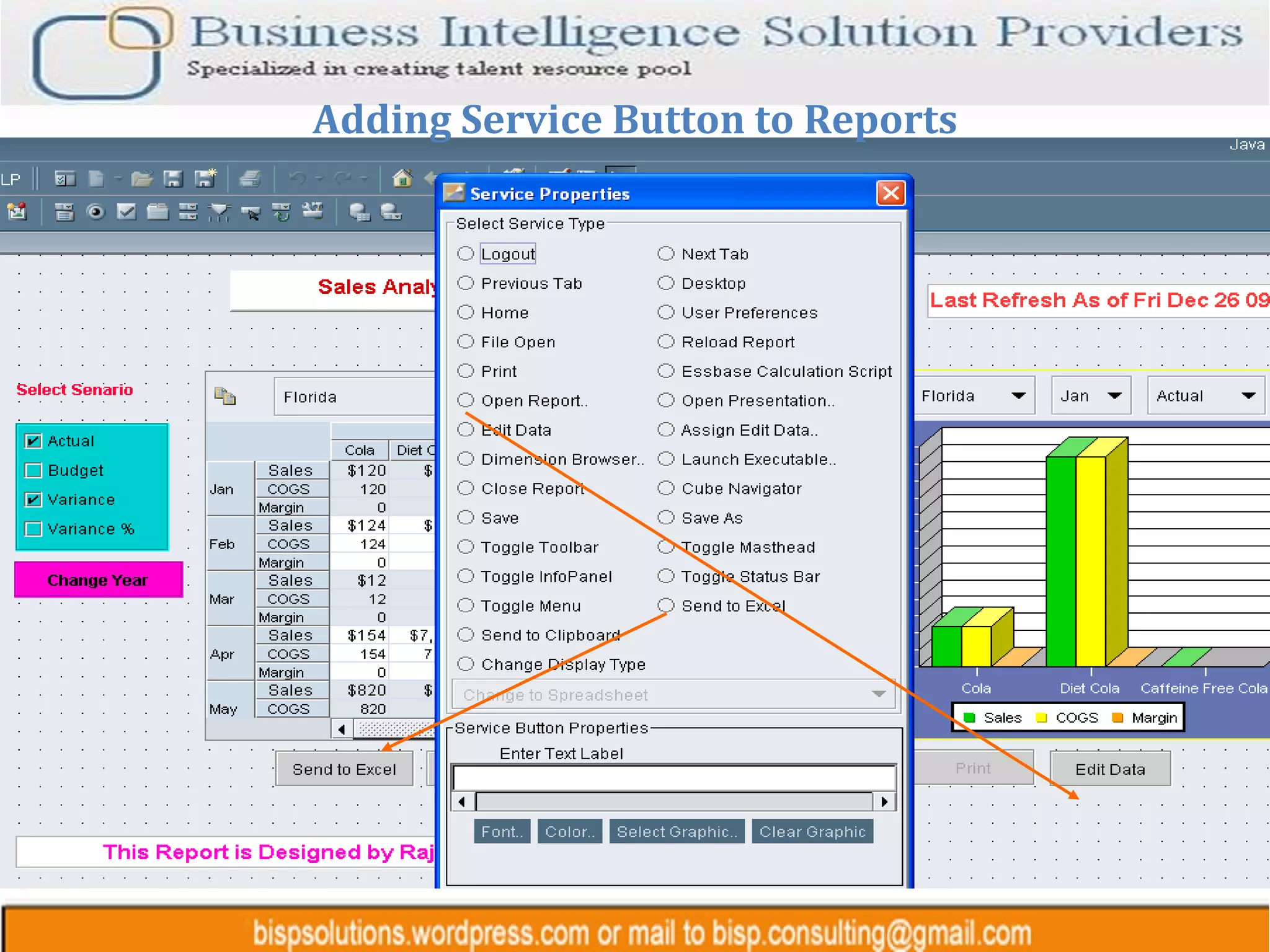
Adding Service Button to Reports
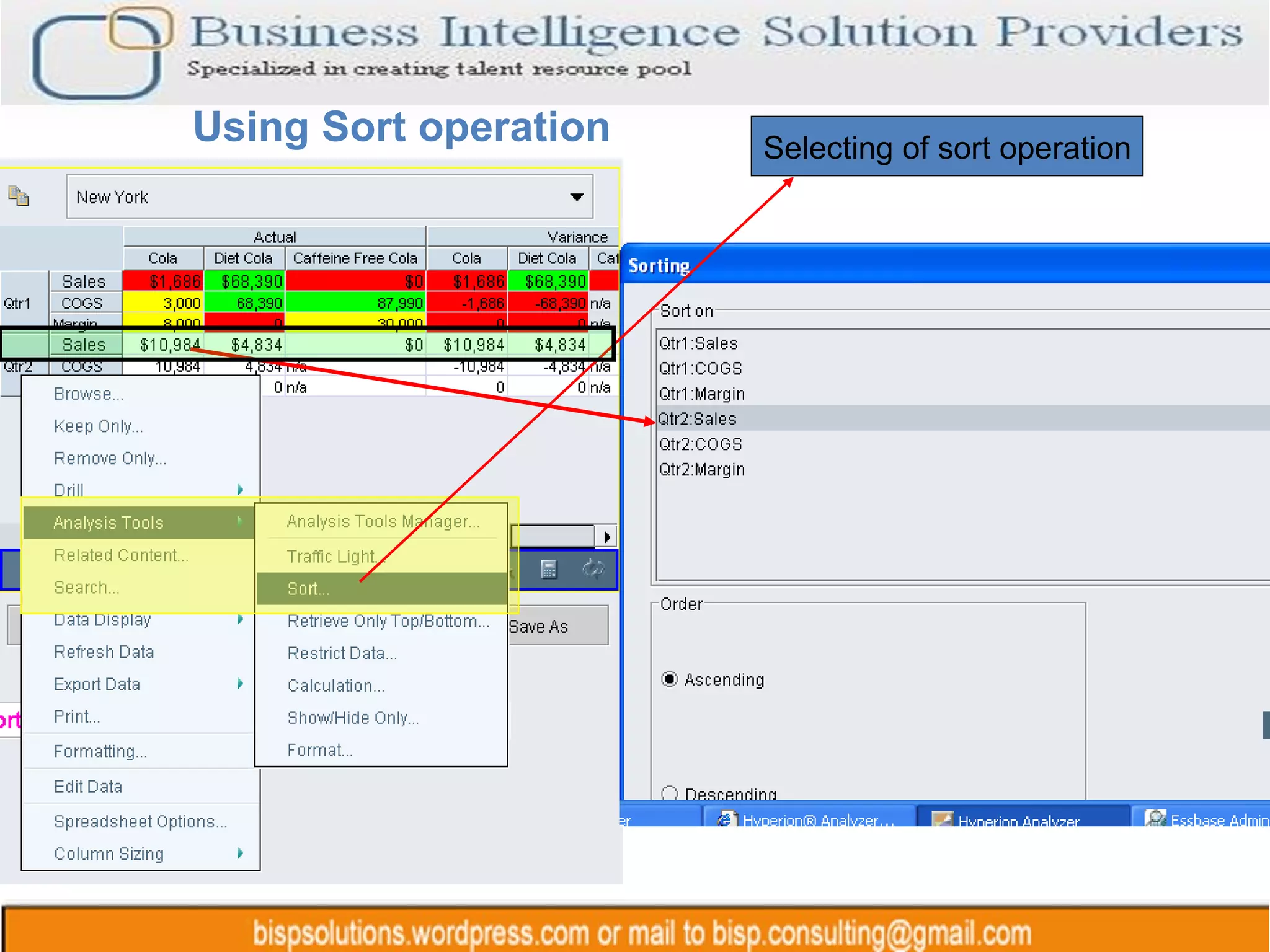
Using Sort operation  Selecting of sort operation
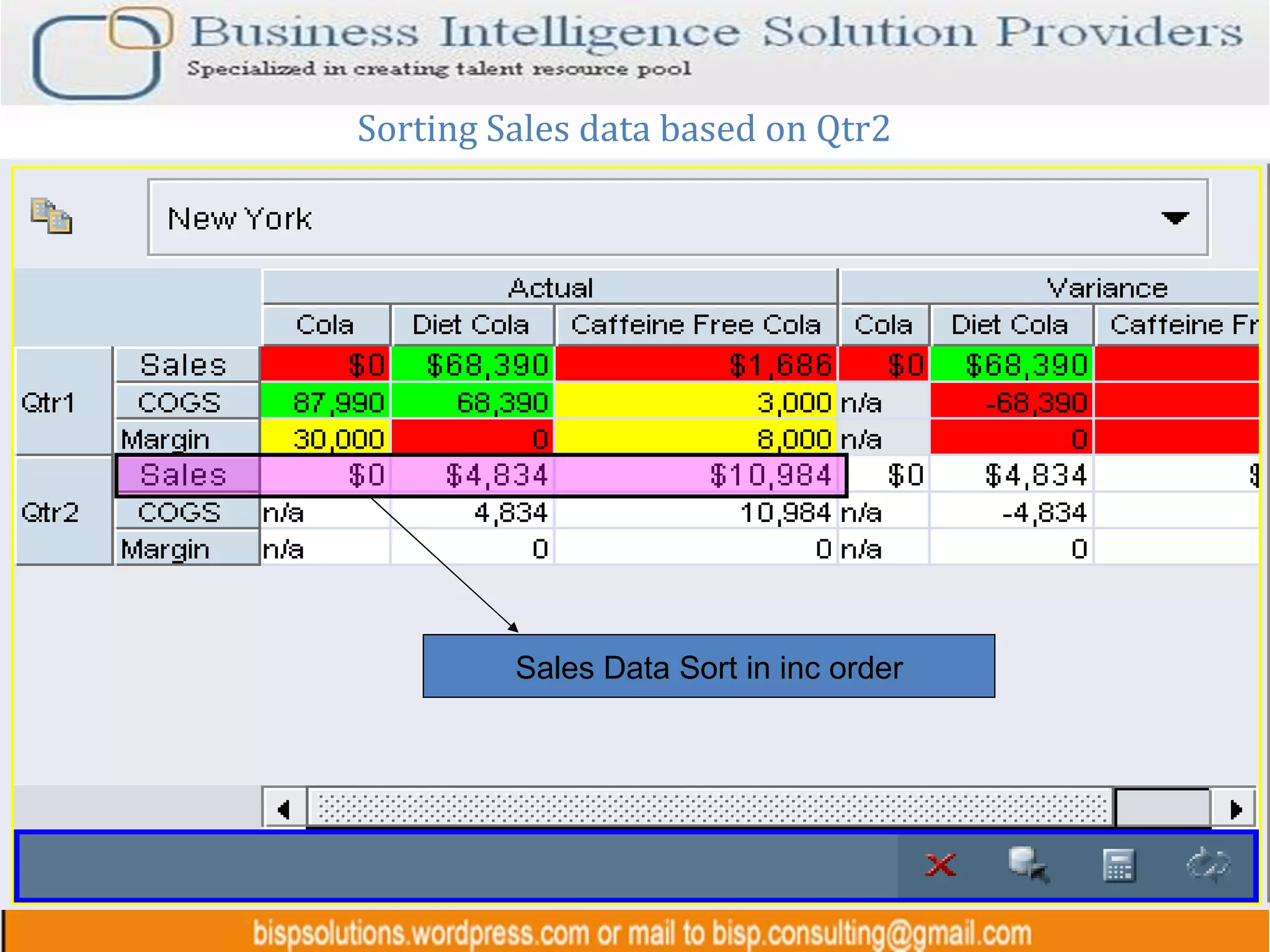
Sorting Sales data based on Qtr2 Sales Data Sort in inc order
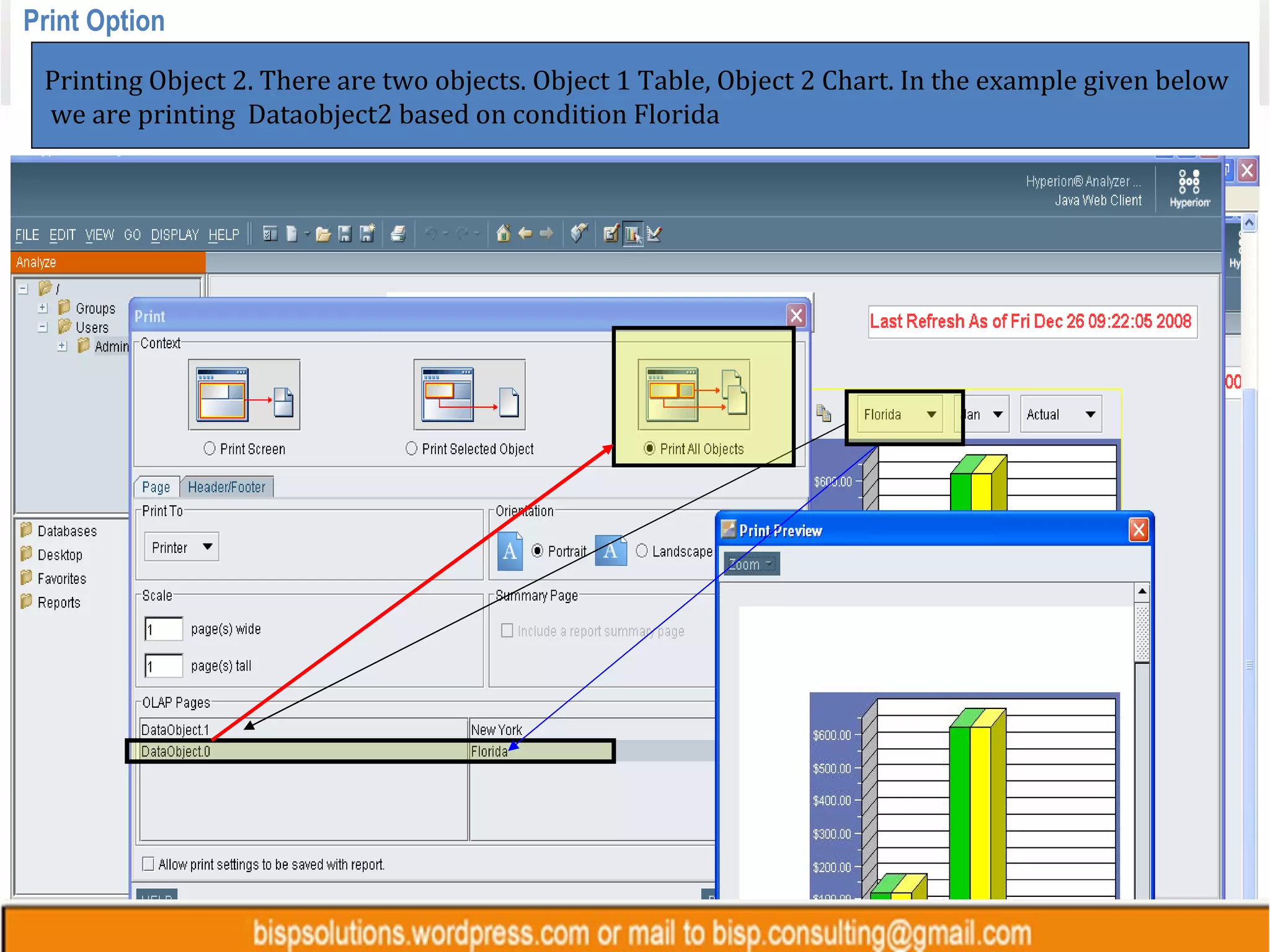
Print Option Printing Object 2. There are two objects. Object 1 Table, Object 2 Chart. In the example given below we are printing  Dataobject2 based on condition Florida
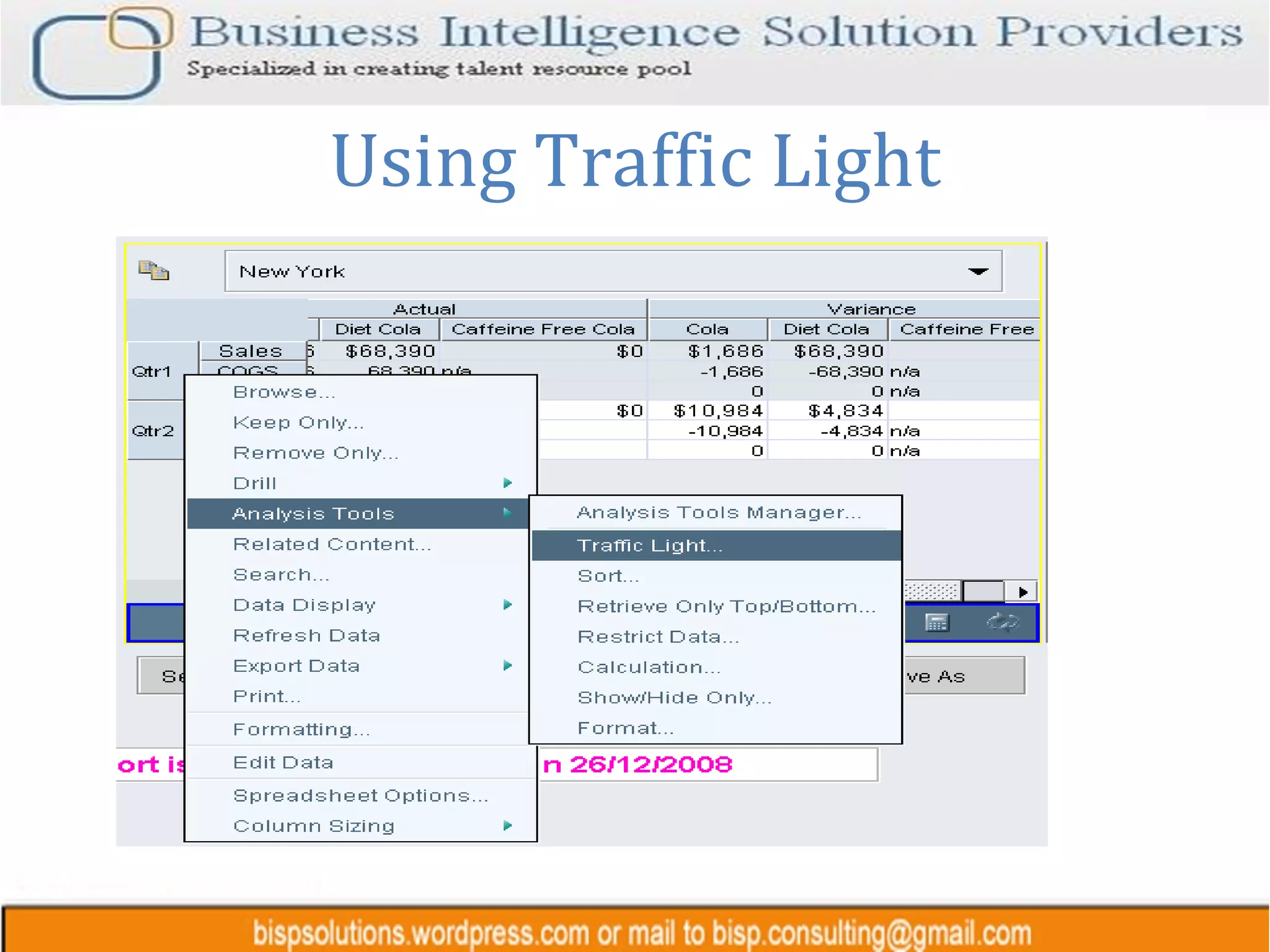
Using Traffic Light
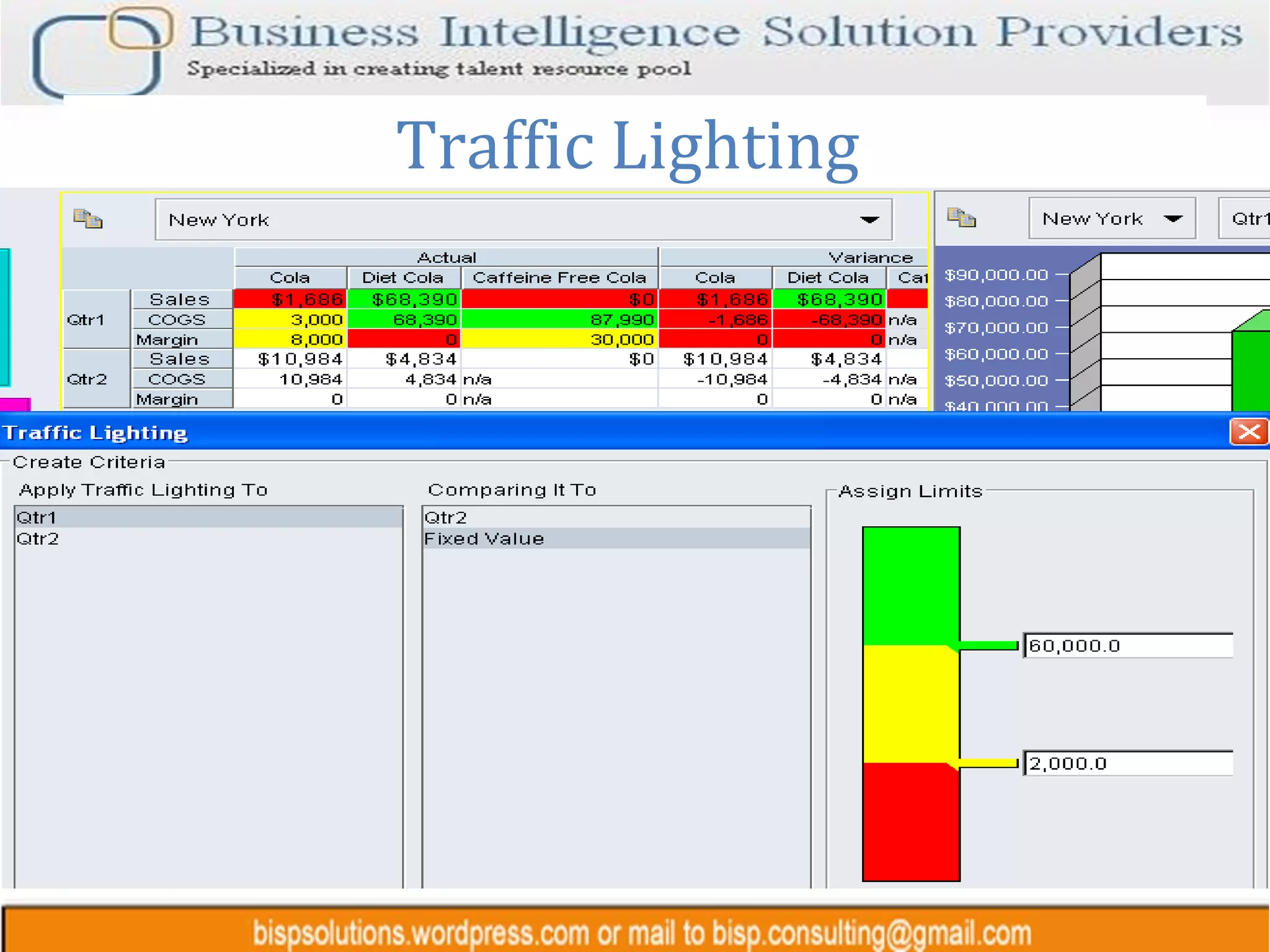
Traffic Lighting
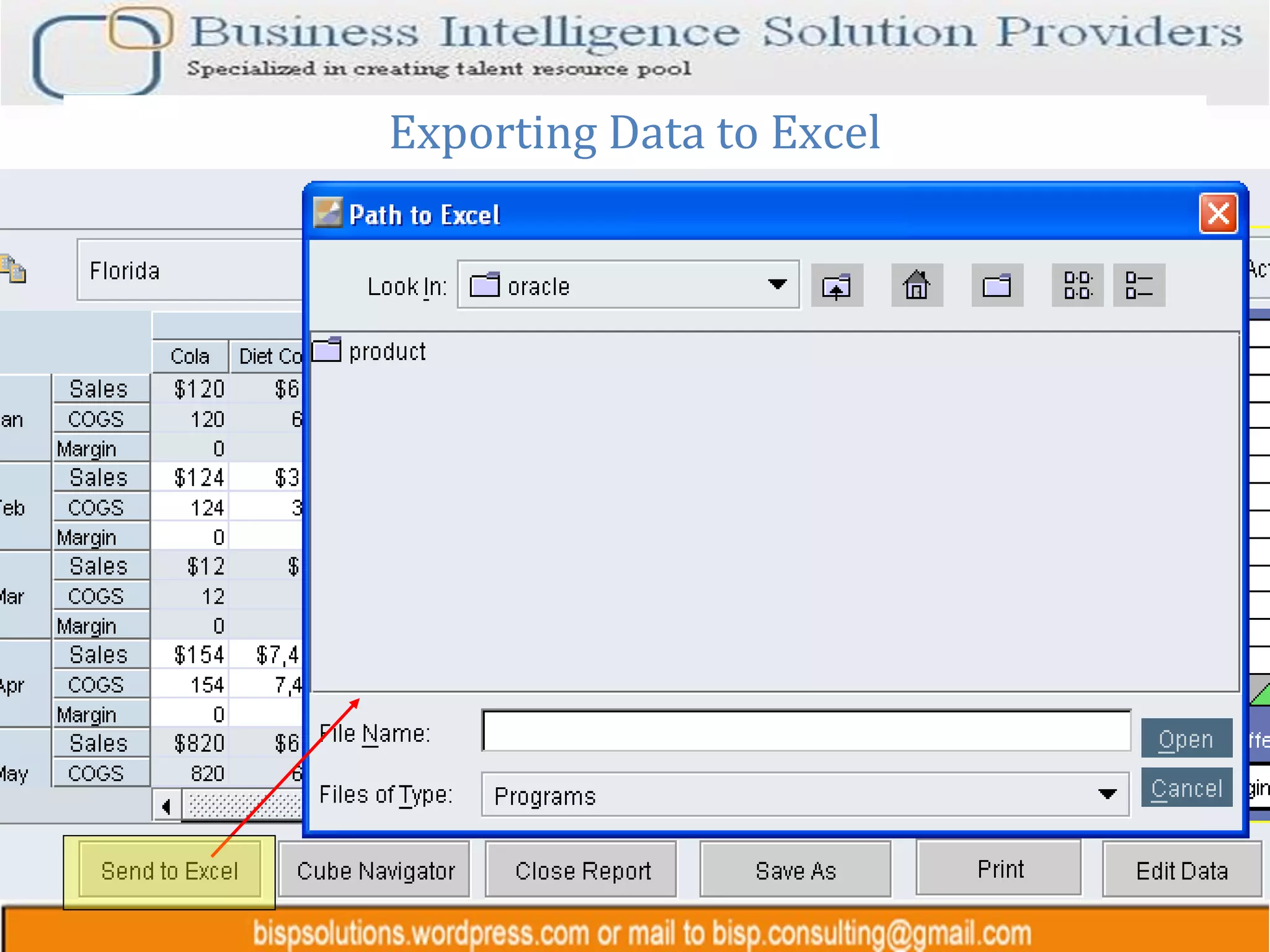
Exporting Data to Excel
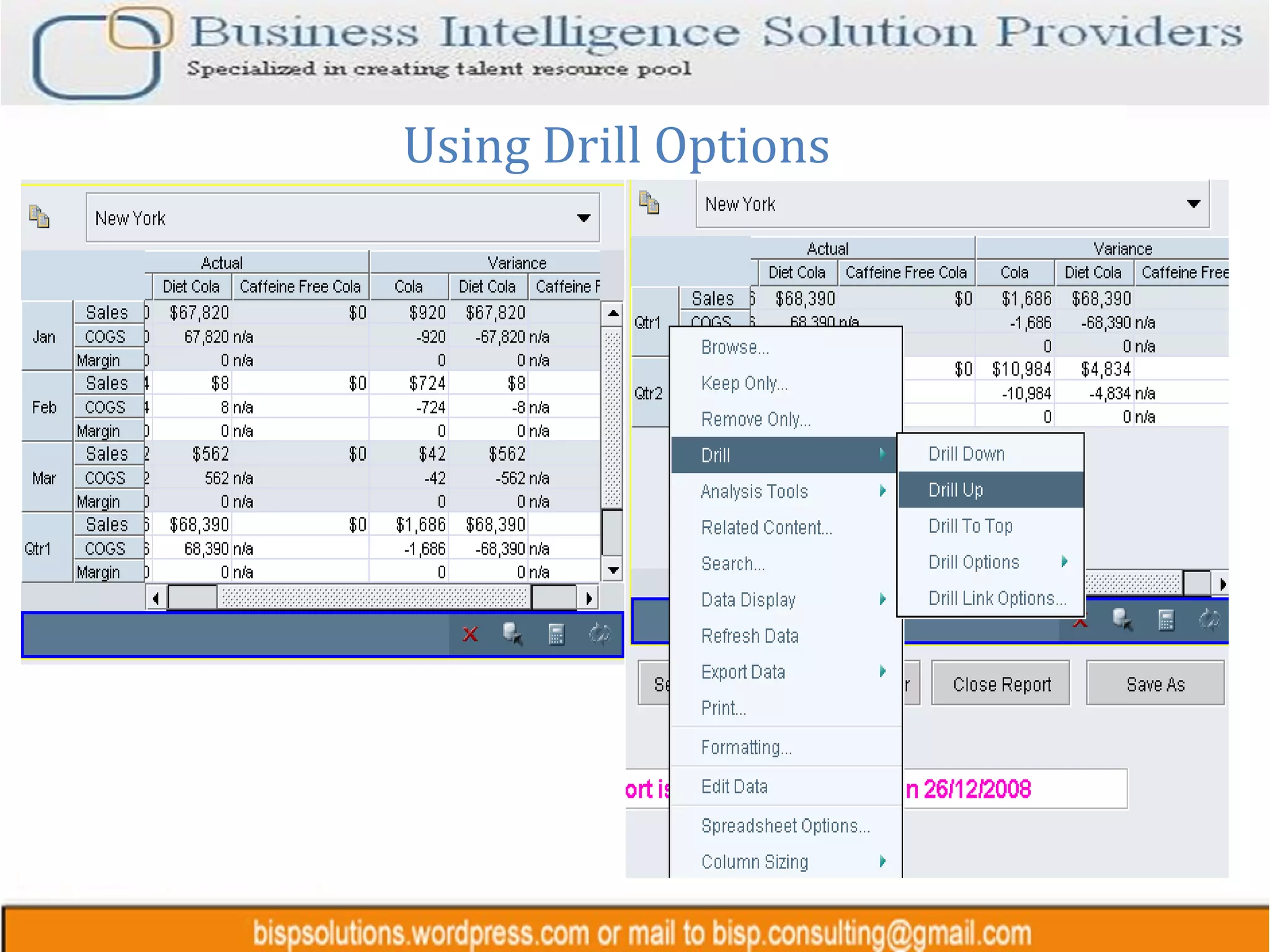
Using Drill Options
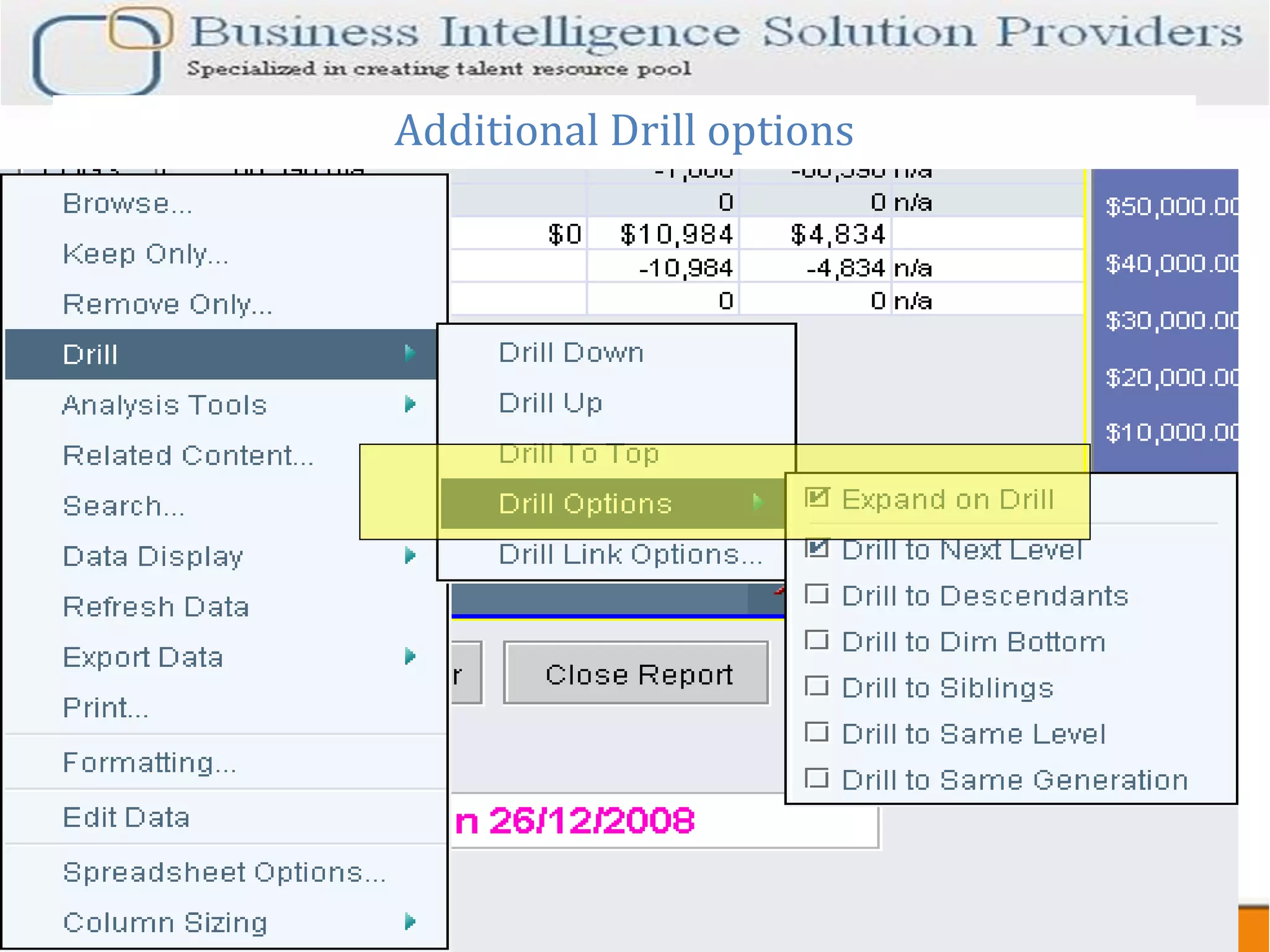
Additional Drill options
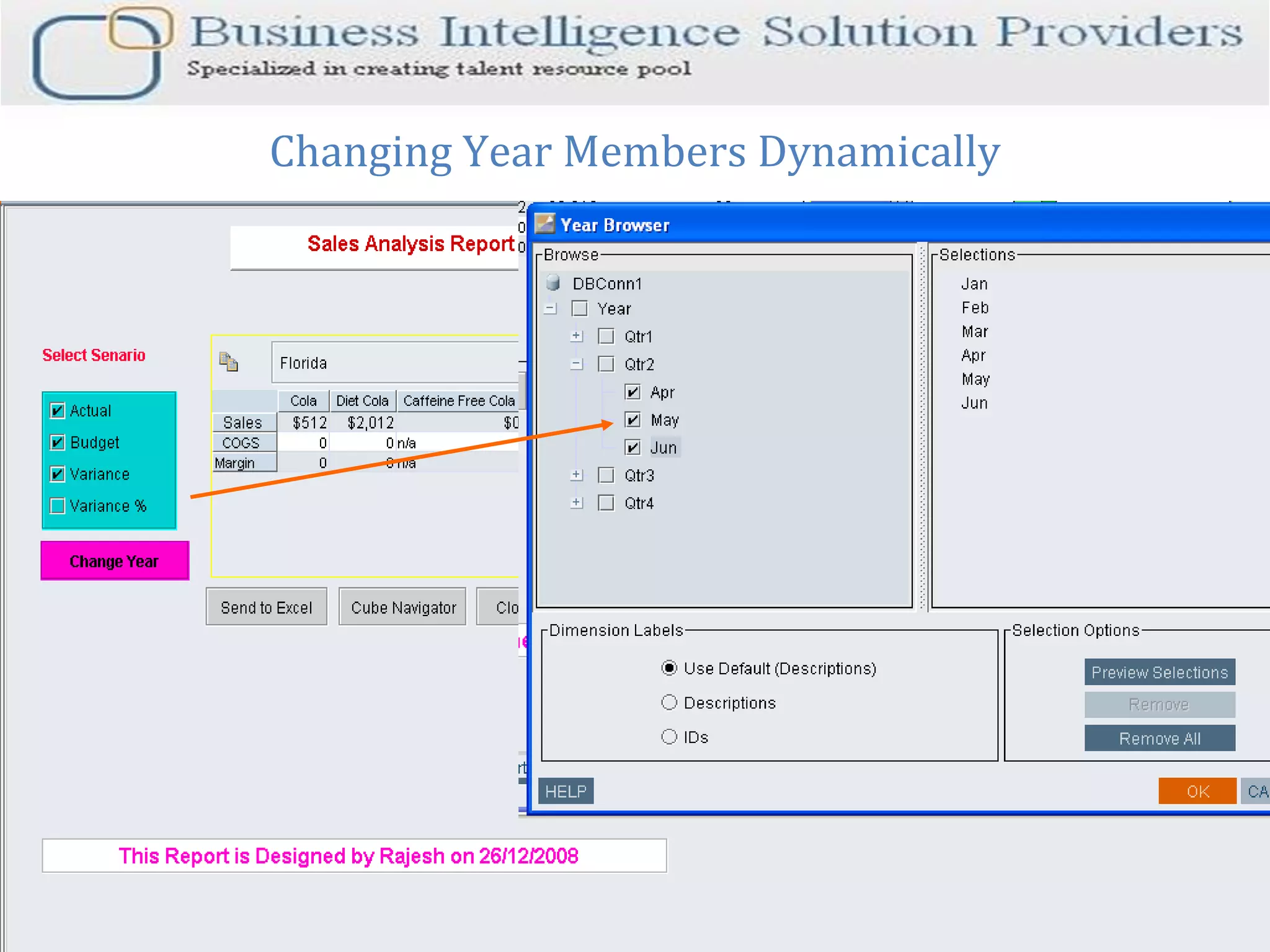
Changing Year Members Dynamically
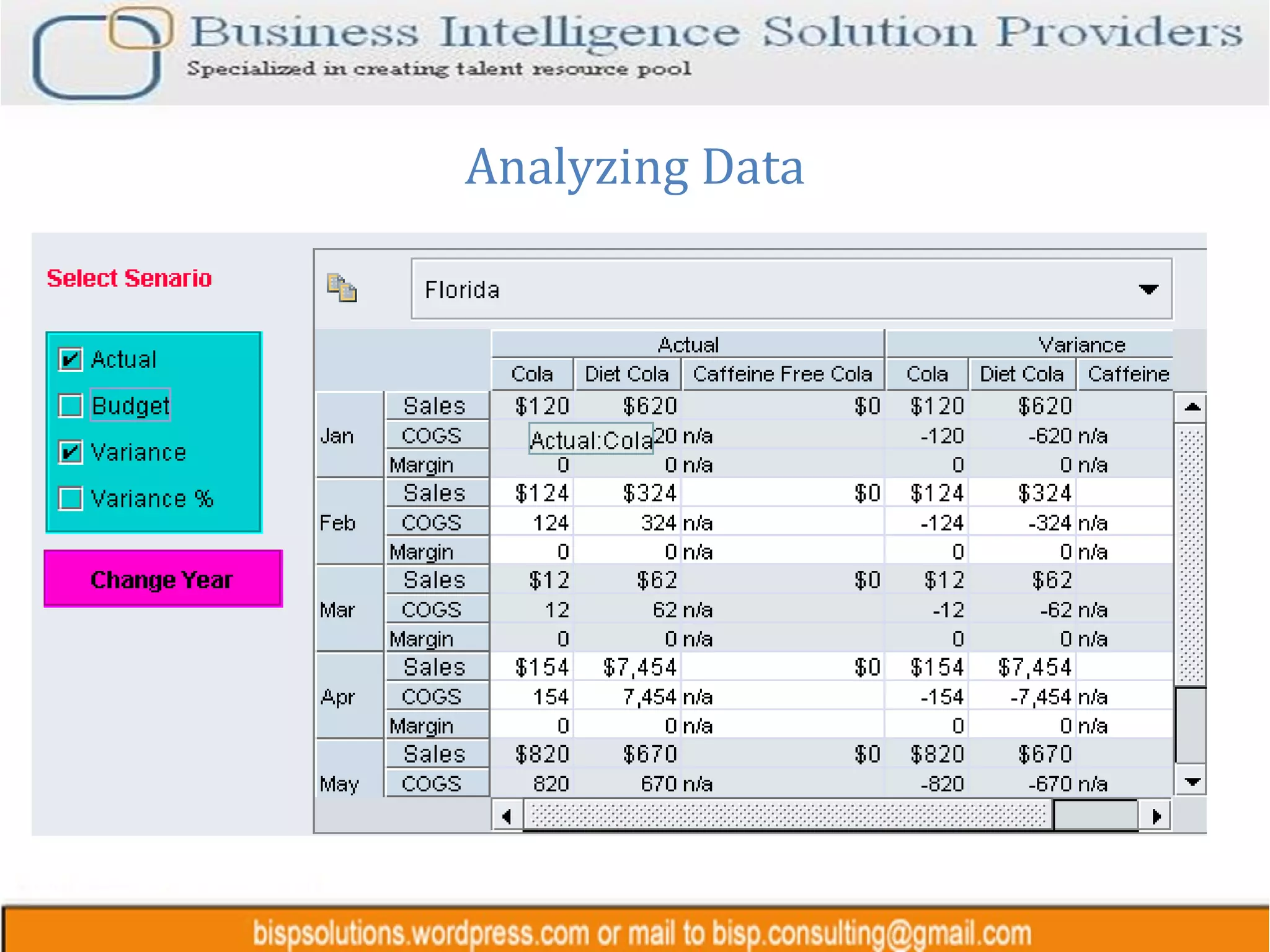
Analyzing Data
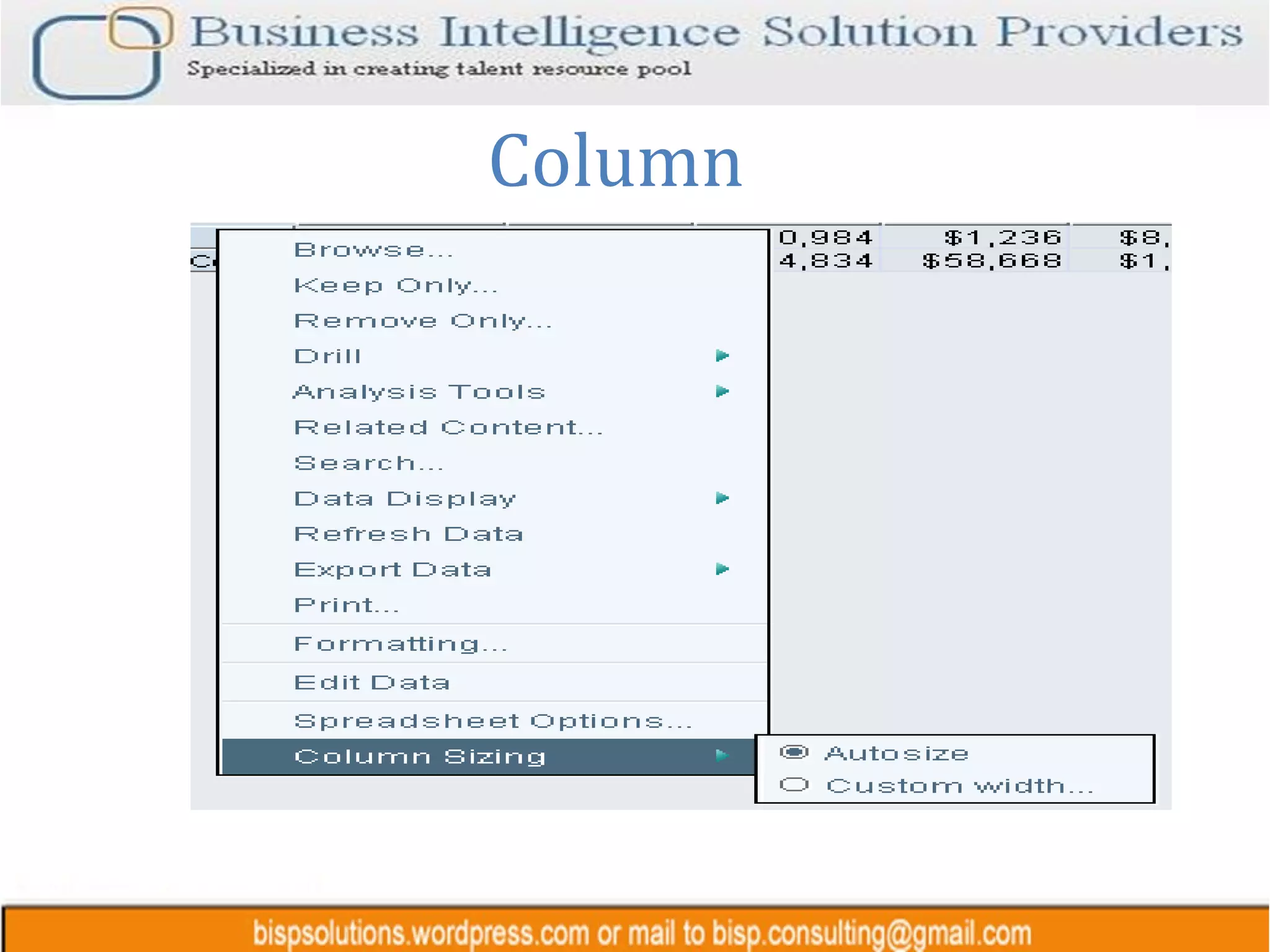
Column
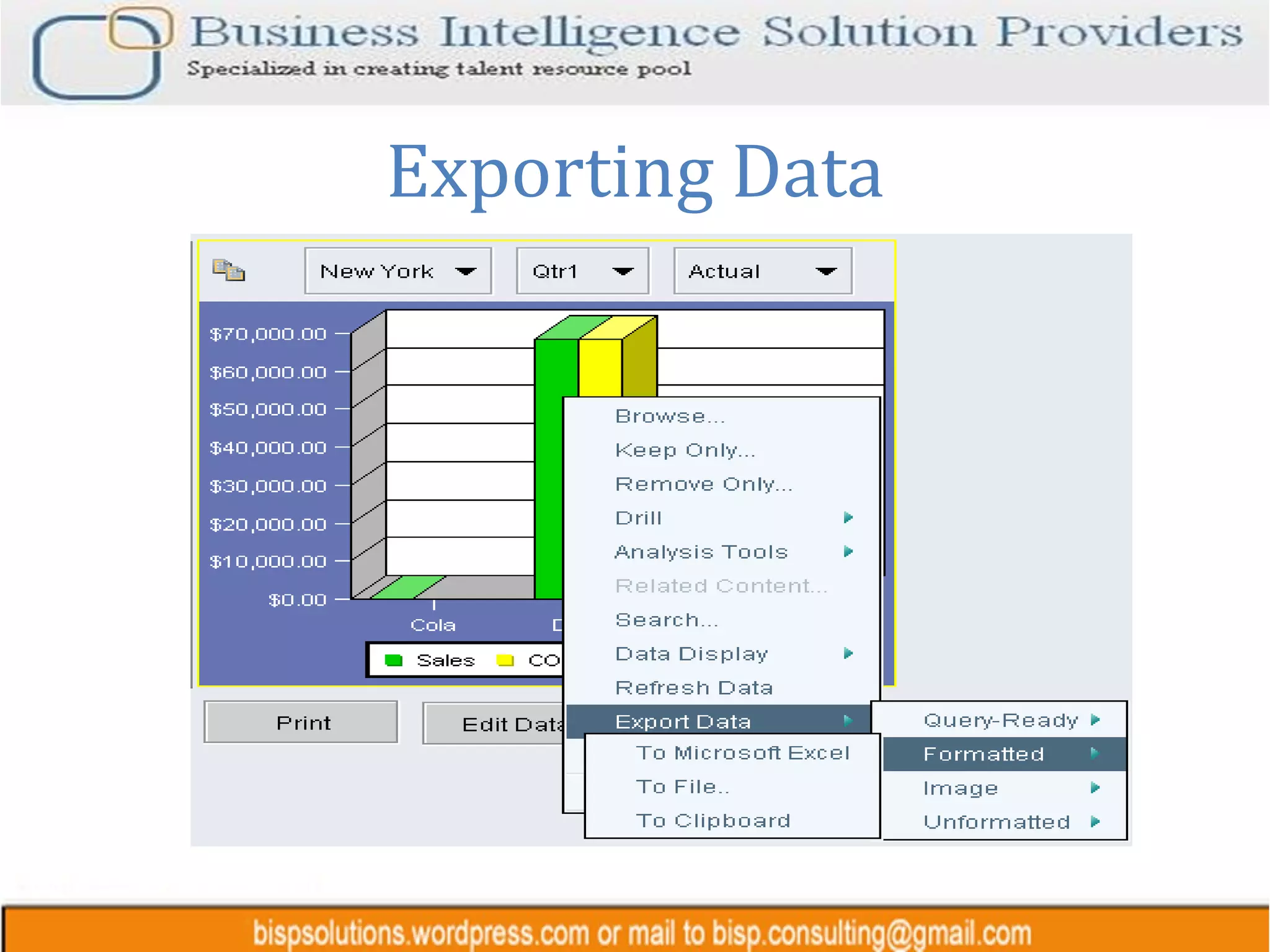
Exporting Data
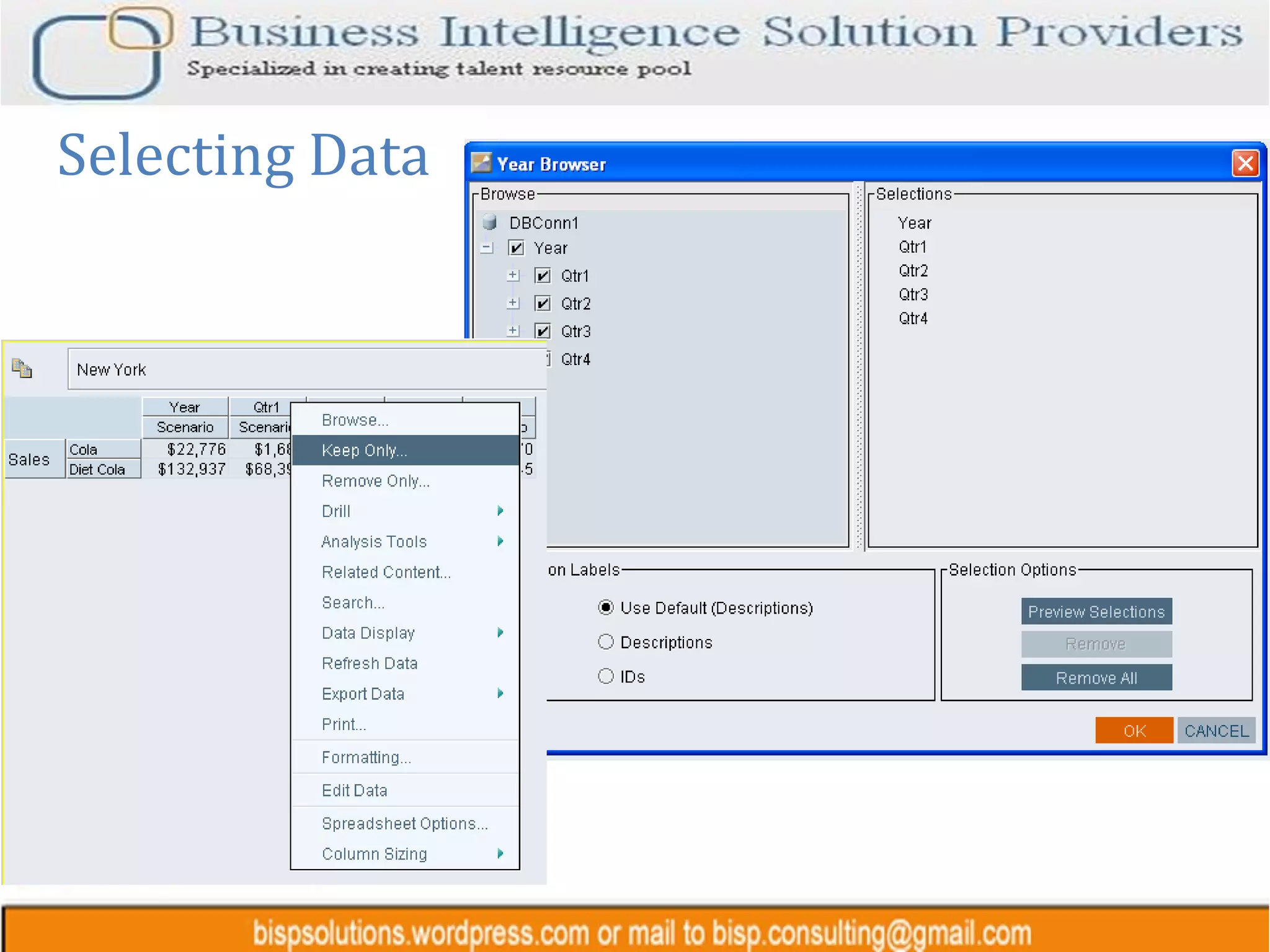
Selecting Data
 
Questions?

Hyperion analyzer 31 july

  • 1.
    Hyperion Web AnalysisAmit Sharma Hyperion Trainer learnhyperion.wordpress.com
  • 2.
    Creating Database connectionThe first step before creating a report is to create Database connection. The Database connection is the direct link to access the data from database and represent in form of reports. The data source for analyzer can be 1) Essbase 2) Financial Management 3) Sap BW 4) Relational DB
  • 3.
    The database connectionis established using 4 steps. 1) Specify Server info. 2) Specify Database info. 3) Appling formatting. 4) Relation Drill-Through Creating Database connection.. Step 1 Give Essbase server Name, username and password
  • 4.
    Specify Application nameand Database name. The list of Application/Databases given in the left. Creating Database connection.. Step 2
  • 5.
    Creating Database connection..Step 3 Specify measure Sales as currency format “$”
  • 6.
    Hyperion Analyzer reportwizard provides an automated series of six dialog boxes that steps you through the process of creating a report. Specify Data Source. We’ll specify the Data Source the one which we created in previous slide. Select one of the following database connections: Analyzer Essbase Analyzer Relational Analyzer SAP BW Analyzer HFM Creating Report using Report Wizard Step 1
  • 7.
    Sample Report RowDimension Row Dimension Page Dimension 3D View     Qtr1 Qtr2 Qtr3 Qtr4 John New York 1000       California 23       Texas 63446       Ohio 6633       Illnois 3466           Qtr1 Qtr2 Qtr3 Qtr4 Mac New York         California         Texas         Ohio         Illnois        
  • 8.
    Creating Report usingReport Wizard Step 2 Select dimension which will appear on Row Dimension
  • 9.
    Specify Column DimensionCreating Report using Report Wizard Step 3 Specify Page Dimension Customizing filters
  • 10.
    Creating Report usingReport Wizard Step 3 Display top/bottom 5 bottoms Display only selected data
  • 11.
    Final Report RowDimension Page Dimension Column Dimension
  • 12.
    Report Advance AnalysisThe Browse option helps to add/remove Dimension/members
  • 13.
    Browse Option Newlyadded member
  • 14.
    Creating New Report(Non-Wizard) Selecting Report type
  • 15.
    Selecting the DataSource Selecting the Data Source as Spreadsheet
  • 16.
    Cube Navigator Selectingthe Scenario Dimension under page Selecting the Period Dimension under Columns Selecting the Market Dimension under Rows
  • 17.
    Sample Report Checkboxselection for scenario selection Browse Year Dimension member dynamically Implementation of Write back functionality Implementation of Write back functionality Object 1 Table with City as Dropdown selection Object 2 Chart with City as Dropdown selection
  • 18.
    Adding cell NotesAdd Cell notes info Double click on any cell to activate cell note windows Insert cell note. Some description about the the given cell
  • 19.
    Sales for FloridaJan Month Sales for Florida May Month
  • 20.
  • 21.
    Using Sort operation Selecting of sort operation
  • 22.
    Sorting Sales databased on Qtr2 Sales Data Sort in inc order
  • 23.
    Print Option PrintingObject 2. There are two objects. Object 1 Table, Object 2 Chart. In the example given below we are printing Dataobject2 based on condition Florida
  • 24.
  • 25.
  • 26.
  • 27.
  • 28.
  • 29.
  • 30.
  • 31.
  • 32.
  • 33.
  • 34.
  • 35.