Agenda
• Introduction to Crystal Reports
• Competencies of Crystal Reports
• Phases of Report Creation
• Creating a Crystal Reports using Wizard
• Design Tab Areas
• Features of Crystal Reports
• Typical Challenges Faced
• Creating Reports from Business Universes
Introduction to Crystal Reports
• Allows you to produce the report you want from virtually any data
source
• Helps design, analyze and interpret important information
• Permits creation and maintenance of simple, complex or specialized
reports
Competency of Crystal Reports
• Create any report you can imagine
• Can be used for windows as well as web based applications
• Runtime Customization (Reports generated dynamically based on
parameters/formulas)
Phases of Report Design
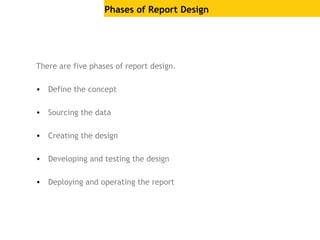
There are five phases of report design.
• Define the concept
• Sourcing the data
• Creating the design
• Developing and testing the design
• Deploying and operating the report
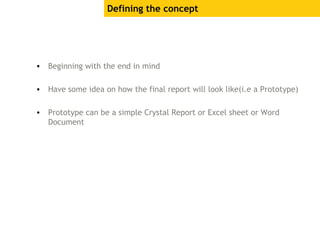
Defining the concept
• Beginning with the end in mind
• Have some idea on how the final report will look like(i.e a Prototype)
• Prototype can be a simple Crystal Report or Excel sheet or Word
Document
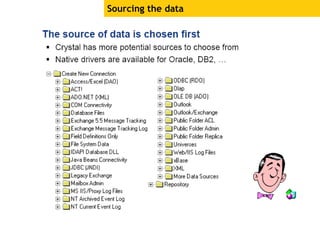
Sourcing the data
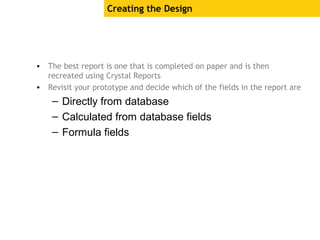
Creating the Design
• The best report is one that is completed on paper and is then
recreated using Crystal Reports
• Revisit your prototype and decide which of the fields in the report are
– Directly from database
– Calculated from database fields
– Formula fields
Developing and Testing the Design
• Input your data and test the report on different platforms
• Any performance issues, revisit your report design
– Check relations/constraints (for any cartesian)
– Check query for performance improvement
– Put option of Grouping on Server
– Eliminate Unused Formulas
Deploying and operating the report
• The last step in this process is to consider how your report is going to
be used
• Will it be exported ? If yes, where ?
– Excel (.xls)
– Word (.doc)
– Acrobat (.pdf)
– Rich Text Format (.RTF)
– XML
– Text
– Separated Values (.CSV)
• Will the generated report be mailed/stored in centralized
location/web-based ?
Creating a Report
• Connect to a data source
• Connect to database
• Adding tables & Linking Tables
• Defining the design environment
• Inserting objects on a report
• Positioning and sizing objects
• Formatting objects
• Previewing and saving the report
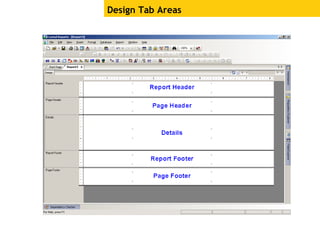
Design Tab Areas
Two additional sections
• Group Header
Holds the Group name field
Printed once at the beginning of the group
• Group Footer
Holds the summary value
Printed once at the end of the group
Design Tab Areas (Continued)
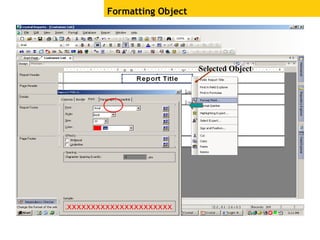
Formatting Object
Selected Object
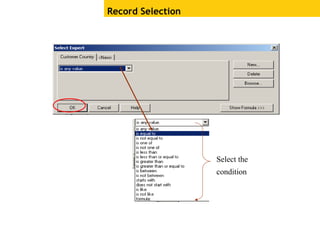
Record Selection
Select the
condition
Record Selection (Continued)
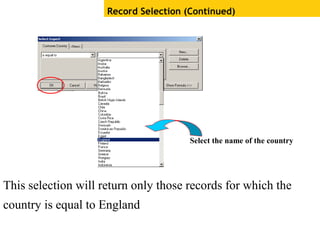
Select the name of the country
This selection will return only those records for which the
country is equal to England
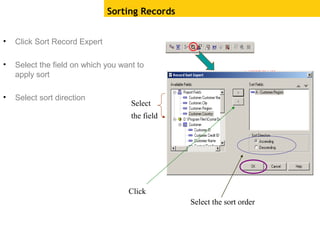
• Click Sort Record Expert
• Select the field on which you want to
apply sort
• Select sort direction
Sorting Records
Click
Select
the field
Select the sort order
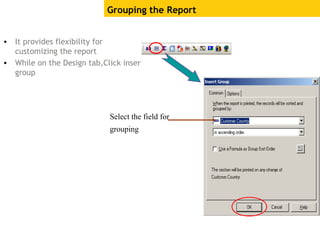
• It provides flexibility for
customizing the report
• While on the Design tab,Click insert
group
Grouping the Report
Select the field for
grouping
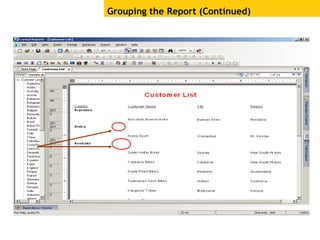
Grouping the Report (Continued)
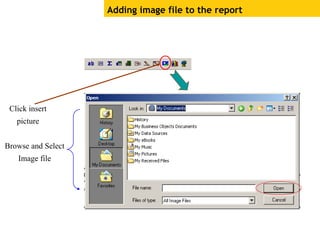
Adding image file to the report
Click insert
picture
Browse and Select
Image file
Adding image file to the report (Continued)
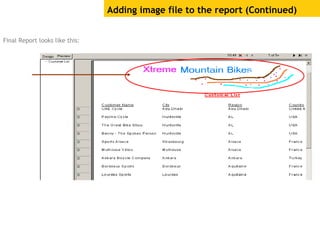
Final Report looks like this:
Report Creation Using Report wizard
• There are four report creation wizards
Standard
Cross-Tab
Mail Label
OLAP
• Click any one on the start page as per your requirement
• Then it asks you to select the data
Report Creation Using Standard Report Wizard
(Continued)
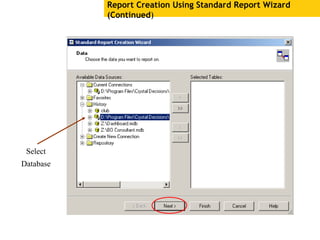
Select
Database
Report Creation Using Standard Report Wizard
(Continued)
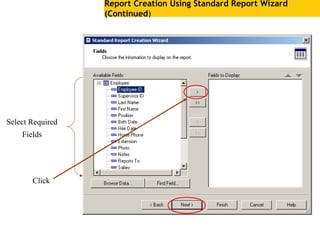
Select Required
Fields
Click
Report Creation Using Standard Report Wizard
(Continued)
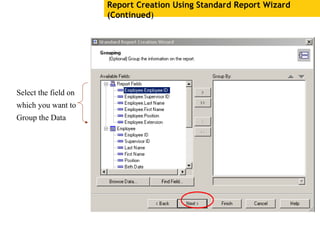
Select the field on
which you want to
Group the Data
Report Creation Using Standard Report Wizard
(Continued)
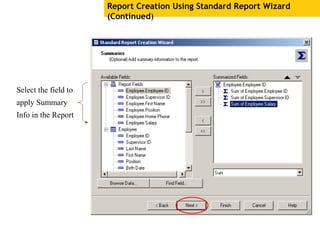
Select the field to
apply Summary
Info in the Report
Report Creation Using Standard Report Wizard
(Continued)
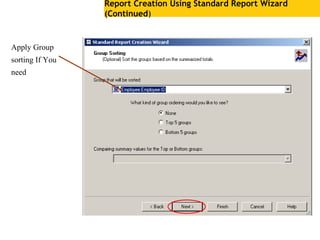
Apply Group
sorting If You
need
Report Creation Using Standard Report Wizard
(Continued)
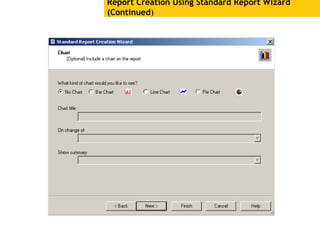
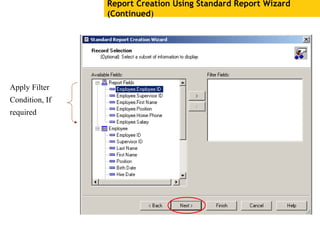
Report Creation Using Standard Report Wizard
(Continued)
Apply Filter
Condition, If
required
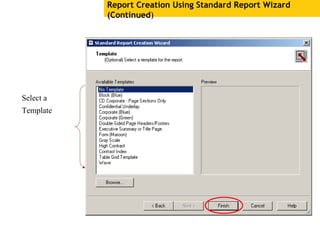
Report Creation Using Standard Report Wizard
(Continued)
Select a
Template
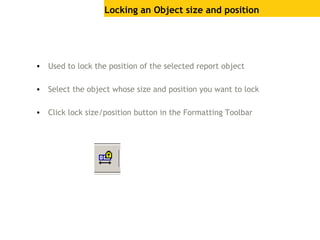
Locking an Object size and position
• Used to lock the position of the selected report object
• Select the object whose size and position you want to lock
• Click lock size/position button in the Formatting Toolbar
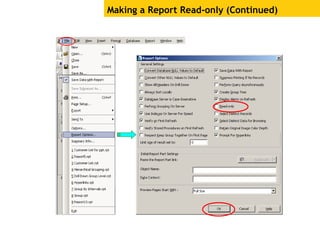
Making a Report Read-only (Continued)
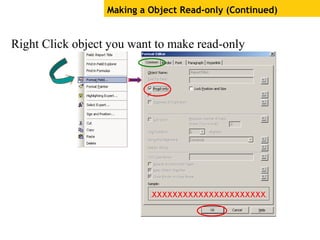
Right Click object you want to make read-only
Making a Object Read-only (Continued)
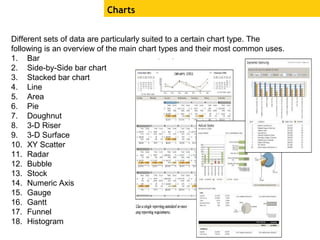
Different sets of data are particularly suited to a certain chart type. The
following is an overview of the main chart types and their most common uses.
1. Bar
2. Side-by-Side bar chart
3. Stacked bar chart
4. Line
5. Area
6. Pie
7. Doughnut
8. 3-D Riser
9. 3-D Surface
10. XY Scatter
11. Radar
12. Bubble
13. Stock
14. Numeric Axis
15. Gauge
16. Gantt
17. Funnel
18. Histogram
Charts
Hiding Report Sections
• Hide (Drill-Down OK)
Hides the section when you run the report
• Suppress (No Drill Down)
Condition is applied by formulas
• Suppress Blank section
Hides a section whenever nothing is in it
SubReports
• A subreport is a report within a report
• Subreports are used to
– To combine unrelated reports into a single
report
– To coordinate data that cannot otherwise be
linked
– To present different views of the same data
within a single report.
Difference b/w Primary Report and SubReport
Sub Report
• Is inserted as an object into a primary report
• Can be placed in any report section
• Cannot contain another subreport.
• Does not have Page Header or Page Footer sections.
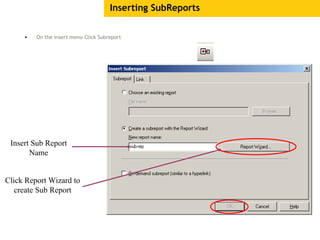
Inserting SubReports
• On the insert menu Click Subreport
Insert Sub Report
Name
Click Report Wizard to
create Sub Report
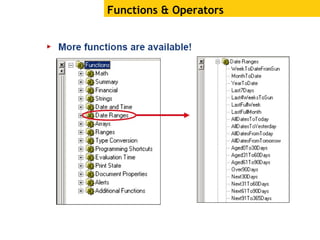
Functions & Operators
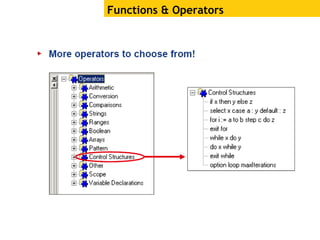
• The Summary functions are all used to summarize field data
• Examples:
Sum
Average
Minimum
Maximum
Count
Distinct count etc.
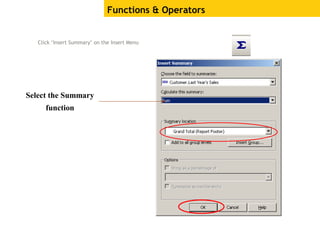
Functions & Operators
Click ‘Insert Summary’ on the Insert Menu
Select the Summary
function
Functions & Operators
Linking Tables
• When you add multiple database tables to your report, you need to
link the tables on a common field so that records from one table
match related records from another
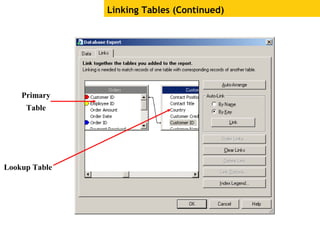
Linking Tables (Continued)
Primary
Table
Lookup Table
Linking Tables (Continued)
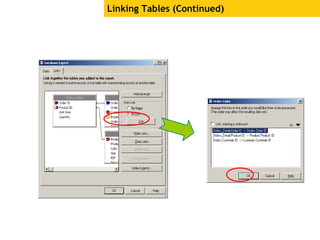
• Auto Link
Automatically chooses links for your tables based on common fields in
tables or indexed fields (if your database supports indexed fields).
• Link Processing Order
Specify the link processing order using Order Links option in the
Database Expert.
Linking Tables (Continued)
Cross-tab Table
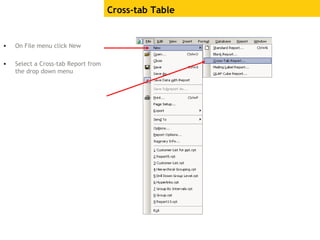
• On File menu click New
• Select a Cross-tab Report from
the drop down menu
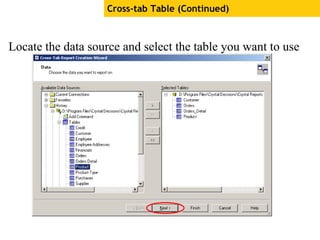
Locate the data source and select the table you want to use
Cross-tab Table (Continued)
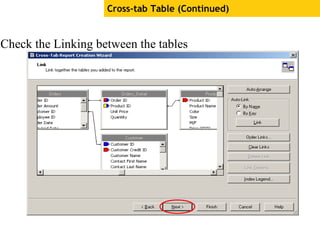
Check the Linking between the tables
Cross-tab Table (Continued)
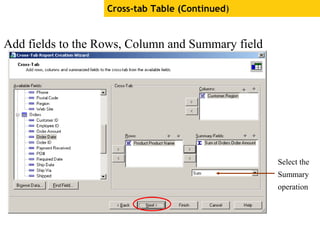
Add fields to the Rows, Column and Summary field
areas
Cross-tab Table (Continued)
Select the
Summary
operation
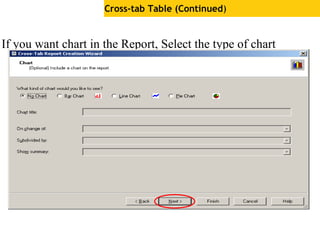
If you want chart in the Report, Select the type of chart
Cross-tab Table (Continued)
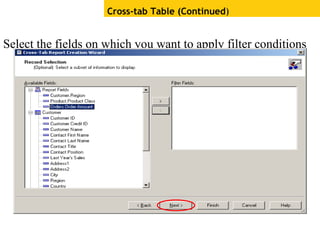
Select the fields on which you want to apply filter conditions
Cross-tab Table (Continued)
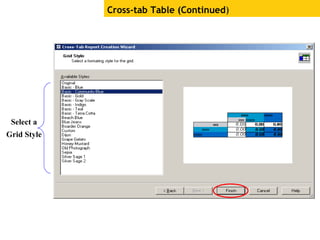
Select a
Grid Style
Cross-tab Table (Continued)
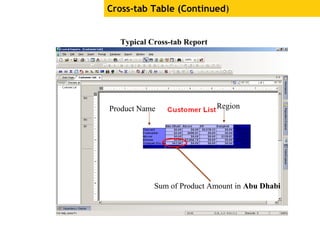
Typical Cross-tab Report
Product Name Region
Sum of Product Amount in Abu Dhabi
Parameter Fields
• Used to Prompt the user to enter the information
• Information entered by the user determines what appears in the report
• Parameter fields support the following data types
Boolean
Currency
Date
Date Time
Number
String
Time
Creating Parameter Fields
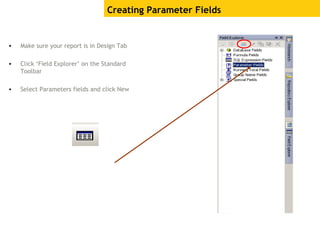
• Make sure your report is in Design Tab
• Click ‘Field Explorer’ on the Standard
Toolbar
• Select Parameters fields and click New
Creating Parameter Fields (Continued)
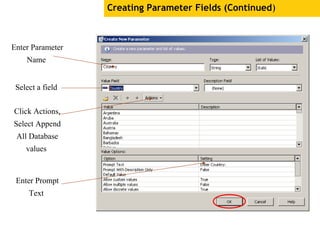
Select a field
Click Actions,
Select Append
All Database
values
Enter Parameter
Name
Enter Prompt
Text
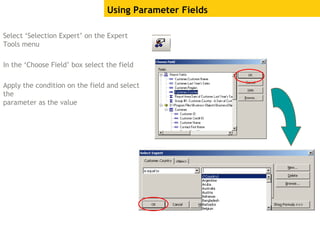
Select ‘Selection Expert’ on the Expert
Tools menu
In the ‘Choose Field’ box select the field
Apply the condition on the field and select
the
parameter as the value
Using Parameter Fields
Running Total
• Running totals are totals that can be displayed on a record by record
basis
• It totals all records up to and including the current record.
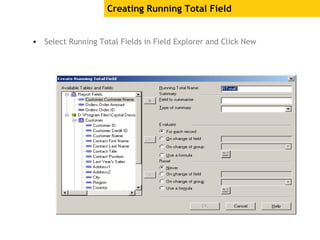
Creating Running Total Field
• Select Running Total Fields in Field Explorer and Click New
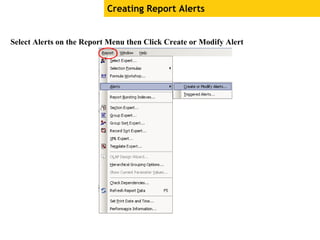
Select Alerts on the Report Menu then Click Create or Modify Alert
Creating Report Alerts
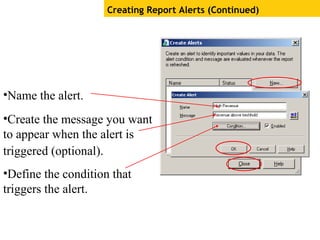
Creating Report Alerts (Continued)
•Name the alert.
•Create the message you want
to appear when the alert is
triggered (optional).
•Define the condition that
triggers the alert.
• Prompt values can be populated from values in Database
• Prompts can be arranged in a cascade, where one value in the prompt
constraints values in subsequent pick lists
• Report designers no longer maintain static prompt lists in individual
reports. A single prompt definition can be stored in the repository and
shared among multiple reports, improving both runtime scalability and
design-time productivity
Dynamic and Cascading Prompts
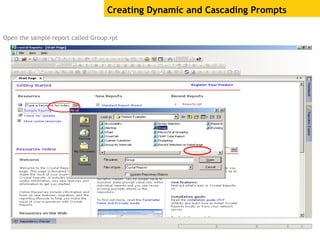
Creating Dynamic and Cascading Prompts
Open the sample report called Group.rpt
Creating Dynamic and Cascading Prompts
(Continued)
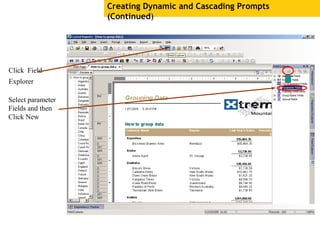
Click Field
Explorer
Select parameter
Fields and then
Click New
Creating Dynamic and Cascading Prompts (Continued)
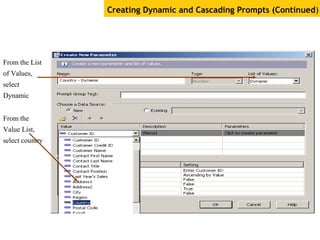
From the
Value List,
select country
From the List
of Values,
select
Dynamic
Creating Dynamic and Cascading Prompts
(Continued)
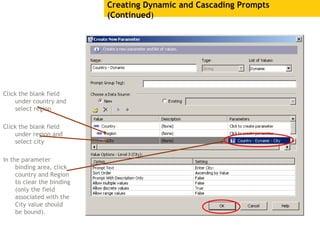
Click the blank field
under country and
select region
Click the blank field
under region and
select city
In the parameter
binding area, click
country and Region
to clear the binding
(only the field
associated with the
City value should
be bound).
Creating Dynamic and Cascading Prompts
(Continued)
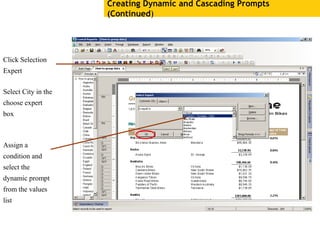
Select City in the
choose expert
box
Assign a
condition and
select the
dynamic prompt
from the values
list
Click Selection
Expert
Creating Dynamic and Cascading Prompts
(Continued)
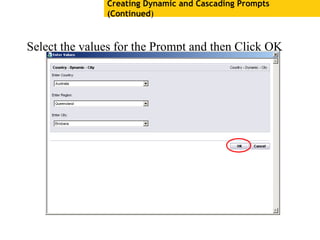
Select the values for the Prompt and then Click OK
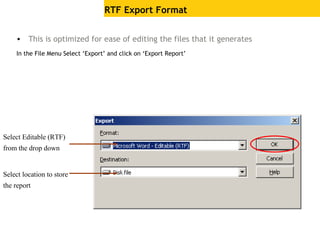
• This is optimized for ease of editing the files that it generates
In the File Menu Select ‘Export’ and click on ‘Export Report’
RTF Export Format
Select Editable (RTF)
from the drop down
Select location to store
the report
RTF Export Format (Continued)
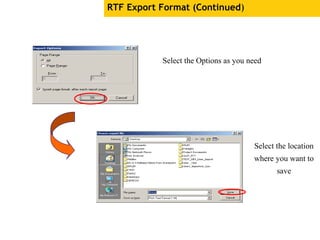
Select the Options as you need
Select the location
where you want to
save
Updated Repository Explorer (Continued)
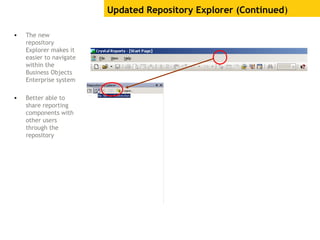
• The new
repository
Explorer makes it
easier to navigate
within the
Business Objects
Enterprise system
• Better able to
share reporting
components with
other users
through the
repository
Updated Repository Explorer (Continued)
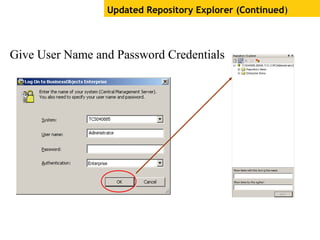
Give User Name and Password Credentials
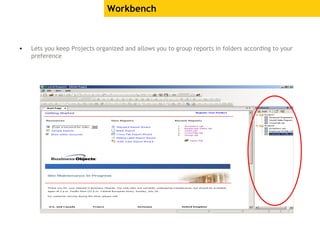
Workbench
• Lets you keep Projects organized and allows you to group reports in folders according to your
preference
Business Objects Universes
• Crystal reports based on Business Objects Universes can now support Universe run-time
security and union queries
• These enhancements allow for most overloads defined in the Universe to be supported in
Crystal reports
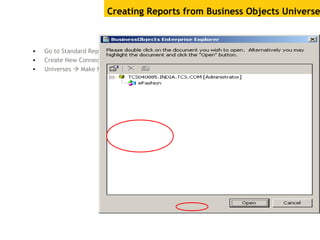
Creating Reports from Business Objects Universe
• Go to Standard Report wizard
• Create New Connection
• Universes  Make New Connection  Double Click
Creating Reports from Business Objects Universes
(Continued)
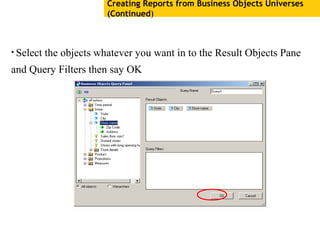
• Select the objects whatever you want in to the Result Objects Pane
and Query Filters then say OK
Creating Reports from Business Objects Universes
(Continued)
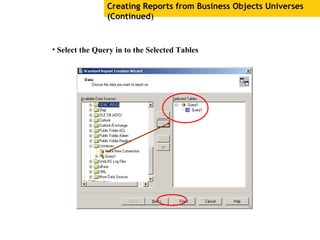
• Select the Query in to the Selected Tables
Creating Reports from Business Objects Universes
(Continued)
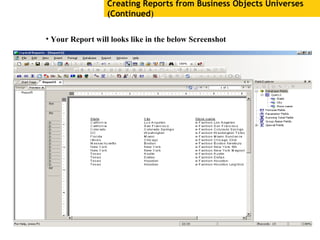
• Your Report will looks like in the below Screenshot
Thank You

Crystal tr///SAP Design Studio online training by design studio Export-24/7//aining wl
  • 1.
    Agenda • Introduction toCrystal Reports • Competencies of Crystal Reports • Phases of Report Creation • Creating a Crystal Reports using Wizard • Design Tab Areas • Features of Crystal Reports • Typical Challenges Faced • Creating Reports from Business Universes
  • 2.
    Introduction to CrystalReports • Allows you to produce the report you want from virtually any data source • Helps design, analyze and interpret important information • Permits creation and maintenance of simple, complex or specialized reports
  • 3.
    Competency of CrystalReports • Create any report you can imagine • Can be used for windows as well as web based applications • Runtime Customization (Reports generated dynamically based on parameters/formulas)
  • 4.
    Phases of ReportDesign There are five phases of report design. • Define the concept • Sourcing the data • Creating the design • Developing and testing the design • Deploying and operating the report
  • 5.
    Defining the concept •Beginning with the end in mind • Have some idea on how the final report will look like(i.e a Prototype) • Prototype can be a simple Crystal Report or Excel sheet or Word Document
  • 6.
  • 7.
    Creating the Design •The best report is one that is completed on paper and is then recreated using Crystal Reports • Revisit your prototype and decide which of the fields in the report are – Directly from database – Calculated from database fields – Formula fields
  • 8.
    Developing and Testingthe Design • Input your data and test the report on different platforms • Any performance issues, revisit your report design – Check relations/constraints (for any cartesian) – Check query for performance improvement – Put option of Grouping on Server – Eliminate Unused Formulas
  • 9.
    Deploying and operatingthe report • The last step in this process is to consider how your report is going to be used • Will it be exported ? If yes, where ? – Excel (.xls) – Word (.doc) – Acrobat (.pdf) – Rich Text Format (.RTF) – XML – Text – Separated Values (.CSV) • Will the generated report be mailed/stored in centralized location/web-based ?
  • 10.
    Creating a Report •Connect to a data source • Connect to database • Adding tables & Linking Tables • Defining the design environment • Inserting objects on a report • Positioning and sizing objects • Formatting objects • Previewing and saving the report
  • 11.
  • 12.
    Two additional sections •Group Header Holds the Group name field Printed once at the beginning of the group • Group Footer Holds the summary value Printed once at the end of the group Design Tab Areas (Continued)
  • 13.
  • 14.
  • 15.
    Record Selection (Continued) Selectthe name of the country This selection will return only those records for which the country is equal to England
  • 16.
    • Click SortRecord Expert • Select the field on which you want to apply sort • Select sort direction Sorting Records Click Select the field Select the sort order
  • 17.
    • It providesflexibility for customizing the report • While on the Design tab,Click insert group Grouping the Report Select the field for grouping
  • 18.
  • 19.
    Adding image fileto the report Click insert picture Browse and Select Image file
  • 20.
    Adding image fileto the report (Continued) Final Report looks like this:
  • 21.
    Report Creation UsingReport wizard • There are four report creation wizards Standard Cross-Tab Mail Label OLAP • Click any one on the start page as per your requirement • Then it asks you to select the data
  • 22.
    Report Creation UsingStandard Report Wizard (Continued) Select Database
  • 23.
    Report Creation UsingStandard Report Wizard (Continued) Select Required Fields Click
  • 24.
    Report Creation UsingStandard Report Wizard (Continued) Select the field on which you want to Group the Data
  • 25.
    Report Creation UsingStandard Report Wizard (Continued) Select the field to apply Summary Info in the Report
  • 26.
    Report Creation UsingStandard Report Wizard (Continued) Apply Group sorting If You need
  • 27.
    Report Creation UsingStandard Report Wizard (Continued)
  • 28.
    Report Creation UsingStandard Report Wizard (Continued) Apply Filter Condition, If required
  • 29.
    Report Creation UsingStandard Report Wizard (Continued) Select a Template
  • 30.
    Locking an Objectsize and position • Used to lock the position of the selected report object • Select the object whose size and position you want to lock • Click lock size/position button in the Formatting Toolbar
  • 31.
    Making a ReportRead-only (Continued)
  • 32.
    Right Click objectyou want to make read-only Making a Object Read-only (Continued)
  • 33.
    Different sets ofdata are particularly suited to a certain chart type. The following is an overview of the main chart types and their most common uses. 1. Bar 2. Side-by-Side bar chart 3. Stacked bar chart 4. Line 5. Area 6. Pie 7. Doughnut 8. 3-D Riser 9. 3-D Surface 10. XY Scatter 11. Radar 12. Bubble 13. Stock 14. Numeric Axis 15. Gauge 16. Gantt 17. Funnel 18. Histogram Charts
  • 34.
    Hiding Report Sections •Hide (Drill-Down OK) Hides the section when you run the report • Suppress (No Drill Down) Condition is applied by formulas • Suppress Blank section Hides a section whenever nothing is in it
  • 35.
    SubReports • A subreportis a report within a report • Subreports are used to – To combine unrelated reports into a single report – To coordinate data that cannot otherwise be linked – To present different views of the same data within a single report.
  • 36.
    Difference b/w PrimaryReport and SubReport Sub Report • Is inserted as an object into a primary report • Can be placed in any report section • Cannot contain another subreport. • Does not have Page Header or Page Footer sections.
  • 37.
    Inserting SubReports • Onthe insert menu Click Subreport Insert Sub Report Name Click Report Wizard to create Sub Report
  • 38.
  • 39.
    • The Summaryfunctions are all used to summarize field data • Examples: Sum Average Minimum Maximum Count Distinct count etc. Functions & Operators
  • 40.
    Functions & Operators Click‘Insert Summary’ on the Insert Menu Select the Summary function
  • 41.
  • 42.
    Linking Tables • Whenyou add multiple database tables to your report, you need to link the tables on a common field so that records from one table match related records from another
  • 43.
  • 44.
    Linking Tables (Continued) •Auto Link Automatically chooses links for your tables based on common fields in tables or indexed fields (if your database supports indexed fields). • Link Processing Order Specify the link processing order using Order Links option in the Database Expert.
  • 45.
  • 46.
    Cross-tab Table • OnFile menu click New • Select a Cross-tab Report from the drop down menu
  • 47.
    Locate the datasource and select the table you want to use Cross-tab Table (Continued)
  • 48.
    Check the Linkingbetween the tables Cross-tab Table (Continued)
  • 49.
    Add fields tothe Rows, Column and Summary field areas Cross-tab Table (Continued) Select the Summary operation
  • 50.
    If you wantchart in the Report, Select the type of chart Cross-tab Table (Continued)
  • 51.
    Select the fieldson which you want to apply filter conditions Cross-tab Table (Continued)
  • 52.
  • 53.
    Cross-tab Table (Continued) TypicalCross-tab Report Product Name Region Sum of Product Amount in Abu Dhabi
  • 54.
    Parameter Fields • Usedto Prompt the user to enter the information • Information entered by the user determines what appears in the report • Parameter fields support the following data types Boolean Currency Date Date Time Number String Time
  • 55.
    Creating Parameter Fields •Make sure your report is in Design Tab • Click ‘Field Explorer’ on the Standard Toolbar • Select Parameters fields and click New
  • 56.
    Creating Parameter Fields(Continued) Select a field Click Actions, Select Append All Database values Enter Parameter Name Enter Prompt Text
  • 57.
    Select ‘Selection Expert’on the Expert Tools menu In the ‘Choose Field’ box select the field Apply the condition on the field and select the parameter as the value Using Parameter Fields
  • 58.
    Running Total • Runningtotals are totals that can be displayed on a record by record basis • It totals all records up to and including the current record.
  • 59.
    Creating Running TotalField • Select Running Total Fields in Field Explorer and Click New
  • 60.
    Select Alerts onthe Report Menu then Click Create or Modify Alert Creating Report Alerts
  • 61.
    Creating Report Alerts(Continued) •Name the alert. •Create the message you want to appear when the alert is triggered (optional). •Define the condition that triggers the alert.
  • 62.
    • Prompt valuescan be populated from values in Database • Prompts can be arranged in a cascade, where one value in the prompt constraints values in subsequent pick lists • Report designers no longer maintain static prompt lists in individual reports. A single prompt definition can be stored in the repository and shared among multiple reports, improving both runtime scalability and design-time productivity Dynamic and Cascading Prompts
  • 63.
    Creating Dynamic andCascading Prompts Open the sample report called Group.rpt
  • 64.
    Creating Dynamic andCascading Prompts (Continued) Click Field Explorer Select parameter Fields and then Click New
  • 65.
    Creating Dynamic andCascading Prompts (Continued) From the Value List, select country From the List of Values, select Dynamic
  • 66.
    Creating Dynamic andCascading Prompts (Continued) Click the blank field under country and select region Click the blank field under region and select city In the parameter binding area, click country and Region to clear the binding (only the field associated with the City value should be bound).
  • 67.
    Creating Dynamic andCascading Prompts (Continued) Select City in the choose expert box Assign a condition and select the dynamic prompt from the values list Click Selection Expert
  • 68.
    Creating Dynamic andCascading Prompts (Continued) Select the values for the Prompt and then Click OK
  • 69.
    • This isoptimized for ease of editing the files that it generates In the File Menu Select ‘Export’ and click on ‘Export Report’ RTF Export Format Select Editable (RTF) from the drop down Select location to store the report
  • 70.
    RTF Export Format(Continued) Select the Options as you need Select the location where you want to save
  • 71.
    Updated Repository Explorer(Continued) • The new repository Explorer makes it easier to navigate within the Business Objects Enterprise system • Better able to share reporting components with other users through the repository
  • 72.
    Updated Repository Explorer(Continued) Give User Name and Password Credentials
  • 73.
    Workbench • Lets youkeep Projects organized and allows you to group reports in folders according to your preference
  • 74.
    Business Objects Universes •Crystal reports based on Business Objects Universes can now support Universe run-time security and union queries • These enhancements allow for most overloads defined in the Universe to be supported in Crystal reports
  • 75.
    Creating Reports fromBusiness Objects Universe • Go to Standard Report wizard • Create New Connection • Universes  Make New Connection  Double Click
  • 76.
    Creating Reports fromBusiness Objects Universes (Continued) • Select the objects whatever you want in to the Result Objects Pane and Query Filters then say OK
  • 77.
    Creating Reports fromBusiness Objects Universes (Continued) • Select the Query in to the Selected Tables
  • 78.
    Creating Reports fromBusiness Objects Universes (Continued) • Your Report will looks like in the below Screenshot
  • 79.