


CRYSTAL REPORTS
BY
AMBREEN GILLANI
Crystal Report
Crystal Report is a Reporting application that can generate
reports from various Data Sources .
We can Create Reports , Print and Print Preview of reports
from Crystal Reports .
Crystal Reports are compatible with most popular
development environments like VB.NET etc. and SQL
Server also .
Developing Crystal Report from a
database
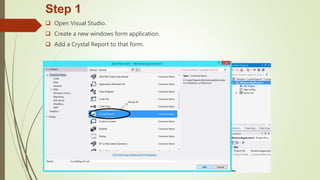
Step 1
 Open Visual Studio.
 Create a new windows form application.
 Add a Crystal Report to that form.
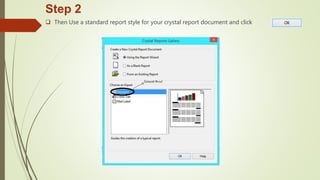
Step 2
 Then Use a standard report style for your crystal report document and click .
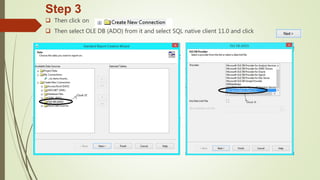
Step 3
 Then click on
 Then select OLE DB (ADO) from it and select SQL native client 11.0 and click
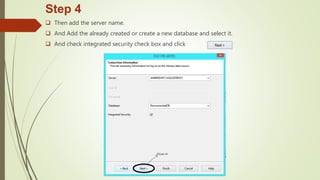
Step 4
 Then add the server name.
 And Add the already created or create a new database and select it.
 And check integrated security check box and click .
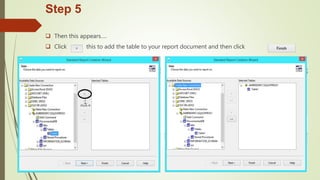
Step 5
 Then this appears….
 Click this to add the table to your report document and then click .
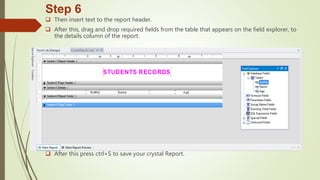
Step 6
 Then insert text to the report header.
 After this, drag and drop required fields from the table that appears on the field explorer, to
the details column of the report.
 After this press ctrl+S to save your crystal Report.
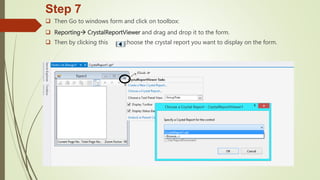
Step 7
 Then Go to windows form and click on toolbox:
 Reporting CrystalReportViewer and drag and drop it to the form.
 Then by clicking this choose the crystal report you want to display on the form.
Step 8
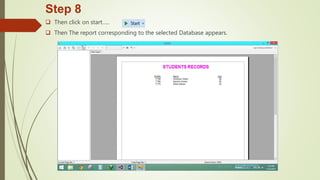
 Then click on start…..
 Then The report corresponding to the selected Database appears.
Crystal Report Guidelines…..
 These Steps shows how to simply create a crystal report from a
database.
 We can link two or more databases and also show relations
between them and then display them on the crystal report.
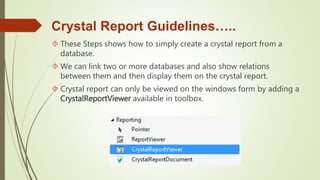
 Crystal report can only be viewed on the windows form by adding a
CrystalReportViewer available in toolbox.
END
Thankyou For watching!  

Crystal report

  • 1.
  • 2.
    Crystal Report Crystal Reportis a Reporting application that can generate reports from various Data Sources . We can Create Reports , Print and Print Preview of reports from Crystal Reports . Crystal Reports are compatible with most popular development environments like VB.NET etc. and SQL Server also .
  • 3.
  • 4.
    Step 1  OpenVisual Studio.  Create a new windows form application.  Add a Crystal Report to that form.
  • 5.
    Step 2  ThenUse a standard report style for your crystal report document and click .
  • 6.
    Step 3  Thenclick on  Then select OLE DB (ADO) from it and select SQL native client 11.0 and click
  • 7.
    Step 4  Thenadd the server name.  And Add the already created or create a new database and select it.  And check integrated security check box and click .
  • 8.
    Step 5  Thenthis appears….  Click this to add the table to your report document and then click .
  • 9.
    Step 6  Theninsert text to the report header.  After this, drag and drop required fields from the table that appears on the field explorer, to the details column of the report.  After this press ctrl+S to save your crystal Report.
  • 10.
    Step 7  ThenGo to windows form and click on toolbox:  Reporting CrystalReportViewer and drag and drop it to the form.  Then by clicking this choose the crystal report you want to display on the form.
  • 11.
    Step 8  Thenclick on start…..  Then The report corresponding to the selected Database appears.
  • 12.
    Crystal Report Guidelines….. These Steps shows how to simply create a crystal report from a database.  We can link two or more databases and also show relations between them and then display them on the crystal report.  Crystal report can only be viewed on the windows form by adding a CrystalReportViewer available in toolbox.
  • 13.