www.bisptrainings.com www.bispsolutions.com
Oracle APEX - Building Database Applications
Description:
BISP is committed to provide BEST learning material to the beginners and advance
learners. In the same series, we have prepared a complete end-to end Hands-on
Beginner’s Guide for Oracle Application Express. The document focuses on basic
keywords, terminology and definitions one should know before Oracle APEX and
creating 1st Database Application. Join our professional training program and learn
from experts.
History:
Version Description Change Author Publish Date
0.1 Initial Draft Shiva Kant Pandey Aug 2012
0.1 Review#1 Amit Sharma Aug 2012
www.bisptrainings.com www.bispsolutions.com
Table of Contents
Application Builder ..........................................................................................................................3
Difference between Database application & Websheet Applications..................................................3
Stepwise Procedure of Building Database Applications.....................................................................3
Working with component Application Builder :.................................................................................4
To Create an Application Using First Subcomponent ( Database Applications) : ...............................5
To Create an Application Using Second Subcomponent (Spreadsheet Applications) : .....................10
To Create an Application Using Third Subcomponent ( Websheet Applications) :............................16
Installation of Packaged Application Using fourth Subcomponent ( Packaged Applications) ...........19
www.bisptrainings.com www.bispsolutions.com
Application Builder
Oracle Application Builder is one of the Oracle Apex Components & it is mainly used to develop new
applications.
It can mainly build two types of application & these are
 Database Application
 Websheet applications
Difference between Database application & Websheet Applications
 A database application is a collection of pages that share a common session state and
authentication. Developers create database objects using SQL Workshop and then create an
application using a wizard. Database application enables developers to manually control all
aspects of the development process. You can manually add and customize components
(reports, charts, or forms), page controls (buttons, items, list of values), and shared
components (breadcrumbs, lists, or tabs)
 A websheet application is geared for the business user and requires no prior development
experience. Each websheet application is a collection of pages designed for Web-based data
entry and reporting. When you create a websheet application, Application Builder
automatically handles the creation of tables, triggers, and sequences. Websheets offer an
easy, declarative approach to report and form layout as well as the creation list of values and
validations
Stepwise Procedure of Building Database Applications
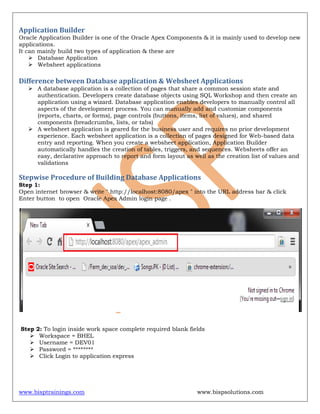
Step 1:
Open internet browser & write " http://localhost:8080/apex " into the URL address bar & click
Enter button to open Oracle Apex Admin login page .
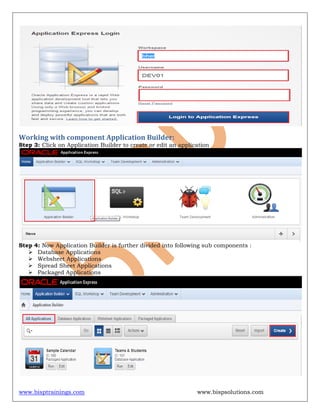
Step 2: To login inside work space complete required blank fields
 Workspace = BHEL
 Username = DEV01
 Password = ********
 Click Login to application express
www.bisptrainings.com www.bispsolutions.com
Working with component Application Builder:
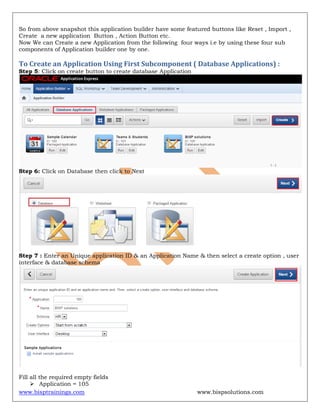
Step 3: Click on Application Builder to create or edit an application
Step 4: Now Application Builder is further divided into following sub components :
 Database Applications
 Websheet Applications
 Spread Sheet Applications
 Packaged Applications
www.bisptrainings.com www.bispsolutions.com
So from above snapshot this application builder have some featured buttons like Reset , Import ,
Create a new application Button , Action Button etc.
Now We can Create a new Application from the following four ways i.e by using these four sub
components of Application builder one by one.
To Create an Application Using First Subcomponent ( Database Applications) :
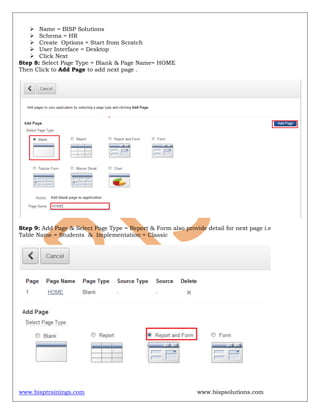
Step 5: Click on create button to create database Application
Step 6: Click on Database then click to Next
Step 7 : Enter an Unique application ID & an Application Name & then select a create option , user
interface & database schema
Fill all the required empty fields
 Application = 105
www.bisptrainings.com www.bispsolutions.com
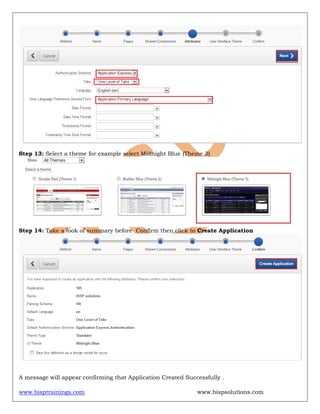
 Name = BISP Solutions
 Schema = HR
 Create Options = Start from Scratch
 User Interface = Desktop
 Click Next
Step 8: Select Page Type = Blank & Page Name= HOME
Then Click to Add Page to add next page .
Step 9: Add Page & Select Page Type = Report & Form also provide detail for next page i.e
Table Name = Students & Implementation = Classic
www.bisptrainings.com www.bispsolutions.com
Step 10: Click Next Button
Step 11: Select No if don't want to copy shared components from another application & then Click
Next
Step 12 : Page for authentication is open so fill all the required fields
 Authentication Scheme = Application Express
Note : This Authentication consists primarily three schemes for login security purpose &
these are [1] Application express [2] Database Account [3] No Authentication
 Tabs = One Level of Tabs
 Language = English (en)
 User Language Preference Derived From = Application Primary Language
 Click to Next
www.bisptrainings.com www.bispsolutions.com
Step 13: Select a theme for example select Midnight Blue (Theme 3)
Step 14: Take a look of summary before Confirm then click to Create Application
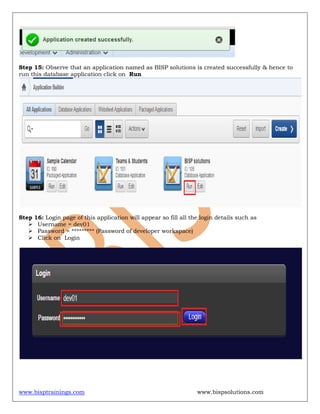
A message will appear confirming that Application Created Successfully .
www.bisptrainings.com www.bispsolutions.com
Step 15: Observe that an application named as BISP solutions is created successfully & hence to
run this database application click on Run
Step 16: Login page of this application will appear so fill all the login details such as
 Username = dev01
 Password = ********* (Password of developer workspace)
 Click on Login
www.bisptrainings.com www.bispsolutions.com
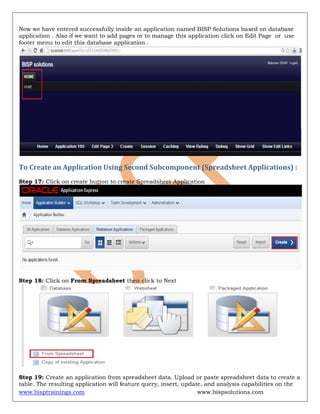
Now we have entered successfully inside an application named BISP Solutions based on database
application . Also if we want to add pages or to manage this application click on Edit Page or use
footer menu to edit this database application .
To Create an Application Using Second Subcomponent (Spreadsheet Applications) :
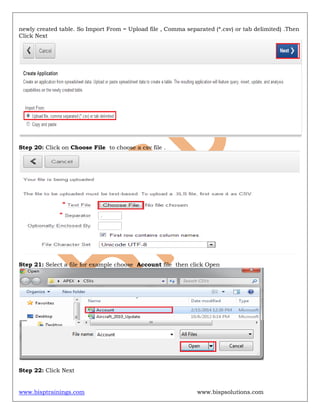
Step 17: Click on create button to create Spreadsheet Application
Step 18: Click on From Spreadsheet then click to Next
Step 19: Create an application from spreadsheet data. Upload or paste spreadsheet data to create a
table. The resulting application will feature query, insert, update, and analysis capabilities on the
www.bisptrainings.com www.bispsolutions.com
newly created table. So Import From = Upload file , Comma separated (*.csv) or tab delimited) .Then
Click Next
Step 20: Click on Choose File to choose a csv file .
Step 21: Select a file for example choose Account file then click Open
Step 22: Click Next
www.bisptrainings.com www.bispsolutions.com
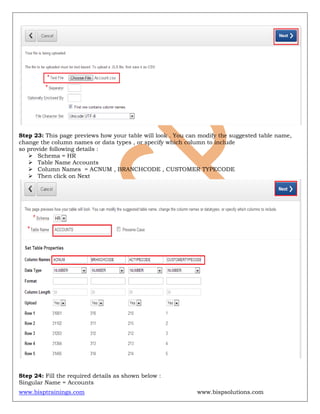
Step 23: This page previews how your table will look . You can modify the suggested table name,
change the column names or data types , or specify which column to include
so provide following details :
 Schema = HR
 Table Name Accounts
 Column Names = ACNUM , BRANCHCODE , CUSTOMER TYPECODE
 Then click on Next
Step 24: Fill the required details as shown below :
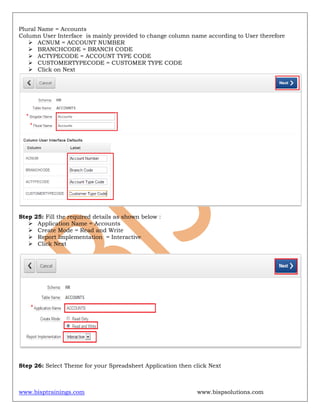
Singular Name = Accounts
www.bisptrainings.com www.bispsolutions.com
Plural Name = Accounts
Column User Interface is mainly provided to change column name according to User therefore
 ACNUM = ACCOUNT NUMBER
 BRANCHCODE = BRANCH CODE
 ACTYPECODE = ACCOUNT TYPE CODE
 CUSTOMERTYPECODE = CUSTOMER TYPE CODE
 Click on Next
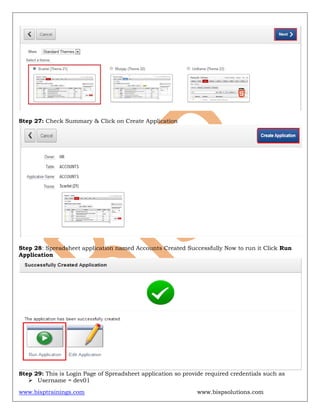
Step 25: Fill the required details as shown below :
 Application Name = Accounts
 Create Mode = Read and Write
 Report Implementation = Interactive
 Click Next
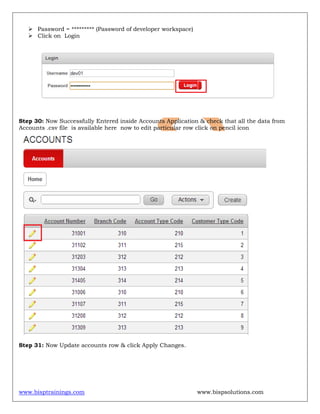
Step 26: Select Theme for your Spreadsheet Application then click Next
www.bisptrainings.com www.bispsolutions.com
Step 27: Check Summary & Click on Create Application
Step 28: Spreadsheet application named Accounts Created Successfully Now to run it Click Run
Application
Step 29: This is Login Page of Spreadsheet application so provide required credentials such as
 Username = dev01
www.bisptrainings.com www.bispsolutions.com
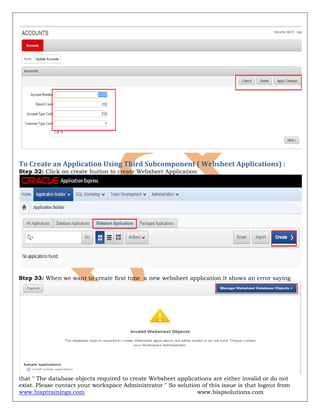
 Password = ********* (Password of developer workspace)
 Click on Login
Step 30: Now Successfully Entered inside Accounts Application & check that all the data from
Accounts .csv file is available here now to edit particular row click on pencil icon
Step 31: Now Update accounts row & click Apply Changes.
www.bisptrainings.com www.bispsolutions.com
To Create an Application Using Third Subcomponent ( Websheet Applications) :
Step 32: Click on create button to create Websheet Application
Step 33: When we want to create first time a new websheet application it shows an error saying
that " The database objects required to create Websheet applications are either invalid or do not
exist. Please contact your workspace Administrator " So solution of this issue is that logout from
www.bisptrainings.com www.bispsolutions.com
development workspace & login from Application Express Login workspace & then Click on Manage
Websheet Database Objects .
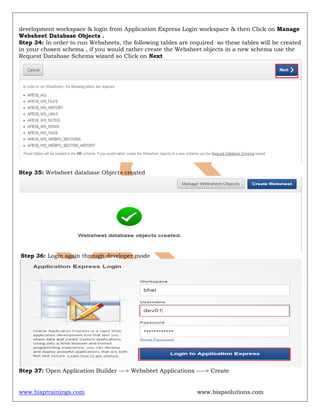
Step 34: In order to run Websheets, the following tables are required so these tables will be created
in your chosen schema , if you would rather create the Websheet objects in a new schema use the
Request Database Schema wizard so Click on Next
Step 35: Websheet database Objects created
Step 36: Login again through developer mode
Step 37: Open Application Builder ---> Websheet Applications ----> Create
www.bisptrainings.com www.bispsolutions.com
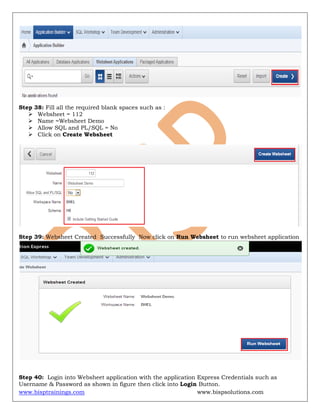
Step 38: Fill all the required blank spaces such as :
 Websheet = 112
 Name =Websheet Demo
 Allow SQL and PL/SQL = No
 Click on Create Websheet
Step 39: Websheet Created Successfully Now click on Run Websheet to run websheet application
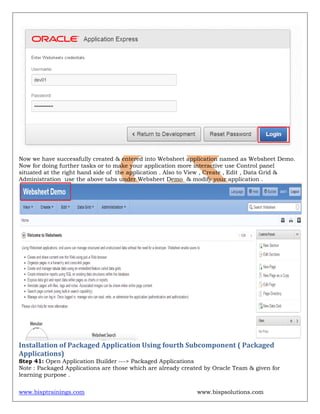
Step 40: Login into Websheet application with the application Express Credentials such as
Username & Password as shown in figure then click into Login Button.
www.bisptrainings.com www.bispsolutions.com
Now we have successfully created & entered into Websheet application named as Websheet Demo.
Now for doing further tasks or to make your application more interactive use Control panel
situated at the right hand side of the application . Also to View , Create , Edit , Data Grid &
Administration use the above tabs under Websheet Demo & modify your application .
Installation of Packaged Application Using fourth Subcomponent ( Packaged
Applications)
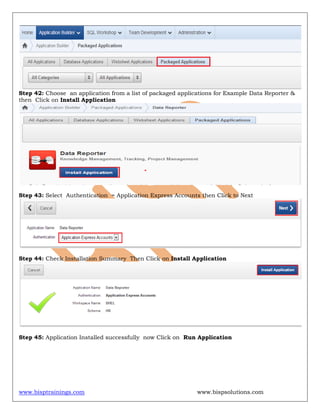
Step 41: Open Application Builder ---> Packaged Applications
Note : Packaged Applications are those which are already created by Oracle Team & given for
learning purpose .
www.bisptrainings.com www.bispsolutions.com
Step 42: Choose an application from a list of packaged applications for Example Data Reporter &
then Click on Install Application
Step 43: Select Authentication = Application Express Accounts then Click to Next
Step 44: Check Installation Summary Then Click on Install Application
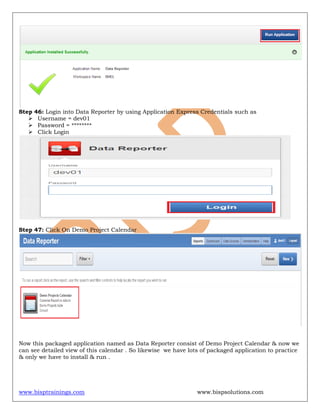
Step 45: Application Installed successfully now Click on Run Application
www.bisptrainings.com www.bispsolutions.com
Step 46: Login into Data Reporter by using Application Express Credentials such as
 Username = dev01
 Password = ********
 Click Login
Step 47: Click On Demo Project Calendar
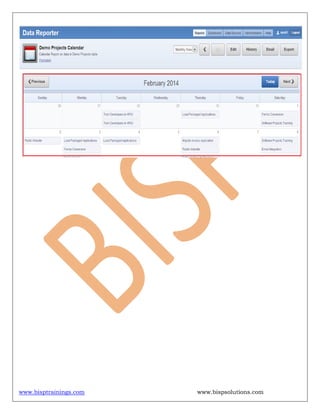
Now this packaged application named as Data Reporter consist of Demo Project Calendar & now we
can see detailed view of this calendar . So likewise we have lots of packaged application to practice
& only we have to install & run .
www.bisptrainings.com www.bispsolutions.com

Oracle apex hands on lab#2

  • 1.
    www.bisptrainings.com www.bispsolutions.com Oracle APEX- Building Database Applications Description: BISP is committed to provide BEST learning material to the beginners and advance learners. In the same series, we have prepared a complete end-to end Hands-on Beginner’s Guide for Oracle Application Express. The document focuses on basic keywords, terminology and definitions one should know before Oracle APEX and creating 1st Database Application. Join our professional training program and learn from experts. History: Version Description Change Author Publish Date 0.1 Initial Draft Shiva Kant Pandey Aug 2012 0.1 Review#1 Amit Sharma Aug 2012
  • 2.
    www.bisptrainings.com www.bispsolutions.com Table ofContents Application Builder ..........................................................................................................................3 Difference between Database application & Websheet Applications..................................................3 Stepwise Procedure of Building Database Applications.....................................................................3 Working with component Application Builder :.................................................................................4 To Create an Application Using First Subcomponent ( Database Applications) : ...............................5 To Create an Application Using Second Subcomponent (Spreadsheet Applications) : .....................10 To Create an Application Using Third Subcomponent ( Websheet Applications) :............................16 Installation of Packaged Application Using fourth Subcomponent ( Packaged Applications) ...........19
  • 3.
    www.bisptrainings.com www.bispsolutions.com Application Builder OracleApplication Builder is one of the Oracle Apex Components & it is mainly used to develop new applications. It can mainly build two types of application & these are  Database Application  Websheet applications Difference between Database application & Websheet Applications  A database application is a collection of pages that share a common session state and authentication. Developers create database objects using SQL Workshop and then create an application using a wizard. Database application enables developers to manually control all aspects of the development process. You can manually add and customize components (reports, charts, or forms), page controls (buttons, items, list of values), and shared components (breadcrumbs, lists, or tabs)  A websheet application is geared for the business user and requires no prior development experience. Each websheet application is a collection of pages designed for Web-based data entry and reporting. When you create a websheet application, Application Builder automatically handles the creation of tables, triggers, and sequences. Websheets offer an easy, declarative approach to report and form layout as well as the creation list of values and validations Stepwise Procedure of Building Database Applications Step 1: Open internet browser & write " http://localhost:8080/apex " into the URL address bar & click Enter button to open Oracle Apex Admin login page . Step 2: To login inside work space complete required blank fields  Workspace = BHEL  Username = DEV01  Password = ********  Click Login to application express
  • 4.
    www.bisptrainings.com www.bispsolutions.com Working withcomponent Application Builder: Step 3: Click on Application Builder to create or edit an application Step 4: Now Application Builder is further divided into following sub components :  Database Applications  Websheet Applications  Spread Sheet Applications  Packaged Applications
  • 5.
    www.bisptrainings.com www.bispsolutions.com So fromabove snapshot this application builder have some featured buttons like Reset , Import , Create a new application Button , Action Button etc. Now We can Create a new Application from the following four ways i.e by using these four sub components of Application builder one by one. To Create an Application Using First Subcomponent ( Database Applications) : Step 5: Click on create button to create database Application Step 6: Click on Database then click to Next Step 7 : Enter an Unique application ID & an Application Name & then select a create option , user interface & database schema Fill all the required empty fields  Application = 105
  • 6.
    www.bisptrainings.com www.bispsolutions.com  Name= BISP Solutions  Schema = HR  Create Options = Start from Scratch  User Interface = Desktop  Click Next Step 8: Select Page Type = Blank & Page Name= HOME Then Click to Add Page to add next page . Step 9: Add Page & Select Page Type = Report & Form also provide detail for next page i.e Table Name = Students & Implementation = Classic
  • 7.
    www.bisptrainings.com www.bispsolutions.com Step 10:Click Next Button Step 11: Select No if don't want to copy shared components from another application & then Click Next Step 12 : Page for authentication is open so fill all the required fields  Authentication Scheme = Application Express Note : This Authentication consists primarily three schemes for login security purpose & these are [1] Application express [2] Database Account [3] No Authentication  Tabs = One Level of Tabs  Language = English (en)  User Language Preference Derived From = Application Primary Language  Click to Next
  • 8.
    www.bisptrainings.com www.bispsolutions.com Step 13:Select a theme for example select Midnight Blue (Theme 3) Step 14: Take a look of summary before Confirm then click to Create Application A message will appear confirming that Application Created Successfully .
  • 9.
    www.bisptrainings.com www.bispsolutions.com Step 15:Observe that an application named as BISP solutions is created successfully & hence to run this database application click on Run Step 16: Login page of this application will appear so fill all the login details such as  Username = dev01  Password = ********* (Password of developer workspace)  Click on Login
  • 10.
    www.bisptrainings.com www.bispsolutions.com Now wehave entered successfully inside an application named BISP Solutions based on database application . Also if we want to add pages or to manage this application click on Edit Page or use footer menu to edit this database application . To Create an Application Using Second Subcomponent (Spreadsheet Applications) : Step 17: Click on create button to create Spreadsheet Application Step 18: Click on From Spreadsheet then click to Next Step 19: Create an application from spreadsheet data. Upload or paste spreadsheet data to create a table. The resulting application will feature query, insert, update, and analysis capabilities on the
  • 11.
    www.bisptrainings.com www.bispsolutions.com newly createdtable. So Import From = Upload file , Comma separated (*.csv) or tab delimited) .Then Click Next Step 20: Click on Choose File to choose a csv file . Step 21: Select a file for example choose Account file then click Open Step 22: Click Next
  • 12.
    www.bisptrainings.com www.bispsolutions.com Step 23:This page previews how your table will look . You can modify the suggested table name, change the column names or data types , or specify which column to include so provide following details :  Schema = HR  Table Name Accounts  Column Names = ACNUM , BRANCHCODE , CUSTOMER TYPECODE  Then click on Next Step 24: Fill the required details as shown below : Singular Name = Accounts
  • 13.
    www.bisptrainings.com www.bispsolutions.com Plural Name= Accounts Column User Interface is mainly provided to change column name according to User therefore  ACNUM = ACCOUNT NUMBER  BRANCHCODE = BRANCH CODE  ACTYPECODE = ACCOUNT TYPE CODE  CUSTOMERTYPECODE = CUSTOMER TYPE CODE  Click on Next Step 25: Fill the required details as shown below :  Application Name = Accounts  Create Mode = Read and Write  Report Implementation = Interactive  Click Next Step 26: Select Theme for your Spreadsheet Application then click Next
  • 14.
    www.bisptrainings.com www.bispsolutions.com Step 27:Check Summary & Click on Create Application Step 28: Spreadsheet application named Accounts Created Successfully Now to run it Click Run Application Step 29: This is Login Page of Spreadsheet application so provide required credentials such as  Username = dev01
  • 15.
    www.bisptrainings.com www.bispsolutions.com  Password= ********* (Password of developer workspace)  Click on Login Step 30: Now Successfully Entered inside Accounts Application & check that all the data from Accounts .csv file is available here now to edit particular row click on pencil icon Step 31: Now Update accounts row & click Apply Changes.
  • 16.
    www.bisptrainings.com www.bispsolutions.com To Createan Application Using Third Subcomponent ( Websheet Applications) : Step 32: Click on create button to create Websheet Application Step 33: When we want to create first time a new websheet application it shows an error saying that " The database objects required to create Websheet applications are either invalid or do not exist. Please contact your workspace Administrator " So solution of this issue is that logout from
  • 17.
    www.bisptrainings.com www.bispsolutions.com development workspace& login from Application Express Login workspace & then Click on Manage Websheet Database Objects . Step 34: In order to run Websheets, the following tables are required so these tables will be created in your chosen schema , if you would rather create the Websheet objects in a new schema use the Request Database Schema wizard so Click on Next Step 35: Websheet database Objects created Step 36: Login again through developer mode Step 37: Open Application Builder ---> Websheet Applications ----> Create
  • 18.
    www.bisptrainings.com www.bispsolutions.com Step 38:Fill all the required blank spaces such as :  Websheet = 112  Name =Websheet Demo  Allow SQL and PL/SQL = No  Click on Create Websheet Step 39: Websheet Created Successfully Now click on Run Websheet to run websheet application Step 40: Login into Websheet application with the application Express Credentials such as Username & Password as shown in figure then click into Login Button.
  • 19.
    www.bisptrainings.com www.bispsolutions.com Now wehave successfully created & entered into Websheet application named as Websheet Demo. Now for doing further tasks or to make your application more interactive use Control panel situated at the right hand side of the application . Also to View , Create , Edit , Data Grid & Administration use the above tabs under Websheet Demo & modify your application . Installation of Packaged Application Using fourth Subcomponent ( Packaged Applications) Step 41: Open Application Builder ---> Packaged Applications Note : Packaged Applications are those which are already created by Oracle Team & given for learning purpose .
  • 20.
    www.bisptrainings.com www.bispsolutions.com Step 42:Choose an application from a list of packaged applications for Example Data Reporter & then Click on Install Application Step 43: Select Authentication = Application Express Accounts then Click to Next Step 44: Check Installation Summary Then Click on Install Application Step 45: Application Installed successfully now Click on Run Application
  • 21.
    www.bisptrainings.com www.bispsolutions.com Step 46:Login into Data Reporter by using Application Express Credentials such as  Username = dev01  Password = ********  Click Login Step 47: Click On Demo Project Calendar Now this packaged application named as Data Reporter consist of Demo Project Calendar & now we can see detailed view of this calendar . So likewise we have lots of packaged application to practice & only we have to install & run .
  • 22.