
More on HTML
Tags
1
2
 Introduction
 HTML = HyperText Markup Language
 A markup language
 Technology of the World Wide Web Consortium (W3C)
 HTML is a plain-text file that can be created using a 
text editor like Notepad.
 When creating HTML files for the web, make sure you 
save them as .html or .htm.
Let’s revise the HTML Tags in
the previous class:
<b> text </b> Bold
<i> text></i> Italics 
<u> text</u> Underline
<sub>text</sub> Subscript
<sup>text</sup> Superscript
<p> text</p> Paragraph
<hr> Horizontal Ruler
<strike>text</strike> Strikes a line through the text
3
© 2003 Prentice Hall, Inc.
All rights reserved.
Outline
Font Control
Basefont Tag and Font tag
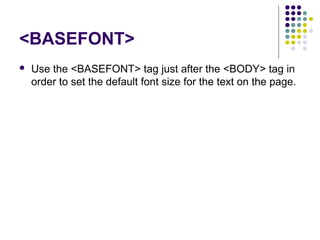
<BASEFONT>
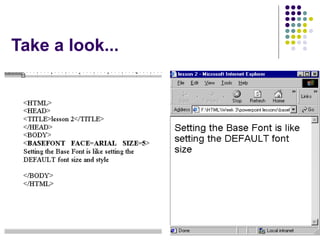
 Use the <BASEFONT> tag just after the <BODY> tag in 
order to set the default font size for the text on the page.
Take a look...
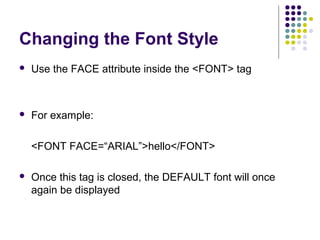
Changing the Font Style
 Use the FACE attribute inside the <FONT> tag
 For example:
<FONT FACE=“ARIAL”>hello</FONT>
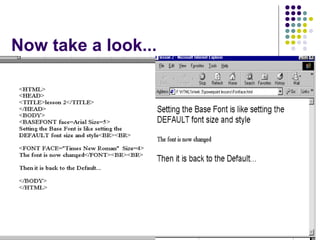
 Once this tag is closed, the DEFAULT font will once 
again be displayed
Now take a look...
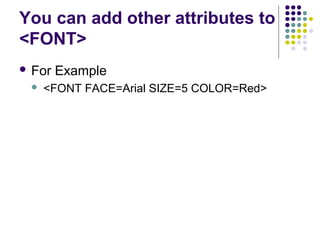
You can add other attributes to
<FONT>
 For Example
 <FONT FACE=Arial SIZE=5 COLOR=Red>
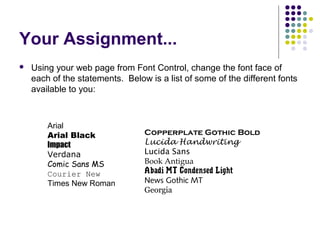
Your Assignment...
 Using your web page from Font Control, change the font face of
each of the statements. Below is a list of some of the different fonts
available to you:
Arial
Arial Black
Impact
Verdana
Comic Sans MS
Courier New
Times New Roman
Copperplate Gothic Bold
Lucida Handwriting
Lucida Sans
Book Antigua
Abadi MT Condensed Light
News Gothic MT
Georgia
Creating Lists in
HTML
 3 types of lists
 Unordered list
 Bulleted items
 Ordered list
 Numbered items
 Definition List
 a list of items, with a description of each item
Unordered Lists
in HTML
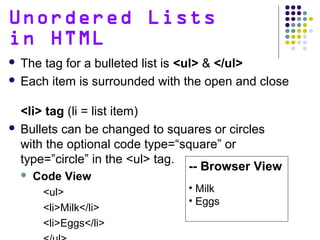
 The tag for a bulleted list is <ul> & </ul>
 Each item is surrounded with the open and close
<li> tag (li = list item)
 Bullets can be changed to squares or circles
with the optional code type=“square” or
type=”circle” in the <ul> tag.
 Code View
<ul>
<li>Milk</li>
<li>Eggs</li>
-- Browser View
• Milk
• Eggs
Ordered Lists
in HTML
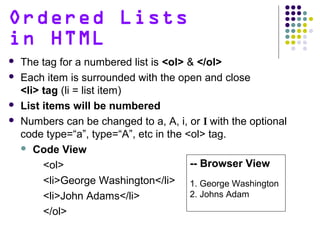
 The tag for a numbered list is <ol> & </ol>
 Each item is surrounded with the open and close
<li> tag (li = list item)
 List items will be numbered
 Numbers can be changed to a, A, i, or I with the optional
code type=“a”, type=“A”, etc in the <ol> tag.
 Code View
<ol>
<li>George Washington</li>
<li>John Adams</li>
</ol>
-- Browser View
1. George Washington
2. Johns Adam
Definition Lists
in HTML
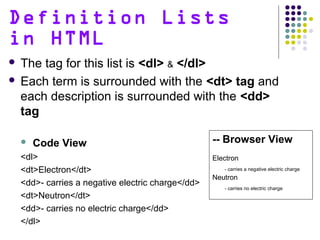
 The tag for this list is <dl> & </dl>
 Each term is surrounded with the <dt> tag and
each description is surrounded with the <dd>
tag
 Code View
<dl>
<dt>Electron</dt>
<dd>- carries a negative electric charge</dd>
<dt>Neutron</dt>
<dd>- carries no electric charge</dd>
</dl>
-- Browser View
Electron
- carries a negative electric charge
Neutron
- carries no electric charge
Lists in HTML –
REVIEW
 Ordered lists <ol> produce numbered lists
 Unordered lists <ul> produce bulleted lists
 Each item in an ordered list & unordered list is
surrounded with the <li> tag
 Definition lists <dl> produce terms with
definitions
 Each term in a definition list is surrounded with
the <dt> tag and each description is
surrounded with the <dd> tag.
© 2003 Prentice Hall, Inc.
All rights reserved.
Outline
16
HTML Tables
17
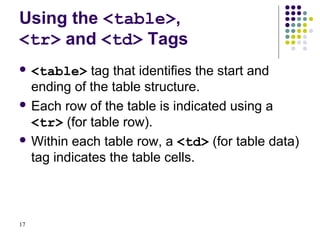
Using the <table>,
<tr> and <td> Tags
 <table> tag that identifies the start and
ending of the table structure.
 Each row of the table is indicated using a
<tr> (for table row).
 Within each table row, a <td> (for table data)
tag indicates the table cells.
18
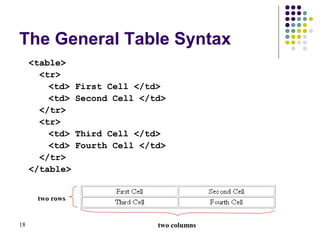
The General Table Syntax
<table>
<tr>
<td> First Cell </td>
<td> Second Cell </td>
</tr>
<tr>
<td> Third Cell </td>
<td> Fourth Cell </td>
</tr>
</table>
two rows
two columns
19
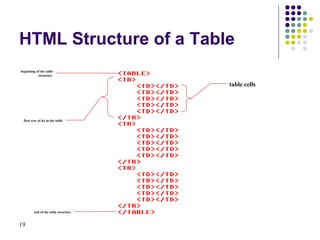
HTML Structure of a Table
beginning of the table
structure
first row of six in the table
end of the table structure
table cells
20
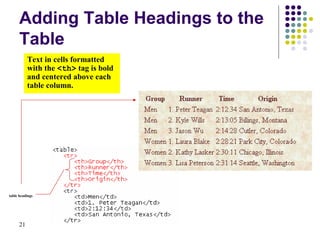
Creating Headings with the
<th> Tag
 HTML provides the <th> tag for table
headings.
21
table headings
Adding Table Headings to the
Table
Text in cells formatted
with the <th> tag is bold
and centered above each
table column.
22
Adding a Table Border
 By default, browsers display tables without
table borders.
 The syntax for creating a table border is:
<table border=“value”>
 value is the width of the border.
23
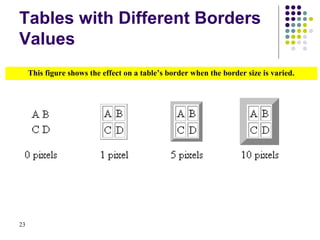
Tables with Different Borders
Values
This figure shows the effect on a table’s border when the border size is varied.
24
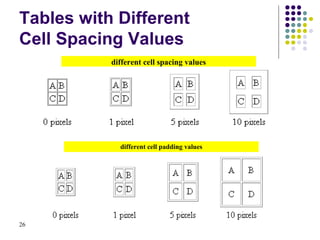
Controlling Cell Spacing
 Cell spacing refers to the space between the
cells.
 The syntax for specifying the cell space is:
<table cellspacing=“value”>
25
Defining Cell Padding
 Cell padding refers to the space within the
cells.
 The syntax for this attribute is:
<table cellpadding=“value”>
26
Tables with Different
Cell Spacing Values
different cell spacing values
different cell padding values
27

Html introduction Part-2

  • 1.
  • 2.
    2  Introduction  HTML = HyperText Markup Language  A markup language Technology of the World Wide Web Consortium (W3C)  HTML is a plain-text file that can be created using a  text editor like Notepad.  When creating HTML files for the web, make sure you  save them as .html or .htm.
  • 3.
    Let’s revise theHTML Tags in the previous class: <b> text </b> Bold <i> text></i> Italics  <u> text</u> Underline <sub>text</sub> Subscript <sup>text</sup> Superscript <p> text</p> Paragraph <hr> Horizontal Ruler <strike>text</strike> Strikes a line through the text 3
  • 4.
    © 2003 PrenticeHall, Inc. All rights reserved. Outline Font Control Basefont Tag and Font tag
  • 5.
  • 6.
  • 7.
    Changing the FontStyle  Use the FACE attribute inside the <FONT> tag  For example: <FONT FACE=“ARIAL”>hello</FONT>  Once this tag is closed, the DEFAULT font will once  again be displayed
  • 8.
    Now take alook...
  • 9.
    You can addother attributes to <FONT>  For Example  <FONT FACE=Arial SIZE=5 COLOR=Red>
  • 10.
    Your Assignment...  Usingyour web page from Font Control, change the font face of each of the statements. Below is a list of some of the different fonts available to you: Arial Arial Black Impact Verdana Comic Sans MS Courier New Times New Roman Copperplate Gothic Bold Lucida Handwriting Lucida Sans Book Antigua Abadi MT Condensed Light News Gothic MT Georgia
  • 11.
    Creating Lists in HTML 3 types of lists  Unordered list  Bulleted items  Ordered list  Numbered items  Definition List  a list of items, with a description of each item
  • 12.
    Unordered Lists in HTML The tag for a bulleted list is <ul> & </ul>  Each item is surrounded with the open and close <li> tag (li = list item)  Bullets can be changed to squares or circles with the optional code type=“square” or type=”circle” in the <ul> tag.  Code View <ul> <li>Milk</li> <li>Eggs</li> -- Browser View • Milk • Eggs
  • 13.
    Ordered Lists in HTML The tag for a numbered list is <ol> & </ol>  Each item is surrounded with the open and close <li> tag (li = list item)  List items will be numbered  Numbers can be changed to a, A, i, or I with the optional code type=“a”, type=“A”, etc in the <ol> tag.  Code View <ol> <li>George Washington</li> <li>John Adams</li> </ol> -- Browser View 1. George Washington 2. Johns Adam
  • 14.
    Definition Lists in HTML The tag for this list is <dl> & </dl>  Each term is surrounded with the <dt> tag and each description is surrounded with the <dd> tag  Code View <dl> <dt>Electron</dt> <dd>- carries a negative electric charge</dd> <dt>Neutron</dt> <dd>- carries no electric charge</dd> </dl> -- Browser View Electron - carries a negative electric charge Neutron - carries no electric charge
  • 15.
    Lists in HTML– REVIEW  Ordered lists <ol> produce numbered lists  Unordered lists <ul> produce bulleted lists  Each item in an ordered list & unordered list is surrounded with the <li> tag  Definition lists <dl> produce terms with definitions  Each term in a definition list is surrounded with the <dt> tag and each description is surrounded with the <dd> tag.
  • 16.
    © 2003 PrenticeHall, Inc. All rights reserved. Outline 16 HTML Tables
  • 17.
    17 Using the <table>, <tr>and <td> Tags  <table> tag that identifies the start and ending of the table structure.  Each row of the table is indicated using a <tr> (for table row).  Within each table row, a <td> (for table data) tag indicates the table cells.
  • 18.
    18 The General TableSyntax <table> <tr> <td> First Cell </td> <td> Second Cell </td> </tr> <tr> <td> Third Cell </td> <td> Fourth Cell </td> </tr> </table> two rows two columns
  • 19.
    19 HTML Structure ofa Table beginning of the table structure first row of six in the table end of the table structure table cells
  • 20.
    20 Creating Headings withthe <th> Tag  HTML provides the <th> tag for table headings.
  • 21.
    21 table headings Adding TableHeadings to the Table Text in cells formatted with the <th> tag is bold and centered above each table column.
  • 22.
    22 Adding a TableBorder  By default, browsers display tables without table borders.  The syntax for creating a table border is: <table border=“value”>  value is the width of the border.
  • 23.
    23 Tables with DifferentBorders Values This figure shows the effect on a table’s border when the border size is varied.
  • 24.
    24 Controlling Cell Spacing Cell spacing refers to the space between the cells.  The syntax for specifying the cell space is: <table cellspacing=“value”>
  • 25.
    25 Defining Cell Padding Cell padding refers to the space within the cells.  The syntax for this attribute is: <table cellpadding=“value”>
  • 26.
    26 Tables with Different CellSpacing Values different cell spacing values different cell padding values
  • 27.