ACE Virtual Professional|https://eileengonzaless.com 1
2015 – Eileen B. Gonzales 2
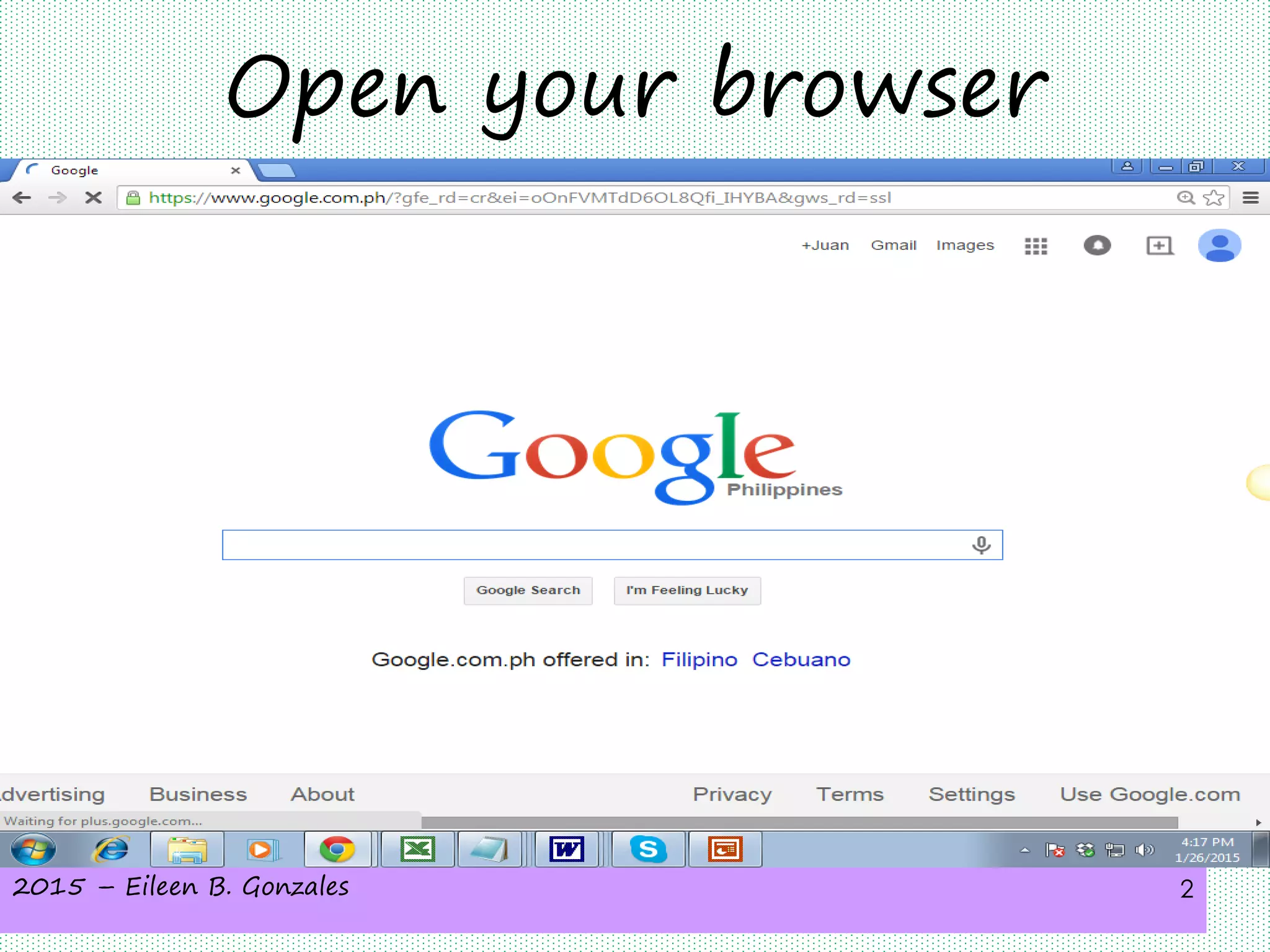
Open your browser
2015 – Eileen B. Gonzales 3
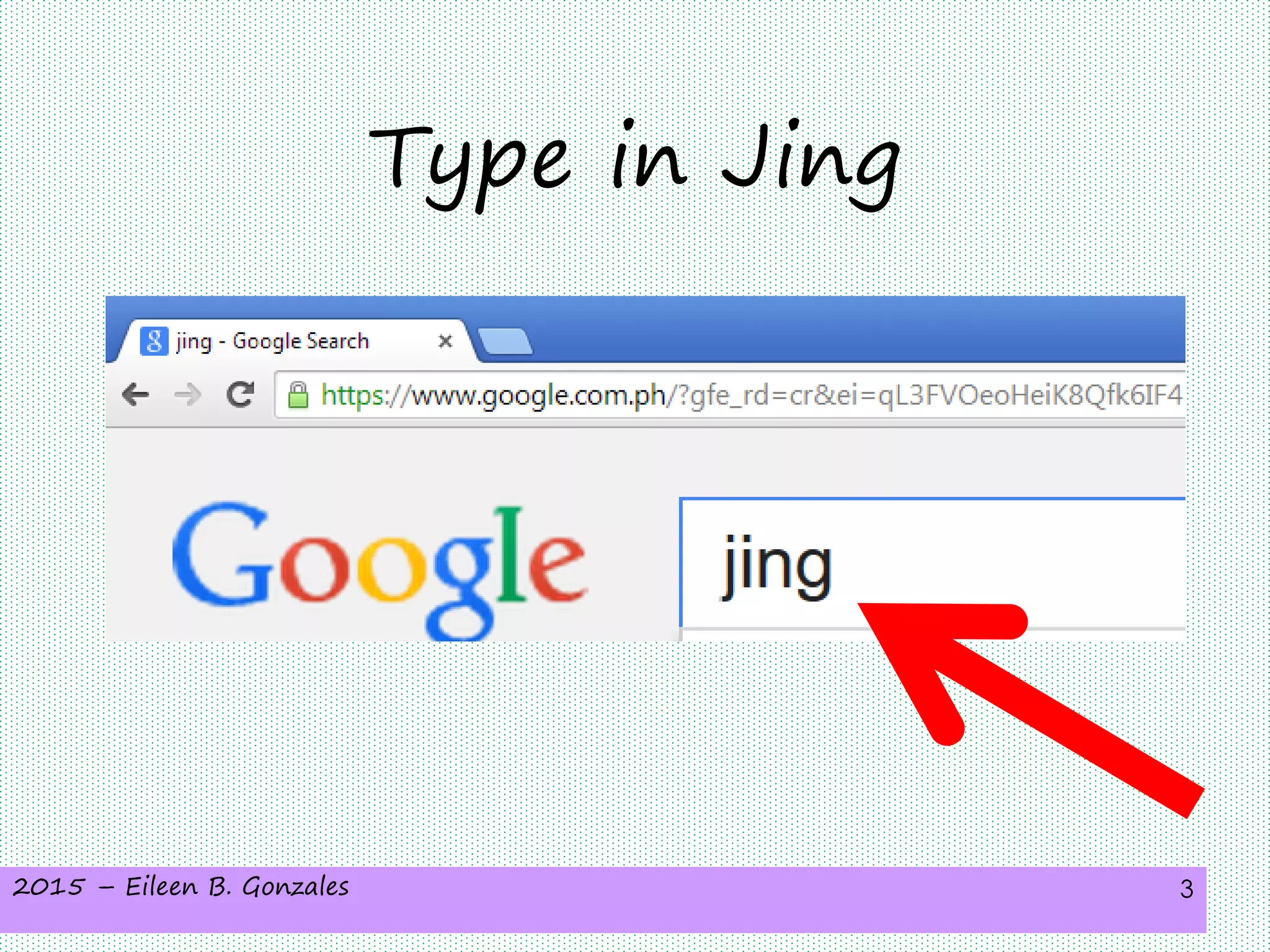
Type in Jing
2015 – Eileen B. Gonzales 4
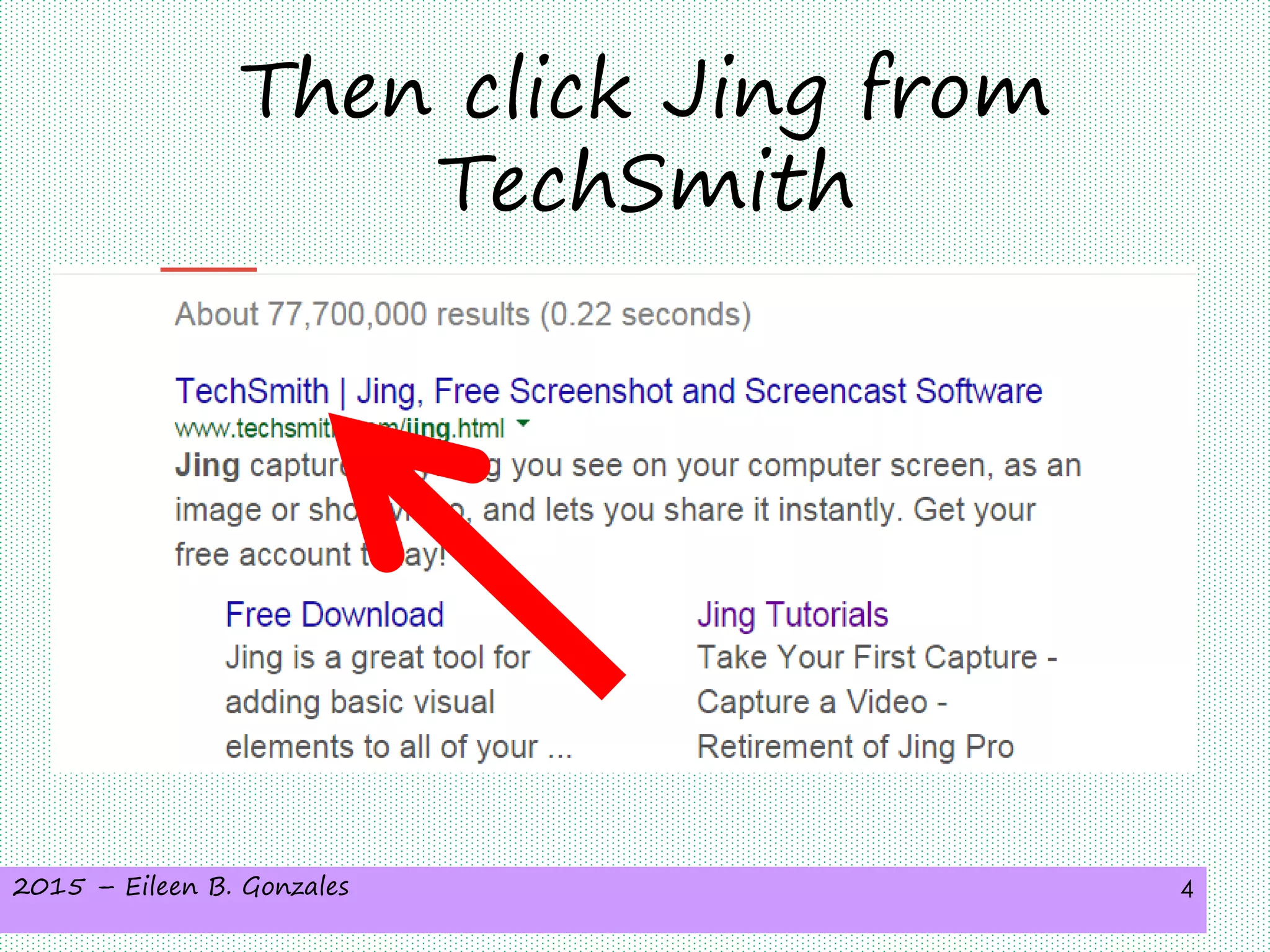
Then click Jing from
TechSmith
2015 – Eileen B. Gonzales 5
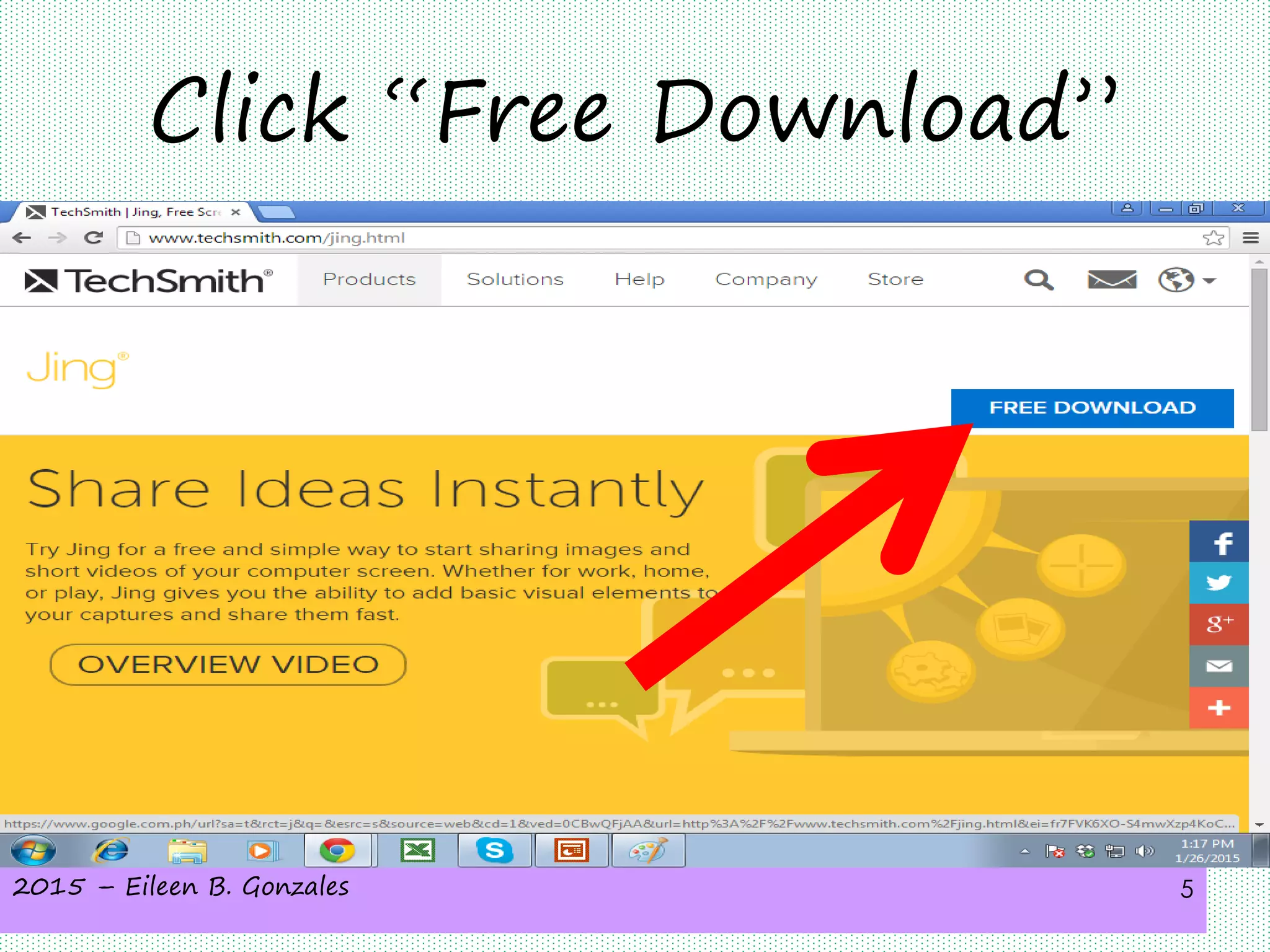
Click “Free Download”
2015 – Eileen B. Gonzales 6
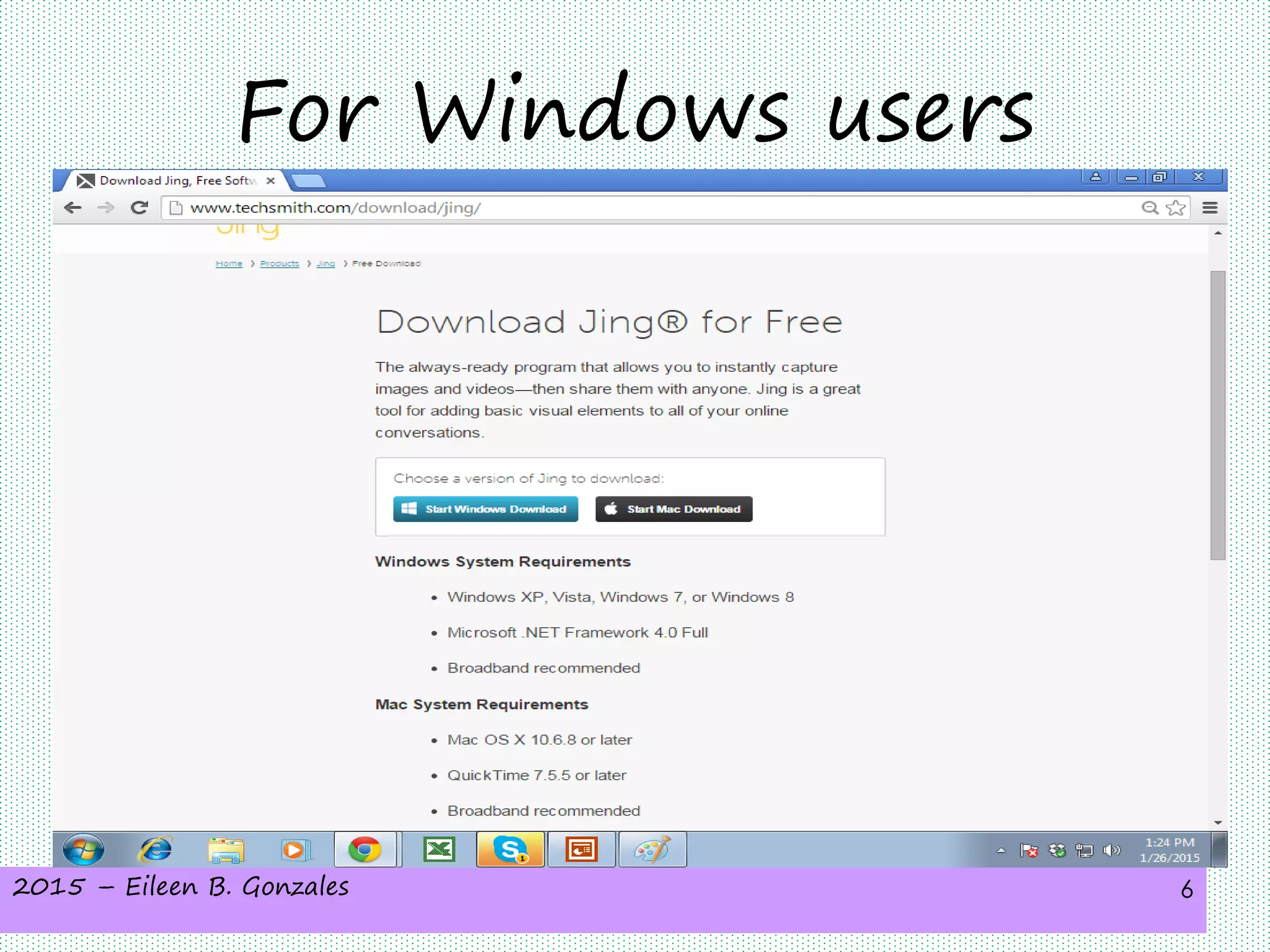
For Windows users
2015 – Eileen B. Gonzales 7
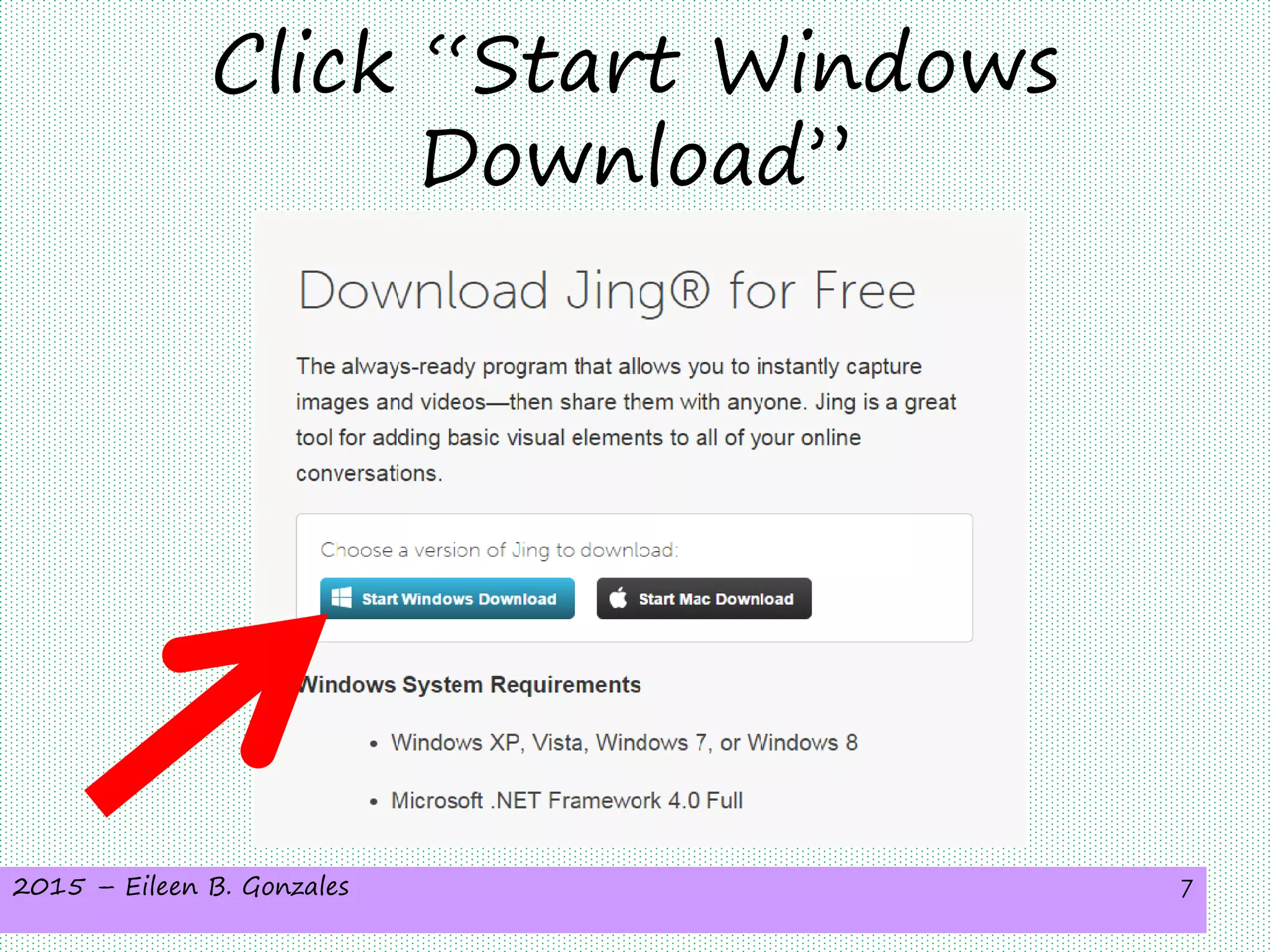
Click “Start Windows
Download”
2015 – Eileen B. Gonzales 8
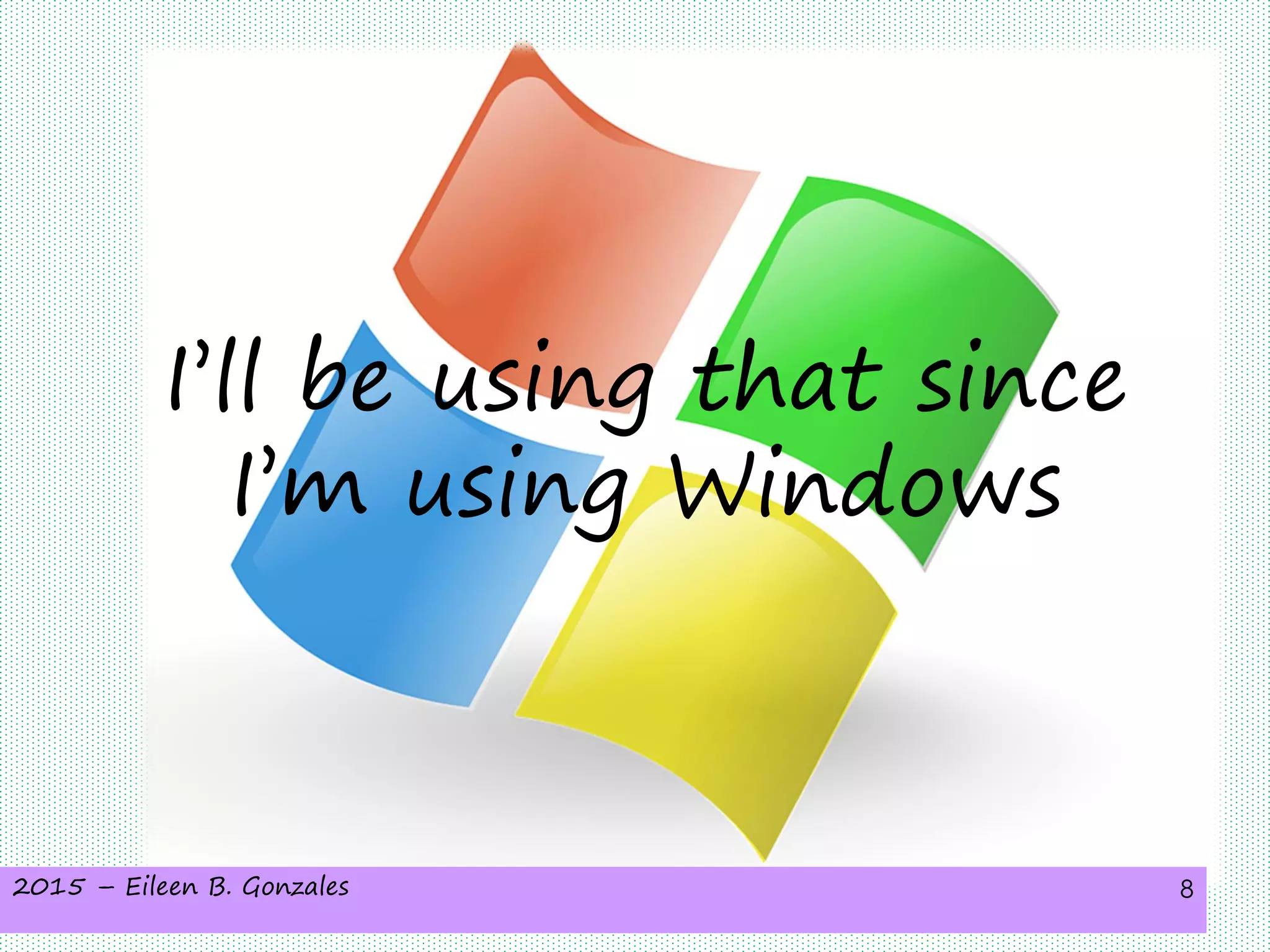
I’ll be using that since
I’m using Windows
2015 – Eileen B. Gonzales 9
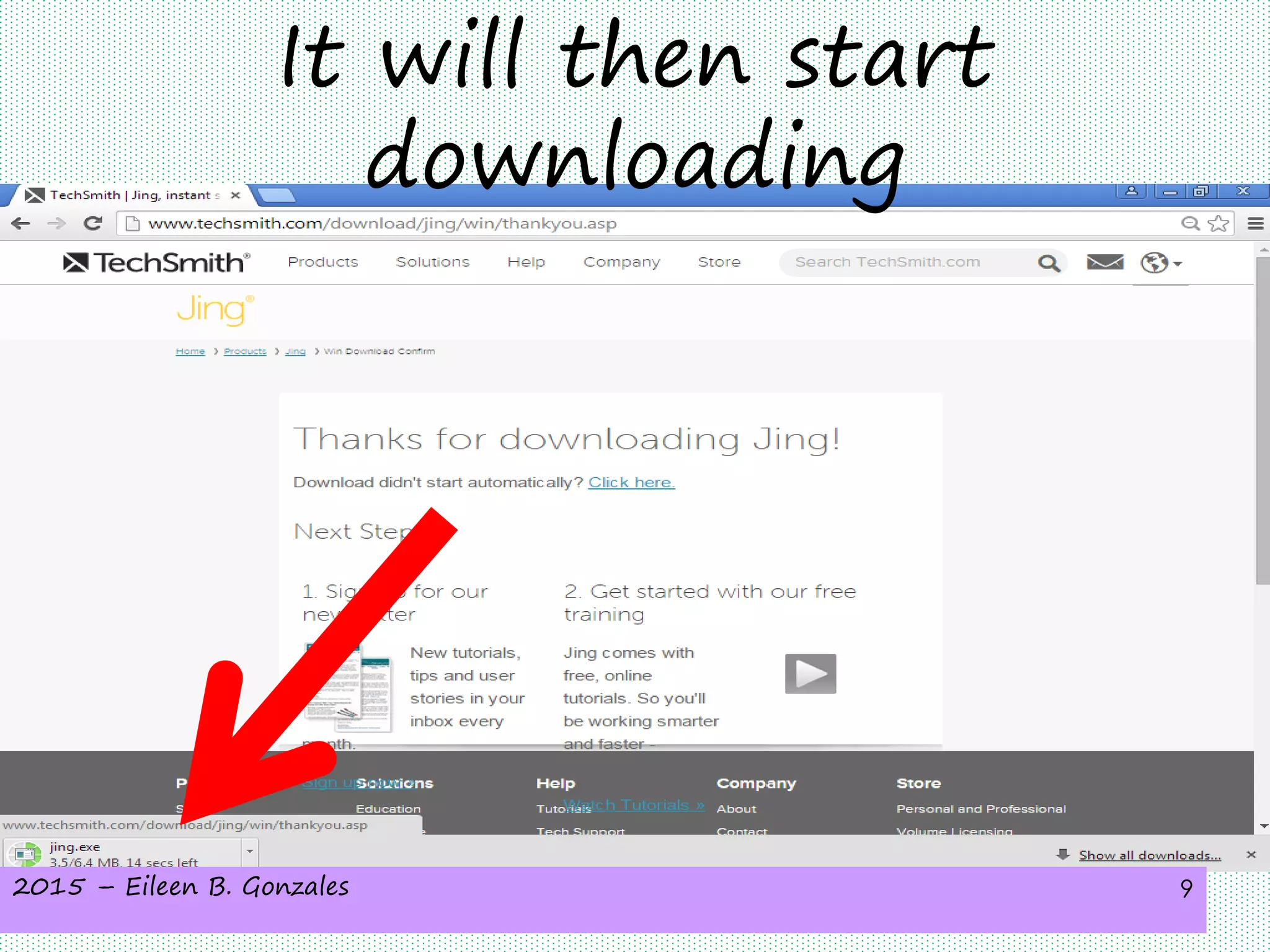
It will then start
downloading
2015 – Eileen B. Gonzales 10
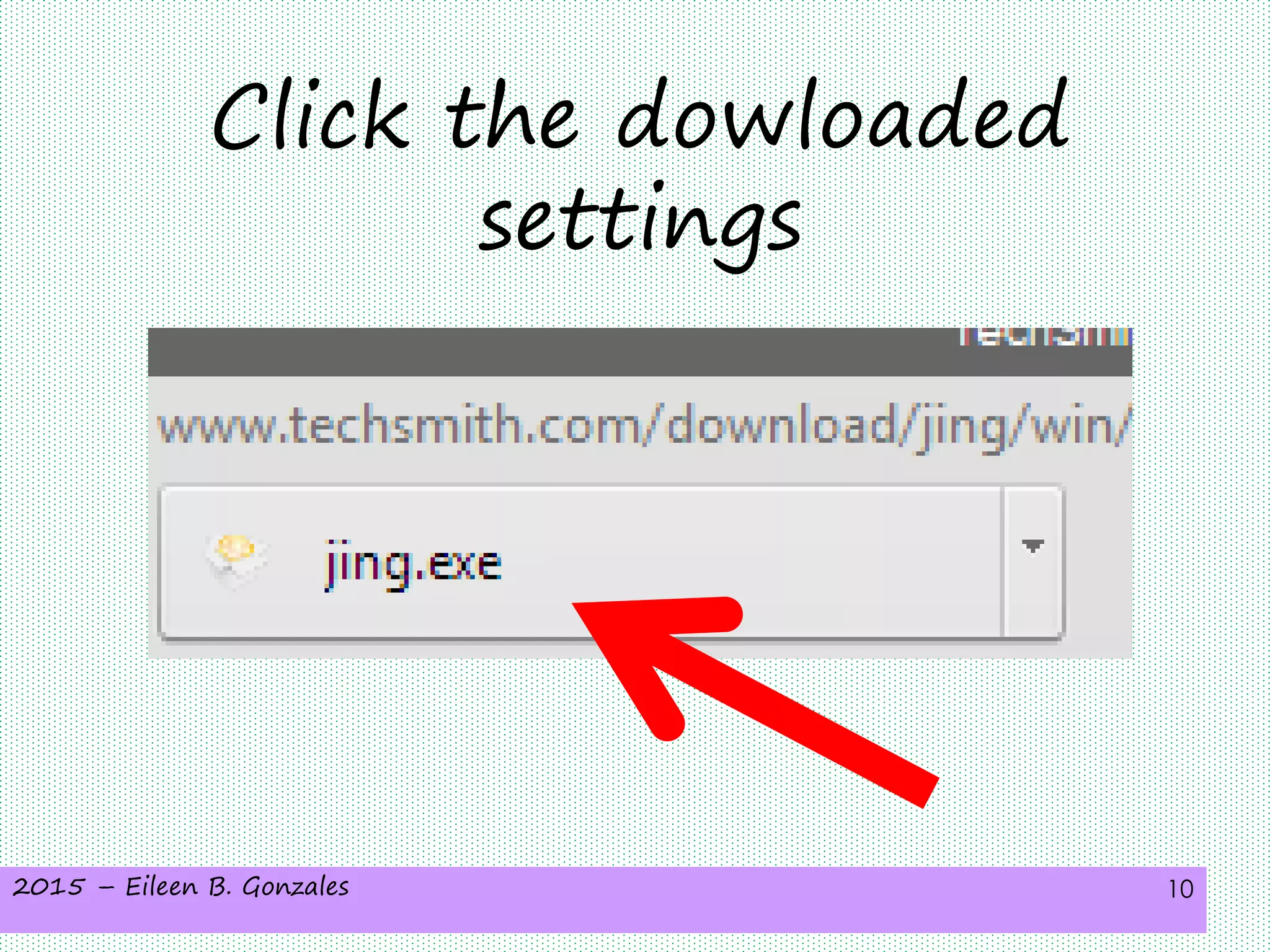
Click the dowloaded
settings
2015 – Eileen B. Gonzales 11
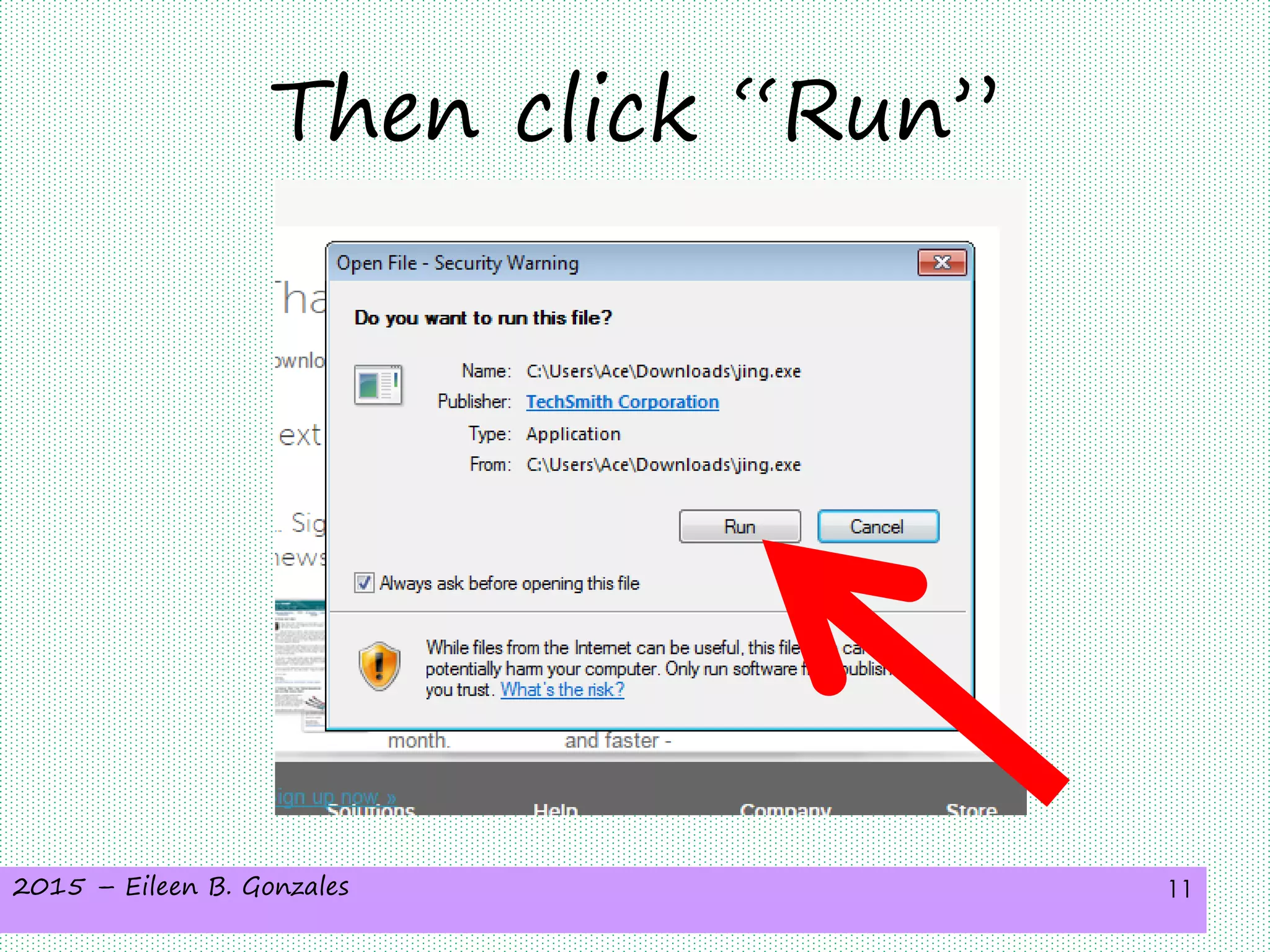
Then click “Run”
2015 – Eileen B. Gonzales 12
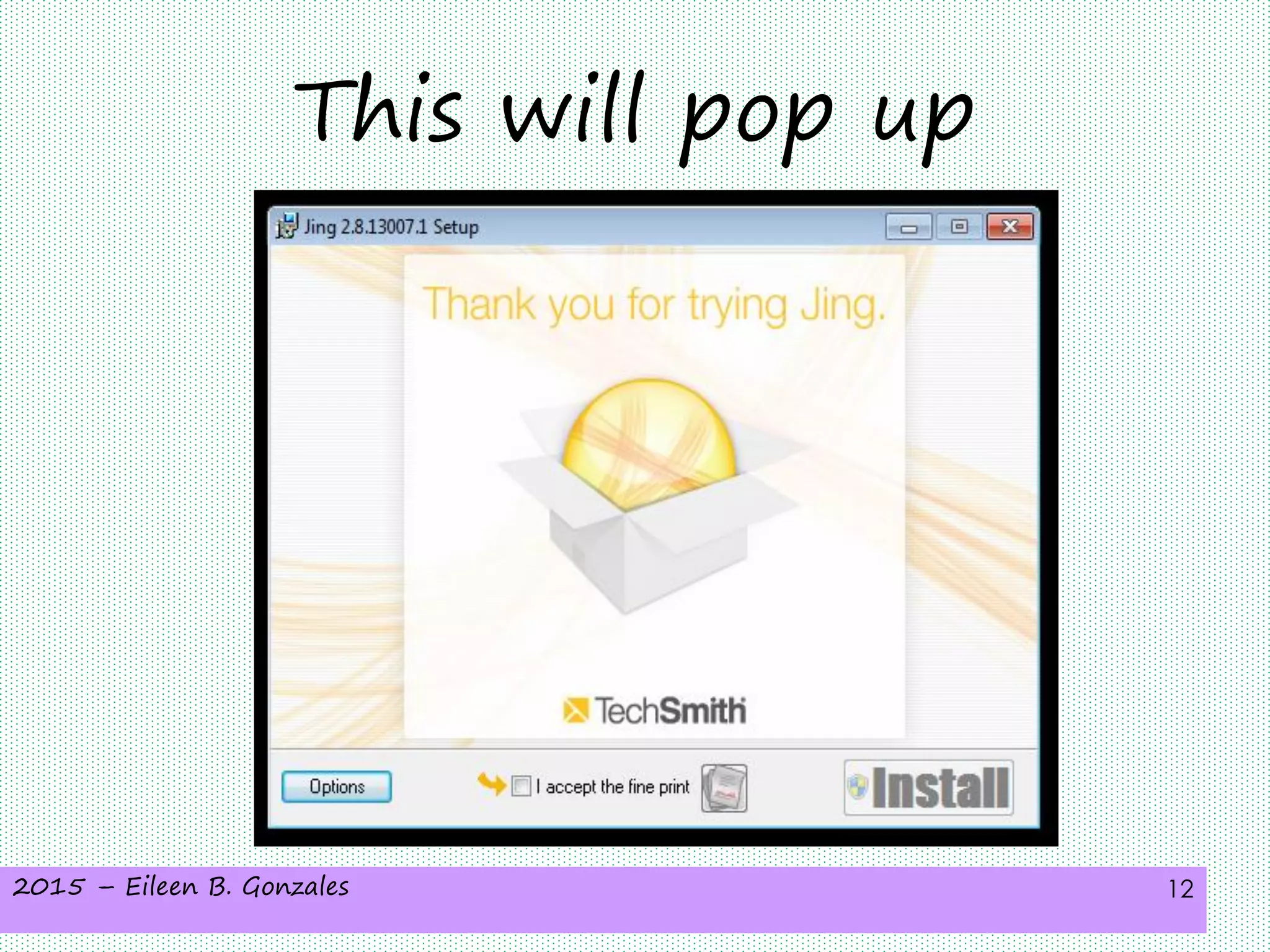
This will pop up
2015 – Eileen B. Gonzales 13
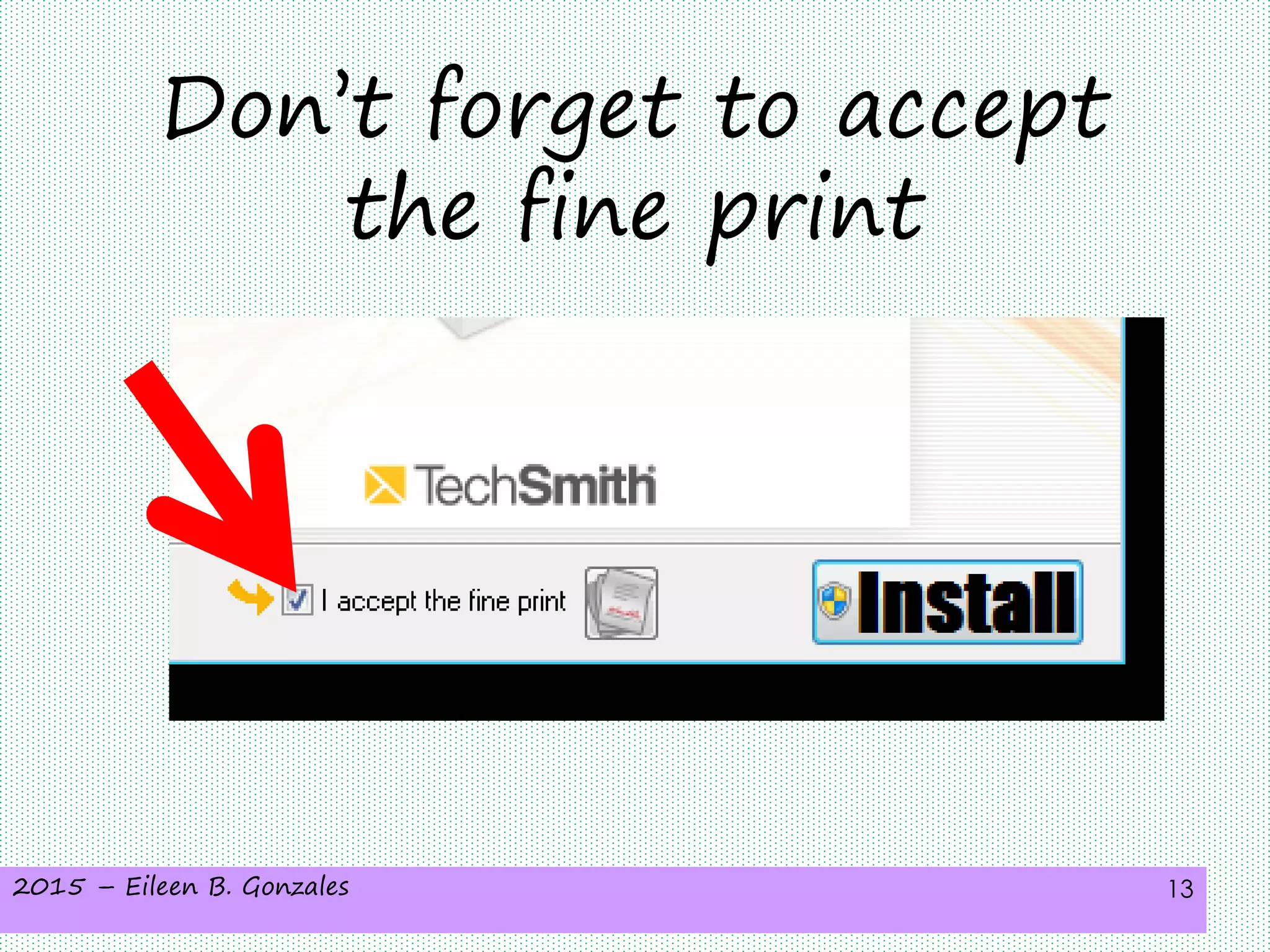
Don’t forget to accept
the fine print
2015 – Eileen B. Gonzales 14
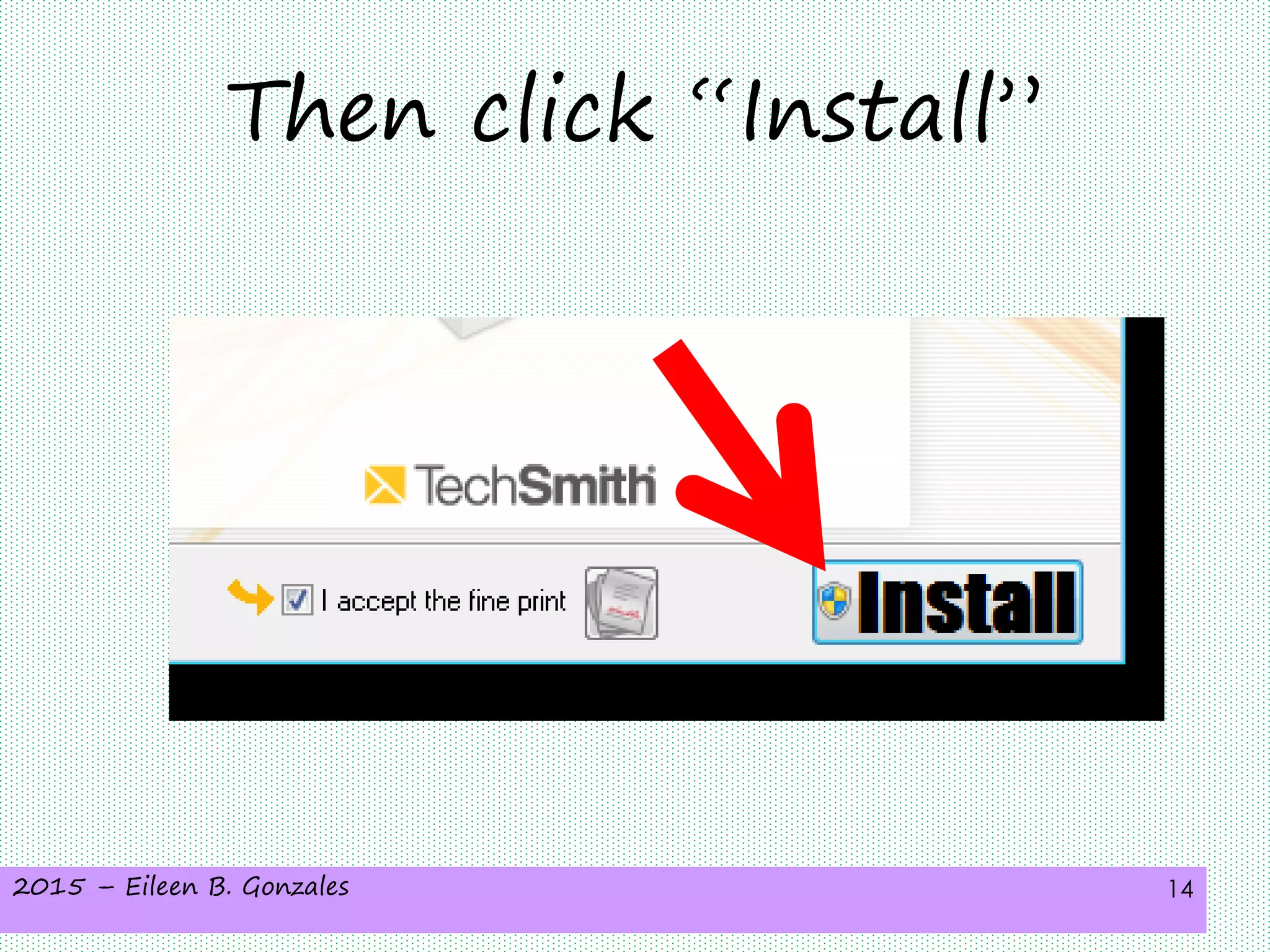
Then click “Install”
2015 – Eileen B. Gonzales 15
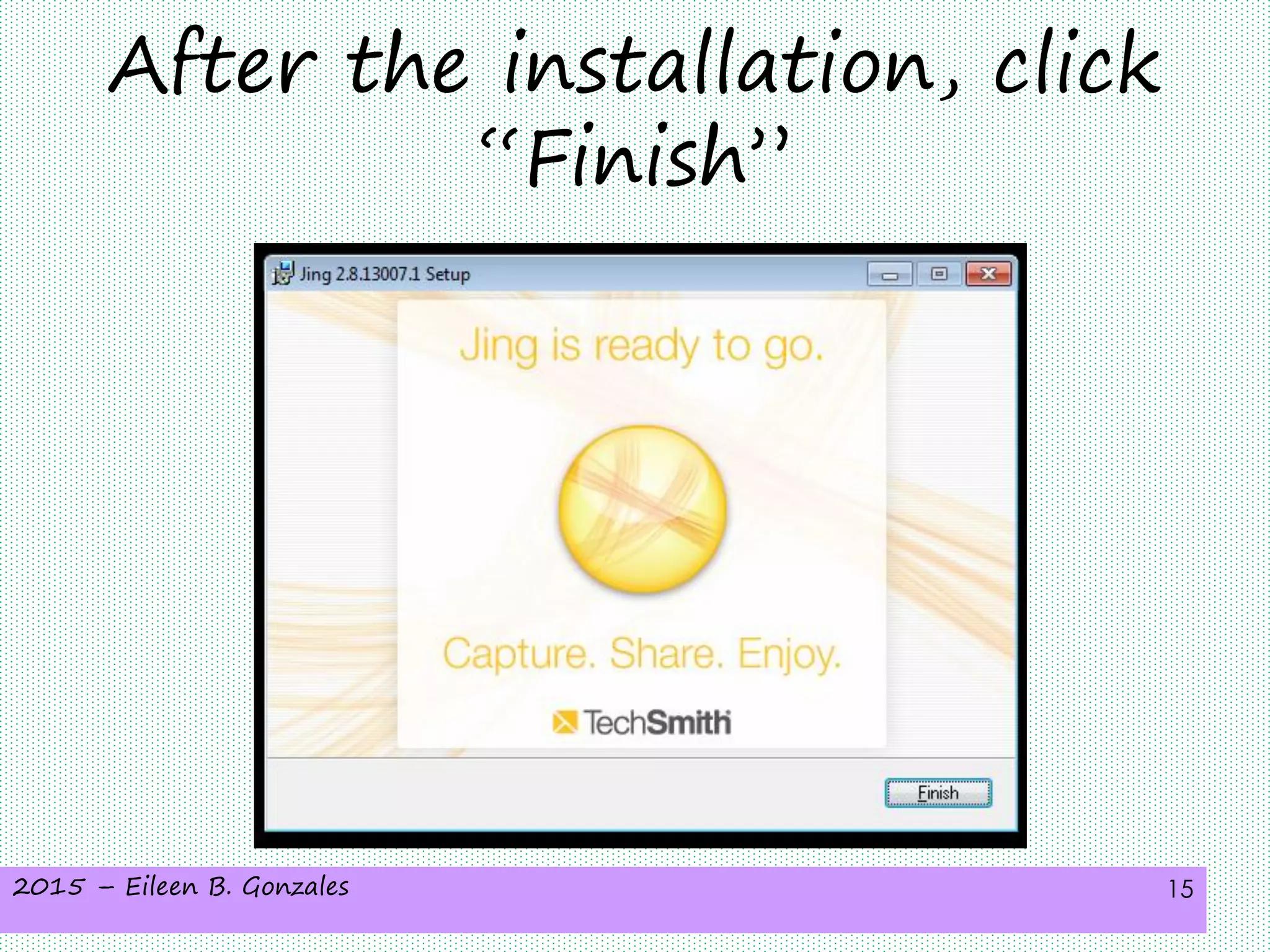
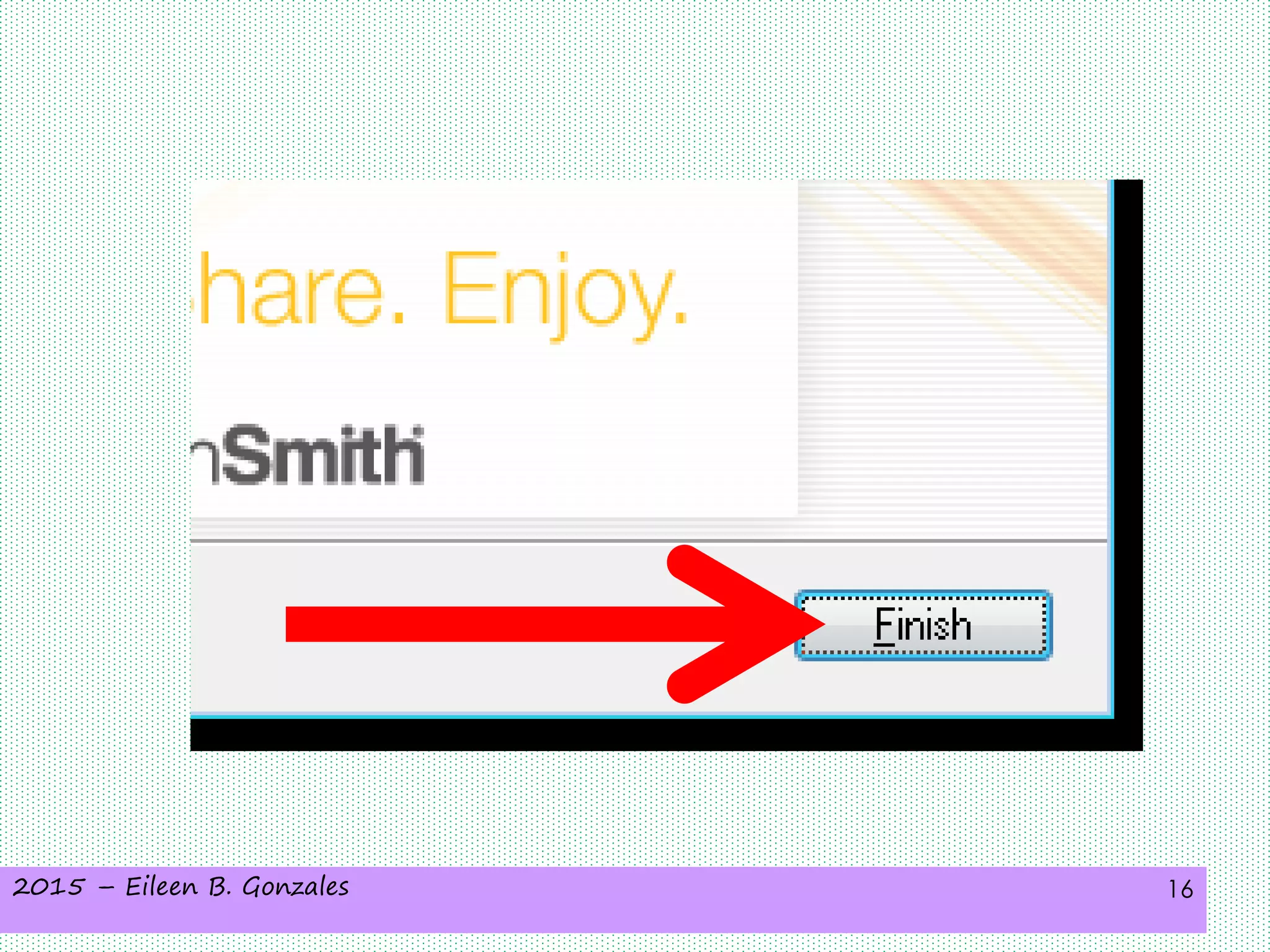
After the installation, click
“Finish”
2015 – Eileen B. Gonzales 16
2015 – Eileen B. Gonzales 17
After clicking
“Finish”
2015 – Eileen B. Gonzales 18
An interactive video
tutorial will show up
2015 – Eileen B. Gonzales 19
So go ahead and
just give it a try
2015 – Eileen B. Gonzales 20
Let’s now using
Jing!
2015 – Eileen B. Gonzales 21
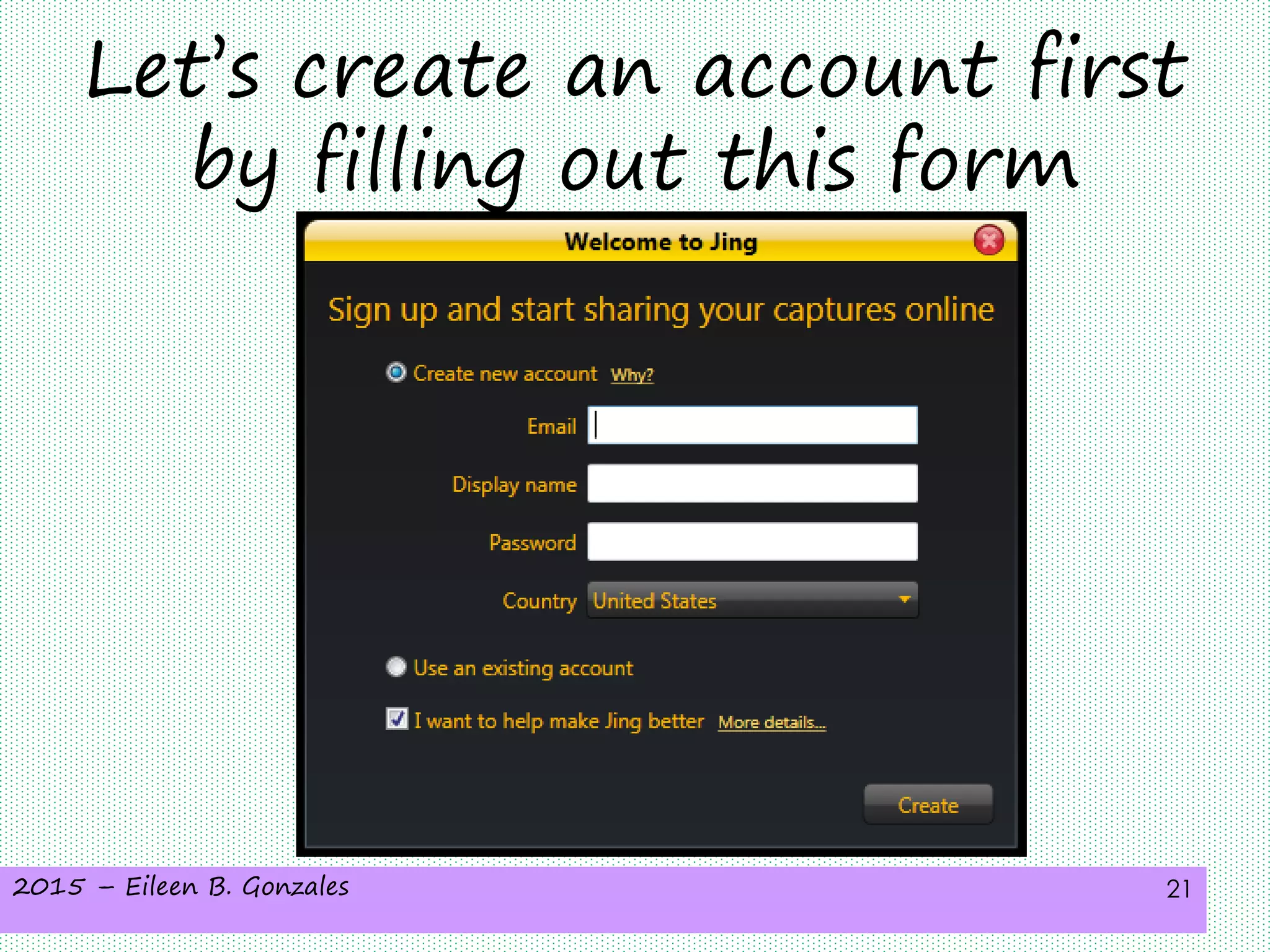
Let’s create an account first
by filling out this form
2015 – Eileen B. Gonzales 22
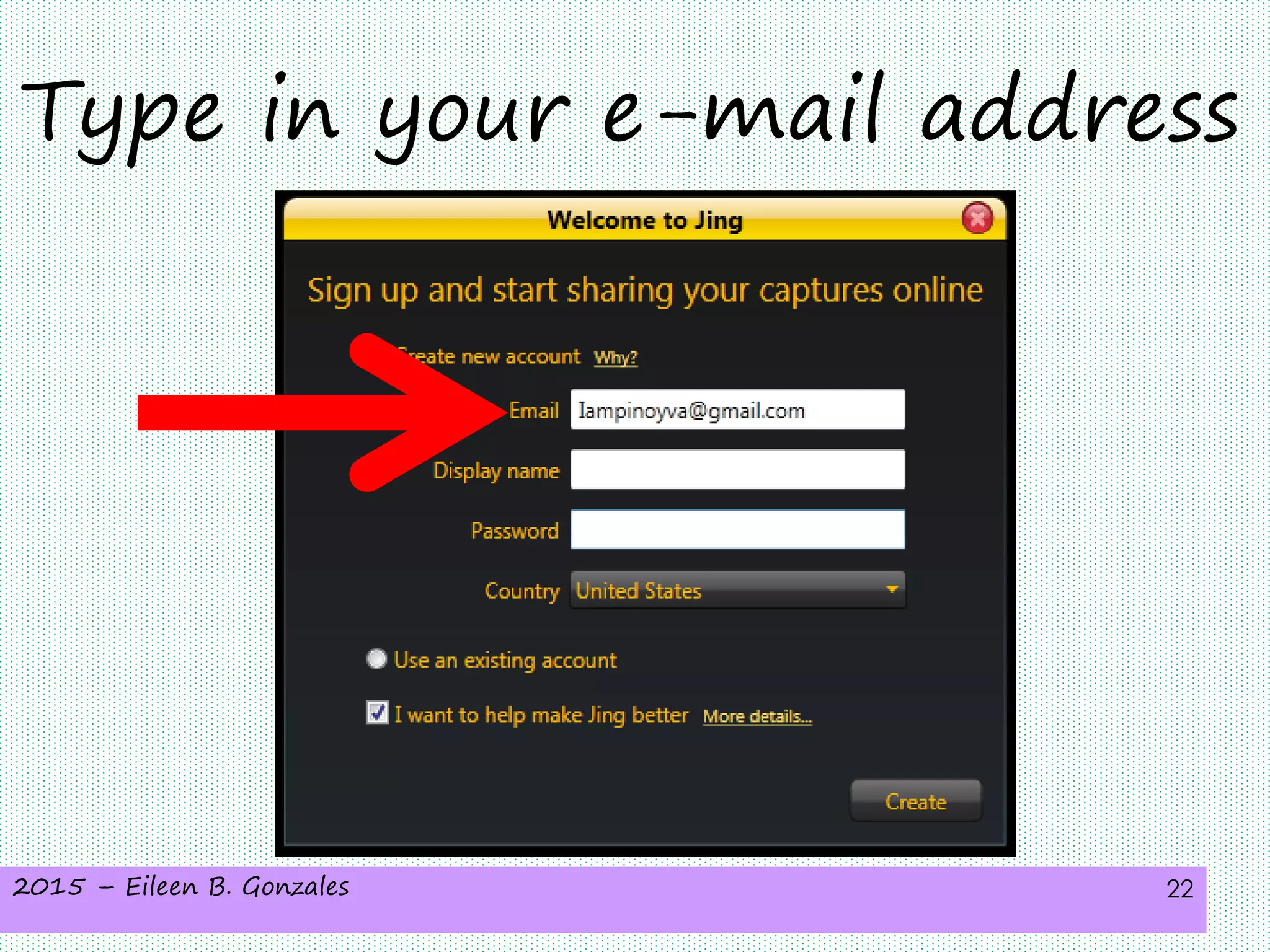
Type in your e-mail address
2015 – Eileen B. Gonzales 23
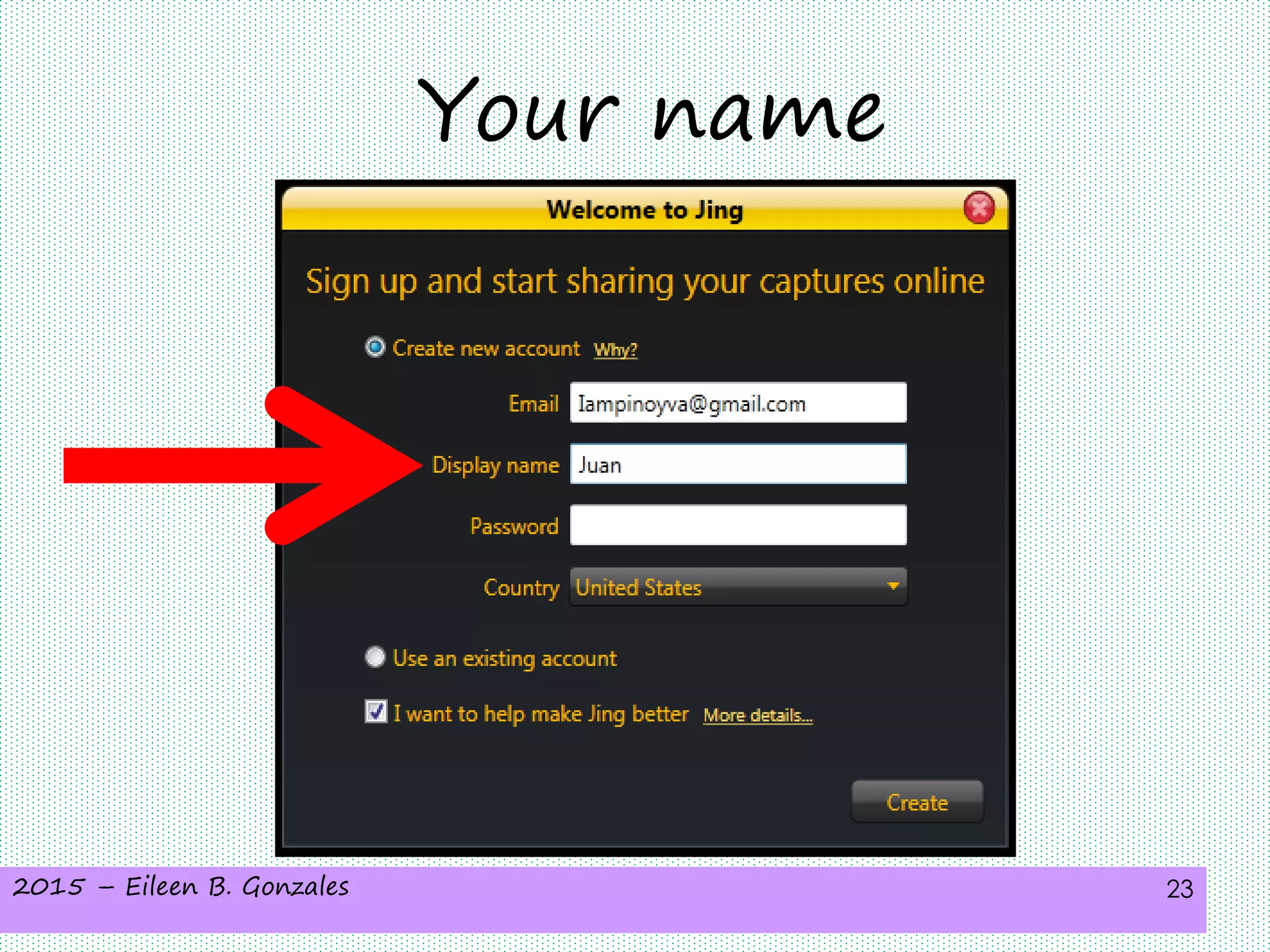
Your name
2015 – Eileen B. Gonzales 24
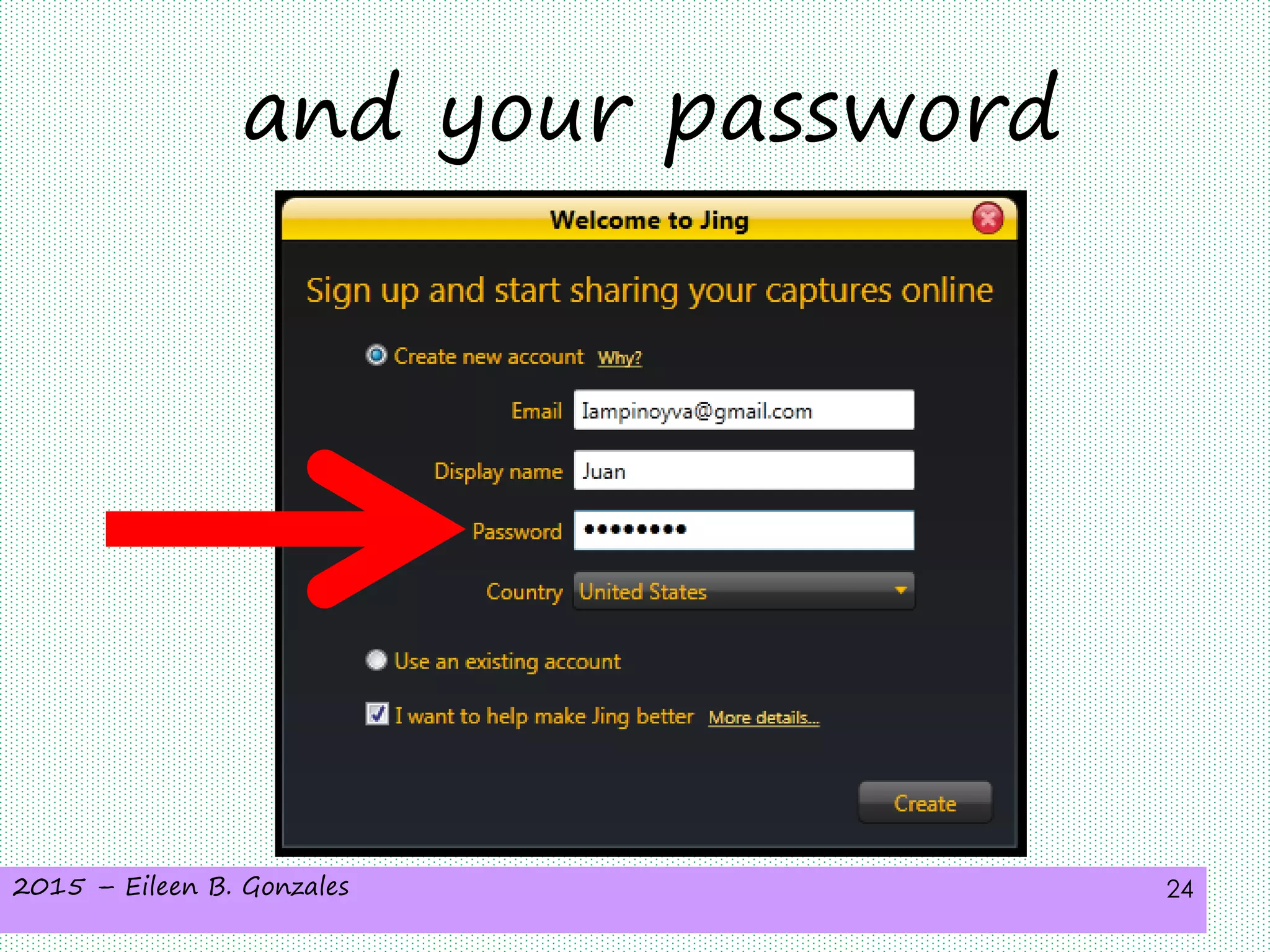
and your password
2015 – Eileen B. Gonzales 25
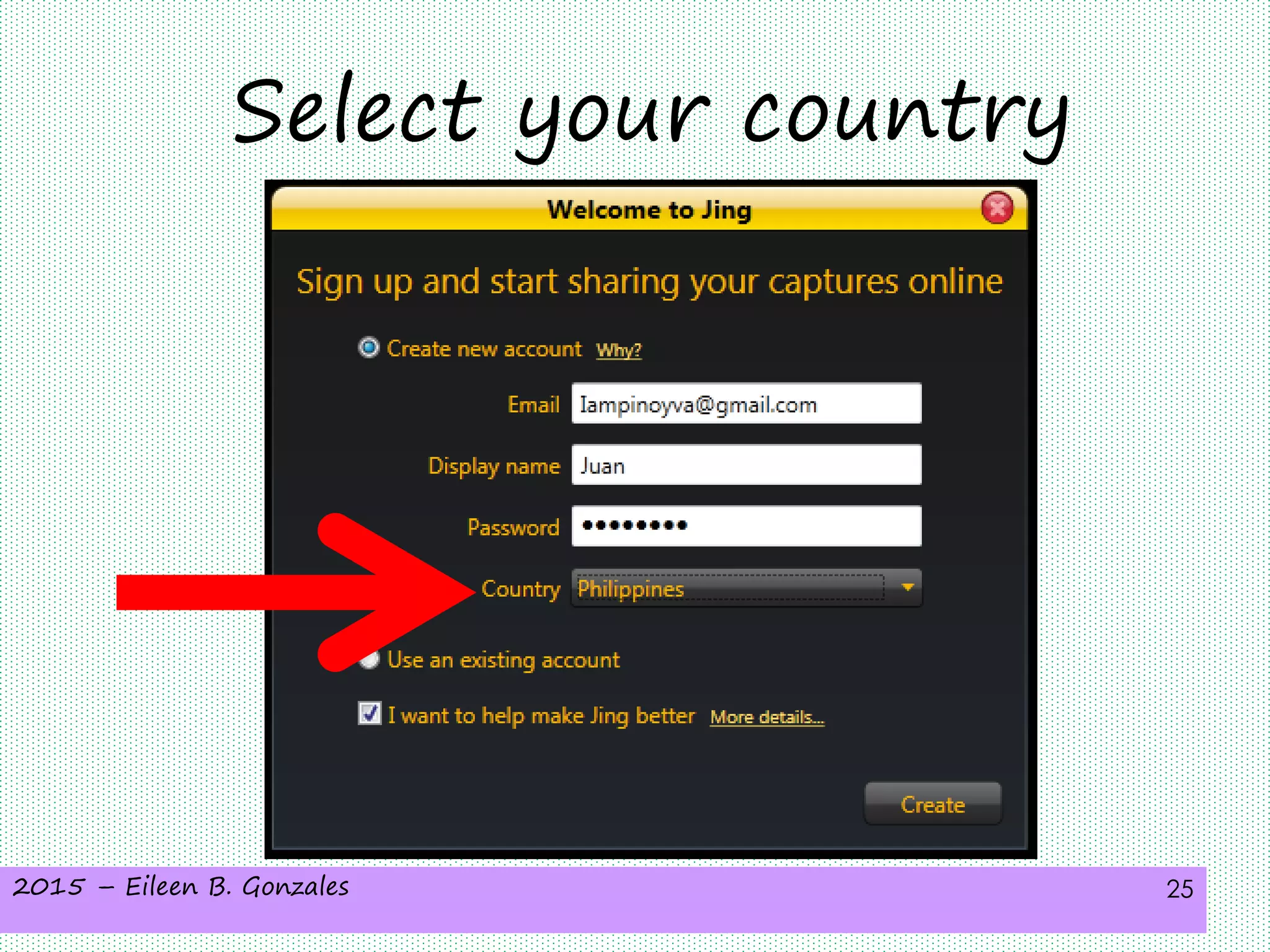
Select your country
2015 – Eileen B. Gonzales 26
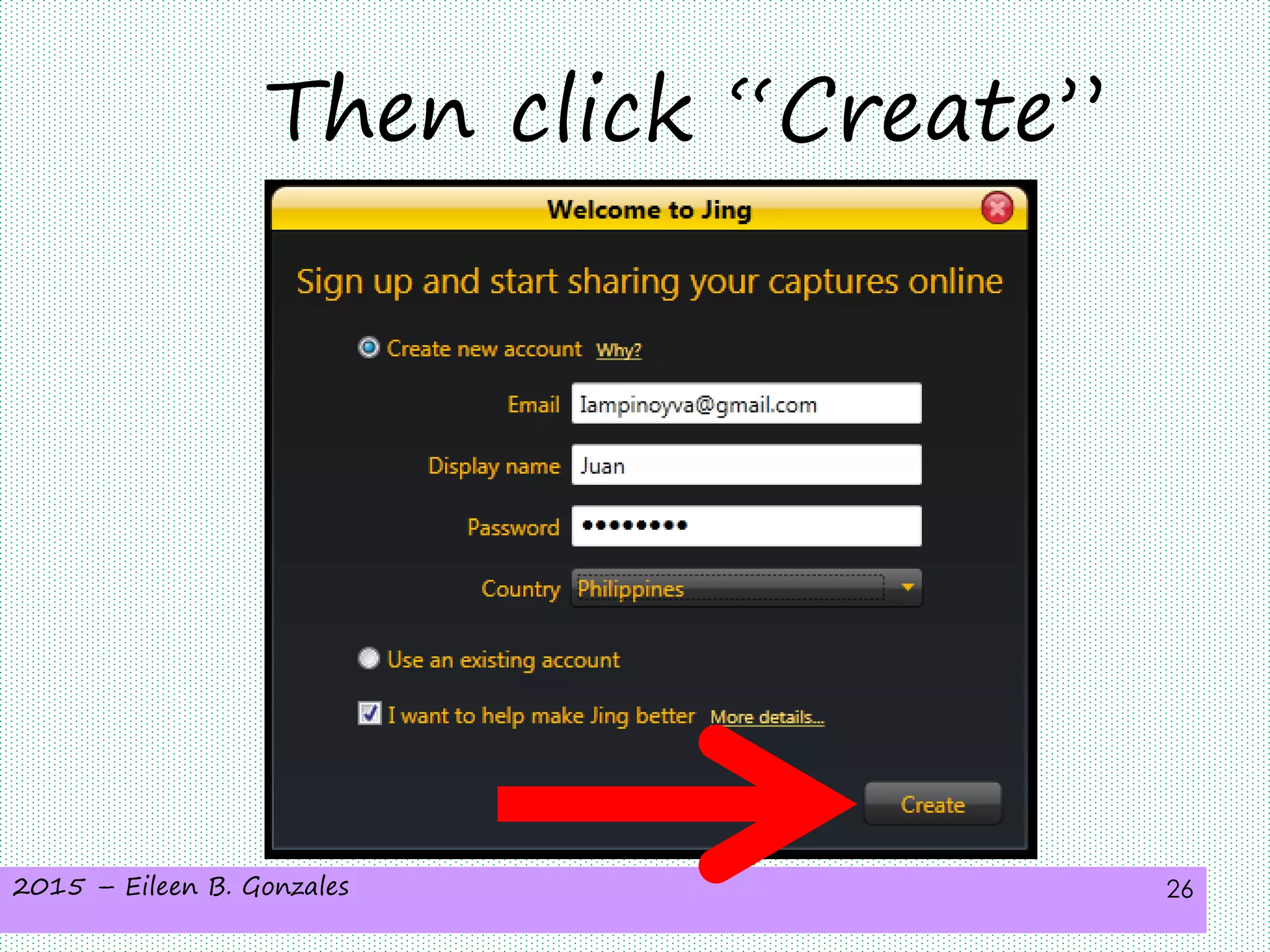
Then click “Create”
2015 – Eileen B. Gonzales 27
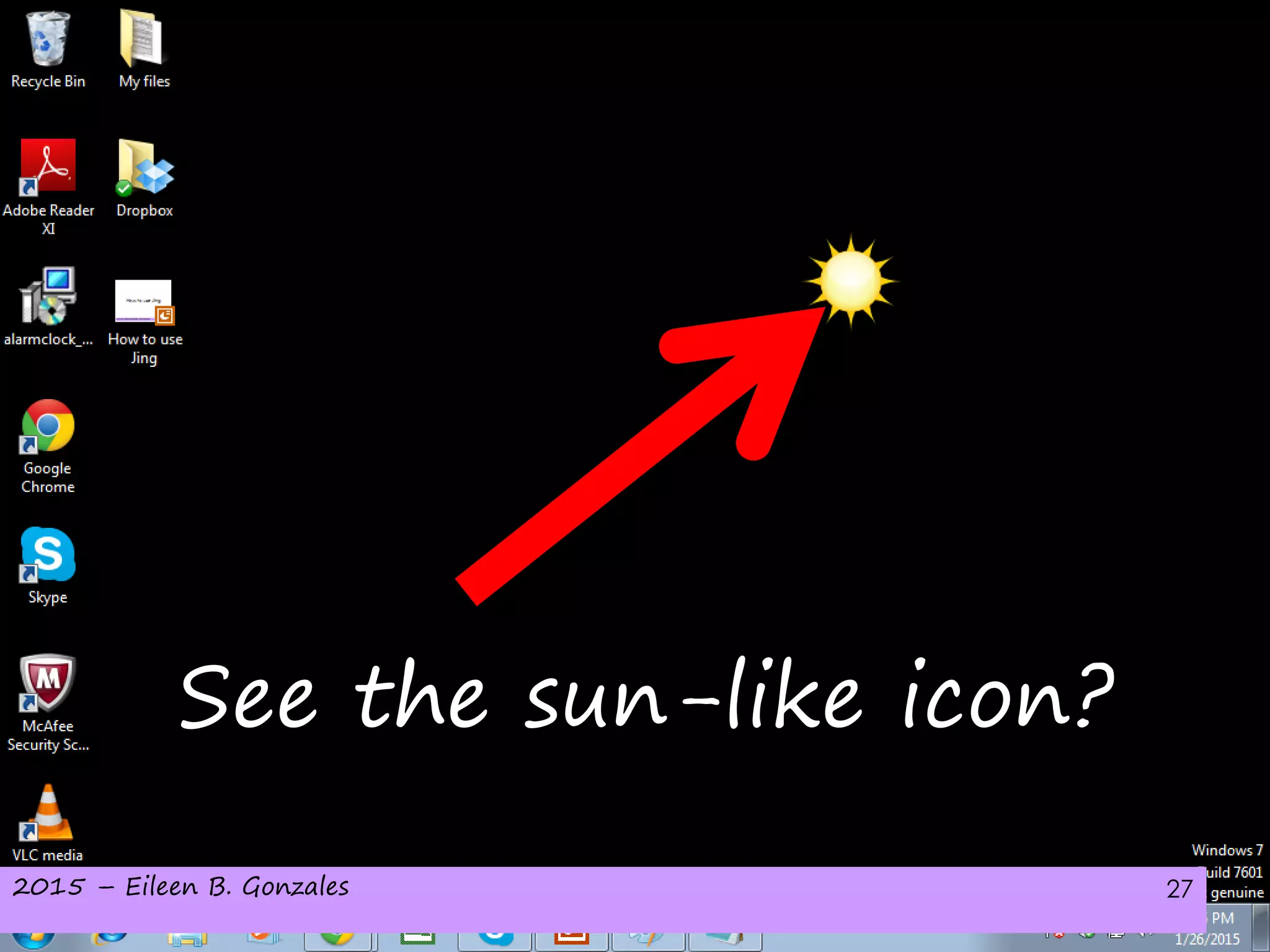
See the sun-like icon?
2015 – Eileen B. Gonzales 28
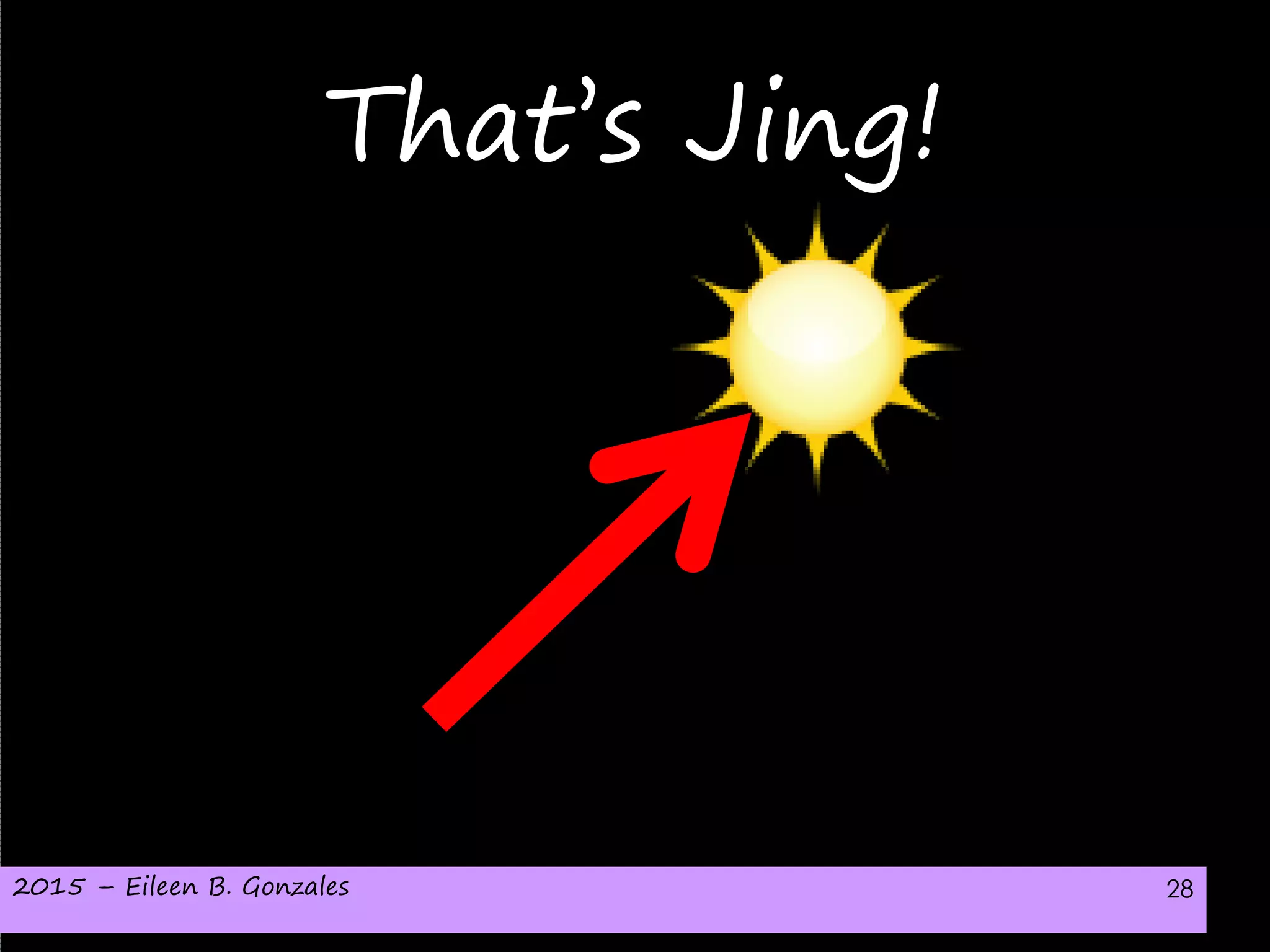
That’s Jing!
2015 – Eileen B. Gonzales 29
I was able to
screenshot the whole
icon
2015 – Eileen B. Gonzales 30
because I
clicked
the
mouse
steadily
2015 – Eileen B. Gonzales 31
But
normally,
the icon
just looks
like a
raindrop
2015 – Eileen B. Gonzales 32
Which you can stick
anywhere on your screen
2015 – Eileen B. Gonzales 33
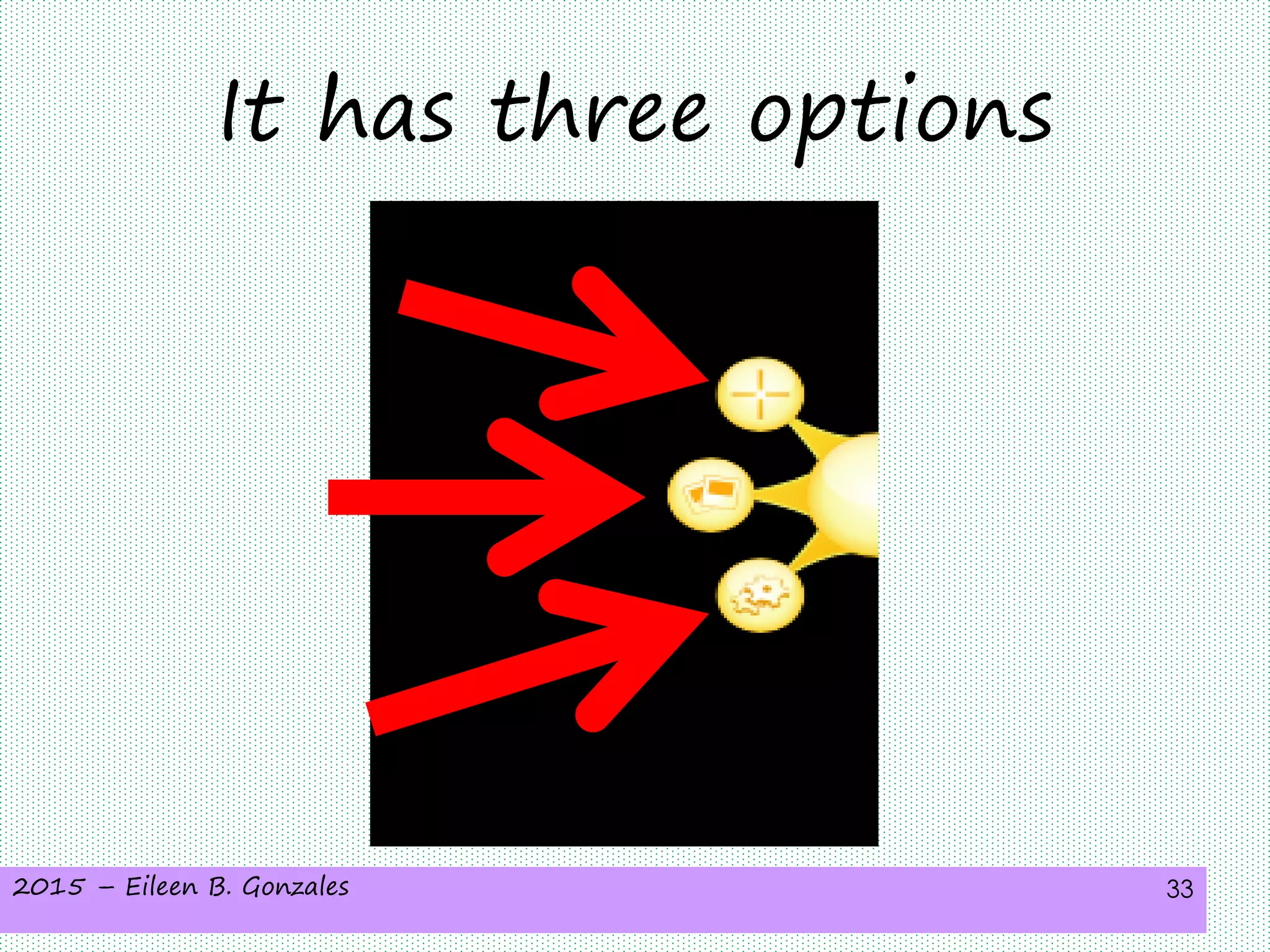
It has three options
2015 – Eileen B. Gonzales 34
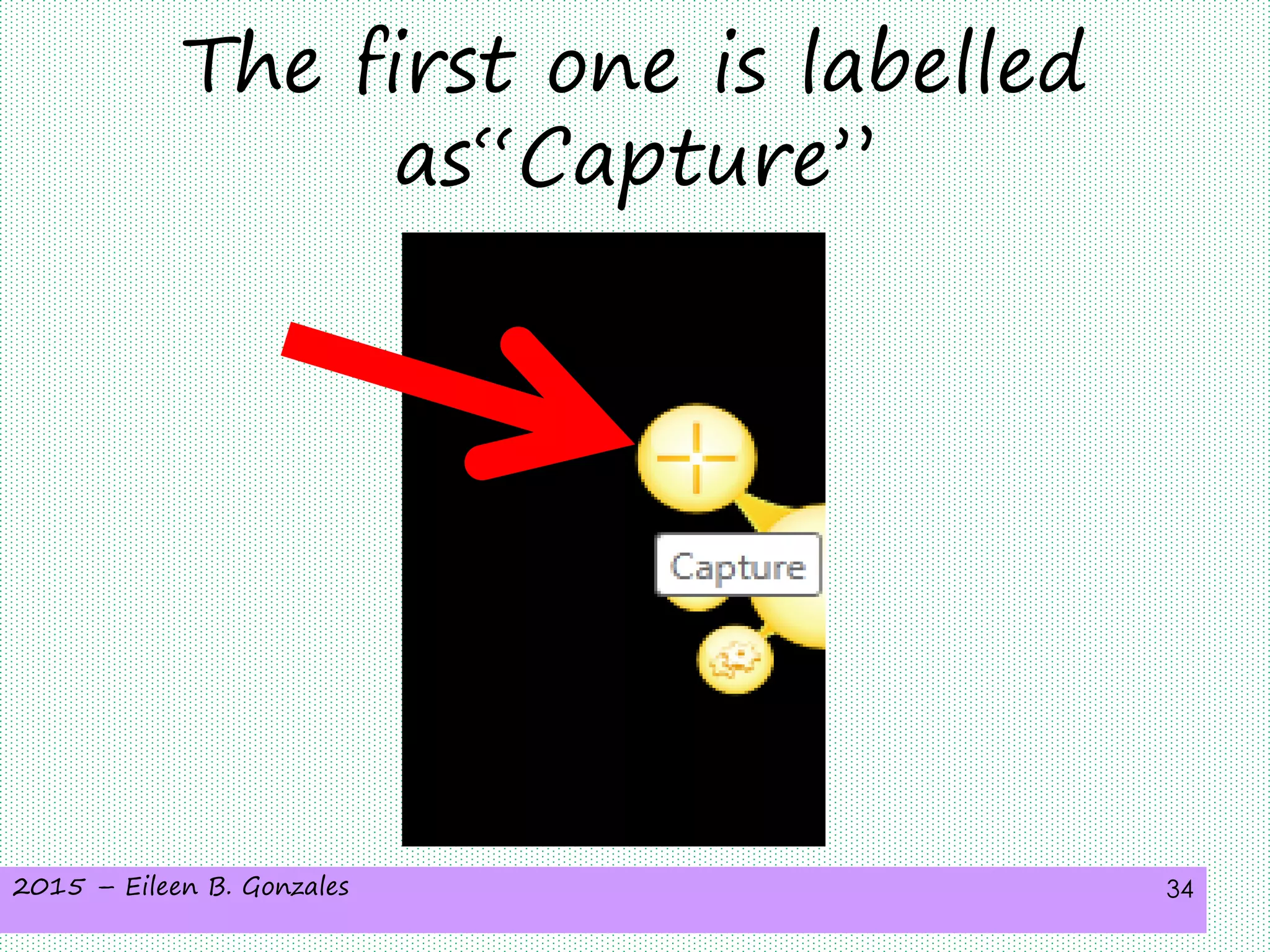
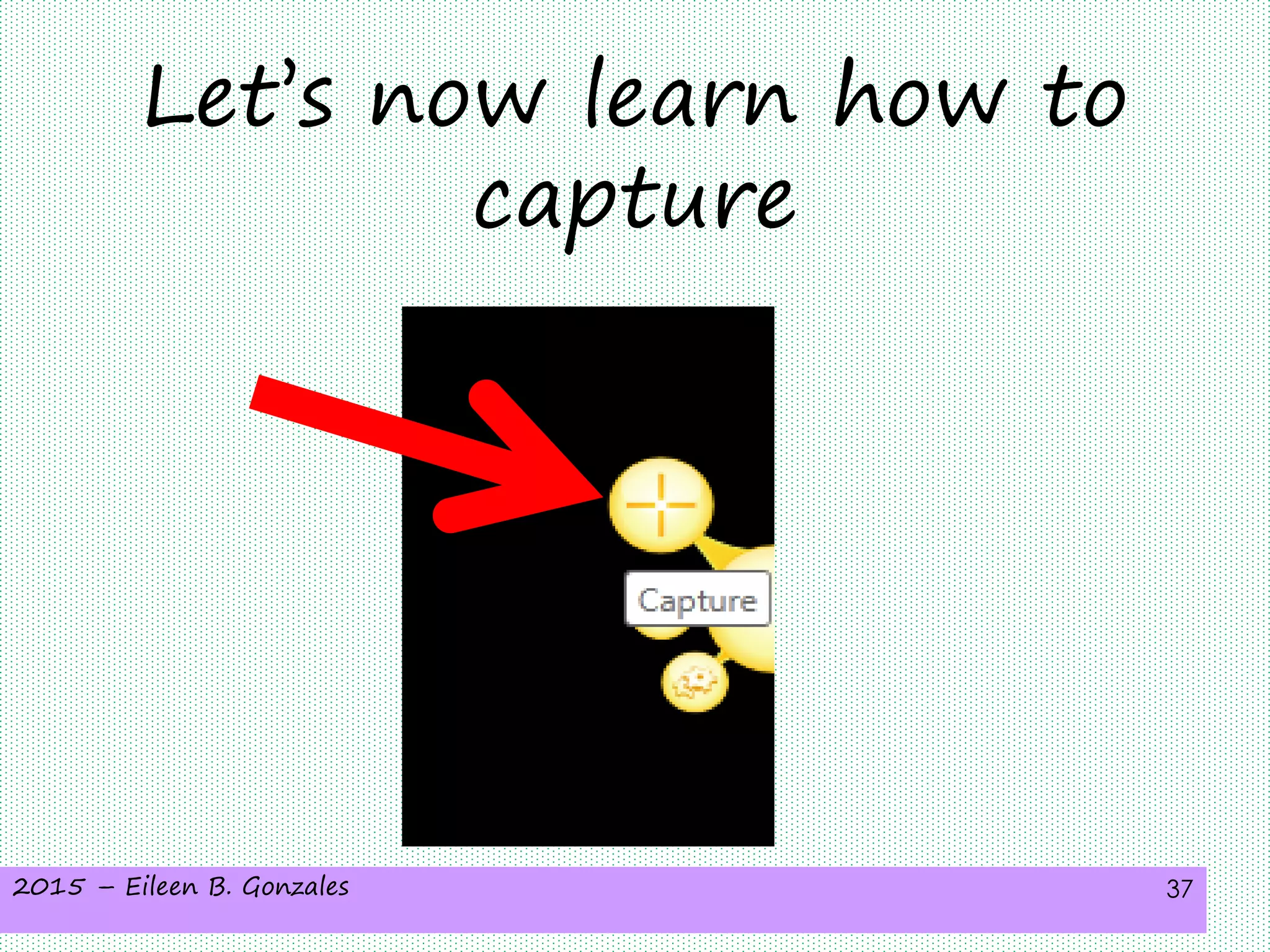
The first one is labelled
as“Capture”
2015 – Eileen B. Gonzales 35
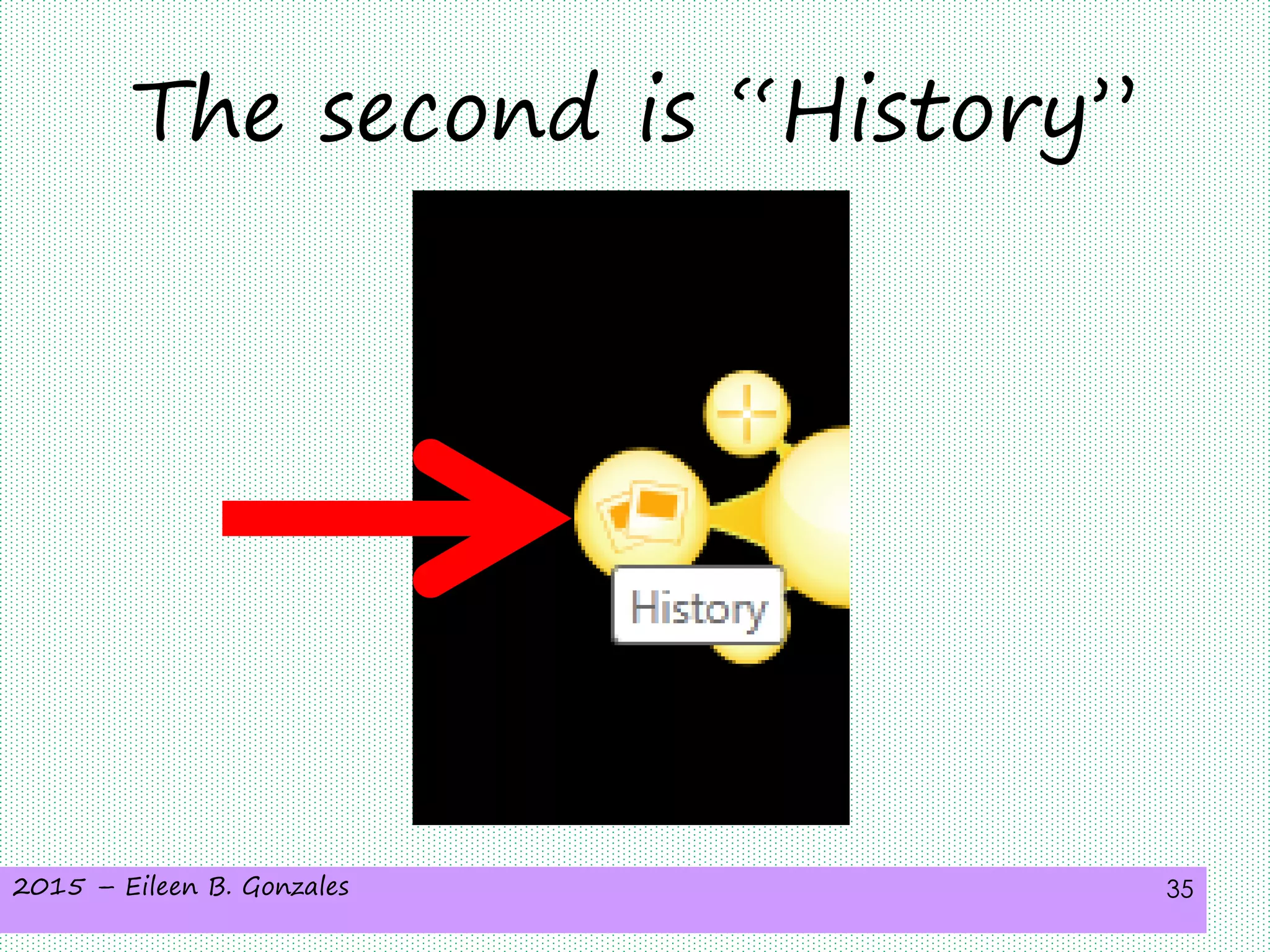
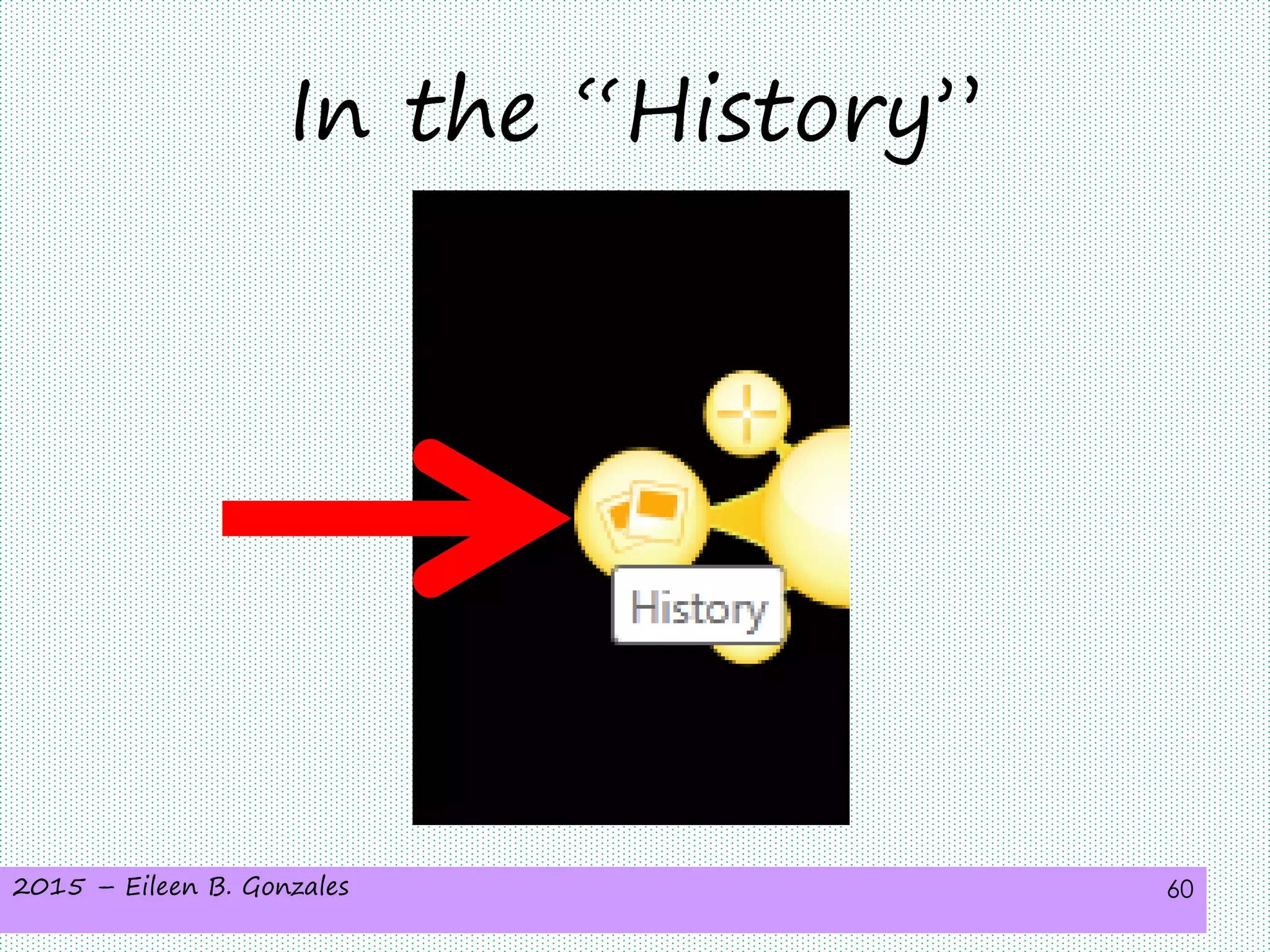
The second is “History”
2015 – Eileen B. Gonzales 36
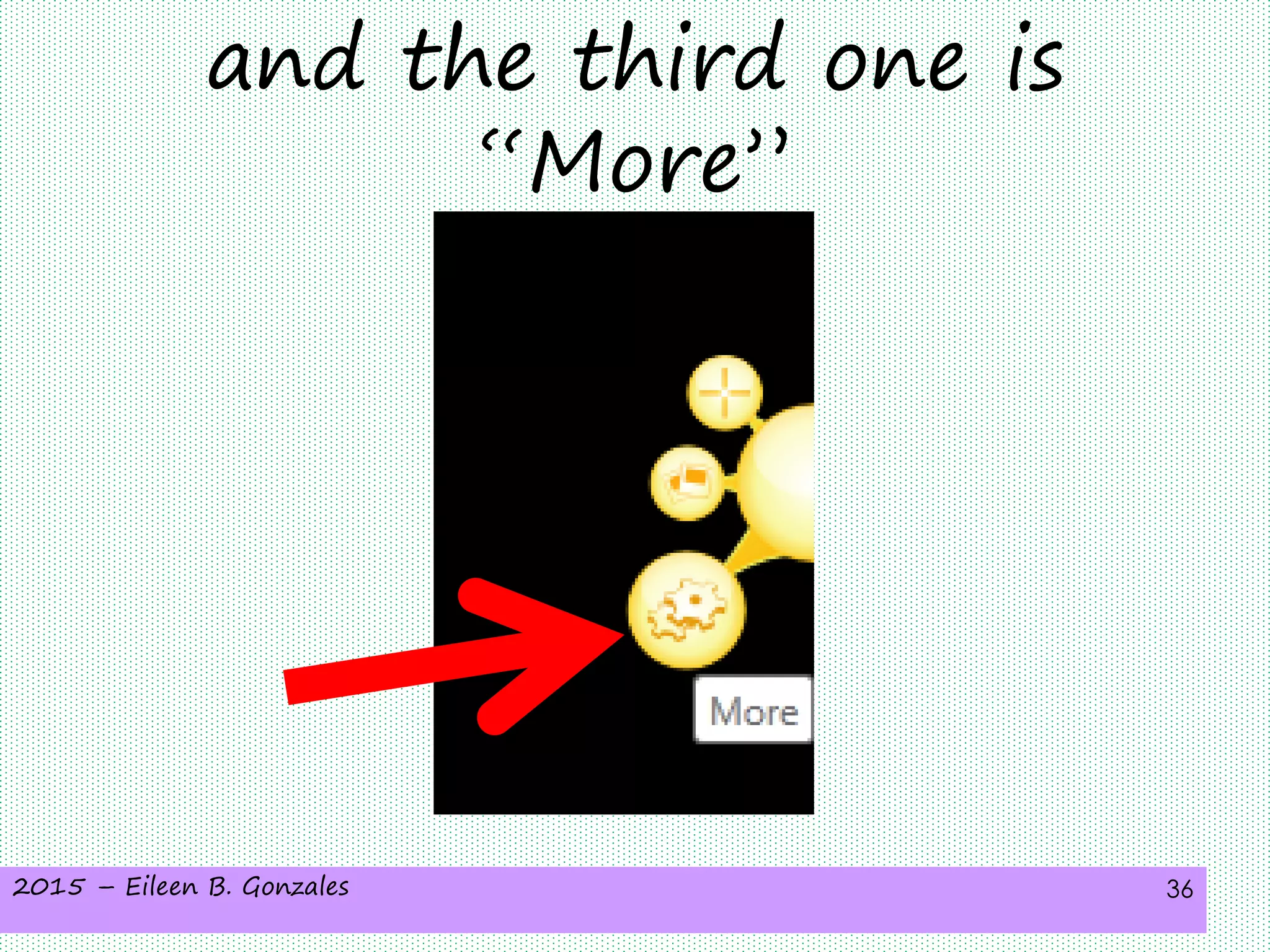
and the third one is
“More”
2015 – Eileen B. Gonzales 37
Let’s now learn how to
capture
2015 – Eileen B. Gonzales 38
Once you click it
2015 – Eileen B. Gonzales 39
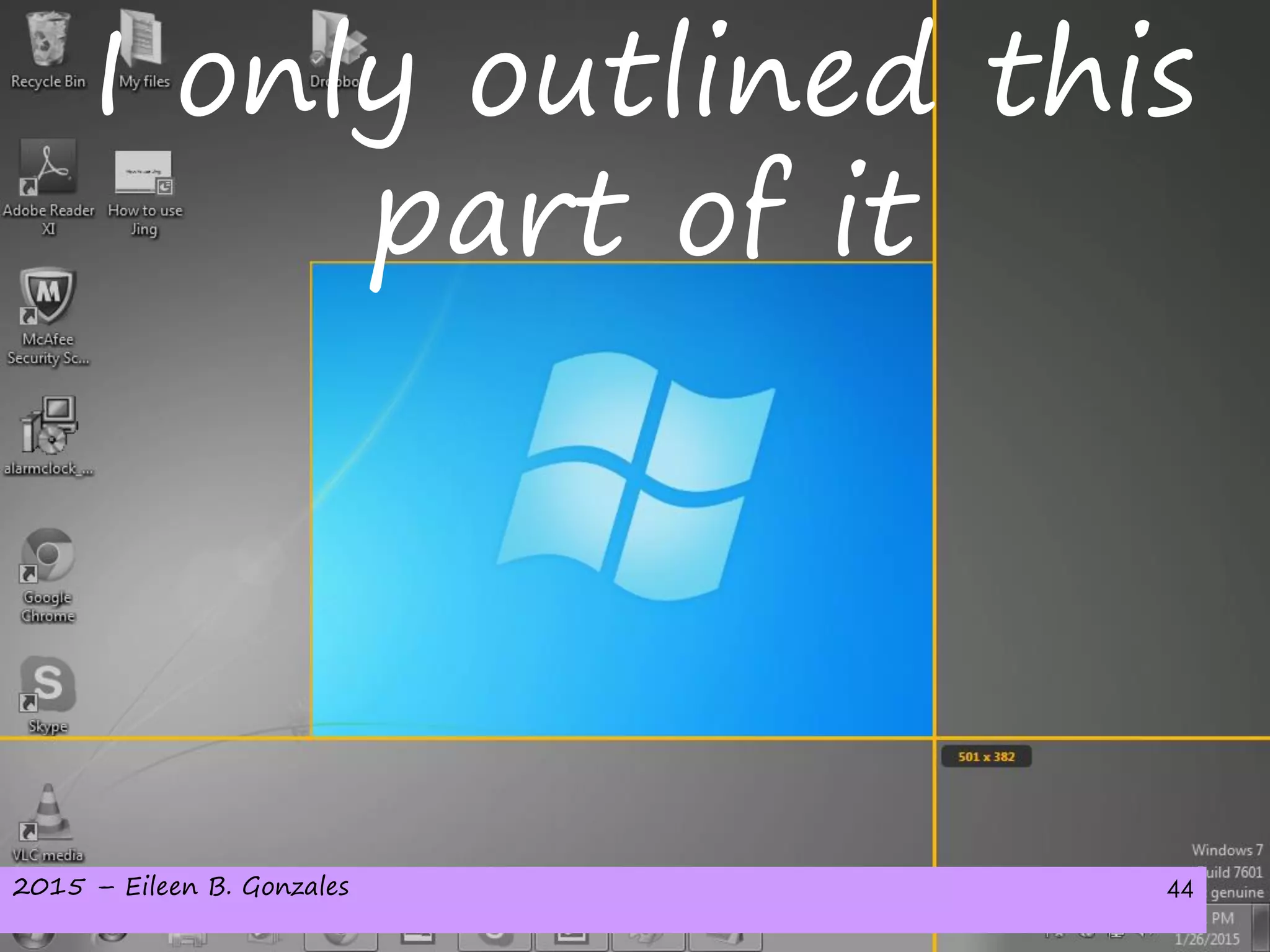
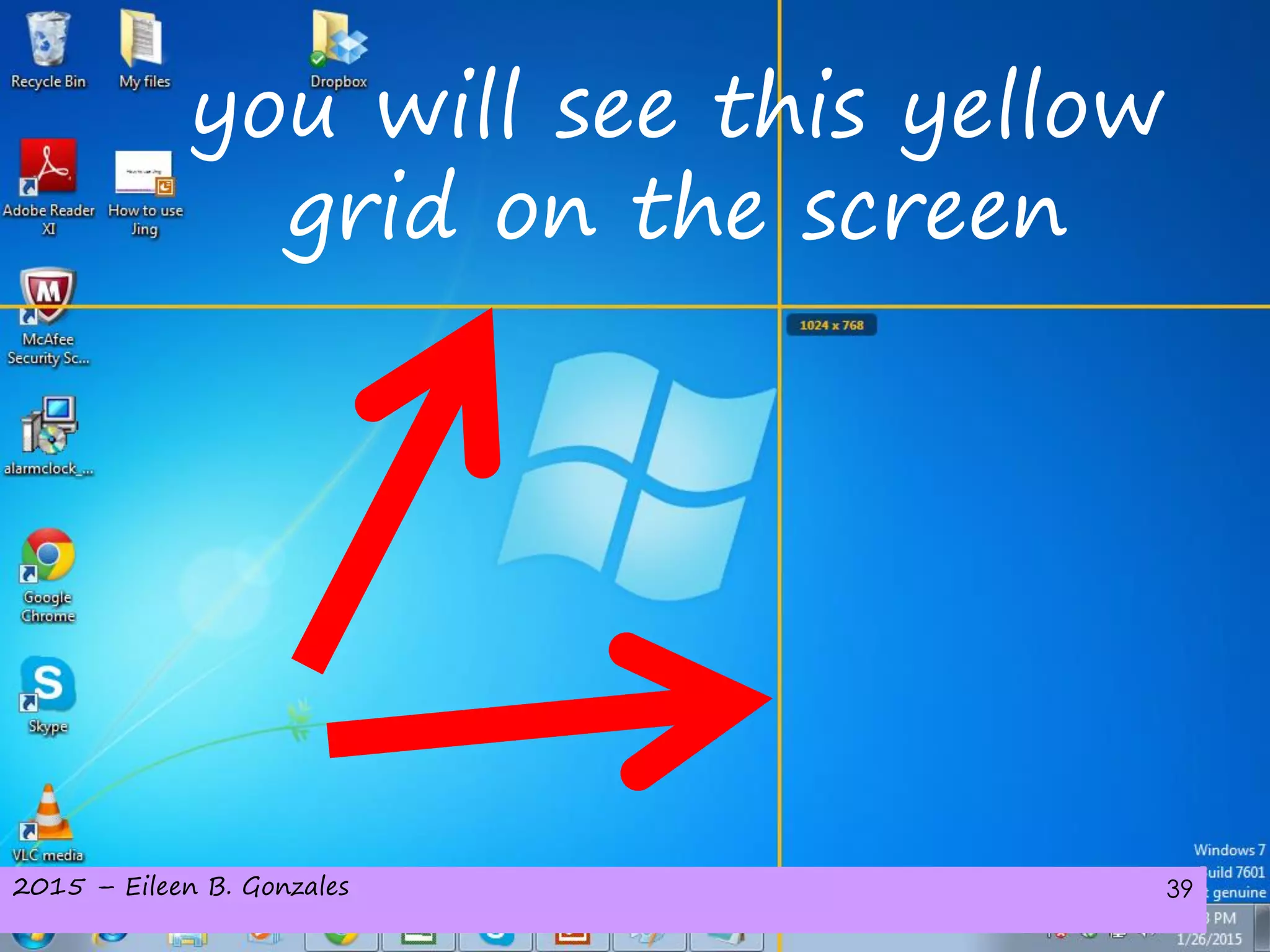
you will see this yellow
grid on the screen
2015 – Eileen B. Gonzales 40
You can use that to
outline the area
2015 – Eileen B. Gonzales 41
of the image that
you want to capture
2015 – Eileen B. Gonzales 42
Let’s try!
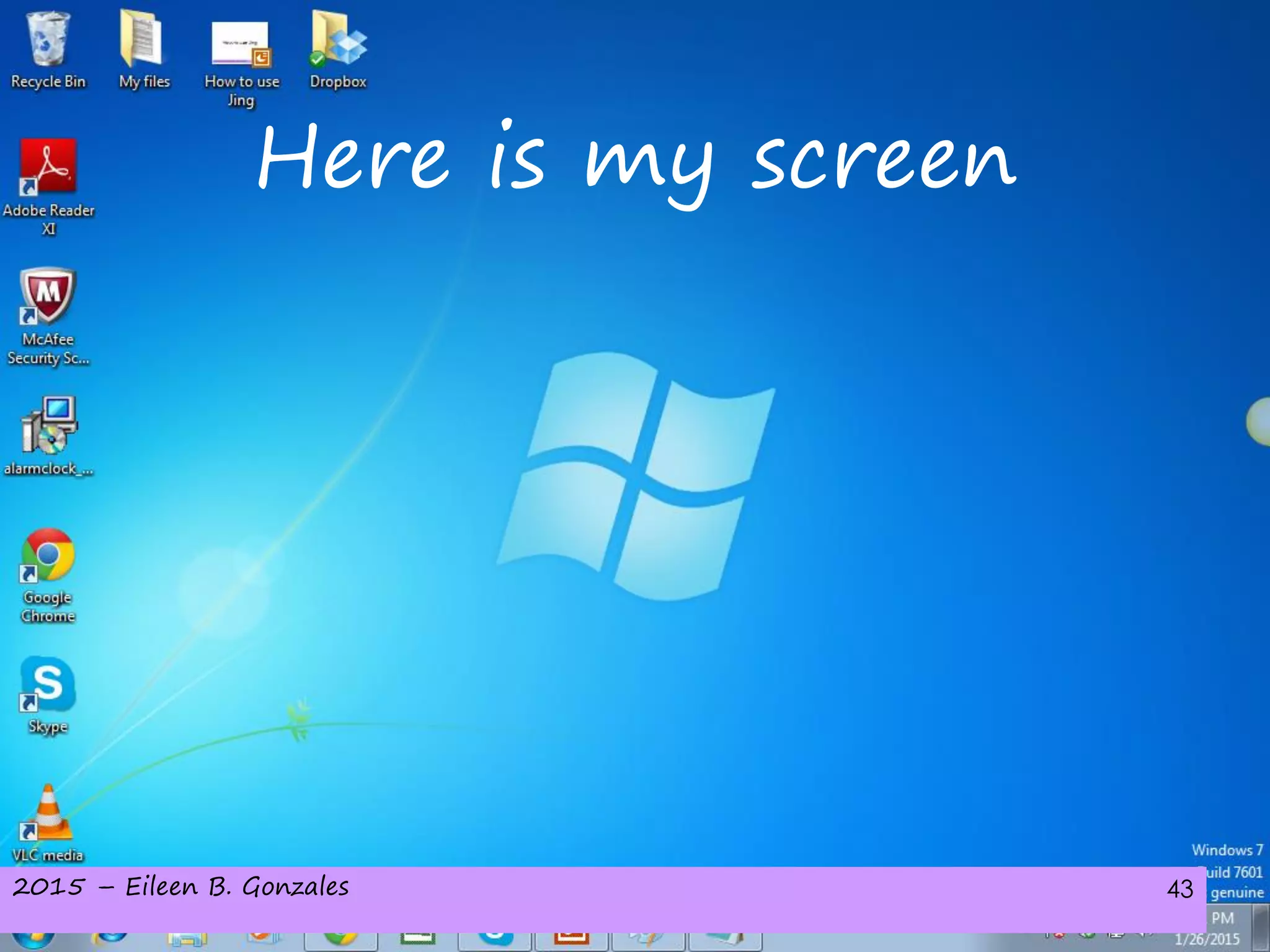
2015 – Eileen B. Gonzales 43
Here is my screen
2015 – Eileen B. Gonzales 44
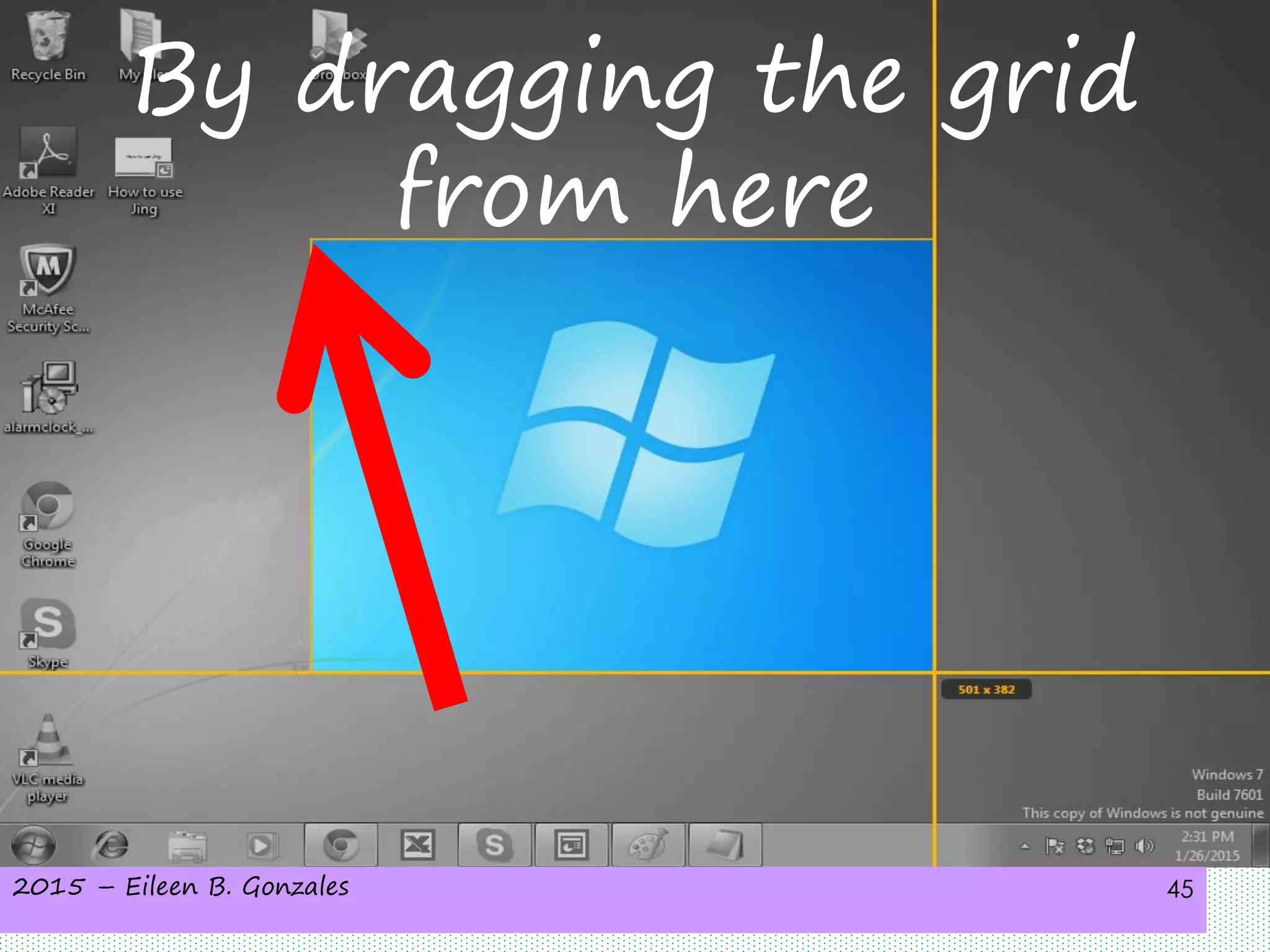
I only outlined this
part of it
2015 – Eileen B. Gonzales 45
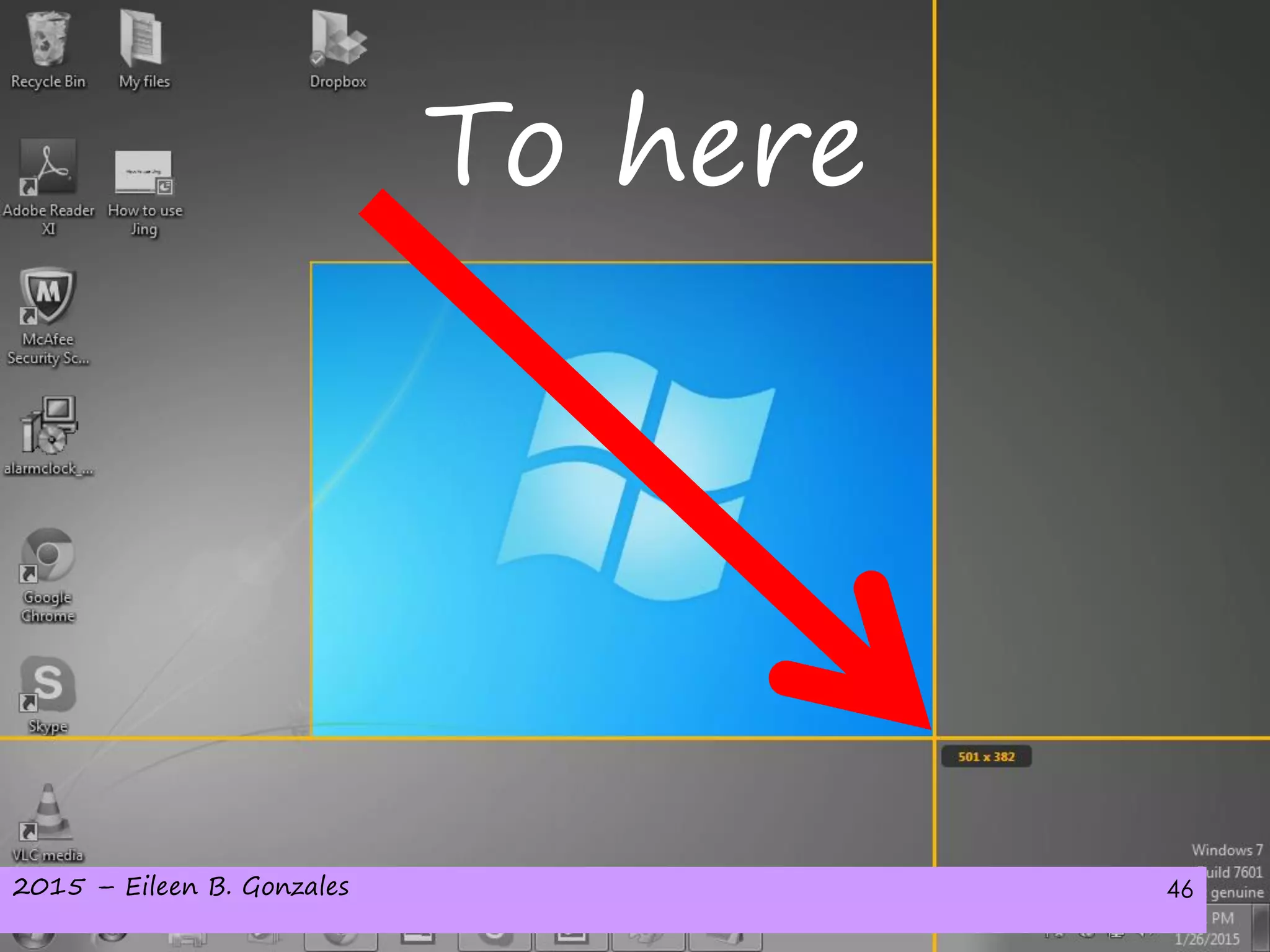
By dragging the grid
from here
2015 – Eileen B. Gonzales 46
To here
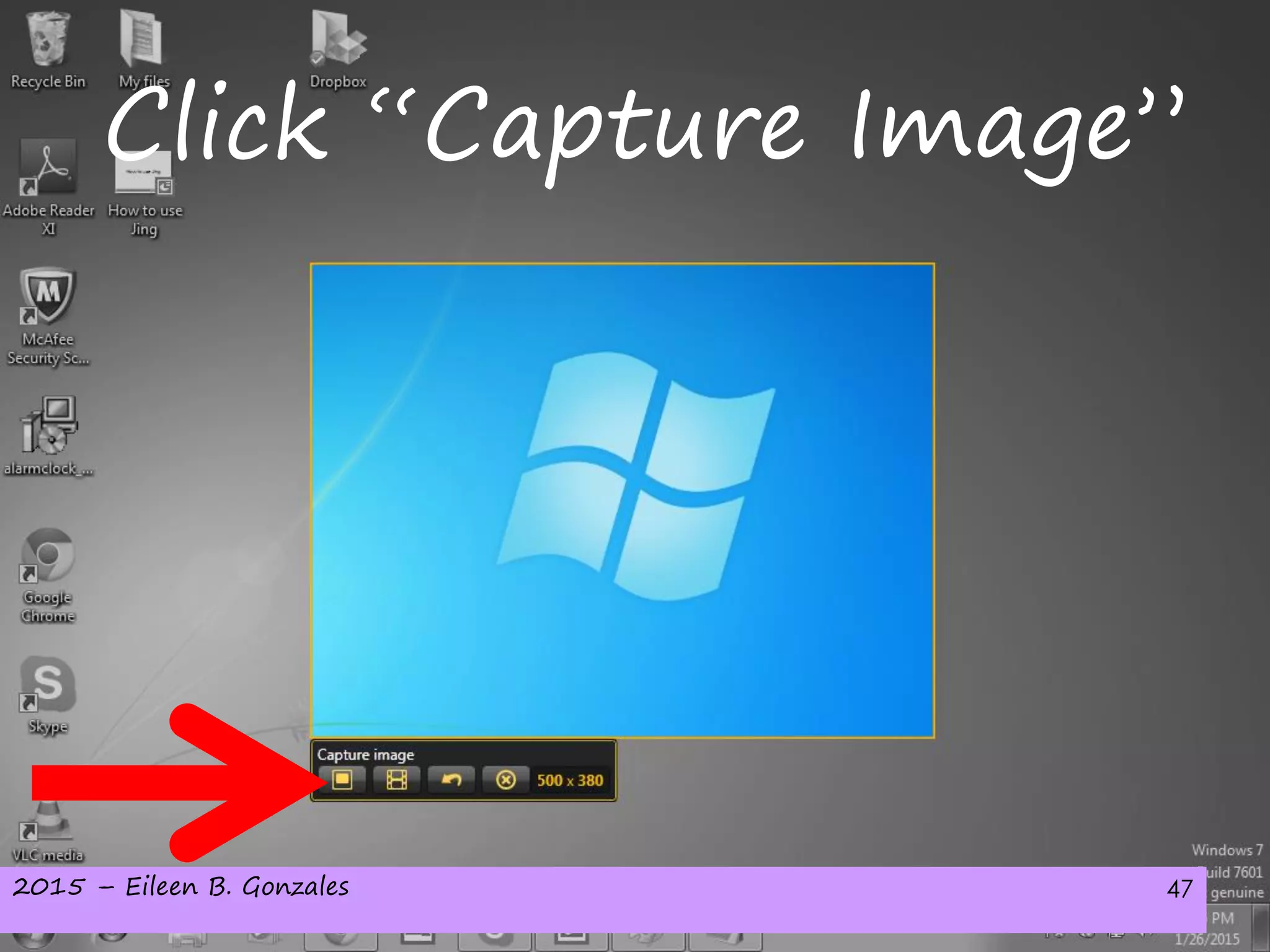
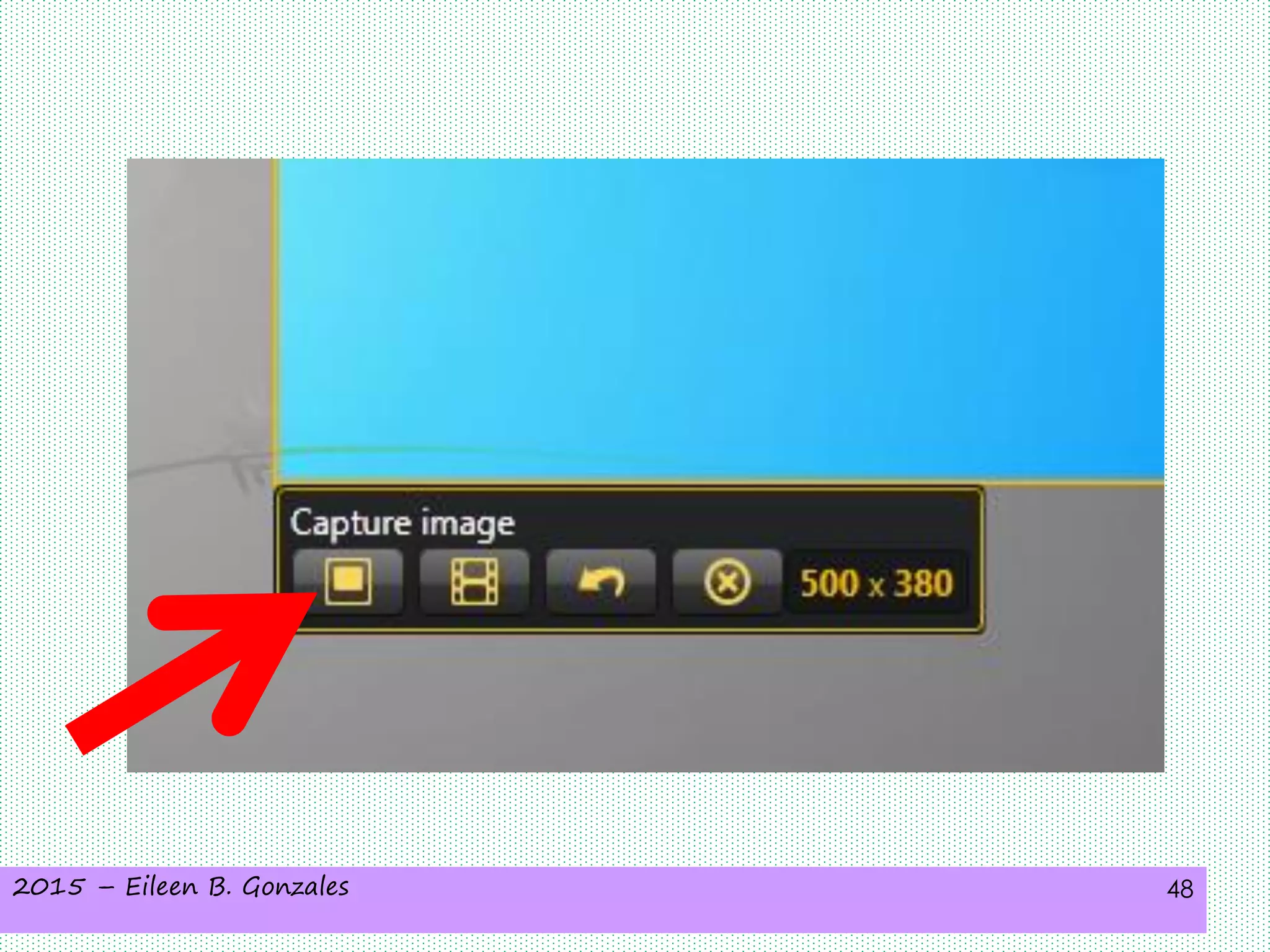
2015 – Eileen B. Gonzales 47
Click “Capture Image”
2015 – Eileen B. Gonzales 48
2015 – Eileen B. Gonzales 49
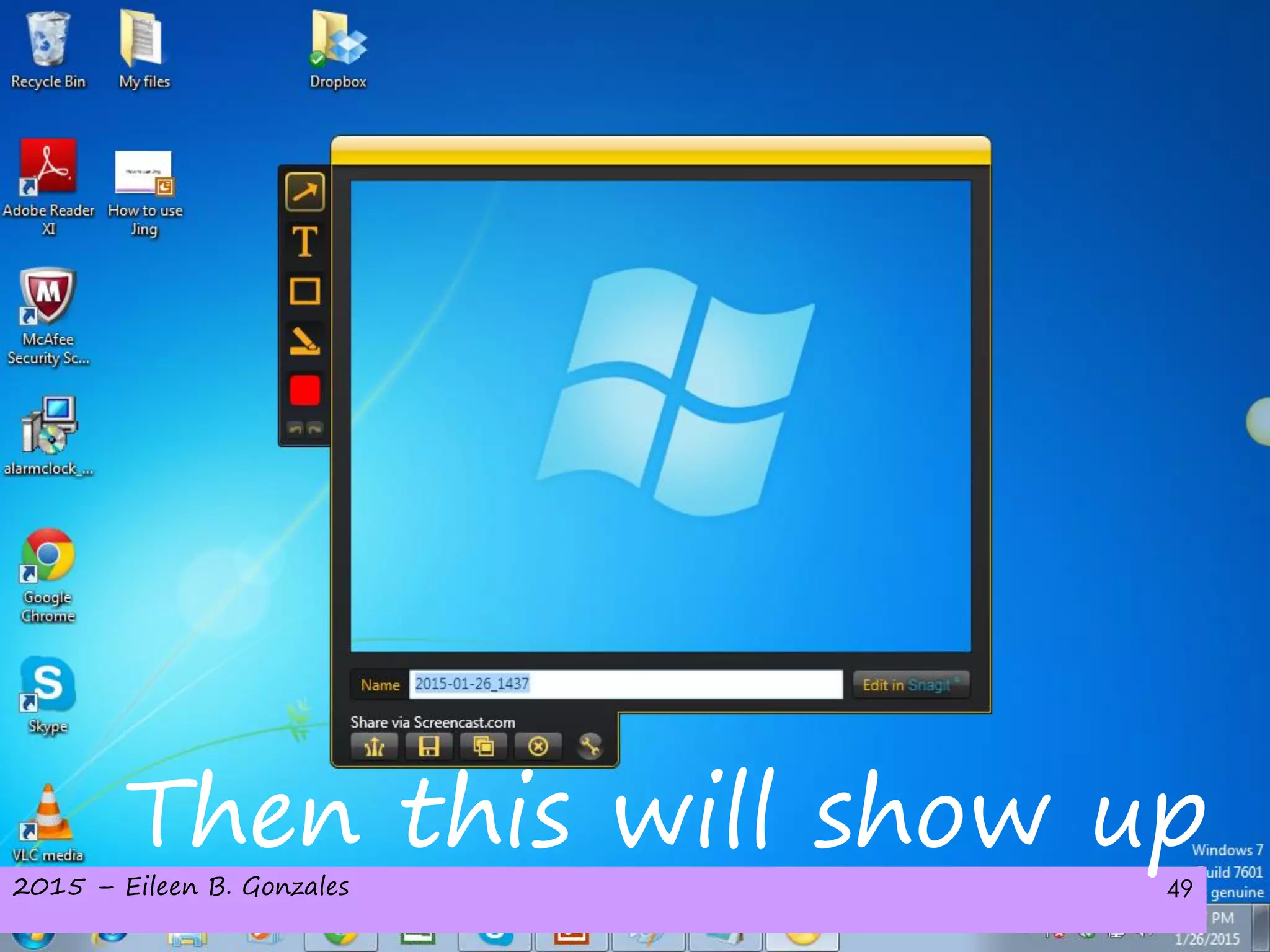
Then this will show up
2015 – Eileen B. Gonzales 50
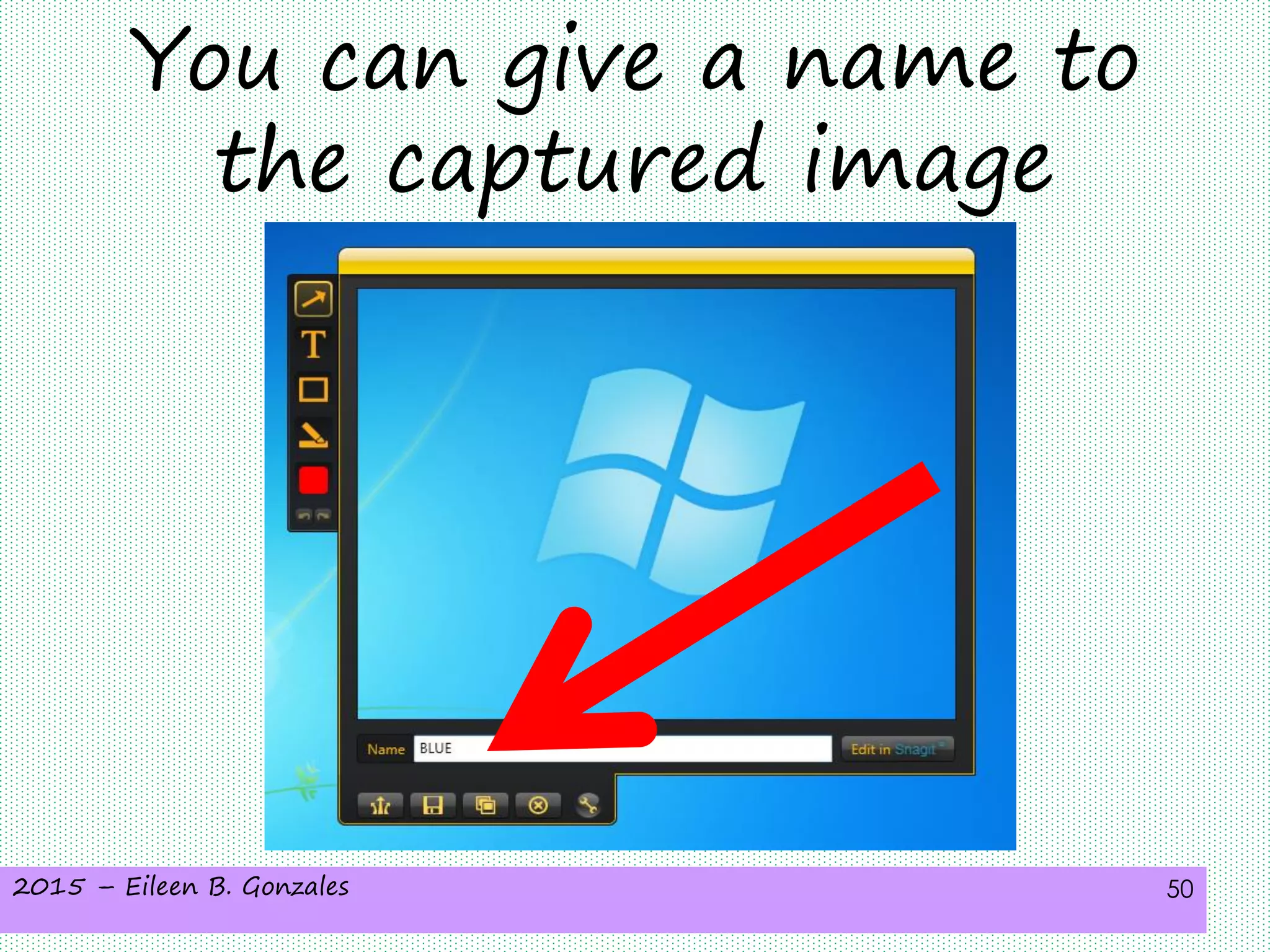
You can give a name to
the captured image
2015 – Eileen B. Gonzales 51
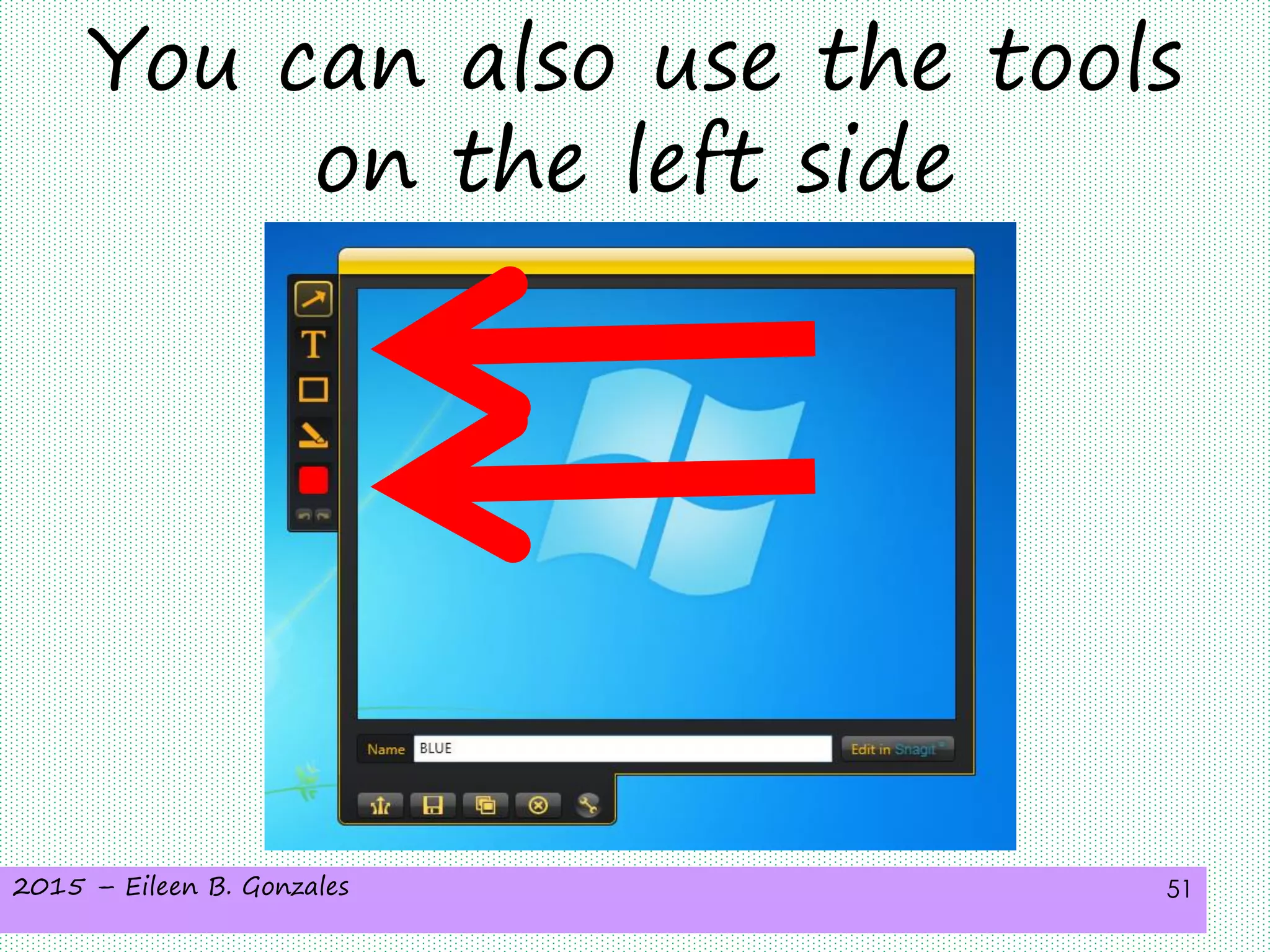
You can also use the tools
on the left side
2015 – Eileen B. Gonzales 52
Then you will have
options if you want
to:
2015 – Eileen B. Gonzales 53
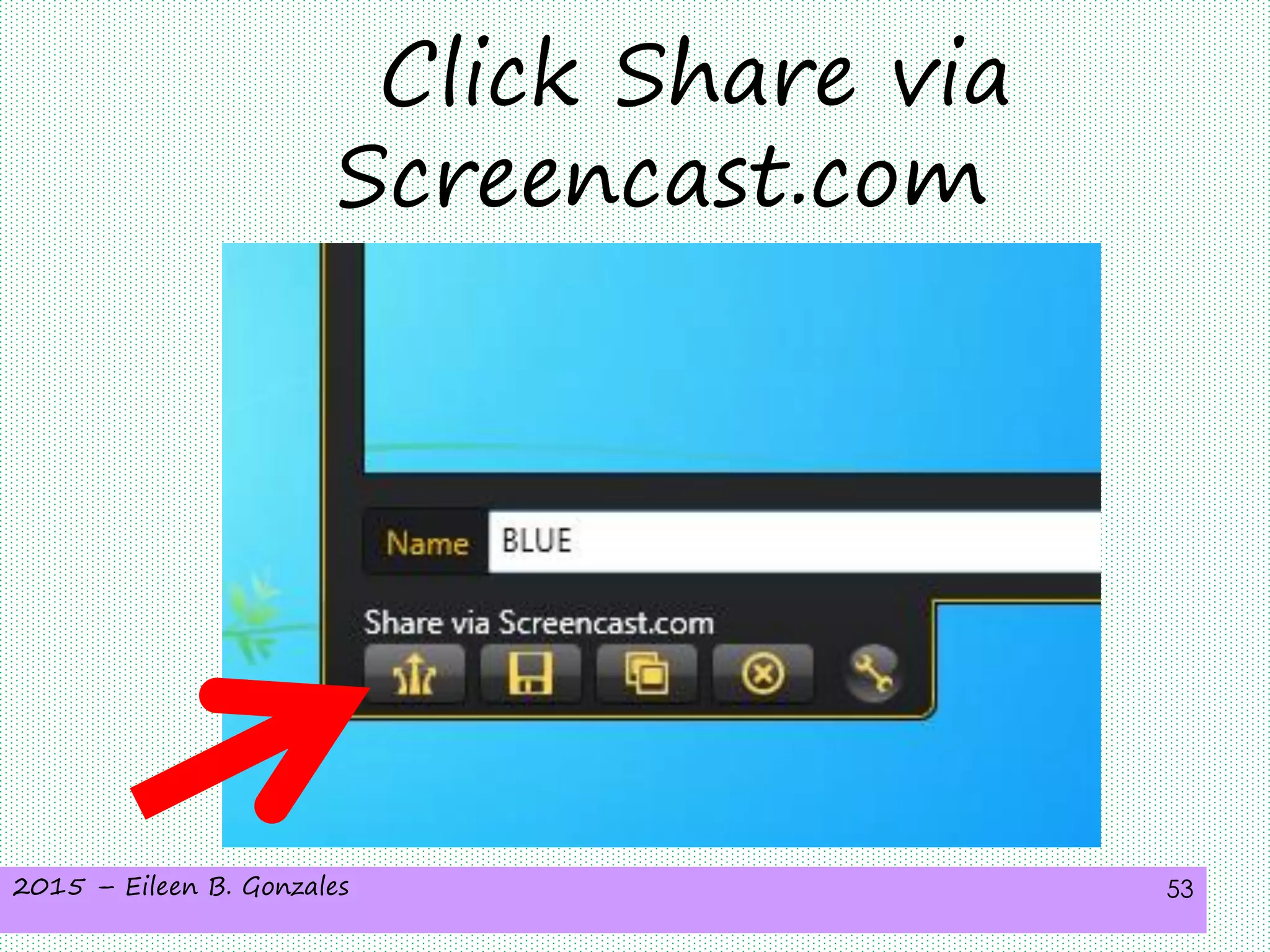
Click Share via
Screencast.com
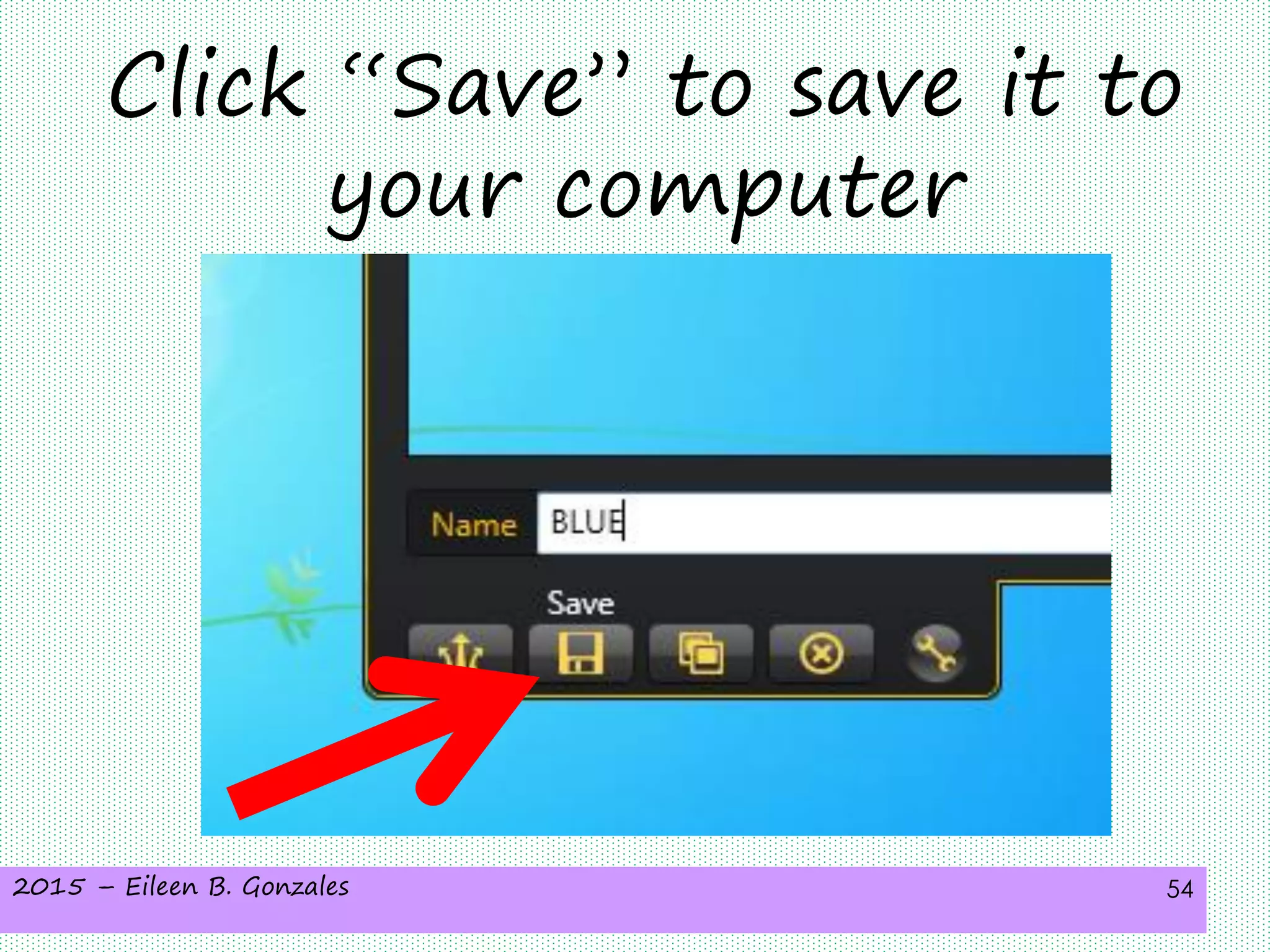
2015 – Eileen B. Gonzales 54
Click “Save” to save it to
your computer
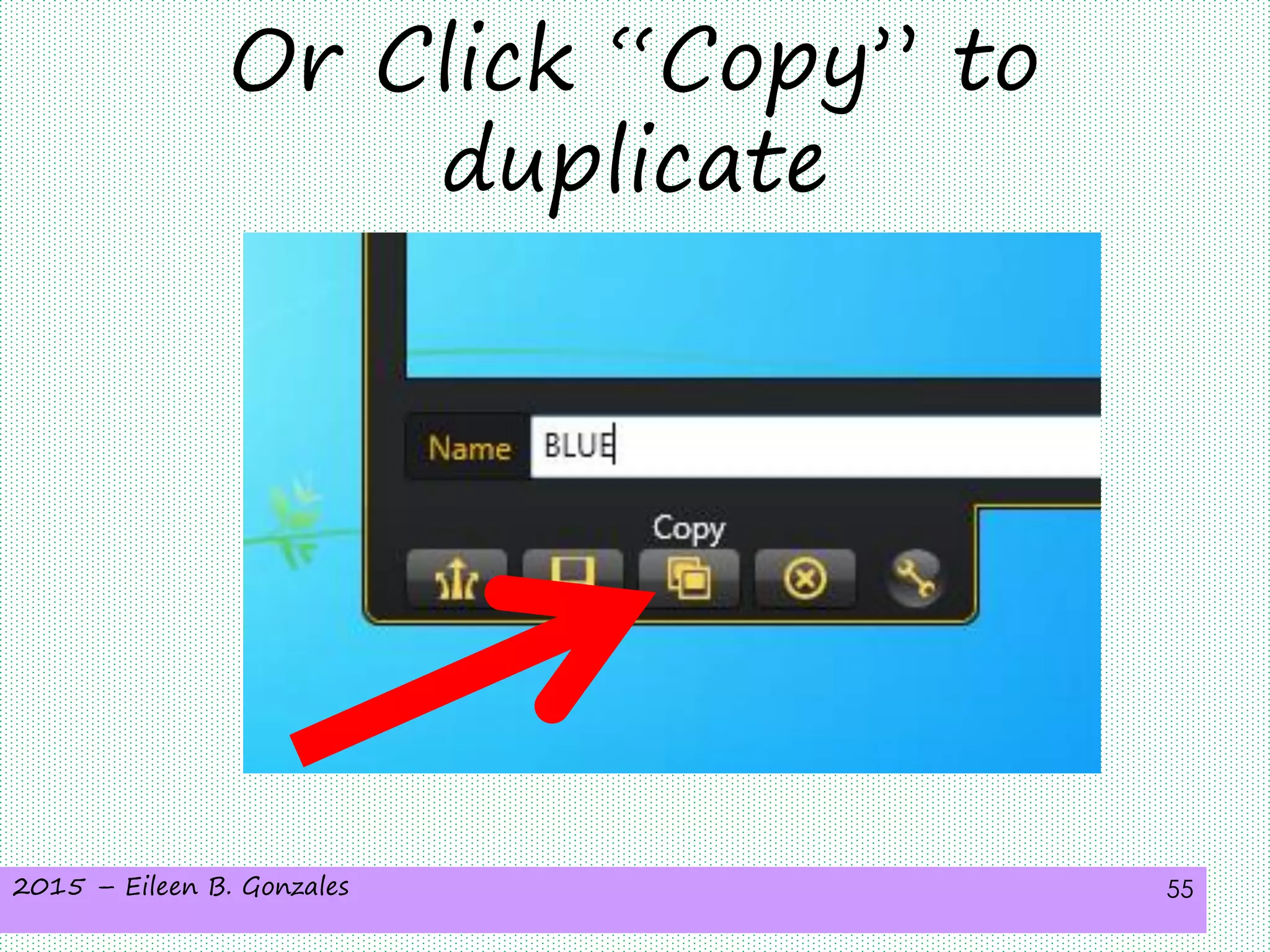
2015 – Eileen B. Gonzales 55
Or Click “Copy” to
duplicate
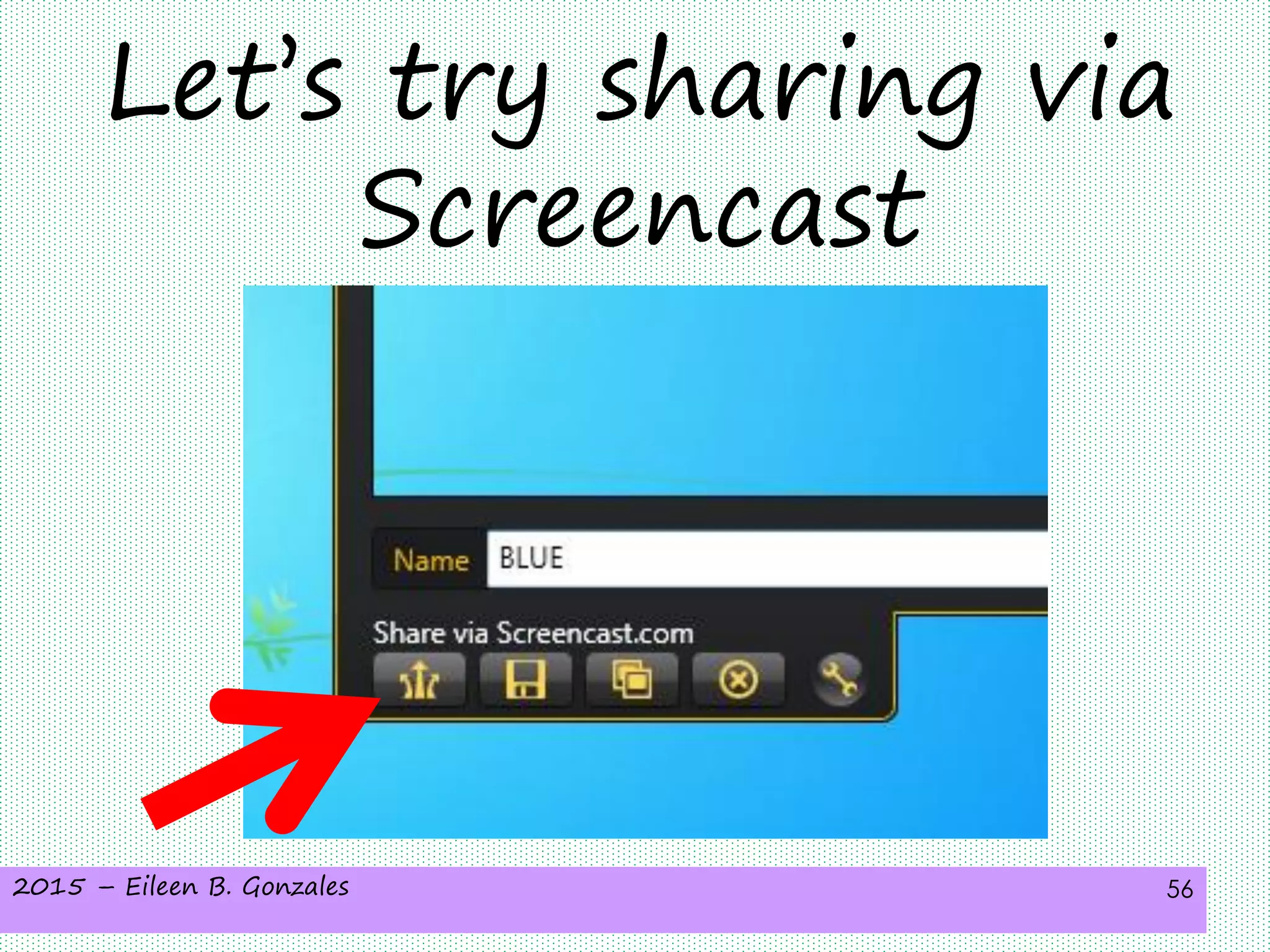
2015 – Eileen B. Gonzales 56
Let’s try sharing via
Screencast
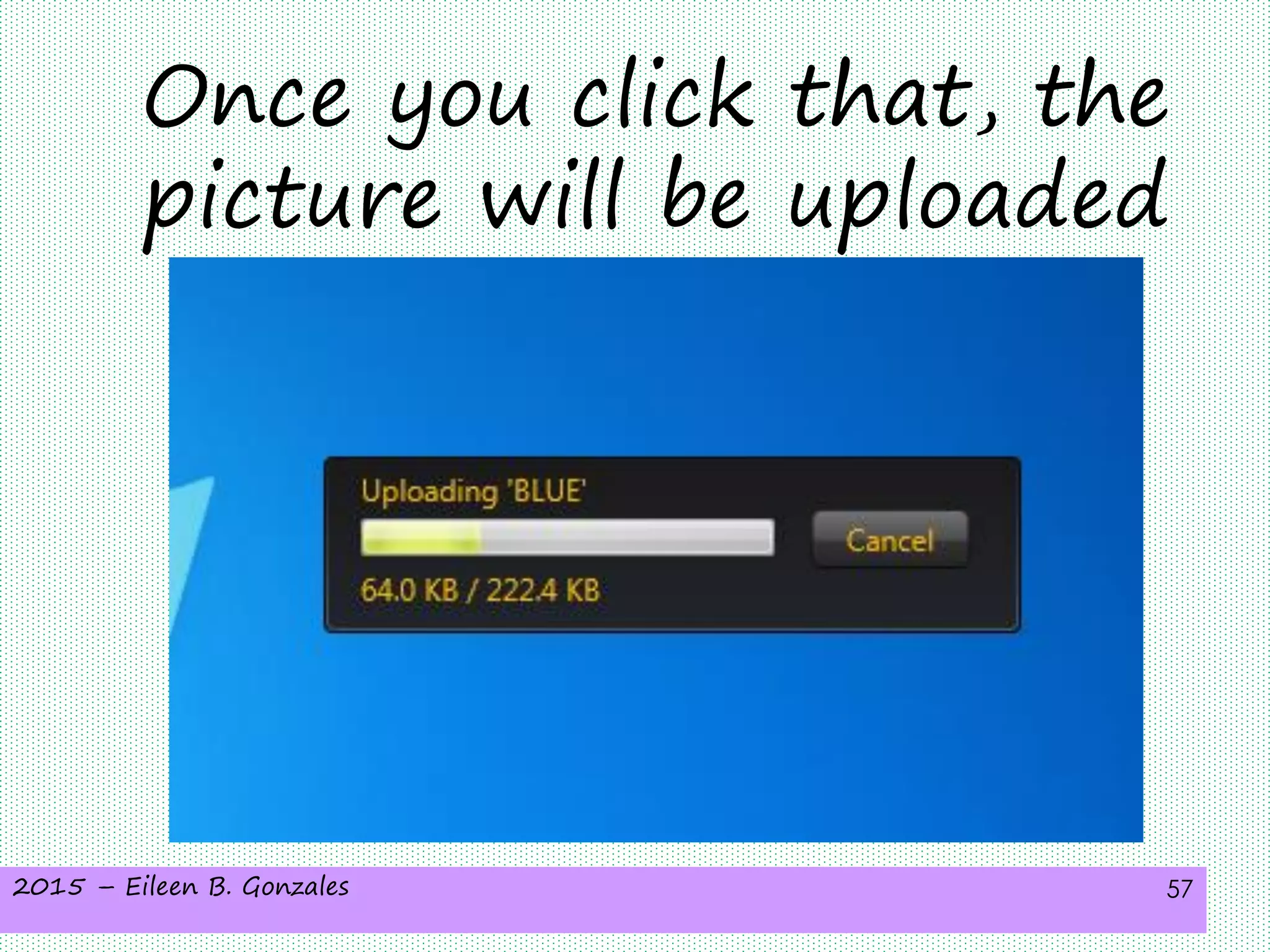
2015 – Eileen B. Gonzales 57
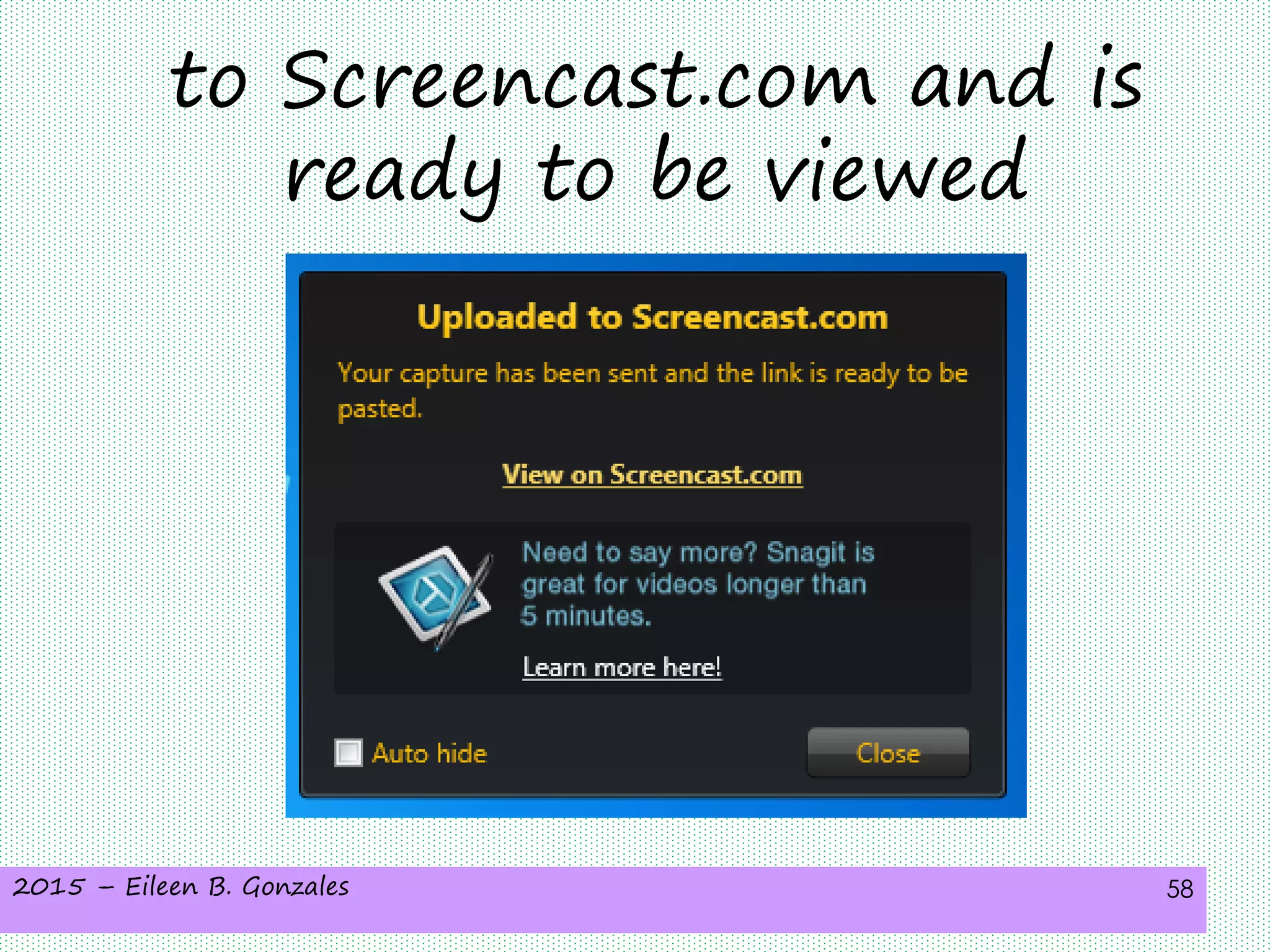
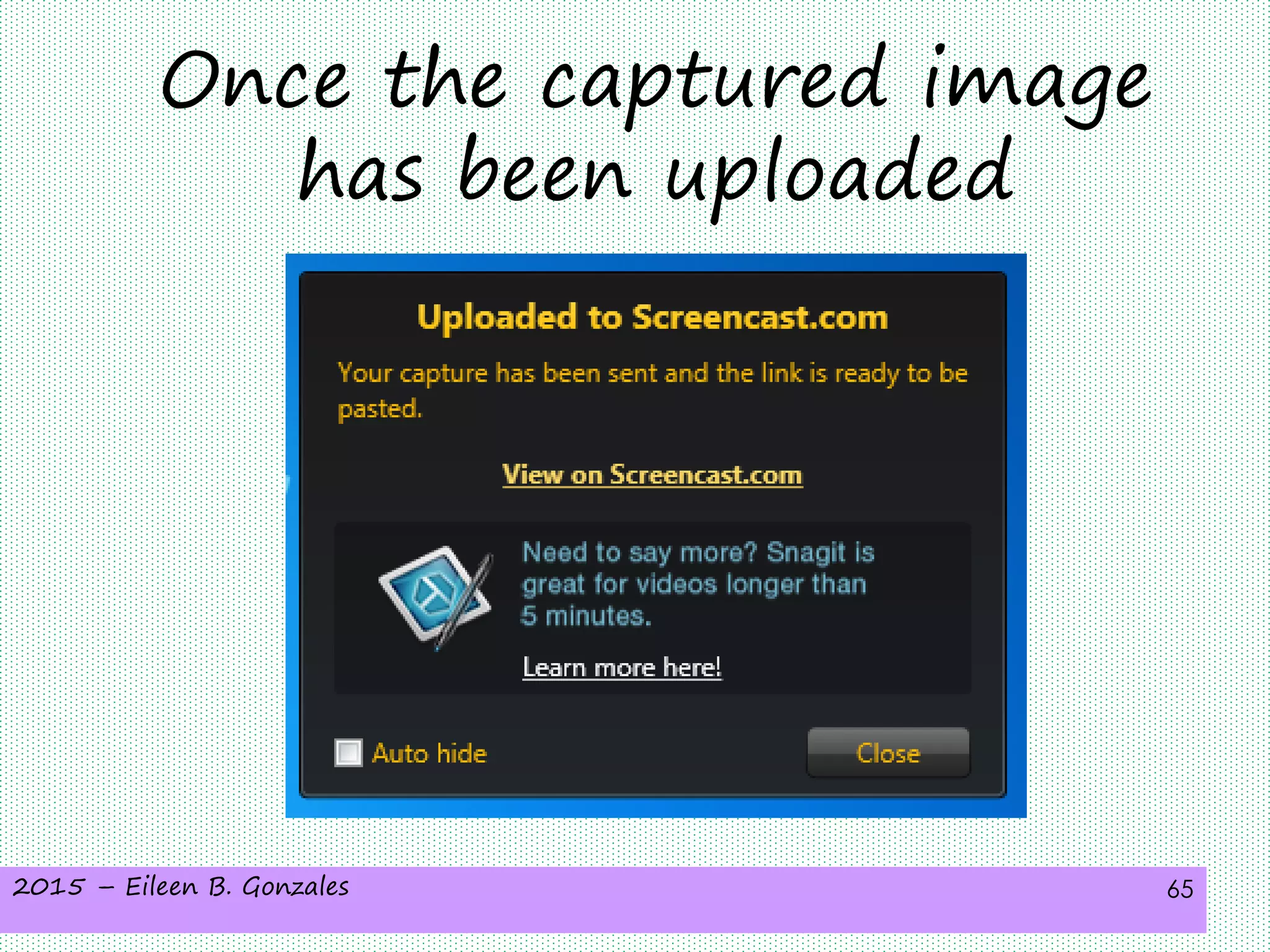
Once you click that, the
picture will be uploaded
2015 – Eileen B. Gonzales 58
to Screencast.com and is
ready to be viewed
2015 – Eileen B. Gonzales 59
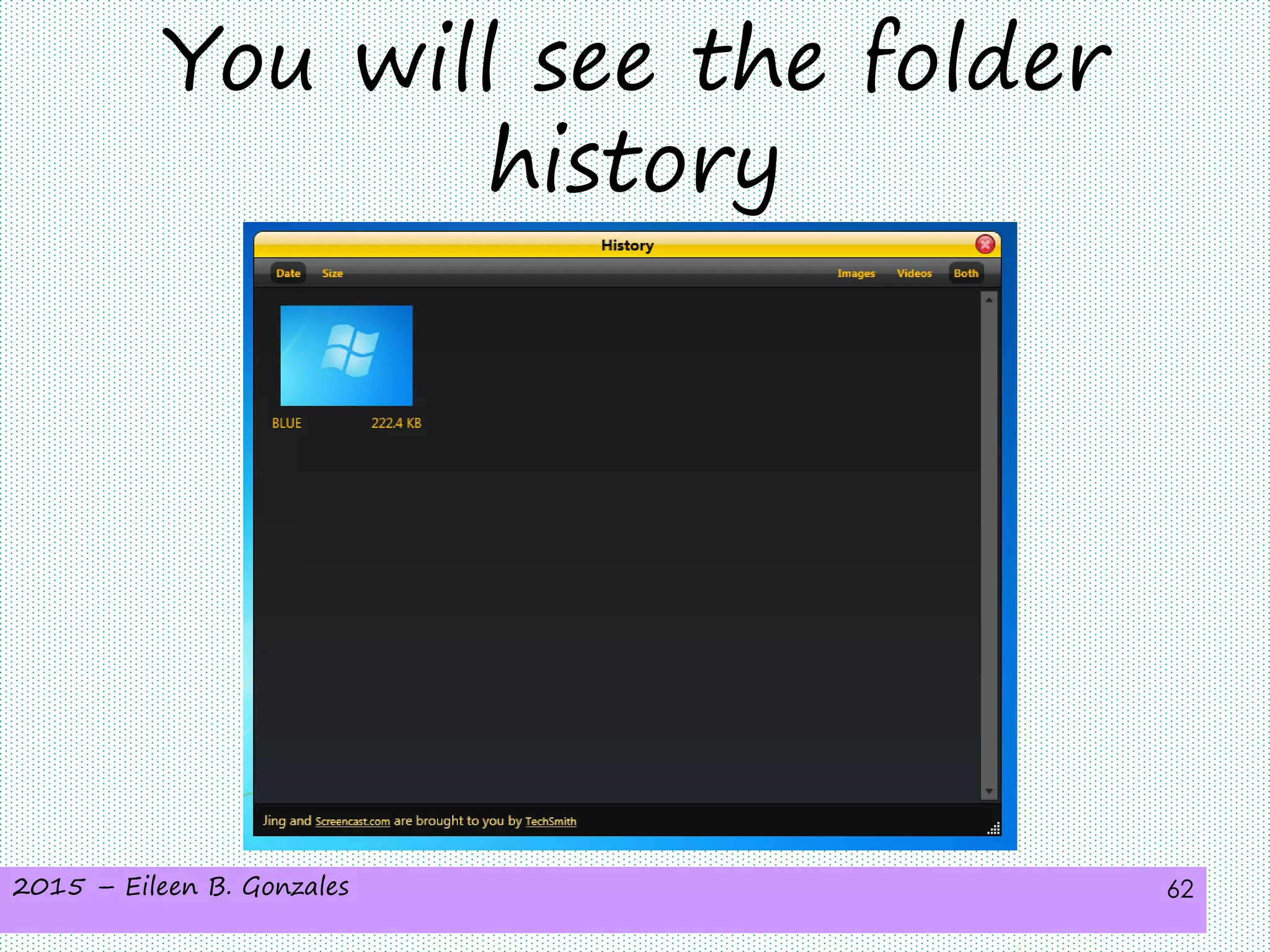
You can also simply view
the captured image
2015 – Eileen B. Gonzales 60
In the “History”
2015 – Eileen B. Gonzales 61
When you click it
2015 – Eileen B. Gonzales 62
You will see the folder
history
2015 – Eileen B. Gonzales 63
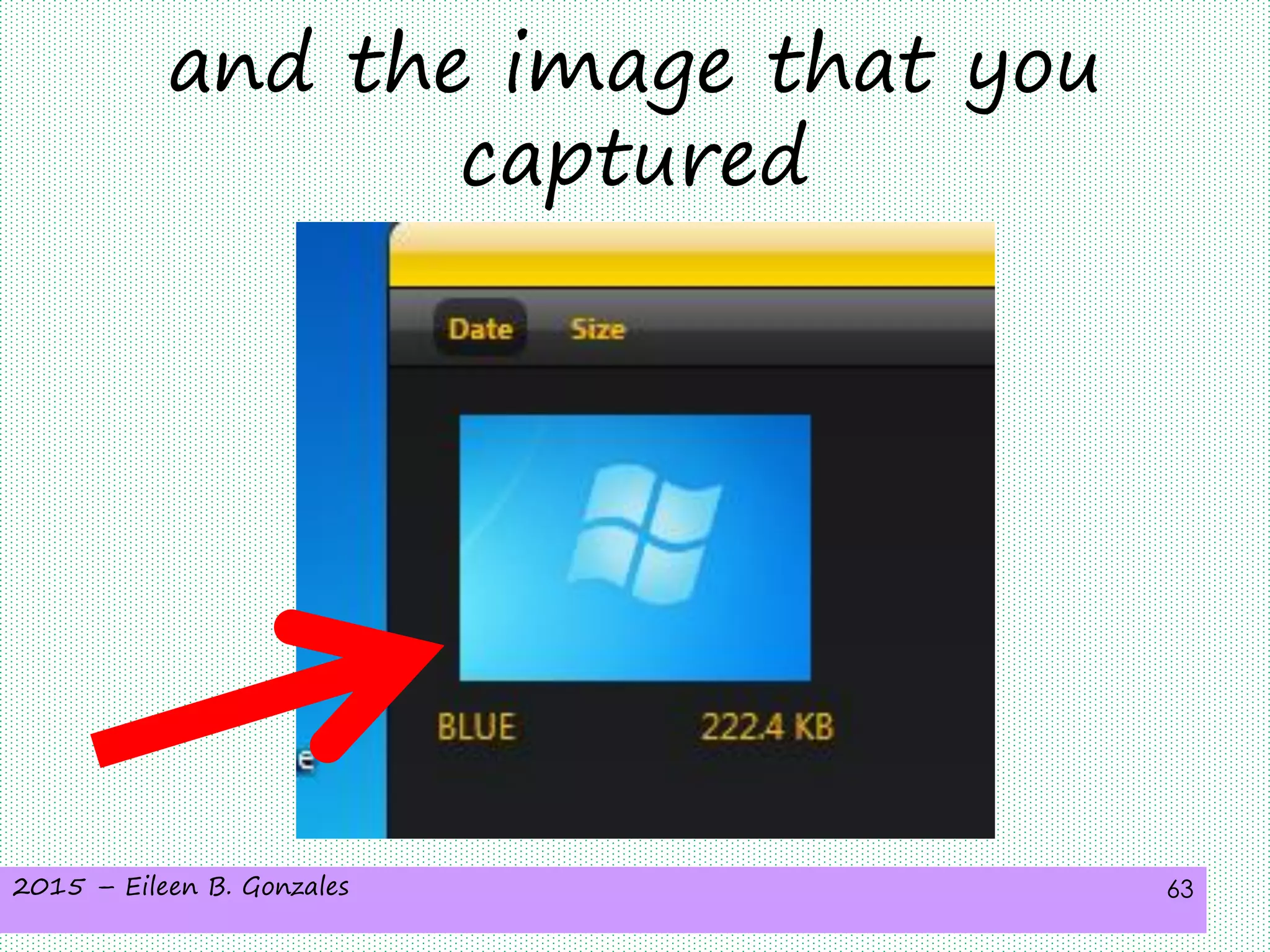
and the image that you
captured
2015 – Eileen B. Gonzales 64
Here’s another trick
2015 – Eileen B. Gonzales 65
Once the captured image
has been uploaded
2015 – Eileen B. Gonzales 66
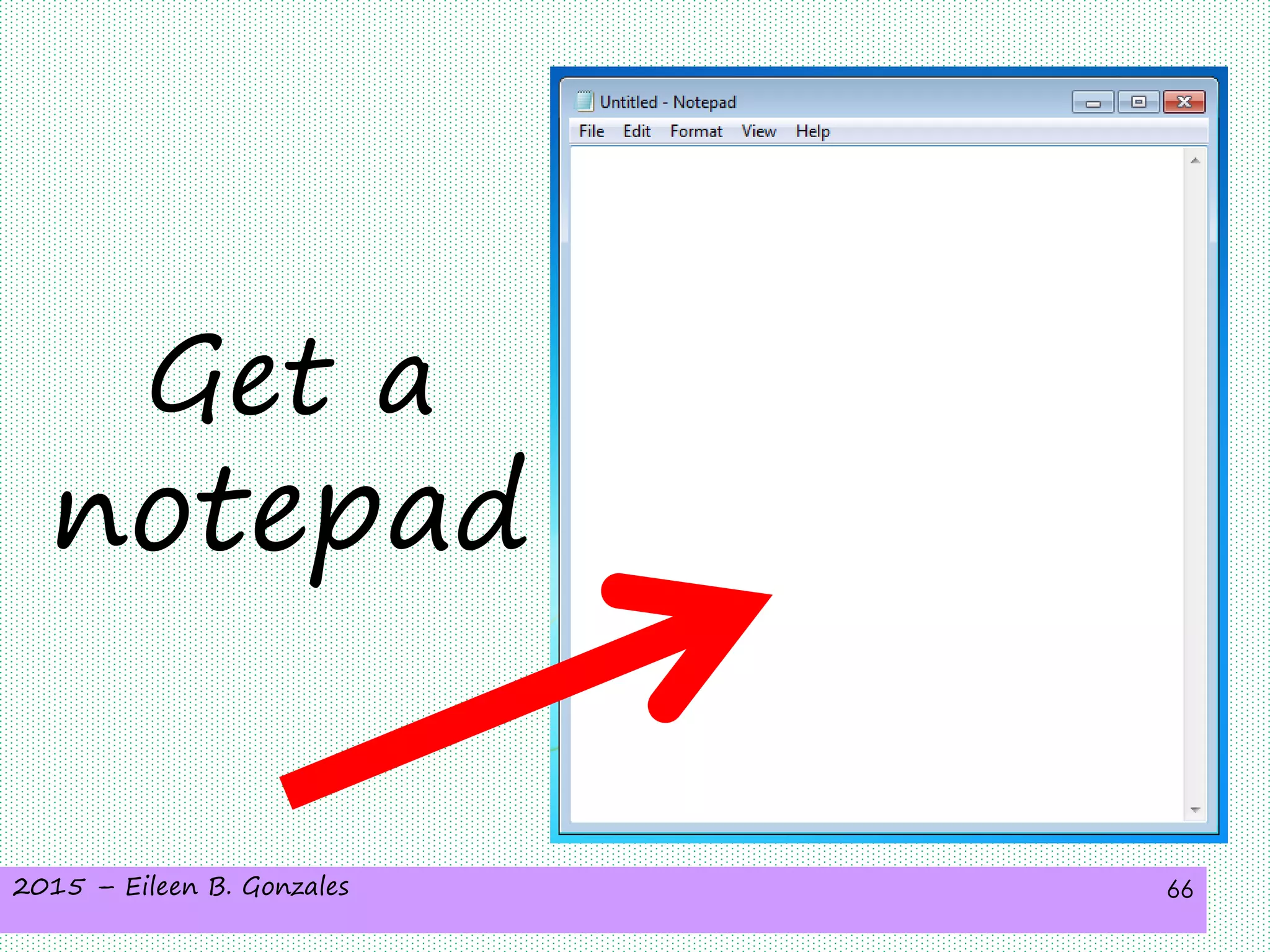
Get a
notepad
2015 – Eileen B. Gonzales 67
Then press Ctrl + v
2015 – Eileen B. Gonzales 68
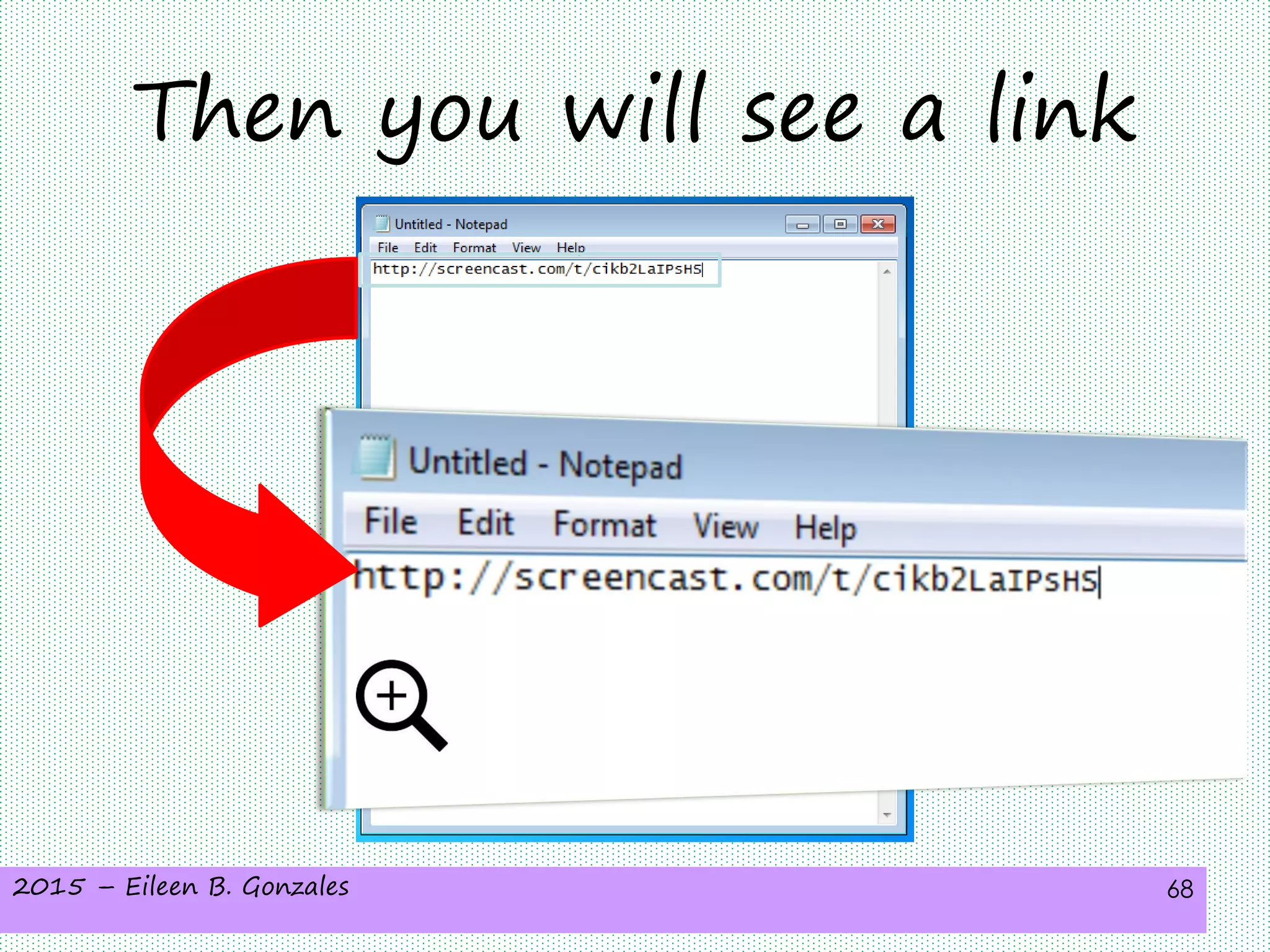
Then you will see a link
2015 – Eileen B. Gonzales 69
You can use this
link
2015 – Eileen B. Gonzales 70
to share the
captured image
to your friends
2015 – Eileen B. Gonzales 71
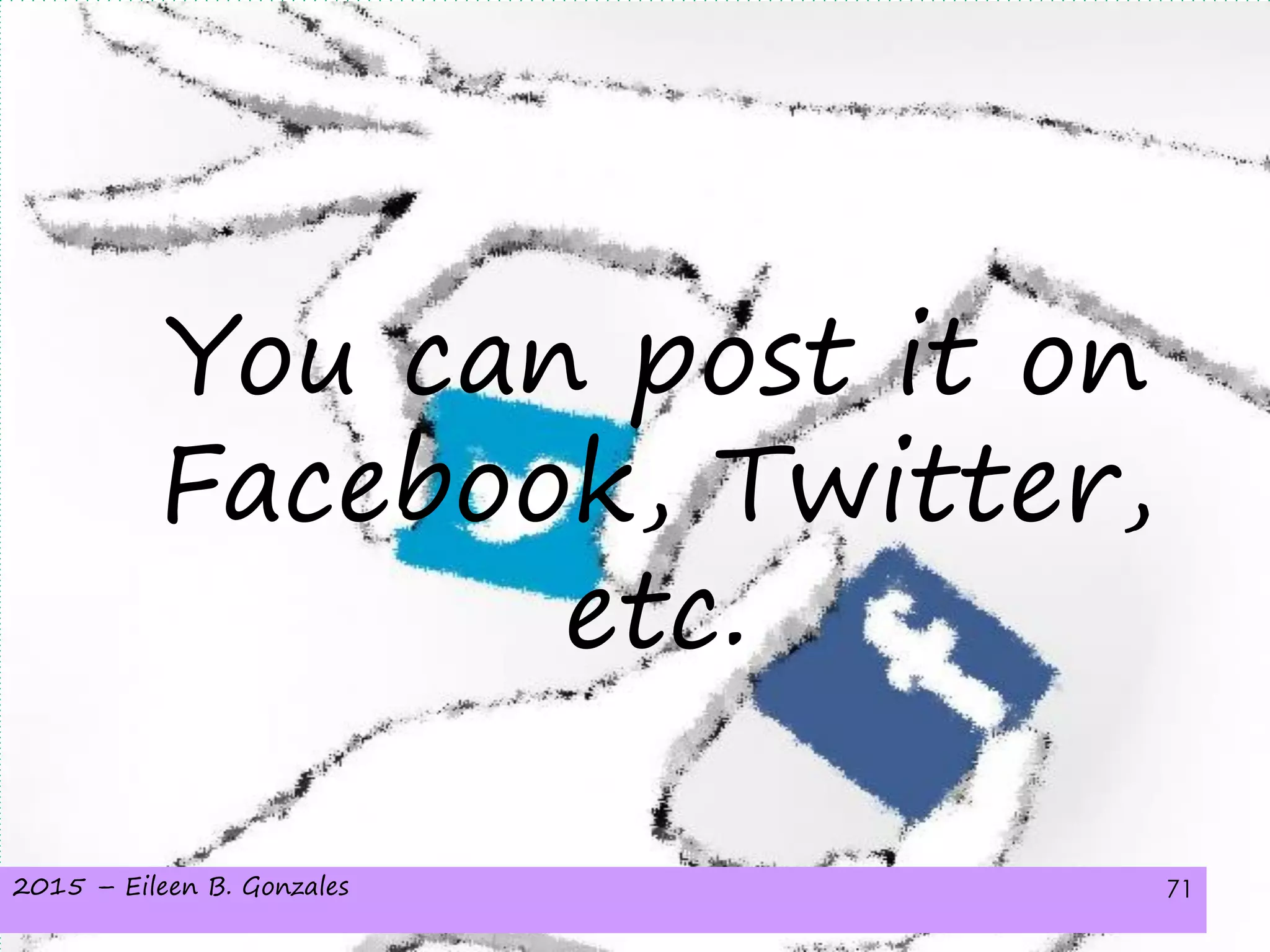
You can post it on
Facebook, Twitter,
etc.
2015 – Eileen B. Gonzales 72
Or if you are using
this at work
2015 – Eileen B. Gonzales 73
Isn’t it easier to
explain something
2015 – Eileen B. Gonzales 74
with the help of
captured images?
2015 – Eileen B. Gonzales 75
But it’s better if we
can also use a video
2015 – Eileen B. Gonzales 76
So let’s
now learn
how to
capture
videos
2015 – Eileen B. Gonzales 77
Let’s say that I want
to show
2015 – Eileen B. Gonzales 78
a Microsoft Excel activity
2015 – Eileen B. Gonzales 79
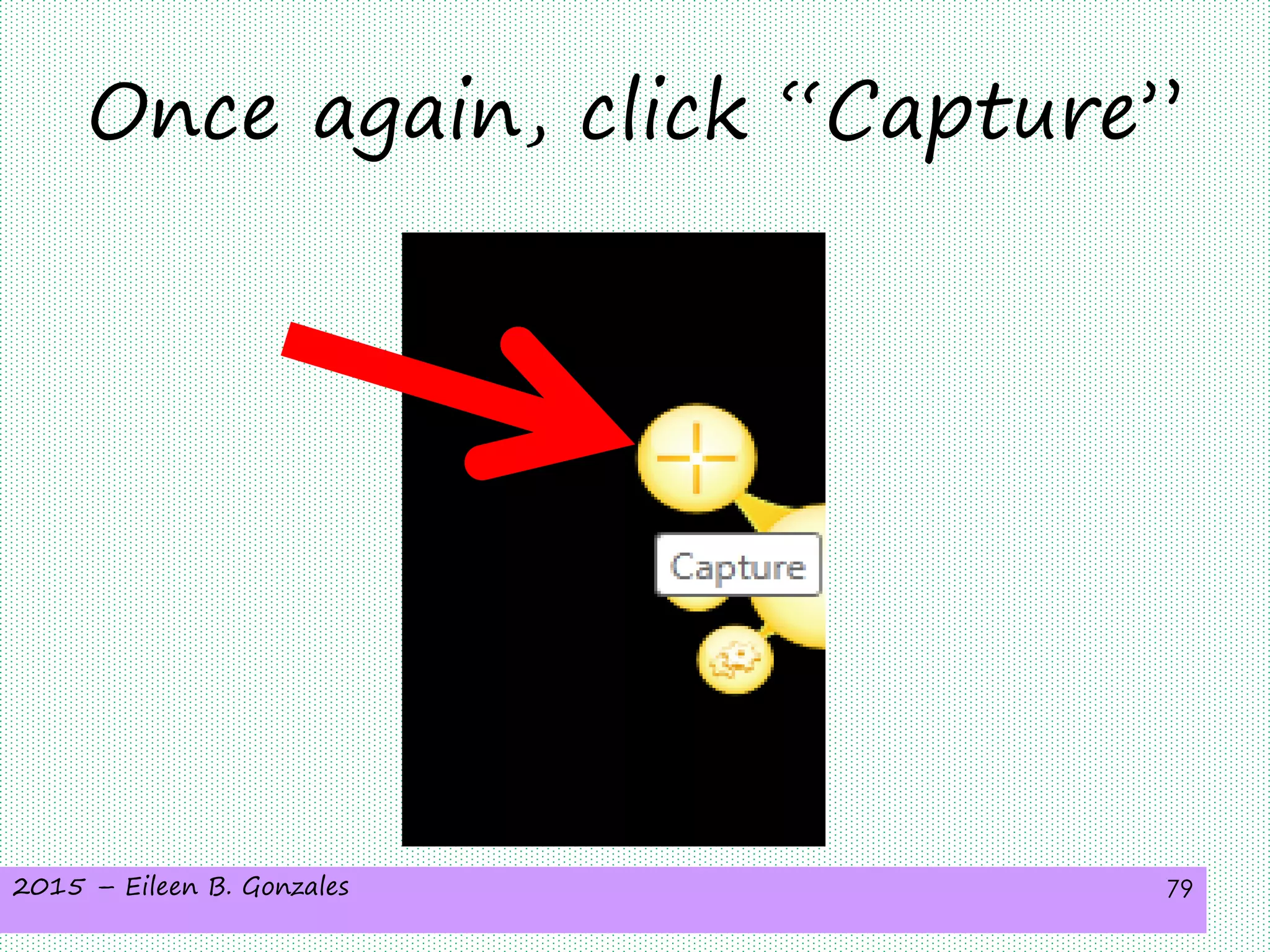
Once again, click “Capture”
2015 – Eileen B. Gonzales 80
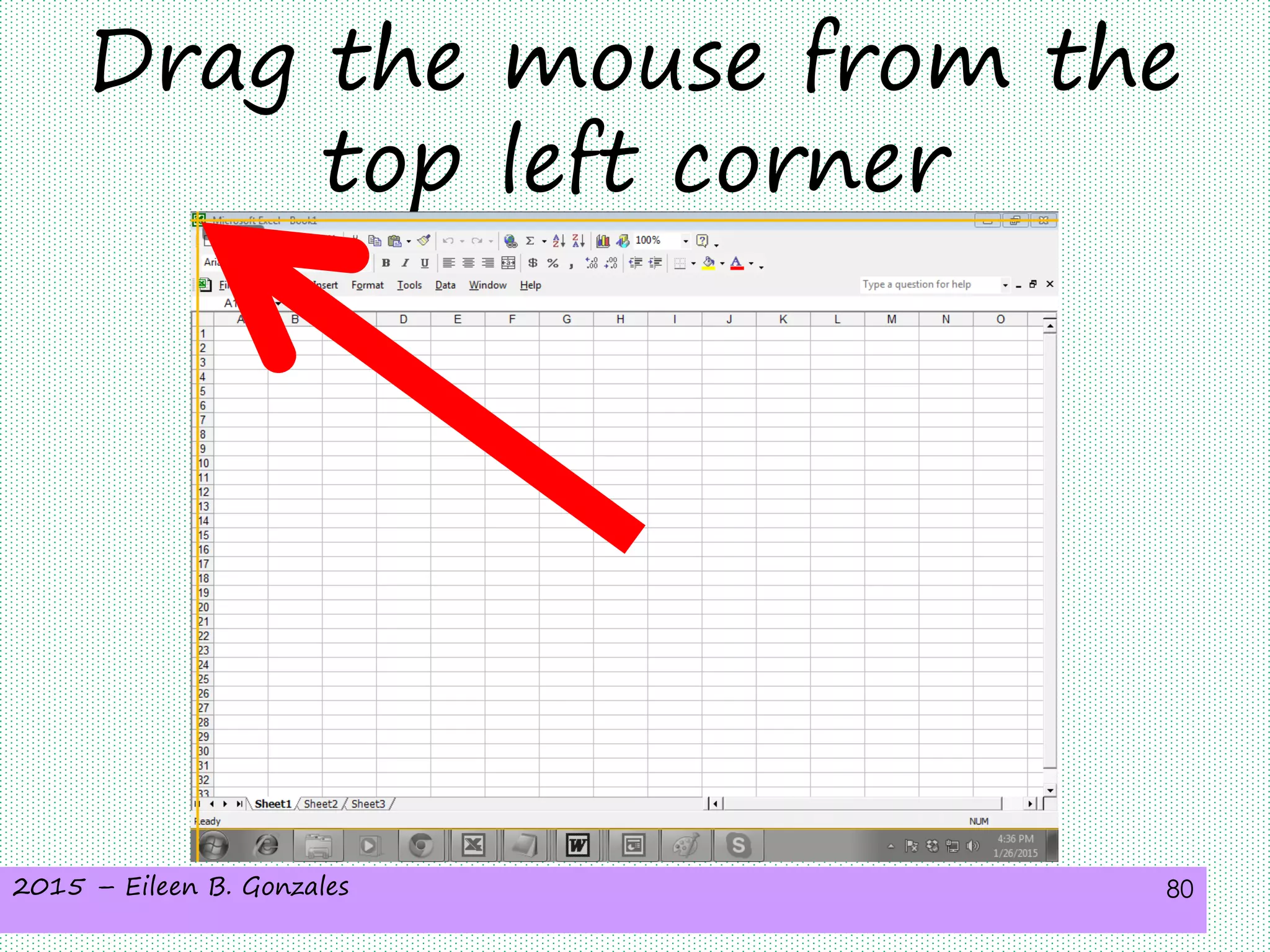
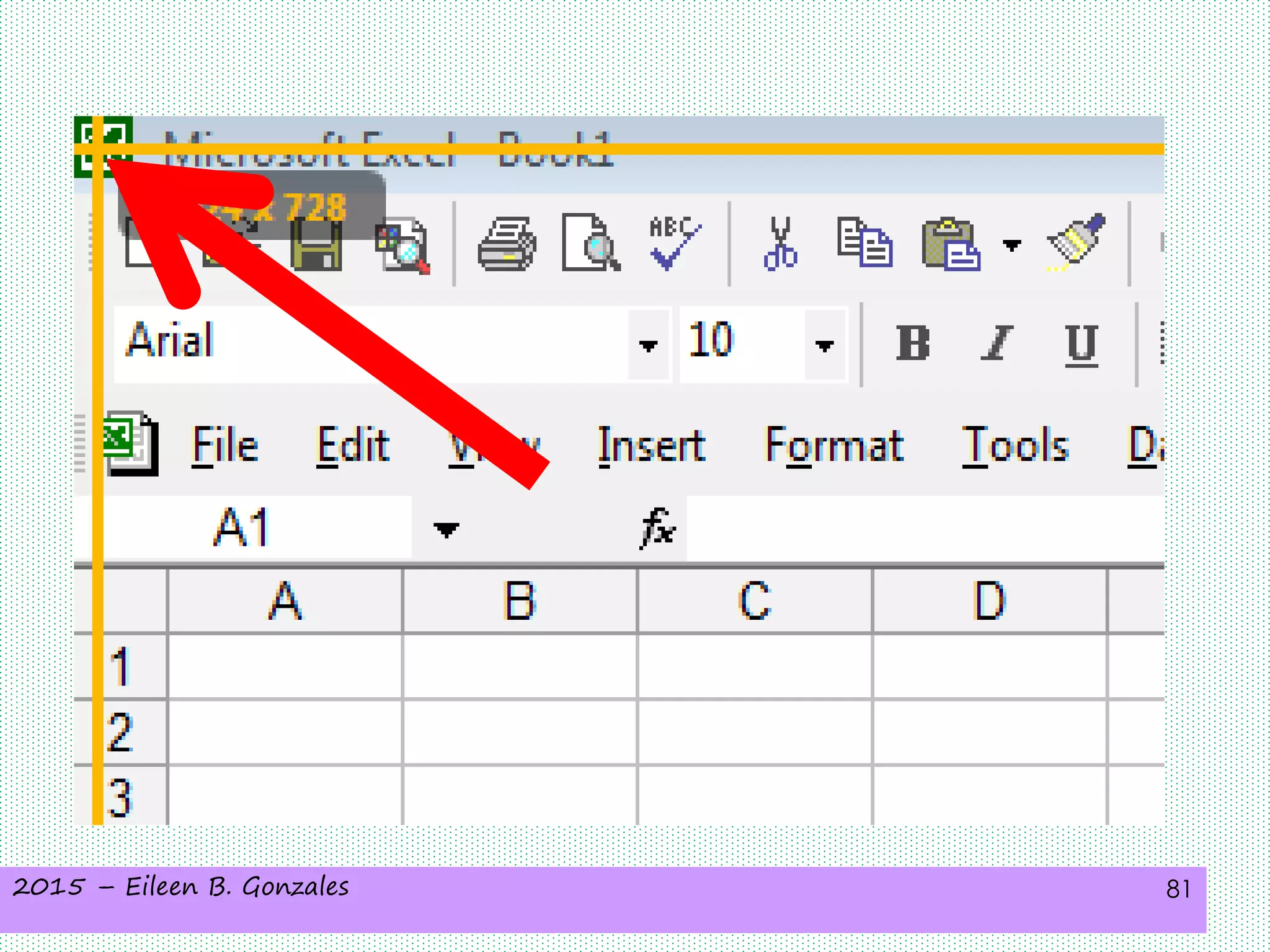
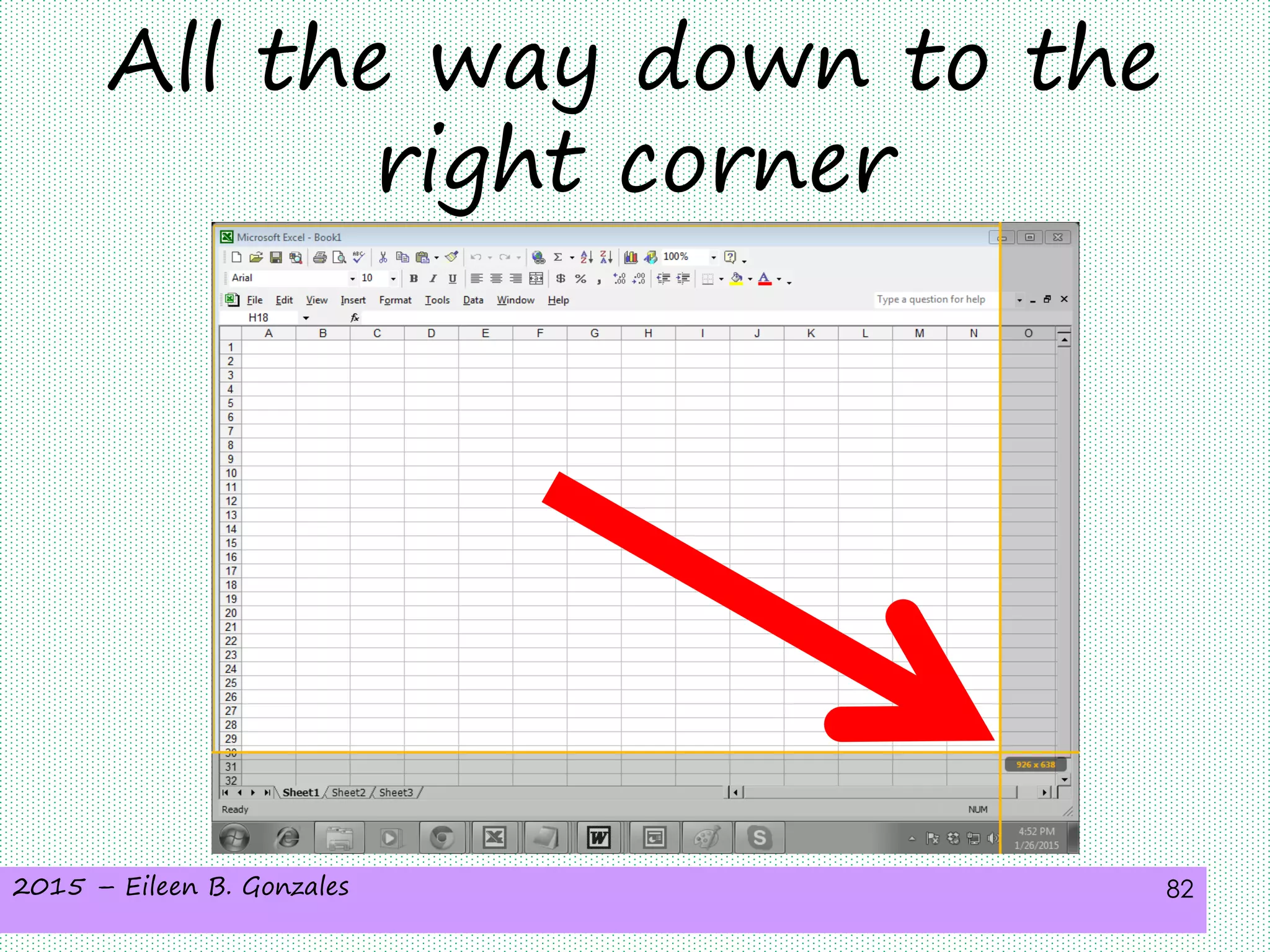
Drag the mouse from the
top left corner
2015 – Eileen B. Gonzales 81
2015 – Eileen B. Gonzales 82
All the way down to the
right corner
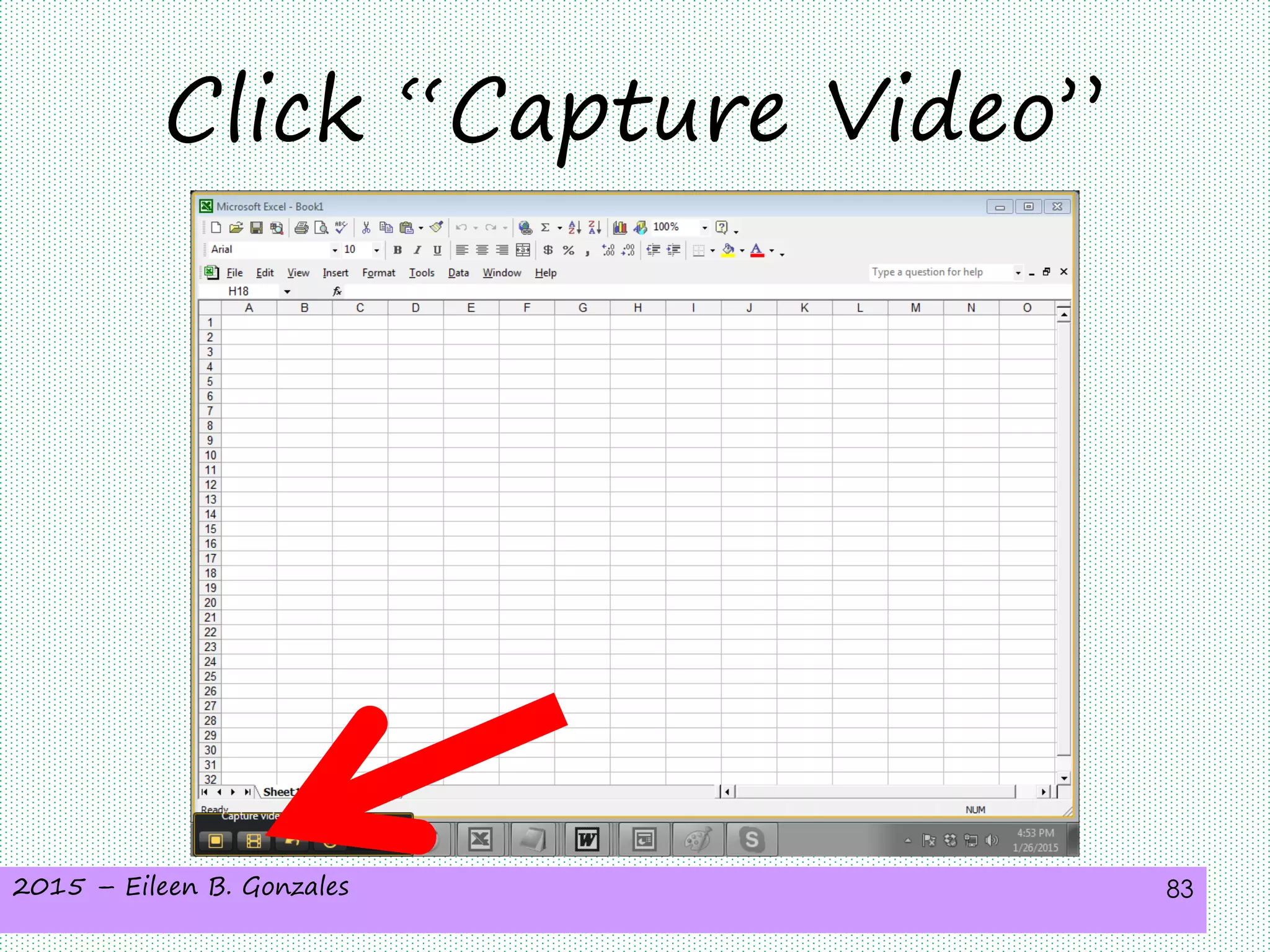
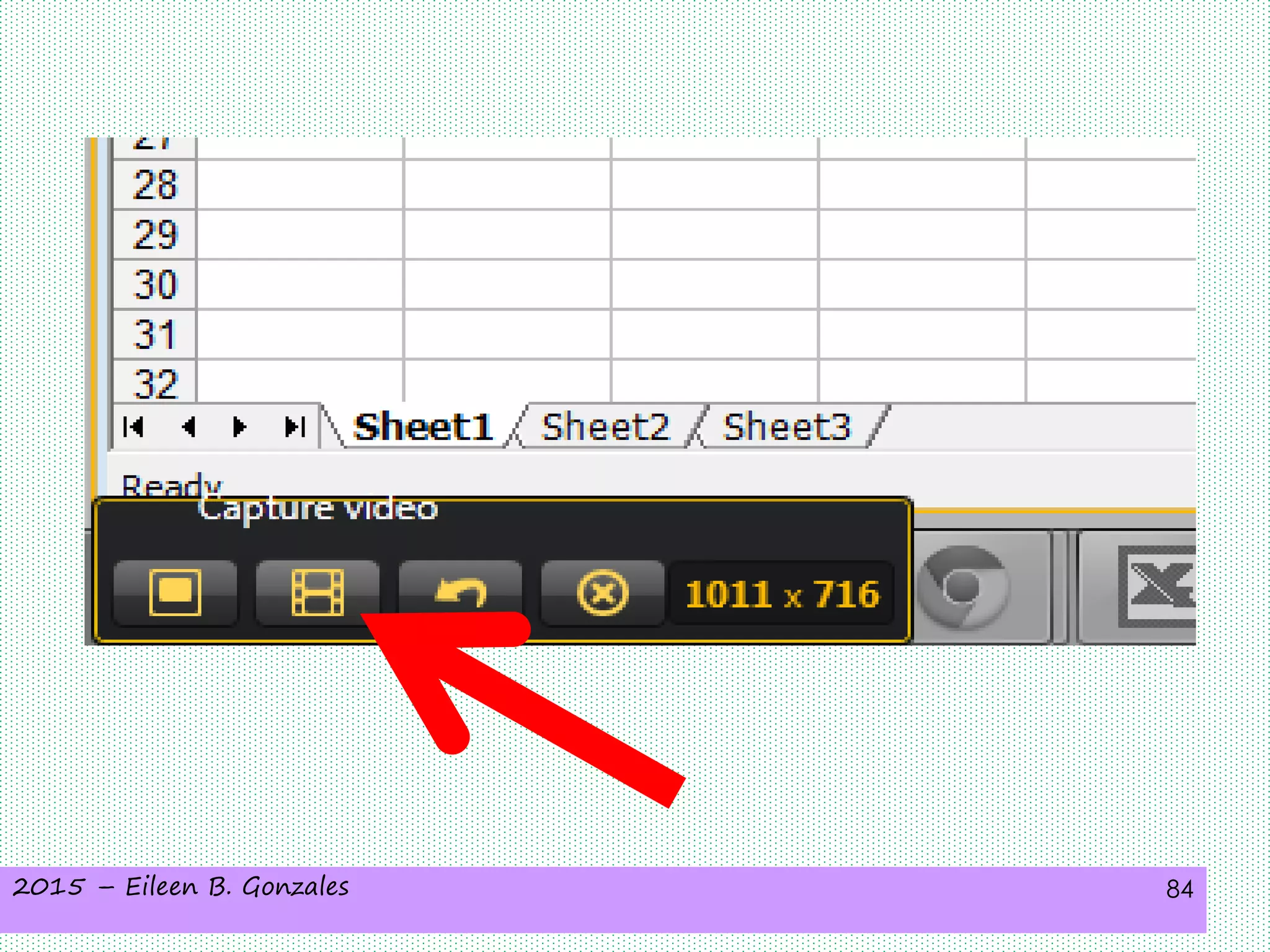
2015 – Eileen B. Gonzales 83
Click “Capture Video”
2015 – Eileen B. Gonzales 84
2015 – Eileen B. Gonzales 85
There is a 3-second
countdown before you're
on!
2015 – Eileen B. Gonzales 86
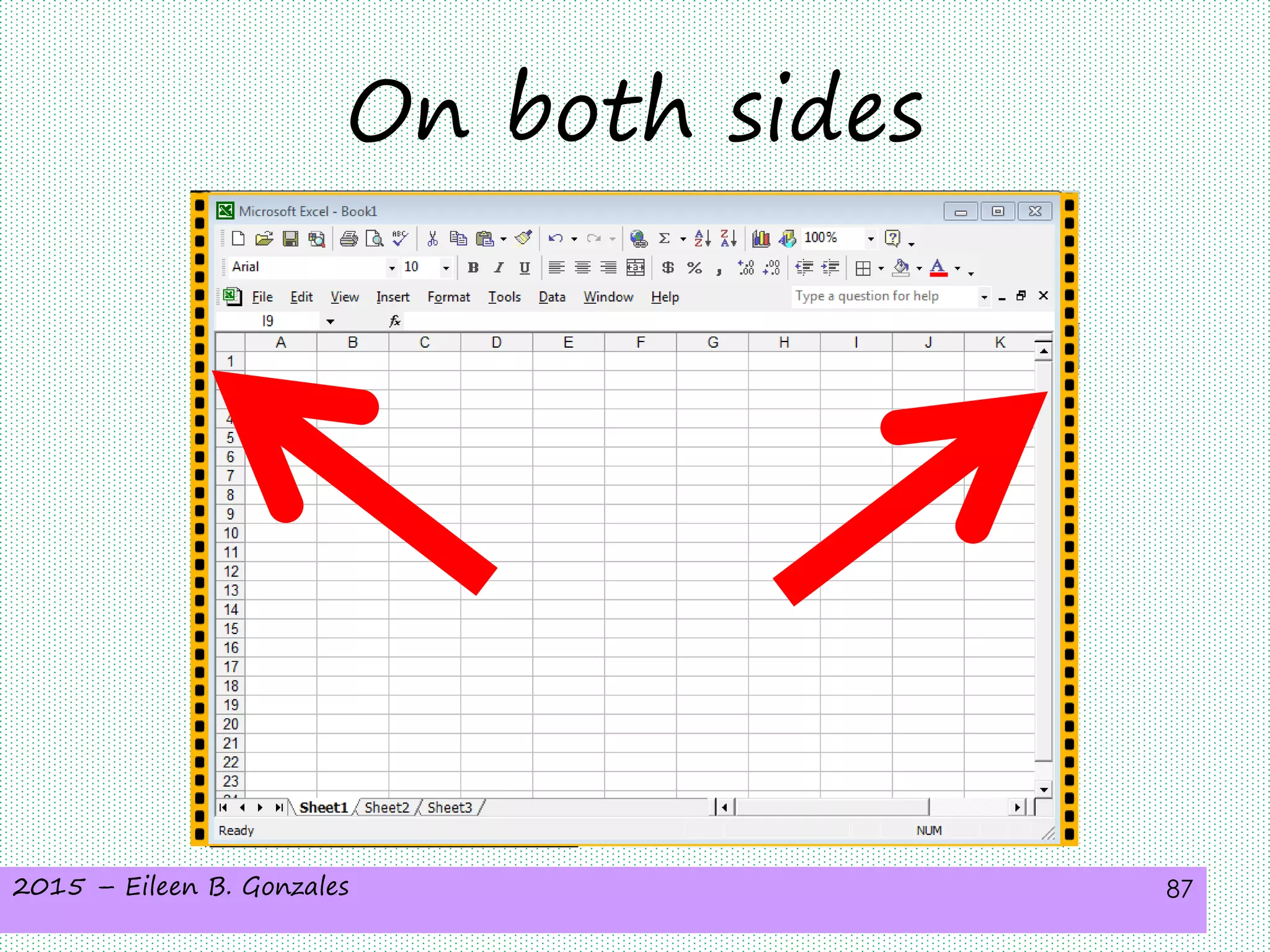
After the countdown,
there be yellow filmstrip
like bands
2015 – Eileen B. Gonzales 87
On both sides
2015 – Eileen B. Gonzales 88
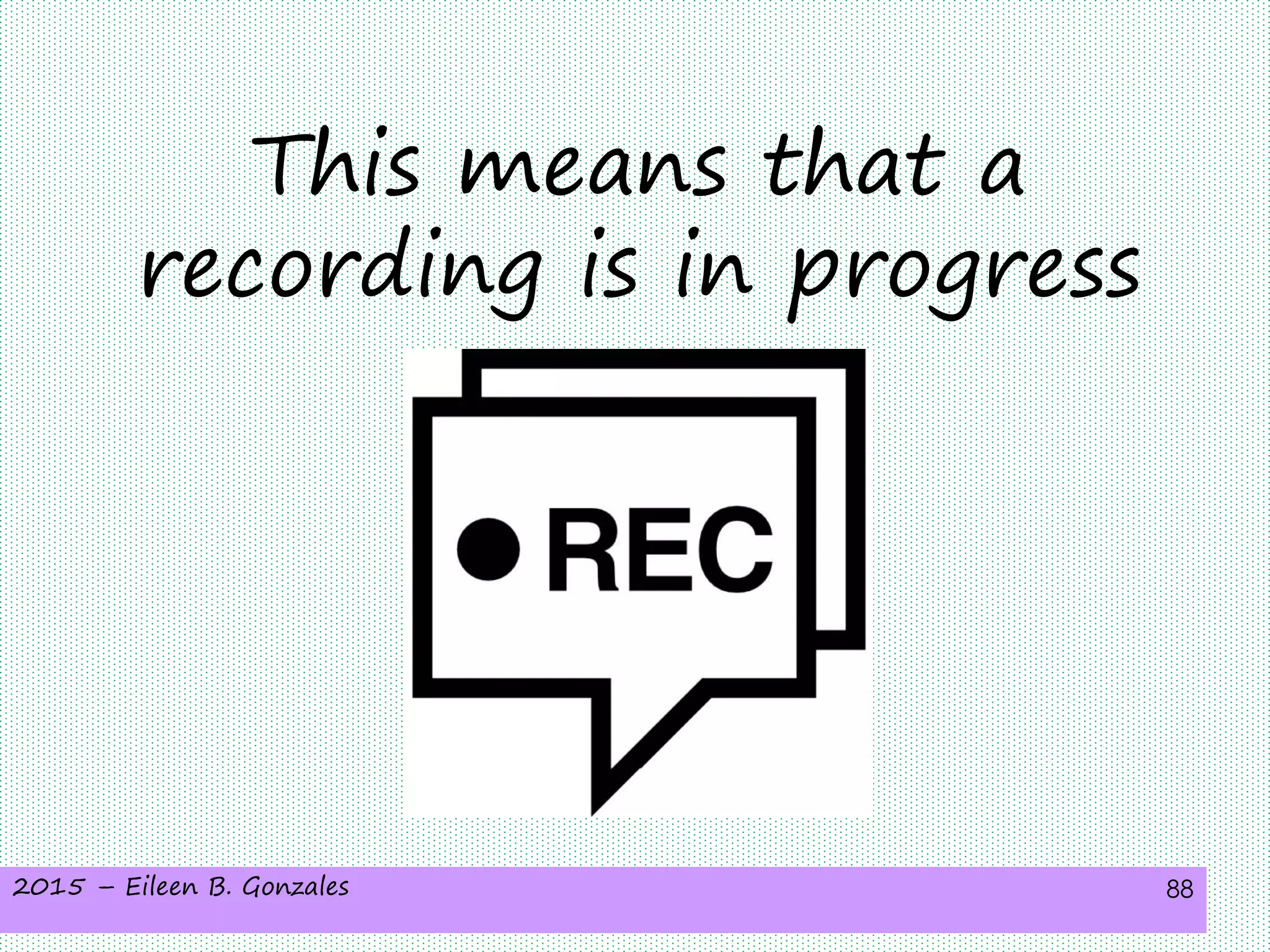
This means that a
recording is in progress
2015 – Eileen B. Gonzales 89
If your
computer
has a
microphone
2015 – Eileen B. Gonzales 90
Jing can record your
commentary at the
same time
2015 – Eileen B. Gonzales 91
By the way,
2015 – Eileen B. Gonzales 92
Jing videos are
limited to 5 minutes
only
2015 – Eileen B. Gonzales 93
So make the most out of
it
2015 – Eileen B. Gonzales 94
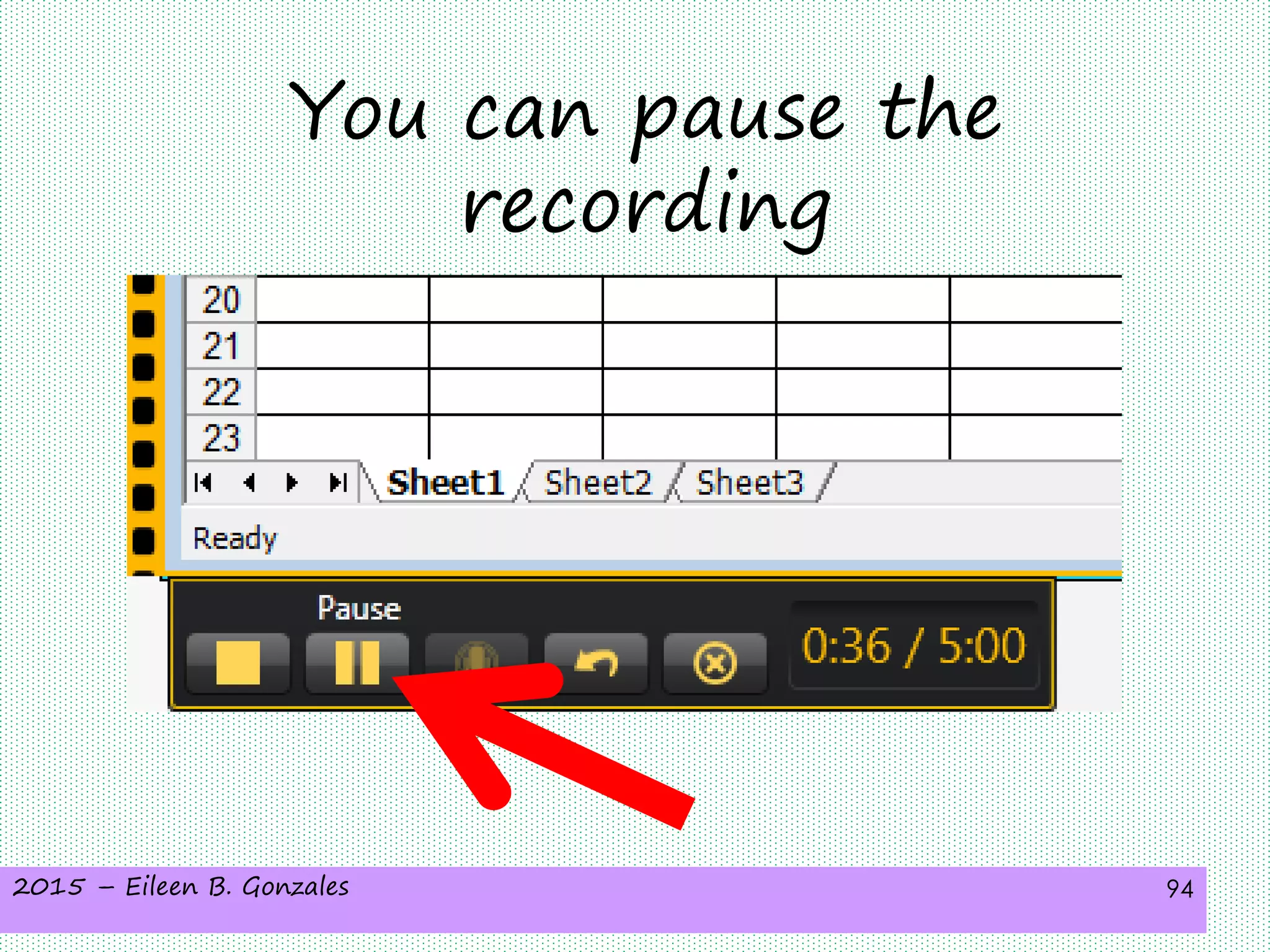
You can pause the
recording
2015 – Eileen B. Gonzales 95
If you think that you
need more time
2015 – Eileen B. Gonzales 96
to think of what to say
next
2015 – Eileen B. Gonzales 97
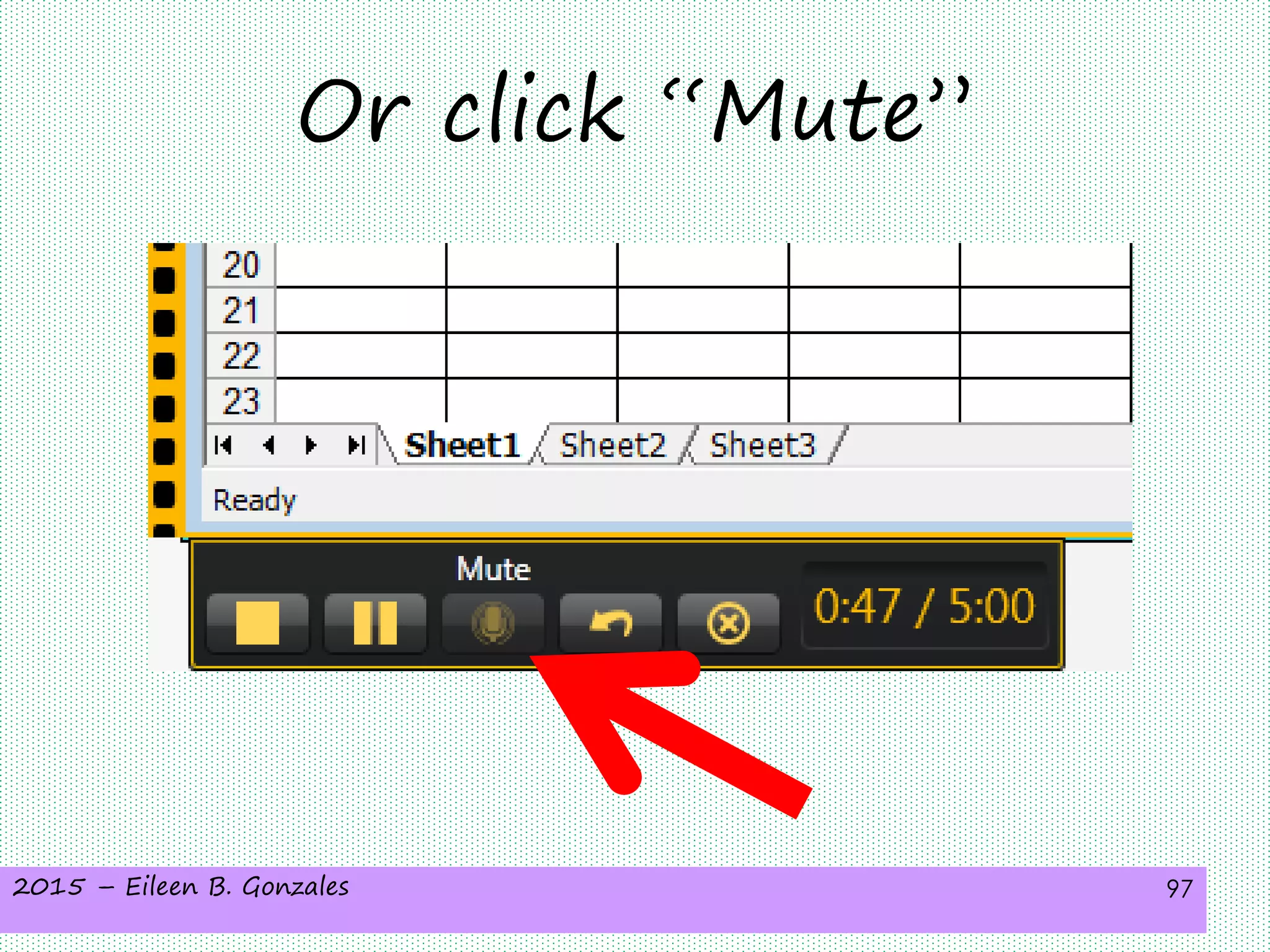
Or click “Mute”
2015 – Eileen B. Gonzales 98
If you don’t want to
include any commentary
2015 – Eileen B. Gonzales 99
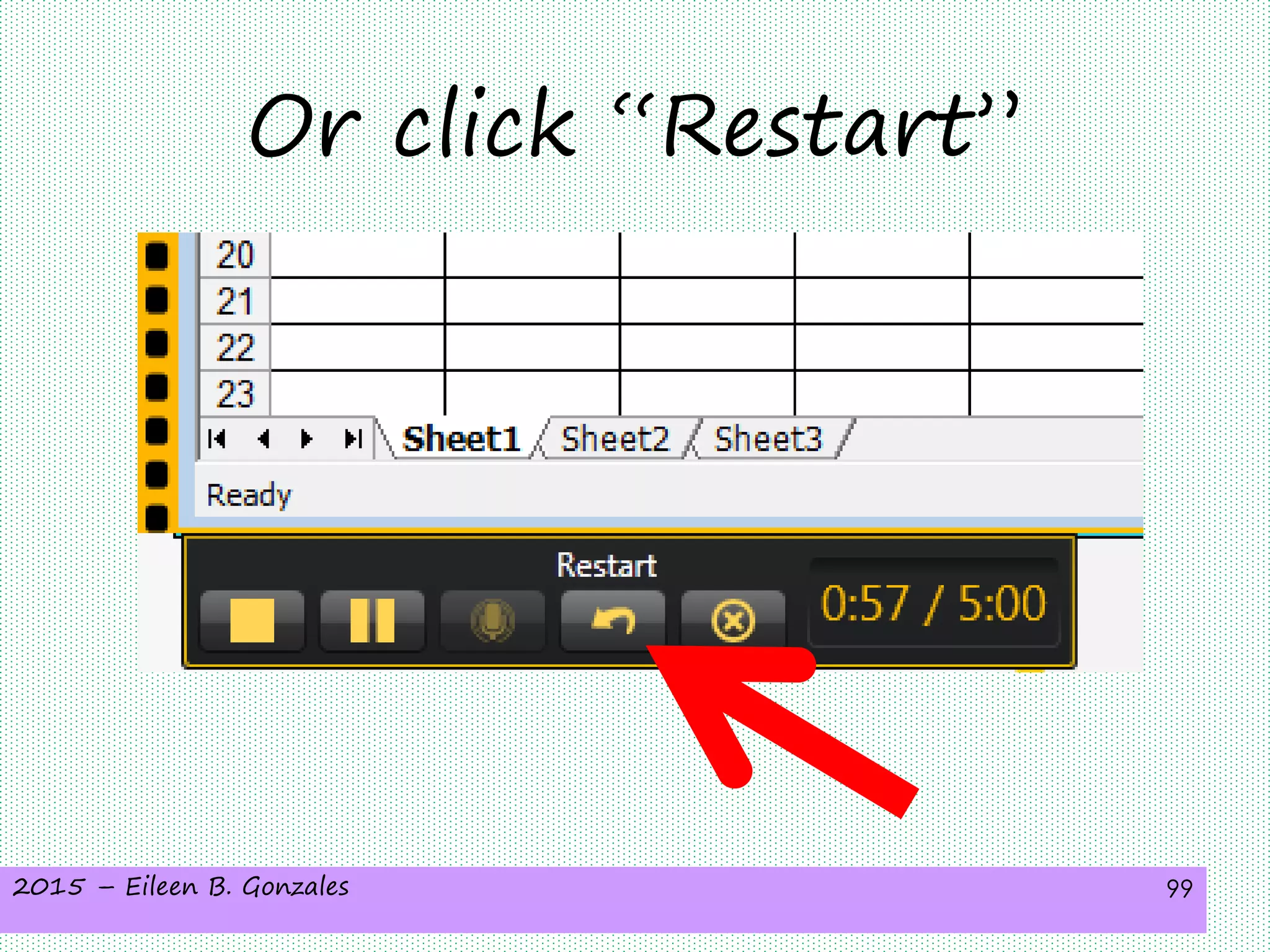
Or click “Restart”
2015 – Eileen B. Gonzales 100
If you want to
do it all over
again
2015 – Eileen B. Gonzales 101
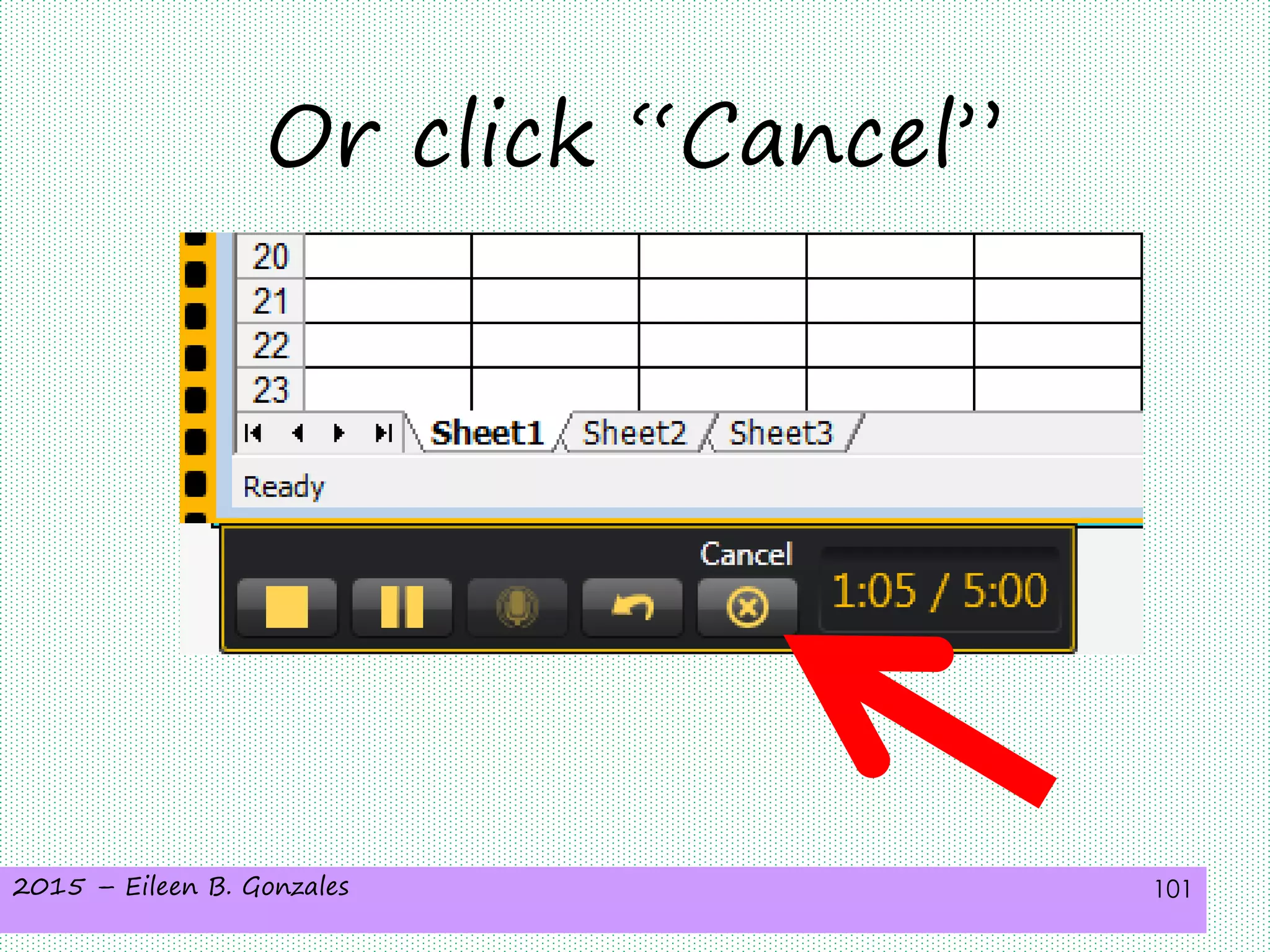
Or click “Cancel”
2015 – Eileen B. Gonzales 102
If you want to stop the
recording
2015 – Eileen B. Gonzales 103
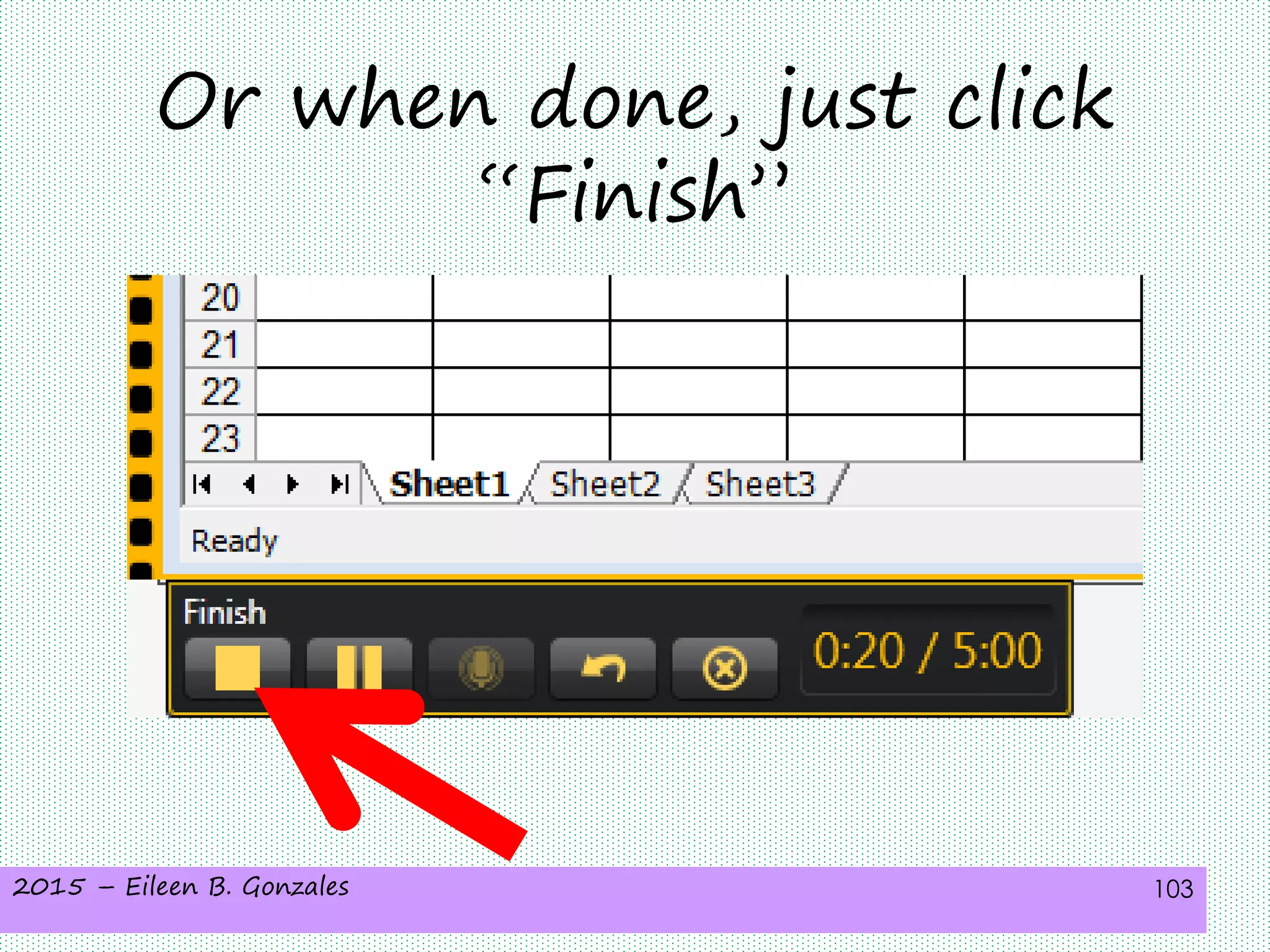
Or when done, just click
“Finish”
2015 – Eileen B. Gonzales 104
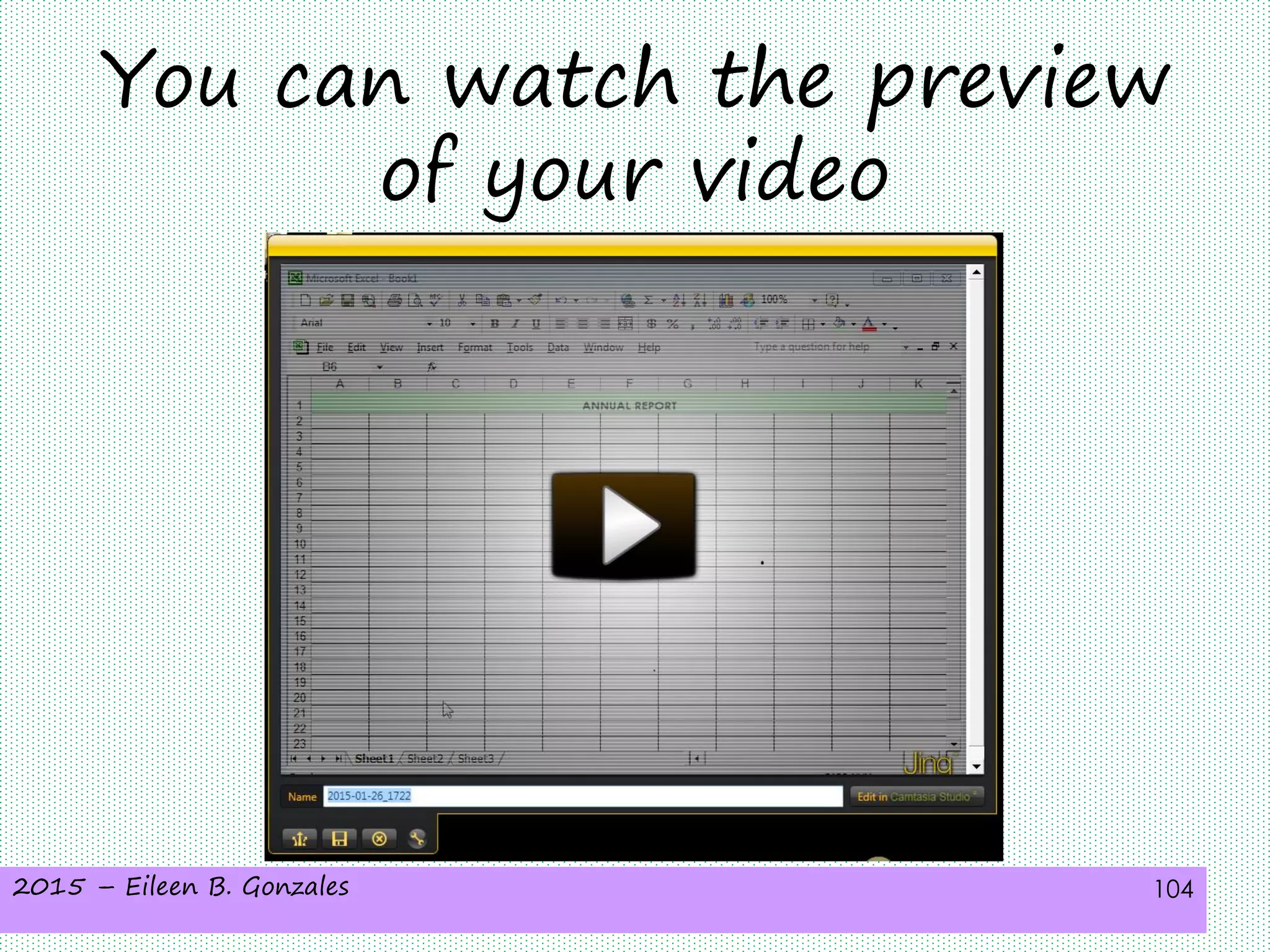
You can watch the preview
of your video
2015 – Eileen B. Gonzales 105
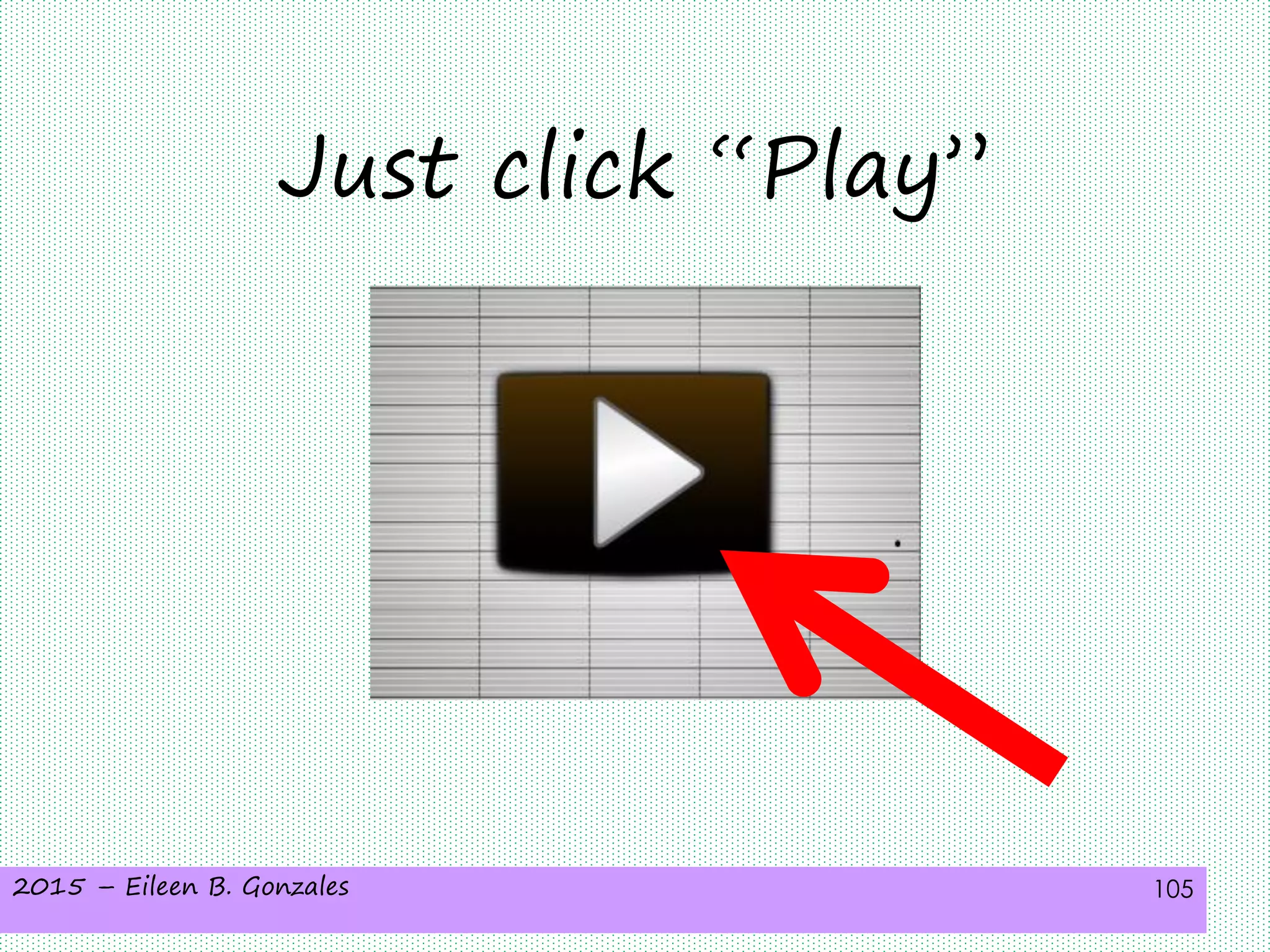
Just click “Play”
2015 – Eileen B. Gonzales 106
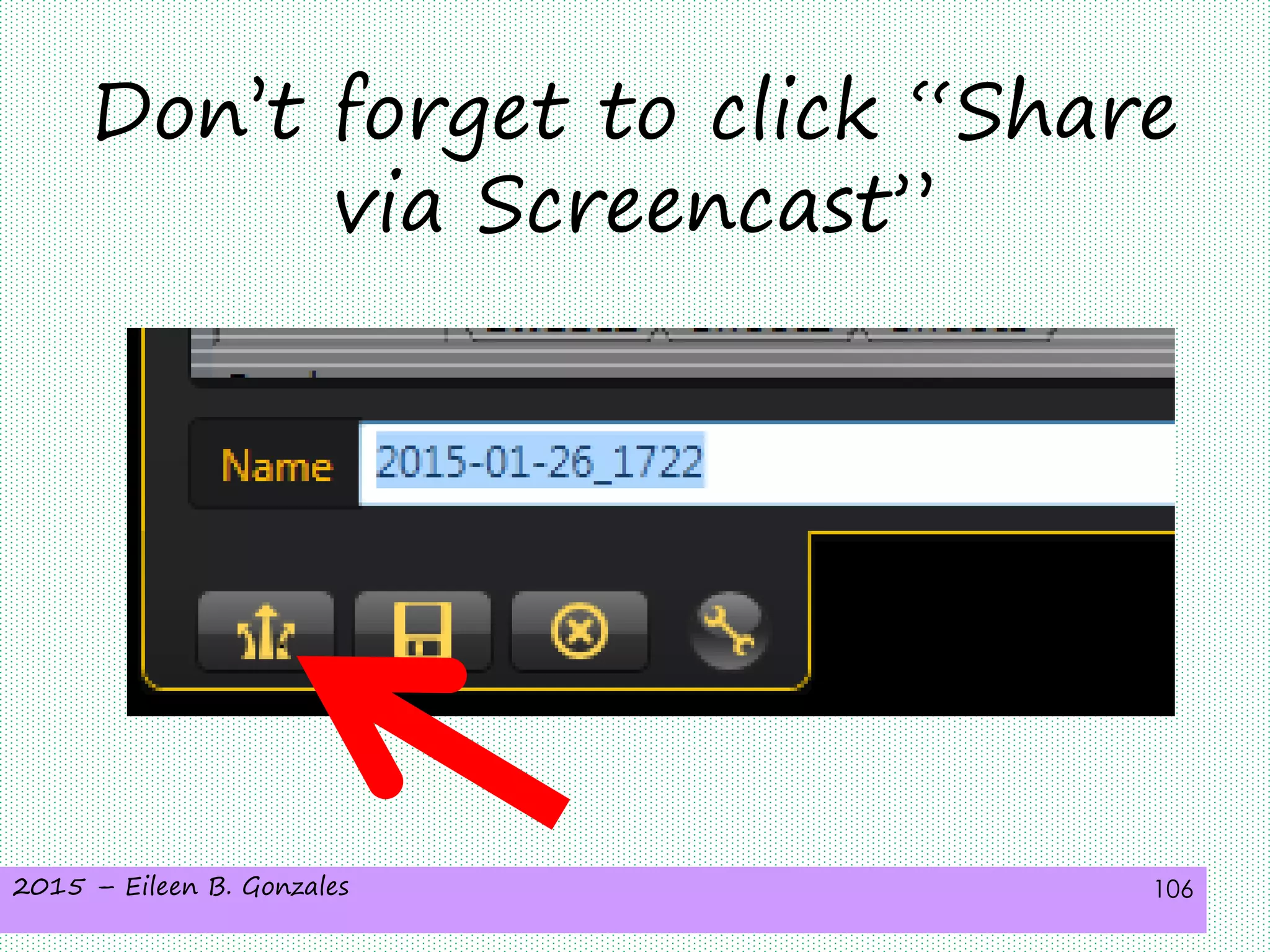
Don’t forget to click “Share
via Screencast”
2015 – Eileen B. Gonzales 107
For the recording to be
uploaded also to
Screencast
2015 – Eileen B. Gonzales 108
Congratulations!
You now know
how to use Jing
2015 – Eileen B. Gonzales 109

How to use jing