


Canva
Mces Rasos
Step by
step guide
on how to
use CANVA
What is
Canva?
It is a Free
amazing tool
A design
service for you
to make
beautiful
posters,
invitations,
cards,
website
graphics,
or even
multiple-page
presentations
Canva makes
design simple,
easy, and fast.
It gives you
access to a whole
stock of free
photographs,
graphics and
fonts, or you can
choose to upload
your own.
What to learn
how to use
basic Canva?
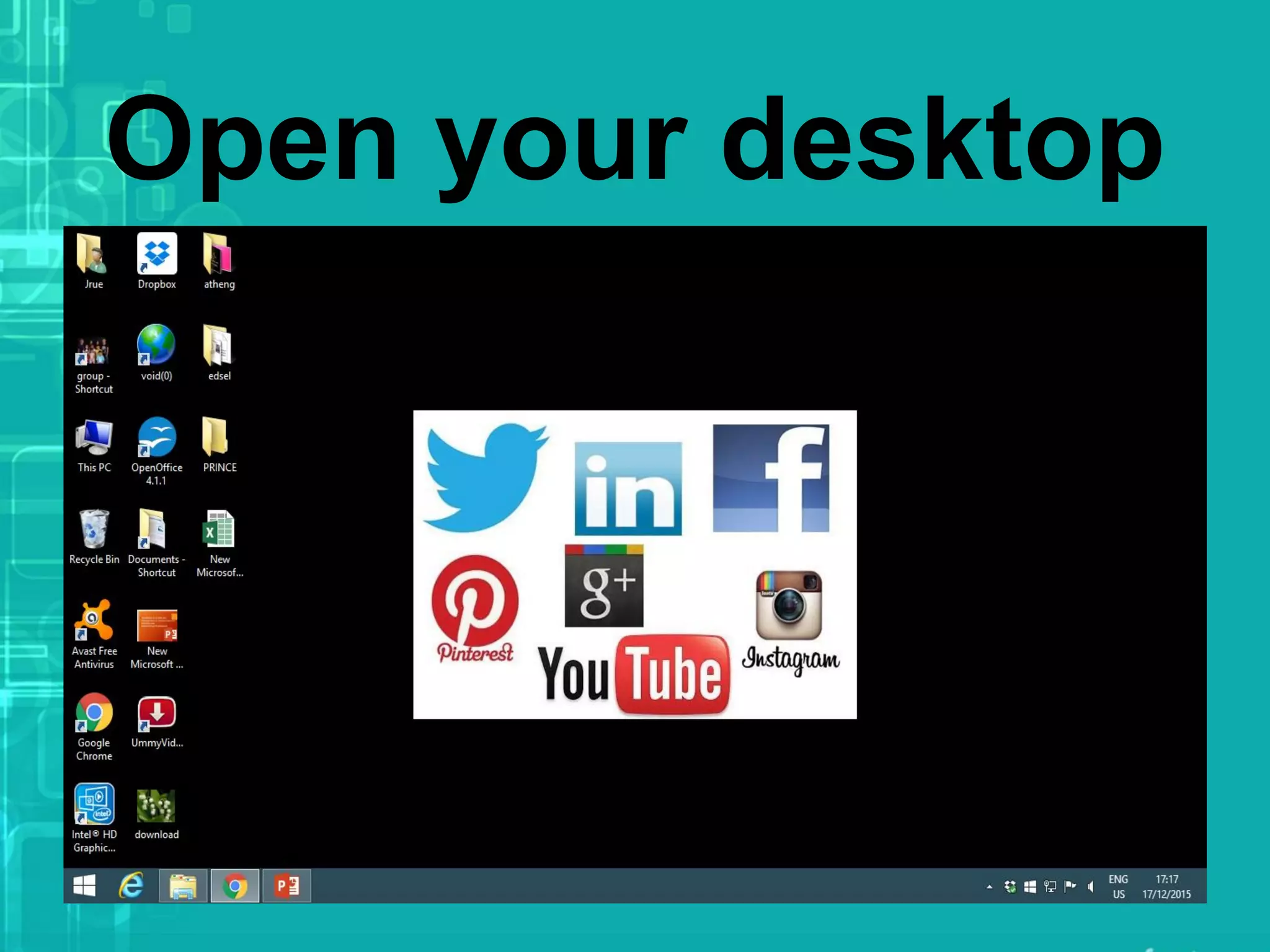
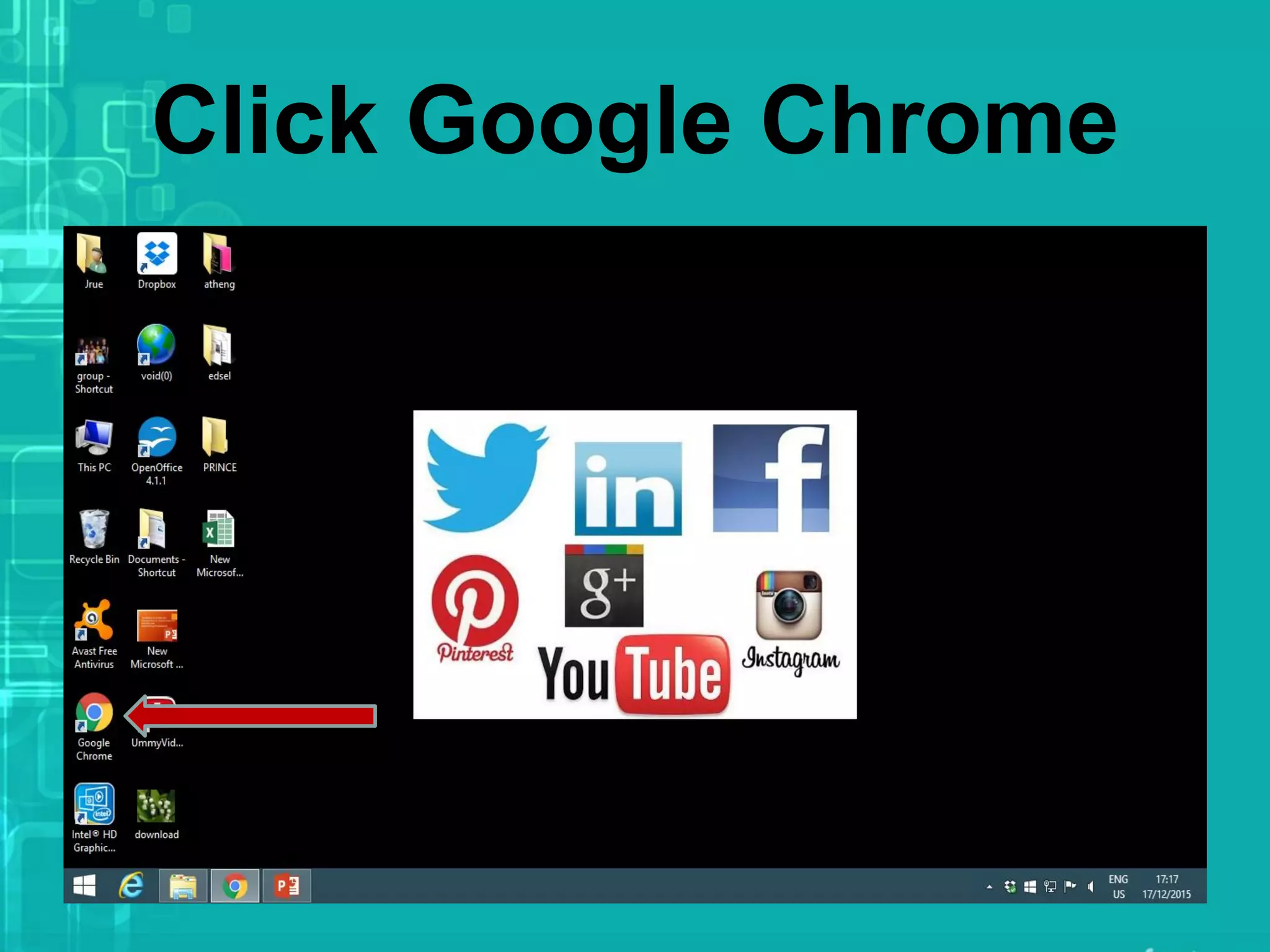
Open your desktop
Click Google Chrome
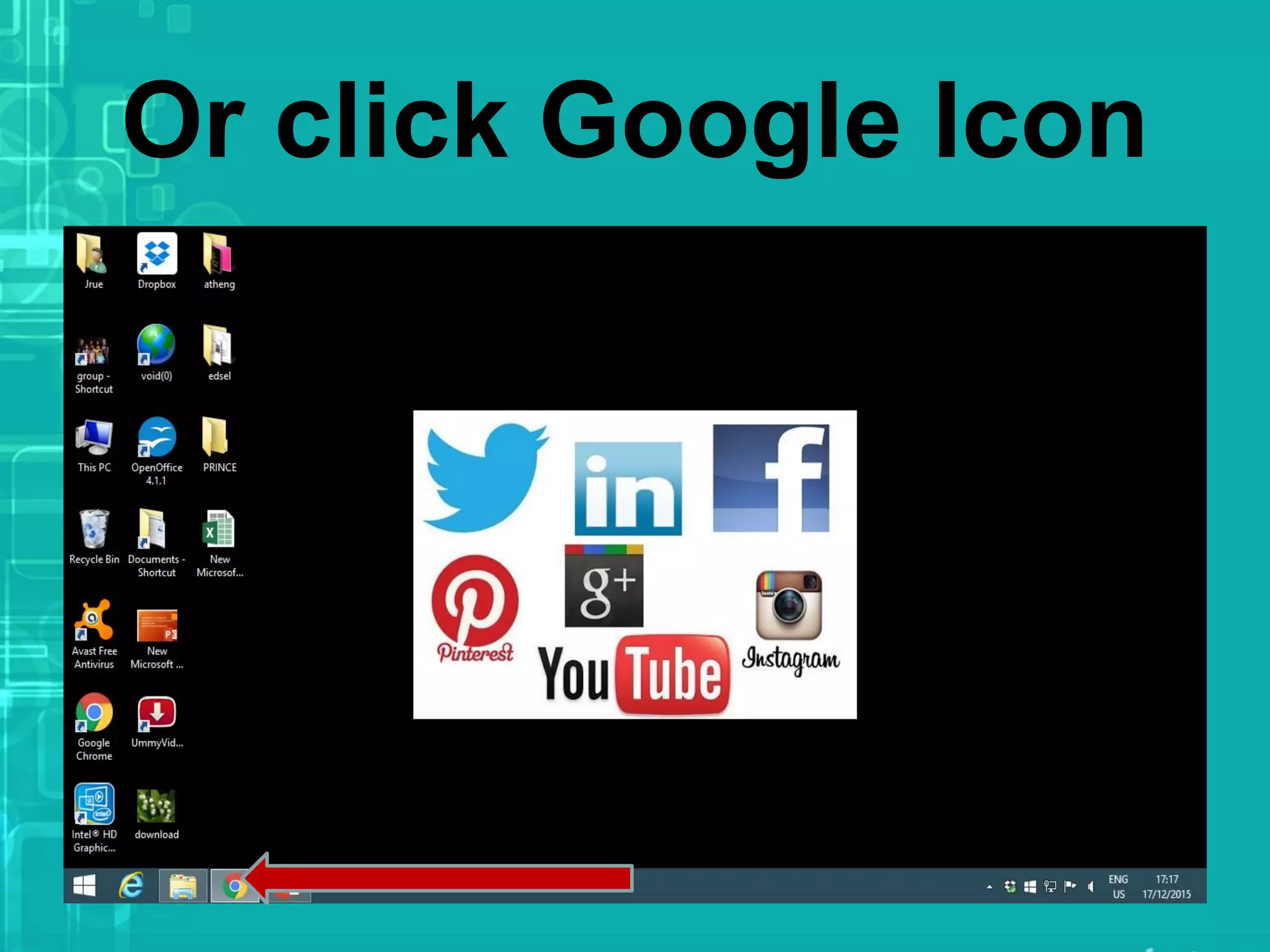
Or click Google Icon
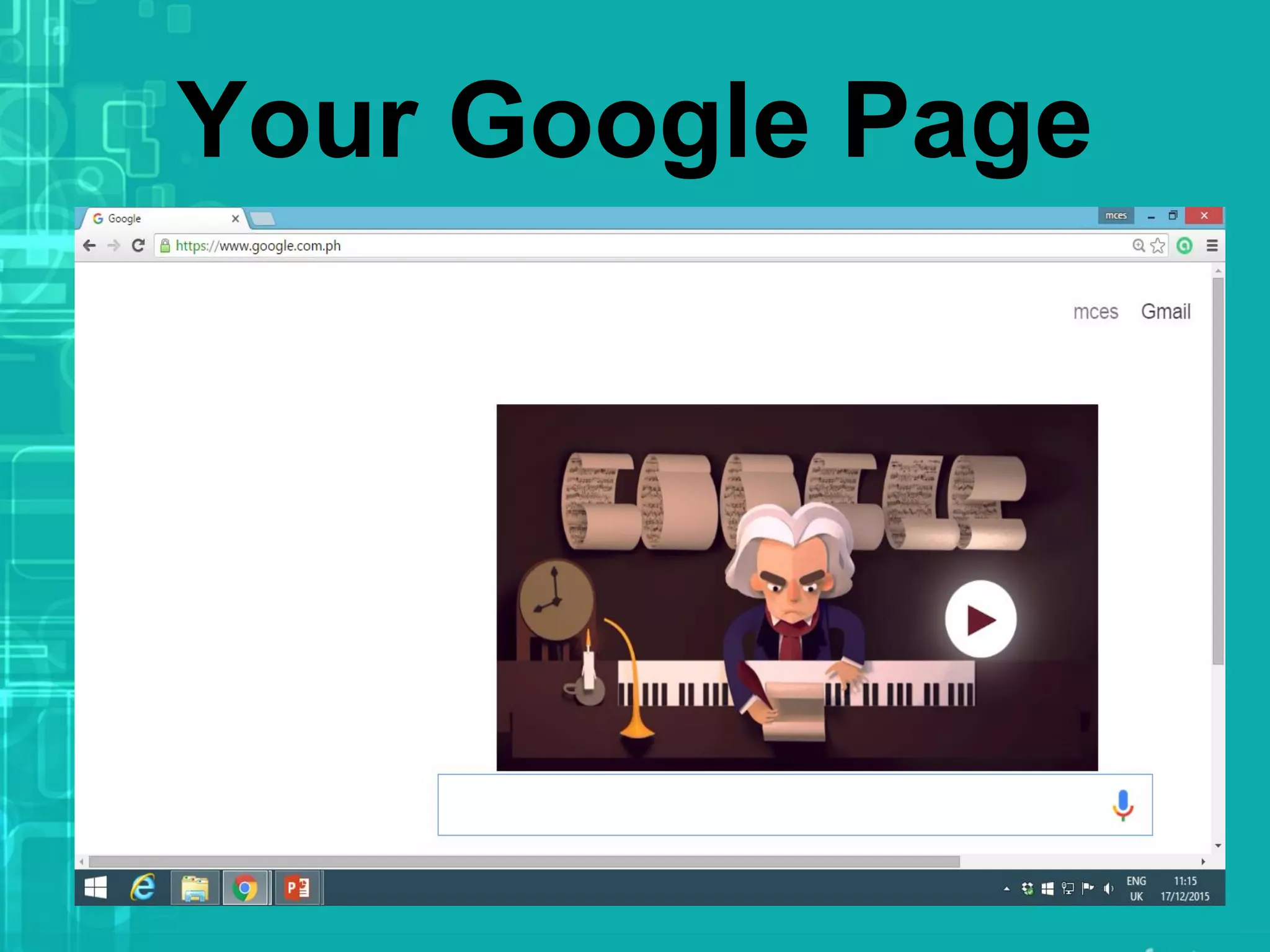
Your Google Page
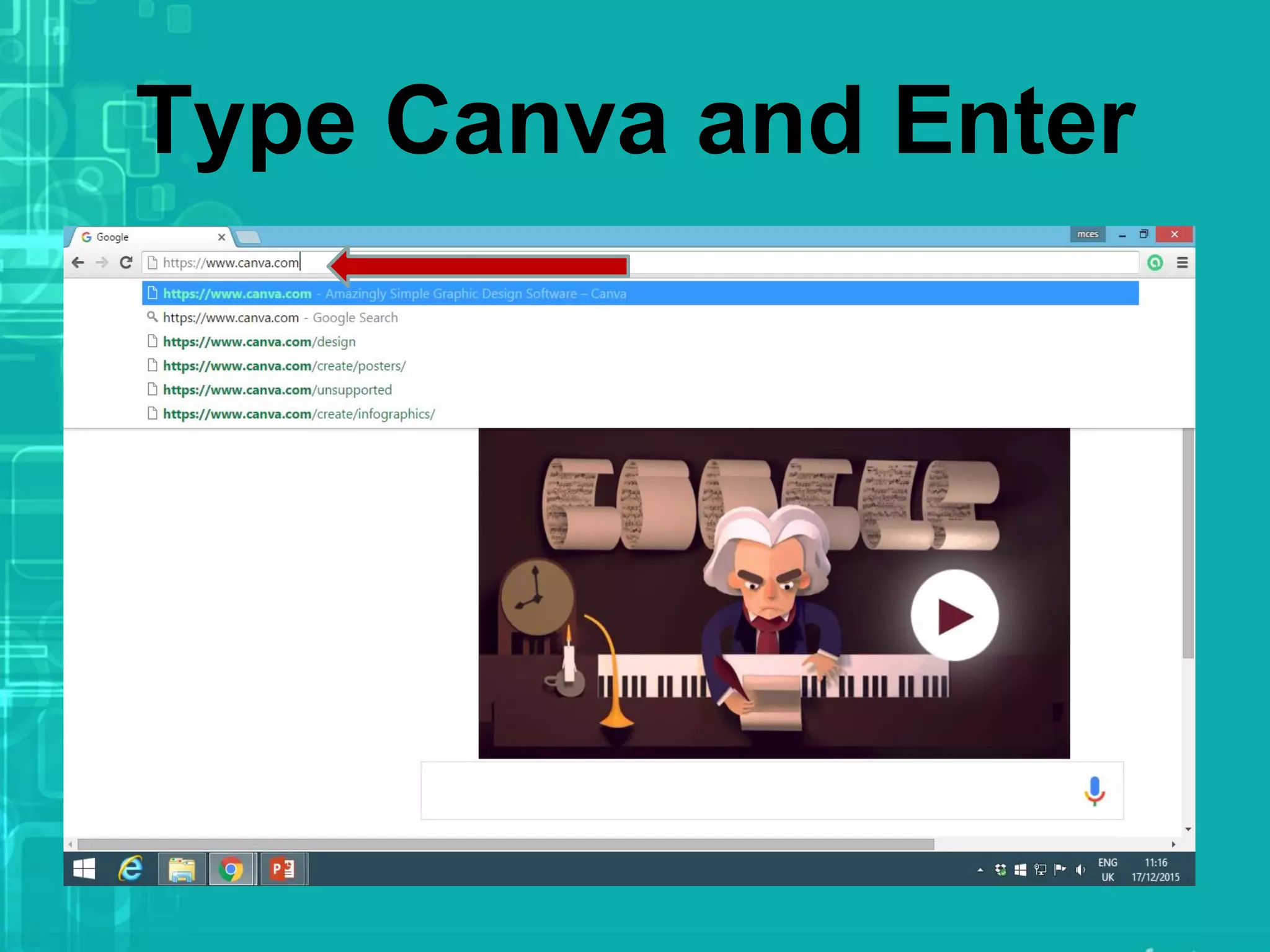
Type Canva and Enter
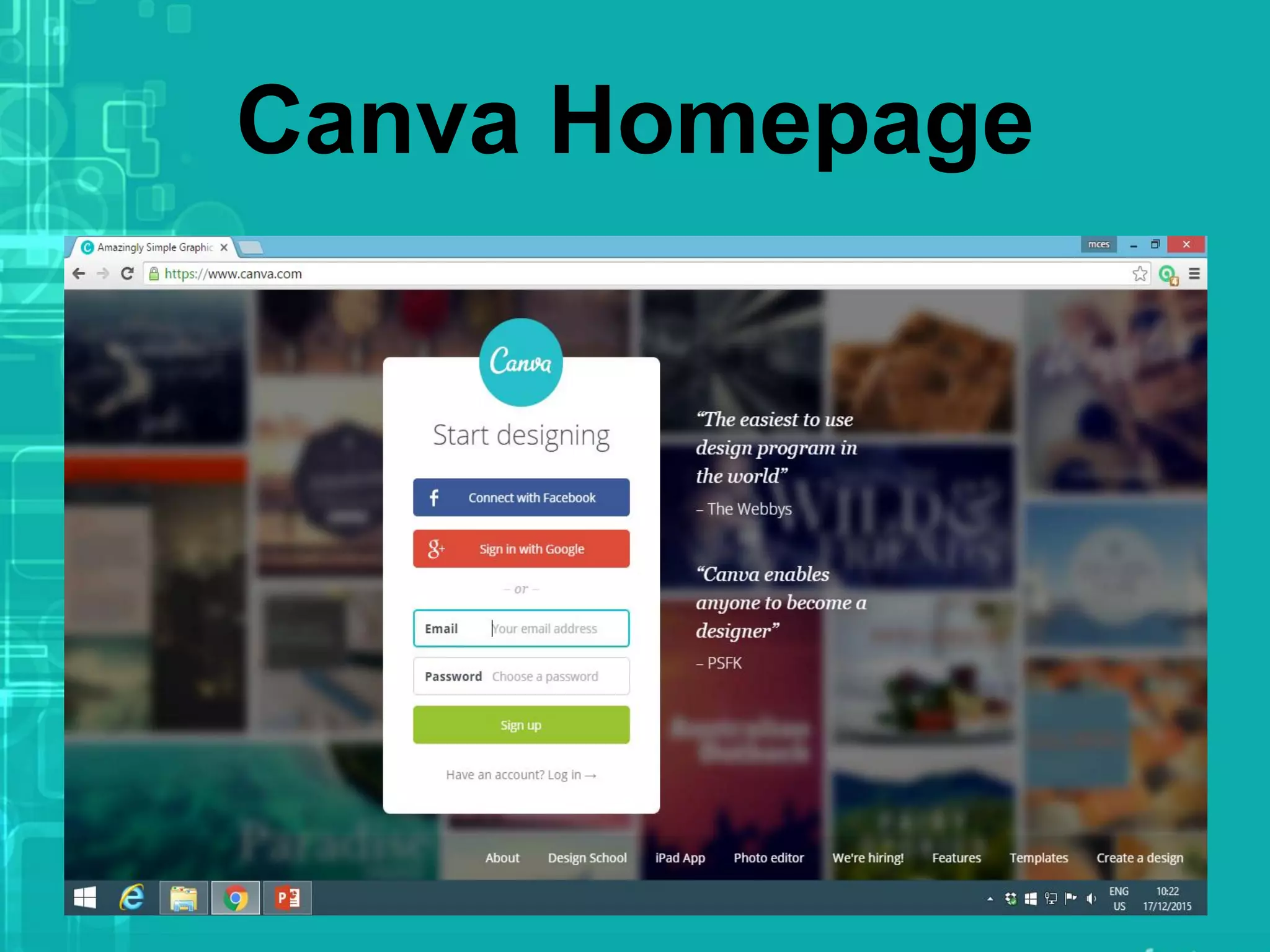
Canva Homepage
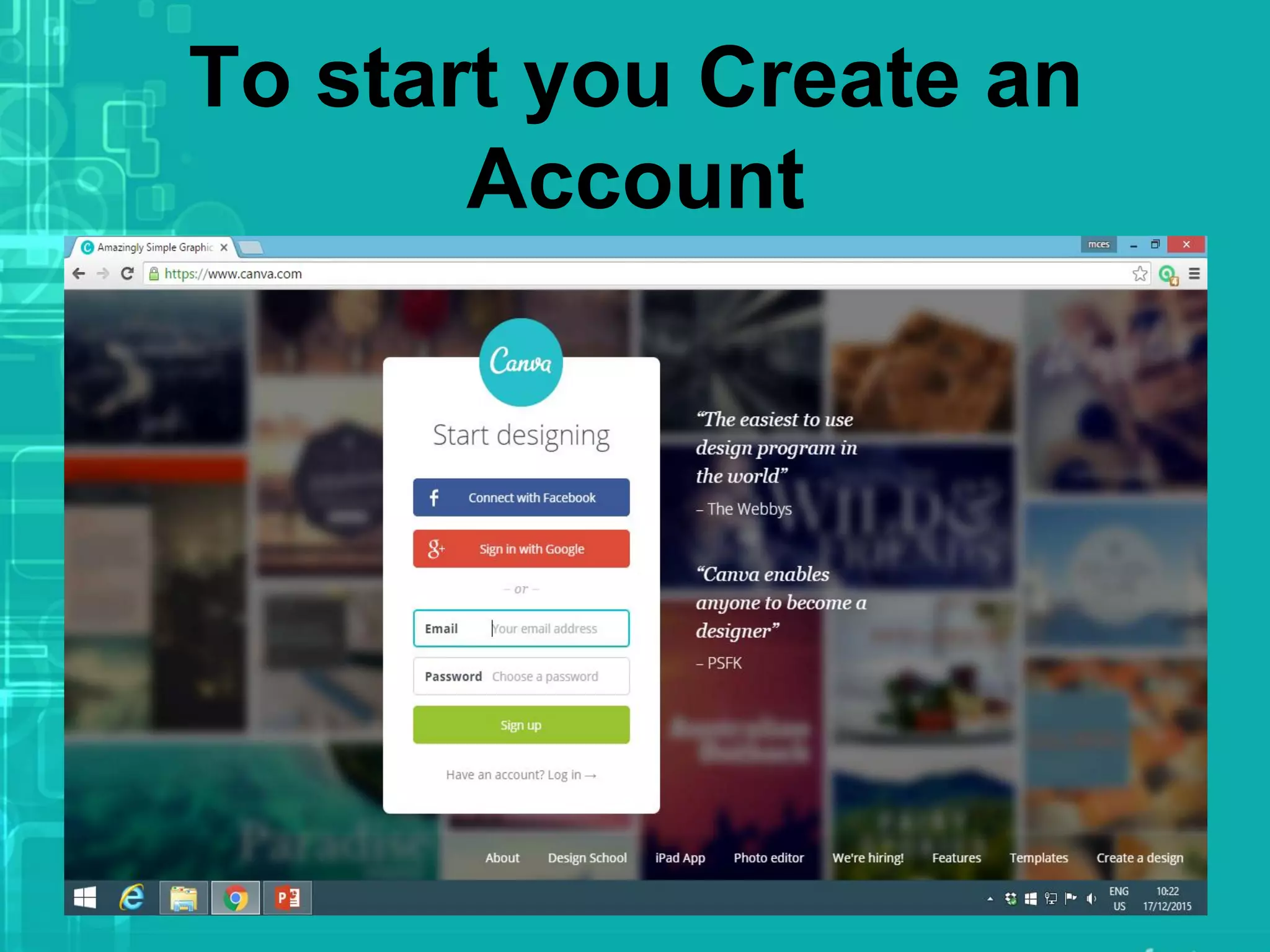
To start you Create an
Account
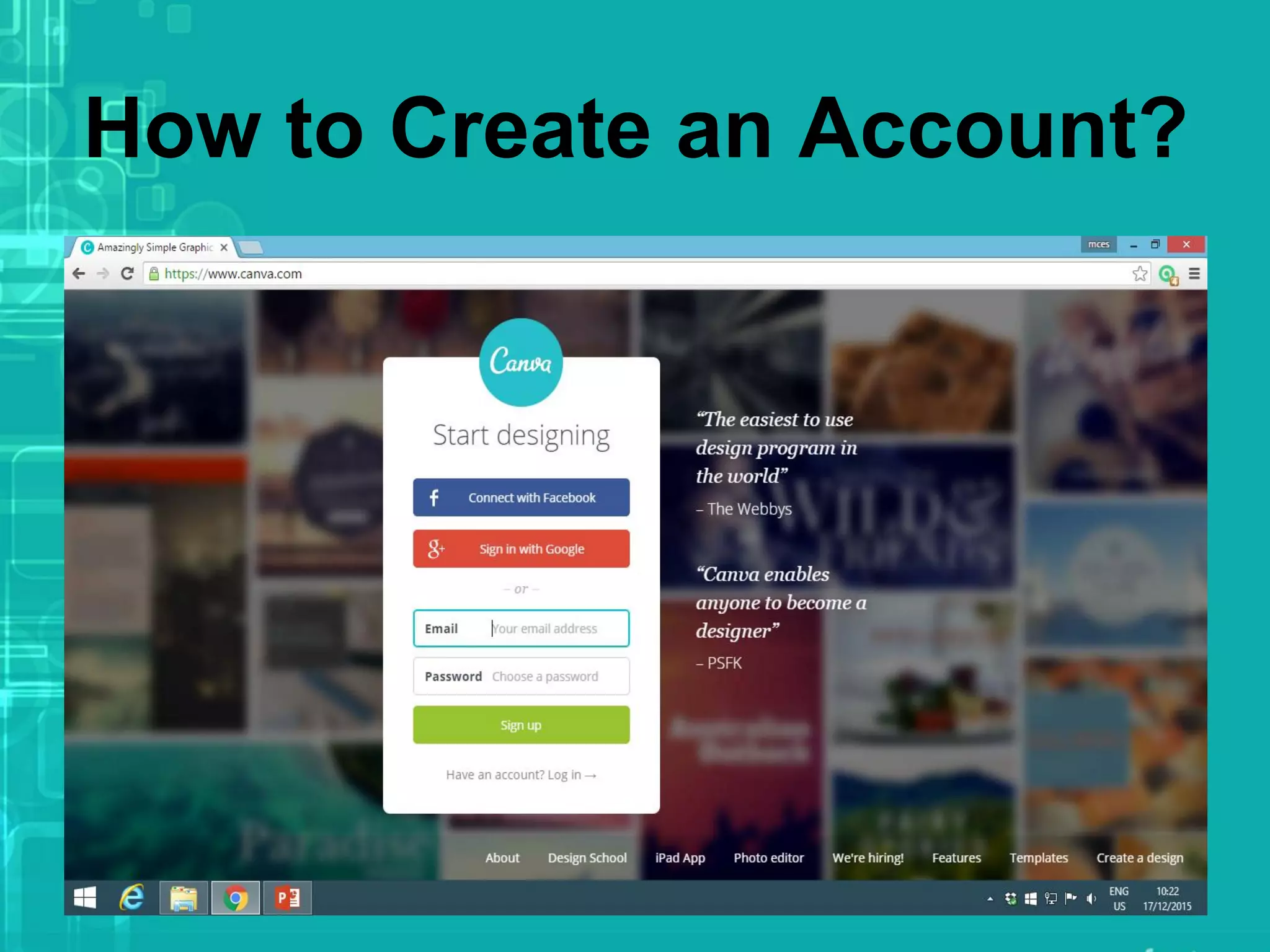
How to Create an Account?
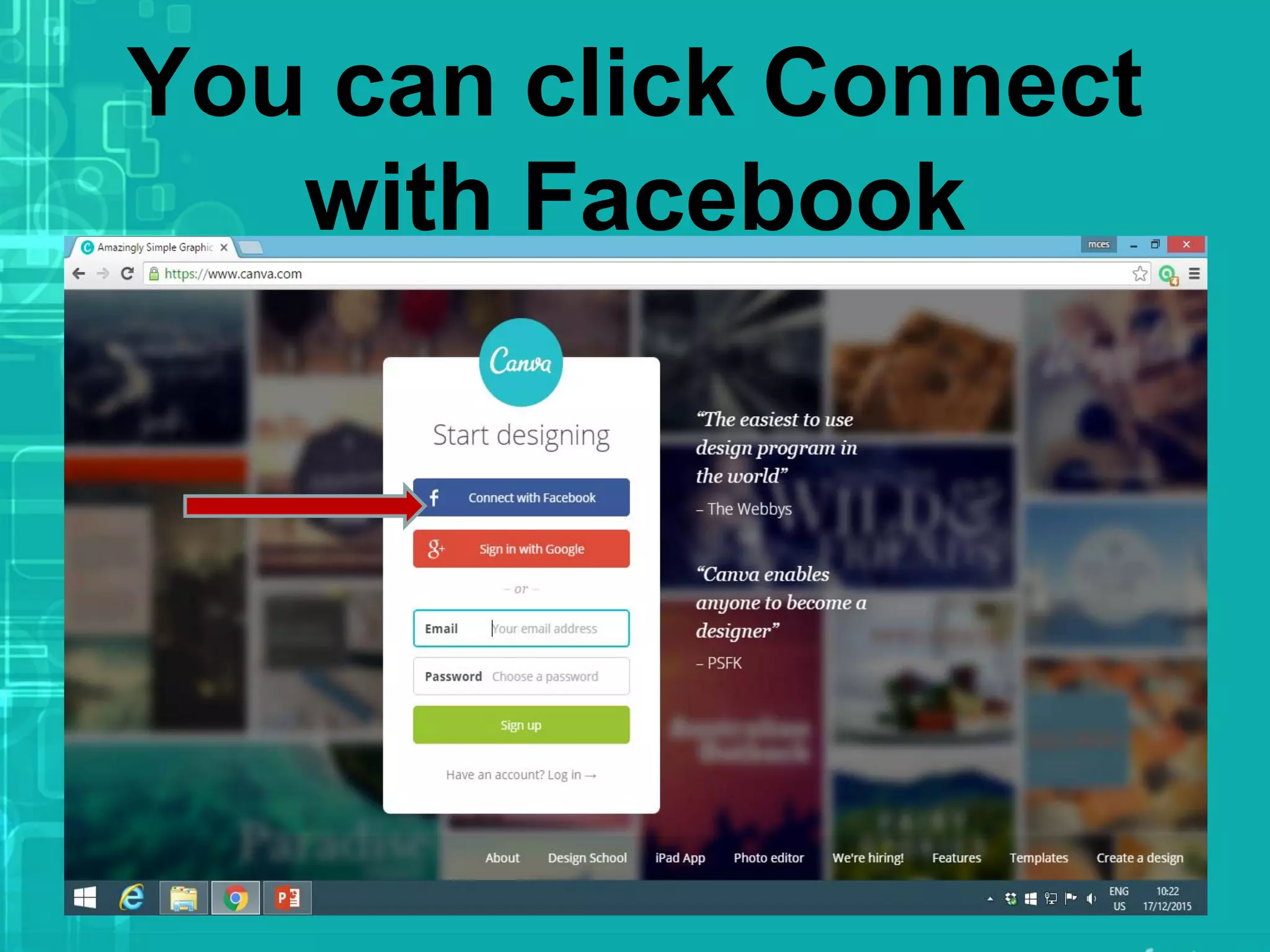
You can click Connect
with Facebook
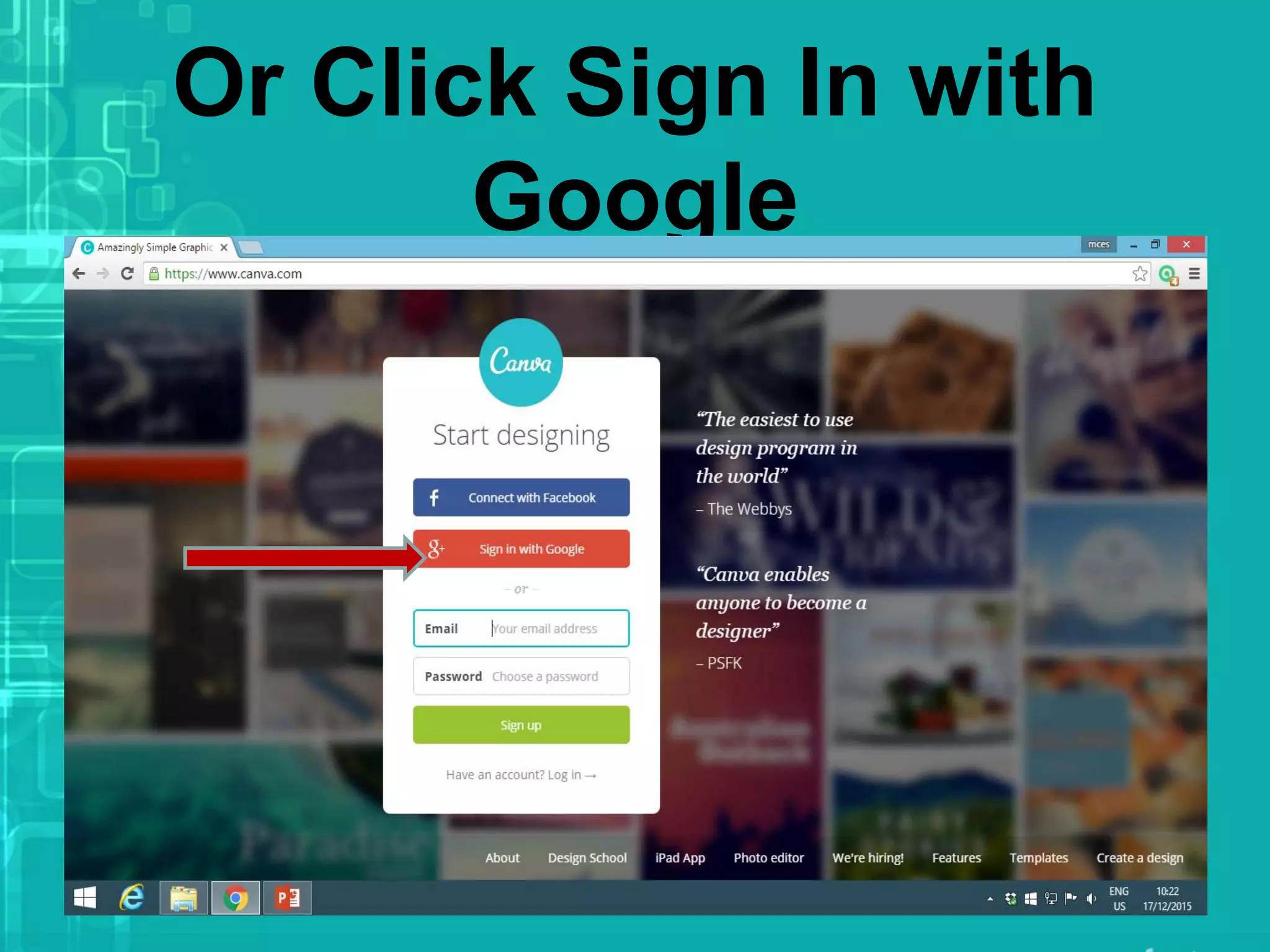
Or Click Sign In with
Google
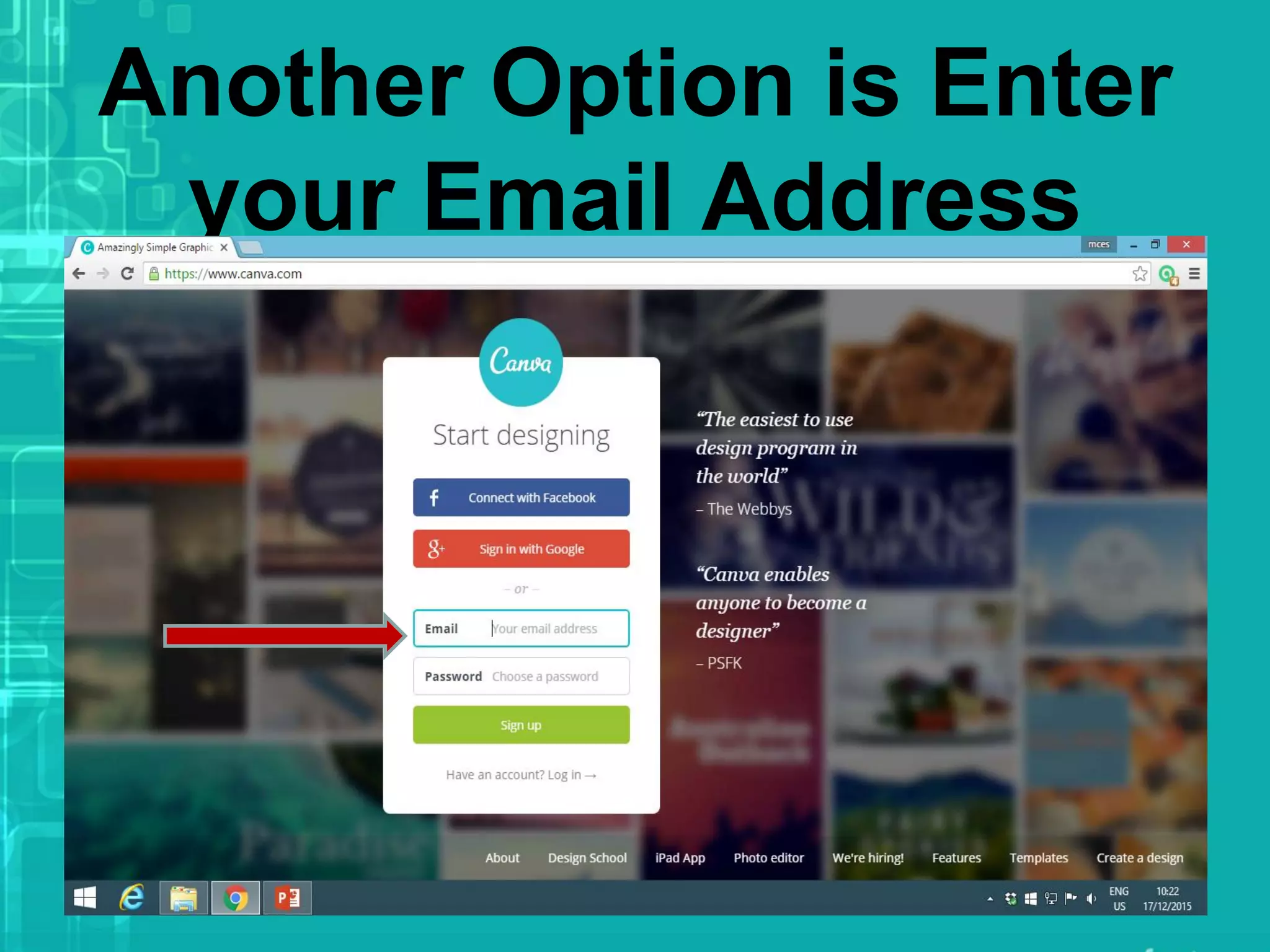
Another Option is Enter
your Email Address
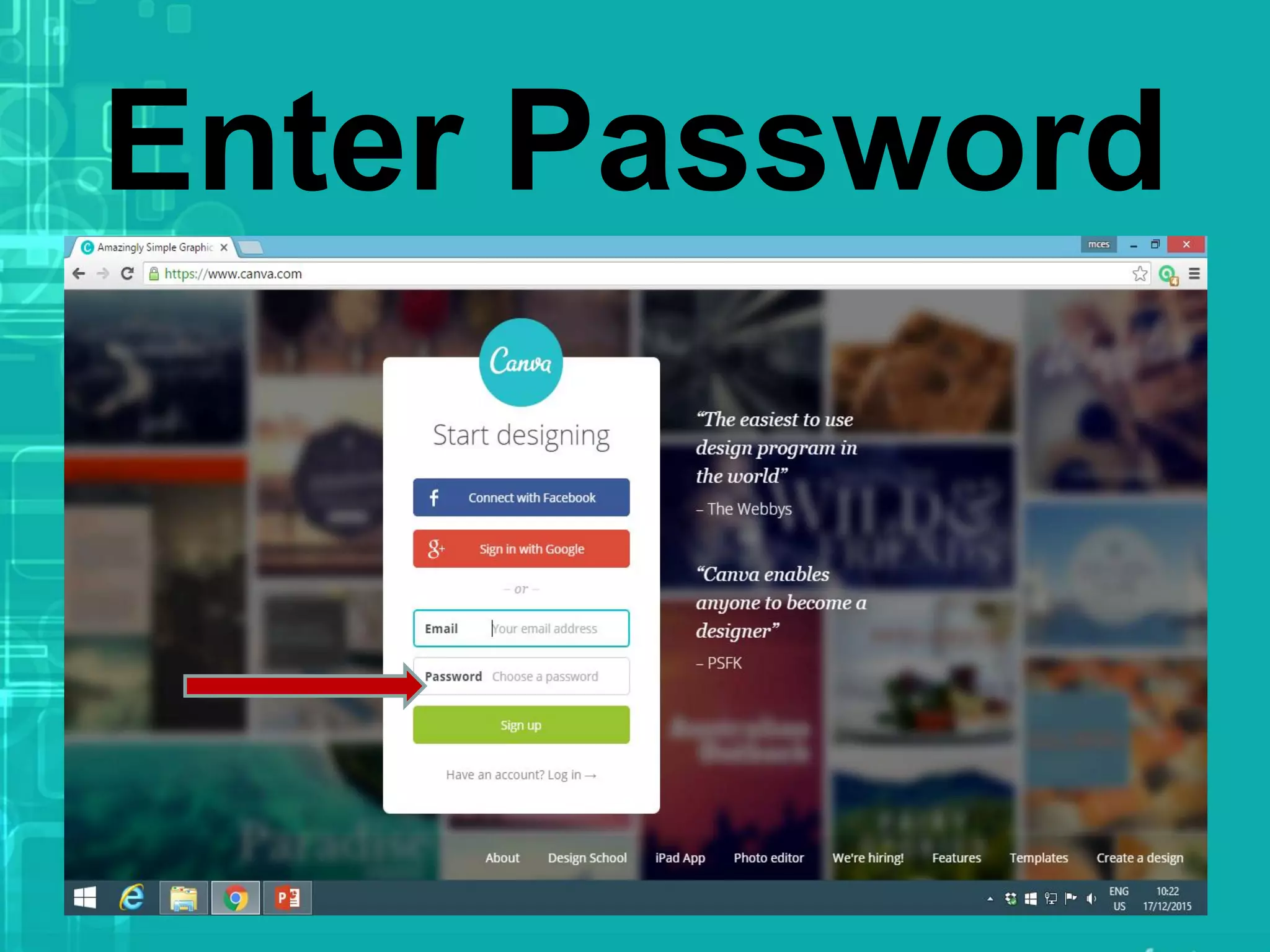
Enter Password
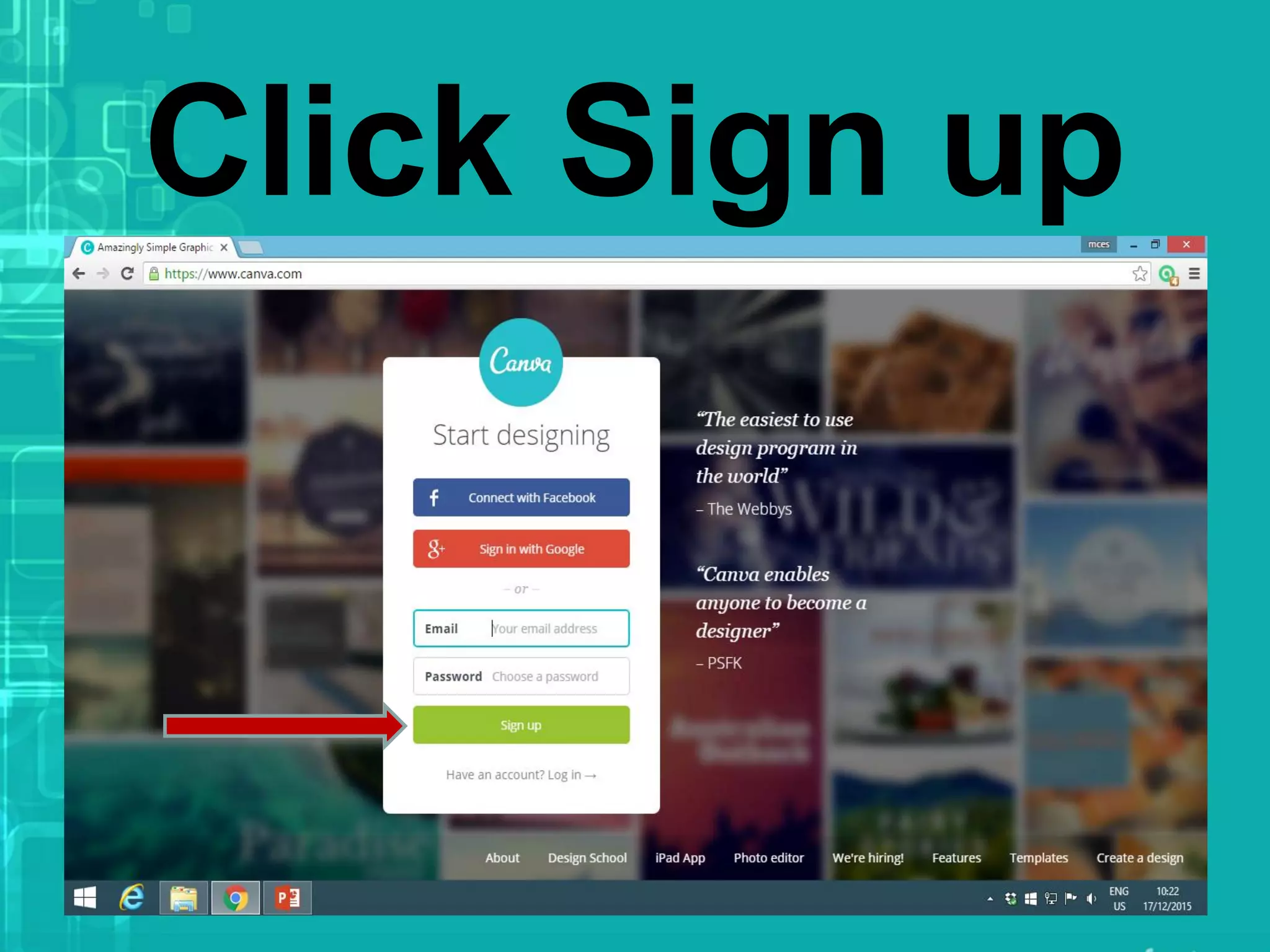
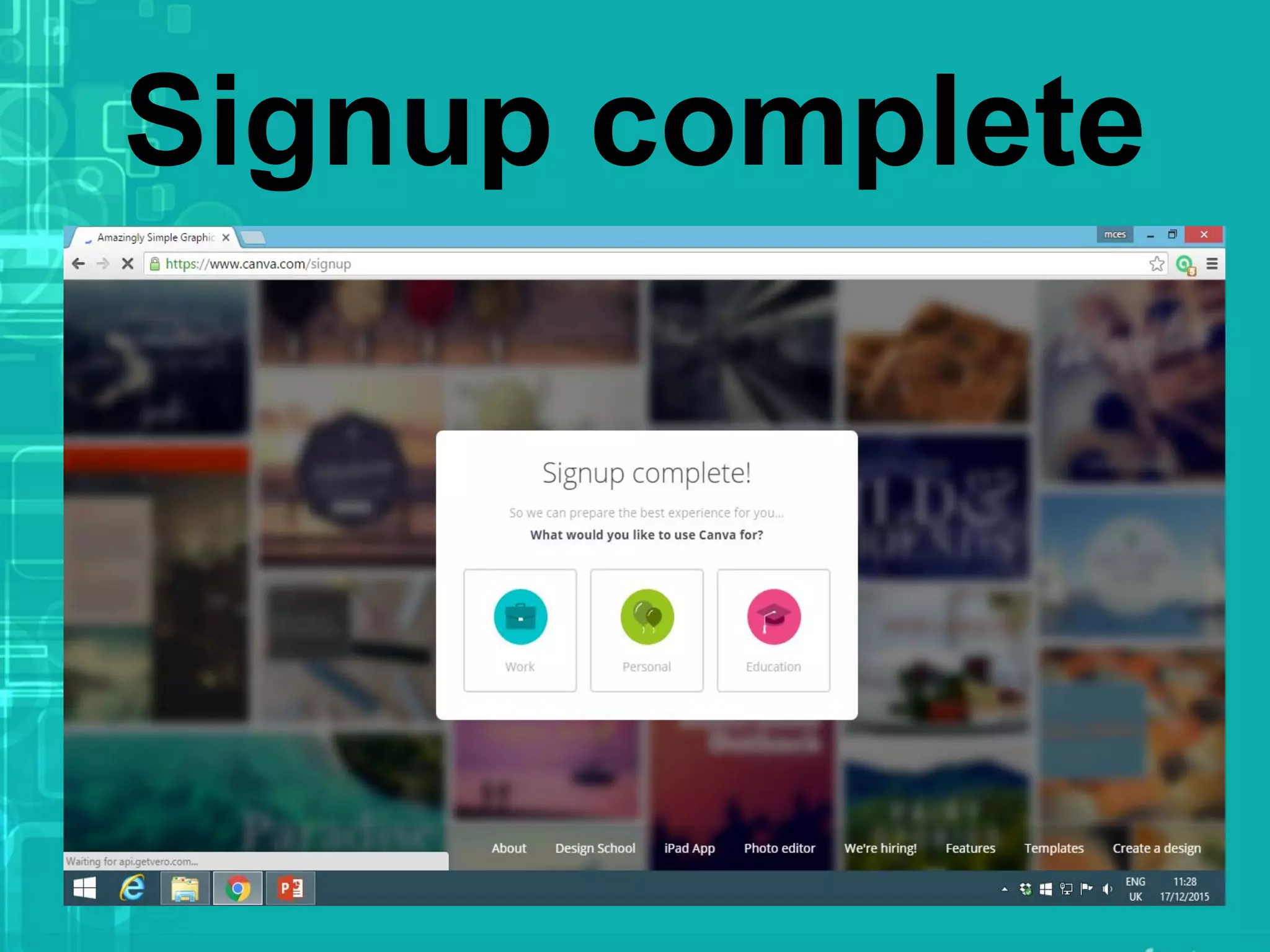
Click Sign up
Signup complete
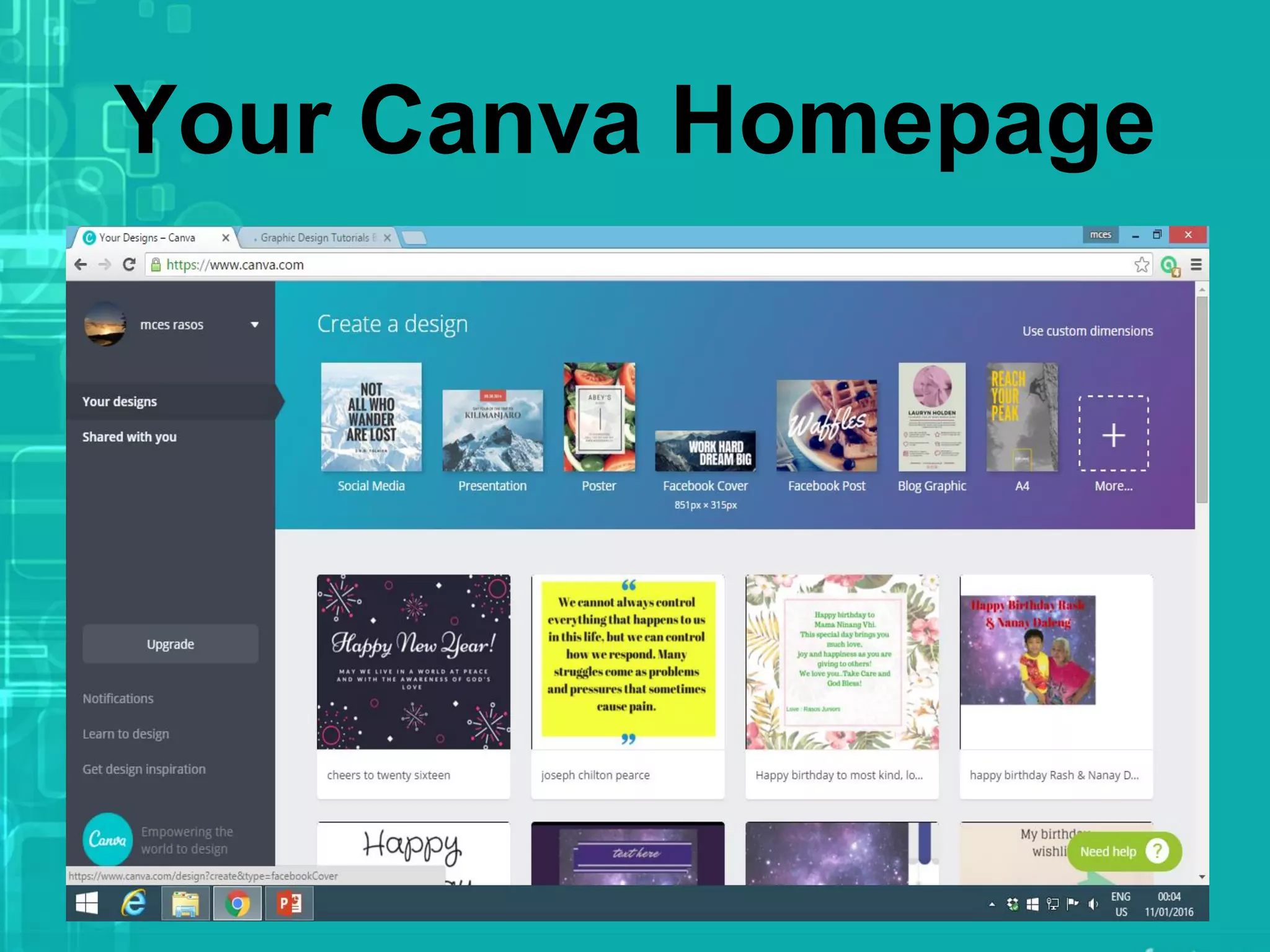
Your Canva Homepage
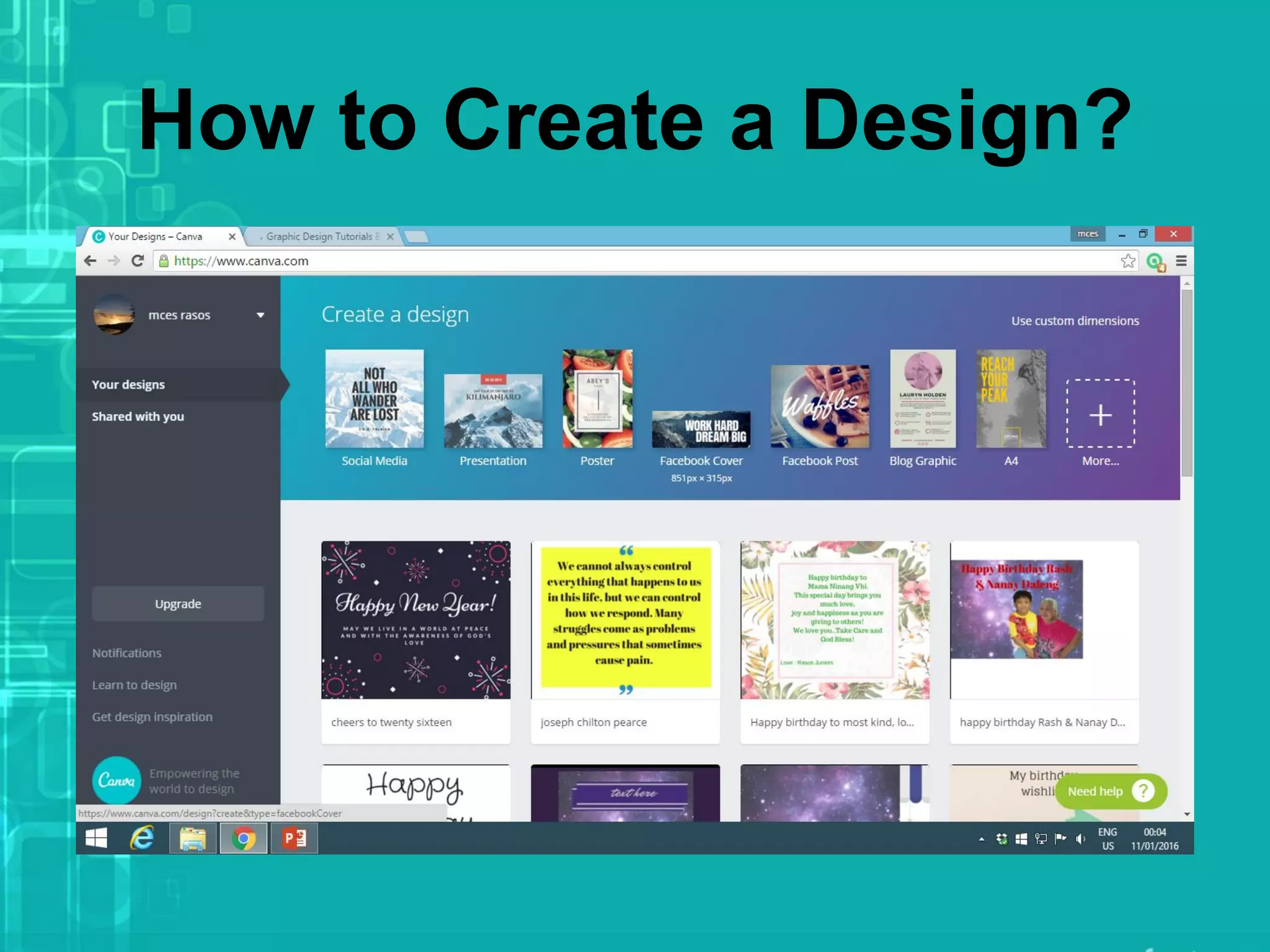
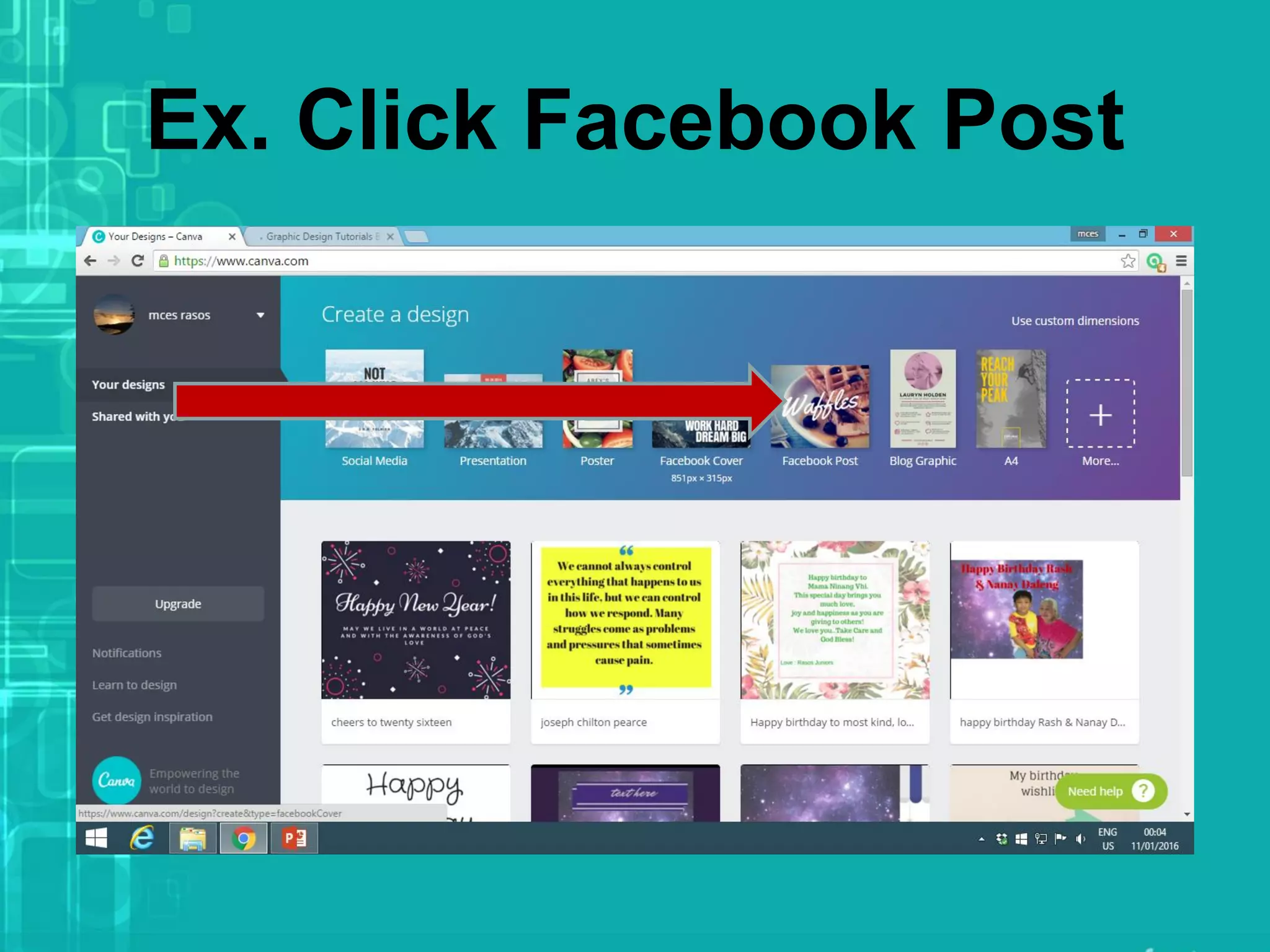
How to Create a Design?
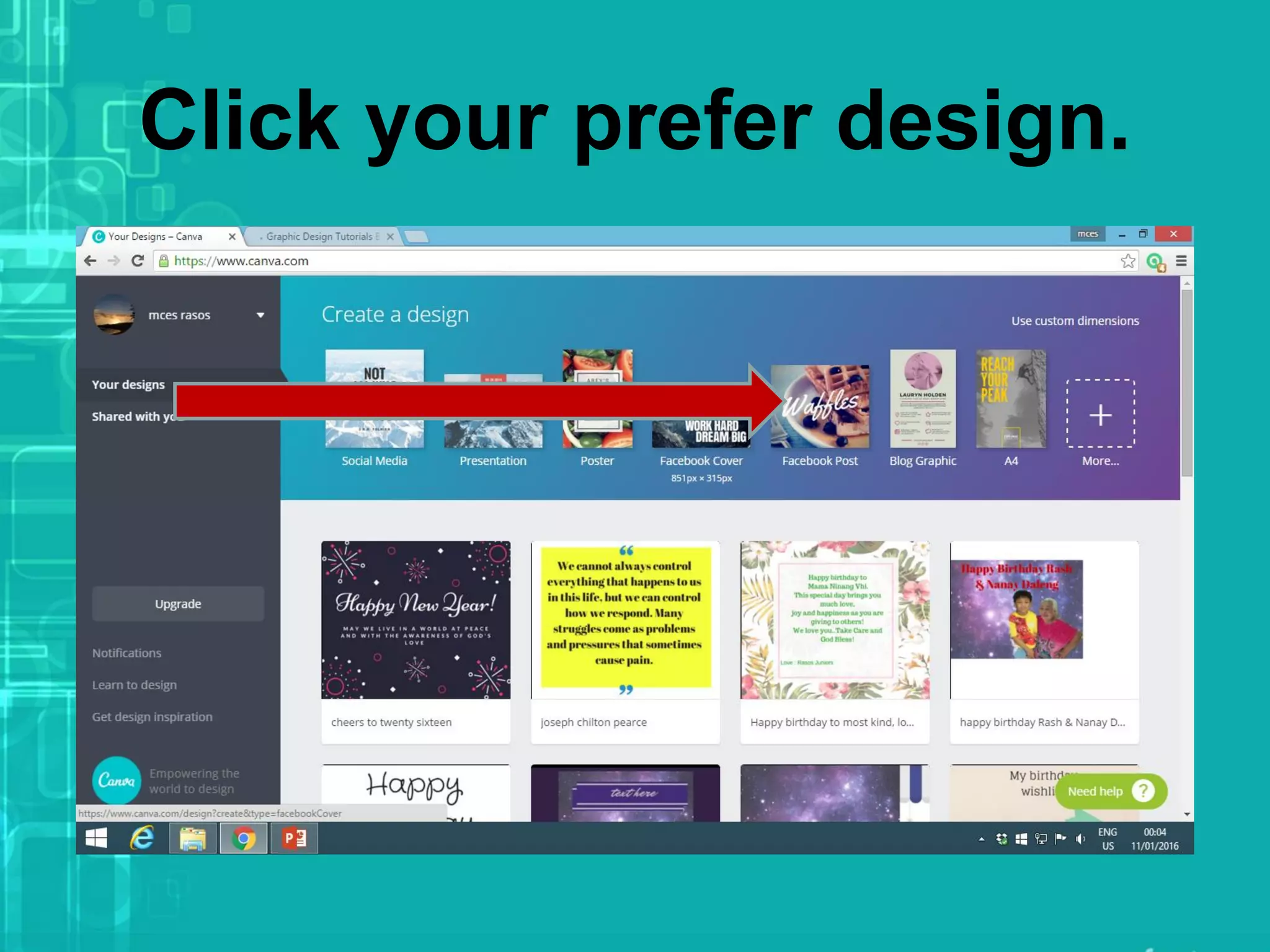
Click your prefer design.
Ex. Click Facebook Post
The New tab will open
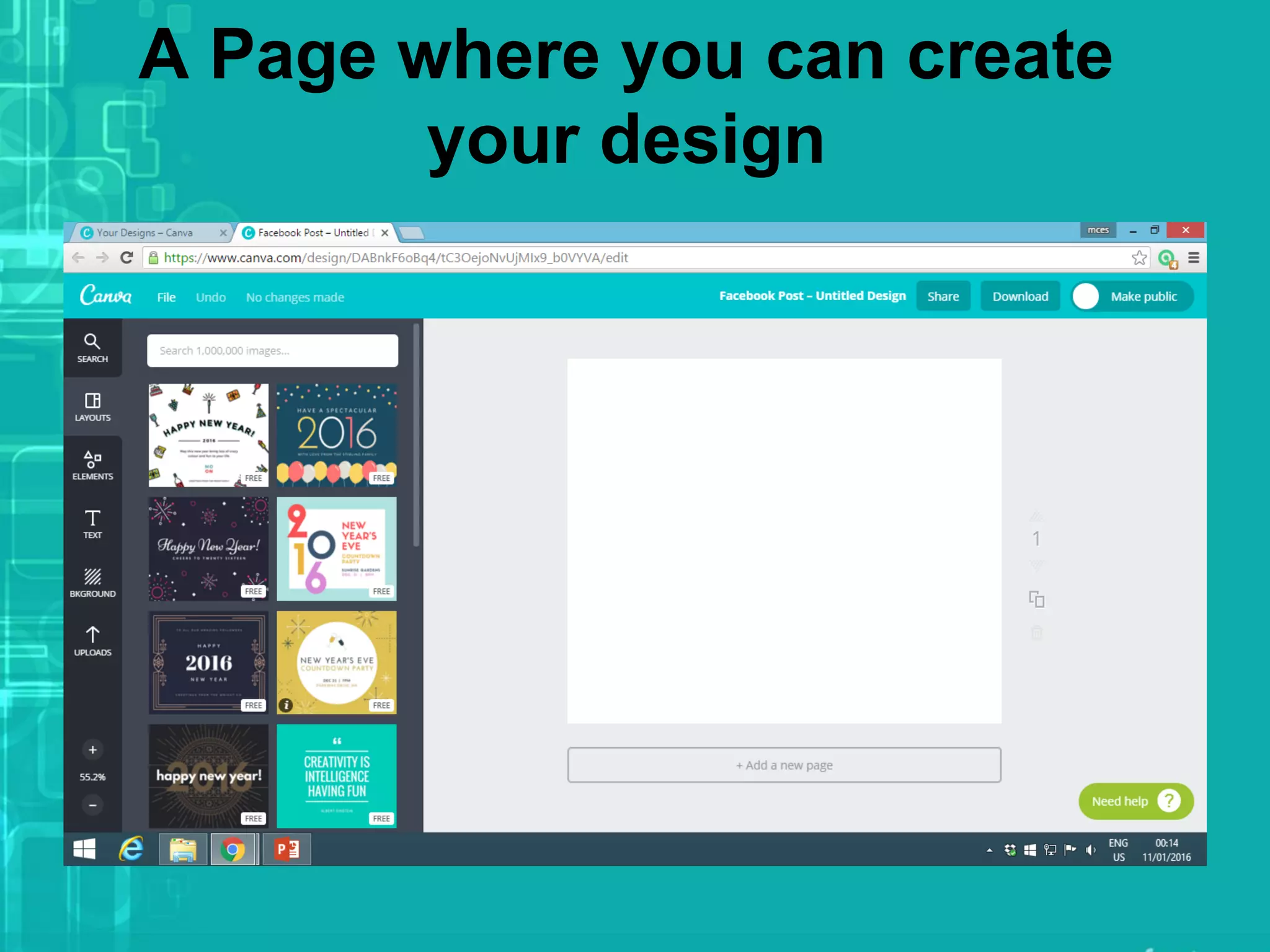
A Page where you can create
your design
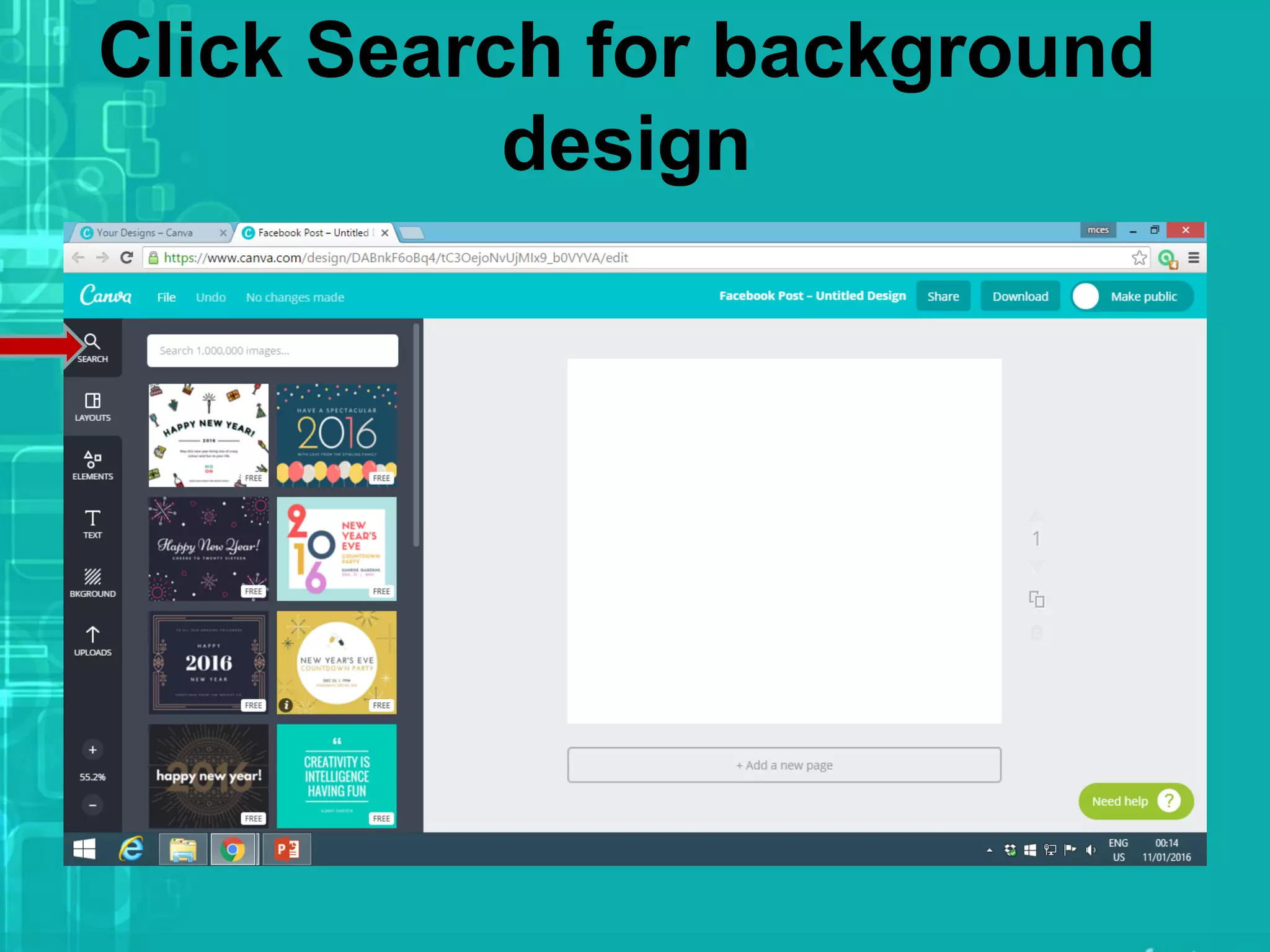
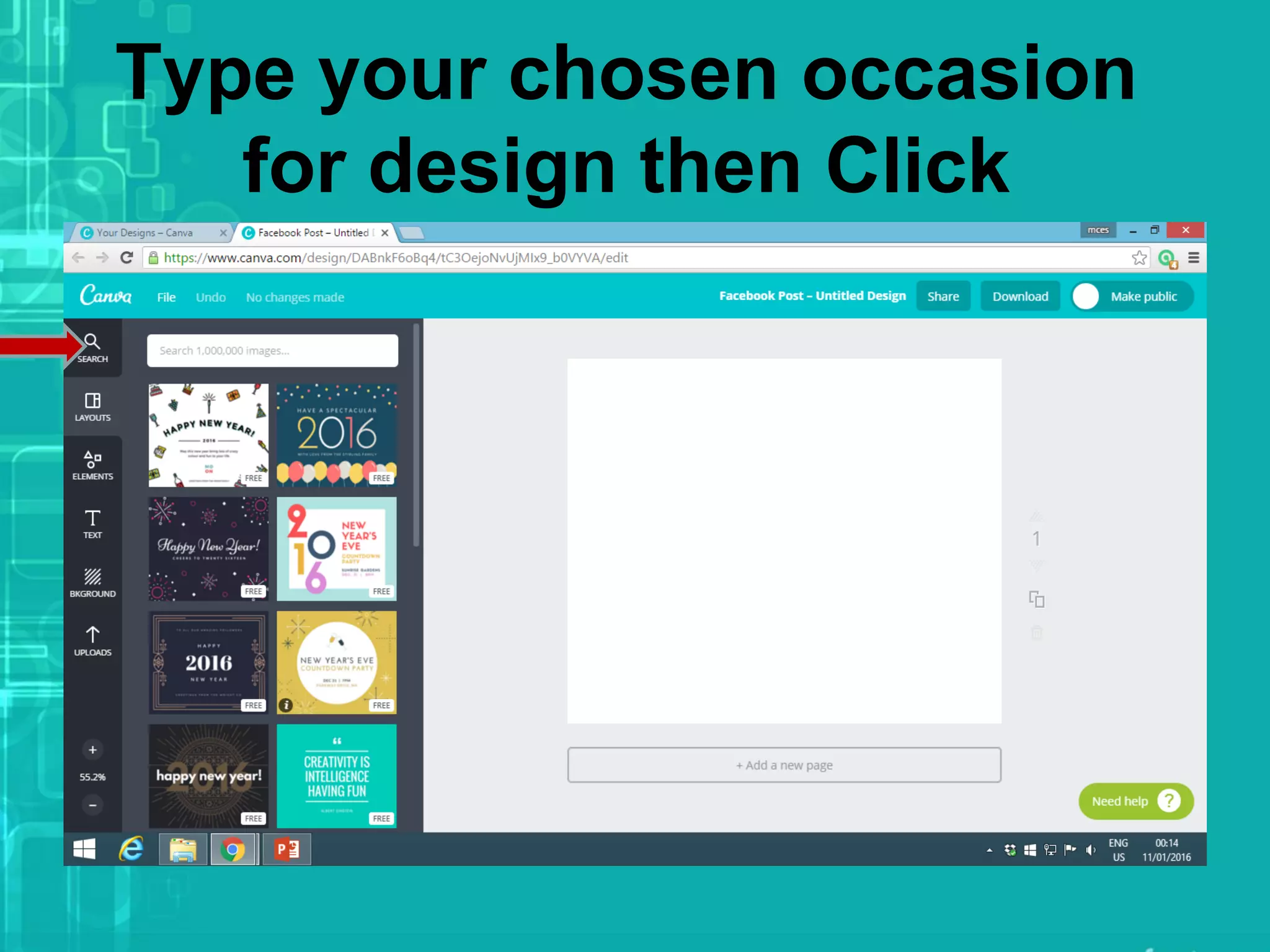
Click Search for background
design
Type your chosen occasion
for design then Click
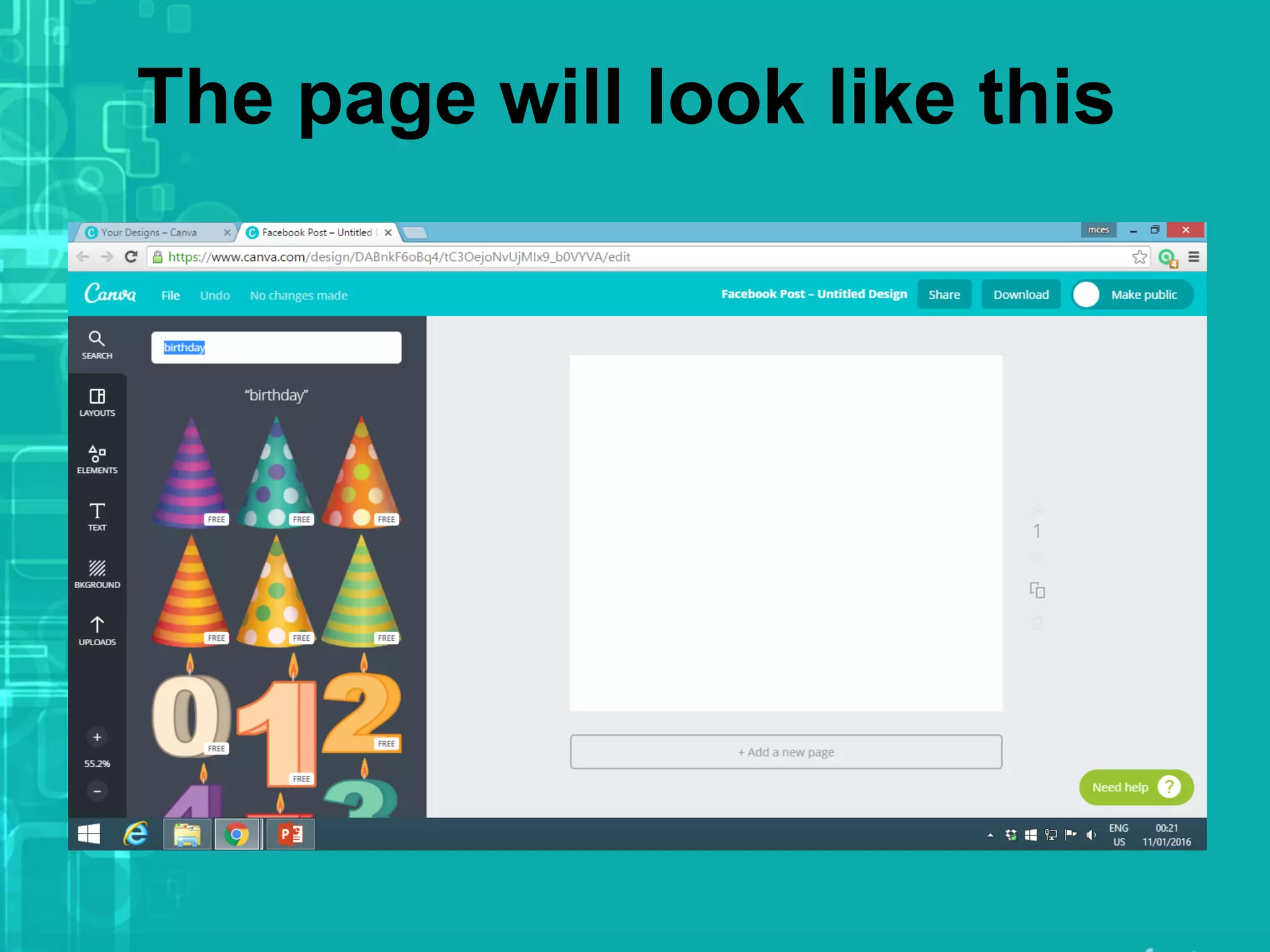
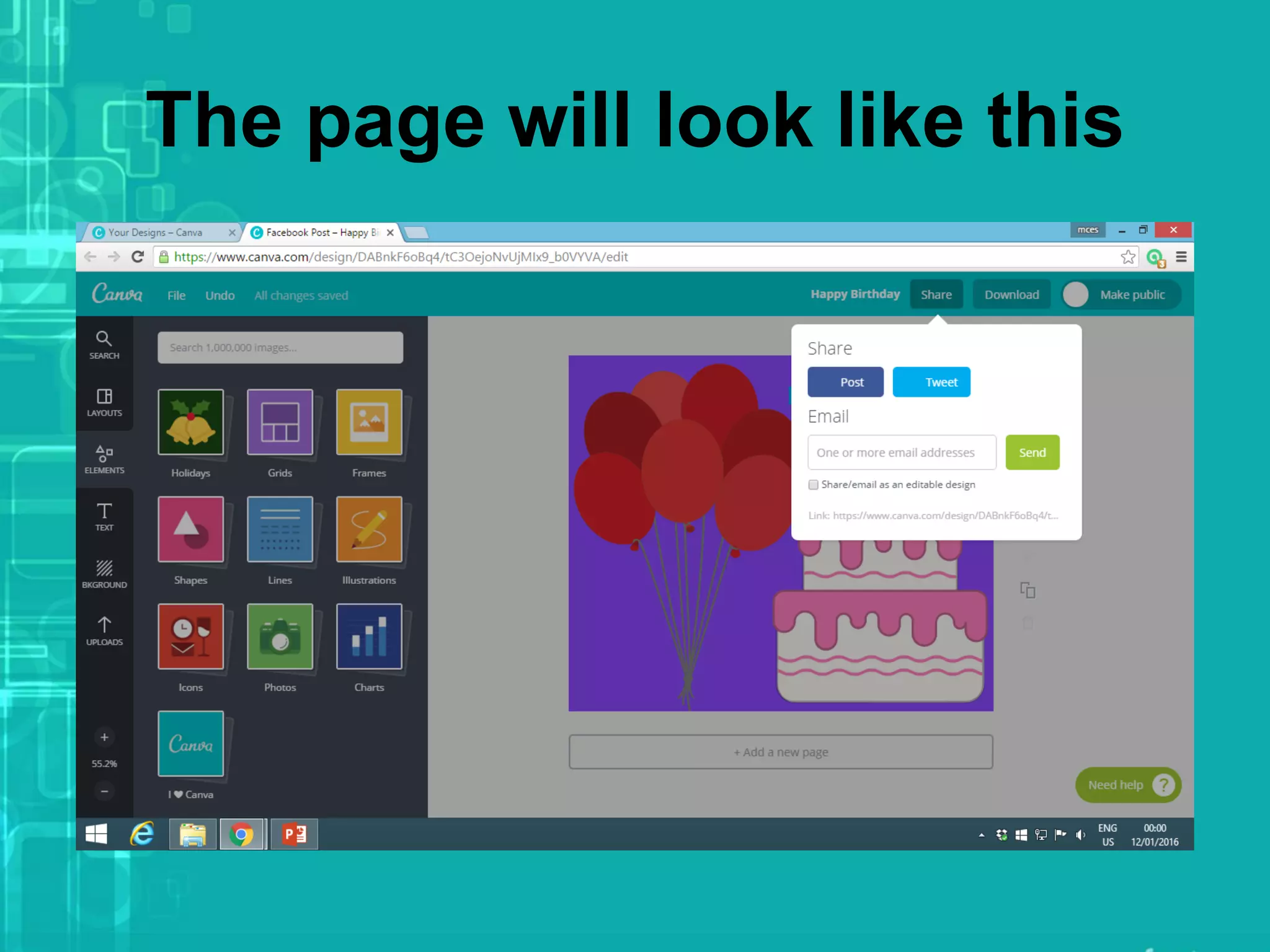
The page will look like this
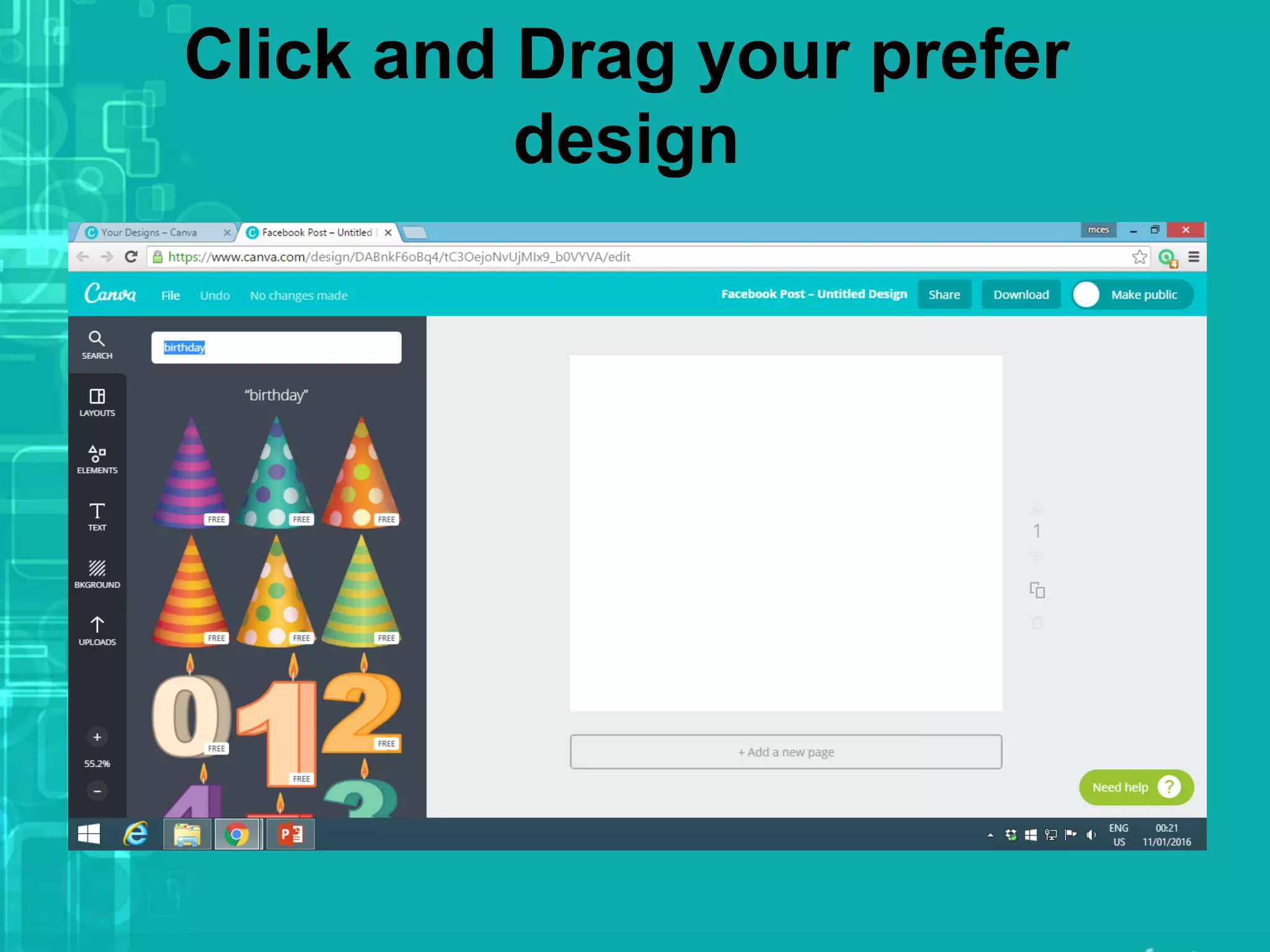
Click and Drag your prefer
design
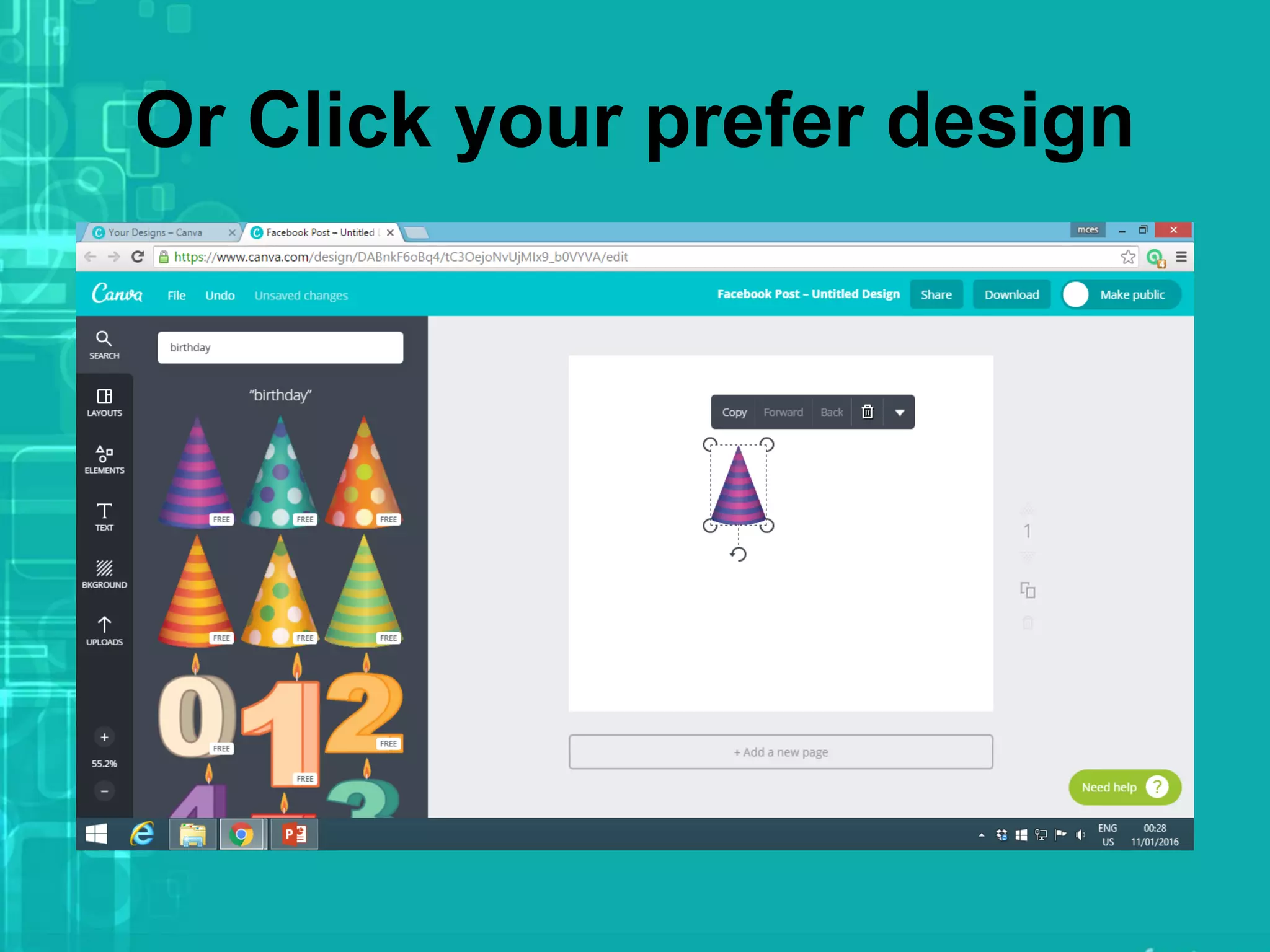
Or Click your prefer design
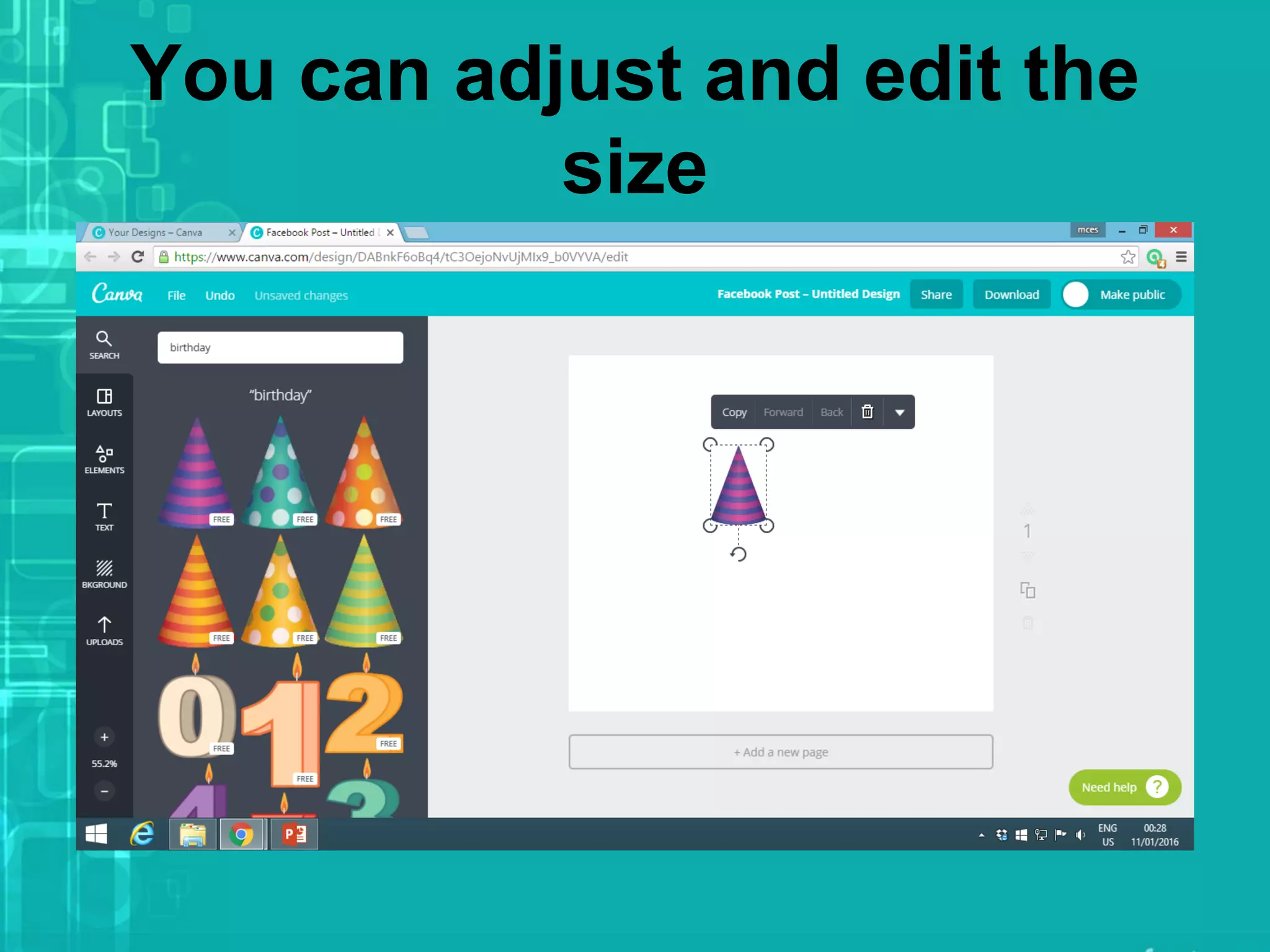
You can adjust and edit the
size
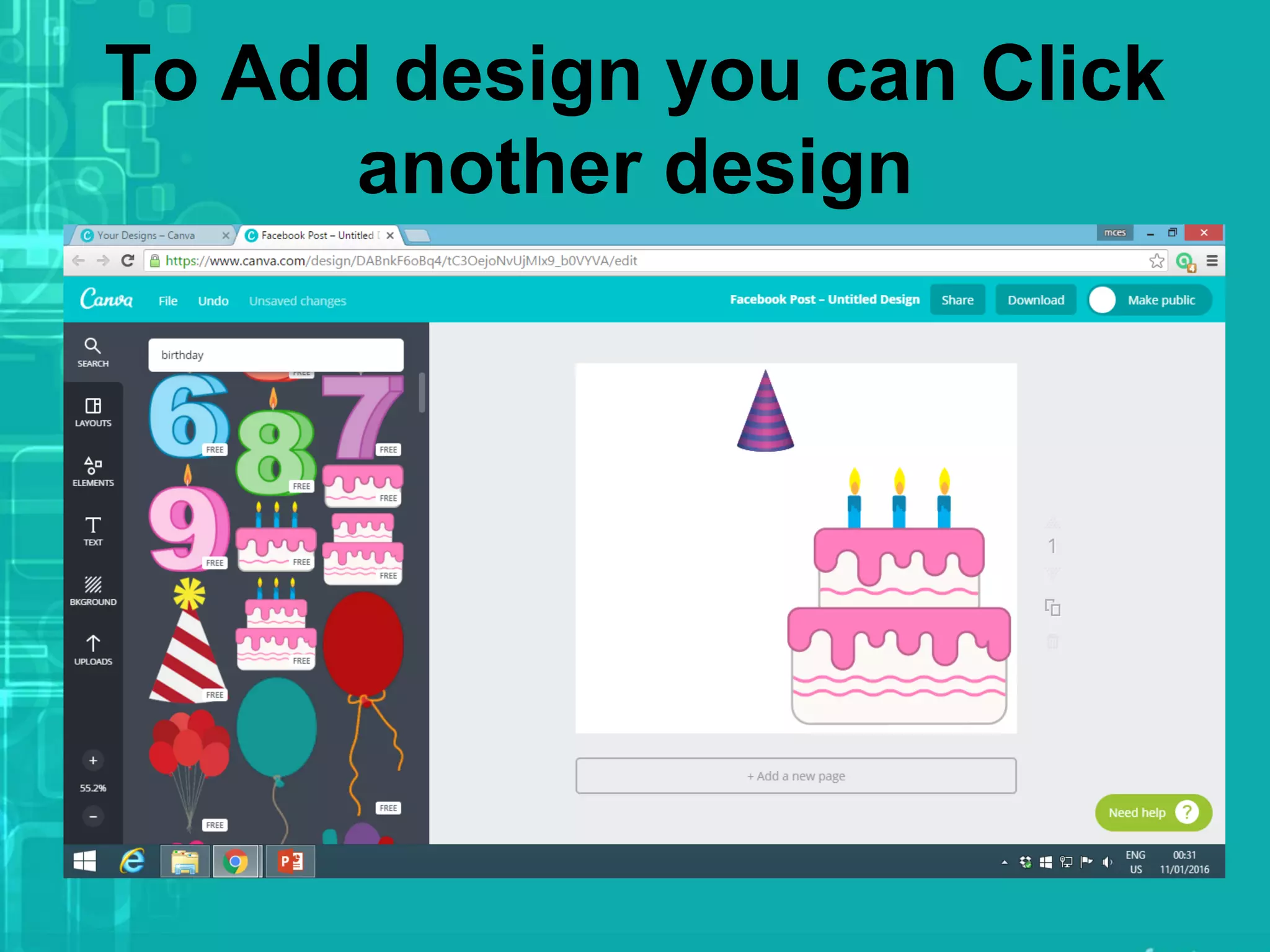
To Add design you can Click
another design
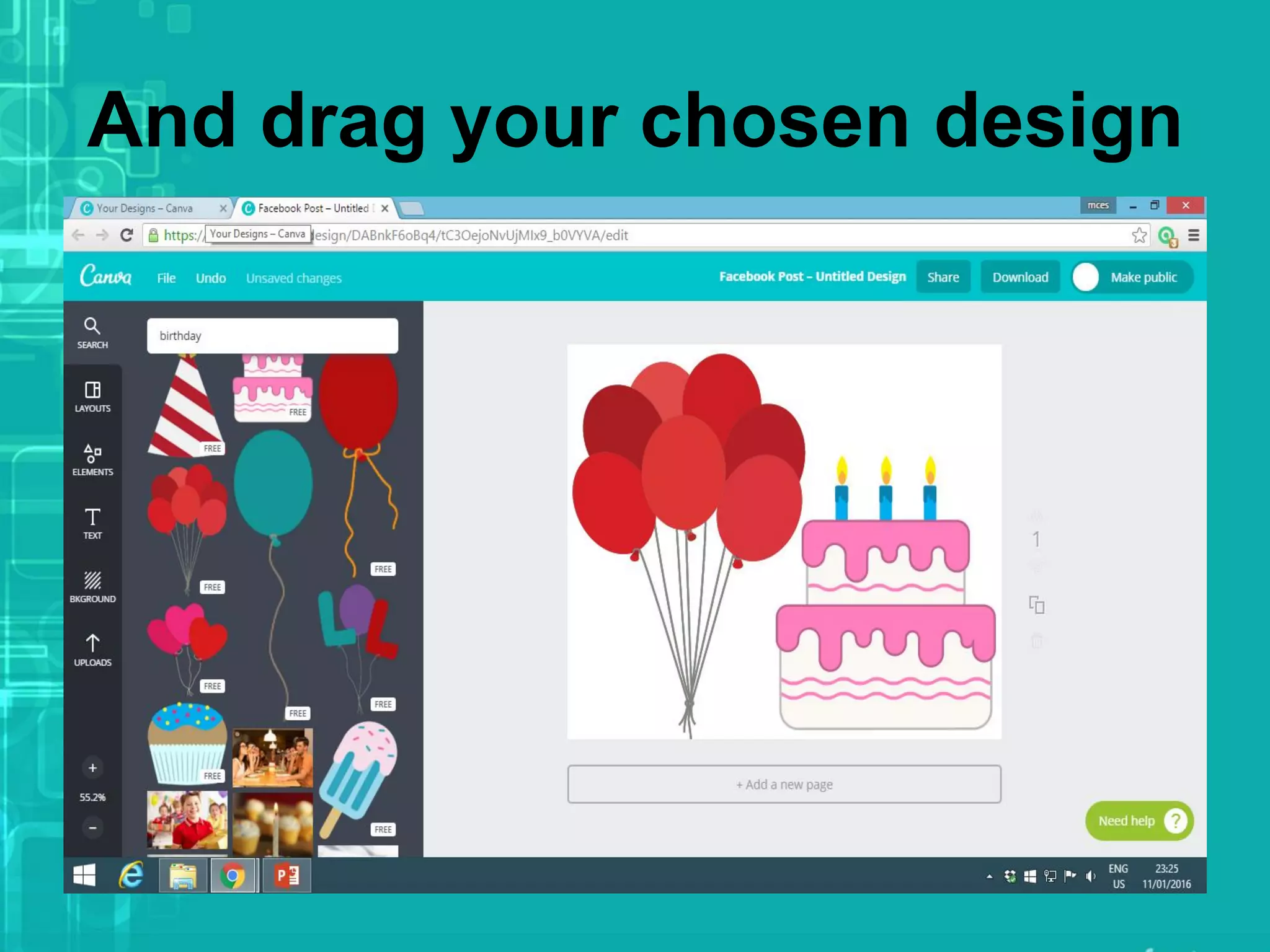
And drag your chosen design
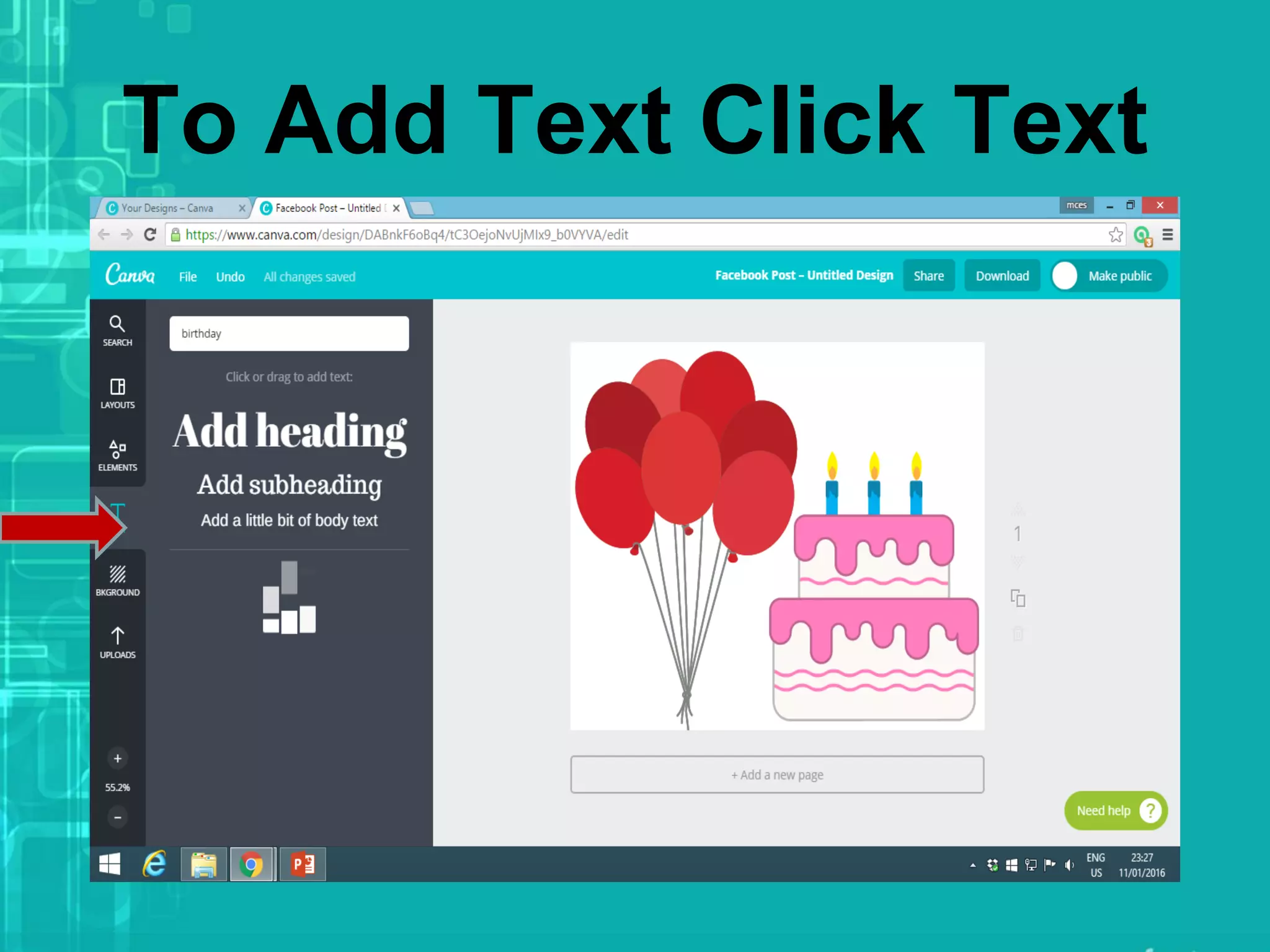
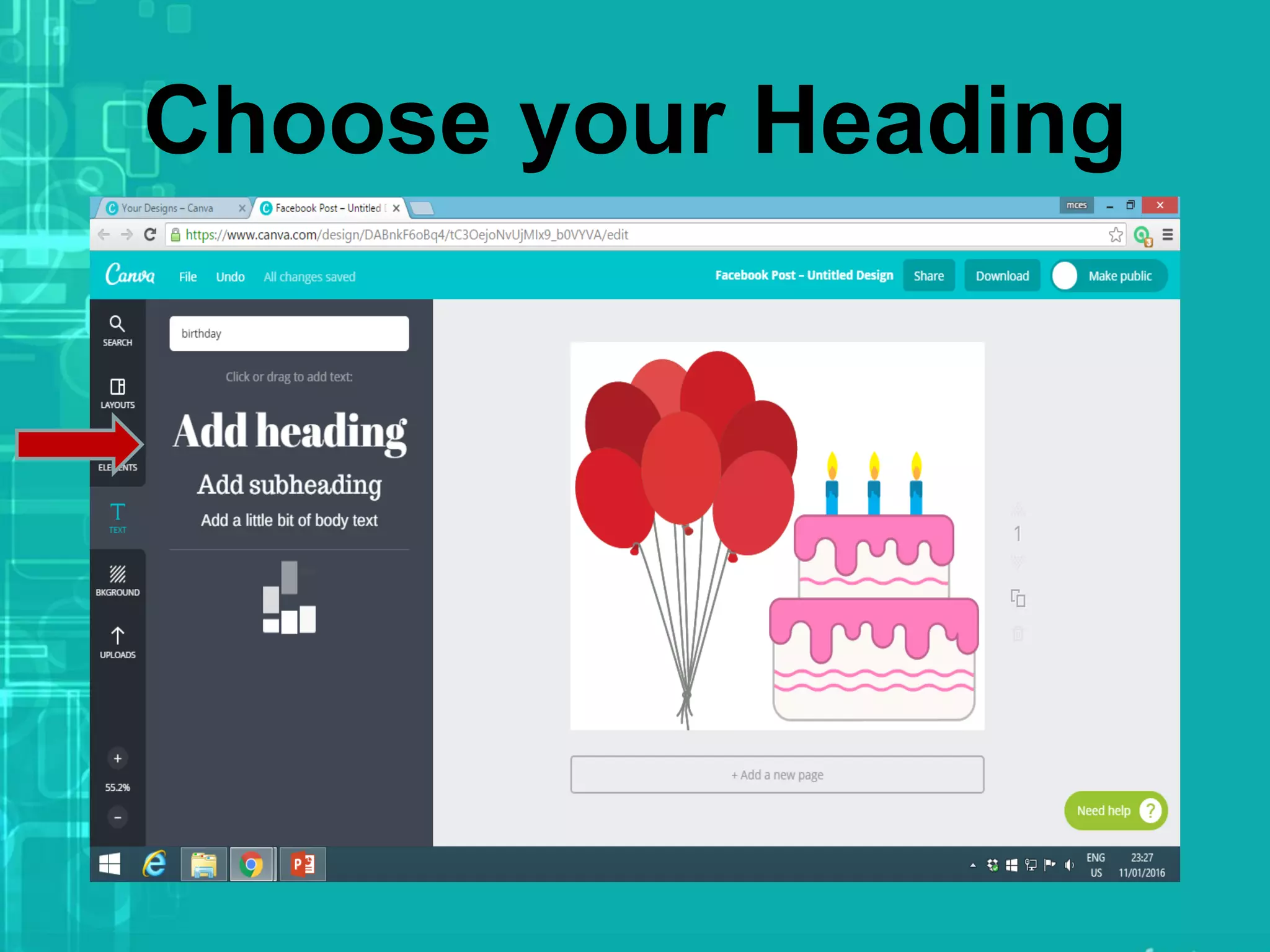
To Add Text Click Text
Choose your Heading
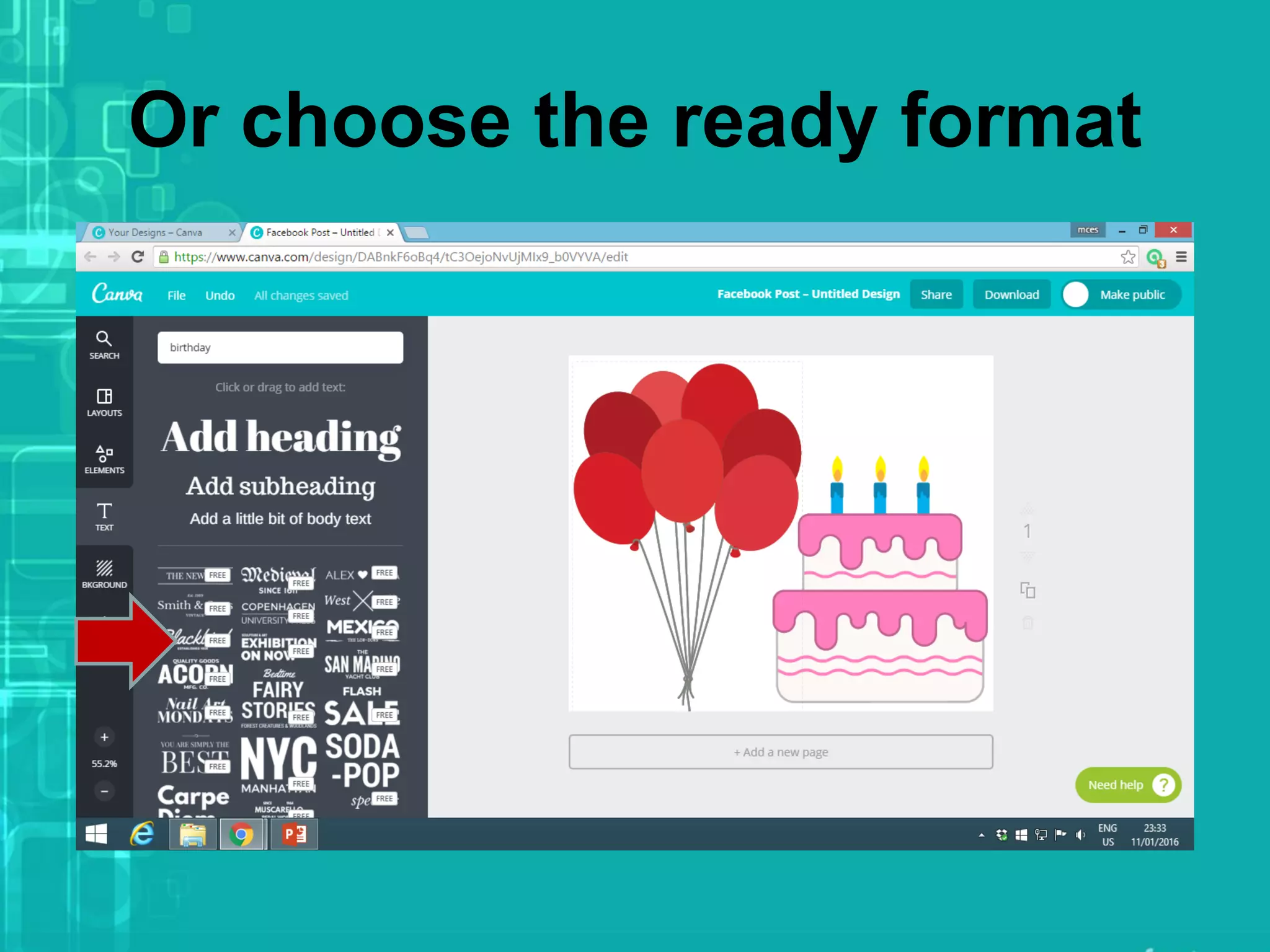
Or choose the ready format
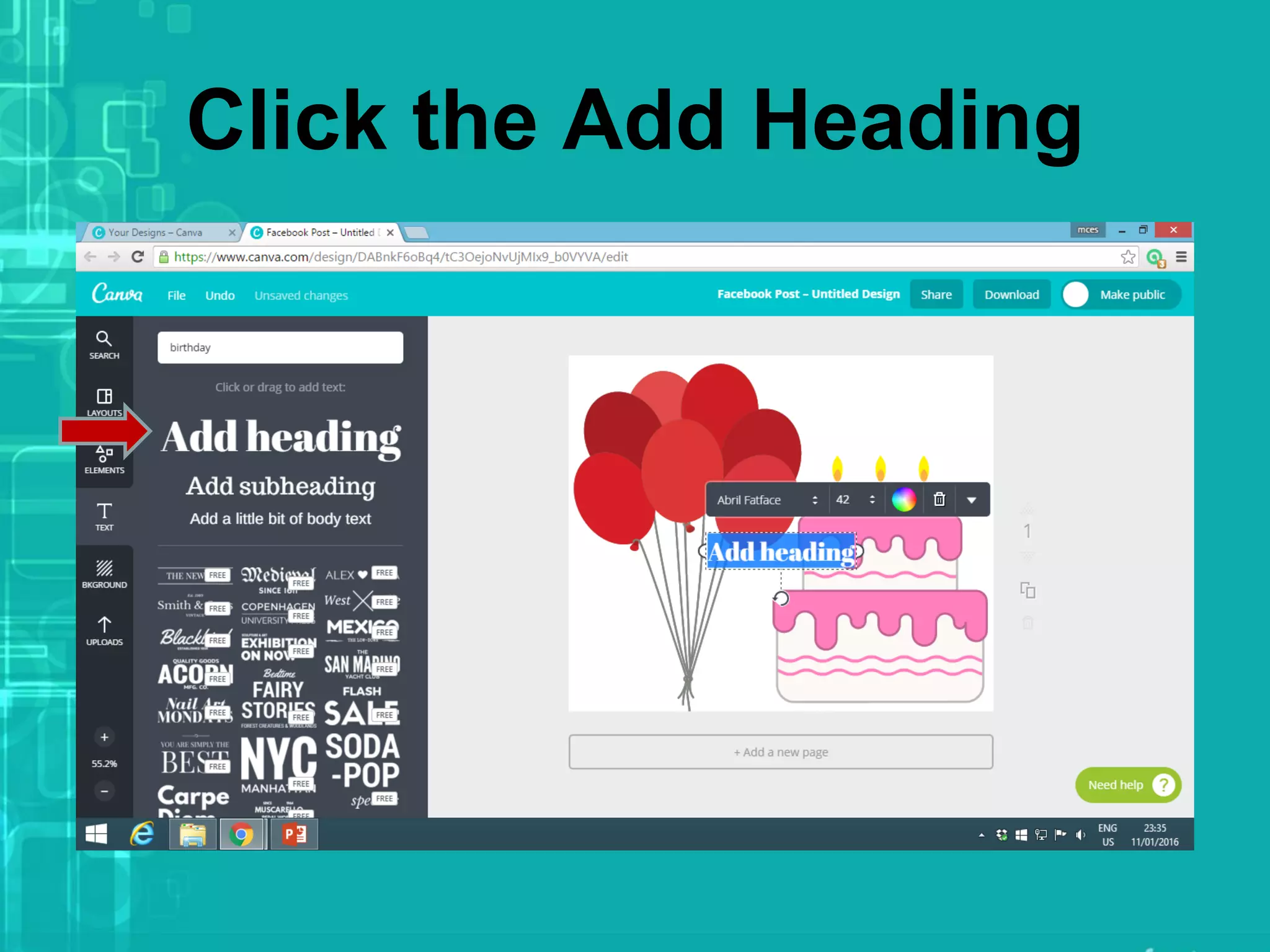
Click the Add Heading
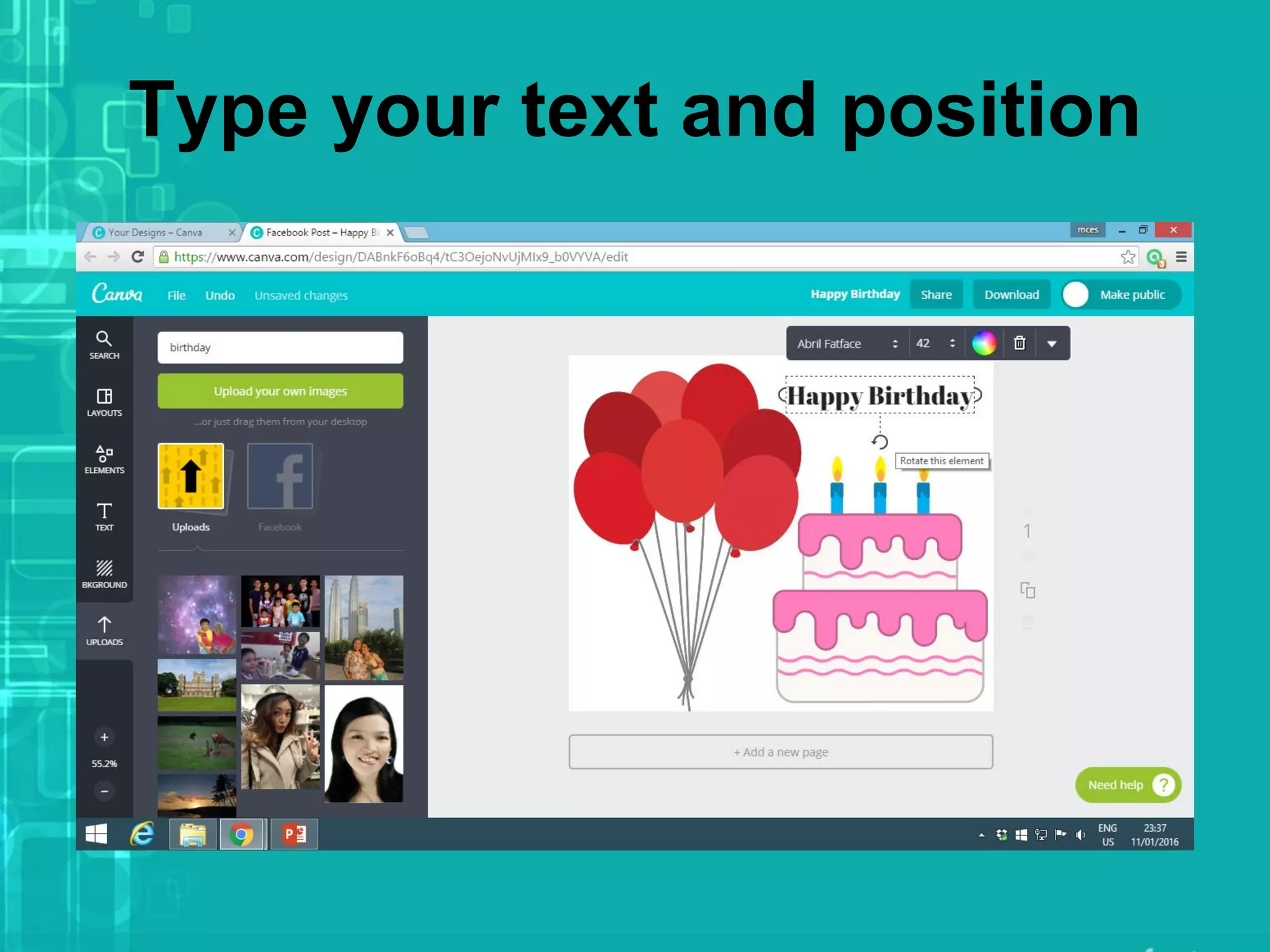
Type your text and position
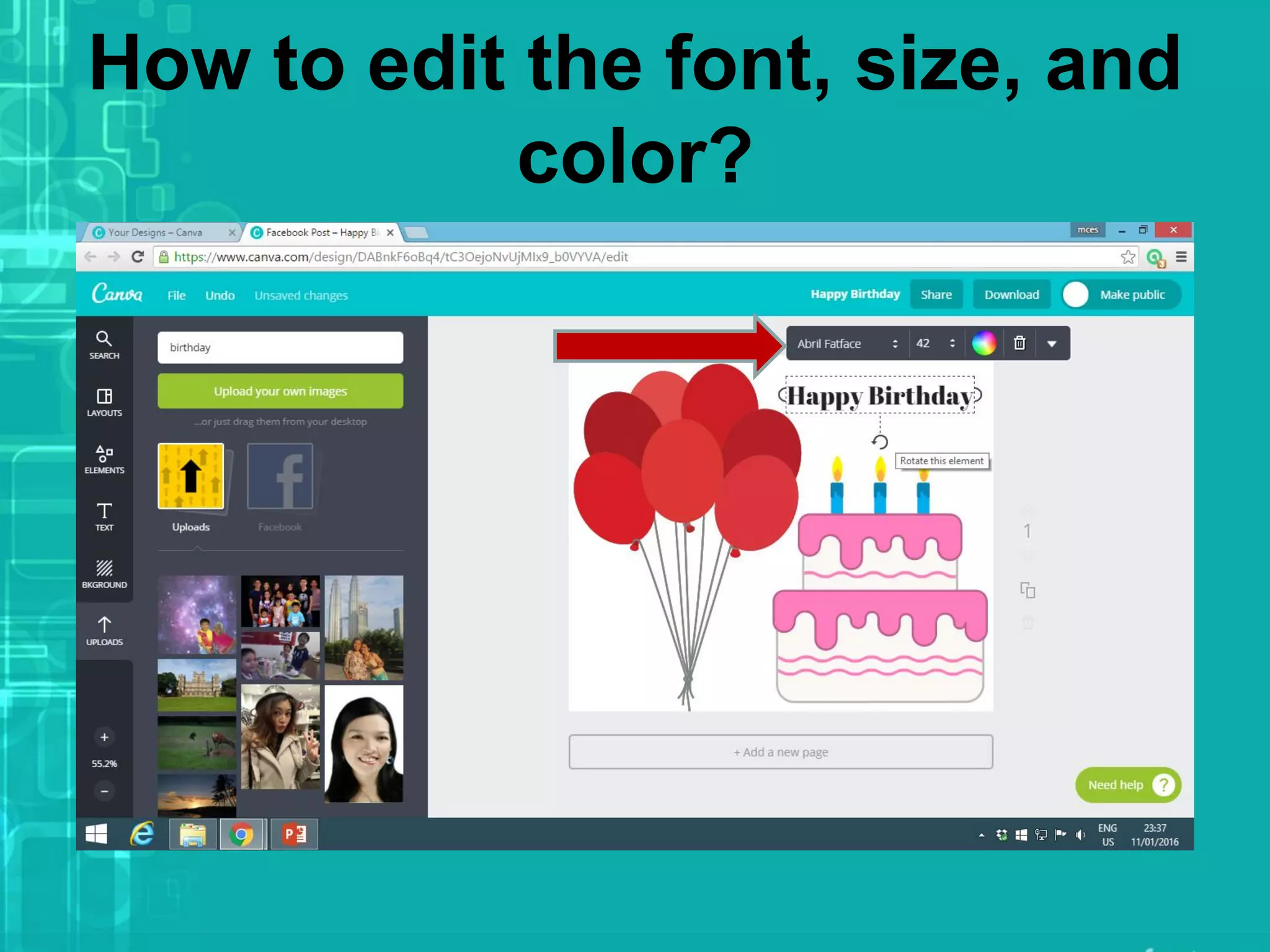
How to edit the font, size, and
color?
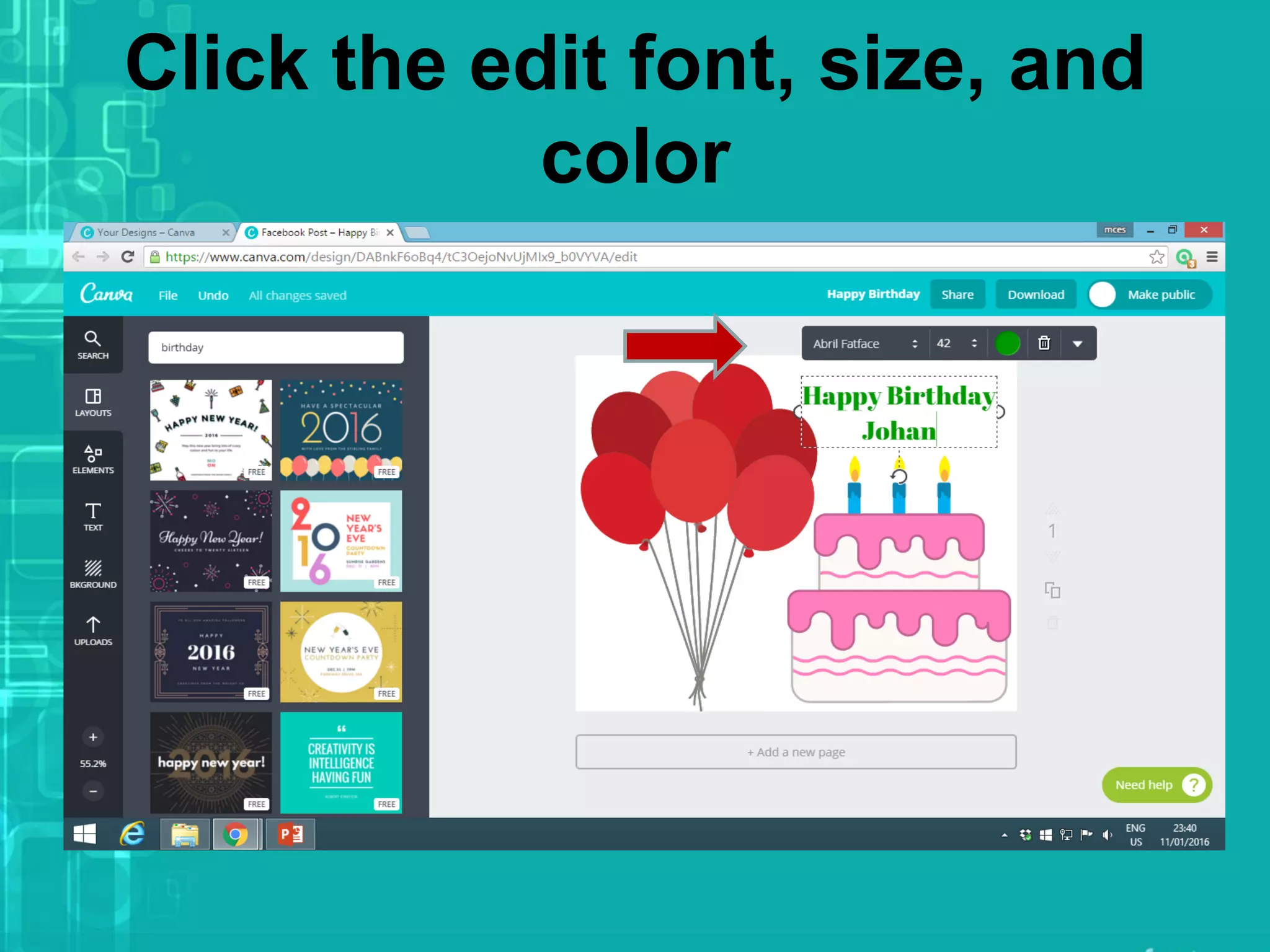
Click the edit font, size, and
color
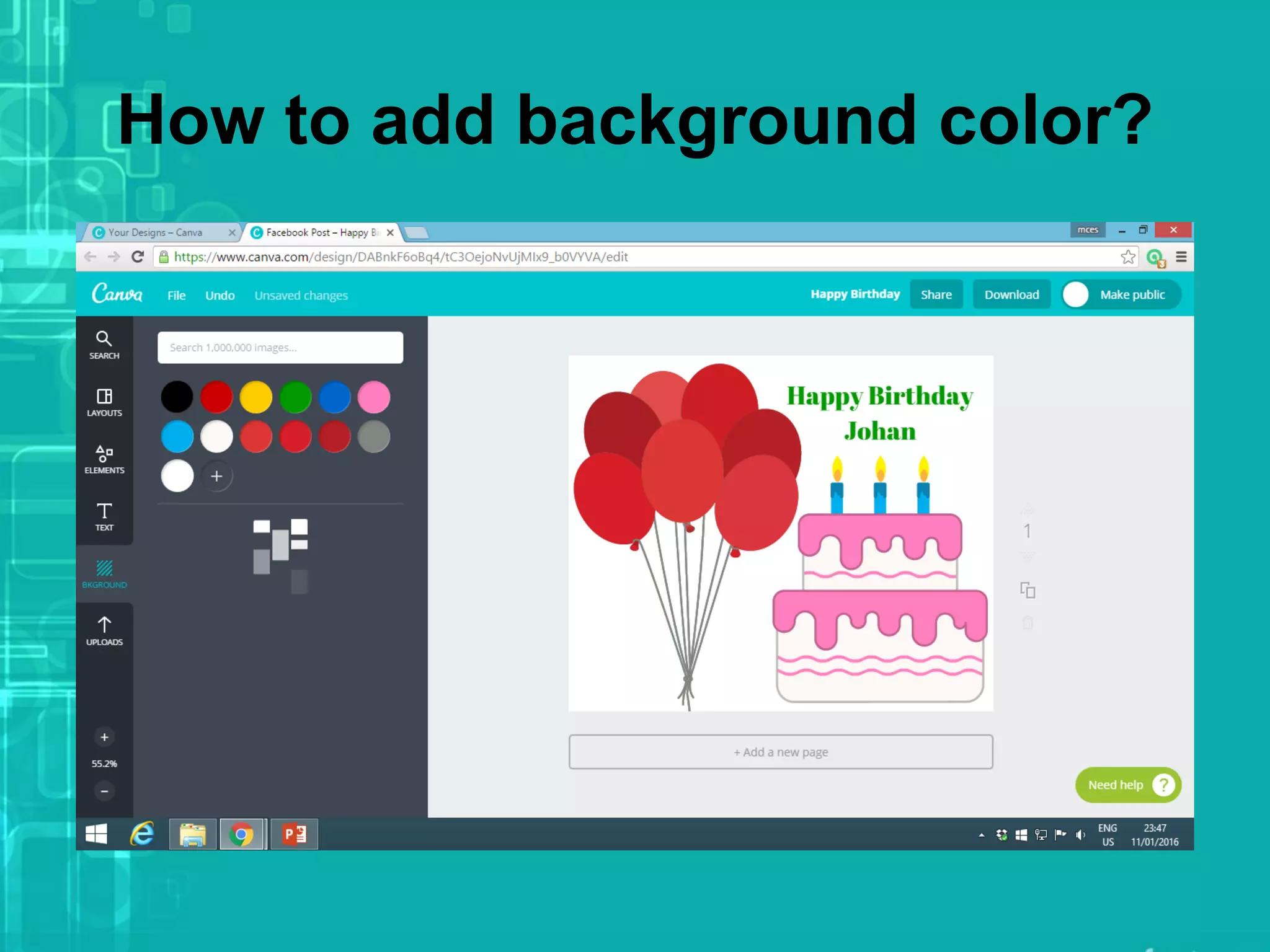
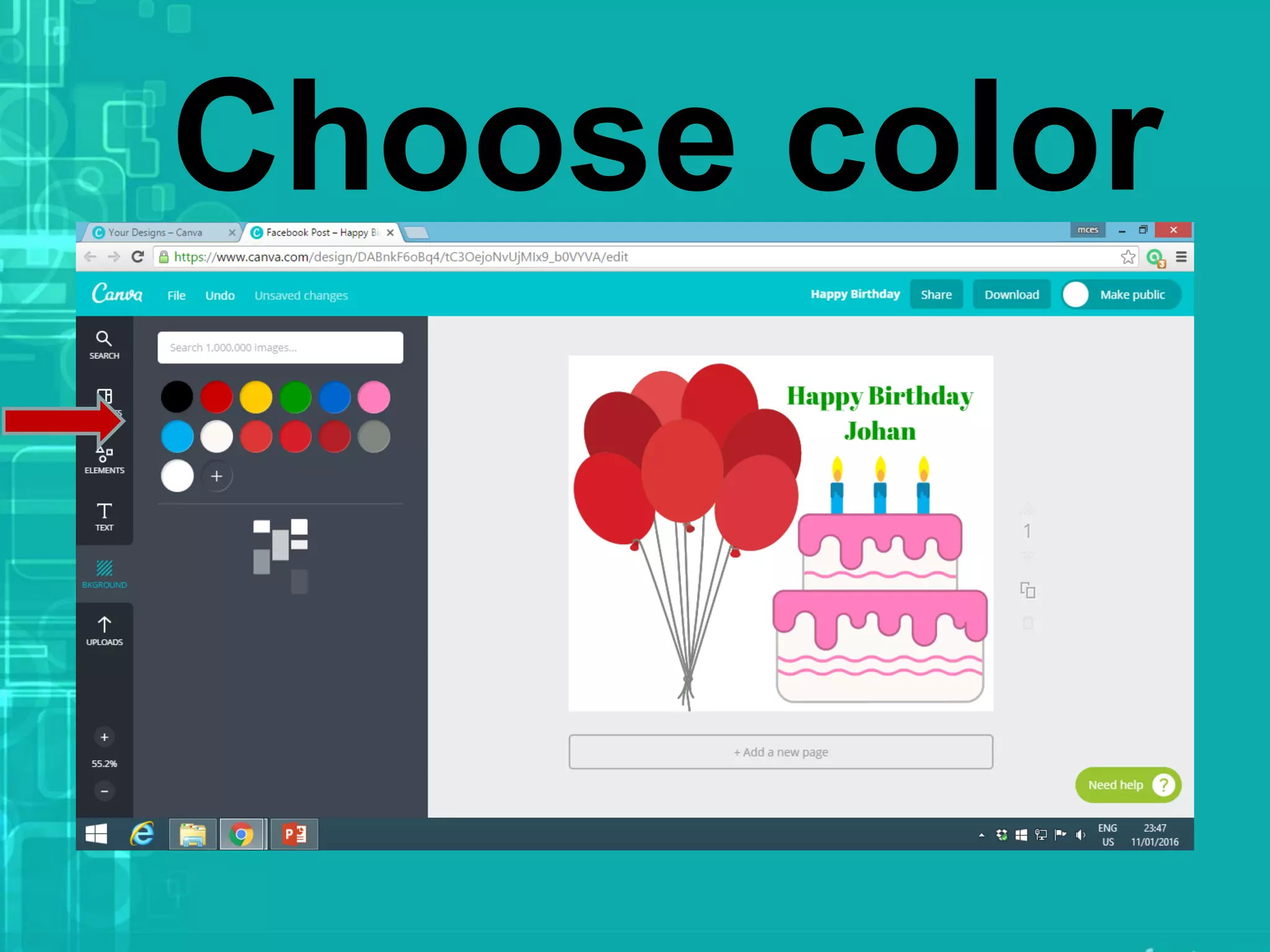
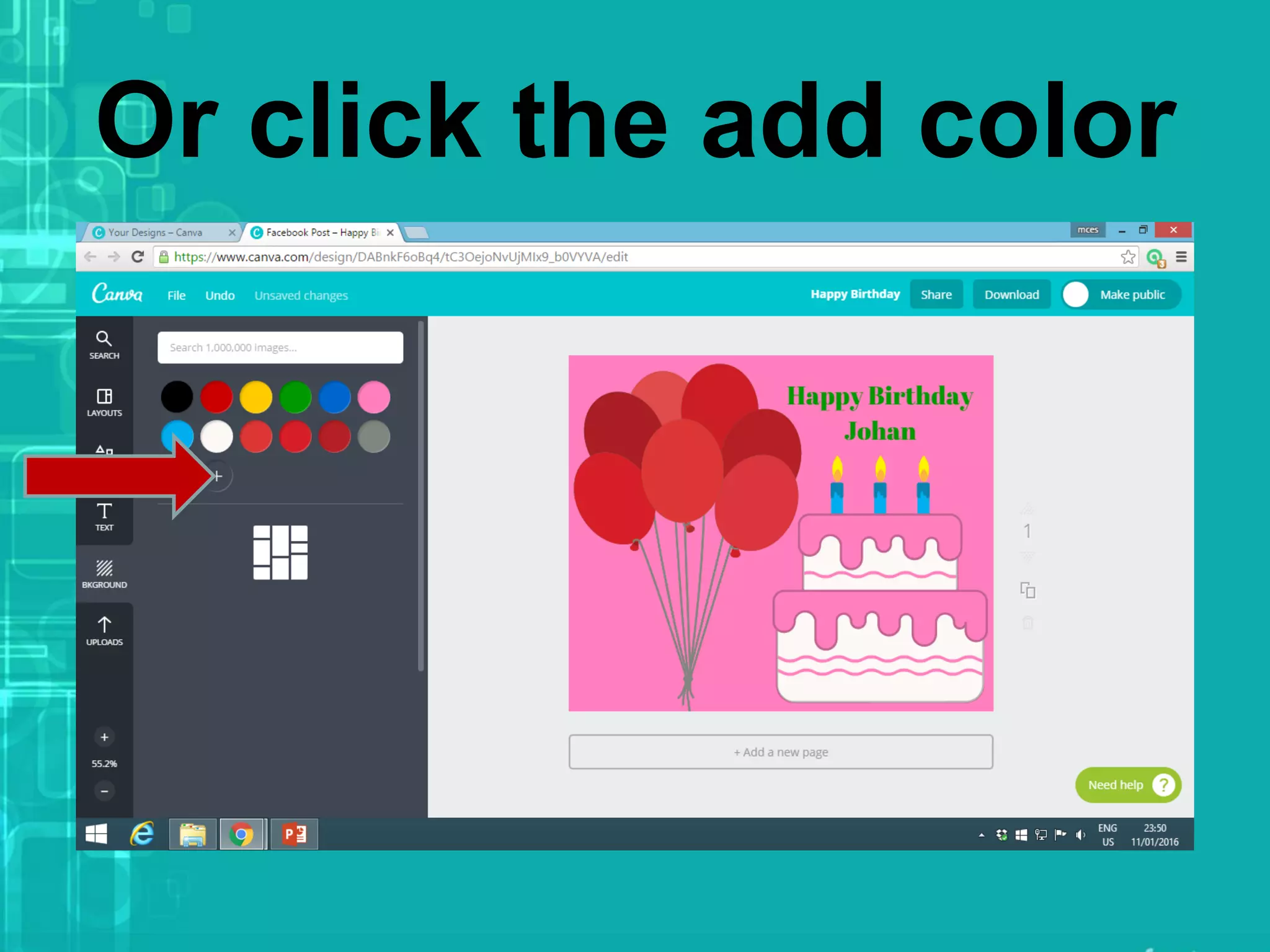
How to add background color?
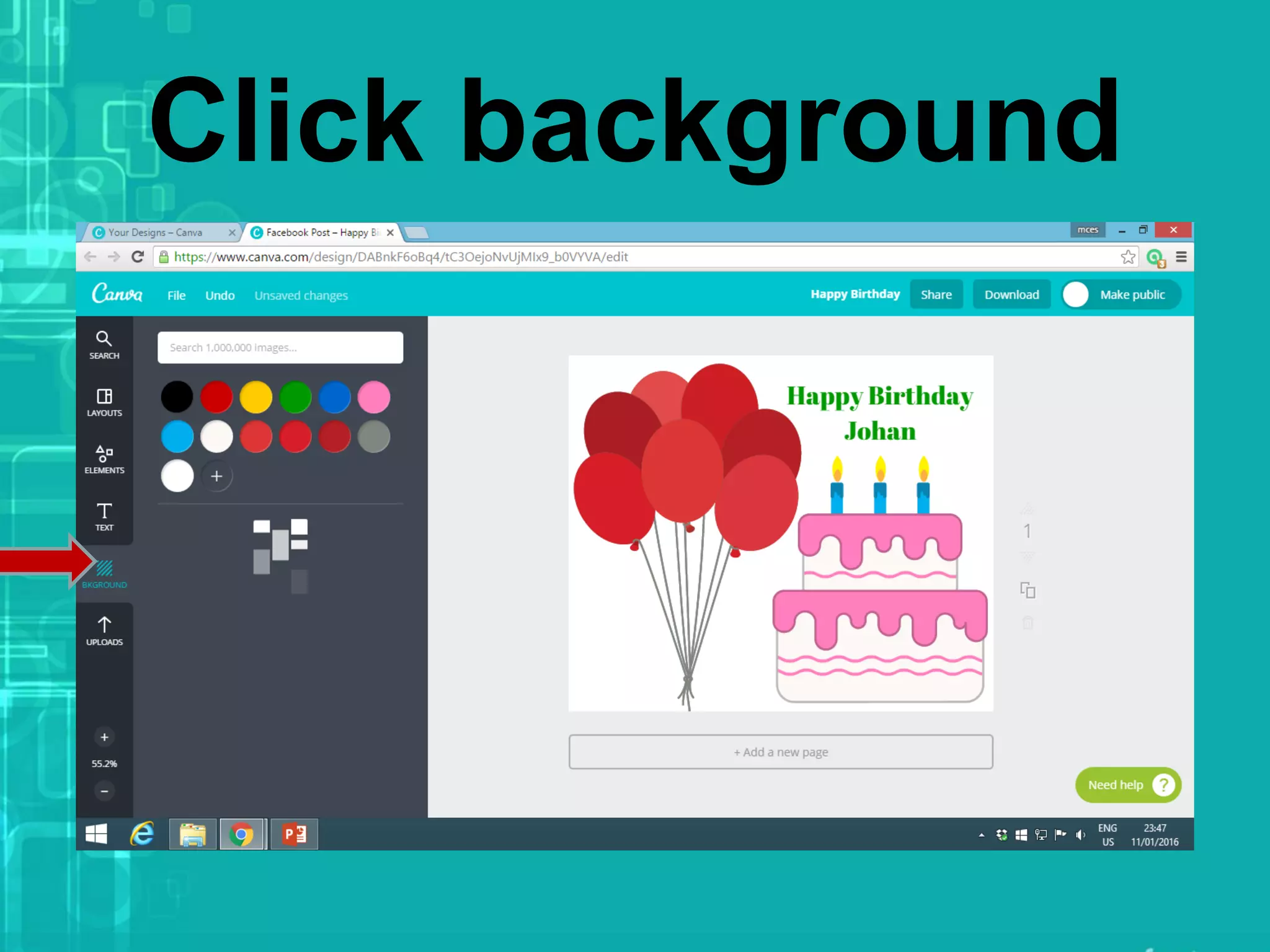
Click background
Choose color
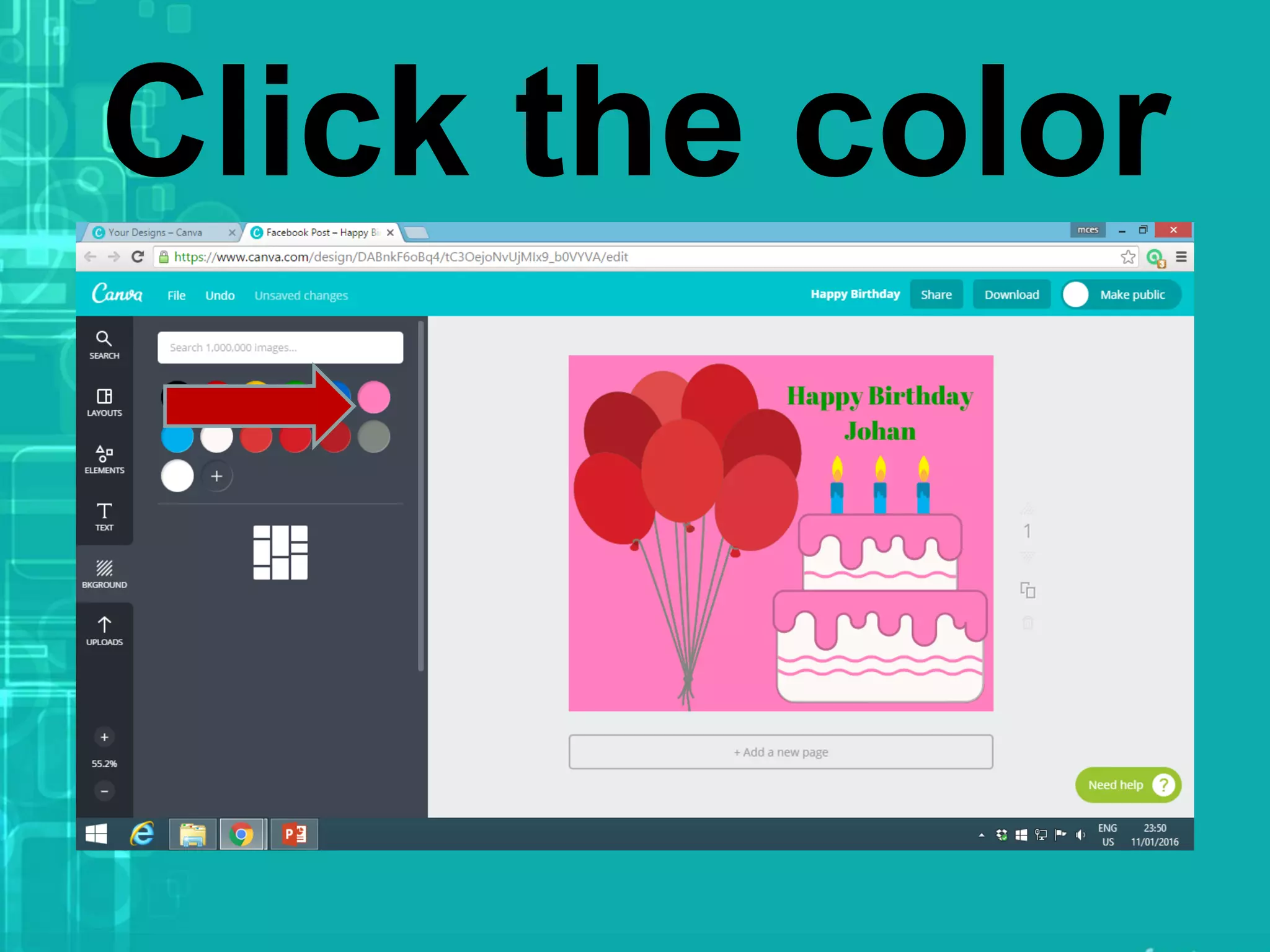
Click the color
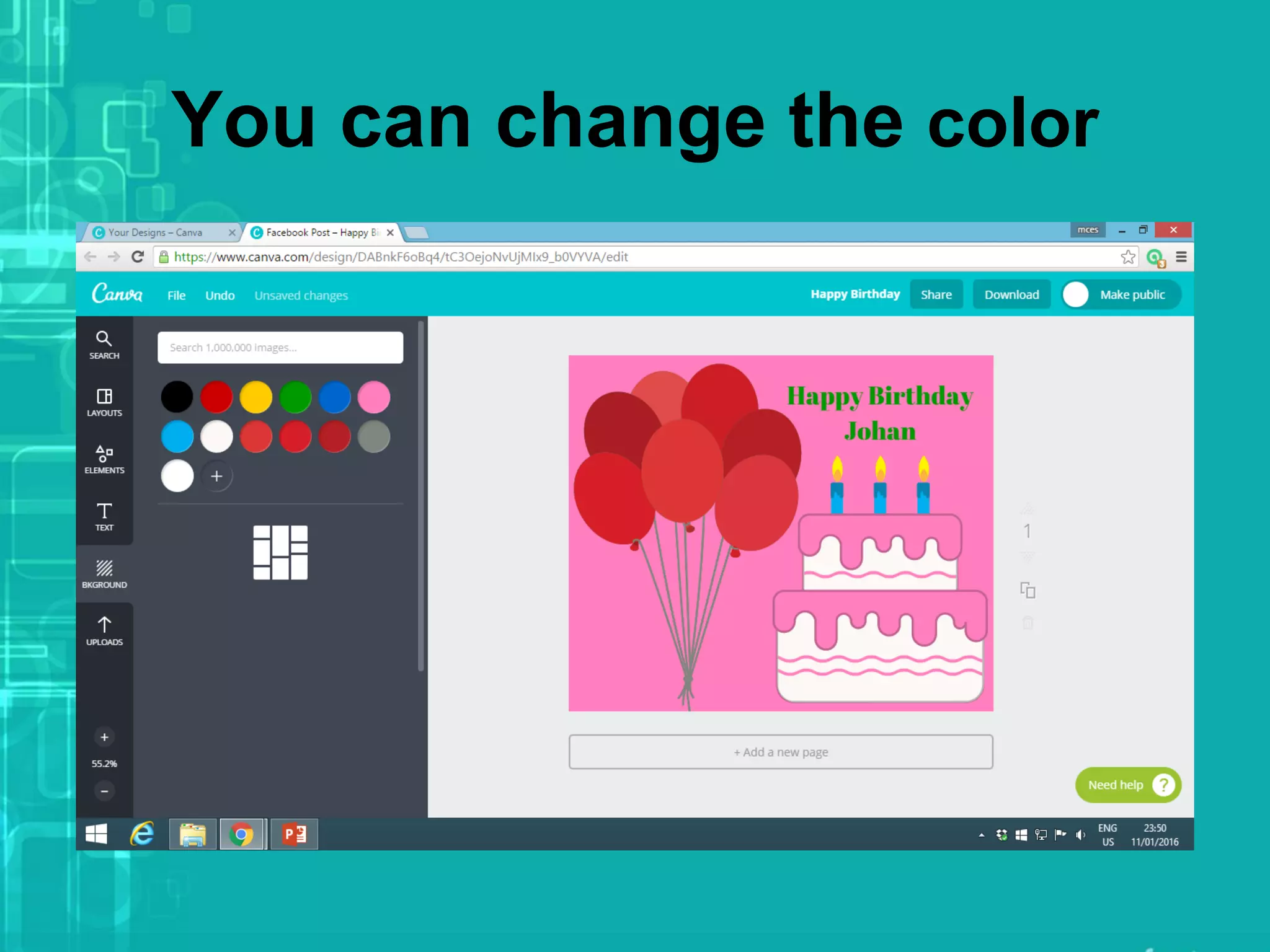
You can change the color
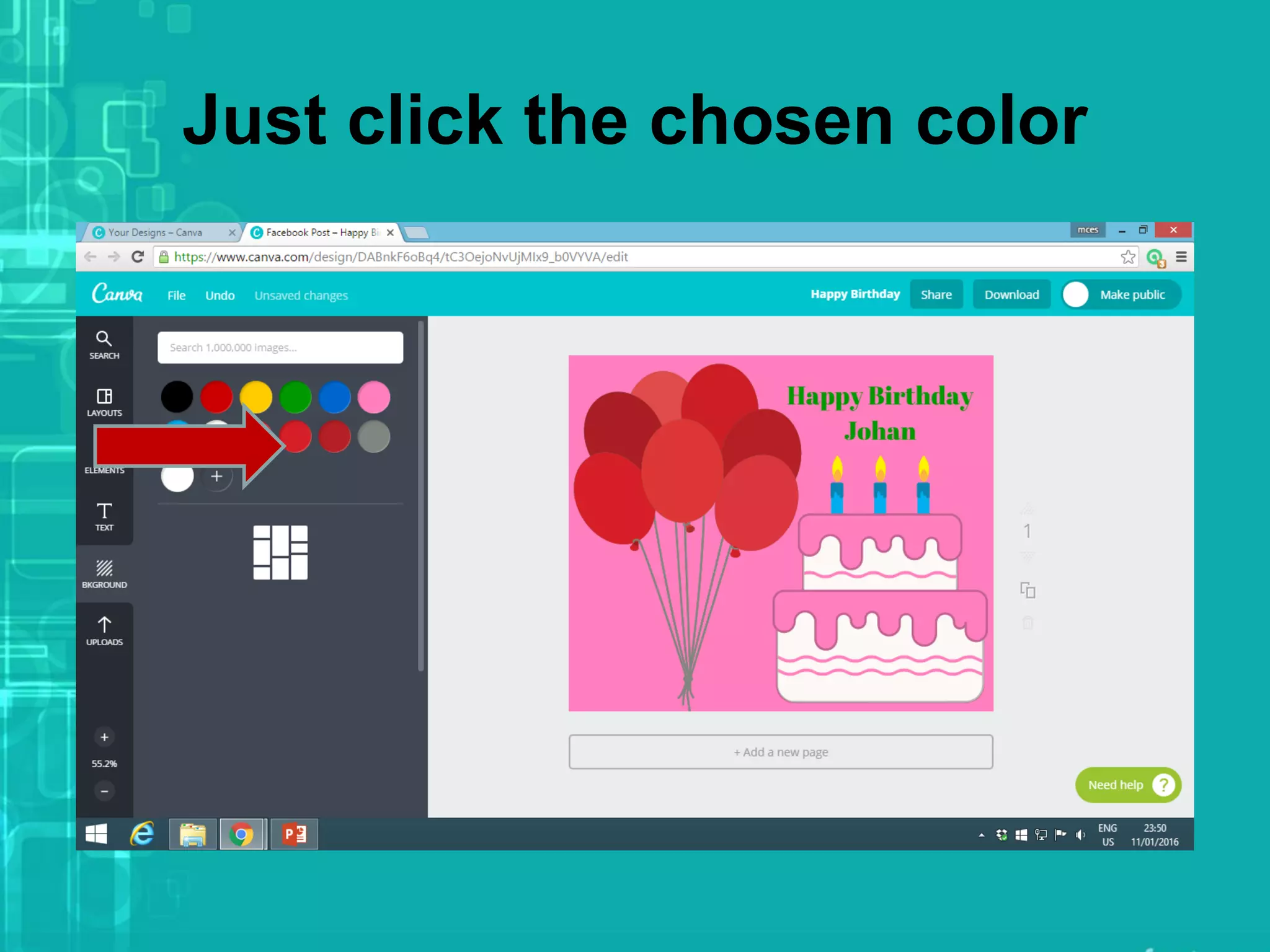
Just click the chosen color
Or click the add color
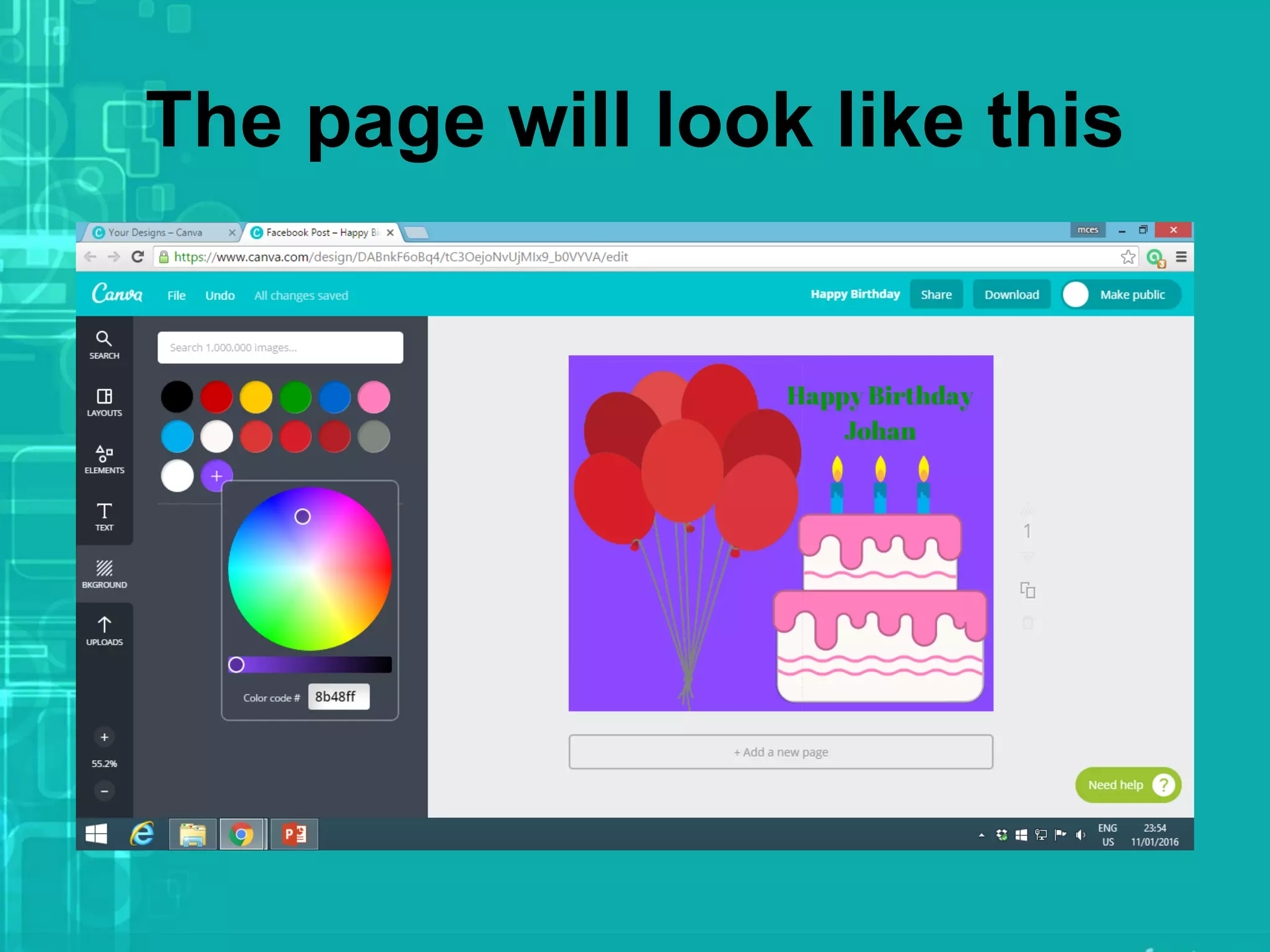
The page will look like this
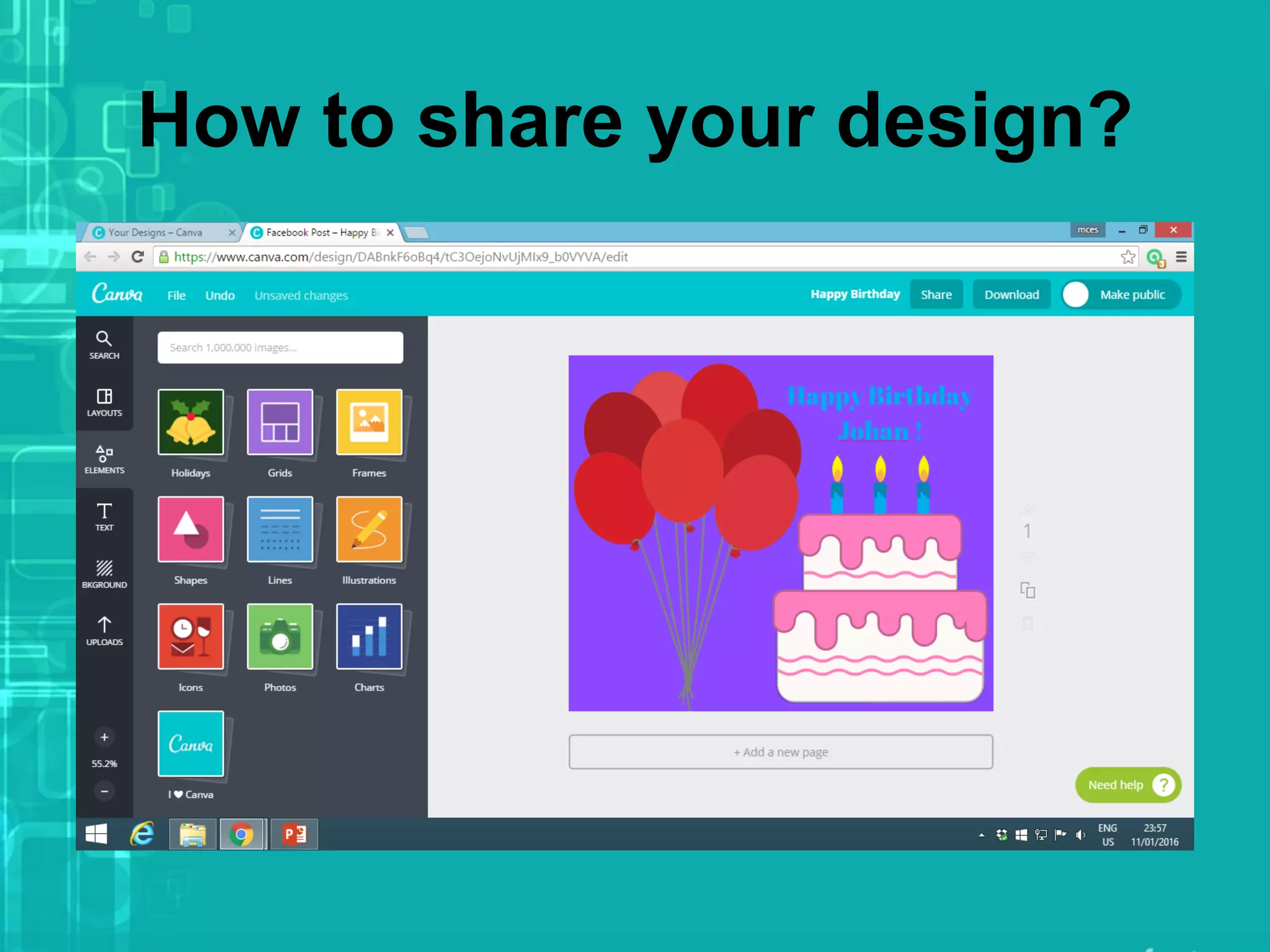
How to share your design?
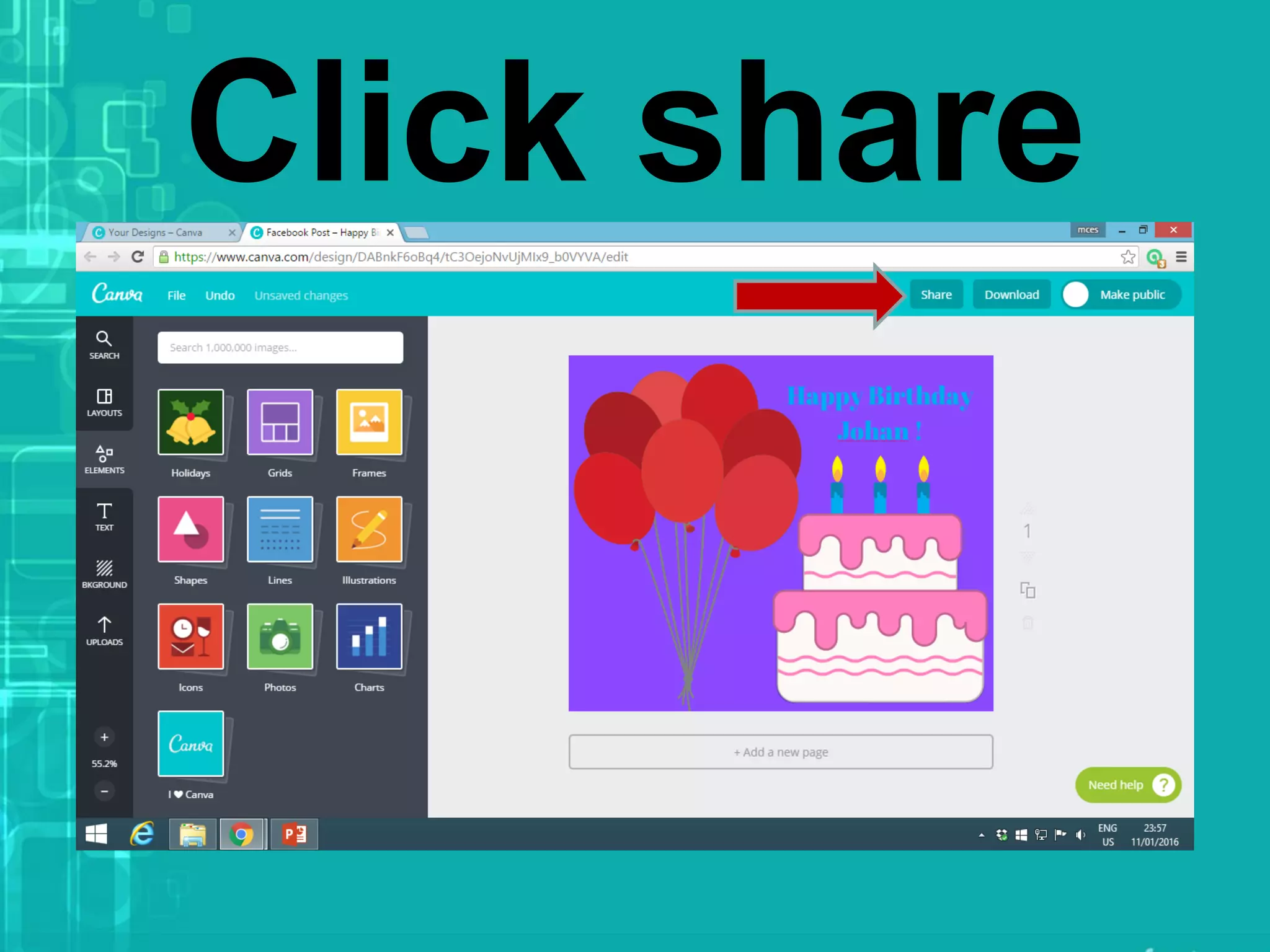
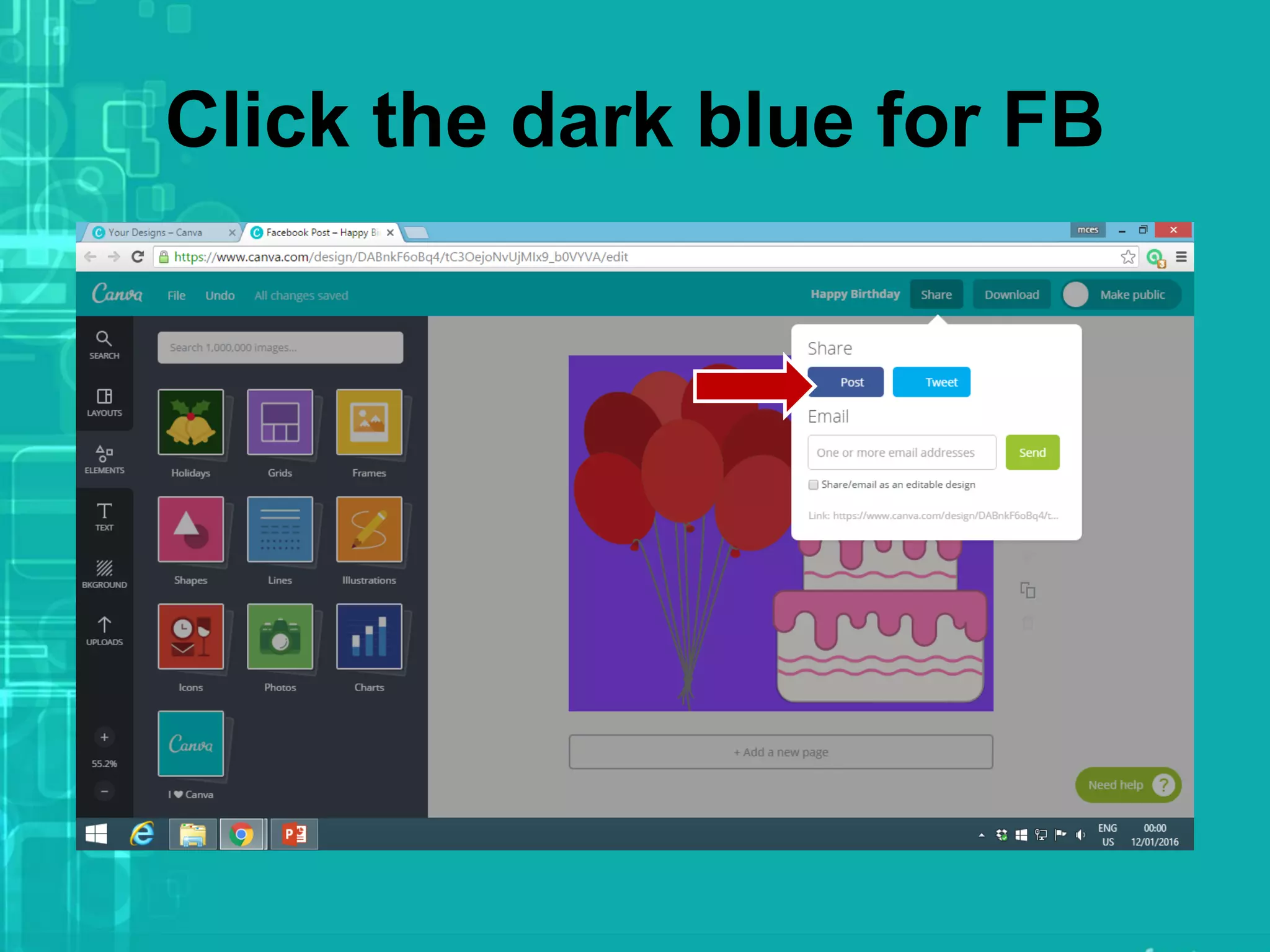
Click share
The page will look like this
Click the dark blue for FB
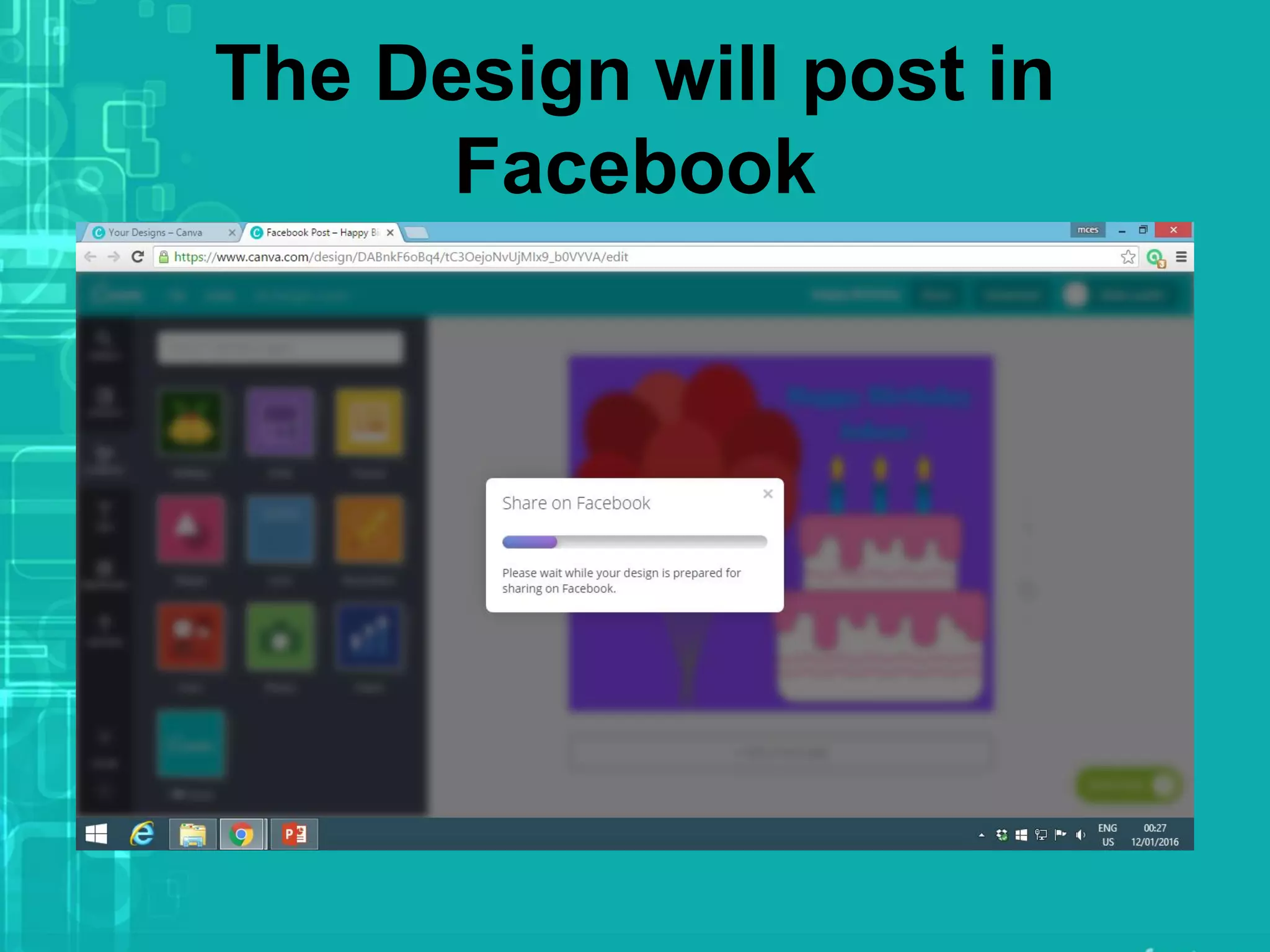
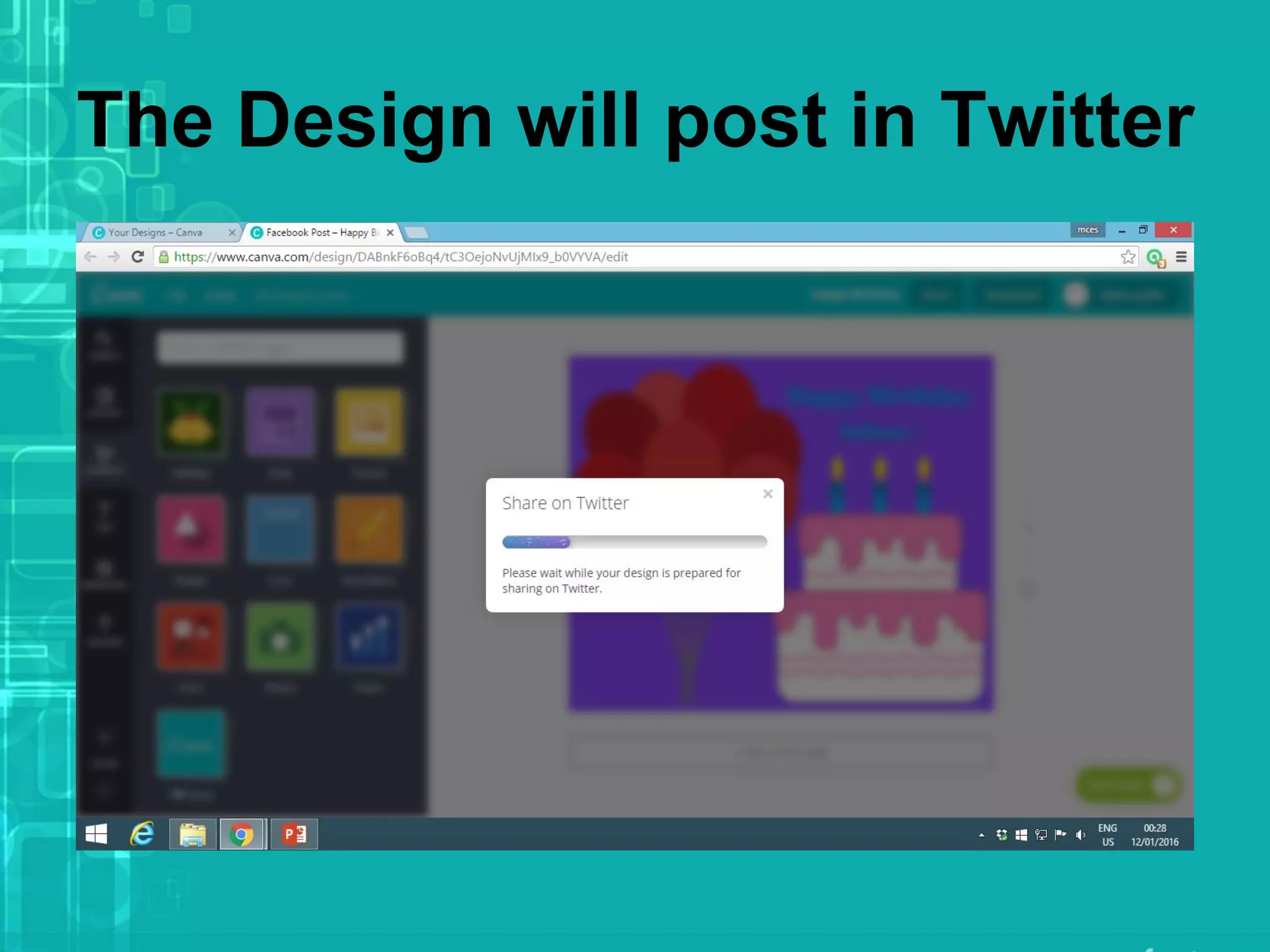
The Design will post in
Facebook
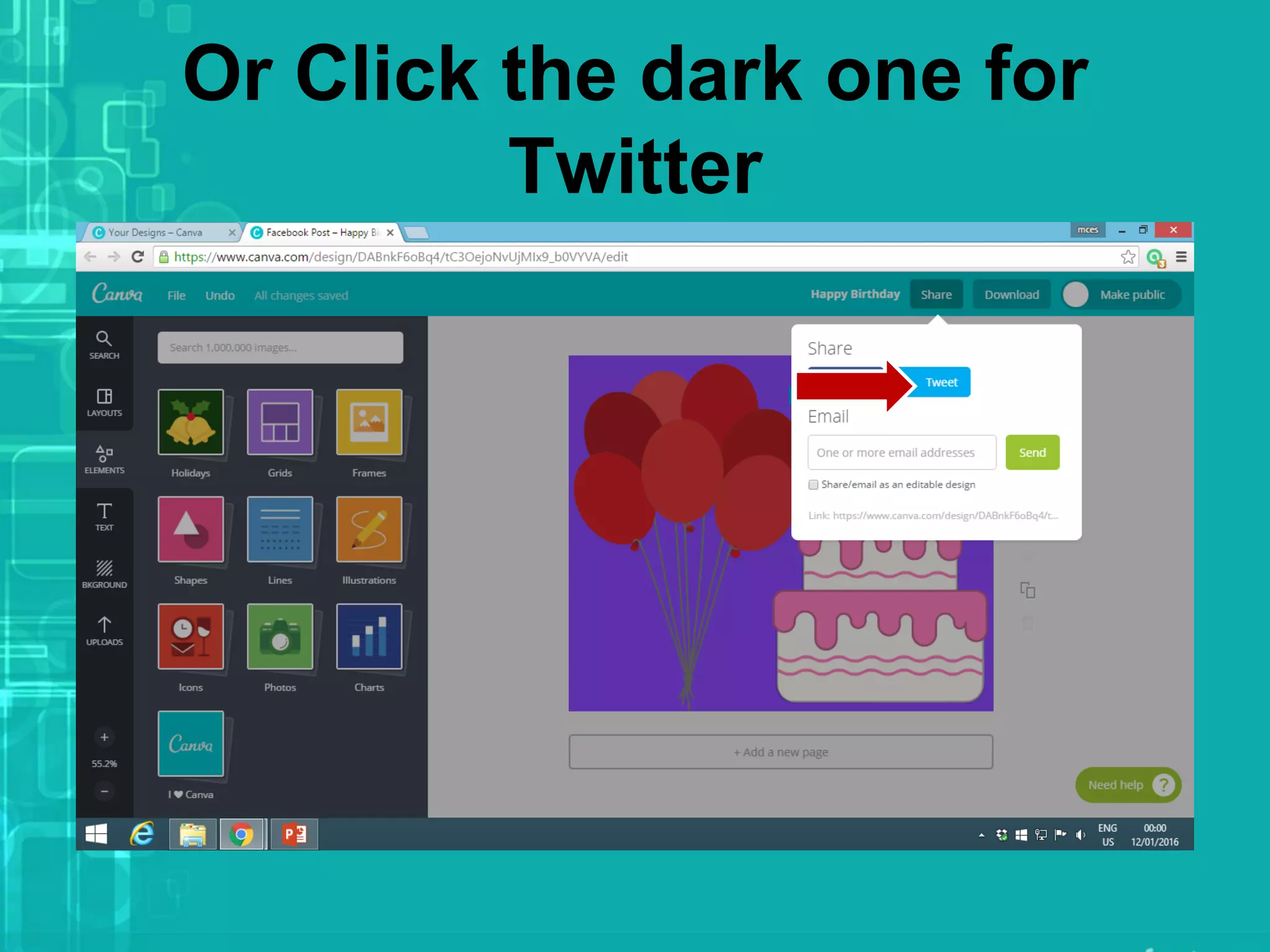
Or Click the dark one for
Twitter
The Design will post in Twitter
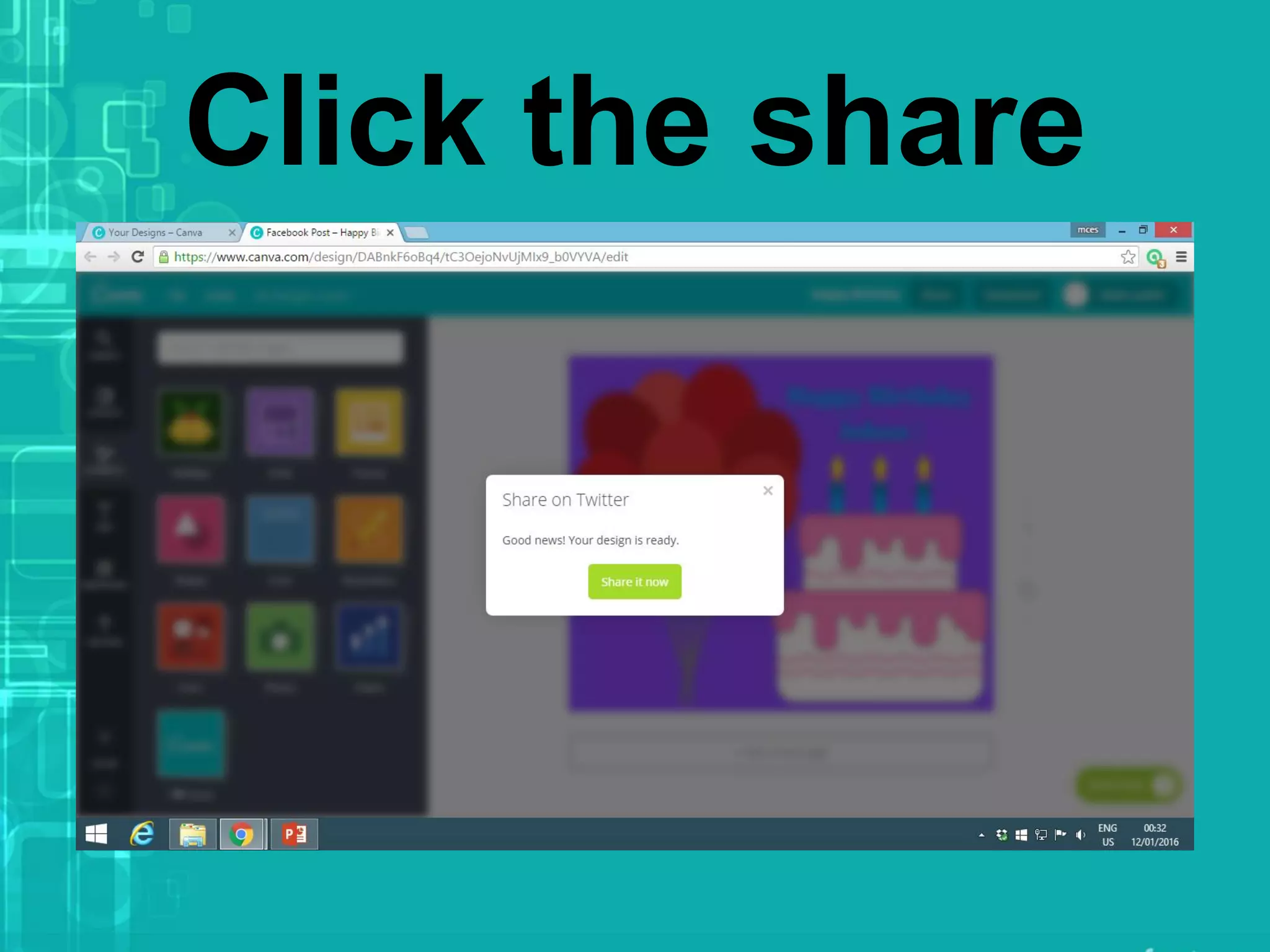
Click the share
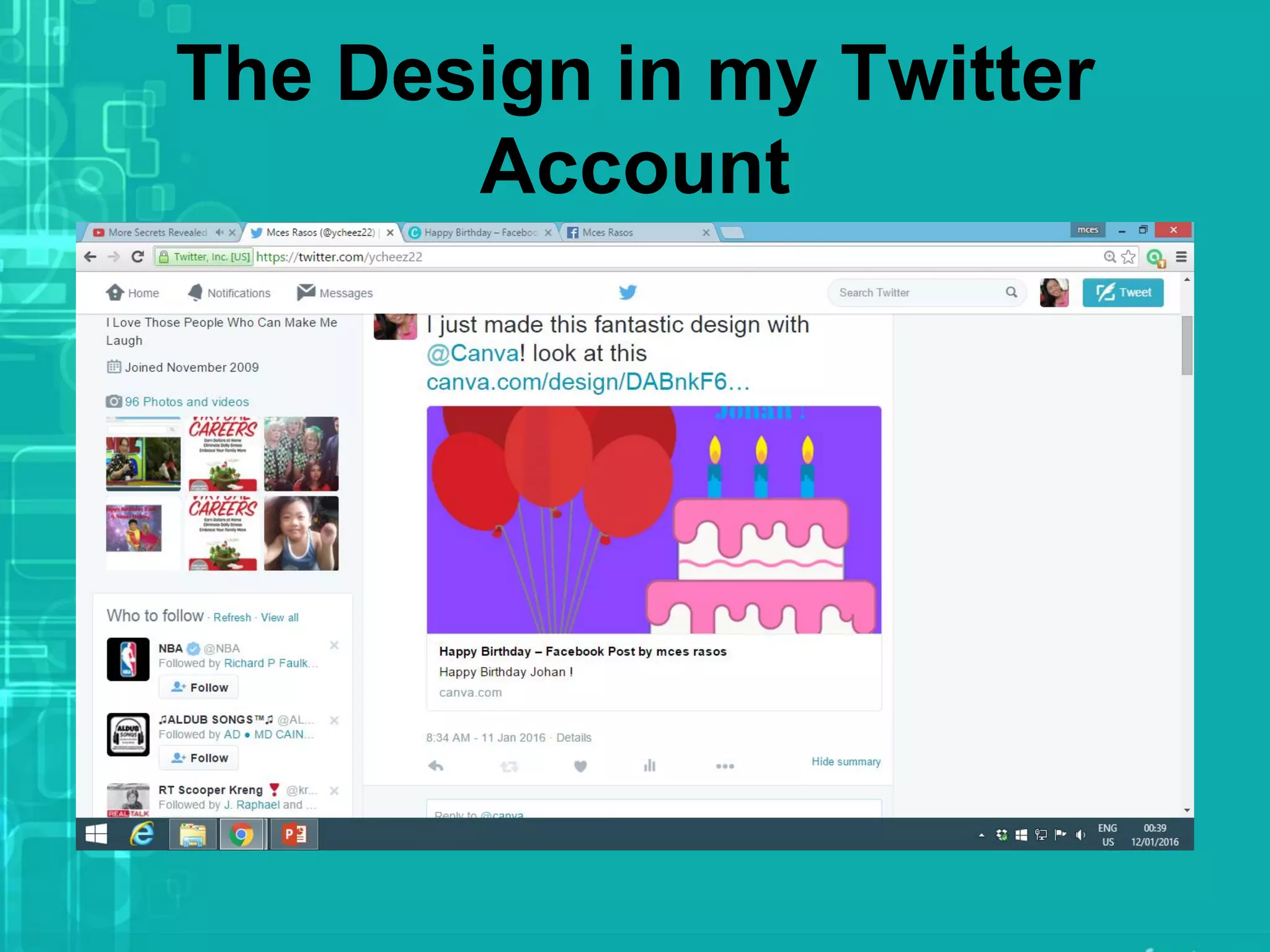
The Design in my Twitter
Account
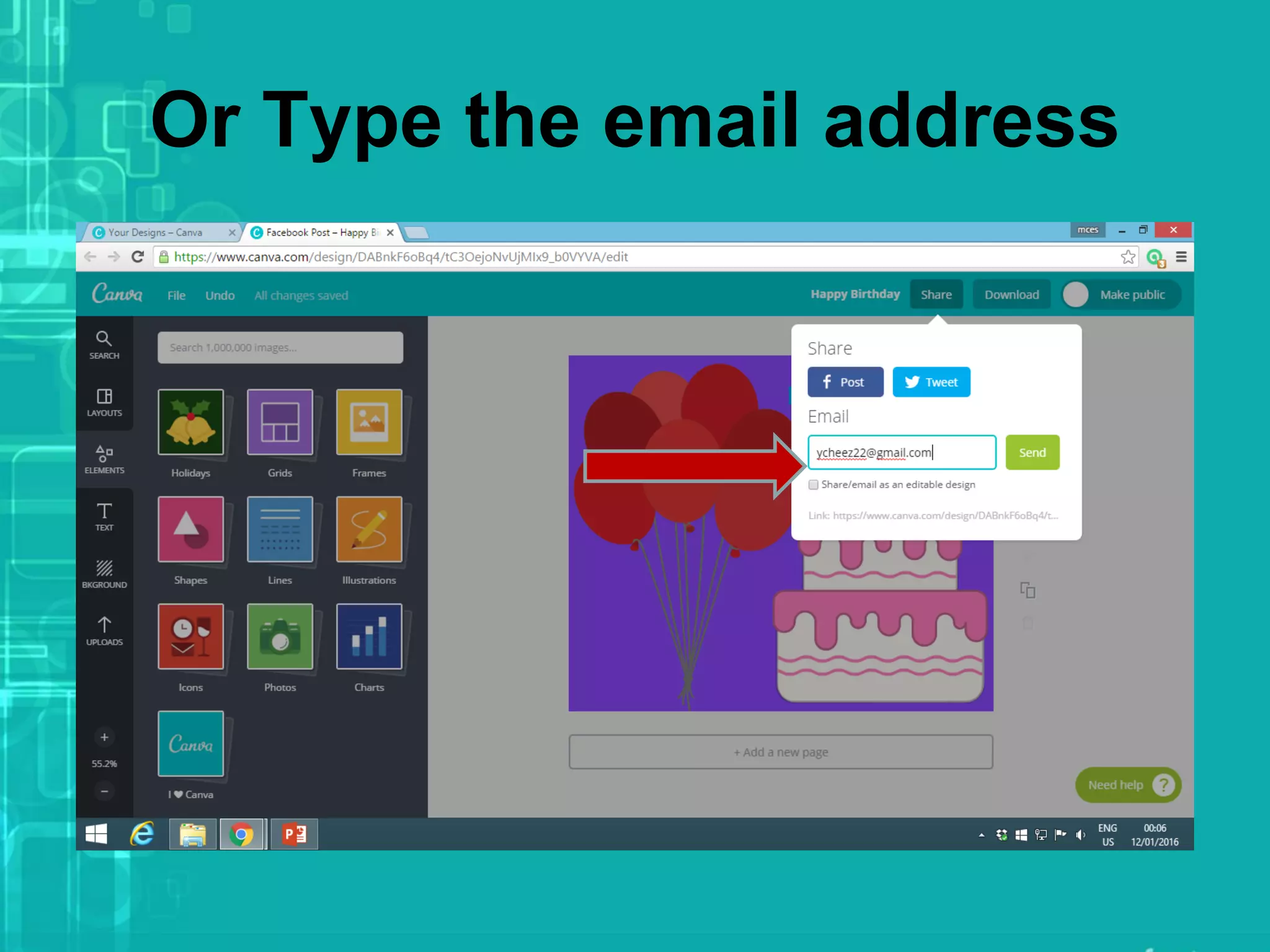
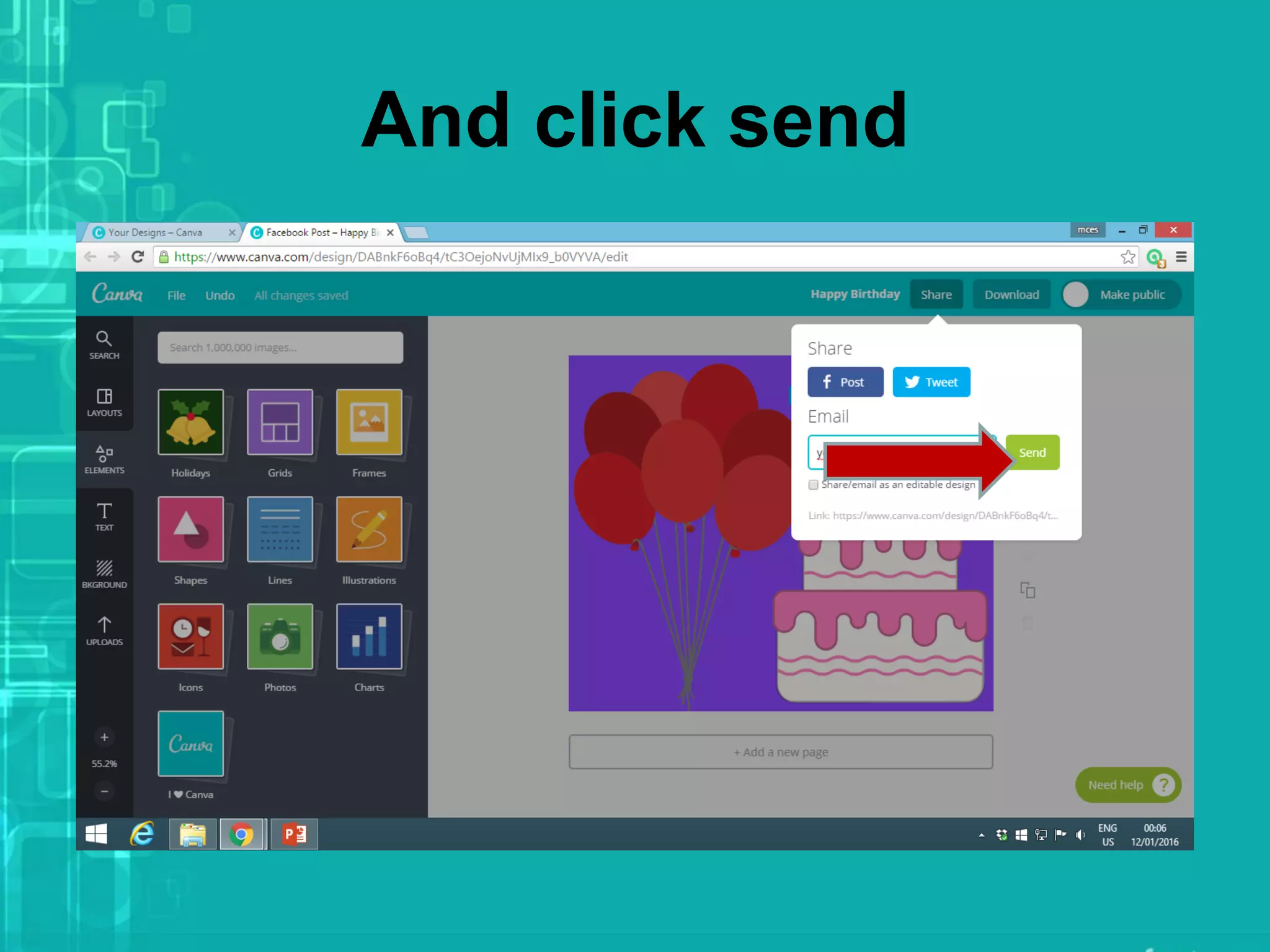
Or Type the email address
And click send
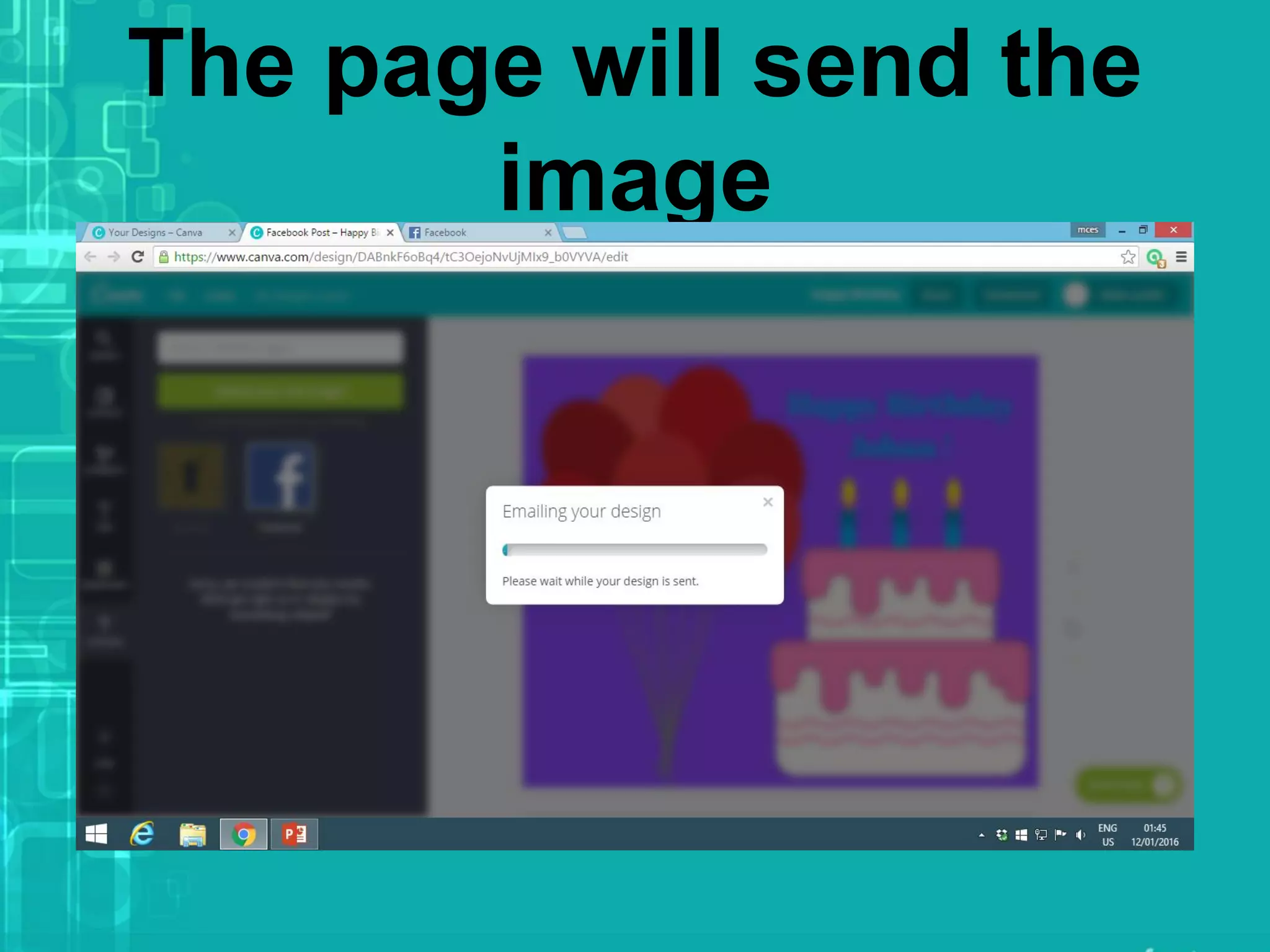
The page will send the
image
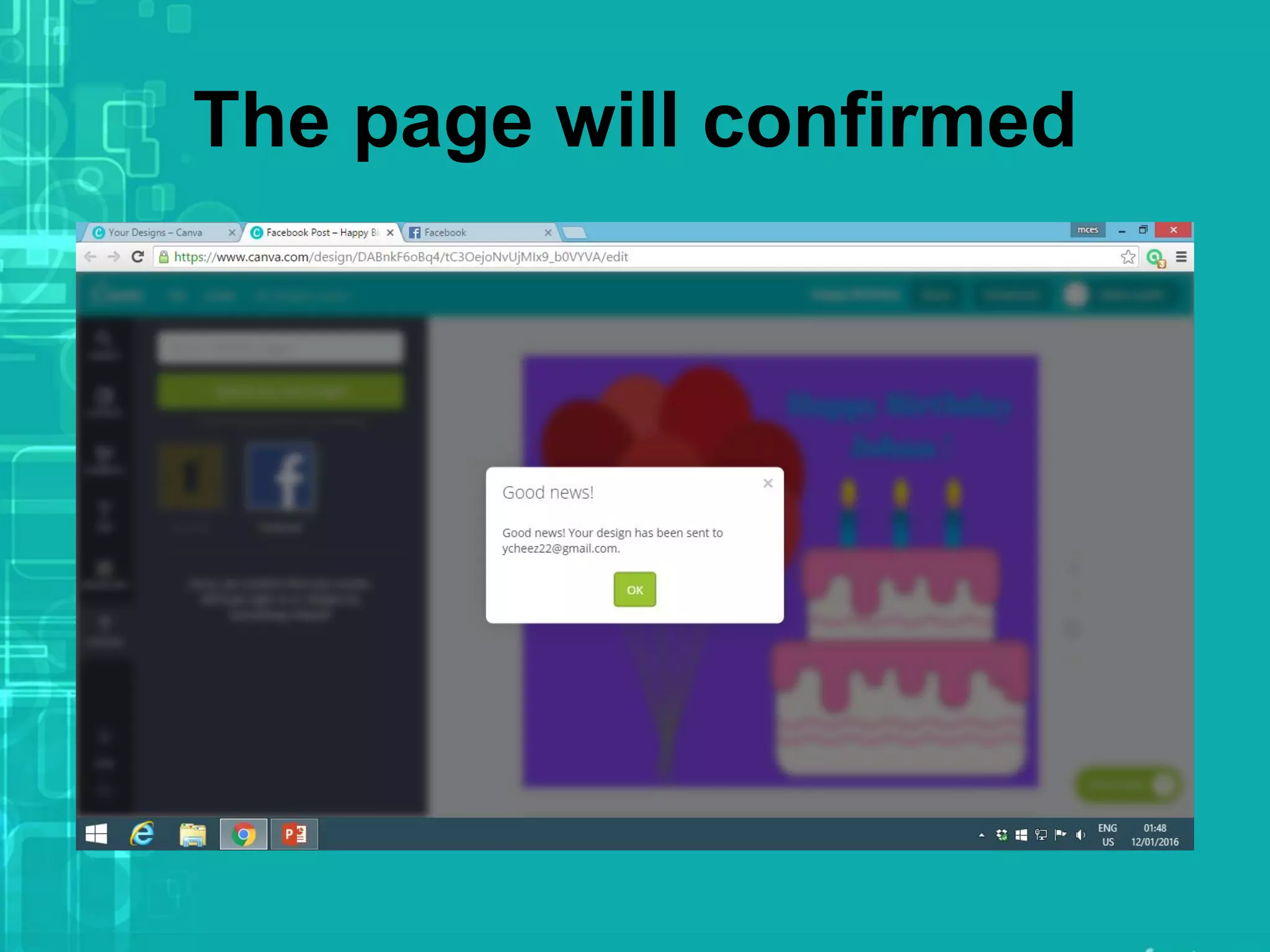
The page will confirmed
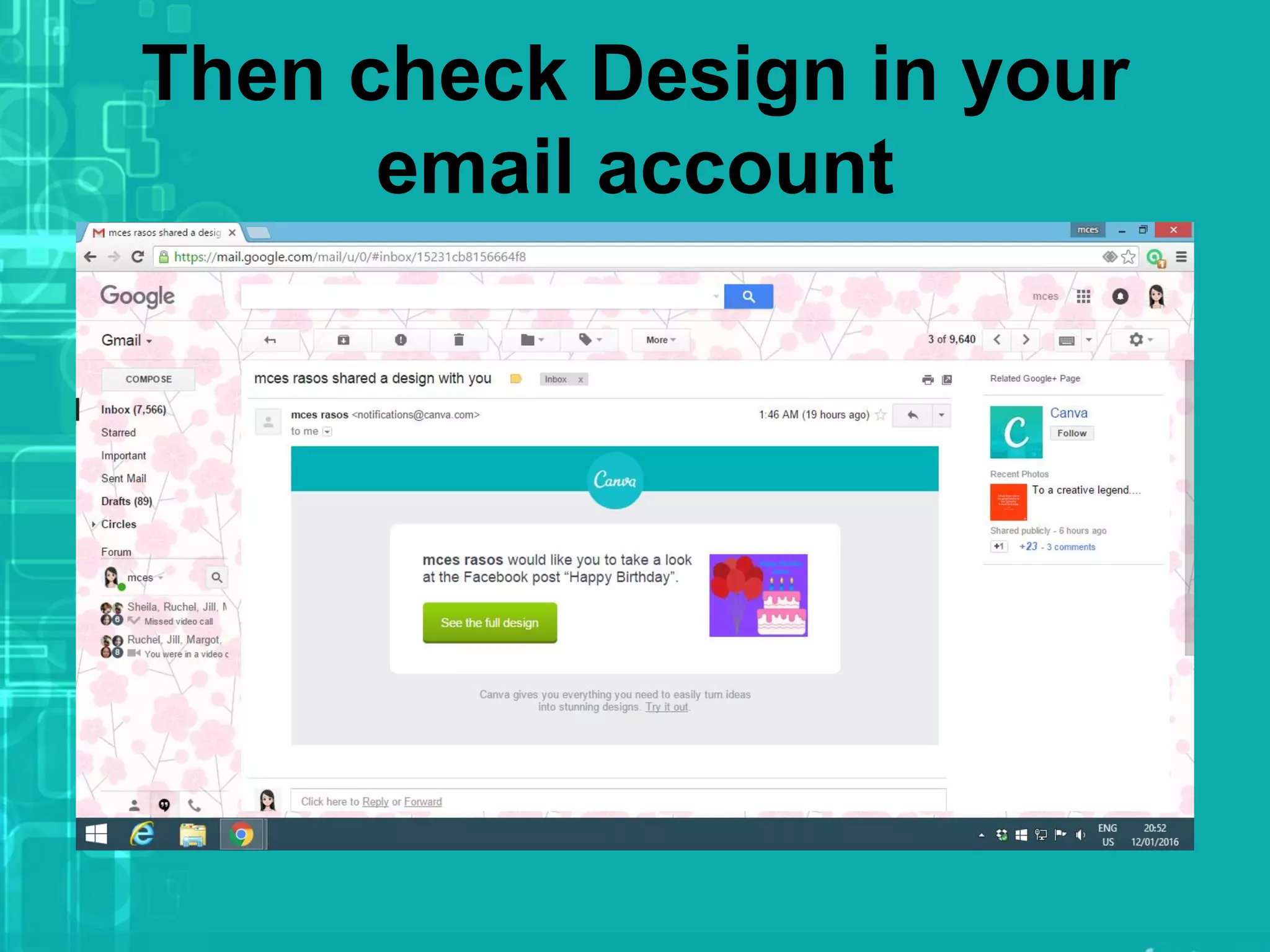
Then check Design in your
email account
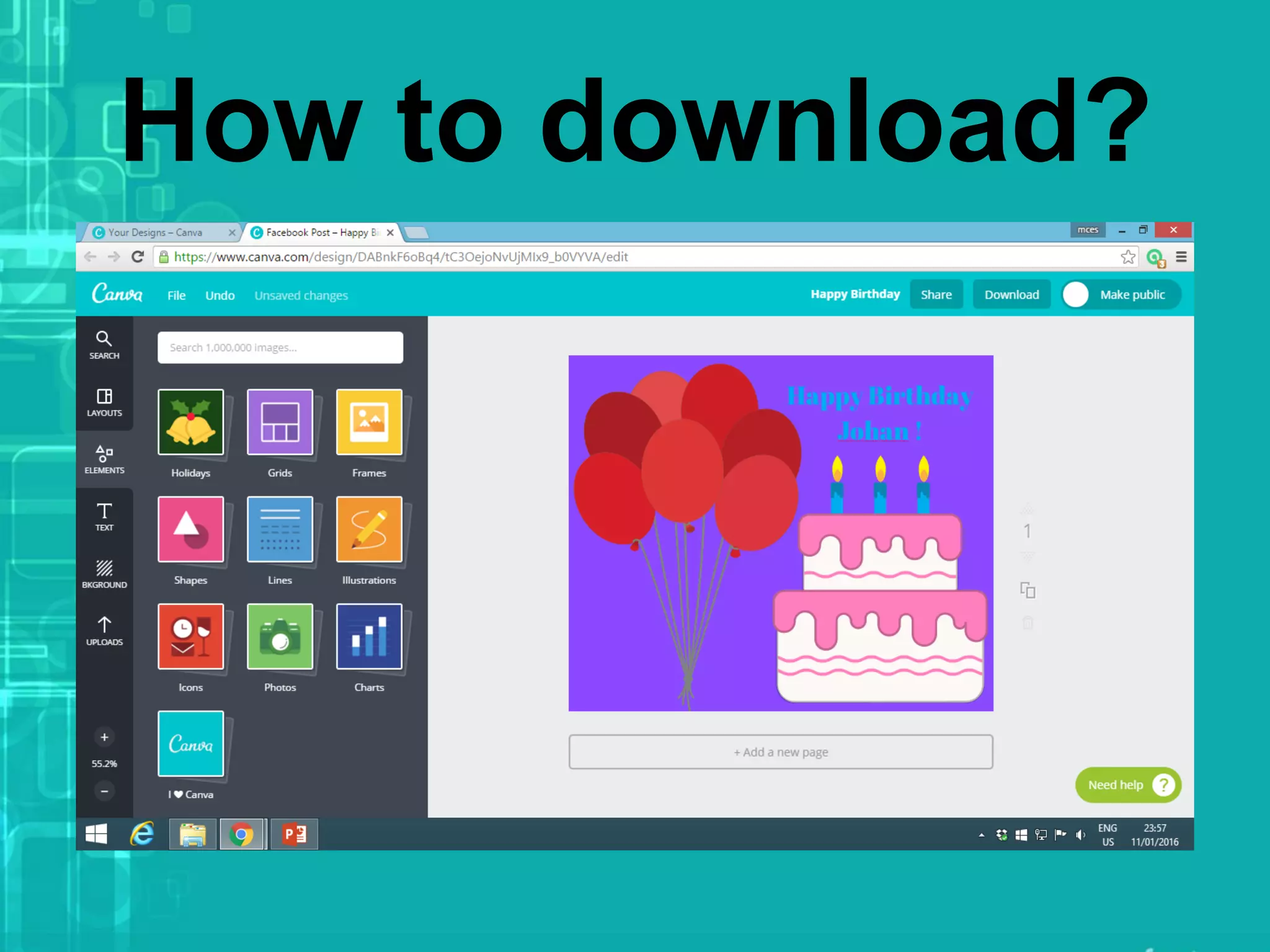
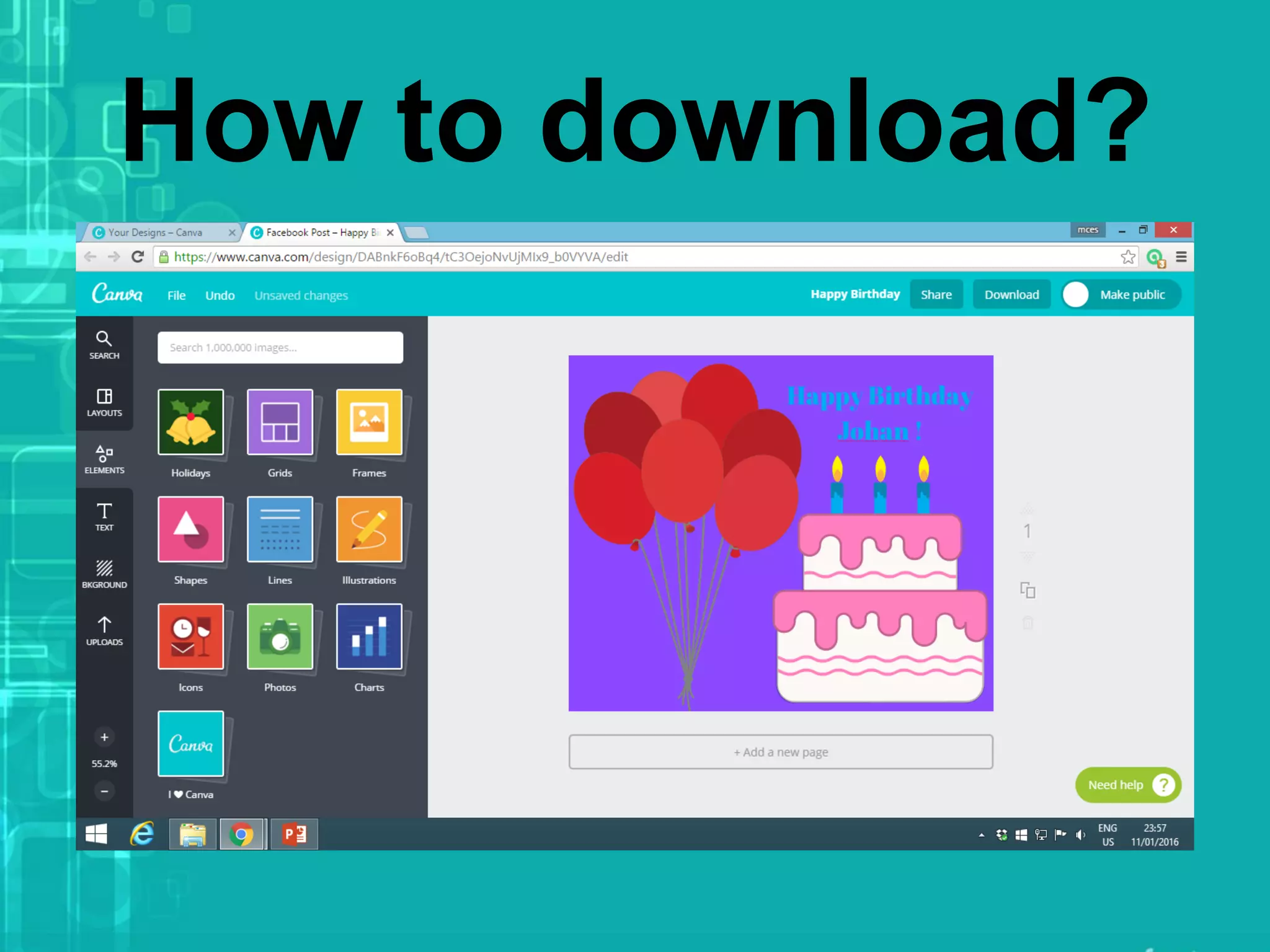
How to download?
How to download?
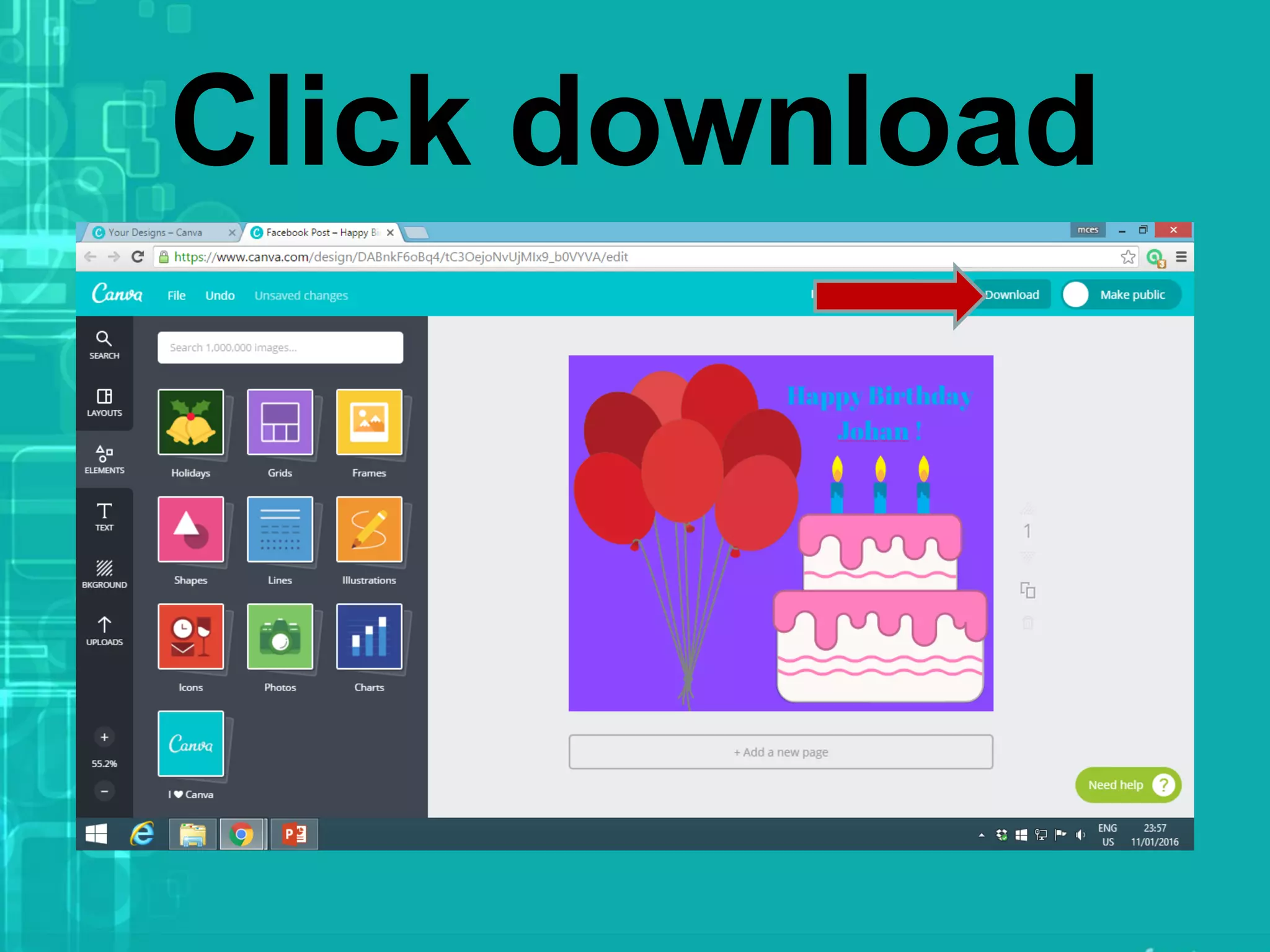
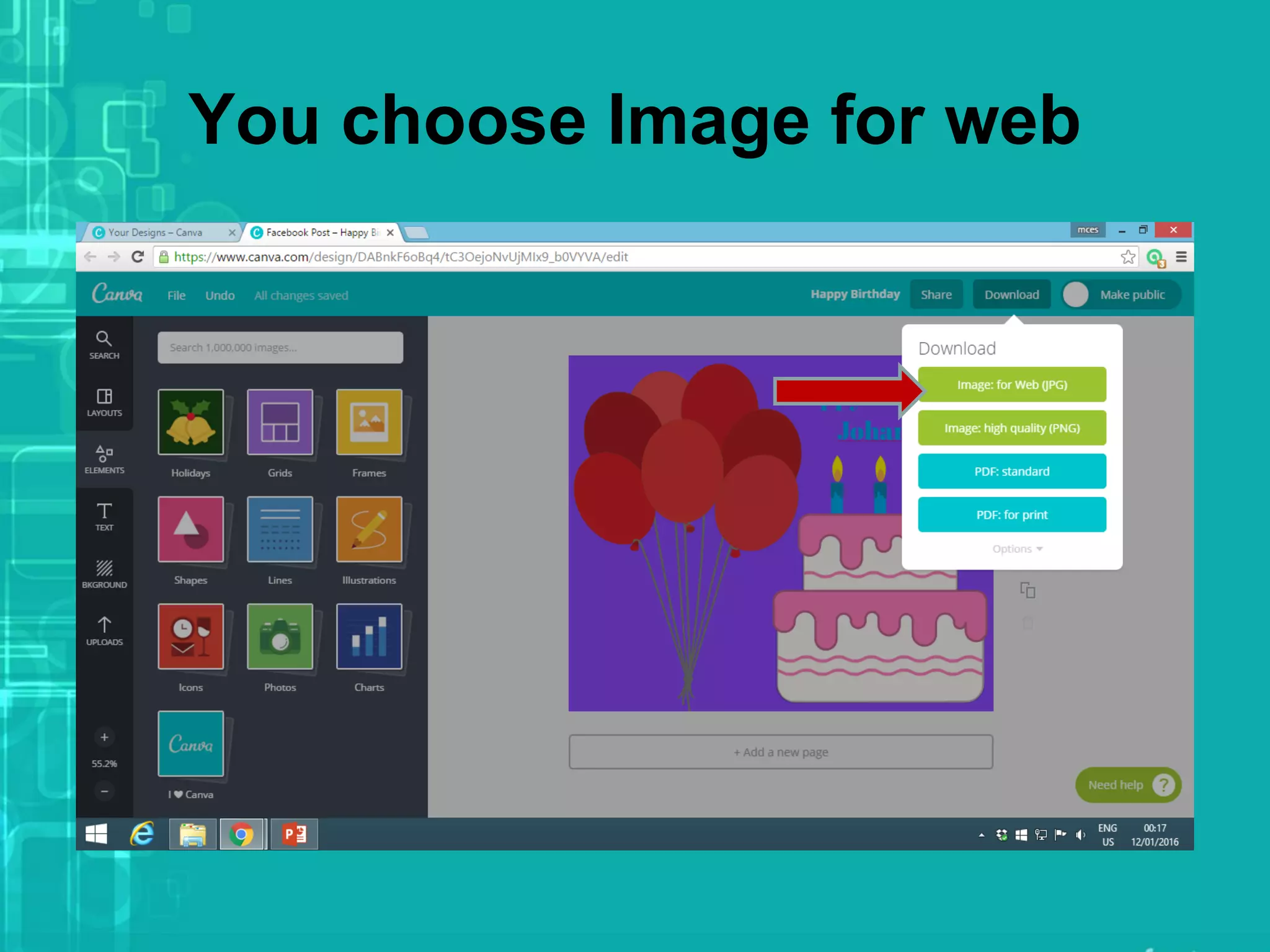
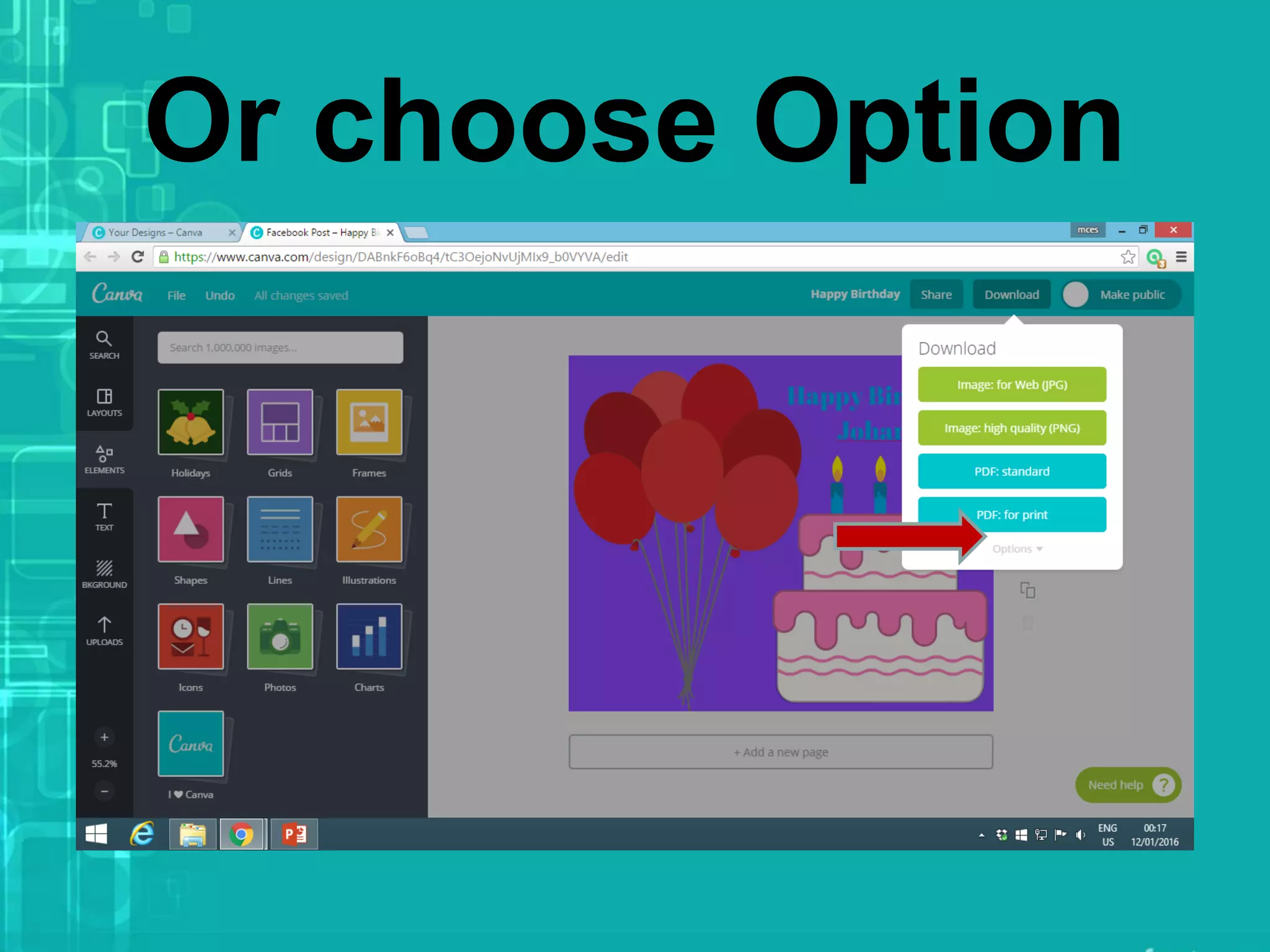
Click download
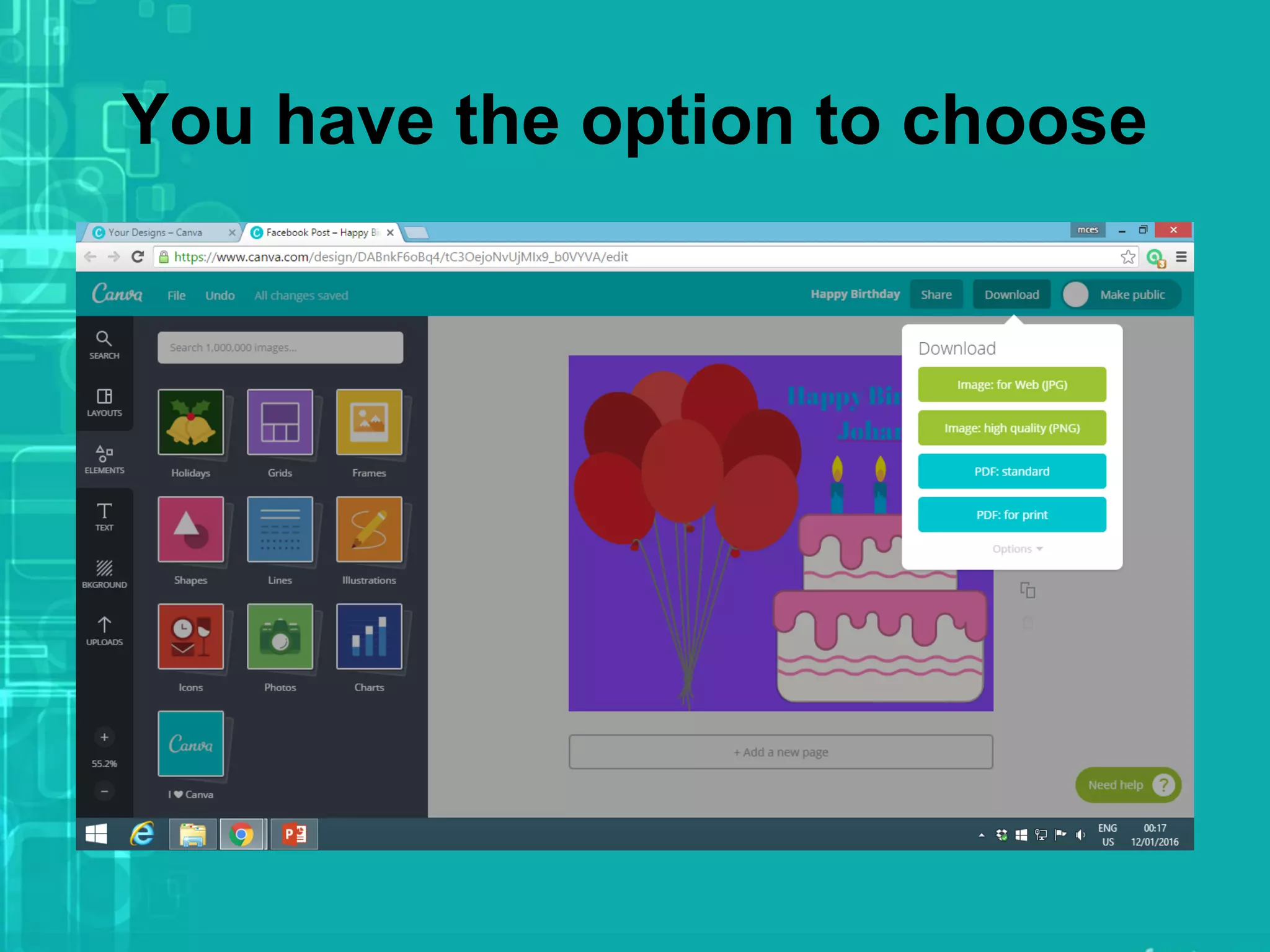
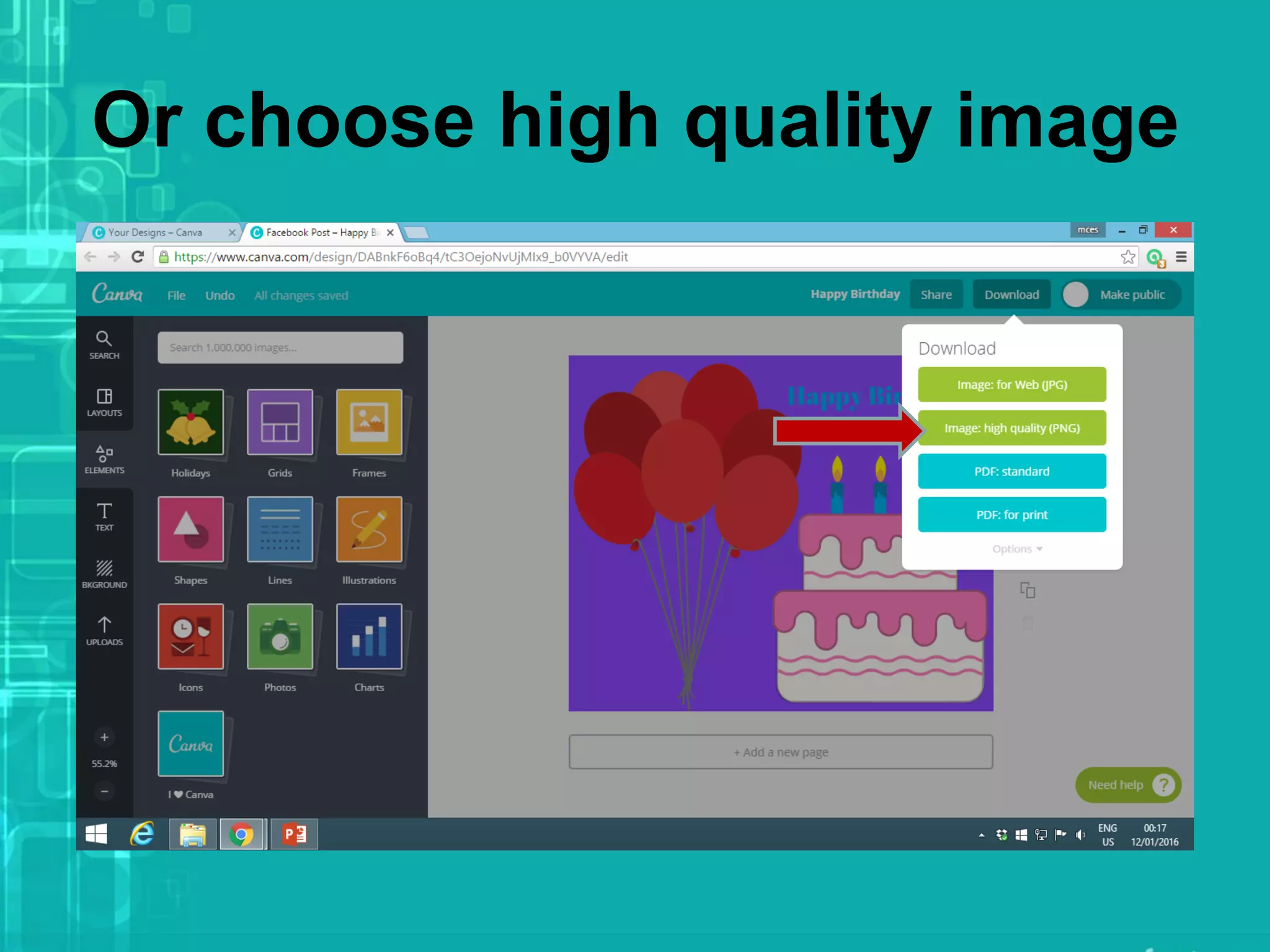
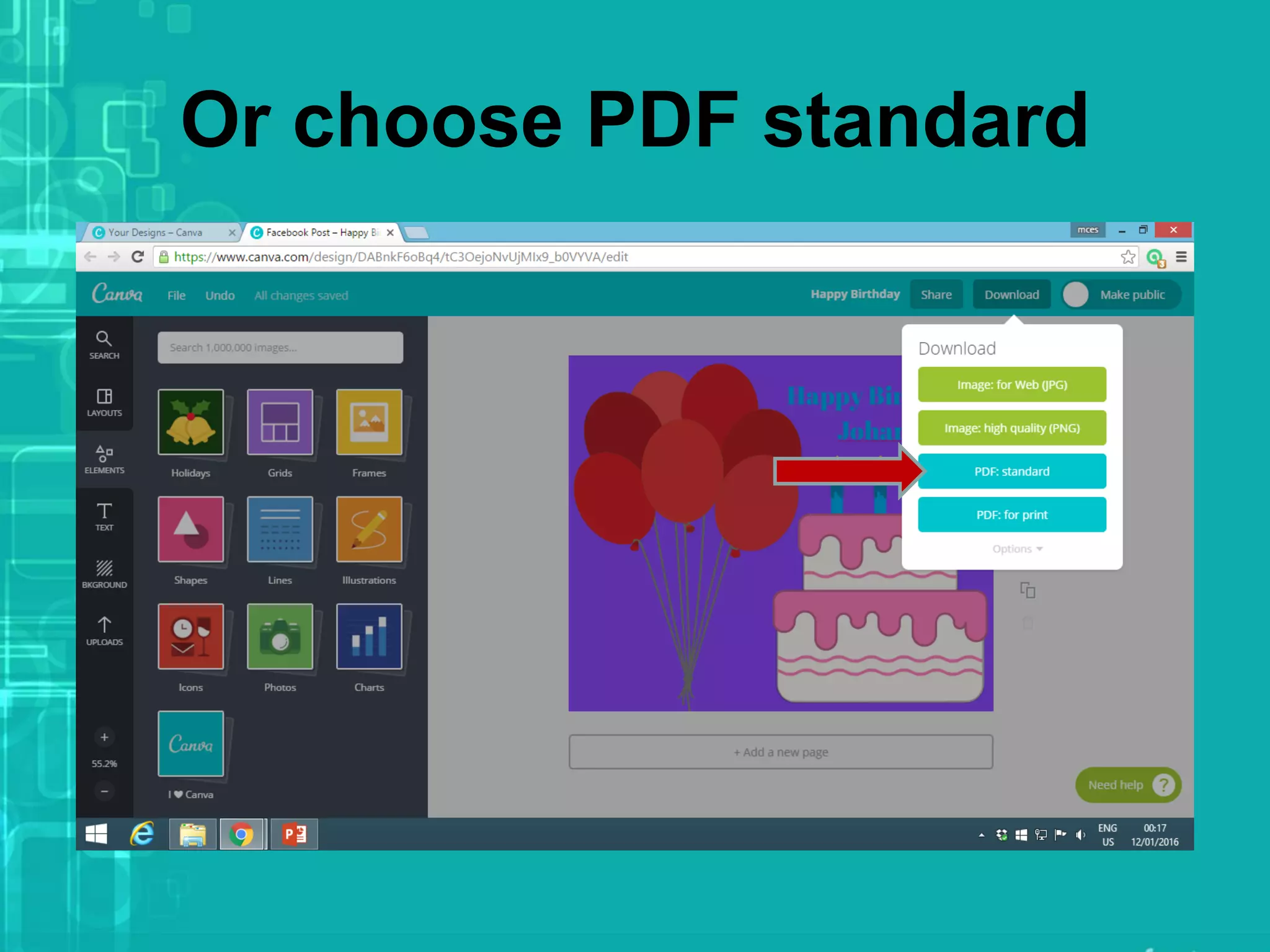
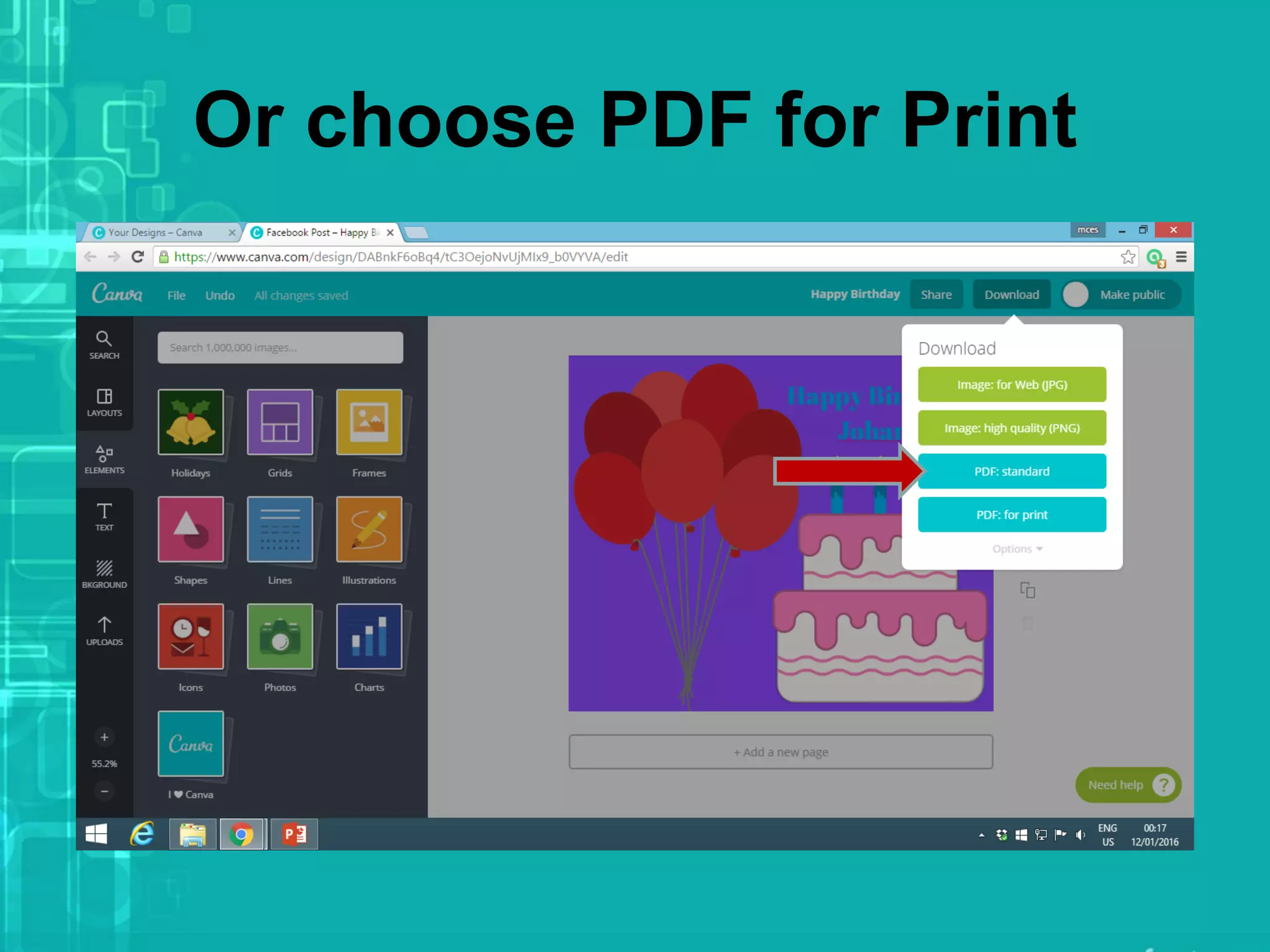
You have the option to choose
You choose Image for web
Or choose high quality image
Or choose PDF standard
Or choose PDF for Print
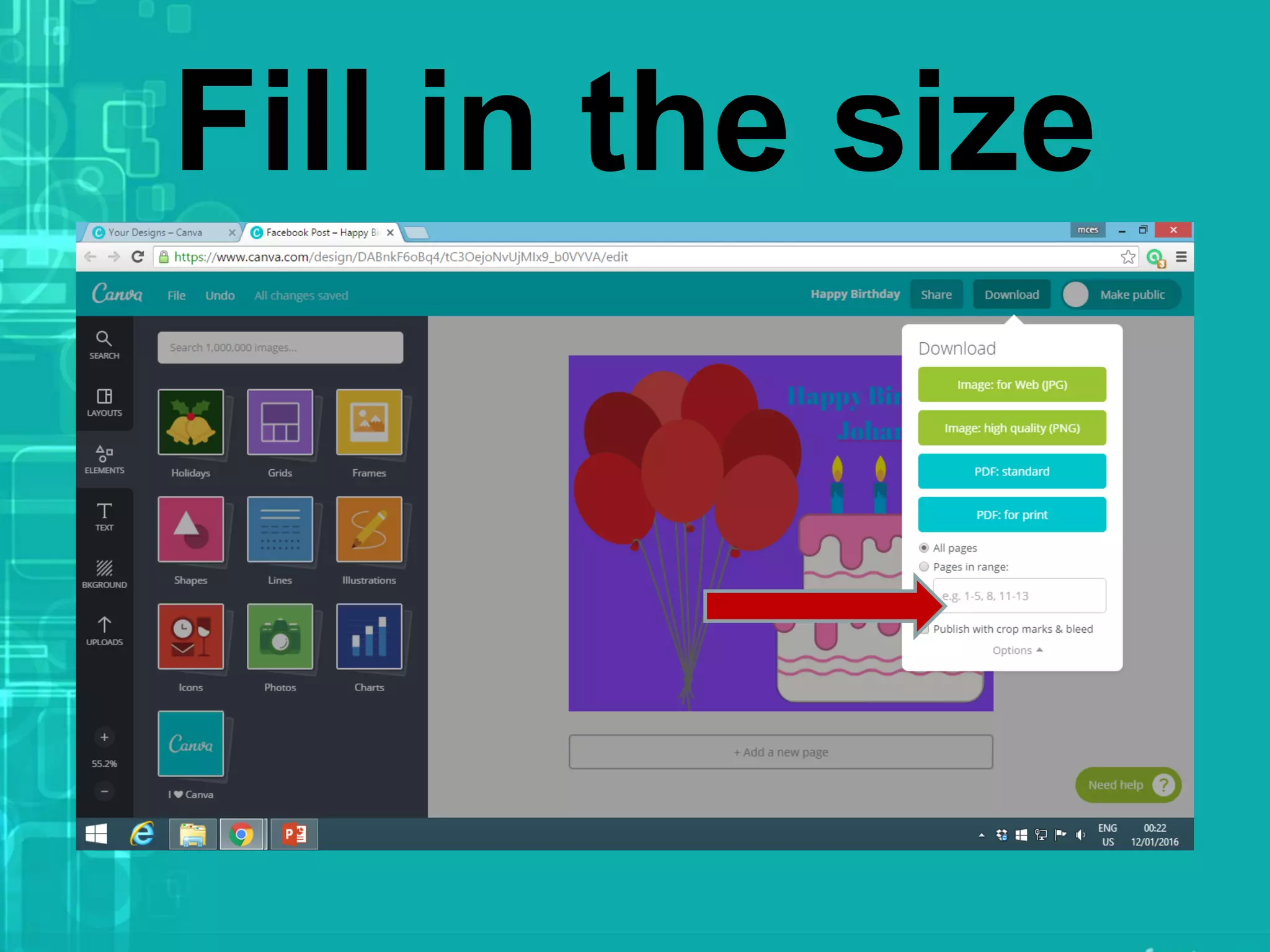
Or choose Option
Fill in the size
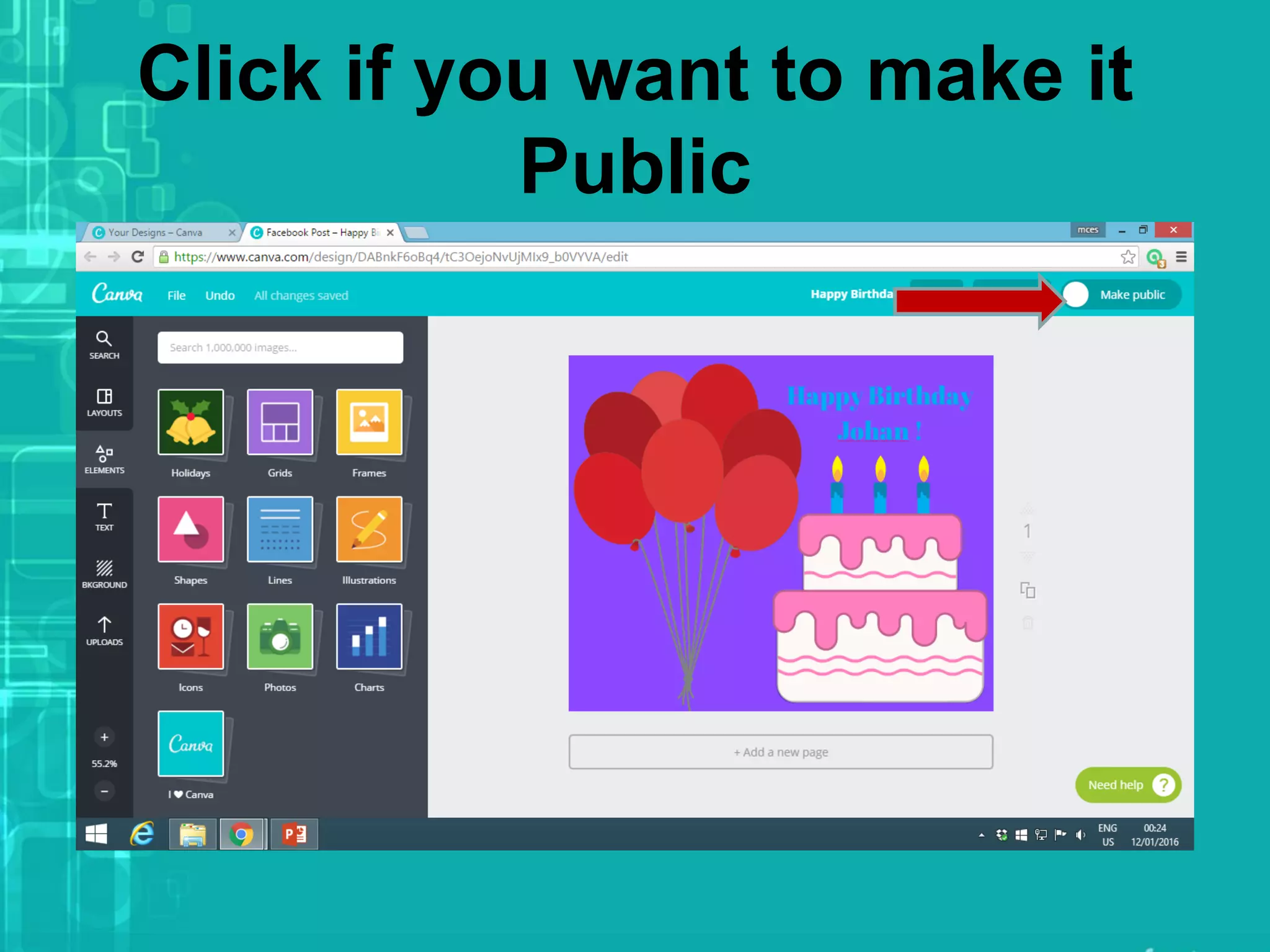
Click if you want to make it
Public
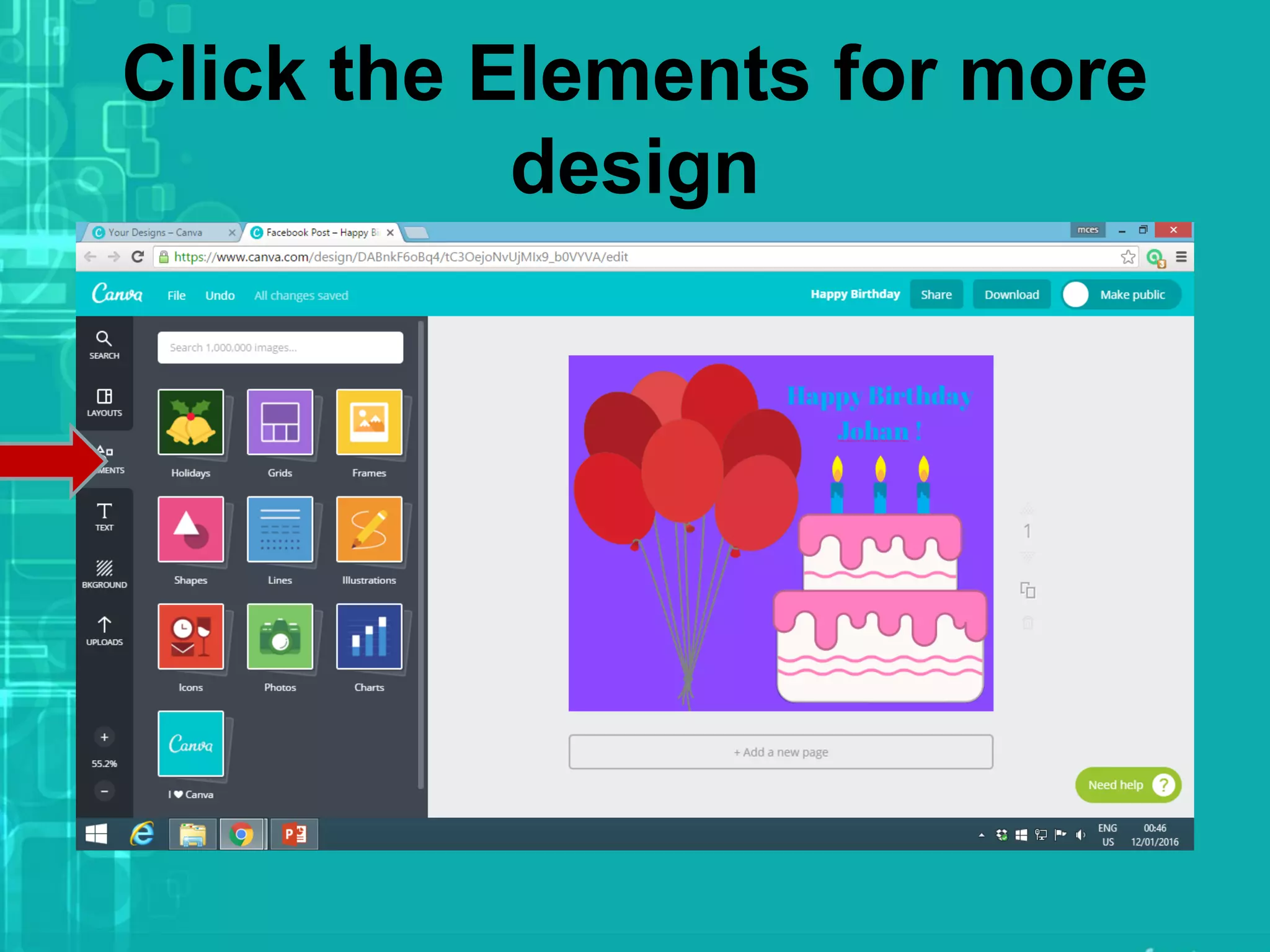
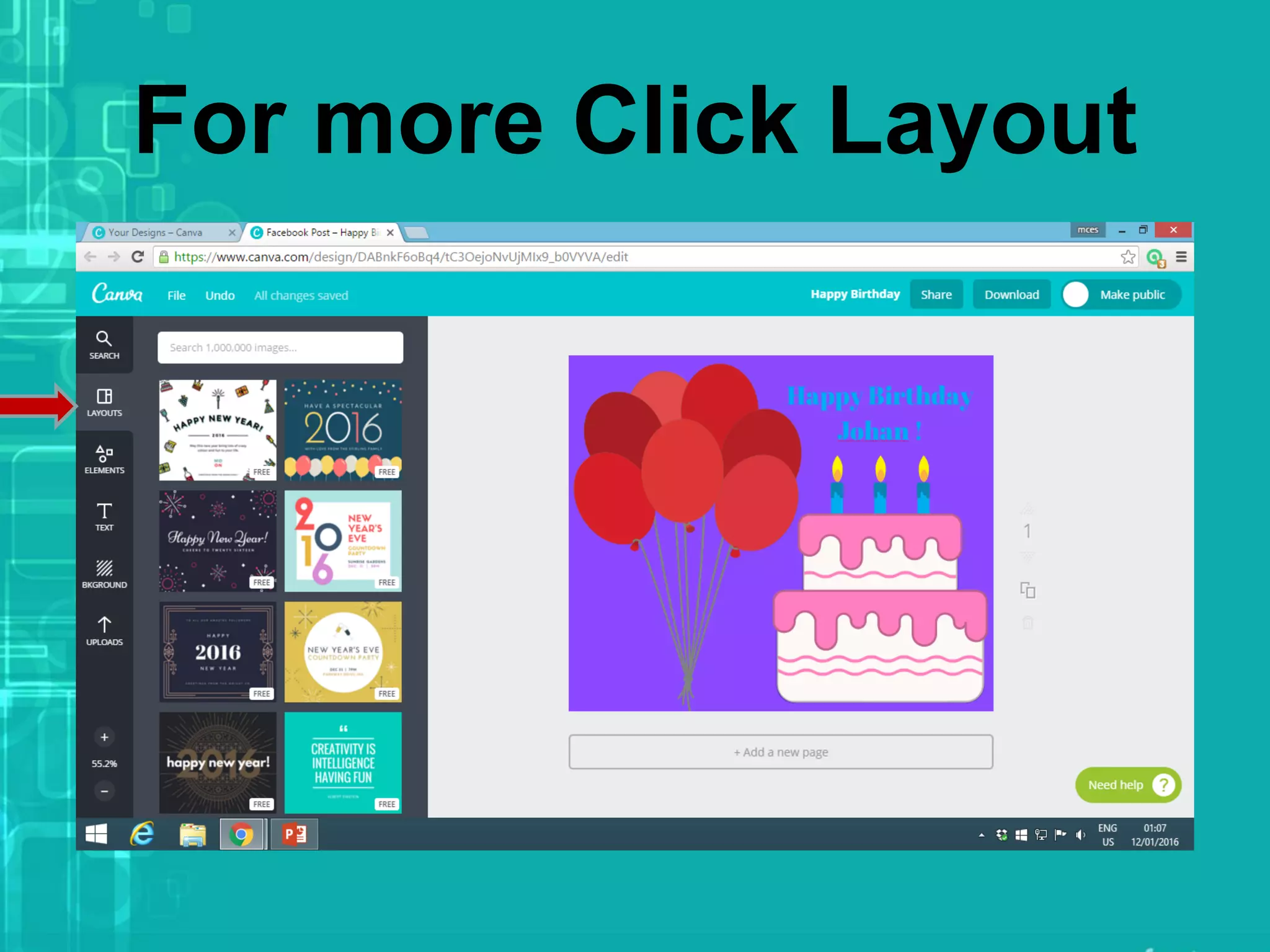
Click the Elements for more
design
For more Click Layout
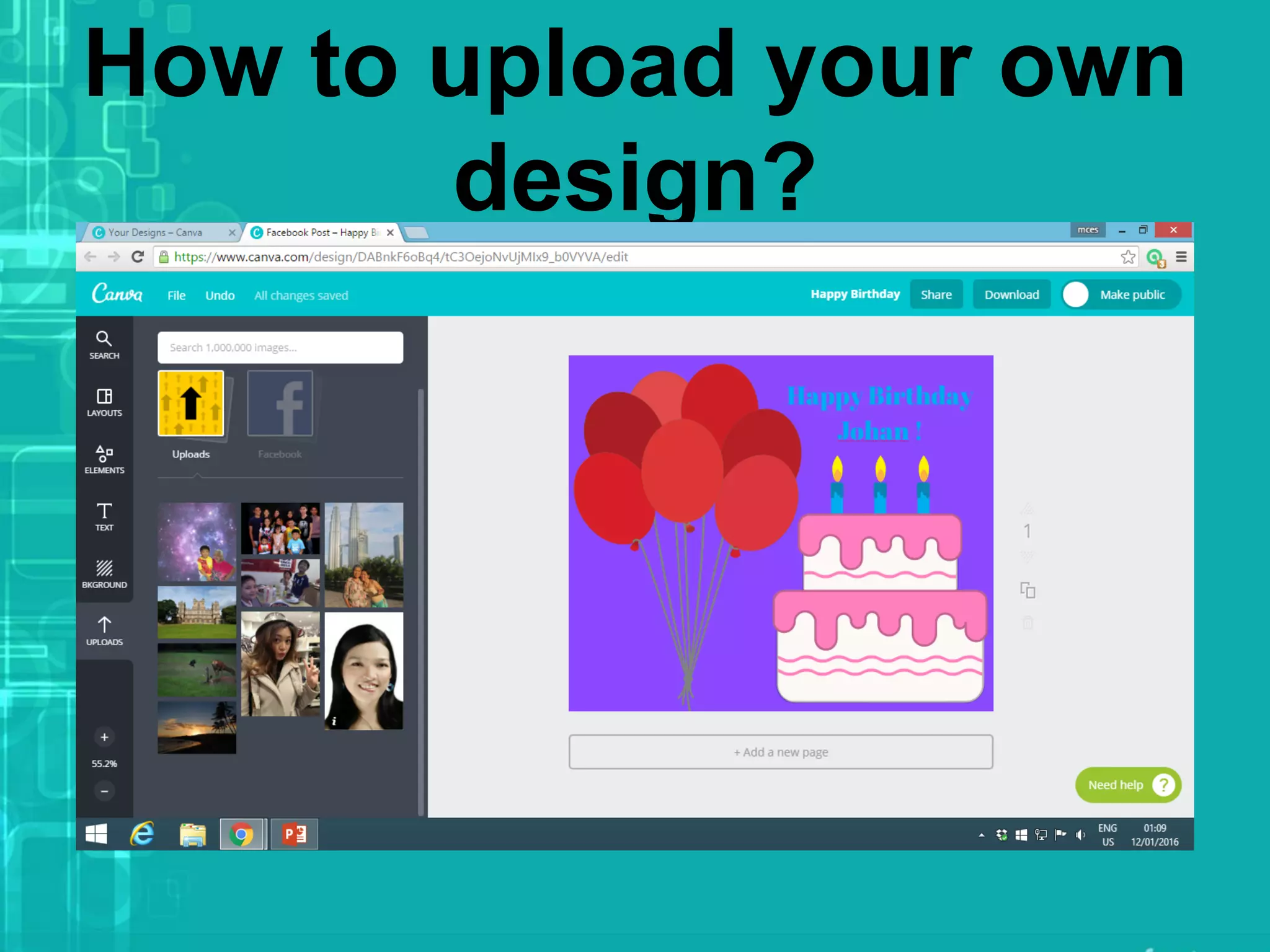
How to upload your own
design?
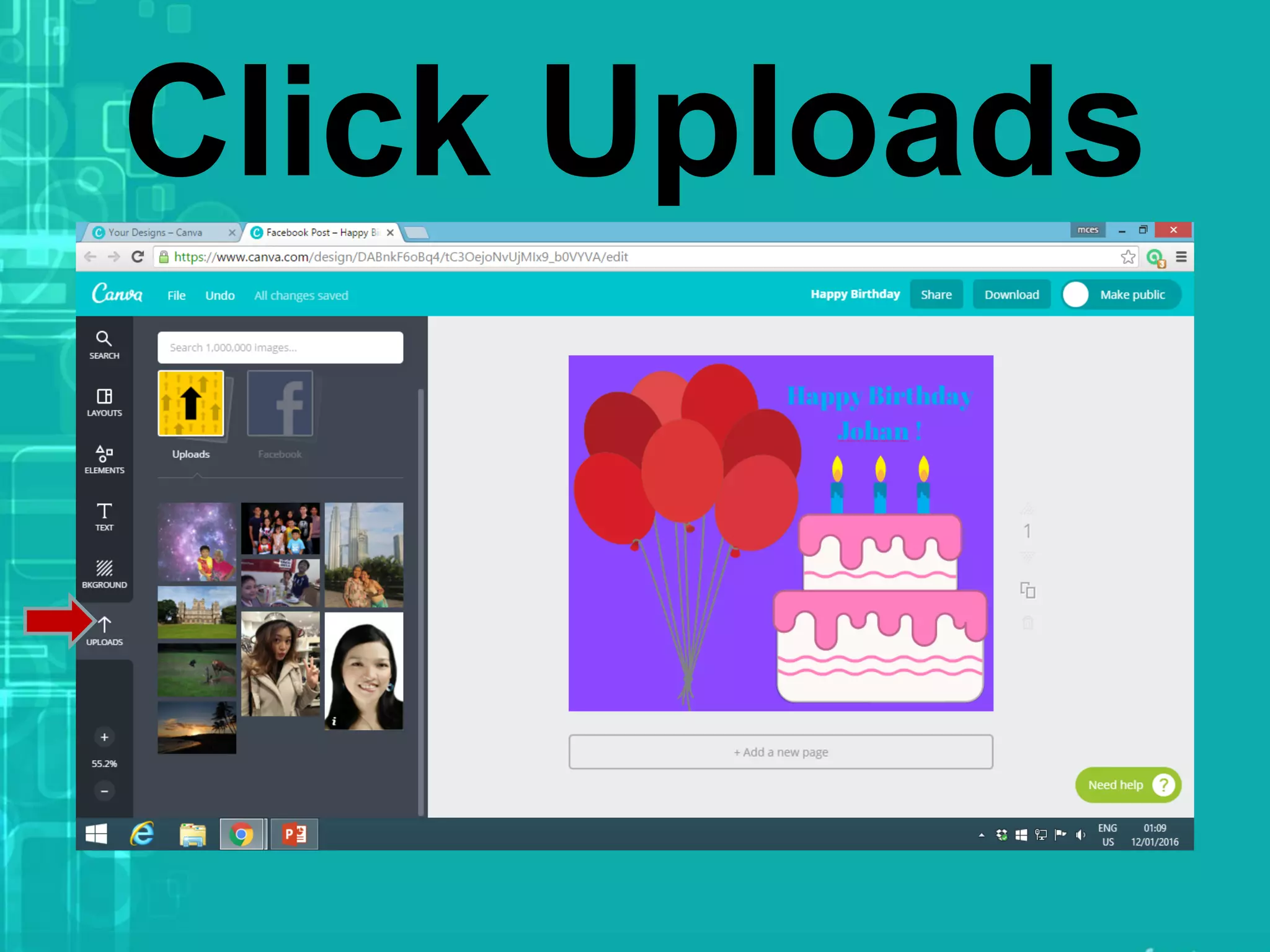
Click Uploads
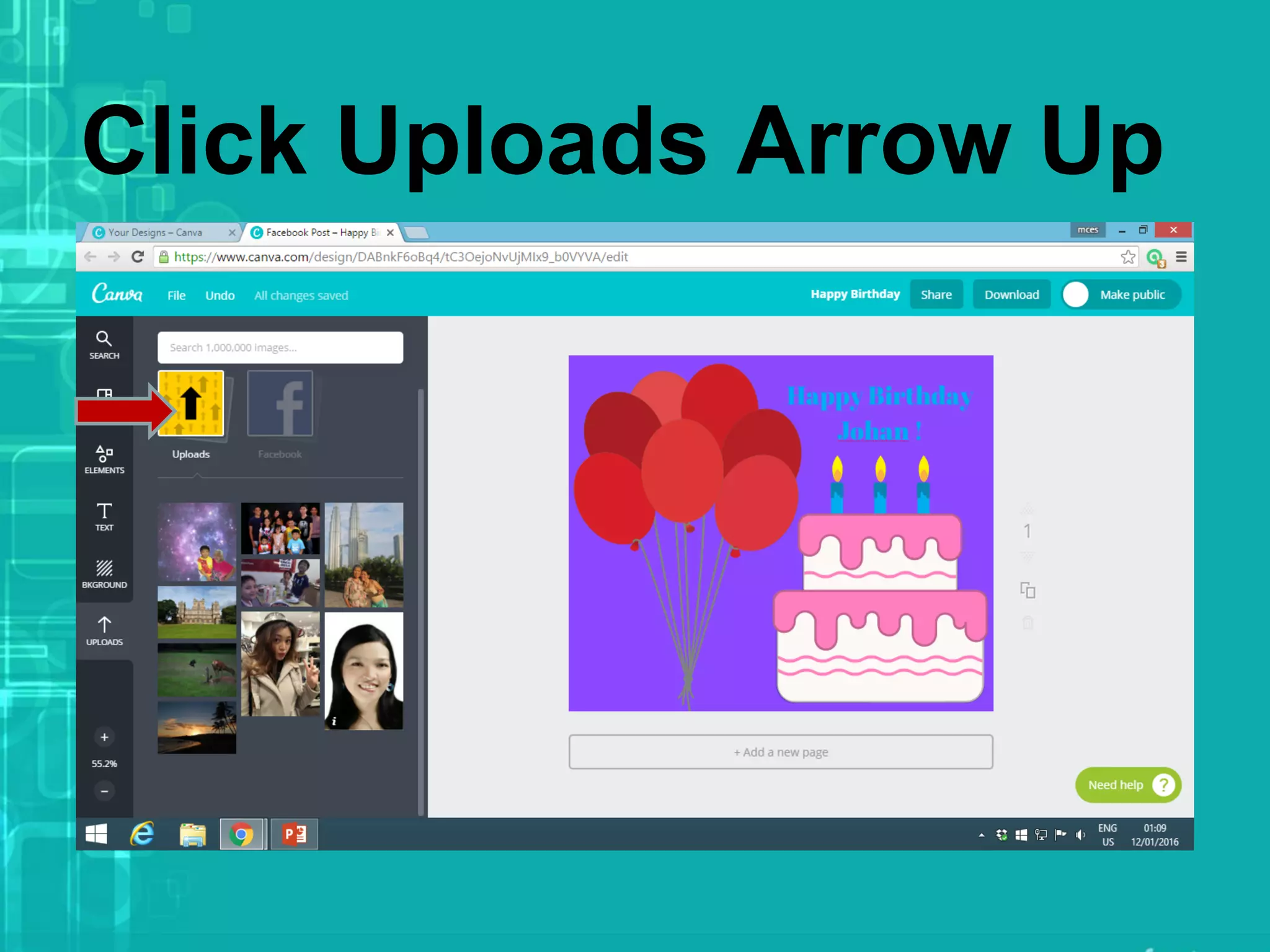
Click Uploads Arrow Up
How to explore
other designs?
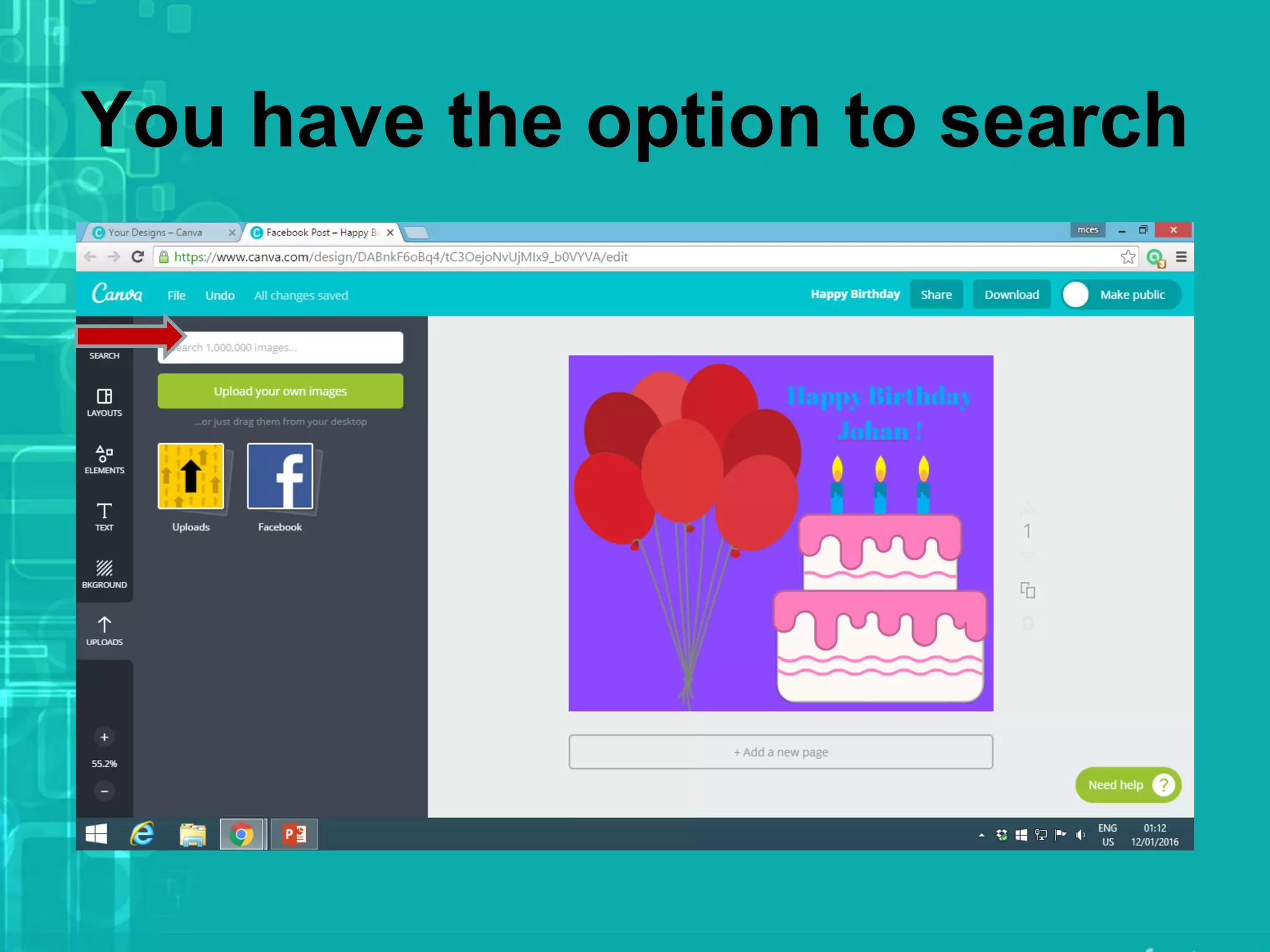
You have the option to search
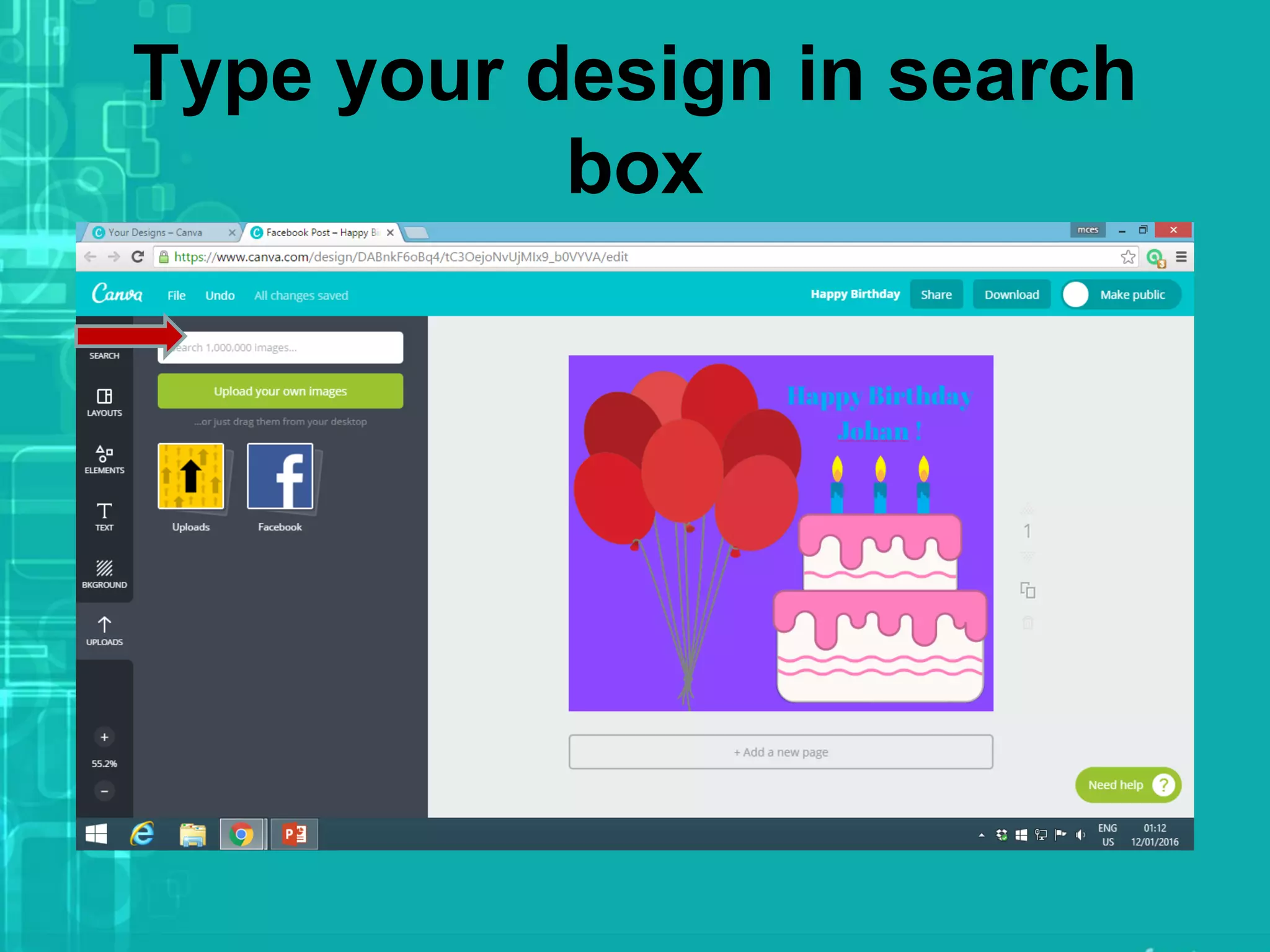
Type your design in search
box
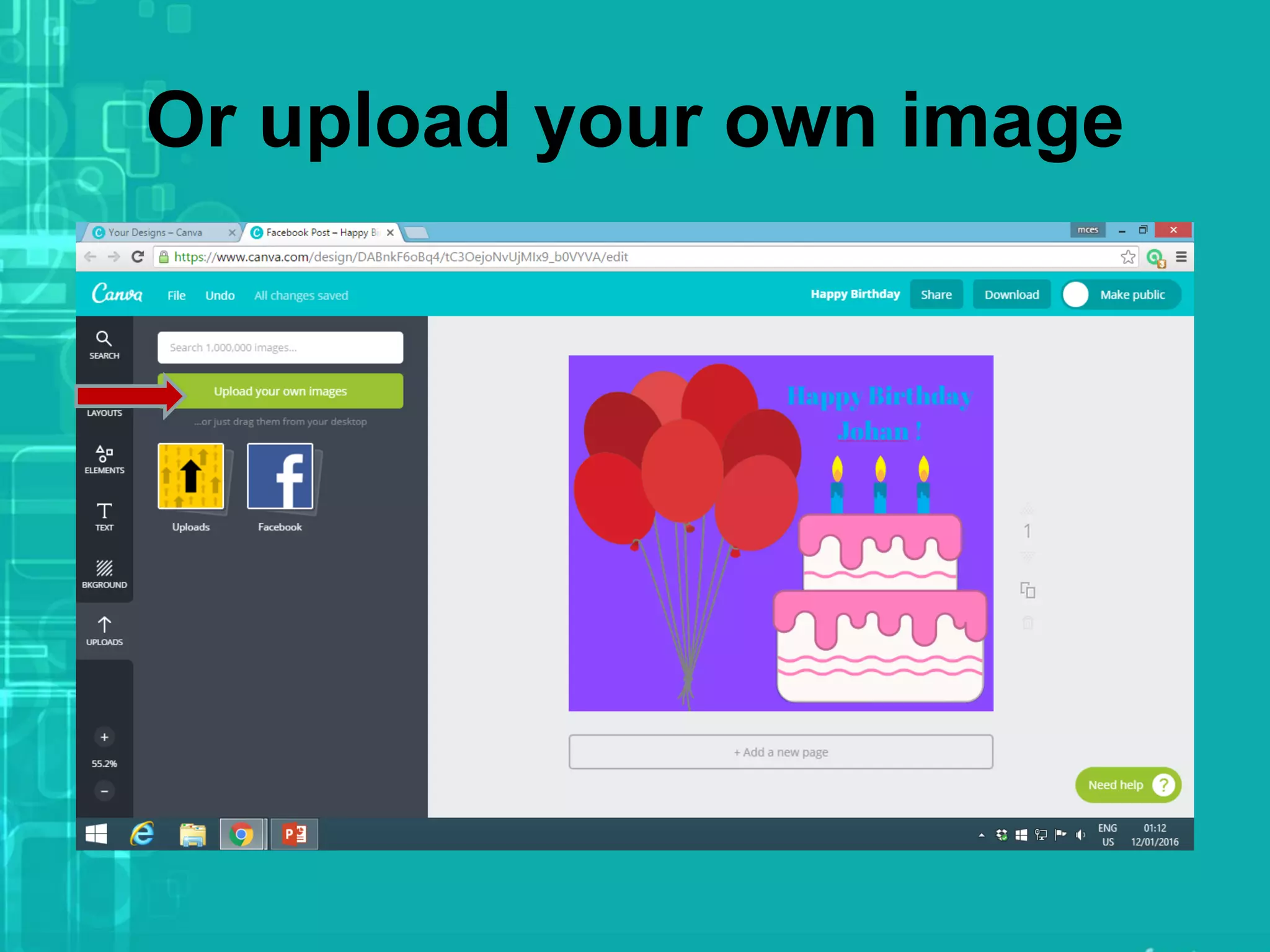
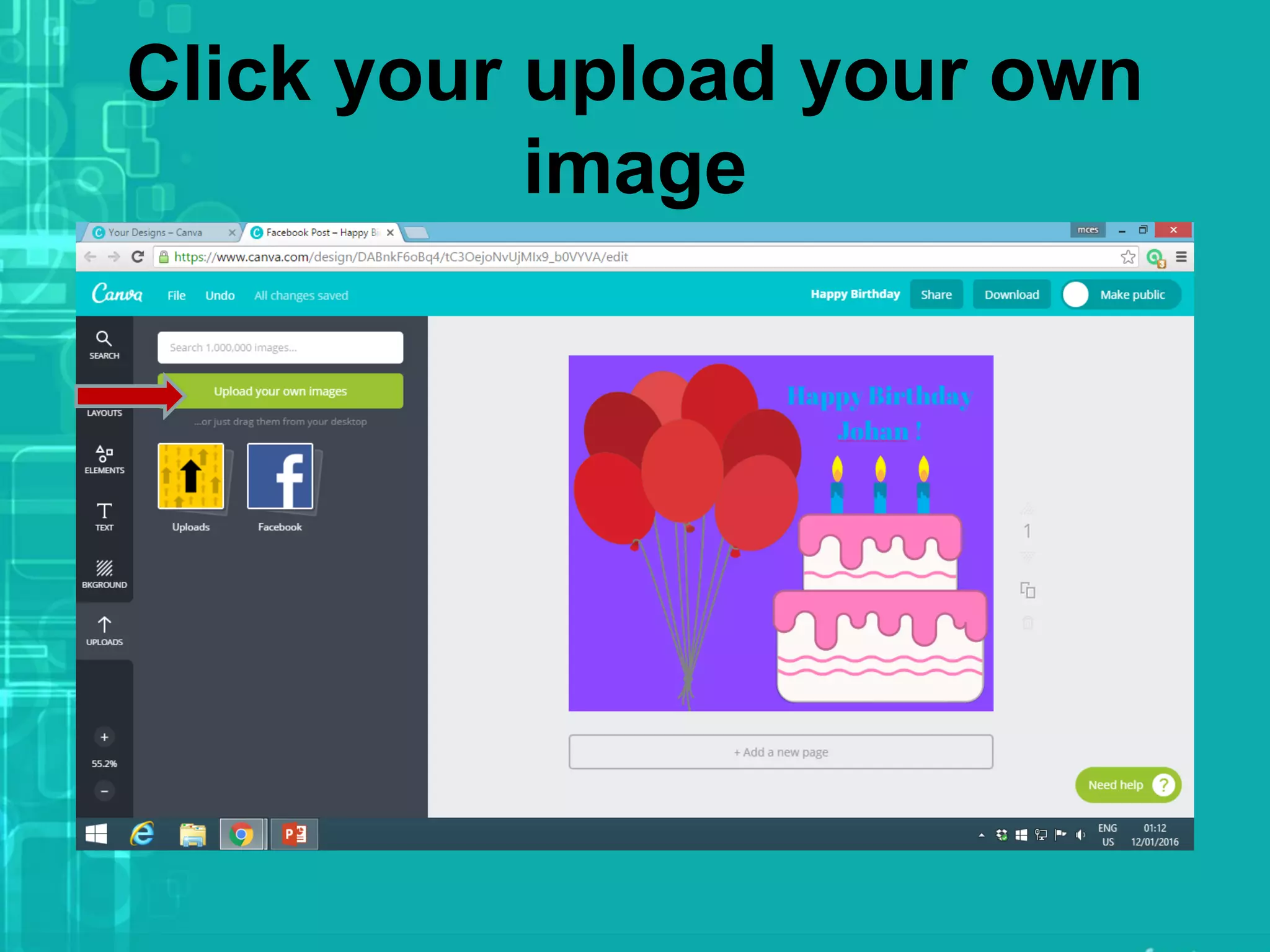
Or upload your own image
Click your upload your own
image
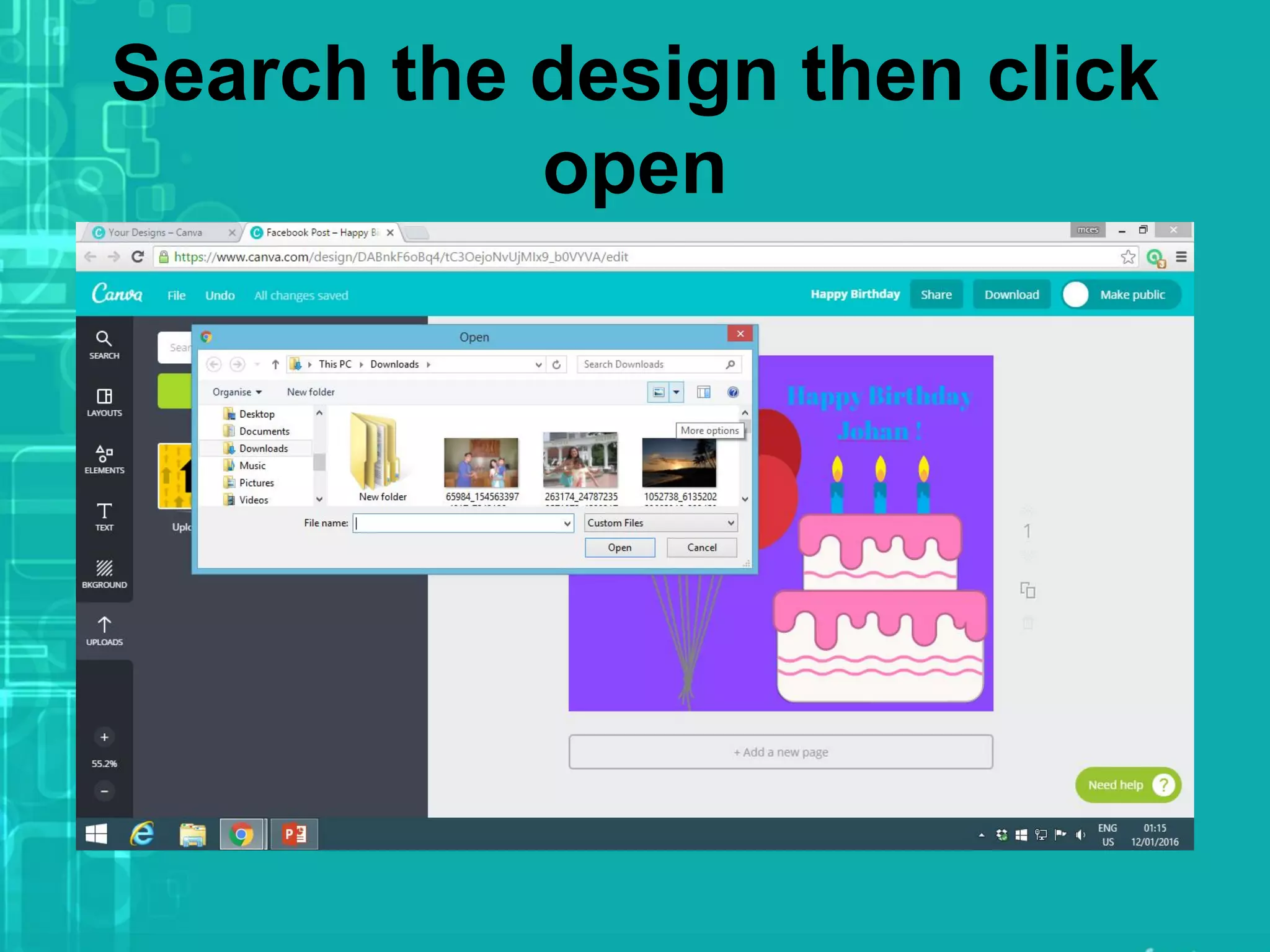
Search the design then click
open
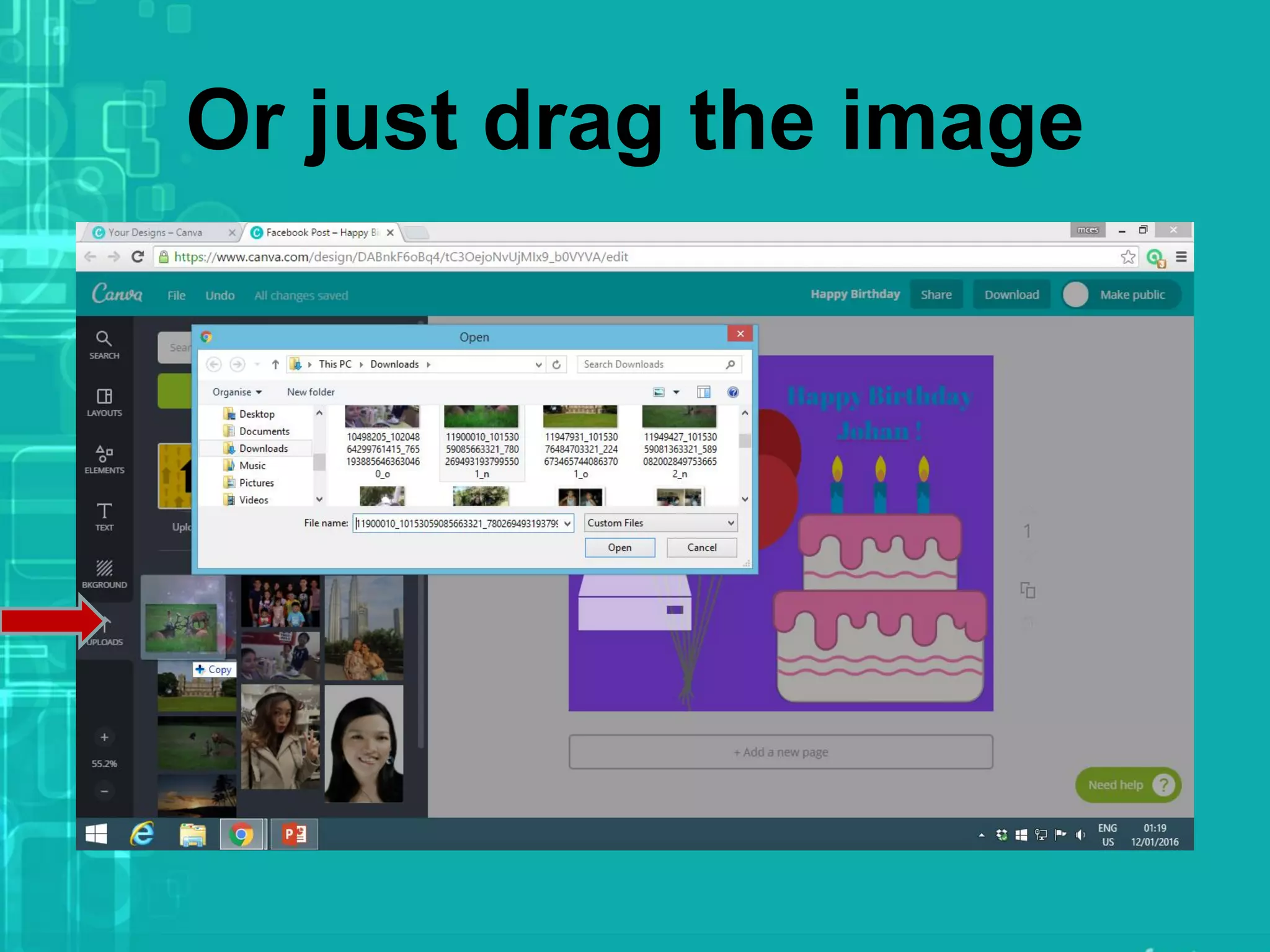
Or just drag the image
Very simple
your design is
already save in
your Canva list
Canva makes
designing
uniformly easy
for everyone!
Step by step Guide on How to use Canva

Step by step Guide on How to use Canva