Hootsuite.com
HOW TO USE
What
is
Hootsuite?
Hootsuite is a social media
management tool that allows
users to schedule and post
updates to any pages or profiles
Facebook, Twitter, LinkedIn,
Google+, Instagram,
WordPress and others from
one place
I will teach you
How to log in
How to sign up
How to connect your Social Media
accounts
How to schedule a post
Let’s start
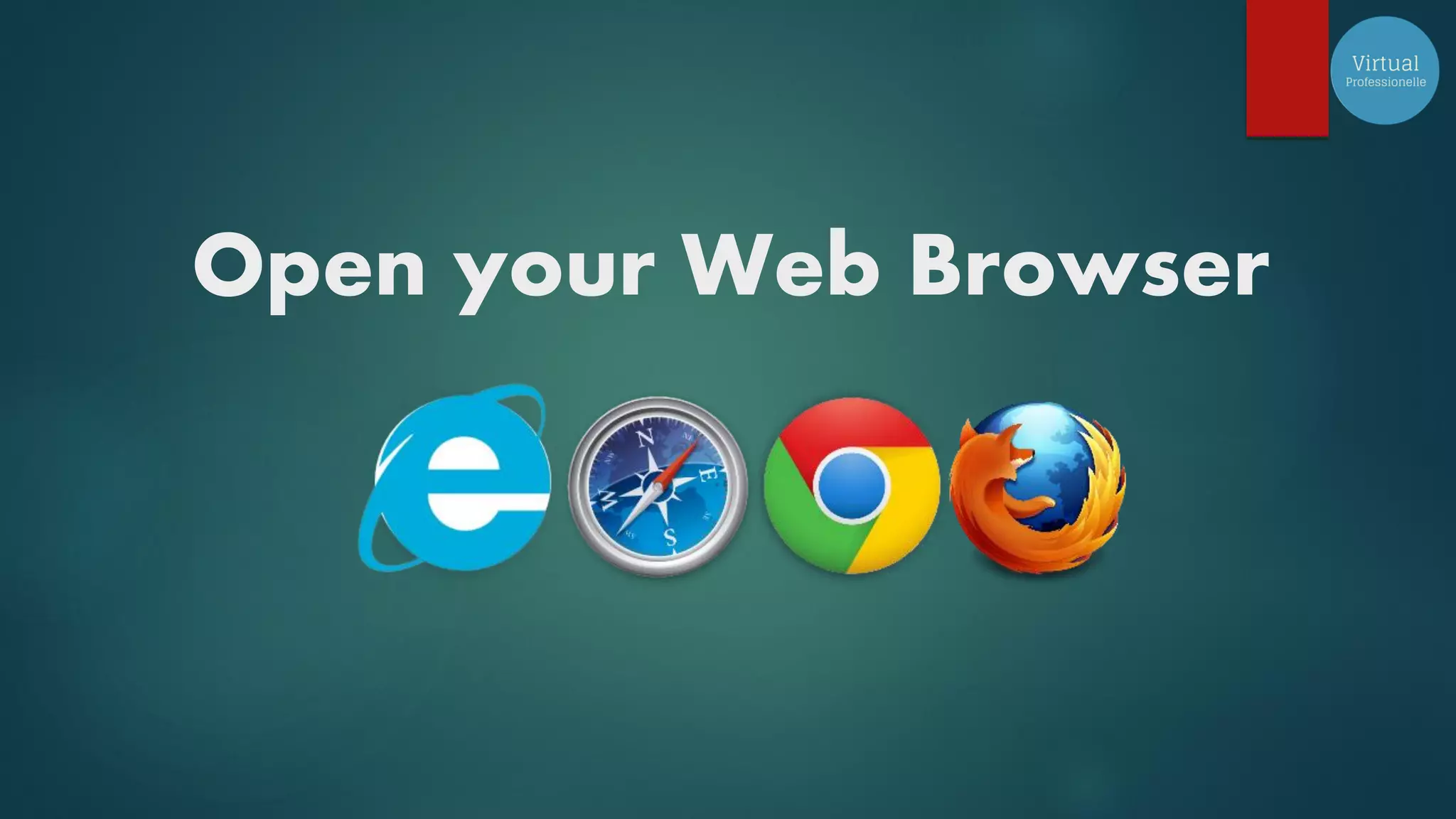
Open your Web Browser
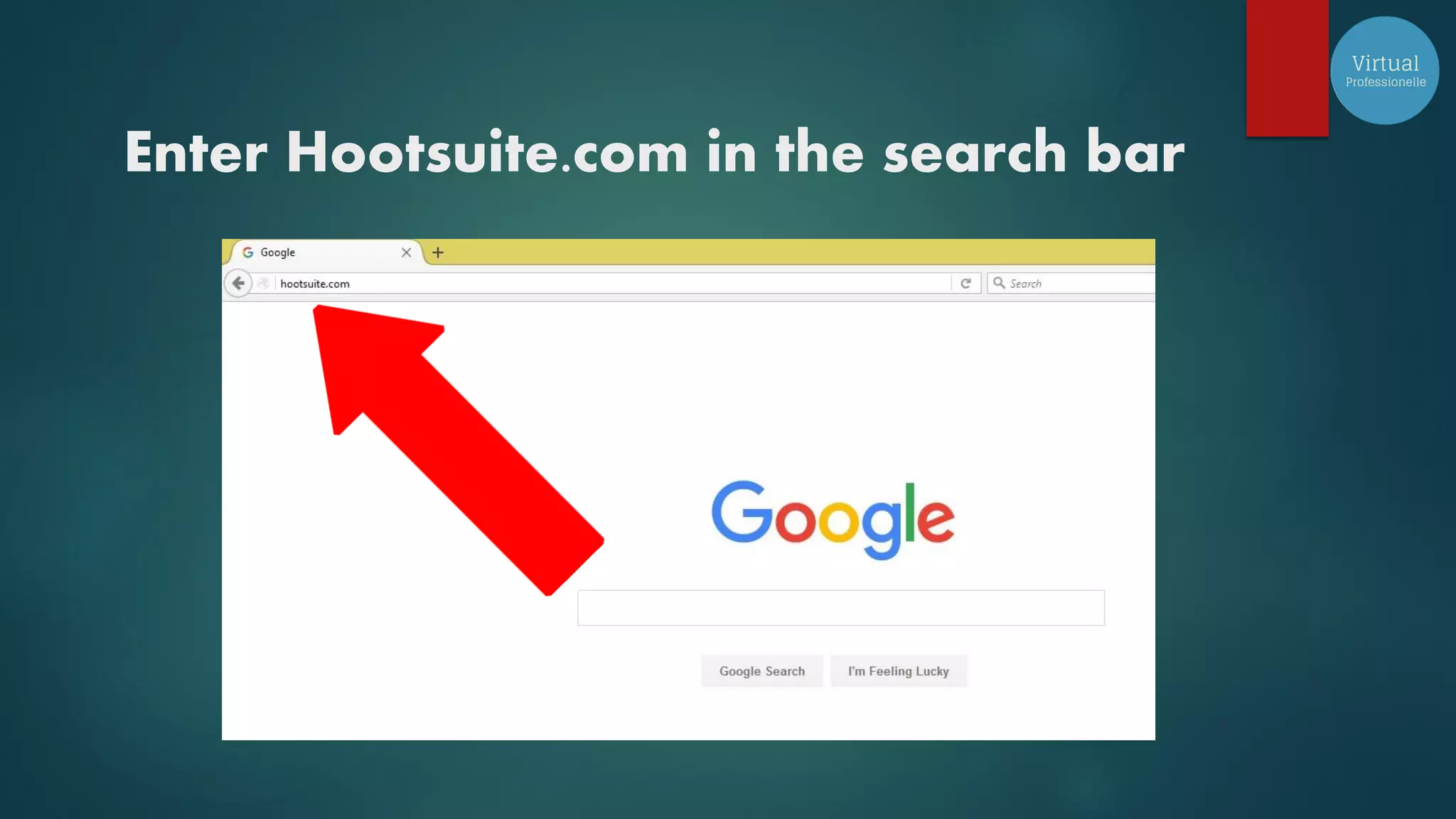
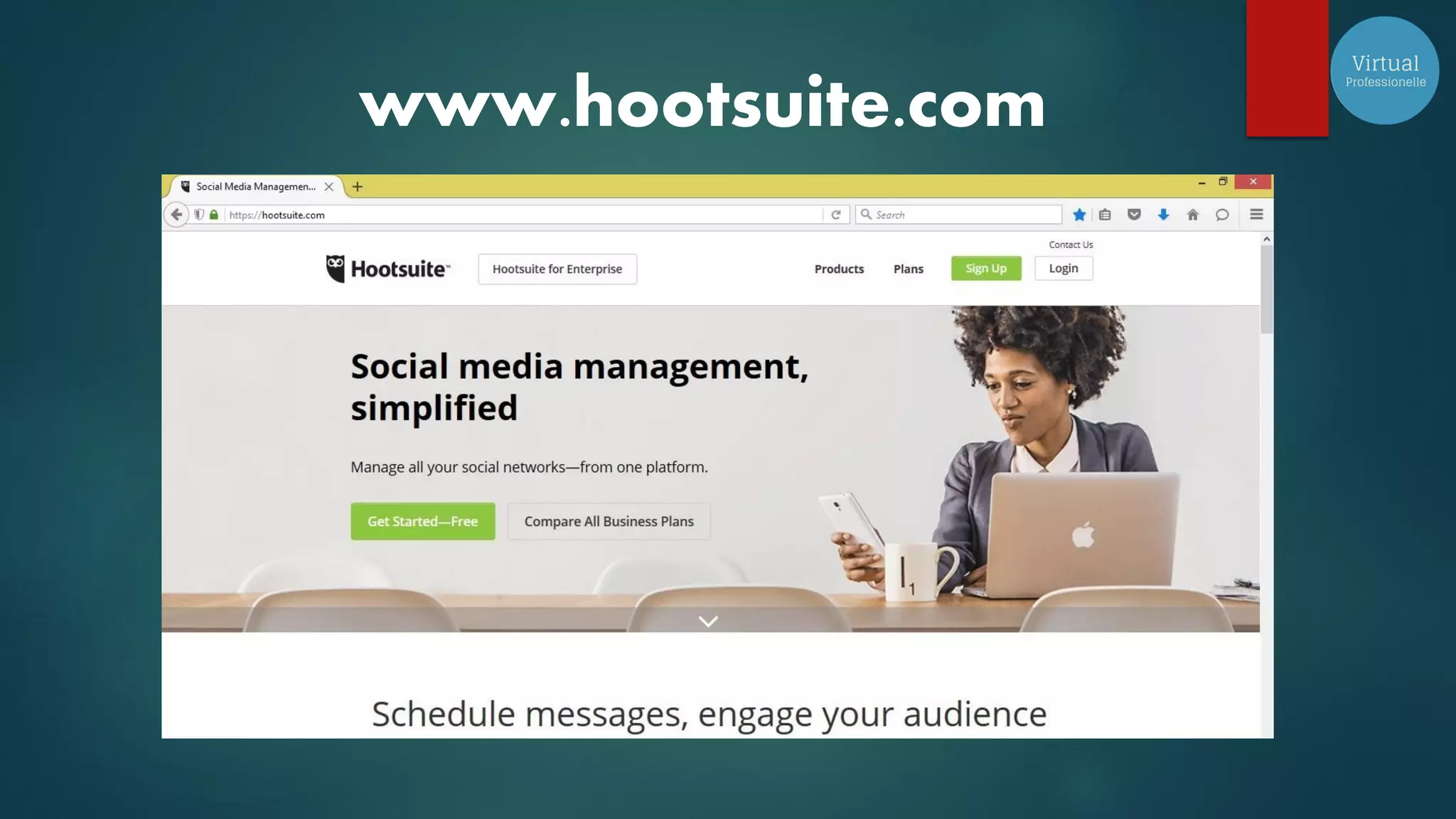
Enter Hootsuite.com in the search bar
www.hootsuite.com
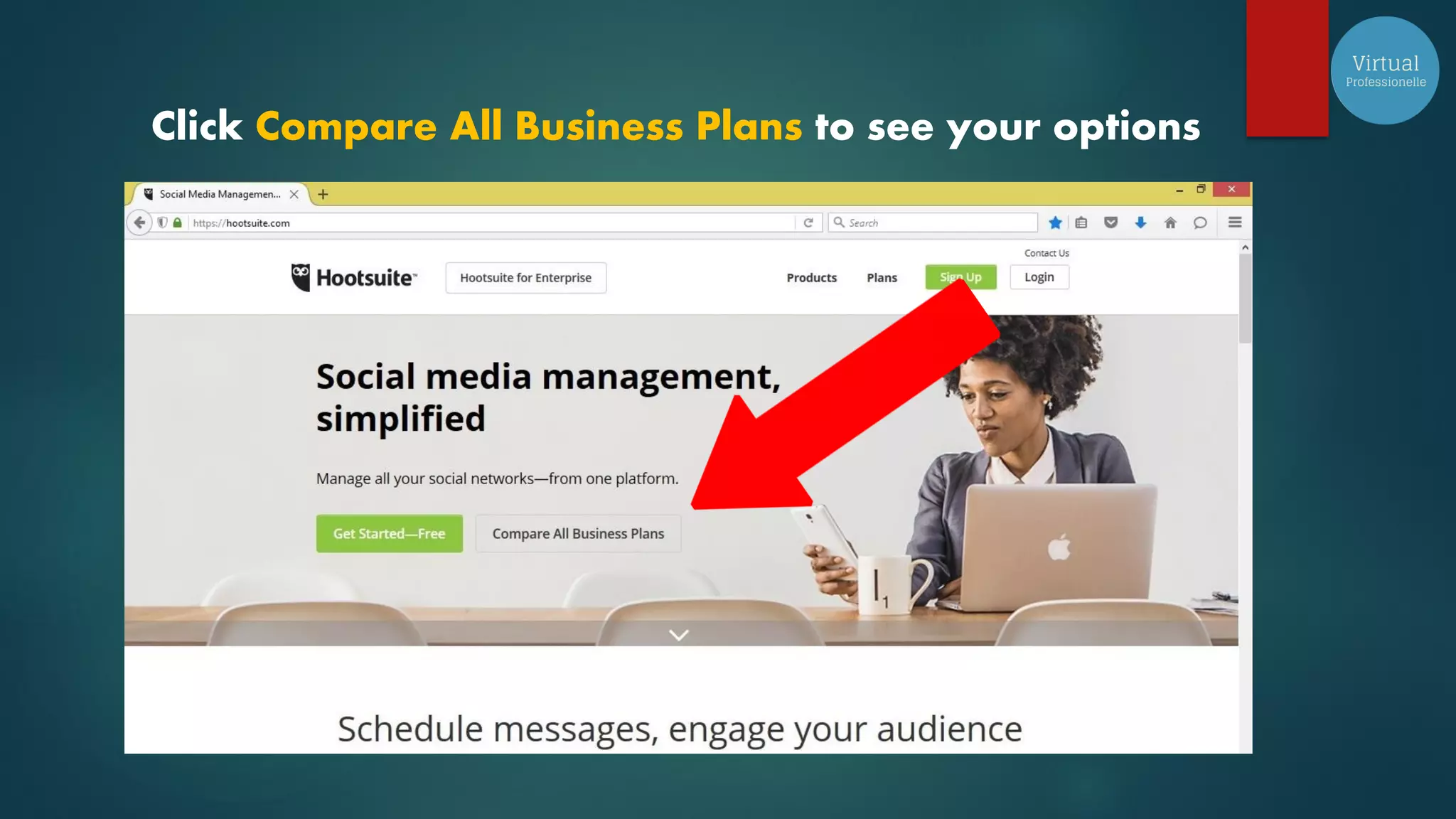
Click Compare All Business Plans to see your options
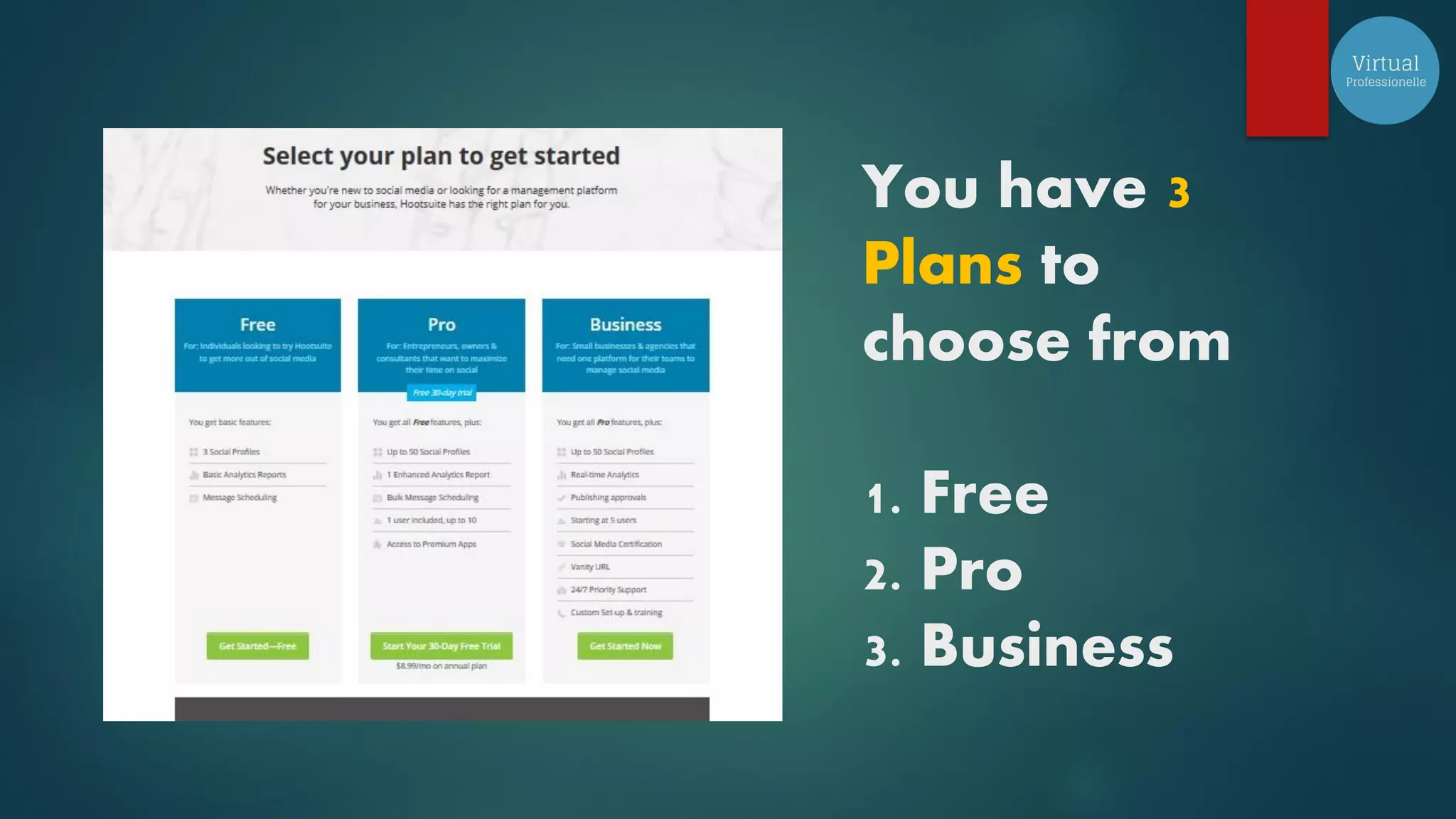
You have 3
Plans to
choose from
1. Free
2. Pro
3. Business
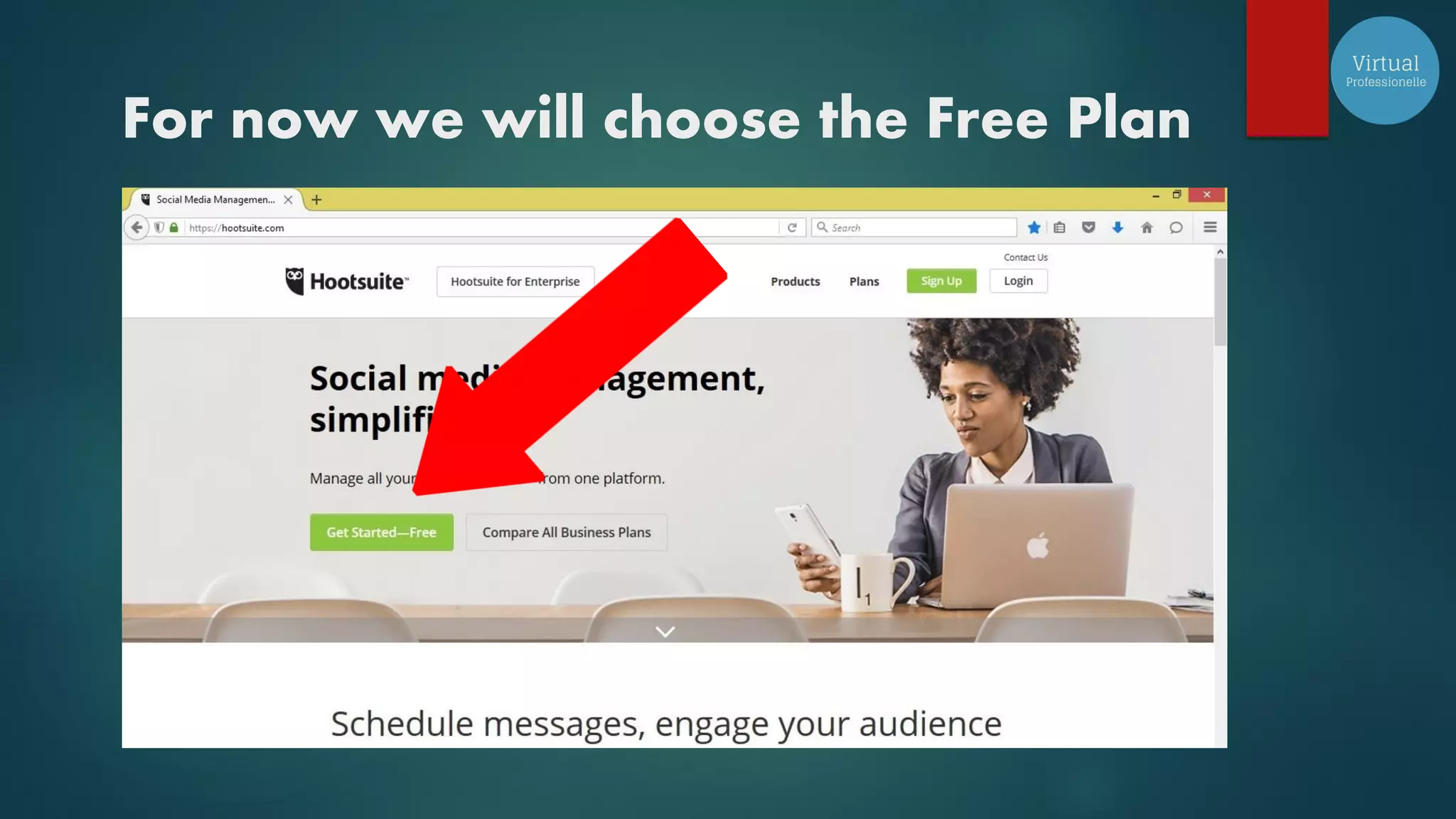
For now we will choose the Free Plan
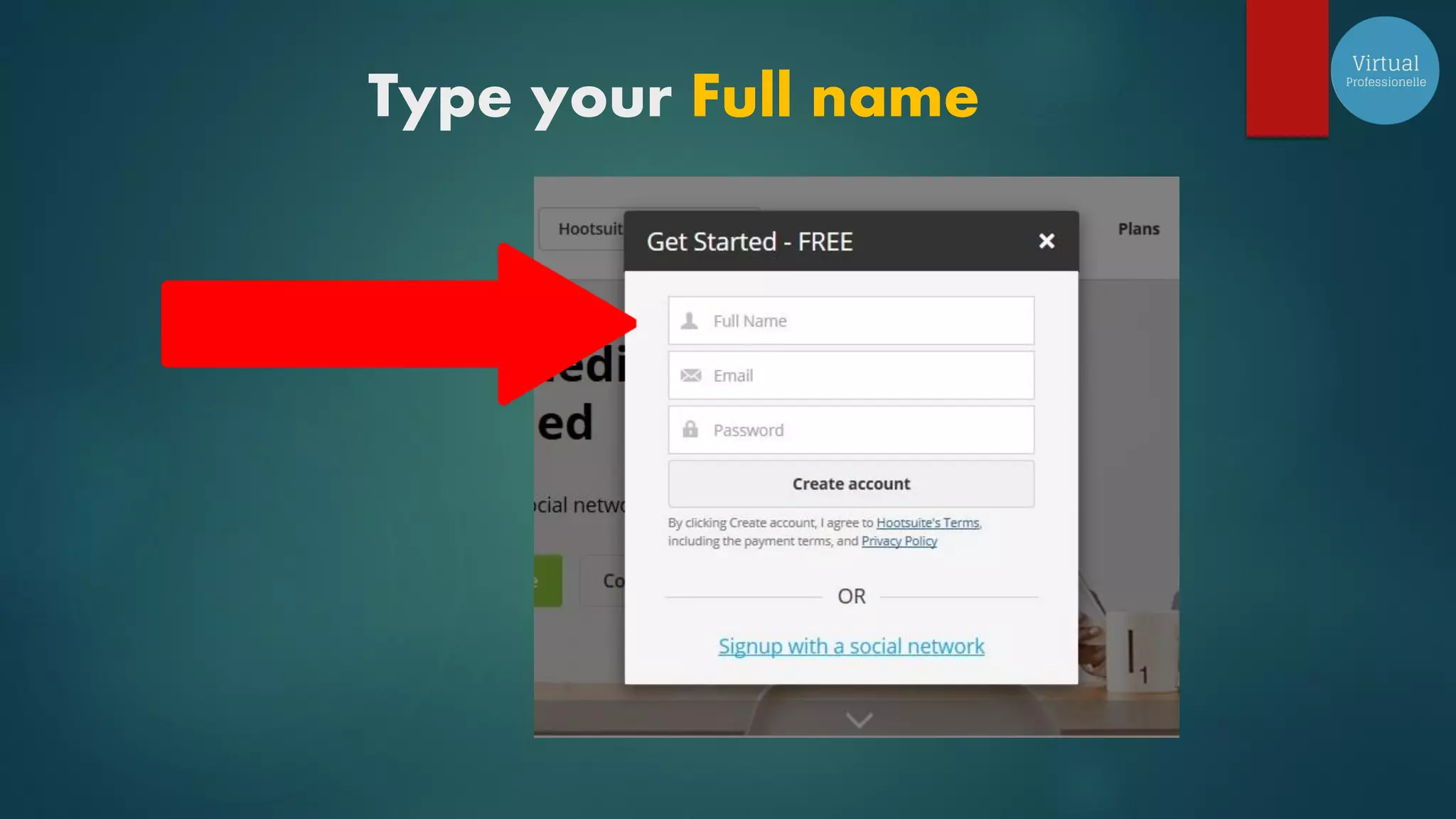
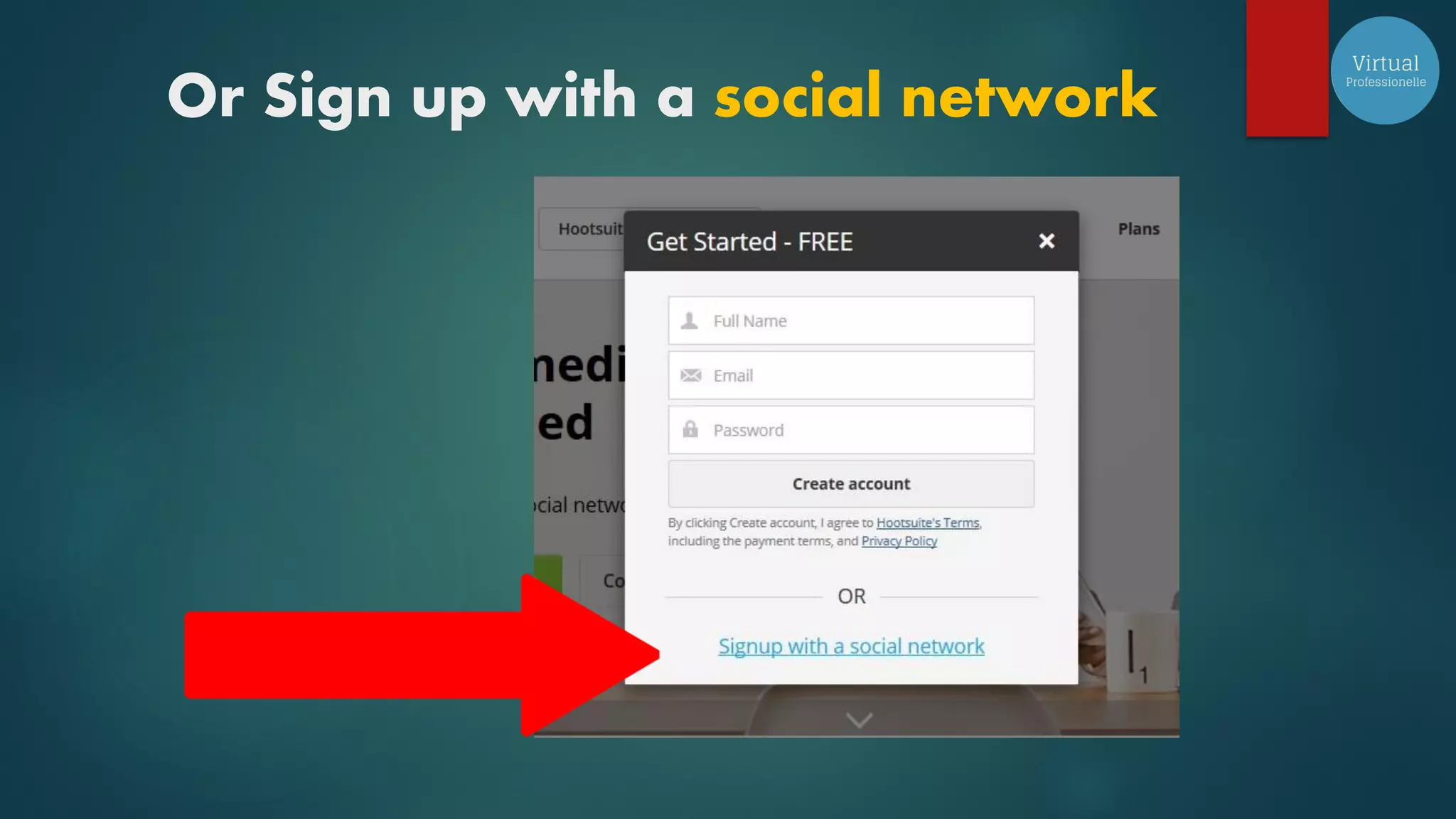
Type your Full name
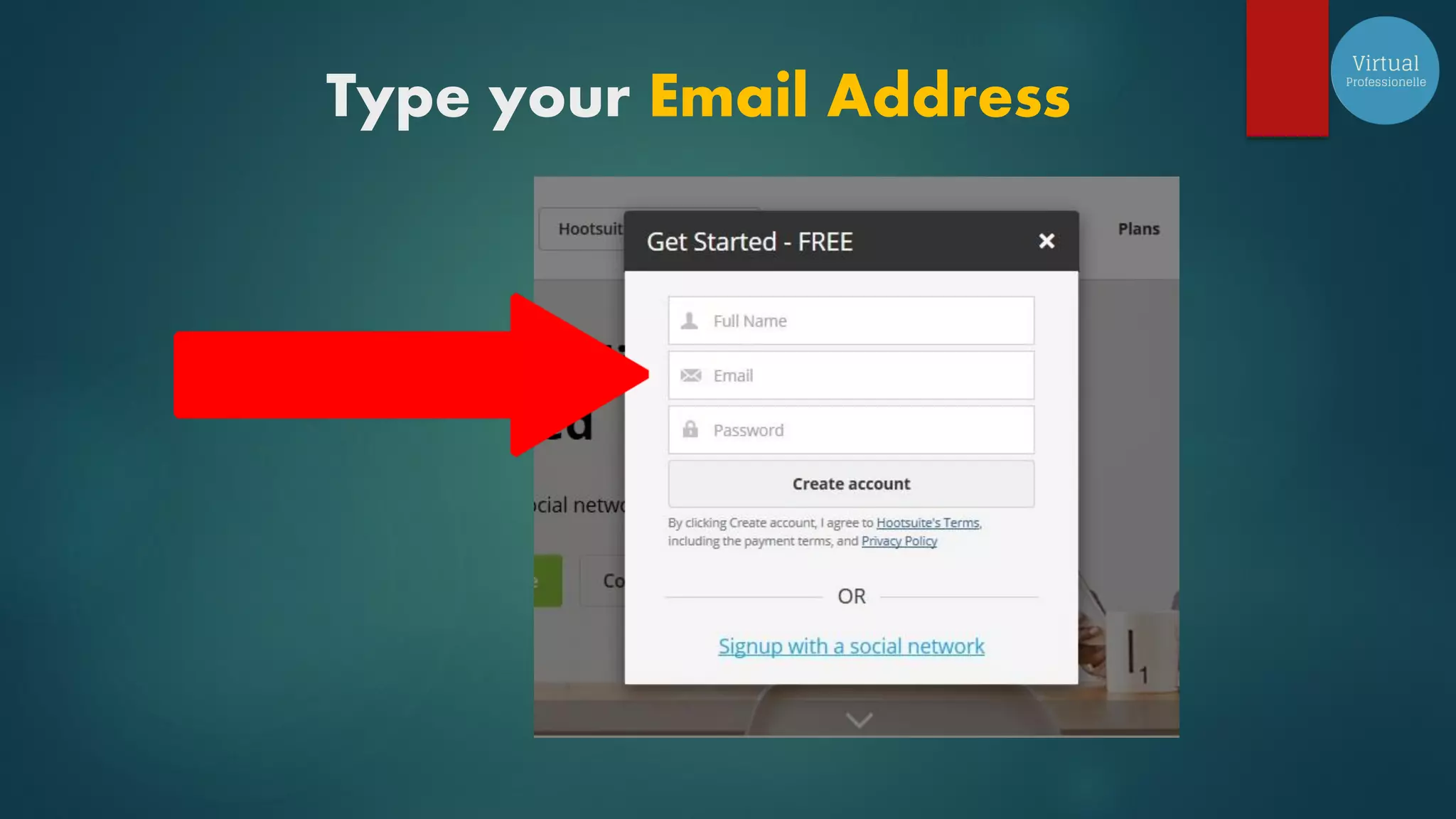
Type your Email Address
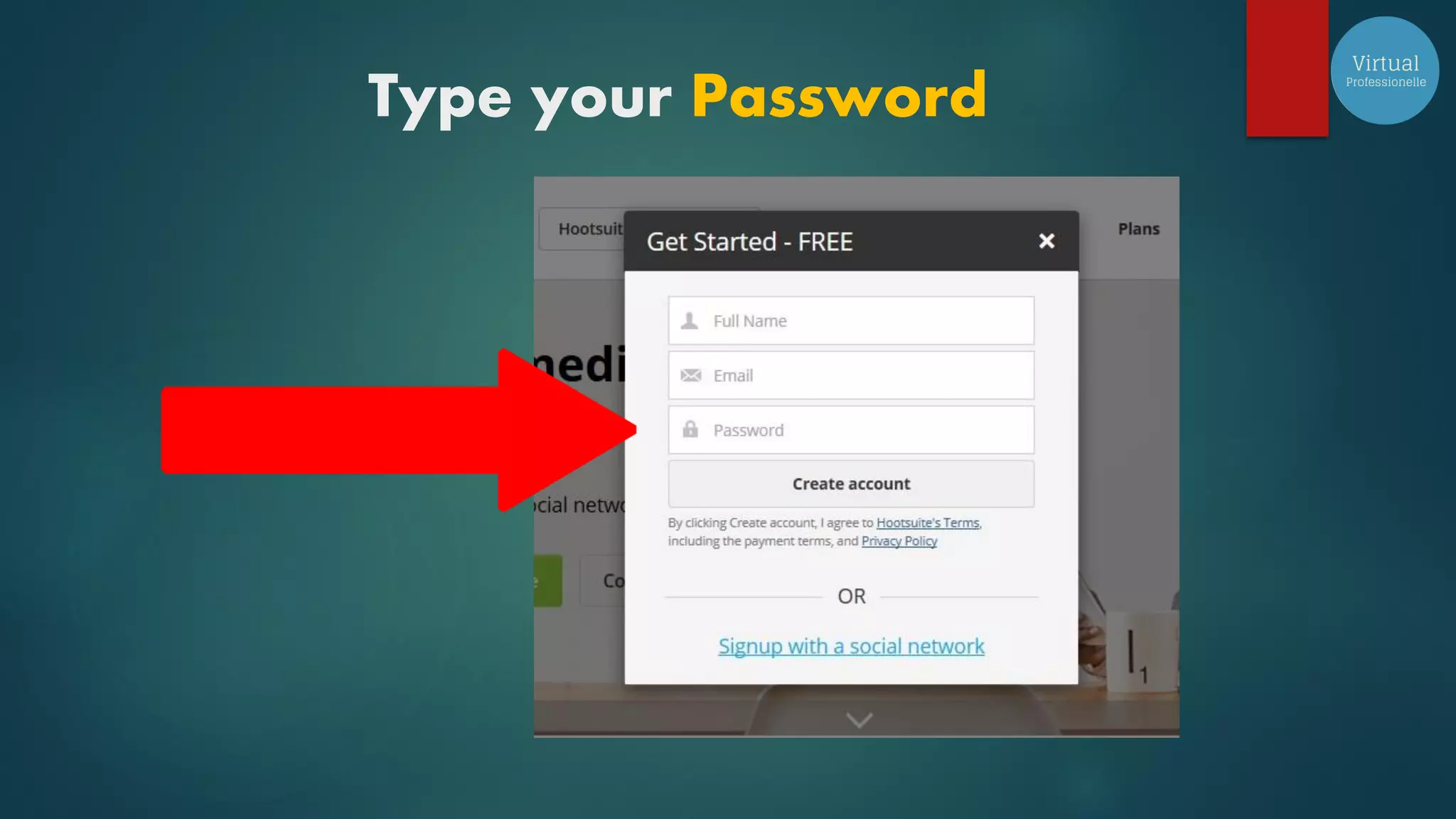
Type your Password
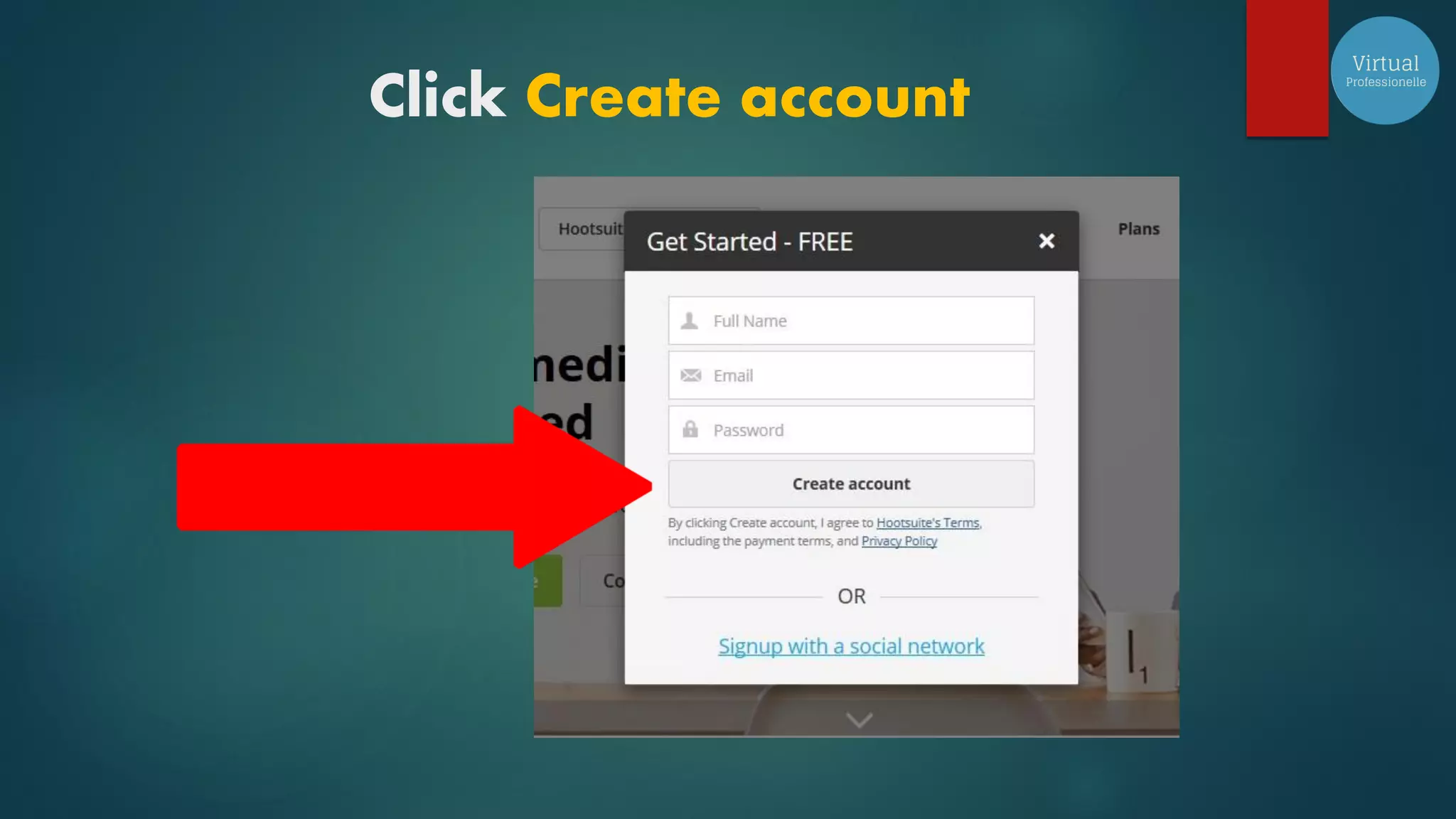
Click Create account
Or Sign up with a social network
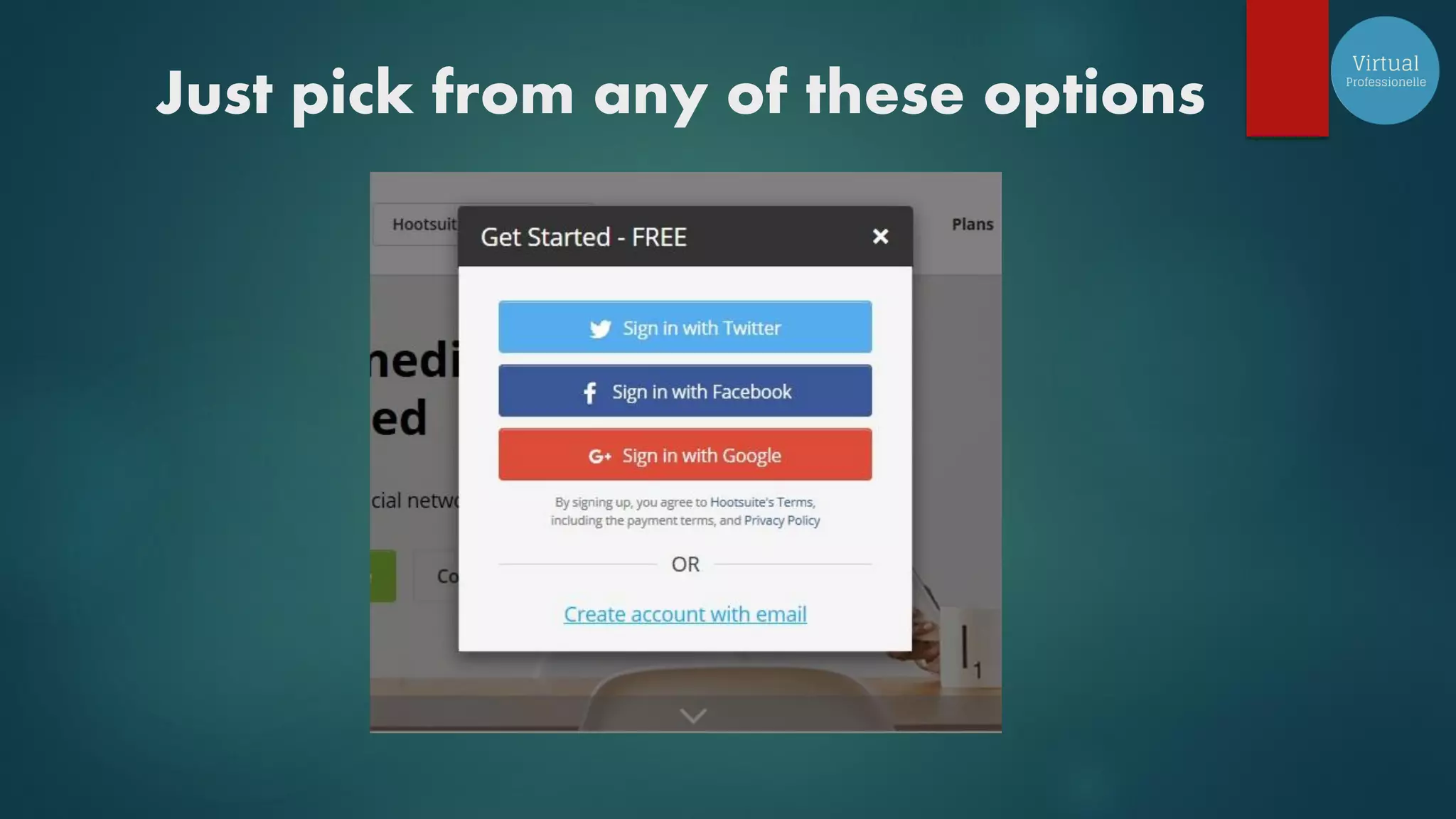
Just pick from any of these options
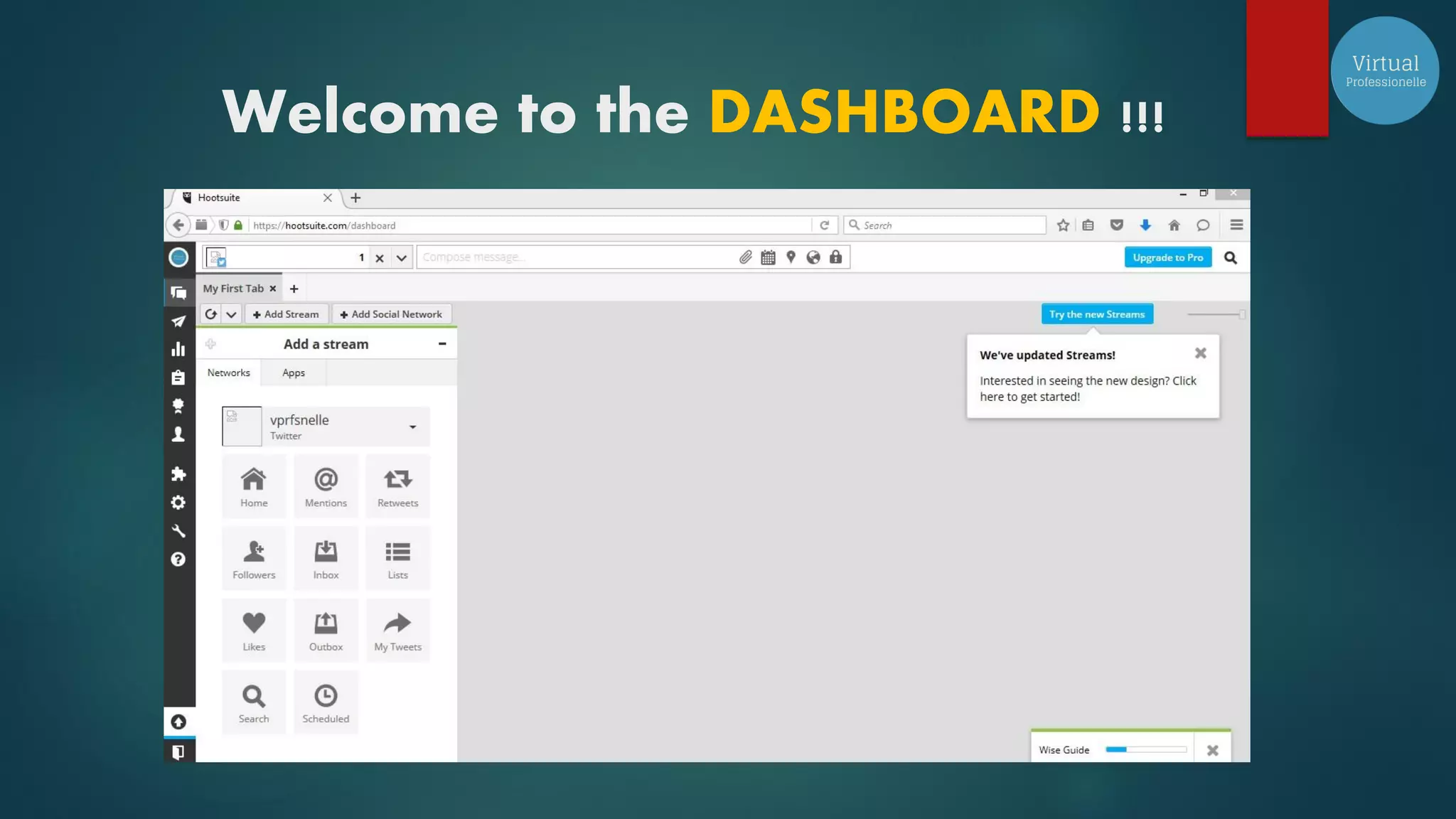
Welcome to the DASHBOARD !!!
Once you have set up
your account
You can download the app in
your iPhone
your tablet, android phone or to
your iPad
The convenience of managing
your social media accounts using
Hootsuite app
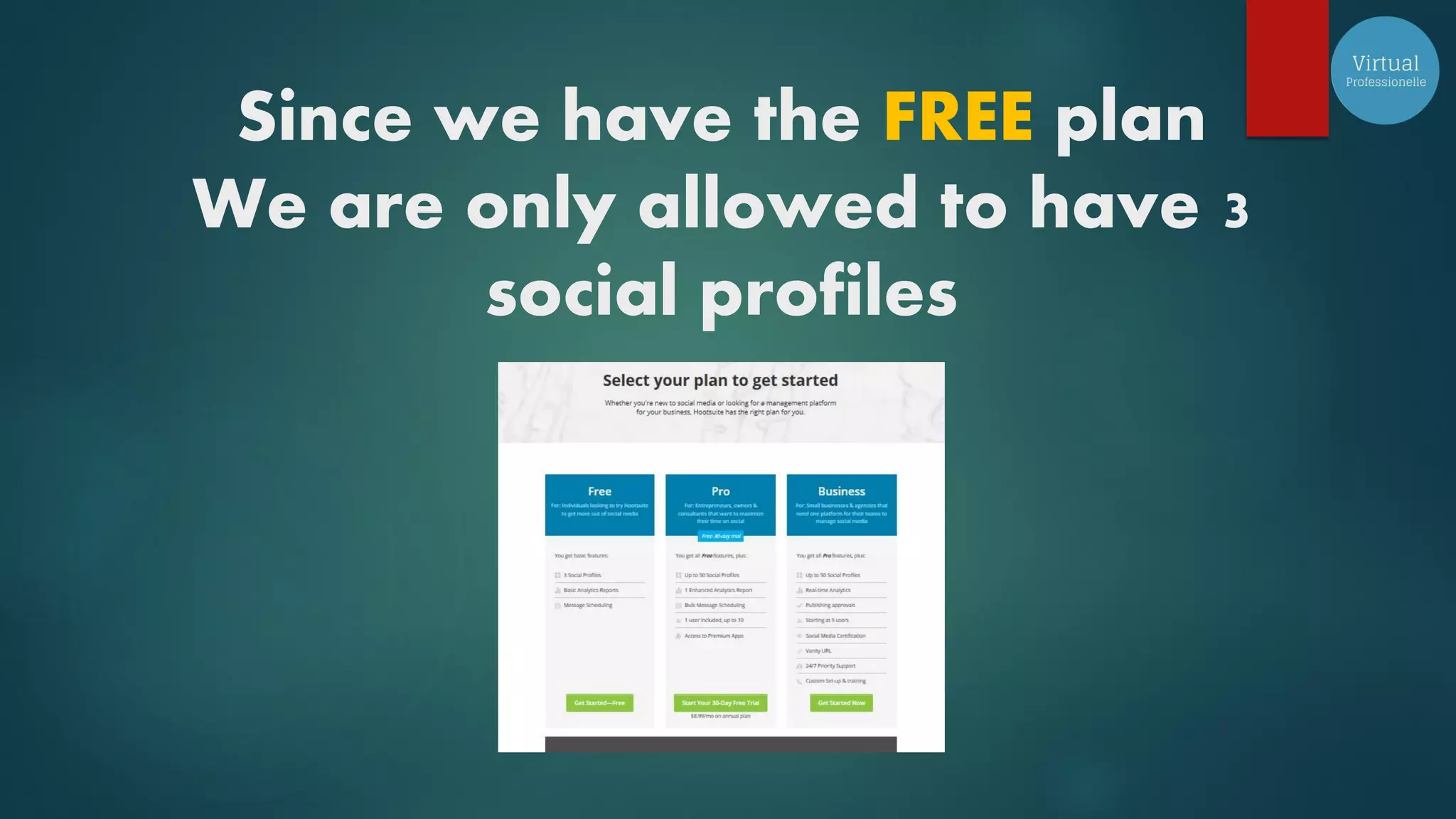
Since we have the FREE plan
We are only allowed to have 3
social profiles
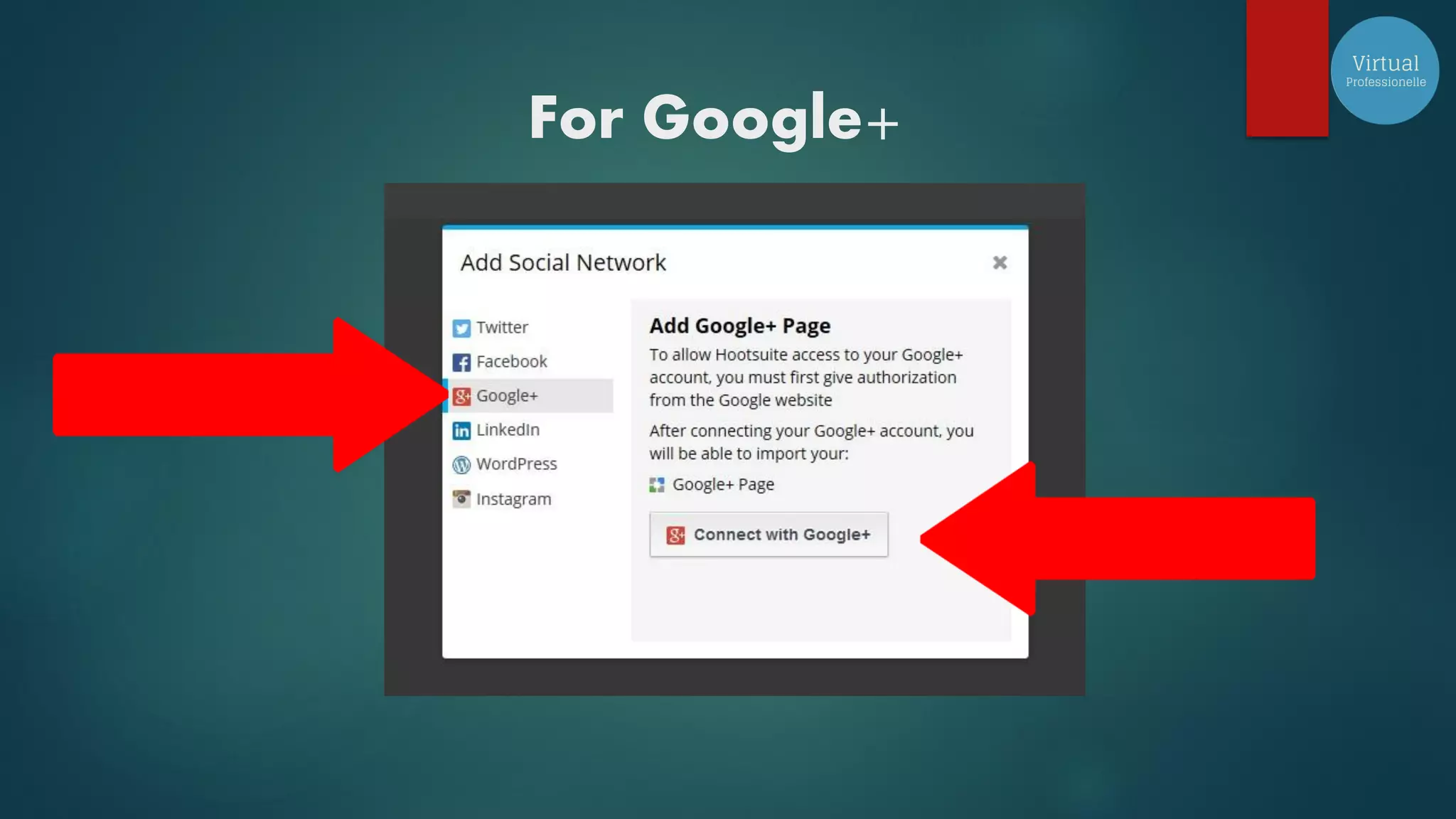
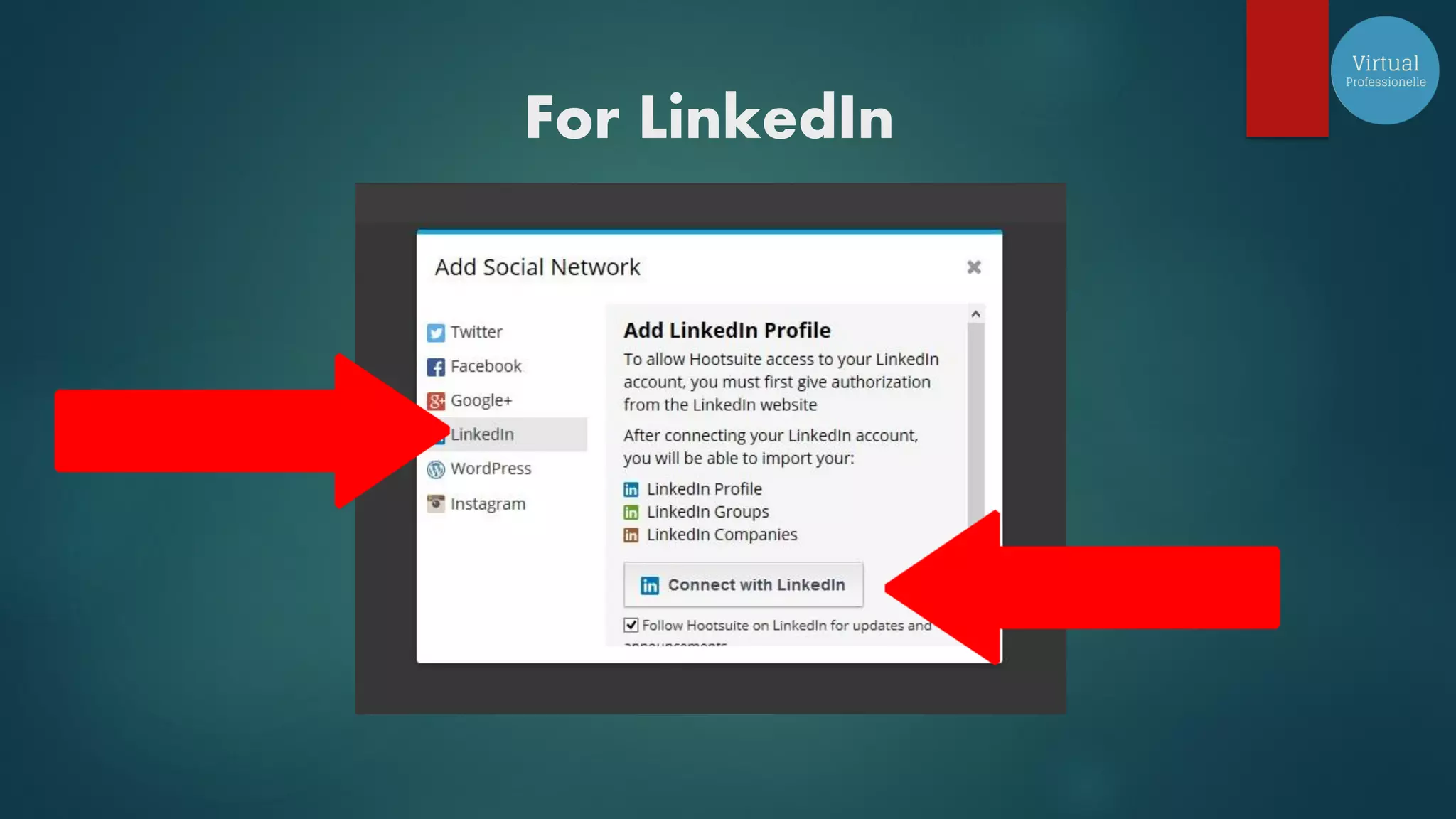
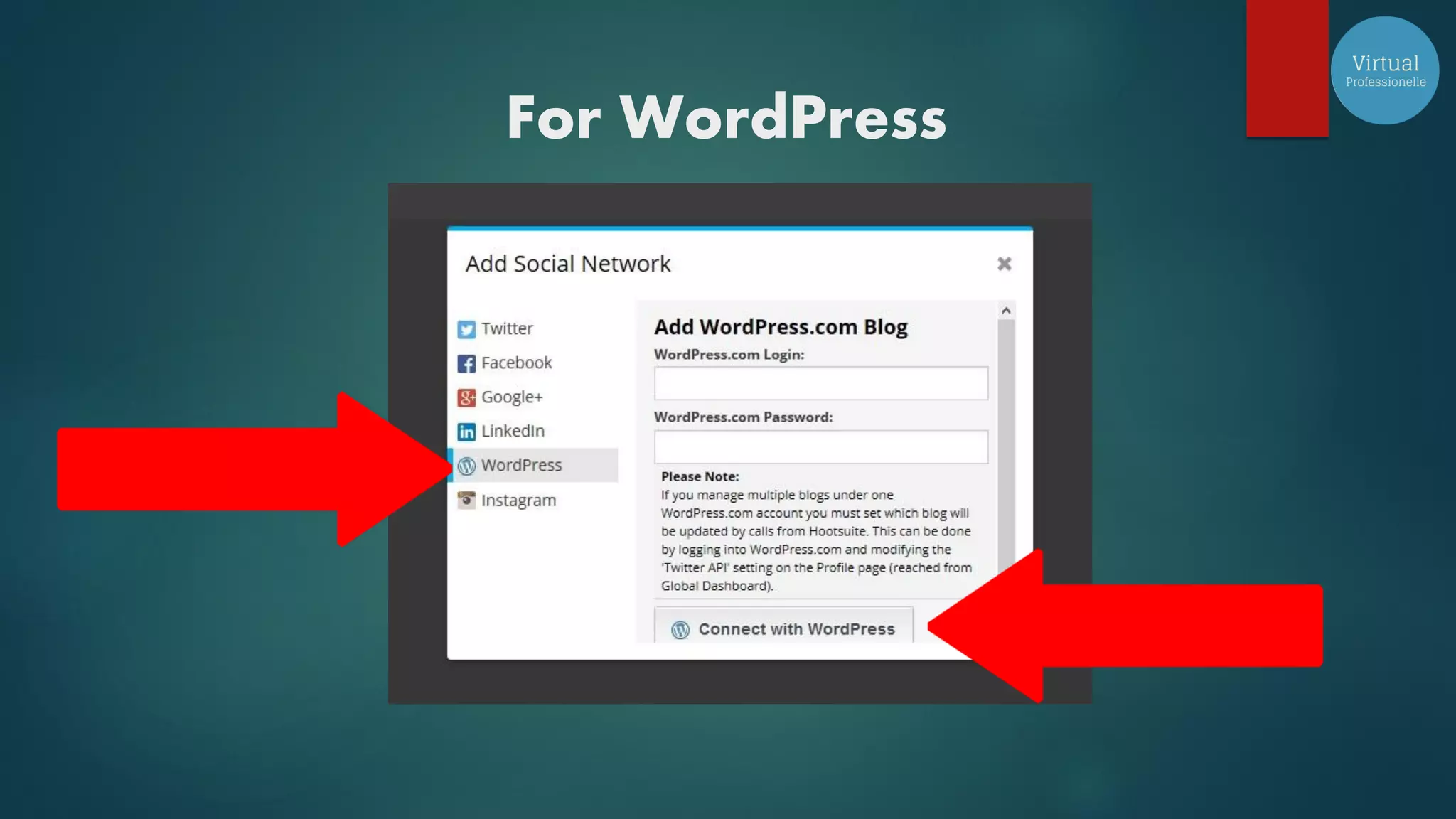
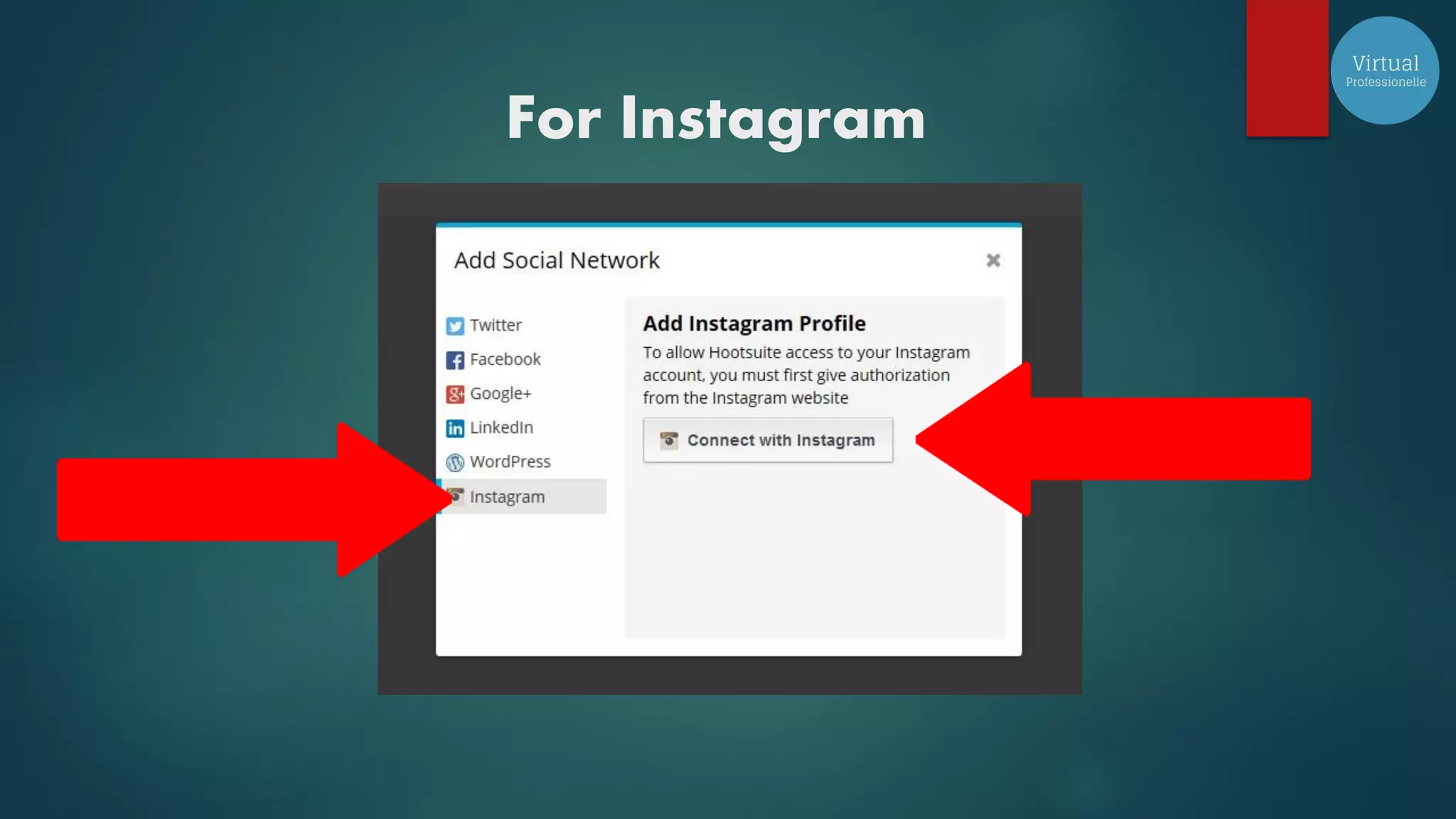
To add a social network
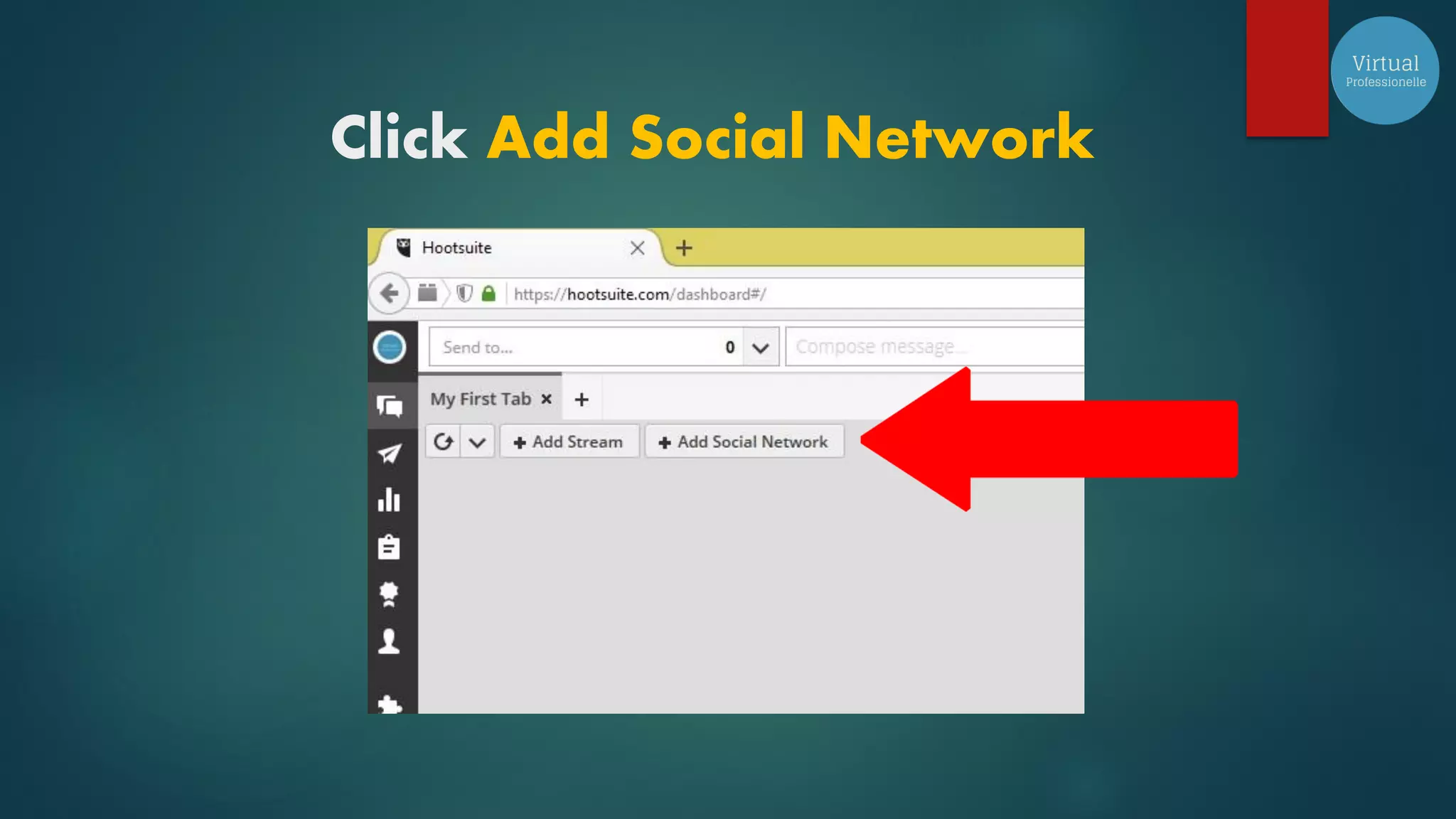
Click Add Social Network
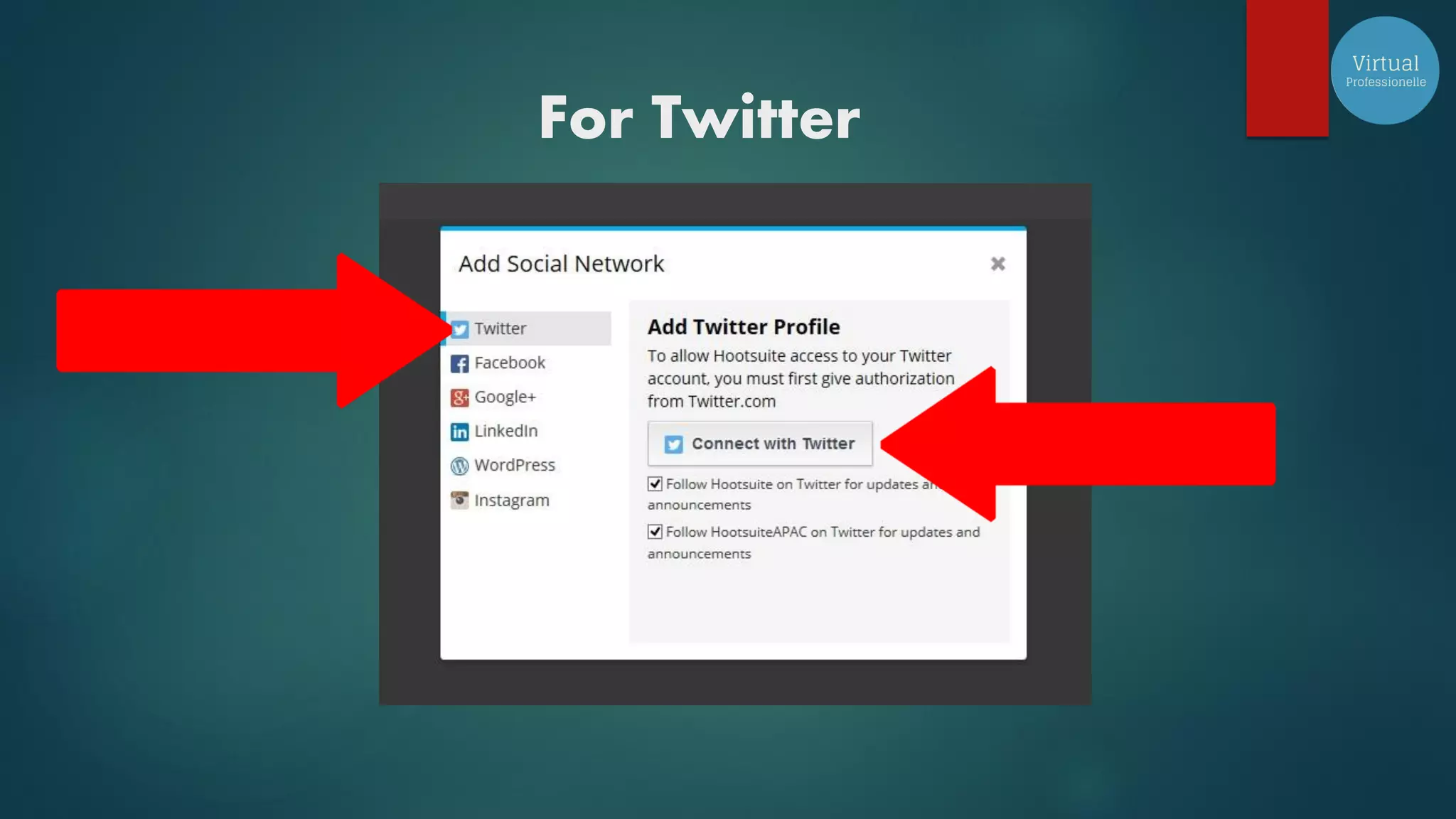
For Twitter
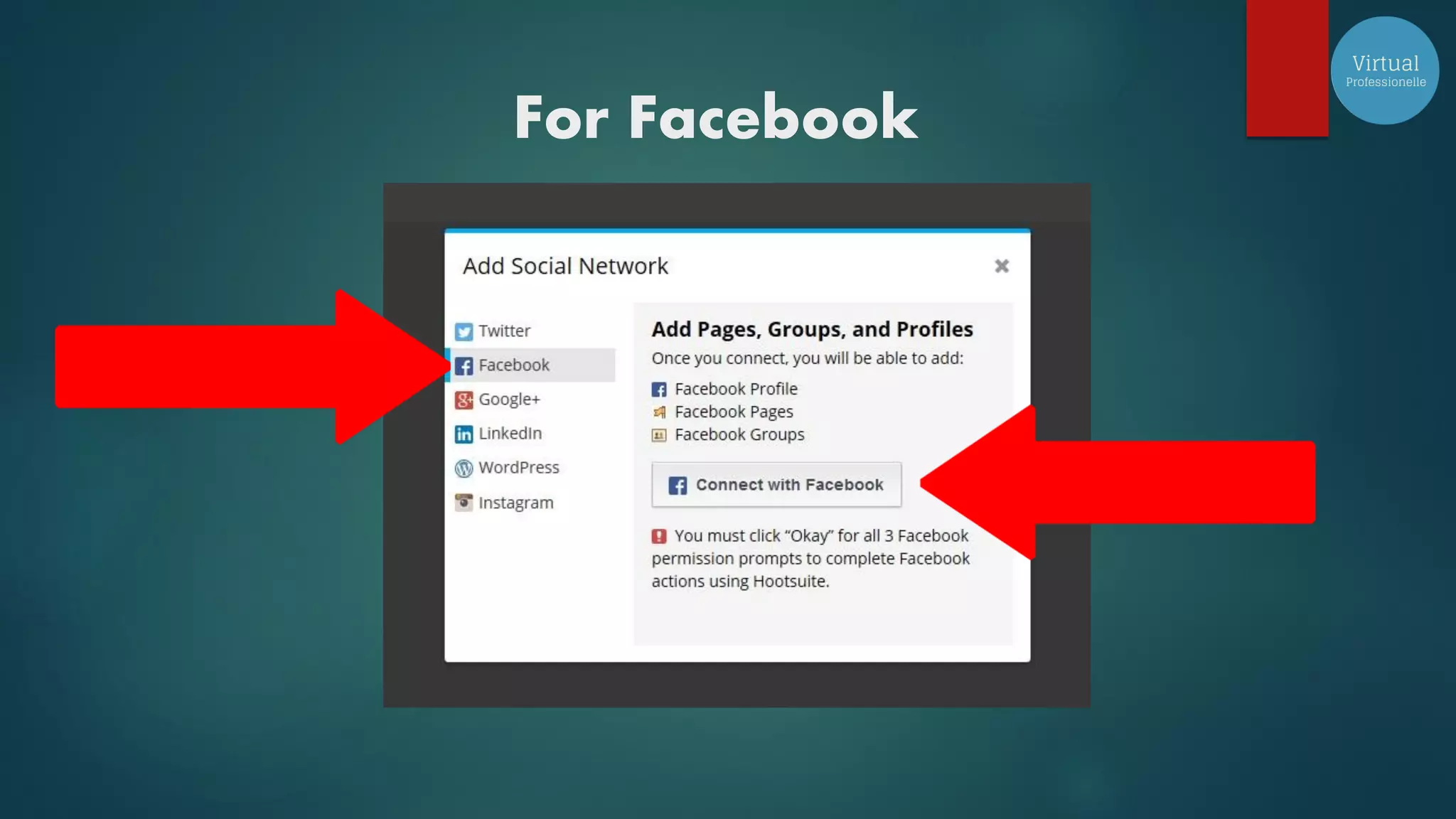
For Facebook
For Google+
For LinkedIn
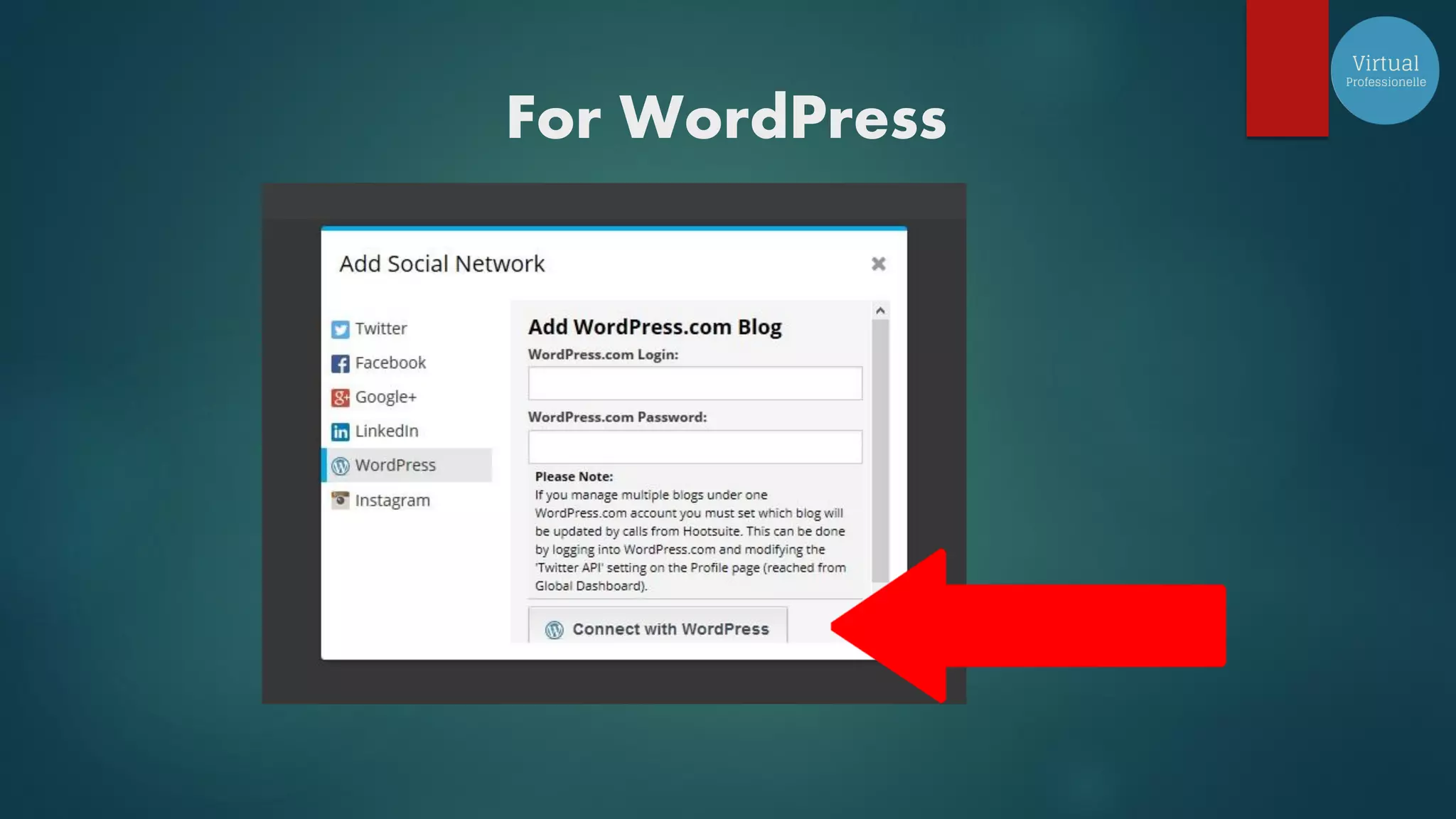
For WordPress
For Instagram
Now let’s try to add an account
Instagram
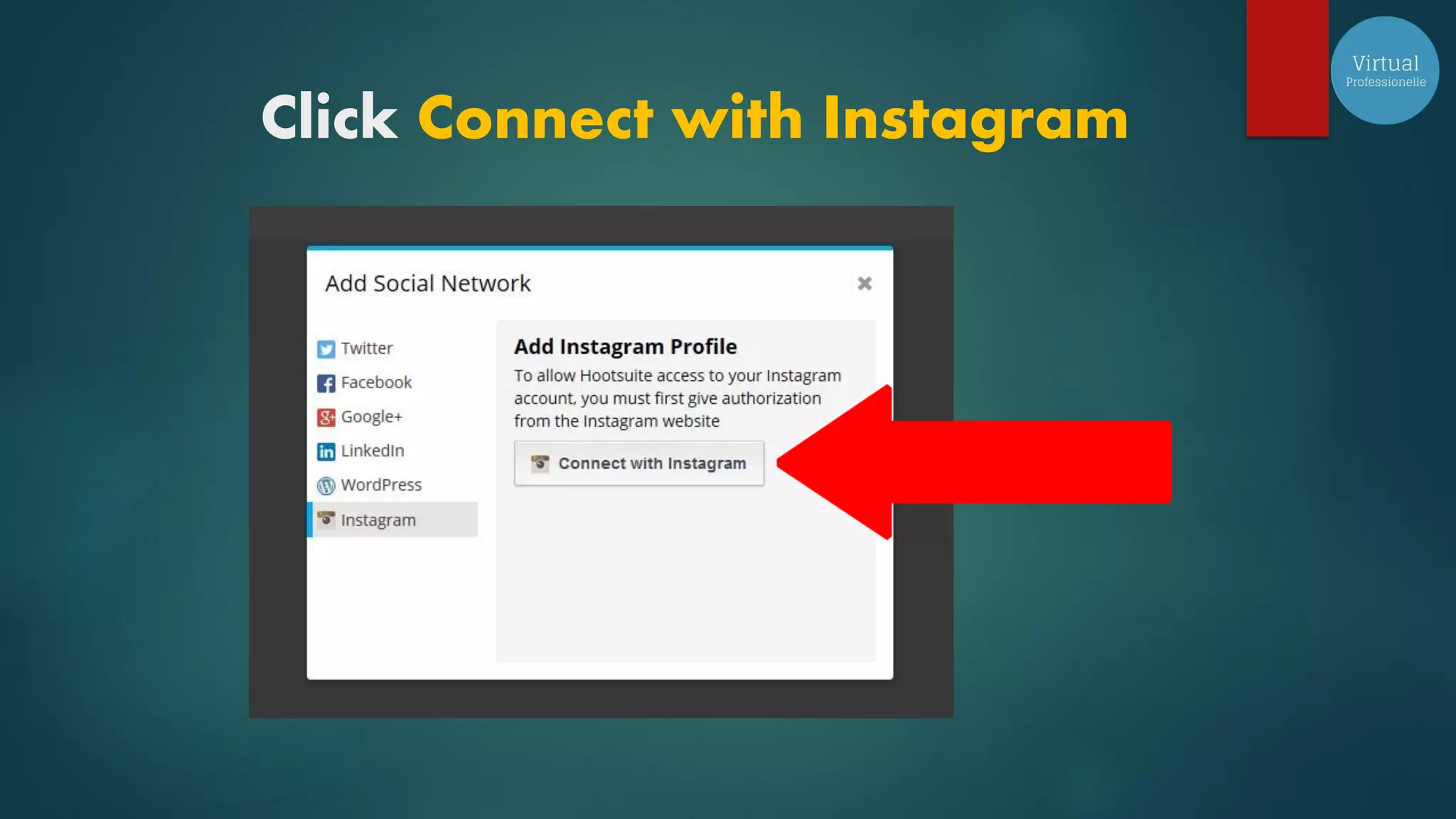
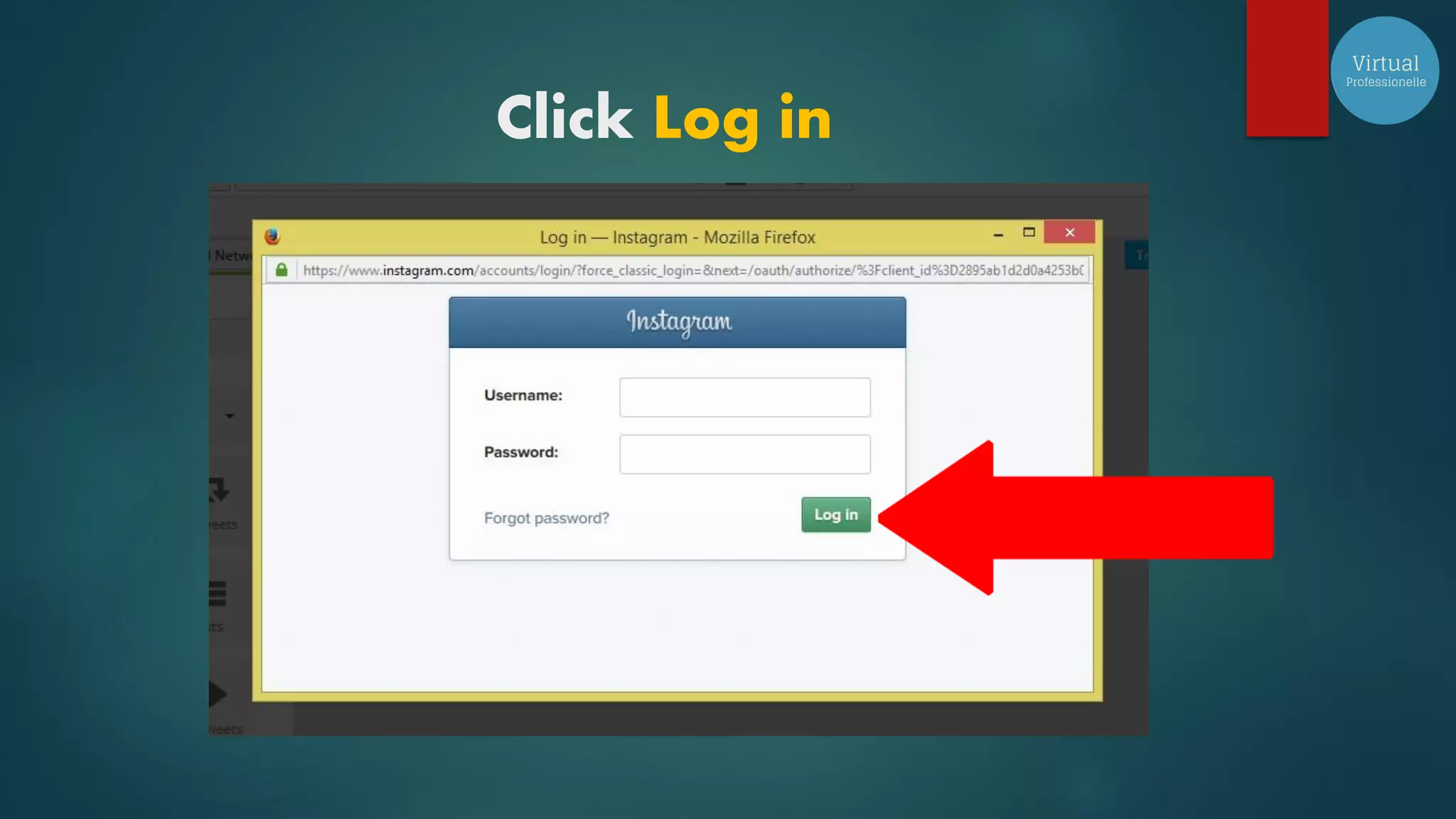
Click Connect with Instagram
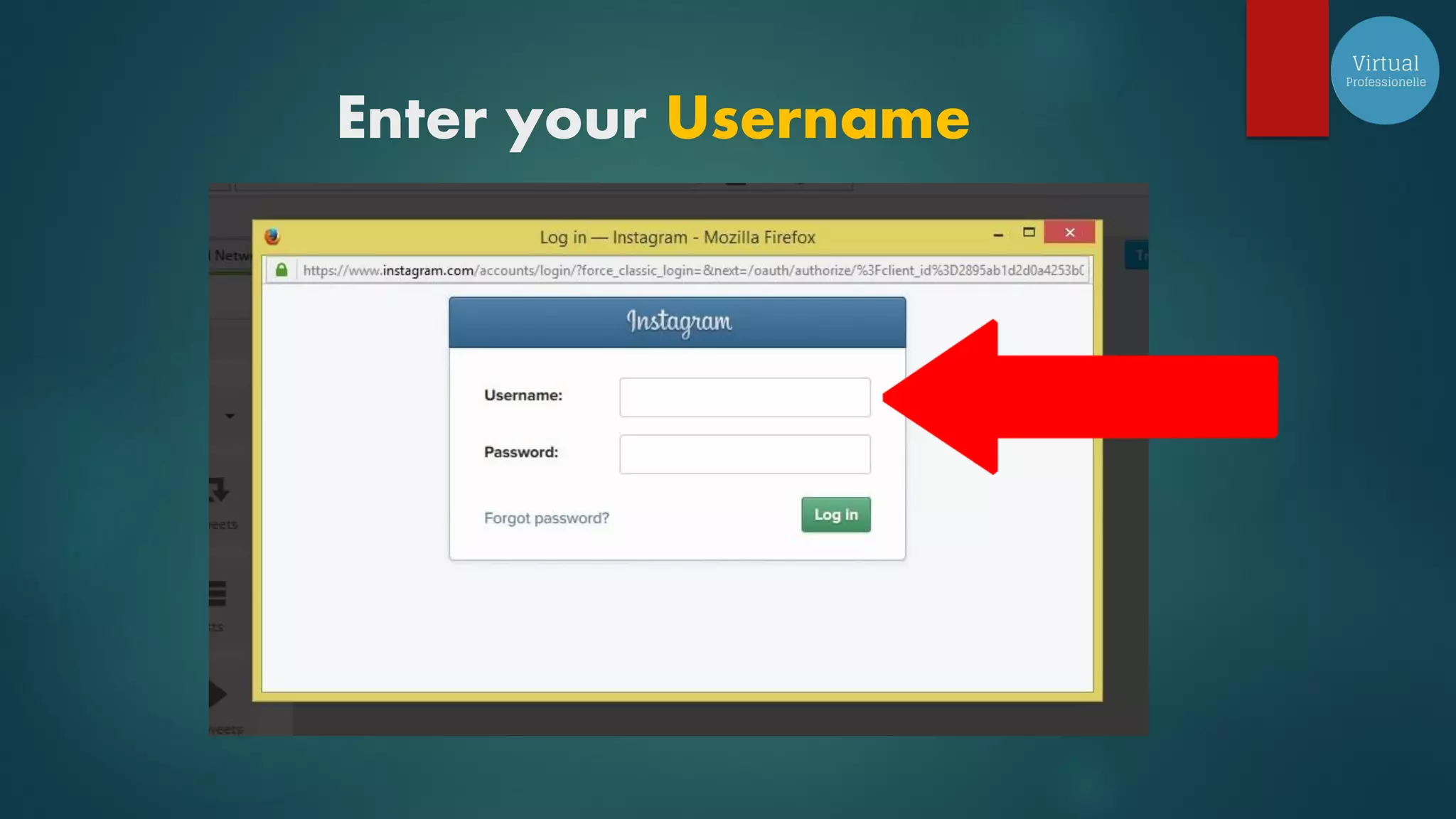
Enter your Username
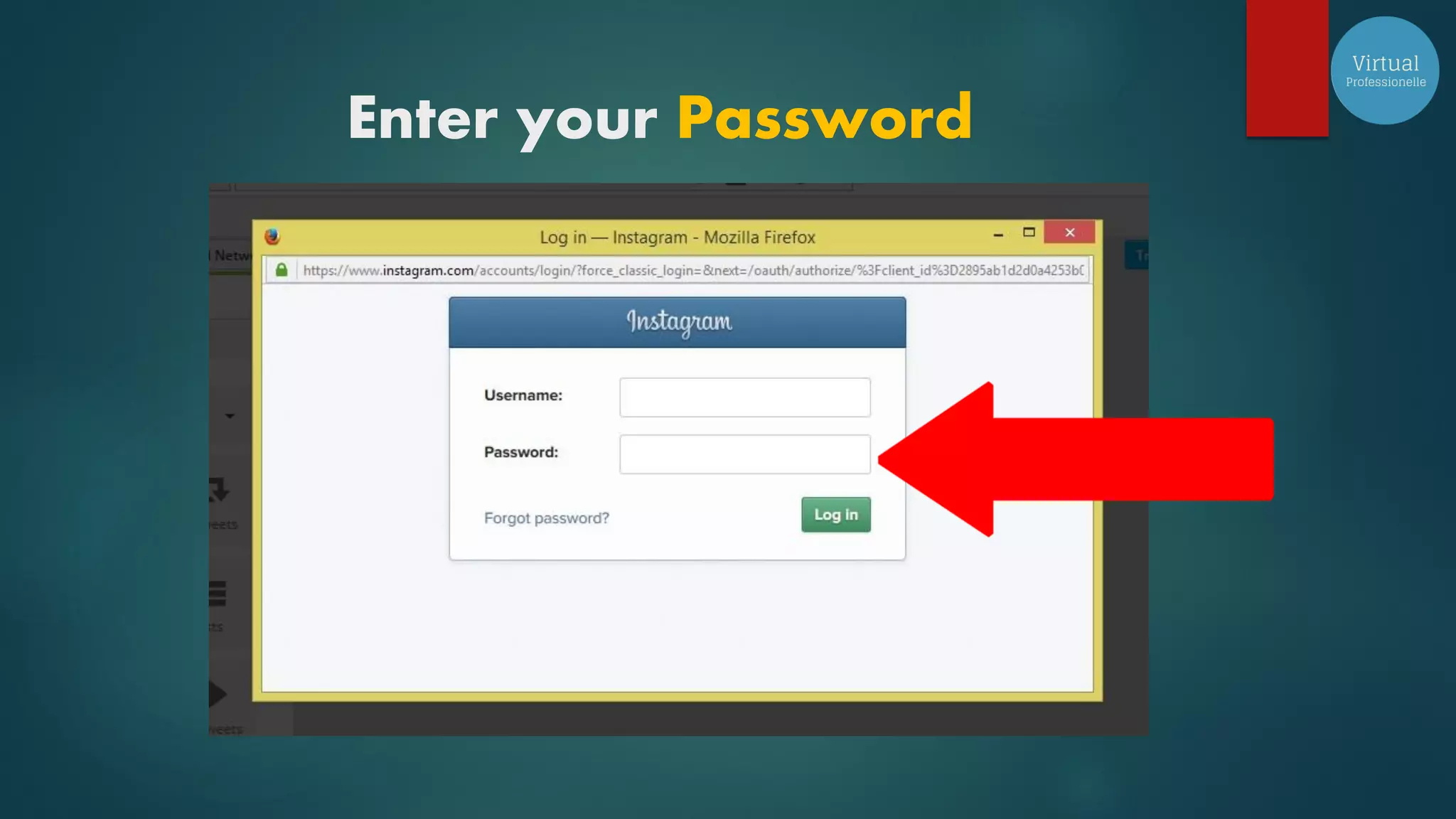
Enter your Password
Click Log in
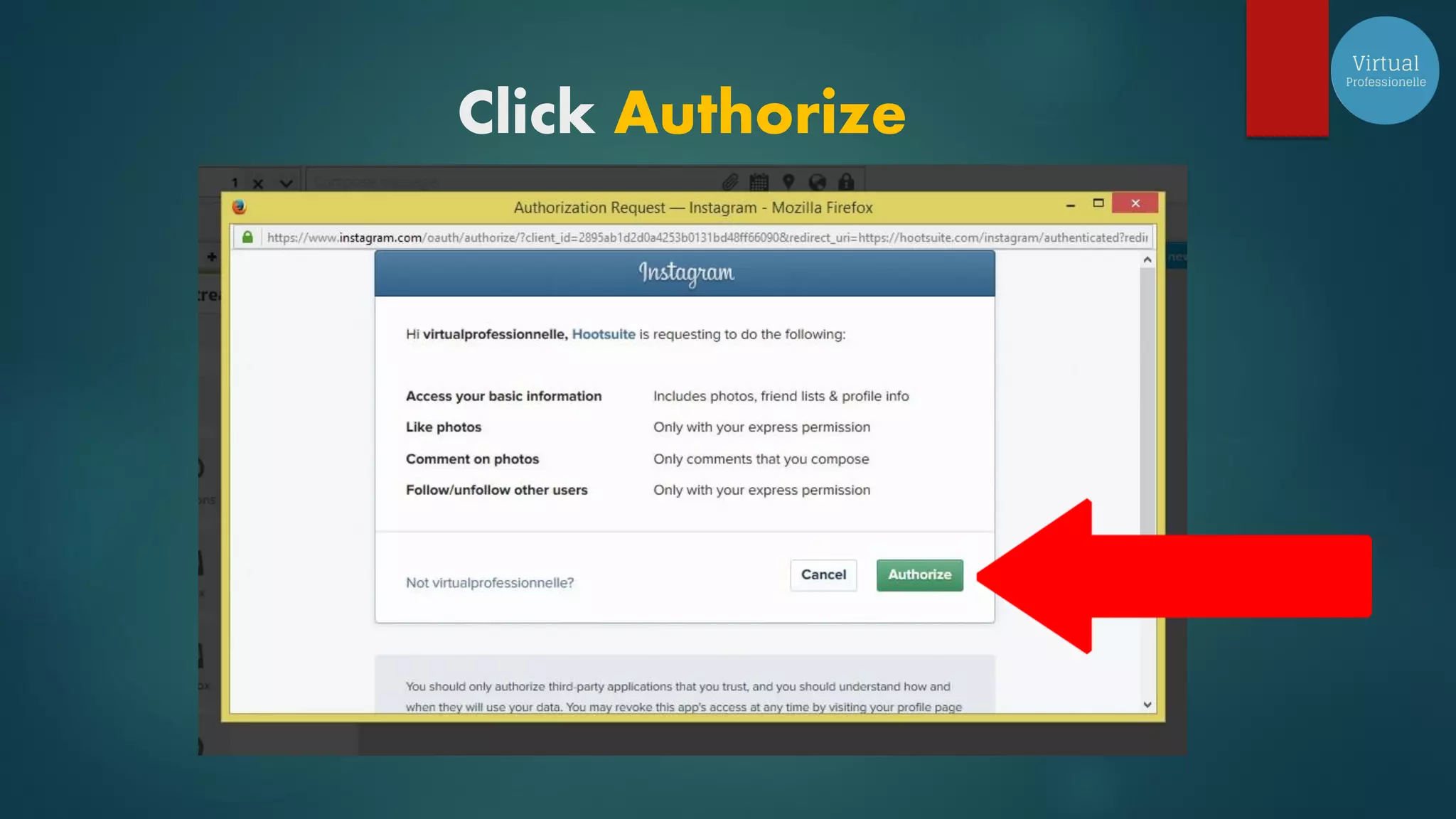
Click Authorize
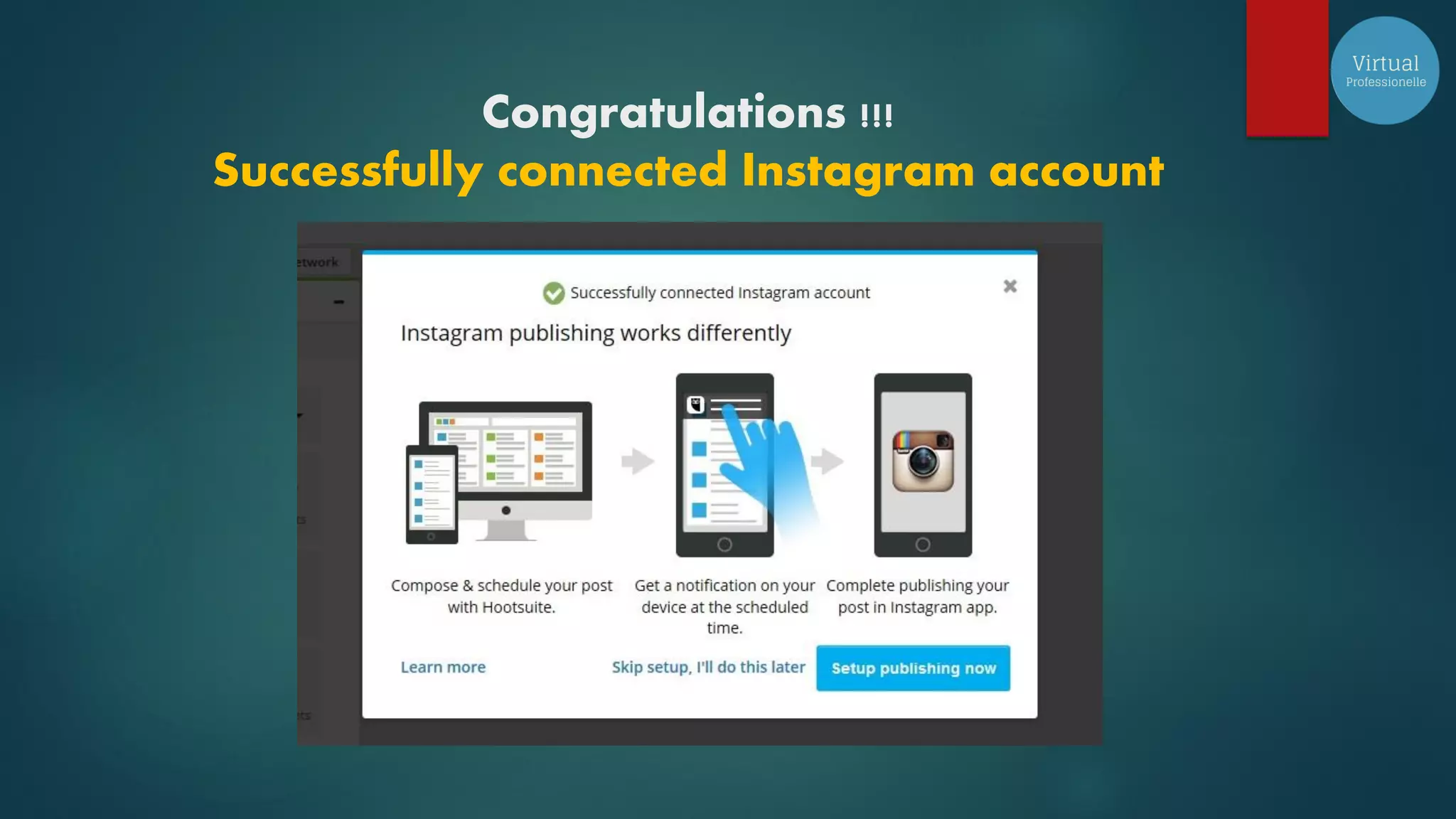
Congratulations !!!
Successfully connected Instagram account
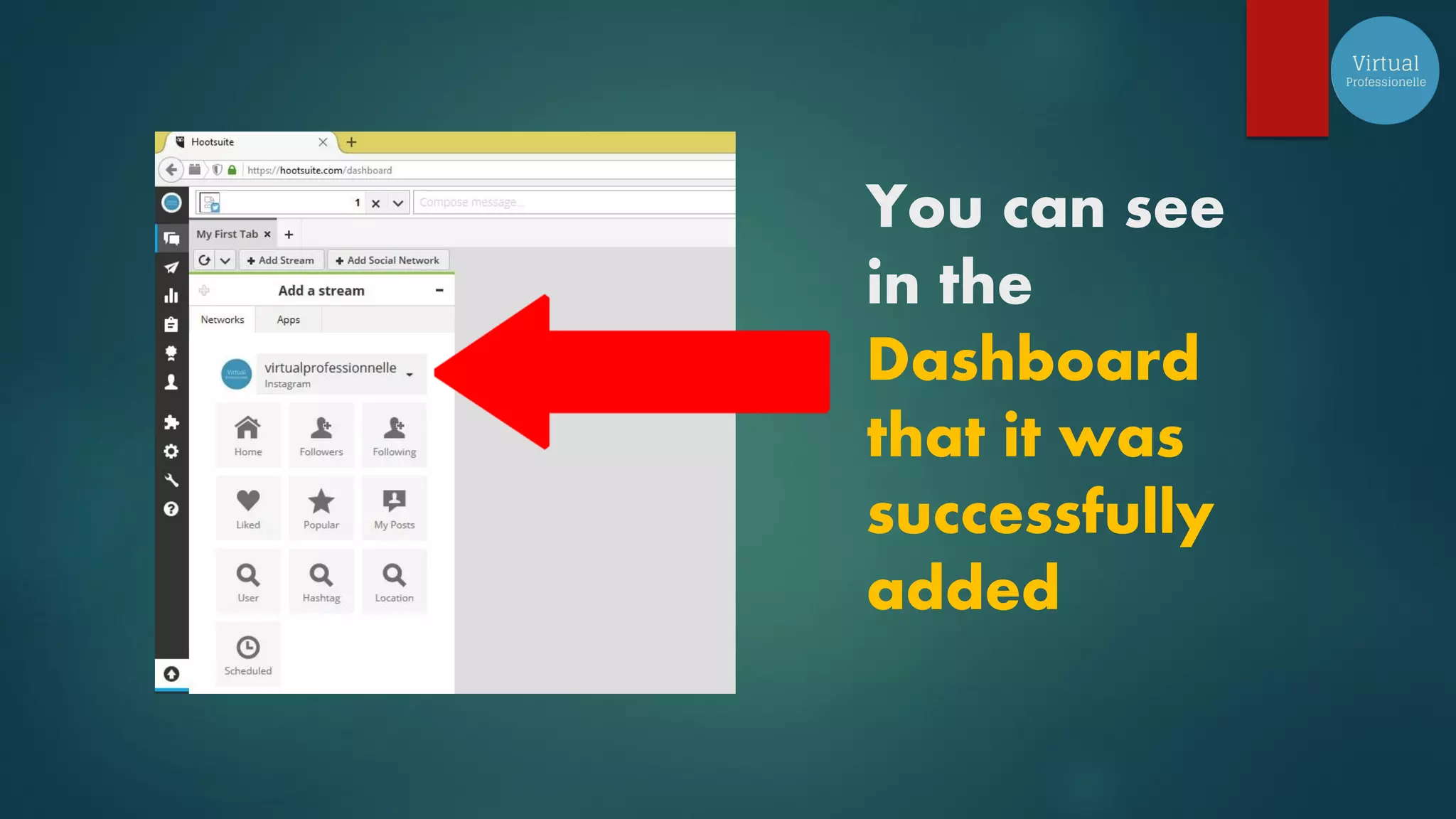
You can see
in the
Dashboard
that it was
successfully
added
Now let’s add another account
WordPress
For WordPress
Once you key in your details it
will automatically go to your
Dashboard so don’t be shocked!
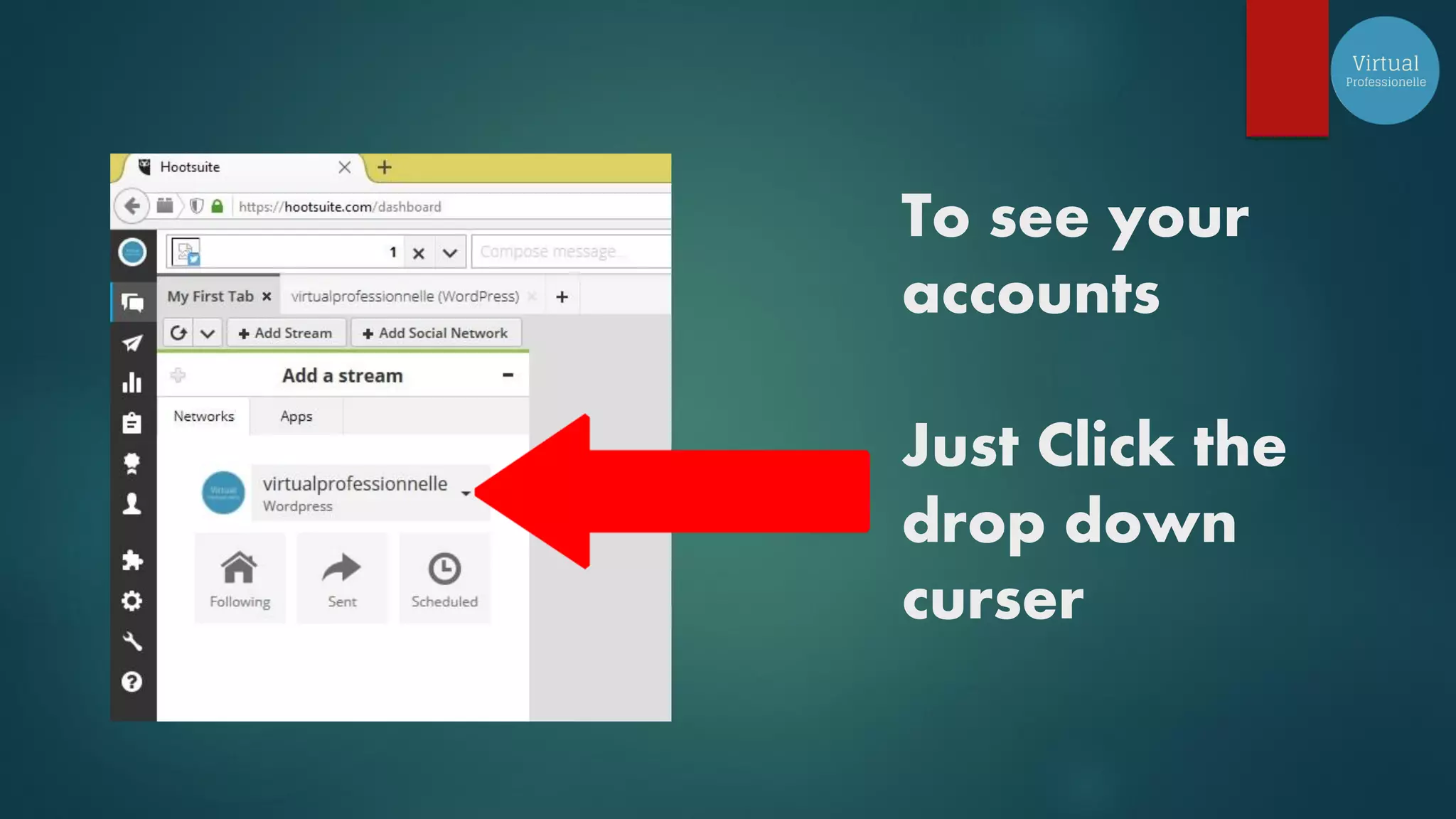
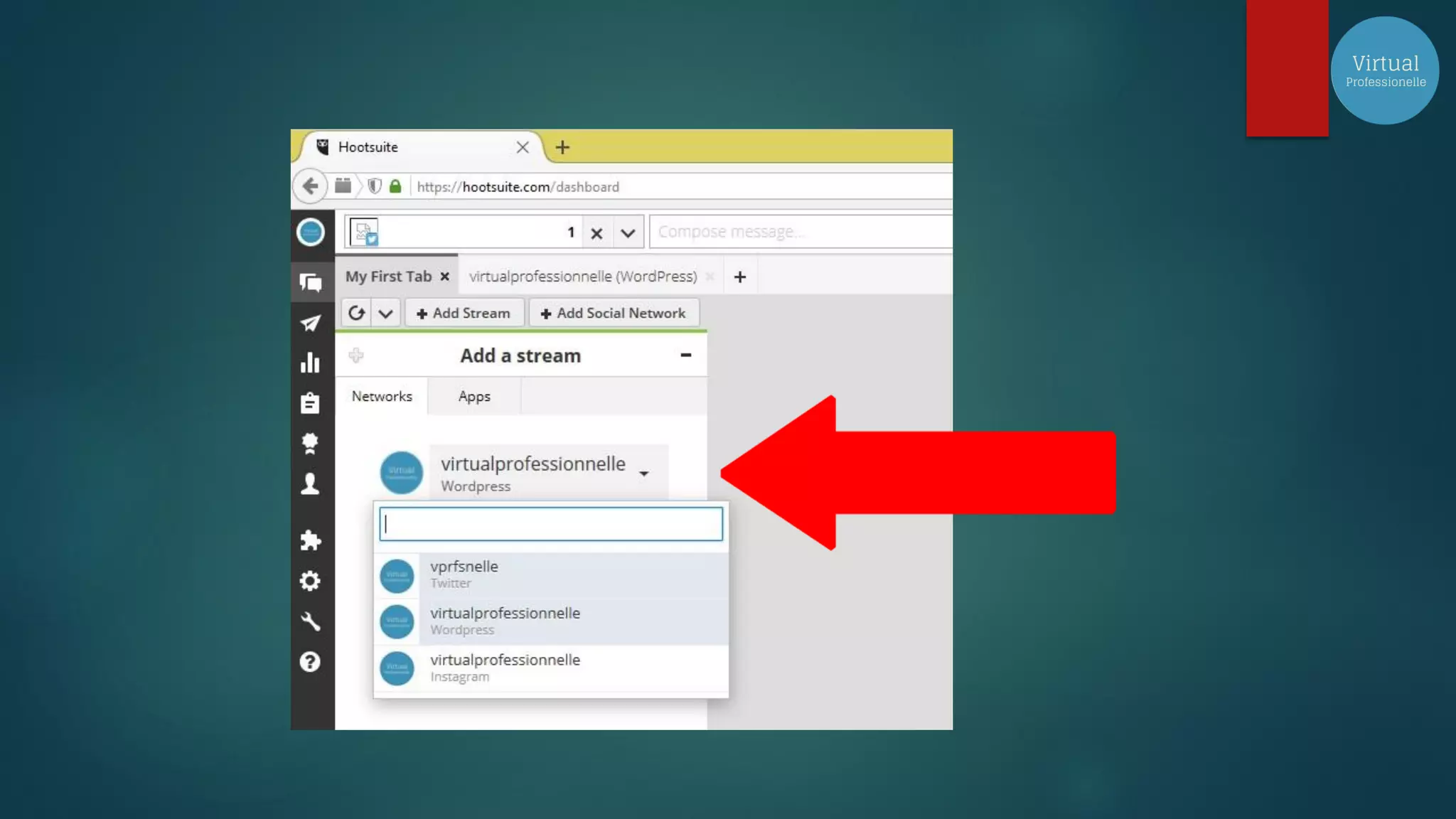
To see your
accounts
Just Click the
drop down
curser
To Add a Stream
For Social Media Manager a Tab
or Stream corresponds for one
client which means you decide
on how many tabs you want to
create or you can rename it
whatever you want
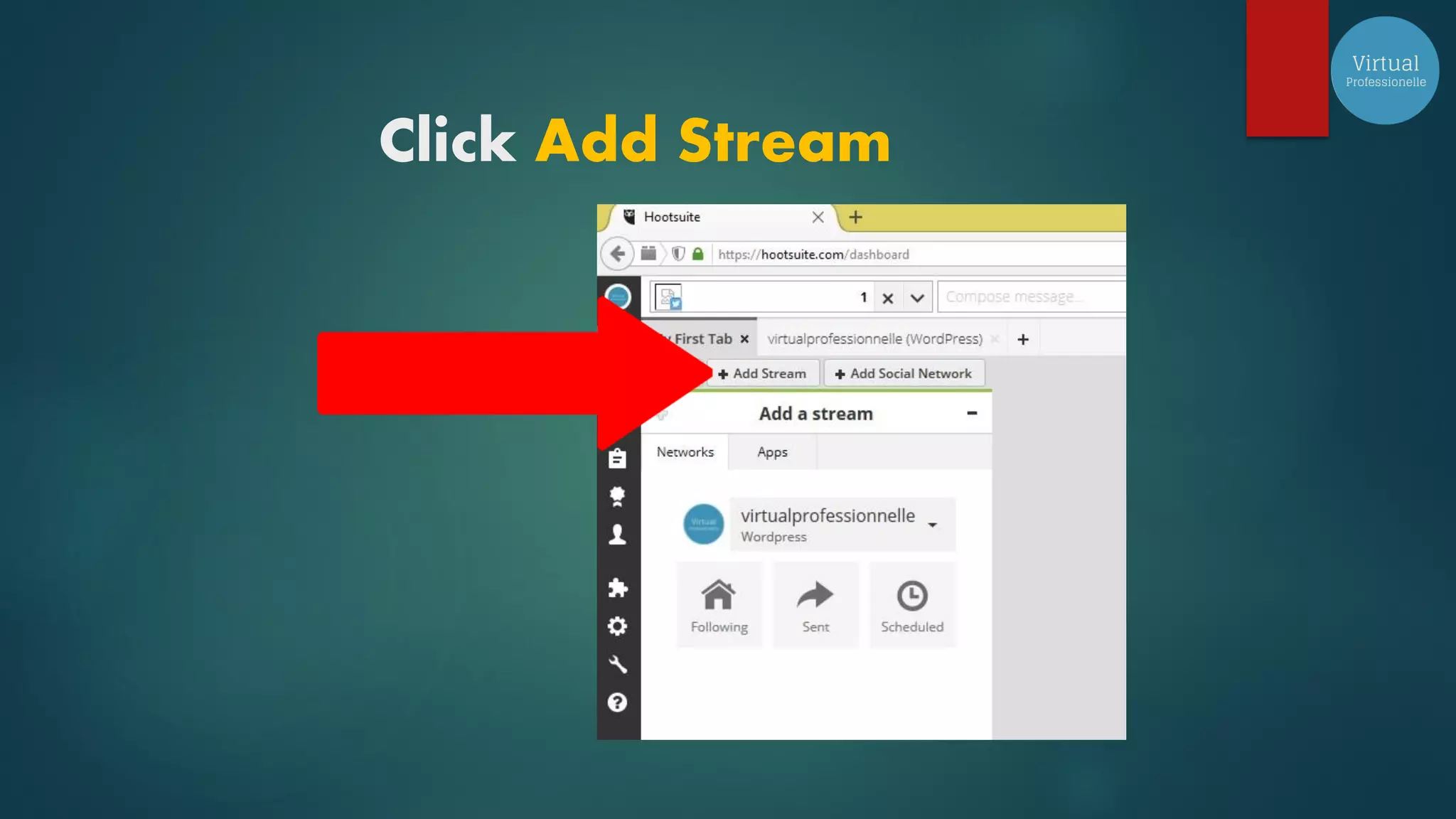
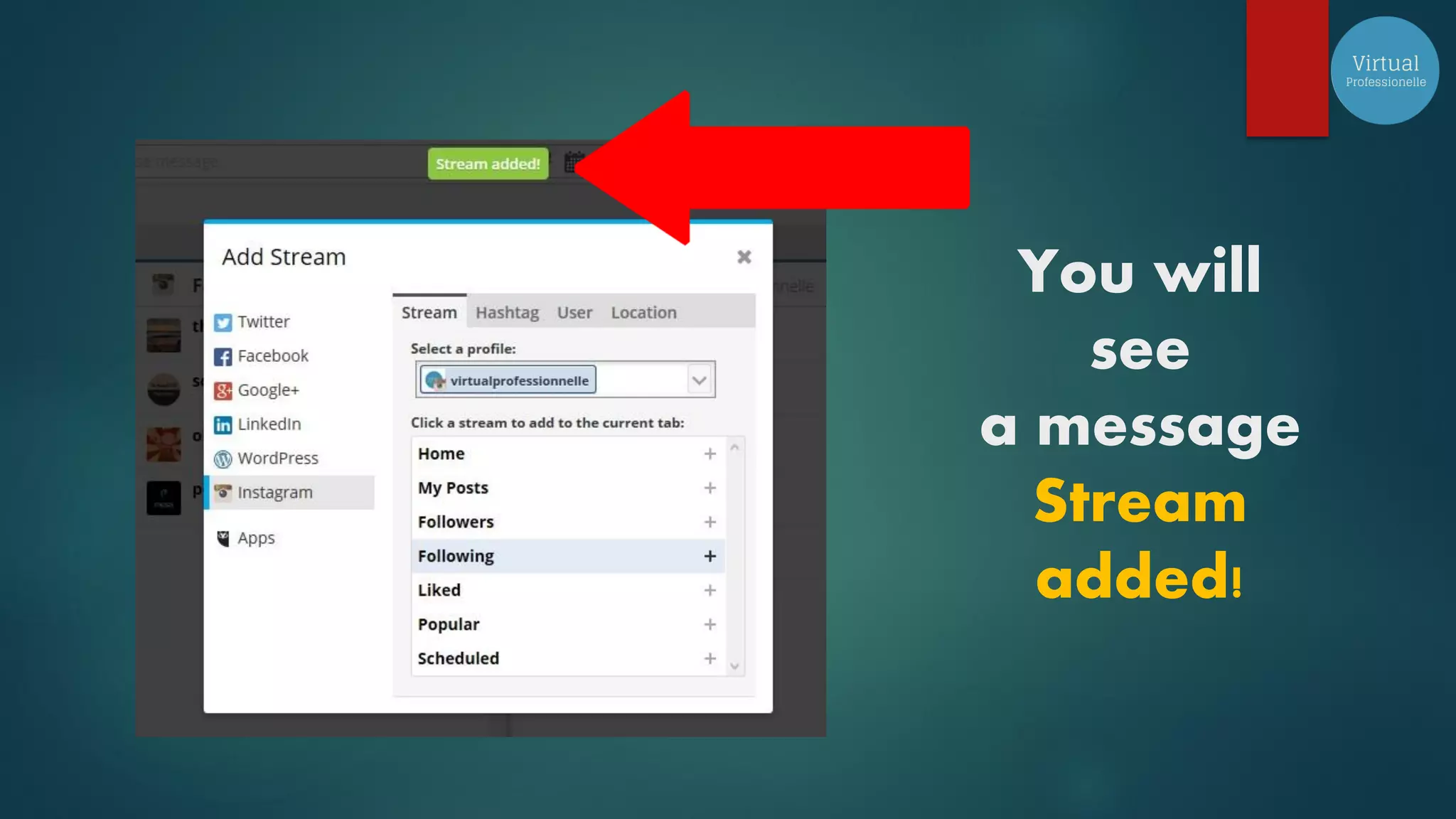
Click Add Stream
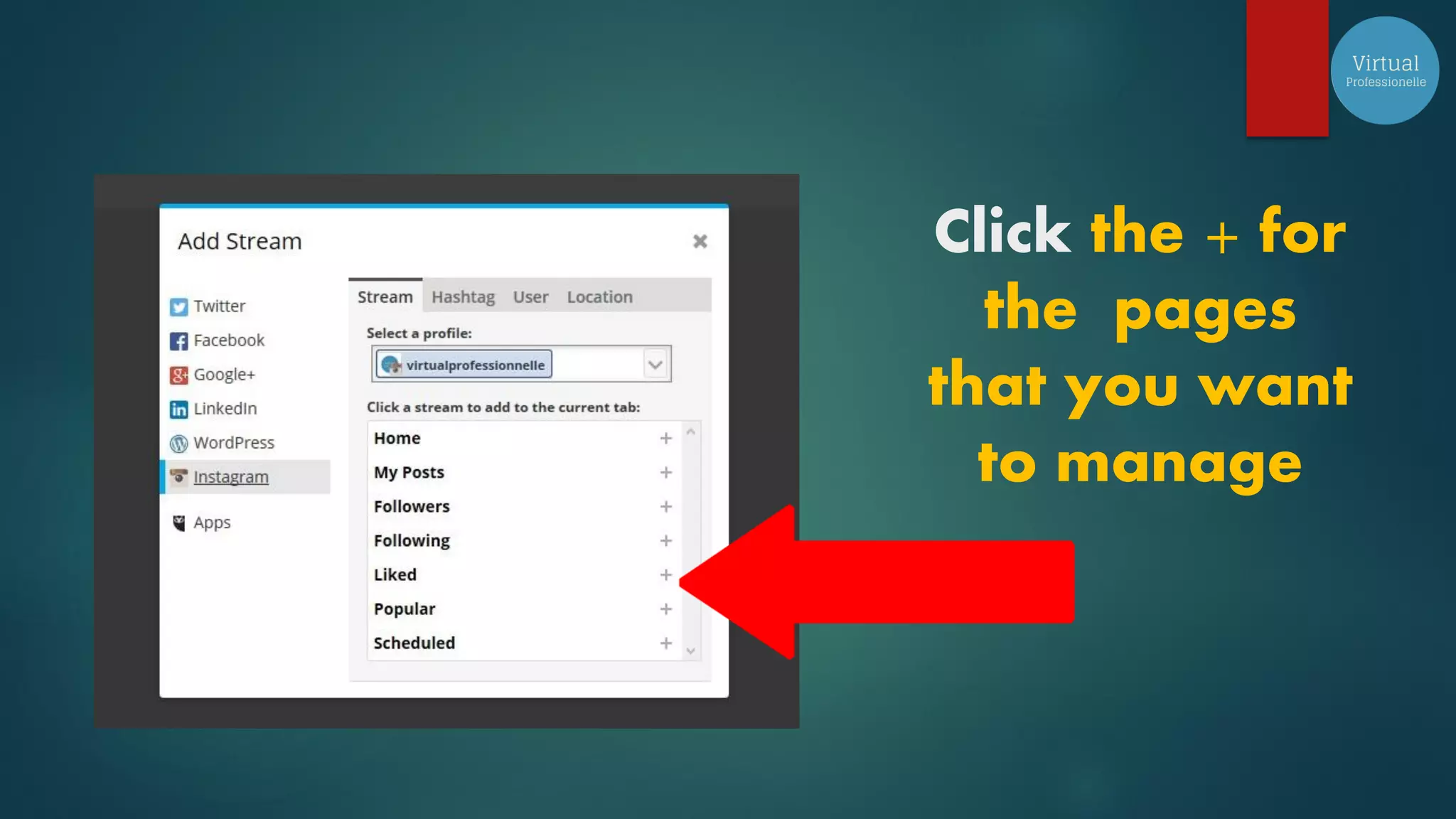
Click the + for
the pages
that you want
to manage
You will
see
a message
Stream
added!
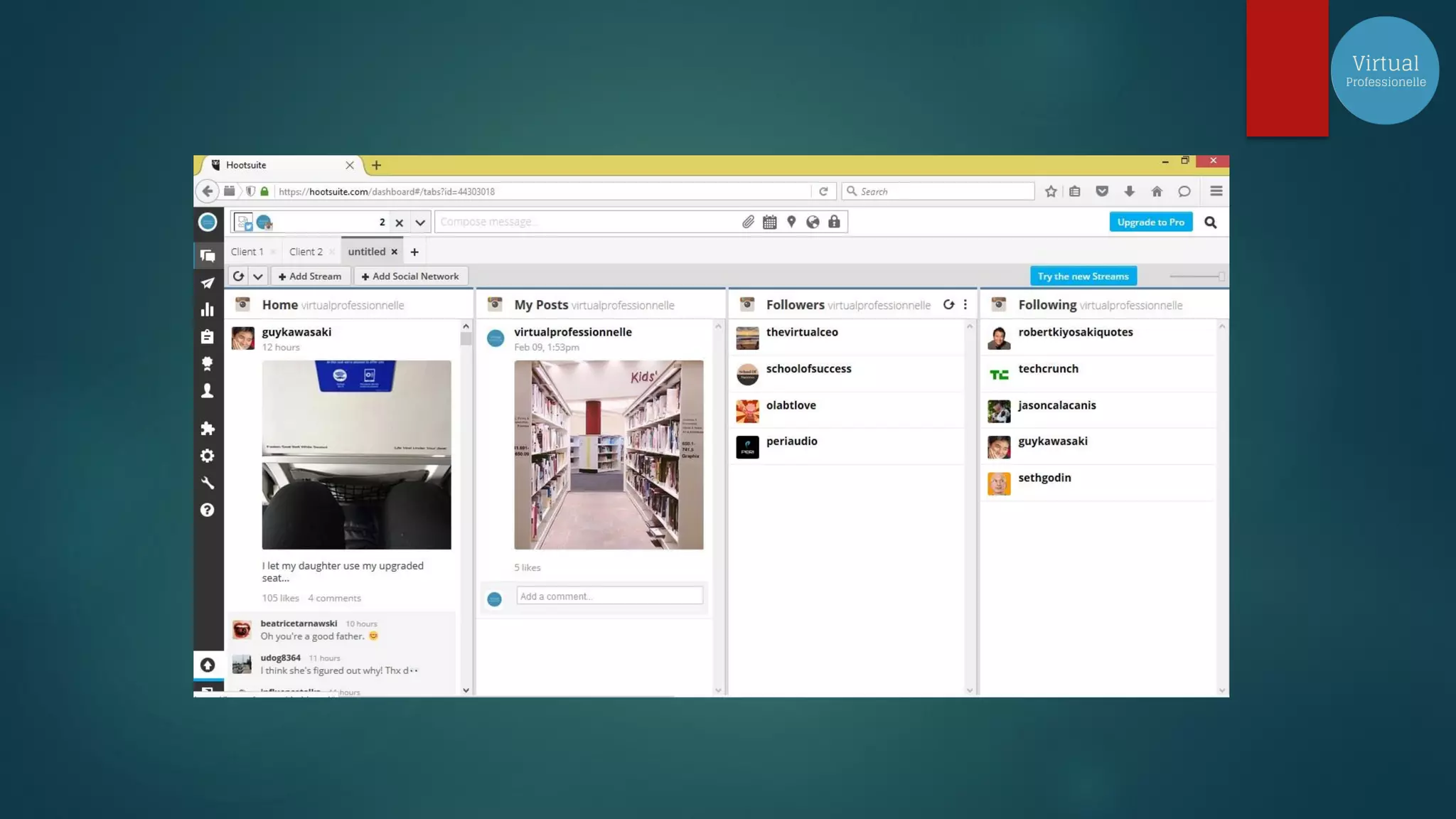
This is now your Dashboard
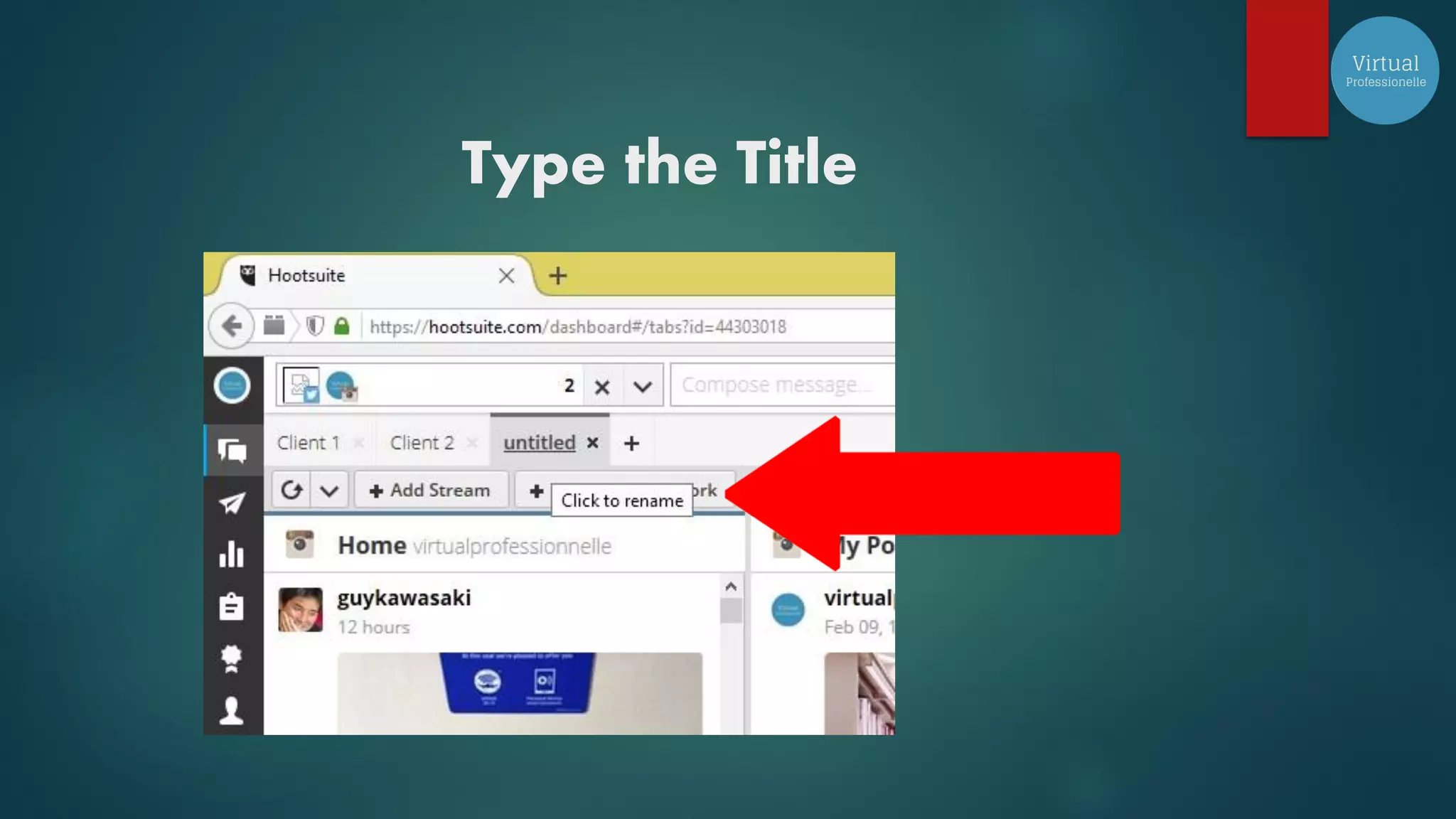
Let’s rename it
Type the Title
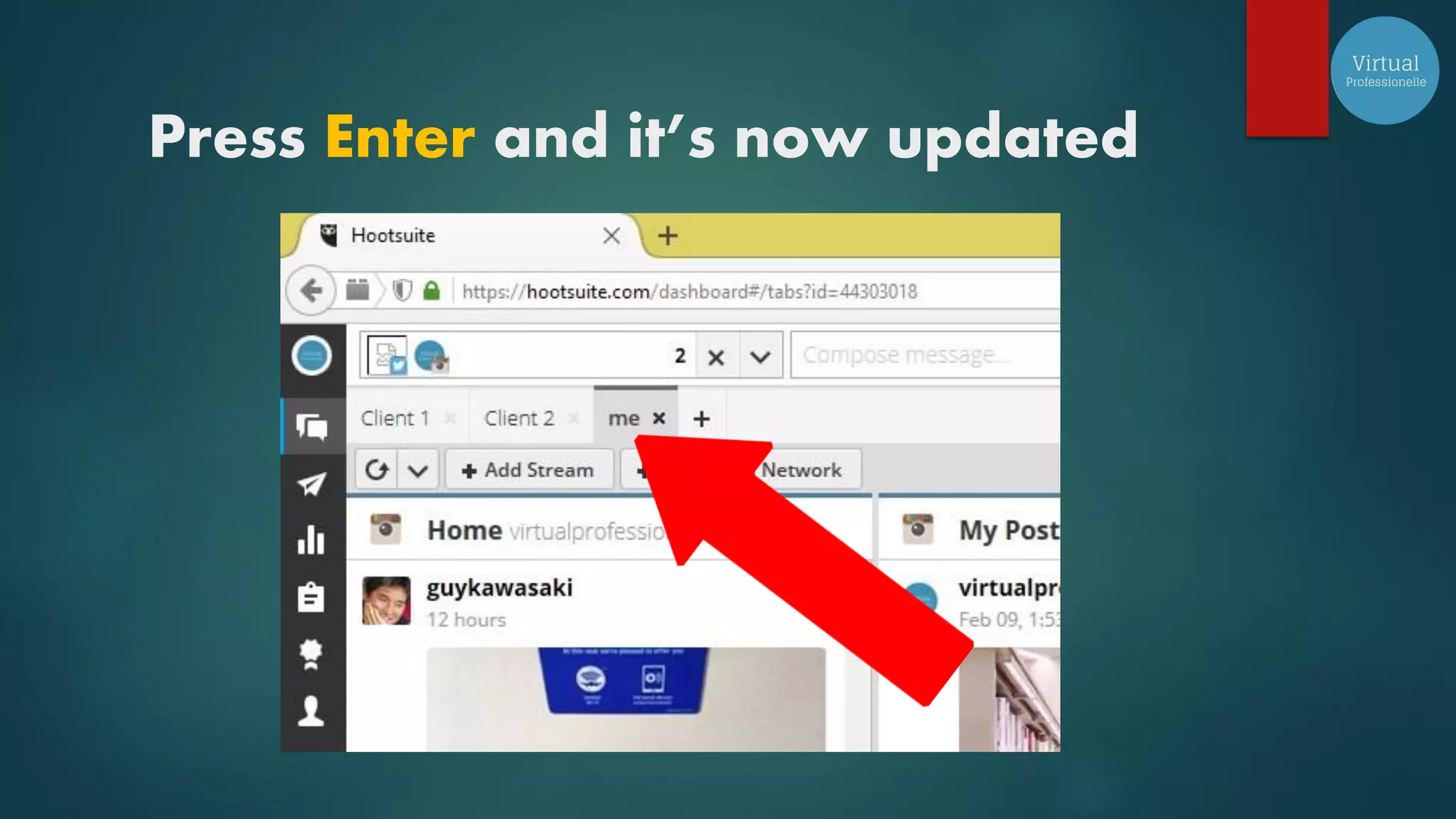
Press Enter and it’s now updated
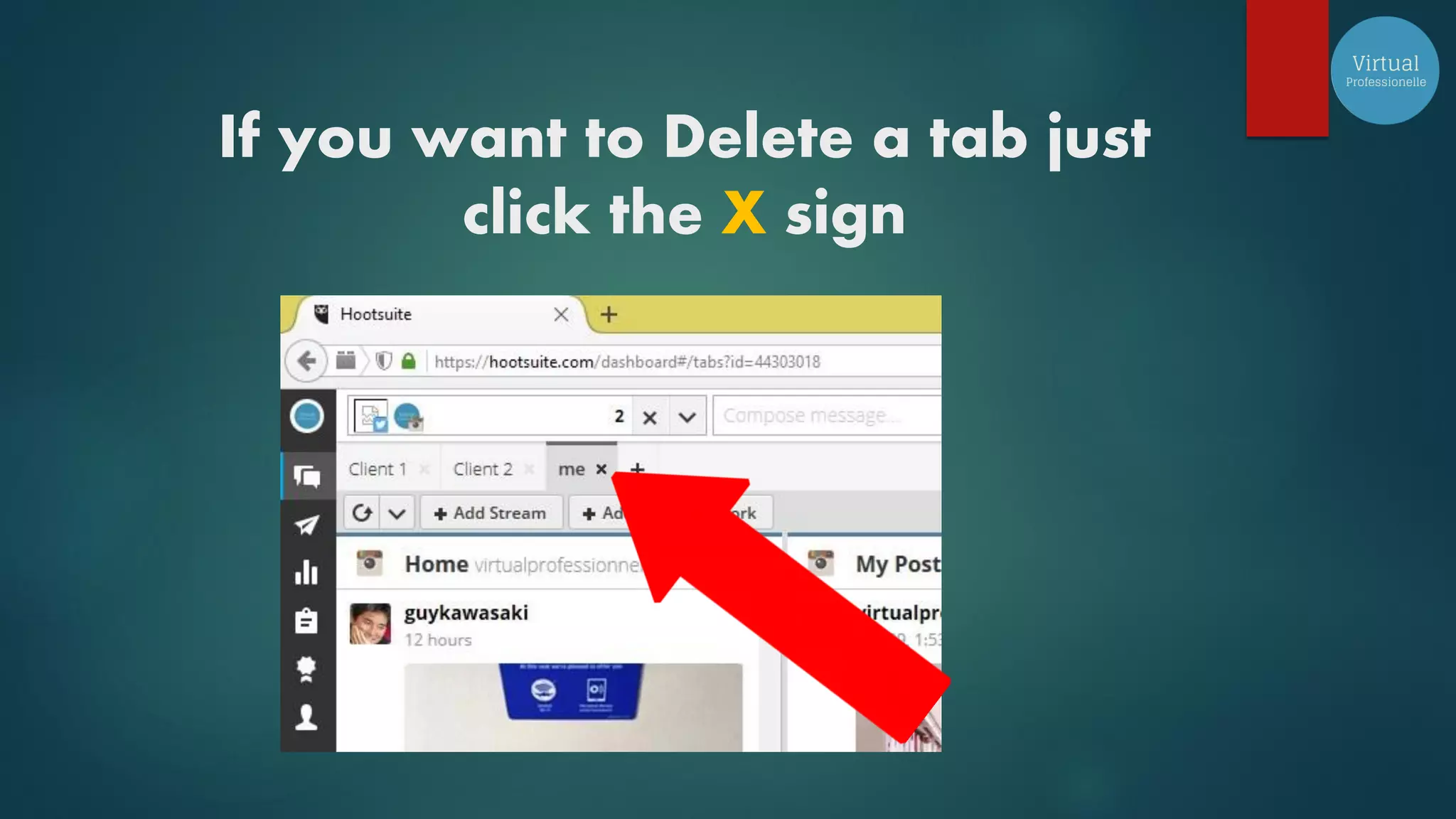
If you want to Delete a tab just
click the X sign
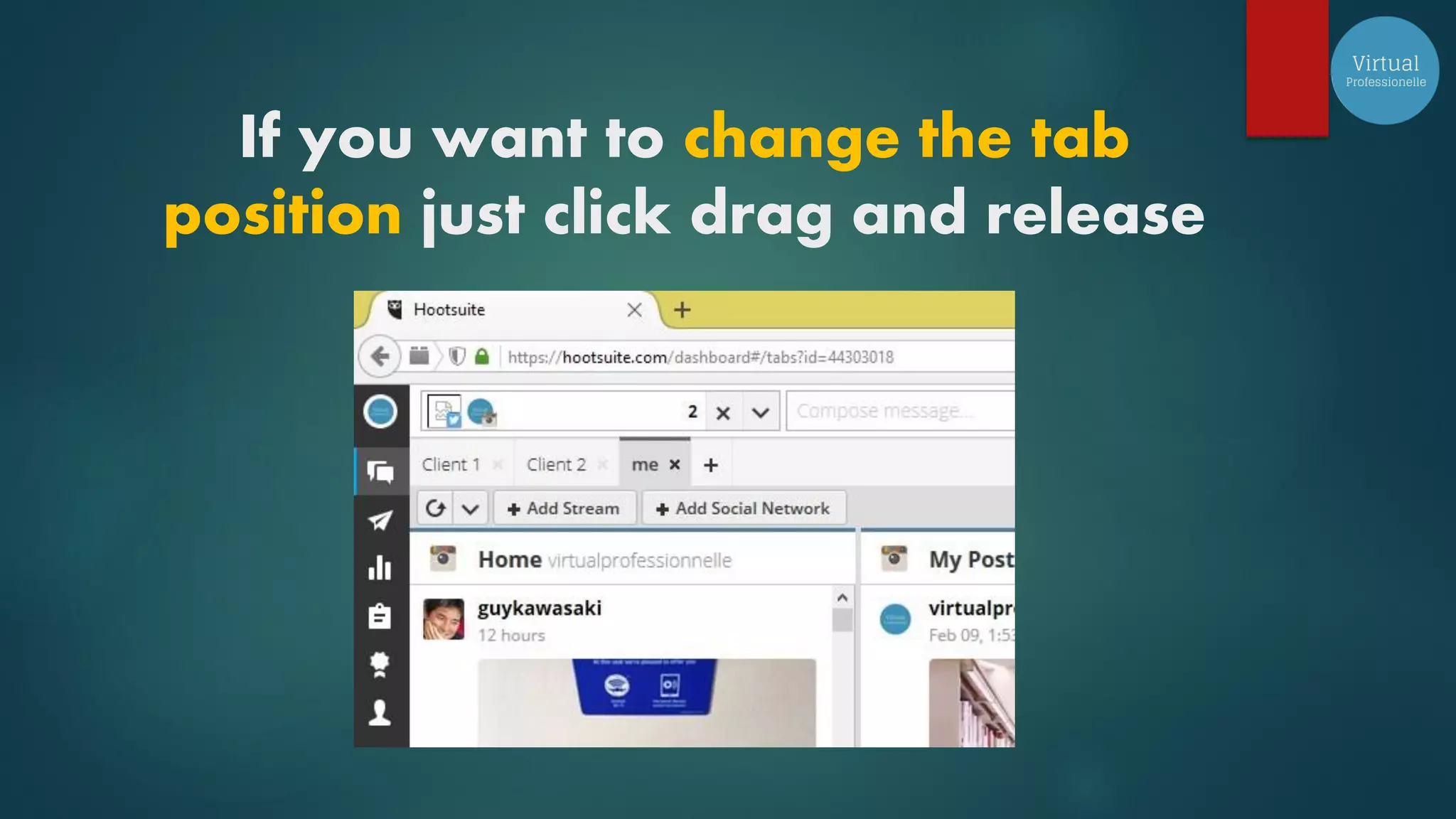
If you want to change the tab
position just click drag and release
One of the good things about
Hootsuite is you being in control
of your posting schedule
at the same time you can create
a content plan in advance
and target the ideal time to post
your content
To schedule a Post
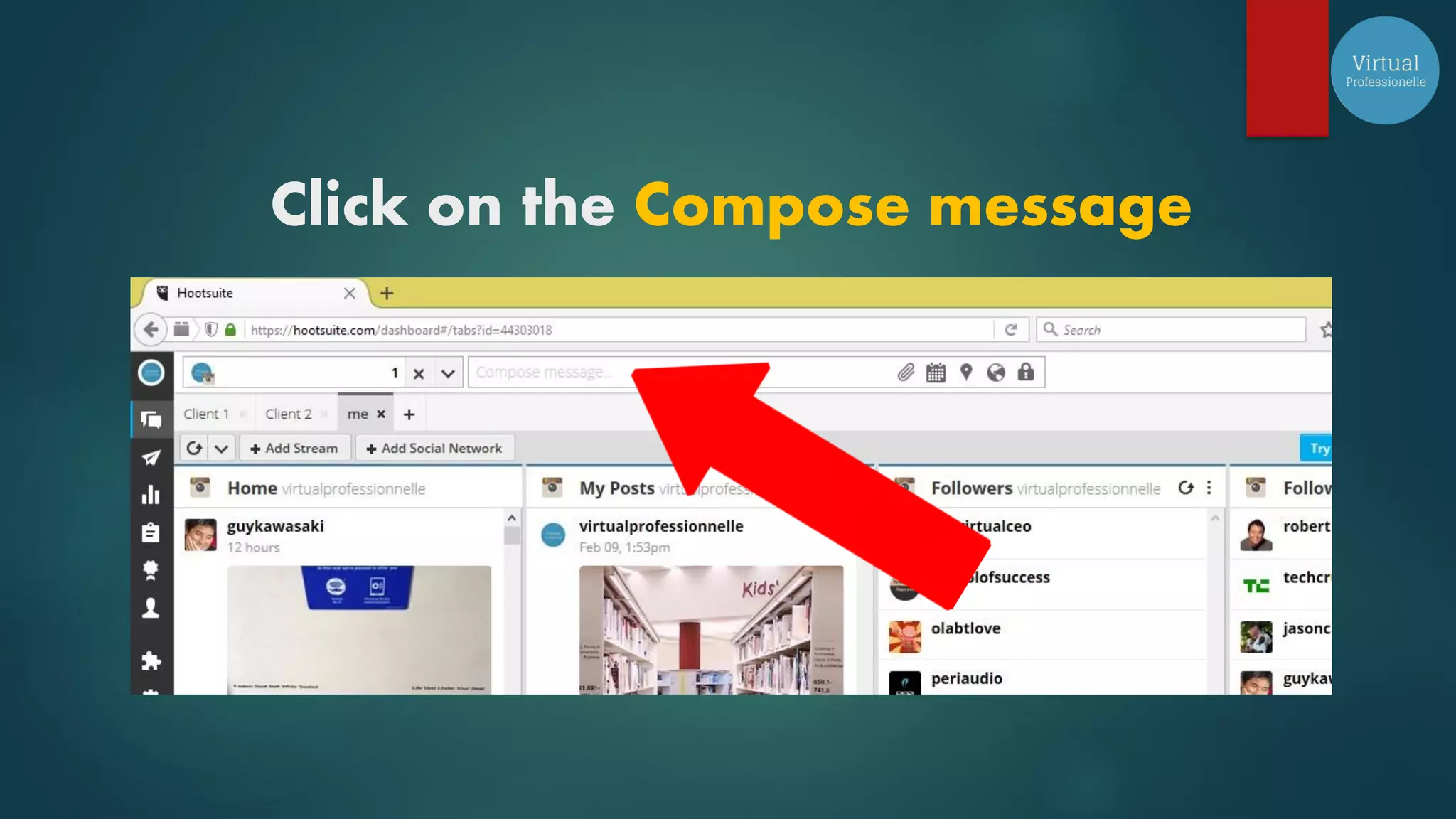
Click on the Compose message
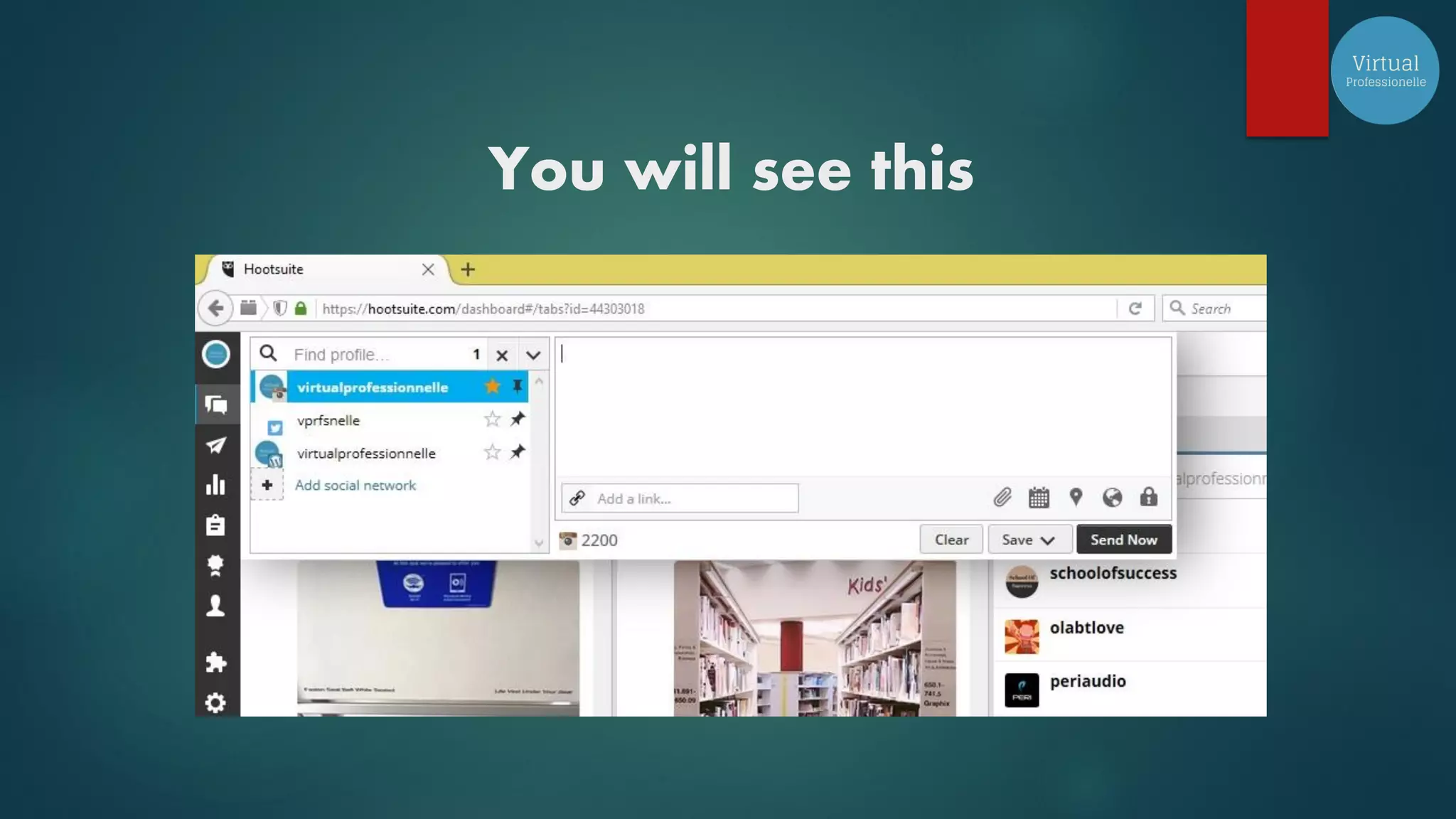
You will see this
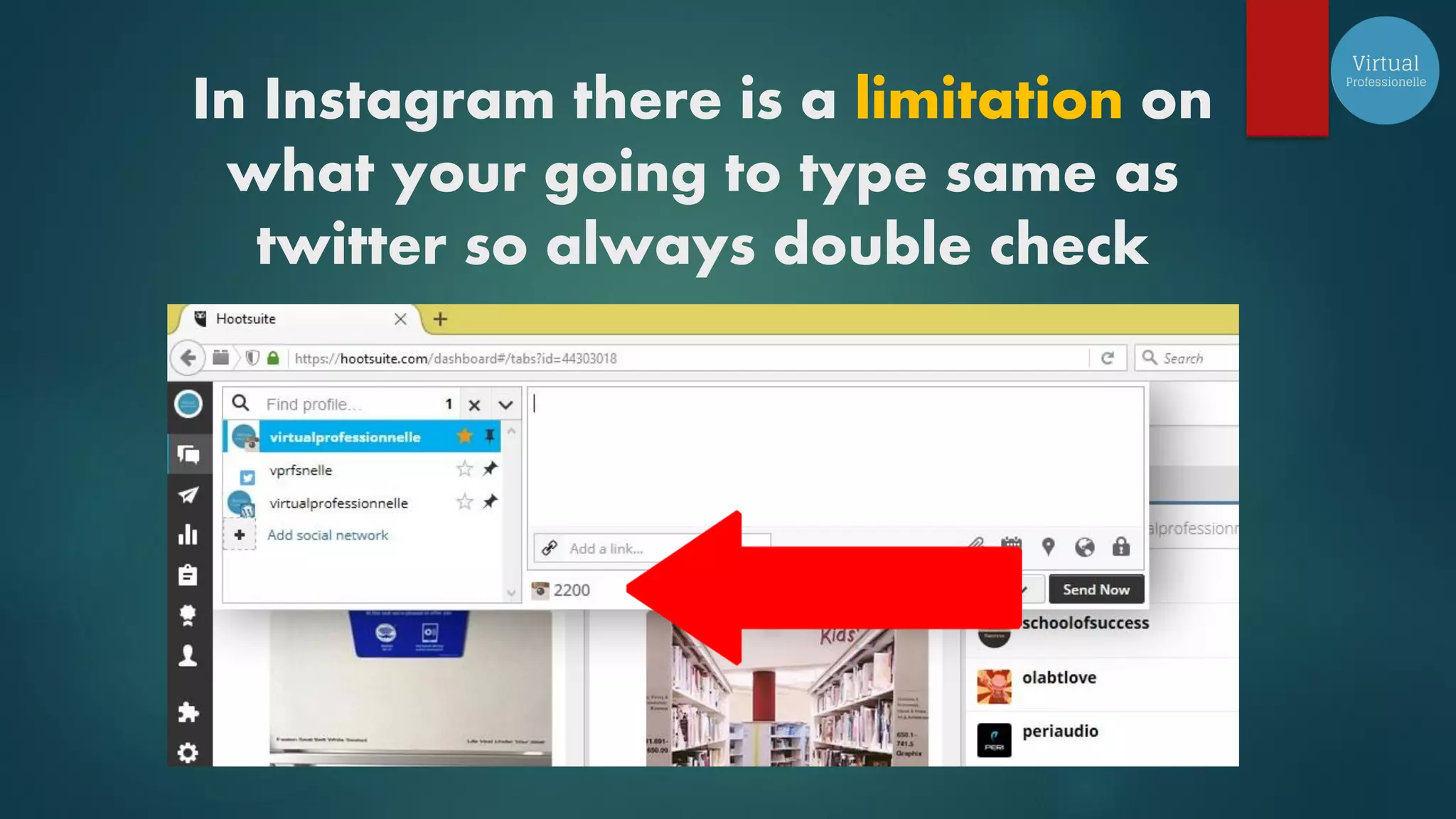
In Instagram there is a limitation on
what your going to type same as
twitter so always double check
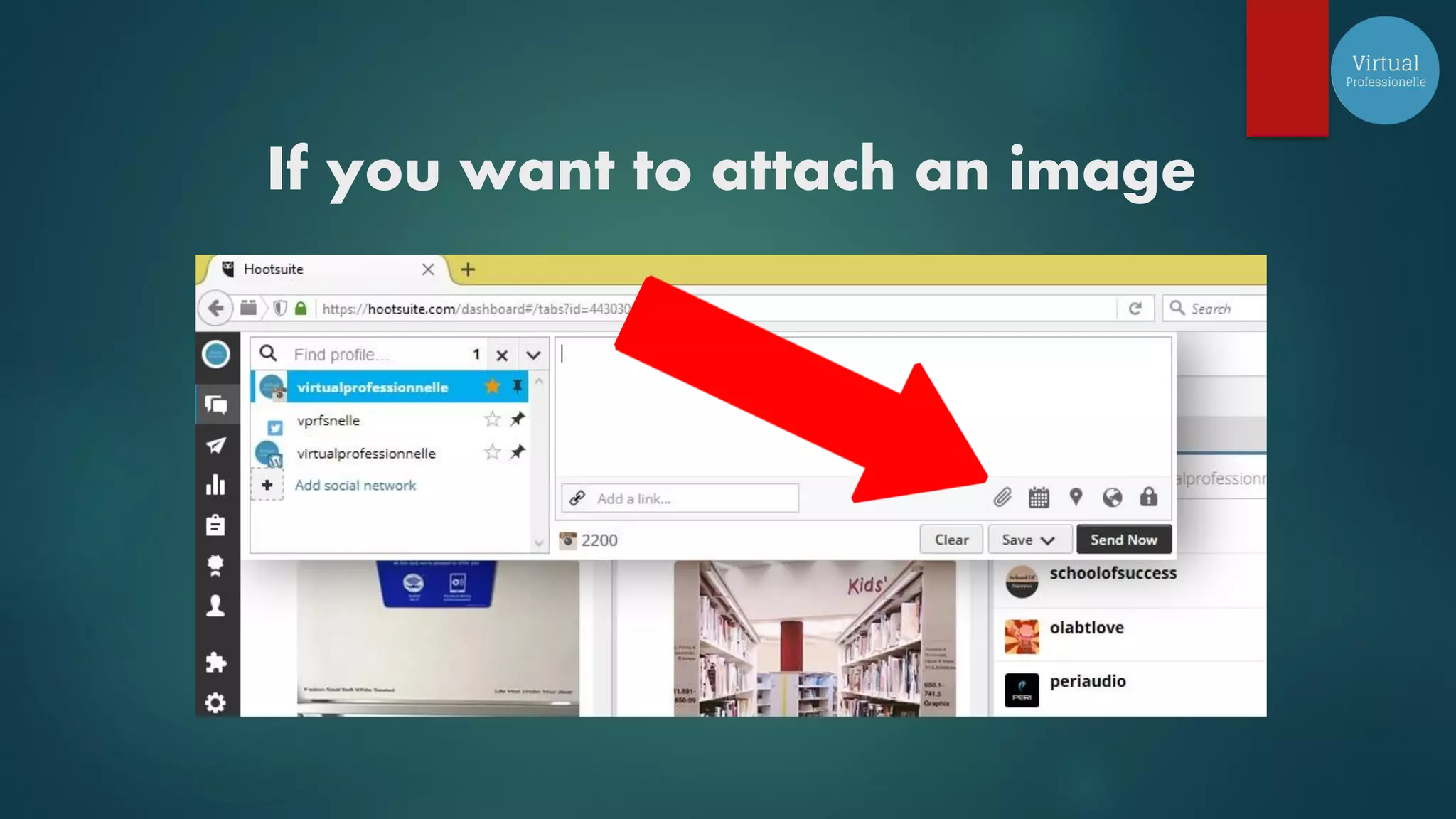
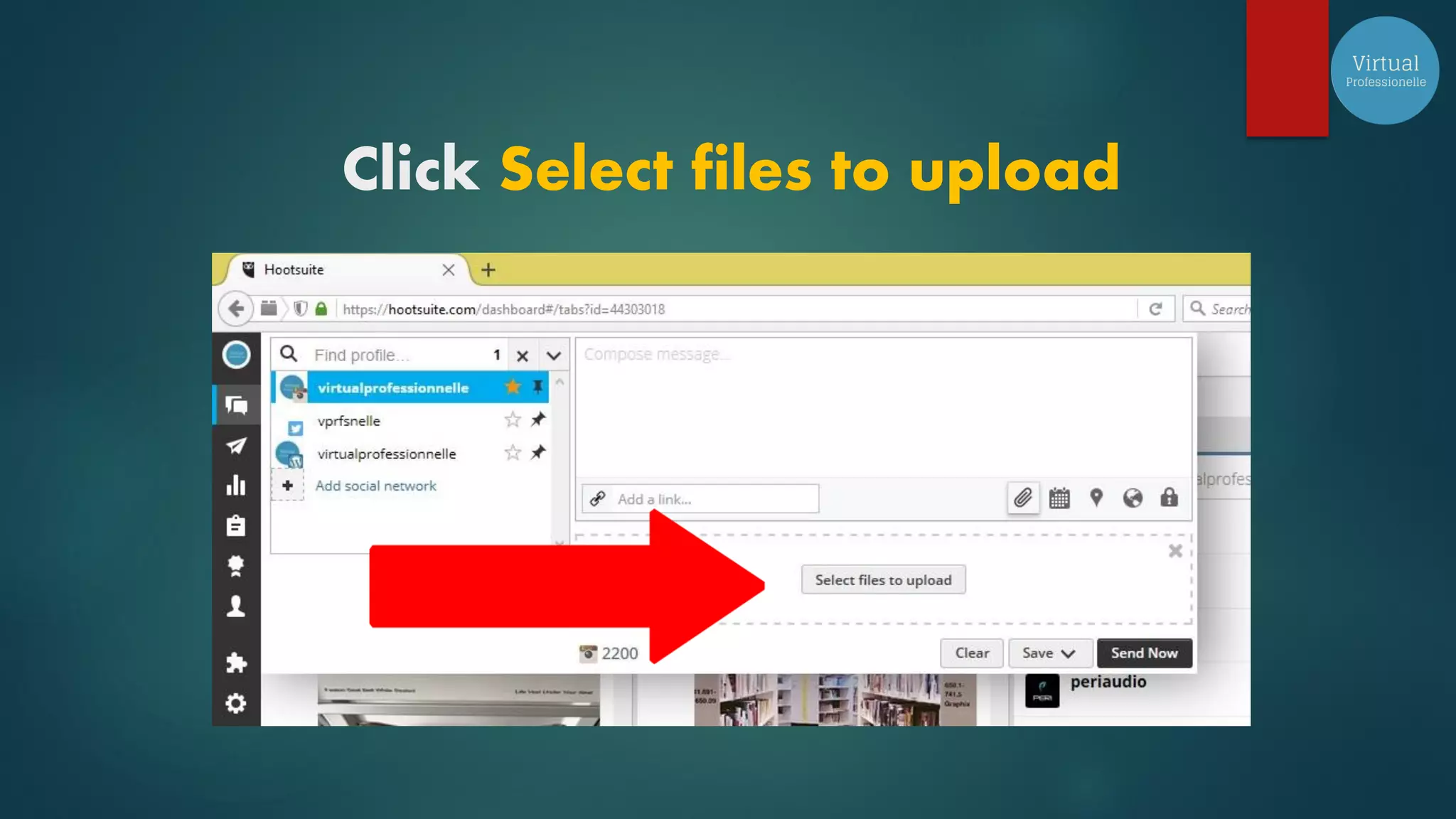
If you want to attach an image
Click Select files to upload
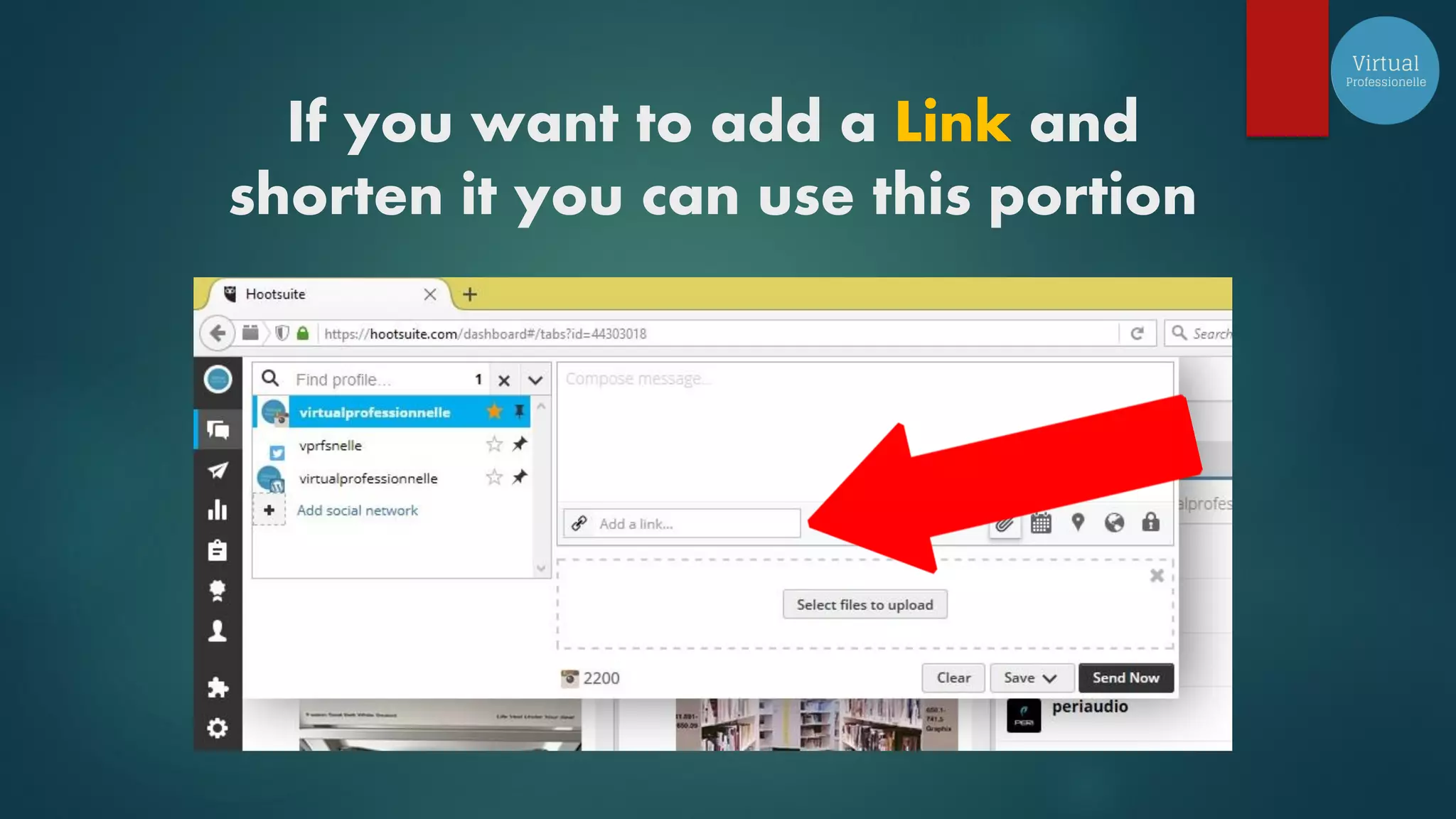
If you want to add a Link and
shorten it you can use this portion
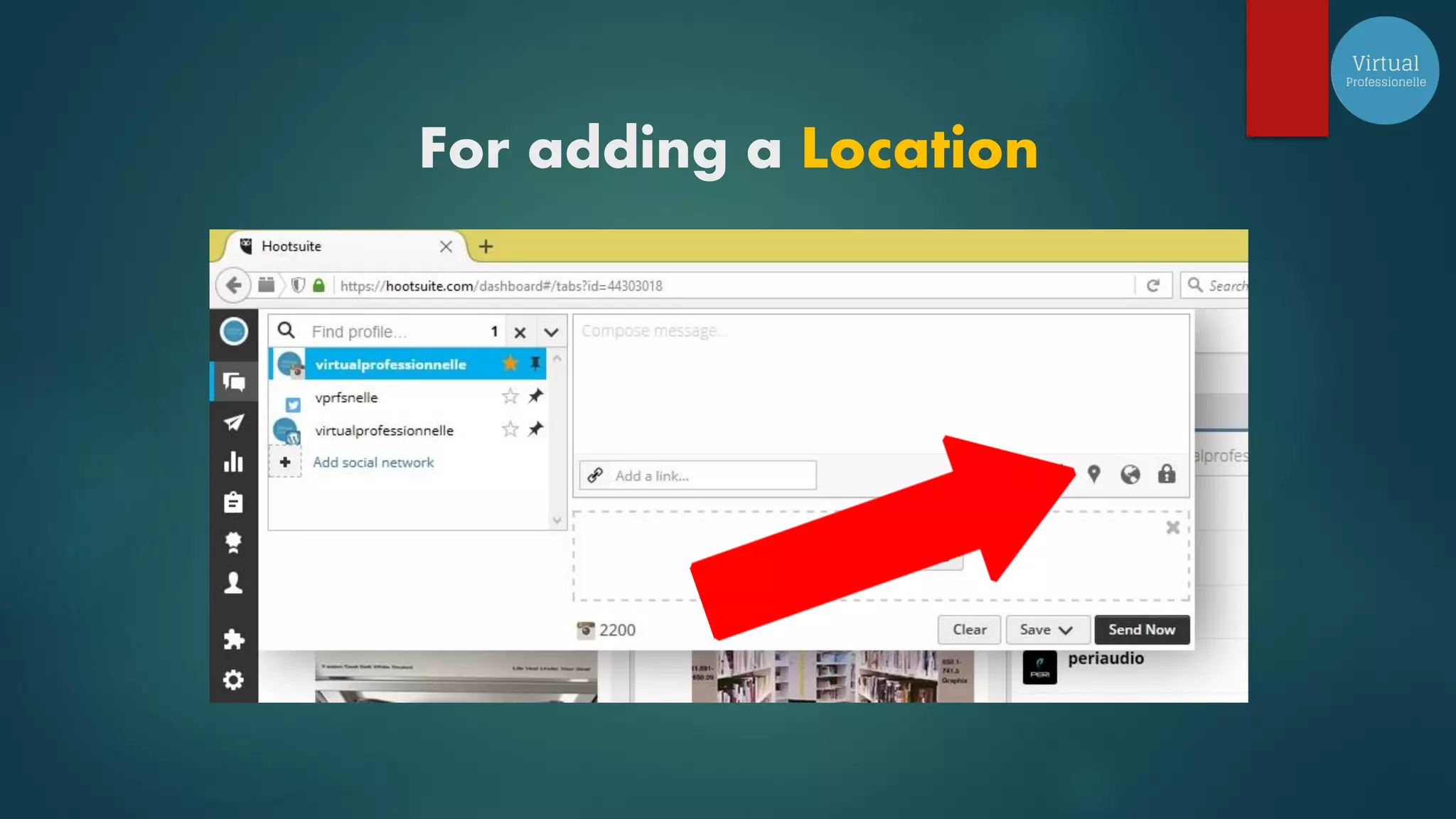
For adding a Location
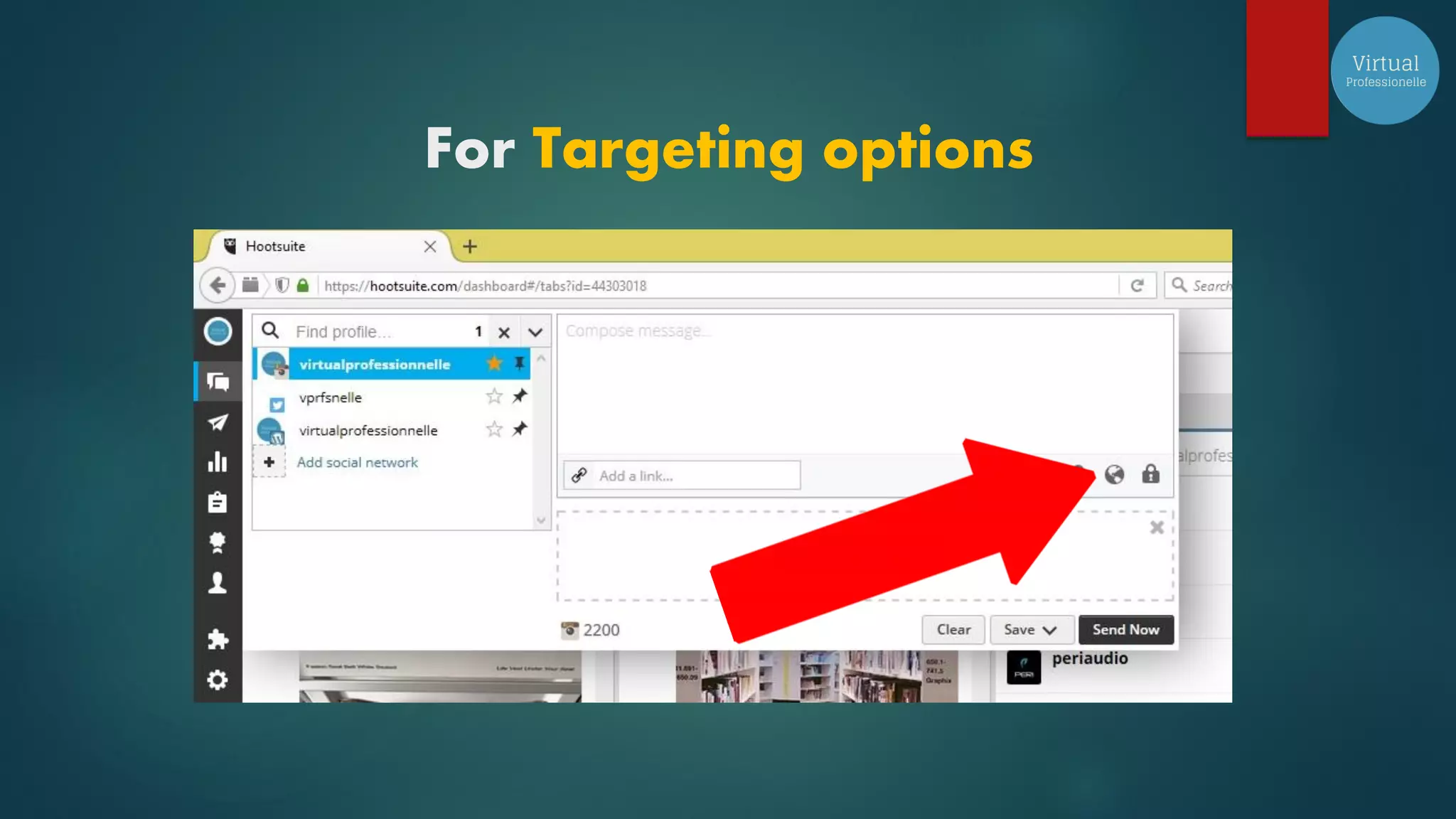
For Targeting options
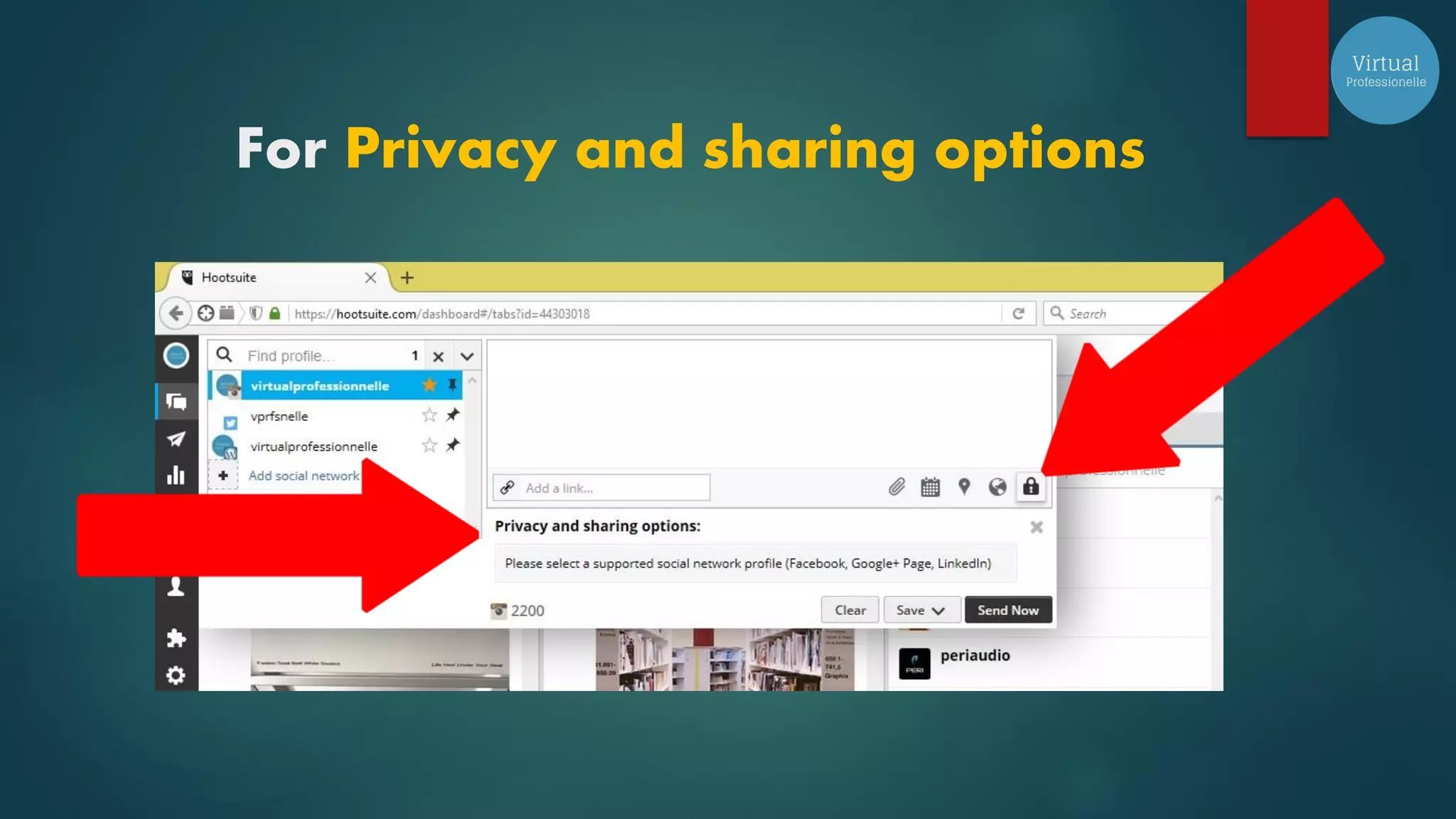
For Privacy and sharing options
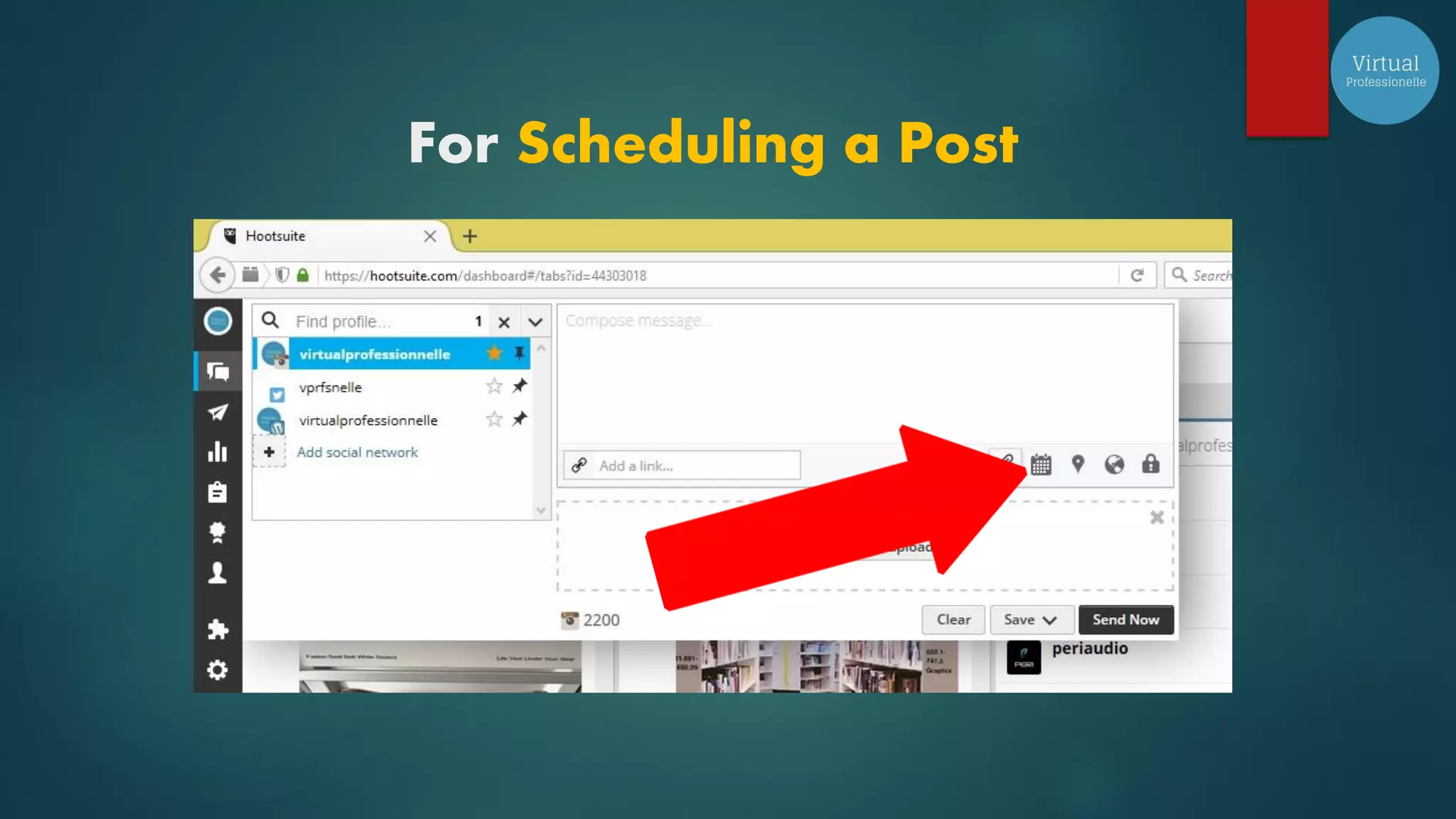
For Scheduling a Post
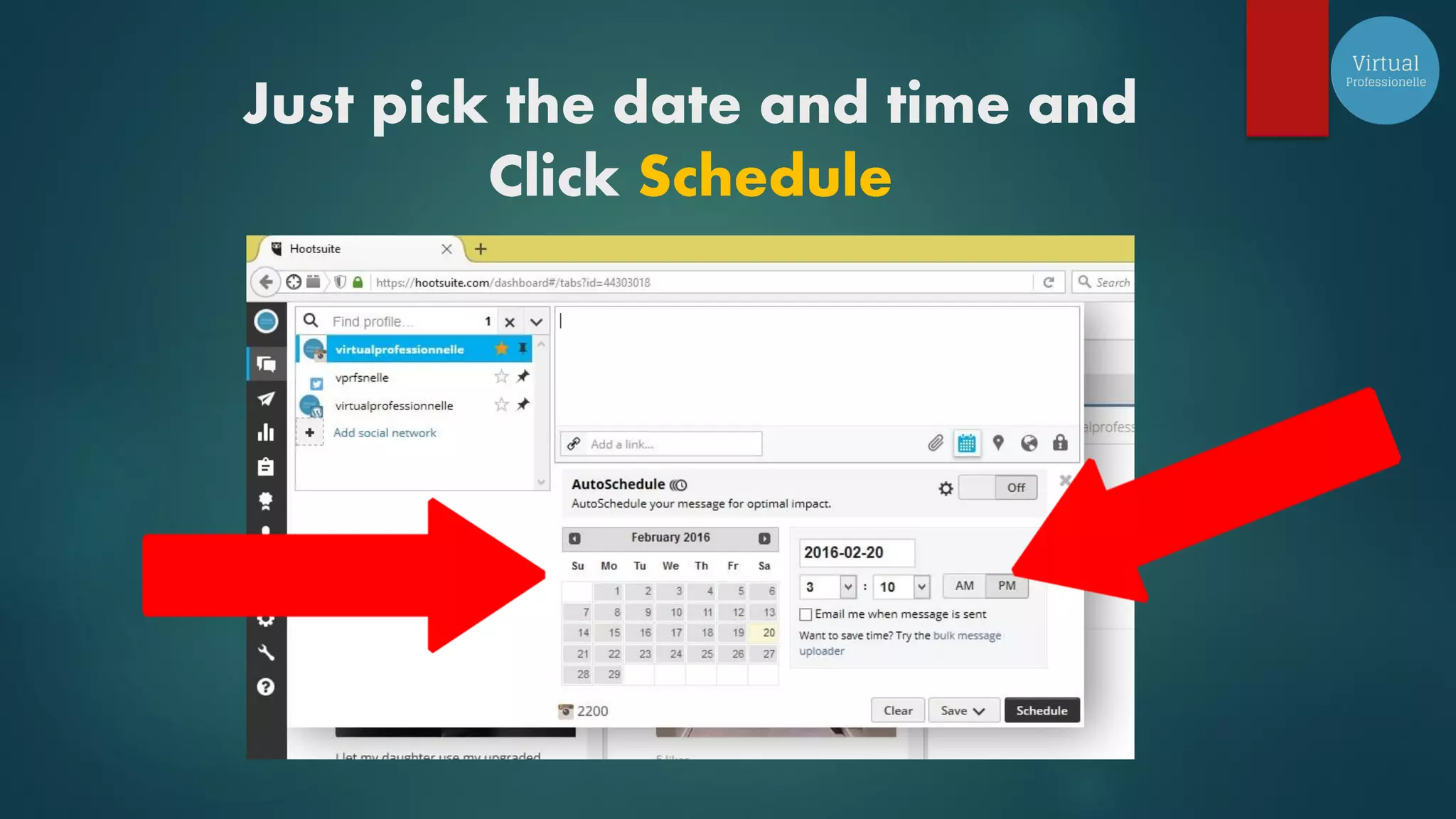
Just pick the date and time and
Click Schedule
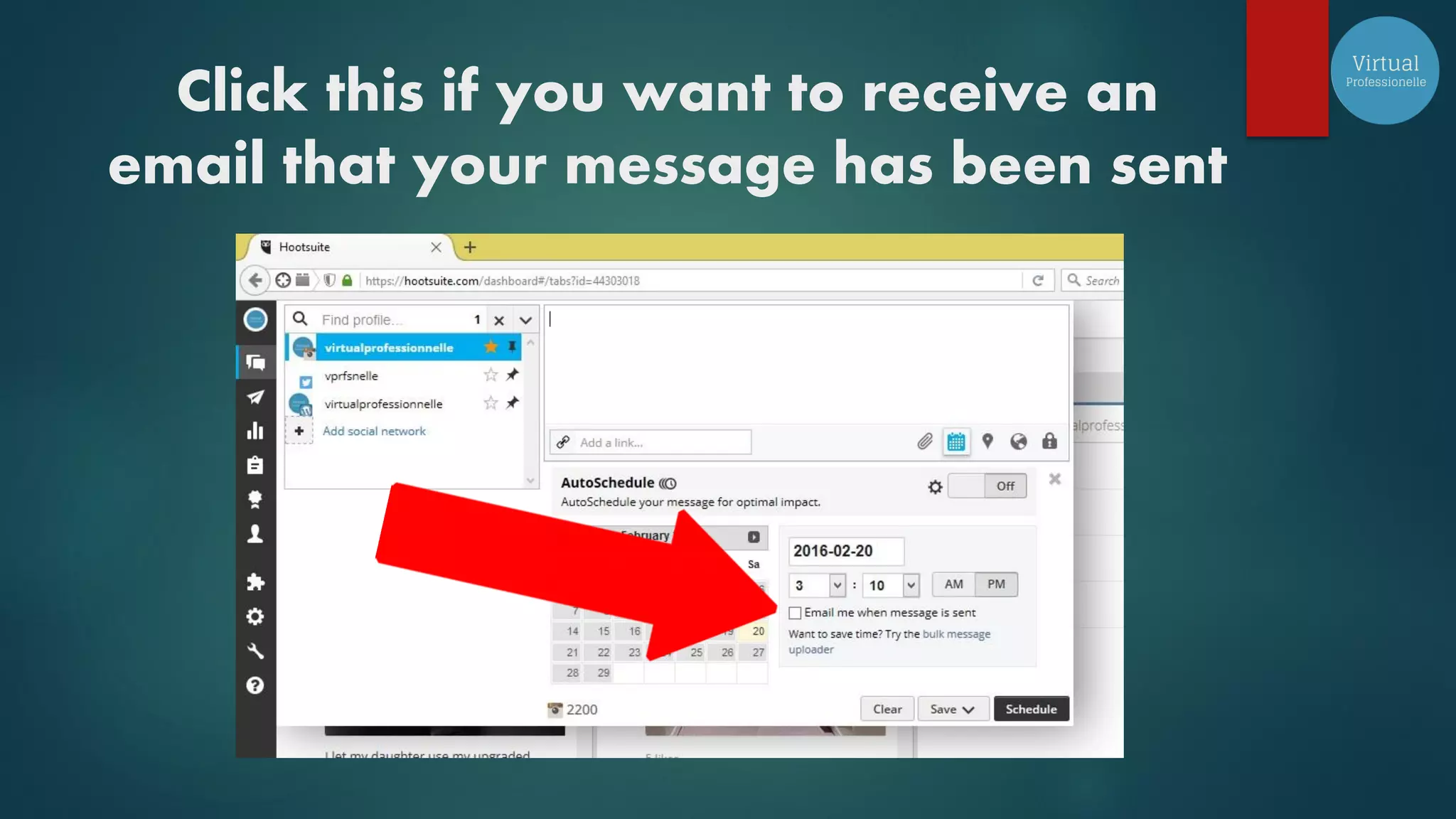
Click this if you want to receive an
email that your message has been sent
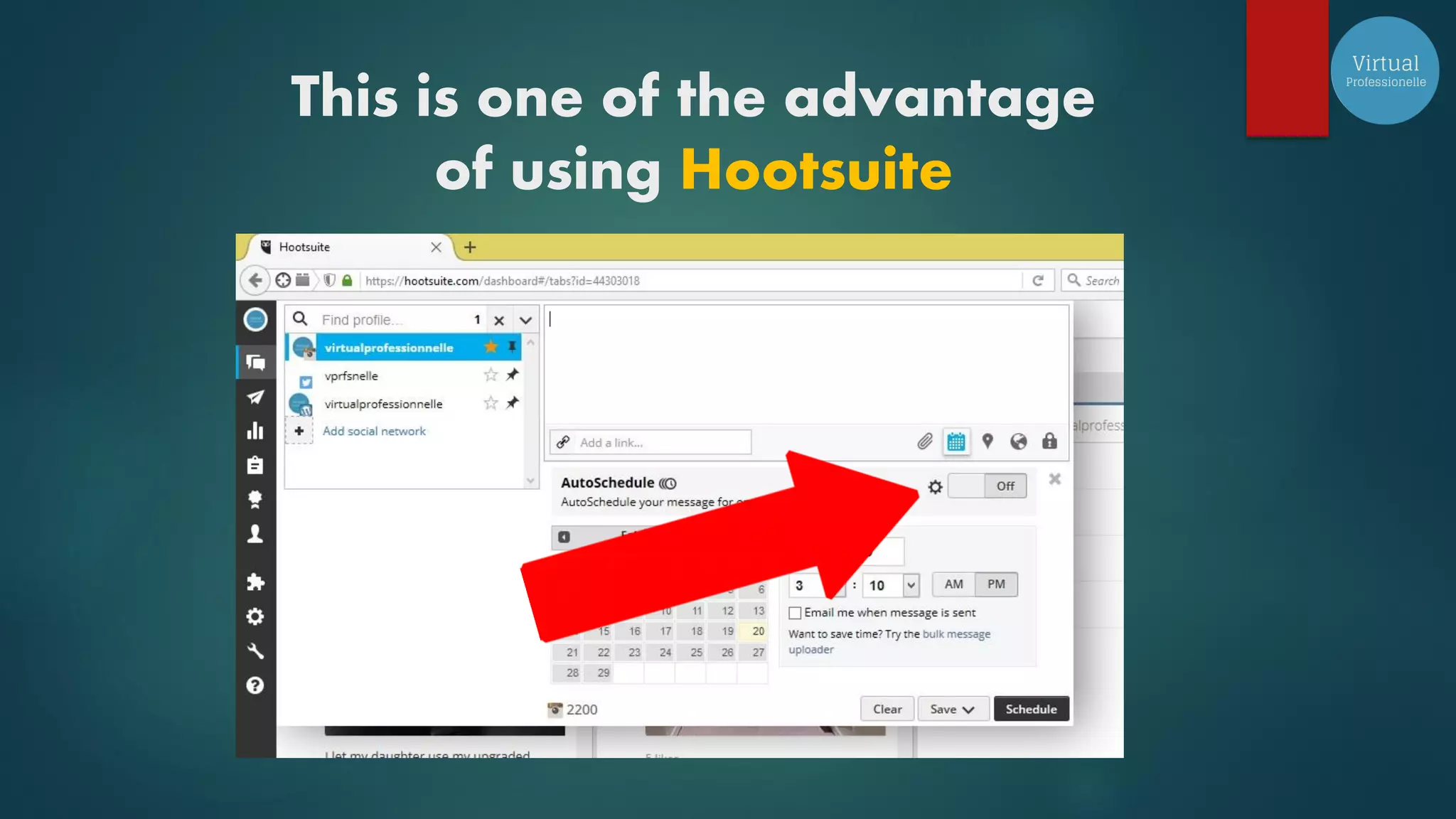
This is one of the advantage
of using Hootsuite
They have this Autoschedule
option wherein they will analyze
your followers and figure out
what is the best time of the day
to put out any given message
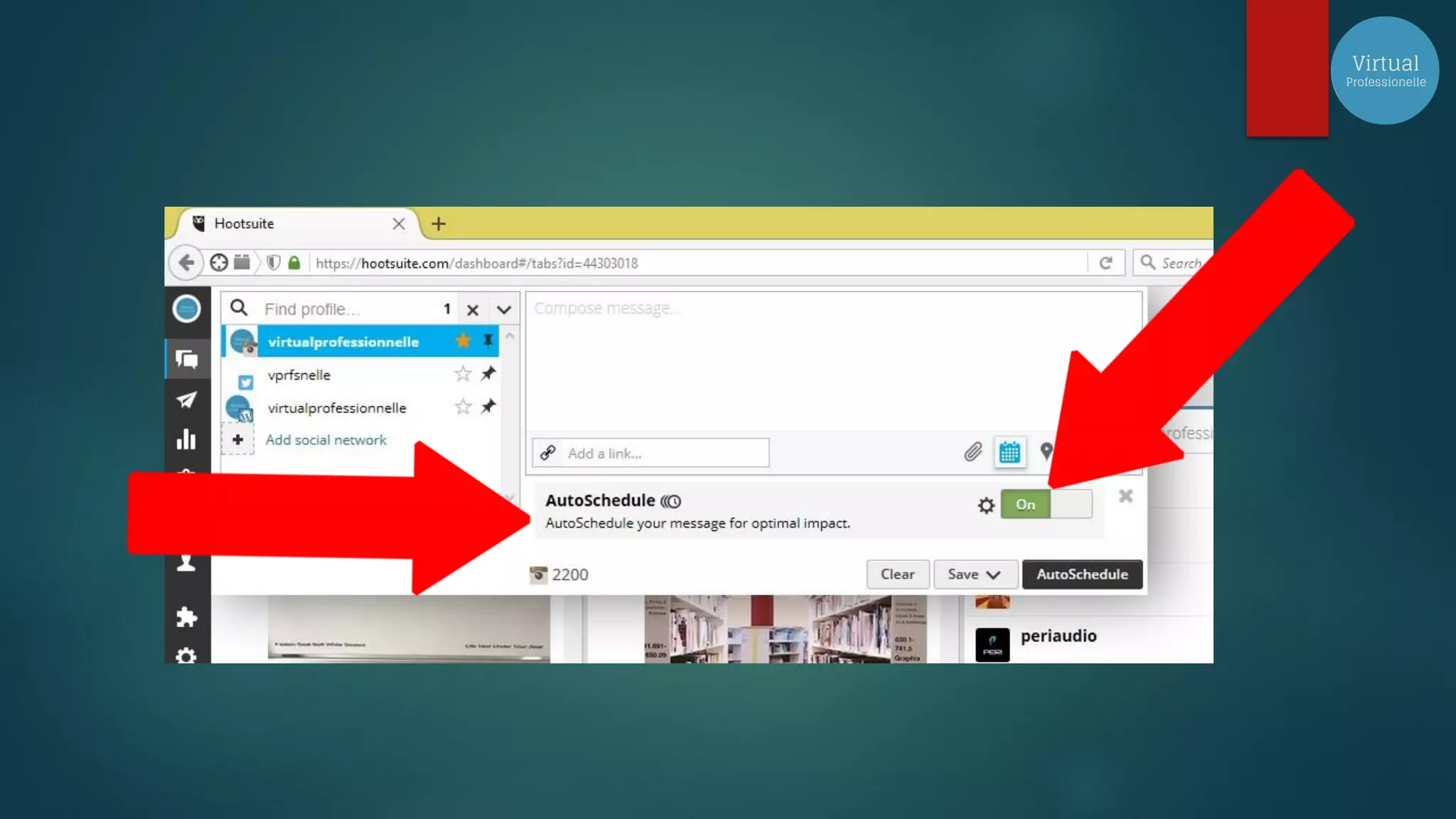
If it’s On you will see this message
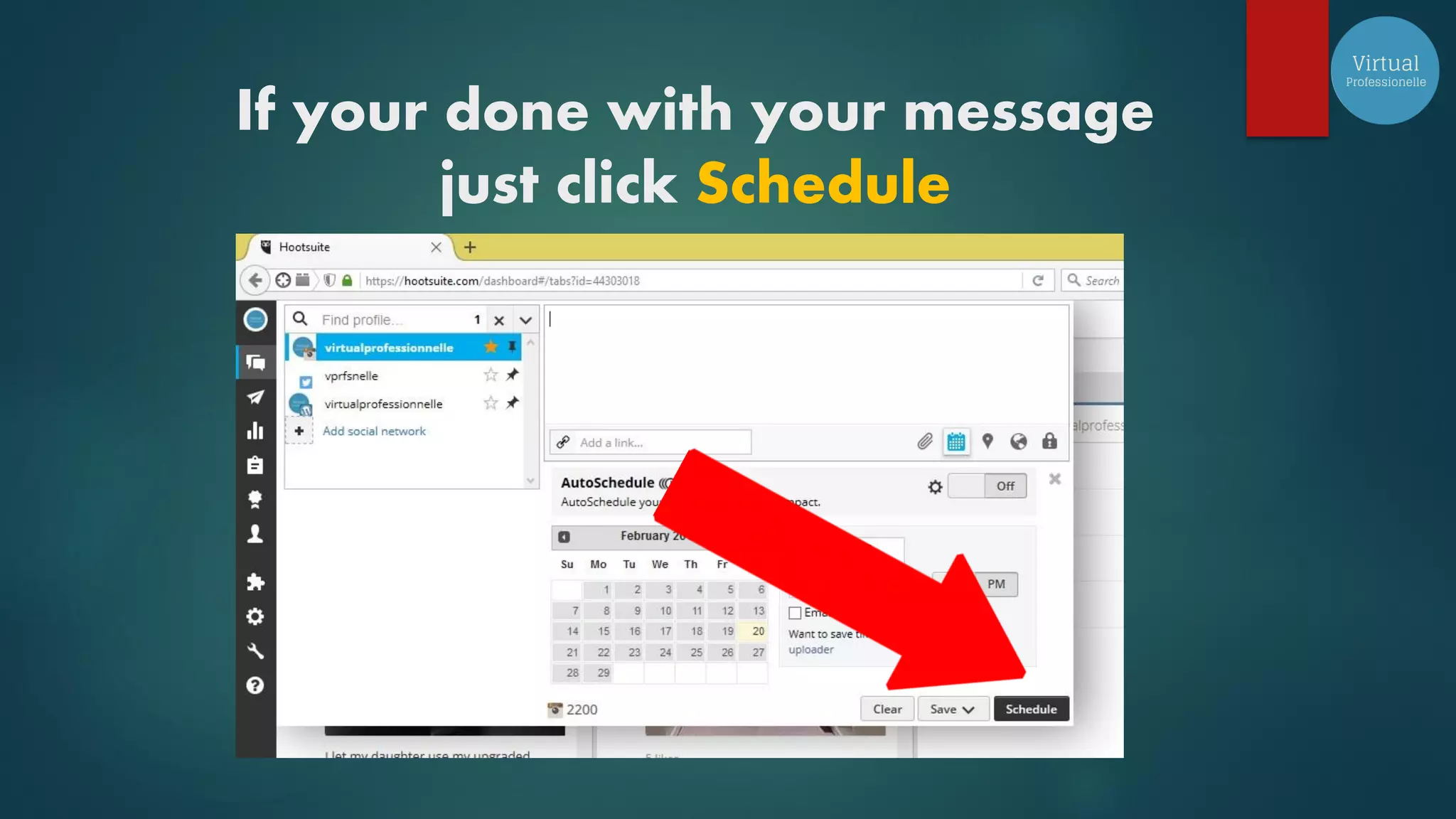
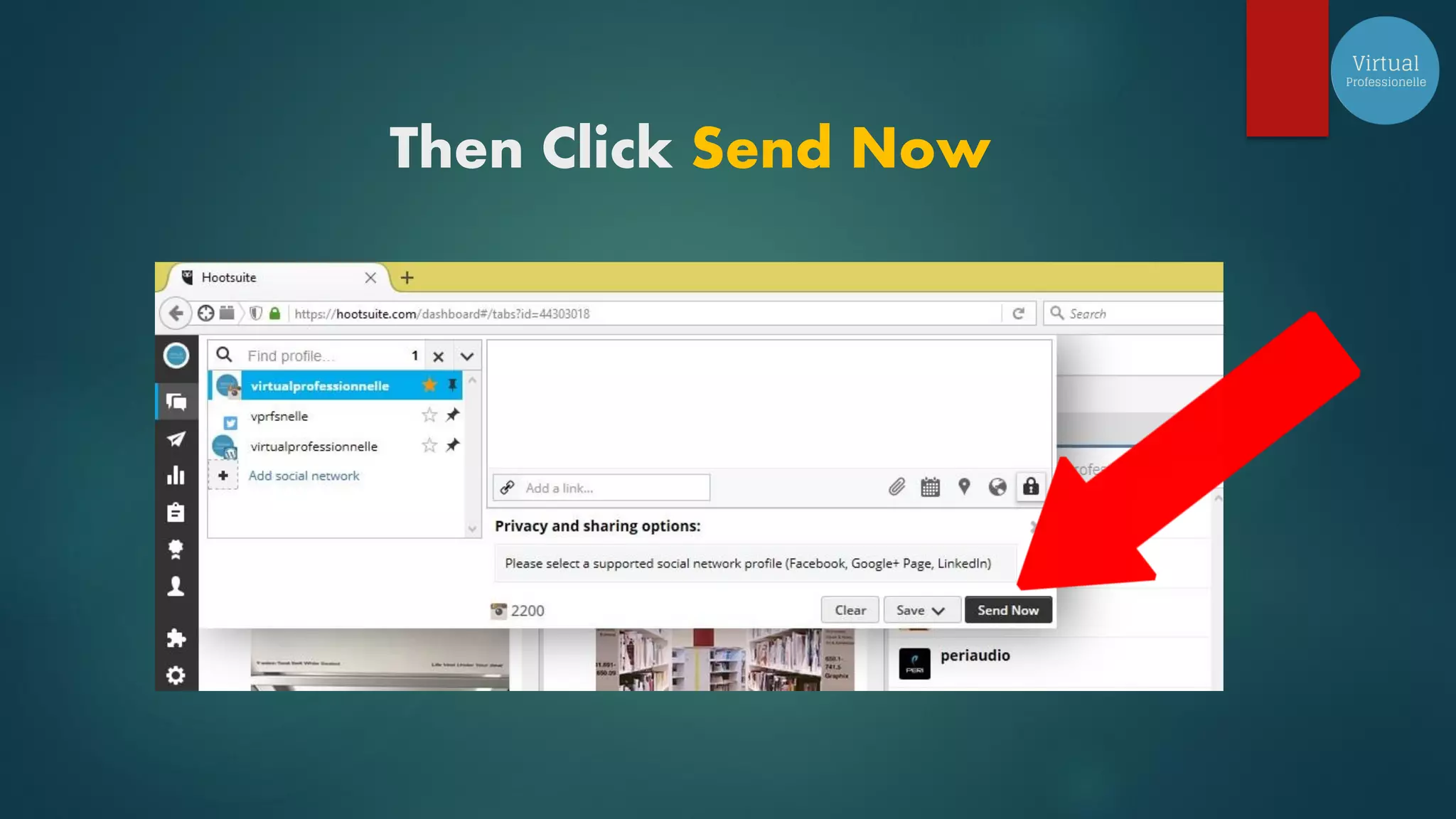
If your done with your message
just click Schedule
Then Click Send Now
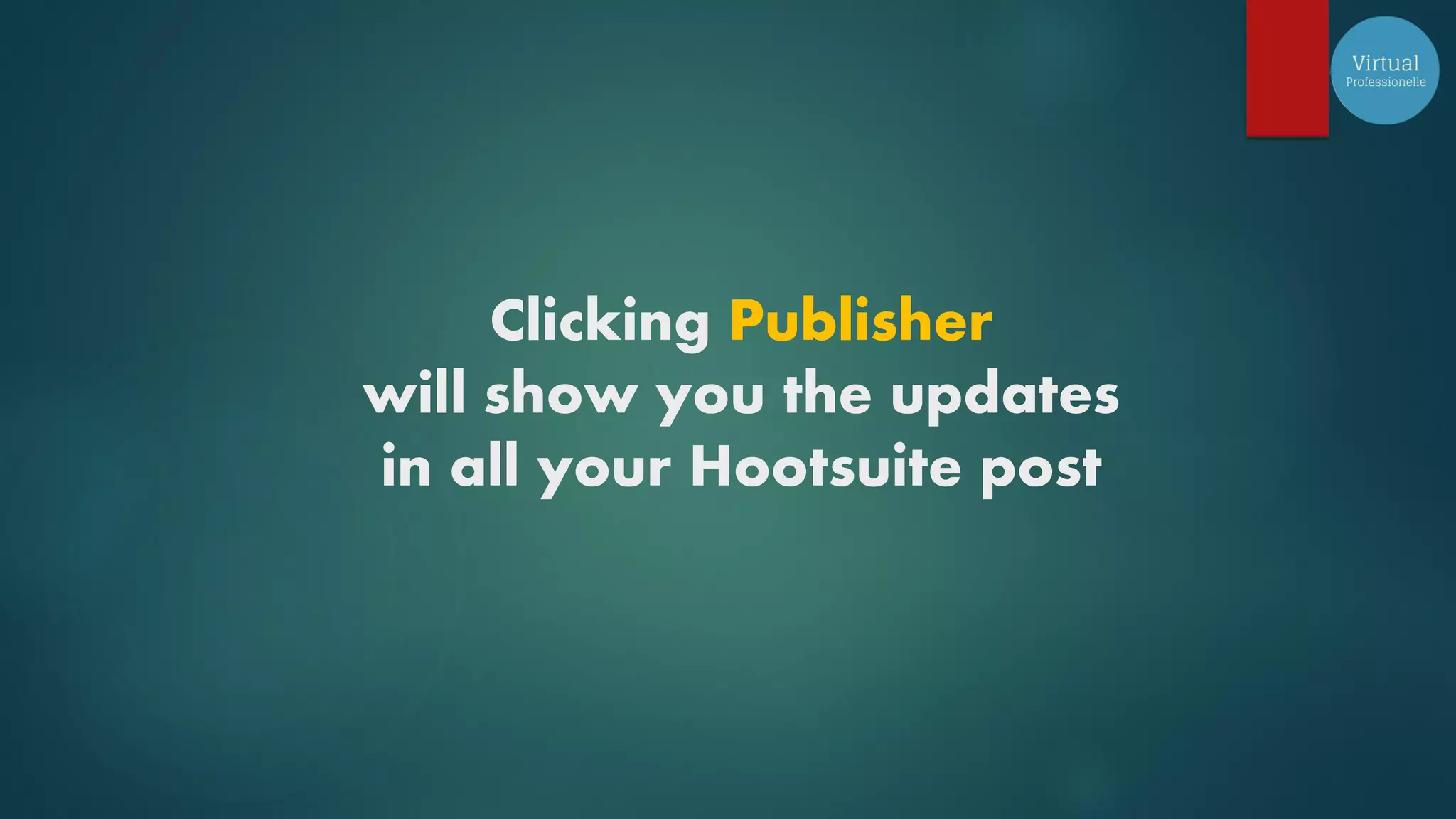
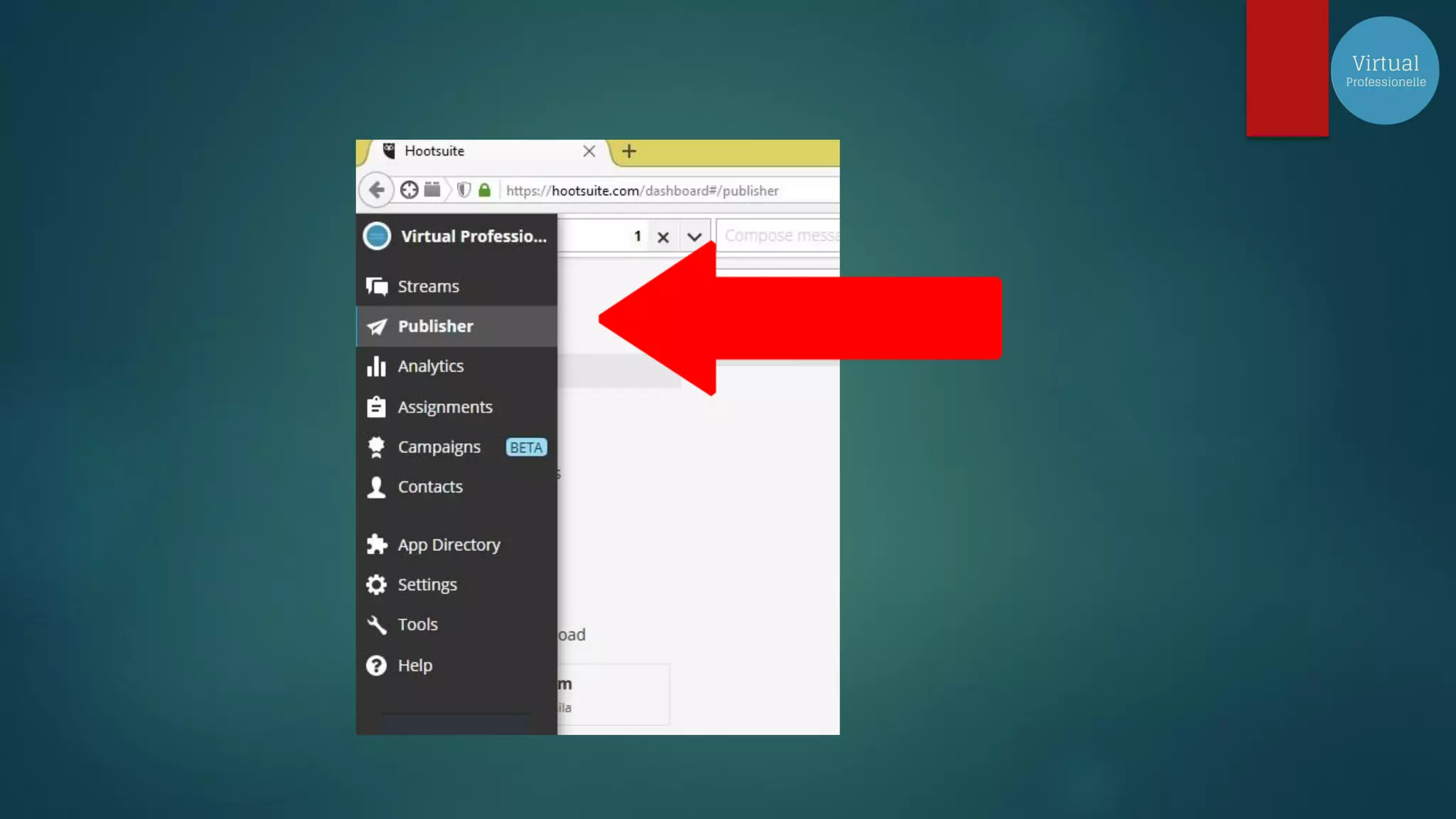
Clicking Publisher
will show you the updates
in all your Hootsuite post
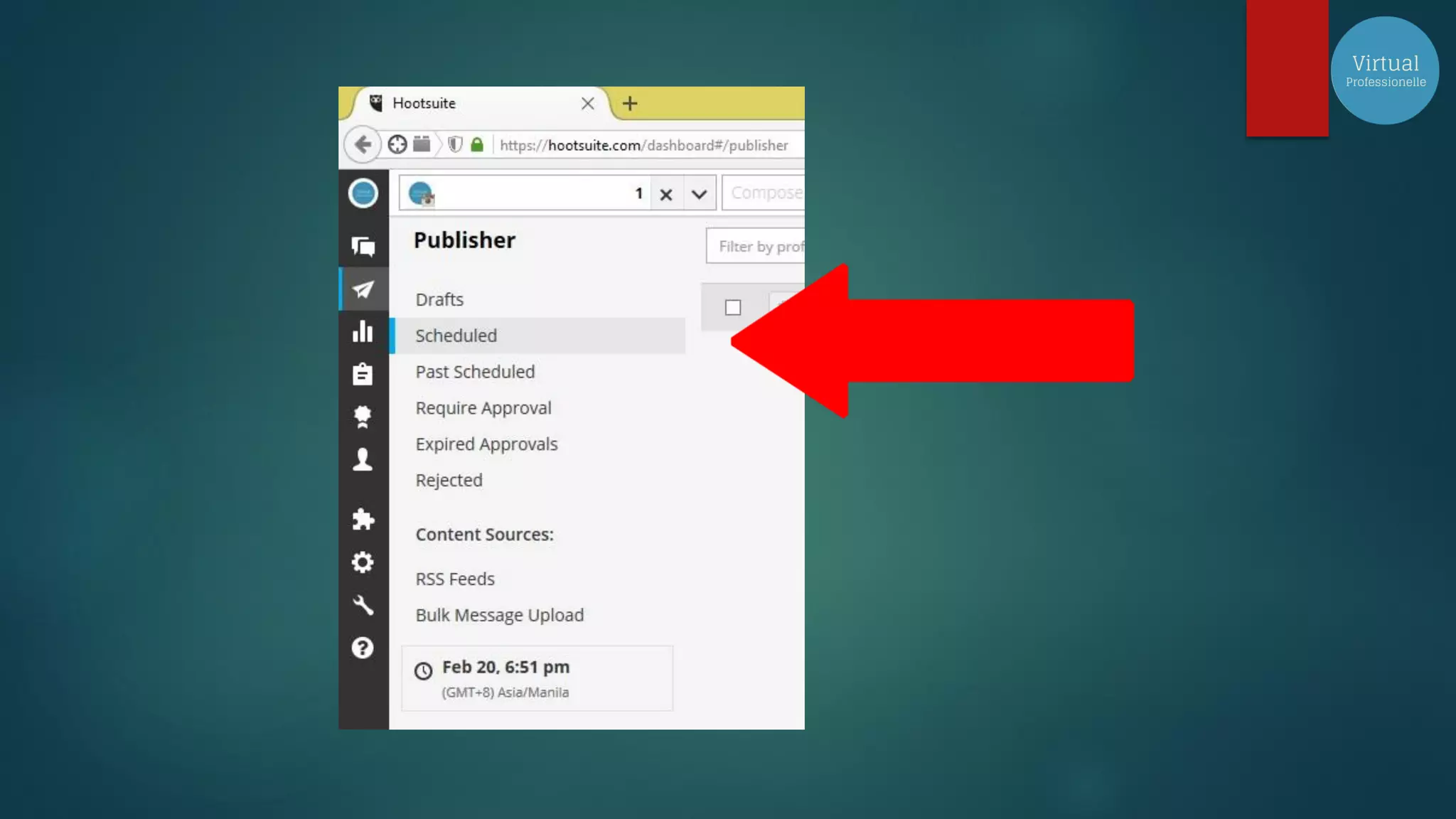
You will see this options
I also suggest that you do this in
your account
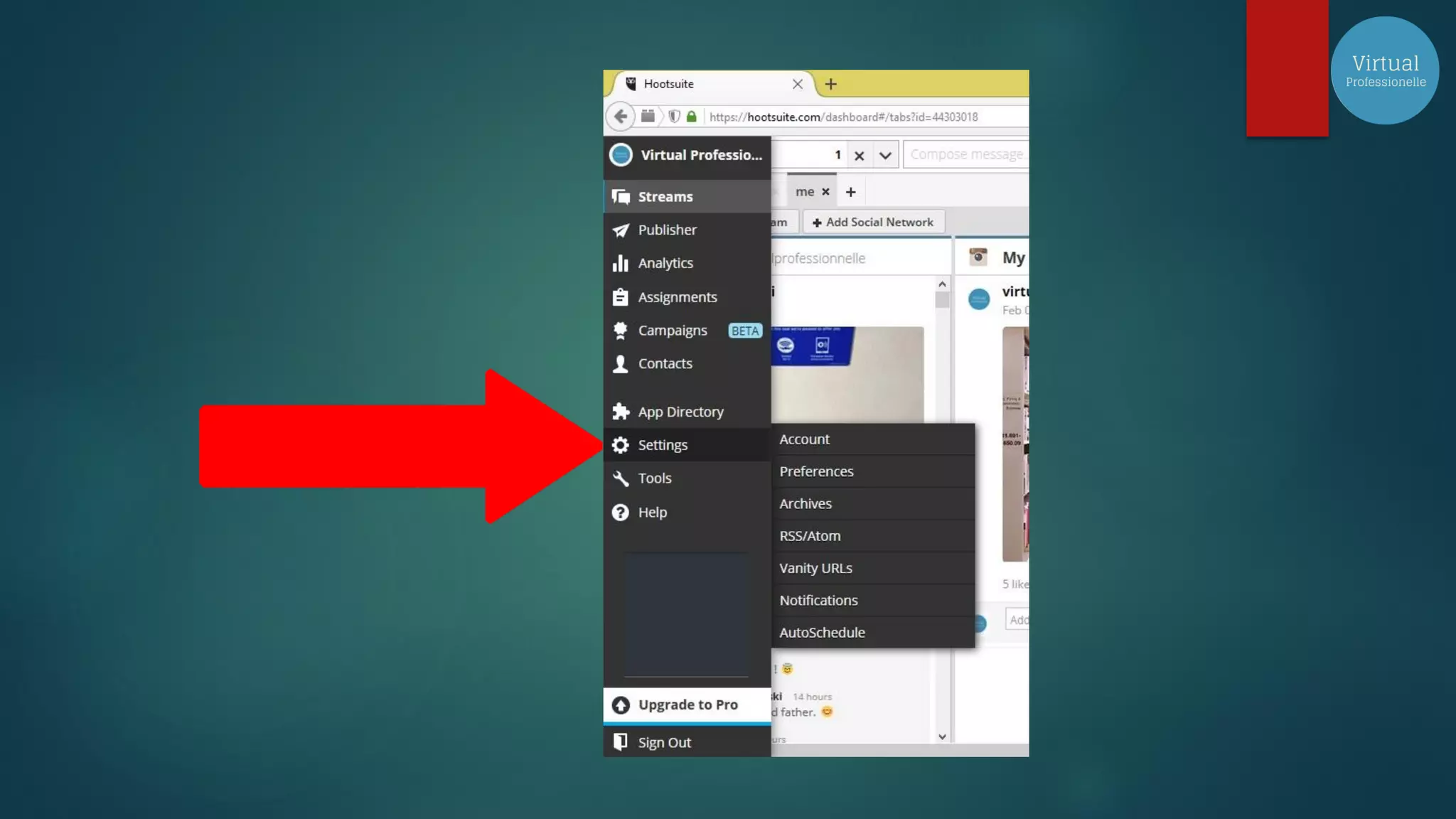
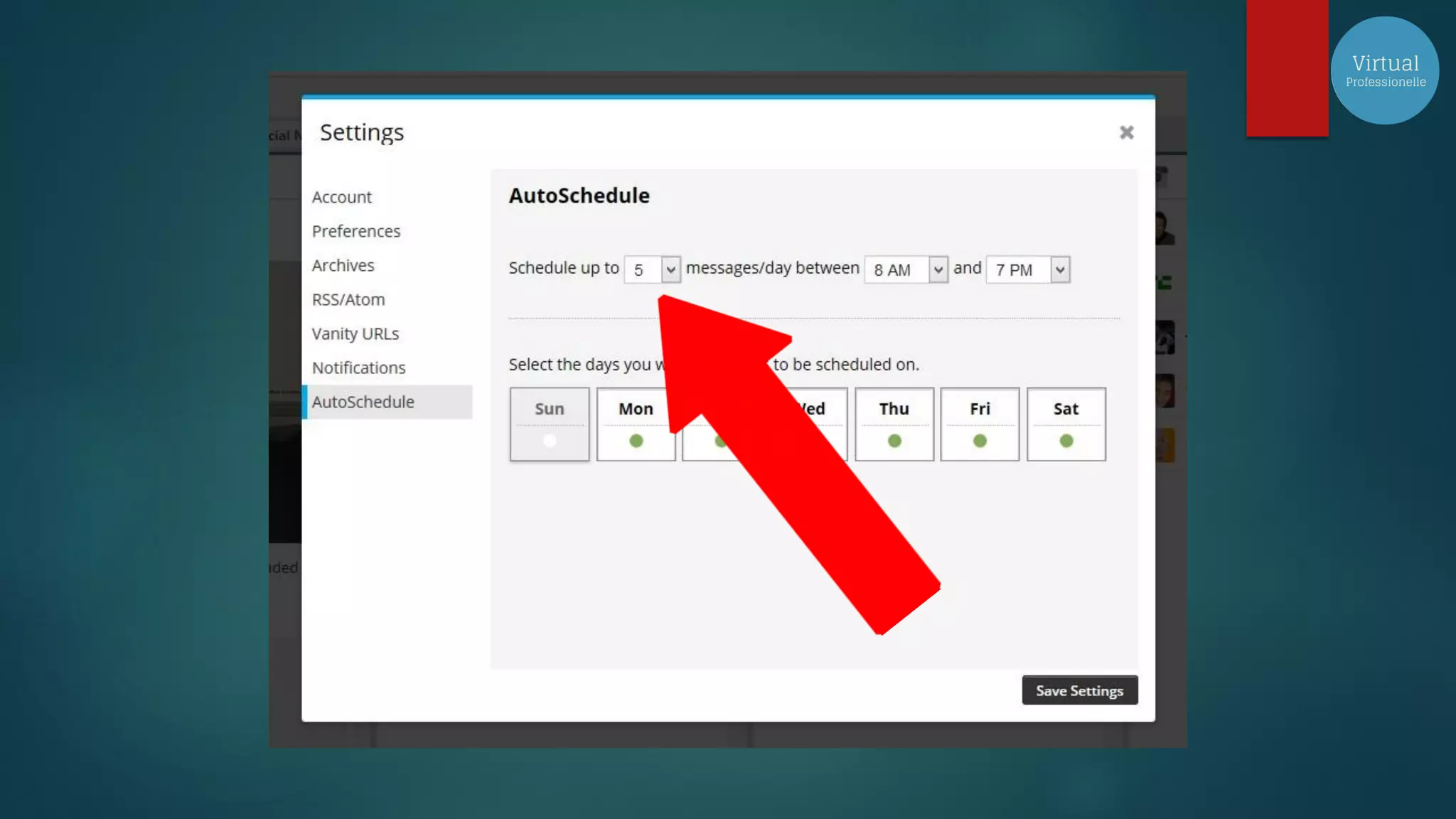
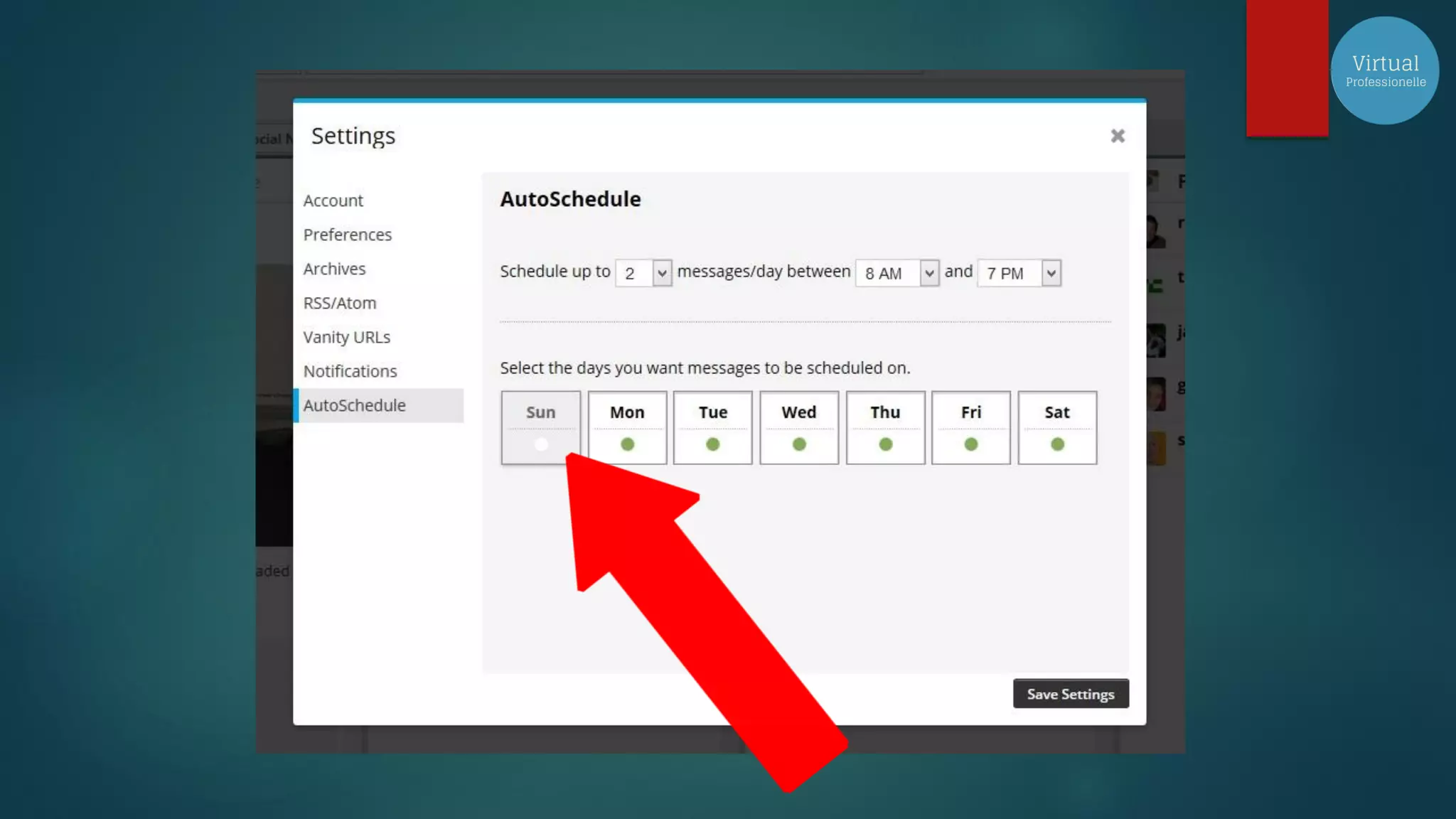
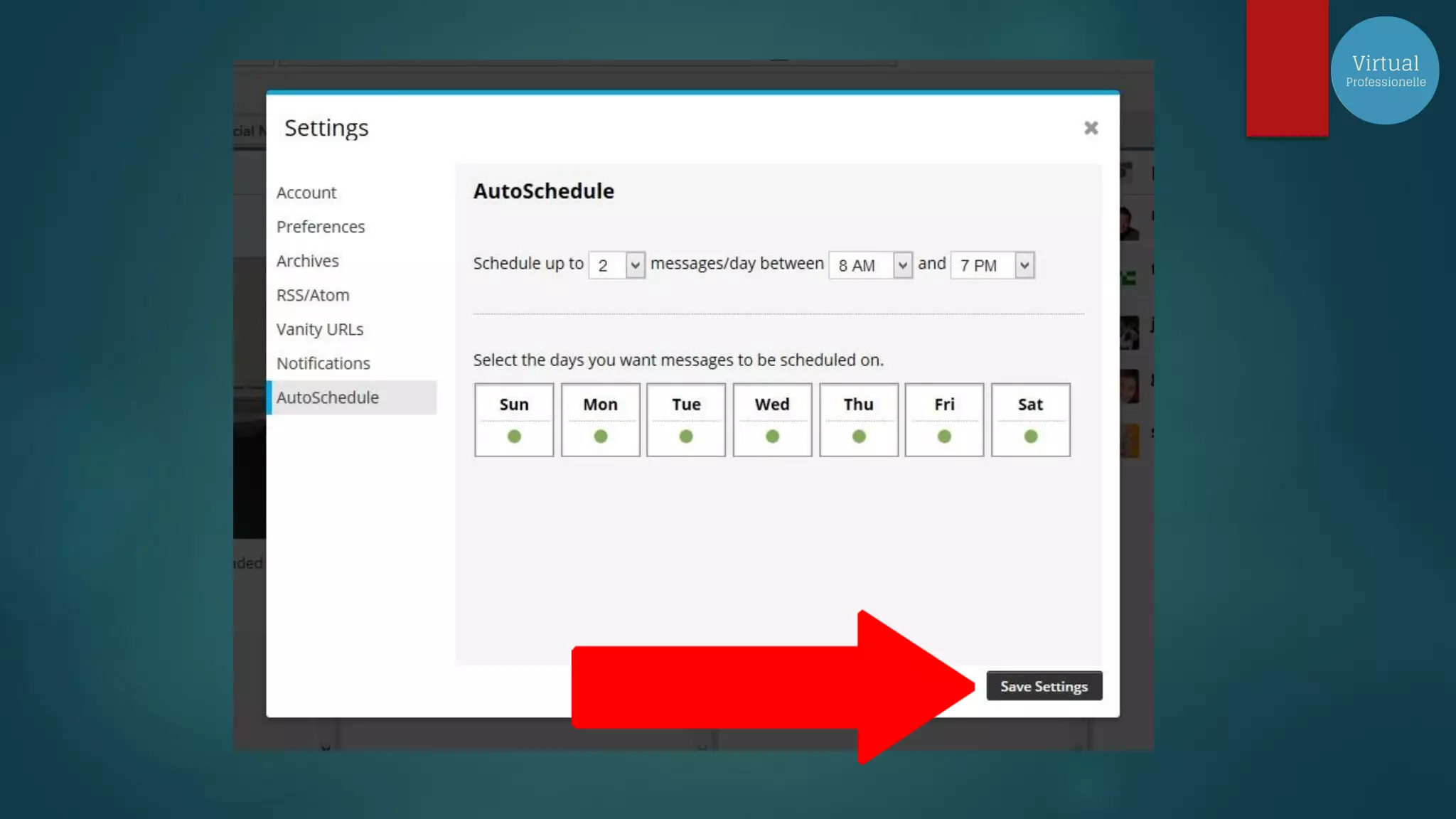
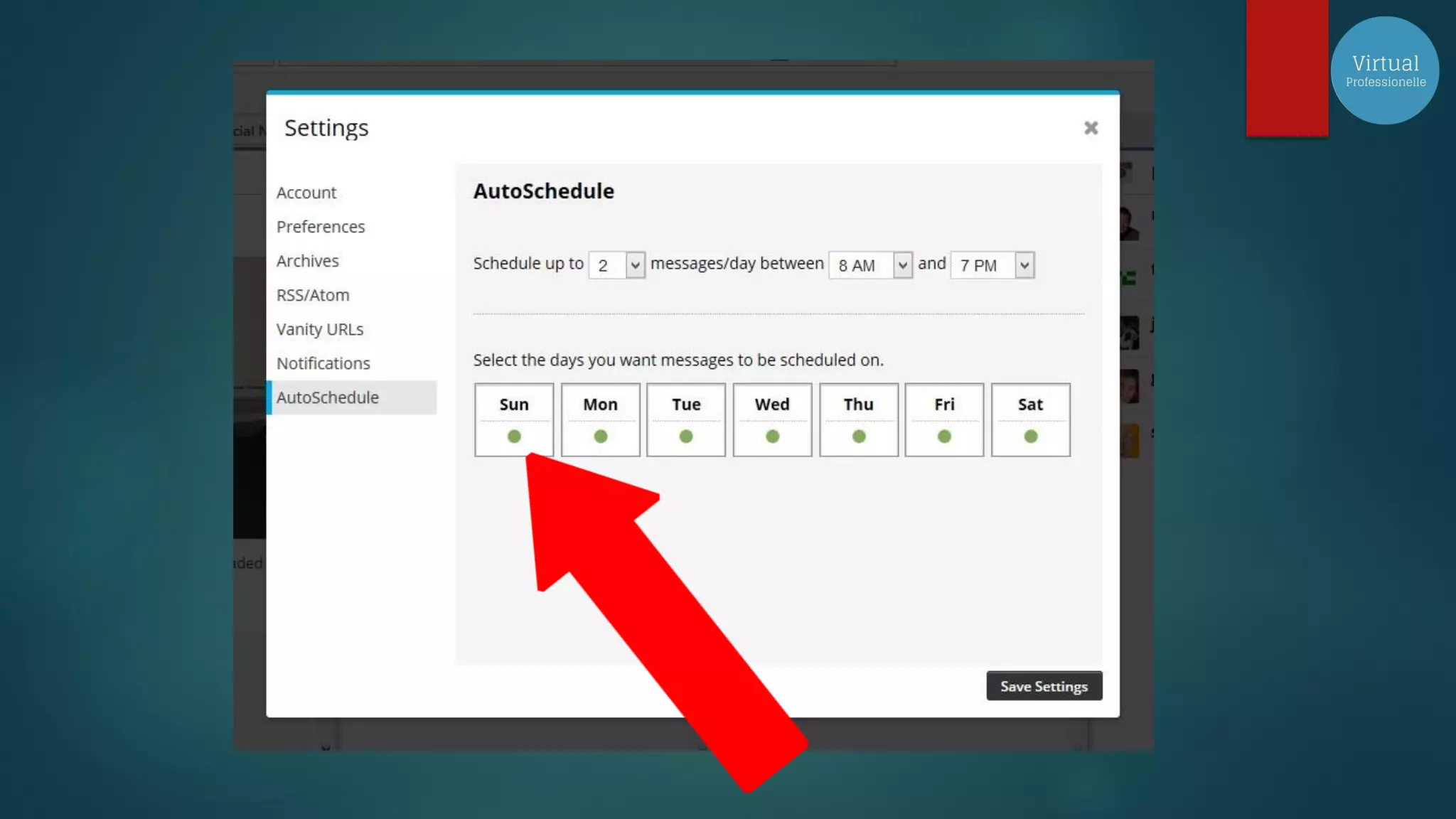
Go to Settings
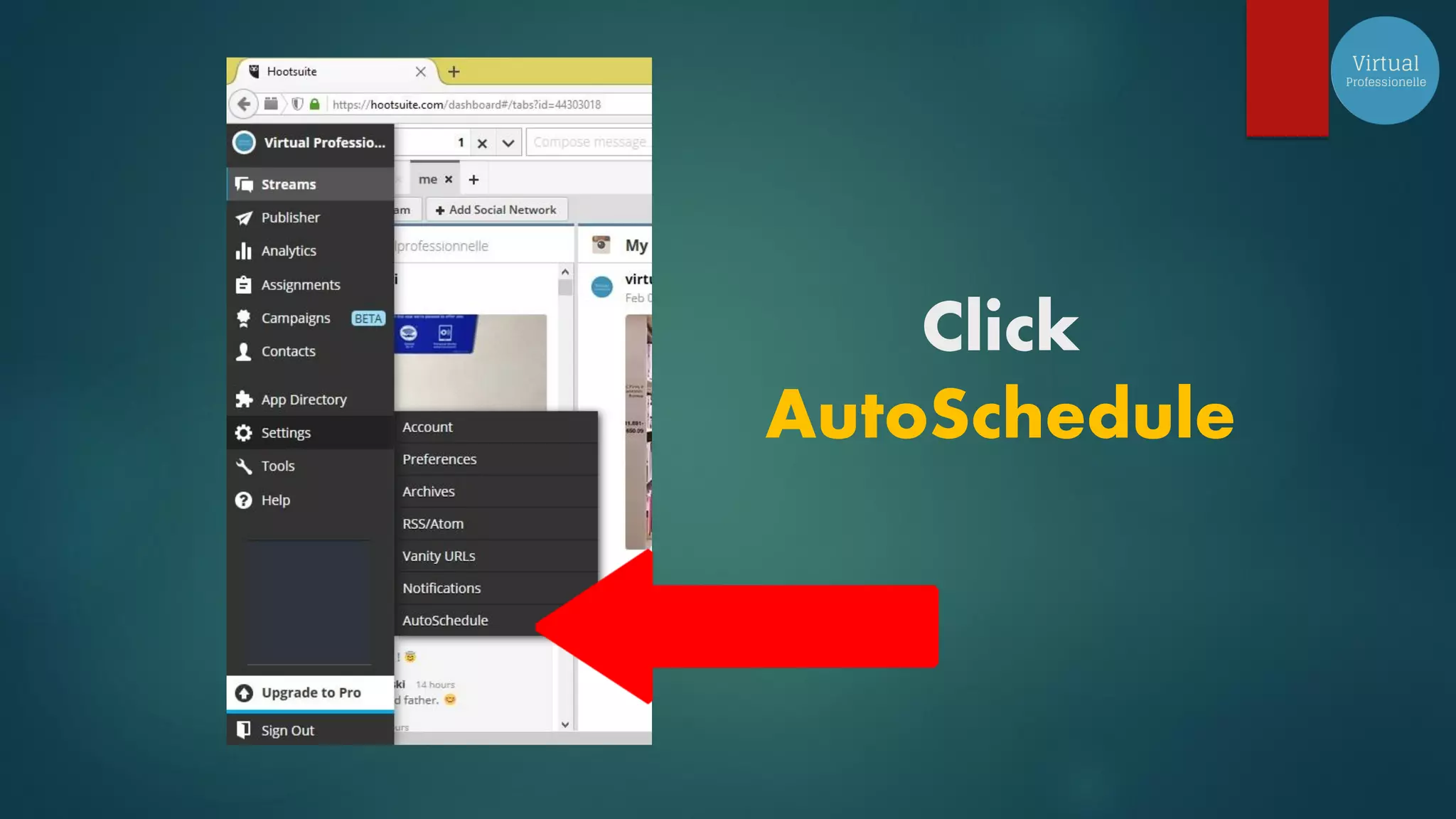
Click
AutoSchedule
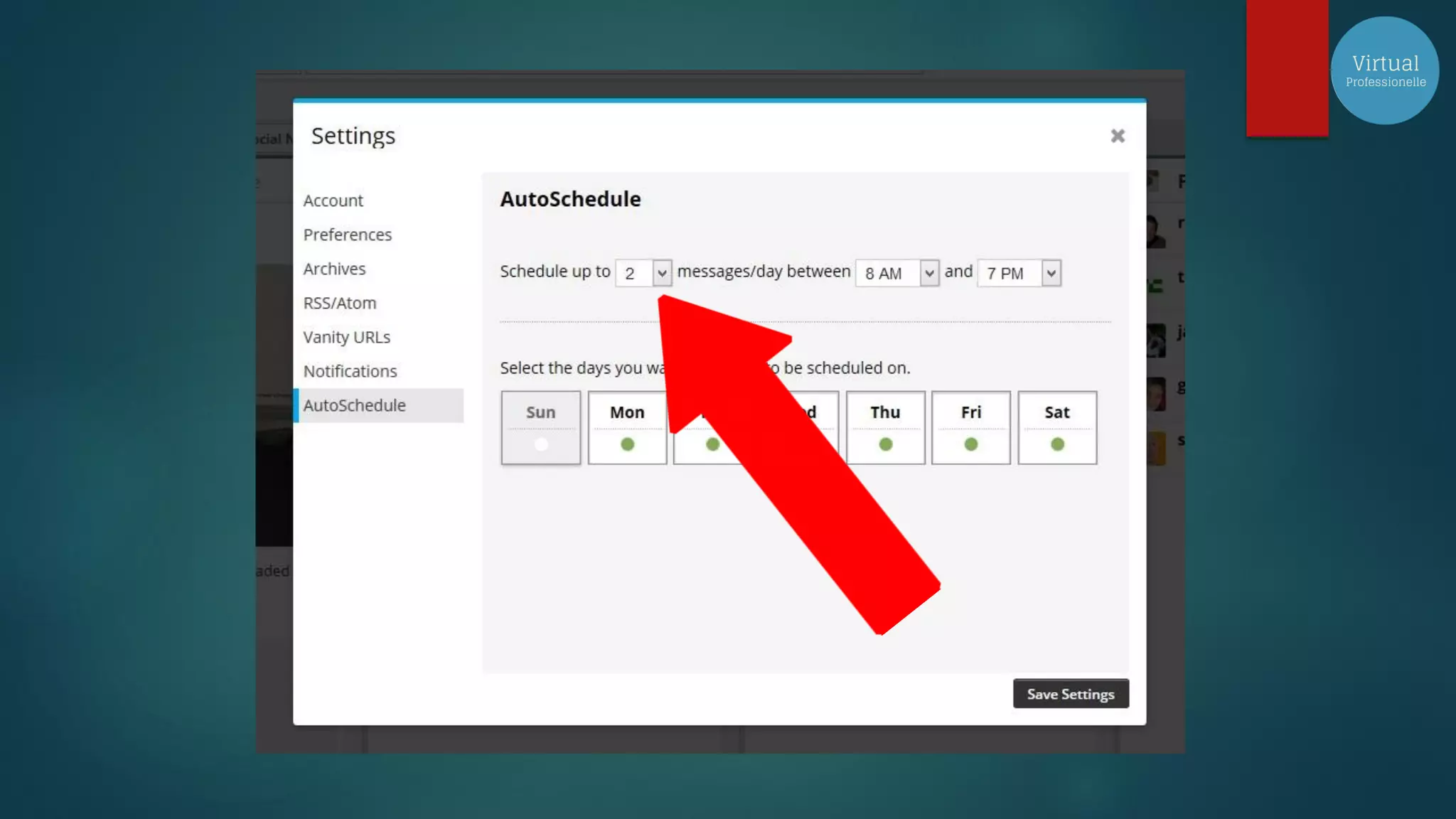
I recommend to change the
schedule from 5 days to 2 days
Because we don’t want to
irritate our audience for 5 post a
day and bother them during
their work or any activity that
they are doing.
According to statistics 2 post is
enough for them to read.
Additional tip for you is to click
Sunday for scheduled messages
Again Hootsuite can do the
calculation for the best time to
post for your specific audience
Then Click Save Settings
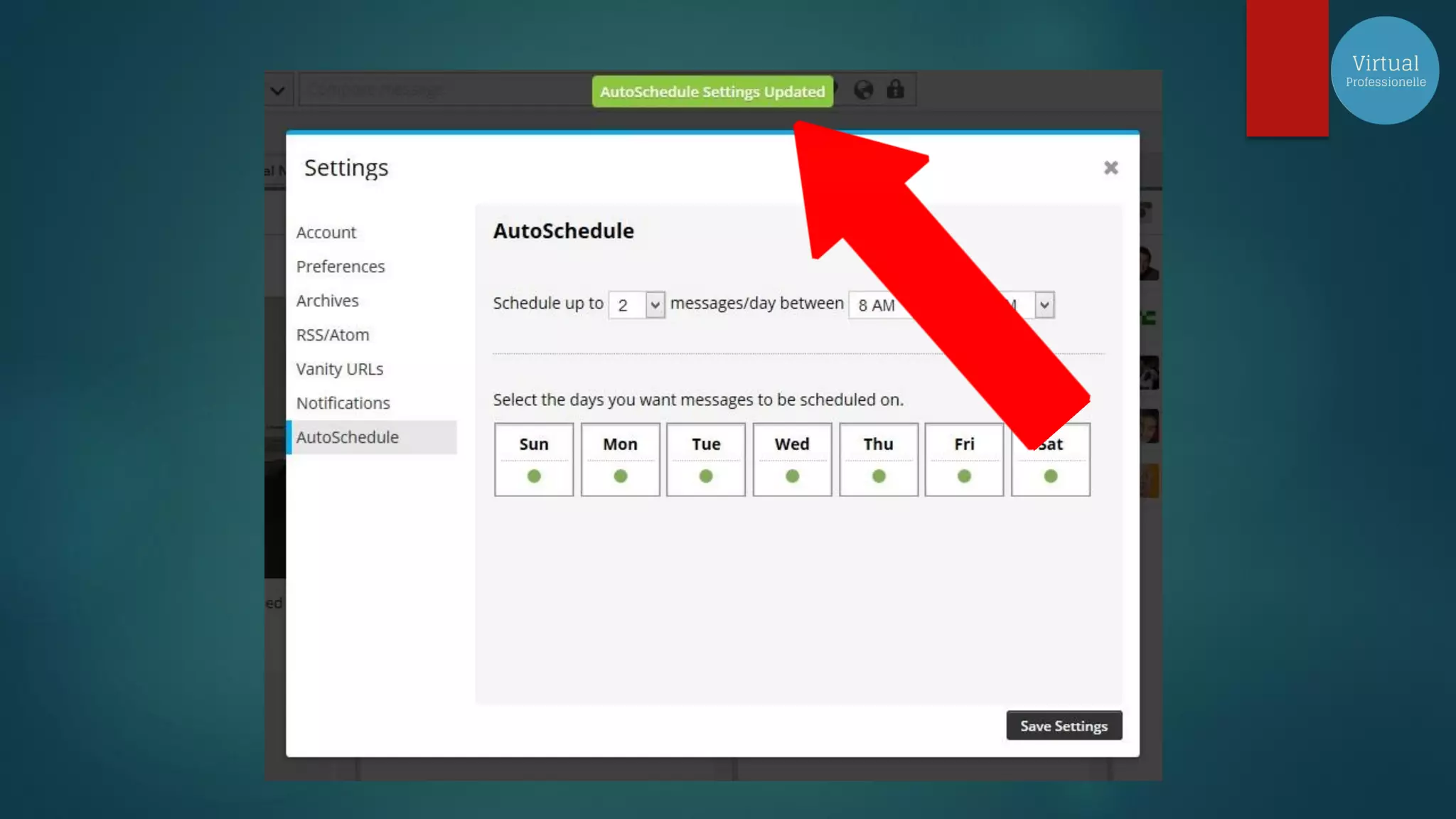
You will see a prompt that it is
updated
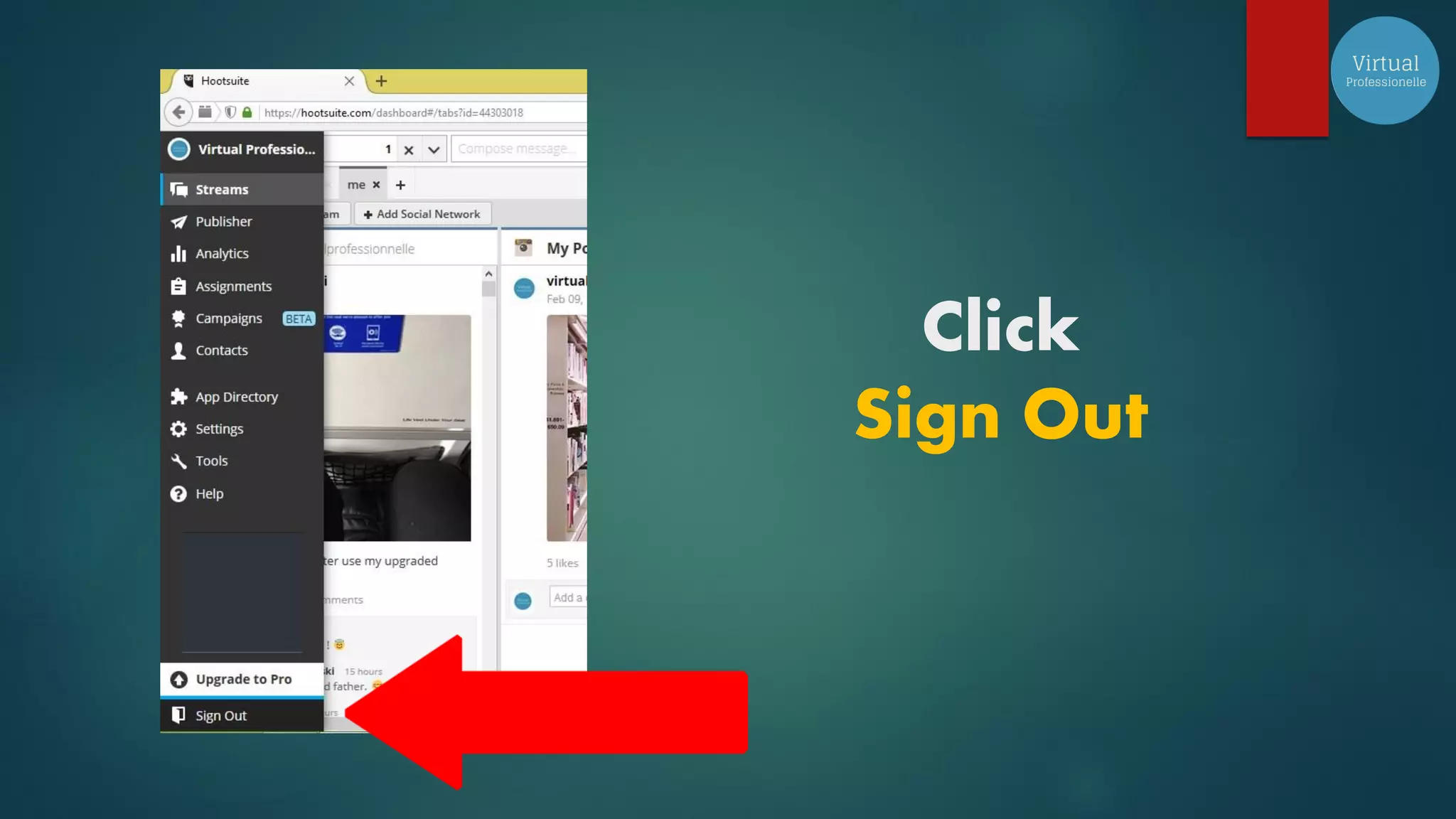
To Sign out
Click
Sign Out
Congratulations !!!
With GOD
all things are possible
Matthew 19:26

Hootsuite Tutorial with Bonus Tips and Tricks