USING YOUR iPHONE
HOW TO USE IFTTT
For questions and suggestions, email me at janetselose0716@gmail.com.
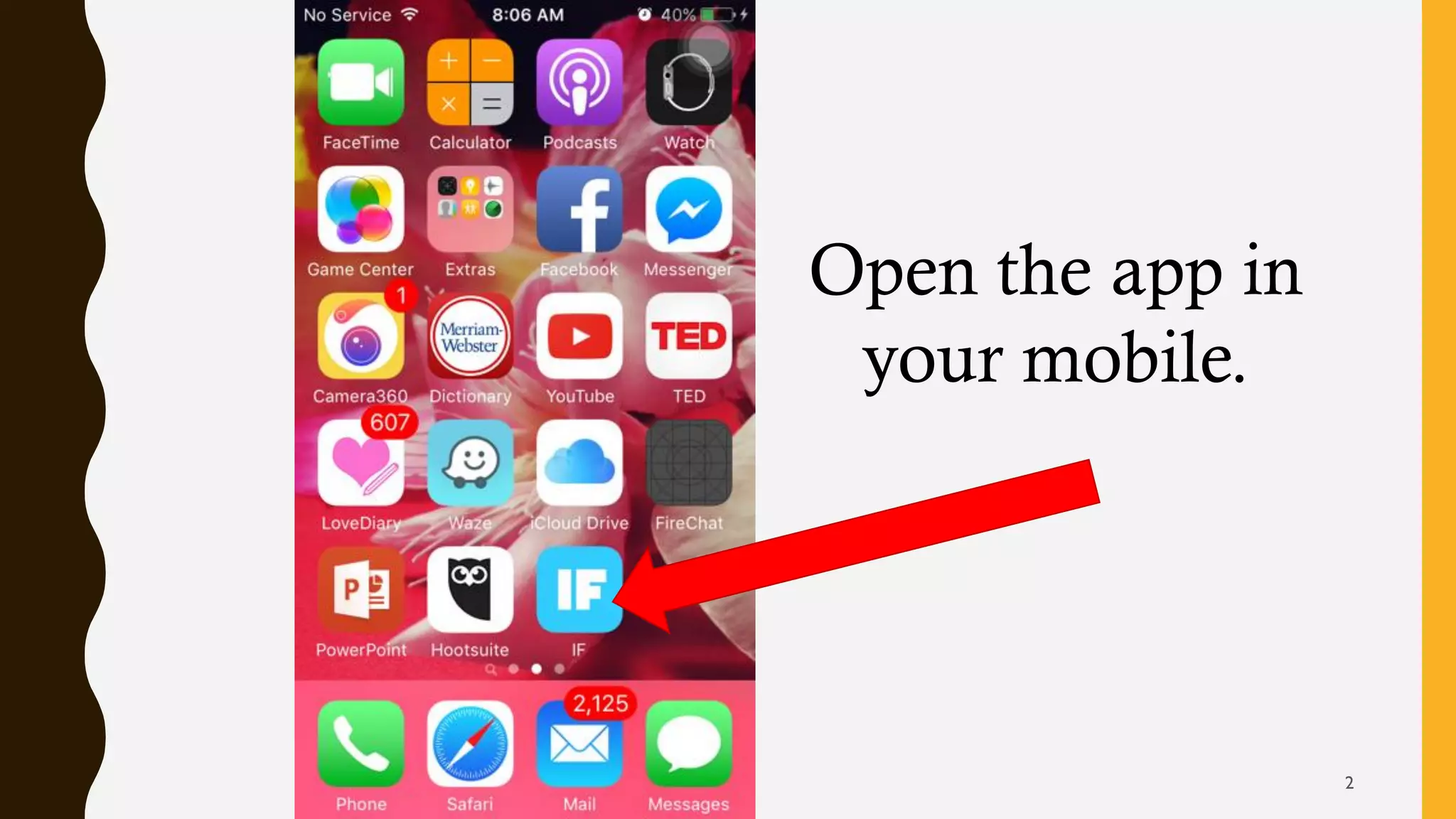
Open the app in
your mobile.
2
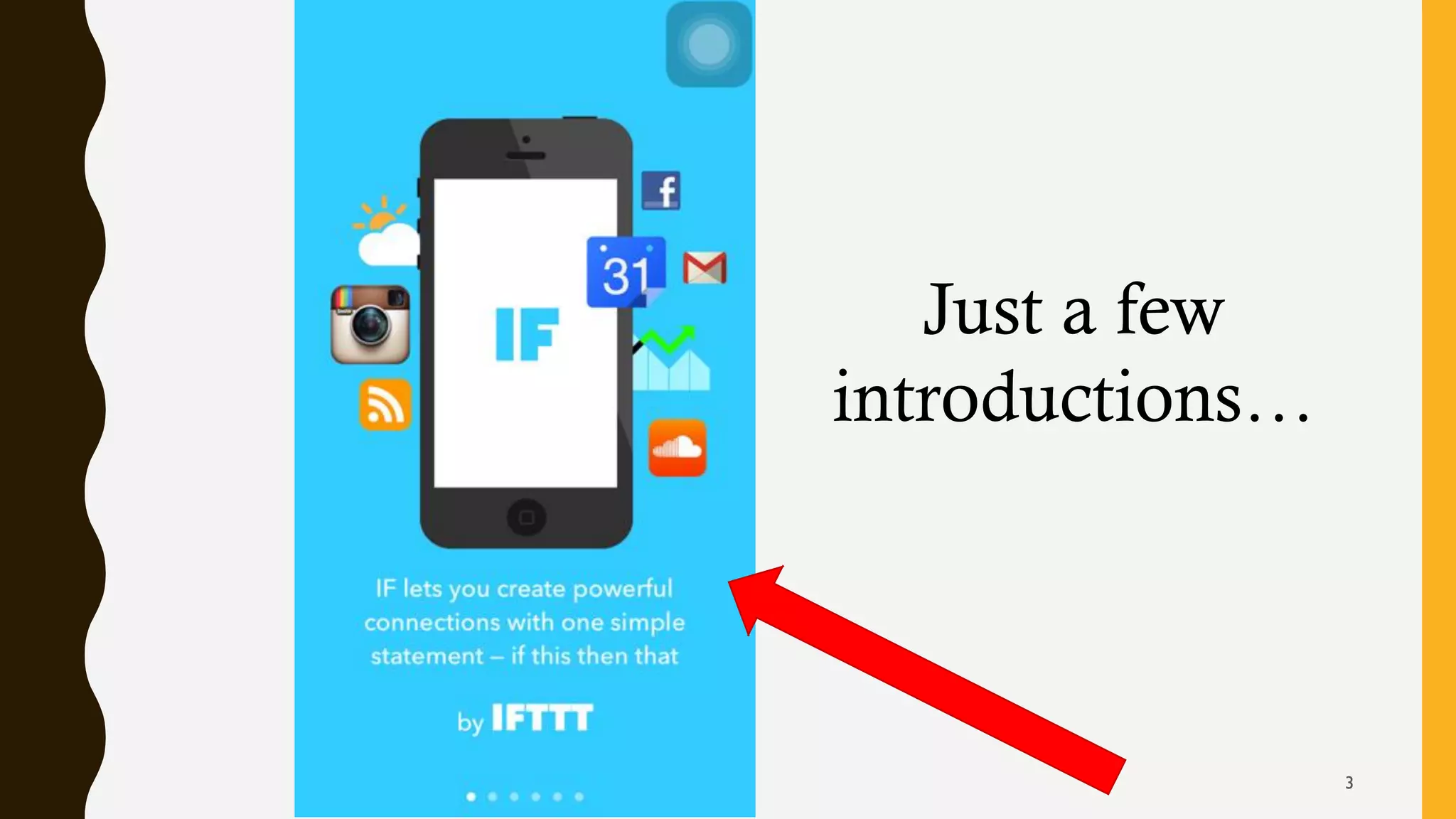
Just a few
introductions…
3
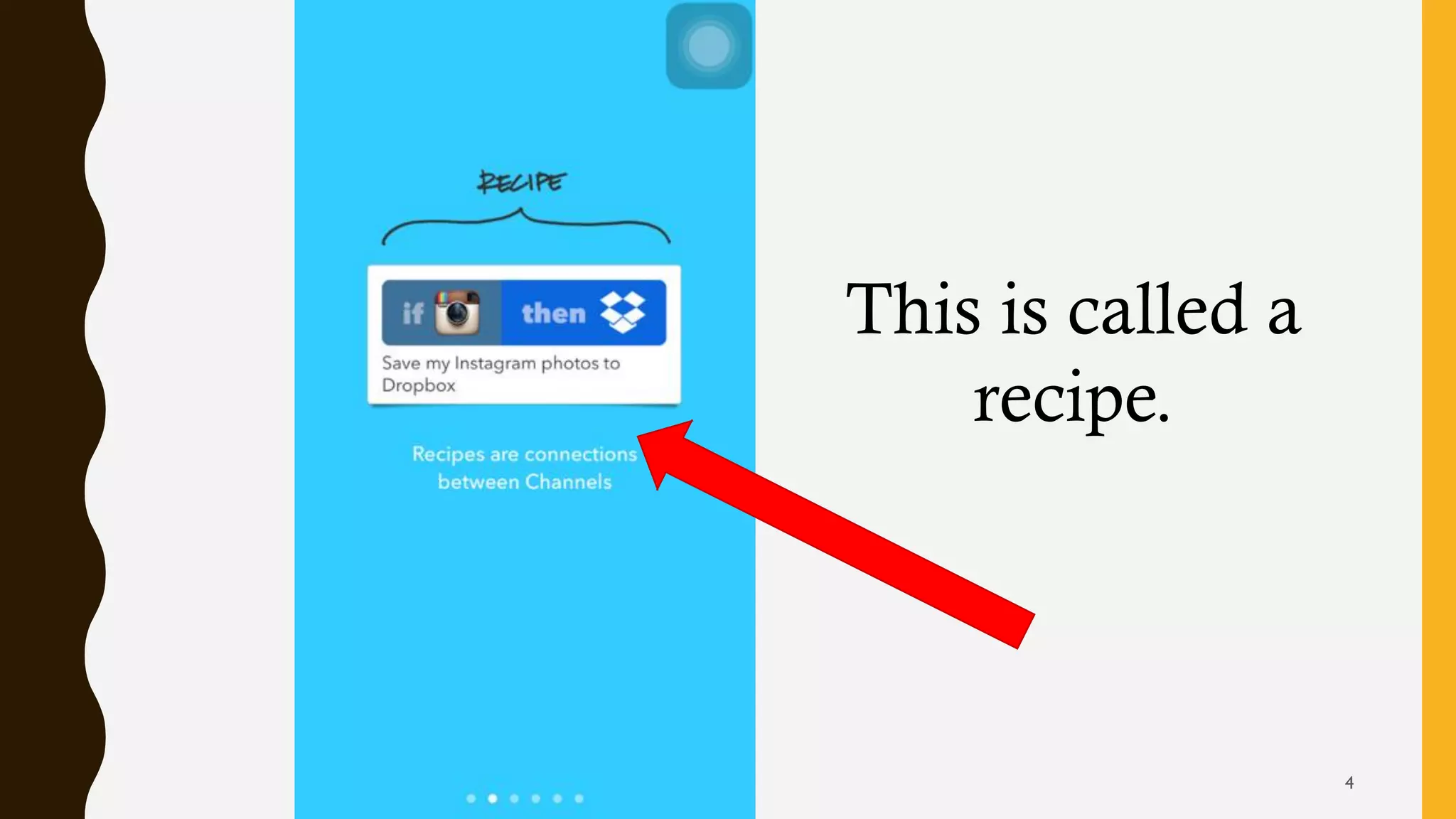
This is called a
recipe.
4
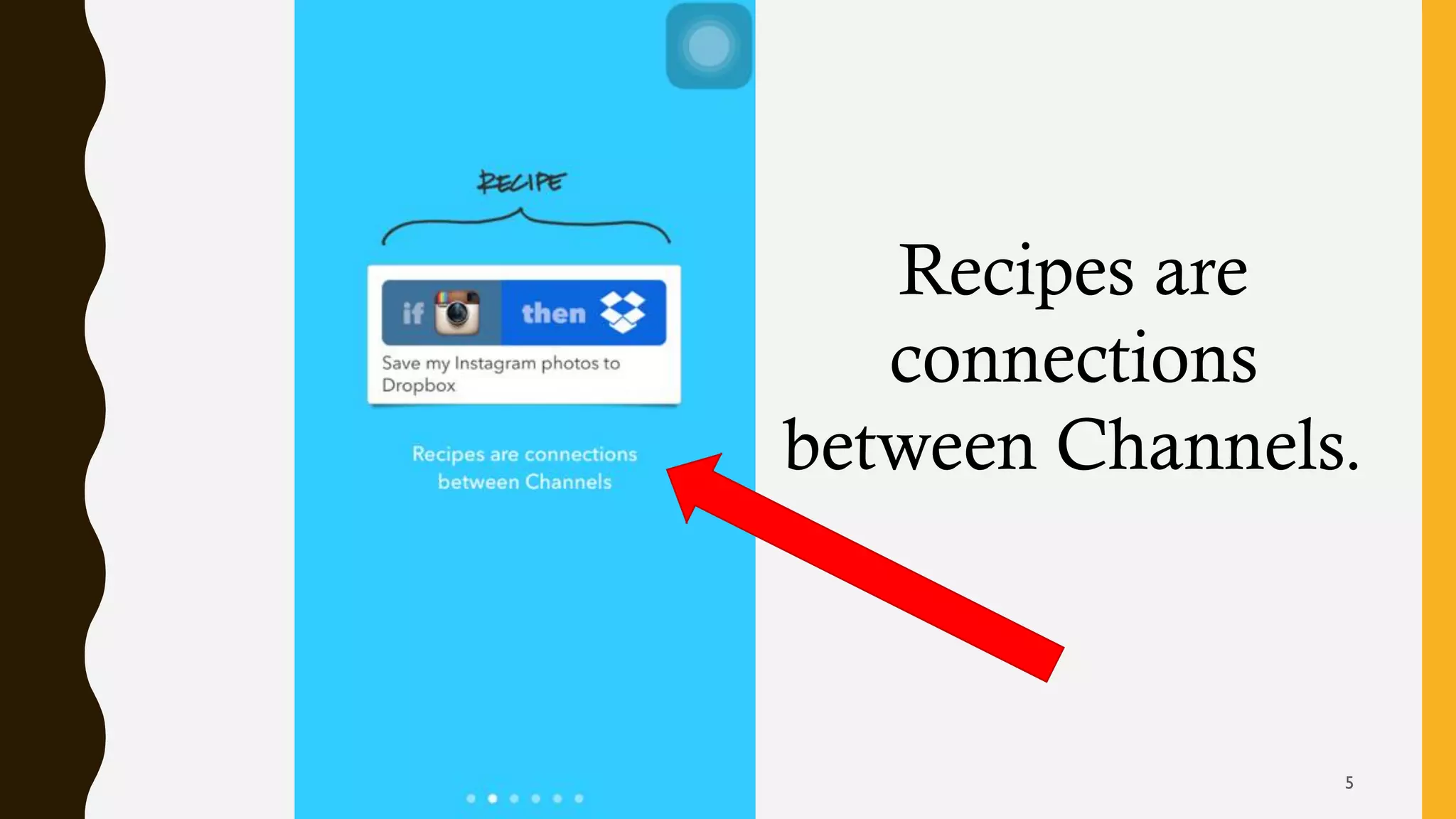
Recipes are
connections
between Channels.
5
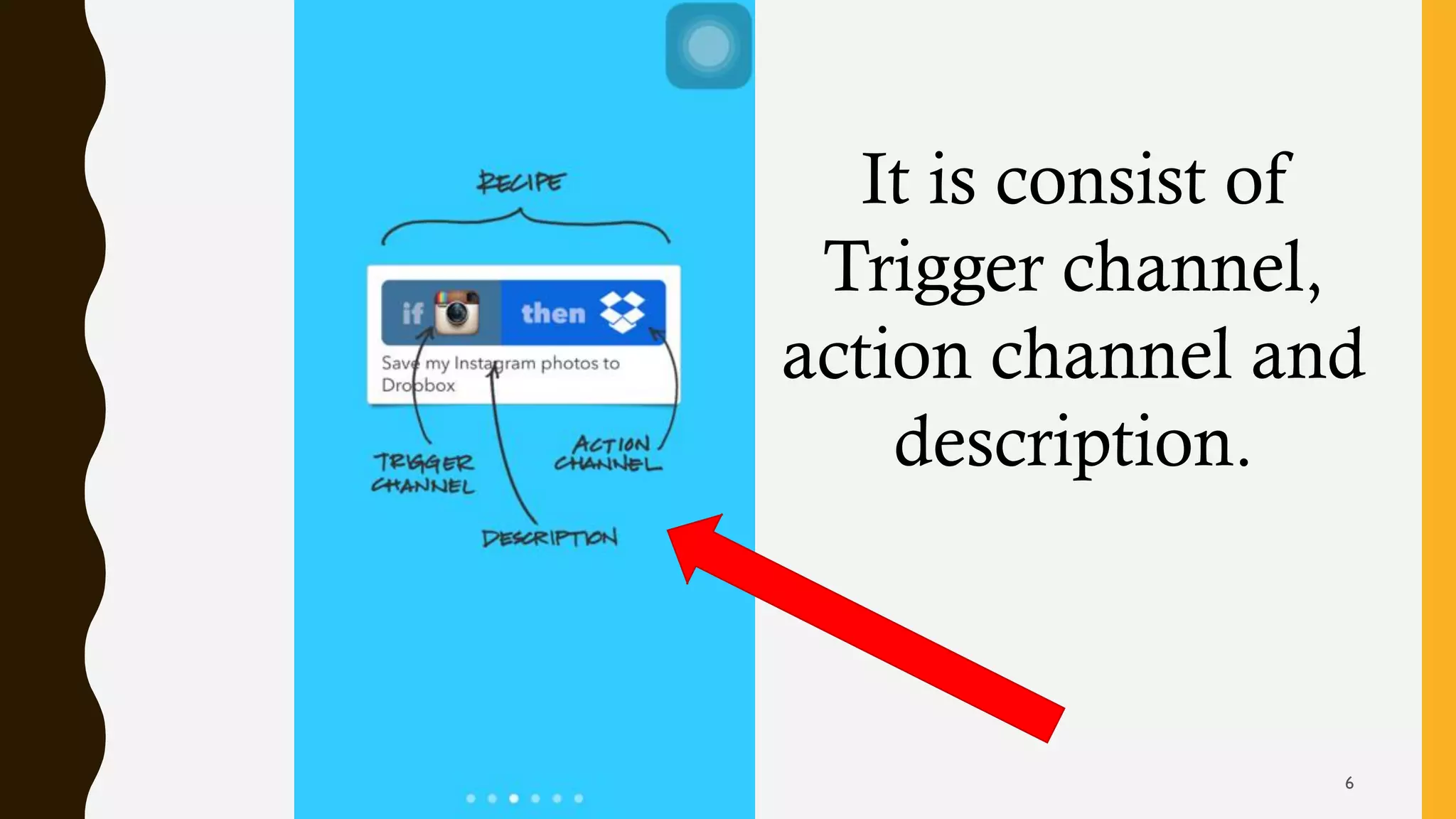
It is consist of
Trigger channel,
action channel and
description.
6
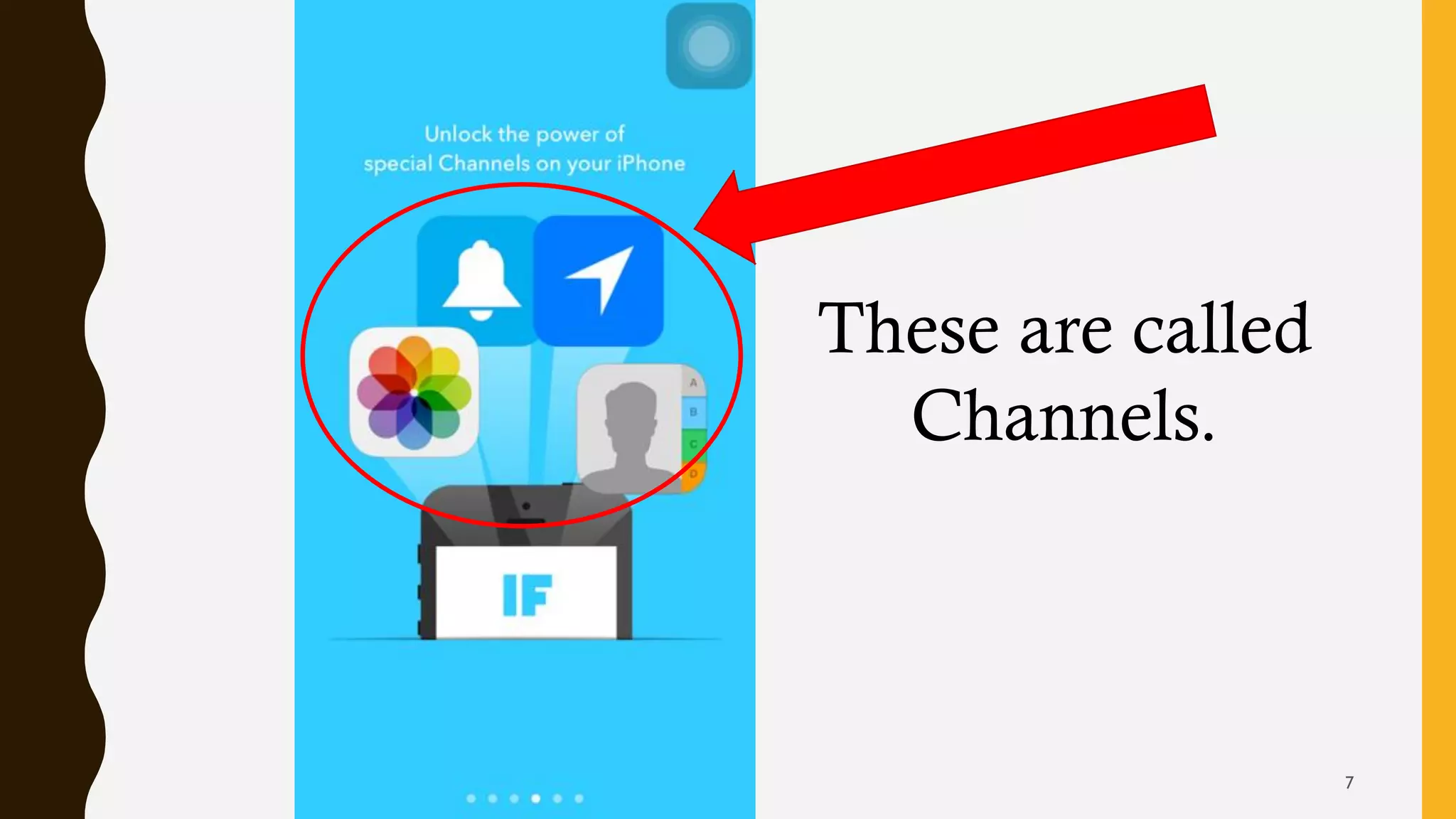
These are called
Channels.
7
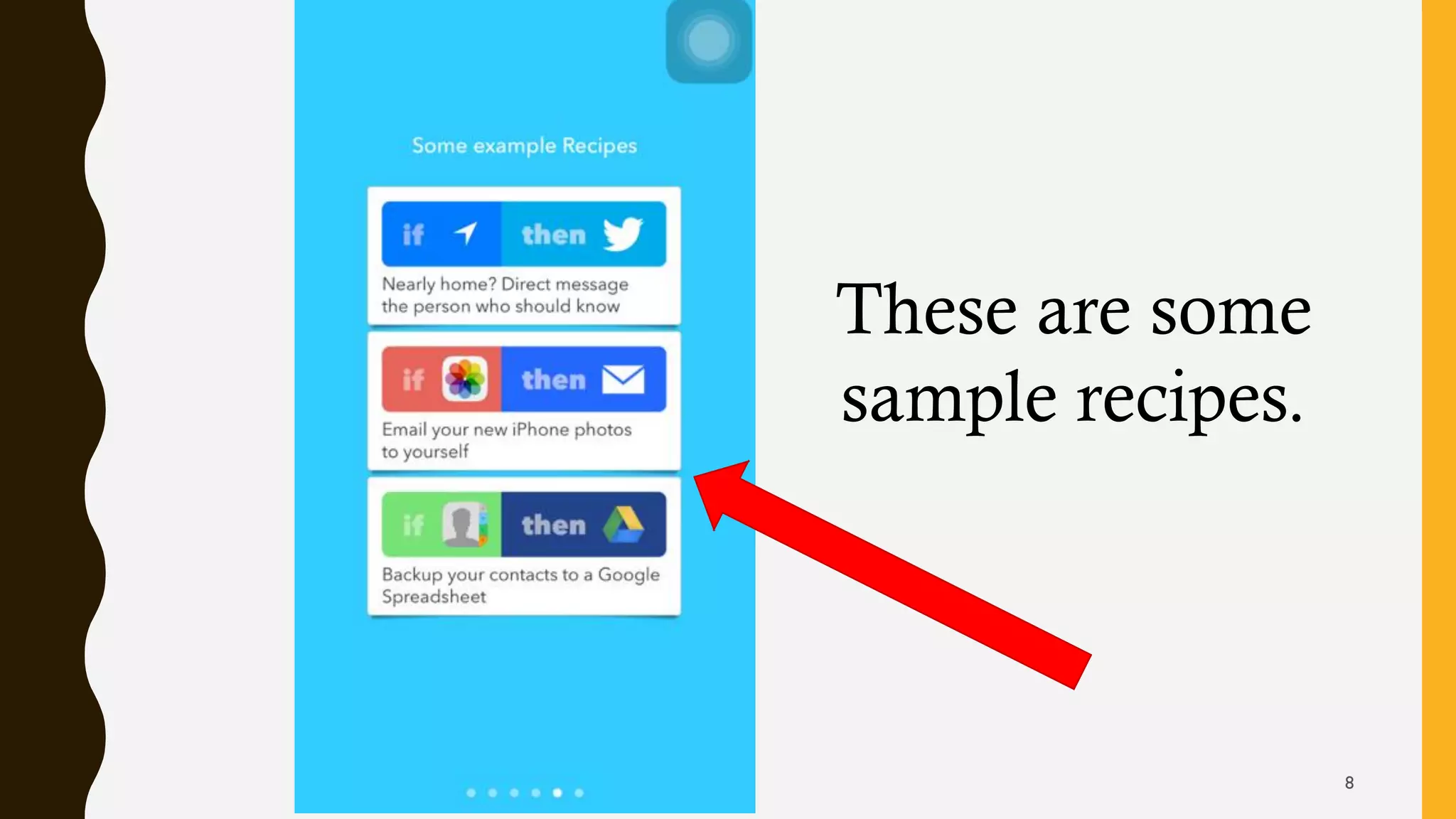
These are some
sample recipes.
8
Let's sign up first to create our account.
9
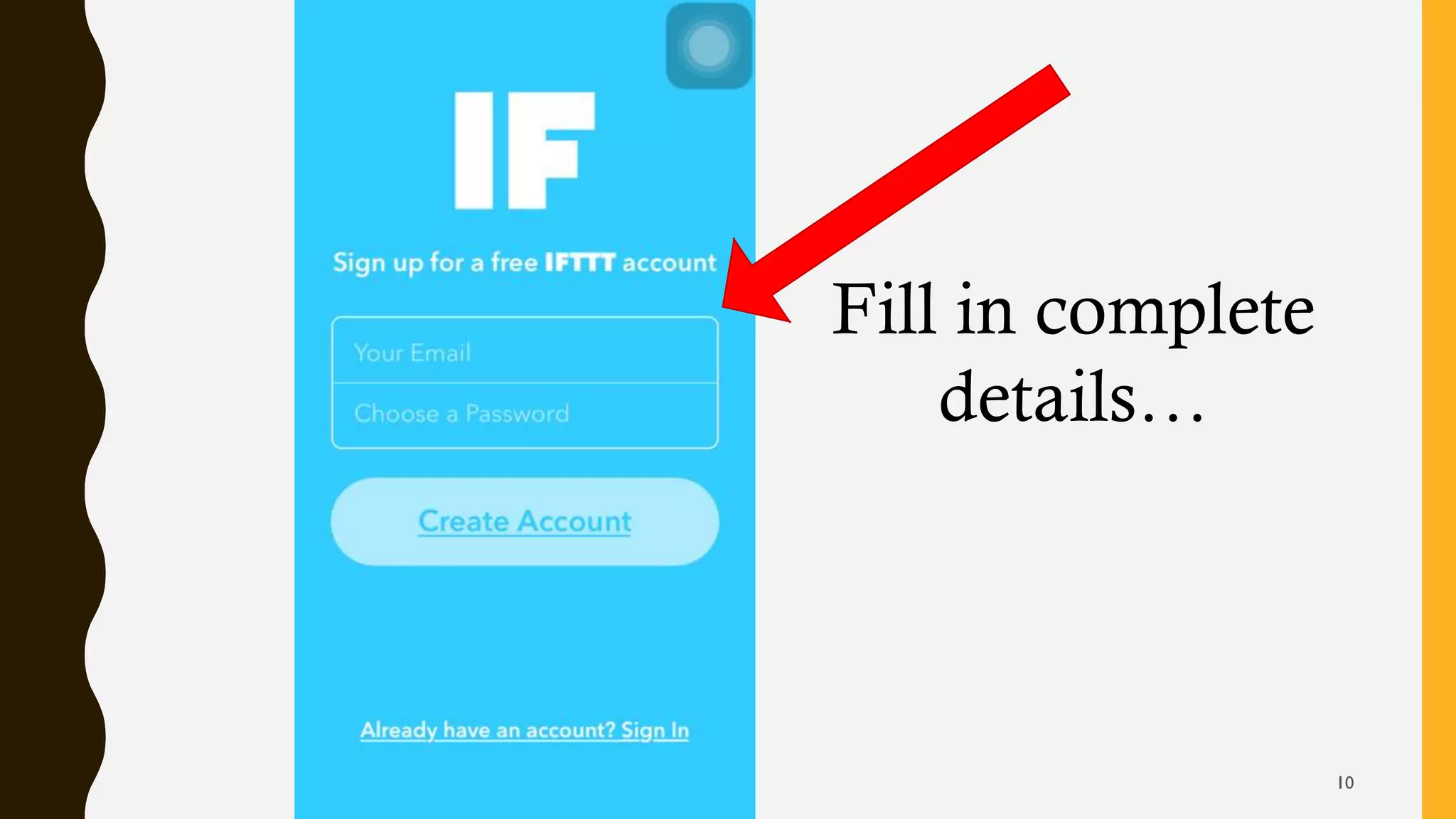
Fill in complete
details…
10
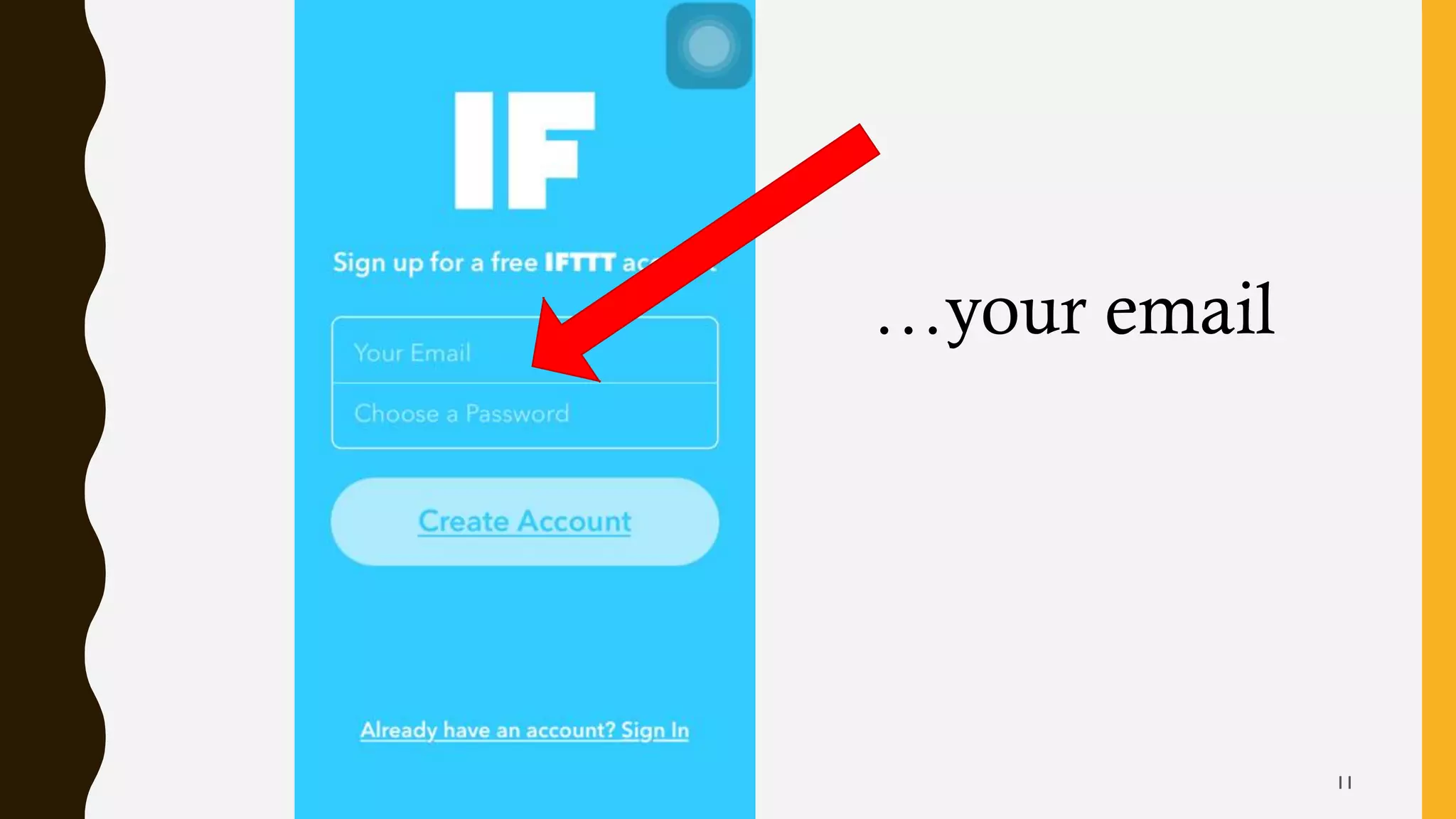
…your email
11
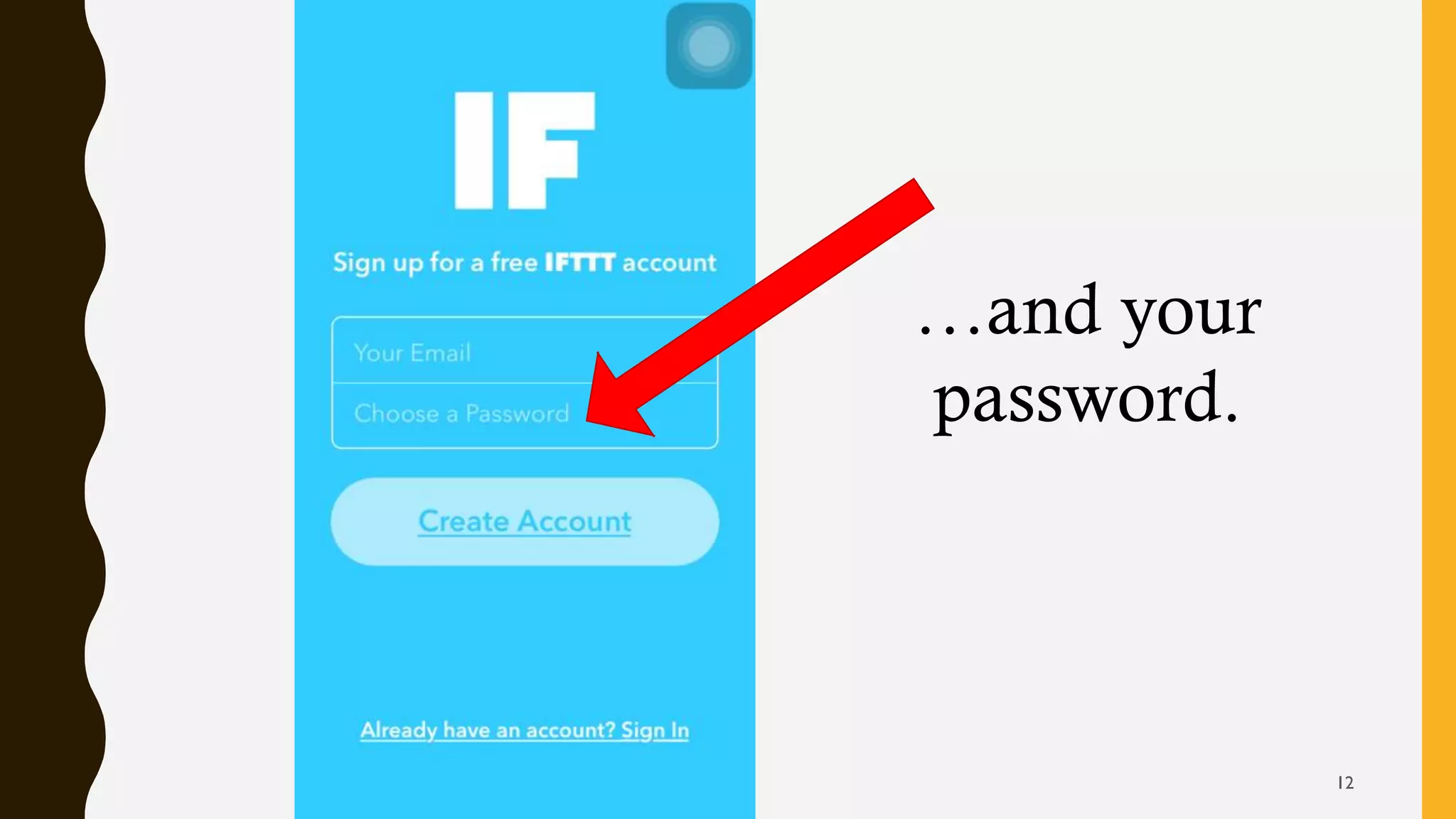
…and your
password.
12
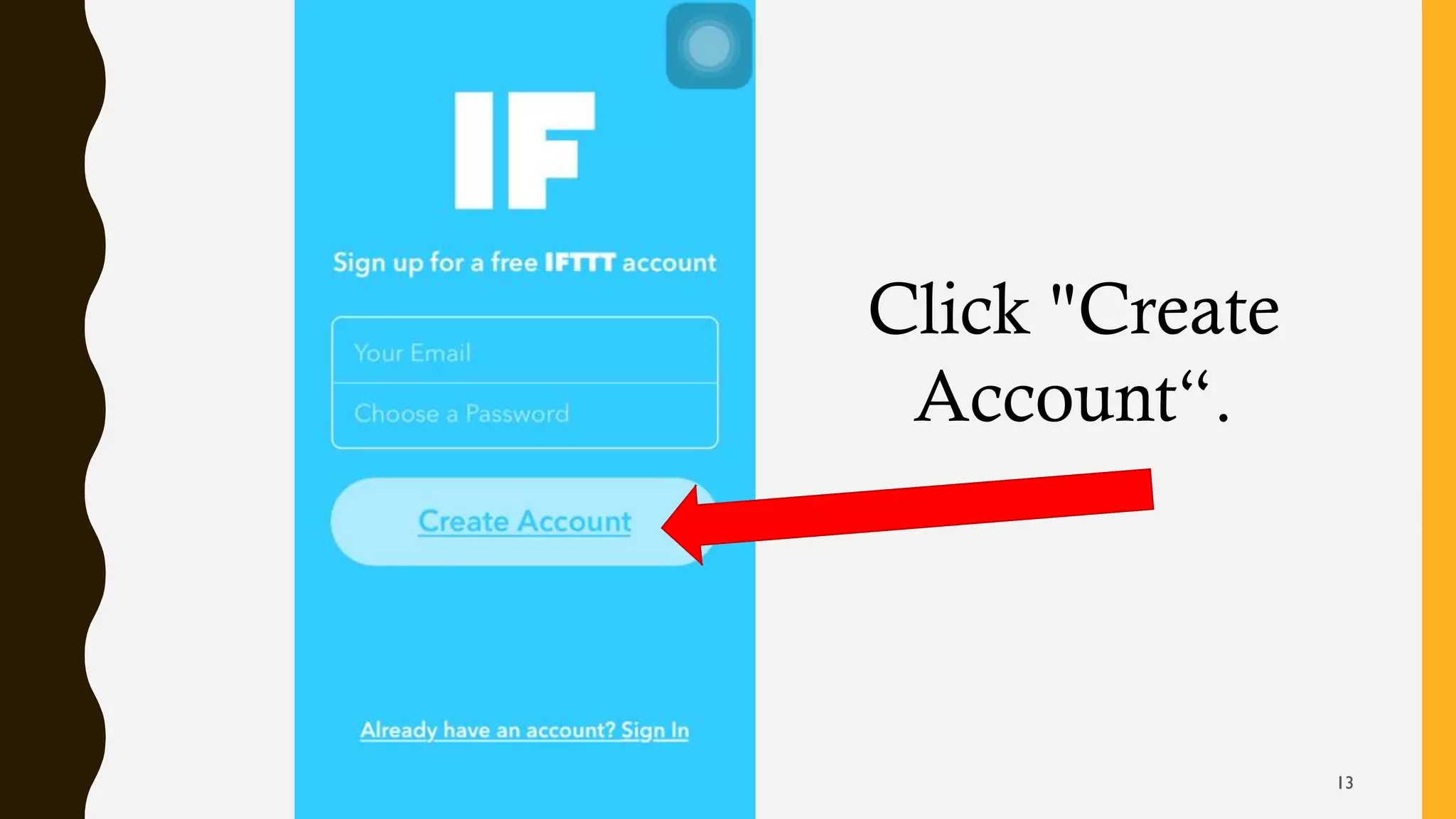
Click "Create
Account“.
13
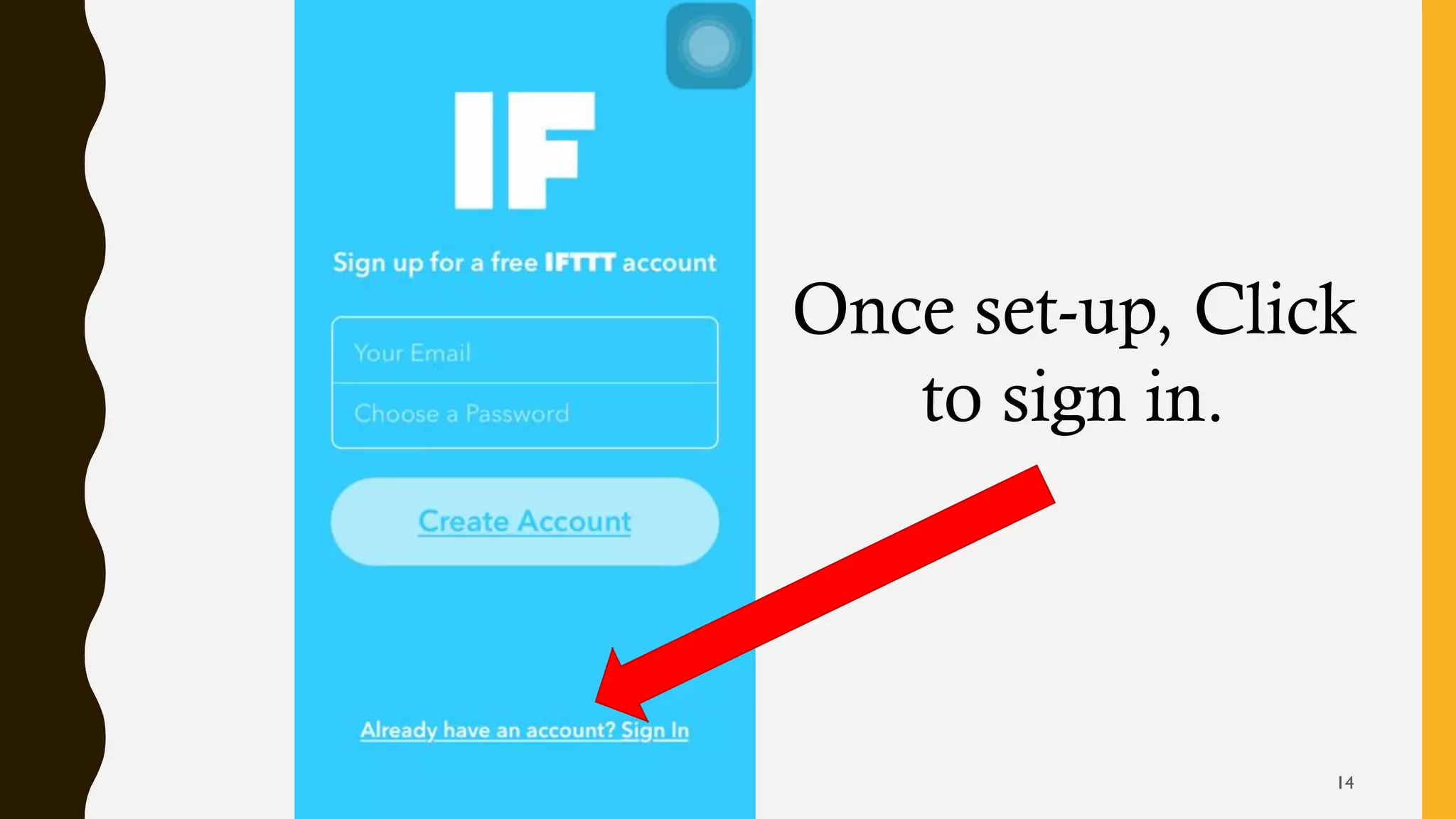
Once set-up, Click
to sign in.
14
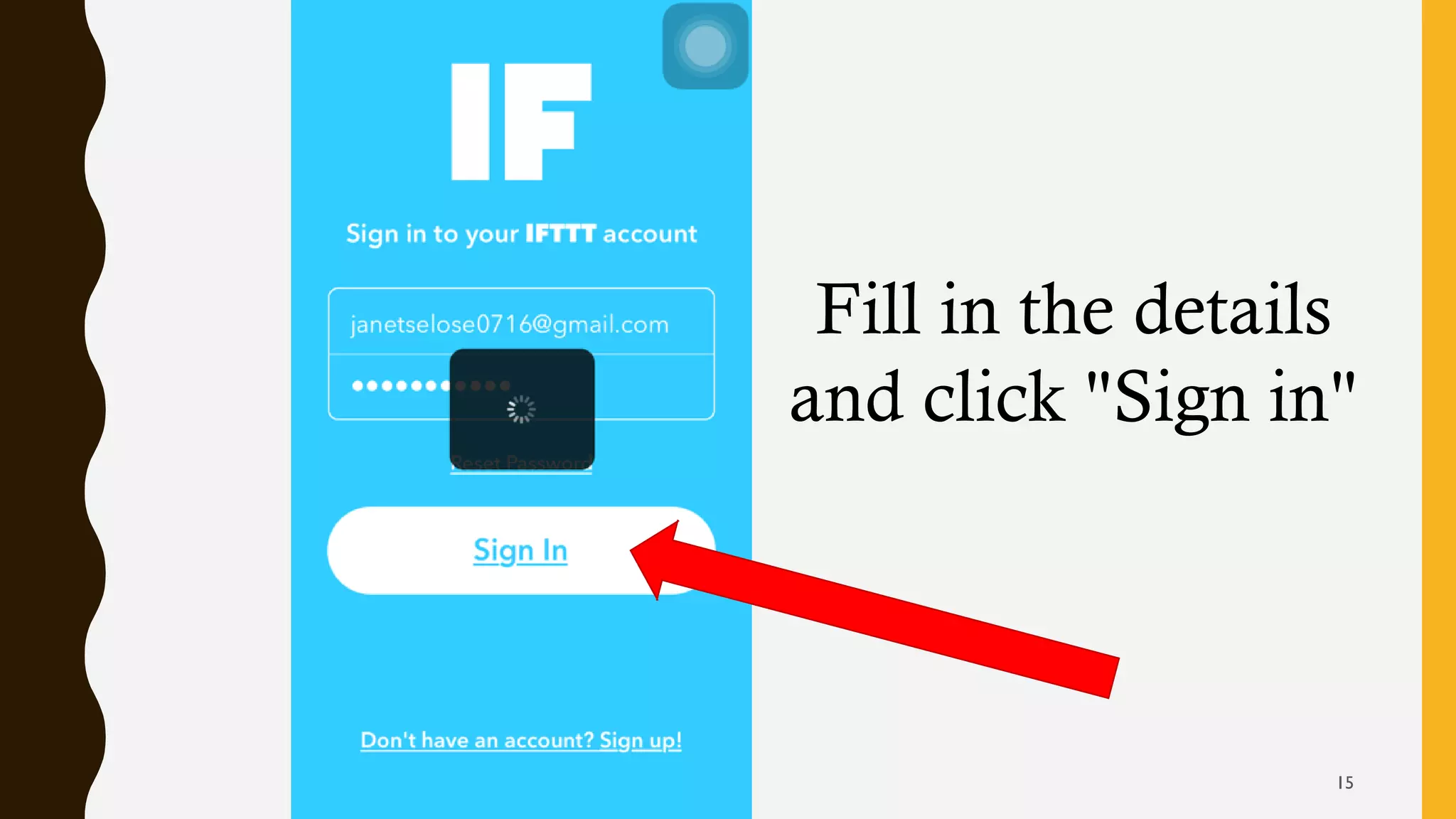
Fill in the details
and click "Sign in"
15
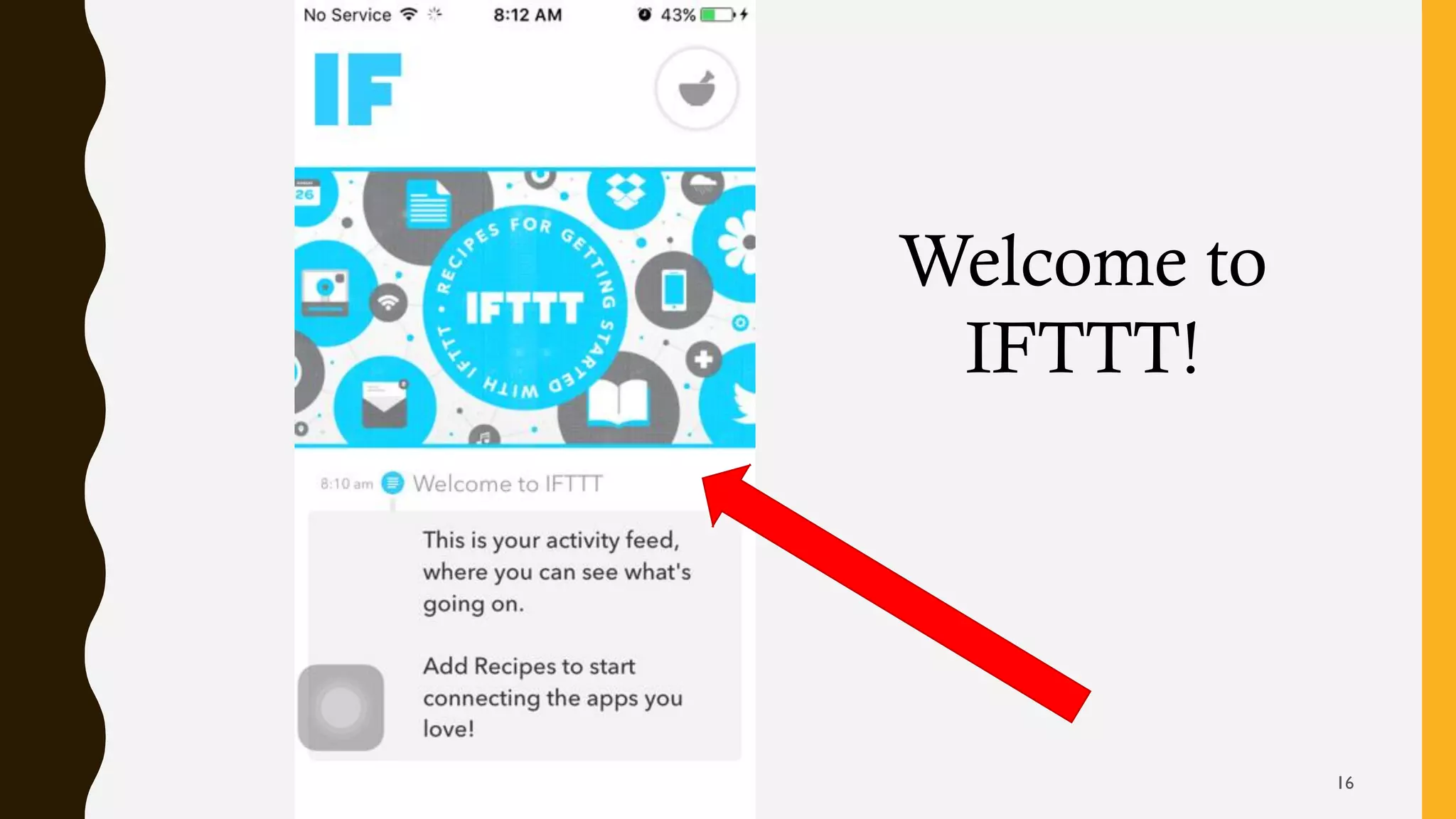
Welcome to
IFTTT!
16
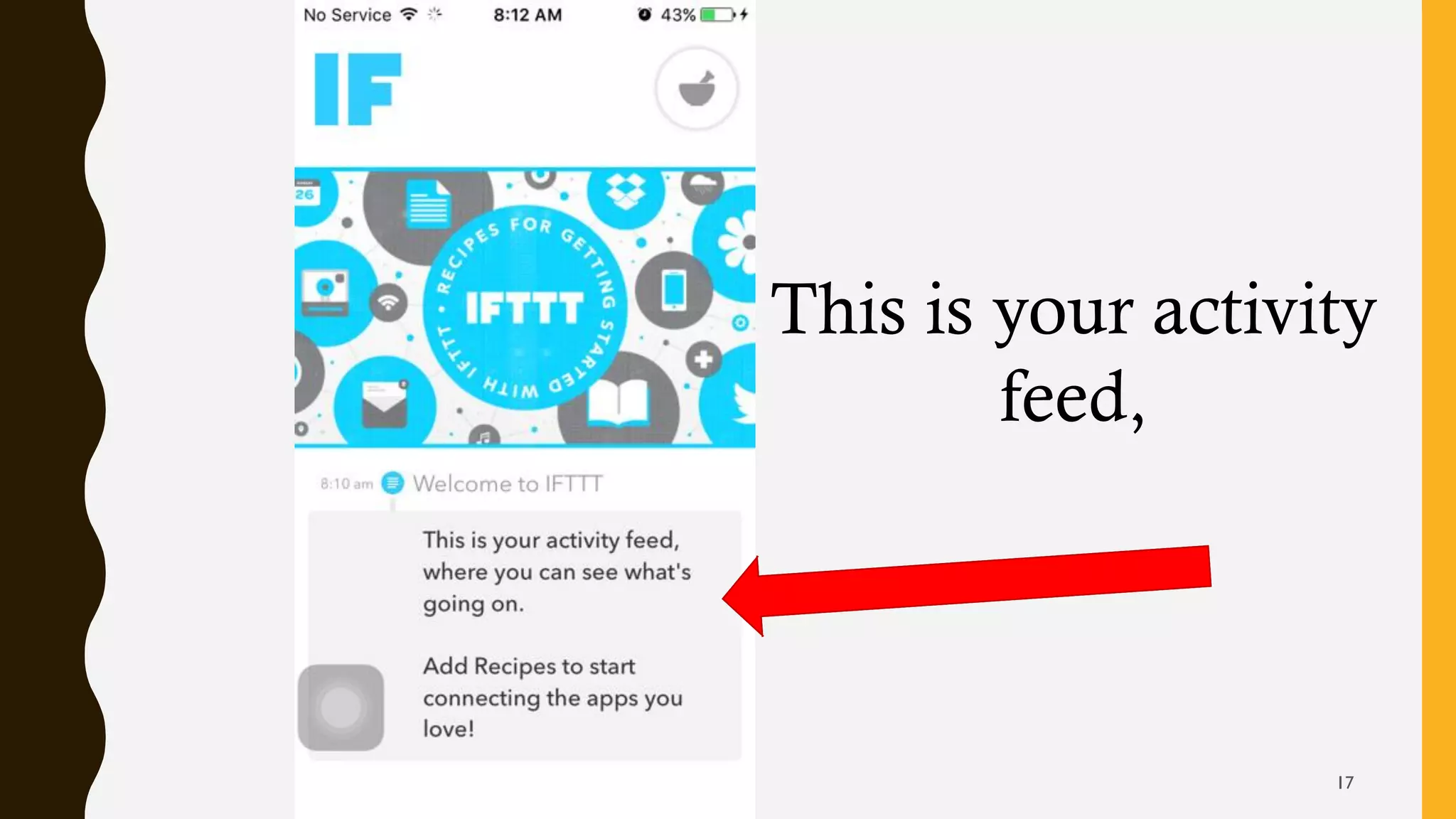
This is your activity
feed,
17
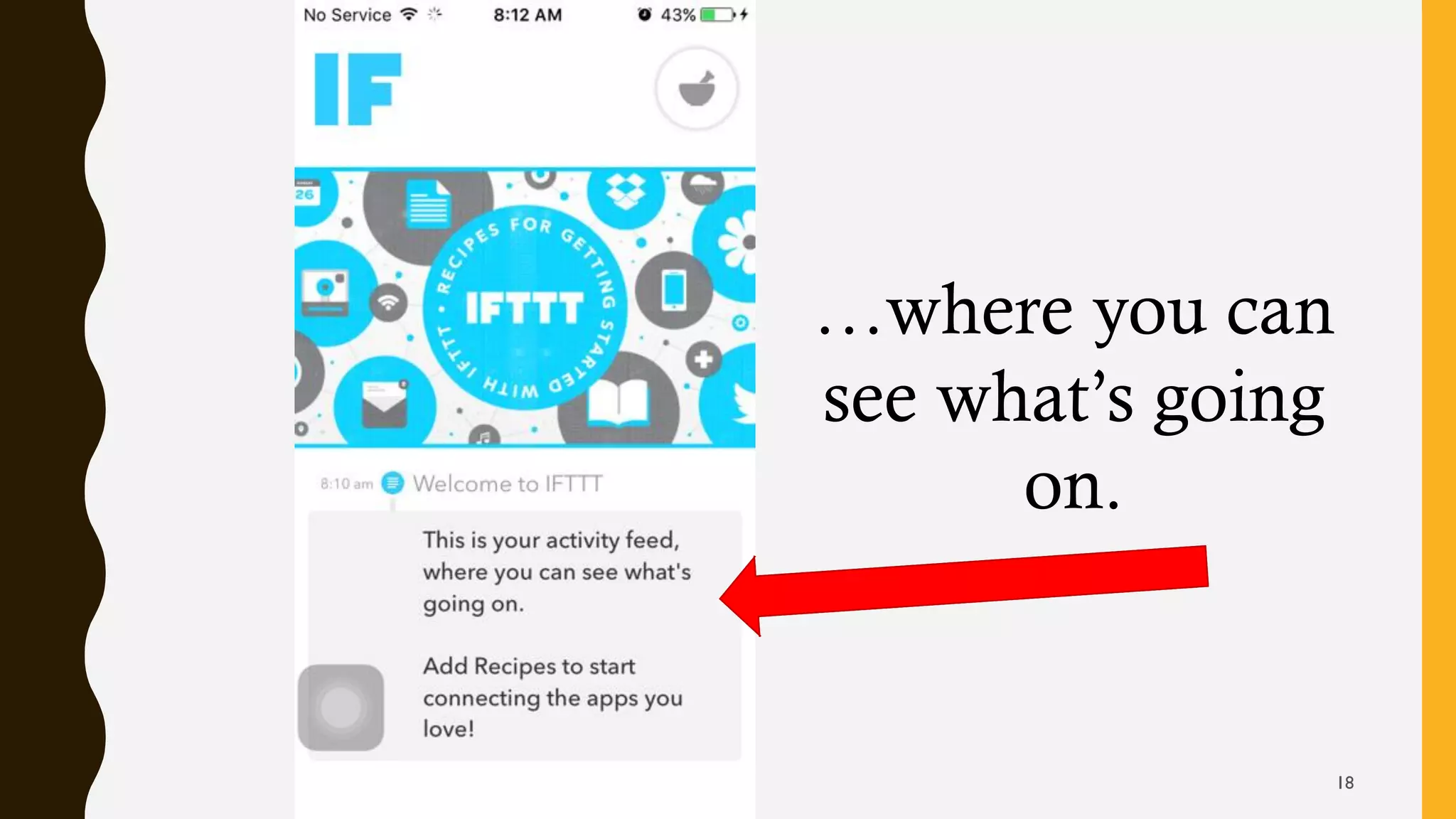
…where you can
see what’s going
on.
18
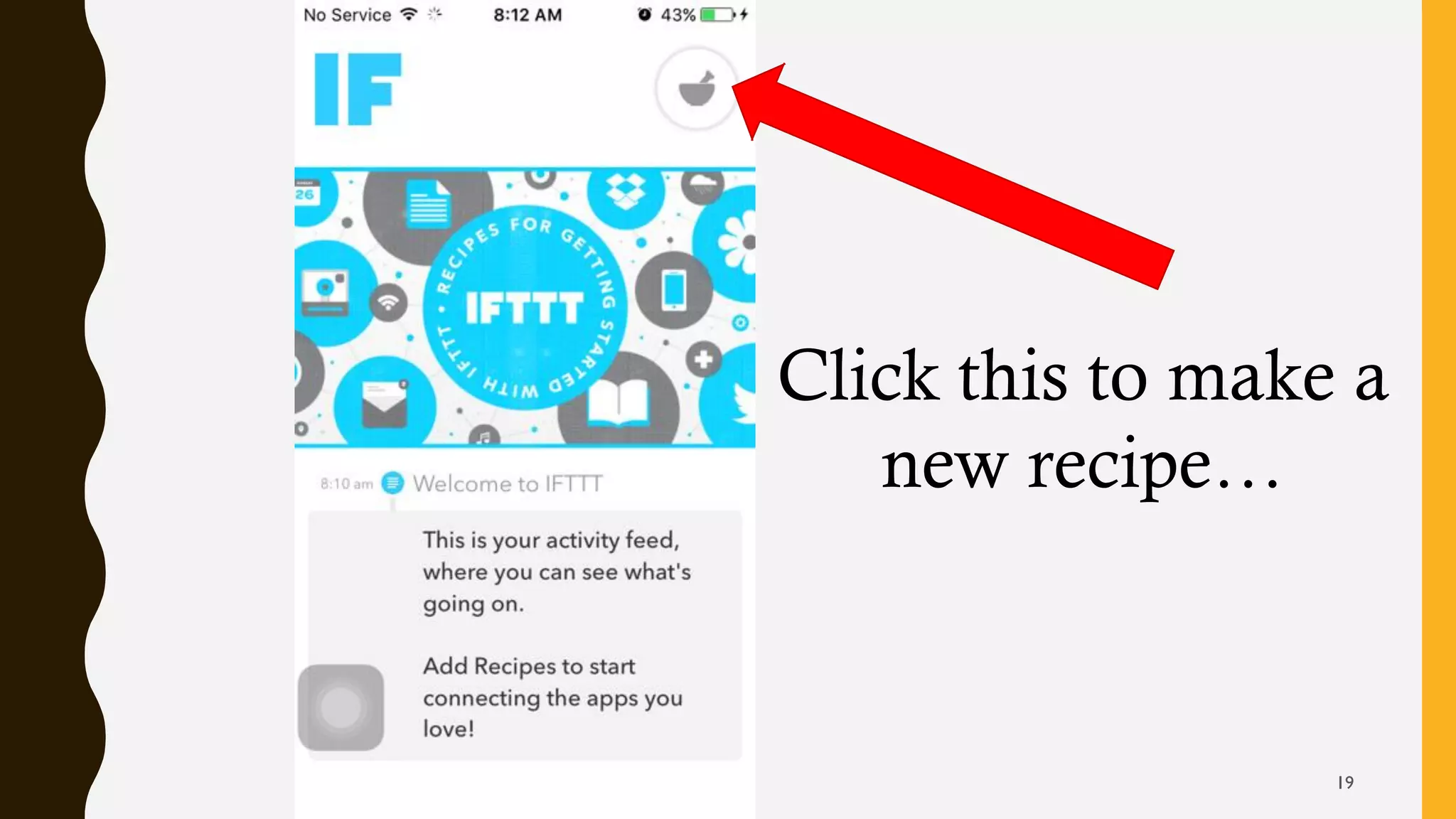
Click this to make a
new recipe…
19
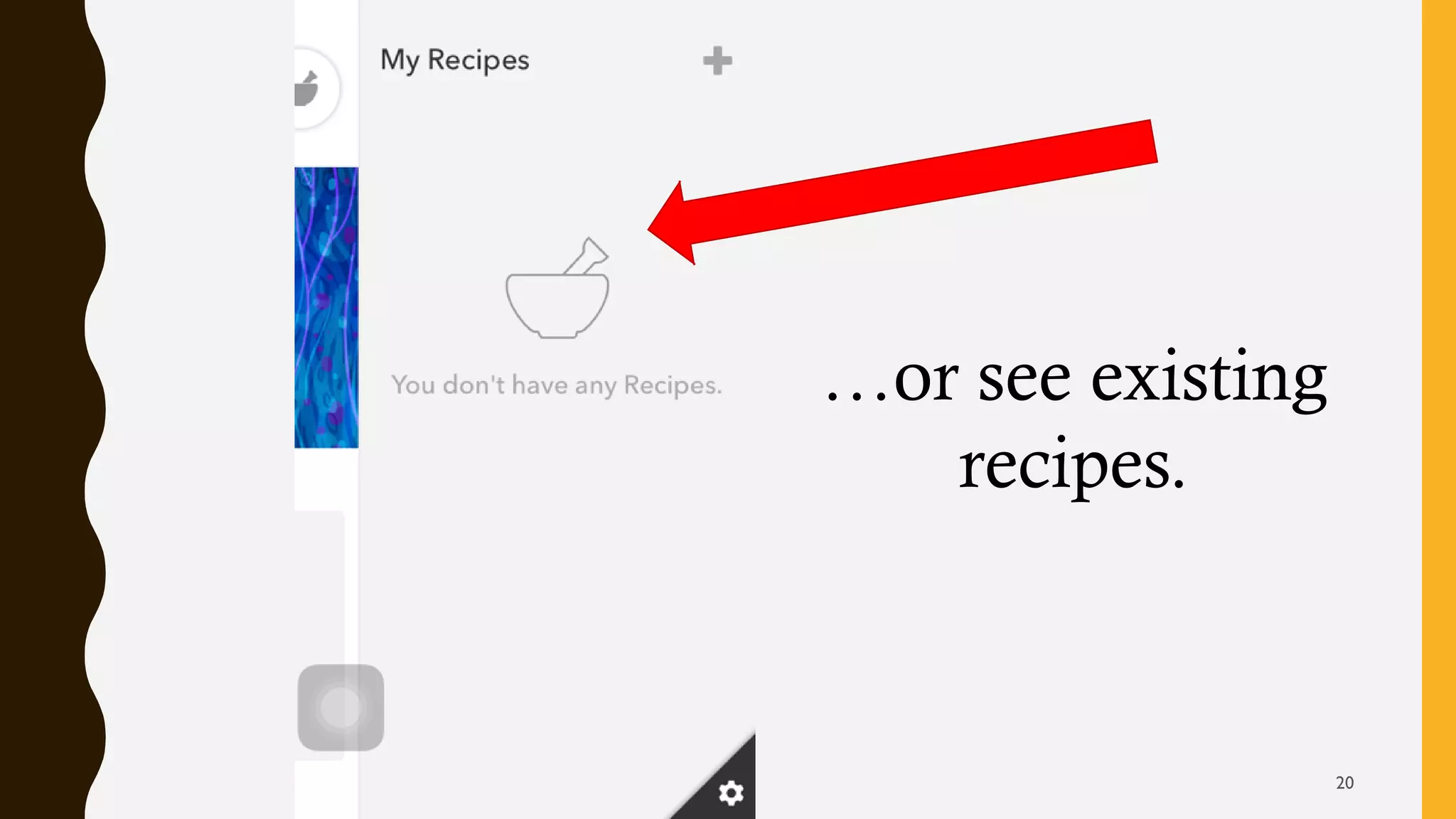
…or see existing
recipes.
20
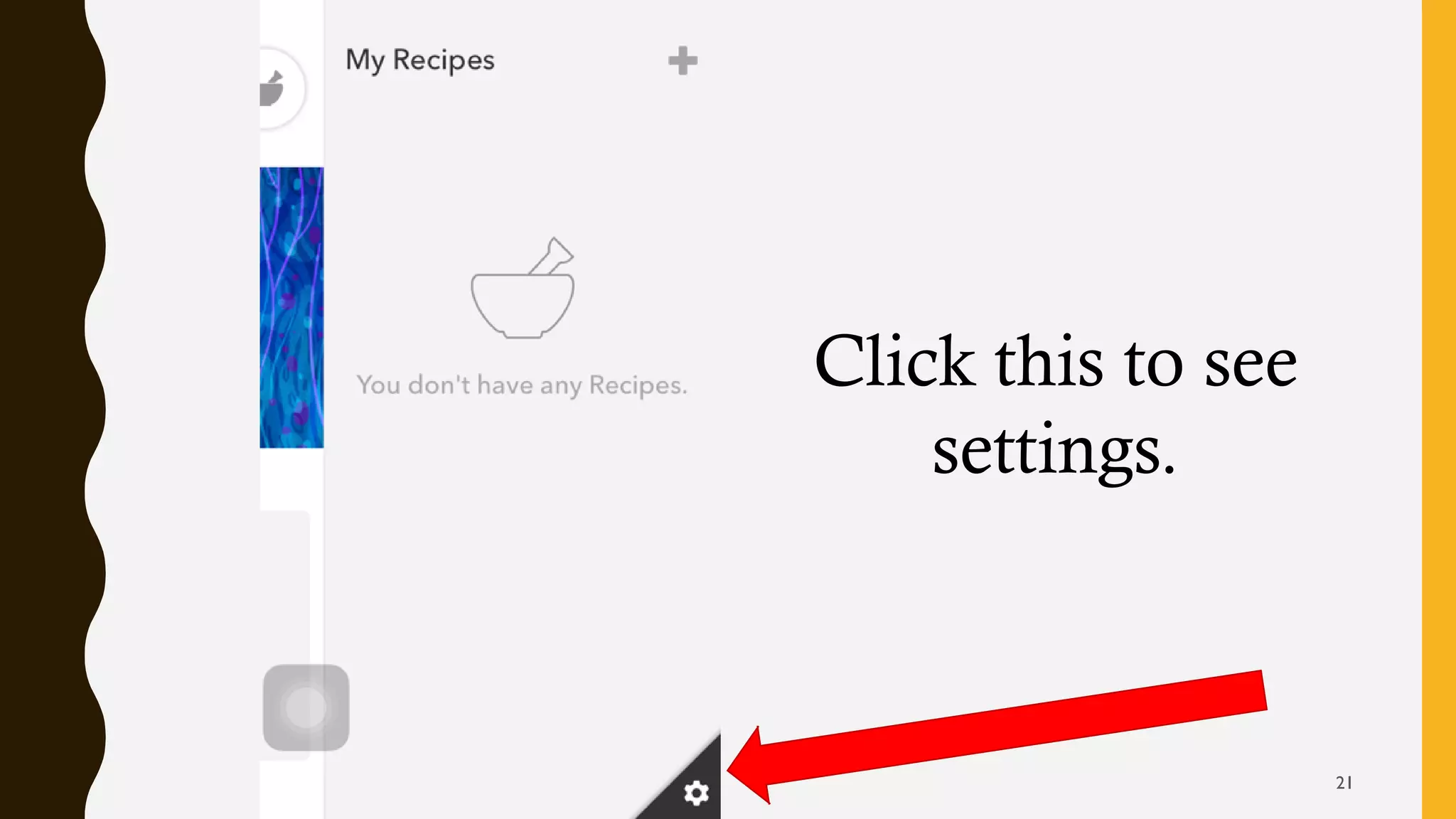
Click this to see
settings.
21
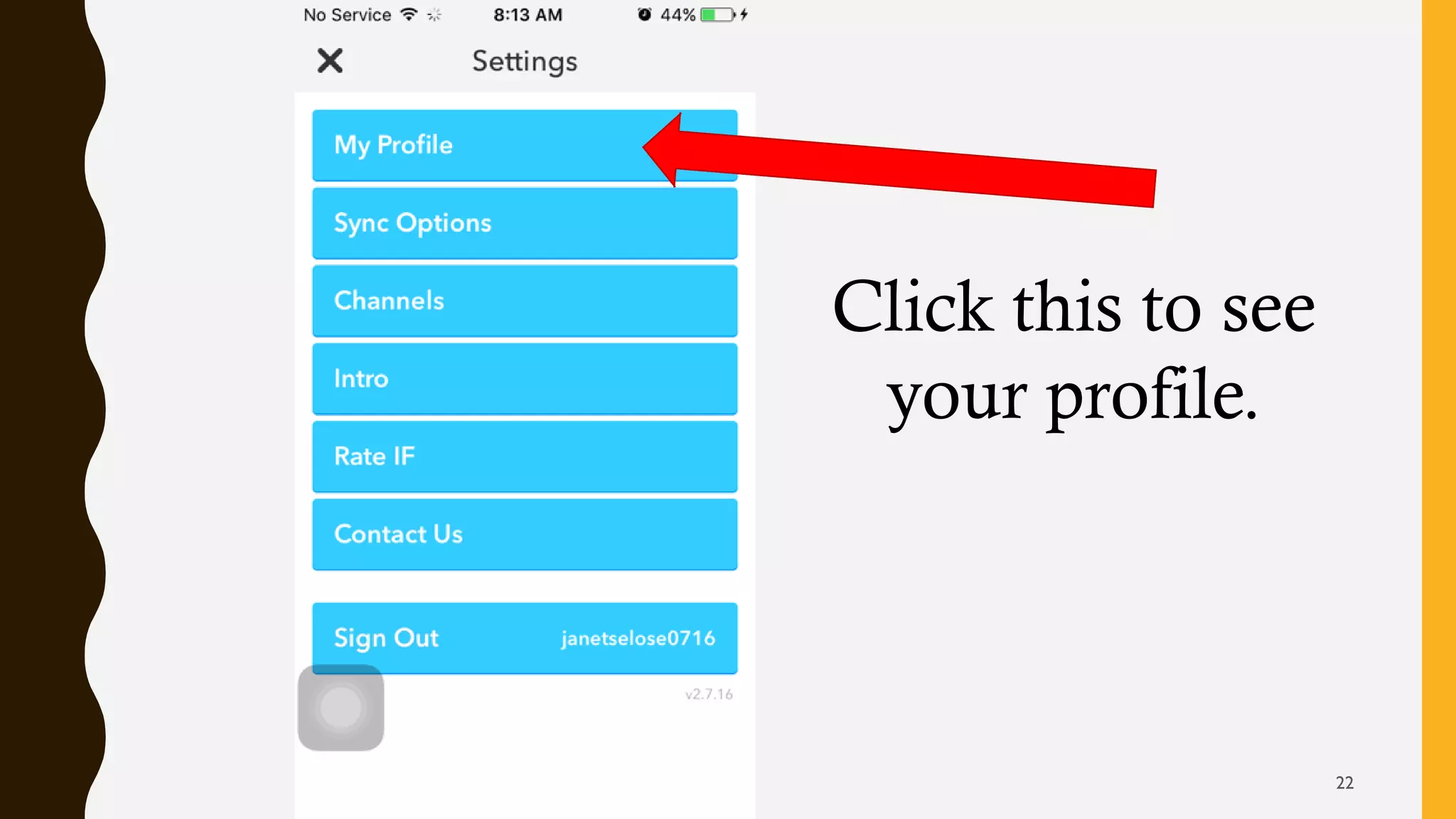
Click this to see
your profile.
22
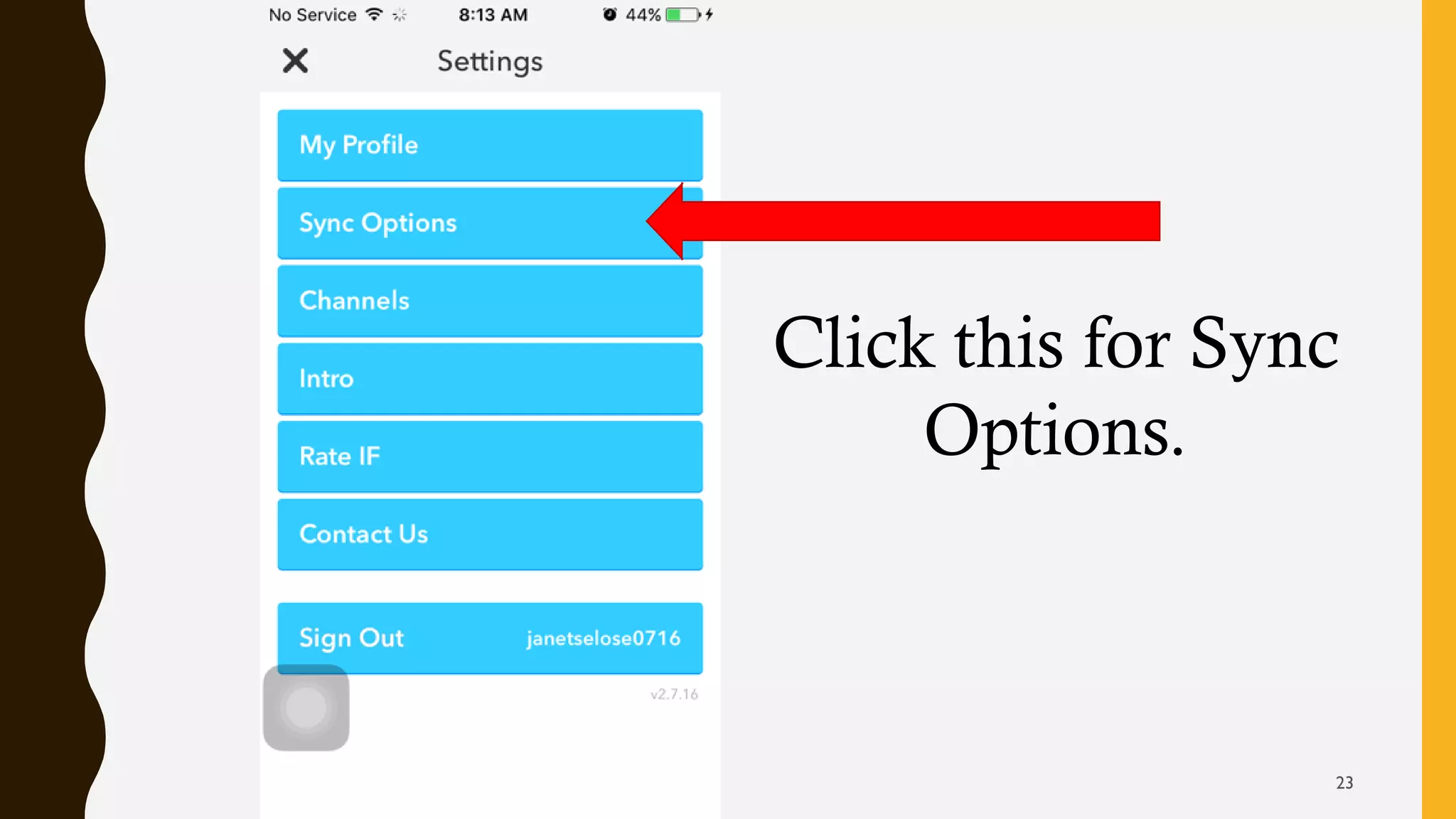
Click this for Sync
Options.
23
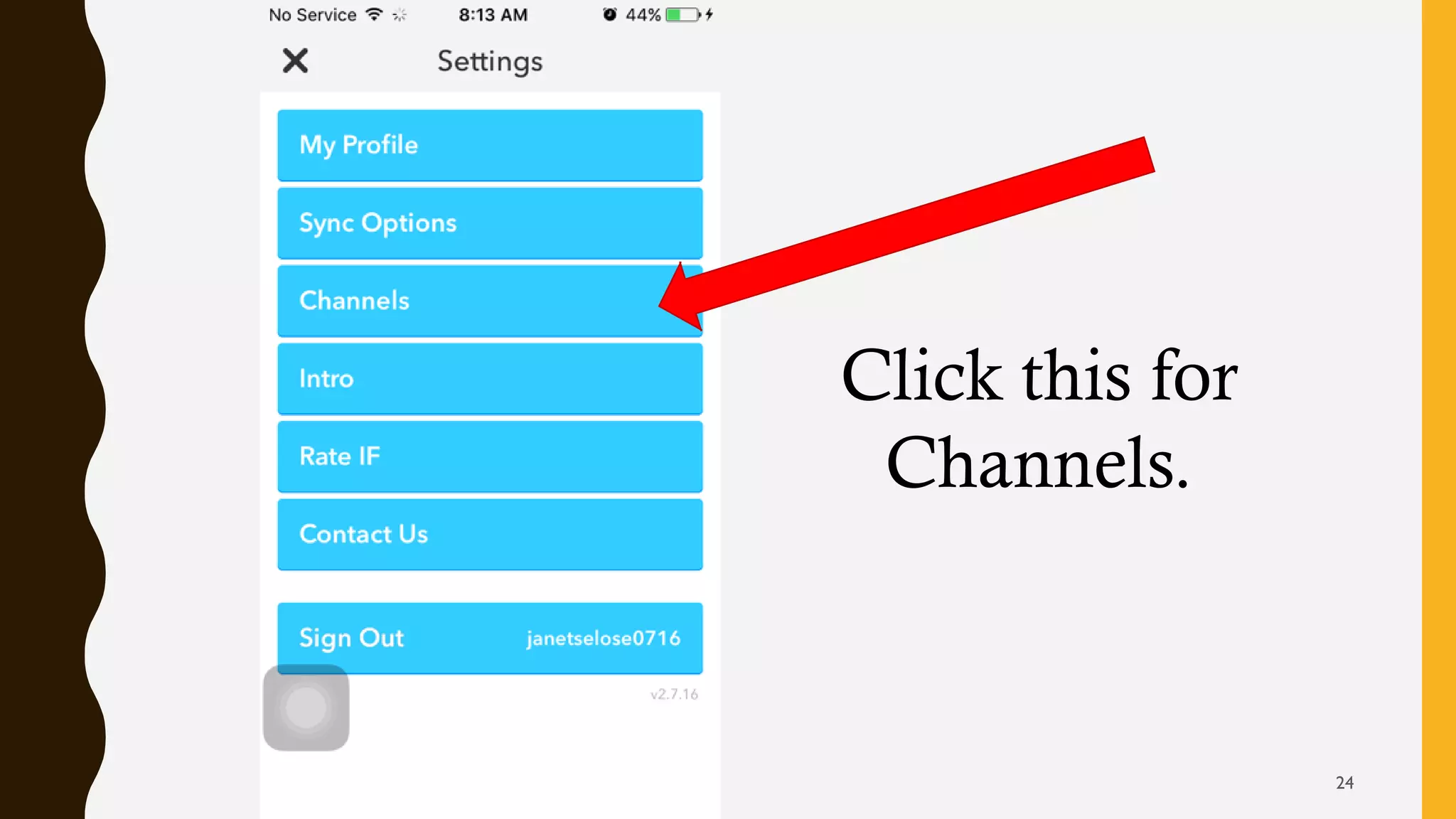
Click this for
Channels.
24
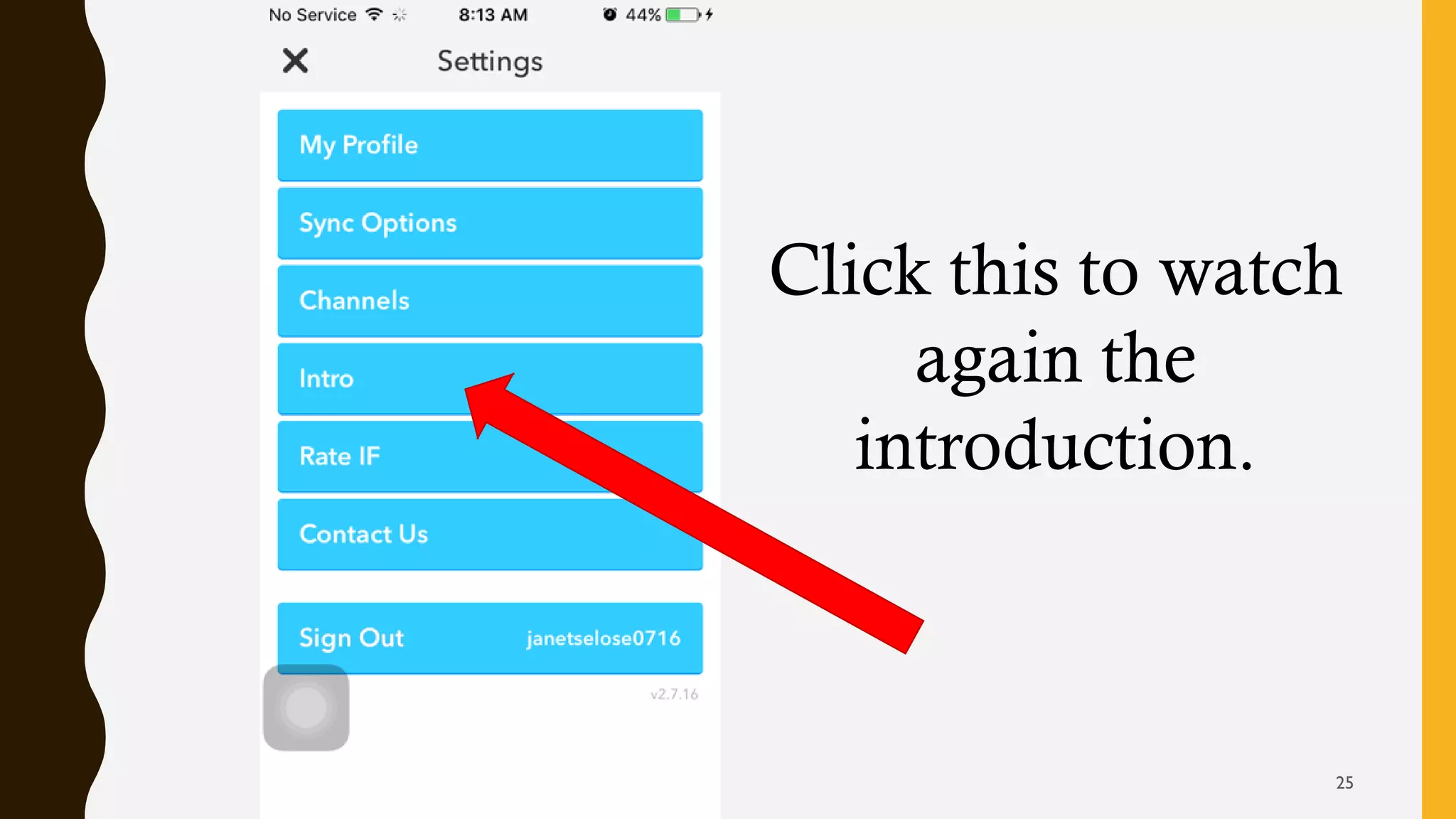
Click this to watch
again the
introduction.
25
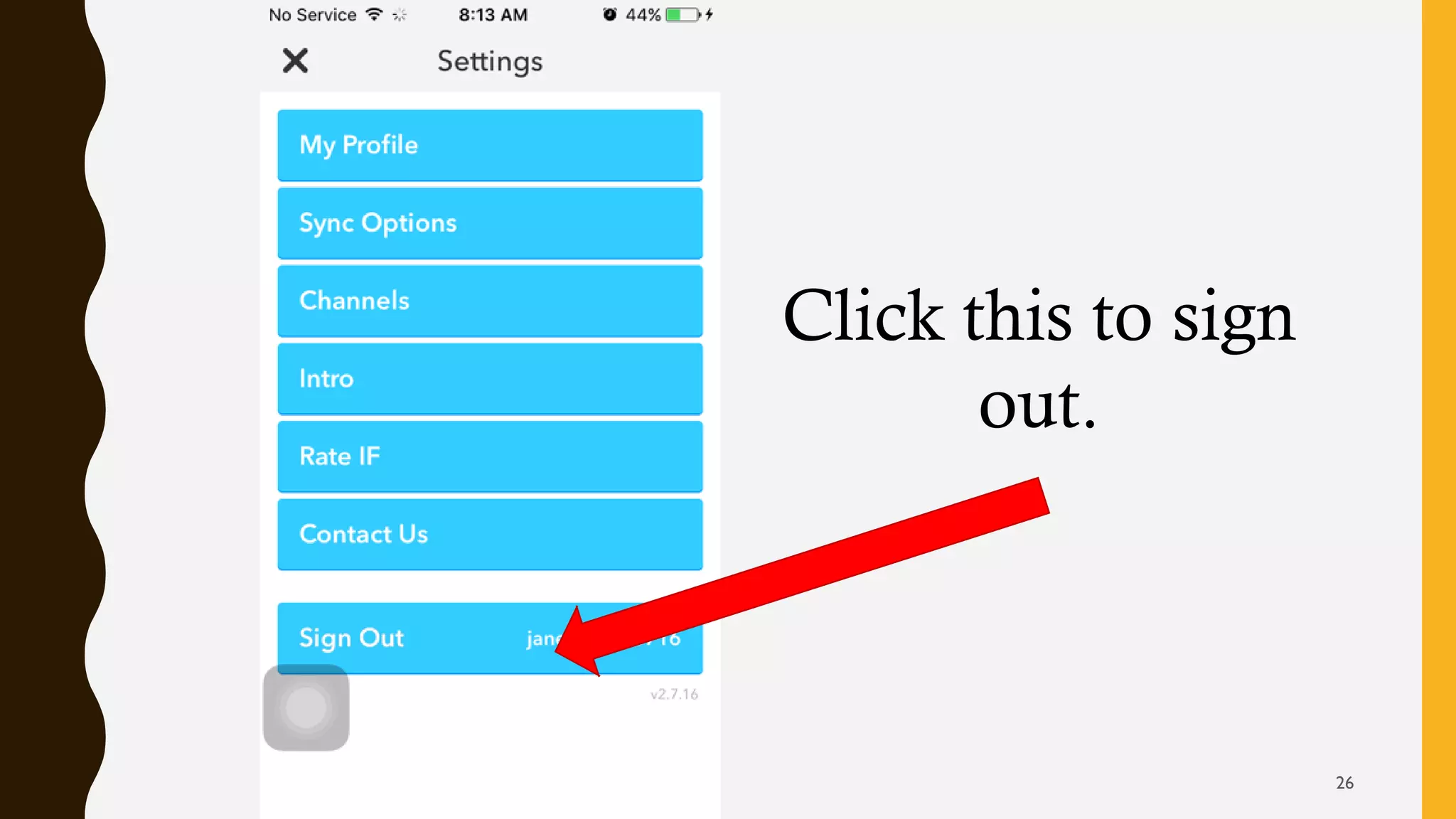
Click this to sign
out.
26
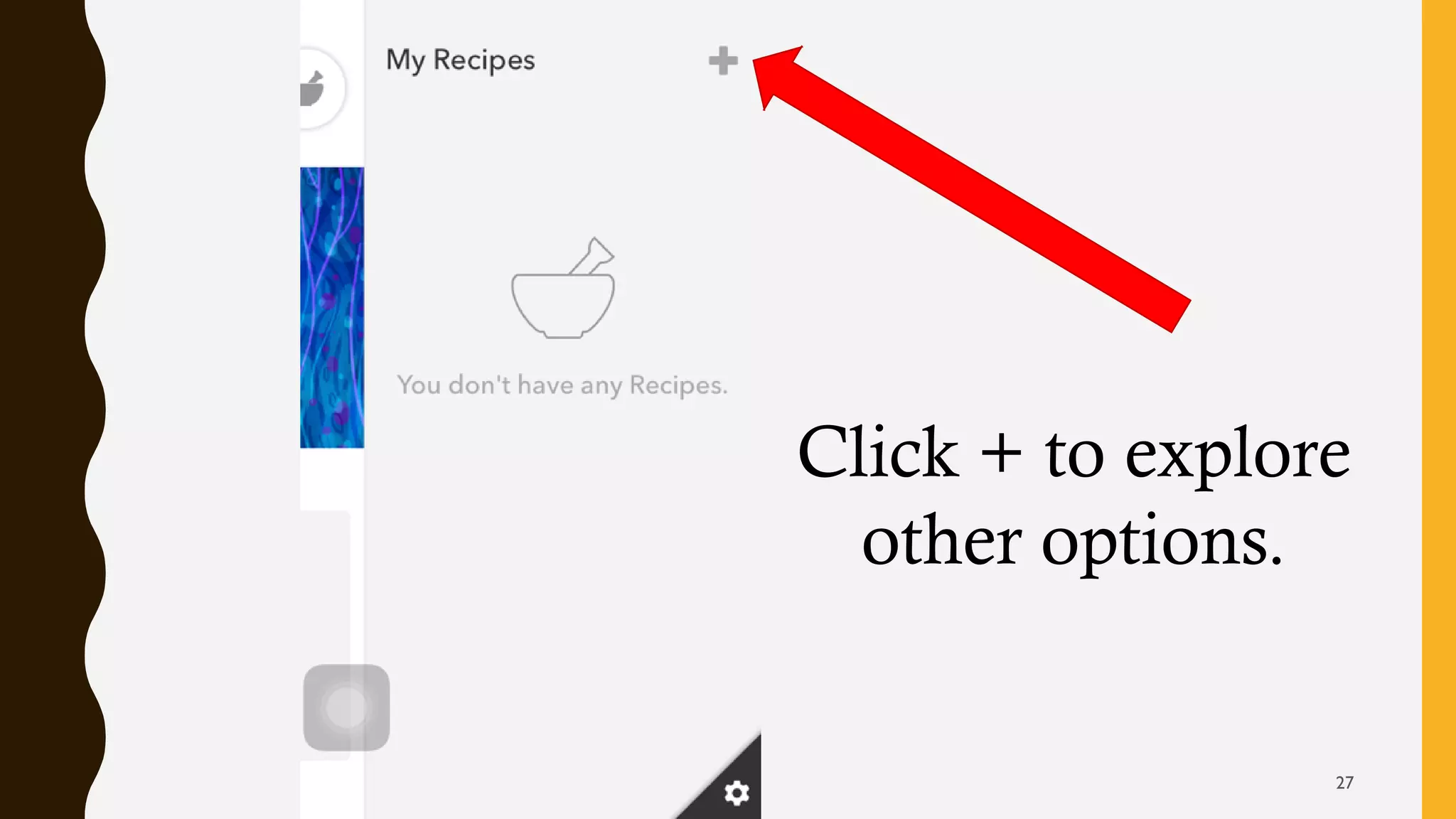
Click + to explore
other options.
27
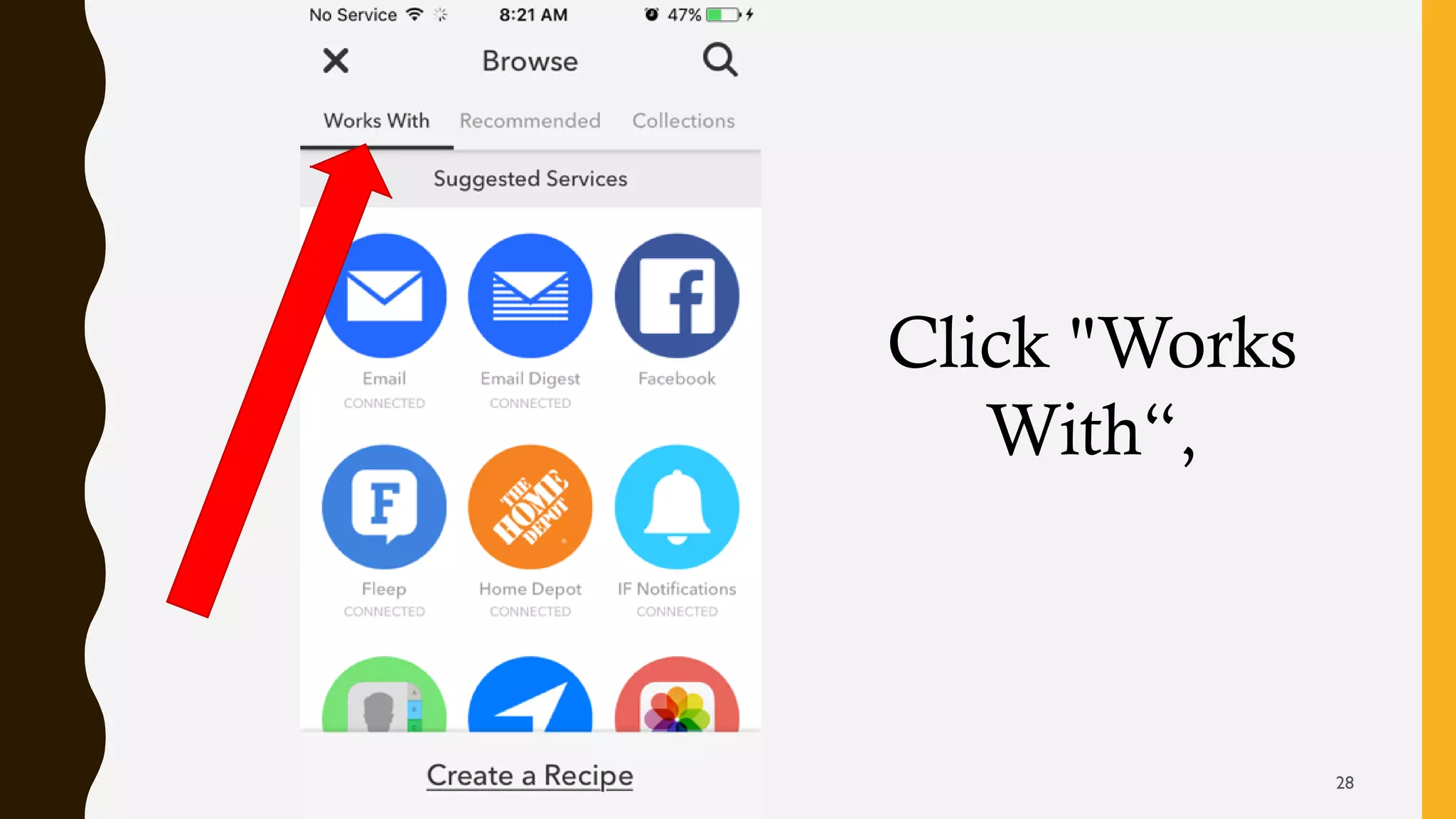
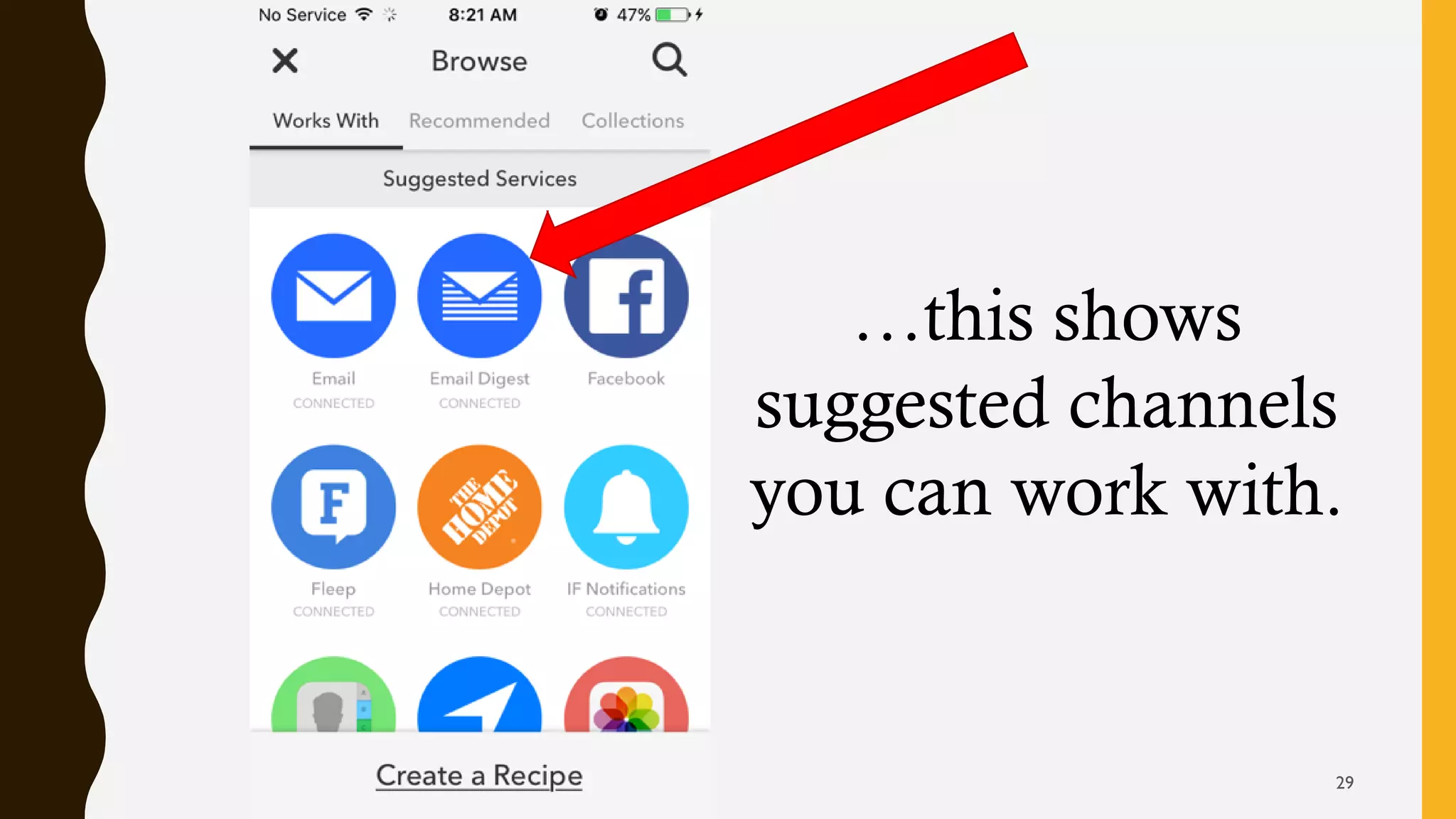
Click "Works
With“,
28
…this shows
suggested channels
you can work with.
29
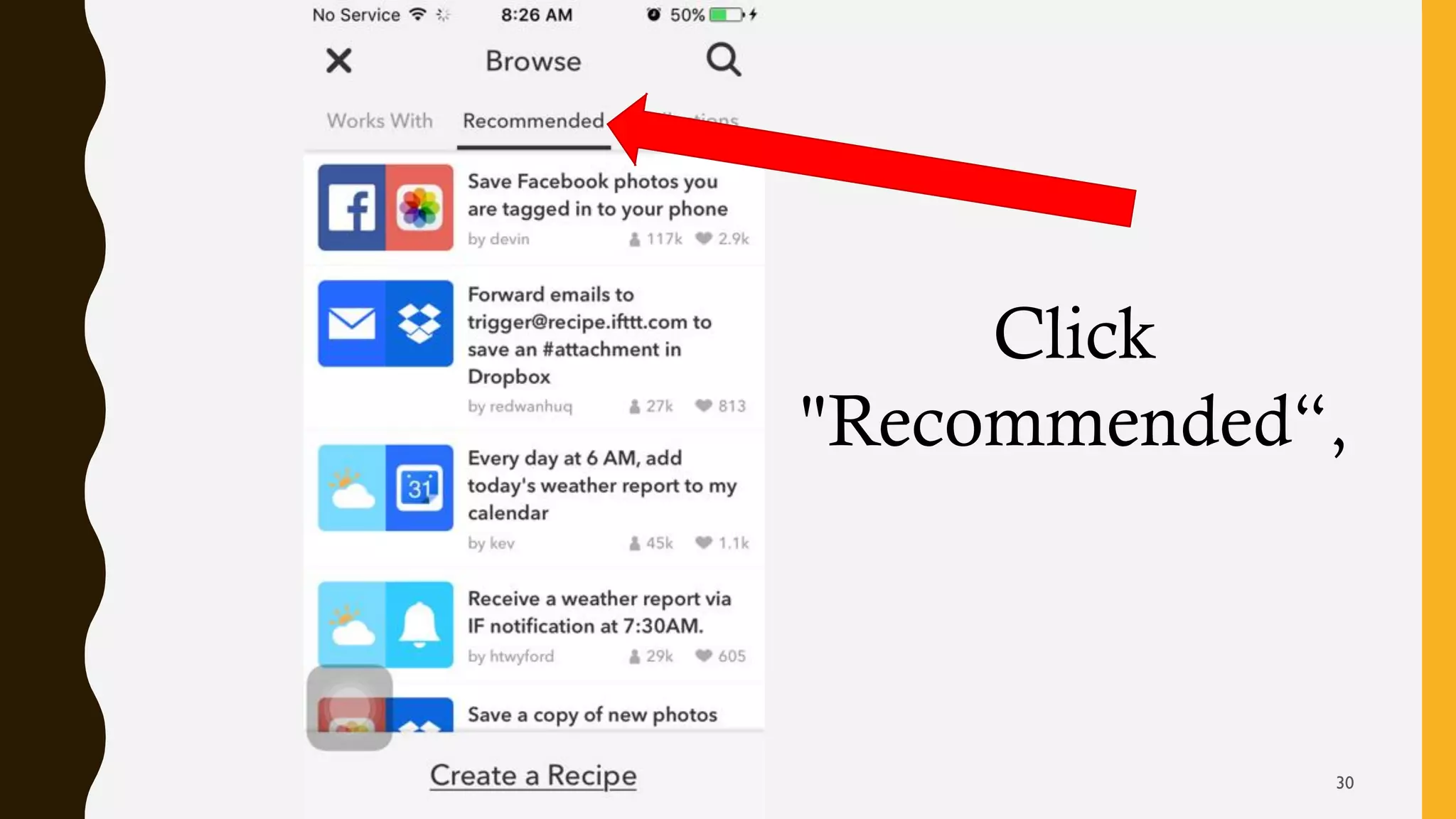
Click
"Recommended“,
30
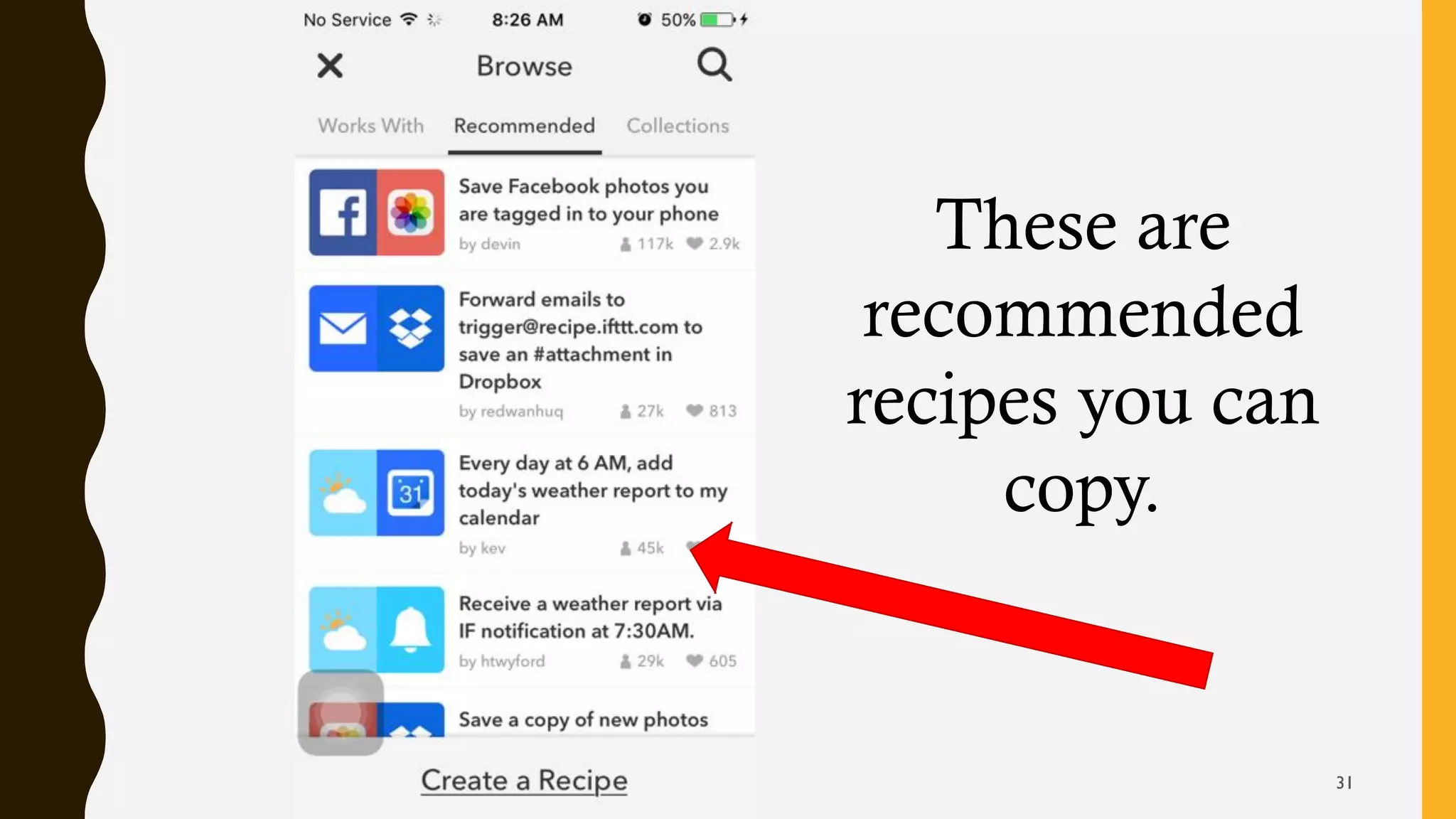
These are
recommended
recipes you can
copy.
31
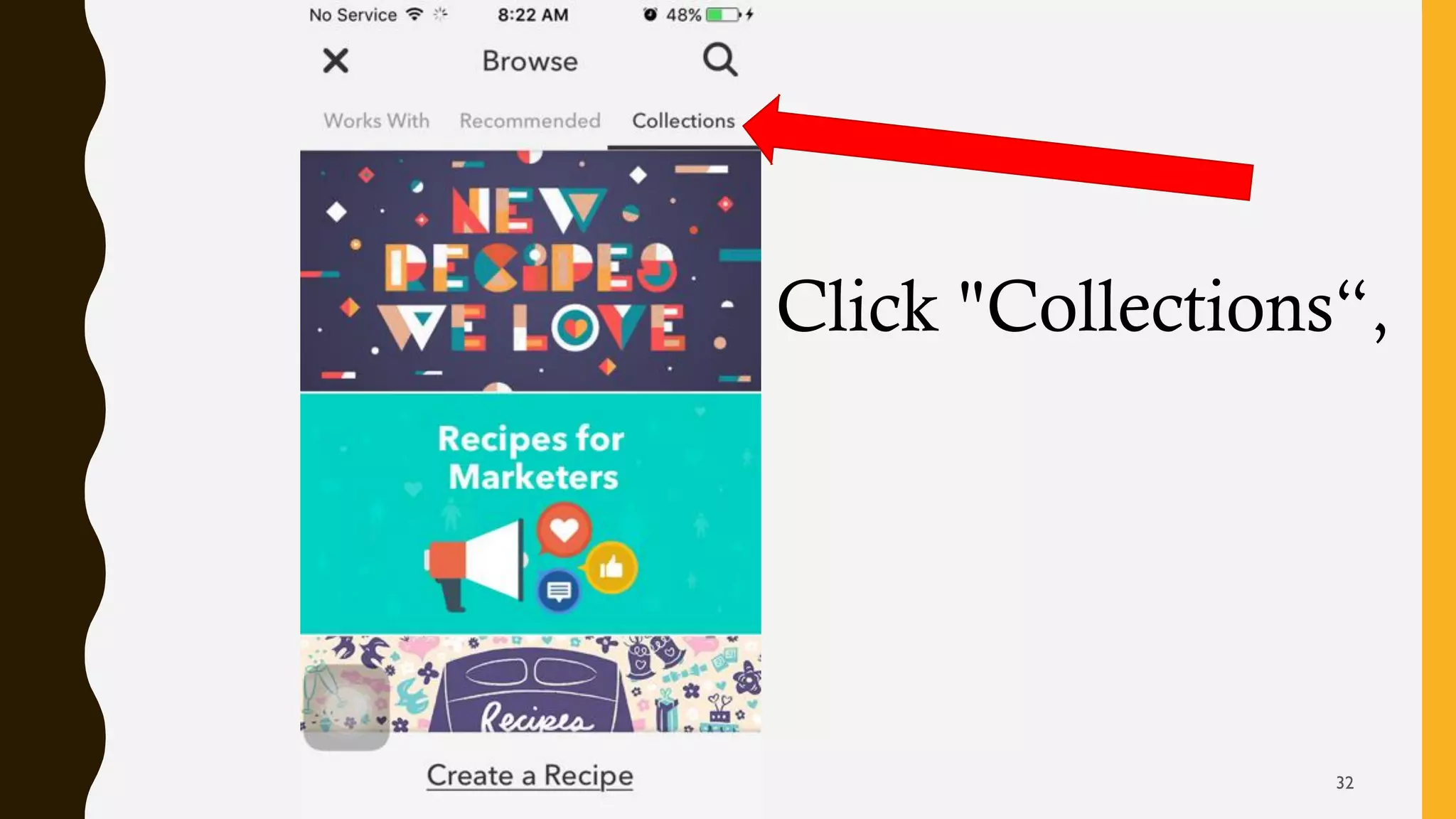
Click "Collections“,
32
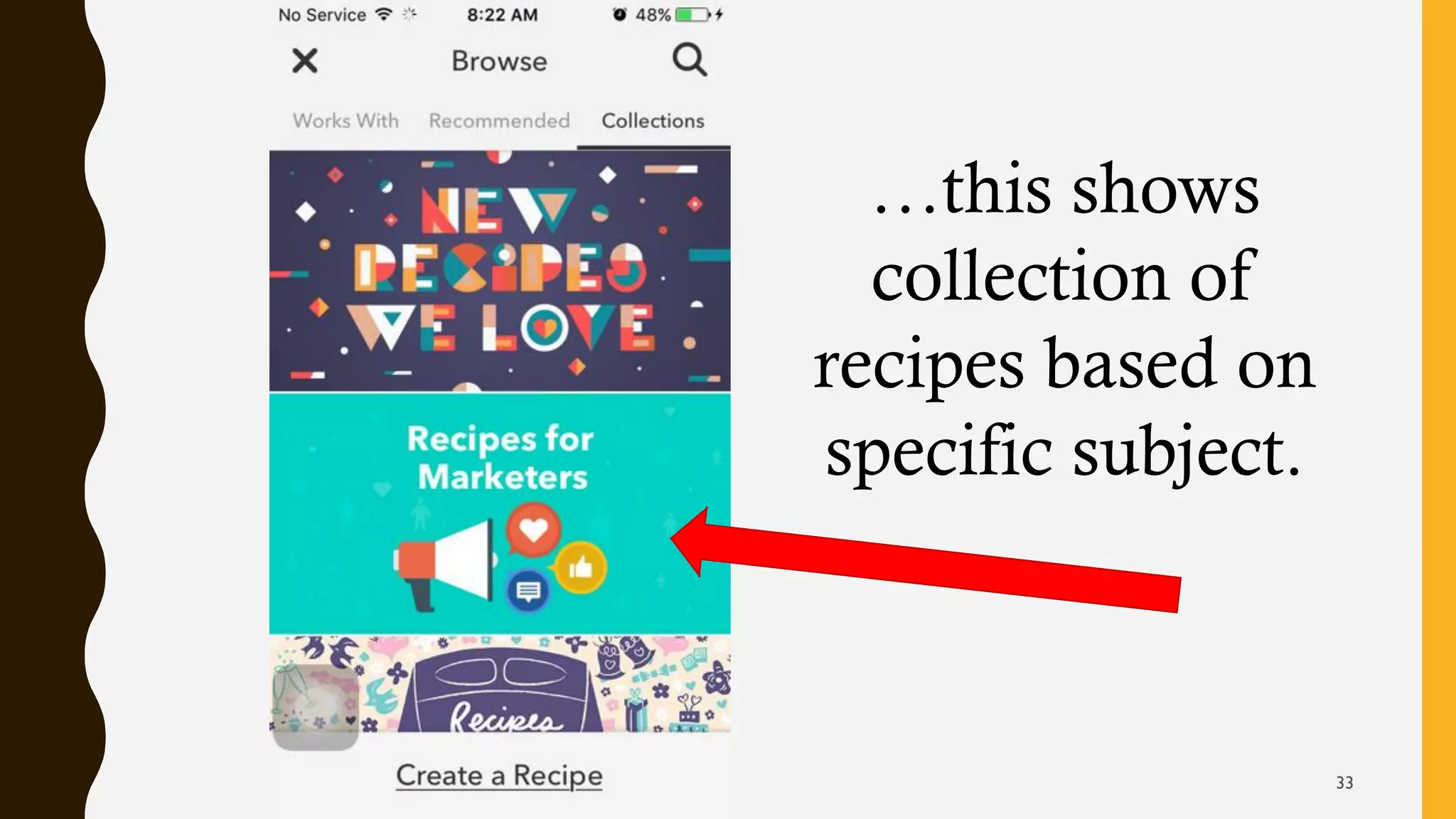
…this shows
collection of
recipes based on
specific subject.
33
Let's start making our recipes.
34
Objective 1: Save FB profile change
to Dropbox.
35
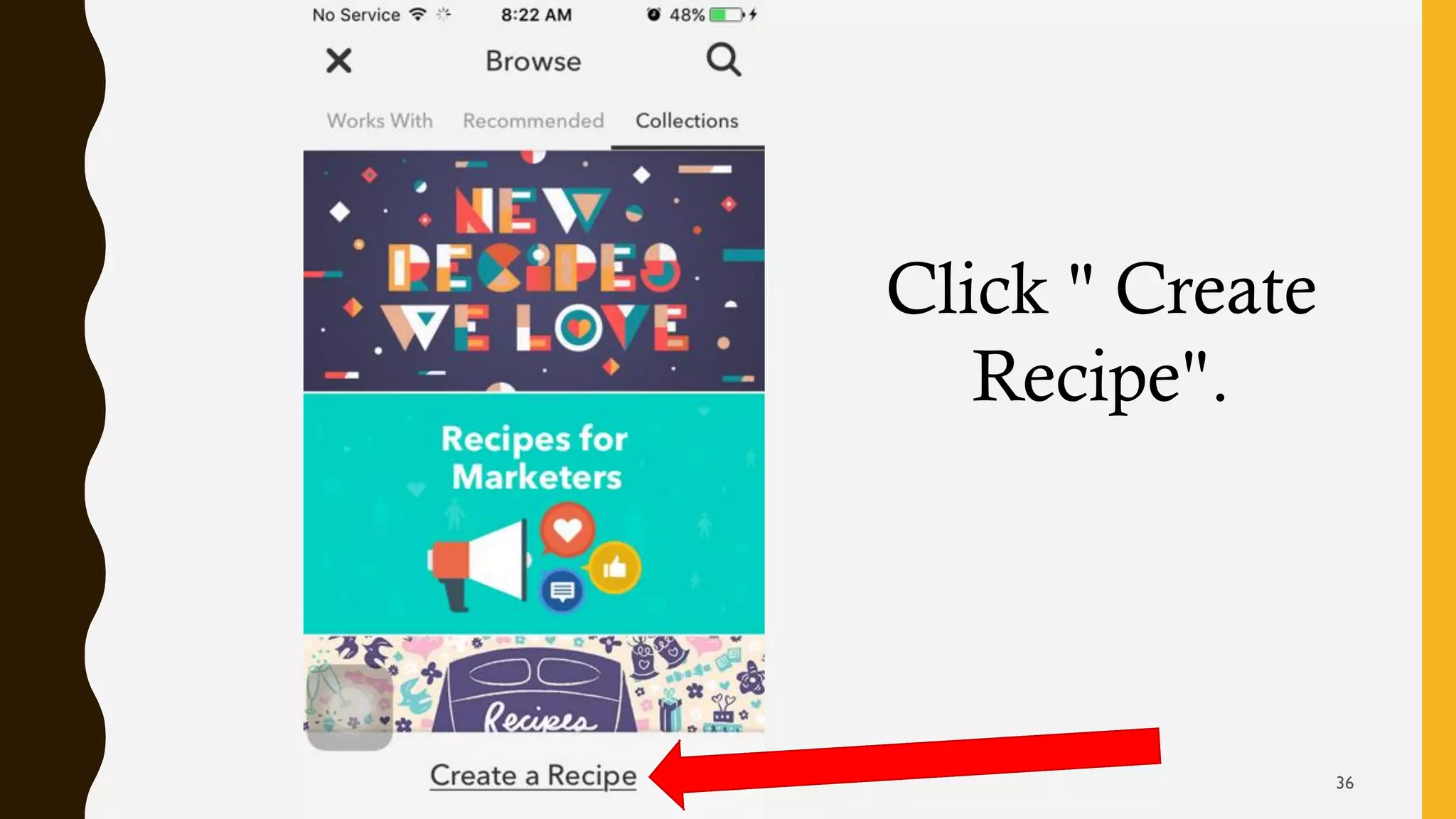
Click " Create
Recipe".
36
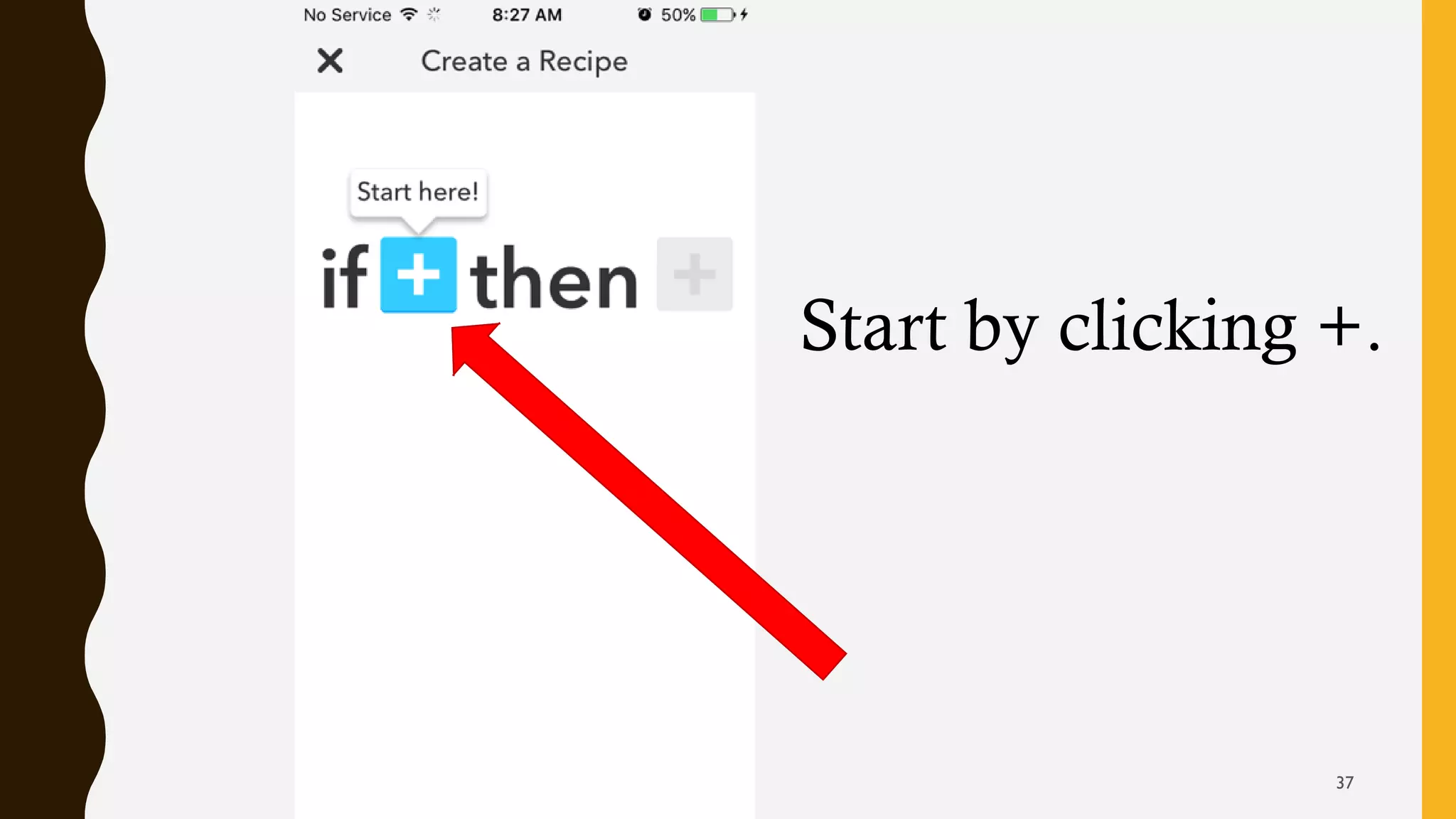
Start by clicking +.
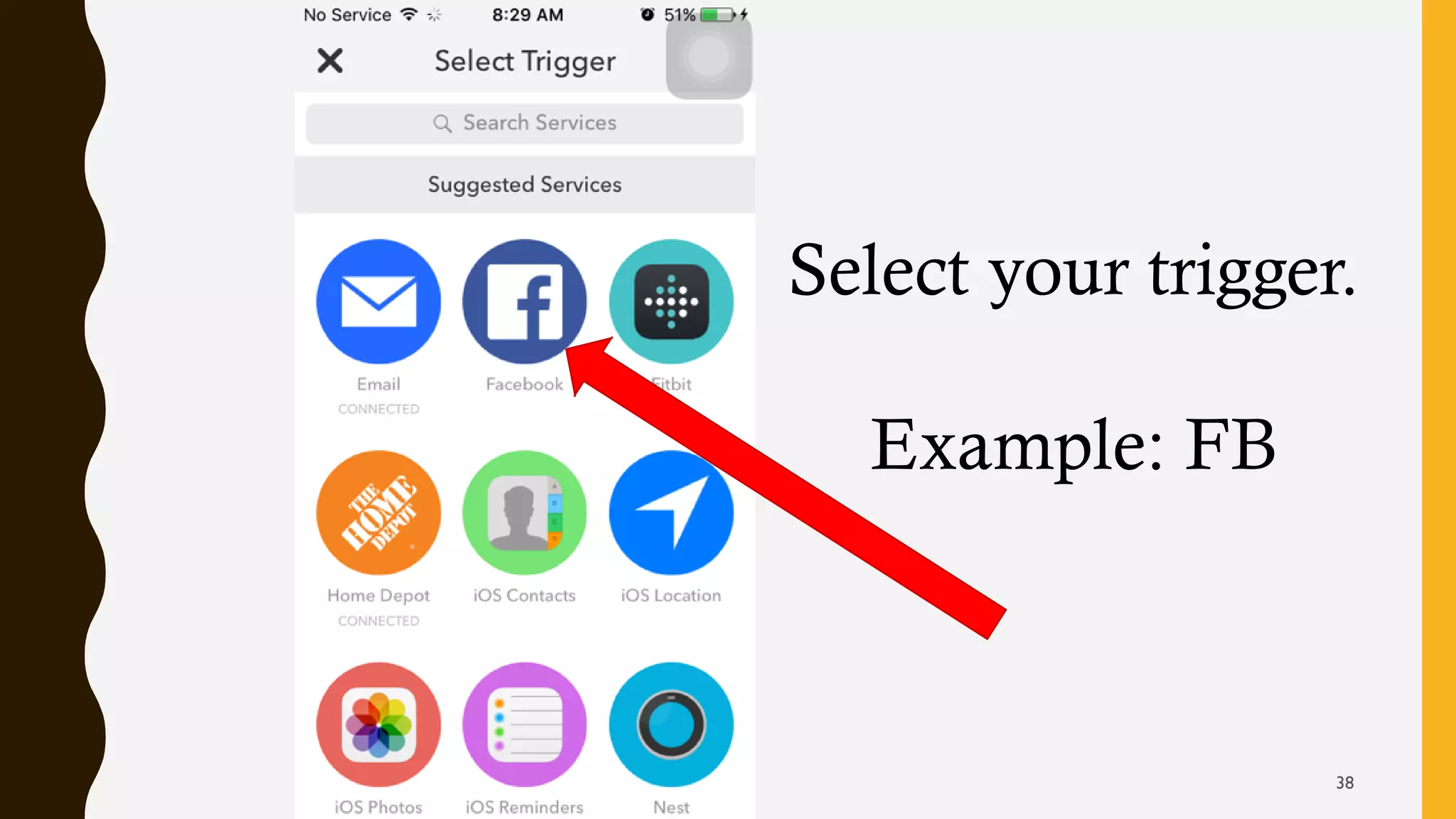
37
Select your trigger.
Example: FB
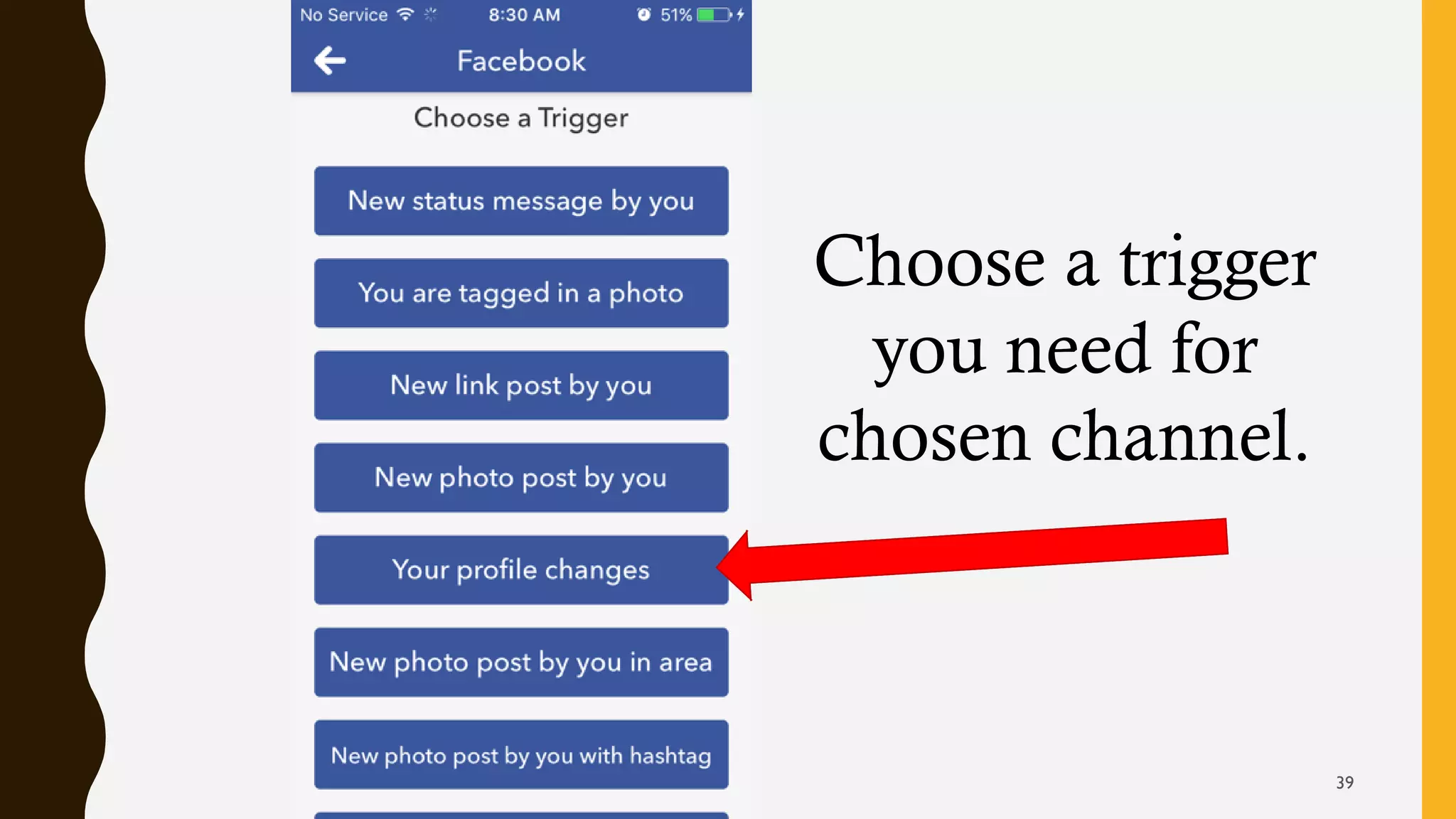
38
Choose a trigger
you need for
chosen channel.
39
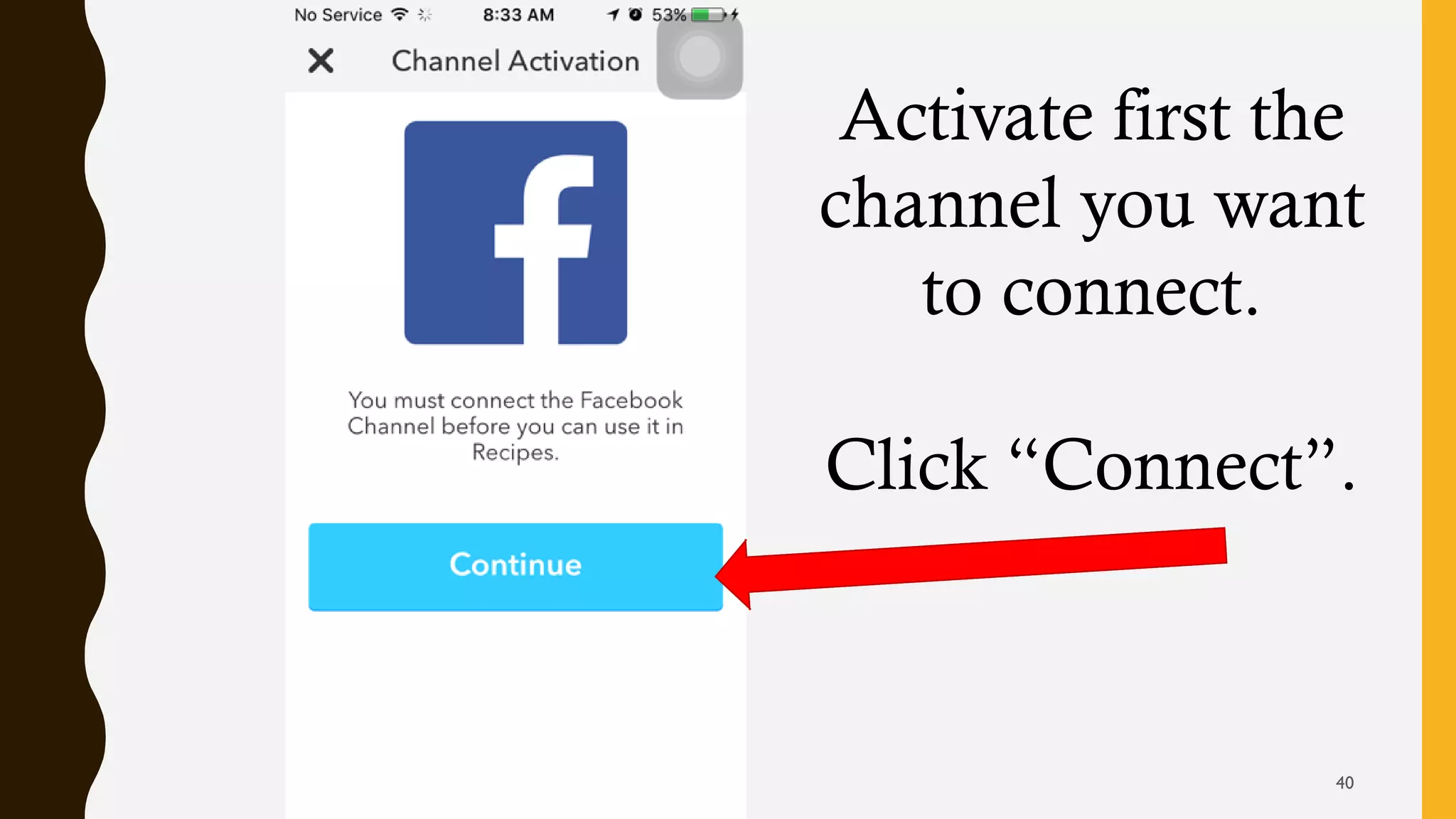
Activate first the
channel you want
to connect.
Click “Connect”.
40
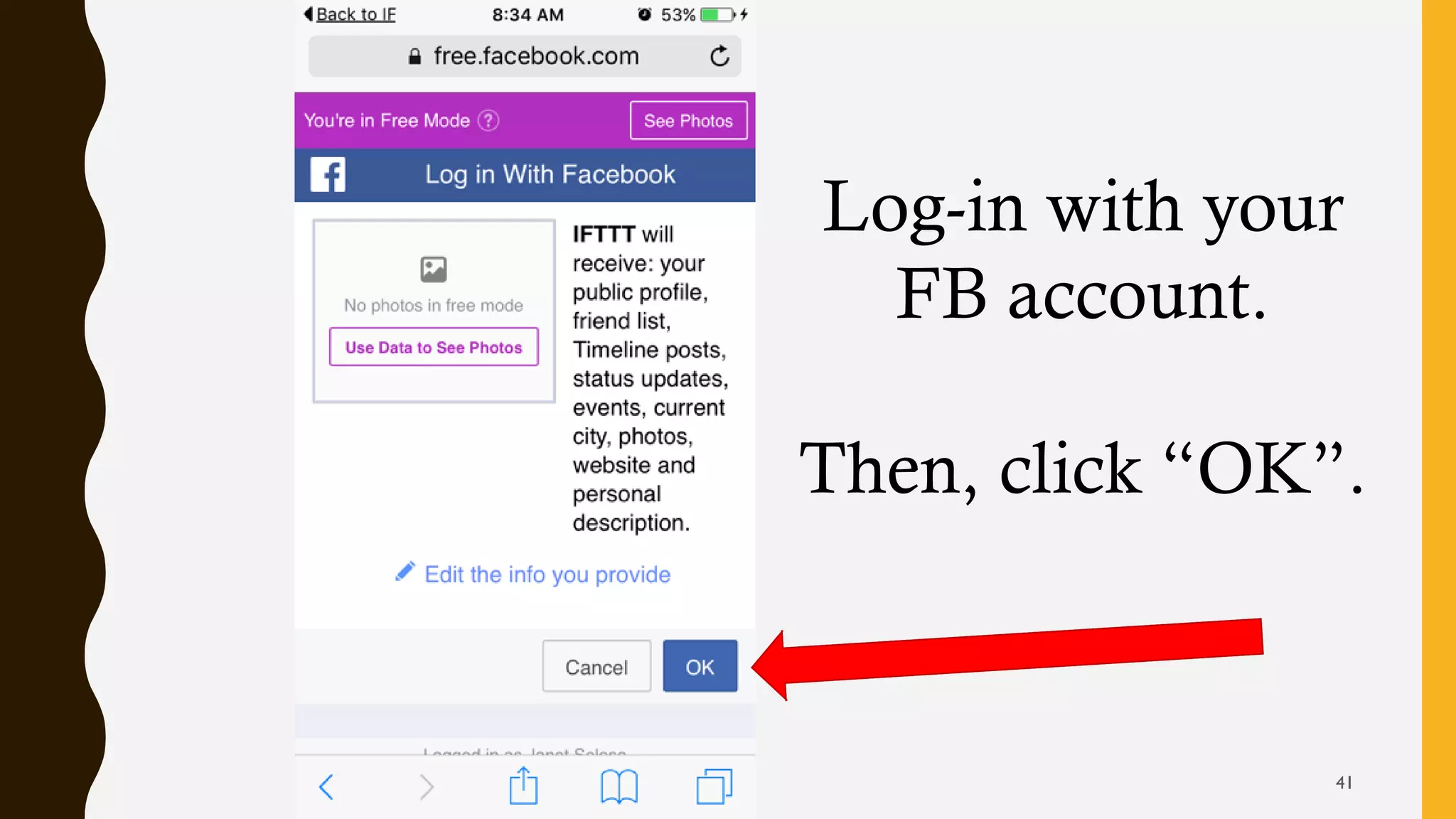
Log-in with your
FB account.
Then, click “OK”.
41
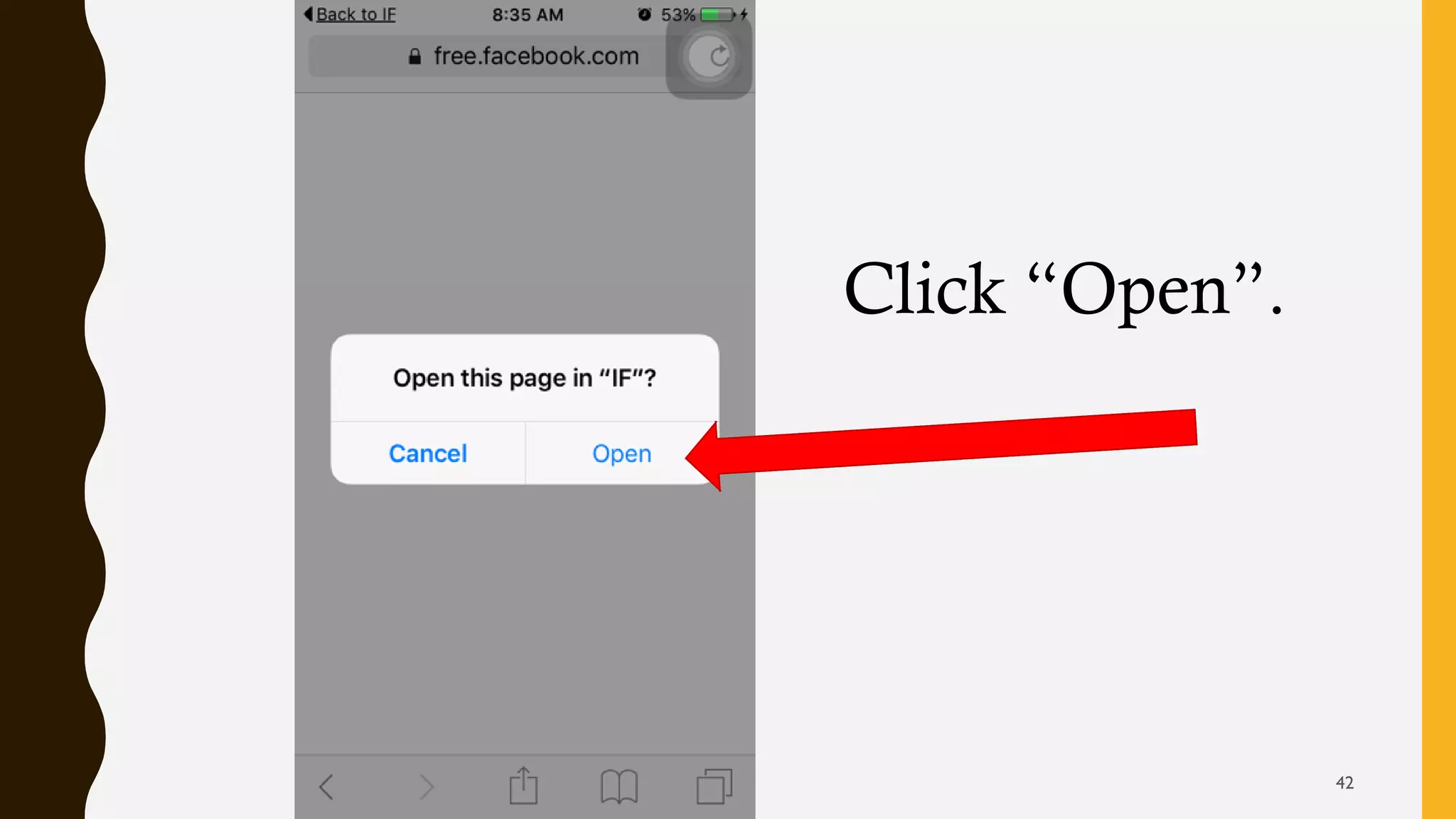
Click “Open”.
42
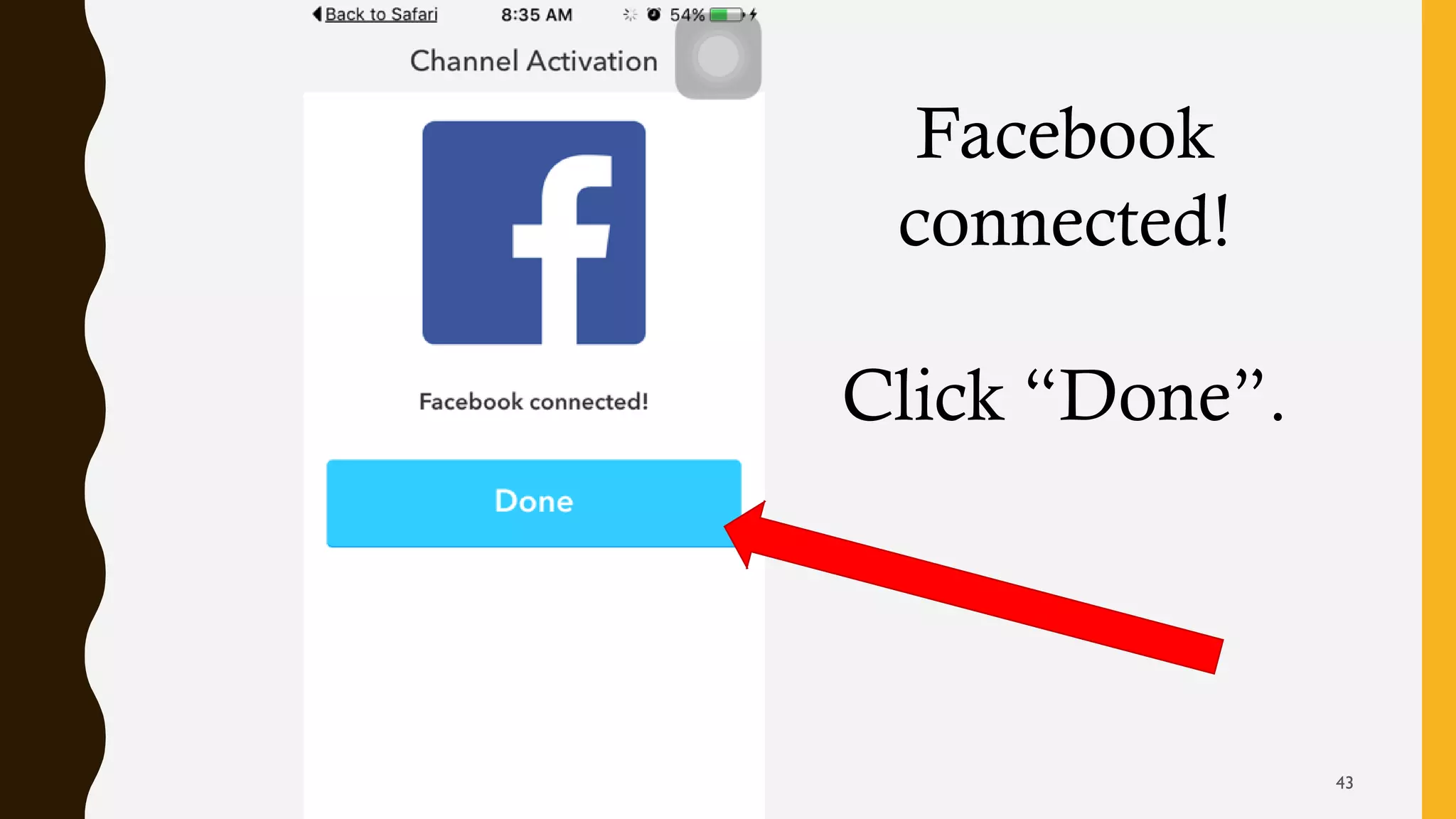
Facebook
connected!
Click “Done”.
43
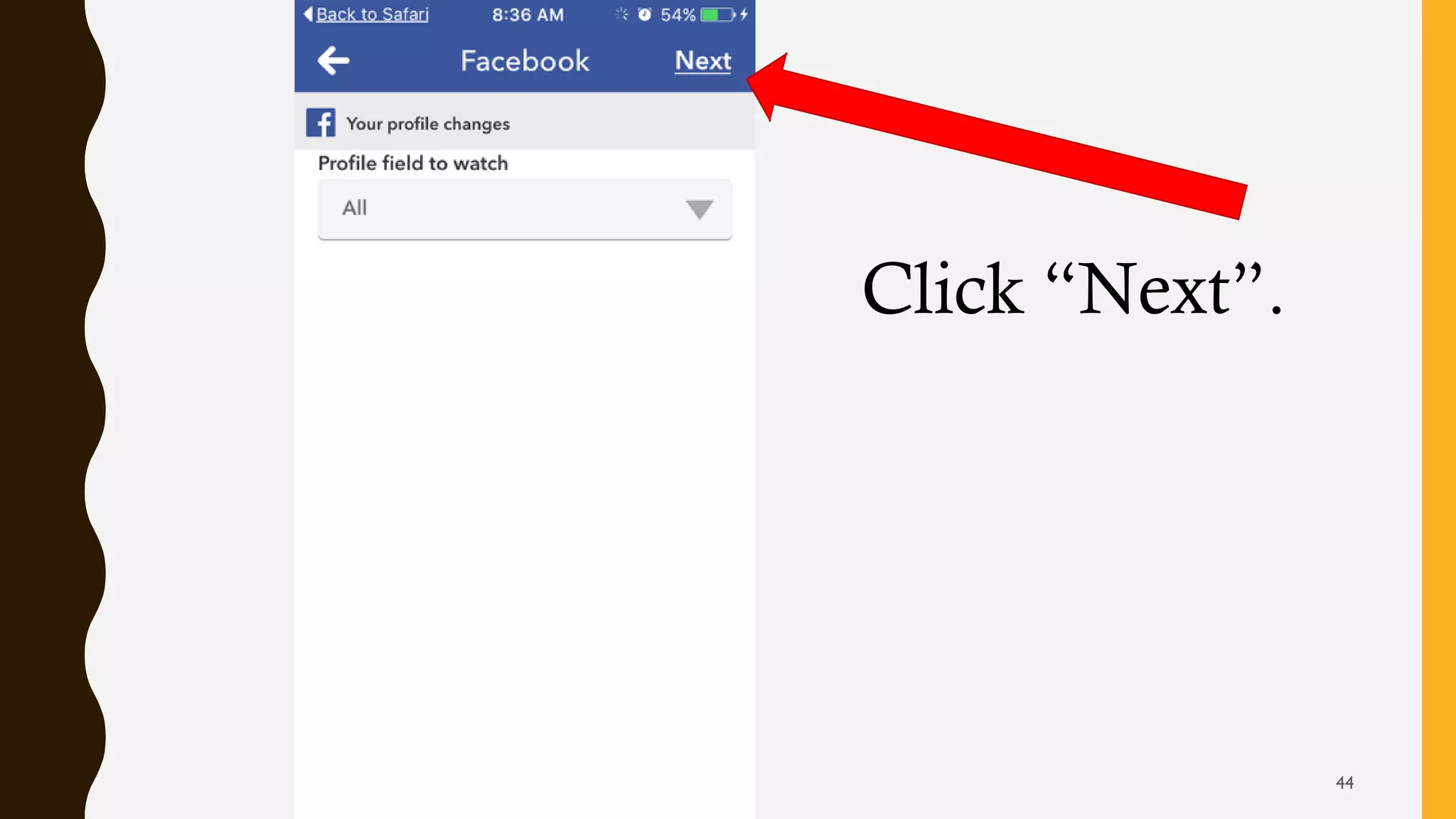
Click “Next”.
44
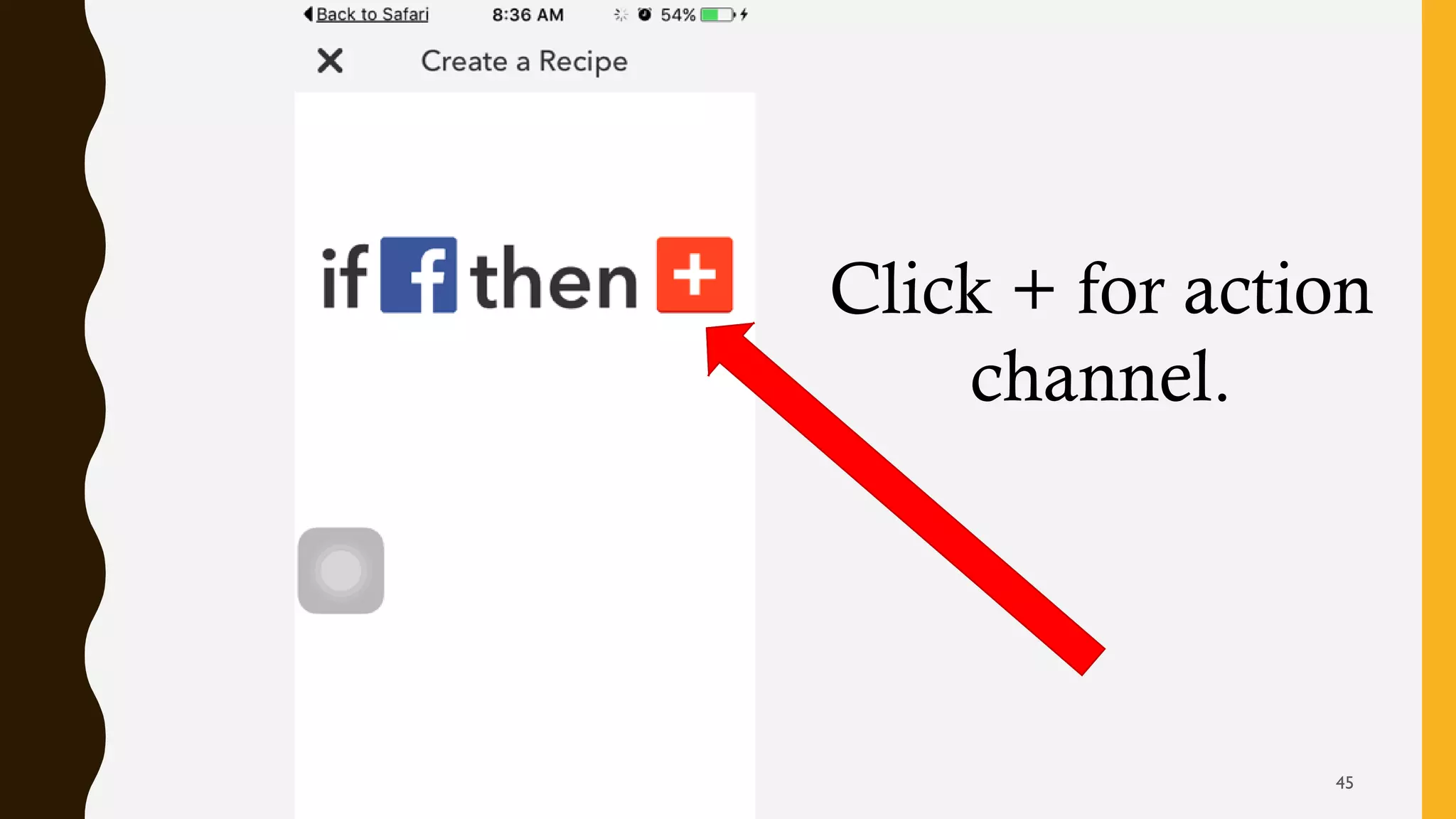
Click + for action
channel.
45
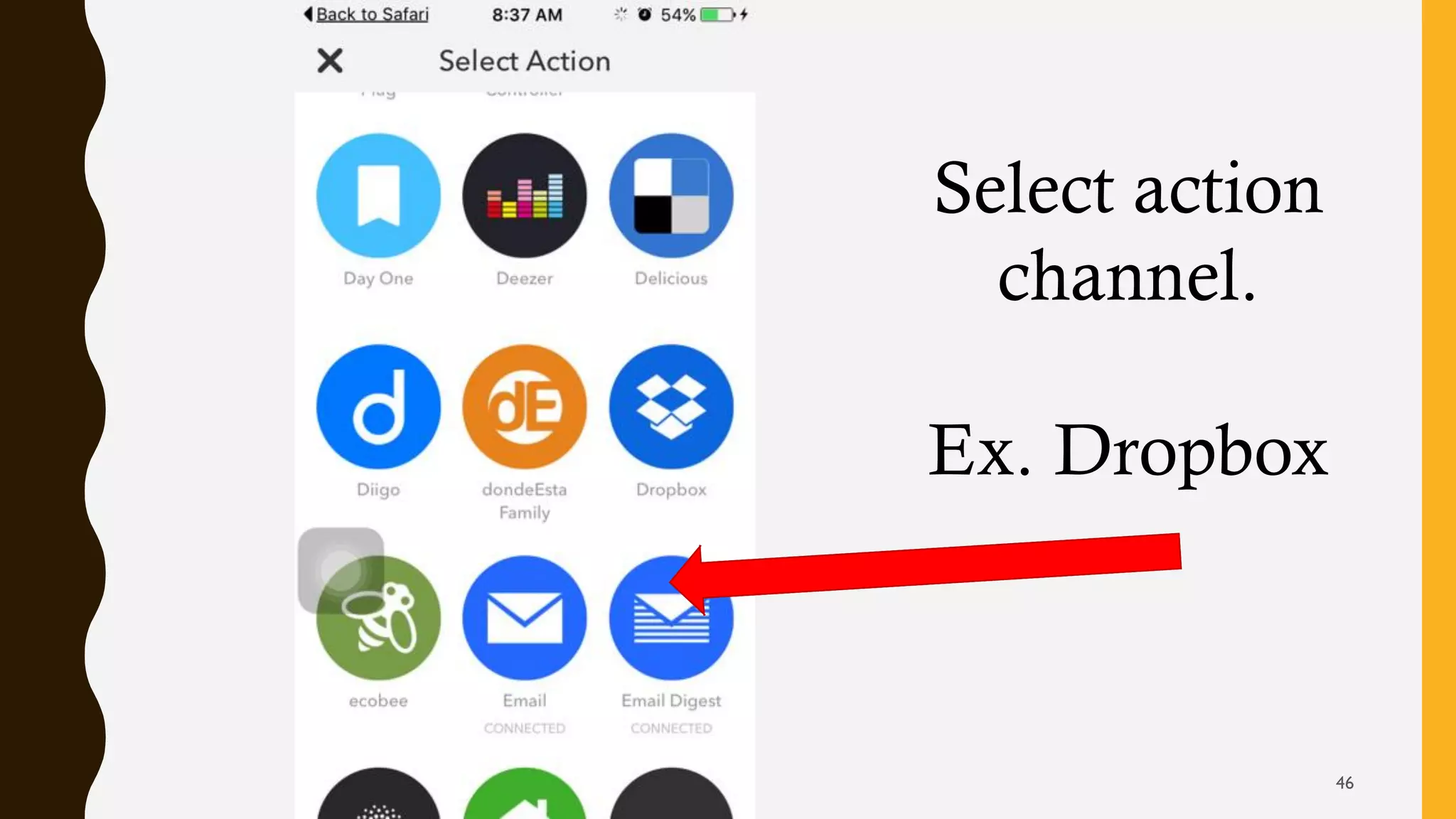
Select action
channel.
Ex. Dropbox
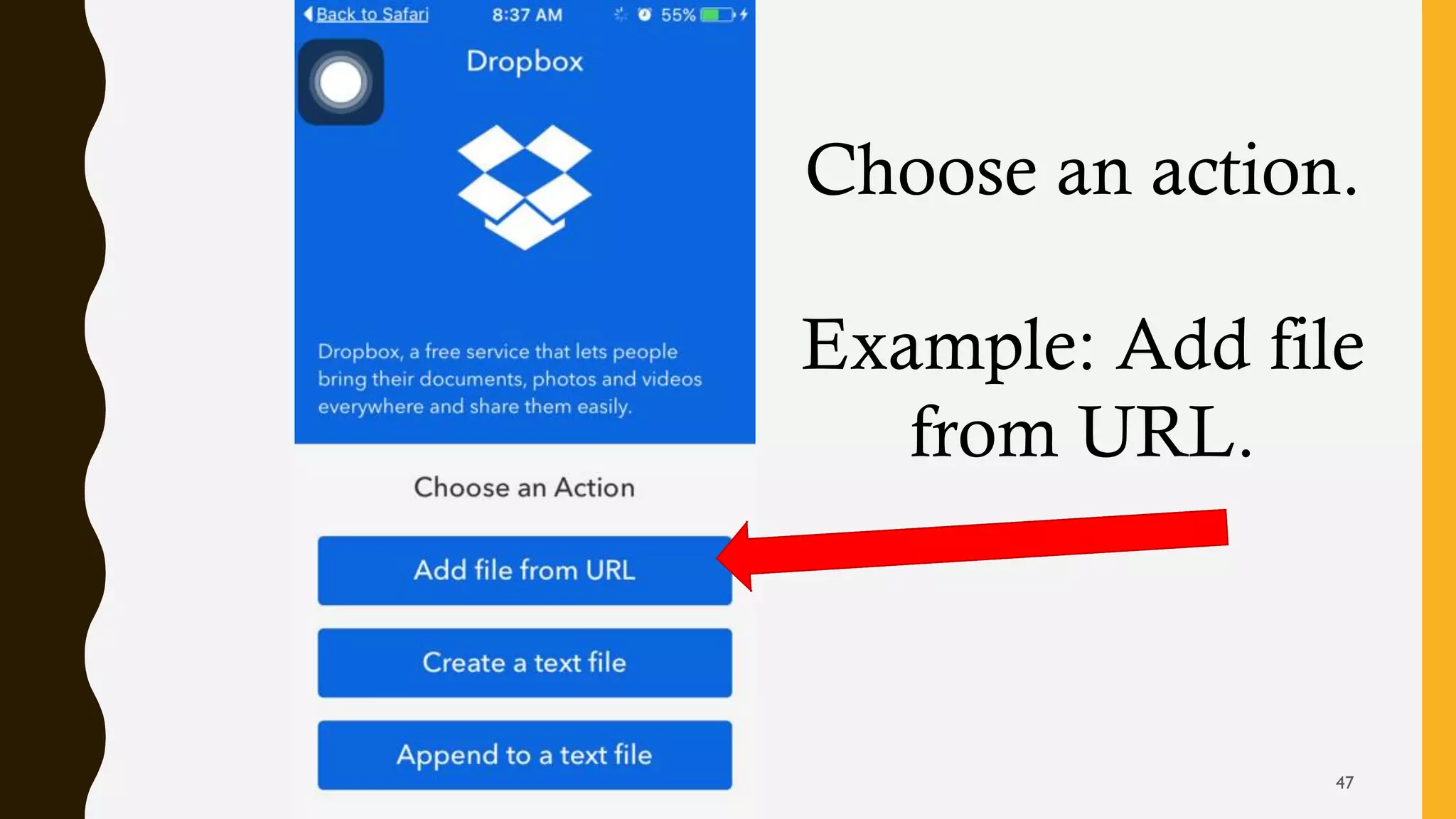
46
Choose an action.
Example: Add file
from URL.
47
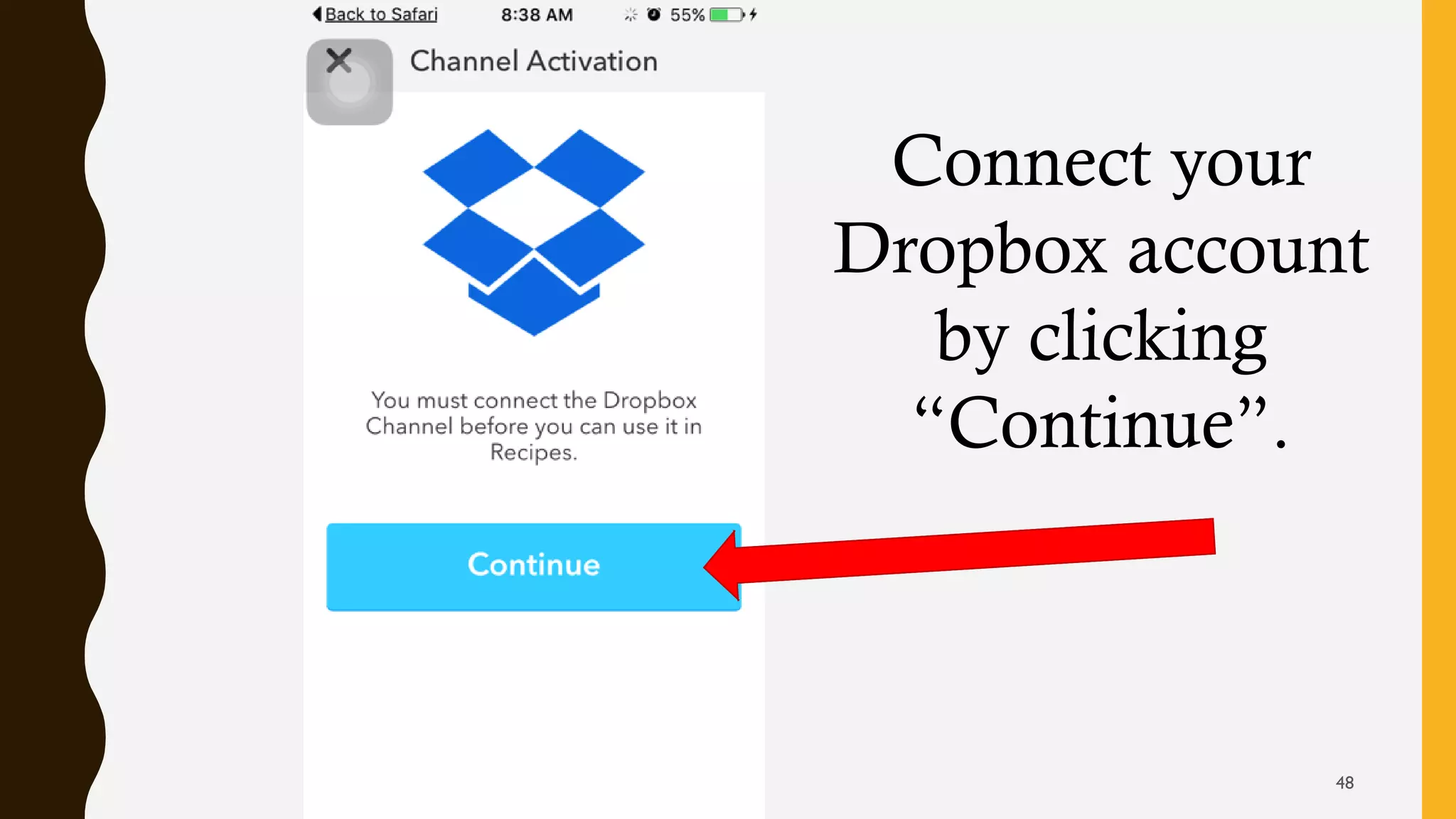
Connect your
Dropbox account
by clicking
“Continue”.
48
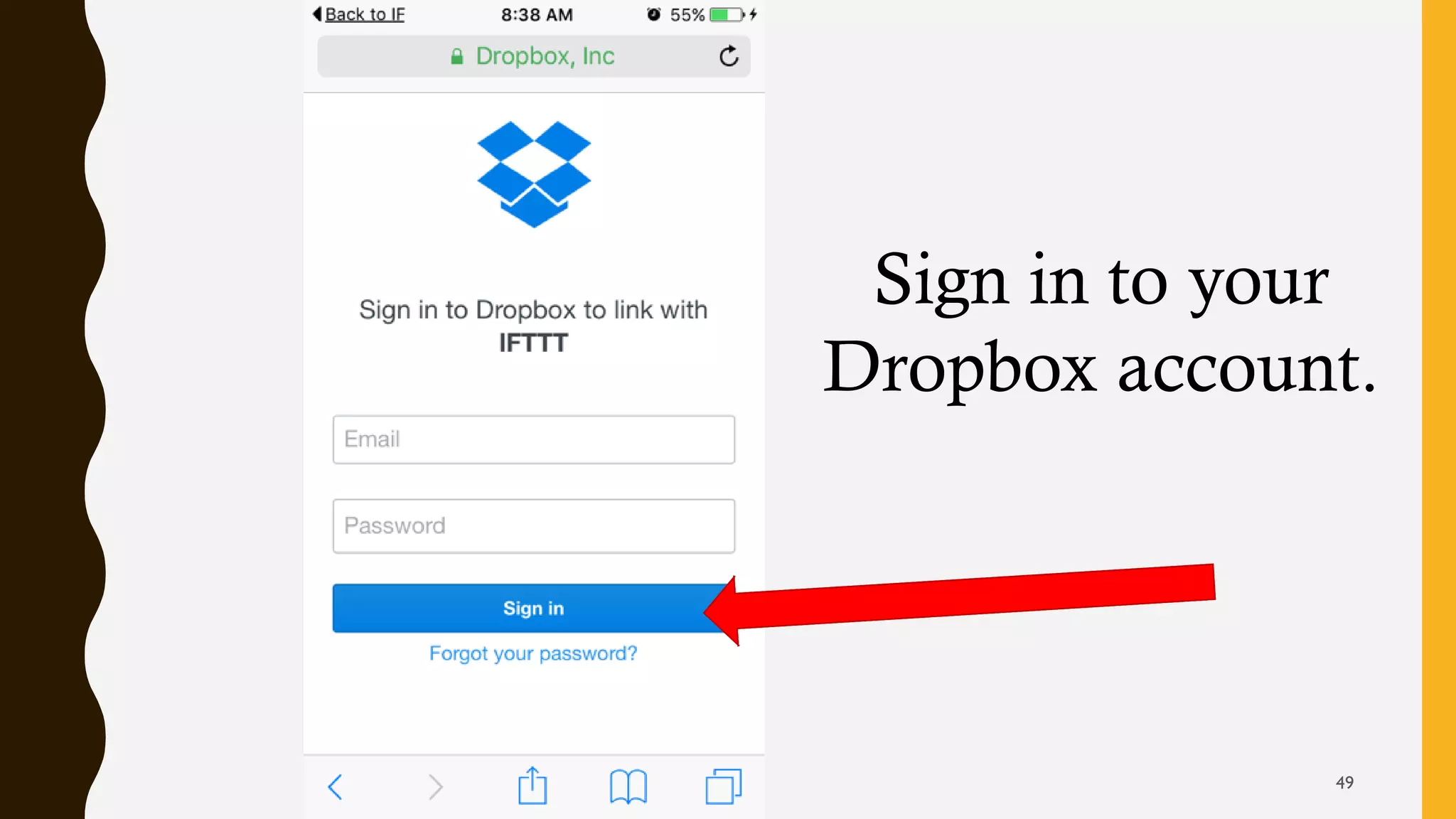
Sign in to your
Dropbox account.
49
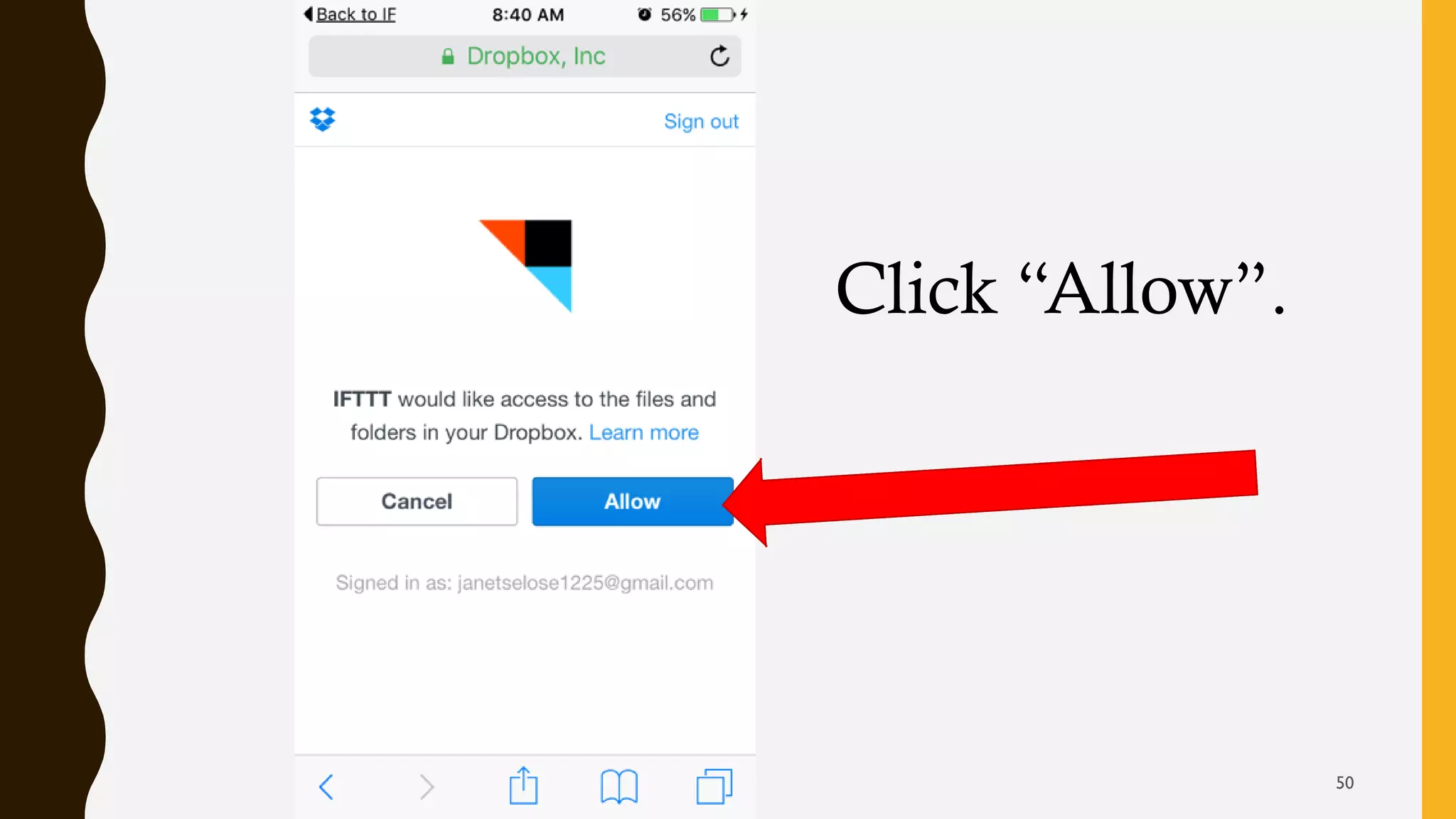
Click “Allow”.
50
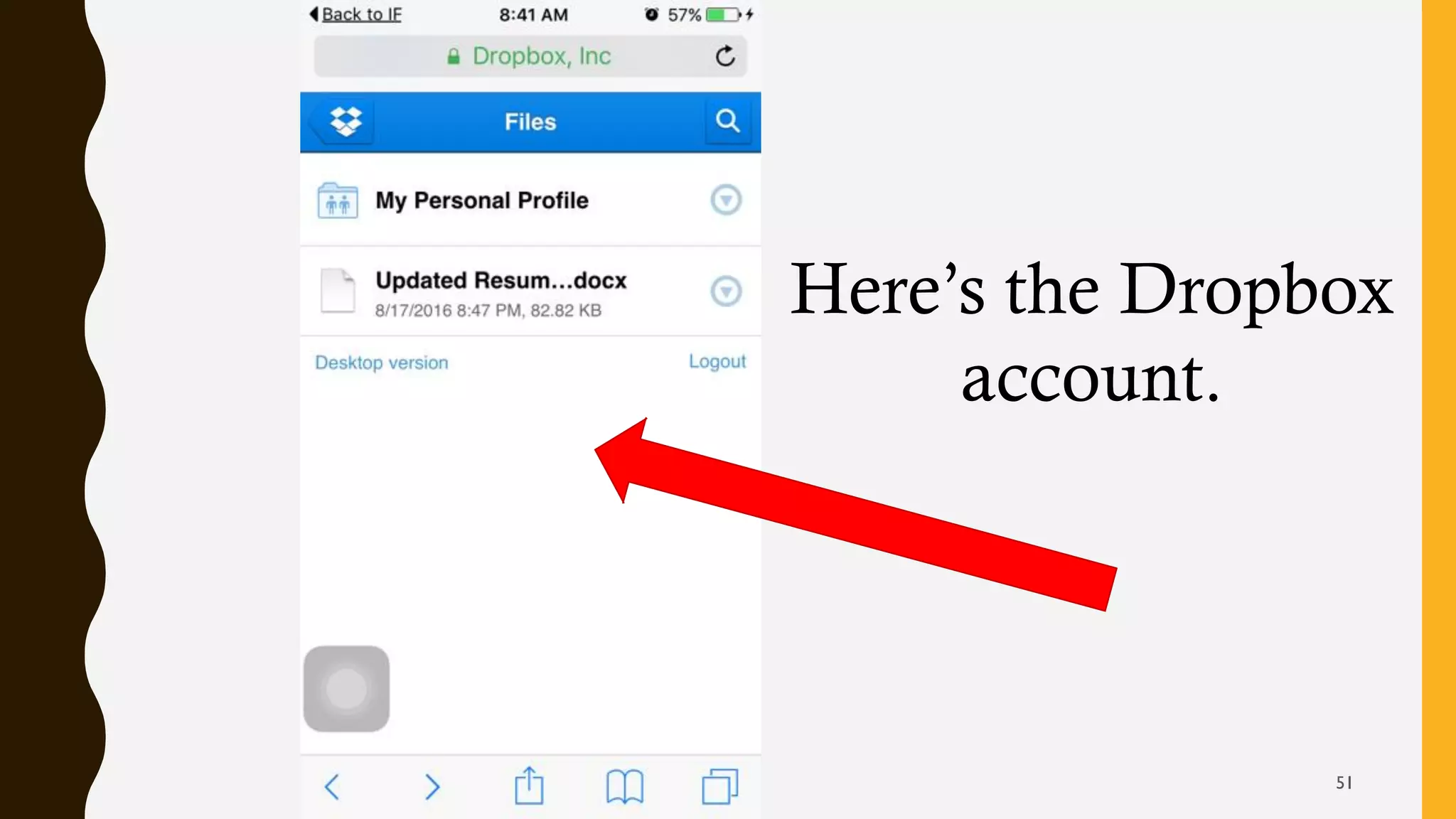
Here’s the Dropbox
account.
51
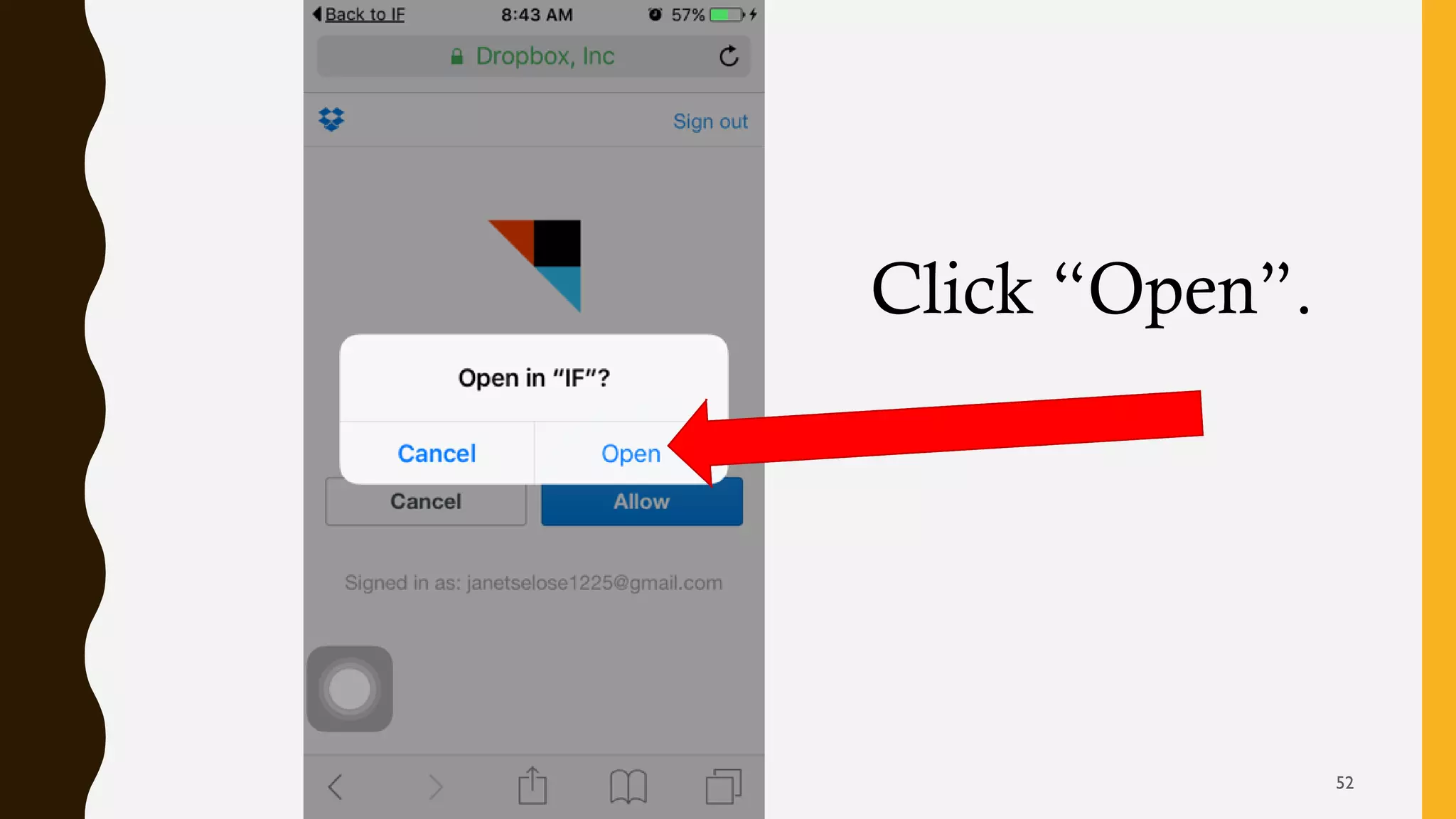
Click “Open”.
52
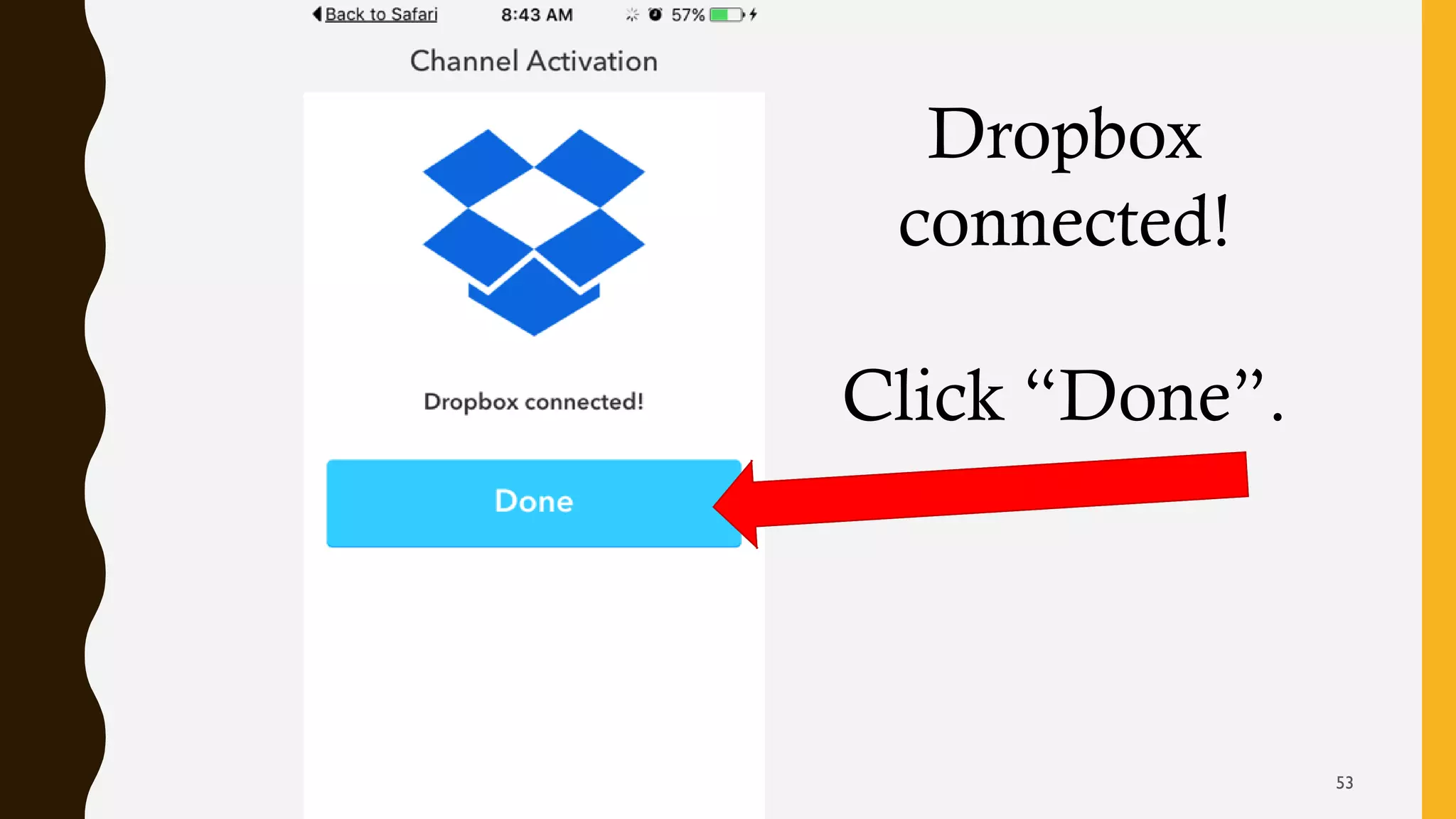
Dropbox
connected!
Click “Done”.
53
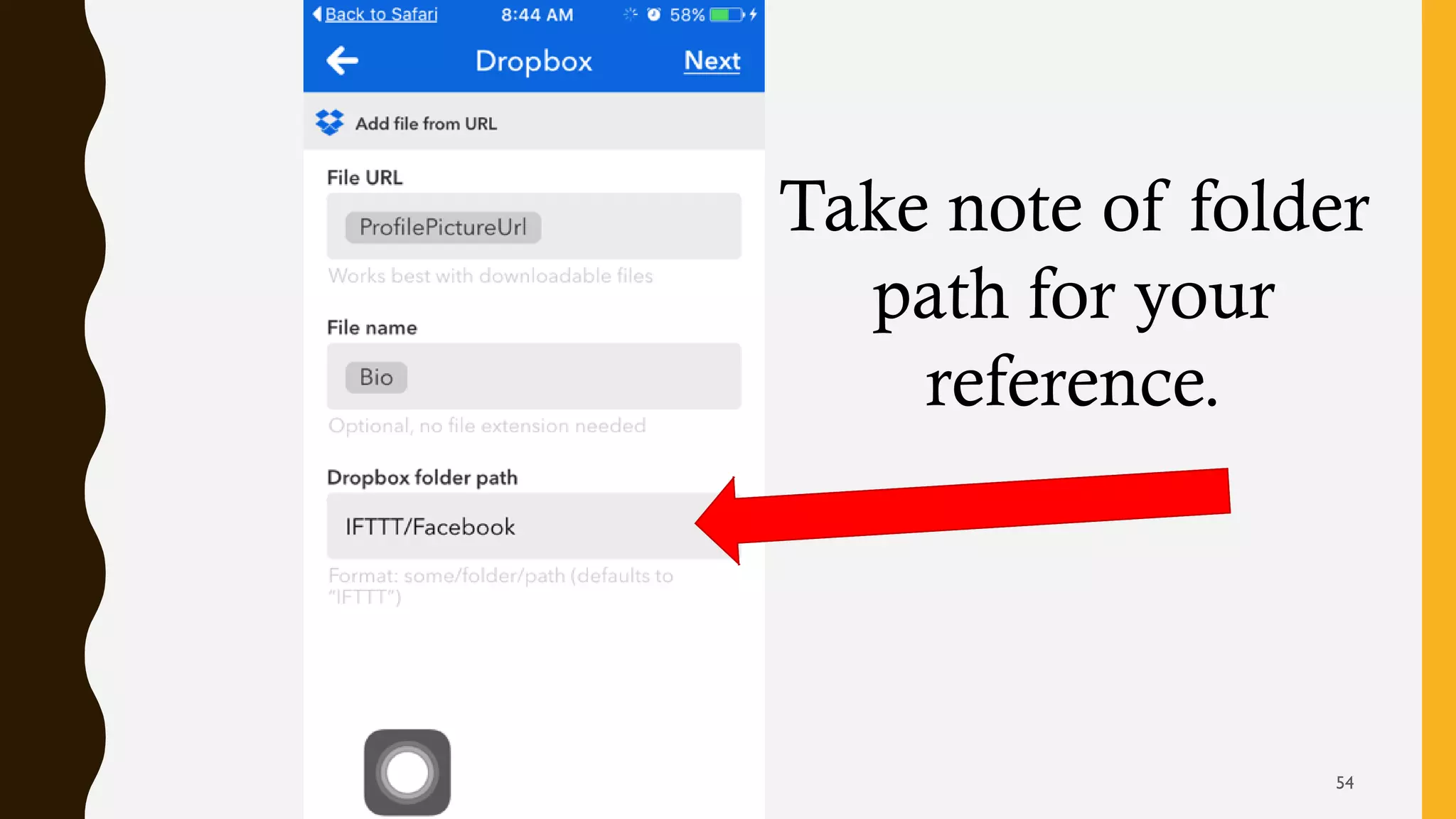
Take note of folder
path for your
reference.
54
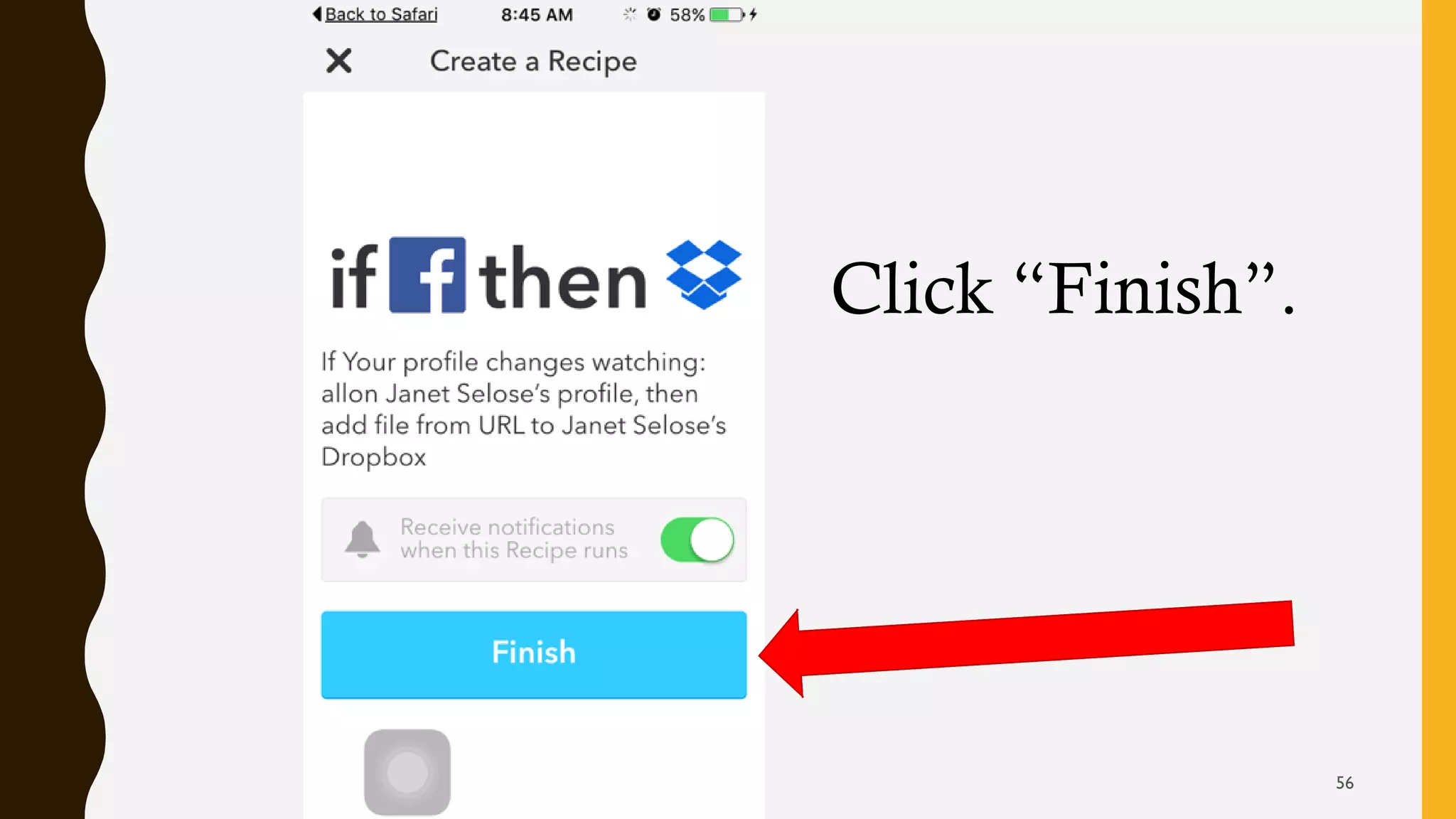
This describes your
first recipe.
55
Click “Finish”.
56
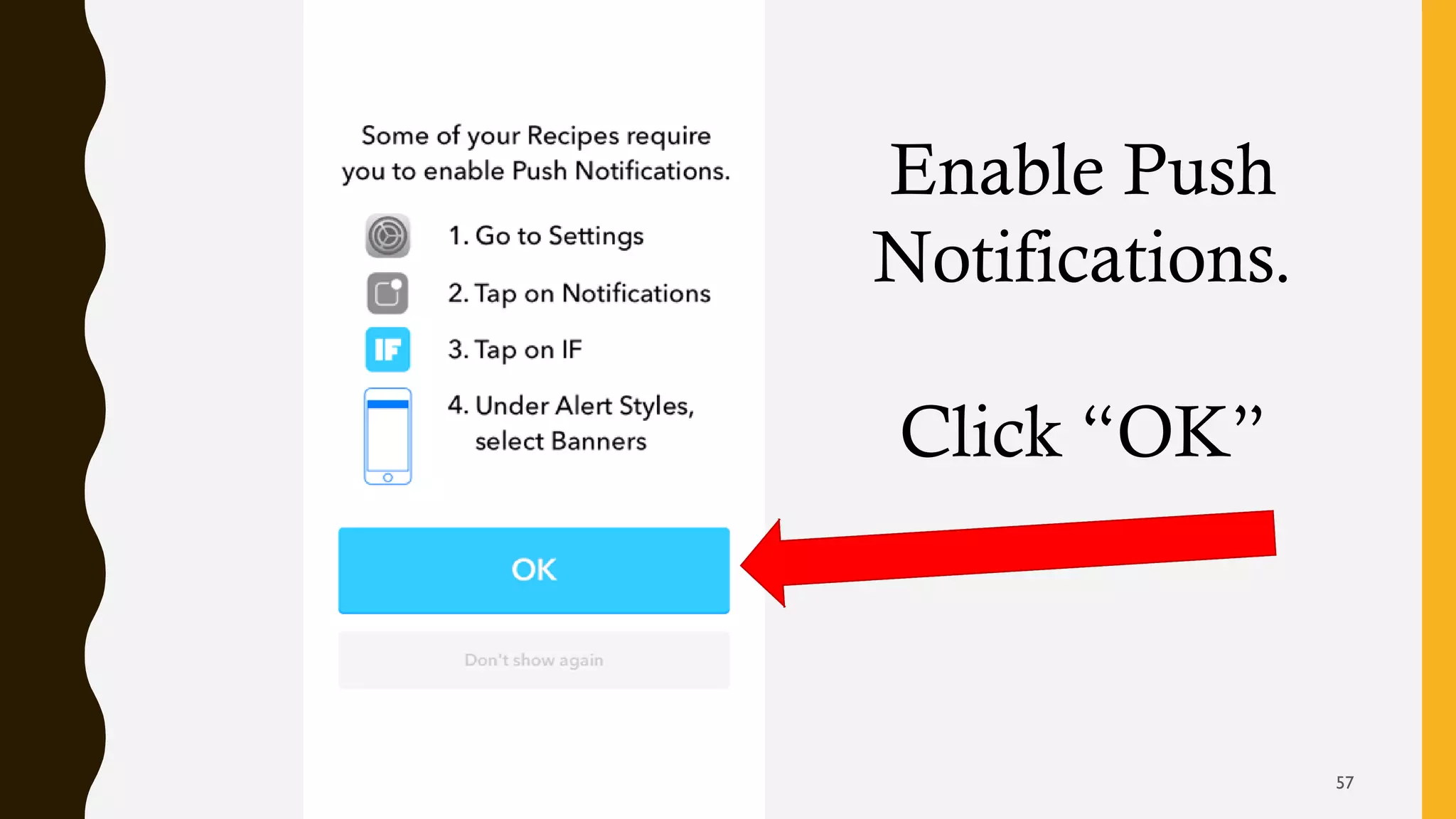
Enable Push
Notifications.
Click “OK”
57
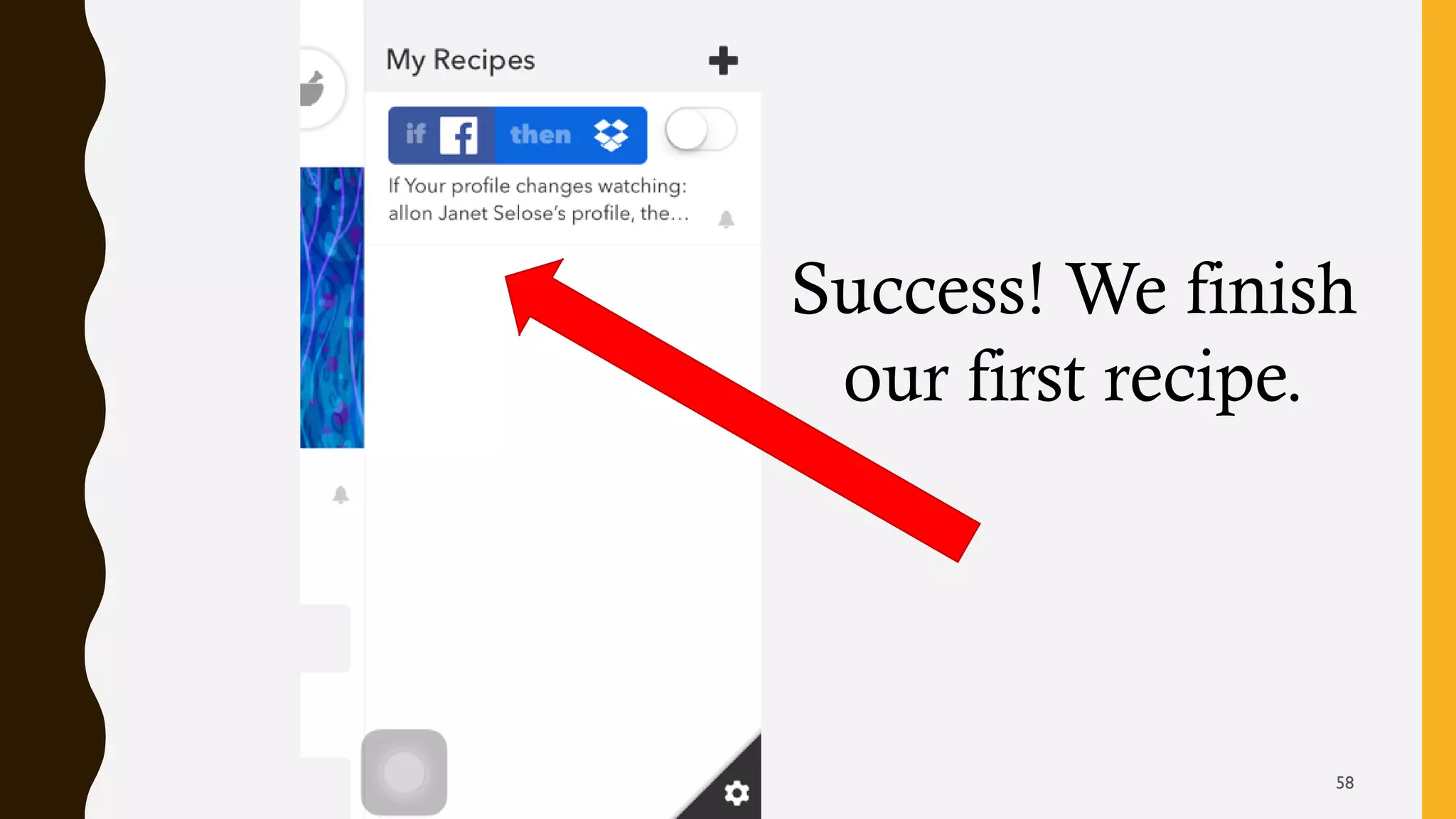
Success! We finish
our first recipe.
58
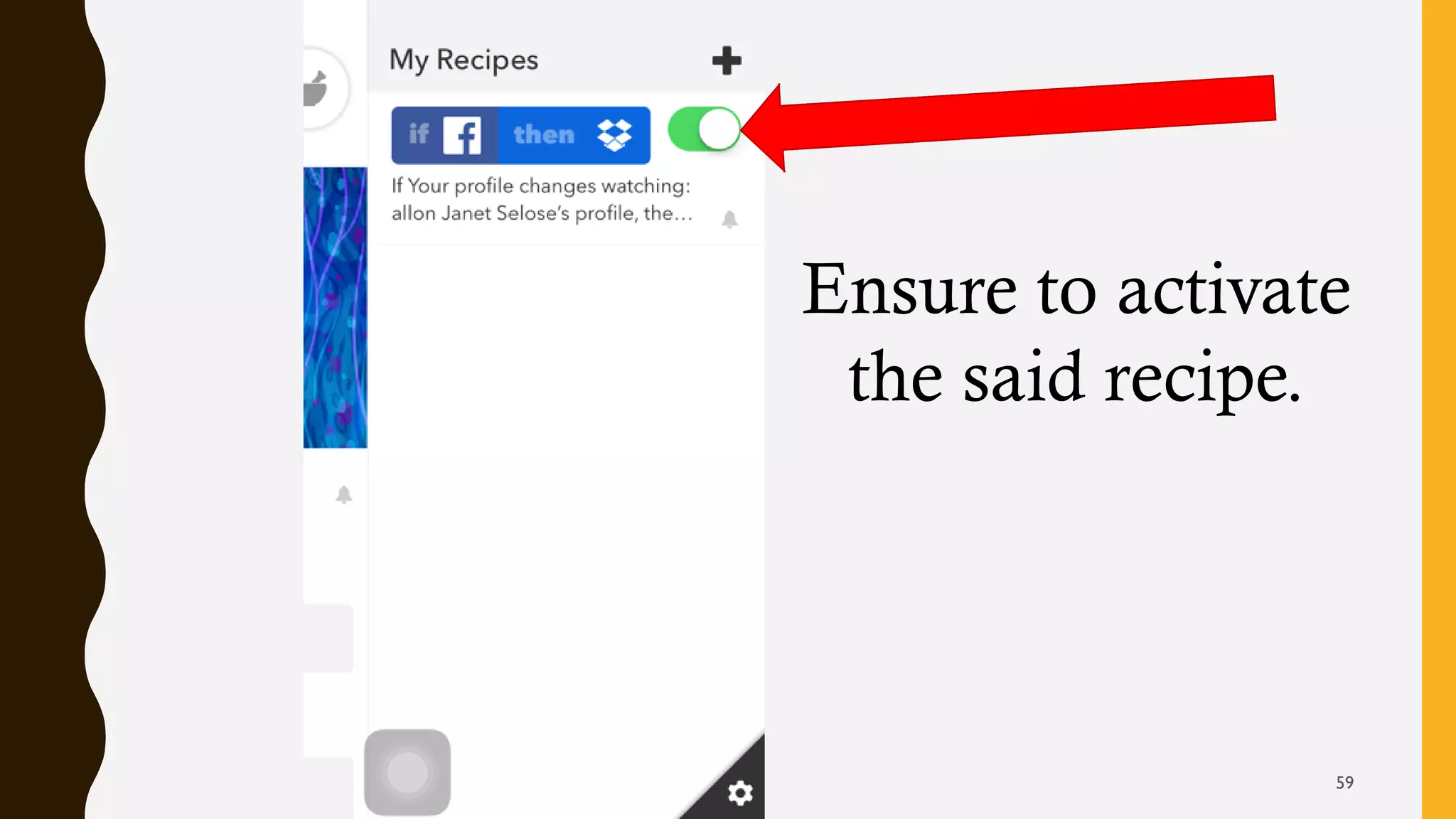
Ensure to activate
the said recipe.
59
Click “Finish”.
60
Objective 2: Use recipe from
collections
61
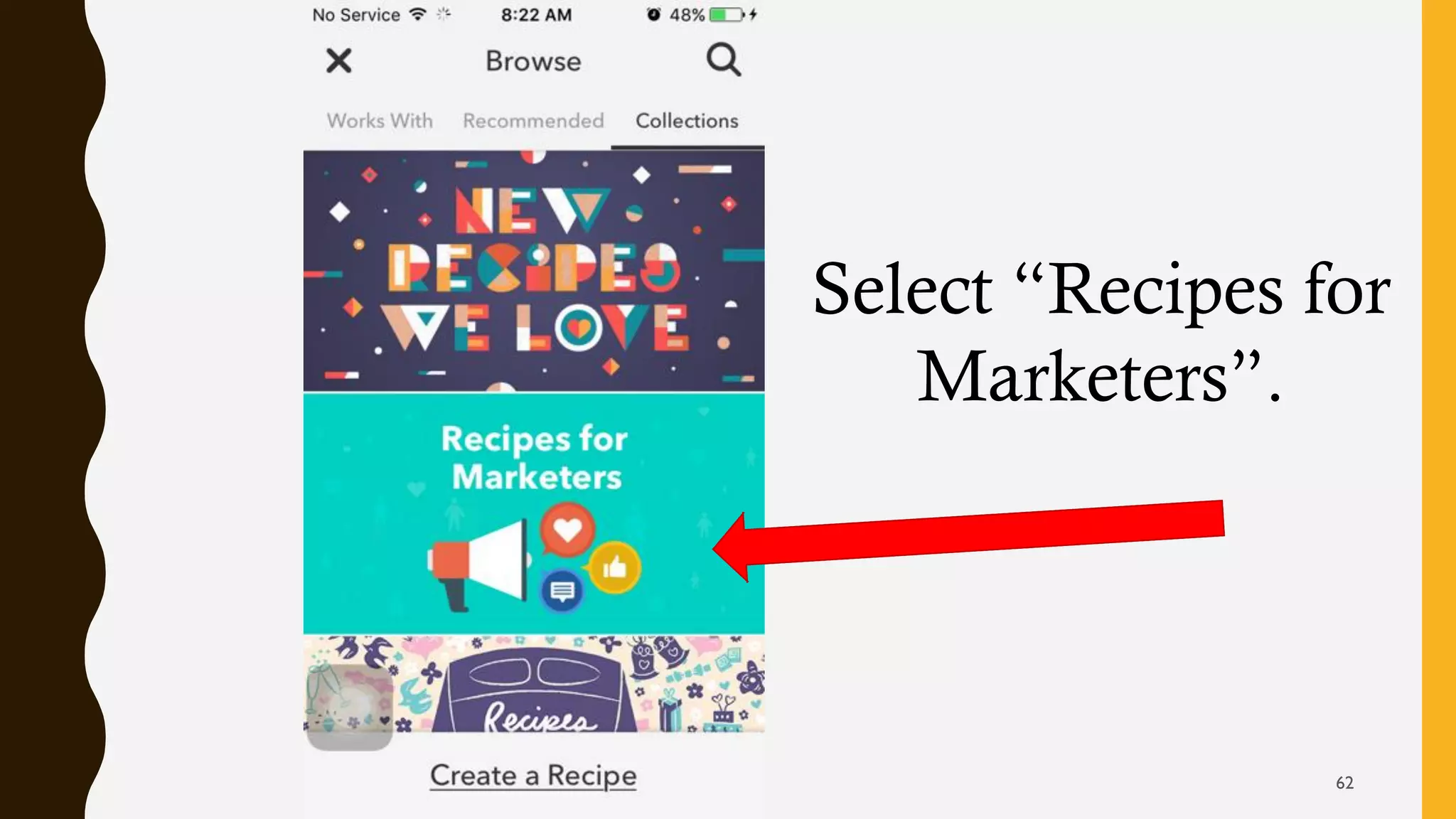
Select “Recipes for
Marketers”.
62
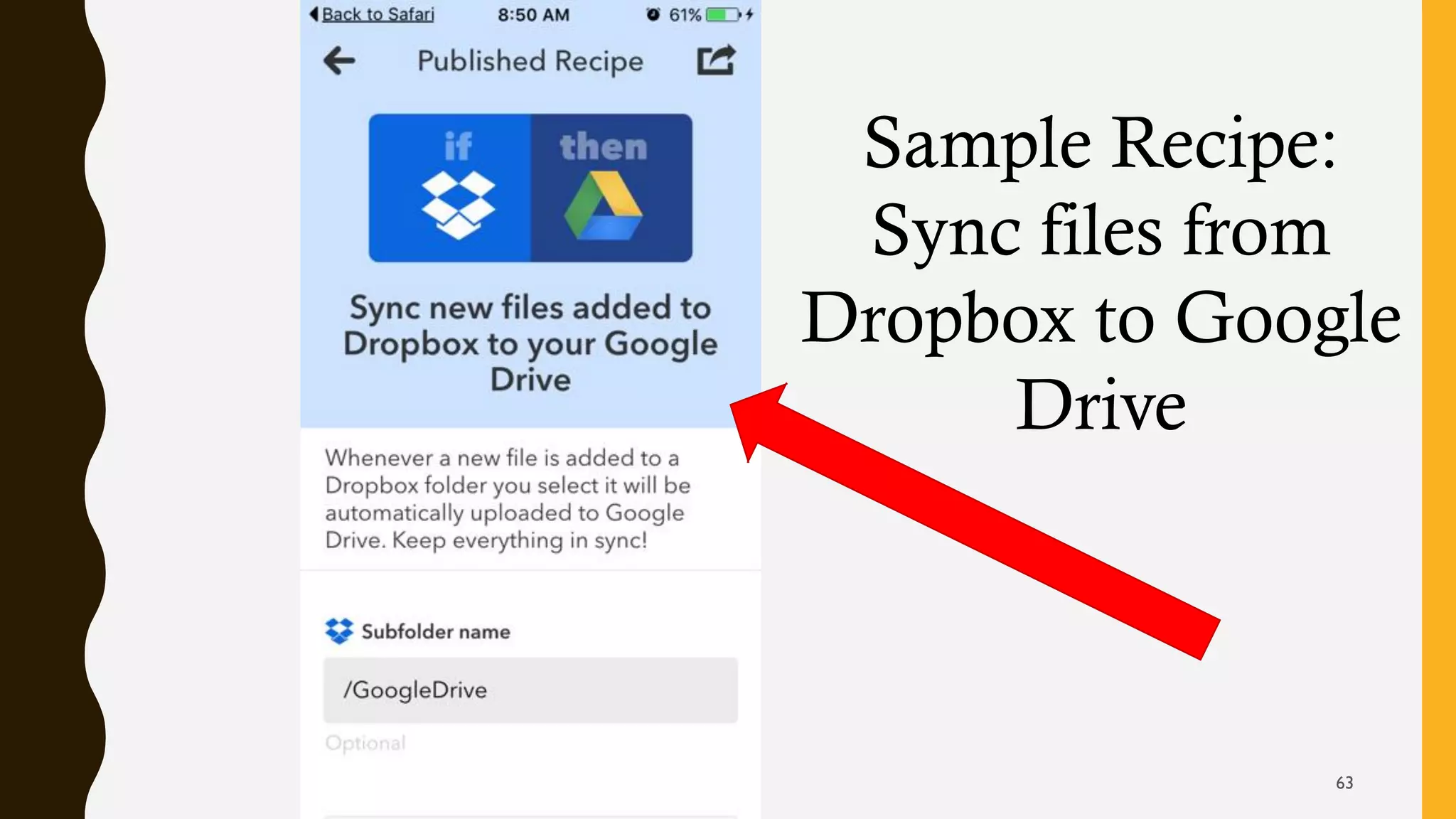
Sample Recipe:
Sync files from
Dropbox to Google
Drive
63
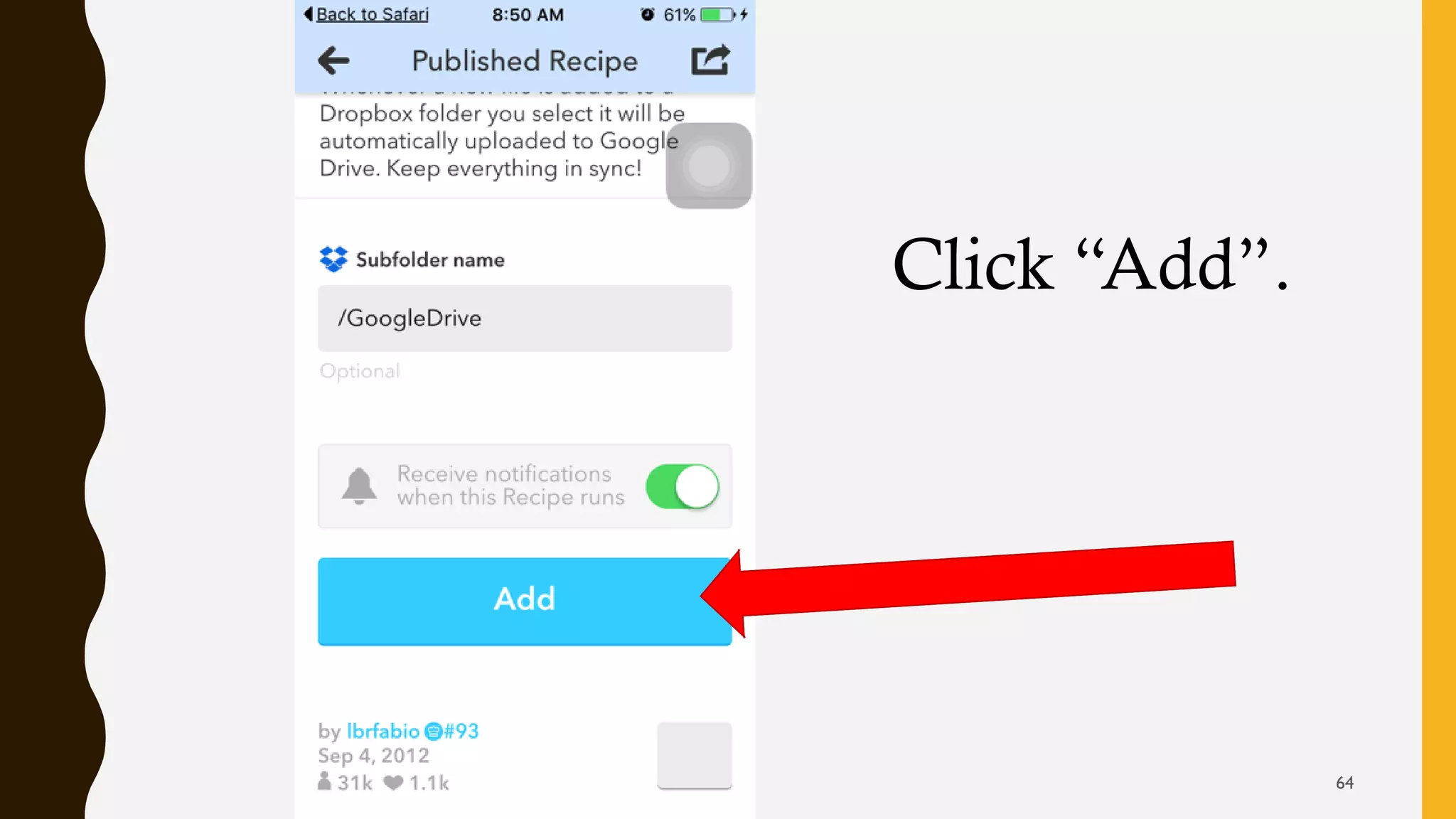
Click “Add”.
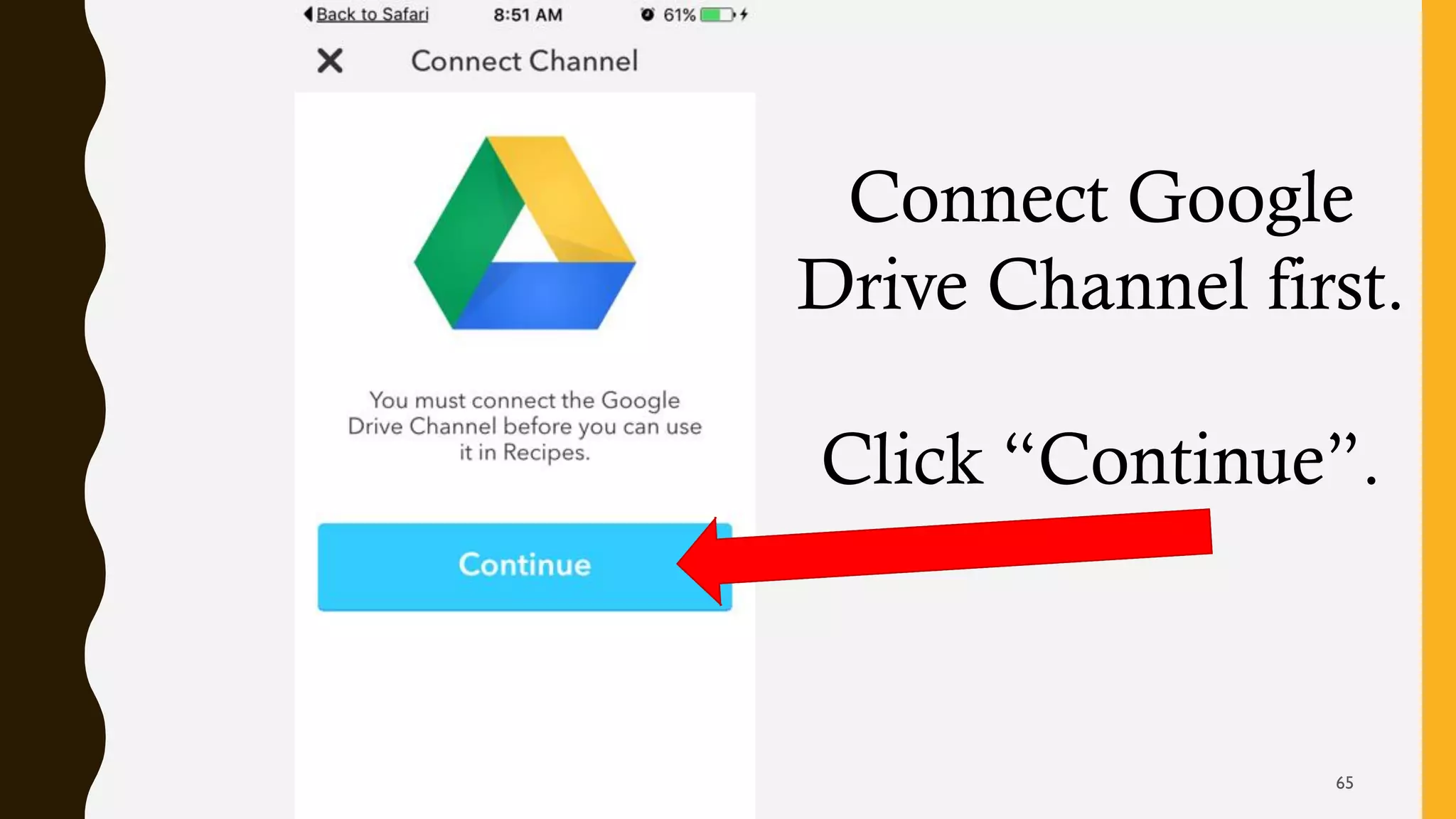
64
Connect Google
Drive Channel first.
Click “Continue”.
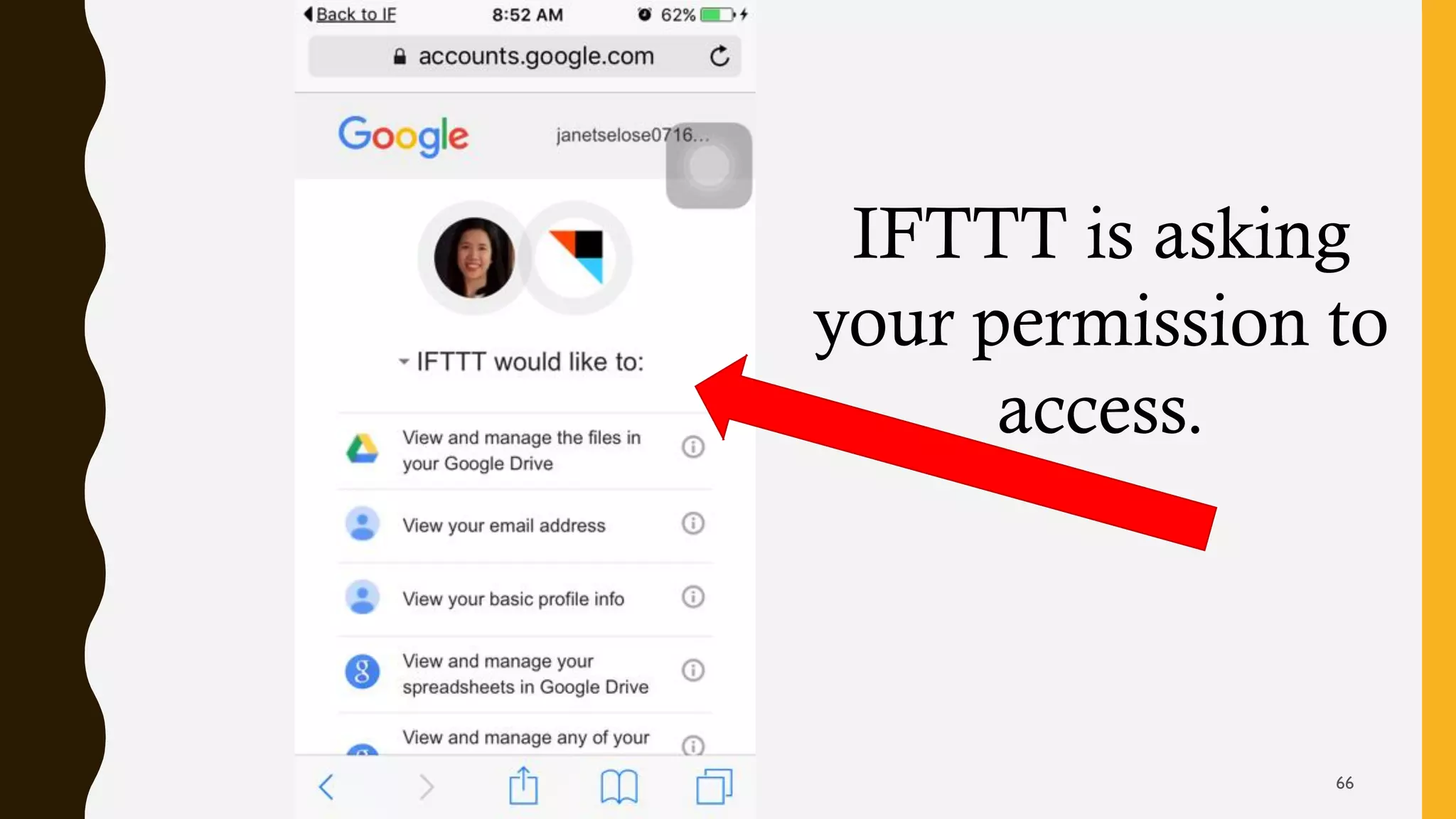
65
IFTTT is asking
your permission to
access.
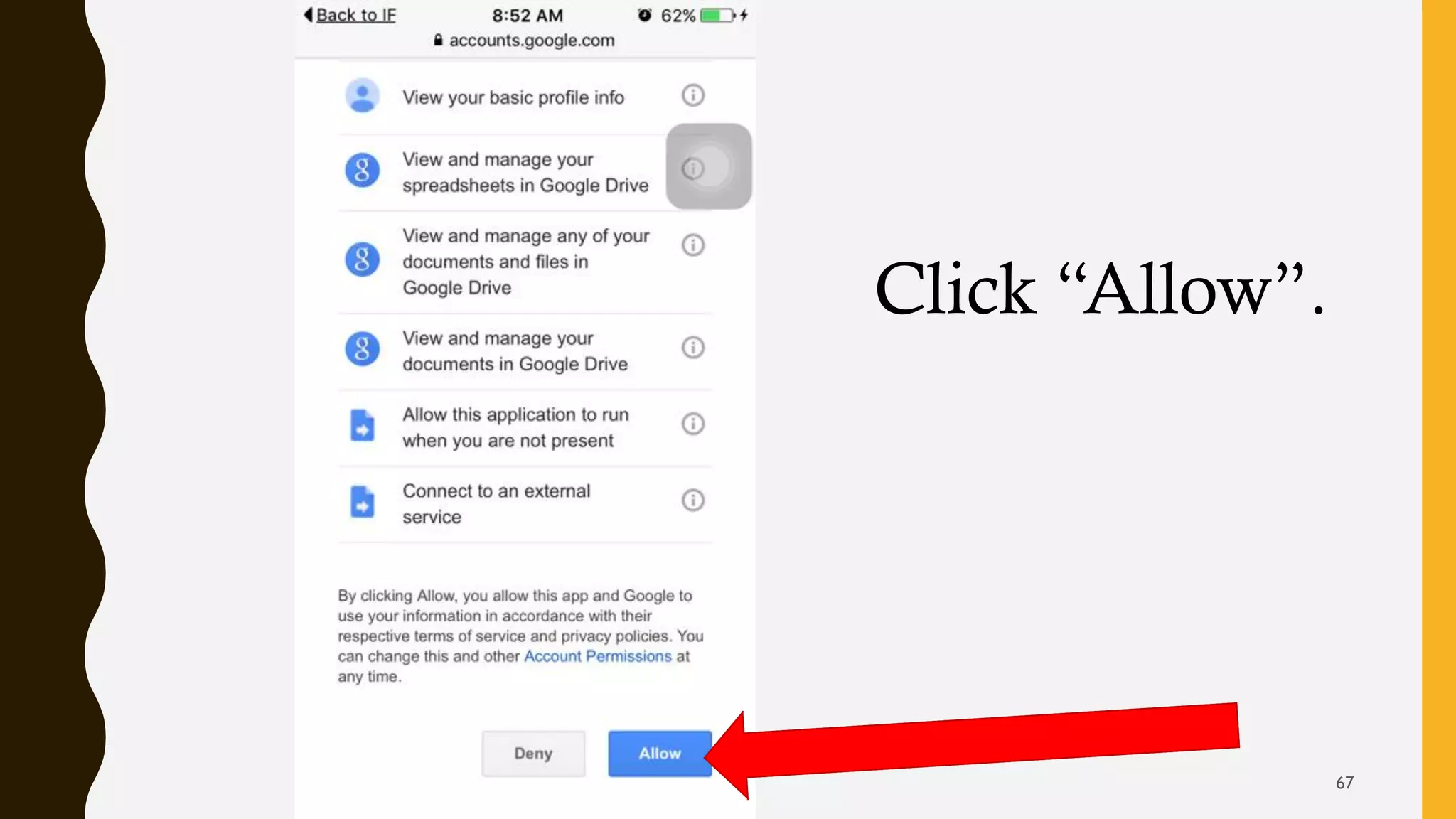
66
Click “Allow”.
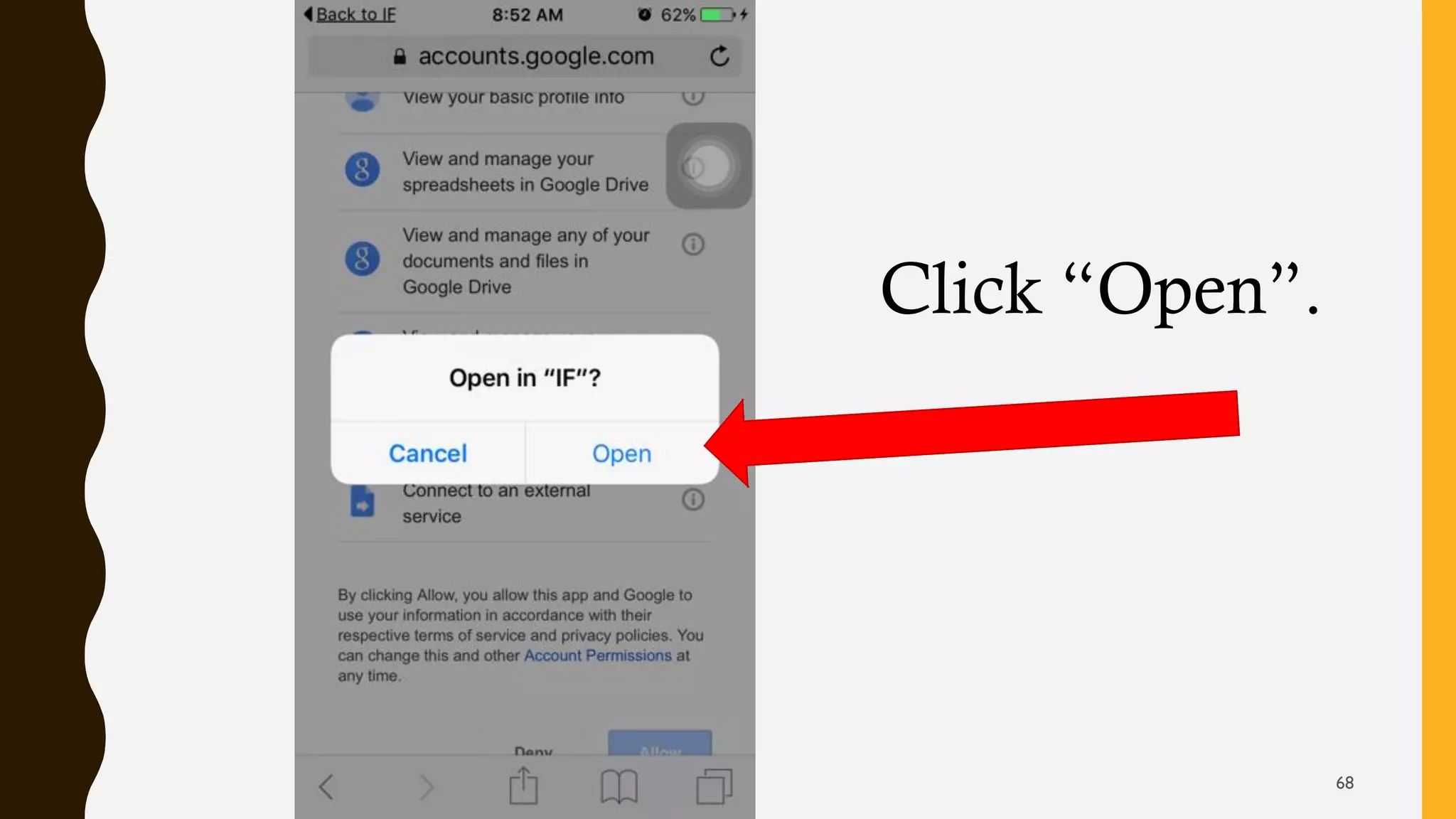
67
Click “Open”.
68
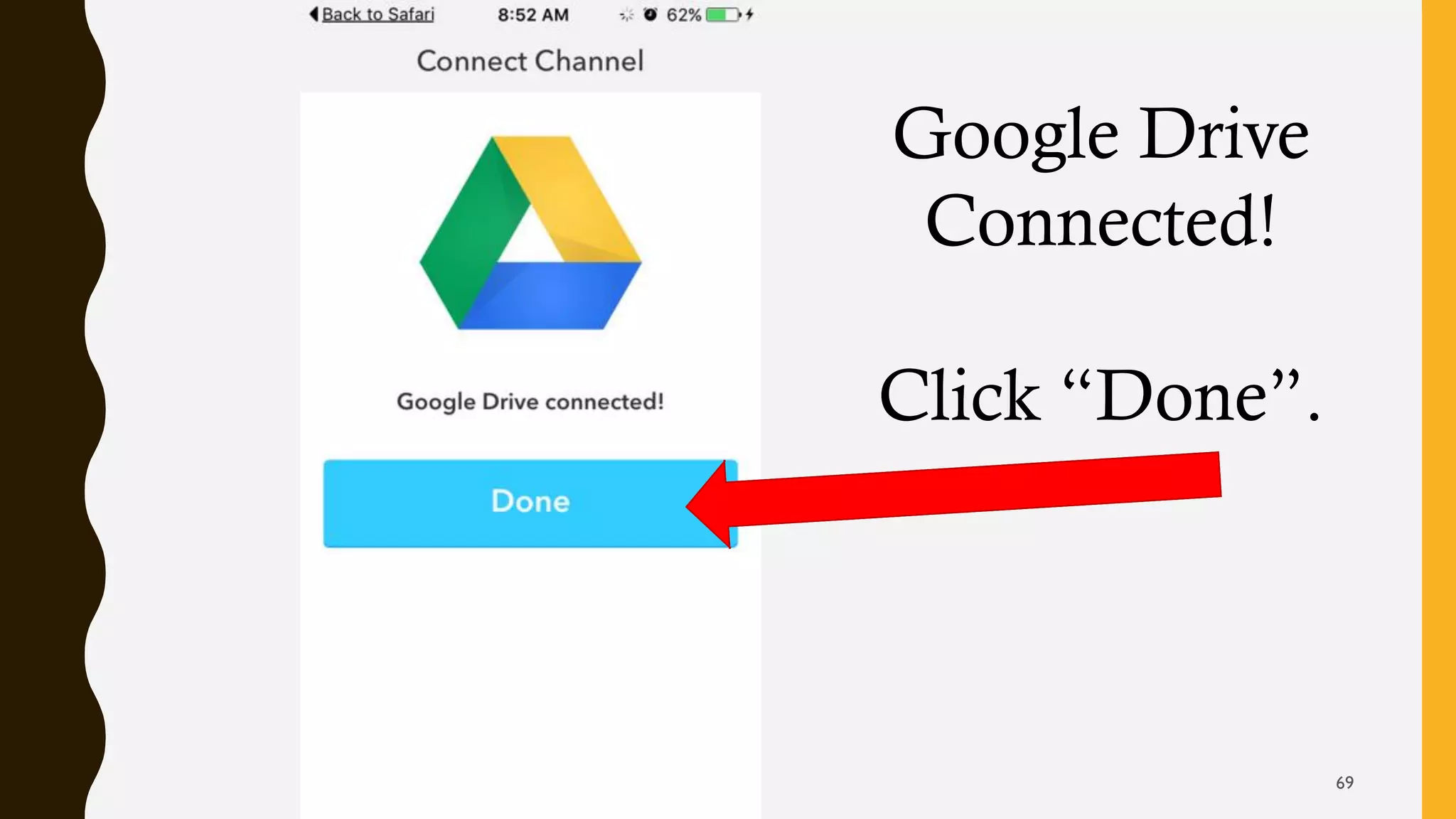
Google Drive
Connected!
Click “Done”.
69
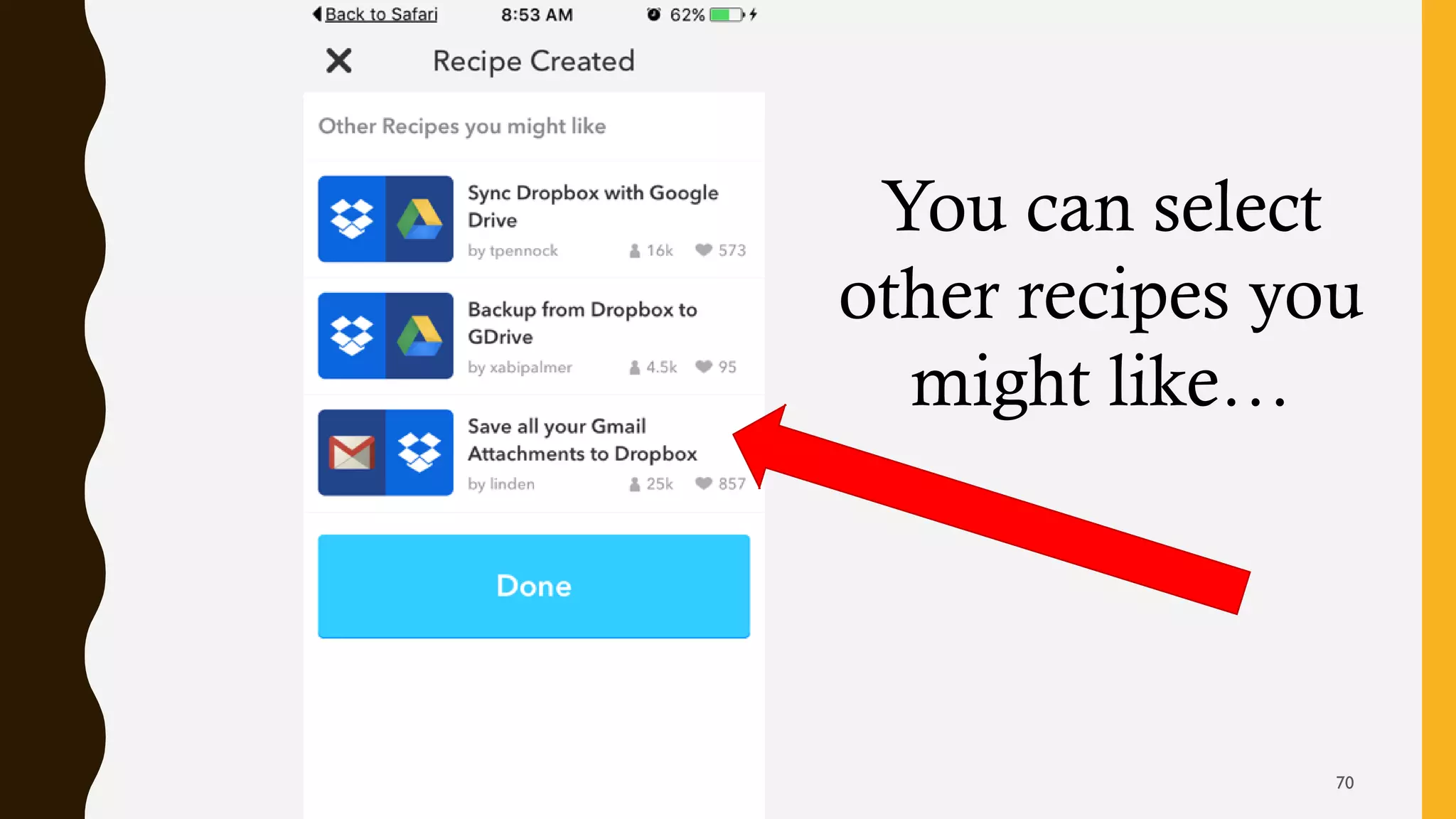
You can select
other recipes you
might like…
70
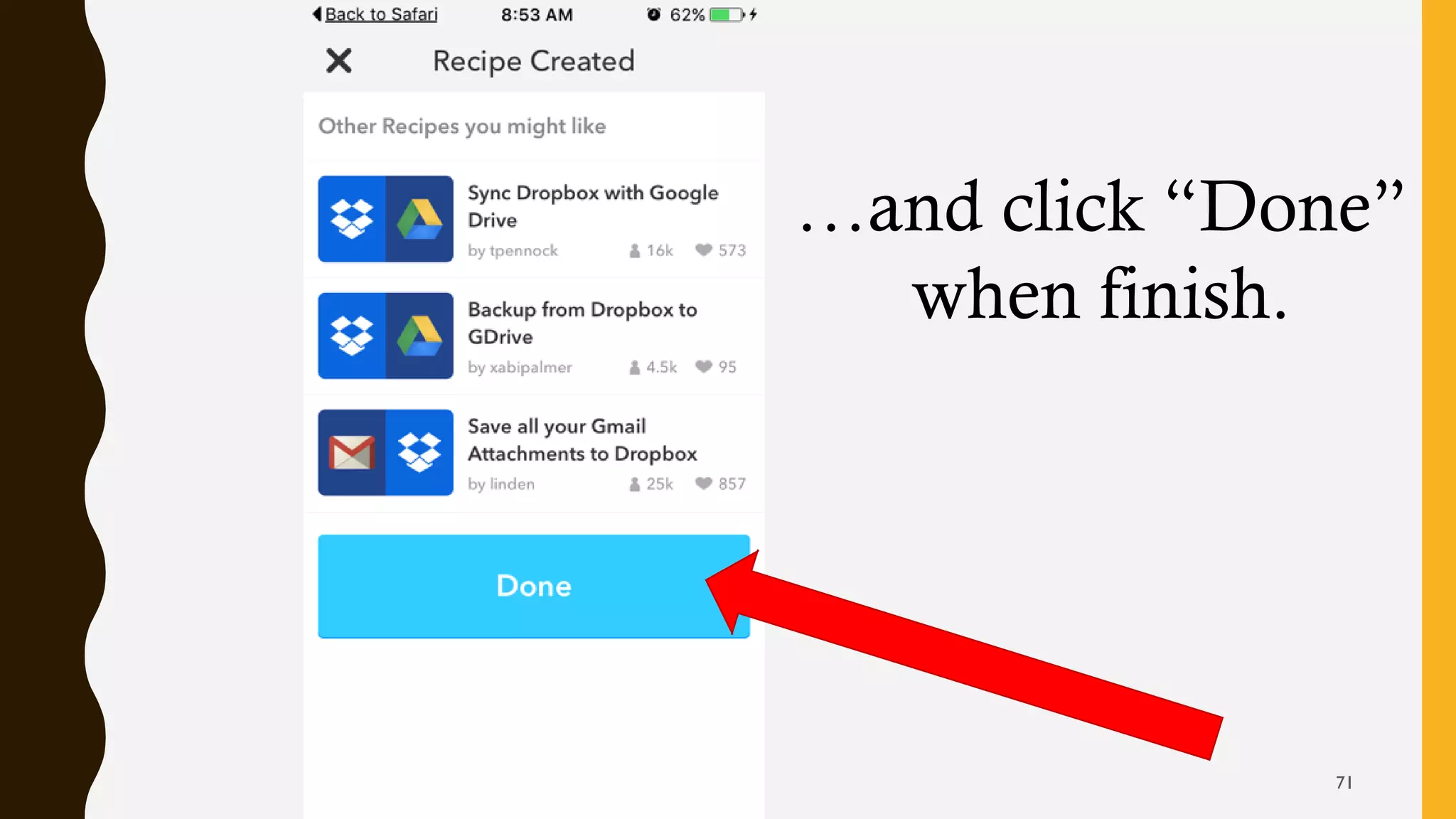
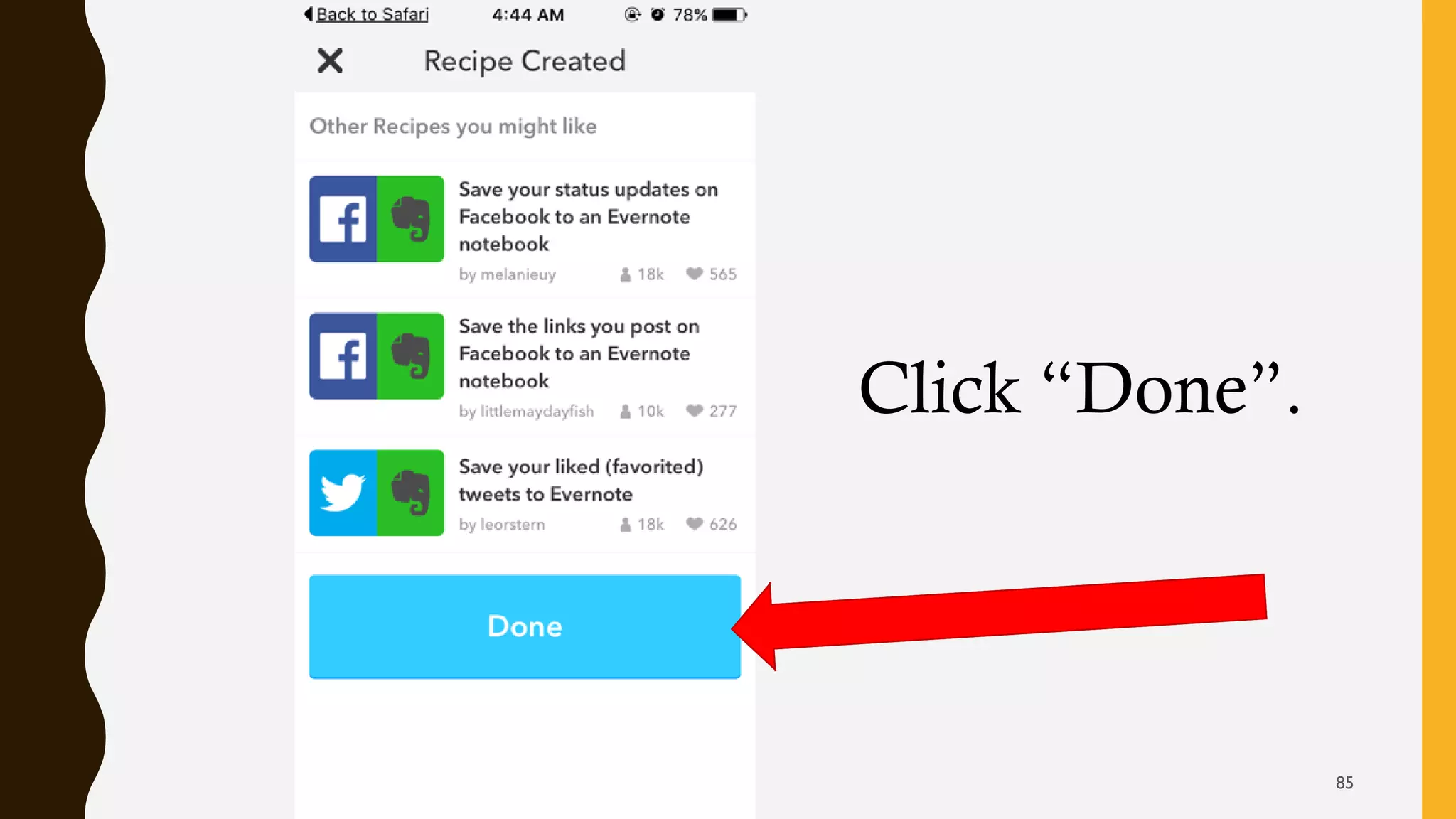
…and click “Done”
when finish.
71
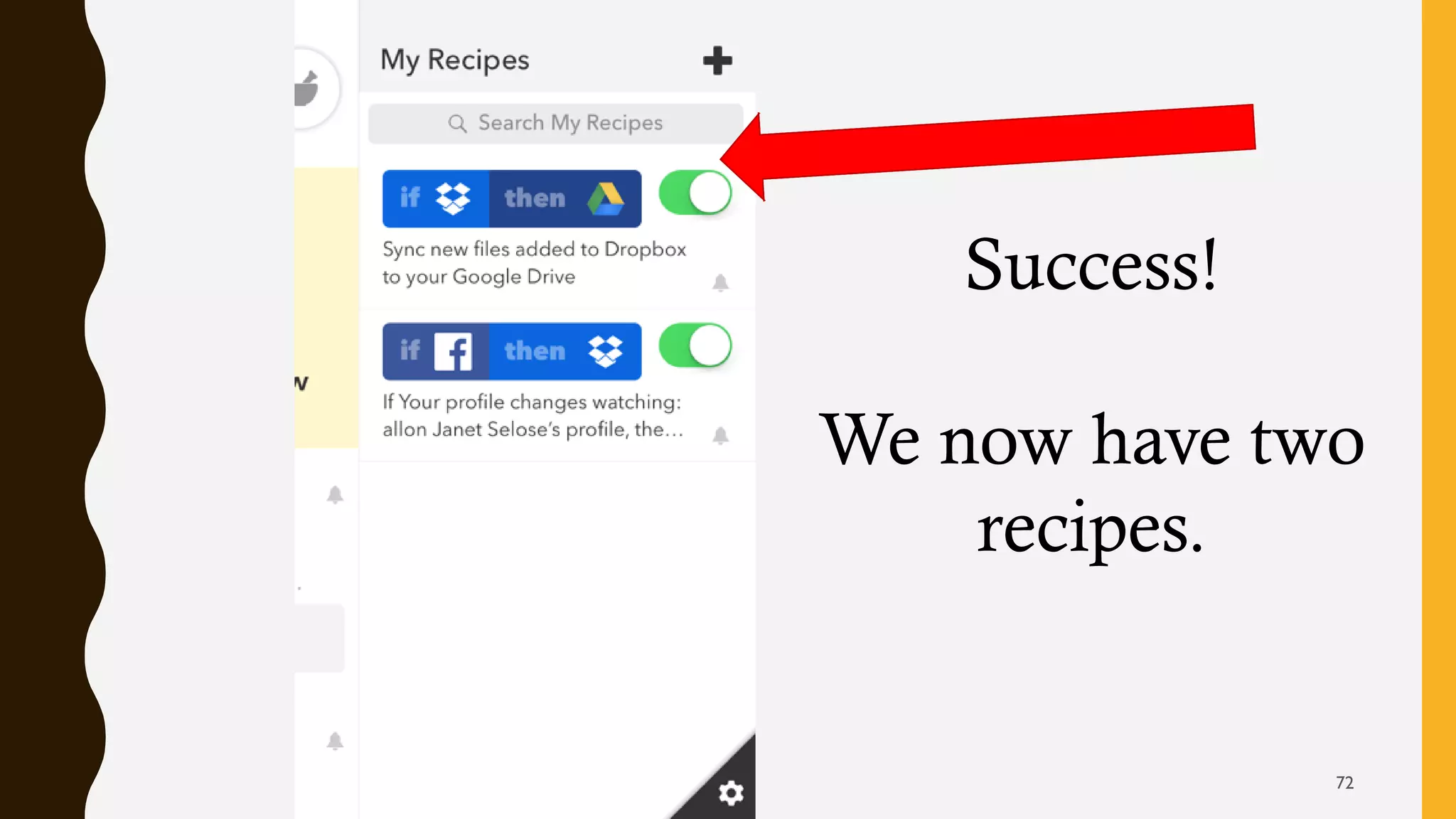
Success!
We now have two
recipes.
72
Objective 3: Let’s search recipes
specific to a channel.
73
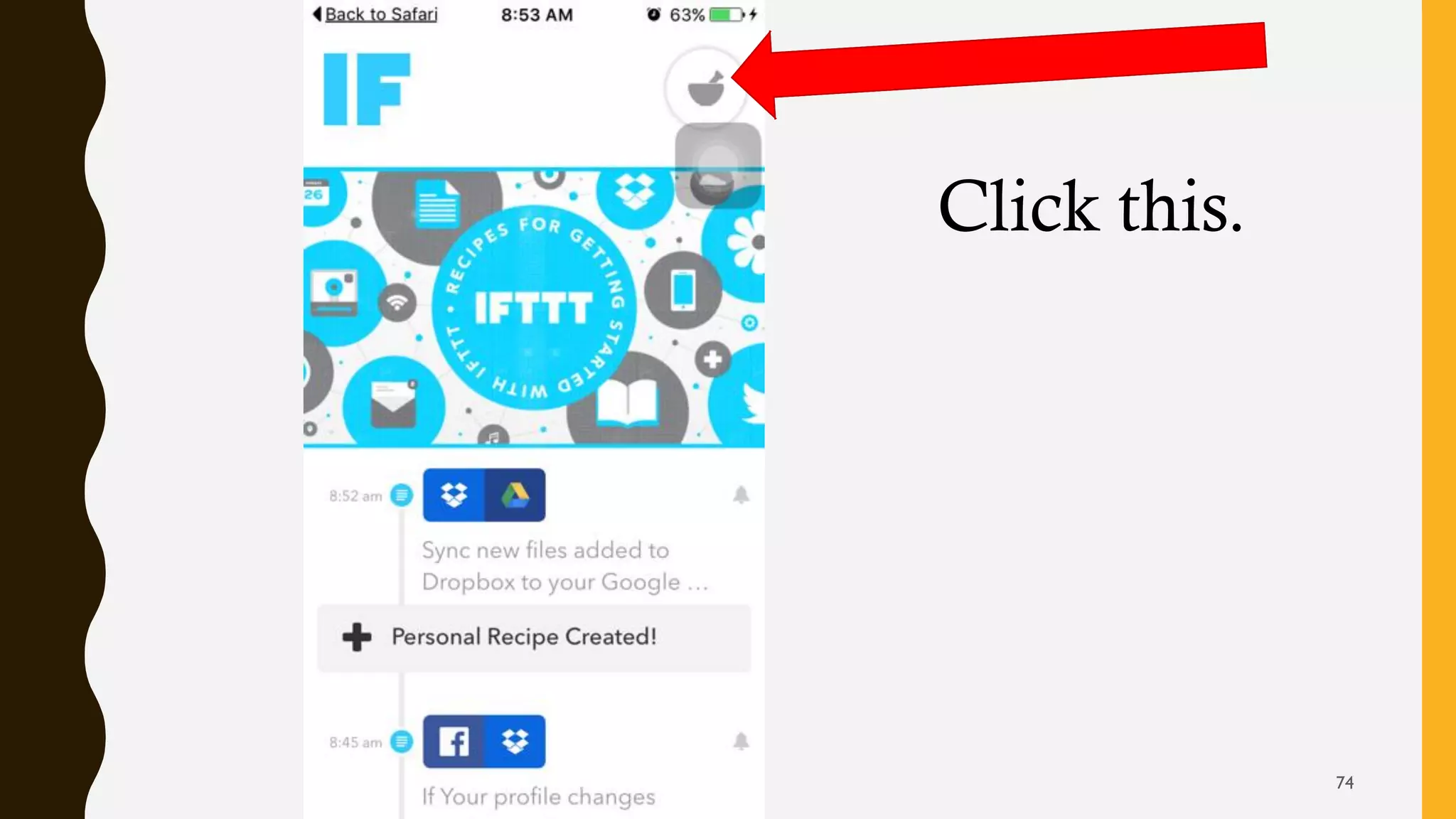
Click this.
74
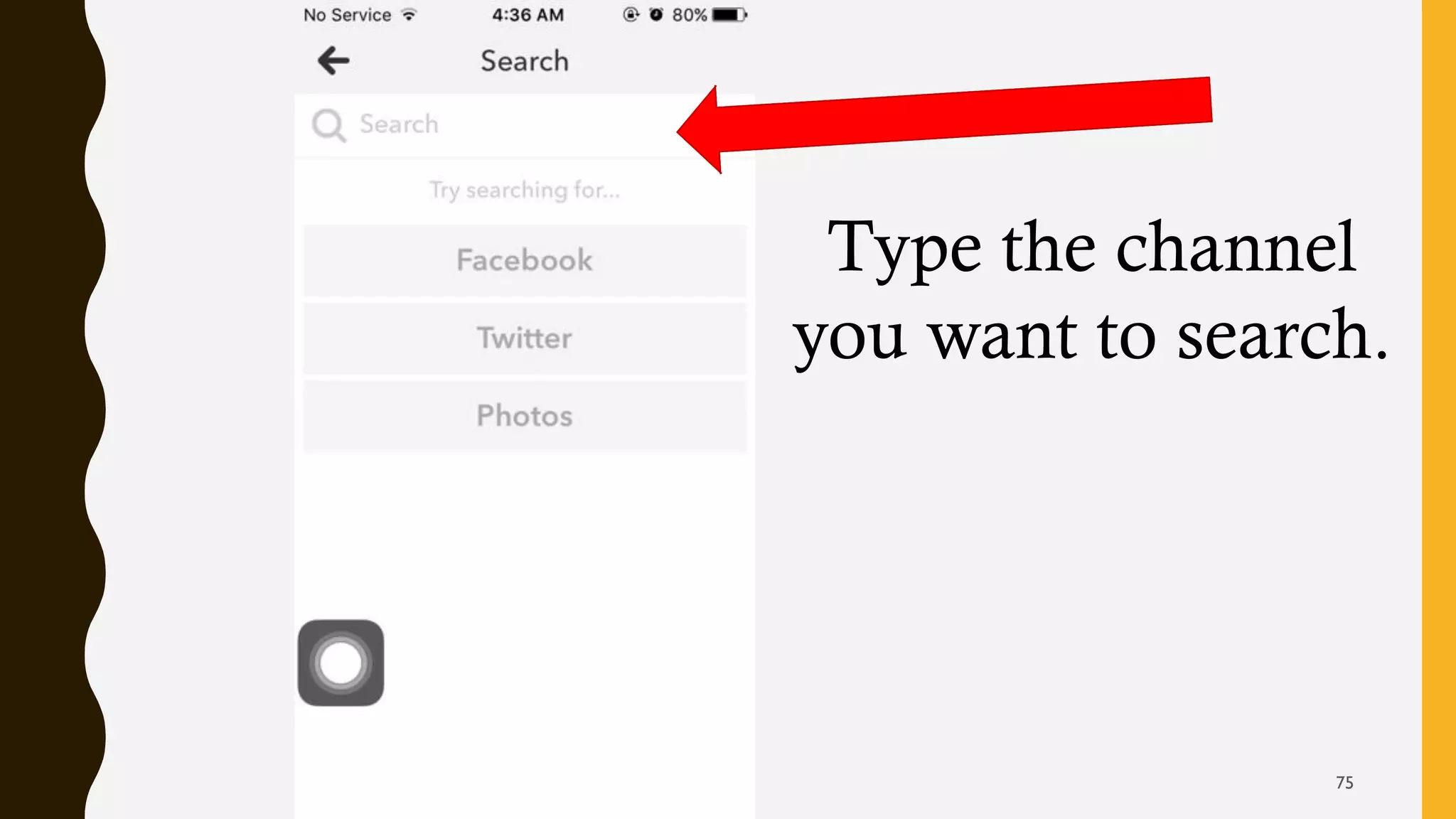
Type the channel
you want to search.
75
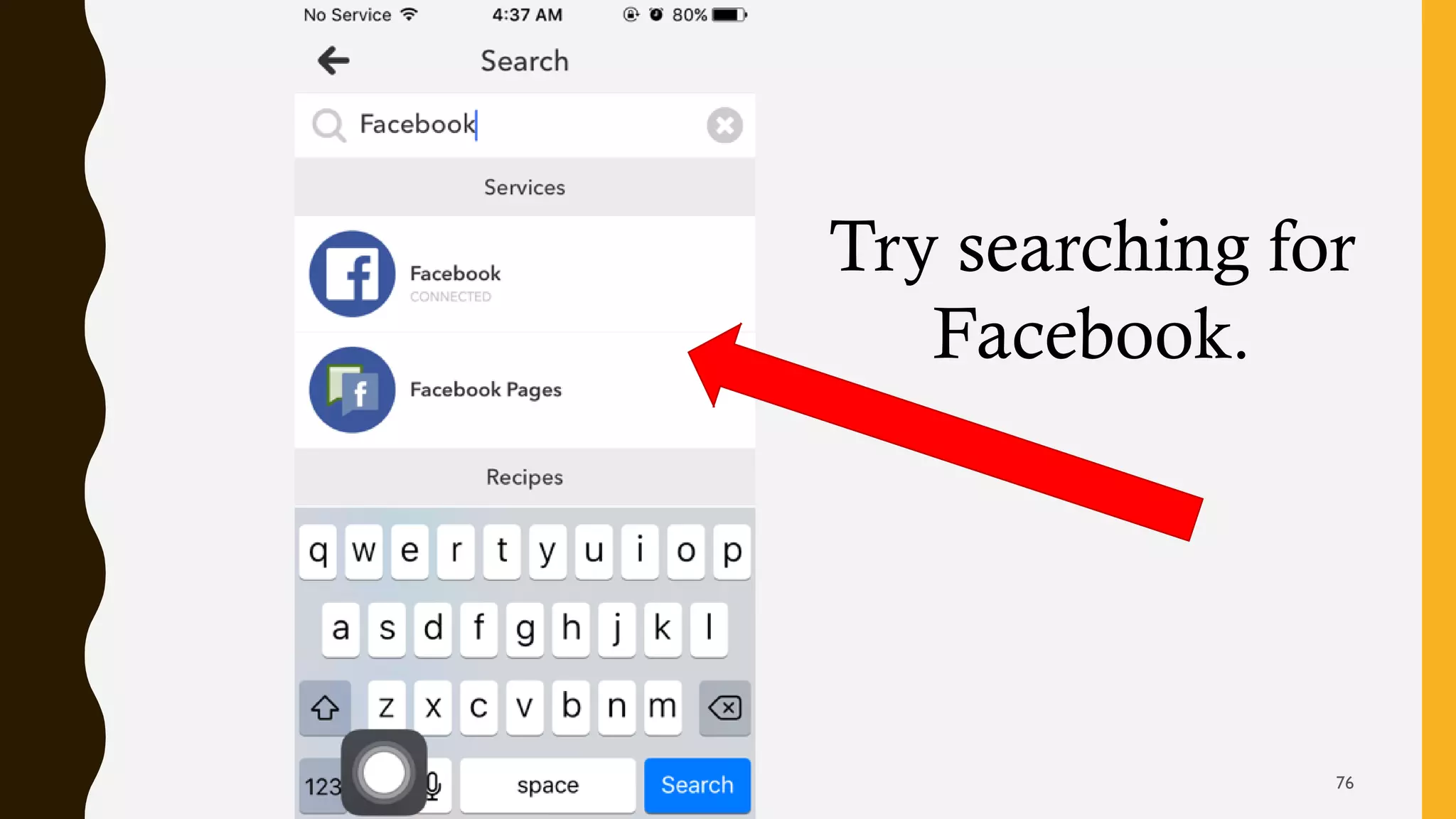
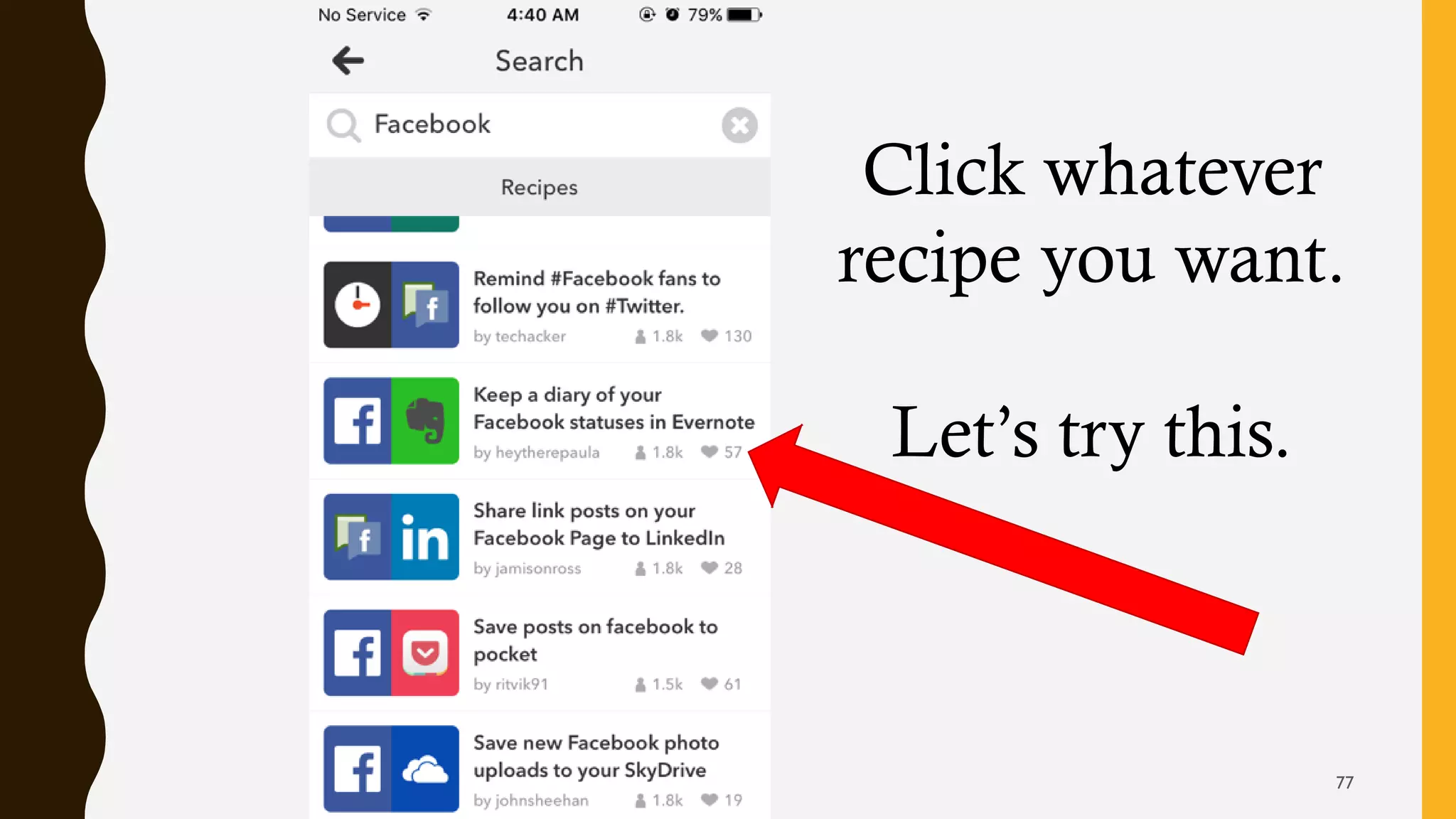
Try searching for
Facebook.
76
Click whatever
recipe you want.
Let’s try this.
77
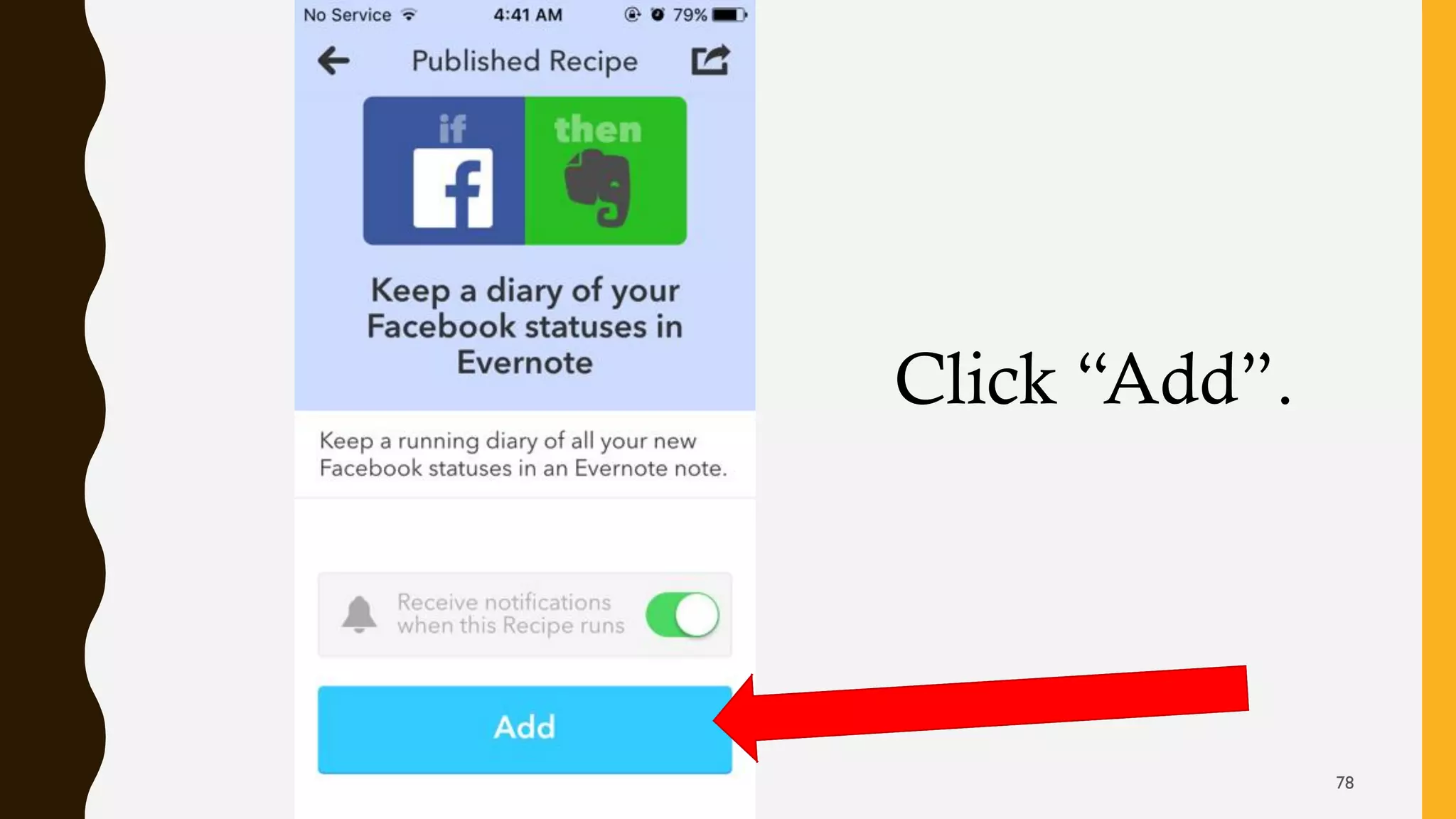
Click “Add”.
78
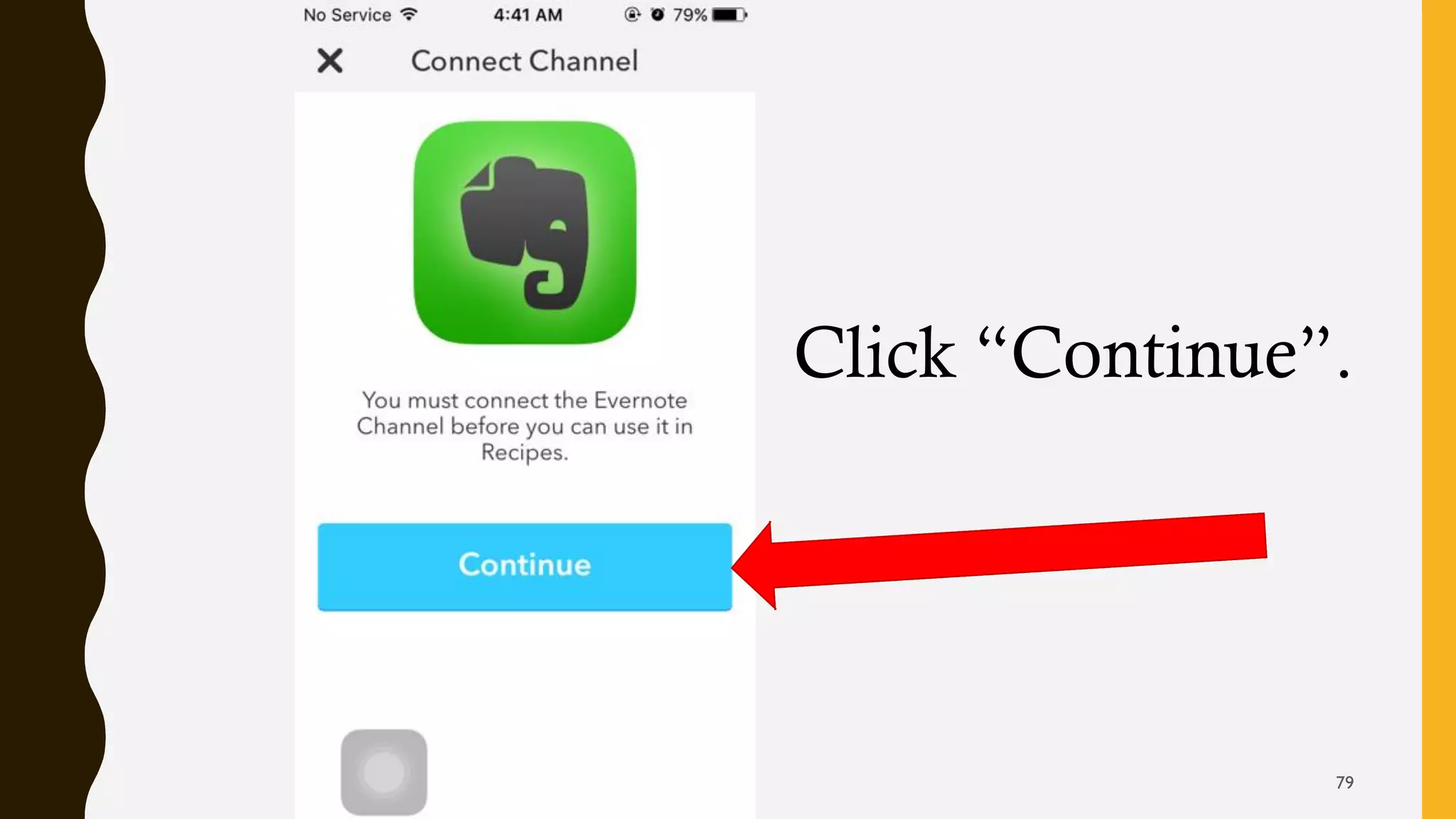
Click “Continue”.
79
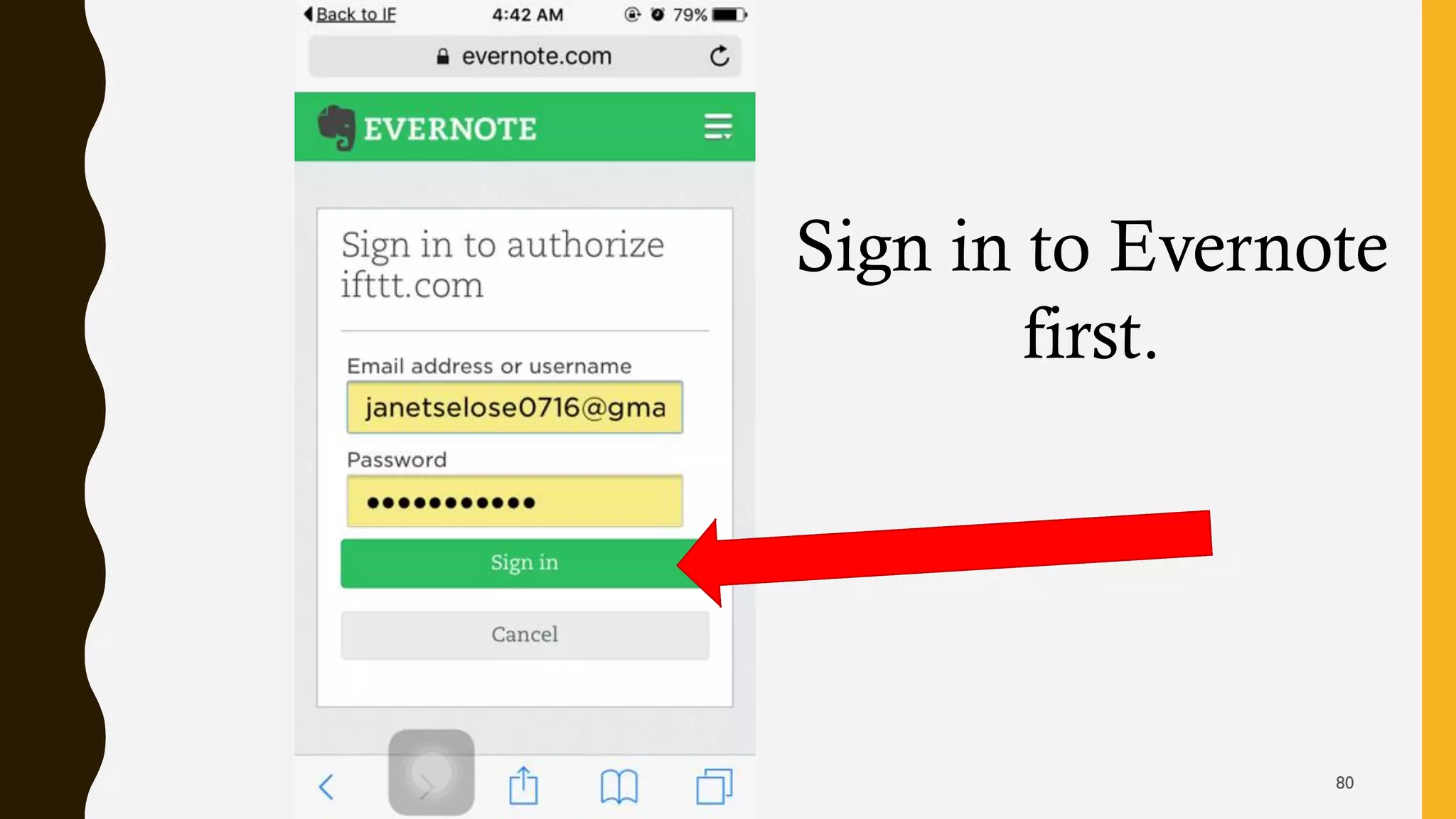
Sign in to Evernote
first.
80
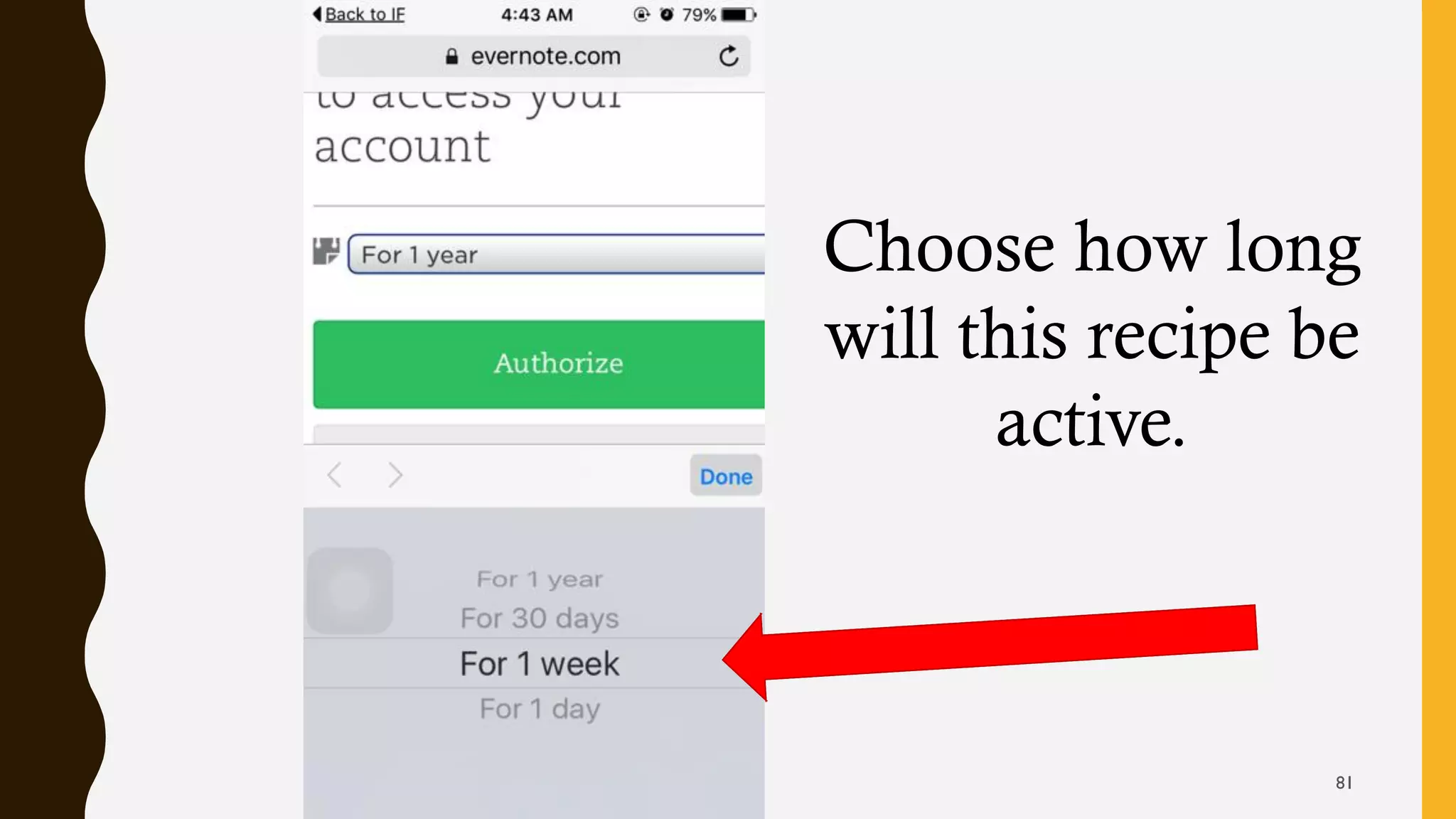
Choose how long
will this recipe be
active.
81
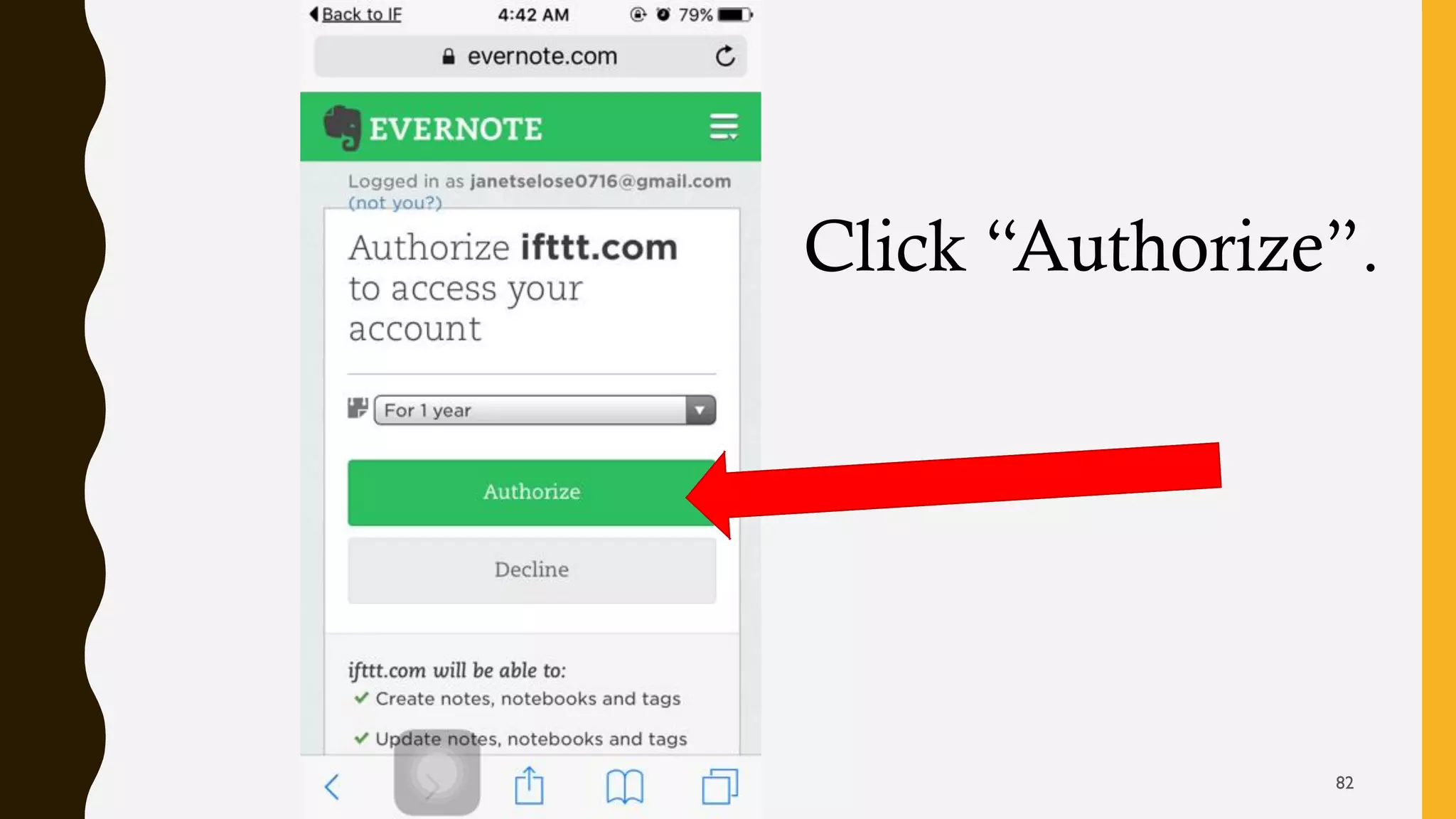
Click “Authorize”.
82
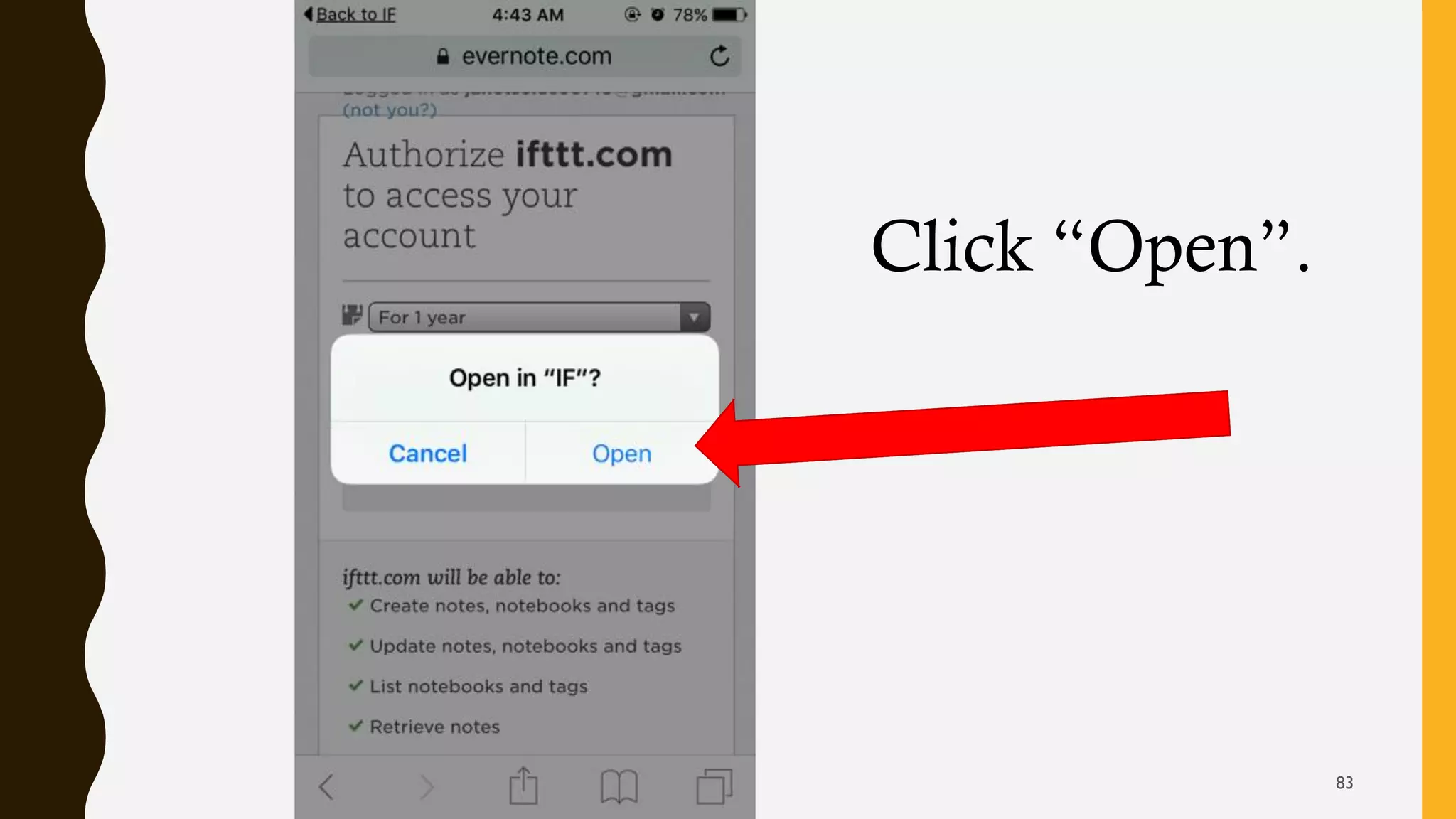
Click “Open”.
83
Click “Done”.
84
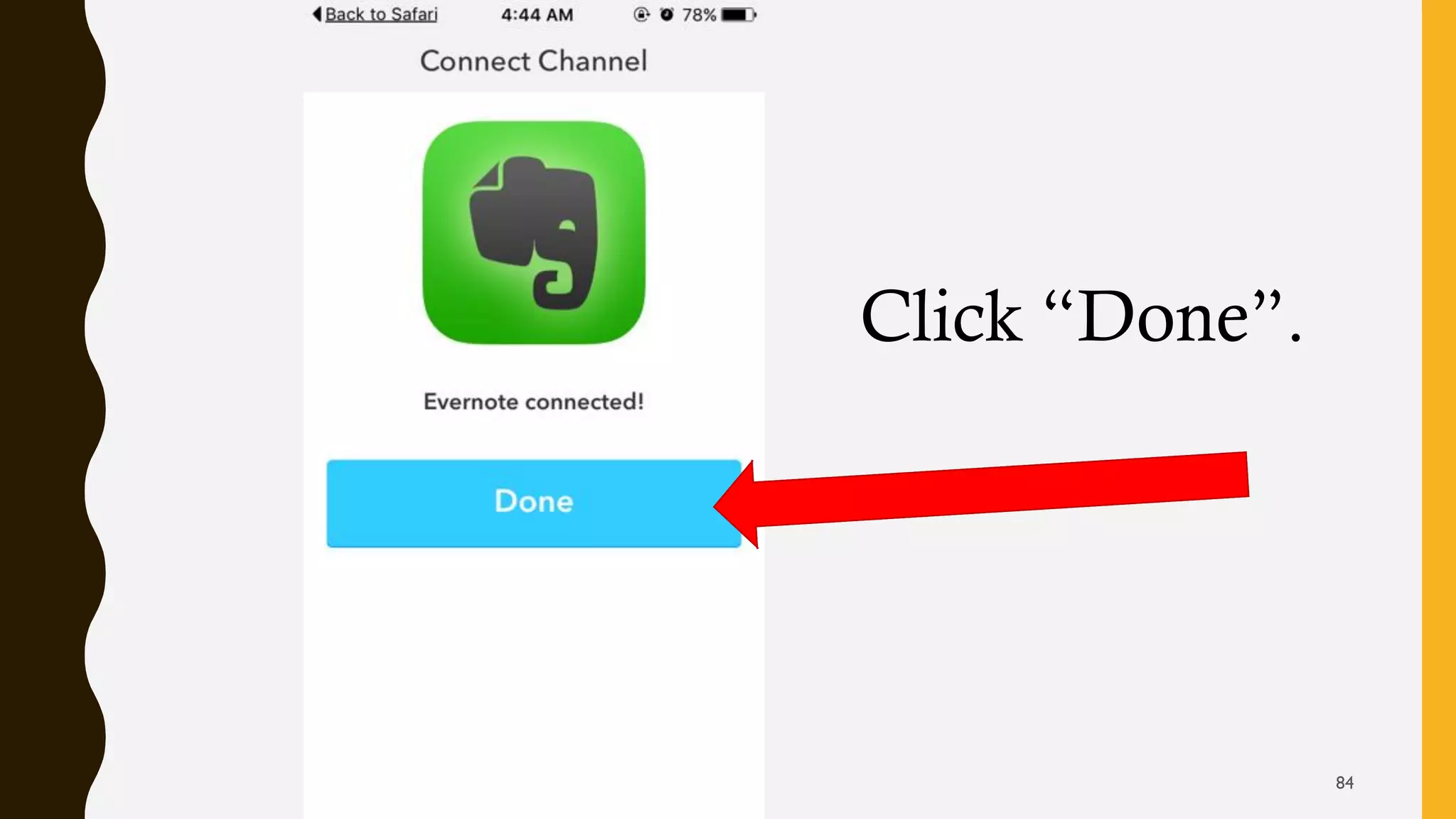
Click “Done”.
85
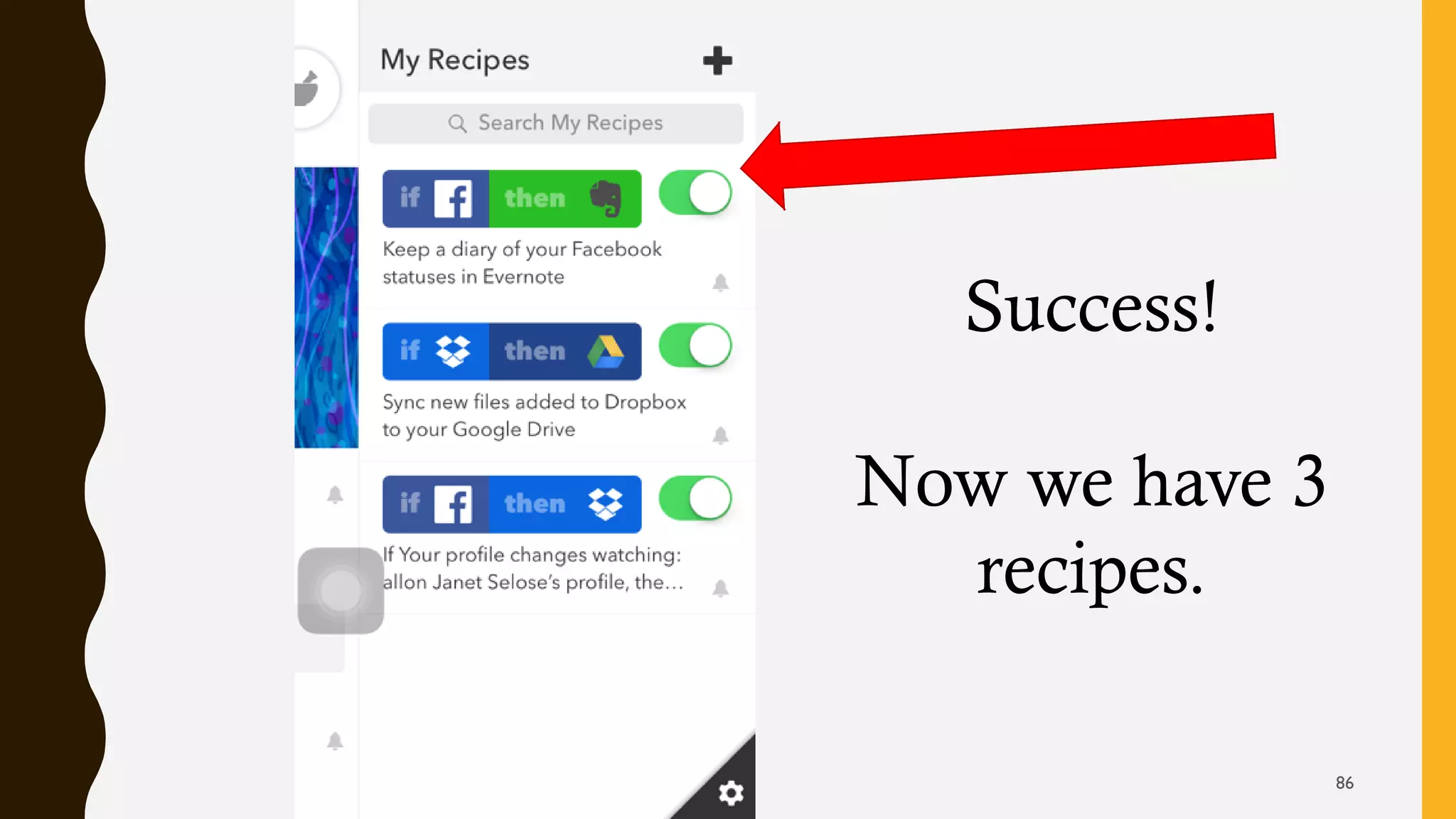
Success!
Now we have 3
recipes.
86
Now, go and open your account in
IFTTT!
87
88

How To Use IFTTT