How to use Postcron
to schedule your
posts on social media
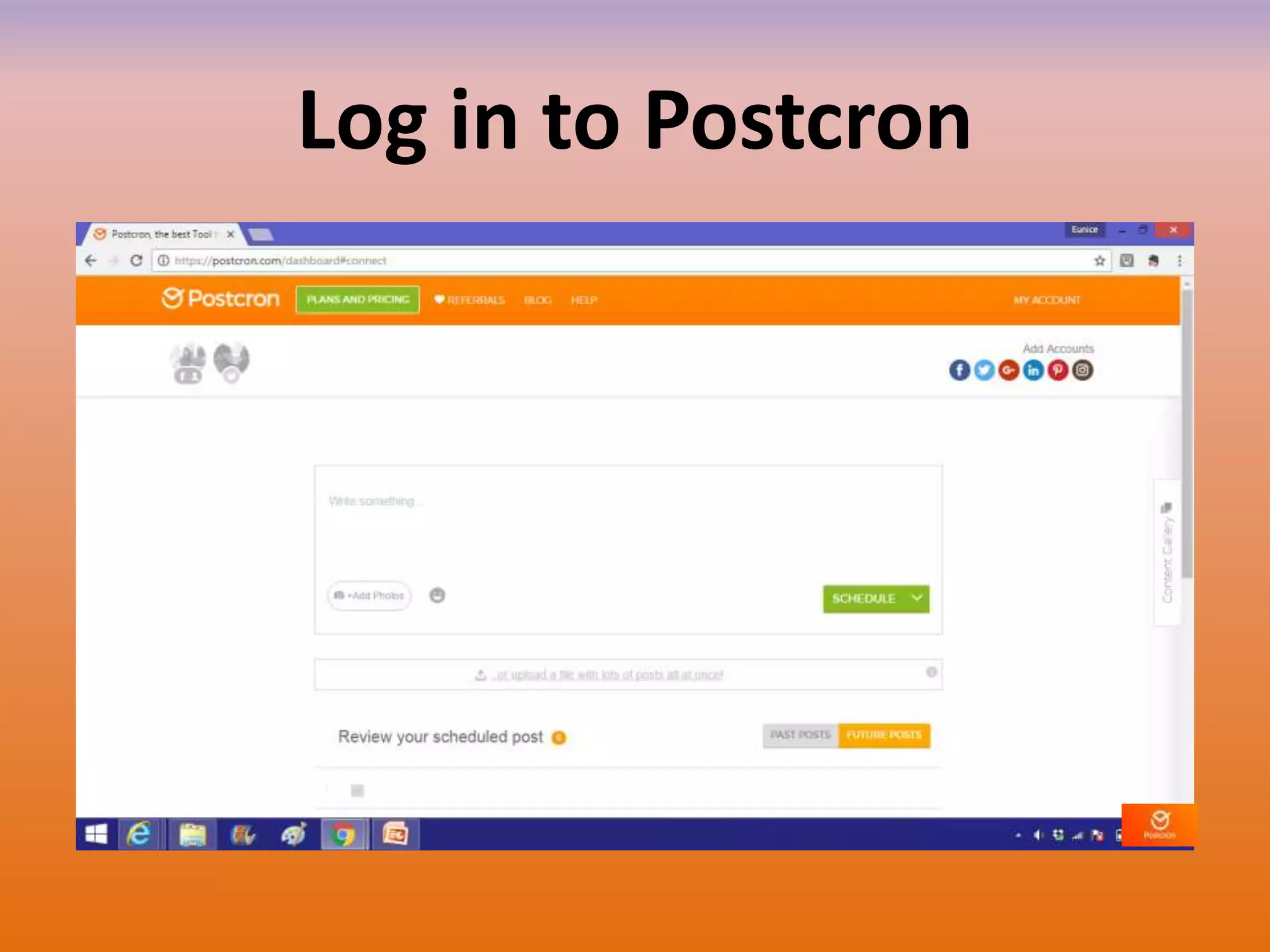
Log in to Postcron
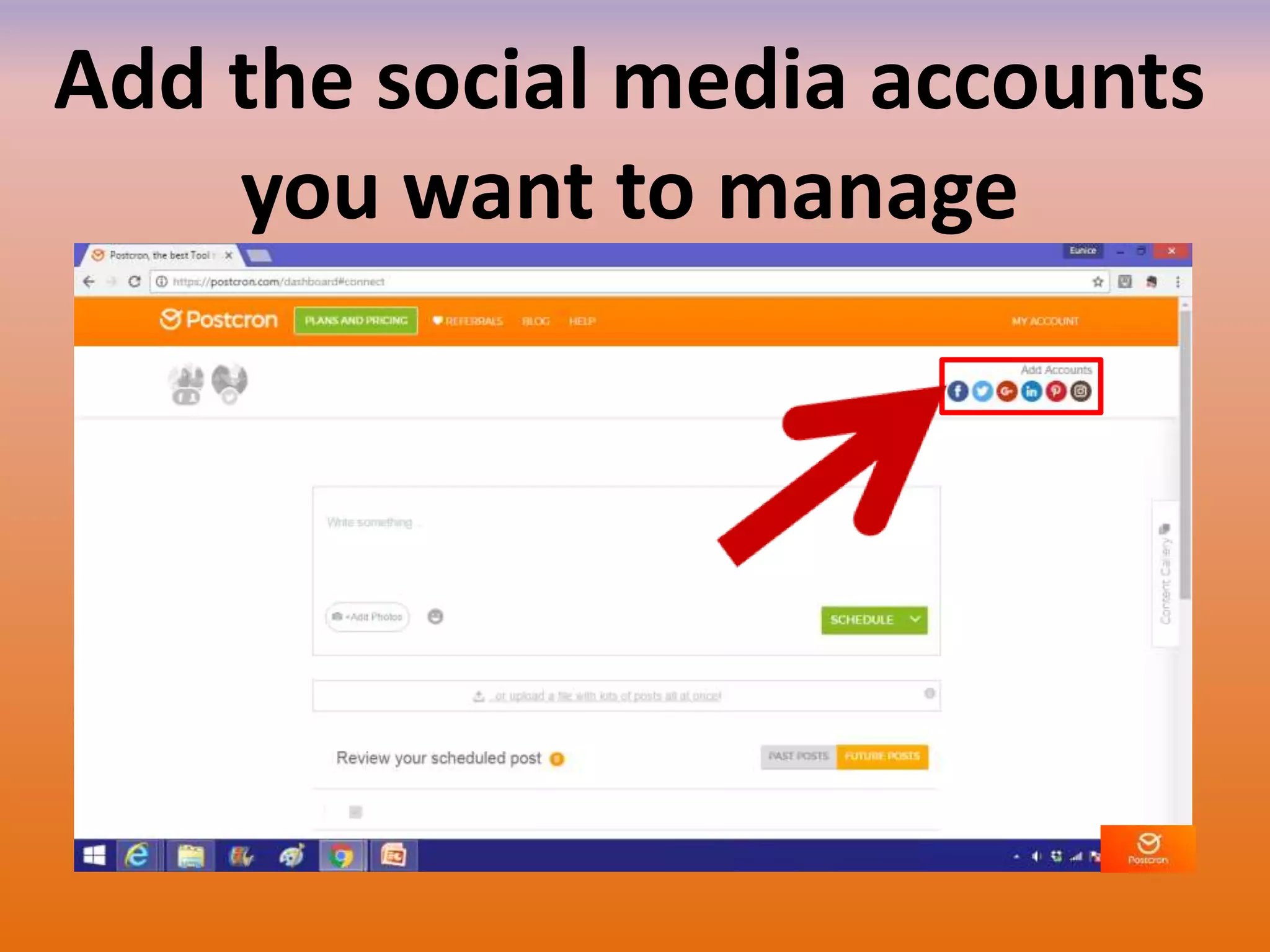
Add the social media accounts
you want to manage
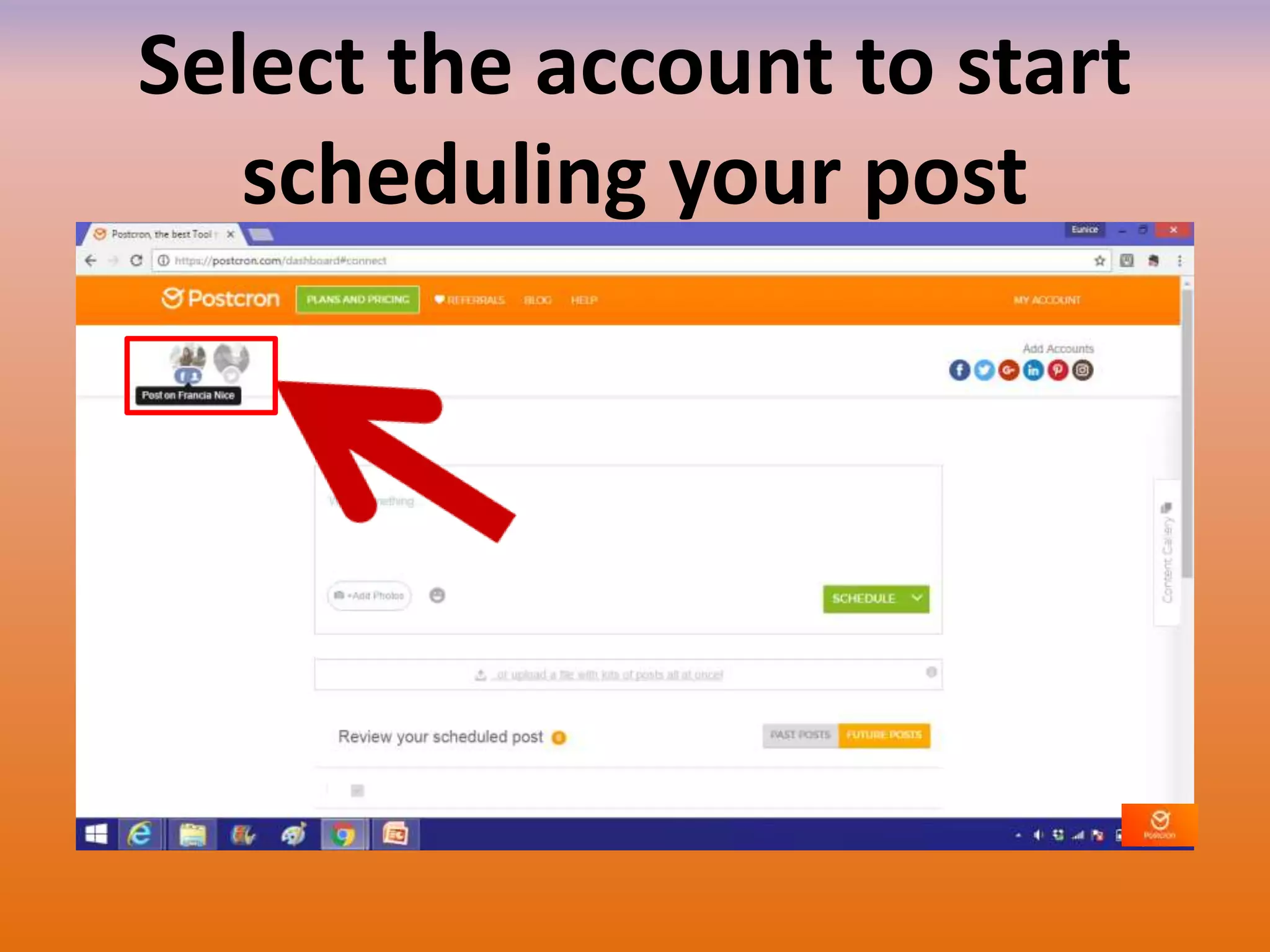
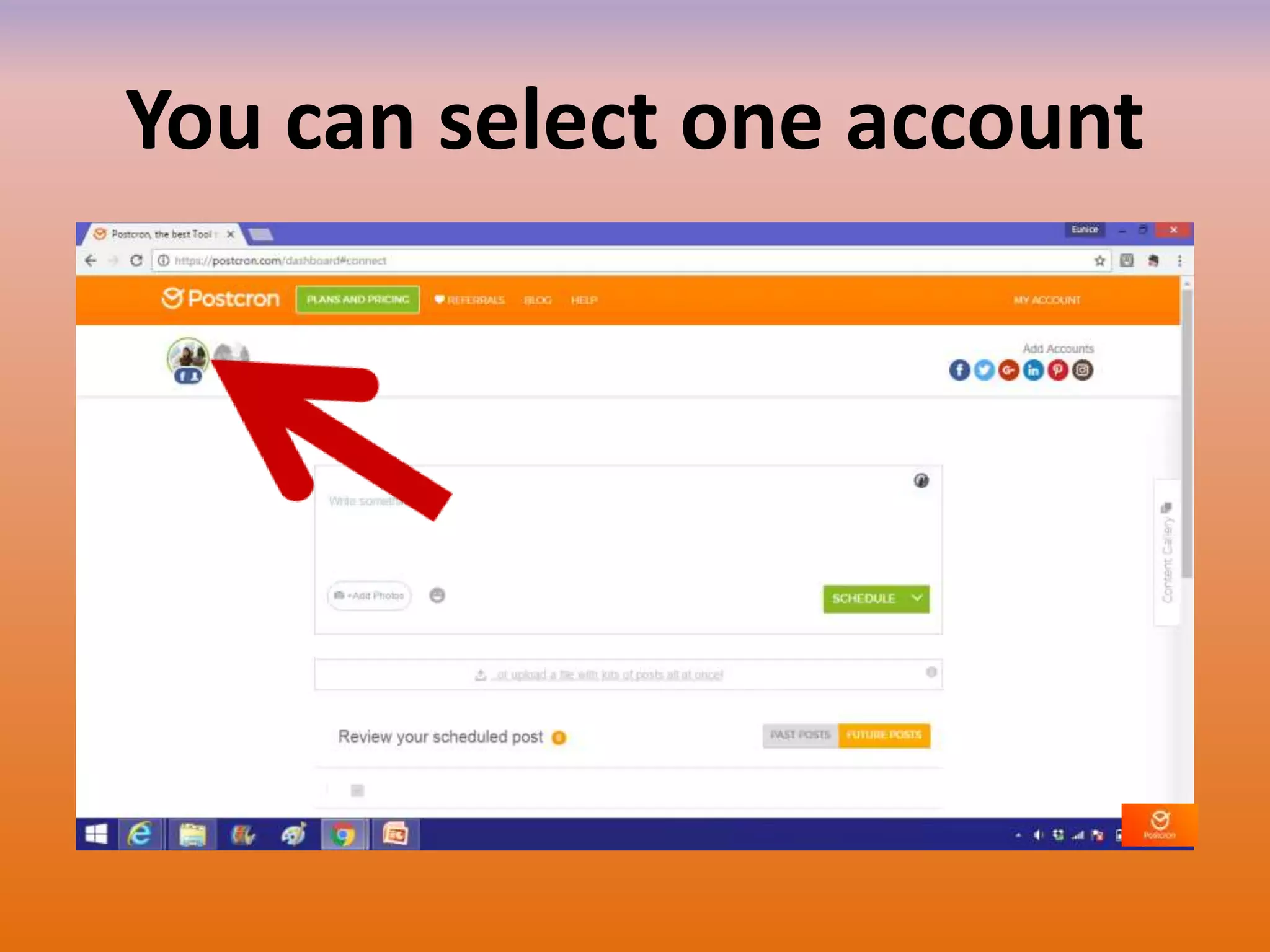
Select the account to start
scheduling your post
You can select one account
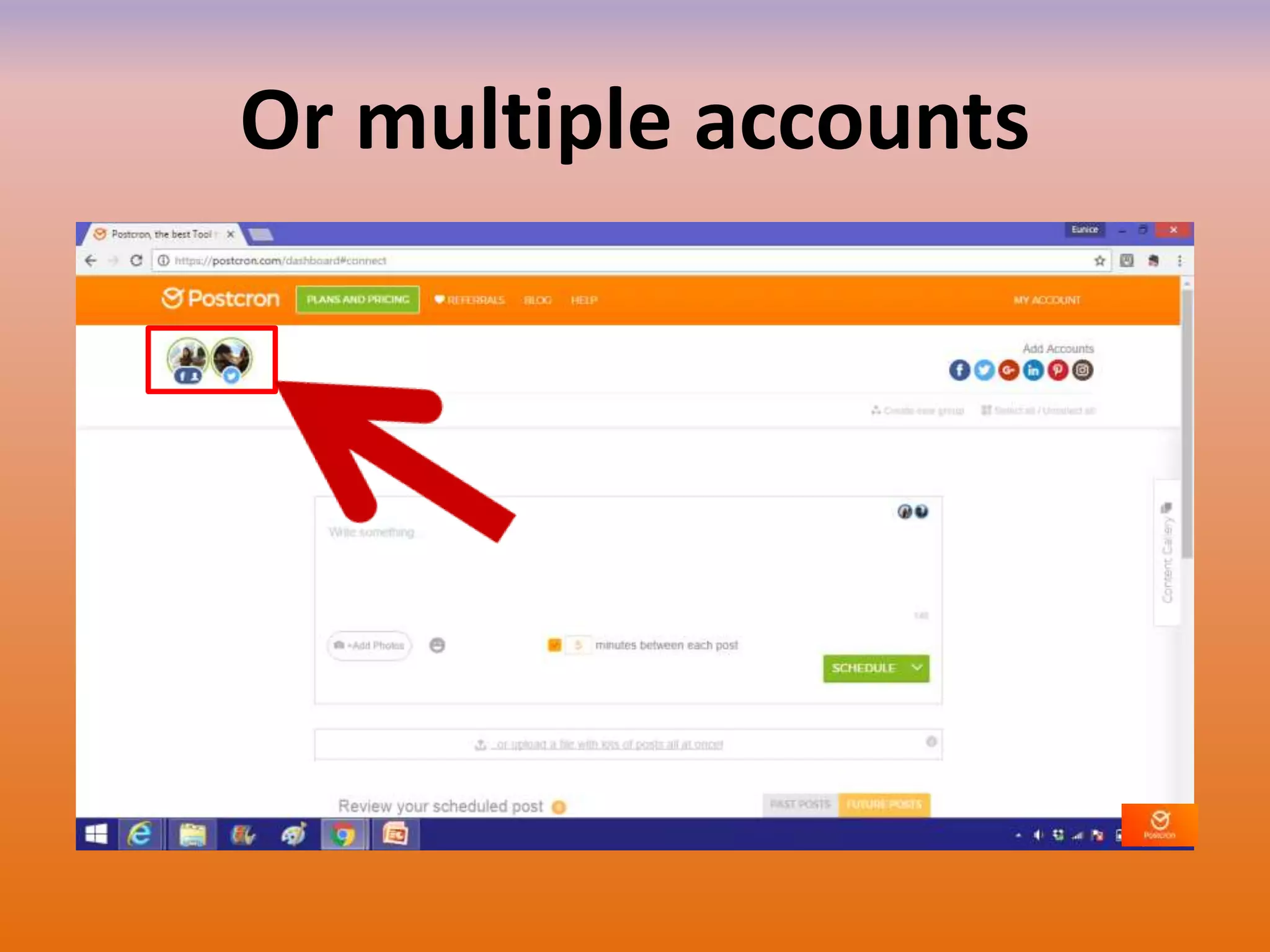
Or multiple accounts
To post a schedule with
text
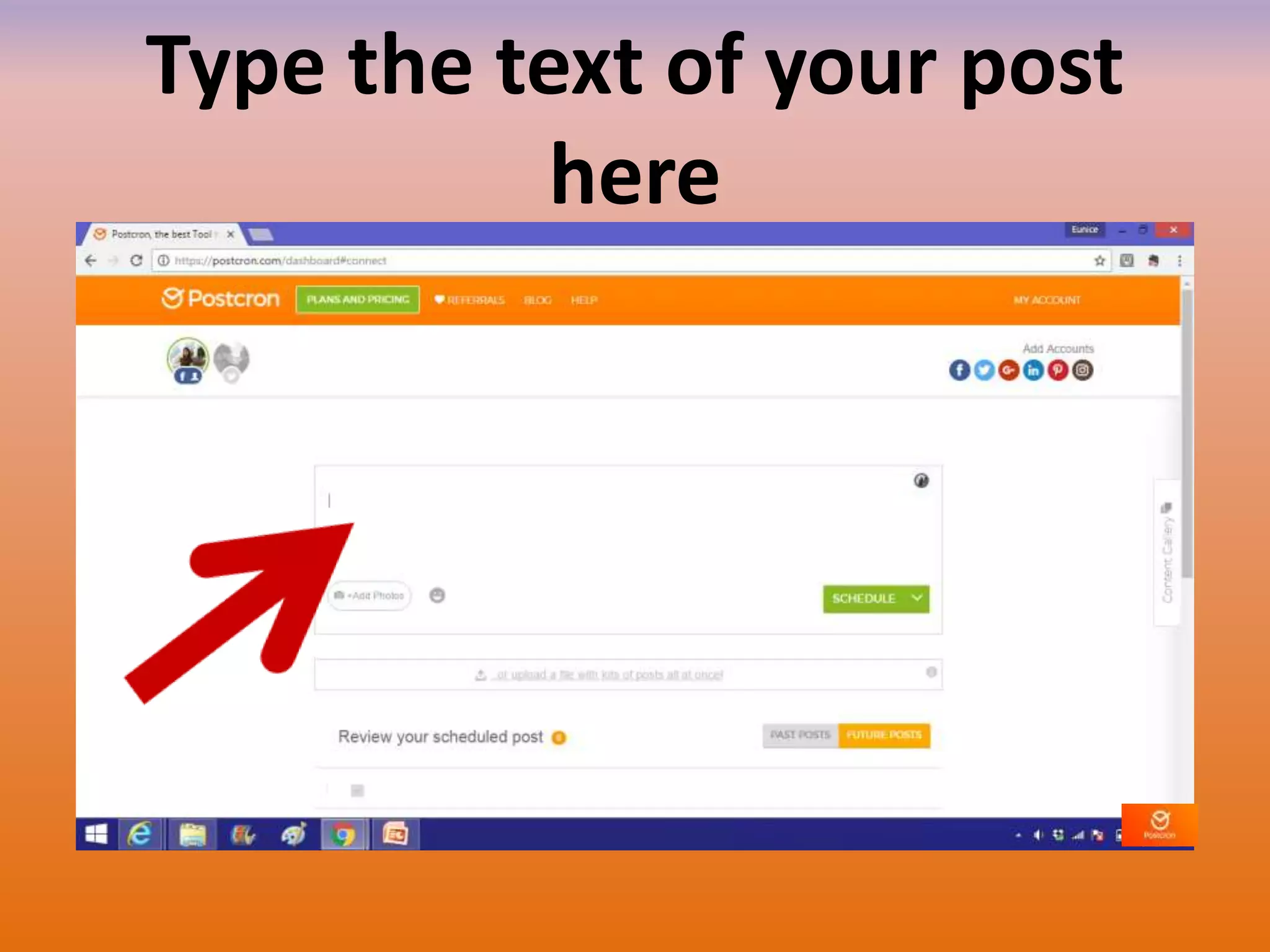
Type the text of your post
here
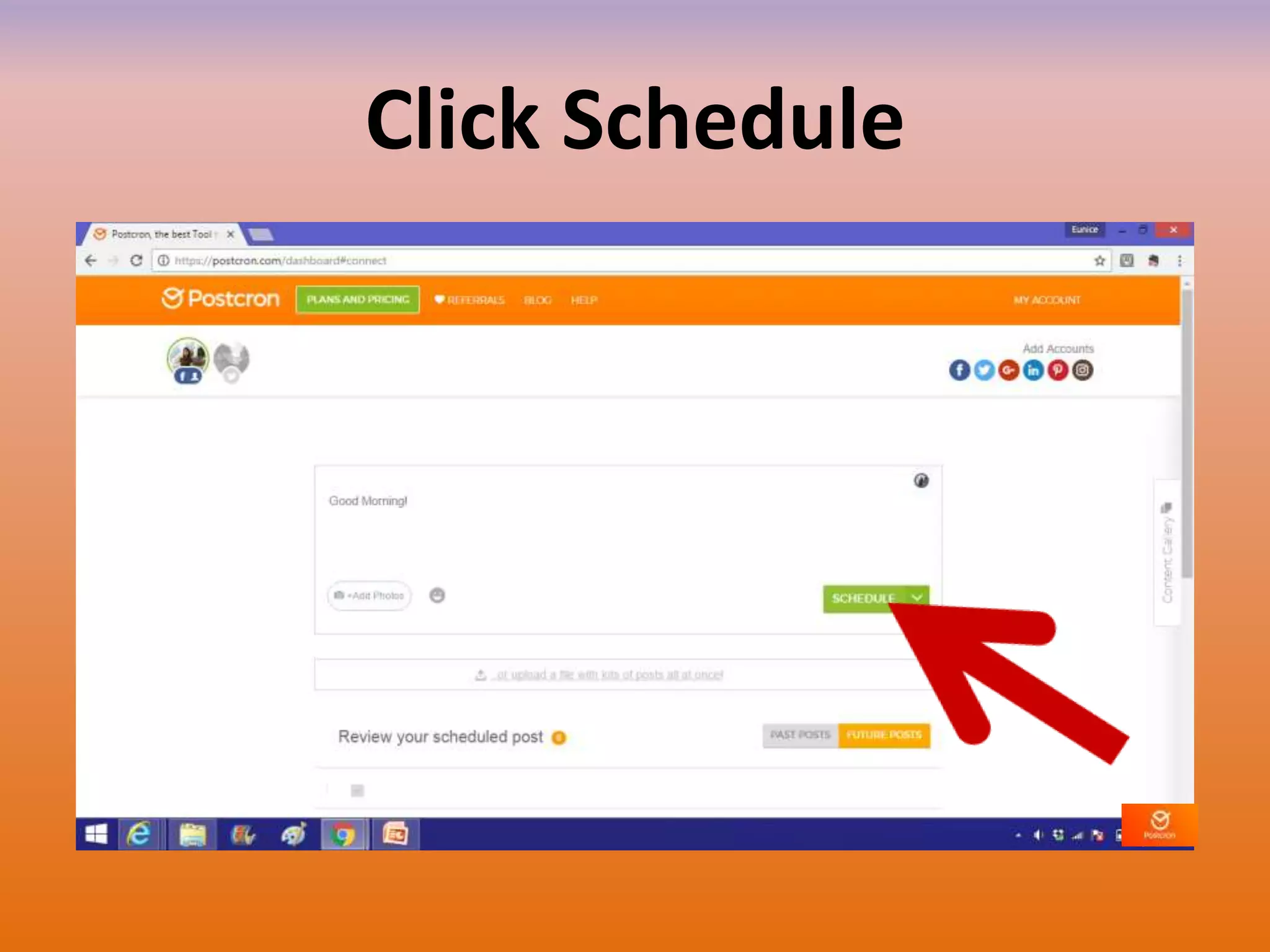
Click Schedule
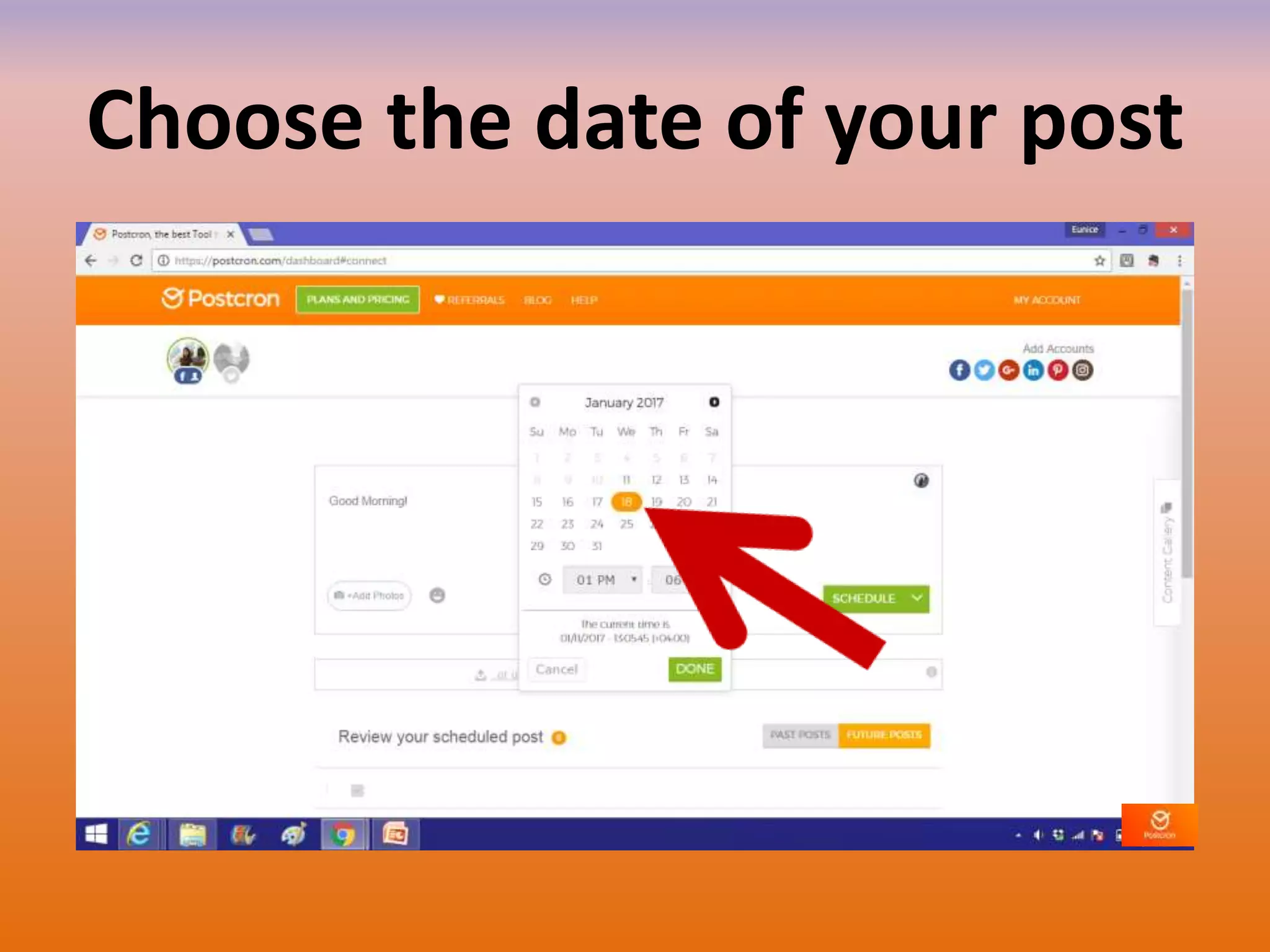
Choose the date of your post
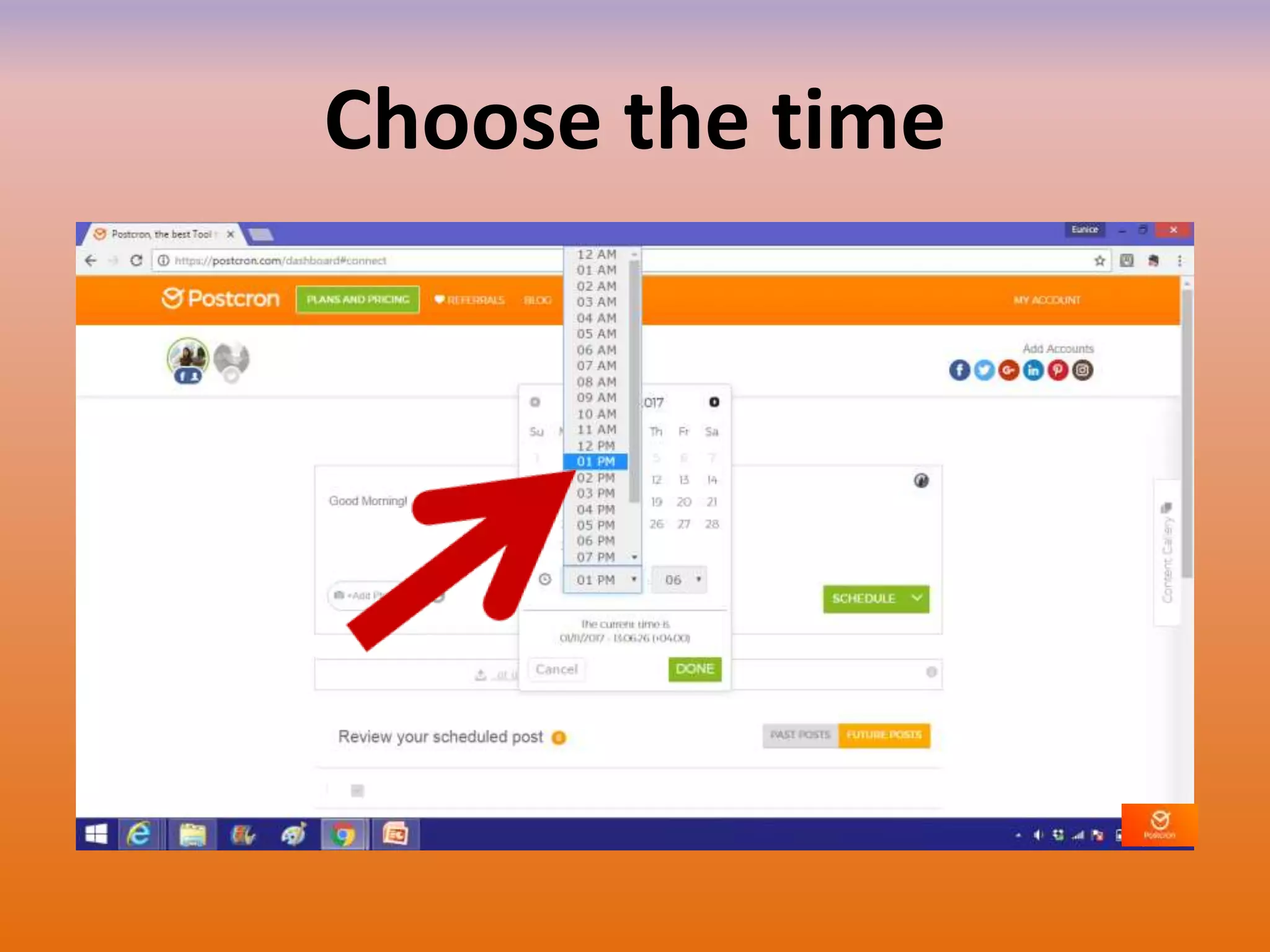
Choose the time
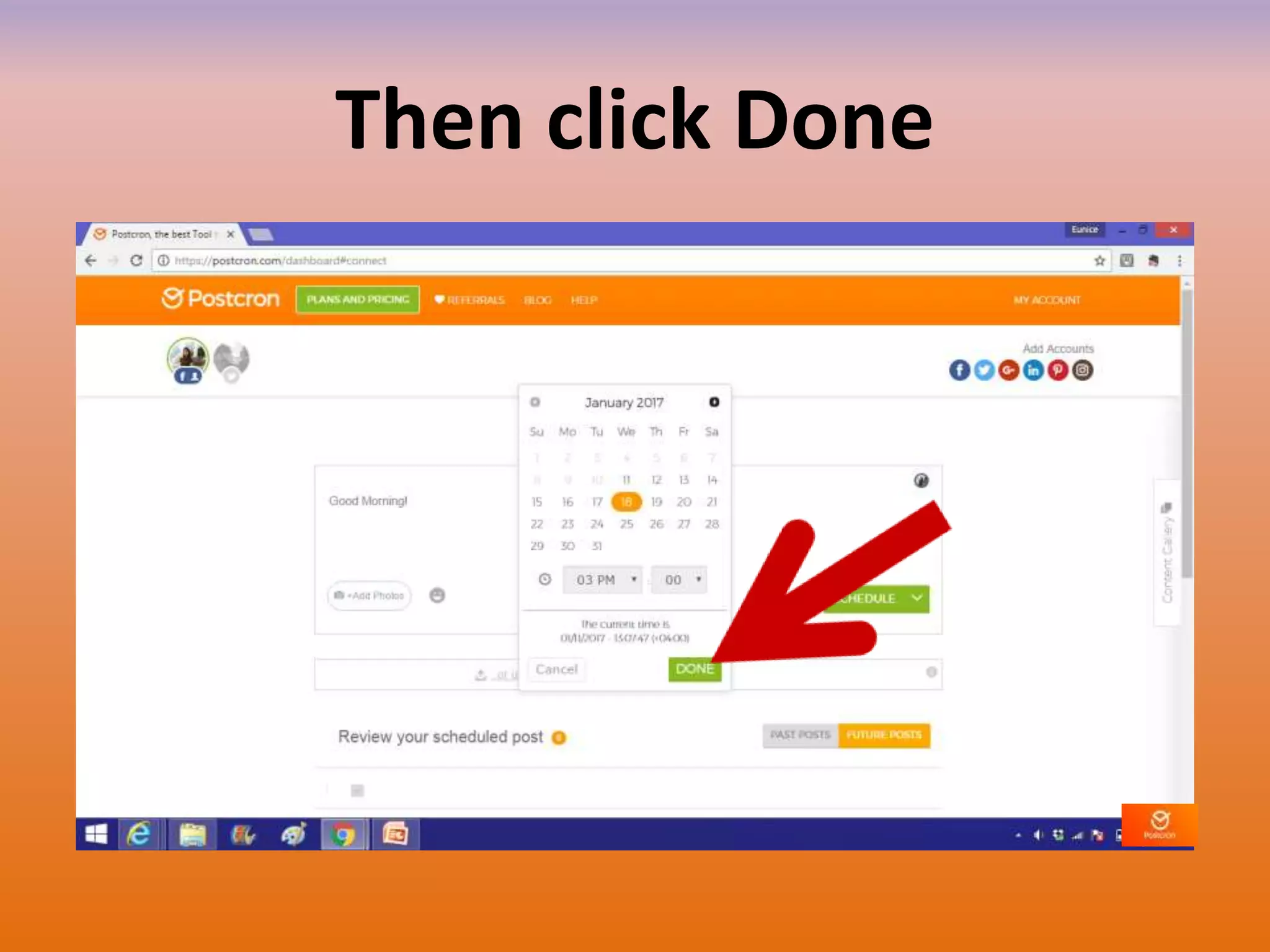
Then click Done
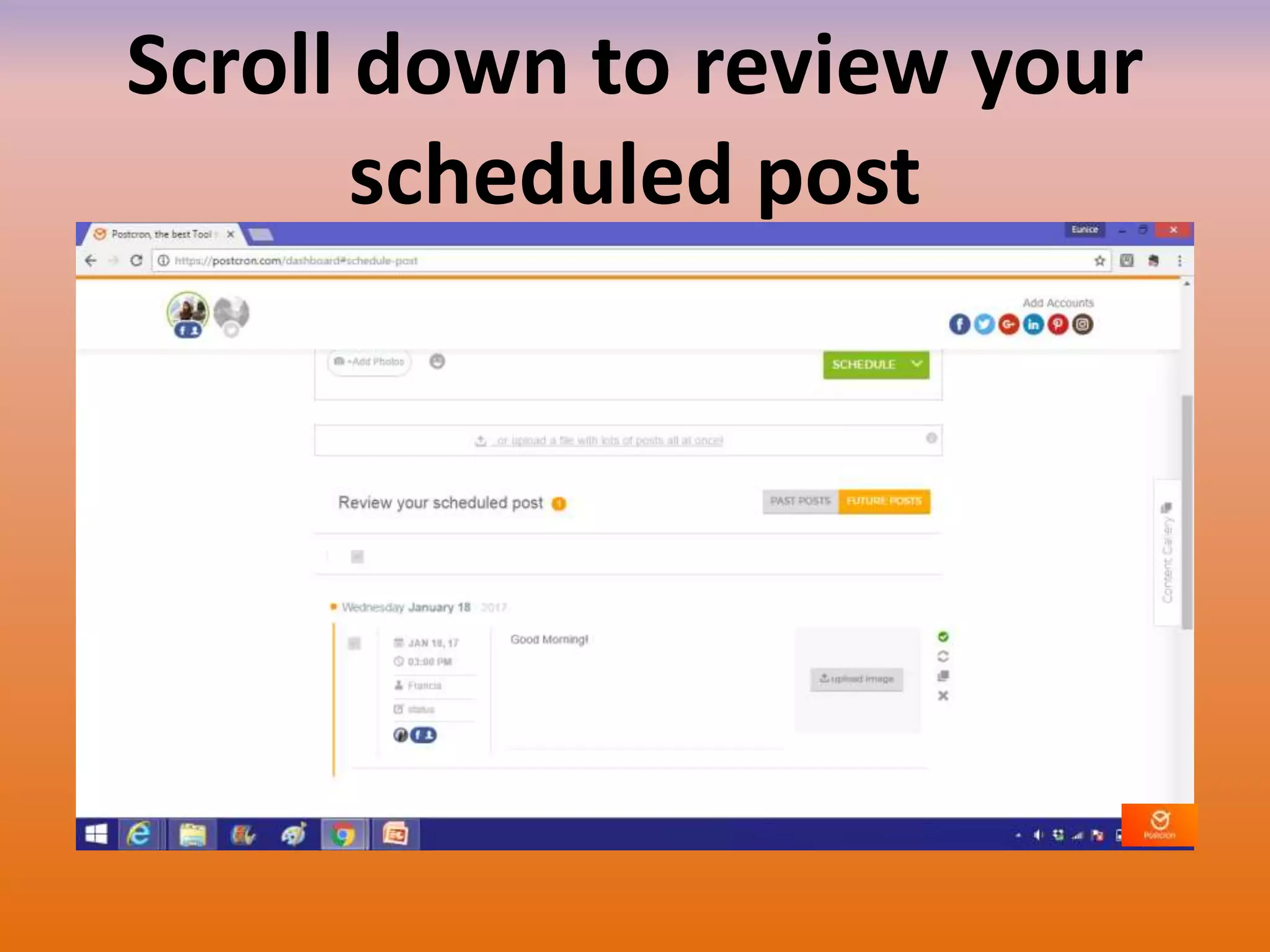
Scroll down to review your
scheduled post
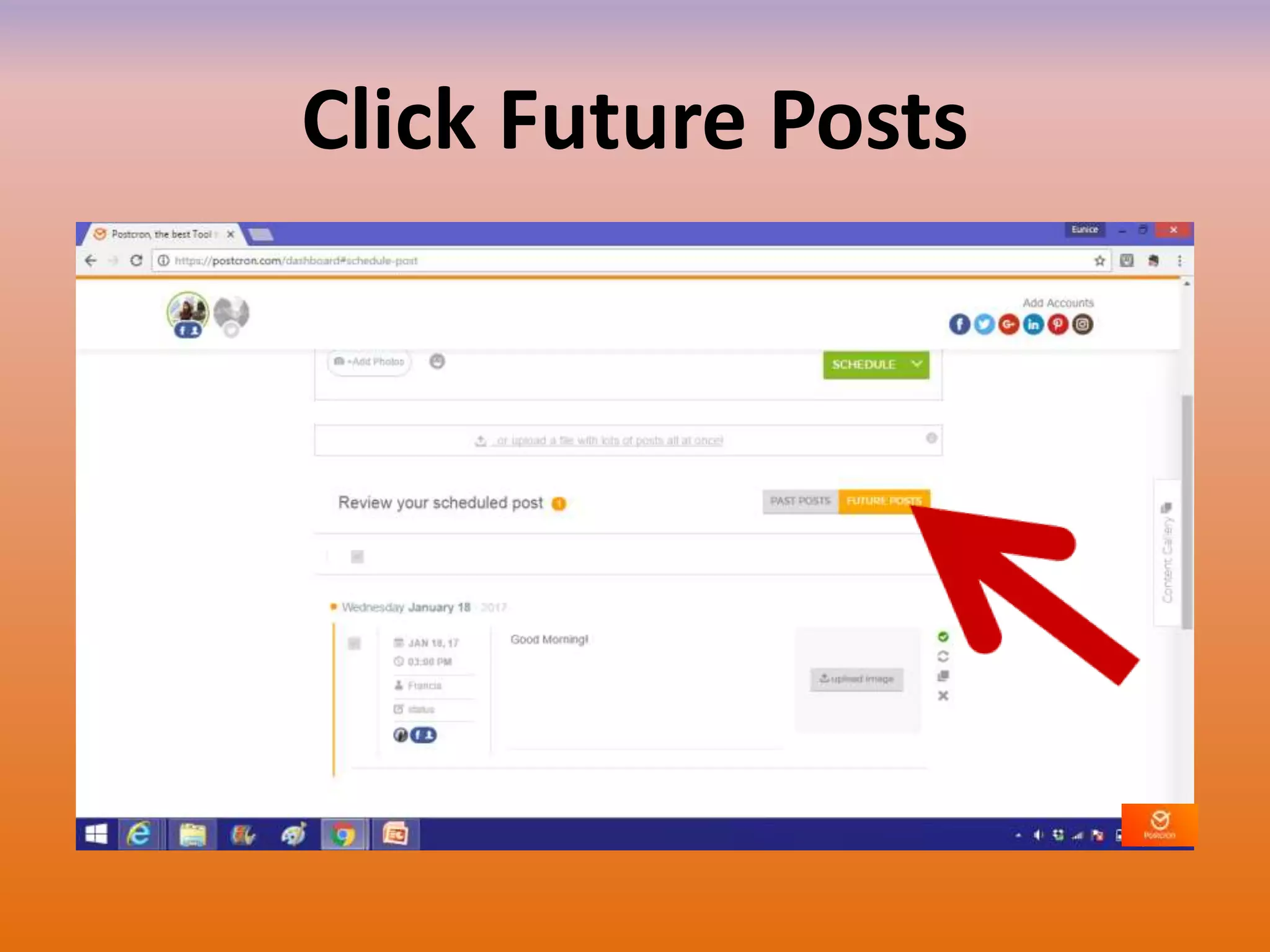
Click Future Posts
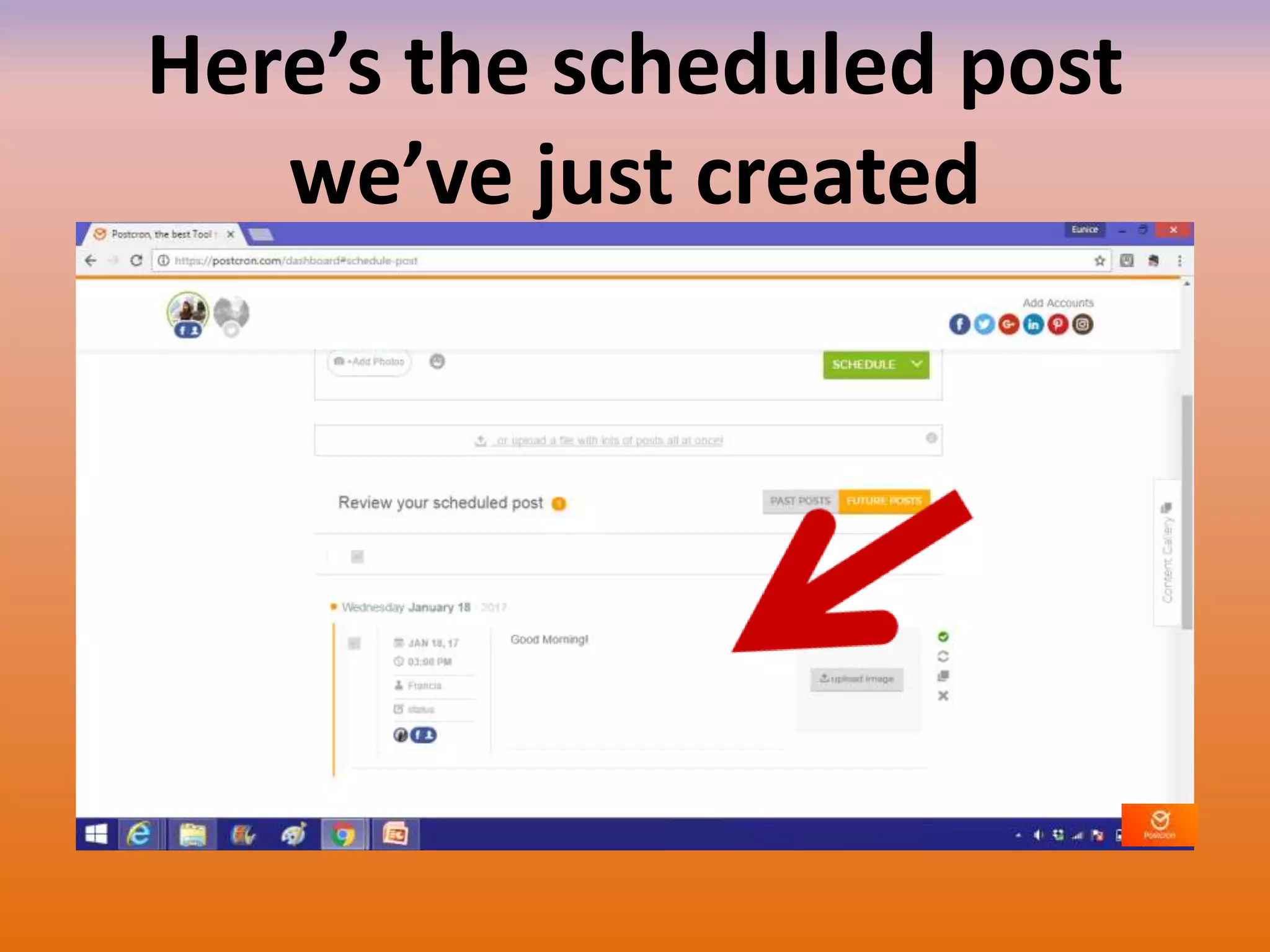
Here’s the scheduled post
we’ve just created
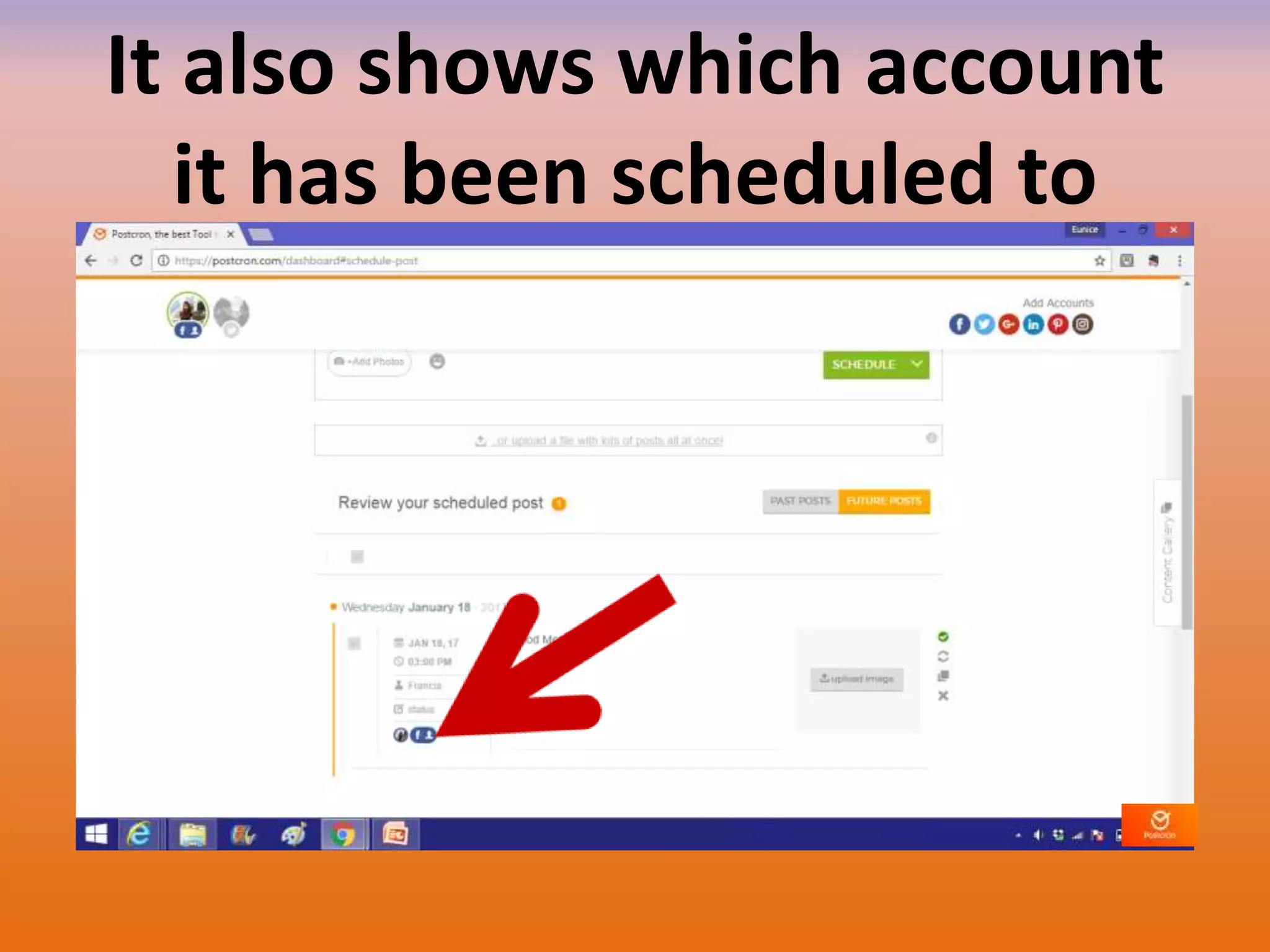
It also shows which account
it has been scheduled to
Your post will
automatically appear on
the date and time you’ve
chosen
To create a post with an
image
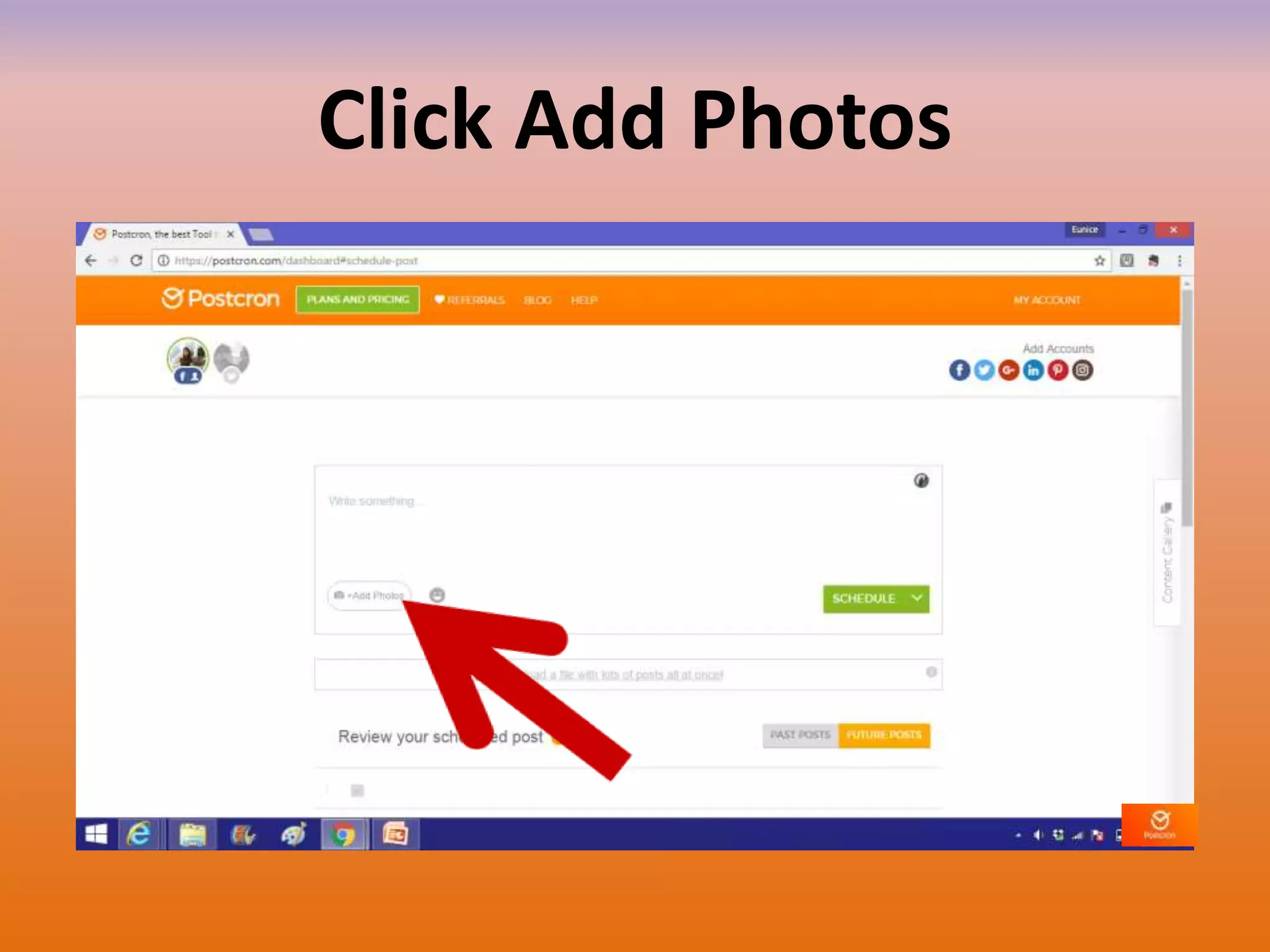
Click Add Photos
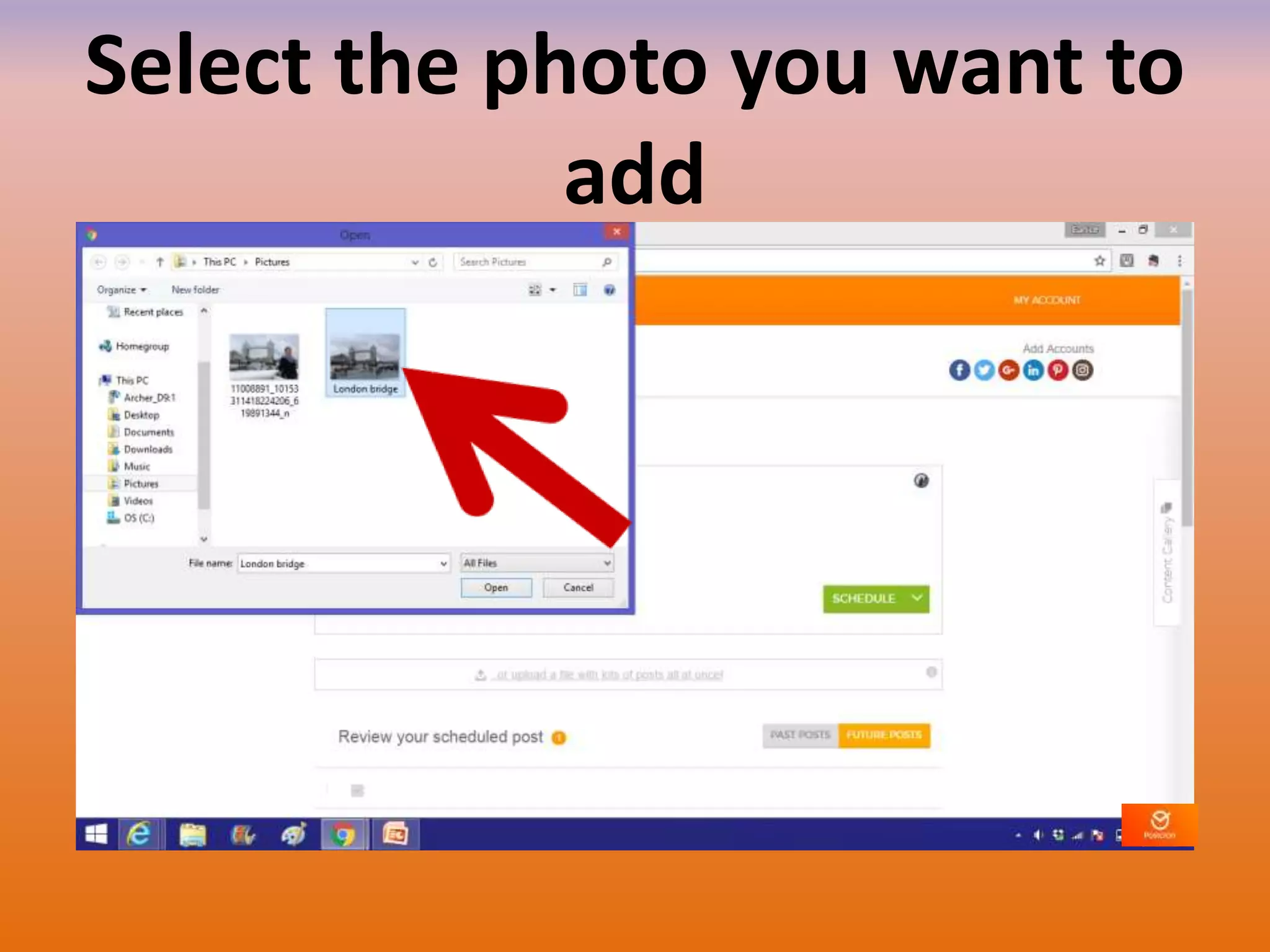
Select the photo you want to
add
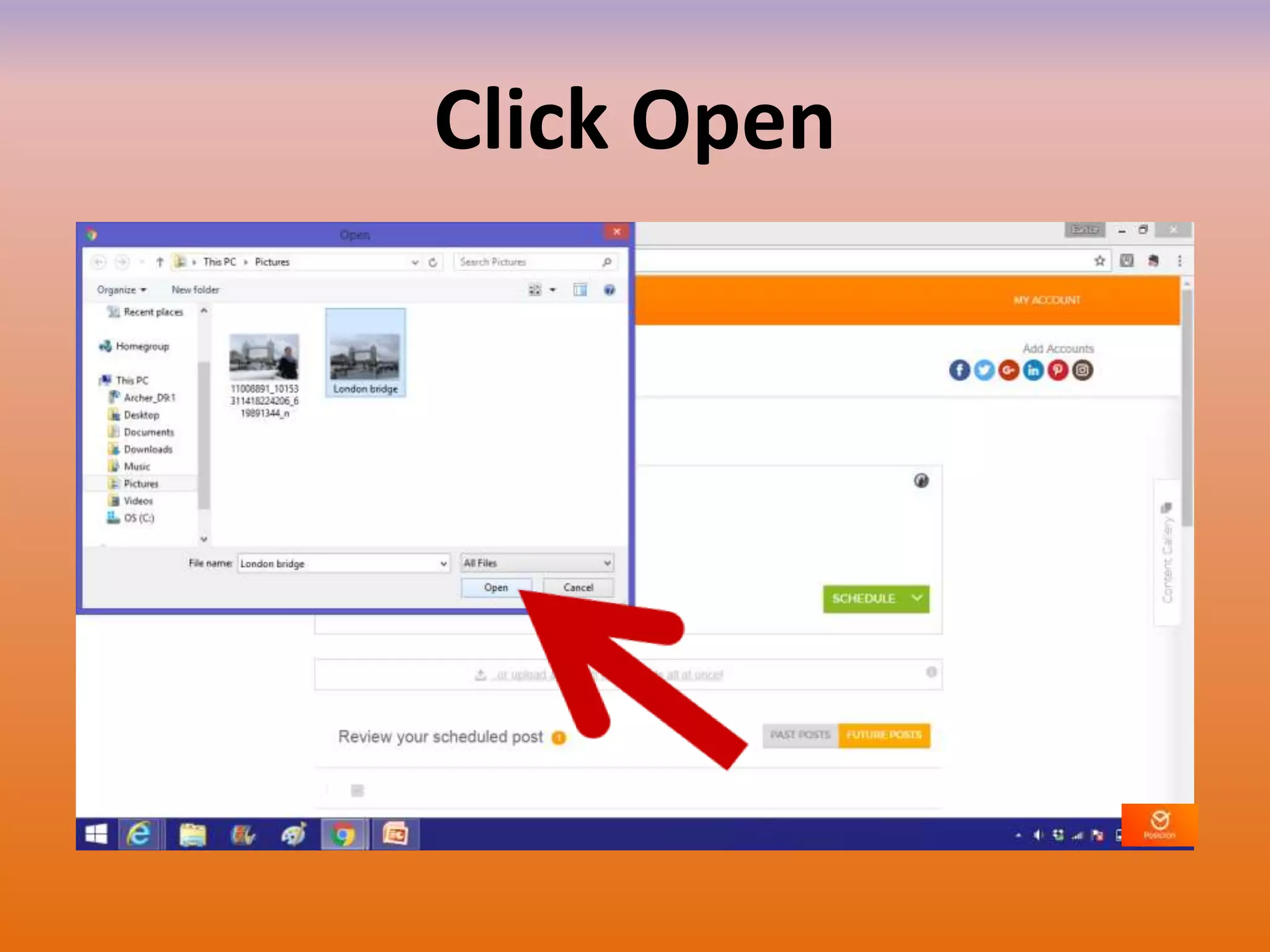
Click Open
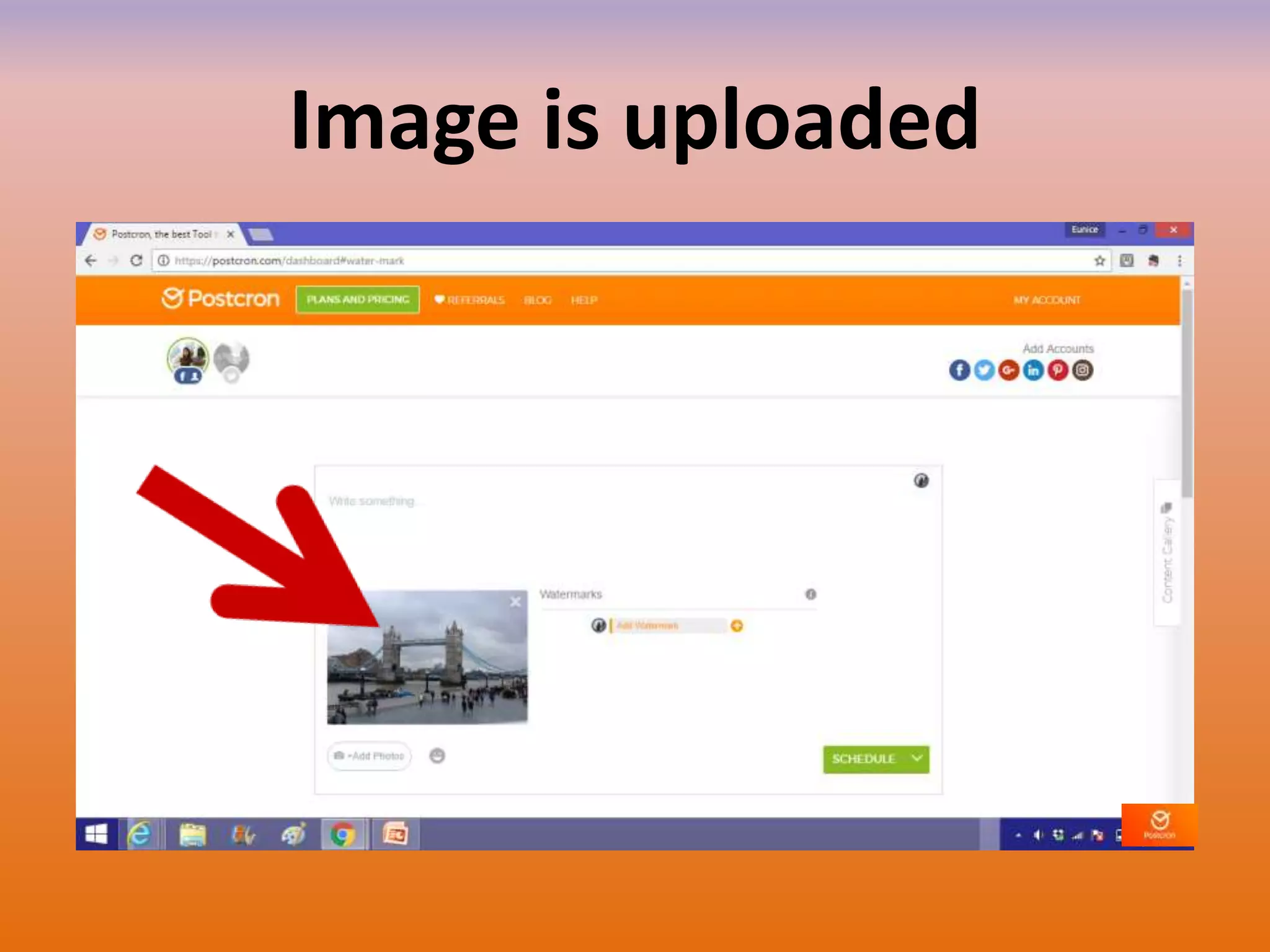
Image is uploaded
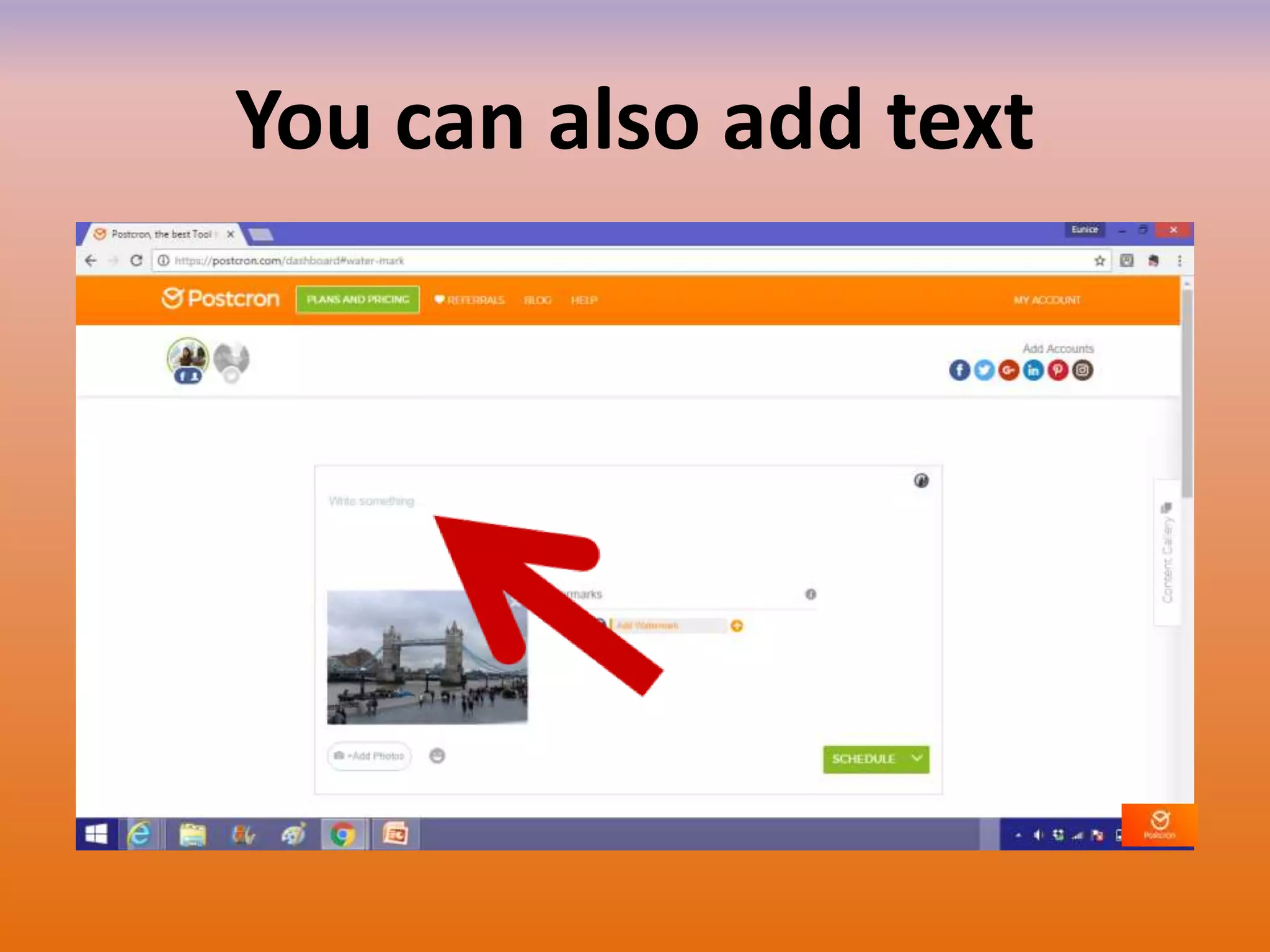
You can also add text
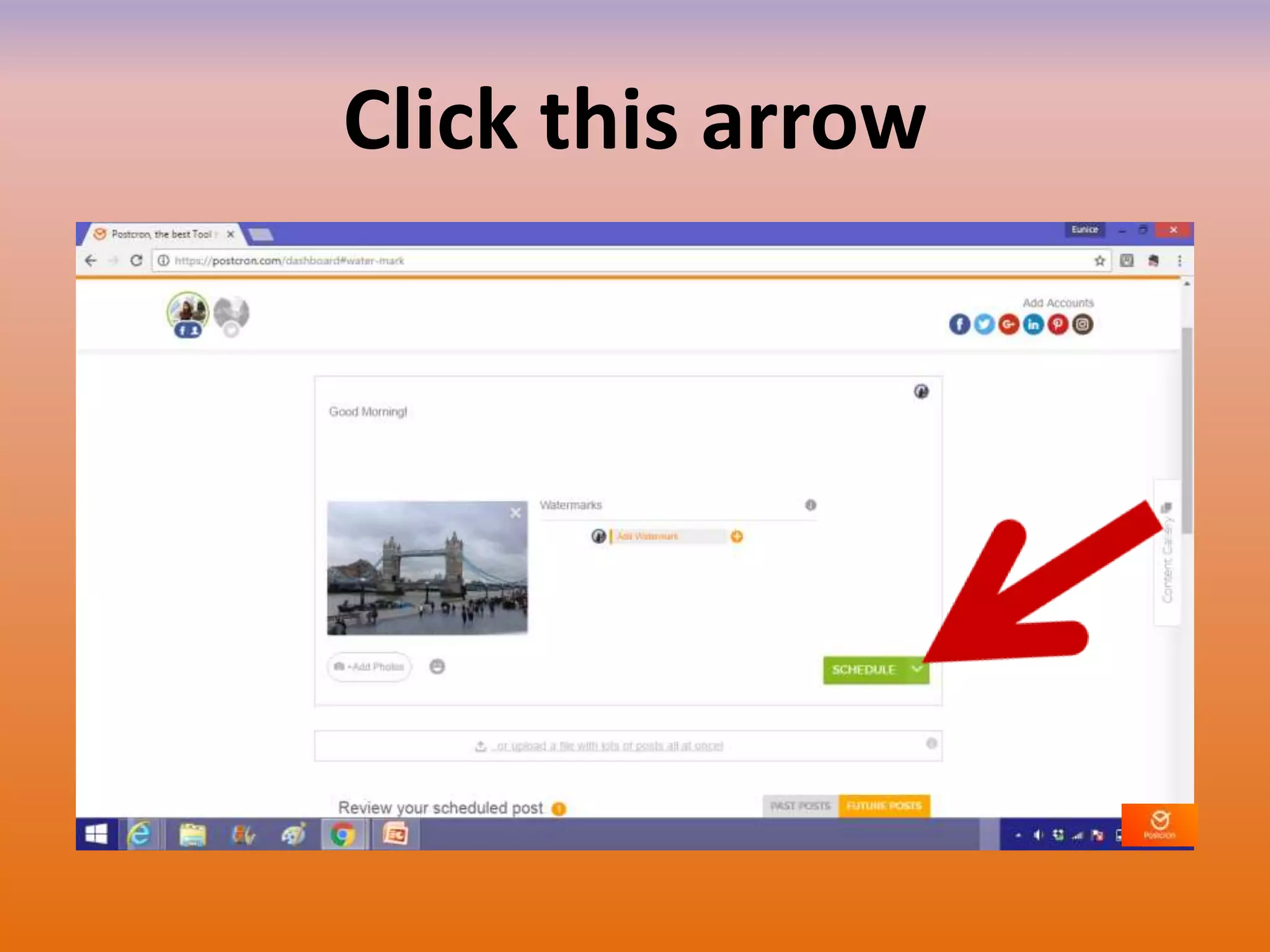
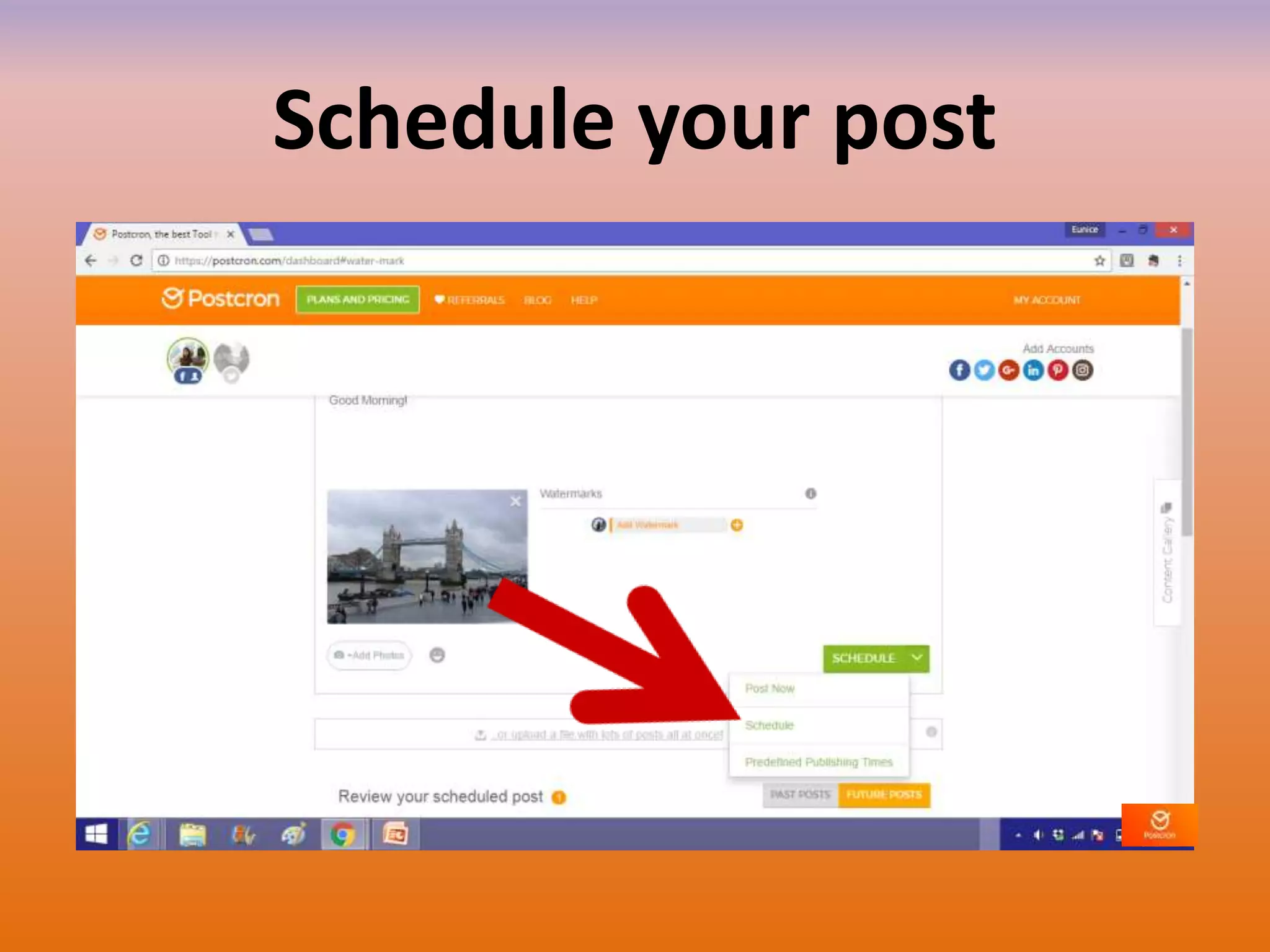
Click this arrow
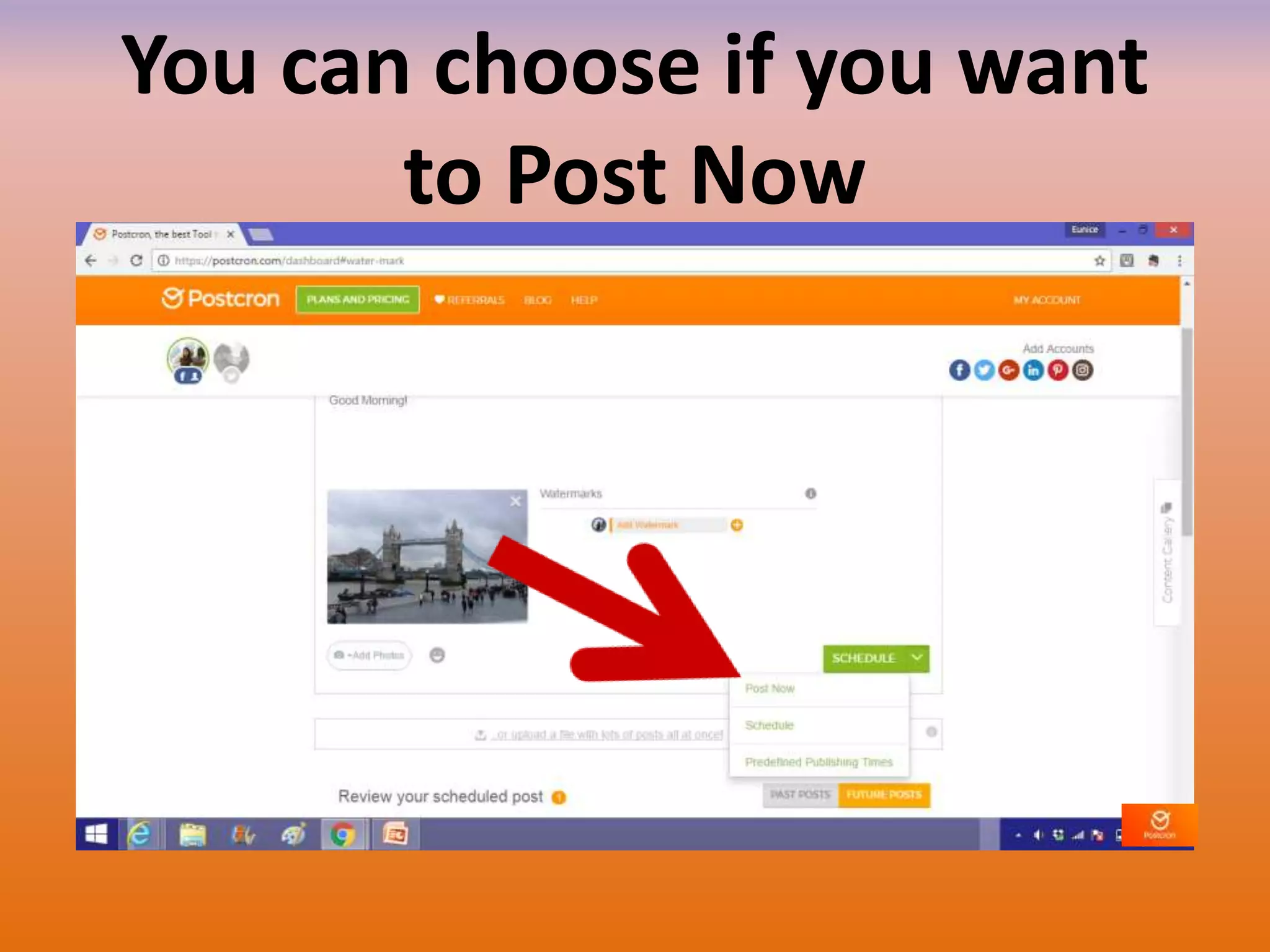
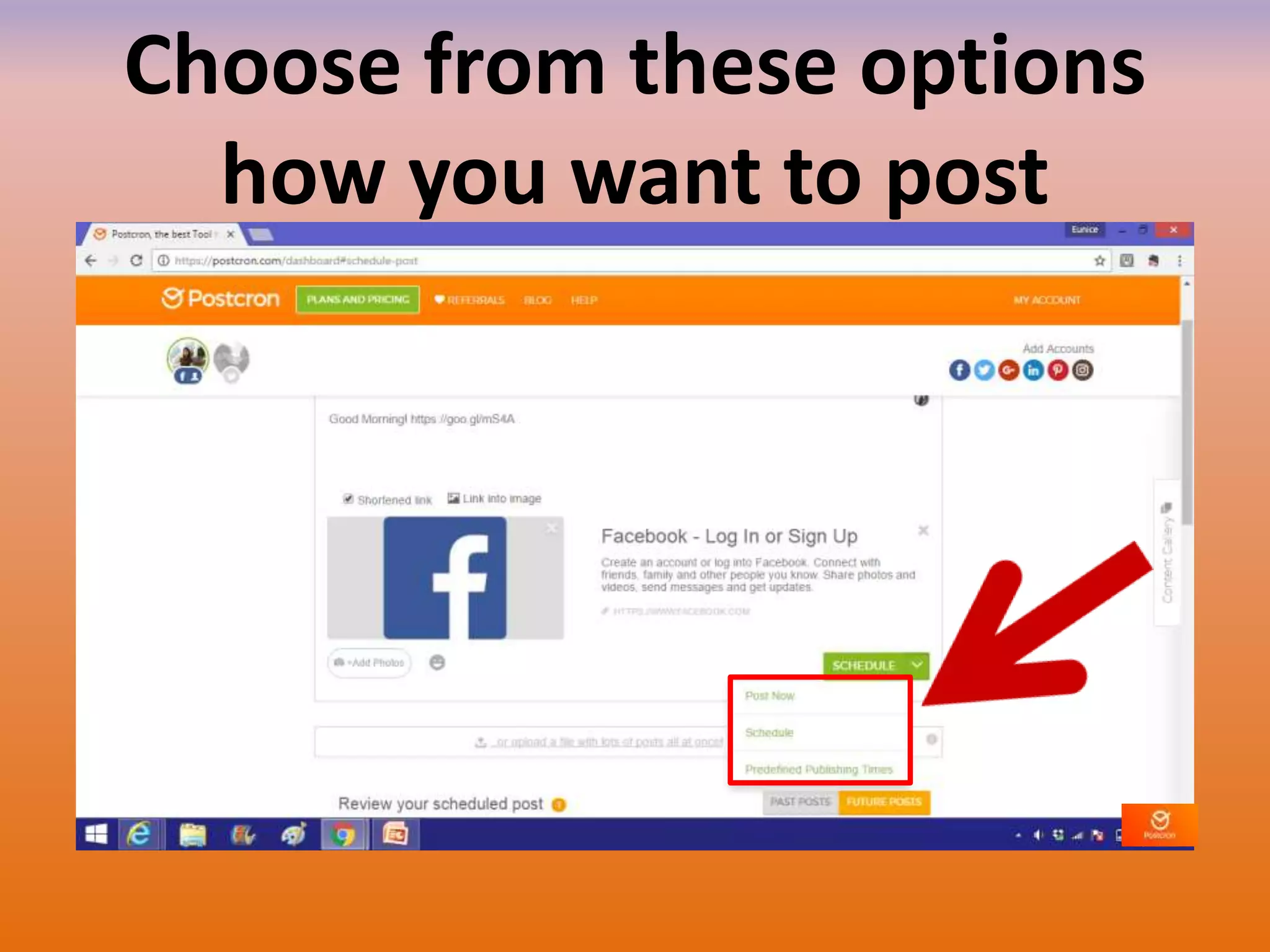
You can choose if you want
to Post Now
Schedule your post
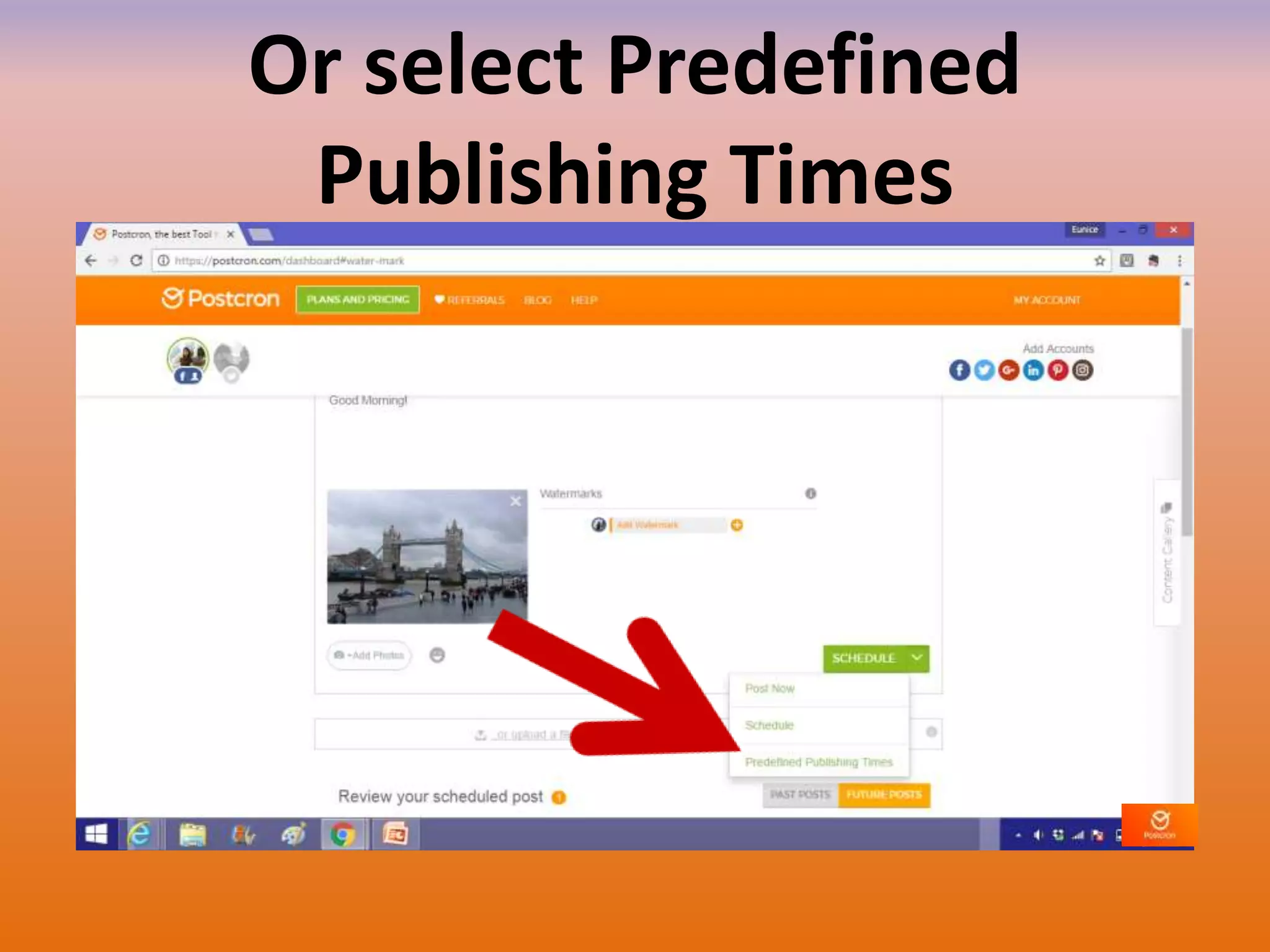
Or select Predefined
Publishing Times
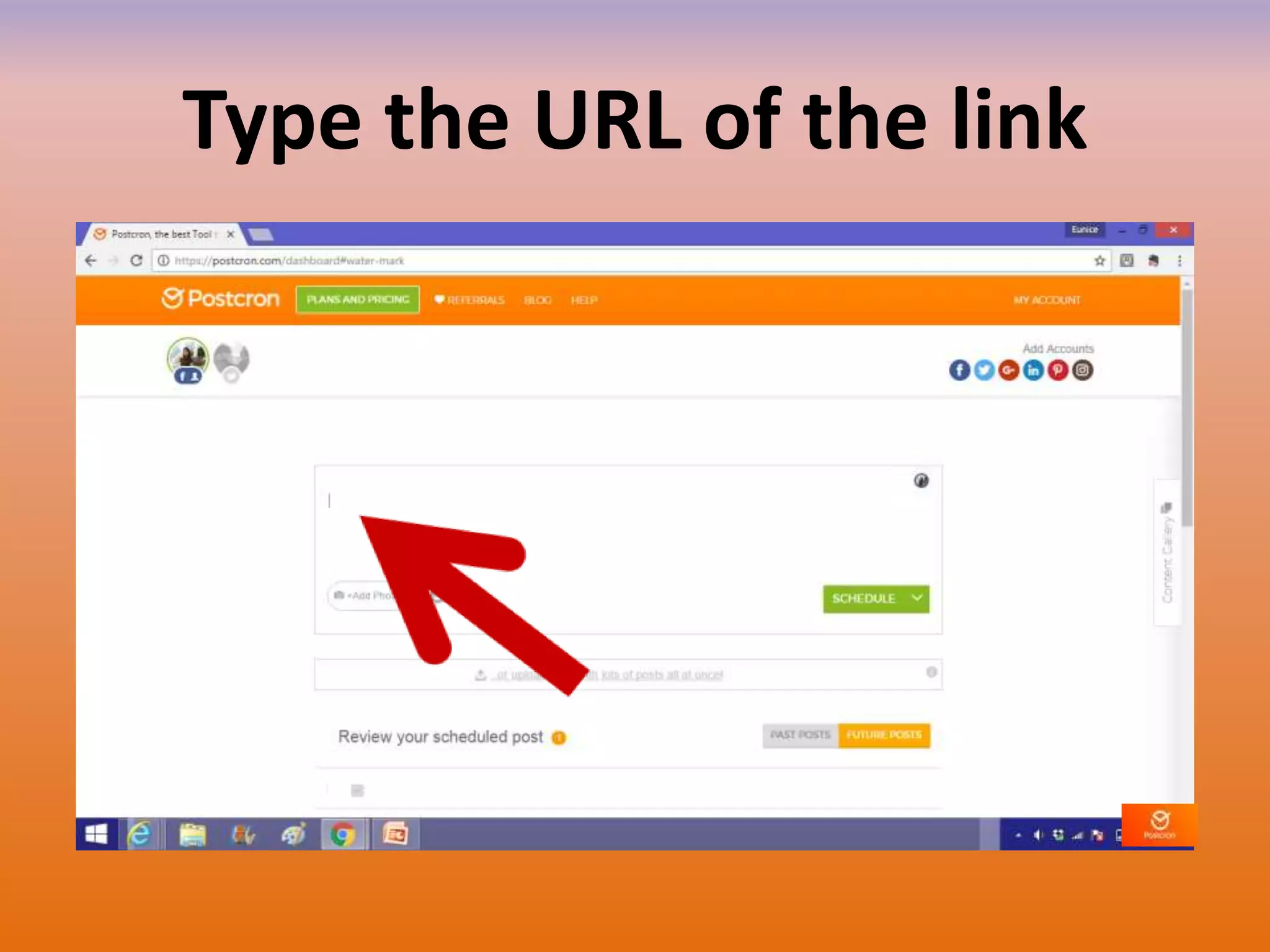
To post a link
Type the URL of the link
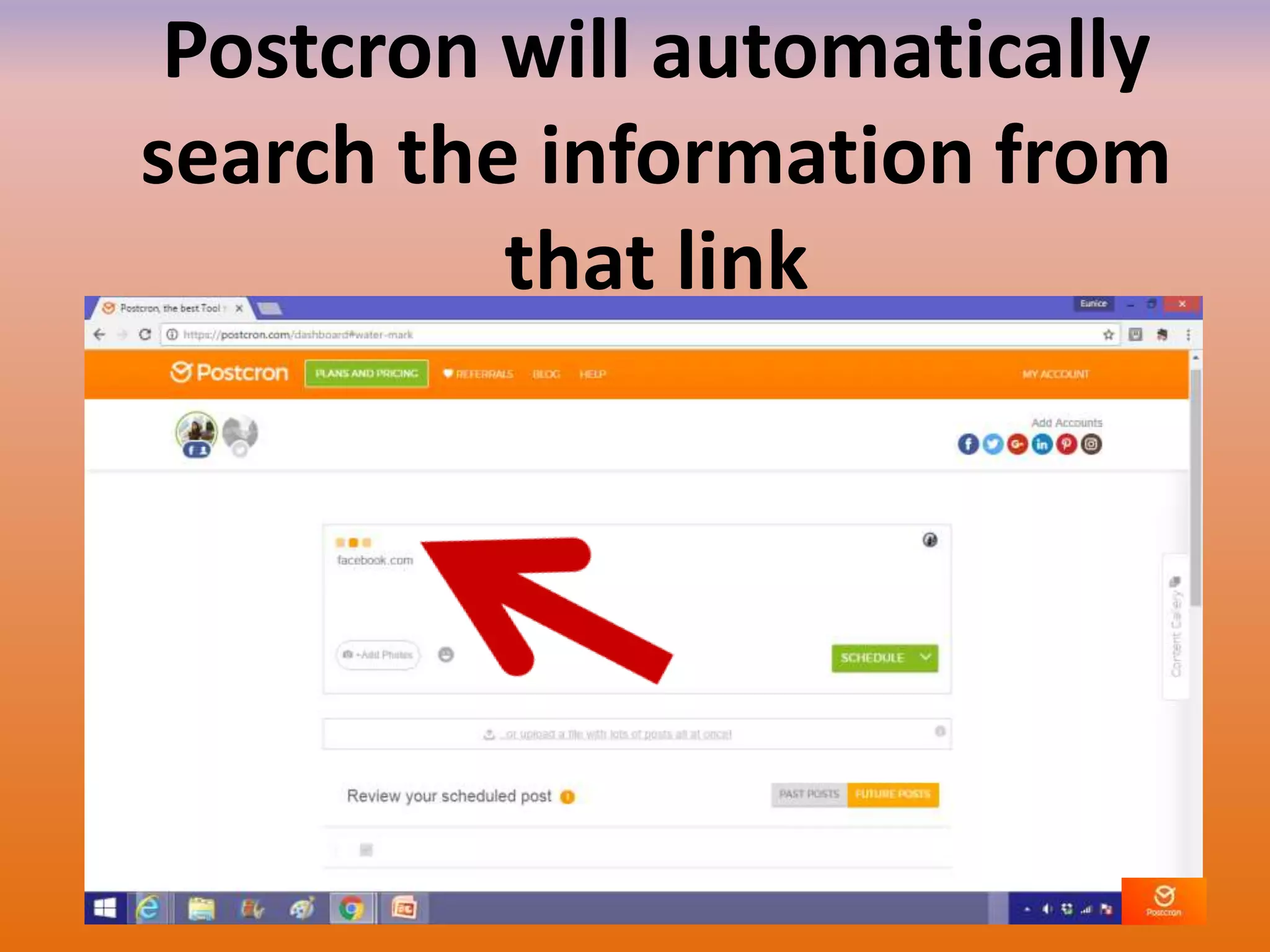
Postcron will automatically
search the information from
that link
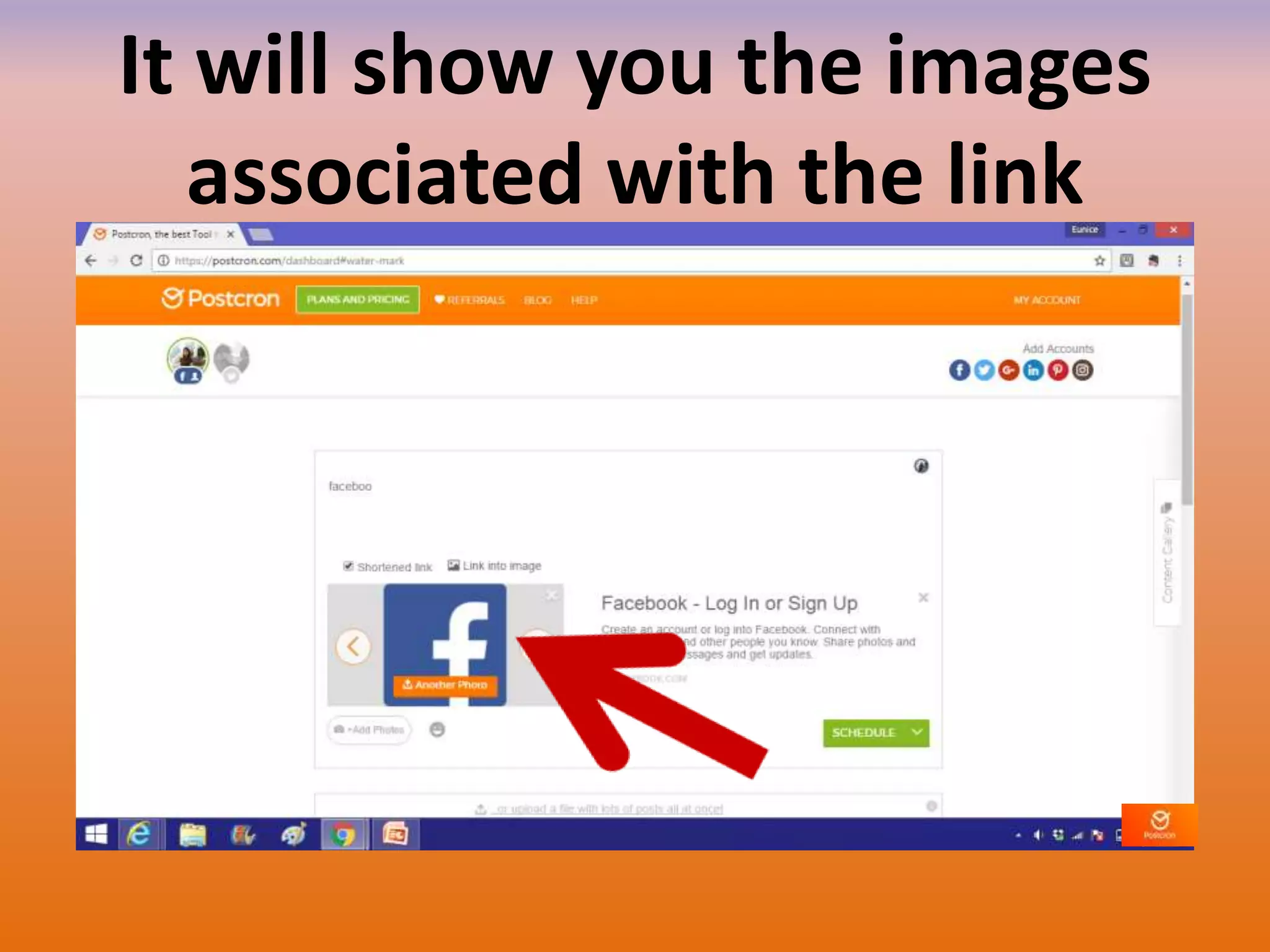
It will show you the images
associated with the link
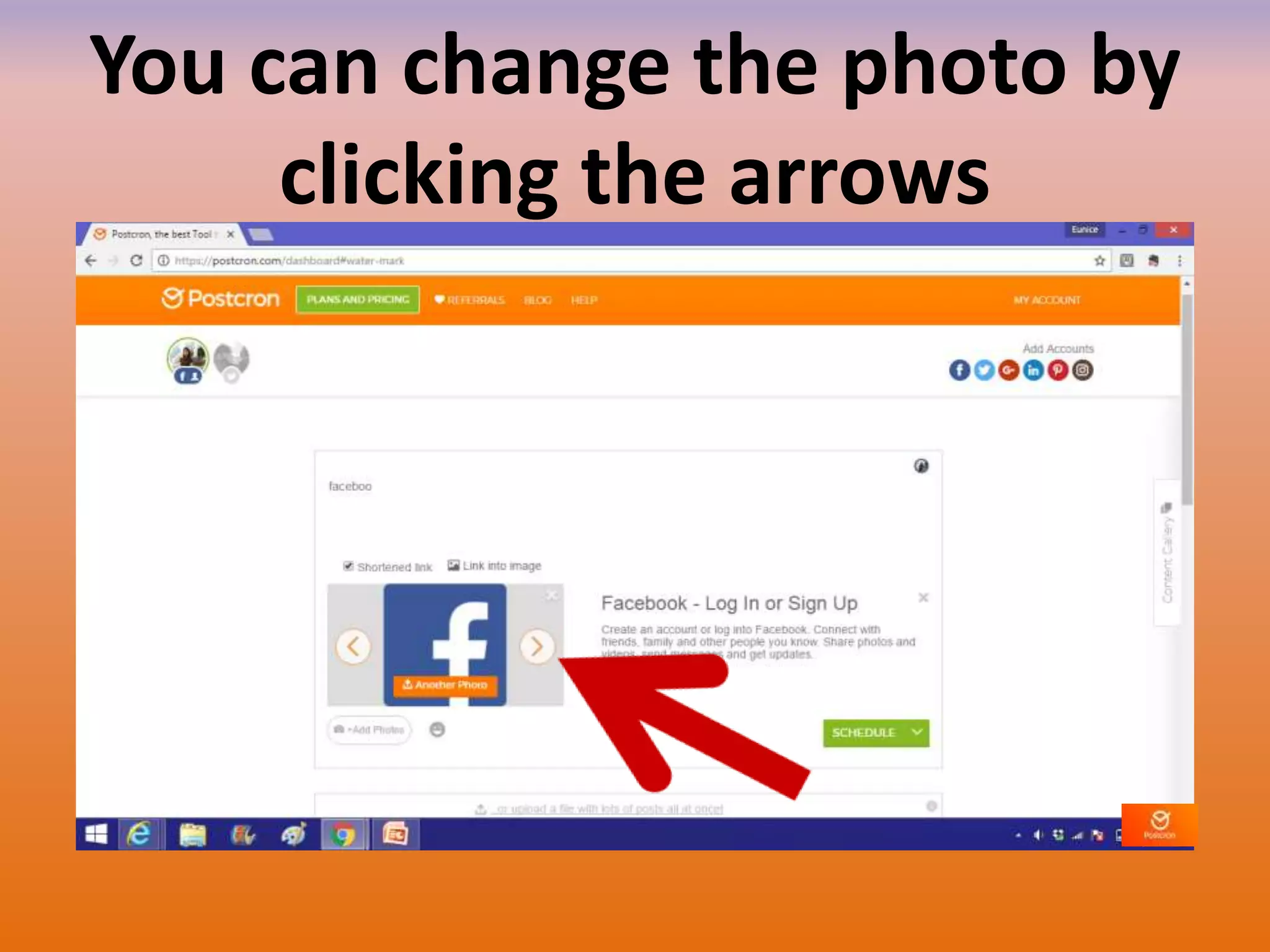
You can change the photo by
clicking the arrows
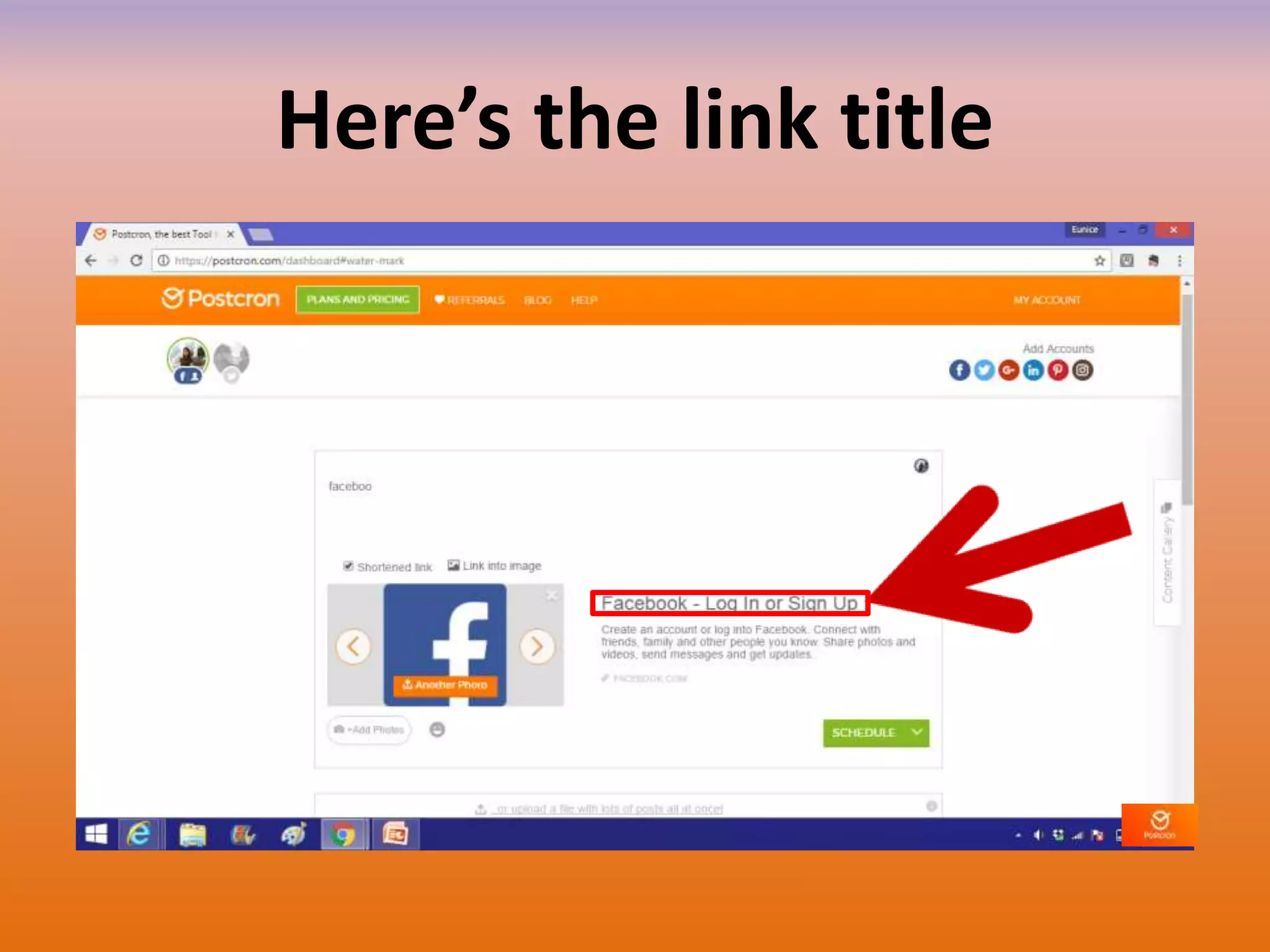
Here’s the link title
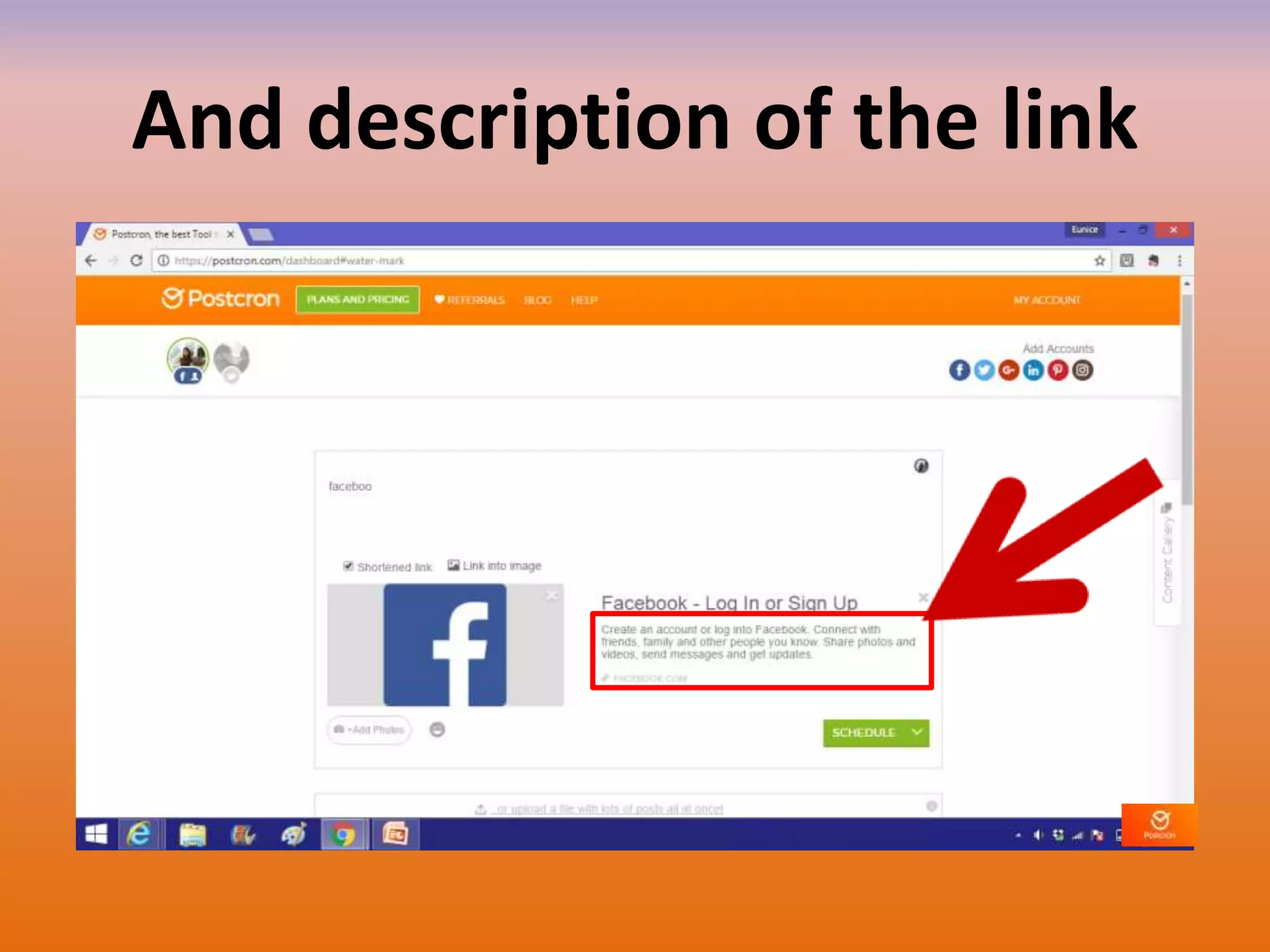
And description of the link
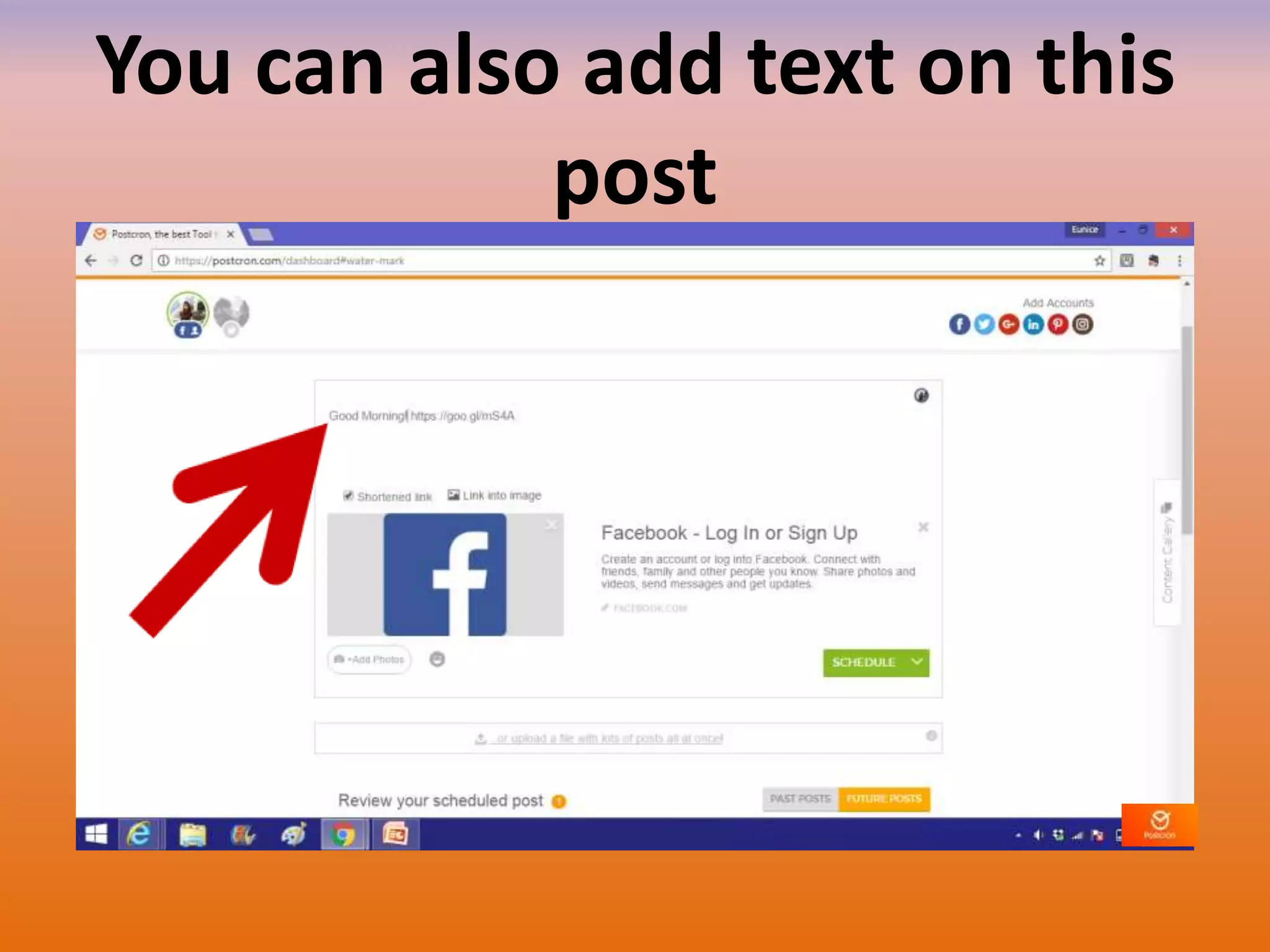
You can also add text on this
post
Choose from these options
how you want to post
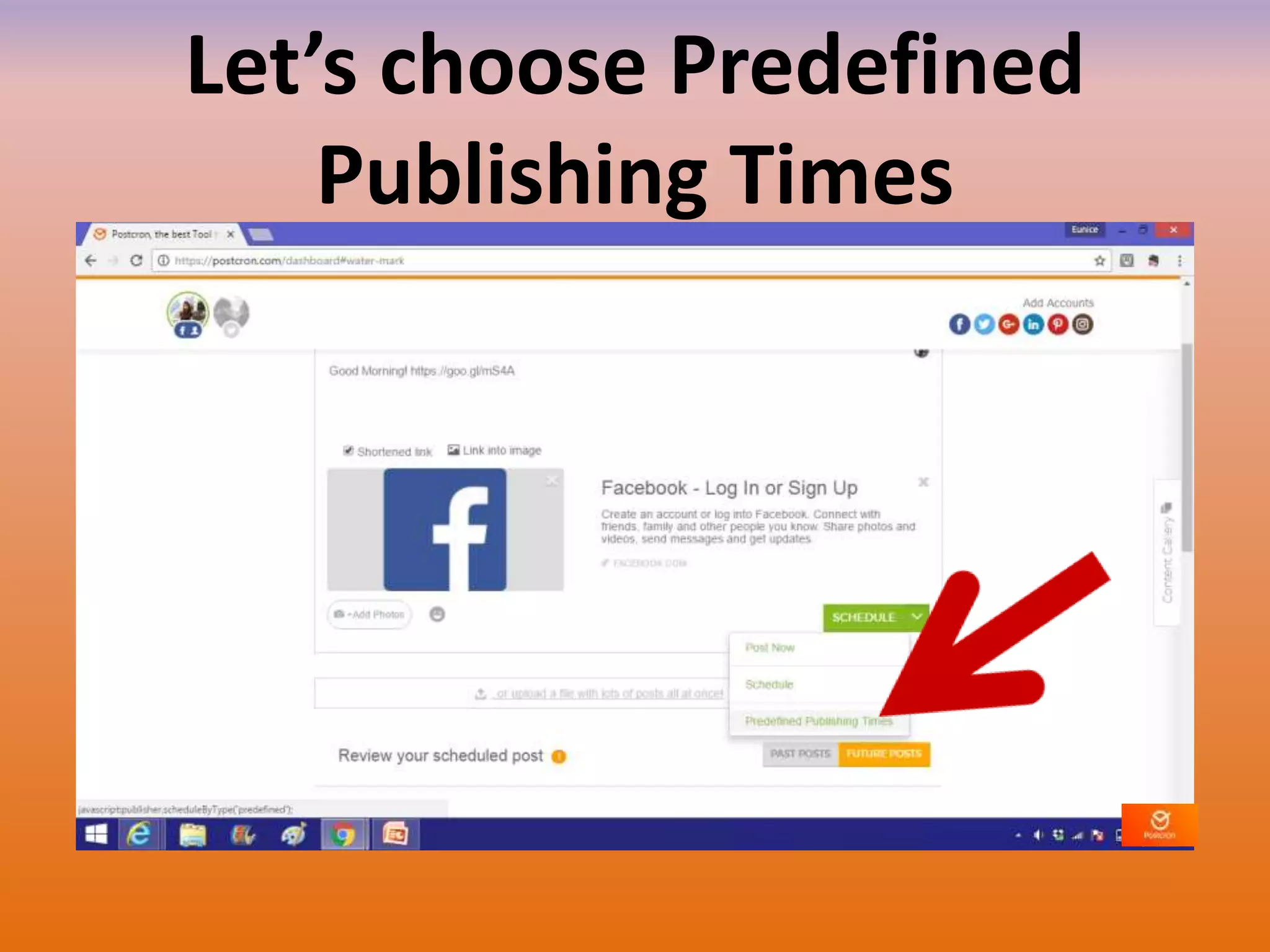
Let’s choose Predefined
Publishing Times
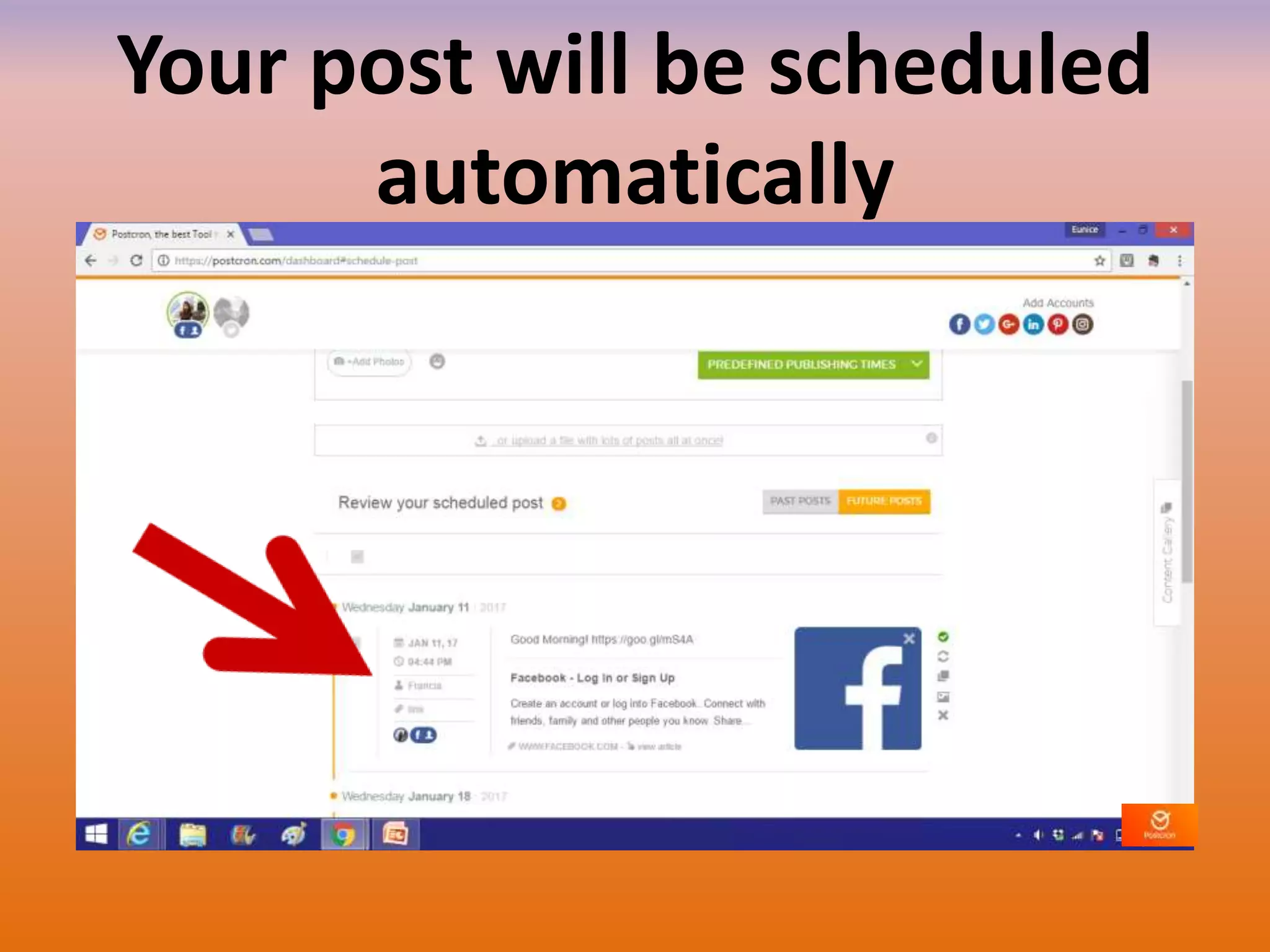
Your post will be scheduled
automatically
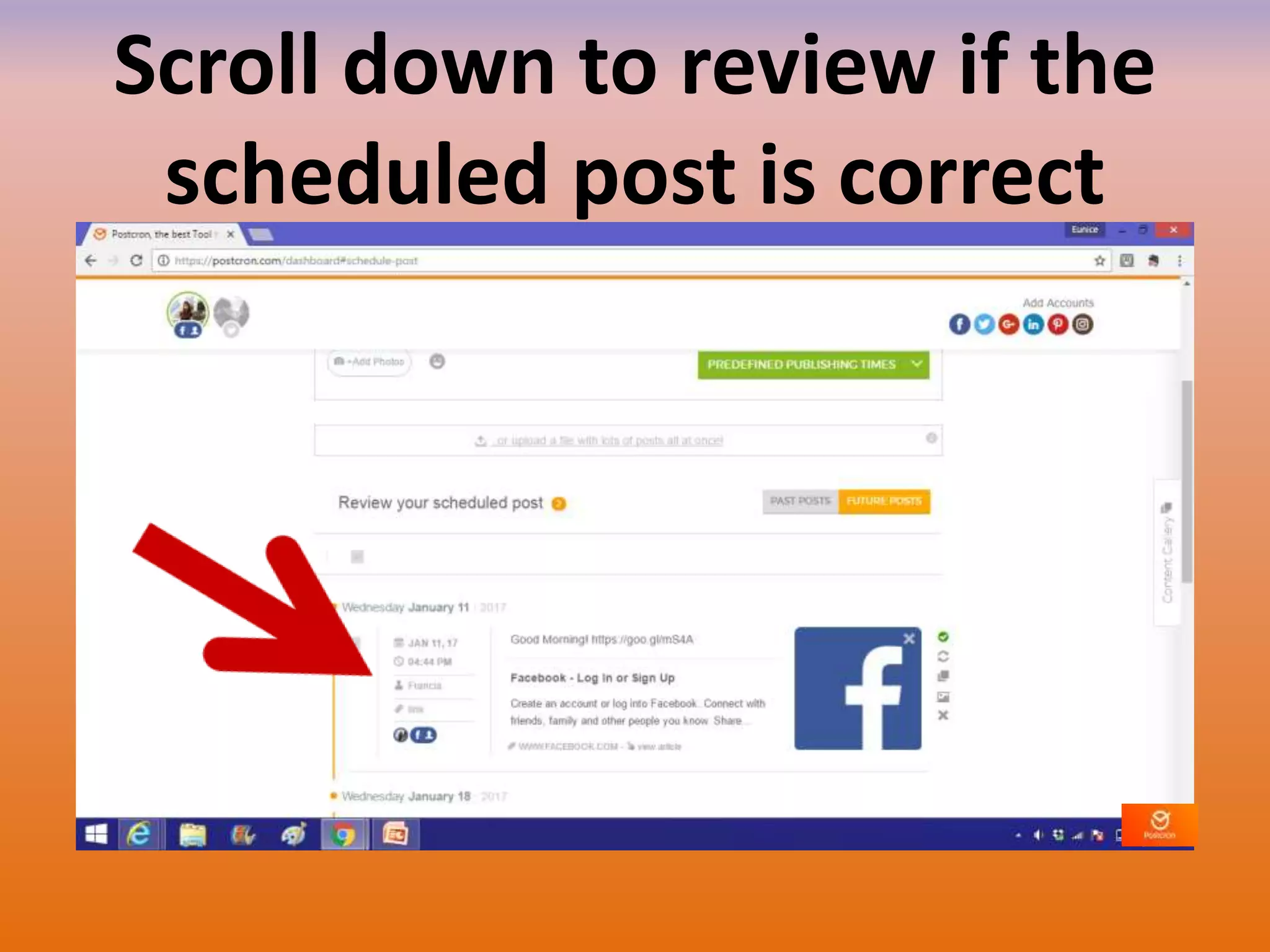
Scroll down to review if the
scheduled post is correct
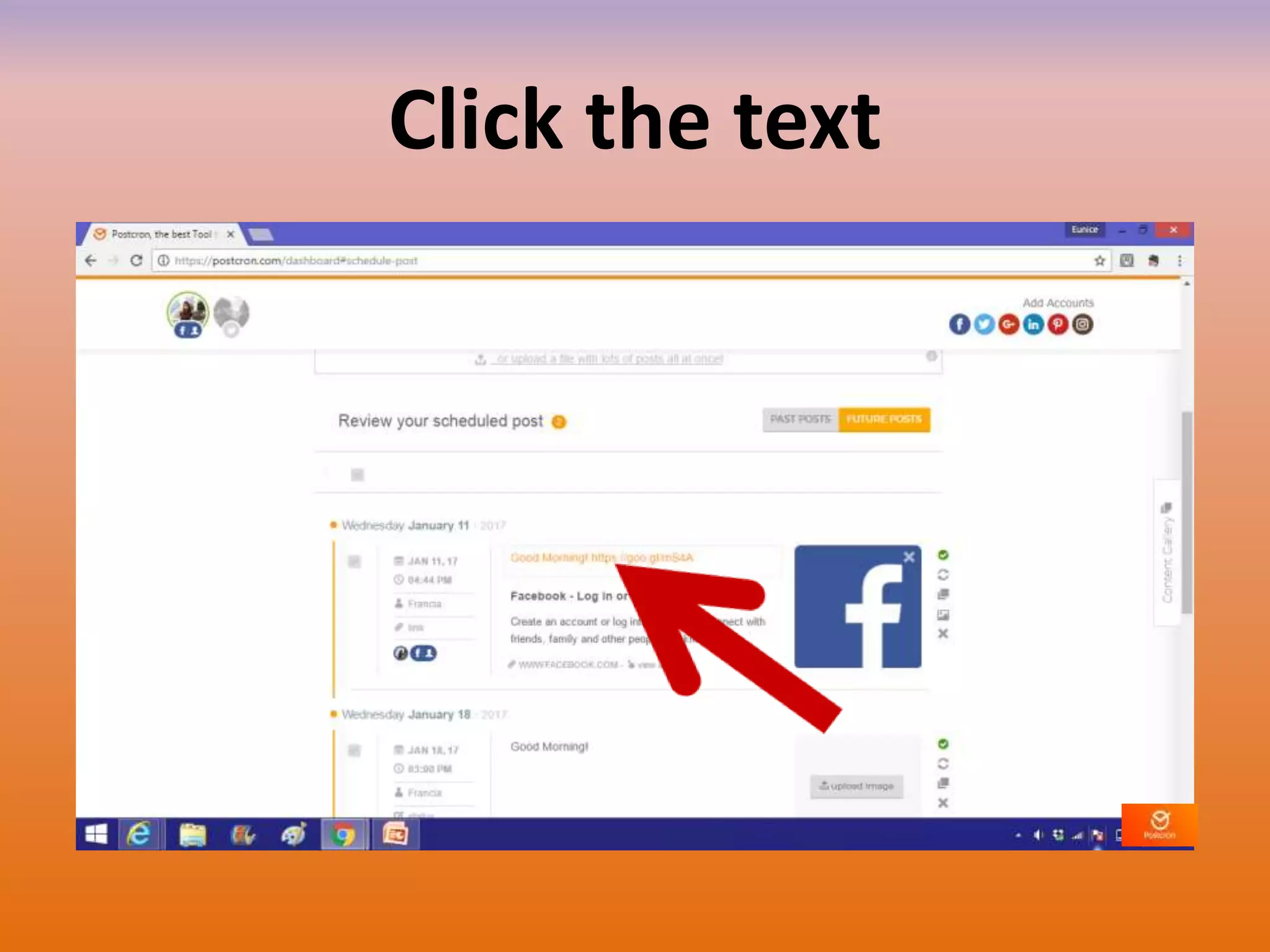
To edit the post
Click the text
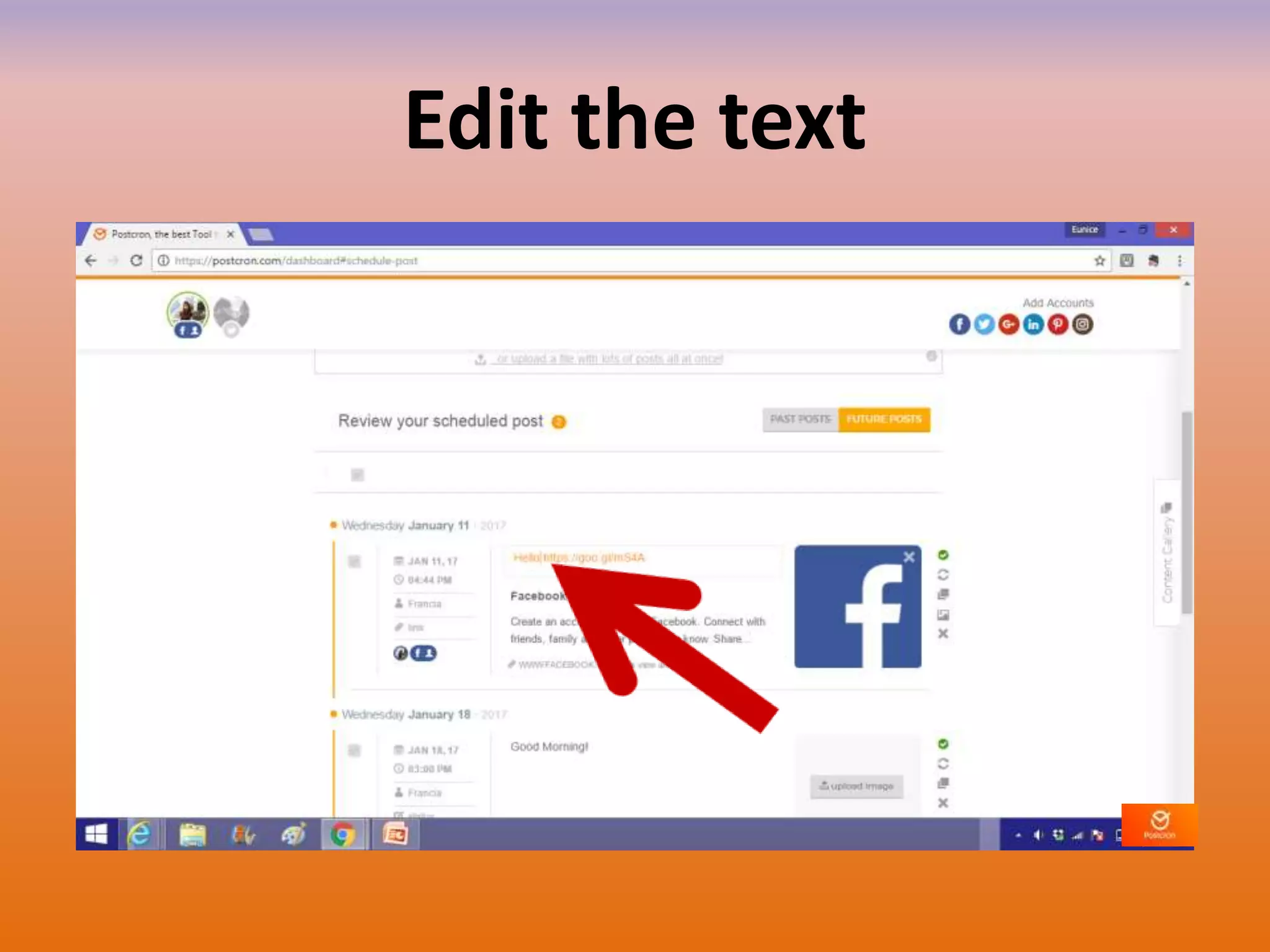
Edit the text
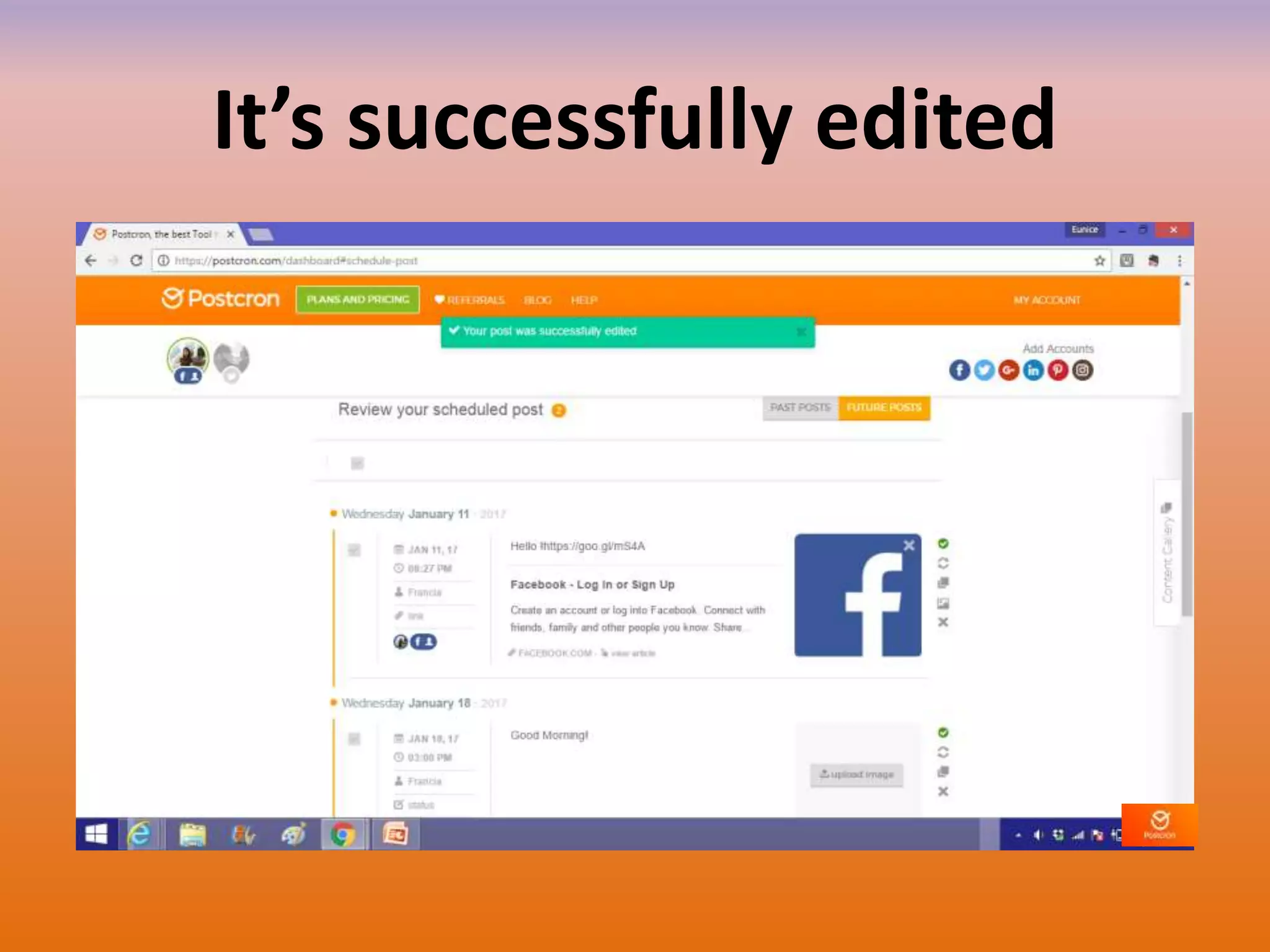
It’s successfully edited
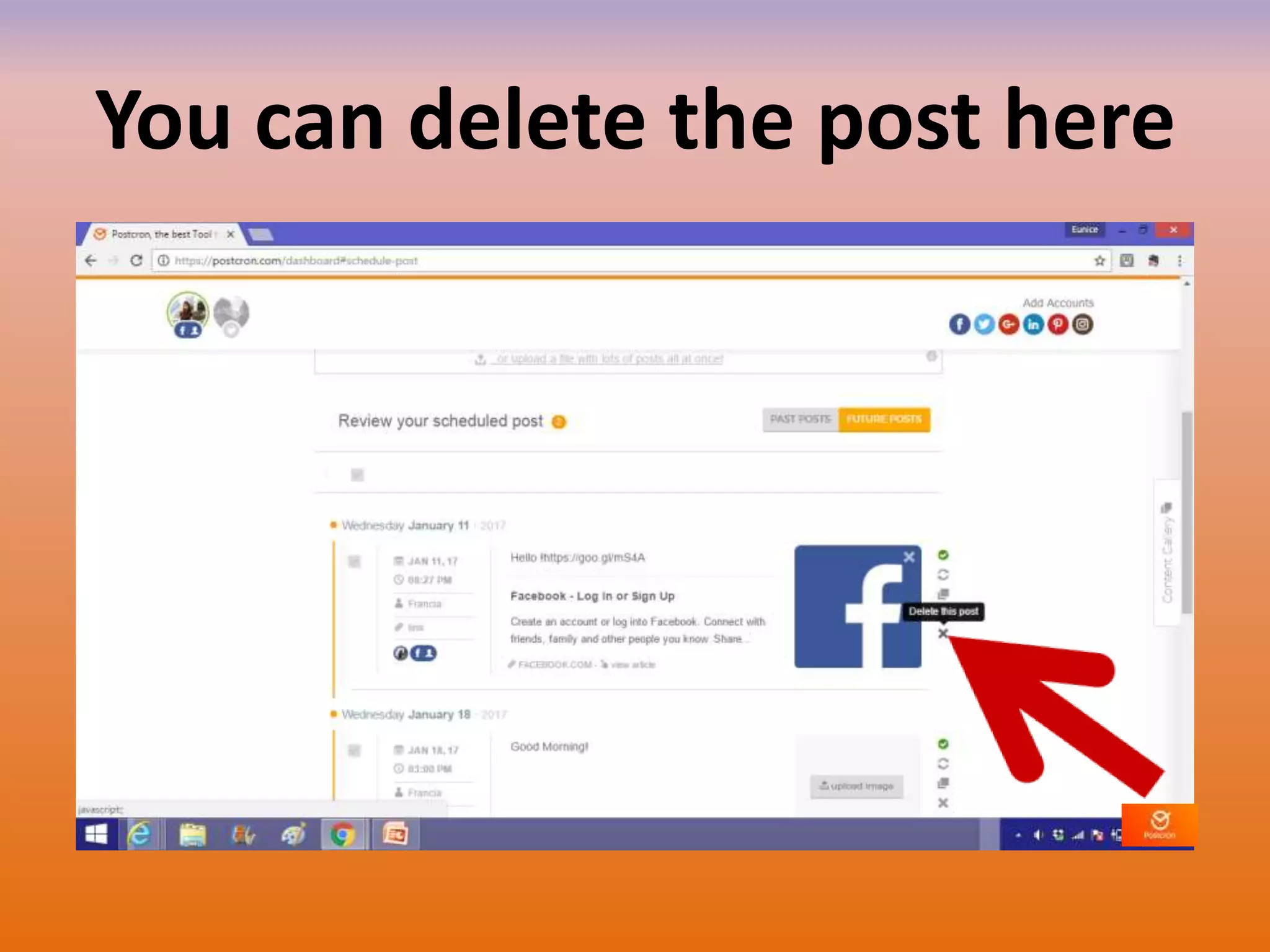
You can delete the post here
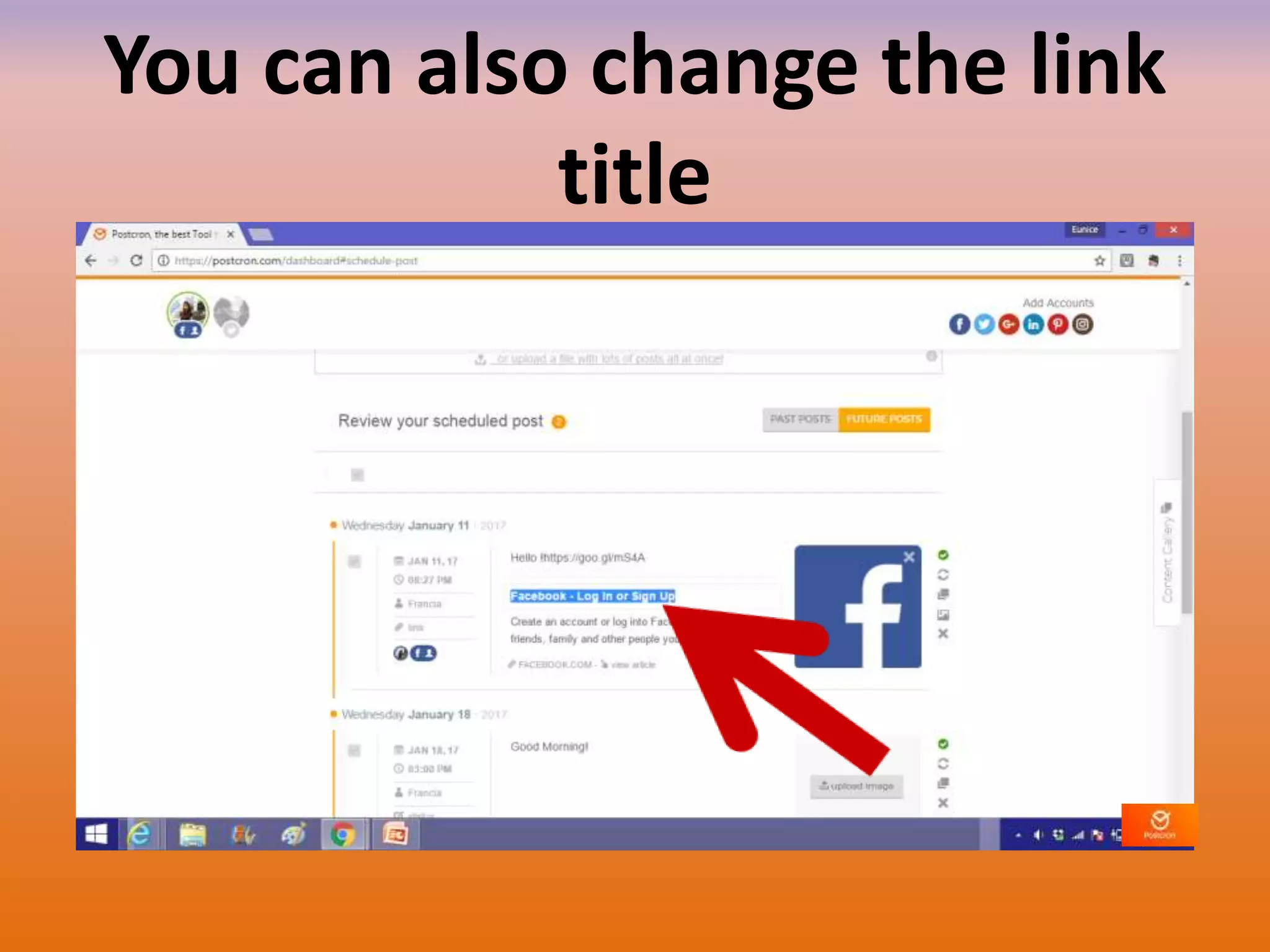
You can also change the link
title
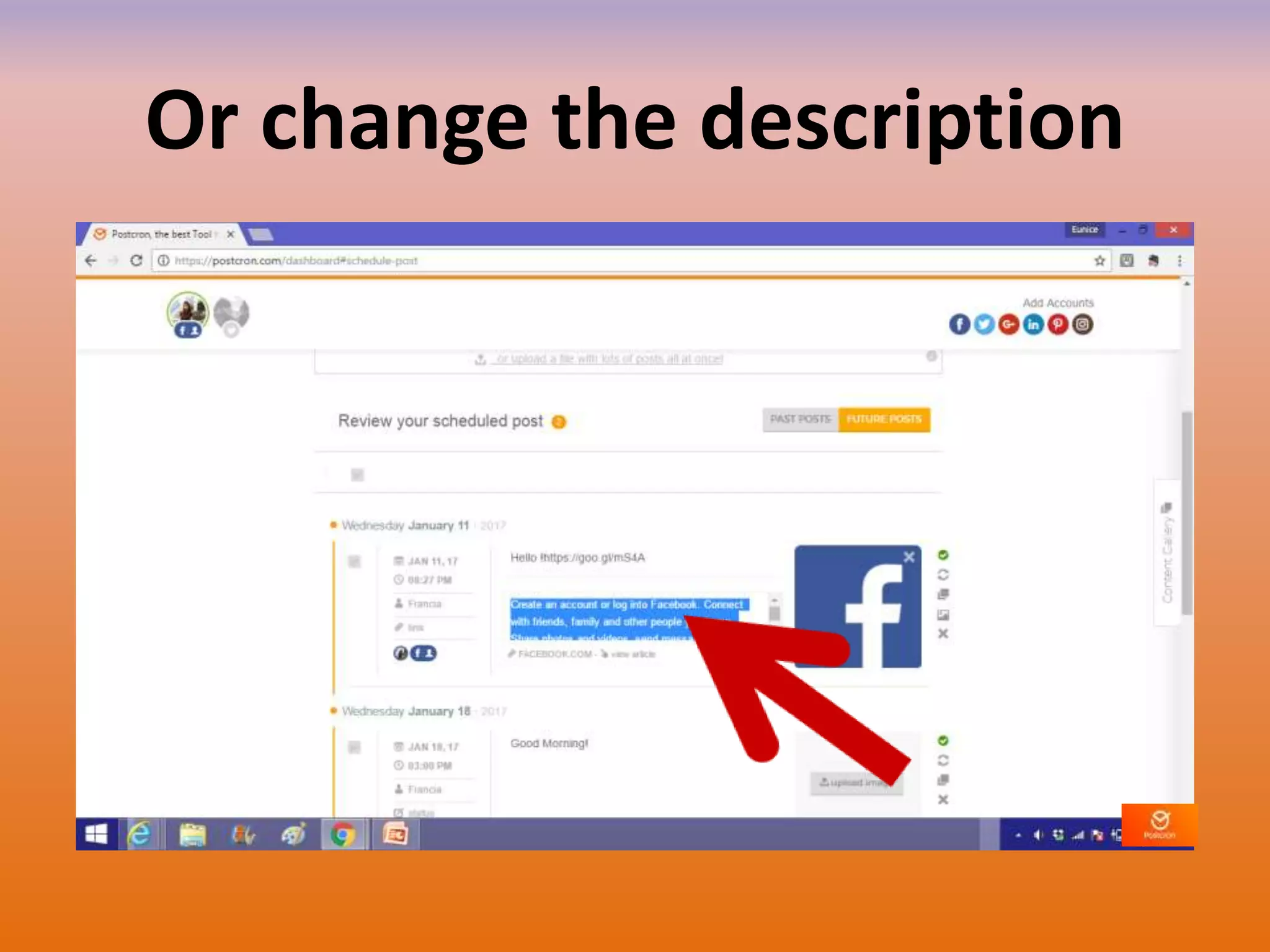
Or change the description
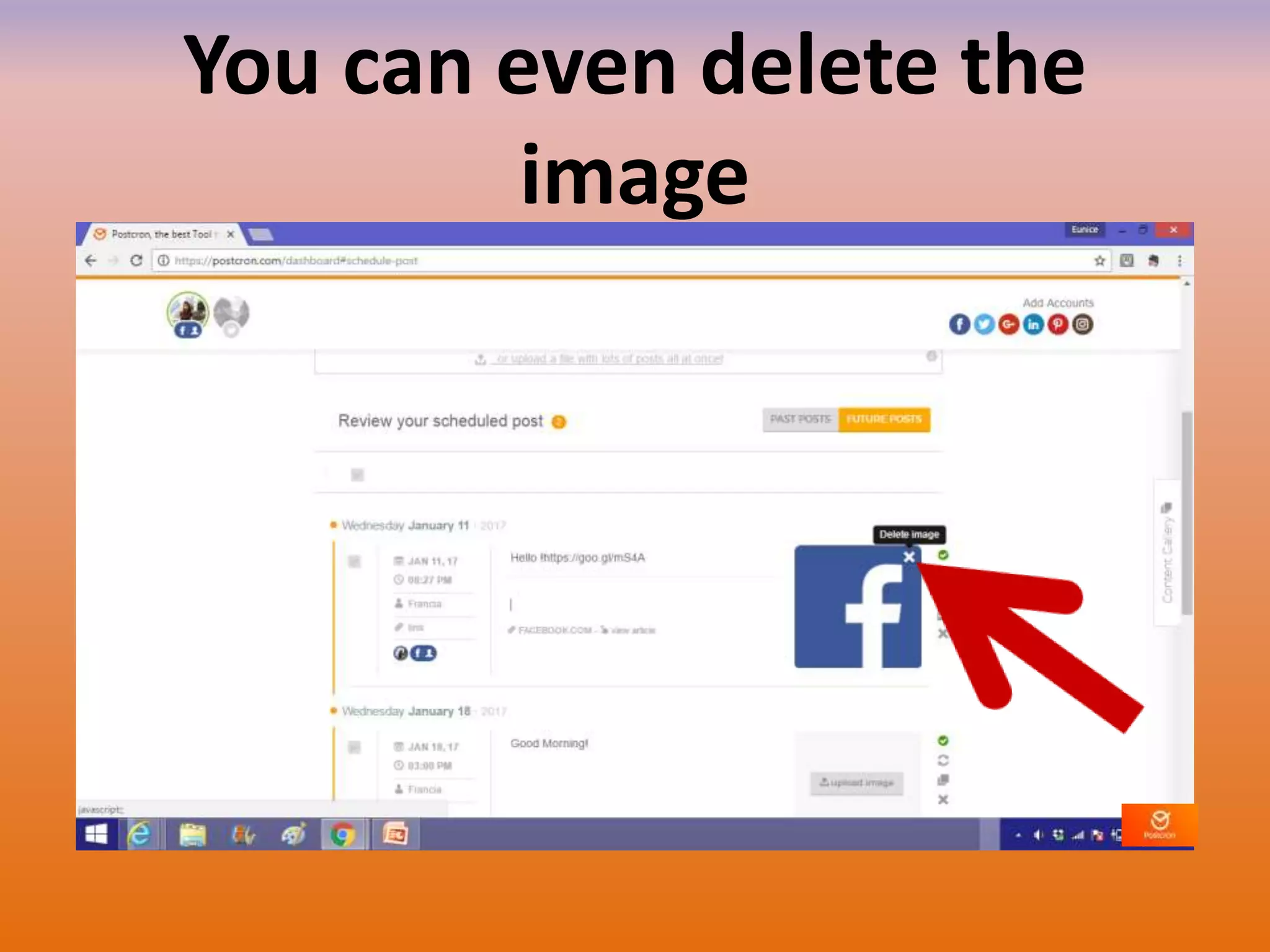
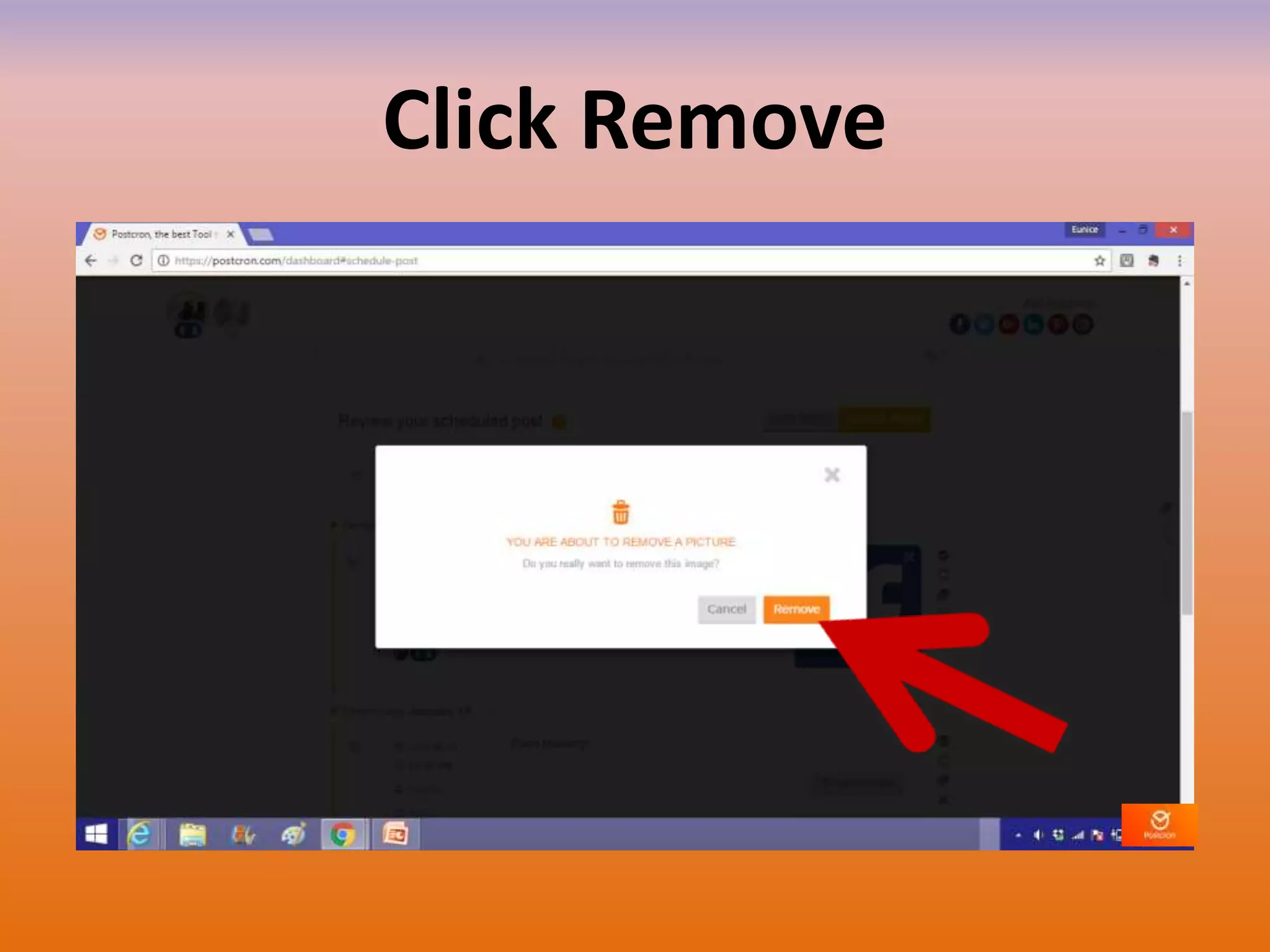
You can even delete the
image
Click Remove
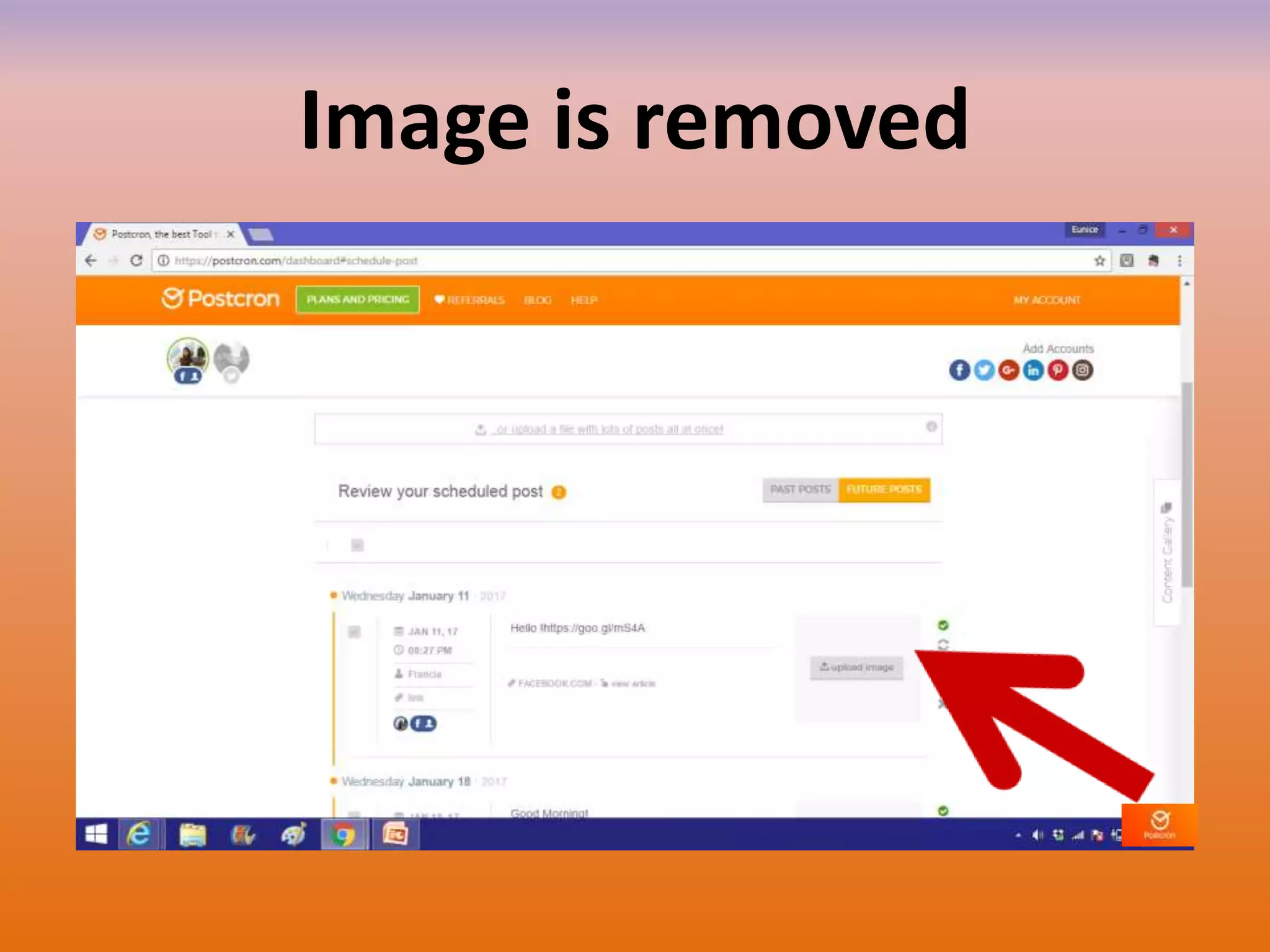
Image is removed
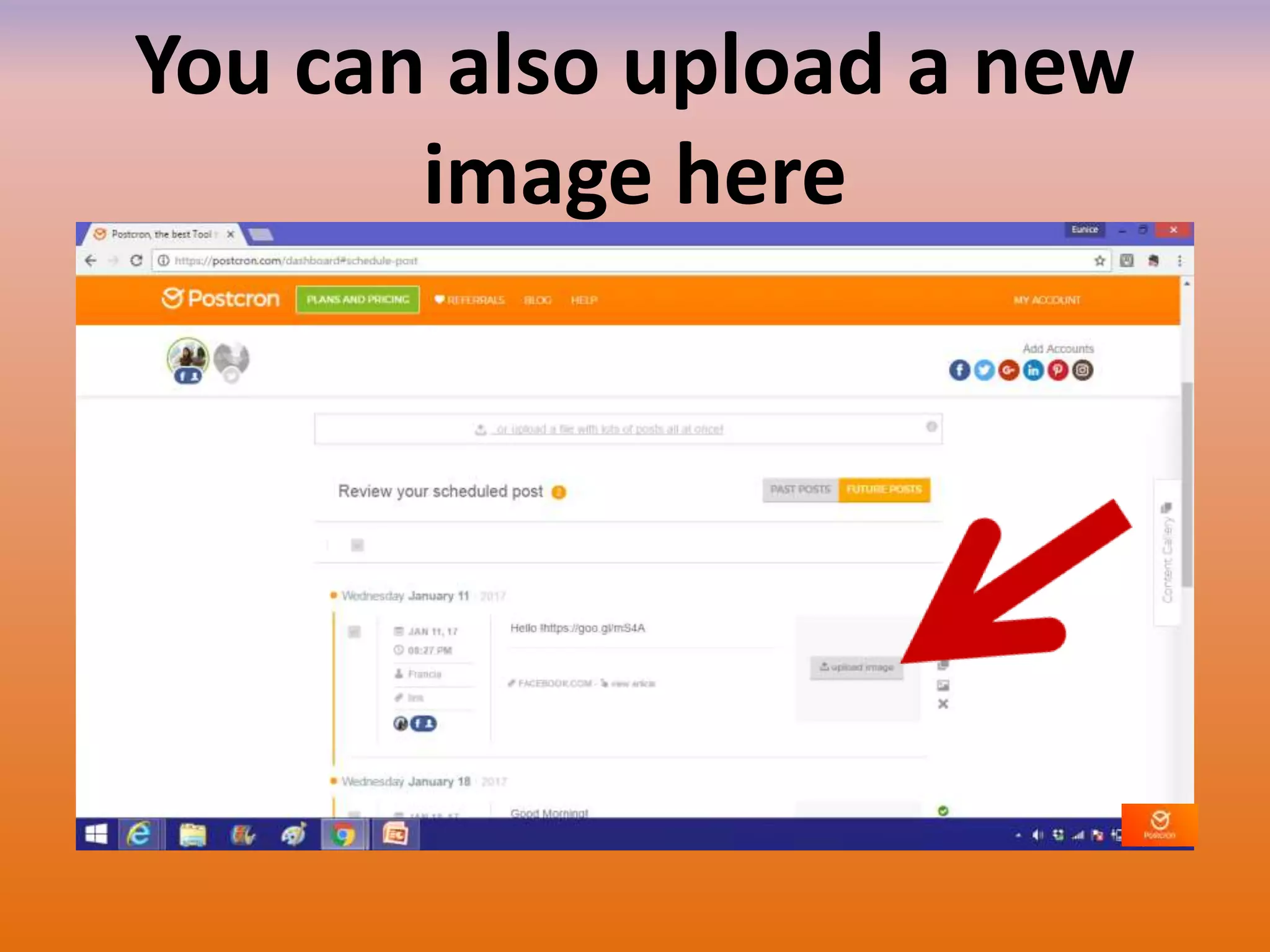
You can also upload a new
image here
Great! Now you can start
scheduling your posts using
Postcron
“Action is the foundational
key to all success.”
- PABLO PICASSO

How to use Postcron to schedule your posts on social media