How to
use
Hootsuite
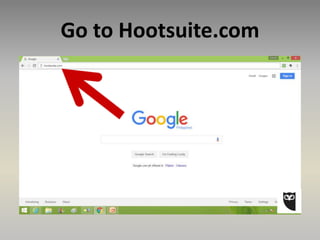
Go to Hootsuite.com
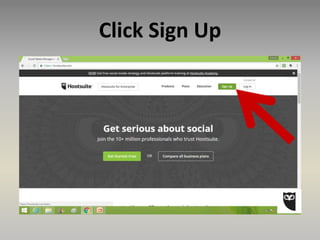
Click Sign Up
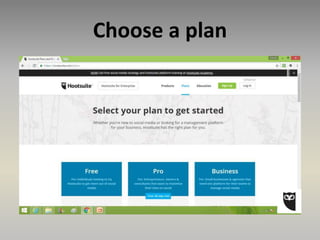
Choose a plan
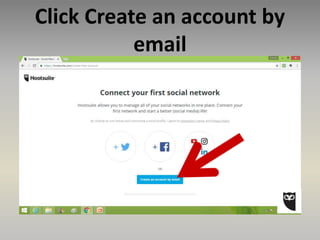
Click Create an account by
email
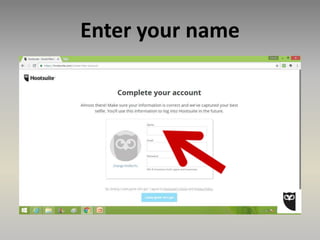
Enter your name
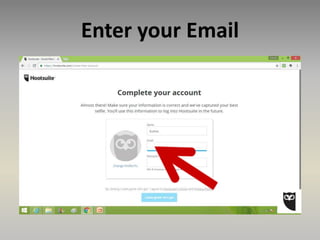
Enter your Email
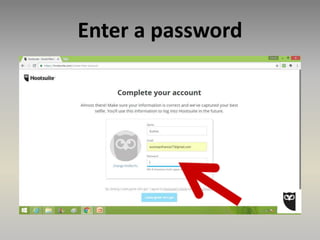
Enter a password
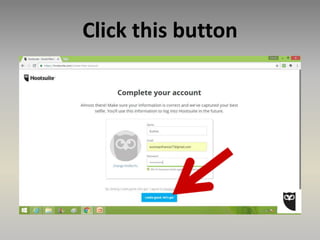
Click this button
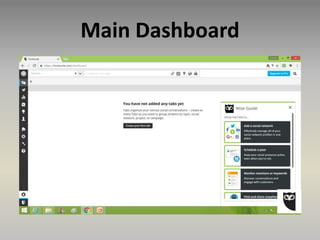
Main Dashboard
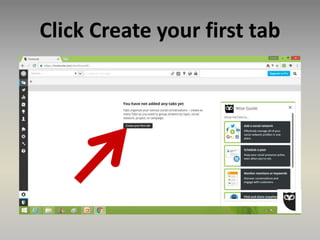
Let’s create a tab
Click Create your first tab
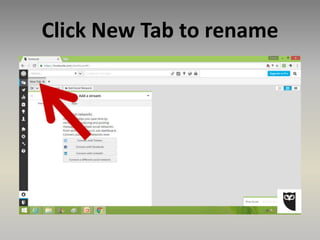
Click New Tab to rename
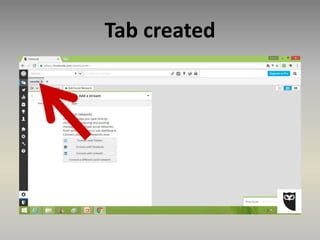
Tab created
Now we can start adding a
stream
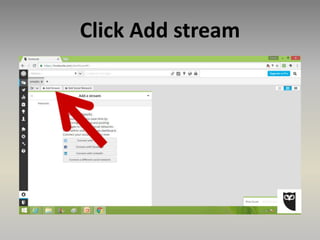
Click Add stream
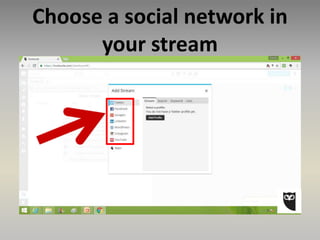
Choose a social network in
your stream
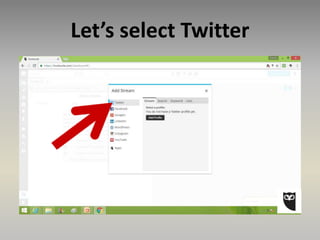
Let’s select Twitter
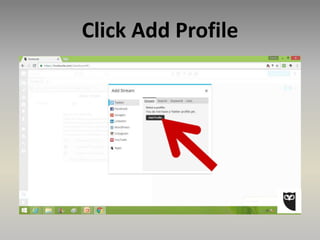
Click Add Profile
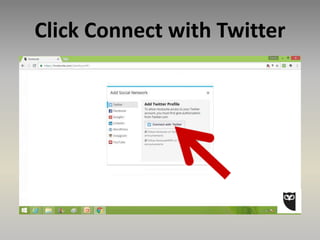
Click Connect with Twitter
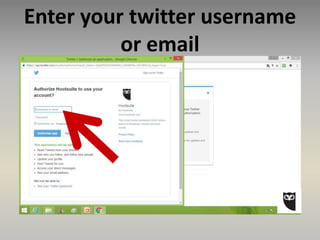
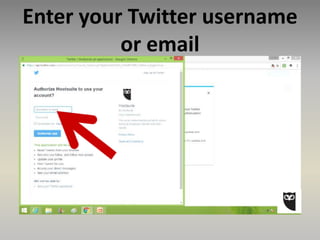
Enter your twitter username
or email
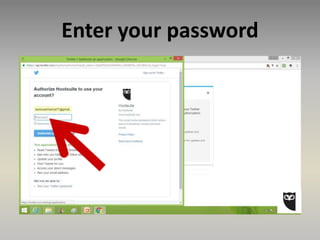
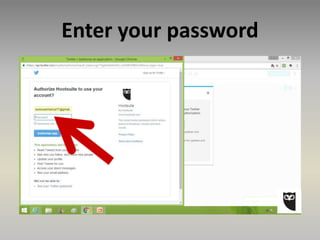
Enter your password
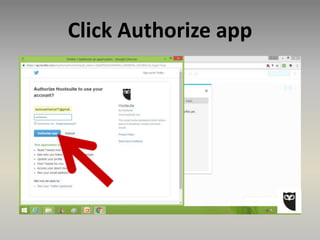
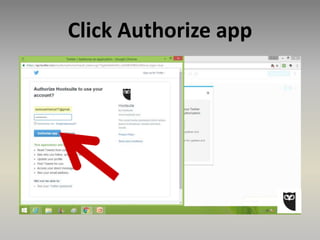
Click Authorize app
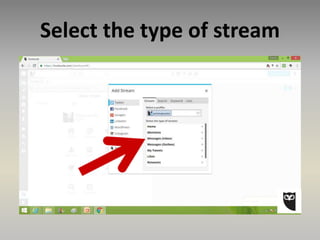
Select the type of stream
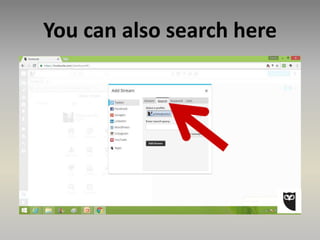
You can also search here
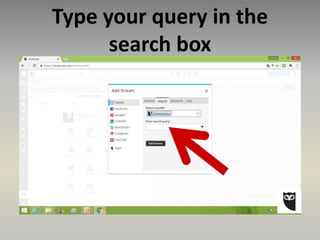
Type your query in the
search box
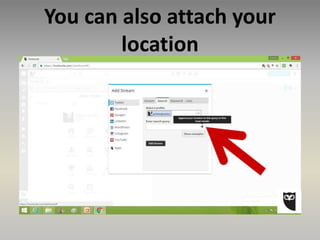
You can also attach your
location
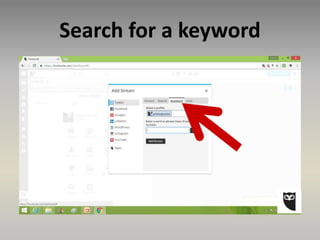
Search for a keyword
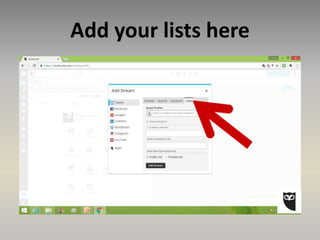
Add your lists here
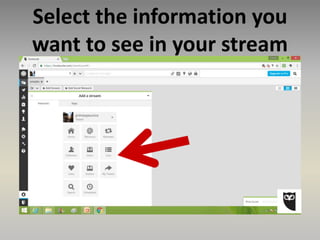
Select the information you
want to see in your stream
Adding Facebook
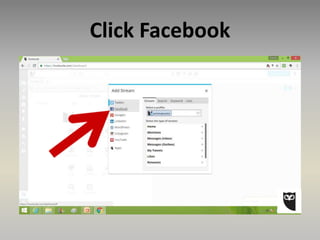
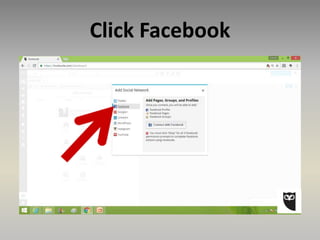
Click Facebook
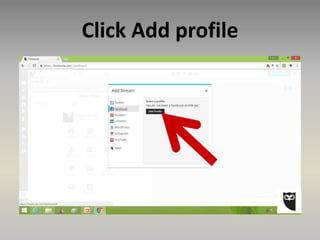
Click Add profile
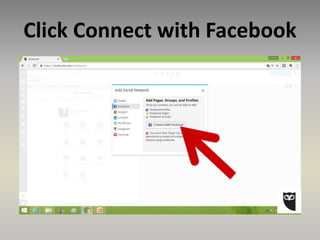
Click Connect with Facebook
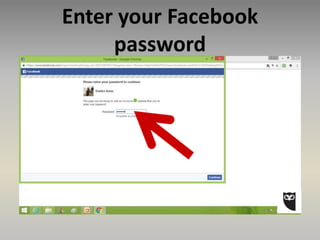
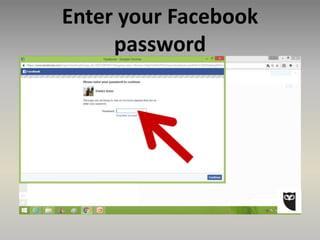
Enter your Facebook
password
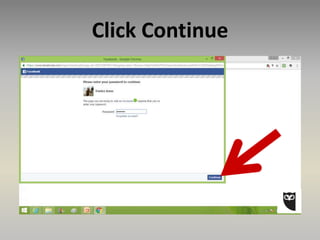
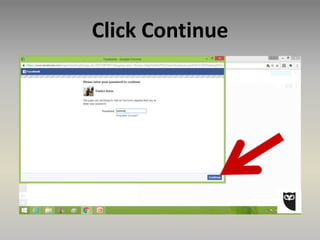
Click Continue
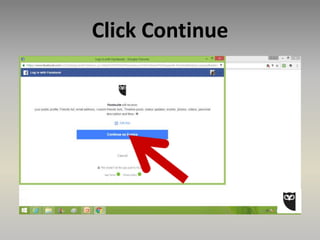
Click Continue
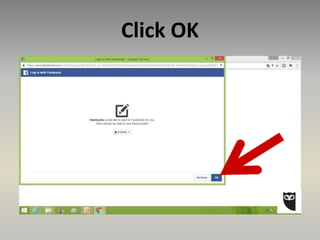
Click OK
Click OK
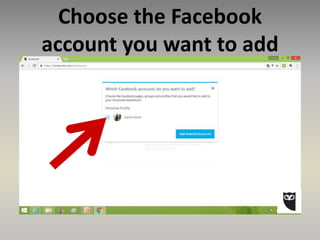
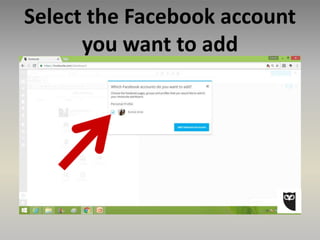
Choose the Facebook
account you want to add
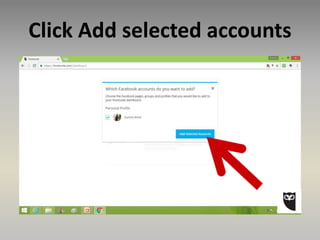
Click Add selected accounts
Adding Instagram
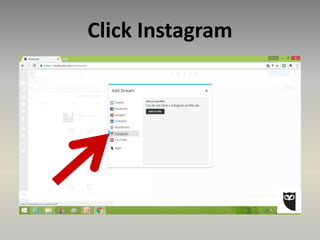
Click Instagram
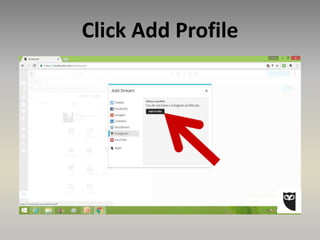
Click Add Profile
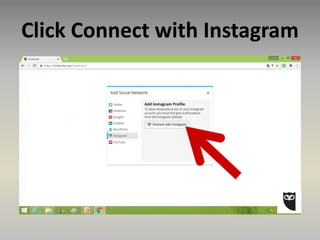
Click Connect with Instagram
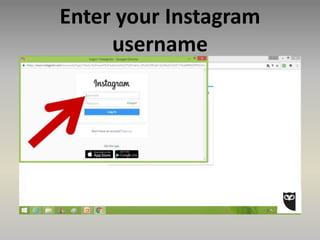
Enter your Instagram
username
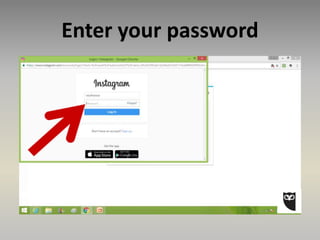
Enter your password
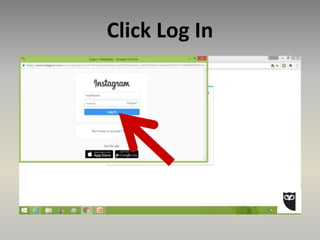
Click Log In
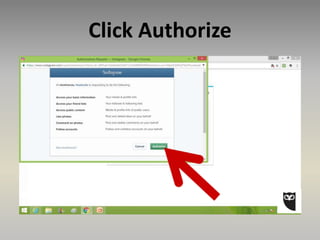
Click Authorize
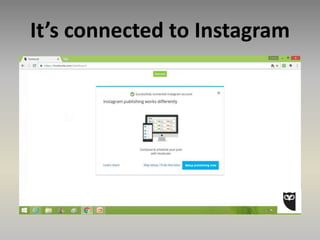
It’s connected to Instagram
Let’s check the accounts we
added
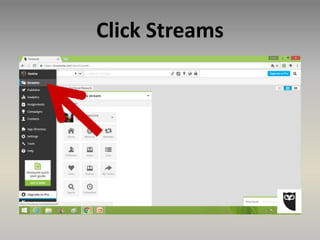
Click Streams
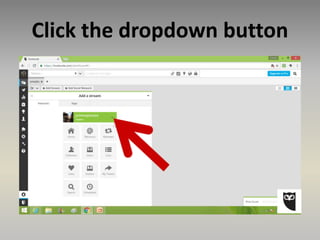
Click the dropdown button
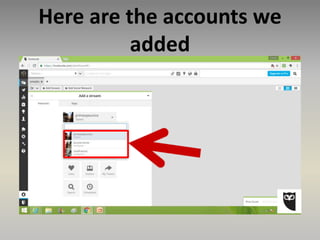
Here are the accounts we
added
To add social network
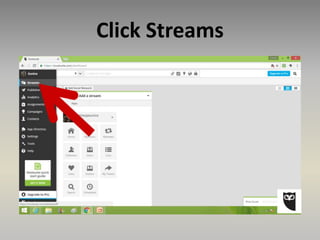
Click Streams
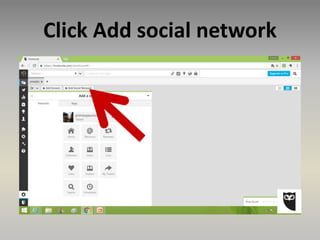
Click Add social network
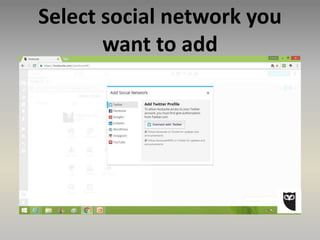
Select social network you
want to add
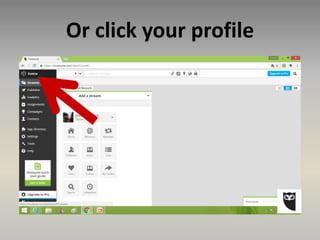
Or click your profile
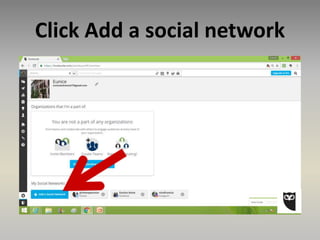
Click Add a social network
Let’s add Twitter
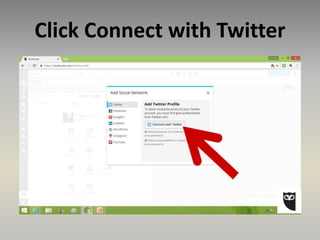
Click Connect with Twitter
Enter your Twitter username
or email
Enter your password
Click Authorize app
Adding Facebook
Click Facebook
Click Connect with Facebook
Enter your Facebook
password
Click Continue
Select the Facebook account
you want to add
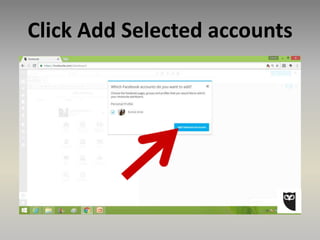
Click Add Selected accounts
Then do the same with
other social media
accounts
Let’s add information in
our stream
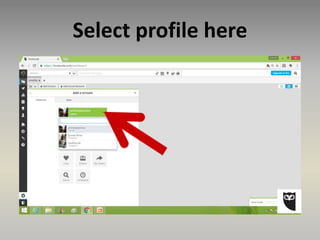
Select profile here
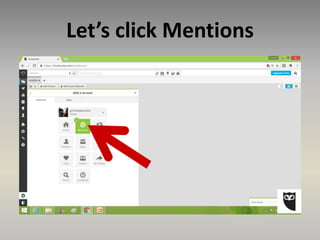
Let’s click Mentions
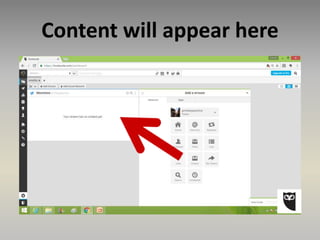
Content will appear here
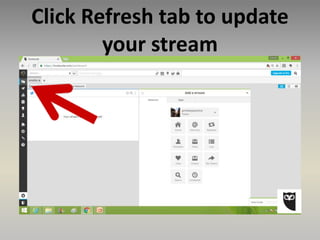
Click Refresh tab to update
your stream
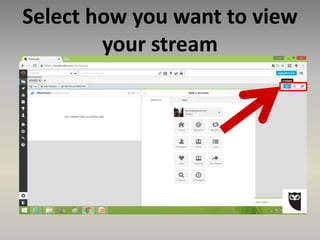
Select how you want to view
your stream
How to schedule posts in
Hootsuite
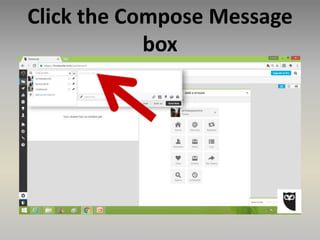
Click the Compose Message
box
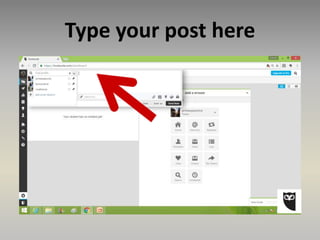
Type your post here
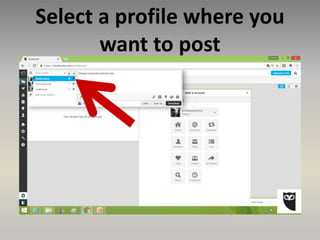
Select a profile where you
want to post
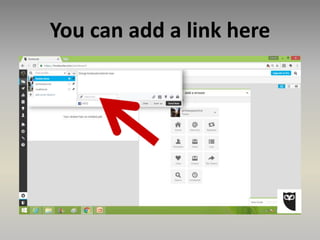
You can add a link here
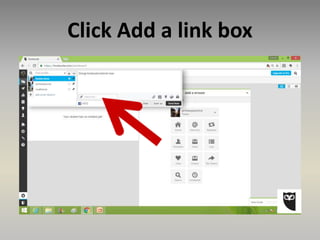
Click Add a link box
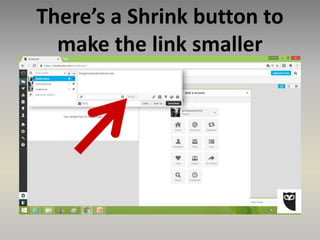
There’s a Shrink button to
make the link smaller
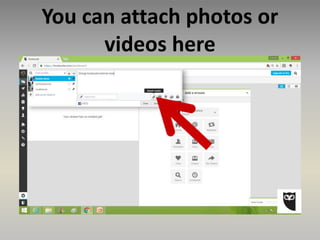
You can attach photos or
videos here
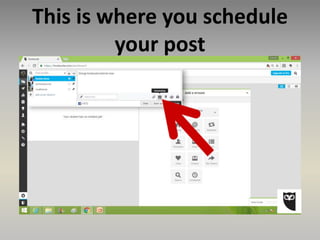
This is where you schedule
your post
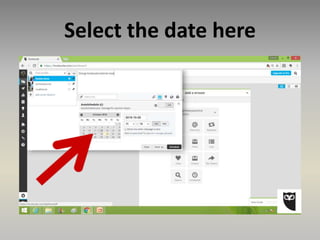
Select the date here
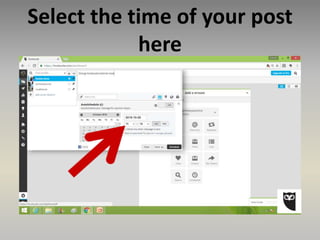
Select the time of your post
here
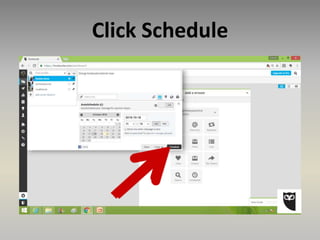
Click Schedule
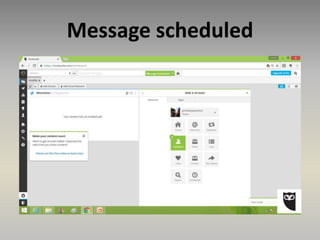
Message scheduled
Let’s check our scheduled
post
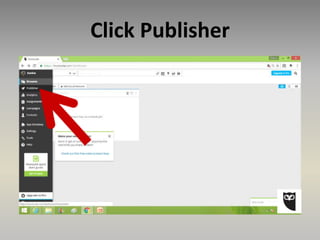
Click Publisher
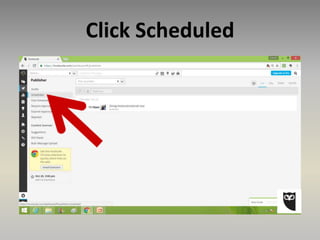
Click Scheduled
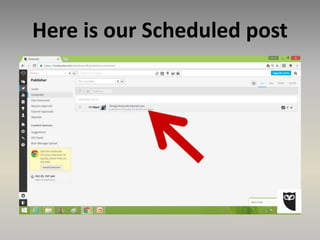
Here is our Scheduled post
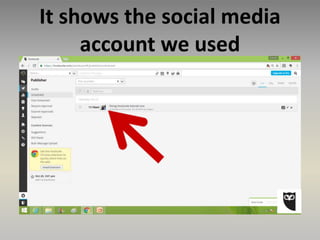
It shows the social media
account we used
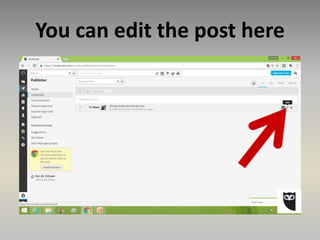
You can edit the post here
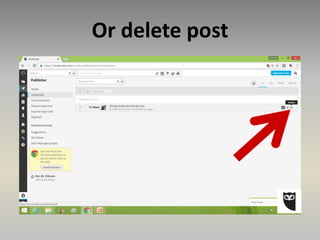
Or delete post
To post a single message to
multiple social networks
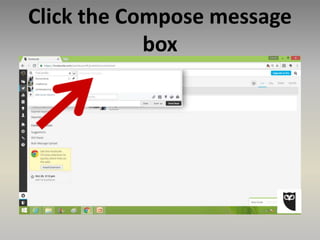
Click the Compose message
box
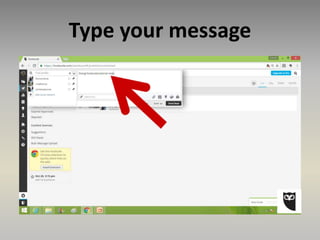
Type your message
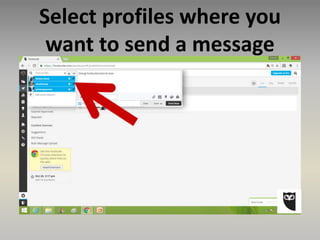
Select profiles where you
want to send a message
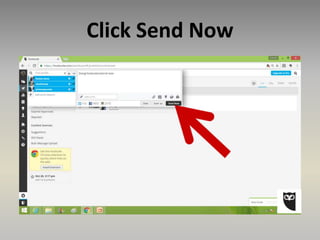
Click Send Now
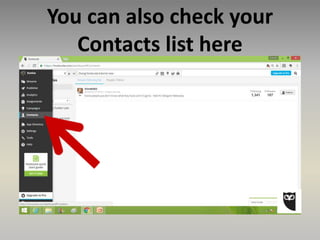
You can also check your
Contacts list here
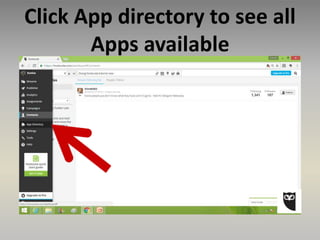
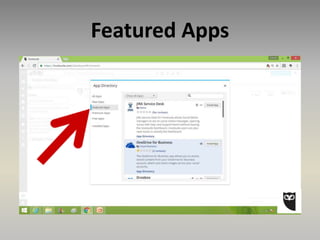
Click App directory to see all
Apps available
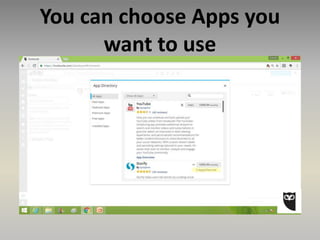
You can choose Apps you
want to use
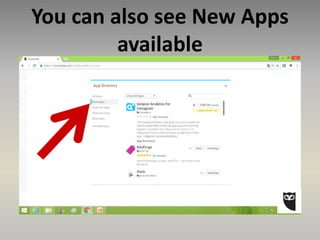
You can also see New Apps
available
Featured Apps
Awesome! Now go ahead
and start applying what
you’ve learned
“The biggest
adventure you can
take is to live the
life of your dreams.”
- Oprah Winfrey

How to use Hootsuite