How to Make  a Website Here are instructions on how to make a website. Your title should replace the above title and your introduction will replace this text.
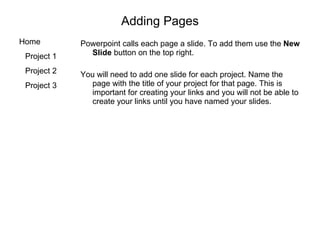
Adding Pages Powerpoint calls each page a slide. To add them use the  New Slide  button on the top right. You will need to add one slide for each project. Name the page with the title of your project for that page. This is important for creating your links and you will not be able to create your links until you have named your slides.
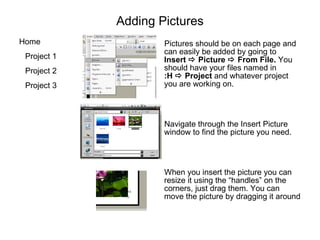
Adding Pictures Pictures should be on each page and can easily be added by going to  Insert     Picture    From File.  You should have your files named in   :H    Project  and whatever project you are working on. Navigate through the Insert Picture window to find the picture you need.  When you insert the picture you can resize it using the “handles” on the corners, just drag them. You can move the picture by dragging it around
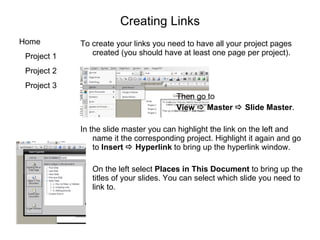
Creating Links To create your links you need to have all your project pages created (you should have at least one page per project). Then go to  View    Master    Slide Master . In the slide master you can highlight the link on the left and name it the corresponding project. Highlight it again and go to  Insert    Hyperlink  to bring up the hyperlink window. On the left select  Places in This Document  to bring up the titles of your slides. You can select which slide you need to link to.
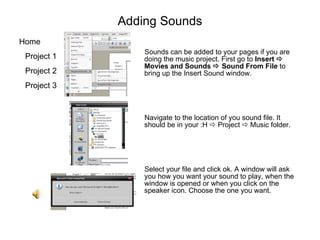
Adding Sounds Sounds can be added to your pages if you are doing the music project. First go to  Insert    Movies and Sounds    Sound From File  to bring up the Insert Sound window.  Navigate to the location of you sound file. It should be in your :H    Project    Music folder. Select your file and click ok. A window will ask you how you want your sound to play, when the window is opened or when you click on the speaker icon. Choose the one you want.
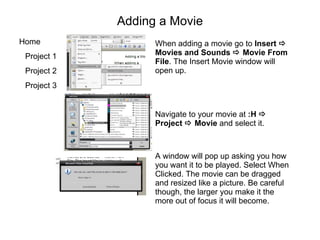
Adding a Movie When adding a movie go to  Insert    Movies and Sounds    Movie From File . The Insert Movie window will open up.  Navigate to your movie at  :H    Project    Movie  and select it.  A window will pop up asking you how you want it to be played. Select When Clicked. The movie can be dragged and resized like a picture. Be careful though, the larger you make it the more out of focus it will become.

How To Make A Website

  • 1.
    How to Make a Website Here are instructions on how to make a website. Your title should replace the above title and your introduction will replace this text.
  • 2.
    Adding Pages Powerpointcalls each page a slide. To add them use the New Slide button on the top right. You will need to add one slide for each project. Name the page with the title of your project for that page. This is important for creating your links and you will not be able to create your links until you have named your slides.
  • 3.
    Adding Pictures Picturesshould be on each page and can easily be added by going to Insert  Picture  From File. You should have your files named in :H  Project and whatever project you are working on. Navigate through the Insert Picture window to find the picture you need. When you insert the picture you can resize it using the “handles” on the corners, just drag them. You can move the picture by dragging it around
  • 4.
    Creating Links Tocreate your links you need to have all your project pages created (you should have at least one page per project). Then go to View  Master  Slide Master . In the slide master you can highlight the link on the left and name it the corresponding project. Highlight it again and go to Insert  Hyperlink to bring up the hyperlink window. On the left select Places in This Document to bring up the titles of your slides. You can select which slide you need to link to.
  • 5.
    Adding Sounds Soundscan be added to your pages if you are doing the music project. First go to Insert  Movies and Sounds  Sound From File to bring up the Insert Sound window. Navigate to the location of you sound file. It should be in your :H  Project  Music folder. Select your file and click ok. A window will ask you how you want your sound to play, when the window is opened or when you click on the speaker icon. Choose the one you want.
  • 6.
    Adding a MovieWhen adding a movie go to Insert  Movies and Sounds  Movie From File . The Insert Movie window will open up. Navigate to your movie at :H  Project  Movie and select it. A window will pop up asking you how you want it to be played. Select When Clicked. The movie can be dragged and resized like a picture. Be careful though, the larger you make it the more out of focus it will become.