Creating a Production Company Logo - Part 2
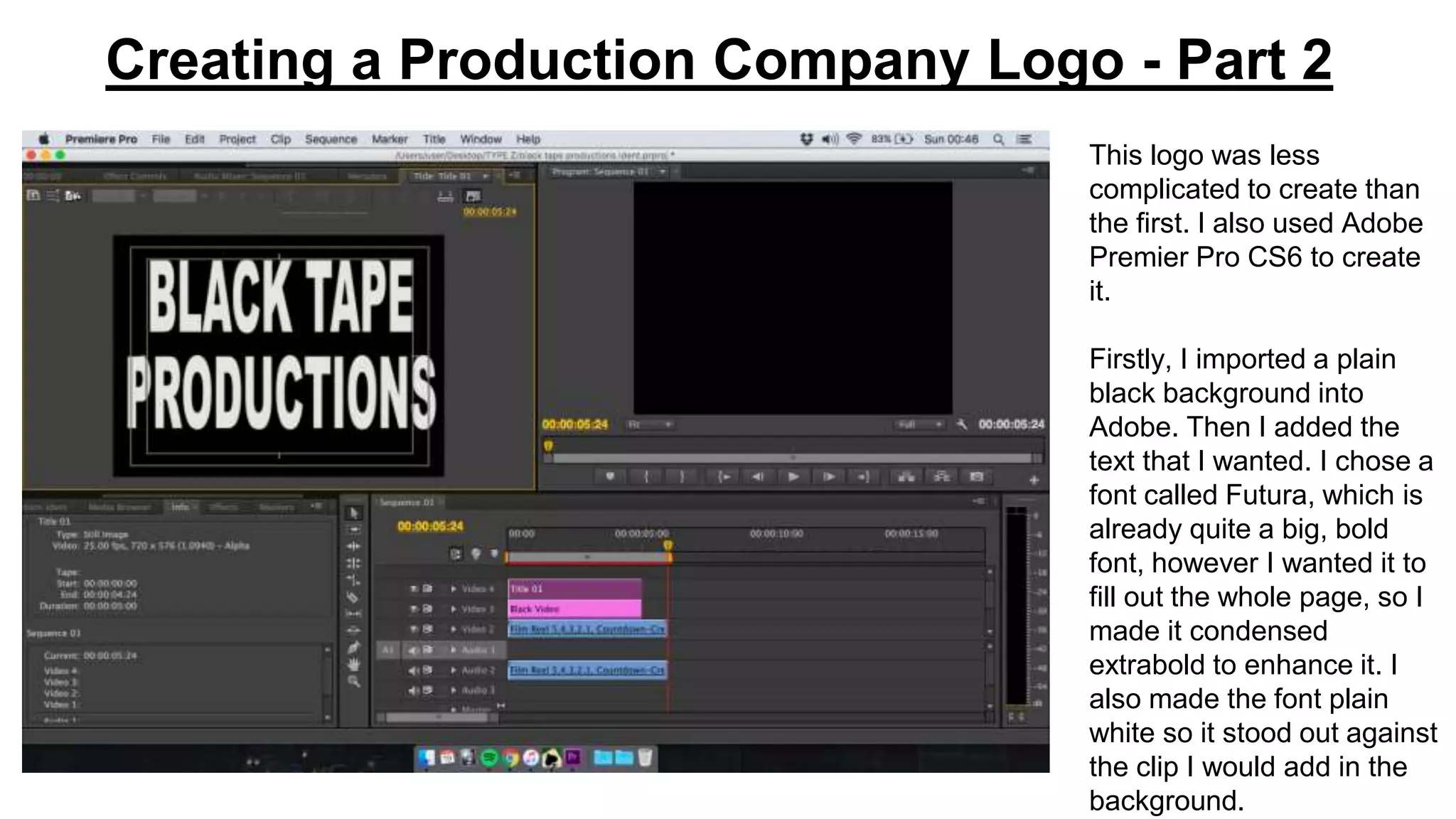
This logo was less
complicated to create than
the first. I also used Adobe
Premier Pro CS6 to create
it.
Firstly, I imported a plain
black background into
Adobe. Then I added the
text that I wanted. I chose a
font called Futura, which is
already quite a big, bold
font, however I wanted it to
fill out the whole page, so I
made it condensed
extrabold to enhance it. I
also made the font plain
white so it stood out against
the clip I would add in the
background.
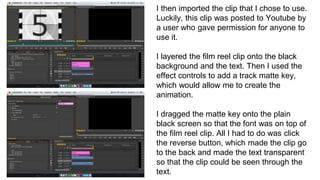
I then imported the clip that I chose to use.
Luckily, this clip was posted to Youtube by
a user who gave permission for anyone to
use it.
I layered the film reel clip onto the black
background and the text. Then I used the
effect controls to add a track matte key,
which would allow me to create the
animation.
I dragged the matte key onto the plain
black screen so that the font was on top of
the film reel clip. All I had to do was click
the reverse button, which made the clip go
to the back and made the text transparent
so that the clip could be seen through the
text.
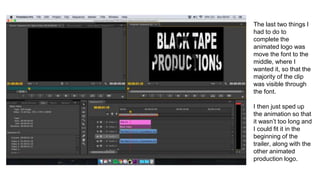
The last two things I
had to do to
complete the
animated logo was
move the font to the
middle, where I
wanted it, so that the
majority of the clip
was visible through
the font.
I then just sped up
the animation so that
it wasn’t too long and
I could fit it in the
beginning of the
trailer, along with the
other animated
production logo.

Black Tape Productions

  • 1.
    Creating a ProductionCompany Logo - Part 2 This logo was less complicated to create than the first. I also used Adobe Premier Pro CS6 to create it. Firstly, I imported a plain black background into Adobe. Then I added the text that I wanted. I chose a font called Futura, which is already quite a big, bold font, however I wanted it to fill out the whole page, so I made it condensed extrabold to enhance it. I also made the font plain white so it stood out against the clip I would add in the background.
  • 2.
    I then importedthe clip that I chose to use. Luckily, this clip was posted to Youtube by a user who gave permission for anyone to use it. I layered the film reel clip onto the black background and the text. Then I used the effect controls to add a track matte key, which would allow me to create the animation. I dragged the matte key onto the plain black screen so that the font was on top of the film reel clip. All I had to do was click the reverse button, which made the clip go to the back and made the text transparent so that the clip could be seen through the text.
  • 3.
    The last twothings I had to do to complete the animated logo was move the font to the middle, where I wanted it, so that the majority of the clip was visible through the font. I then just sped up the animation so that it wasn’t too long and I could fit it in the beginning of the trailer, along with the other animated production logo.