






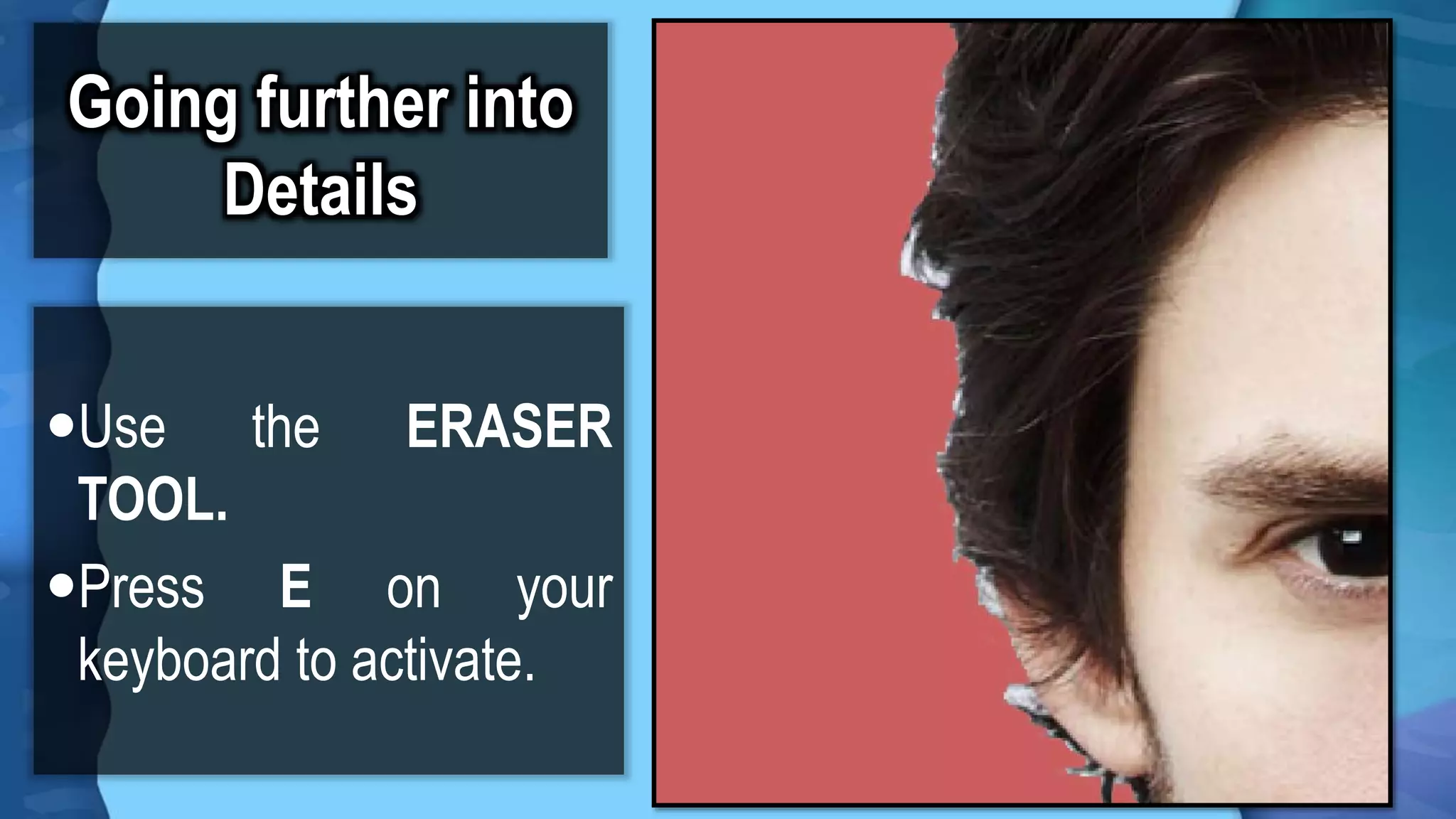
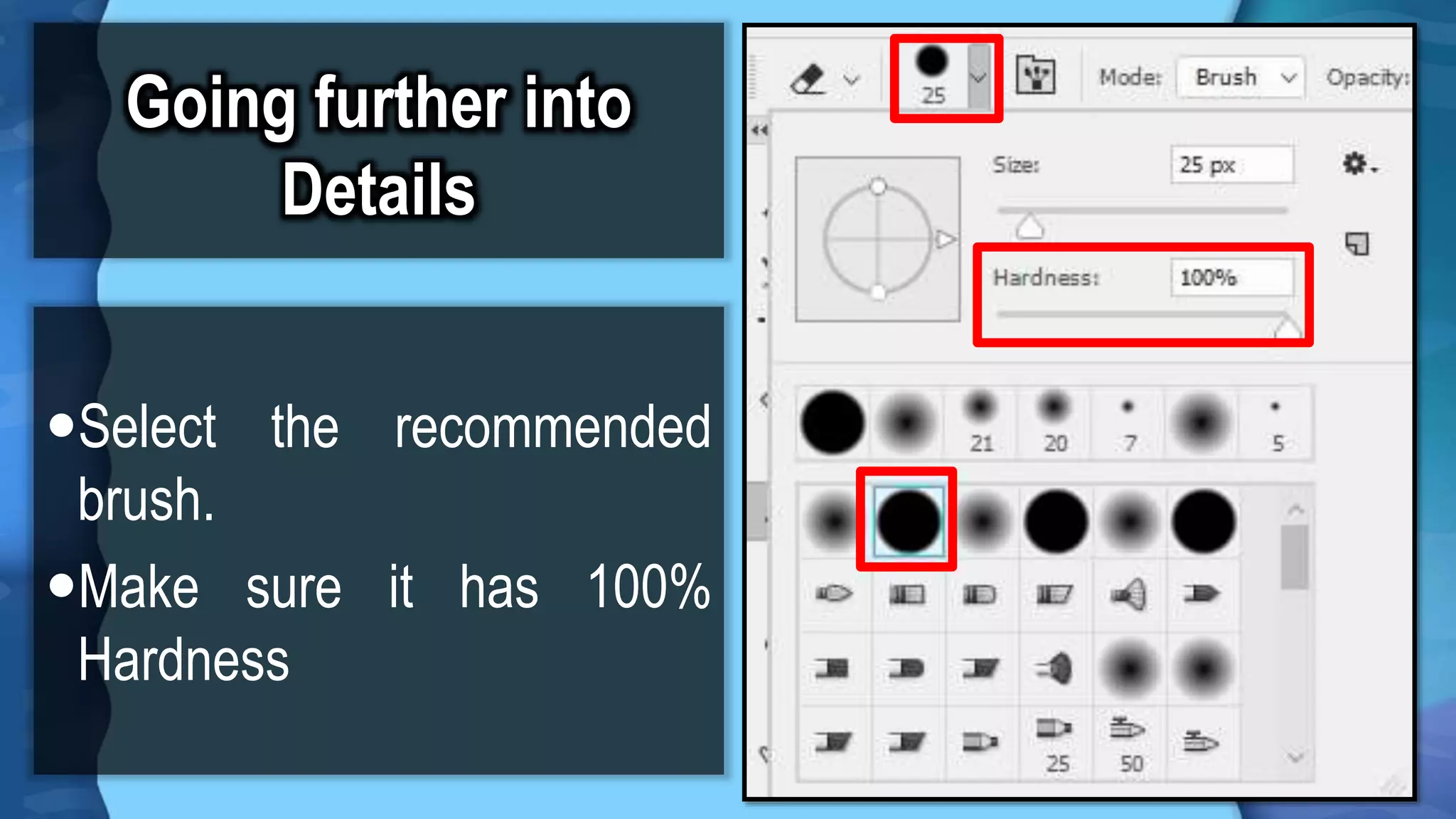
![Going further into
Details
Click the Image Layer
Click and Drag the areas you
want to erase.
Press the following to change
brush size.
[ = Minimize
] = Maximize](https://image.slidesharecdn.com/14-howtoeditinphotoshoppart1-171126131917/75/How-to-Edit-in-Photoshop-Part-1-Inserting-Cropping-and-Fixing-Images-30-2048.jpg)

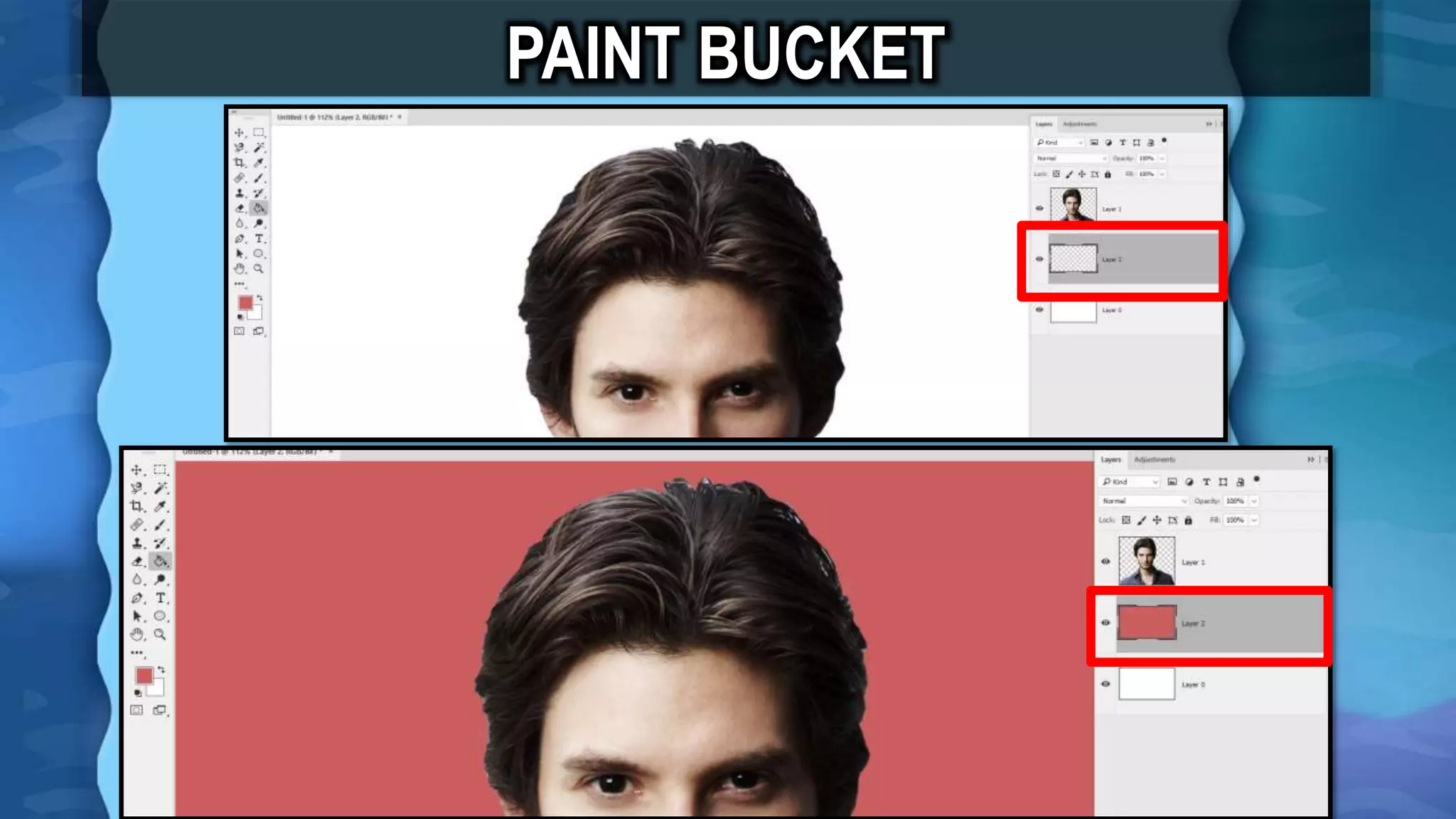
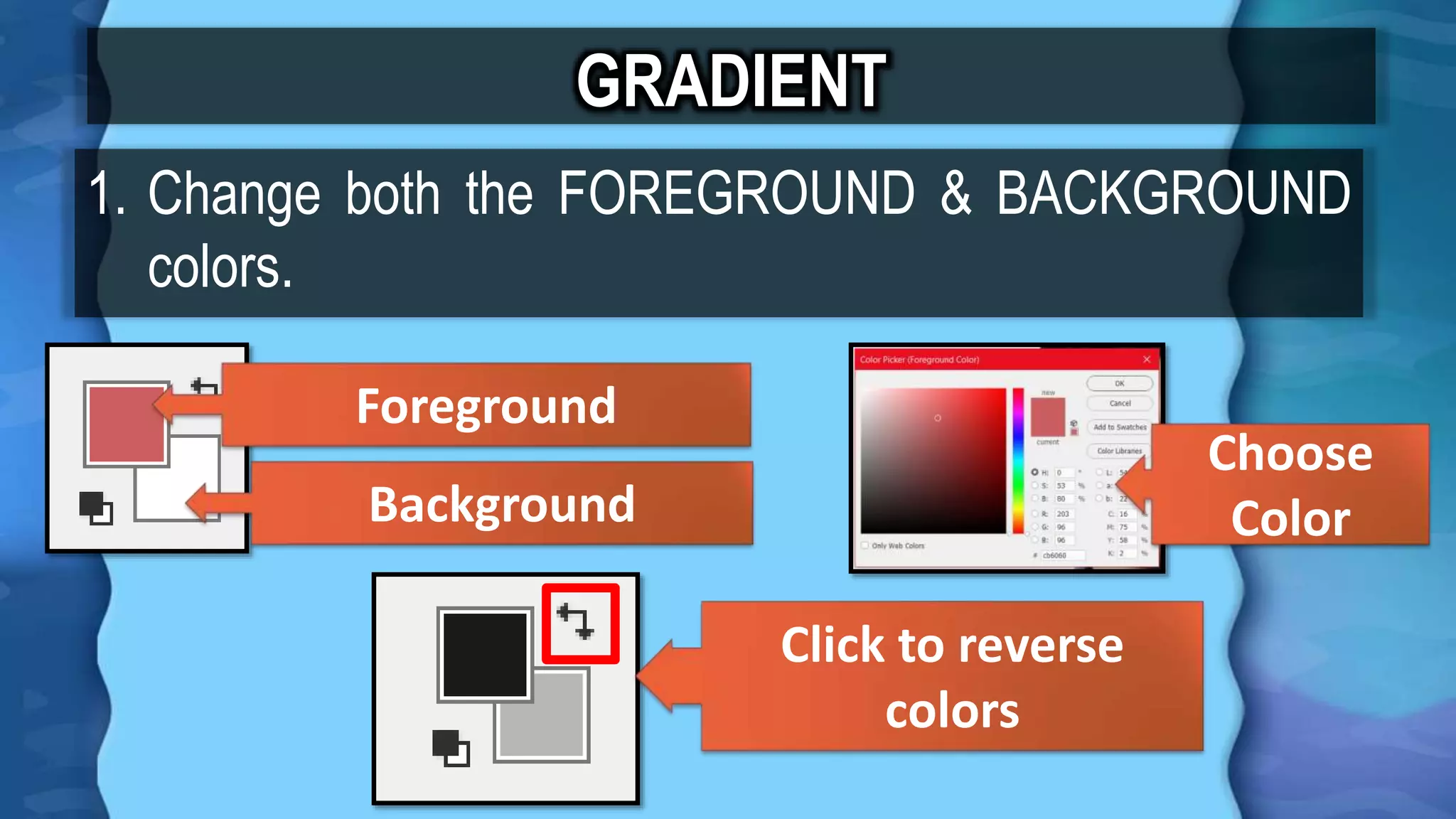
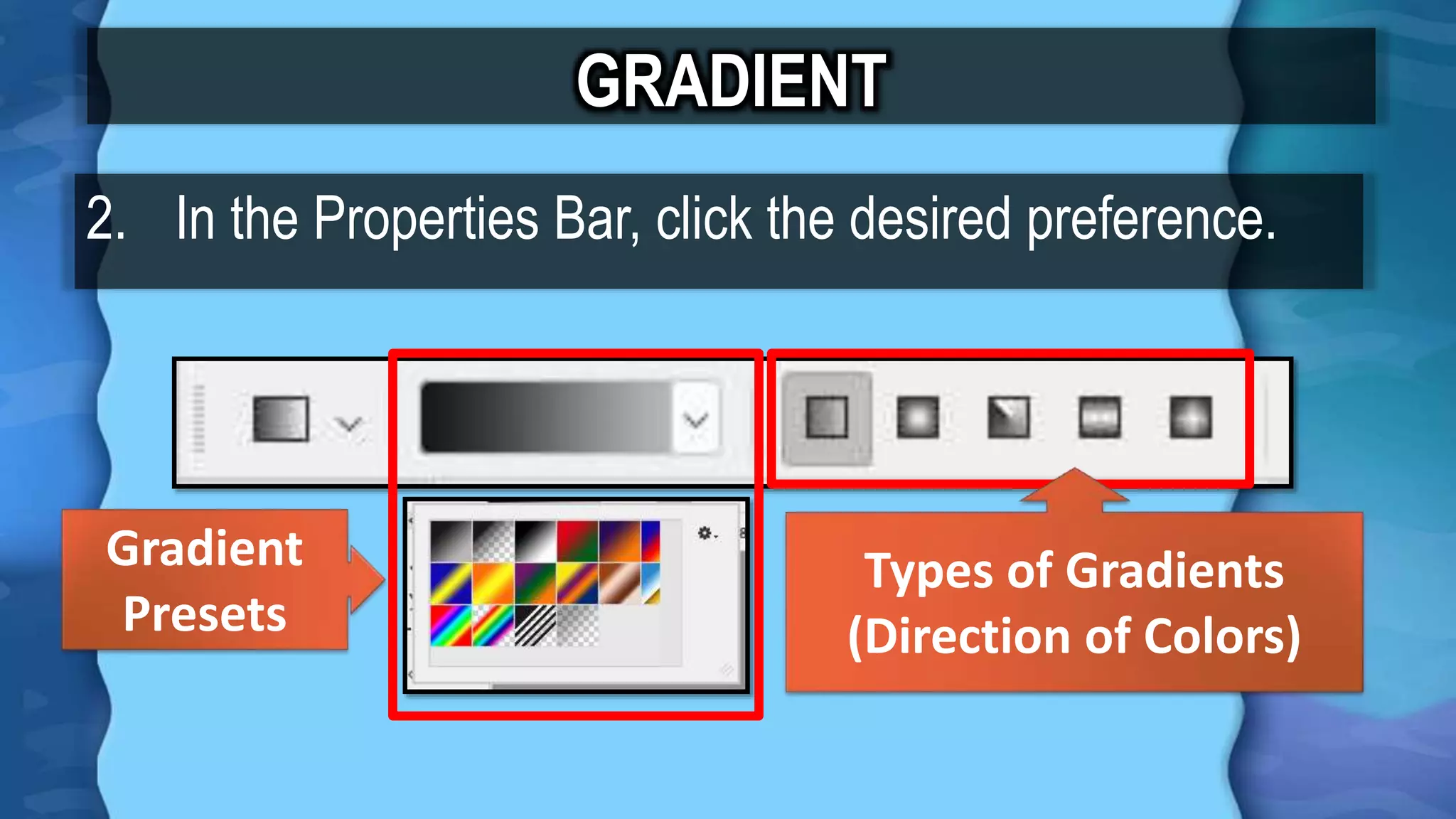
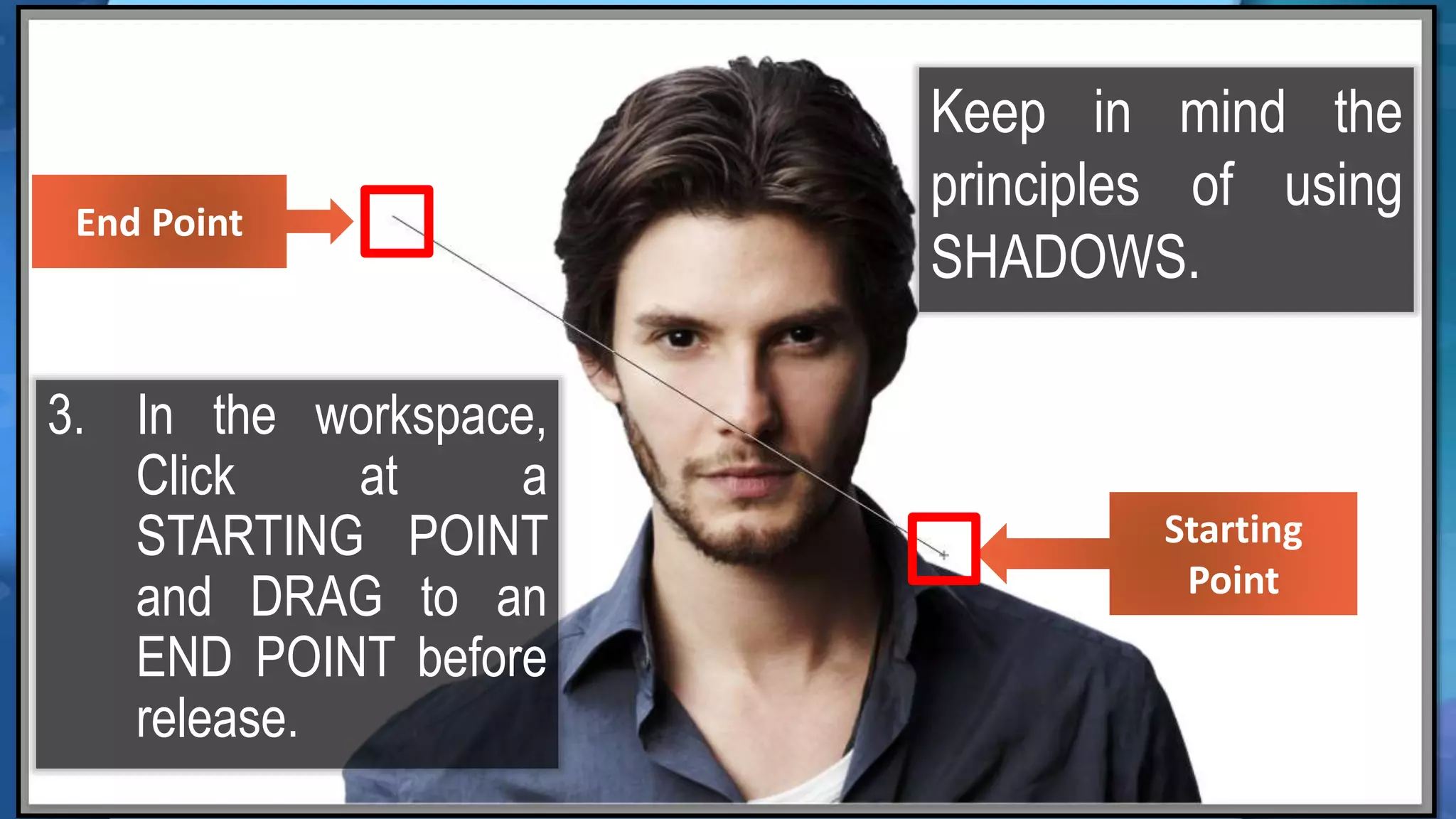




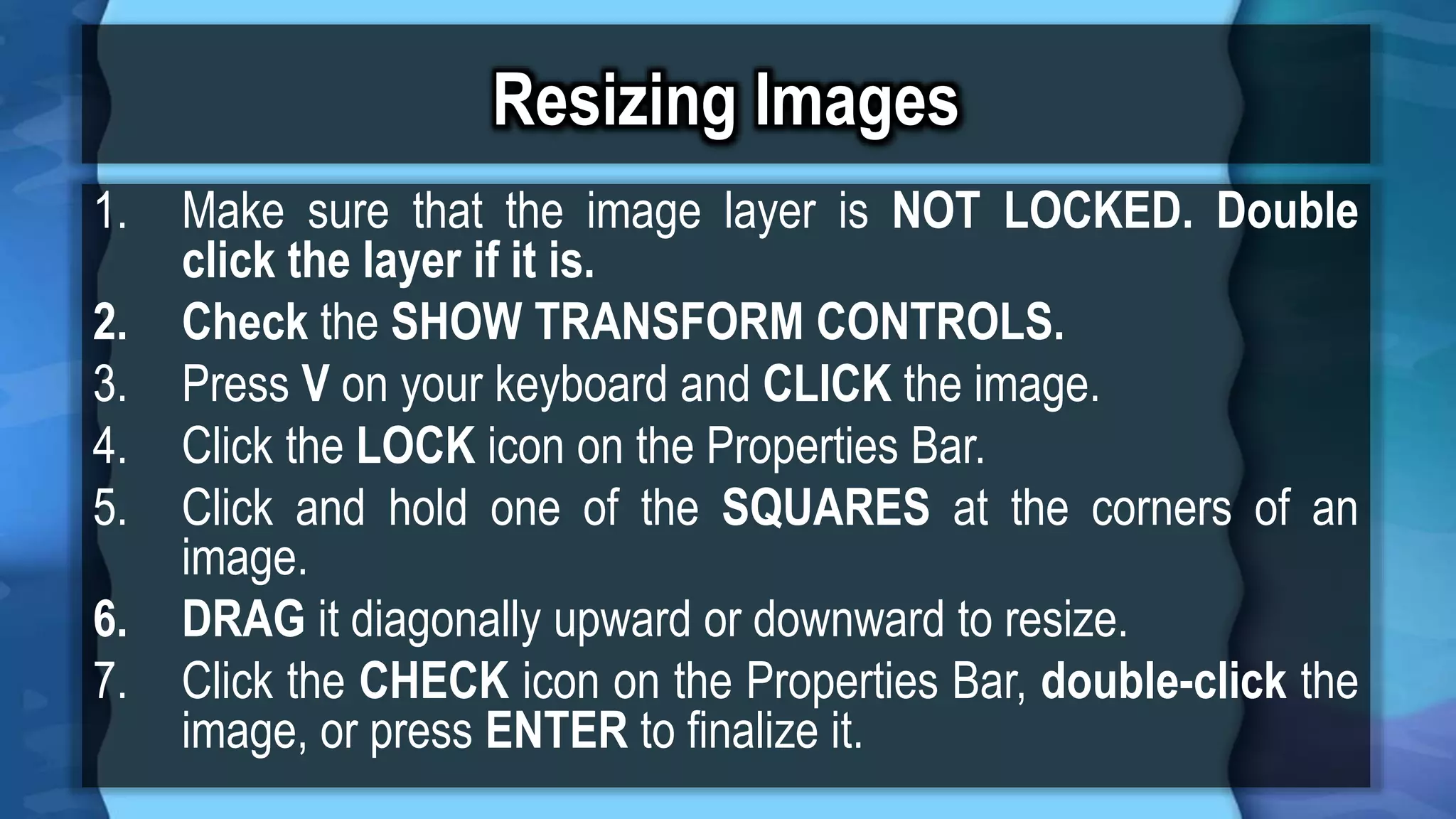
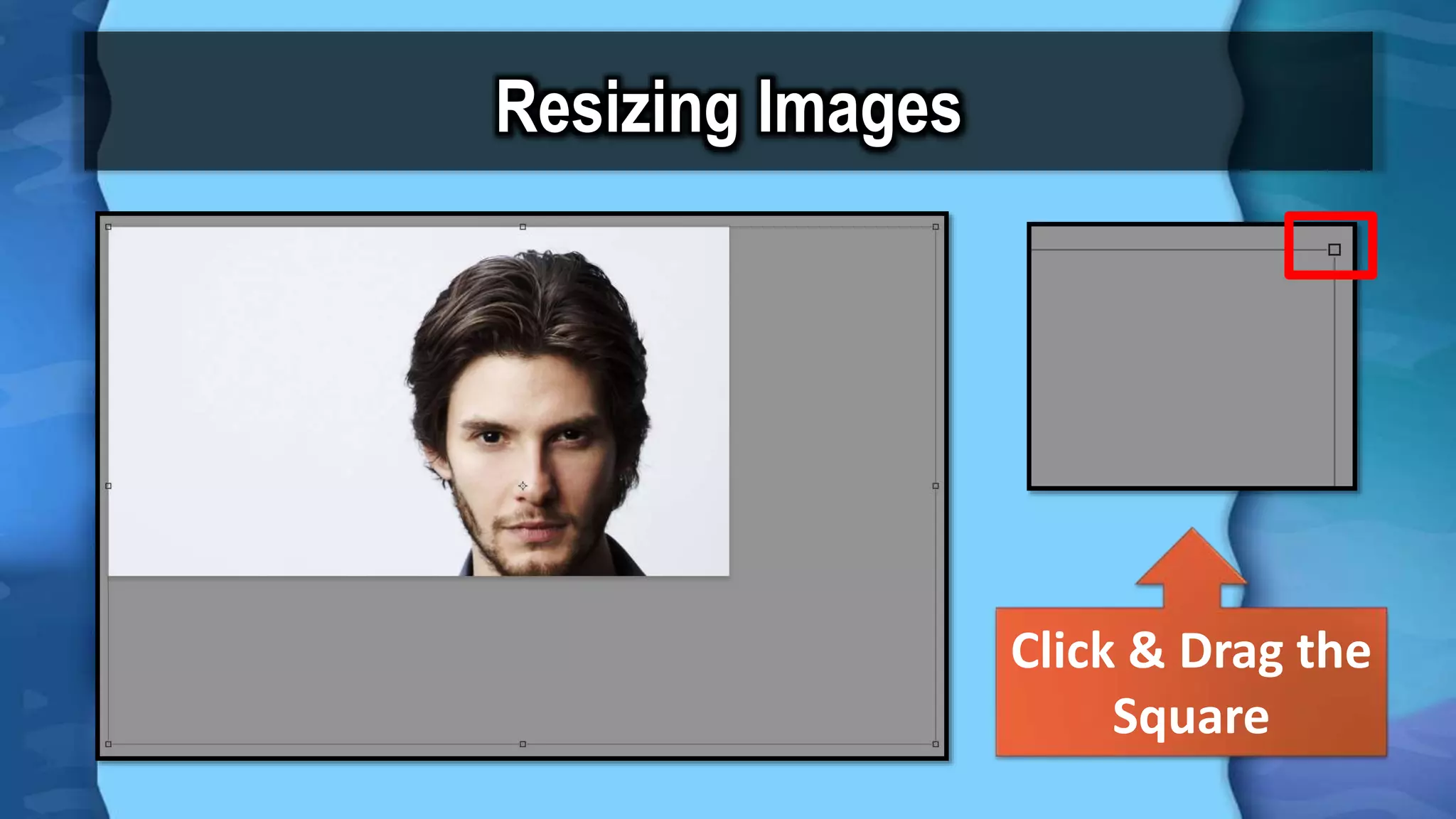
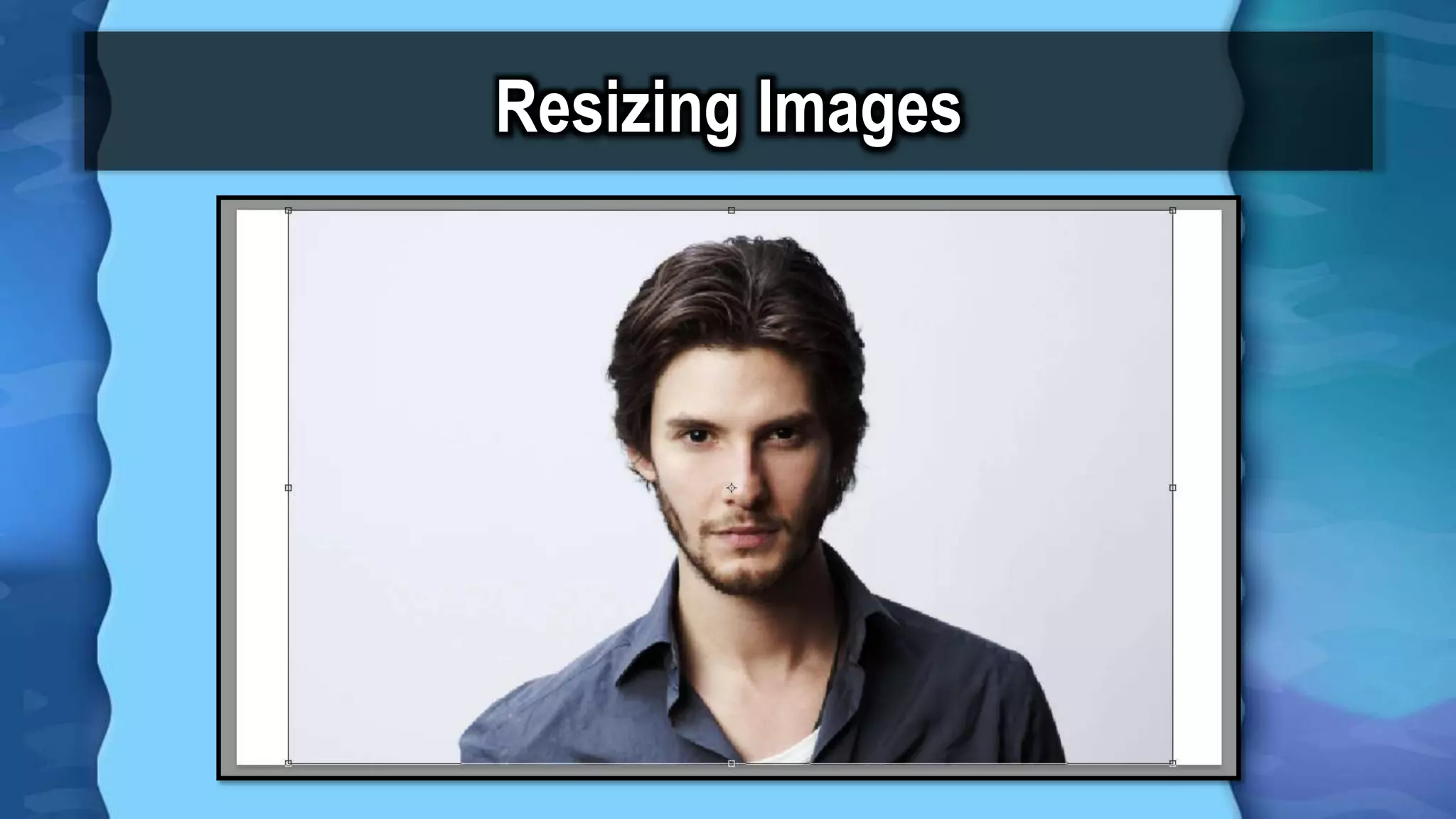
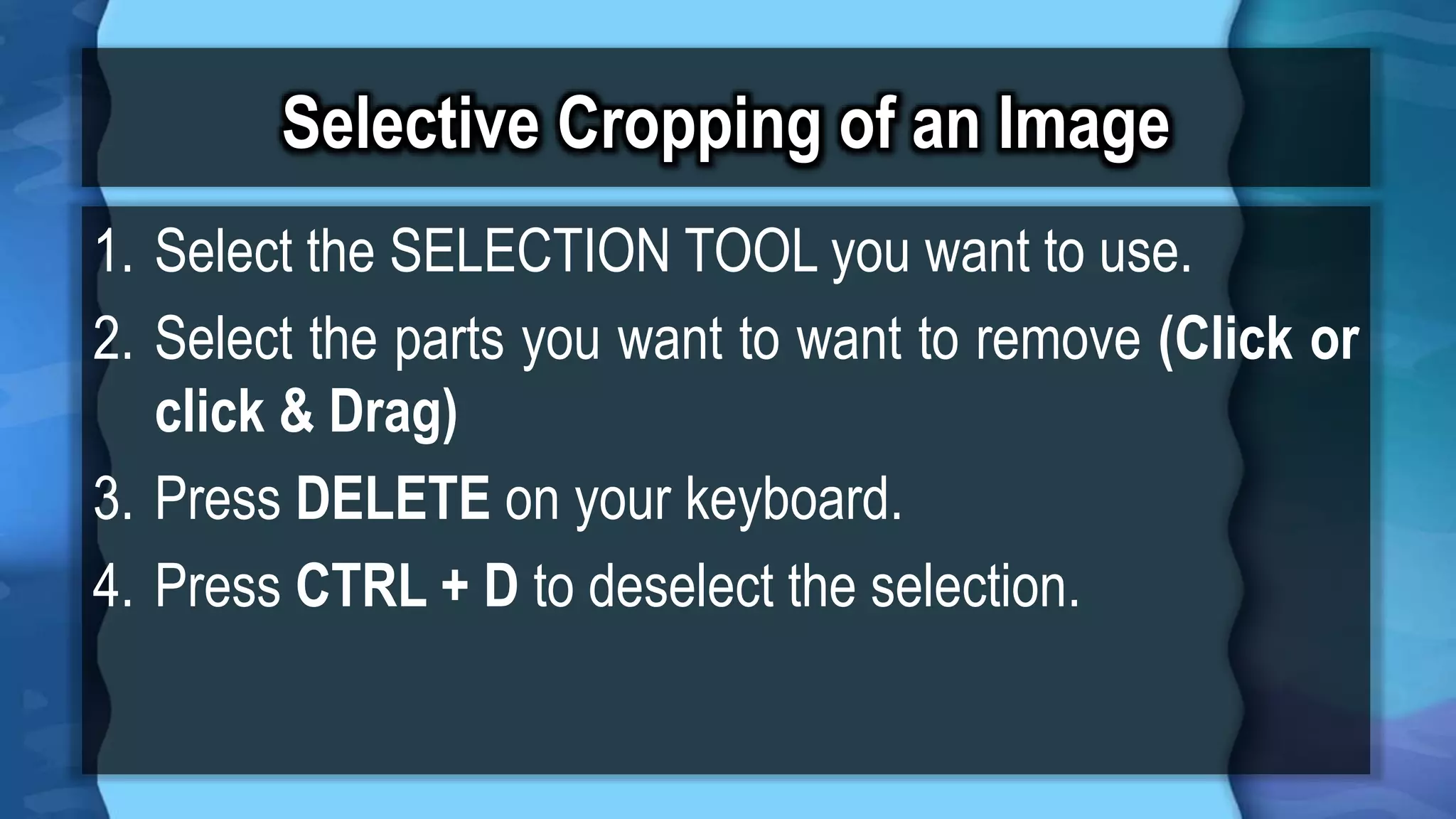
This document provides instructions for basic image manipulation techniques in Photoshop, including inserting images, resizing images, cropping images, changing backgrounds, and fixing imperfections. It outlines steps for setting up the Photoshop workspace and toolbar panels. Instructions are provided on how to open and drag/drop images, resize images using transform controls, and selectively crop images using different selection tools. Details are also given on erasing parts of images and changing backgrounds by adding new layers and using the paint bucket or gradient tool.
Introduction to Ayame Productions and their focus on Empowerment Technologies.
Overview of the presentation topic on how to edit in Photoshop.
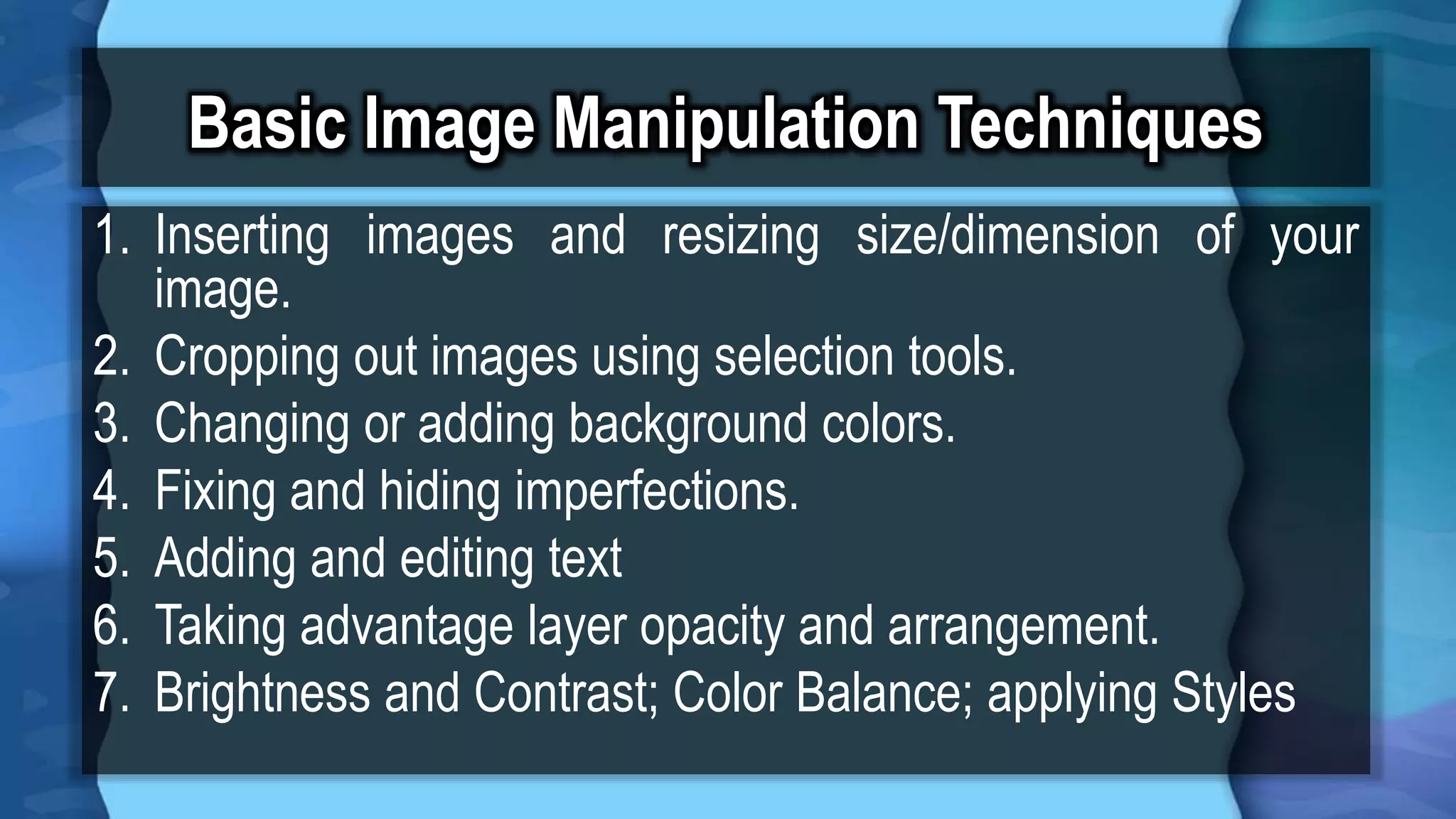
Key techniques for image editing in Photoshop: inserting, cropping, editing, and adjusting images.
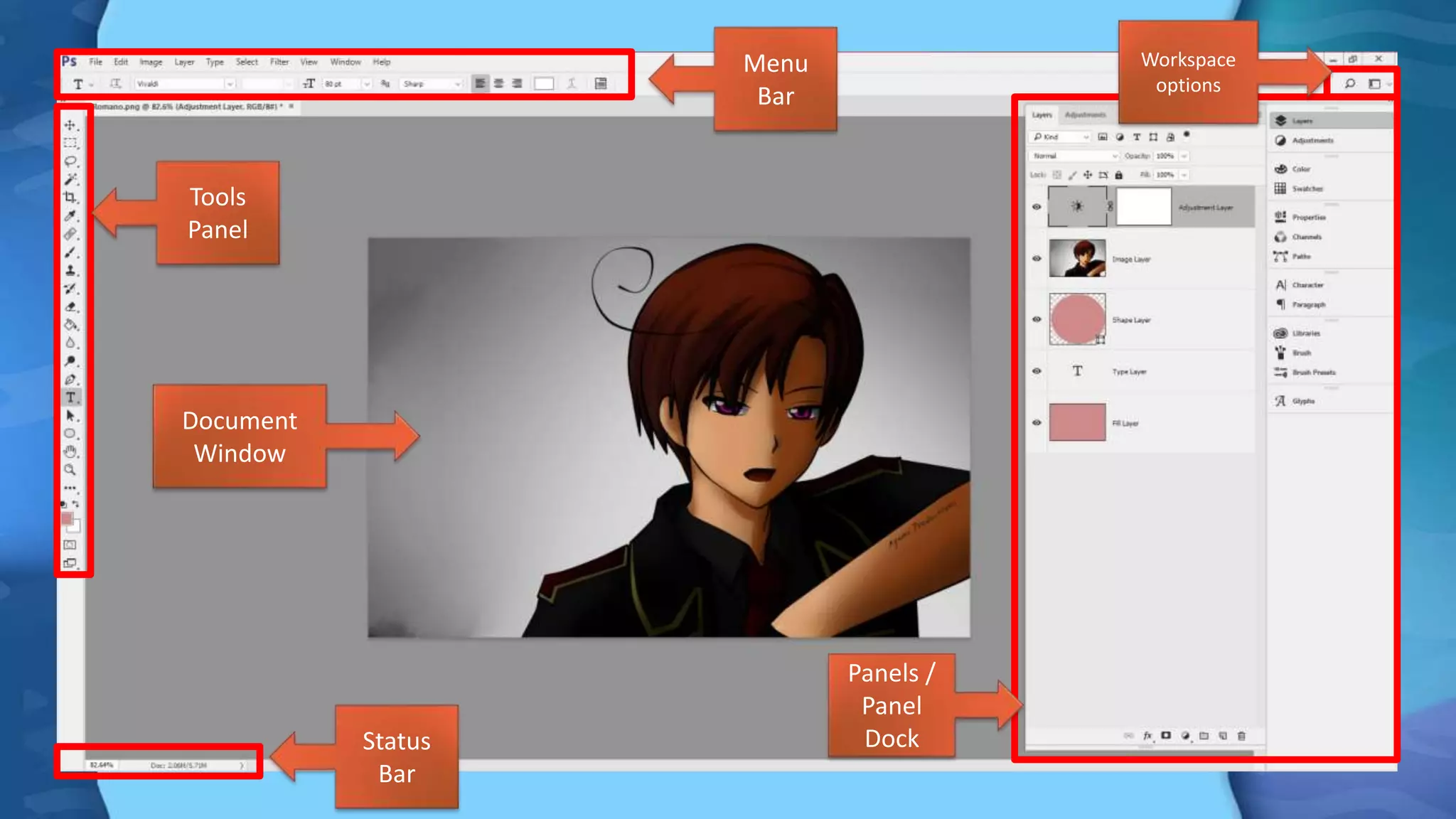
Introduction to various components of the Photoshop interface including Menu Bar, Tools Panel, and Workspace options.
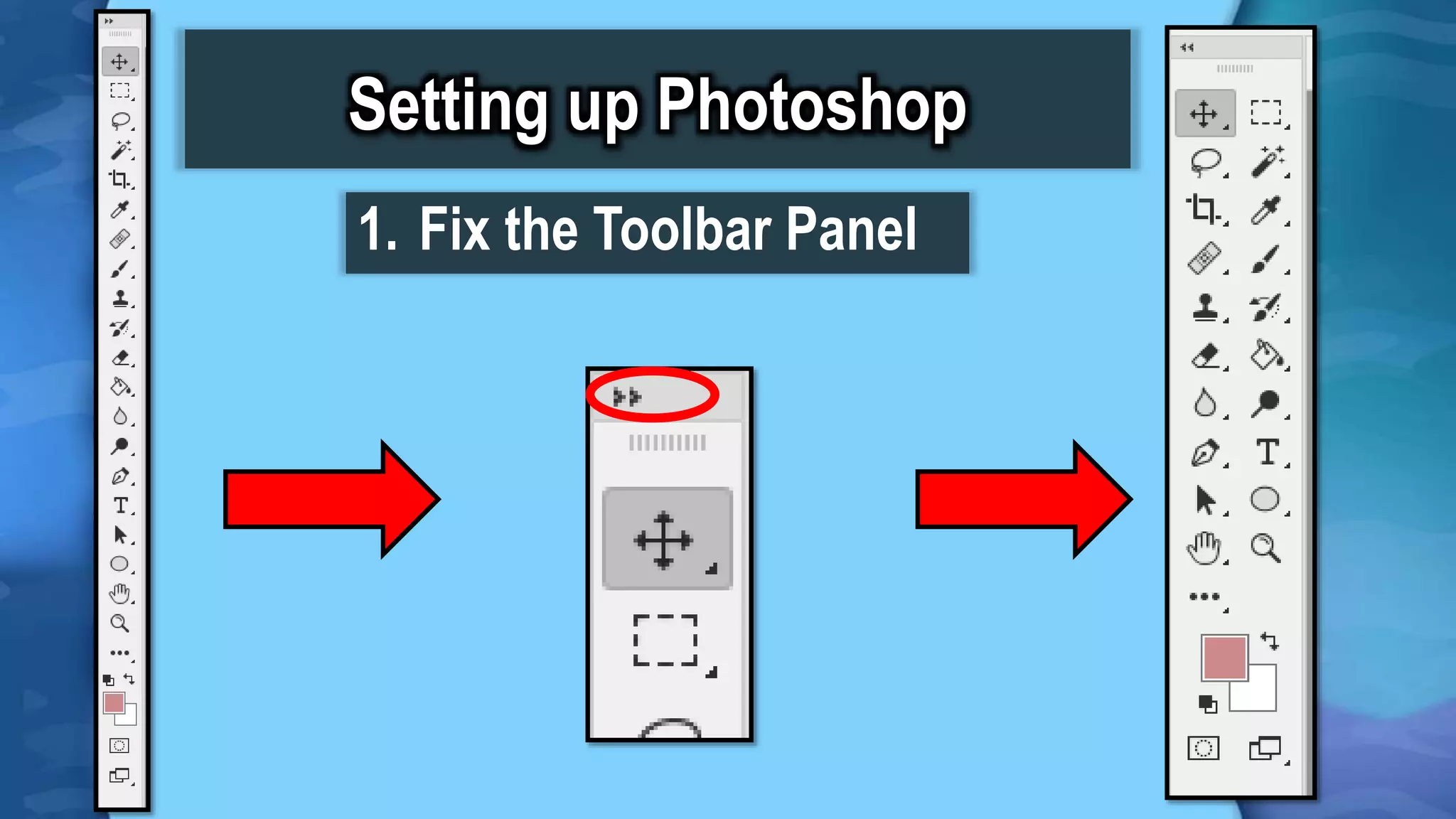
Instructions on how to fix the Toolbar Panel for better usability.
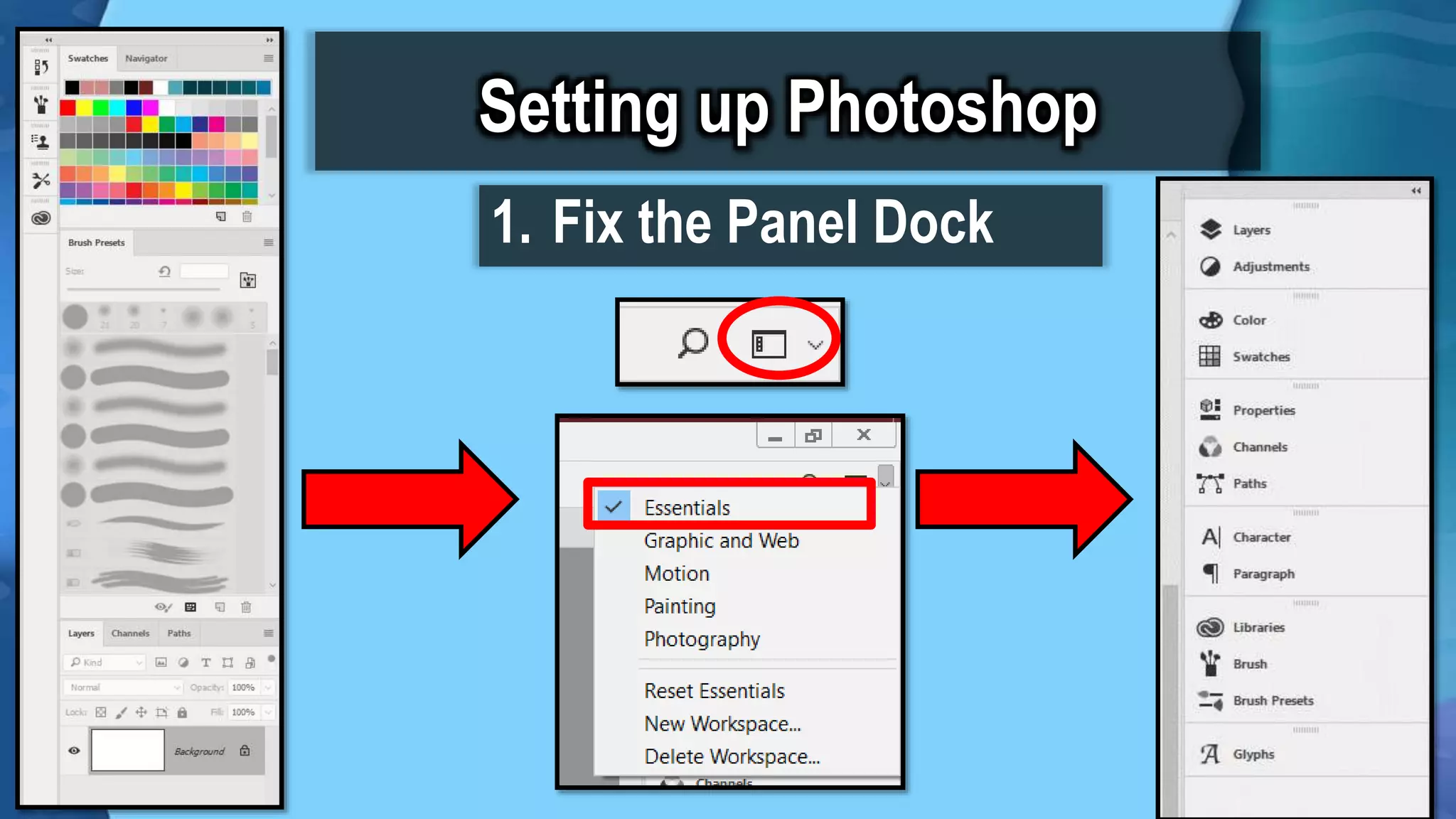
Guidelines on adjusting the Panel Dock in the Photoshop interface.
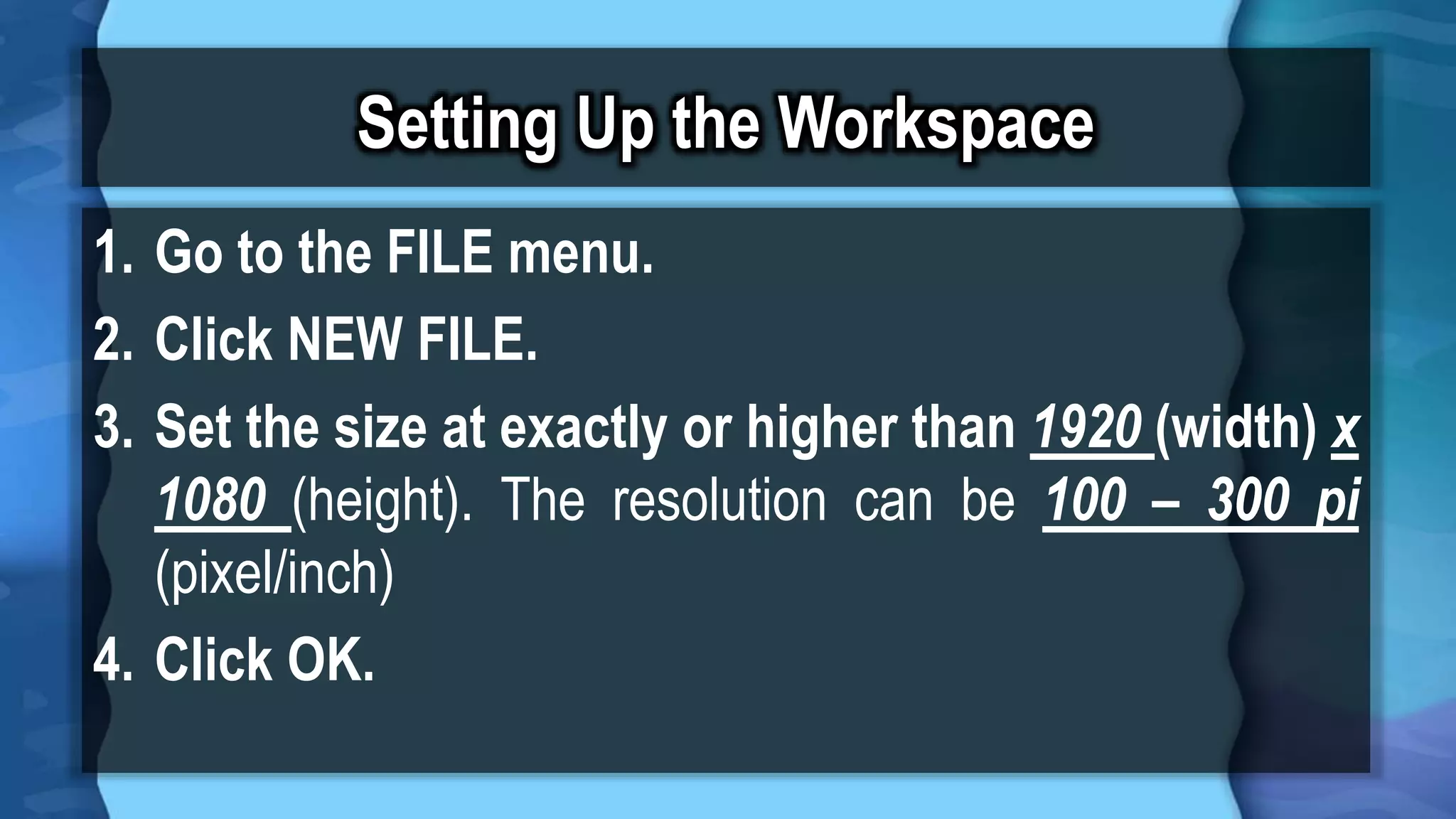
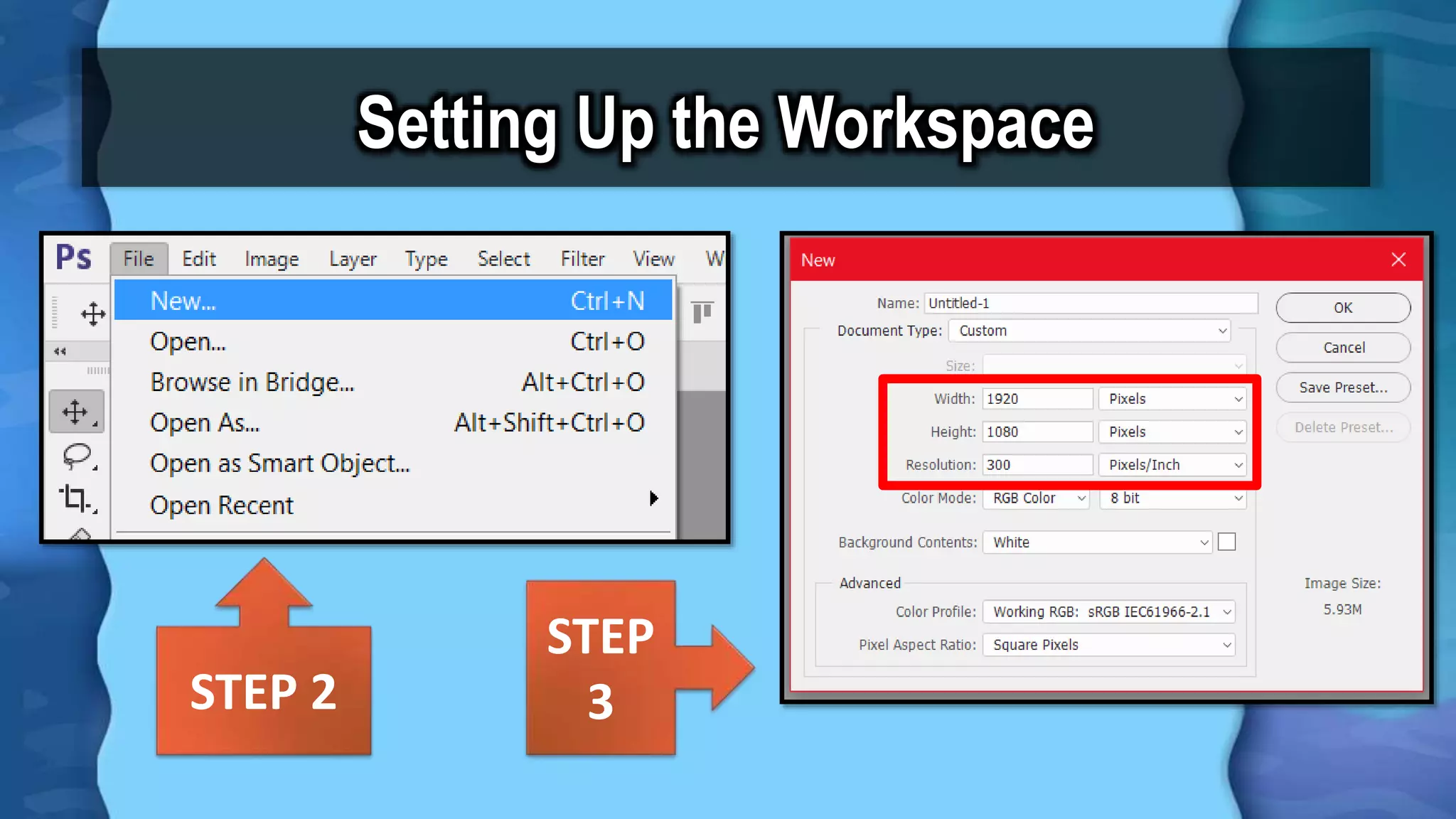
Steps to create a new file in Photoshop with specified dimensions and resolution.
Continuation of setting up the Photoshop workspace.
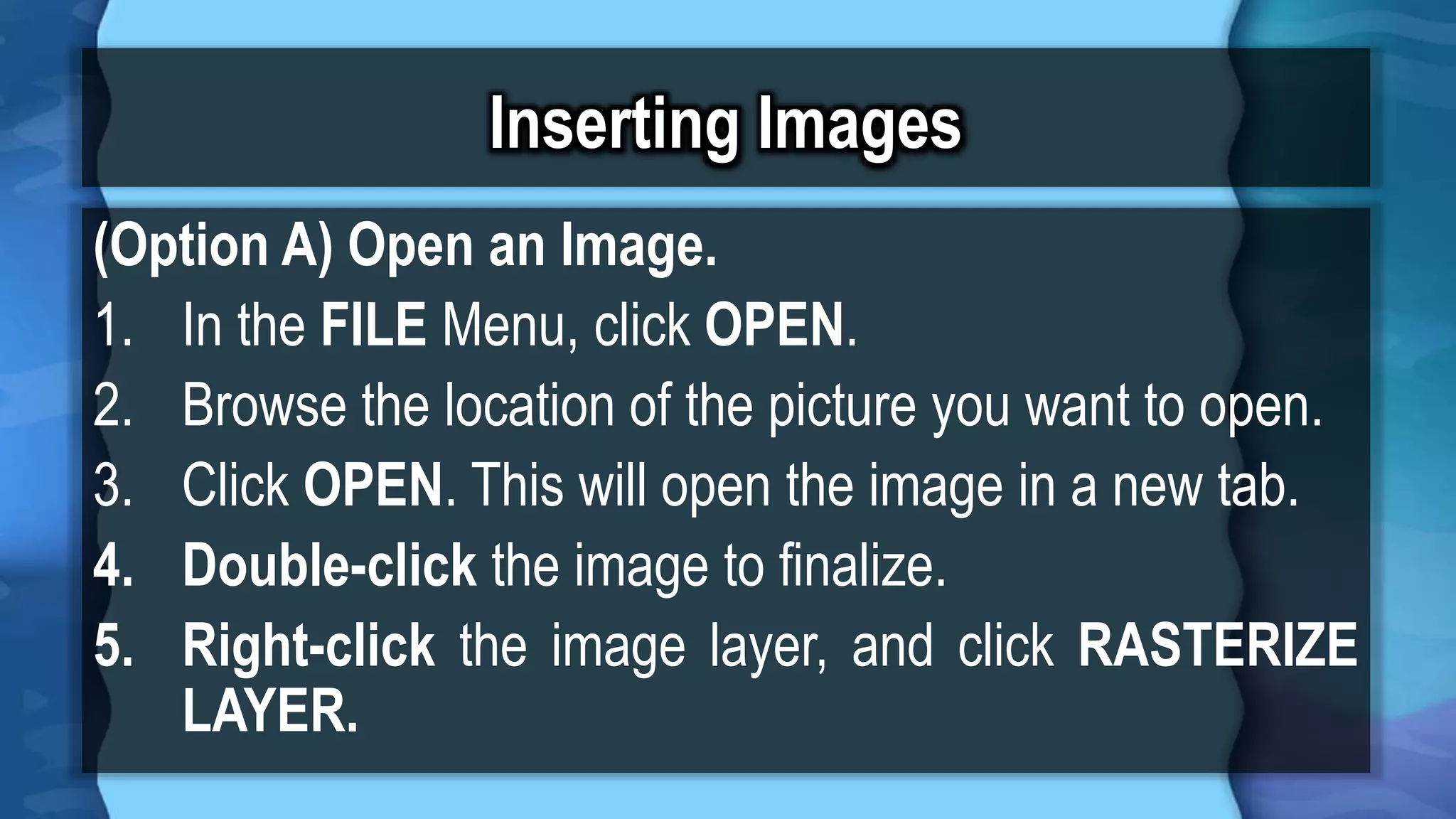
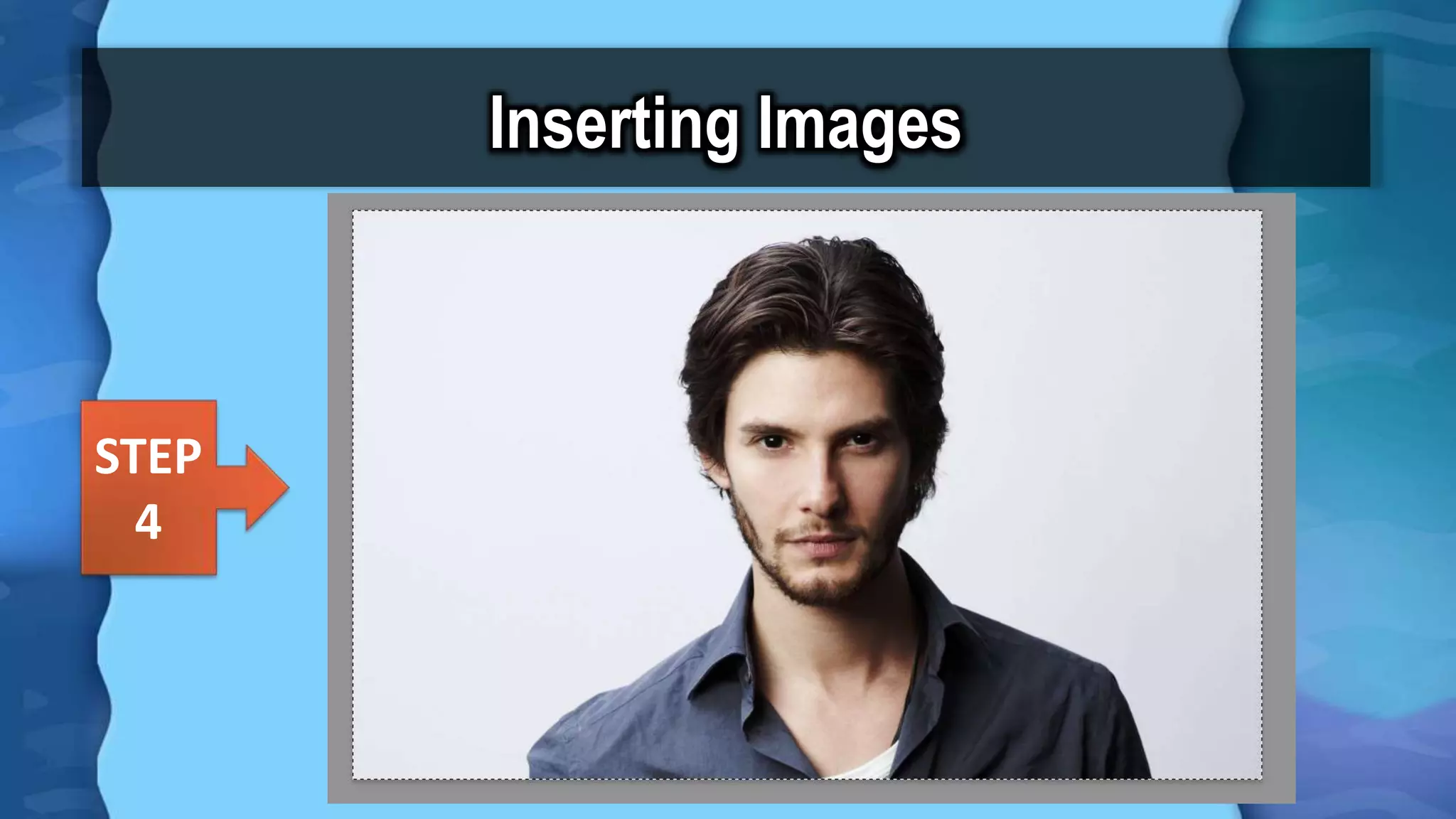
Detailed steps on how to open and insert an image into Photoshop using the File menu.
Further steps to finalize image insertion and other formatting options in Photoshop.
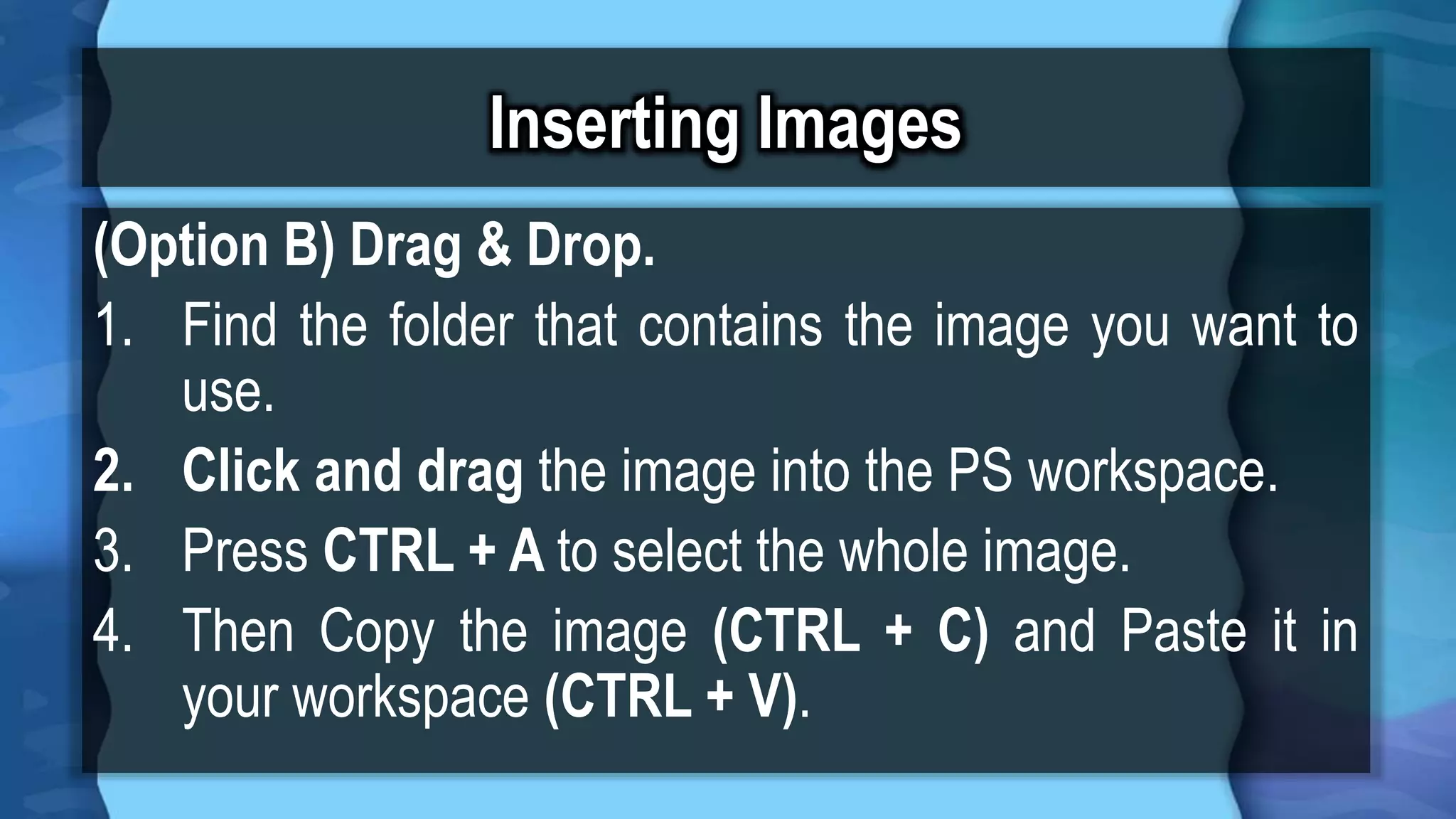
Instructions on dragging and dropping an image into Photoshop workspace.
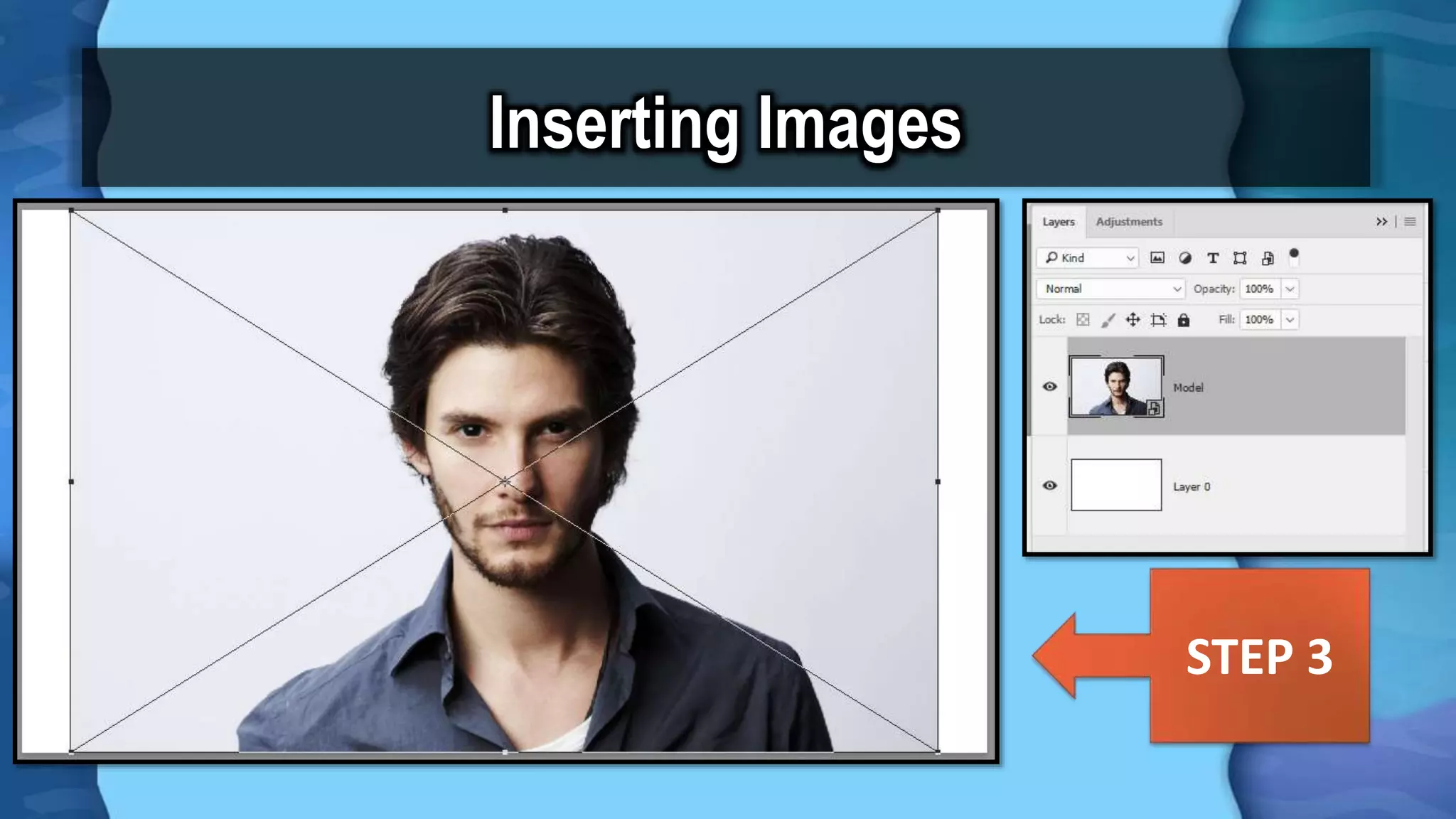
Steps to follow after dragging an image into the workspace.
Instructions for resizing images, including layer management and transformation controls.
Continued instructions on how to resize images and finalize adjustments.
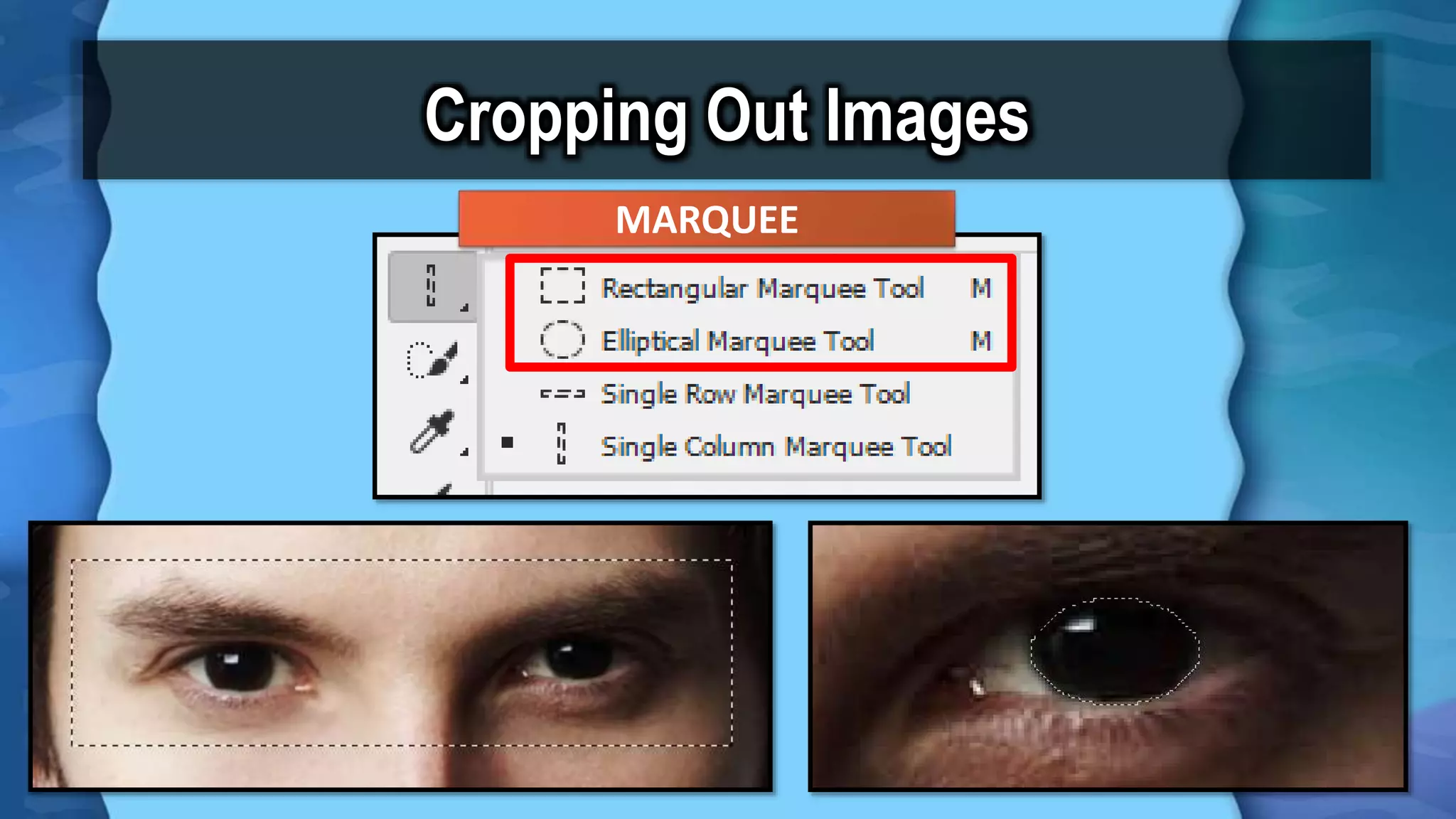
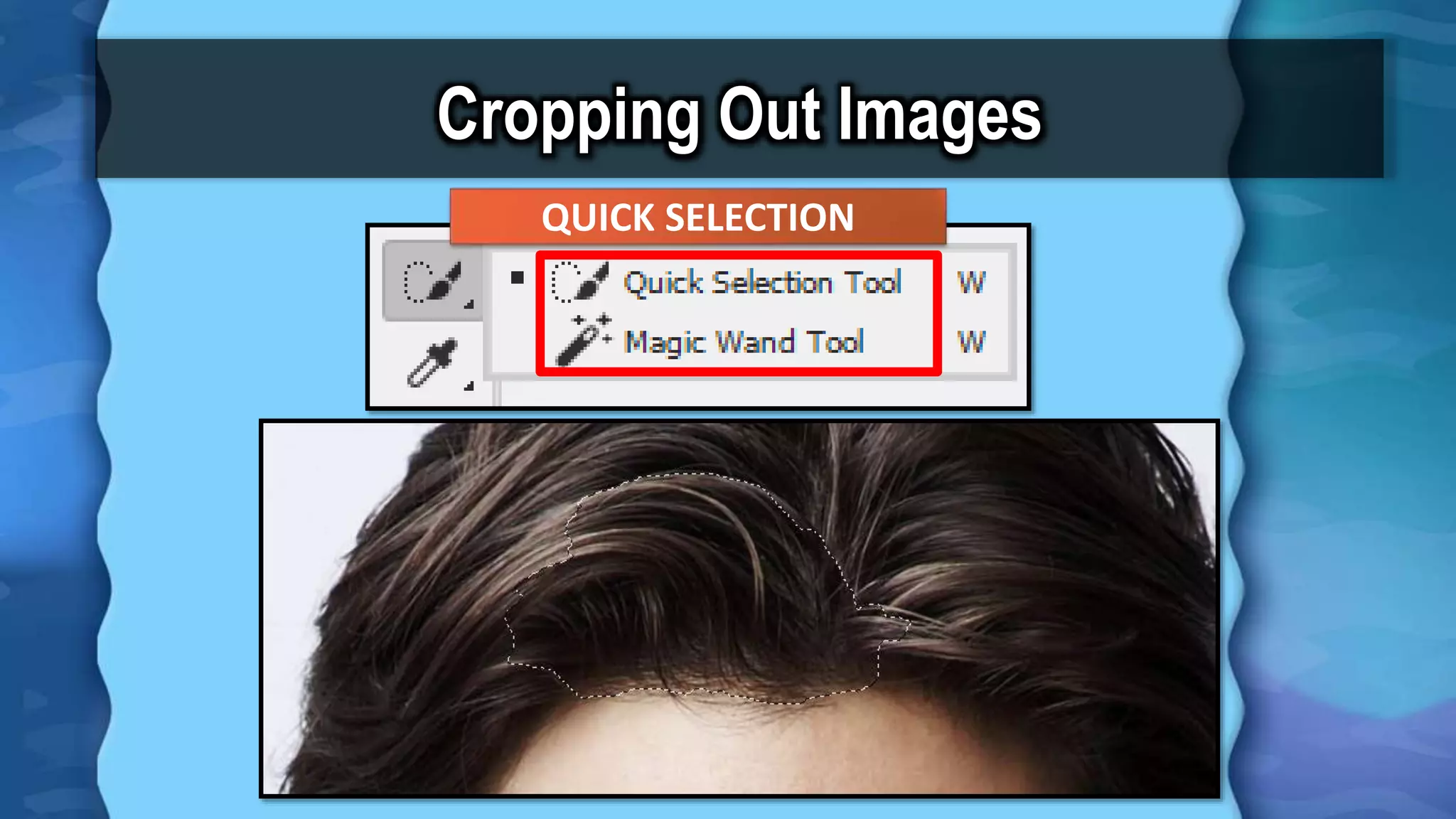
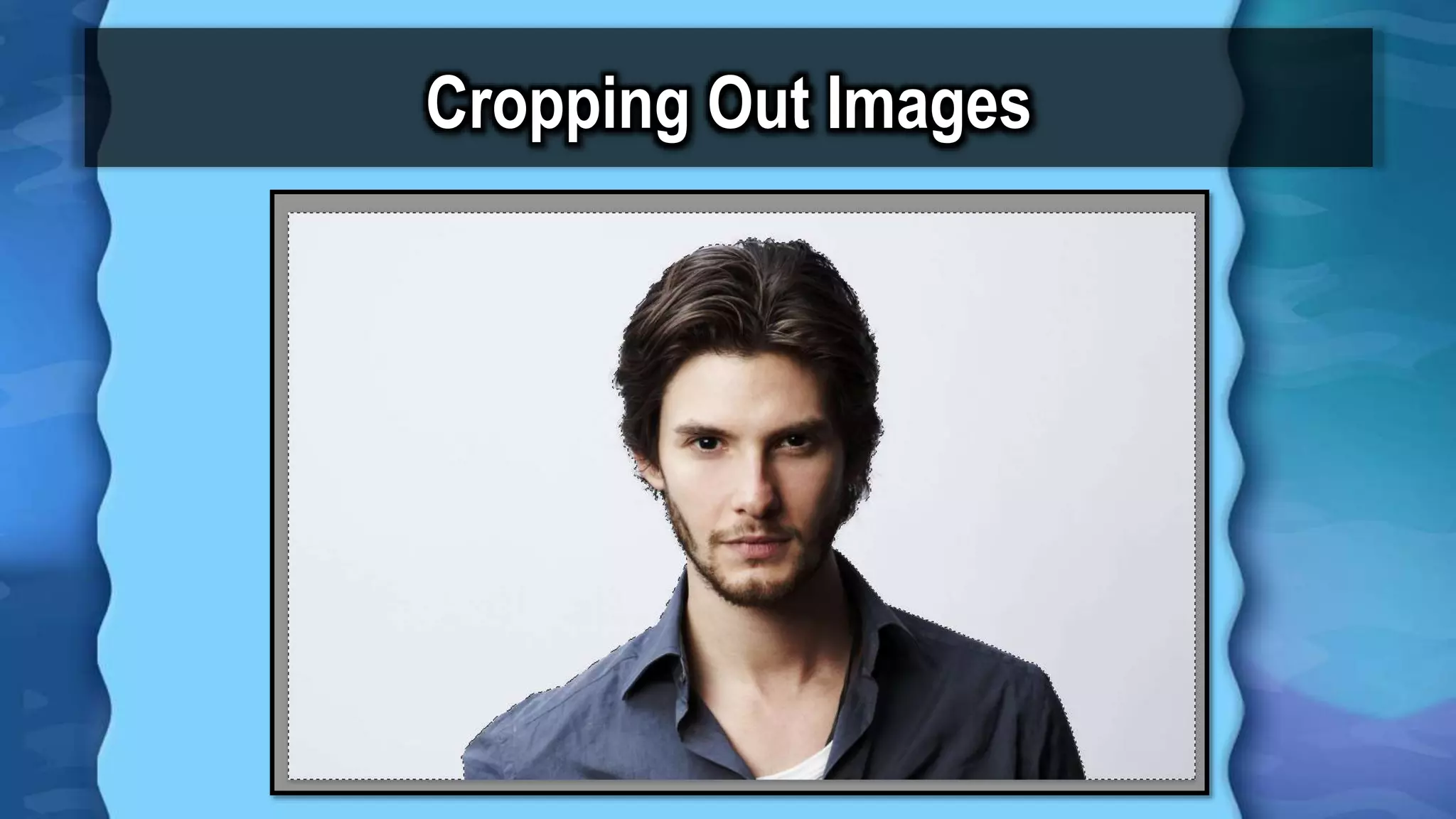
Steps for cropping images using selection tools and managing selections.
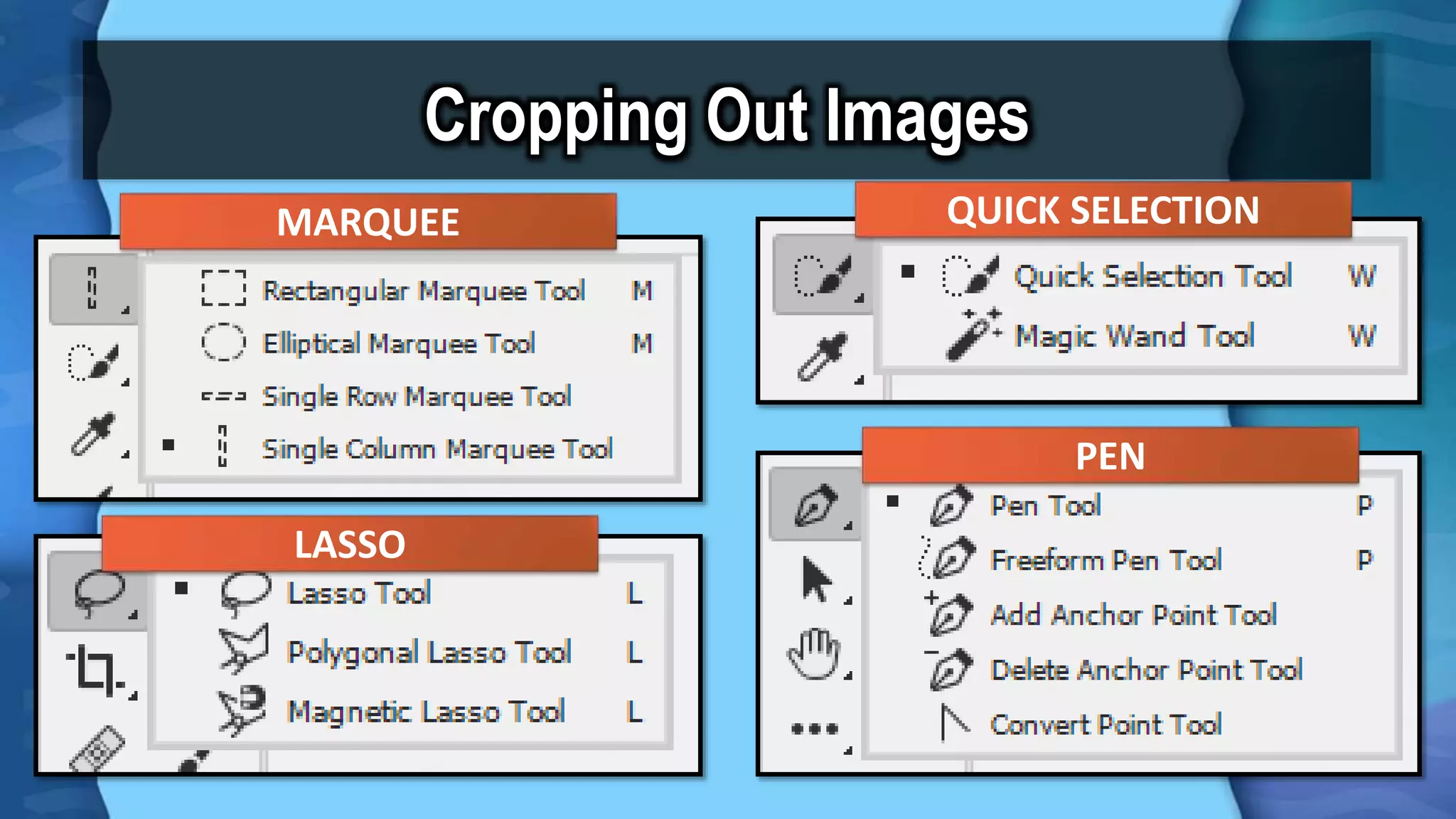
Presentation of different cropping tools: Marquee, Quick Selection, Lasso, and Pen.
Instructions on using the Eraser Tool, brush settings, and changing brush sizes.
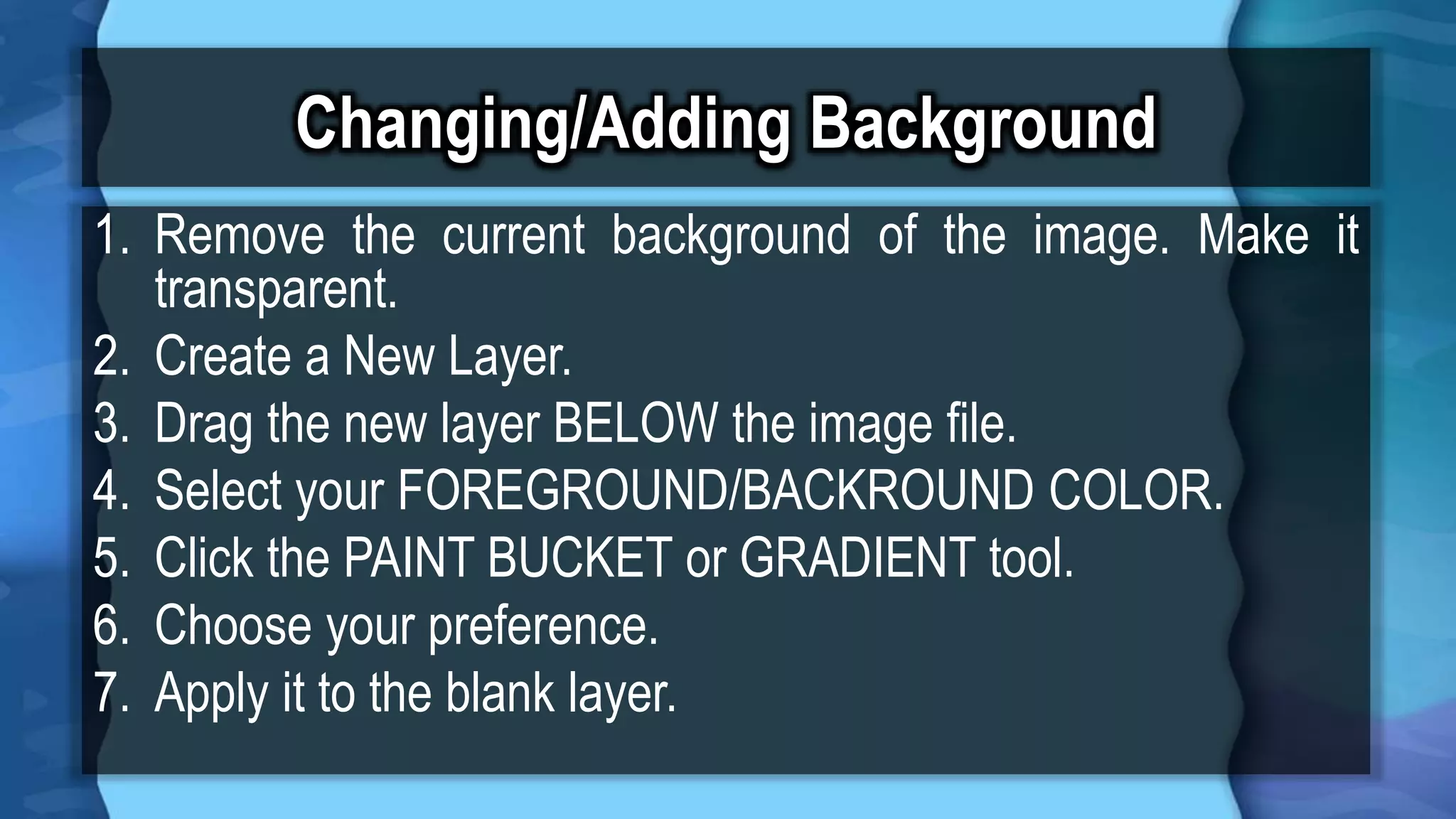
Steps on how to remove backgrounds and apply new colors or gradients to layers.
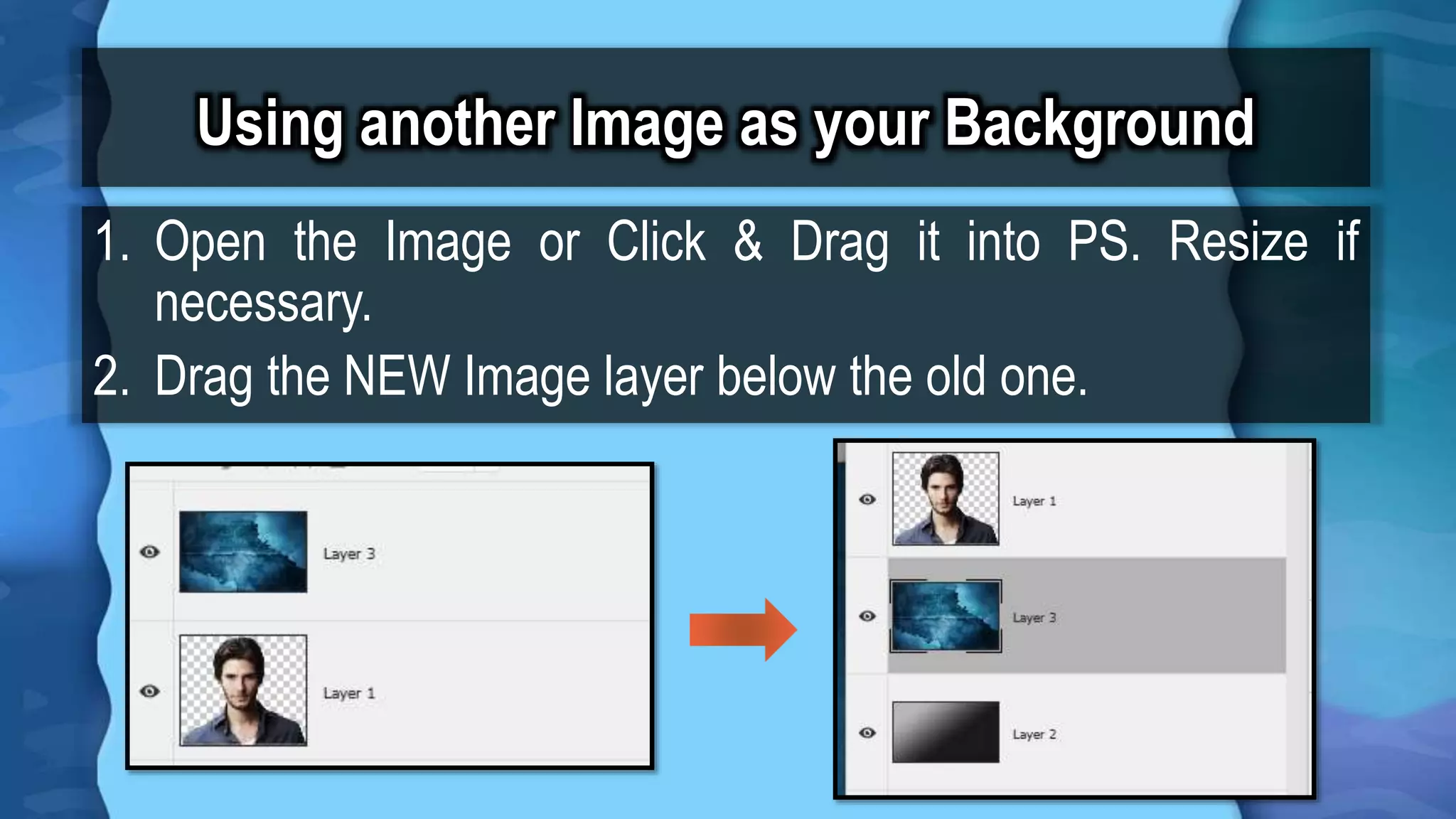
Instructions to insert a new image as a background in Photoshop, including resizing tips.


