Graphics and Visual
Computing
LESSON 2 (BASIC PHOTOSHOP LESSON)
Adobe Photoshop
A powerful and widely used photo-editing software.
Developed by American brothers Thomas and John Knoll in 1987, it
has become an industry standard for graphic design, photography,
and digital art.
Key Aspects of Photoshop
Raster Graphics Software
Photoshop primarily deals with raster graphics, which are
composed of pixels (tiny dots).
◦ Raster graphics are used for editing photographs, creating
digital paintings, and designing web graphics.
Key Features
1. Image Editing: Photoshop provides tools for cropping, resizing, retouching, and
enhancing images.
2. Layers: Users can work with multiple layers, allowing non-destructive editing and
complex compositions.
3. Selection Tools: These tools help isolate specific parts of an image for editing.
4. Retouching Tools: Features like the Spot Healing Brush and Clone Stamp remove
imperfections.
5. Color Correction: Adjust brightness, contrast, saturation, and color balance.
6. Filters and Effects: Apply artistic filters, blur effects, and transformations.
7. Text and Typography: Add text layers with various fonts and styles.
Raster Graphics Software
◦ Photoshop primarily deals with raster graphics, which are
composed of pixels (tiny dots).
◦ Raster graphics are used for editing photographs, creating digital
paintings, and designing web graphics.
Workspace and Interface
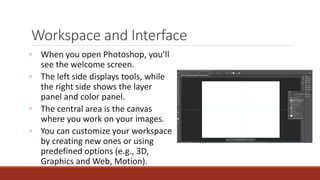
◦ When you open Photoshop, you’ll
see the welcome screen.
◦ The left side displays tools, while
the right side shows the layer
panel and color panel.
◦ The central area is the canvas
where you work on your images.
◦ You can customize your workspace
by creating new ones or using
predefined options (e.g., 3D,
Graphics and Web, Motion).
Common Photoshop Tools
1. Selection Tools: Move, Lasso, Quick Selection.
2. Crop and Slice Tools: Crop images or create image slices.
3. Measuring Tools: Eyedropper (sample colors), Ruler (measure
distances).
4. Retouching Tools: Spot Healing Brush, Clone Stamp, Eraser, Blur,
Dodge (for highlights).
Applications
1. Designers: Create logos, web graphics, and UI elements.
2. Photographers: Enhance and retouch photos.
3. 3D Game Developers: Design characters and scenes.
4. Digital Artists: Paint, composite, and manipulate images.
Understanding the Photoshop Interface
1. Document Window
➢The central area where your image is displayed. It’s also where you
edit the image.
➢The visible part of the image is called the canvas, while the dark
area around it is the pasteboard.
➢The document tab at the top shows the image name, file type, and
current zoom level. It’s also used to switch between multiple open
documents.
2. Toolbar
➢The Toolbar (also known as the Tools panel) resides on the
left side of the interface.
➢It houses various tools for tasks like making selections,
retouching images, painting, adding shapes, and working
with type.
➢The toolbar can be expanded into a double column by
clicking the double arrows at the top.
3. Hidden Tools
➢Each tool in the toolbar is represented by an icon.
➢Some icons have a small arrow in the bottom right corner,
indicating that additional tools are hidden behind them.
➢To reveal these hidden tools, click and hold on the icon or
right-click (Win) / Control-click (Mac) to access a fly-out
menu.
4. Menu Bar
➢The Menu Bar at the top of the interface contains various
options and commands related to files, editing, selections,
layers, and more.
5. Panels
➢The panel area along the right side provides access to
various panels that enhance your workflow.
➢Panels include Layers, Channels, History, and more. You
can customize which panels are visible.
Basic Image Editing Techniques
1.Import Images and Get Started:
i. Open Photoshop and import your image using the File > Open command.
ii. Ensure your photo isn’t crooked. Use the Straightening tool to level it out if
needed.
2.Crop Your Image:
i. Use the Crop tool to remove distracting elements or adjust the composition.
ii. Make sure to turn off “Delete Cropped Pixels” so you can adjust the crop later.
3.Work with Layers:
i. Layers are like translucent sheets you stack to create your image.
ii. Duplicate your image (go to Image > Duplicate) to create multiple copies.
iii. Each duplicate serves as the basis for an individual layer.
iv. Use layers for ultimate flexibility and nondestructive edits.
Basic Image Editing Techniques
4. Layer Masks:
i. Layer masks allow you to control what’s visible on a layer.
ii. Create a layer mask to hide or reveal specific areas of your layers.
iii. For example, combine two images seamlessly by masking your subject
and placing it over a different background.
5.Targeted Edits:
i. Separate elements into different layers to focus on specific components.
ii. Use fast selection tools to grab an area and create a layer mask.
iii. Adjust specific parts without affecting the entire image.
6.Transformations:
i. Use painting tools and color adjustments to transform your image.
ii. Explore features like brightness/contrast, hue/saturation, and levels.
Refer to
https://drive.google.com/file/d/1kj8OGeVj2UdooCz46Qnjraewkfln96PF/view?usp=sharing
for outlines the outline of Photoshop Toolbars. It includes tools and their use in Photoshop.
Sources
https://www.adobe.com/products/photoshop/how-to-use.html
https://www.photoshopessentials.com/basics/getting-know-photoshop-interface/
https://www.adobe.com/products/photoshop/edit-photos.html

GV Computing - Lesson 2 introduction

  • 1.
    Graphics and Visual Computing LESSON2 (BASIC PHOTOSHOP LESSON)
  • 2.
    Adobe Photoshop A powerfuland widely used photo-editing software. Developed by American brothers Thomas and John Knoll in 1987, it has become an industry standard for graphic design, photography, and digital art.
  • 3.
    Key Aspects ofPhotoshop
  • 4.
    Raster Graphics Software Photoshopprimarily deals with raster graphics, which are composed of pixels (tiny dots). ◦ Raster graphics are used for editing photographs, creating digital paintings, and designing web graphics.
  • 5.
    Key Features 1. ImageEditing: Photoshop provides tools for cropping, resizing, retouching, and enhancing images. 2. Layers: Users can work with multiple layers, allowing non-destructive editing and complex compositions. 3. Selection Tools: These tools help isolate specific parts of an image for editing. 4. Retouching Tools: Features like the Spot Healing Brush and Clone Stamp remove imperfections. 5. Color Correction: Adjust brightness, contrast, saturation, and color balance. 6. Filters and Effects: Apply artistic filters, blur effects, and transformations. 7. Text and Typography: Add text layers with various fonts and styles.
  • 6.
    Raster Graphics Software ◦Photoshop primarily deals with raster graphics, which are composed of pixels (tiny dots). ◦ Raster graphics are used for editing photographs, creating digital paintings, and designing web graphics.
  • 7.
    Workspace and Interface ◦When you open Photoshop, you’ll see the welcome screen. ◦ The left side displays tools, while the right side shows the layer panel and color panel. ◦ The central area is the canvas where you work on your images. ◦ You can customize your workspace by creating new ones or using predefined options (e.g., 3D, Graphics and Web, Motion).
  • 8.
    Common Photoshop Tools 1.Selection Tools: Move, Lasso, Quick Selection. 2. Crop and Slice Tools: Crop images or create image slices. 3. Measuring Tools: Eyedropper (sample colors), Ruler (measure distances). 4. Retouching Tools: Spot Healing Brush, Clone Stamp, Eraser, Blur, Dodge (for highlights).
  • 9.
    Applications 1. Designers: Createlogos, web graphics, and UI elements. 2. Photographers: Enhance and retouch photos. 3. 3D Game Developers: Design characters and scenes. 4. Digital Artists: Paint, composite, and manipulate images.
  • 10.
  • 11.
    1. Document Window ➢Thecentral area where your image is displayed. It’s also where you edit the image. ➢The visible part of the image is called the canvas, while the dark area around it is the pasteboard. ➢The document tab at the top shows the image name, file type, and current zoom level. It’s also used to switch between multiple open documents.
  • 12.
    2. Toolbar ➢The Toolbar(also known as the Tools panel) resides on the left side of the interface. ➢It houses various tools for tasks like making selections, retouching images, painting, adding shapes, and working with type. ➢The toolbar can be expanded into a double column by clicking the double arrows at the top.
  • 13.
    3. Hidden Tools ➢Eachtool in the toolbar is represented by an icon. ➢Some icons have a small arrow in the bottom right corner, indicating that additional tools are hidden behind them. ➢To reveal these hidden tools, click and hold on the icon or right-click (Win) / Control-click (Mac) to access a fly-out menu.
  • 14.
    4. Menu Bar ➢TheMenu Bar at the top of the interface contains various options and commands related to files, editing, selections, layers, and more.
  • 15.
    5. Panels ➢The panelarea along the right side provides access to various panels that enhance your workflow. ➢Panels include Layers, Channels, History, and more. You can customize which panels are visible.
  • 16.
  • 17.
    Basic Image EditingTechniques 1.Import Images and Get Started: i. Open Photoshop and import your image using the File > Open command. ii. Ensure your photo isn’t crooked. Use the Straightening tool to level it out if needed. 2.Crop Your Image: i. Use the Crop tool to remove distracting elements or adjust the composition. ii. Make sure to turn off “Delete Cropped Pixels” so you can adjust the crop later. 3.Work with Layers: i. Layers are like translucent sheets you stack to create your image. ii. Duplicate your image (go to Image > Duplicate) to create multiple copies. iii. Each duplicate serves as the basis for an individual layer. iv. Use layers for ultimate flexibility and nondestructive edits.
  • 18.
    Basic Image EditingTechniques 4. Layer Masks: i. Layer masks allow you to control what’s visible on a layer. ii. Create a layer mask to hide or reveal specific areas of your layers. iii. For example, combine two images seamlessly by masking your subject and placing it over a different background. 5.Targeted Edits: i. Separate elements into different layers to focus on specific components. ii. Use fast selection tools to grab an area and create a layer mask. iii. Adjust specific parts without affecting the entire image. 6.Transformations: i. Use painting tools and color adjustments to transform your image. ii. Explore features like brightness/contrast, hue/saturation, and levels.
  • 19.
    Refer to https://drive.google.com/file/d/1kj8OGeVj2UdooCz46Qnjraewkfln96PF/view?usp=sharing for outlinesthe outline of Photoshop Toolbars. It includes tools and their use in Photoshop.
  • 20.