How to create an exploded view
Step 1: Open up your Solidworks Assembly document
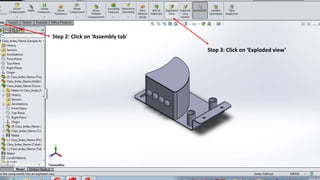
Step 2: Click on ‘Assembly tab’
Step 3: Click on ‘Exploded view’
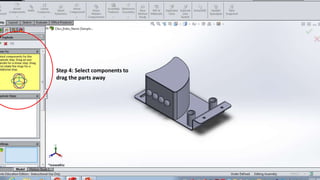
Step 4: Select components to
drag the parts away
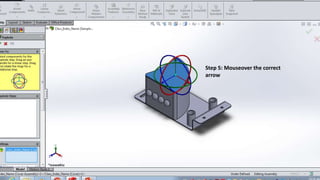
Step 5: Mouseover the correct
arrow
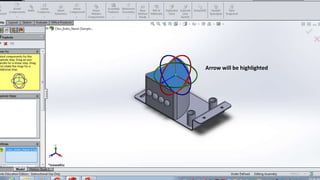
Arrow will be highlighted
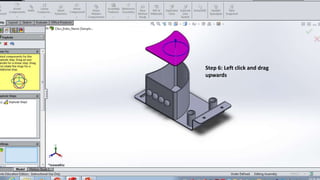
Step 6: Left click and drag
upwards
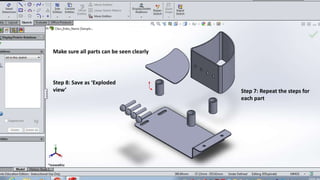
Step 7: Repeat the steps for
each part
Make sure all parts can be seen clearly
Step 8: Save as ‘Exploded
view’
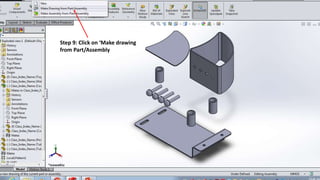
Step 9: Click on ‘Make drawing
from Part/Assembly
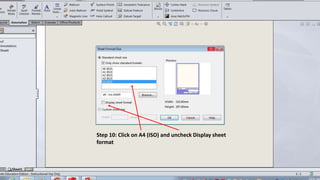
Step 10: Click on A4 (ISO) and uncheck Display sheet
format
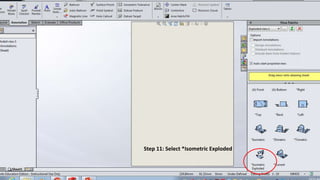
Step 11: Select *Isometric Exploded
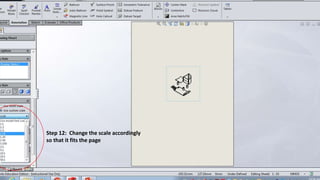
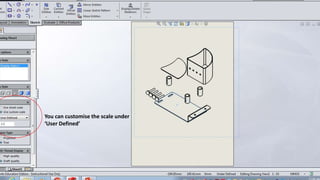
Step 12: Change the scale accordingly
so that it fits the page
You can customise the scale under
‘User Defined’
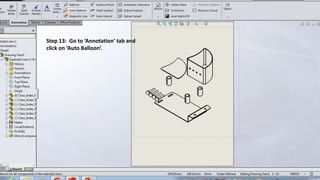
Step 13: Go to ‘Annotation’ tab and
click on ‘Auto Balloon’.
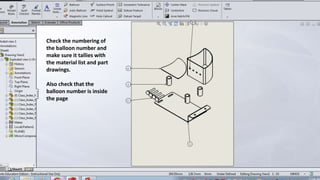
Check the numbering of
the balloon number and
make sure it tallies with
the material list and part
drawings.
Also check that the
balloon number is inside
the page
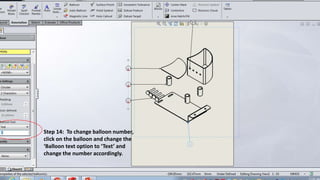
Step 14: To change balloon number,
click on the balloon and change the
‘Balloon text option to ‘Text’ and
change the number accordingly.
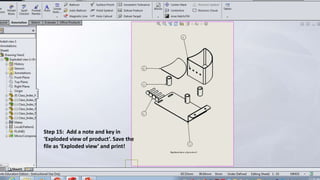
Step 15: Add a note and key in
‘Exploded view of product’. Save the
file as ‘Exploded view’ and print!

How to create an exploded view using Solidworks

  • 1.
    How to createan exploded view Step 1: Open up your Solidworks Assembly document
  • 2.
    Step 2: Clickon ‘Assembly tab’ Step 3: Click on ‘Exploded view’
  • 3.
    Step 4: Selectcomponents to drag the parts away
  • 4.
    Step 5: Mouseoverthe correct arrow
  • 5.
    Arrow will behighlighted
  • 6.
    Step 6: Leftclick and drag upwards
  • 7.
    Step 7: Repeatthe steps for each part Make sure all parts can be seen clearly Step 8: Save as ‘Exploded view’
  • 8.
    Step 9: Clickon ‘Make drawing from Part/Assembly
  • 9.
    Step 10: Clickon A4 (ISO) and uncheck Display sheet format
  • 10.
    Step 11: Select*Isometric Exploded
  • 11.
    Step 12: Changethe scale accordingly so that it fits the page
  • 12.
    You can customisethe scale under ‘User Defined’
  • 13.
    Step 13: Goto ‘Annotation’ tab and click on ‘Auto Balloon’.
  • 14.
    Check the numberingof the balloon number and make sure it tallies with the material list and part drawings. Also check that the balloon number is inside the page
  • 15.
    Step 14: Tochange balloon number, click on the balloon and change the ‘Balloon text option to ‘Text’ and change the number accordingly.
  • 16.
    Step 15: Adda note and key in ‘Exploded view of product’. Save the file as ‘Exploded view’ and print!