How to Convert Custom PLSQL to Webservices
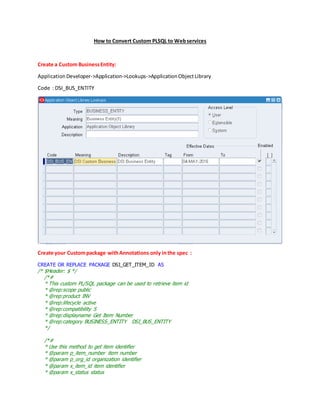
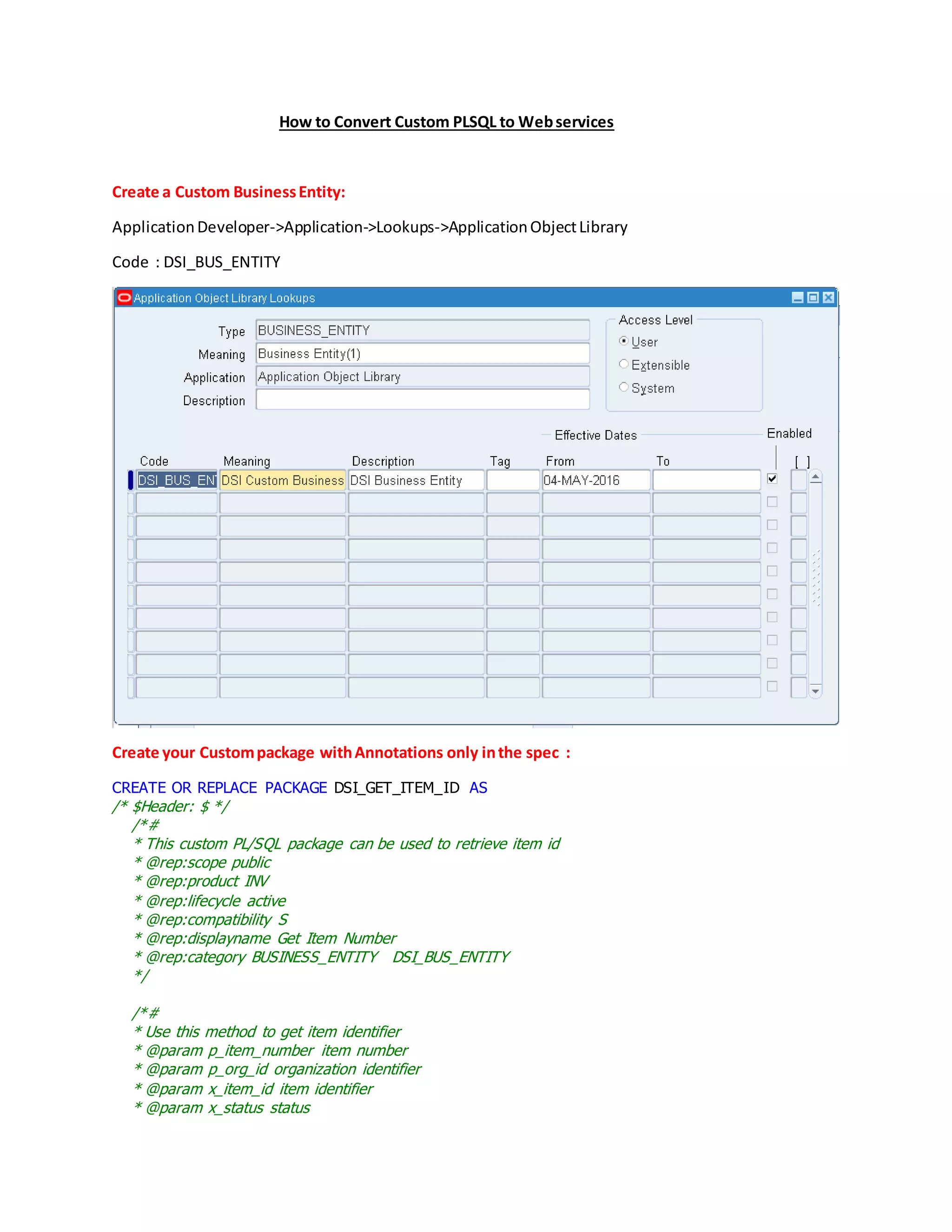
Create a Custom BusinessEntity:
ApplicationDeveloper->Application->Lookups->ApplicationObjectLibrary
Code : DSI_BUS_ENTITY
Create your Custompackage withAnnotations only inthe spec :
CREATE OR REPLACE PACKAGE DSI_GET_ITEM_ID AS
/* $Header: $ */
/*#
* This custom PL/SQL package can be used to retrieve item id
* @rep:scope public
* @rep:product INV
* @rep:lifecycle active
* @rep:compatibility S
* @rep:displayname Get Item Number
* @rep:category BUSINESS_ENTITY DSI_BUS_ENTITY
*/
/*#
* Use this method to get item identifier
* @param p_item_number item number
* @param p_org_id organization identifier
* @param x_item_id item identifier
* @param x_status status
* @param x_err_msg error message
* @rep:scope public
* @rep:lifecycle active
* @rep:displayname Get Item Identifier
*/
procedure get_item_id
(p_item_number in VARCHAR2,
p_org_id in NUMBER,
x_item_id out NUMBER,
x_status out VARCHAR2,
x_err_msg out VARCHAR2
);
END DSI_GET_ITEM_ID;
Create your Custompackage body :
CREATE OR REPLACE PACKAGE BODY DSI_GET_ITEM_ID AS
procedure get_item_id
(p_item_number in VARCHAR2,
p_org_id in NUMBER,
x_item_id out NUMBER,
x_status out VARCHAR2,
x_err_msg out VARCHAR2
)
IS
v_item_id number;
end_chk_excep exception;
BEGIN
begin
select inventory_item_id
into v_item_id
from mtl_system_items_b
where 1=1
and segment1=p_item_number
and organization_id=p_org_id;
exception when no_data_found then
x_status:='E';
x_err_msg:='Item Number Entered does not exist';
raise end_chk_excep;
end;
x_item_id := v_item_id;
x_status:='S';
x_err_msg:='DSI Custom Rest Service Successful';
exception
when end_chk_excep then
x_status := 'E';
x_err_msg := x_err_msg || ' - ' || sqlerrm;
when others then
x_status:='E';
x_err_msg:='Item Number Entered is not valid';
END GET_ITEM_ID;
END DSI_GET_ITEM_ID;
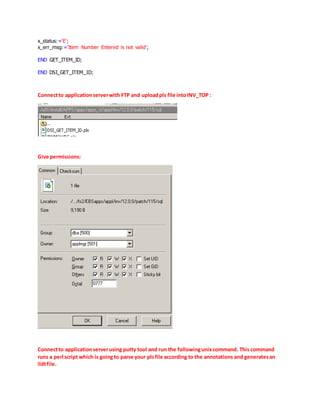
Connectto applicationserverwith FTP and uploadpls file intoINV_TOP :
Give permissions:
Connectto applicationserverusing putty tool and run the followingunixcommand. This command
runs a perl script which is goingto parse your plsfile according to the annotations and generatesan
ildtfile.
$IAS_ORACLE_HOME/perl/bin/perl $FND_TOP/bin/irep_parser.pl -g-v-username=sysadmin
INV:patch/115/sql:DSI_GET_ITEM_ID:12.0=patch/115/sql/DSI_GET_ITEM_ID.pls
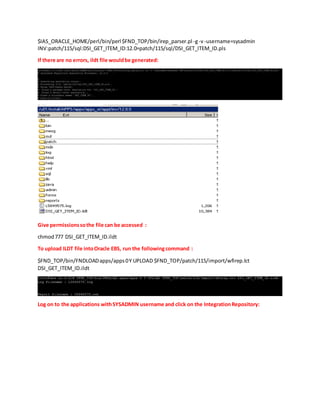
If there are no errors, ildt file wouldbe generated:
Give permissionssothe file can be accessed :
chmod777 DSI_GET_ITEM_ID.ildt
To upload ILDT file intoOracle EBS, run the followingcommand :
$FND_TOP/bin/FNDLOADapps/apps0Y UPLOAD $FND_TOP/patch/115/import/wfirep.lct
DSI_GET_ITEM_ID.ildt
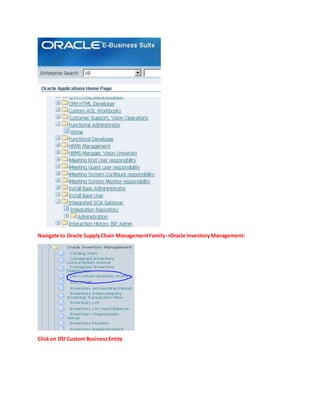
Log on to the applications withSYSADMIN username and click on the IntegrationRepository:
Navigate to Oracle SupplyChain ManagementFamily->Oracle InventoryManagement:
Clickon DSI Custom Business Entity
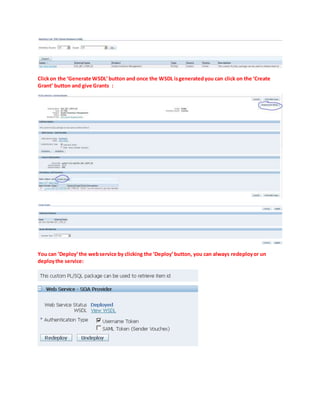
Clickon the ‘Generate WSDL’button and once the WSDL isgeneratedyou can click on the ‘Create
Grant’ button and give Grants :
You can ‘Deploy’the webservice by clicking the ‘Deploy’button, you can always redeployor un
deploythe service:
Before Invokingthe Webservice :
cd $INST_TOP/admin/scripts
adoafmctl.shstop
adoacorectl.shstop
adoafmctl.shstart
adoacorectl.shstart
Clear cache
Use responsibilityFunctional Administratorandgoto Core Services ->CachingFramework ->Global
Configuration ->Clearall cache.
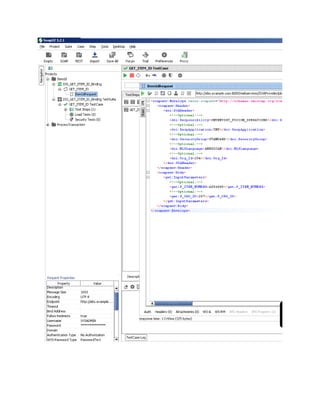
Now to test the web service , you can use tools like SOAPUI :
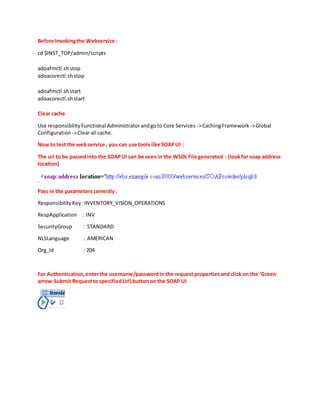
The url to be passedinto the SOAPUI can be seenin the WSDL File generated : (lookfor soap address
location)
Pass in the parameters correctly :
ResponsibilityKey:INVENTORY_VISION_OPERATIONS
RespApplication : INV
SecurityGroup : STANDARD
NLSLanguage : AMERICAN
Org_Id : 204
For Authentication,enterthe username/passwordin the request propertiesand click on the ‘Green
arrow-Submit Requestto specifiedUrl) buttonon the SOAP UI
USING REST WEBSERVICES :
Followsame stepsabove till you log on to the Applications.
Log on to the applications withSYSADMIN username and click on the IntegrationRepository:
Navigate to Oracle SupplyChain ManagementFamily->Oracle InventoryManagement:
Clickon DSI Custom Business
Clickon REST WebService Tab , selectthe methodyou want to POST and click on ‘DEPLOY’ :
Clickon GrantsTab:
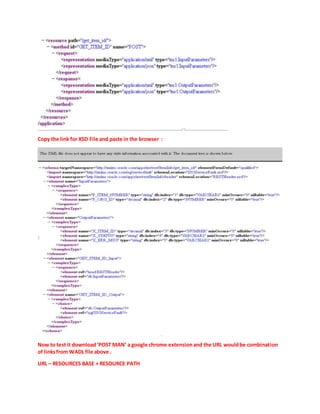
SelectGroupof Usersand select‘InventoryVisionOperations(USA)’and thenclick on the WADL link:
Copy the link for XSD File and paste in the browser :
Now to test it download‘POST MAN’ a google chrome extensionand the URL wouldbe combination
of linksfrom WADL file above .
URL – RESOURCES BASE + RESOURCE PATH
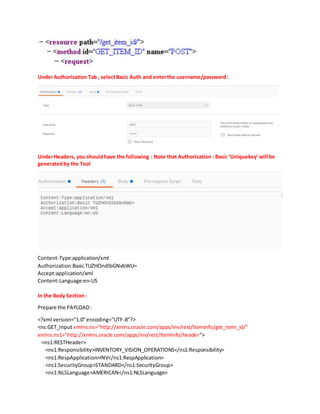
UnderAuthorization Tab , selectBasic Auth and enterthe username/password:
UnderHeaders, you shouldhave the following : Note that Authorization : Basic ‘Uniquekey’will be
generatedby the Tool
Content-Type:application/xml
Authorization:BasicTUZHOndlbGNvbWU=
Accept:application/xml
Content-Language:en-US
In the Body Section:
Prepare the PAYLOAD:
<?xml version="1.0"encoding="UTF-8"?>
<ns:GET_Input xmlns:ns="http://xmlns.oracle.com/apps/inv/rest/ItemInfo/get_item_id/"
xmlns:ns1="http://xmlns.oracle.com/apps/inv/rest/ItemInfo/header">
<ns1:RESTHeader>
<ns1:Responsibility>INVENTORY_VISION_OPERATIONS</ns1:Responsibility>
<ns1:RespApplication>INV</ns1:RespApplication>
<ns1:SecurityGroup>STANDARD</ns1:SecurityGroup>
<ns1:NLSLanguage>AMERICAN</ns1:NLSLanguage>
<ns1:Org_Id>204</ns1:Org_Id>
</ns1:RESTHeader>
<ns:InputParameters>
<ns:P_ITEM_NUMBER>AS54888</ns:P_ITEM_NUMBER>
<ns:P_ORG_ID>207</ns:P_ORG_ID>
</ns:InputParameters>
+
</ns:GET_Input>
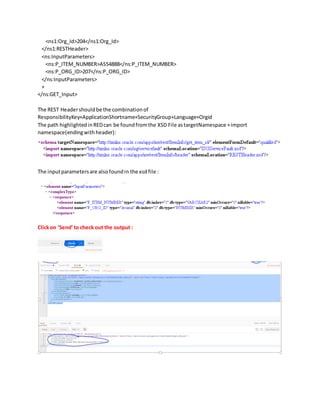
The REST Headershouldbe the combinationof
ResponsibilityKey+ApplicationShortname+SecurityGroup+Language+Orgid
The path highlightedinREDcan be foundfromthe XSD File astargetNamespace +import
namespace(endingwithheader):
The inputparametersare alsofoundin the xsdfile :
Clickon ‘Send’to check out the output :

How to convert custom plsql to web services-Soap OR Rest

  • 1.
    How to ConvertCustom PLSQL to Webservices Create a Custom BusinessEntity: ApplicationDeveloper->Application->Lookups->ApplicationObjectLibrary Code : DSI_BUS_ENTITY Create your Custompackage withAnnotations only inthe spec : CREATE OR REPLACE PACKAGE DSI_GET_ITEM_ID AS /* $Header: $ */ /*# * This custom PL/SQL package can be used to retrieve item id * @rep:scope public * @rep:product INV * @rep:lifecycle active * @rep:compatibility S * @rep:displayname Get Item Number * @rep:category BUSINESS_ENTITY DSI_BUS_ENTITY */ /*# * Use this method to get item identifier * @param p_item_number item number * @param p_org_id organization identifier * @param x_item_id item identifier * @param x_status status
  • 2.
    * @param x_err_msgerror message * @rep:scope public * @rep:lifecycle active * @rep:displayname Get Item Identifier */ procedure get_item_id (p_item_number in VARCHAR2, p_org_id in NUMBER, x_item_id out NUMBER, x_status out VARCHAR2, x_err_msg out VARCHAR2 ); END DSI_GET_ITEM_ID; Create your Custompackage body : CREATE OR REPLACE PACKAGE BODY DSI_GET_ITEM_ID AS procedure get_item_id (p_item_number in VARCHAR2, p_org_id in NUMBER, x_item_id out NUMBER, x_status out VARCHAR2, x_err_msg out VARCHAR2 ) IS v_item_id number; end_chk_excep exception; BEGIN begin select inventory_item_id into v_item_id from mtl_system_items_b where 1=1 and segment1=p_item_number and organization_id=p_org_id; exception when no_data_found then x_status:='E'; x_err_msg:='Item Number Entered does not exist'; raise end_chk_excep; end; x_item_id := v_item_id; x_status:='S'; x_err_msg:='DSI Custom Rest Service Successful'; exception when end_chk_excep then x_status := 'E'; x_err_msg := x_err_msg || ' - ' || sqlerrm; when others then
  • 3.
    x_status:='E'; x_err_msg:='Item Number Enteredis not valid'; END GET_ITEM_ID; END DSI_GET_ITEM_ID; Connectto applicationserverwith FTP and uploadpls file intoINV_TOP : Give permissions: Connectto applicationserverusing putty tool and run the followingunixcommand. This command runs a perl script which is goingto parse your plsfile according to the annotations and generatesan ildtfile.
  • 4.
    $IAS_ORACLE_HOME/perl/bin/perl $FND_TOP/bin/irep_parser.pl -g-v-username=sysadmin INV:patch/115/sql:DSI_GET_ITEM_ID:12.0=patch/115/sql/DSI_GET_ITEM_ID.pls Ifthere are no errors, ildt file wouldbe generated: Give permissionssothe file can be accessed : chmod777 DSI_GET_ITEM_ID.ildt To upload ILDT file intoOracle EBS, run the followingcommand : $FND_TOP/bin/FNDLOADapps/apps0Y UPLOAD $FND_TOP/patch/115/import/wfirep.lct DSI_GET_ITEM_ID.ildt Log on to the applications withSYSADMIN username and click on the IntegrationRepository:
  • 5.
    Navigate to OracleSupplyChain ManagementFamily->Oracle InventoryManagement: Clickon DSI Custom Business Entity
  • 6.
    Clickon the ‘GenerateWSDL’button and once the WSDL isgeneratedyou can click on the ‘Create Grant’ button and give Grants : You can ‘Deploy’the webservice by clicking the ‘Deploy’button, you can always redeployor un deploythe service:
  • 7.
    Before Invokingthe Webservice: cd $INST_TOP/admin/scripts adoafmctl.shstop adoacorectl.shstop adoafmctl.shstart adoacorectl.shstart Clear cache Use responsibilityFunctional Administratorandgoto Core Services ->CachingFramework ->Global Configuration ->Clearall cache. Now to test the web service , you can use tools like SOAPUI : The url to be passedinto the SOAPUI can be seenin the WSDL File generated : (lookfor soap address location) Pass in the parameters correctly : ResponsibilityKey:INVENTORY_VISION_OPERATIONS RespApplication : INV SecurityGroup : STANDARD NLSLanguage : AMERICAN Org_Id : 204 For Authentication,enterthe username/passwordin the request propertiesand click on the ‘Green arrow-Submit Requestto specifiedUrl) buttonon the SOAP UI
  • 9.
    USING REST WEBSERVICES: Followsame stepsabove till you log on to the Applications. Log on to the applications withSYSADMIN username and click on the IntegrationRepository: Navigate to Oracle SupplyChain ManagementFamily->Oracle InventoryManagement: Clickon DSI Custom Business Clickon REST WebService Tab , selectthe methodyou want to POST and click on ‘DEPLOY’ : Clickon GrantsTab: SelectGroupof Usersand select‘InventoryVisionOperations(USA)’and thenclick on the WADL link:
  • 10.
    Copy the linkfor XSD File and paste in the browser : Now to test it download‘POST MAN’ a google chrome extensionand the URL wouldbe combination of linksfrom WADL file above . URL – RESOURCES BASE + RESOURCE PATH
  • 11.
    UnderAuthorization Tab ,selectBasic Auth and enterthe username/password: UnderHeaders, you shouldhave the following : Note that Authorization : Basic ‘Uniquekey’will be generatedby the Tool Content-Type:application/xml Authorization:BasicTUZHOndlbGNvbWU= Accept:application/xml Content-Language:en-US In the Body Section: Prepare the PAYLOAD: <?xml version="1.0"encoding="UTF-8"?> <ns:GET_Input xmlns:ns="http://xmlns.oracle.com/apps/inv/rest/ItemInfo/get_item_id/" xmlns:ns1="http://xmlns.oracle.com/apps/inv/rest/ItemInfo/header"> <ns1:RESTHeader> <ns1:Responsibility>INVENTORY_VISION_OPERATIONS</ns1:Responsibility> <ns1:RespApplication>INV</ns1:RespApplication> <ns1:SecurityGroup>STANDARD</ns1:SecurityGroup> <ns1:NLSLanguage>AMERICAN</ns1:NLSLanguage>
  • 12.
    <ns1:Org_Id>204</ns1:Org_Id> </ns1:RESTHeader> <ns:InputParameters> <ns:P_ITEM_NUMBER>AS54888</ns:P_ITEM_NUMBER> <ns:P_ORG_ID>207</ns:P_ORG_ID> </ns:InputParameters> + </ns:GET_Input> The REST Headershouldbethe combinationof ResponsibilityKey+ApplicationShortname+SecurityGroup+Language+Orgid The path highlightedinREDcan be foundfromthe XSD File astargetNamespace +import namespace(endingwithheader): The inputparametersare alsofoundin the xsdfile : Clickon ‘Send’to check out the output :