ORDER TO CASH CYCLE
O2C STEPS:

 1.    Create the customer(if not present)
 2.    Enter the sales order
 3.    Book the sales order
 4.    Pick release
           a. Pick slip report runs
           b. Create inventory transactions with status=pending initially
 5.    Ship conformation is done, The inventory transaction with status=completed and then it transfers
       the order information into AR (Accounts Receivables)
 6.    Transfer the sales orders to auto invoice tables
 7.    Create AR invoice
 8.    Create payment receipt
 9.    GL post


      1. CREATE THE CUSTOMER


  NAVIGATION: Order management/Accounts Receivables>Customer>Standard.

  Enter the name of the organization and Click Find.
  A new form opens
   Enter the field customer type as organization when the name field is an organization or Customer type
   as person when the name field is the name person
   Enter the TAX Registration number of 10 digits
   And TAX payer id/ SSN for organization/person
   Click on the NEW button a new form opens.
   Enter the required field in the tabs

      The organization number and customer number automatically appears when we SAVE the form
2. BOOK THE ORDER


NAVIGATION: Order Management >Orders>Returns>Sales Order.

Enter the customer name, Order type as mixed/as required from the list below

Click on the Line Item tabs
Types of orders:

1.   Standard
2.   Mixed
3.   Bill only
4.   Export orders
5.   International
6.   Order only
7.   Return only
8.   Training
9.   Web


In the line Item tab, enter the ordered items, Quantity and Click the Book Order button.

Order has been booked dialect opens click OK
The Order Number and amount fields are populated automatically.

Note down the order number and the Status changes from Entered to Booked

Here all the order information is stored in the tables

OE_ORDER_HEADERS_ALL (STORES HEADERS INFO)

OE_ORDER_LINES_ALL (STORES LINES INFO)

OE_ACTIONS_ALL (STORES ACTIONS INFO)
3. GRANT THE PERMISSIONS TO THE USER

NAVIGATION: OM>Shipping>Setups>Grant and Role Definitions>Grant.

Enter the User name of the user who is granted the permission.


4. SHIPMENT RELEASE

Navigation: OM>Shipping Transactions
Enter the order number
And Click Find
Here the transactions details are stored in the BASE TABLES:

OE_TRANSACTION_TYPES_ALL

OE_CREDIT_CHECK_RULES
In this form the line status is ready to release

And next step is Pick release

In the Actions Change it to Launch Pick Release.

Pick release: Pick release finds and release the eligible delivery lines that meet the release criteria,
and creates move orders. The process of transacting move orders creates a reservation and
determines the inventory source sub-inventory.


Now click Go.
View the concurrent request by View RequestFind

   The 3 concurrent request programs start running

   1, Pick Selection List Generation

   2, Pick Slip Report

   3, Shipping Exceptions Report


   And click the view output

   Close the form

   Navigation: OM>Shipping Transactions

   Enter the order number> click find

   Look at the line status and next step which is changed.
Click the delivery tab shipping transaction form.

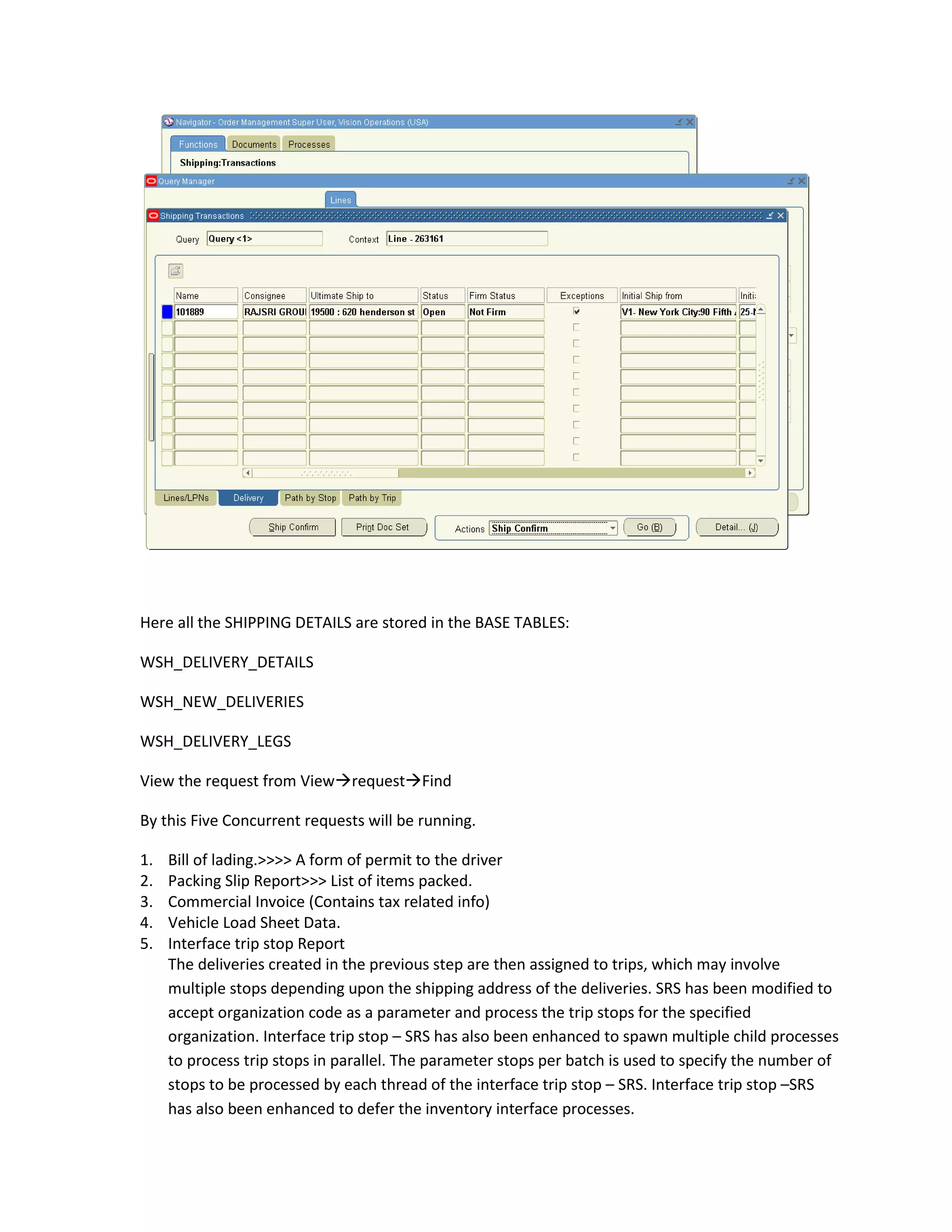
In the actions button click shipconfirm and Go.

Ship confirm: Is the process of confirming that items have shipped. When a delivery is ship-
confirmed, shipping execution confirms that the delivery lines associated with the delivery have
shipped.

A new form open’s, Click OK

Close the form
Here all the SHIPPING DETAILS are stored in the BASE TABLES:

WSH_DELIVERY_DETAILS

WSH_NEW_DELIVERIES

WSH_DELIVERY_LEGS

View the request from ViewrequestFind

By this Five Concurrent requests will be running.

1.   Bill of lading.>>>> A form of permit to the driver
2.   Packing Slip Report>>> List of items packed.
3.   Commercial Invoice (Contains tax related info)
4.   Vehicle Load Sheet Data.
5.   Interface trip stop Report
     The deliveries created in the previous step are then assigned to trips, which may involve
     multiple stops depending upon the shipping address of the deliveries. SRS has been modified to
     accept organization code as a parameter and process the trip stops for the specified
     organization. Interface trip stop – SRS has also been enhanced to spawn multiple child processes
     to process trip stops in parallel. The parameter stops per batch is used to specify the number of
     stops to be processed by each thread of the interface trip stop – SRS. Interface trip stop –SRS
     has also been enhanced to defer the inventory interface processes.
Check the status of Sales Order
Navigation: OM>Order,Returns>Sales Order.
F11
Enter the sales orders number
Ctrl + F11 Press Enter
Click on the lines tab Look for the status to be shipped
Run the concurrent request named:
WORK FLOW BACKGROUND PROCESS
Enter the parameters Yes, No in the required field
View the request.
This concurrent request is requested to populate the AR tables
5. TRANSFER THE ORDERS TO AUTO INVOICE TABLES

NAVIGATION: Receivable manager

View >request

Submit a new request

Run the Auto invoice Import Program

Auto-Invoice: Is used to import invoices, credit memos, debit memos, on-account credits.
Receivable’s ensures that the data imported is accurate and valid.

A parameters form open’s. Enter

Transaction Source: Order Entry and

Default Date: Today’s Date

Click OK
View the request, Auto invoice program Runs


6. CREATE THE AR INVOICE

NAVIGATION: Receivable manager>Transaction >Transaction

Query the sales order number

The transaction number is appeared. Note down the transaction number. It is the AR invoice
number
7. CREATE THE PAYMENT RECIEPT

NAVIGATION: Receivable manager > Receipt> Receipt

Enter the fields as required

Enter the receipt number

Enter the amount paid

Enter the transaction number and then click on the customer field

Click Apply
Check the fields for balance to be paid.
VIEW THE ACCOUNT SUMMARY USING THE

NAVIGATION: Receivables Manager>Account Details

Enter the transaction number/Customer number and find

We can view the summary of the transaction


8. POST THE TRANSACTIONS INTO THE GENERAL LEDGER

NAVIGATION: Receivable Manager> Interface> General Ledger


Submit the request for GENERAL LEDGER TRANSFER PROGRAM

Parameter form opens

Enter the required date (From which date to post the journals). Click OK
Three concurrent requests runs

   1. General Ledger transfer program
   2. revenue recognition
   3. update posting control


View the request.
9. IMPORT THE JOURNALS FROM INTERFACE TABLES TO MAIN GL TABLES

NAVIGATION: GL super user>Journals>Import>Run

Enter the source: Receivables

Selection Criteria: All group ID’s

Click Import

Click Yes

View the request
10. ENTERING INTO THE BOOKS

NAVIGATION: GL super user> Journals>Enter
Enter the period range to be entered into the books
Click on the un-posted then post those
Order to cash cycle

Order to cash cycle

  • 1.
    ORDER TO CASHCYCLE O2C STEPS: 1. Create the customer(if not present) 2. Enter the sales order 3. Book the sales order 4. Pick release a. Pick slip report runs b. Create inventory transactions with status=pending initially 5. Ship conformation is done, The inventory transaction with status=completed and then it transfers the order information into AR (Accounts Receivables) 6. Transfer the sales orders to auto invoice tables 7. Create AR invoice 8. Create payment receipt 9. GL post 1. CREATE THE CUSTOMER NAVIGATION: Order management/Accounts Receivables>Customer>Standard. Enter the name of the organization and Click Find. A new form opens Enter the field customer type as organization when the name field is an organization or Customer type as person when the name field is the name person Enter the TAX Registration number of 10 digits And TAX payer id/ SSN for organization/person Click on the NEW button a new form opens. Enter the required field in the tabs The organization number and customer number automatically appears when we SAVE the form
  • 2.
    2. BOOK THEORDER NAVIGATION: Order Management >Orders>Returns>Sales Order. Enter the customer name, Order type as mixed/as required from the list below Click on the Line Item tabs
  • 3.
    Types of orders: 1. Standard 2. Mixed 3. Bill only 4. Export orders 5. International 6. Order only 7. Return only 8. Training 9. Web In the line Item tab, enter the ordered items, Quantity and Click the Book Order button. Order has been booked dialect opens click OK
  • 4.
    The Order Numberand amount fields are populated automatically. Note down the order number and the Status changes from Entered to Booked Here all the order information is stored in the tables OE_ORDER_HEADERS_ALL (STORES HEADERS INFO) OE_ORDER_LINES_ALL (STORES LINES INFO) OE_ACTIONS_ALL (STORES ACTIONS INFO)
  • 5.
    3. GRANT THEPERMISSIONS TO THE USER NAVIGATION: OM>Shipping>Setups>Grant and Role Definitions>Grant. Enter the User name of the user who is granted the permission. 4. SHIPMENT RELEASE Navigation: OM>Shipping Transactions Enter the order number And Click Find
  • 6.
    Here the transactionsdetails are stored in the BASE TABLES: OE_TRANSACTION_TYPES_ALL OE_CREDIT_CHECK_RULES In this form the line status is ready to release And next step is Pick release In the Actions Change it to Launch Pick Release. Pick release: Pick release finds and release the eligible delivery lines that meet the release criteria, and creates move orders. The process of transacting move orders creates a reservation and determines the inventory source sub-inventory. Now click Go.
  • 7.
    View the concurrentrequest by View RequestFind The 3 concurrent request programs start running 1, Pick Selection List Generation 2, Pick Slip Report 3, Shipping Exceptions Report And click the view output Close the form Navigation: OM>Shipping Transactions Enter the order number> click find Look at the line status and next step which is changed.
  • 8.
    Click the deliverytab shipping transaction form. In the actions button click shipconfirm and Go. Ship confirm: Is the process of confirming that items have shipped. When a delivery is ship- confirmed, shipping execution confirms that the delivery lines associated with the delivery have shipped. A new form open’s, Click OK Close the form
  • 9.
    Here all theSHIPPING DETAILS are stored in the BASE TABLES: WSH_DELIVERY_DETAILS WSH_NEW_DELIVERIES WSH_DELIVERY_LEGS View the request from ViewrequestFind By this Five Concurrent requests will be running. 1. Bill of lading.>>>> A form of permit to the driver 2. Packing Slip Report>>> List of items packed. 3. Commercial Invoice (Contains tax related info) 4. Vehicle Load Sheet Data. 5. Interface trip stop Report The deliveries created in the previous step are then assigned to trips, which may involve multiple stops depending upon the shipping address of the deliveries. SRS has been modified to accept organization code as a parameter and process the trip stops for the specified organization. Interface trip stop – SRS has also been enhanced to spawn multiple child processes to process trip stops in parallel. The parameter stops per batch is used to specify the number of stops to be processed by each thread of the interface trip stop – SRS. Interface trip stop –SRS has also been enhanced to defer the inventory interface processes.
  • 10.
    Check the statusof Sales Order Navigation: OM>Order,Returns>Sales Order. F11 Enter the sales orders number Ctrl + F11 Press Enter Click on the lines tab Look for the status to be shipped
  • 11.
    Run the concurrentrequest named: WORK FLOW BACKGROUND PROCESS Enter the parameters Yes, No in the required field View the request. This concurrent request is requested to populate the AR tables
  • 12.
    5. TRANSFER THEORDERS TO AUTO INVOICE TABLES NAVIGATION: Receivable manager View >request Submit a new request Run the Auto invoice Import Program Auto-Invoice: Is used to import invoices, credit memos, debit memos, on-account credits. Receivable’s ensures that the data imported is accurate and valid. A parameters form open’s. Enter Transaction Source: Order Entry and Default Date: Today’s Date Click OK
  • 13.
    View the request,Auto invoice program Runs 6. CREATE THE AR INVOICE NAVIGATION: Receivable manager>Transaction >Transaction Query the sales order number The transaction number is appeared. Note down the transaction number. It is the AR invoice number
  • 14.
    7. CREATE THEPAYMENT RECIEPT NAVIGATION: Receivable manager > Receipt> Receipt Enter the fields as required Enter the receipt number Enter the amount paid Enter the transaction number and then click on the customer field Click Apply
  • 15.
    Check the fieldsfor balance to be paid.
  • 16.
    VIEW THE ACCOUNTSUMMARY USING THE NAVIGATION: Receivables Manager>Account Details Enter the transaction number/Customer number and find We can view the summary of the transaction 8. POST THE TRANSACTIONS INTO THE GENERAL LEDGER NAVIGATION: Receivable Manager> Interface> General Ledger Submit the request for GENERAL LEDGER TRANSFER PROGRAM Parameter form opens Enter the required date (From which date to post the journals). Click OK
  • 17.
    Three concurrent requestsruns 1. General Ledger transfer program 2. revenue recognition 3. update posting control View the request.
  • 18.
    9. IMPORT THEJOURNALS FROM INTERFACE TABLES TO MAIN GL TABLES NAVIGATION: GL super user>Journals>Import>Run Enter the source: Receivables Selection Criteria: All group ID’s Click Import Click Yes View the request
  • 19.
    10. ENTERING INTOTHE BOOKS NAVIGATION: GL super user> Journals>Enter Enter the period range to be entered into the books Click on the un-posted then post those