Enhanced Functionality
First Time Users
D a t a B o o k H e l p
Introduction
Thank you for selecting the GPSA Engineering Data
Book Eleventh Edition (Electronic). We trust that it
will become a standby in your collection of
engineering reference materials. This electronic
version is enhanced with the search and hyperlink
features of Adobe® Acrobat®. If you are a novice or a
casual Acrobat user, please take a few brief minutes
to review this help file. It provides a description of
how the Electronic Data Book is organized, as well as
invaluable inside tips on navigating through the great
volume of data presented.
First time Electronic Data Book users and Acrobat
novices will benefit from a perusal of the Glossary. The
Data Book Description provides an overview of the
Electronic Data Book, while the basics of getting
around are covered in Layout & Navigation. Lastly,
there’s a summary of the Data Book’s capabilities that
allows you to search in various ways: from a Data
Book menu bar; search all Sections; and find within a
Section. Re-linking indexes is also covered.
This help file assumes that you have a working
knowledge of the Windows® operating system’s
graphical user interface.
Next
TOC
Back
Note
Bright blue text
always denotes a
hyperlink that will
jump to that
information when
you click on it.
Bright blue
D a t a B o o k H e l p
article — An Acrobat feature that
allows the user to follow a chain of
text columns within a Section or
multi-page figures.
bookmark —A link to an Acrobat
view in a hierarchical list that allows
the user to quickly move from one
part of a document to another, as
well as between documents.
collection — A group of Adobe PDF
files (also called documents).
display mode — Acrobat has
three: Page Only, Page w/
Bookmarks and Page w/
Thumbnails. The Data Book
defaults to Page w/ Bookmarks.
Find — An Acrobat command that
allows the user to locate a phrase
in the current Section only.
Link — A predefined area on a
page that will, when clicked on,
execute any of a number of actions
(Go To View, Execute Menu Item,
etc.). The Go To View will jump to
another location in one of the
documents in the collection.
relevance ranking —A circle that
indicates how likely it is that the
Section contains the phrase you
searched for. The more filled it is,
the greater the likelihood that you
will find what you’re looking for in
that Section.
Search —An Acrobat command
that allows the user to locate all
the Sections in the collection that
contain a particular word or
phrase. A list of the Sections is
presented with a relevance
ranking.
Section — A topical division of the
GPSA Electronic Data Book (i.e.,
Section 3 — Measurements). Each
Section is a separate Acrobat
document file (*.pdf)
view —In Acrobat, a term for the
display of document (PDF file) that
includes the file, page, area on a
page (or all of it), and magnification
setting. Acrobat allows you to
navigate between the ten most
recent views.
Glossary
Back NextTop
TOC
How To
How To
How To
How To
How To
Organization
The Collection
Accessing Documents
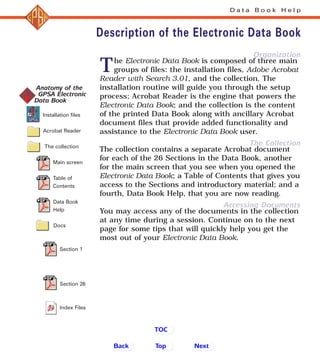
The Electronic Data Book is composed of three main
groups of files: the installation files, Adobe Acrobat
Reader with Search 3.01, and the collection. The
installation routine will guide you through the setup
process; Acrobat Reader is the engine that powers the
Electronic Data Book; and the collection is the content
of the printed Data Book along with ancillary Acrobat
document files that provide added functionality and
assistance to the Electronic Data Book user.
The collection contains a separate Acrobat document
for each of the 26 Sections in the Data Book, another
for the main screen that you see when you opened the
Electronic Data Book; a Table of Contents that gives you
access to the Sections and introductory material; and a
fourth, Data Book Help, that you are now reading.
You may access any of the documents in the collection
at any time during a session. Continue on to the next
page for some tips that will quickly help you get the
most out of your Electronic Data Book.
D a t a B o o k H e l p
Description of the Electronic Data Book
Anatomy of the
GPSA Electronic
Data Book
Installation files
Acrobat Reader
The collection
Main screen
Table of
Contents
Data Book
Help
Docs
Section 1
Section 26
Index Files
Back NextTop
TOC
In All Its Glory
Inside Scoop
User Tips
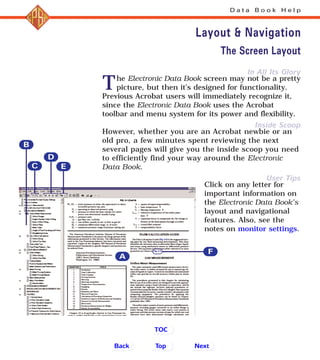
The Electronic Data Book screen may not be a pretty
picture, but then it’s designed for functionality.
Previous Acrobat users will immediately recognize it,
since the Electronic Data Book uses the Acrobat
toolbar and menu system for its power and flexibility.
However, whether you are an Acrobat newbie or an
old pro, a few minutes spent reviewing the next
several pages will give you the inside scoop you need
to efficiently find your way around the Electronic
Data Book.
Click on any letter for
important information on
the Electronic Data Book’s
layout and navigational
features. Also, see the
notes on monitor settings.
D a t a B o o k H e l p
Layout & Navigation
The Screen Layout
Back NextTop
TOC
B
D
E
A
C
F
B
C E
A
F
D
Ideal Screen Settings
Just Gettin By
The page views in Electronic Data Book are optimized
for a screen that has an 1152 pixel x 864 pixel
desktop area (set in the Display window of your Windows
Control Panel). This resolution was selected because:
• It is commonly available on today’s monitors.
• The font sizes of the printed publication, from
which this product was adapted, are relatively
small and require at least this size to display well.
• To display as much of each page as possible, so
that the user does not become “lost” without any
margin references.
A monitor resolution as low as 800 x 600 will provide
somewhat viewable results. Any Windows-compatible
color monitor capable of displaying these resolutions
is sufficient.
If your monitor is not capable of the optimal setting
above, you may have to vary from the instructions in
this help file to attain viewable results. A feature of the
Data Book that users with lower resolution monitors
may appreciate is the Acrobat article mode. If you have
the Hand Tool selected and there’s a down-arrow in
the center of the mouse pointer, you can click to zoom
in on a single column of text. The Reader Online Guide
has information on navigating with articles.
D a t a B o o k H e l p
Layout & Navigation
Monitor Settings
Back NextTop
TOC
I Can See Clearly
Setting your windows to an optimal configuration
will greatly enhance the ease with which you move
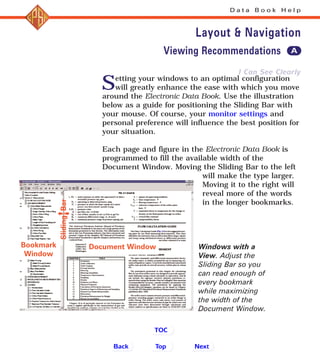
around the Electronic Data Book. Use the illustration
below as a guide for positioning the Sliding Bar with
your mouse. Of course, your monitor settings and
personal preference will influence the best position for
your situation.
Each page and figure in the Electronic Data Book is
programmed to fill the available width of the
Document Window. Moving the Sliding Bar to the left
will make the type larger.
Moving it to the right will
reveal more of the words
in the longer bookmarks.
D a t a B o o k H e l p
Layout & Navigation
Document WindowBookmark
Window
Windows with a
View. Adjust the
Sliding Bar so you
can read enough of
every bookmark
while maximizing
the width of the
Document Window.
Viewing Recommendations
Back NextTop
TOC
««
««
A
SlidingBar
Use Those Bookmarks!
Jumping to Other Documents
Getting Rid of Unwanted Clutter
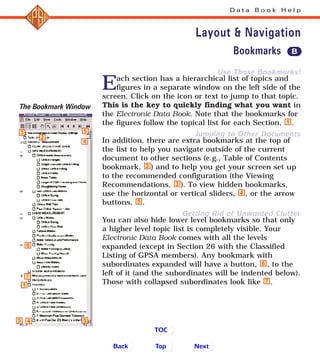
Each section has a hierarchical list of topics and
figures in a separate window on the left side of the
screen. Click on the icon or text to jump to that topic.
This is the key to quickly finding what you want in
the Electronic Data Book. Note that the bookmarks for
the figures follow the topical list for each Section, .
In addition, there are extra bookmarks at the top of
the list to help you navigate outside of the current
document to other sections (e.g., Table of Contents
bookmark, ) and to help you get your screen set up
to the recommended configuration (the Viewing
Recommendations, ). To view hidden bookmarks,
use the horizontal or vertical sliders, , or the arrow
buttons, .
You can also hide lower level bookmarks so that only
a higher level topic list is completely visible. Your
Electronic Data Book comes with all the levels
expanded (except in Section 26 with the Classified
Listing of GPSA members). Any bookmark with
subordinates expanded will have a button, , to the
left of it (and the subordinates will be indented below).
Those with collapsed subordinates look like .7
6
5
4
3
2
1
D a t a B o o k H e l p
Layout & Navigation
6
7
4
4 5
5
5
1
3
2
Back NextTop
TOC
Bookmarks B
The Bookmark Window
Within the Current View
Within the Current Section
(Document)
Between Sections
To navigate to another section, you
will generally have to go via the
Table of Contents page (see
Jumping to Other Documents,
above). One exception is when you
encounter a reference to a figure in
another section. See To a
Referenced Figure, below.
Between Views (no matter
which Section/Document)
To a Referenced Figure
Click on the bright blue text
(e.g., Fig 21-3) and the Electronic
Data Book will serve up the desired
illustration or table. You can
change the view according to your
needs (see “C”, above), but
D a t a B o o k H e l p
Layout & Navigation
Moving Around
To go to First Page
C
D
E
Return to
Previous View
Go to the
Next View
Back
F
NextTop
TOC
To go to Previous Page
To go to Next Page
To go to Last Page
Slides the current
view within its
window
Click and then drag
rectangle to zoom in
on an area
Fig. 21-3
remember you can only hit the
Previous View button (see “E”, above)
nine times to return to where you
were reading. If you’ll be spending
some time browsing around the
figure, note the topical bookmark
you’re reading in, so you’re always
just one click away from where you
were.
To Return to the Table of Contents
All documents have a “Table of
Contents” bookmark in the
Bookmarks window on the left of
the screen. A single click of the
mouse will take you there.
To View a Reference
Superscripted numbers are
reference citations. References are
listed at the end of each section.
Take note of the number and use
the REFERENCES bookmark or the
Last Page button (on the Toolbar)
to jump to the list. If the number
you’re looking for is not within
view, scroll the page or use the
Previous Page button to take you
backwards until you find the one
you’re looking for. To return to
where you were reading, click
either the Previous View button ,
(up to nine times) or the topical
bookmark where you were reading.
To View the Bibliography
Bibliographical entries, when used,
are located with the references at
the end of the section. You can
navigate to them using the
BIBLIOGRAPHY bookmark or in the
same manner as described above in
To View A Reference.
To See Additional Pages
of a Multi-Page Figure
If the data you’re looking for is not
on the page that a figure link took
you to, there’s a good chance that
the figure is continued. This will be
indicated by a down-arrow in the
center of the hand pointer (when
the Hand Tool is selected). Click
on the figure to display it as an
D a t a B o o k H e l p
Layout & Navigation
Back NextTop
TOC
Moving Around
Acrobat article. Repeated clicks
(about three, depending upon your
viewing conditions) will step you
down the entire length of a page.
To Follow a Column of Text
The printed Data Book was
published in a two-column format.
This Electronic Data Book remains
faithful to that, so from time to
time you will find yourself at the
end of the left-hand column and
want to continue reading at the top
of the right-hand one.
You can do this by displaying the
text as an article:
With the Hand Tool selected,
position the mouse pointer over
the column of text you’re
reading and click on it. This will
change the display to the article
mode and place you at the top
of the current column of text
you are reading.
For a full column of text, click
about three times and,
depending on your viewing
conditions, you’ll be back at
the bottom.
Click one more time and you’re
at the top of the next column.
If it’s more convenient, you can
remain in this mode for as long as
you are reading the same article.
For More Information
Check out the Adobe Acrobat
Reader Online Guide for more
detailed information. You can get
there by clicking on the title, above
(in blue), from an Electronic Data
Book menu bar, or at any time via
the Acrobat Reader menu:
Help> Reader Online Guide
D a t a B o o k H e l p
Layout & Navigation
Moving Around
Back NextTop
TOC
Needle in a haystack? No problem.
Trying to find a particular word or phrase? The
Electronic Data Book (via Acrobat) gives you two
ways to do it. The first, and most limited, is the
Acrobat “Find” command. It allows you to locate any
combination of characters in the current Section (or
document) only. See the heading, To Search the
Current Section Only.
When you’re not sure what Section will contain the
data you need, or you want cross-disciplinary
information, then the Acrobat Search facility is what
you’re looking for. This powerful search engine will
perform a full text search of the entire Electronic Data
Book in seconds and return a list of the Sections and
ancillary files in which your search string appears.
See To Search All Sections.
Additionally, you can launch an Acrobat search from
the menu bars that appear at the bottom of the Main
screen and the Table of Contents screen.
D a t a B o o k H e l p
Search
Back NextTop
TOC
Note
Although Acrobat will perform full
text searches, many of the figures are
bitmapped images and the text they
contain will not be located during any
type of search.
From a Data Book Menu Bar
You can immediately launch a
search when you start the GPSA
Electronic Data Book from either the
Main screen or the Table of
Contents screen.
Click on the [Search] button at
the bottom of the screen. The
Search dialog will open.
Type a search string, select the
desired options and click on the
[Search] button. Acrobat will
jump to the first occurrence, if
it is found.
Press [Ctrl]+U to go to the next
occurrence.
To Search All Sections
On the Acrobat Reader menu,
select Tools> Search> Query. The
Search dialog will pop up.
Place your mouse pointer over
the Find Results Containing Text
window and click once to get a
blinking cursor in the window.
Type a search string, select the
desired options and click on the
[Search] button.
Press [Ctrl]+U to go to the next
occurrence of a search string.
To Search the Current
Section Only
On the Acrobat Reader menu,
select Tools> Find.
Type a search string in the box,
select the desired options and
click on the [Find] button.
Press [Ctrl]+G to go to the next
occurrence of a “Find” phrase.
D a t a B o o k H e l p
Search
Trouble
If the [Search] button is grayed out
when the dialog box opens, the
probable cause is that the links to the
index files are broken. To restore them,
see Re-linking Indexes, below.
Back NextTop
TOC
D a t a B o o k H e l p
Search
Re-linking Indexes
If you have attempted to search the
Data Book and found that you
didn’t have any indexes to search,
don’t panic. The index files (*.pdx)
are most likely still in the DataBook
Docs folder. A broken link is the
most likely cause. To reestablish
the link(s):
If the Adobe Acrobat Search
dialog is still open, go to the
next step. If not, select Tools>
Search> Query from the Acrobat
Reader menu.
Click on [Indexes]. The Index
Selection dialog will open.
Note the Available Indexes
window. There should be two
indexes listed, the Data Book and
Acrobat Help Files and the GPSA
Electronic Data Book. If the one(s)
you want to use are not shown,
click on the [Add] button.
Browse to the Data BookDocs
folder on the CD. Two PDX files
are listed, choose the one you
want and click [Open]. Repeat
these last two steps if you want
both indexes open.
Congratulations, your indexes are
now linked! Note that in the Adobe
Acrobat Search dialog, the [Search]
button is no longer grayed out. You
may now search all the files in the
Data Book collection for any phrase
that will point to information you’re
looking for. See To Search All
Sections for tips on using the
Search function.
For More Information
The Adobe Acrobat Search Online
Guide provides more detail. You can
get there by clicking on the title (in
blue, above), from an Electronic Data
Book menu bar, or at any time via
the Acrobat Reader menu:
Help> Plug-In Help> Using Acrobat Search
Back Top
TOC

Help

  • 1.
    Enhanced Functionality First TimeUsers D a t a B o o k H e l p Introduction Thank you for selecting the GPSA Engineering Data Book Eleventh Edition (Electronic). We trust that it will become a standby in your collection of engineering reference materials. This electronic version is enhanced with the search and hyperlink features of Adobe® Acrobat®. If you are a novice or a casual Acrobat user, please take a few brief minutes to review this help file. It provides a description of how the Electronic Data Book is organized, as well as invaluable inside tips on navigating through the great volume of data presented. First time Electronic Data Book users and Acrobat novices will benefit from a perusal of the Glossary. The Data Book Description provides an overview of the Electronic Data Book, while the basics of getting around are covered in Layout & Navigation. Lastly, there’s a summary of the Data Book’s capabilities that allows you to search in various ways: from a Data Book menu bar; search all Sections; and find within a Section. Re-linking indexes is also covered. This help file assumes that you have a working knowledge of the Windows® operating system’s graphical user interface. Next TOC Back Note Bright blue text always denotes a hyperlink that will jump to that information when you click on it. Bright blue
  • 2.
    D a ta B o o k H e l p article — An Acrobat feature that allows the user to follow a chain of text columns within a Section or multi-page figures. bookmark —A link to an Acrobat view in a hierarchical list that allows the user to quickly move from one part of a document to another, as well as between documents. collection — A group of Adobe PDF files (also called documents). display mode — Acrobat has three: Page Only, Page w/ Bookmarks and Page w/ Thumbnails. The Data Book defaults to Page w/ Bookmarks. Find — An Acrobat command that allows the user to locate a phrase in the current Section only. Link — A predefined area on a page that will, when clicked on, execute any of a number of actions (Go To View, Execute Menu Item, etc.). The Go To View will jump to another location in one of the documents in the collection. relevance ranking —A circle that indicates how likely it is that the Section contains the phrase you searched for. The more filled it is, the greater the likelihood that you will find what you’re looking for in that Section. Search —An Acrobat command that allows the user to locate all the Sections in the collection that contain a particular word or phrase. A list of the Sections is presented with a relevance ranking. Section — A topical division of the GPSA Electronic Data Book (i.e., Section 3 — Measurements). Each Section is a separate Acrobat document file (*.pdf) view —In Acrobat, a term for the display of document (PDF file) that includes the file, page, area on a page (or all of it), and magnification setting. Acrobat allows you to navigate between the ten most recent views. Glossary Back NextTop TOC How To How To How To How To How To
  • 3.
    Organization The Collection Accessing Documents TheElectronic Data Book is composed of three main groups of files: the installation files, Adobe Acrobat Reader with Search 3.01, and the collection. The installation routine will guide you through the setup process; Acrobat Reader is the engine that powers the Electronic Data Book; and the collection is the content of the printed Data Book along with ancillary Acrobat document files that provide added functionality and assistance to the Electronic Data Book user. The collection contains a separate Acrobat document for each of the 26 Sections in the Data Book, another for the main screen that you see when you opened the Electronic Data Book; a Table of Contents that gives you access to the Sections and introductory material; and a fourth, Data Book Help, that you are now reading. You may access any of the documents in the collection at any time during a session. Continue on to the next page for some tips that will quickly help you get the most out of your Electronic Data Book. D a t a B o o k H e l p Description of the Electronic Data Book Anatomy of the GPSA Electronic Data Book Installation files Acrobat Reader The collection Main screen Table of Contents Data Book Help Docs Section 1 Section 26 Index Files Back NextTop TOC
  • 4.
    In All ItsGlory Inside Scoop User Tips The Electronic Data Book screen may not be a pretty picture, but then it’s designed for functionality. Previous Acrobat users will immediately recognize it, since the Electronic Data Book uses the Acrobat toolbar and menu system for its power and flexibility. However, whether you are an Acrobat newbie or an old pro, a few minutes spent reviewing the next several pages will give you the inside scoop you need to efficiently find your way around the Electronic Data Book. Click on any letter for important information on the Electronic Data Book’s layout and navigational features. Also, see the notes on monitor settings. D a t a B o o k H e l p Layout & Navigation The Screen Layout Back NextTop TOC B D E A C F B C E A F D
  • 5.
    Ideal Screen Settings JustGettin By The page views in Electronic Data Book are optimized for a screen that has an 1152 pixel x 864 pixel desktop area (set in the Display window of your Windows Control Panel). This resolution was selected because: • It is commonly available on today’s monitors. • The font sizes of the printed publication, from which this product was adapted, are relatively small and require at least this size to display well. • To display as much of each page as possible, so that the user does not become “lost” without any margin references. A monitor resolution as low as 800 x 600 will provide somewhat viewable results. Any Windows-compatible color monitor capable of displaying these resolutions is sufficient. If your monitor is not capable of the optimal setting above, you may have to vary from the instructions in this help file to attain viewable results. A feature of the Data Book that users with lower resolution monitors may appreciate is the Acrobat article mode. If you have the Hand Tool selected and there’s a down-arrow in the center of the mouse pointer, you can click to zoom in on a single column of text. The Reader Online Guide has information on navigating with articles. D a t a B o o k H e l p Layout & Navigation Monitor Settings Back NextTop TOC
  • 6.
    I Can SeeClearly Setting your windows to an optimal configuration will greatly enhance the ease with which you move around the Electronic Data Book. Use the illustration below as a guide for positioning the Sliding Bar with your mouse. Of course, your monitor settings and personal preference will influence the best position for your situation. Each page and figure in the Electronic Data Book is programmed to fill the available width of the Document Window. Moving the Sliding Bar to the left will make the type larger. Moving it to the right will reveal more of the words in the longer bookmarks. D a t a B o o k H e l p Layout & Navigation Document WindowBookmark Window Windows with a View. Adjust the Sliding Bar so you can read enough of every bookmark while maximizing the width of the Document Window. Viewing Recommendations Back NextTop TOC «« «« A SlidingBar
  • 7.
    Use Those Bookmarks! Jumpingto Other Documents Getting Rid of Unwanted Clutter Each section has a hierarchical list of topics and figures in a separate window on the left side of the screen. Click on the icon or text to jump to that topic. This is the key to quickly finding what you want in the Electronic Data Book. Note that the bookmarks for the figures follow the topical list for each Section, . In addition, there are extra bookmarks at the top of the list to help you navigate outside of the current document to other sections (e.g., Table of Contents bookmark, ) and to help you get your screen set up to the recommended configuration (the Viewing Recommendations, ). To view hidden bookmarks, use the horizontal or vertical sliders, , or the arrow buttons, . You can also hide lower level bookmarks so that only a higher level topic list is completely visible. Your Electronic Data Book comes with all the levels expanded (except in Section 26 with the Classified Listing of GPSA members). Any bookmark with subordinates expanded will have a button, , to the left of it (and the subordinates will be indented below). Those with collapsed subordinates look like .7 6 5 4 3 2 1 D a t a B o o k H e l p Layout & Navigation 6 7 4 4 5 5 5 1 3 2 Back NextTop TOC Bookmarks B The Bookmark Window
  • 8.
    Within the CurrentView Within the Current Section (Document) Between Sections To navigate to another section, you will generally have to go via the Table of Contents page (see Jumping to Other Documents, above). One exception is when you encounter a reference to a figure in another section. See To a Referenced Figure, below. Between Views (no matter which Section/Document) To a Referenced Figure Click on the bright blue text (e.g., Fig 21-3) and the Electronic Data Book will serve up the desired illustration or table. You can change the view according to your needs (see “C”, above), but D a t a B o o k H e l p Layout & Navigation Moving Around To go to First Page C D E Return to Previous View Go to the Next View Back F NextTop TOC To go to Previous Page To go to Next Page To go to Last Page Slides the current view within its window Click and then drag rectangle to zoom in on an area Fig. 21-3
  • 9.
    remember you canonly hit the Previous View button (see “E”, above) nine times to return to where you were reading. If you’ll be spending some time browsing around the figure, note the topical bookmark you’re reading in, so you’re always just one click away from where you were. To Return to the Table of Contents All documents have a “Table of Contents” bookmark in the Bookmarks window on the left of the screen. A single click of the mouse will take you there. To View a Reference Superscripted numbers are reference citations. References are listed at the end of each section. Take note of the number and use the REFERENCES bookmark or the Last Page button (on the Toolbar) to jump to the list. If the number you’re looking for is not within view, scroll the page or use the Previous Page button to take you backwards until you find the one you’re looking for. To return to where you were reading, click either the Previous View button , (up to nine times) or the topical bookmark where you were reading. To View the Bibliography Bibliographical entries, when used, are located with the references at the end of the section. You can navigate to them using the BIBLIOGRAPHY bookmark or in the same manner as described above in To View A Reference. To See Additional Pages of a Multi-Page Figure If the data you’re looking for is not on the page that a figure link took you to, there’s a good chance that the figure is continued. This will be indicated by a down-arrow in the center of the hand pointer (when the Hand Tool is selected). Click on the figure to display it as an D a t a B o o k H e l p Layout & Navigation Back NextTop TOC Moving Around
  • 10.
    Acrobat article. Repeatedclicks (about three, depending upon your viewing conditions) will step you down the entire length of a page. To Follow a Column of Text The printed Data Book was published in a two-column format. This Electronic Data Book remains faithful to that, so from time to time you will find yourself at the end of the left-hand column and want to continue reading at the top of the right-hand one. You can do this by displaying the text as an article: With the Hand Tool selected, position the mouse pointer over the column of text you’re reading and click on it. This will change the display to the article mode and place you at the top of the current column of text you are reading. For a full column of text, click about three times and, depending on your viewing conditions, you’ll be back at the bottom. Click one more time and you’re at the top of the next column. If it’s more convenient, you can remain in this mode for as long as you are reading the same article. For More Information Check out the Adobe Acrobat Reader Online Guide for more detailed information. You can get there by clicking on the title, above (in blue), from an Electronic Data Book menu bar, or at any time via the Acrobat Reader menu: Help> Reader Online Guide D a t a B o o k H e l p Layout & Navigation Moving Around Back NextTop TOC
  • 11.
    Needle in ahaystack? No problem. Trying to find a particular word or phrase? The Electronic Data Book (via Acrobat) gives you two ways to do it. The first, and most limited, is the Acrobat “Find” command. It allows you to locate any combination of characters in the current Section (or document) only. See the heading, To Search the Current Section Only. When you’re not sure what Section will contain the data you need, or you want cross-disciplinary information, then the Acrobat Search facility is what you’re looking for. This powerful search engine will perform a full text search of the entire Electronic Data Book in seconds and return a list of the Sections and ancillary files in which your search string appears. See To Search All Sections. Additionally, you can launch an Acrobat search from the menu bars that appear at the bottom of the Main screen and the Table of Contents screen. D a t a B o o k H e l p Search Back NextTop TOC Note Although Acrobat will perform full text searches, many of the figures are bitmapped images and the text they contain will not be located during any type of search.
  • 12.
    From a DataBook Menu Bar You can immediately launch a search when you start the GPSA Electronic Data Book from either the Main screen or the Table of Contents screen. Click on the [Search] button at the bottom of the screen. The Search dialog will open. Type a search string, select the desired options and click on the [Search] button. Acrobat will jump to the first occurrence, if it is found. Press [Ctrl]+U to go to the next occurrence. To Search All Sections On the Acrobat Reader menu, select Tools> Search> Query. The Search dialog will pop up. Place your mouse pointer over the Find Results Containing Text window and click once to get a blinking cursor in the window. Type a search string, select the desired options and click on the [Search] button. Press [Ctrl]+U to go to the next occurrence of a search string. To Search the Current Section Only On the Acrobat Reader menu, select Tools> Find. Type a search string in the box, select the desired options and click on the [Find] button. Press [Ctrl]+G to go to the next occurrence of a “Find” phrase. D a t a B o o k H e l p Search Trouble If the [Search] button is grayed out when the dialog box opens, the probable cause is that the links to the index files are broken. To restore them, see Re-linking Indexes, below. Back NextTop TOC
  • 13.
    D a ta B o o k H e l p Search Re-linking Indexes If you have attempted to search the Data Book and found that you didn’t have any indexes to search, don’t panic. The index files (*.pdx) are most likely still in the DataBook Docs folder. A broken link is the most likely cause. To reestablish the link(s): If the Adobe Acrobat Search dialog is still open, go to the next step. If not, select Tools> Search> Query from the Acrobat Reader menu. Click on [Indexes]. The Index Selection dialog will open. Note the Available Indexes window. There should be two indexes listed, the Data Book and Acrobat Help Files and the GPSA Electronic Data Book. If the one(s) you want to use are not shown, click on the [Add] button. Browse to the Data BookDocs folder on the CD. Two PDX files are listed, choose the one you want and click [Open]. Repeat these last two steps if you want both indexes open. Congratulations, your indexes are now linked! Note that in the Adobe Acrobat Search dialog, the [Search] button is no longer grayed out. You may now search all the files in the Data Book collection for any phrase that will point to information you’re looking for. See To Search All Sections for tips on using the Search function. For More Information The Adobe Acrobat Search Online Guide provides more detail. You can get there by clicking on the title (in blue, above), from an Electronic Data Book menu bar, or at any time via the Acrobat Reader menu: Help> Plug-In Help> Using Acrobat Search Back Top TOC