Using NoodleTools A complete citation, notecard, and outlining tool START
About this Tutorial This tutorial will walk you through the steps of creating a project with NoodleTools. To move on in the program, click the NEXT button.  If you need to go back, use the navigation in the bottom left corner to select a slide. After each section, you will have the option to move ahead or return to the main menu. NEXT
Choose a Topic Below Starting a Project Managing Sources Creating  Notecards From  Notecards  to Outline Drafting Your Paper
Starting a Project NEXT
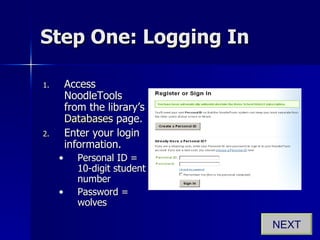
Step One: Logging In Access NoodleTools from the library’s  Databases  page. Enter your login information. Personal ID = 10-digit student number Password = wolves NEXT
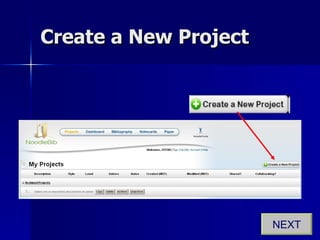
Create a New Project NEXT
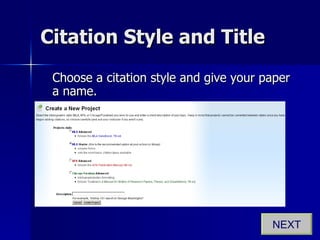
Citation Style and Title Choose a citation style and give your paper a name. NEXT
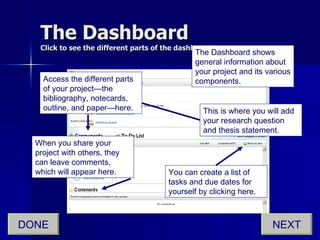
The Dashboard Click to see the different parts of the dashboard. The Dashboard shows general information about your project and its various components. NEXT DONE This is where you will add your research question and thesis statement. Access the different parts of your project—the bibliography, notecards, outline, and paper—here. When you share your project with others, they can leave comments, which will appear here. You can create a list of tasks and due dates for yourself by clicking here.
Managing Sources NEXT
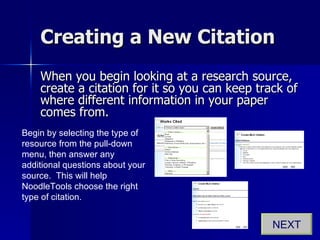
Creating a New Citation When you begin looking at a research source, create a citation for it so you can keep track of where different information in your paper comes from. Begin by selecting the type of resource from the pull-down menu, then answer any additional questions about your source.  This will help NoodleTools choose the right type of citation. NEXT
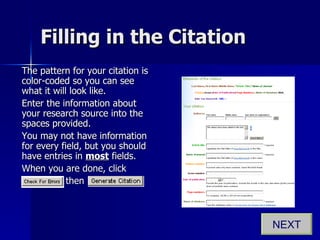
Filling in the Citation The pattern for your citation is color-coded so you can see what it will look like. Enter the information about your research source into the spaces provided.  You may not have information for every field, but you should have entries in  most  fields. When you are done, click  .   then  NEXT
Adding Additional Information You can choose to add additional information about the research source in the “Annotation” field. This is required for an annotated bibliography, and can help you to keep track of the format and general characteristics of each source in case you want to refer to them later. NEXT DONE
Creating Notecards NEXT
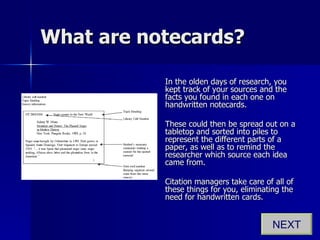
What are notecards? In the olden days of research, you kept track of your sources and the facts you found in each one on handwritten notecards. These could then be spread out on a tabletop and sorted into piles to represent the different parts of a paper, as well as to remind the researcher which source each idea came from. Citation managers take care of all of these things for you, eliminating the need for handwritten cards. NEXT
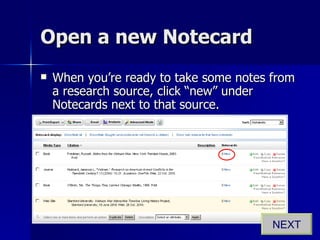
Open a new Notecard When you’re ready to take some notes from a research source, click “new” under Notecards next to that source. NEXT
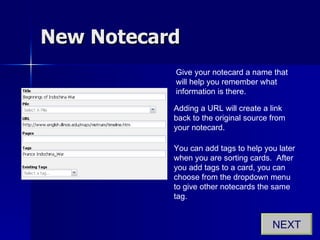
New Notecard Give your notecard a name that will help you remember what information is there. Adding a URL will create a link back to the original source from your notecard. You can add tags to help you later when you are sorting cards.  After you add tags to a card, you can choose from the dropdown menu to give other notecards the same tag. NEXT
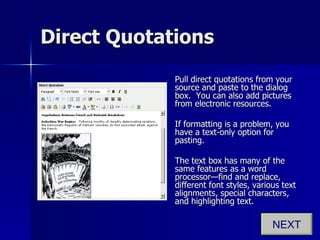
Direct Quotations Pull direct quotations from your source and paste to the dialog box.  You can also add pictures from electronic resources. If formatting is a problem, you have a text-only option for pasting. The text box has many of the same features as a word processor—find and replace, different font styles, various text alignments, special characters, and highlighting text. NEXT
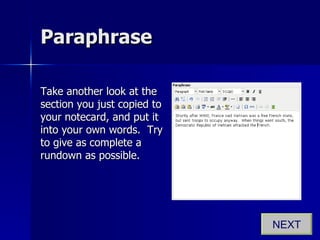
Paraphrase Take another look at the section you just copied to your notecard, and put it into your own words.  Try to give as complete a rundown as possible.  NEXT
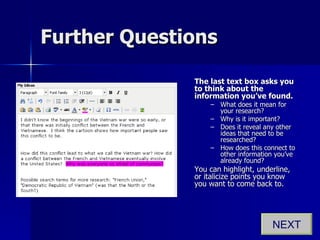
Further Questions The last text box asks you to think about the information you’ve found.   What does it mean for your research?  Why is it important?  Does it reveal any other ideas that need to be researched?  How does this connect to other information you’ve already found? You can highlight, underline, or italicize points you know you want to come back to. NEXT
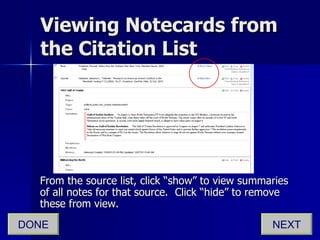
Viewing Notecards from the Citation List From the source list, click “show” to view summaries of all notes for that source.  Click “hide” to remove these from view. NEXT DONE
From Notecards to Outline NEXT
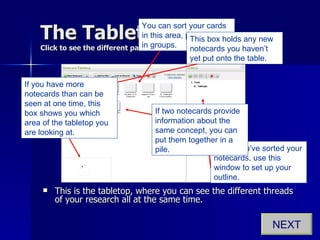
The Tabletop Click to see the different parts of the tabletop. This is the tabletop, where you can see the different threads of your research all at the same time. NEXT You can sort your cards in this area, putting them in groups. When you’ve sorted your notecards, use this window to set up your outline. If two notecards provide information about the same concept, you can put them together in a pile. This box holds any new notecards you haven’t yet put onto the table. If you have more notecards than can be seen at one time, this box shows you which area of the tabletop you are looking at.
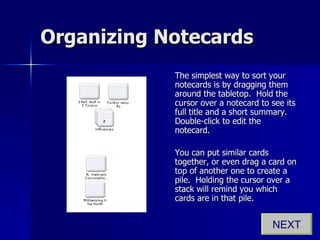
Organizing Notecards The simplest way to sort your notecards is by dragging them around the tabletop.  Hold the cursor over a notecard to see its full title and a short summary.  Double-click to edit the notecard. You can put similar cards together, or even drag a card on top of another one to create a pile.  Holding the cursor over a stack will remind you which cards are in that pile. NEXT
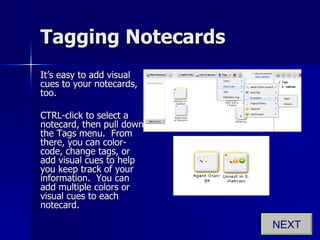
Tagging Notecards It’s easy to add visual cues to your notecards, too. CTRL-click to select a notecard, then pull down the Tags menu.  From there, you can color-code, change tags, or add visual cues to help you keep track of your information.  You can add multiple colors or visual cues to each notecard. NEXT

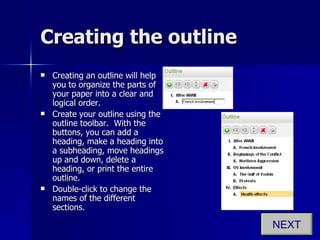
Creating the outline Creating an outline will help you to organize the parts of your paper into a clear and logical order. Create your outline using the outline toolbar.  With the buttons, you can add a heading, make a heading into a subheading, move headings up and down, delete a heading, or print the entire outline. Double-click to change the names of the different sections. NEXT
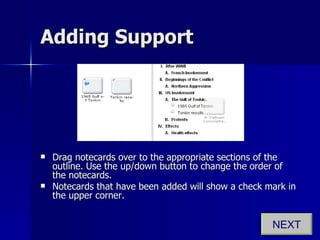
Adding Support Drag notecards over to the appropriate sections of the outline. Use the up/down button to change the order of the notecards. Notecards that have been added will show a check mark in the upper corner. NEXT
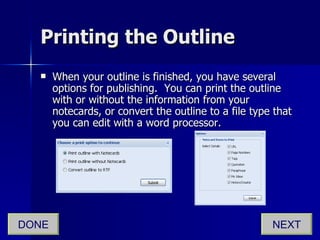
Printing the Outline When your outline is finished, you have several options for publishing.  You can print the outline with or without the information from your notecards, or convert the outline to a file type that you can edit with a word processor. NEXT DONE
Drafting Your Paper NEXT
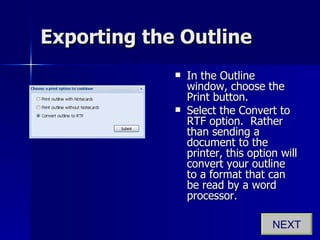
Exporting the Outline In the Outline window, choose the Print button. Select the Convert to RTF option.  Rather than sending a document to the printer, this option will convert your outline to a format that can be read by a word processor. NEXT
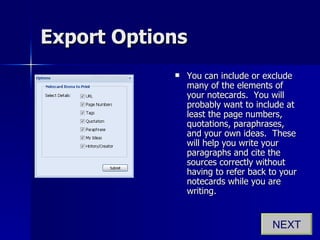
Export Options You can include or exclude many of the elements of your notecards.  You will probably want to include at least the page numbers, quotations, paraphrases, and your own ideas.  These will help you write your paragraphs and cite the sources correctly without having to refer back to your notecards while you are writing. NEXT
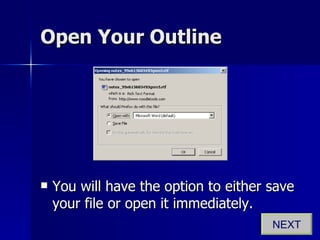
Open Your Outline You will have the option to either save your file or open it immediately. NEXT
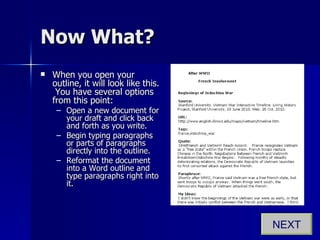
Now What? When you open your outline, it will look like this.  You have several options from this point: Open a new document for your draft and click back and forth as you write. Begin typing paragraphs or parts of paragraphs directly into the outline. Reformat the document into a Word outline and type paragraphs right into it. NEXT
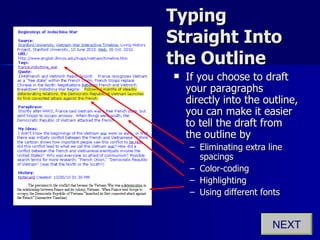
Typing Straight Into the Outline If you choose to draft your paragraphs directly into the outline, you can make it easier to tell the draft from the outline by Eliminating extra line spacings Color-coding Highlighting Using different fonts NEXT
Google Docs One of the best places to put your draft is on Google Docs.  You will need a Google account to do this. The advantages to using Google Docs for storing your files are: Files are accessible from any web-connected computer. You only have one version of the file floating around—no more figuring out which is the one you were working on last time. A full-featured, built-in word processor means you can edit your file on a computer that doesn’t have Word, or open your file no matter what program or version you have. NEXT
You’re Done! Press  to exit the tutorial.

Noodle tools

  • 1.
    Using NoodleTools Acomplete citation, notecard, and outlining tool START
  • 2.
    About this TutorialThis tutorial will walk you through the steps of creating a project with NoodleTools. To move on in the program, click the NEXT button. If you need to go back, use the navigation in the bottom left corner to select a slide. After each section, you will have the option to move ahead or return to the main menu. NEXT
  • 3.
    Choose a TopicBelow Starting a Project Managing Sources Creating Notecards From Notecards to Outline Drafting Your Paper
  • 4.
  • 5.
    Step One: LoggingIn Access NoodleTools from the library’s Databases page. Enter your login information. Personal ID = 10-digit student number Password = wolves NEXT
  • 6.
    Create a NewProject NEXT
  • 7.
    Citation Style andTitle Choose a citation style and give your paper a name. NEXT
  • 8.
    The Dashboard Clickto see the different parts of the dashboard. The Dashboard shows general information about your project and its various components. NEXT DONE This is where you will add your research question and thesis statement. Access the different parts of your project—the bibliography, notecards, outline, and paper—here. When you share your project with others, they can leave comments, which will appear here. You can create a list of tasks and due dates for yourself by clicking here.
  • 9.
  • 10.
    Creating a NewCitation When you begin looking at a research source, create a citation for it so you can keep track of where different information in your paper comes from. Begin by selecting the type of resource from the pull-down menu, then answer any additional questions about your source. This will help NoodleTools choose the right type of citation. NEXT
  • 11.
    Filling in theCitation The pattern for your citation is color-coded so you can see what it will look like. Enter the information about your research source into the spaces provided. You may not have information for every field, but you should have entries in most fields. When you are done, click . then NEXT
  • 12.
    Adding Additional InformationYou can choose to add additional information about the research source in the “Annotation” field. This is required for an annotated bibliography, and can help you to keep track of the format and general characteristics of each source in case you want to refer to them later. NEXT DONE
  • 13.
  • 14.
    What are notecards?In the olden days of research, you kept track of your sources and the facts you found in each one on handwritten notecards. These could then be spread out on a tabletop and sorted into piles to represent the different parts of a paper, as well as to remind the researcher which source each idea came from. Citation managers take care of all of these things for you, eliminating the need for handwritten cards. NEXT
  • 15.
    Open a newNotecard When you’re ready to take some notes from a research source, click “new” under Notecards next to that source. NEXT
  • 16.
    New Notecard Giveyour notecard a name that will help you remember what information is there. Adding a URL will create a link back to the original source from your notecard. You can add tags to help you later when you are sorting cards. After you add tags to a card, you can choose from the dropdown menu to give other notecards the same tag. NEXT
  • 17.
    Direct Quotations Pulldirect quotations from your source and paste to the dialog box. You can also add pictures from electronic resources. If formatting is a problem, you have a text-only option for pasting. The text box has many of the same features as a word processor—find and replace, different font styles, various text alignments, special characters, and highlighting text. NEXT
  • 18.
    Paraphrase Take anotherlook at the section you just copied to your notecard, and put it into your own words. Try to give as complete a rundown as possible. NEXT
  • 19.
    Further Questions Thelast text box asks you to think about the information you’ve found. What does it mean for your research? Why is it important? Does it reveal any other ideas that need to be researched? How does this connect to other information you’ve already found? You can highlight, underline, or italicize points you know you want to come back to. NEXT
  • 20.
    Viewing Notecards fromthe Citation List From the source list, click “show” to view summaries of all notes for that source. Click “hide” to remove these from view. NEXT DONE
  • 21.
    From Notecards toOutline NEXT
  • 22.
    The Tabletop Clickto see the different parts of the tabletop. This is the tabletop, where you can see the different threads of your research all at the same time. NEXT You can sort your cards in this area, putting them in groups. When you’ve sorted your notecards, use this window to set up your outline. If two notecards provide information about the same concept, you can put them together in a pile. This box holds any new notecards you haven’t yet put onto the table. If you have more notecards than can be seen at one time, this box shows you which area of the tabletop you are looking at.
  • 23.
    Organizing Notecards Thesimplest way to sort your notecards is by dragging them around the tabletop. Hold the cursor over a notecard to see its full title and a short summary. Double-click to edit the notecard. You can put similar cards together, or even drag a card on top of another one to create a pile. Holding the cursor over a stack will remind you which cards are in that pile. NEXT
  • 24.
    Tagging Notecards It’seasy to add visual cues to your notecards, too. CTRL-click to select a notecard, then pull down the Tags menu. From there, you can color-code, change tags, or add visual cues to help you keep track of your information. You can add multiple colors or visual cues to each notecard. NEXT
  • 25.
    Creating the outlineCreating an outline will help you to organize the parts of your paper into a clear and logical order. Create your outline using the outline toolbar. With the buttons, you can add a heading, make a heading into a subheading, move headings up and down, delete a heading, or print the entire outline. Double-click to change the names of the different sections. NEXT
  • 26.
    Adding Support Dragnotecards over to the appropriate sections of the outline. Use the up/down button to change the order of the notecards. Notecards that have been added will show a check mark in the upper corner. NEXT
  • 27.
    Printing the OutlineWhen your outline is finished, you have several options for publishing. You can print the outline with or without the information from your notecards, or convert the outline to a file type that you can edit with a word processor. NEXT DONE
  • 28.
  • 29.
    Exporting the OutlineIn the Outline window, choose the Print button. Select the Convert to RTF option. Rather than sending a document to the printer, this option will convert your outline to a format that can be read by a word processor. NEXT
  • 30.
    Export Options Youcan include or exclude many of the elements of your notecards. You will probably want to include at least the page numbers, quotations, paraphrases, and your own ideas. These will help you write your paragraphs and cite the sources correctly without having to refer back to your notecards while you are writing. NEXT
  • 31.
    Open Your OutlineYou will have the option to either save your file or open it immediately. NEXT
  • 32.
    Now What? Whenyou open your outline, it will look like this. You have several options from this point: Open a new document for your draft and click back and forth as you write. Begin typing paragraphs or parts of paragraphs directly into the outline. Reformat the document into a Word outline and type paragraphs right into it. NEXT
  • 33.
    Typing Straight Intothe Outline If you choose to draft your paragraphs directly into the outline, you can make it easier to tell the draft from the outline by Eliminating extra line spacings Color-coding Highlighting Using different fonts NEXT
  • 34.
    Google Docs Oneof the best places to put your draft is on Google Docs. You will need a Google account to do this. The advantages to using Google Docs for storing your files are: Files are accessible from any web-connected computer. You only have one version of the file floating around—no more figuring out which is the one you were working on last time. A full-featured, built-in word processor means you can edit your file on a computer that doesn’t have Word, or open your file no matter what program or version you have. NEXT
  • 35.
    You’re Done! Press to exit the tutorial.