kComputer WorkshopsAl Huda International Welfare Foundation
PackagesInternet Basics
Microsoft Office
Social Networking
Advanced EditingAgendaWord
Excel
Powerpoint
Access
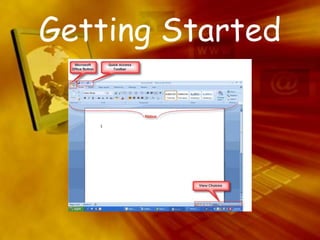
Getting Started
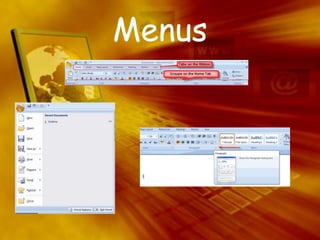
Menus
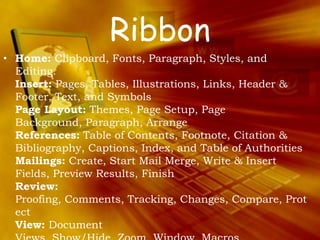
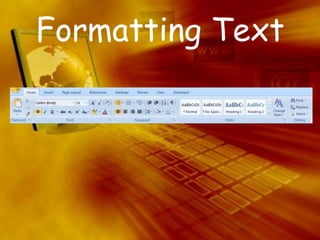
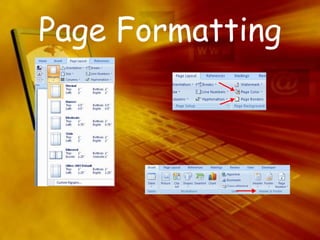
RibbonHome: Clipboard, Fonts, Paragraph, Styles, and Editing. Insert: Pages, Tables, Illustrations, Links, Header & Footer, Text, and SymbolsPage Layout: Themes, Page Setup, Page Background, Paragraph, ArrangeReferences: Table of Contents, Footnote, Citation & Bibliography, Captions, Index, and Table of AuthoritiesMailings: Create, Start Mail Merge, Write & Insert Fields, Preview Results, FinishReview: Proofing, Comments, Tracking, Changes, Compare, ProtectView: Document Views, Show/Hide, Zoom, Window, Macros
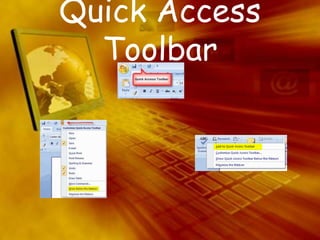
Quick Access Toolbar
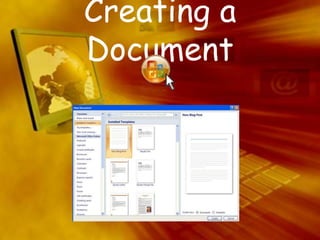
Creating a Document
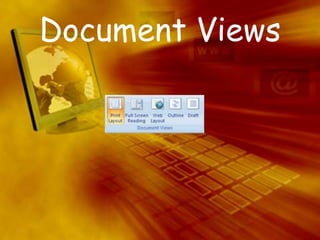
Document Views
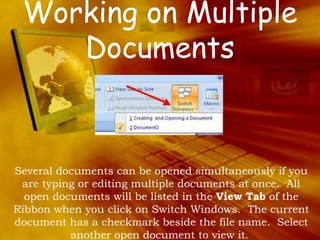
Working on Multiple DocumentsSeveral documents can be opened simultaneously if you are typing or editing multiple documents at once.  All open documents will be listed in the View Tab of the Ribbon when you click on Switch Windows.  The current document has a checkmark beside the file name.  Select another open document to view it. 
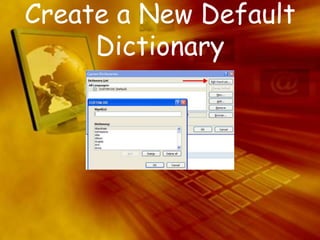
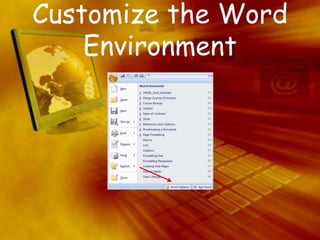
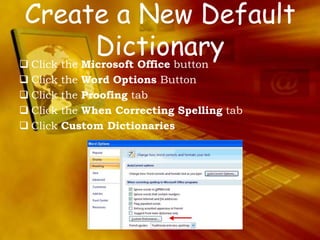
Customize the Word Environment
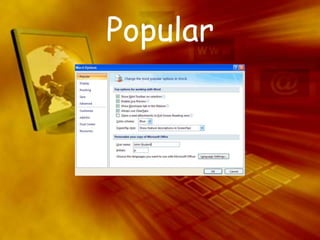
Popular
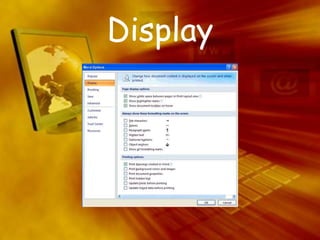
Display
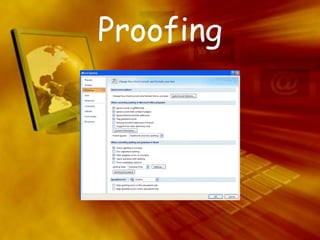
Proofing
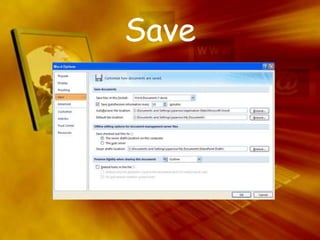
Save
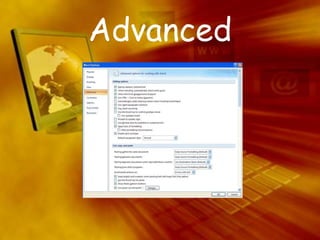
Advanced
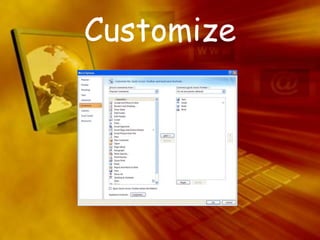
Customize
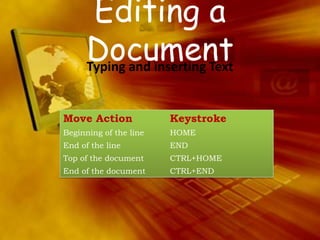
Editing a Document Typing and inserting Text
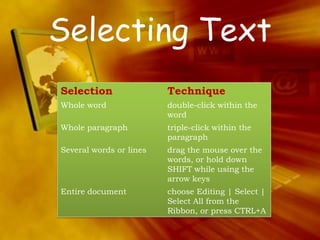
Selecting Text
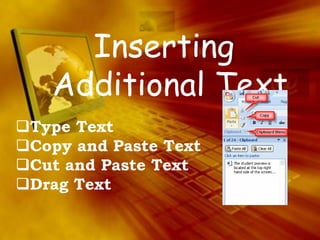
Inserting Additional TextType Text
Copy and Paste Text 
Cut and Paste Text
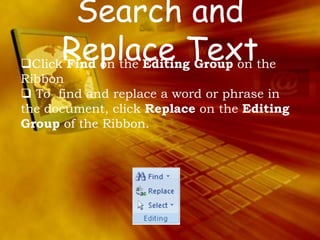
Drag TextSearch and Replace TextClick Find on the Editing Group on the Ribbon
 To  find and replace a word or phrase in the document, click Replace on the Editing Group of the Ribbon. Formatting Text
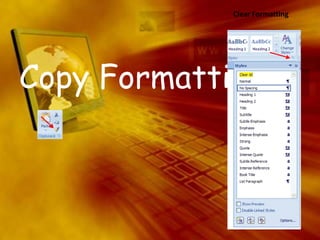
Copy FormattingClear Formatting
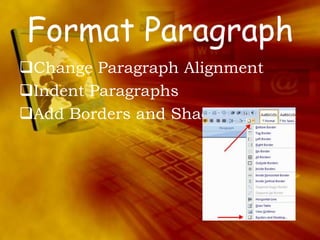
Format ParagraphChange Paragraph Alignment
Indent Paragraphs
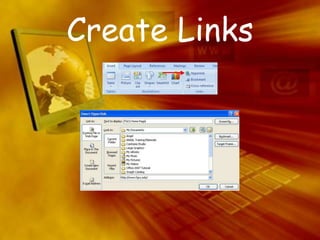
Add Borders and ShadingCreate Links
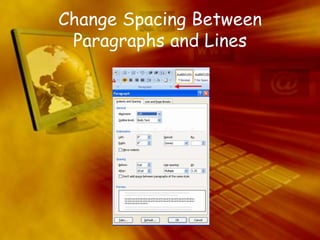
Change Spacing Between Paragraphs and Lines
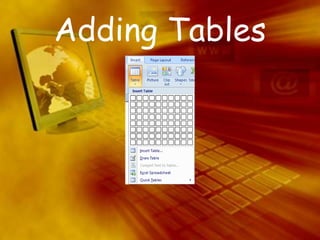
Adding Tables
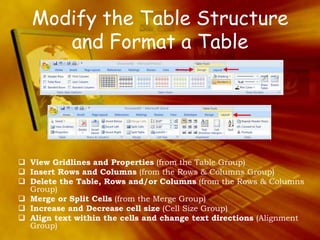
Modify the Table Structure and Format a TableView Gridlines and Properties (from the Table Group)
Insert Rows and Columns (from the Rows & Columns Group)
Delete the Table, Rows and/or Columns (from the Rows & Columns Group)
Merge or Split Cells (from the Merge Group)
Increase and Decrease cell size (Cell Size Group)
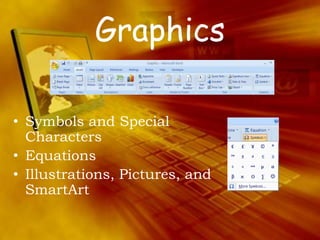
Align text within the cells and change text directions (Alignment Group)GraphicsSymbols and Special CharactersEquationsIllustrations, Pictures, and SmartArt
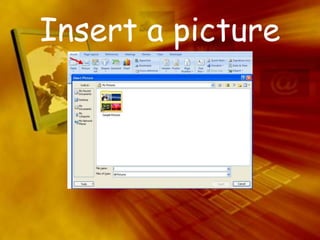
Insert a picture
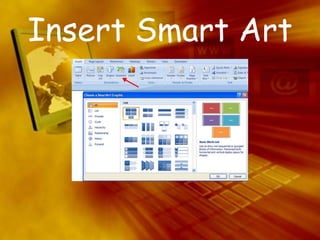
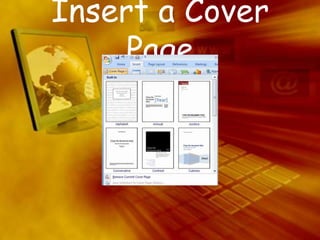
Insert Smart Art
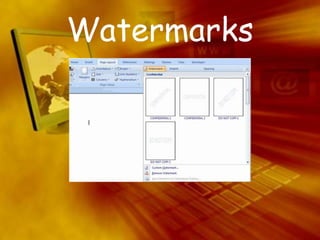
Watermarks
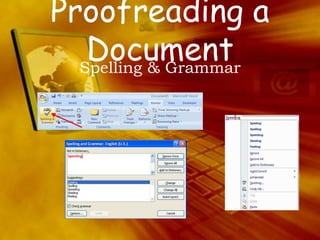
Proofreading a Document Spelling & Grammar

Microsoft Office Word Tutorial

Editor's Notes

  • #11 There are many ways to view a document in Word.  Print Layout:  This is a view of the document as it would appear when printed.  It includes all tables, text, graphics, and images.Full Screen Reading:  This is a full view length view of a document.  Good for viewing two pages at a time.Web Layout:  This is a view of the document as it would appear in a web browser.Outline:  This is an outline form of the document in the form of bullets.Draft:  This view does not display pictures or layouts, just text.To view a document in different forms, click the document views shortcuts at the bottom of the screenClick the View Tab on the Ribbon