Software Orientation
• Beforeyou begin working in Access 2016, you need to be
familiar with the primary user interface.
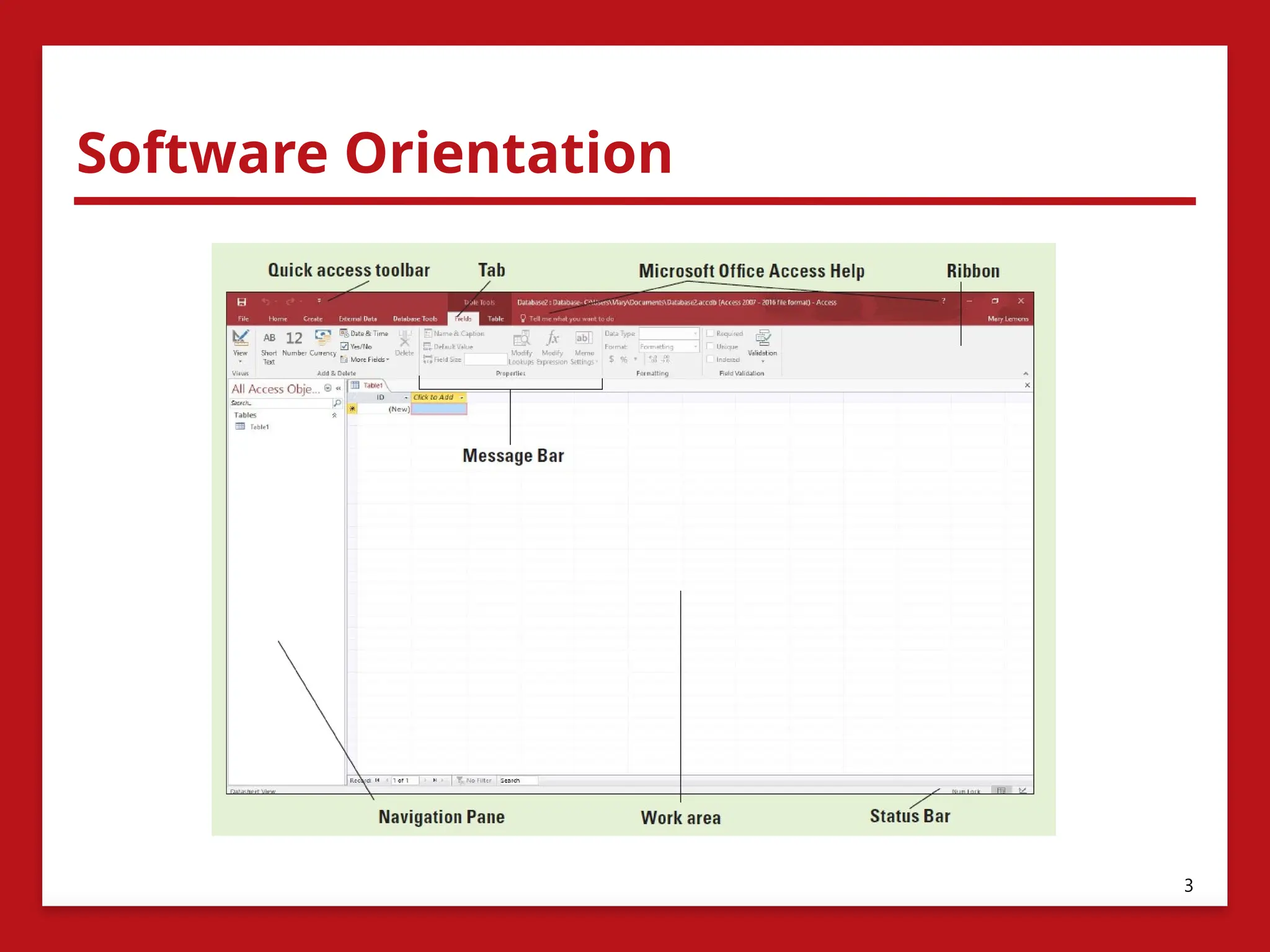
• When you create a blank database in Access, the opening
screen provides you with a workspace in which to build a
database, as shown in the figure on the next slide.
• Being familiar with the screen elements helps you understand
important tools and information.
• The elements and features of your screen may vary if default
settings have been changed or if other preferences have been
set.
2
Getting Started
• Adatabase is a tool for collecting and organizing information.
• An example is a phone book, which organizes a large amount of
data—names, addresses, and phone numbers—so you can access it
by name in alphabetic order.
• A computerized database management system (DBMS), such as
Access, enables you to easily collect large volumes of data organized
into categories of related information.
• This type of database allows you to store, organize, and manage
your data, no matter how complex it is, and then retrieve and
present it in various formats and reports.
• Using a DBMS to organize data gives you the power to manipulate,
view, and report the data in ways that other applications like
spreadsheets and word processing documents cannot.
4
5.
Starting Access
• Access2016 runs on the Windows 7 and later operating
systems.
• The steps to start Access differ depending on the version of
Windows you have installed on your system.
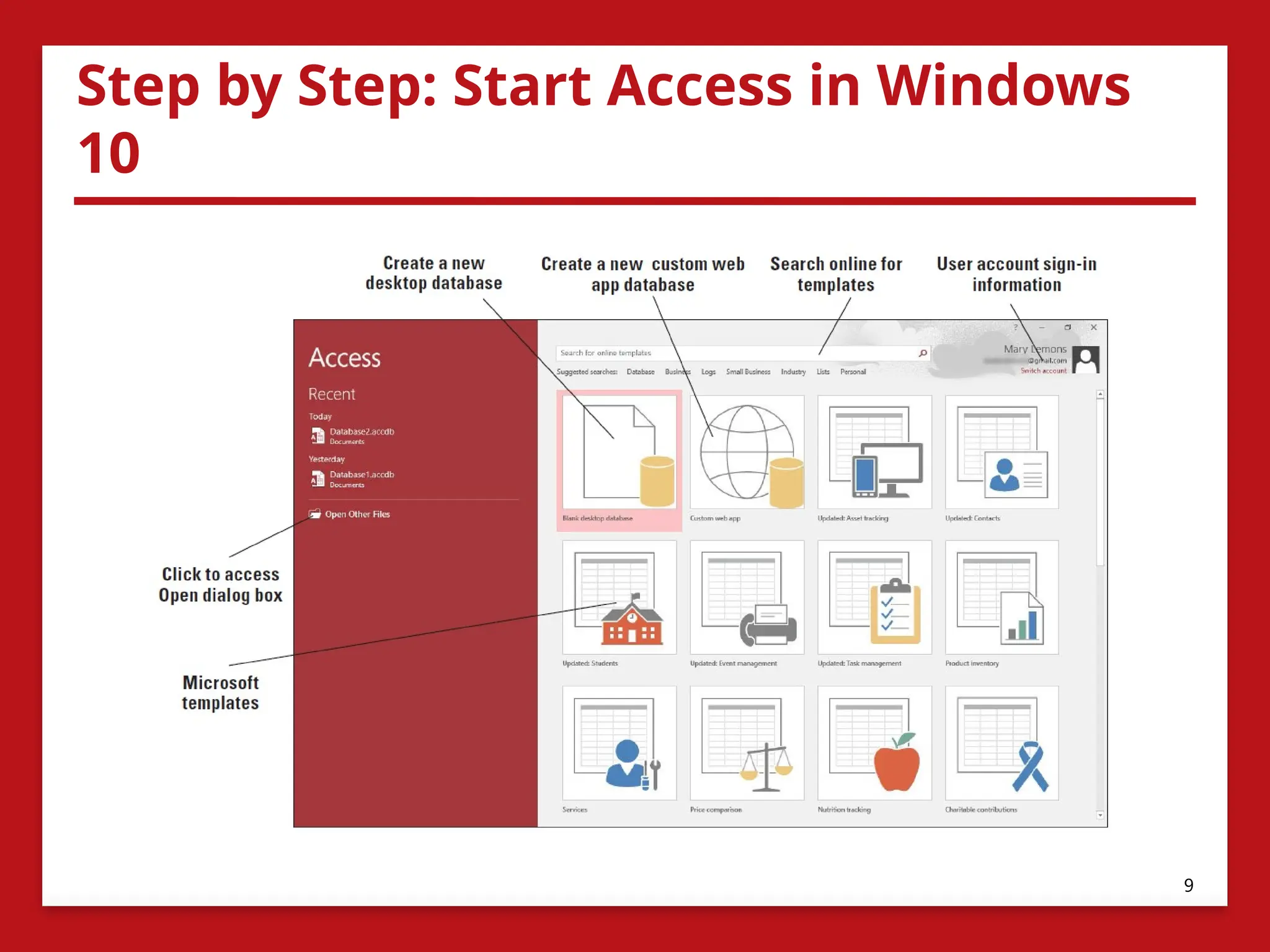
• When you start Access, a start screen with several options
related to creating a database appears.
• The Access startup screen allows you to:
• Create a new, custom web app database
• Create a blank desktop database
• Create a database from a template
• Open a recent database (if you’ve already created one)
• Search online for templates.
5
6.
Starting Access
• InOffice 2016, you can sign into an Office application using
your Microsoft or Organizational account.
• Microsoft accounts are created when you sign up for a
Microsoft web service.
• An Organizational account is an account that your workplace
or school would use to connect you to a Microsoft service.
• Once you sign in, your sign-in information will appear in the
upper-right corner of each of the Office 2016 applications.
• You can use the Switch account command beside your user
icon to sign in as a different user.
6
7.
Starting Access
• Microsoftenables you to sign into Office to make it easier for
you to access and share your documents from virtually
anywhere.
• You can open and save your documents using OneDrive, a free
cloud-based file sharing service that can be accessed from any
Internet-connected computer.
• Signing into Office also allows access to your personalized
application settings and themes, and will even remind you
where you left off in your document.
7
8.
Step by Step:Start Access in Windows
10
• Before you begin these steps, make sure that your computer is
on. Sign on, if necessary.
1. Press the Windows key on the keyboard to display the Start
menu.
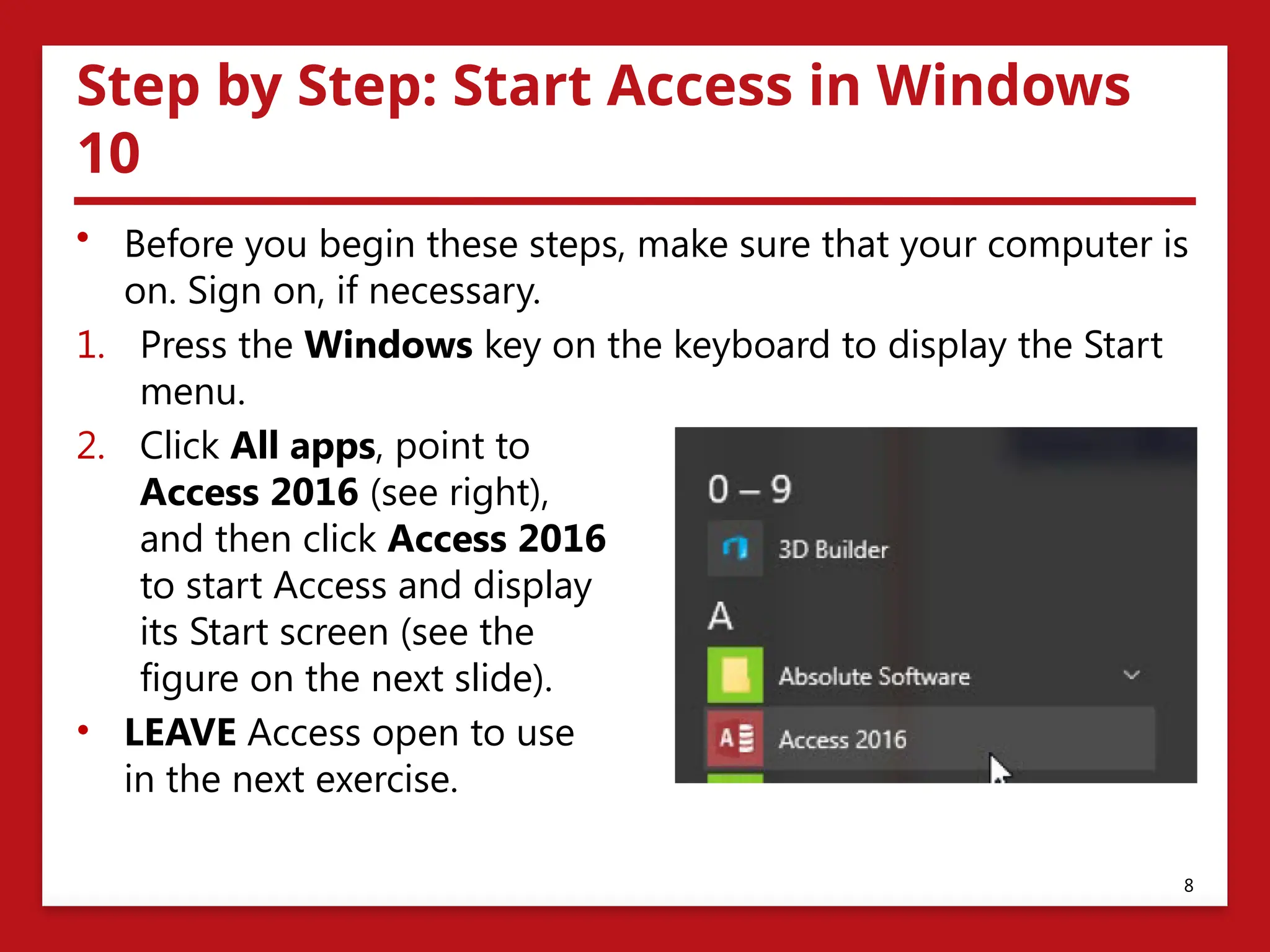
2. Click All apps, point to
Access 2016 (see right),
and then click Access 2016
to start Access and display
its Start screen (see the
figure on the next slide).
• LEAVE Access open to use
in the next exercise.
8
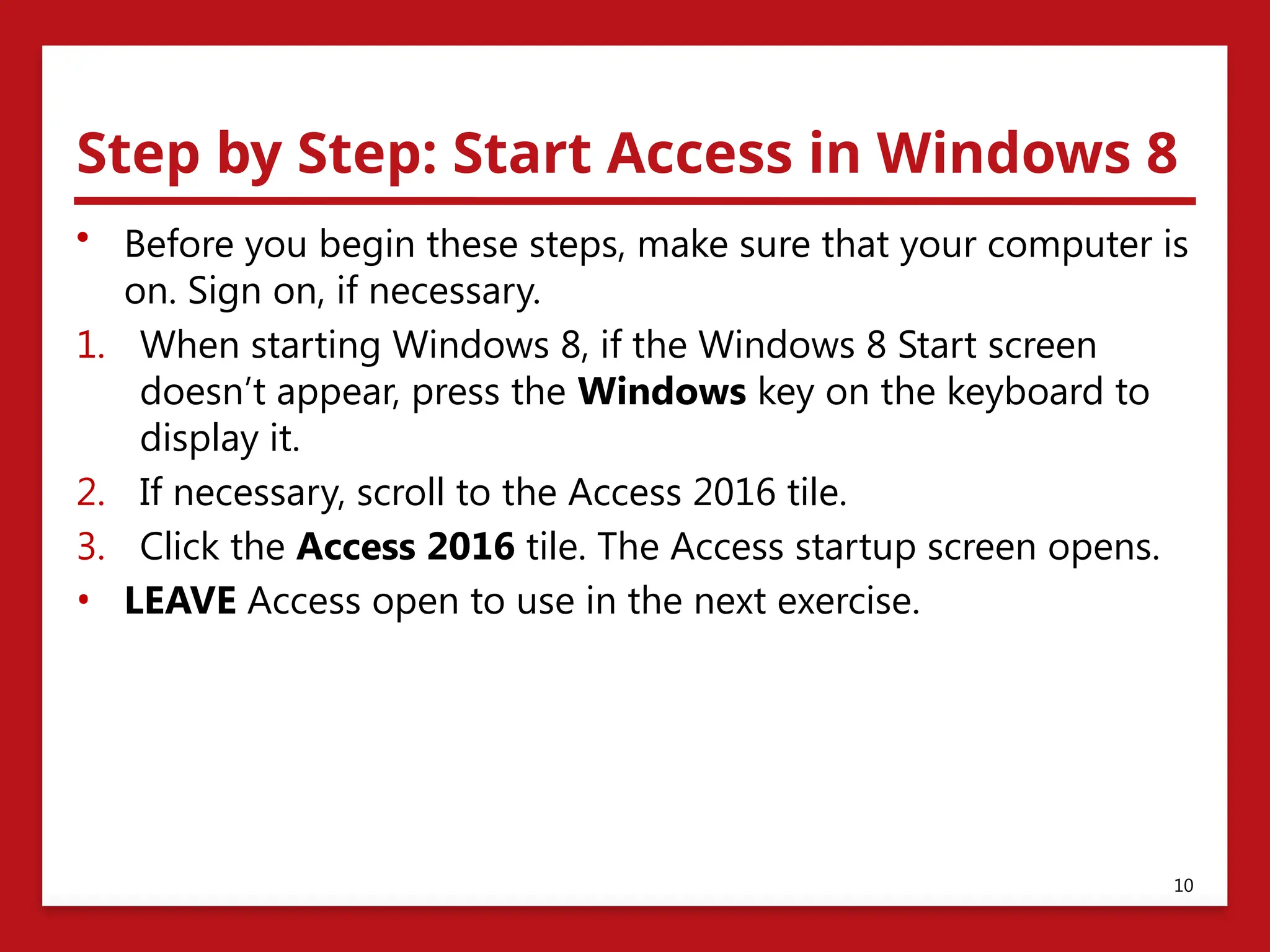
Step by Step:Start Access in Windows 8
• Before you begin these steps, make sure that your computer is
on. Sign on, if necessary.
1. When starting Windows 8, if the Windows 8 Start screen
doesn’t appear, press the Windows key on the keyboard to
display it.
2. If necessary, scroll to the Access 2016 tile.
3. Click the Access 2016 tile. The Access startup screen opens.
• LEAVE Access open to use in the next exercise.
10
11.
Opening an ExistingDatabase
• When you open an existing database, you access not only
your previously entered and saved data, but also the elements
you created to organize that data.
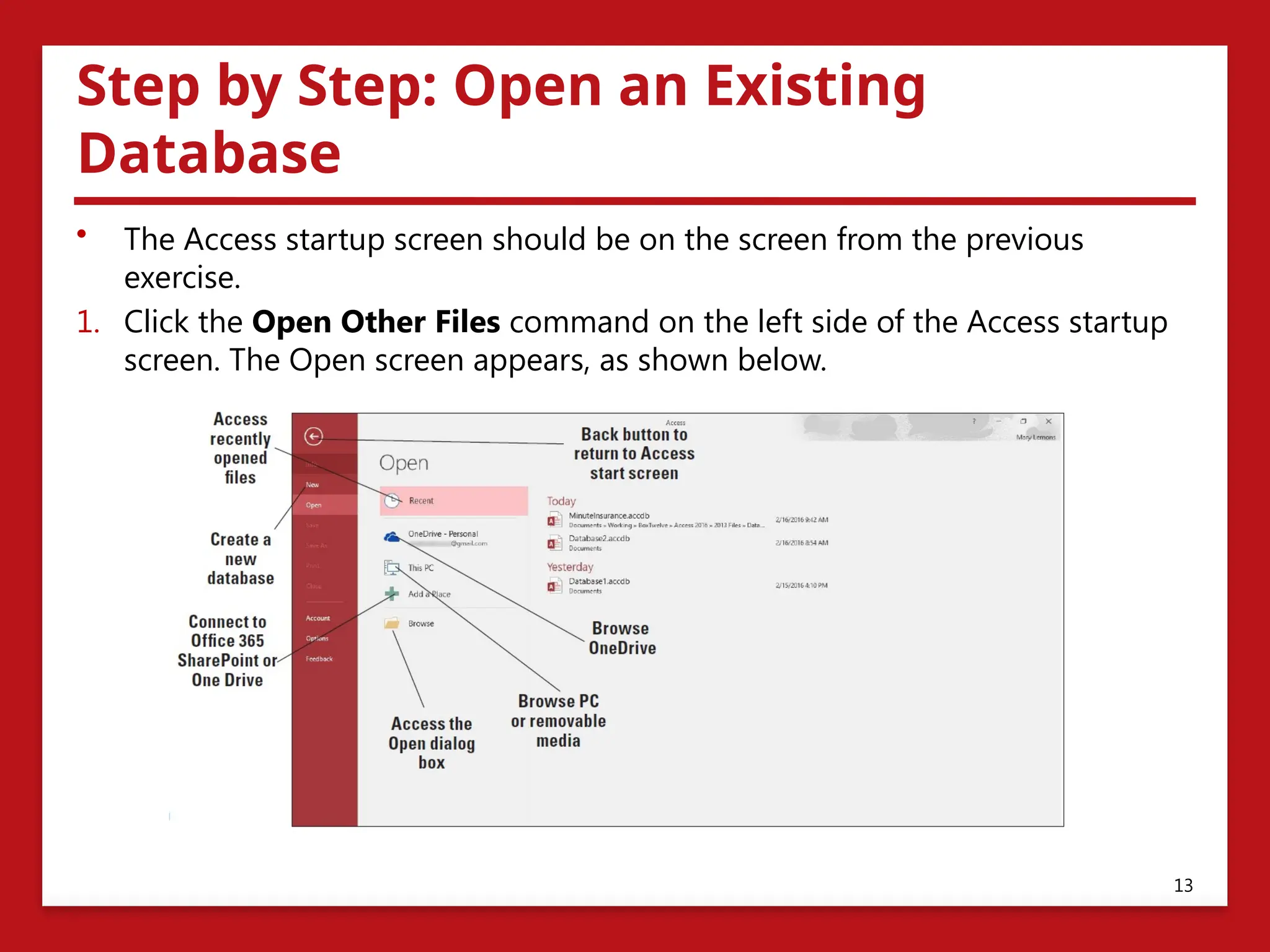
• The Open Other Files command on the Access startup screen
displays the Open screen.
• From there, you can choose to open a recent file, a file on your
OneDrive location, This PC, or you can Add a Place or Browse
for a file.
• The This PC command allows you to find files stored locally in
a folder on your computer or on some type of removable
media, or on a network drive.
• The Add a Place command allows you to set up network
locations like OneDrive or an Office 365 SharePoint location.
11
12.
Opening an ExistingDatabase
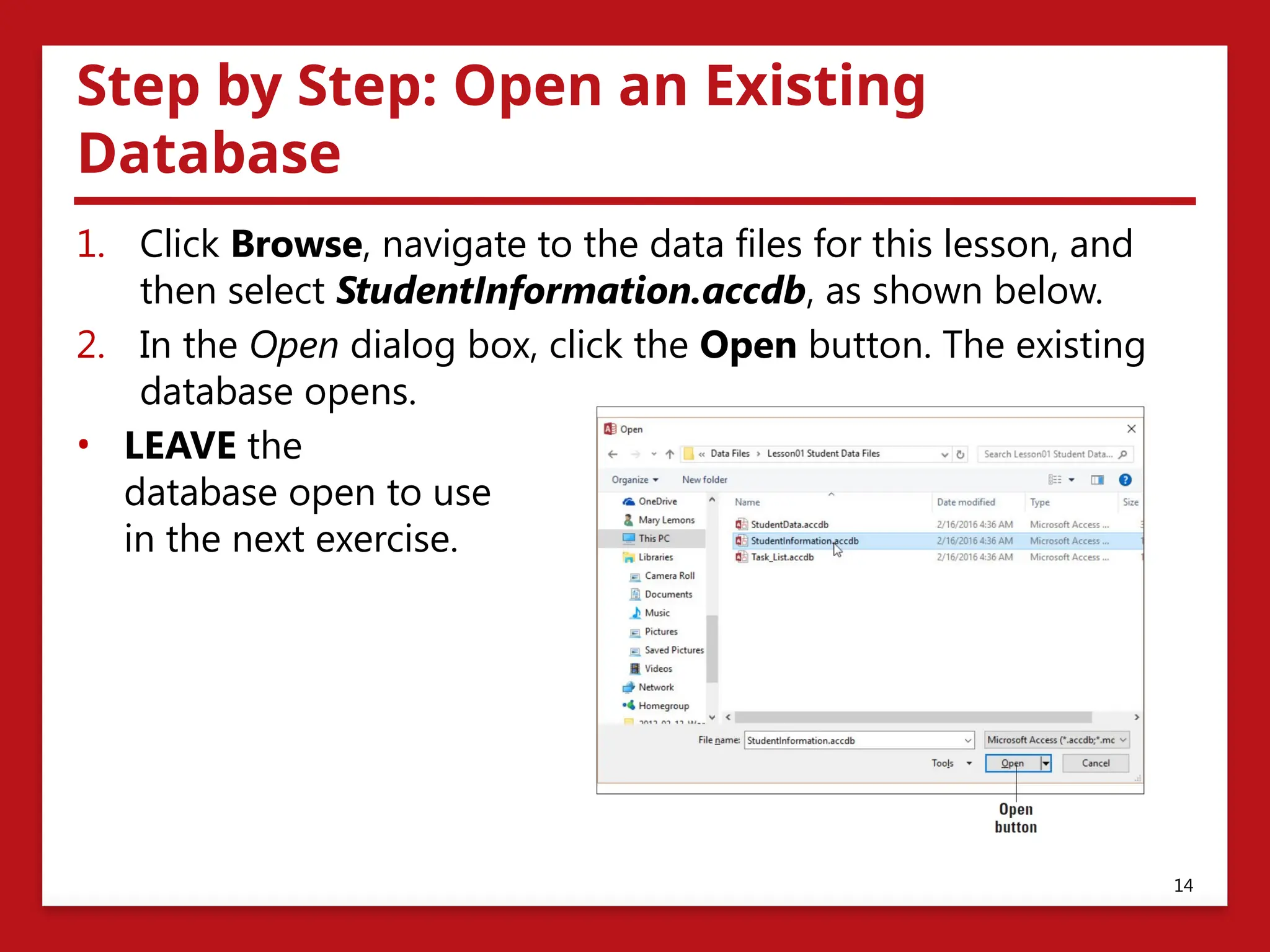
• The Browse button opens the Open dialog box.
• The left-hand pane of the Open dialog box lists the available
locations for files, such as a folder, drive, or network/Internet
location.
• Click the location, and the folders will be displayed in the
folder list.
• From this list, you can double-click the folder you want to
open.
• When you find the file you want, double-click the filename to
open it or click it once to select it and then click the Open
button.
12
13.
Step by Step:Open an Existing
Database
• The Access startup screen should be on the screen from the previous
exercise.
1. Click the Open Other Files command on the left side of the Access startup
screen. The Open screen appears, as shown below.
13
14.
Step by Step:Open an Existing
Database
1. Click Browse, navigate to the data files for this lesson, and
then select StudentInformation.accdb, as shown below.
2. In the Open dialog box, click the Open button. The existing
database opens.
• LEAVE the
database open to use
in the next exercise.
14
15.
Step by Step:Open an Existing
Database
If you open a file in a multi-user environment, other users can
read and write to the database as well. You may want to open the
database with other options. Click the down arrow next to the
Open button to view these options:
• Open: Opens with default access.
• Open Read-Only: Opens with only viewing ability and not
editing ability. Others can still read and write.
• Open Exclusive: Opens so that the database is only available
to you. Others will receive a message that the file is already in
use.
• Open Exclusive Read-Only: Opens with only viewing ability
and not editing ability.
15
16.
Software Orientation
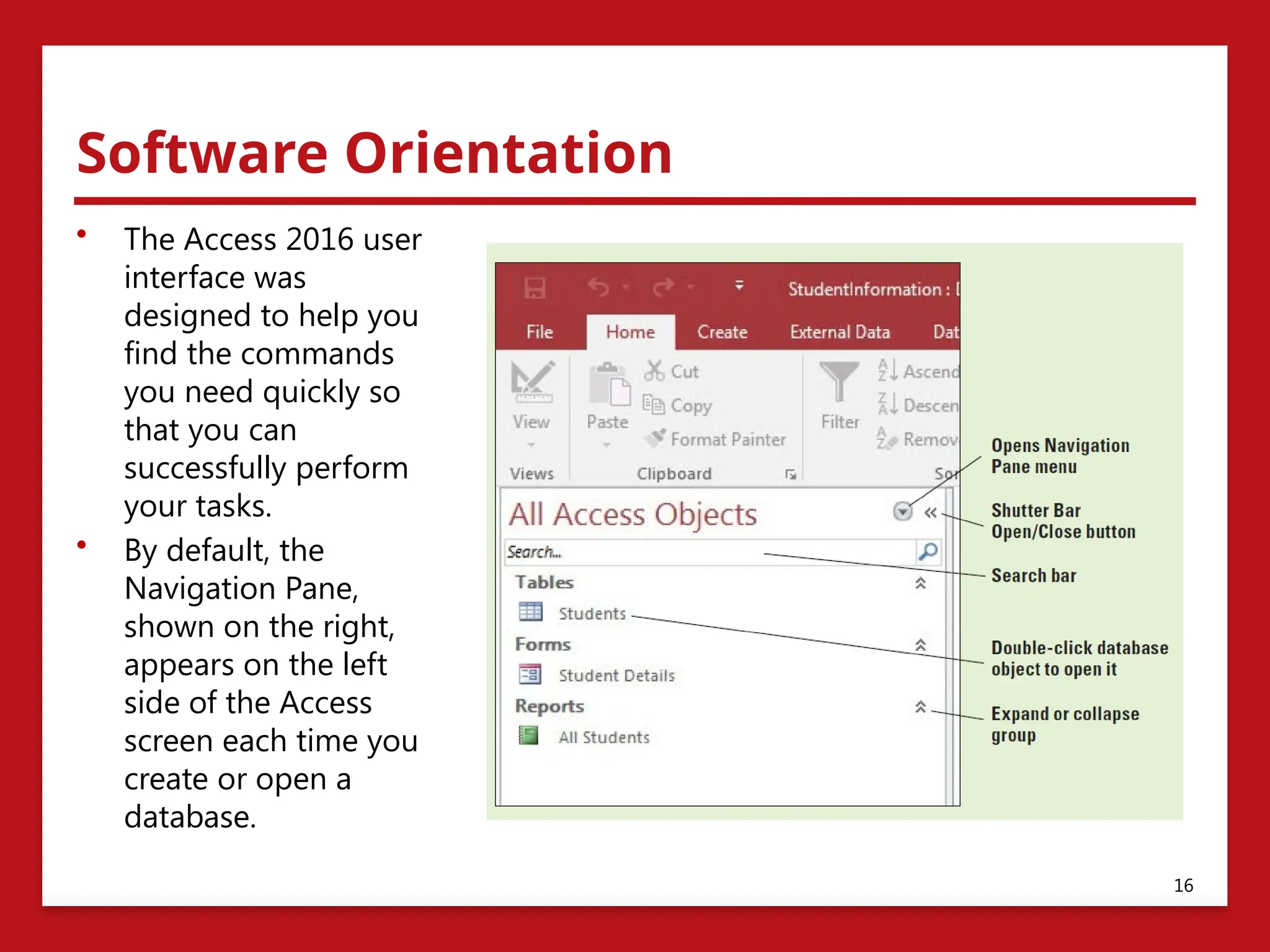
• TheAccess 2016 user
interface was
designed to help you
find the commands
you need quickly so
that you can
successfully perform
your tasks.
• By default, the
Navigation Pane,
shown on the right,
appears on the left
side of the Access
screen each time you
create or open a
database.
16
17.
Software Orientation
• TheNavigation Pane enables you to open, copy, and delete
tables and other database objects.
• It also lists all the objects in your database:
• Tables: The most basic database object that stores data in
categories
• Queries: Allow you to search and retrieve the data you have
stored
• Forms: Control data entry and data views and provide visual
cues that make data easier to work with
• Reports: Present your information in ways that are most
useful to you
17
18.
Using the NavigationPane
• Before you can create a database, you need to understand its
most basic elements.
• This section introduces you to some of the elements in a
database that help you organize data and navigate using the
Navigation Pane, object tabs, and different views.
18
19.
Step by Step:Use the Navigation Pane
• USE the Student Information database that is still open from the
previous exercise.
1. In the Navigation Pane, double-click Students to display the table
in the Access work area.
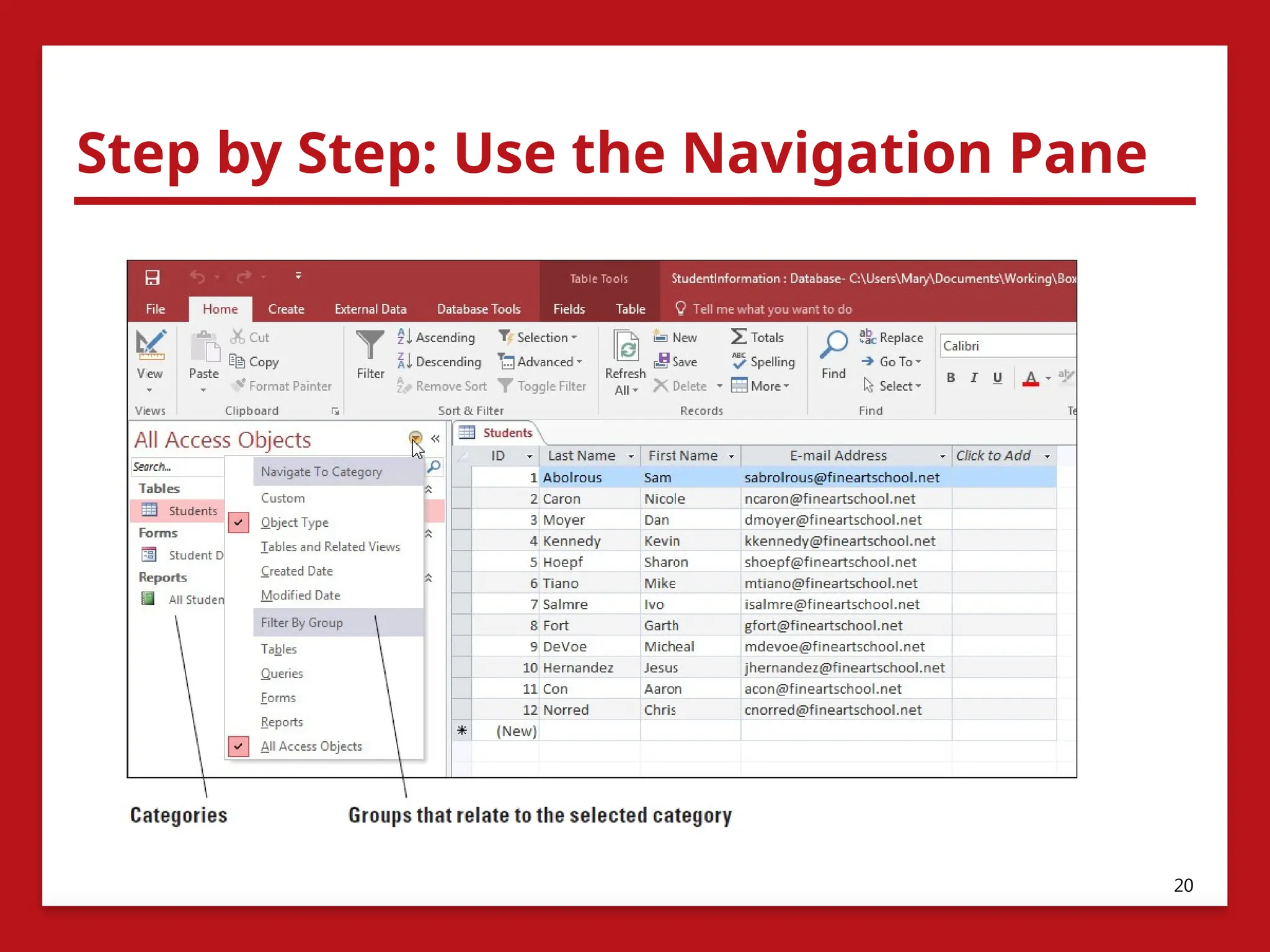
2. Click the down arrow next to All Access Objects at the top of the
Navigation Pane to display the menu, as shown in the figure on the
next slide.
3. Click Tables and Related Views. The default group in this category
is All Tables, which appears in the menu at the top of the
Navigation Pane. Notice the Students table and all other objects
related to it are displayed under the Students object tab.
4. Click the down arrow next to All Tables at the top of the
Navigation Pane to display the menu again and then click Object
Type to return to the original view.
19
Step by Step:Use the Navigation Pane
5. Right-click in the white
area of the Navigation
Pane to display a shortcut
menu. Click View By and
then click Details.
6. The database objects are
displayed with details.
Click the right side of the
Navigation Pane and drag
to make it wider so all the
information can be read,
as shown on the right.
21
22.
Step by Step:Use the Navigation Pane
7. If the search bar does not appear at the top of
the Navigation Pane, right-click the All Access
Objects header of the Navigation Pane. On the
shortcut menu, click Search Bar. A search bar is
displayed at the top of the Navigation Pane.
8. Right-click in the white area of the Navigation
Pane, click View By and then click List in the
shortcut menu to display the database objects
in a list again.
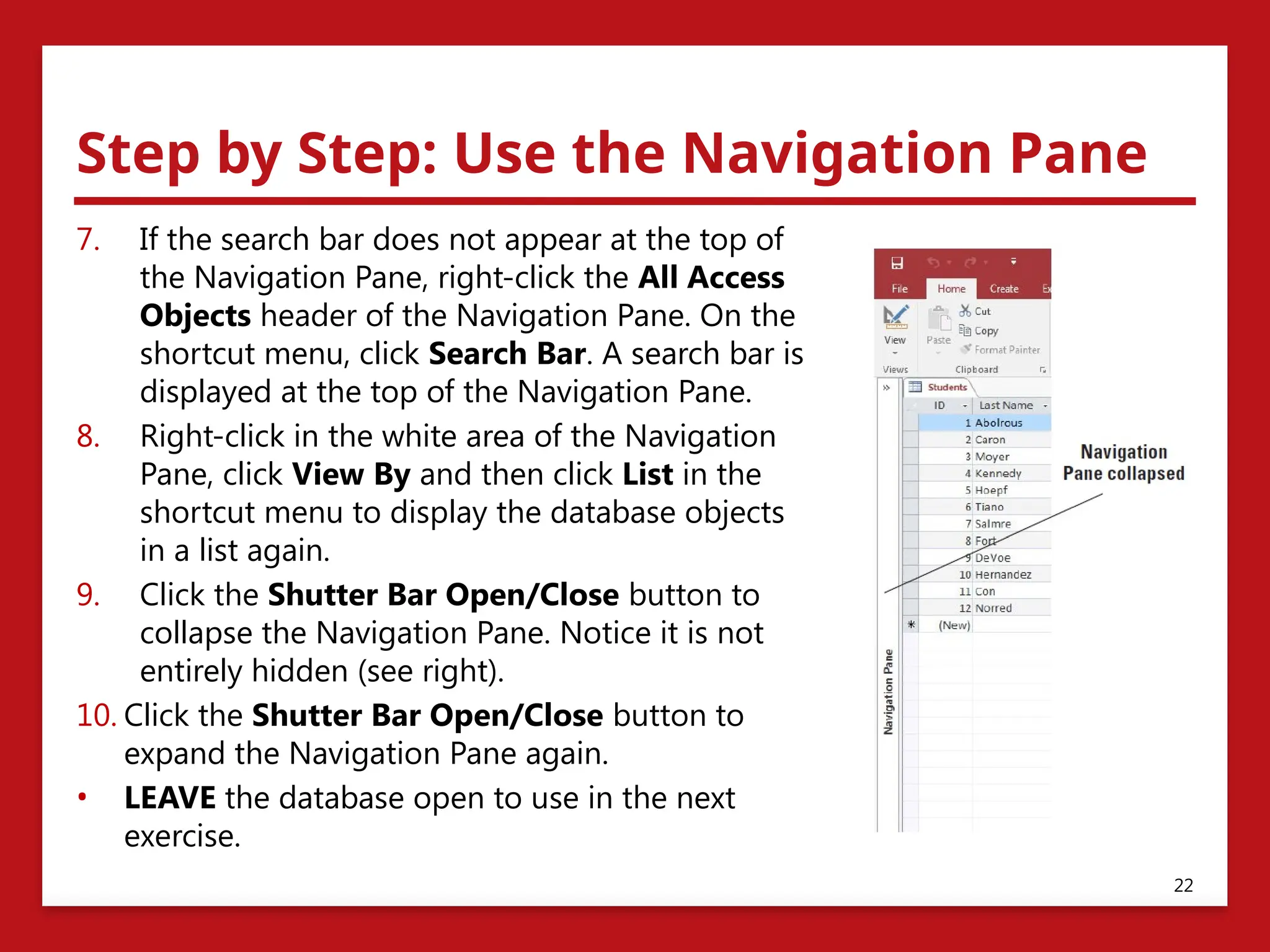
9. Click the Shutter Bar Open/Close button to
collapse the Navigation Pane. Notice it is not
entirely hidden (see right).
10. Click the Shutter Bar Open/Close button to
expand the Navigation Pane again.
• LEAVE the database open to use in the next
exercise.
22
23.
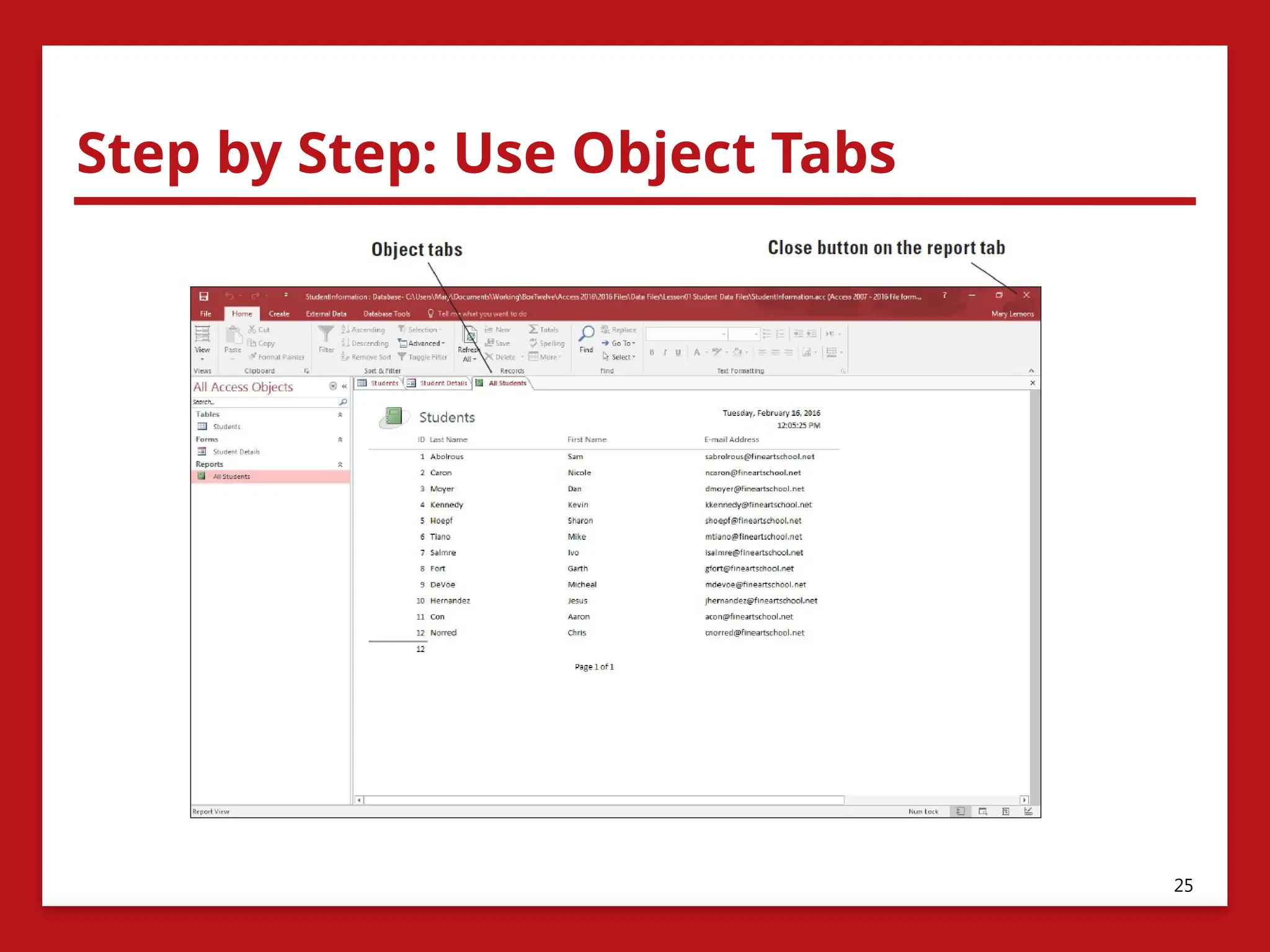
Using Object Tabs
•When you create a database in Access, all the objects in that
database—including forms, tables, reports, queries—are
displayed in a single window separated by tabs.
• Tabs help keep open objects visible and accessible.
• To move among the open objects, click a tab.
• To close a tab, click its Close button.
• Right-click a tab to display the shortcut menu, which you can
use to save, close, close all, or change views.
23
24.
Step by Step:Use Object Tabs
• USE the Student Information database that is still open from the
previous exercise.
1. In the Navigation Pane, double-click Student Details. A new
object tab opens to display the form.
2. In the Navigation Pane, double-click All Students. A new object
tab opens to display the All Students report tab along with the
other two tabs, as shown in the figure on the next slide.
3. Click the Close button on the report tab to close it.
4. Right-click the Student Details tab to display the shortcut
menu. This menu allows you to save the object, close the object,
close all object tabs, or change the object view.
5. Click Close to close the form.
• LEAVE the database open to use in the next exercise.
24
Changing Views
• Eachdatabase object can be viewed several different ways.
• The main views for a table are Datasheet View and Design View.
• Datasheet View can be used to perform most table design tasks,
so you will probably use it most often.
• A datasheet is the visual representation of the data contained in
a table or of the results returned by a query.
• A query is simply a question you can ask a table or another
query.
• To change the view, on the Home tab, click the down arrow on
the View button and then choose a view from the menu.
• When you change views, the commands available on the Ribbon
change context to match the tasks you will be performing in that
view.
26
27.
Step by Step:Change Views
• USE the Student Information database you used in the
previous exercise. The Students table should be displayed in
the Access work area.
1. On the Home tab, in the Views group, click the down arrow
on the View button.
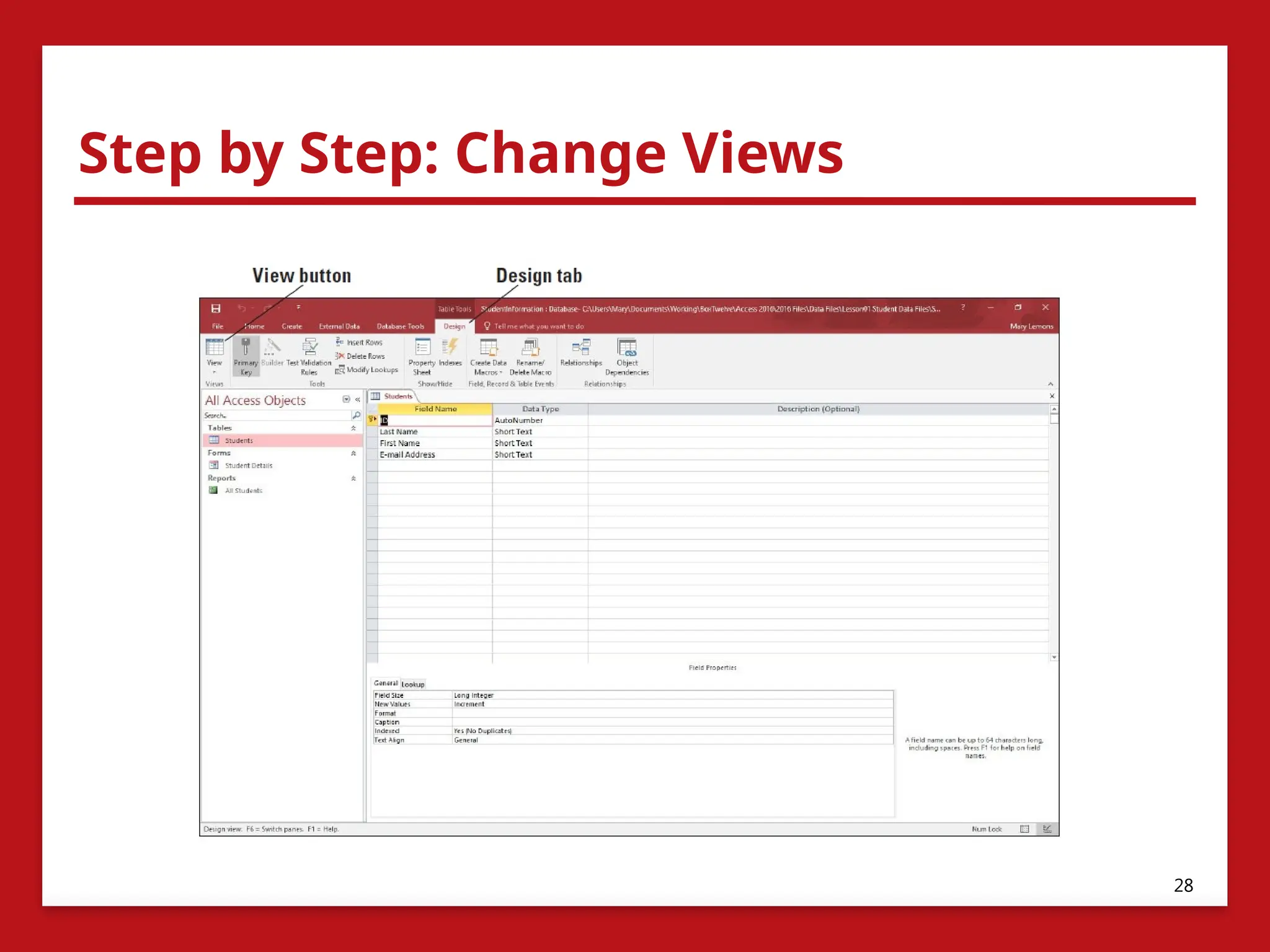
2. Click Design View. The table is displayed in Design View, as
shown in the figure on the next slide. Notice that the Design
tab is now displayed on the Ribbon.
3. On the Design tab, in the Views group, click the down arrow
on the View button and then click Datasheet View.
4. On the Ribbon, in the Table Tools group, click the Fields tab
to display the contextual commands for that view.
• LEAVE the database open to use in the next exercise.
27
Selecting Tools andCommands
• A command is a tool (such as an icon, a button, or a list) that
tells Access to perform a specific task.
• Each tab provides commands that are relevant to the kind of
task you are performing.
• Many of the tools and commands for working with Access are
accessible through the Access Ribbon.
• Access also offers tools and commands on:
• The File menu (also known as Backstage view)
• A Quick Access toolbar
• A status bar.
29
30.
Using the Ribbon
•The Ribbon is located across the top of the screen and contains tabs
and groups of commands.
• It is divided into several tabs, which organize tasks according to
similar commands you’d like to perform on a database.
• The Ribbon is contextual, which means it offers you commands
related to the object that you are working on or the task that you
are performing.
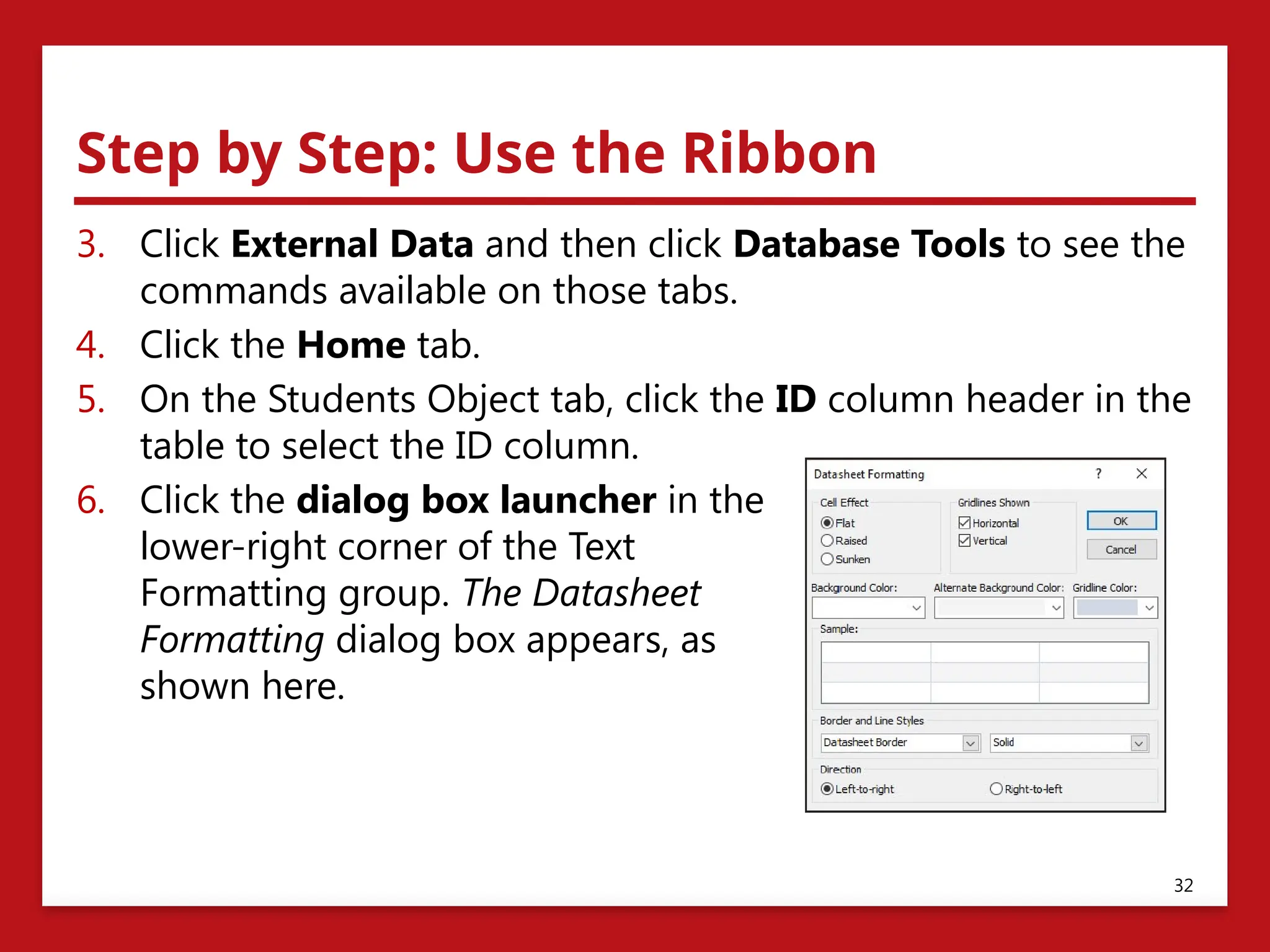
• Some groups have a dialog box launcher, which is a small arrow in
the lower-right corner of the group that you click to launch a dialog
box or task pane that displays additional options or information.
• Some commands on the Ribbon have small arrows pointing down.
These arrows indicate that a menu is available that lists more
options from which you can choose.
30
31.
Step by Step:Use the Ribbon
• USE the Student Information database that is still open from
the previous exercise.
1. Click the Home tab to make it active. As shown below, the
Ribbon is divided into groups of commands. Notice the
dialog box launcher in the lower-right corner of the Clipboard
group.
2. Click the Create tab to make it the active tab. Notice that the
groups of commands change.
31
32.
Step by Step:Use the Ribbon
3. Click External Data and then click Database Tools to see the
commands available on those tabs.
4. Click the Home tab.
5. On the Students Object tab, click the ID column header in the
table to select the ID column.
6. Click the dialog box launcher in the
lower-right corner of the Text
Formatting group. The Datasheet
Formatting dialog box appears, as
shown here.
32
33.
Step by Step:Use the Ribbon
7. Click Cancel to close the dialog box.
8. Double-click the Home tab. Notice the groups are hidden to
give you more screen space to work with your database.
9. Double-click Home again to display the groups.
10. Click File and then click Close to close the database. Access
appears with no database open.
• LEAVE Access open to use in the next exercise.
33
34.
Using the BackstageView
• Backstage view appears when you click the File tab from an
open database. (See the figure on the next slide.)
• It contains a menu of options and commands that allows you
to access various screens to perform common tasks with your
database files (creating a new database, opening, saving,
printing, closing, and changing user account settings and
options).
• You can click several options and commands to view related
screens containing various options and commands used to
create and manage your database.
• The Back button returns you to the Access database
workspace.
34
Using the BackstageView
The following is an overview of the options in the Backstage view:
• Info: Default view. Used to view the current database file path, view and edit
database properties, compact and repair the database, and encrypt the
database.
• New: Use this option to create a new database.
• Open: Use this option to open an existing database and view a list of
recently accessed databases.
• Save: Use this option to return to the open database window where objects
can be saved.
• Save As: Use this option to save the current database object as a new object
or save the database in another format that is compatible with earlier
versions of Access. You can save the database to a document management
server for sharing or you can package the database and apply a digital
signature.
36
37.
Using the BackstageView
• Print: Use this option to quick-print to a printer, open a dialog box from
which to choose print options, or preview your document before printing.
• Close: Use this option to close the open database but keep the Access
application open.
• Account: Use this option to view and modify user account settings, change
application background and theme, add a service, manage your Office 365
account, update office, and learn more about Access.
• Options: Use this option to customize language, display, proofing, and
other settings.
• Feedback: Opens the Windows Feedback dialog box, which allows you to
provide feedback to Microsoft and explore other users’ feedback.
37
38.
Step by Step:Use the Backstage View
• START Access if it’s not already running.
1. Click the File tab. Backstage view opens.
2. Click Open and then navigate to the StudentData database from
the data files for this lesson.
3. Click File again. Backstage view now displays a menu of options
down the left side of the window and information about the
currently opened database.
4. Click the New option to view the options and commands available.
5. Click the Save As option to view more options and commands.
6. Select Access Database (*.accdb) if it’s not already selected.
7. Click the Save As button in the right pane under the Save Database
as area to save the Student Data file as StudentData-final. Click
Yes in the dialog box that appears informing you that the objects
will be closed.
38
39.
Step by Step:Use the Backstage View
8. Select the location to save the file and then click Save. The
new database file opens automatically.
9. Select File again to re-open Backstage view.
10. Click the Print option to view more options and commands.
11. Click the Account option to view the options and commands
shown in the figure on the next slide.
12. Click the Options option to view more options and
commands.
13. Click the Cancel button to close the Access Options dialog
box and return to the Access workspace.
• LEAVE the database open to use in the next exercise.
39
Defining Data Needsand Types
• When planning a database, the first step is to consider the
purpose of your database.
• Design the database so that it accommodates all your data-
processing and reporting needs.
• Gather and organize all the information that you want to
include, starting with any existing forms or lists, and think
about the reports and mailings you might want to create
using the data.
• Categorize the information by dividing it into subjects, which
become the tables in your database. Each table should only
contain information that relates to that subject. If you find
yourself adding extra information, create a new table.
41
42.
Defining Data Needsand Types
• In a database table, data is stored in rows and columns—
similar in appearance to a spreadsheet.
• Each row in a table is called a record.
• Each column in a table is called a field.
• Determine what information you want to store in the table.
• Organize each piece of information into the smallest useful
part.
• These pieces of information will eventually become your fields
(columns), and each record (row) will then contain complete
information about the items.
• For each table, you will choose a primary key.
• A primary key is a column that uniquely identifies each row.
42
43.
Step by Step:Review Database Fields
• USE the StudentData-final database that is still open from the previous
exercise.
1. On the Student List form, click
the ID for record 5 to display
the Student Details dialog box
for Sharon Hoepf (see right).
2. Click the Guardian Information
tab and then click the
Emergency Information tab.
Each field on each tab is an
example of the type of
information that could be
contained in a database table.
3. Click Close to close the Student
Details dialog box.
• LEAVE the database open to use in the next exercise.
43
44.
Defining and ModifyingData Types
for Fields
• When designing the database, you set a data type for each
field (column) that you create to match the information it will
store.
• A data type controls the type of data a field will contain—
whether it is text, number, date/time, or some other type of
data.
• When defining table fields, it is important to define them as
specifically as possible.
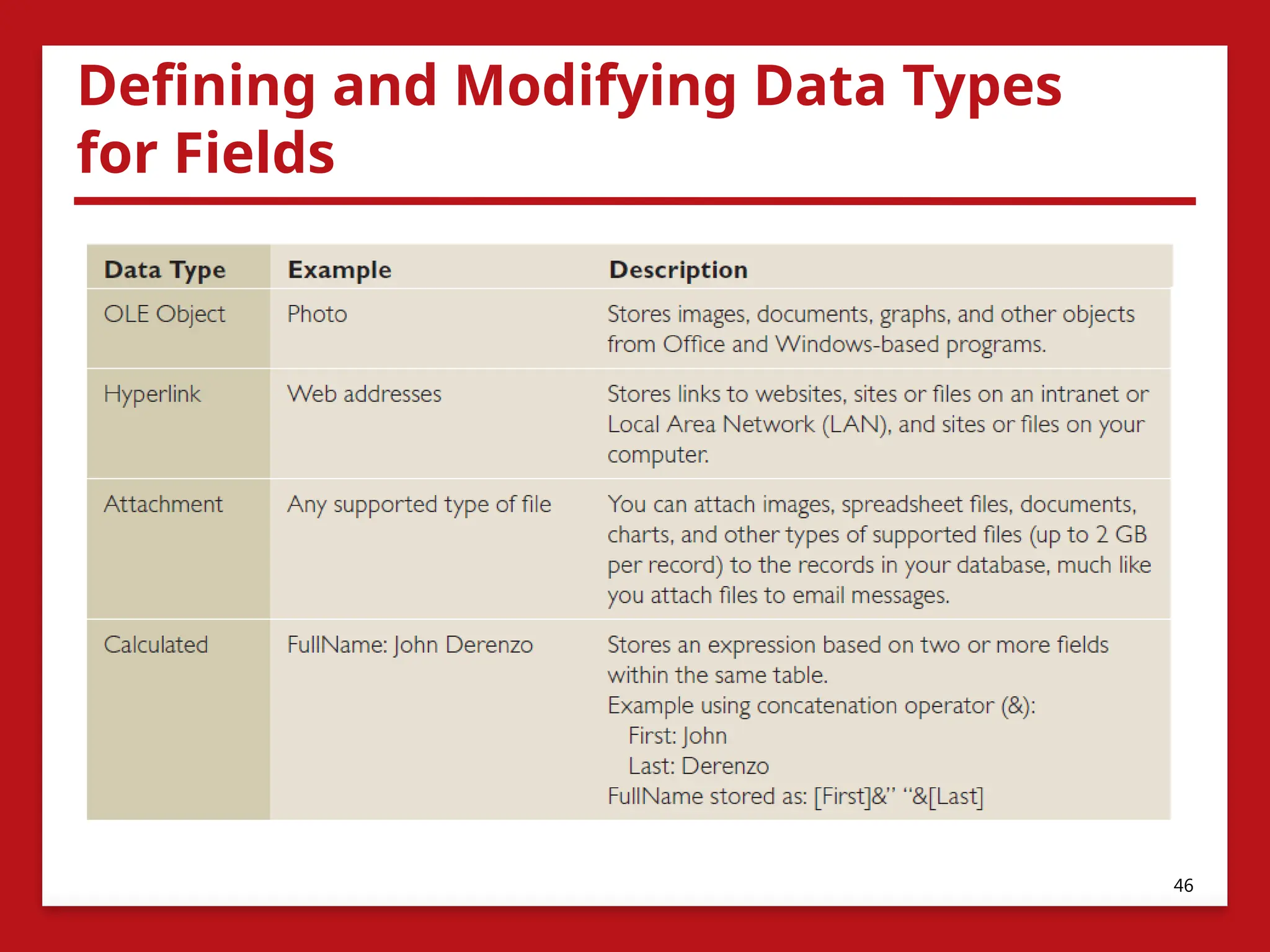
• Access provides 11 data types, each with its own purpose. The
table on the next two slides describes the types of data that
each field can store.
44
Defining and ModifyingData Types for
Fields
• When you create a new field in a table and then enter data in
it, Access 2016 automatically tries to detect the appropriate
data type for the new column.
• If Access doesn’t have enough information from what you
enter to detect the data type, the data type is set to Short Text.
47
48.
Step by Step:Review and Modify Data
Types for Fields
• USE the StudentData-final database that is still open from
the previous exercise.
1. CLOSE the Student List form.
2. In the Navigation Pane, in the Students group, double-click
Students: Table to open it.
3. Click the Date of Birth field header.
4. On the Ribbon, click the Fields tab. Notice in the Formatting
group that the Data Type is Date/Time.
48
49.
Step by Step:Review and Modify Data
Types for Fields
5. In the Format box, click the down arrow to display the menu of
formatting options for that type, as shown below.
6. Click the Last Name header. Notice that the Data Type is Short Text
and that no formatting options are available for that data type.
49
50.
Step by Step:Review and Modify Data
Types for Fields
7. Scroll to the right and then click
the Address header.
8. In the Data Type box, click the
down arrow and then click Short
Text to change the data type.
9. Scroll to the far right and then click
the Click to Add column header. In
the Data Type drop-down list that
appears, select Yes/No (see right).
Once you click Yes/No, notice the
name of the column header, Field1,
is highlighted.
50
51.
Step by Step:Review and Modify Data
Types for Fields
10. Rename the field by typing Additional Contact Info on
File?. Press Enter and then click the Additional Contact Info
on File? header.
11. On the Ribbon, in the Formatting group, click the down
arrow in the Format box to display the menu of formatting
options for the Yes/No data type.
12. Click outside the menu to close it.
• LEAVE the database open to use in the next exercise.
51
52.
Defining Database Tables
•Tables are the most basic organizational element of a
database.
• Not only is it important to plan the tables so they will hold the
type of data you need, but it’s also important to plan how the
tables and information will be connected.
• In a simple database, you might have only one table.
• Most databases will have more than just one table.
• In database applications like Access, you can create a
relational database.
• A relational database stores information in separate tables
and these tables are connected or linked by a defined
relationship that ties the data together.
52
53.
Step by Step:Define Database Tables
• USE the StudentData-final database that is still open from
the previous exercise.
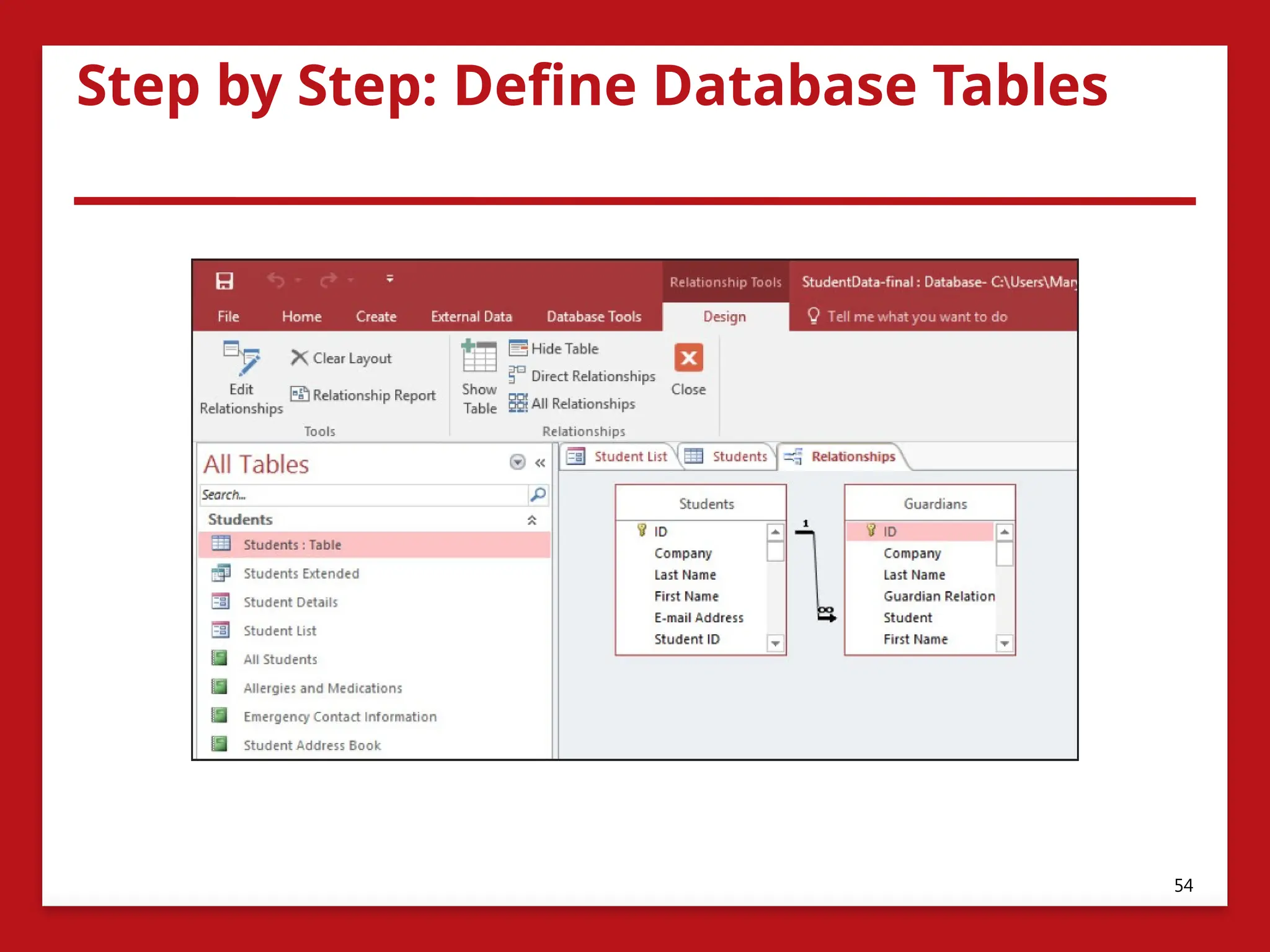
1. On the Database Tools tab, in the Relationships group, click
Relationships to display a visual representation of the
relationship between the Students and Guardians tables, as
shown in the figure on the next slide.
2. CLOSE the Relationships tab.
3. CLOSE the Students tab.
4. CLOSE the Student List tab.
• CLOSE the database and Access.
53
Defining Database Tables
•An important principle to consider when planning a database is to try to
record each piece of information only once.
• Duplicate information, or redundant data, wastes space and increases the
likelihood of errors.
• Relationships among database tables help ensure consistency and reduce
repetitive data entry.
• As you create each table, keep in mind how the data in the tables are related
to each other.
• Enter test data and then add fields to tables or create new tables as
necessary to refine the database.
• The last step is to apply data normalization rules to see if your tables are
structured correctly and make adjustments as needed.
• Normalization is the process of applying rules to your database design to
ensure that you have divided your information items into the appropriate
tables.
55
56.
Defining Database Tables
•Database design principles include standards and guidelines that
can be used to determine if your database is structured correctly.
• These are referred to as normal forms. There are five normal forms,
but typically only the first three are applied:
• First Normal Form (1NF): This form divides each field according
to its smallest meaningful value, removes repeating groups of
data, and creates a separate table for each set of related data.
• Second Normal Form (2NF): With this form, each non-key
column should be fully dependent on the entire primary key.
Create new tables for data that applies to more than one record
in a table and add a related field to the table.
• Third Normal Form (3NF): Use this form to remove fields that do
not relate to, nor provide a fact about, the primary key.
56
57.
Defining Database Tables
•Before normalizing a database and defining fields for the efficient storage of
data in tables, it’s important to know where your data will come from.
• Data can be brought into an Access database in a number of ways, including
linking and importing.
• When defining tables, you have to decide whether data should be linked to
or imported from external sources.
• When you import data, Access creates a copy of the data or objects in the
destination database without altering the source.
• Linking lets you connect to data from another source without importing it,
so that you can view and modify the latest data in both the source and
destination databases without creating and maintaining two copies of the
same data thereby reducing redundant data.
• Any changes you make to the data in the source are reflected in the linked
table in the destination database, and vice versa.
57