Beginners 101 t0 Git
..and how to take care of your source code
What you see is what you Learn:
 VersionControl Systems (why, Central v/s Distributed)
 What is Git? (and what it’s Not)
 Git Internals (SHA1, Deltas)
 It’s all about the Repo (repositories)
 GitTerminology (master, origin, commits, branch)
 Picking your own Git (eclipse, commandline, SourceTree)
 Git yourself up and running… (global configuration, init, clone,
checkout/branching, .gitignore)
 Git your basics right! (push, pull, commit, log, stash, diff etc.)
 Playing fair with your team (merge and rebase)
 Saving the day (checkout and reset)
 Git’ing it Right (Best practices)
Version Control
why?
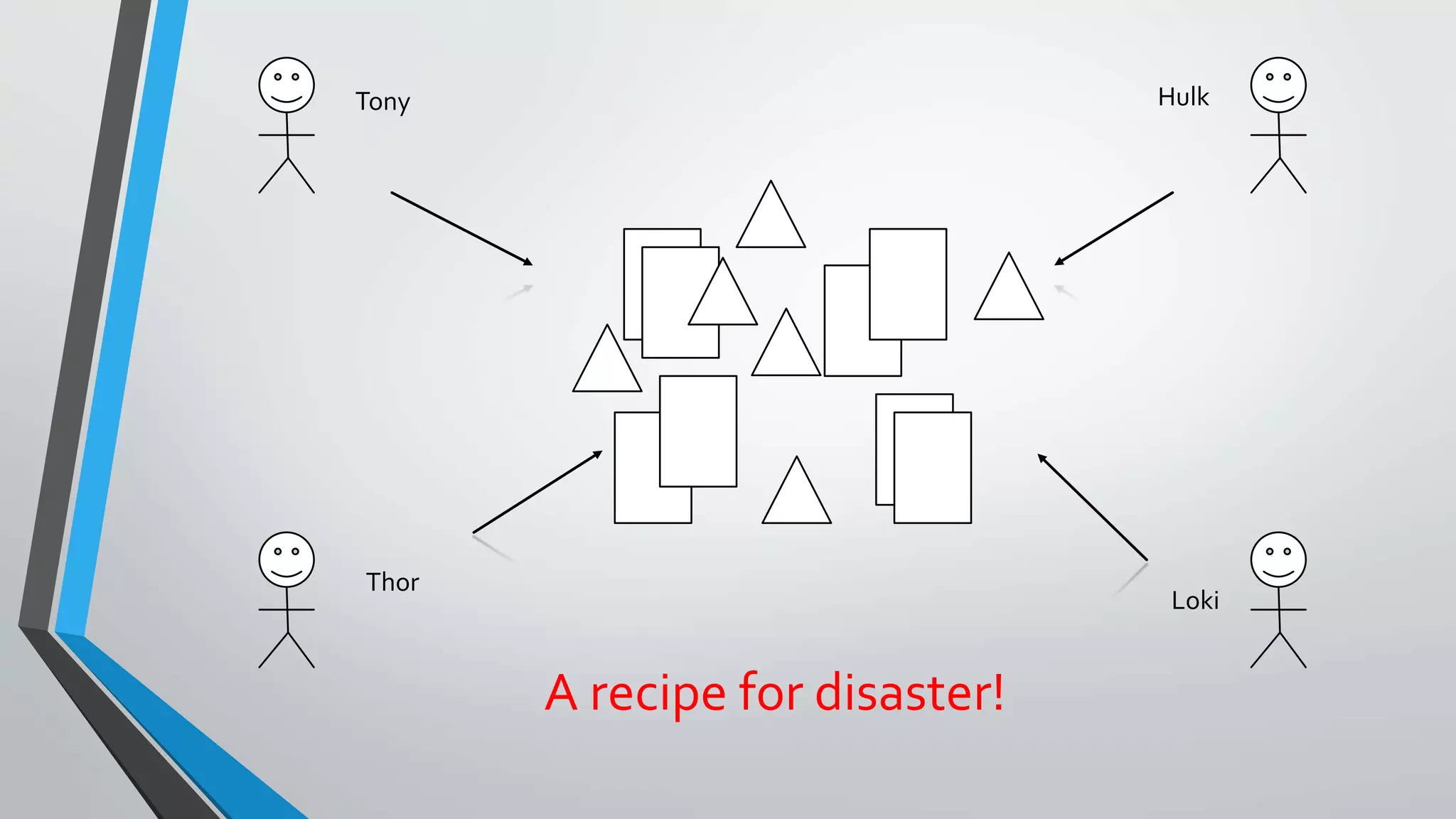
Tony Hulk
Thor
Loki
A recipe for disaster!
Version control (or revision control, or source control) is all about
managing multiple versions of your source code
Used in all “real” world projects for team collaboration
Some well-known version control systems are CVS, SVN and Git
Version Control systems act great as a “Time machine”
 Gives you an option for going back and forth between versions.You
can diff, revert etc.
Version control is essential for working with your team
 Greatly simplifies concurrent work, merging changes
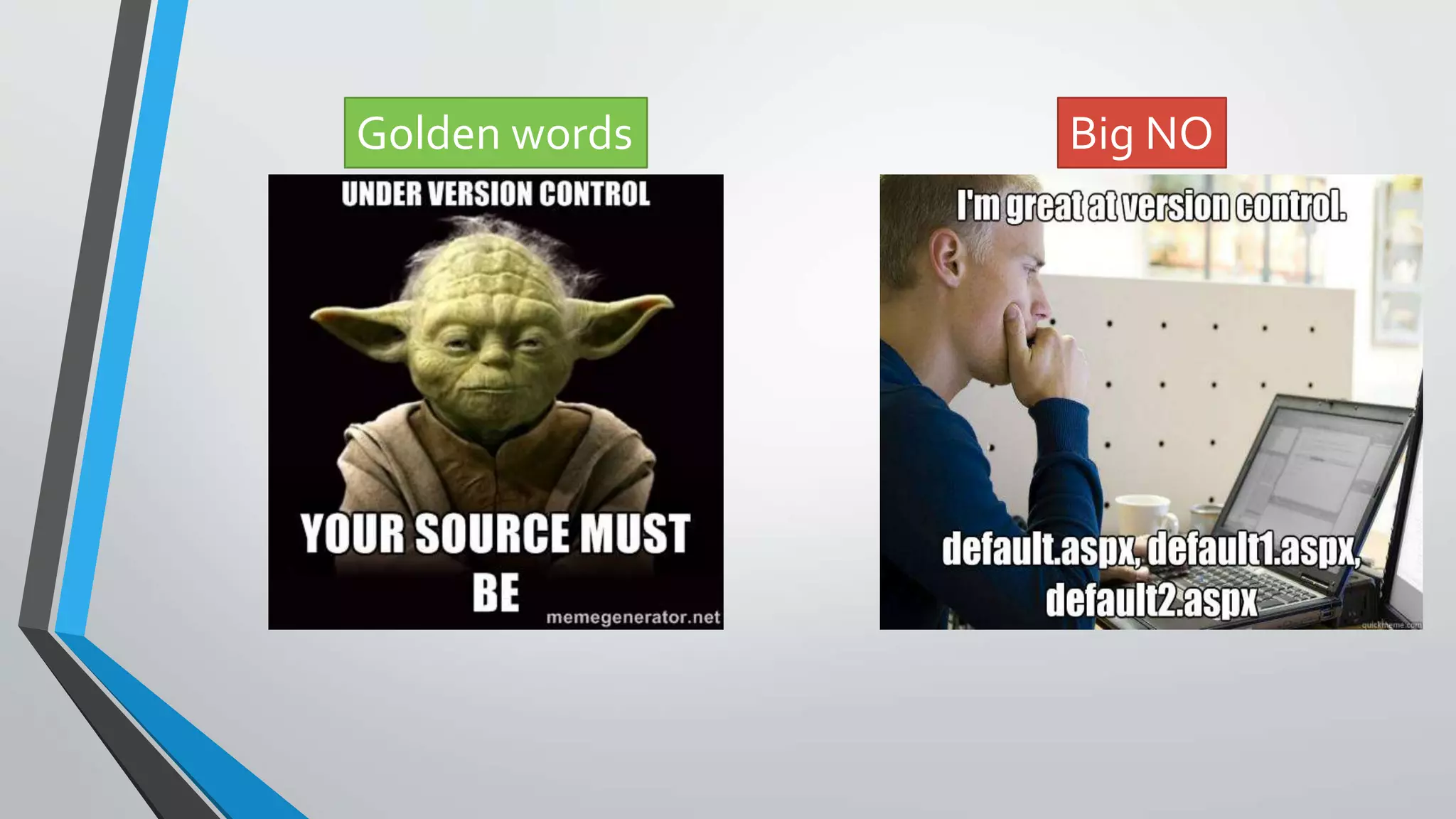
Golden words Big NO
Version Control
Central v/s Distributed?
Centralized Version Control Systems
 Centralized version control systems are based on the idea that there is a single
“central” copy of your project somewhere (probably on a server), and
programmers will “commit” their changes to this central copy
 Typical workflow ->You need to checkout a source file, edit it and then check-it-
back-in
 Where it wins - Programmers no longer have to keep many copies of files on
their hard drives manually, because the version control tool can talk to the
central copy and retrieve any version they need on the fly
 Big problem - Most of the functionality depends on you being connected to the
central server
 CVS, SVN and Perforce fall into this category
Distributed Version Control Systems
 Systems do not necessarily rely on a central server to store all the versions of a
project’s files. Instead, every developer “clones” a copy of a repository and has
the full history of the project on their own hard drive.
 Typical workflow -> clone, pull, commit and then push
 Win – Any action apart from “push” and “pull” is extremely fast because the tool
only needs to access the hard drive, not a remote server.
 Moto - Commit fast, commit locally. Push group of changesets at once.
 Everything apart from “push” and “pull” can be done without an internet
connection.You can literally work on a flight and keep committing your changes.
What is Git?
 Git was originally developed by LinuxTorvalds as version control for Linux
kernel
 Git is a distributed version control system
 Git manages changes to a tree of files over time
 Git is especially optimized for:
 Distributed development
 Large file counts
 Complex merging
 Making branches and quickly switching from one to another
 Very fast and robust
 You can count on Git – Facebook,Twitter, Google and even that new
startup in Bangalore is using it.
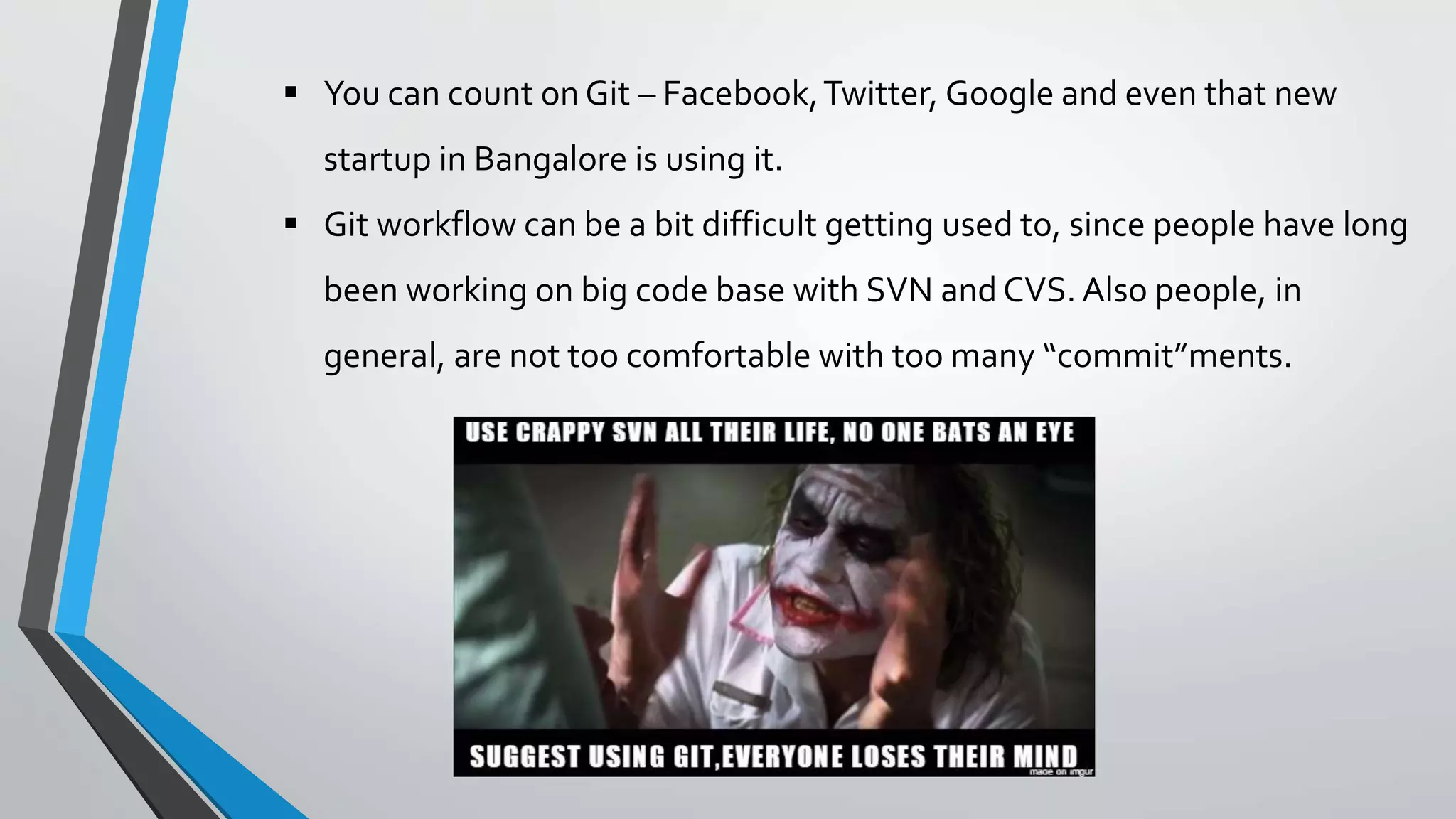
 Git workflow can be a bit difficult getting used to, since people have long
been working on big code base with SVN and CVS. Also people, in
general, are not too comfortable with too many “commit”ments.
Git Internals
or behind the scenes magic..
 Git keeps all its data inside a special directory called .git at the top level of your repository.This is
usually called the object store.
 Git knows about 4 types of objects:
blob -- each file that you add to the repo is turned into a blob object
tree -- each directory is turned into a tree object
commit -- a commit is a snapshot of your working tree at a point in time, although it contains a lot of
other information also
tag -- we will see this type a bit later
 Git maintains Index – information about current working directory and the changes made to it.
What in the world is ‘SHA’?
A commit in Git is uniquely identified by a 160-bit hex value (the 'SHA').The secret recipe of calculation is:
• SHA of the parent commit(s)
• commit message
• author name/email/timestamp
• It's just a large, apparently random looking, number, which is actually a cryptographically-strong
checksum which looks like a30236028b7ddd65f01321af42f904479eaff549
• It is also GLOBALLY unique! No commit in any repo anywhere in the world will ‘practically’ have
the same SHA.
A very important understanding in the workflow of Git is that it is very different from most version
control systems that you may be familiar with:
Subversion, CVS, Perforce, Mercurial and the like all use Delta Storage systems - they store the
differences between one commit and the next.
Git does not do this - it stores a snapshot of what all the files in your project look like in a tree
structure each time you commit.
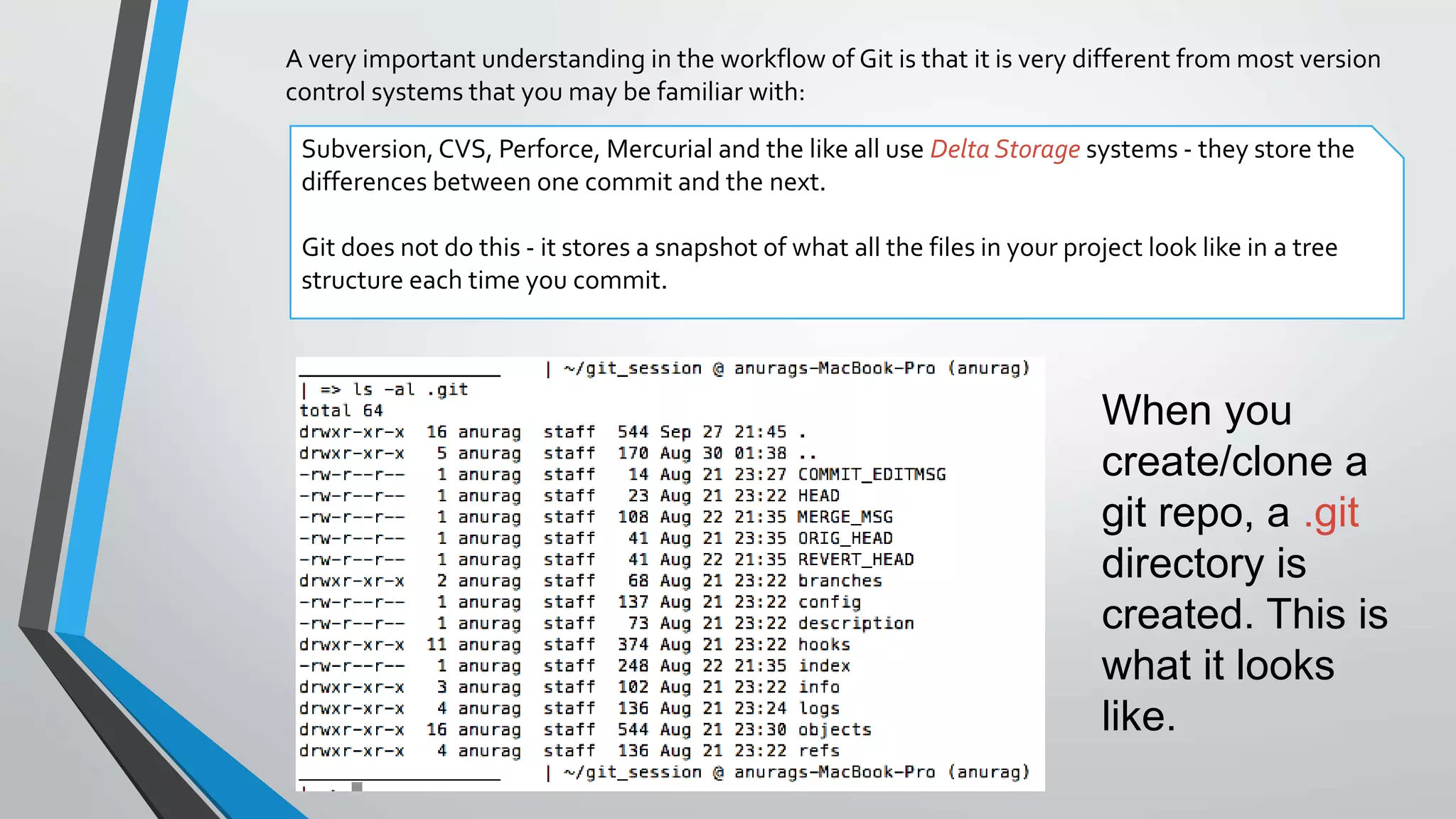
When you
create/clone a
git repo, a .git
directory is
created. This is
what it looks
like.
It’s all about the Repo
or why the Repo Rules m/
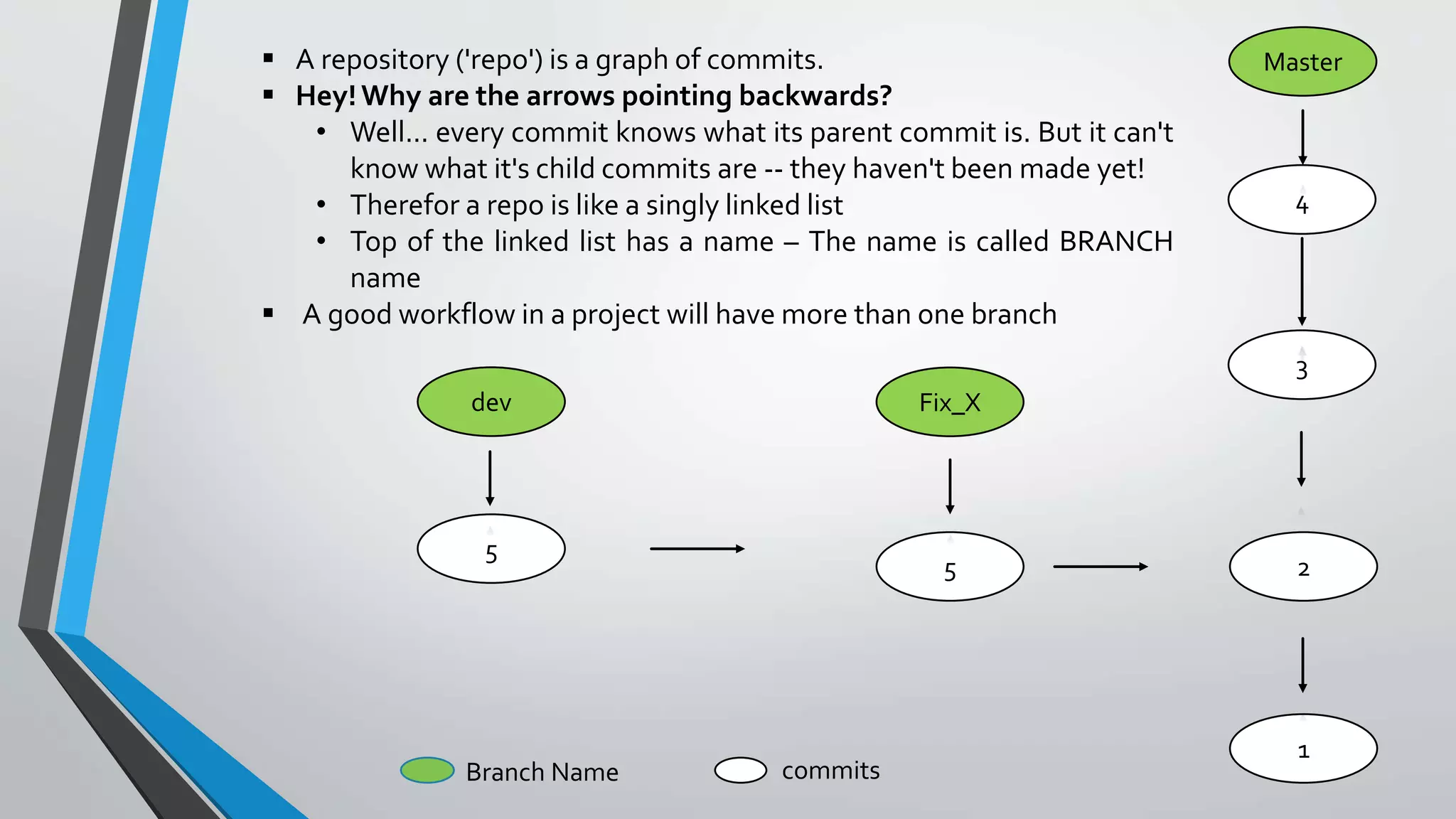
 A repository ('repo') is a graph of commits.
 Hey!Why are the arrows pointing backwards?
• Well... every commit knows what its parent commit is. But it can't
know what it's child commits are -- they haven't been made yet!
• Therefor a repo is like a singly linked list
• Top of the linked list has a name – The name is called BRANCH
name
 A good workflow in a project will have more than one branch
4
2
1
3
Master
5
5
dev Fix_X
Branch Name commits
Git Workflow
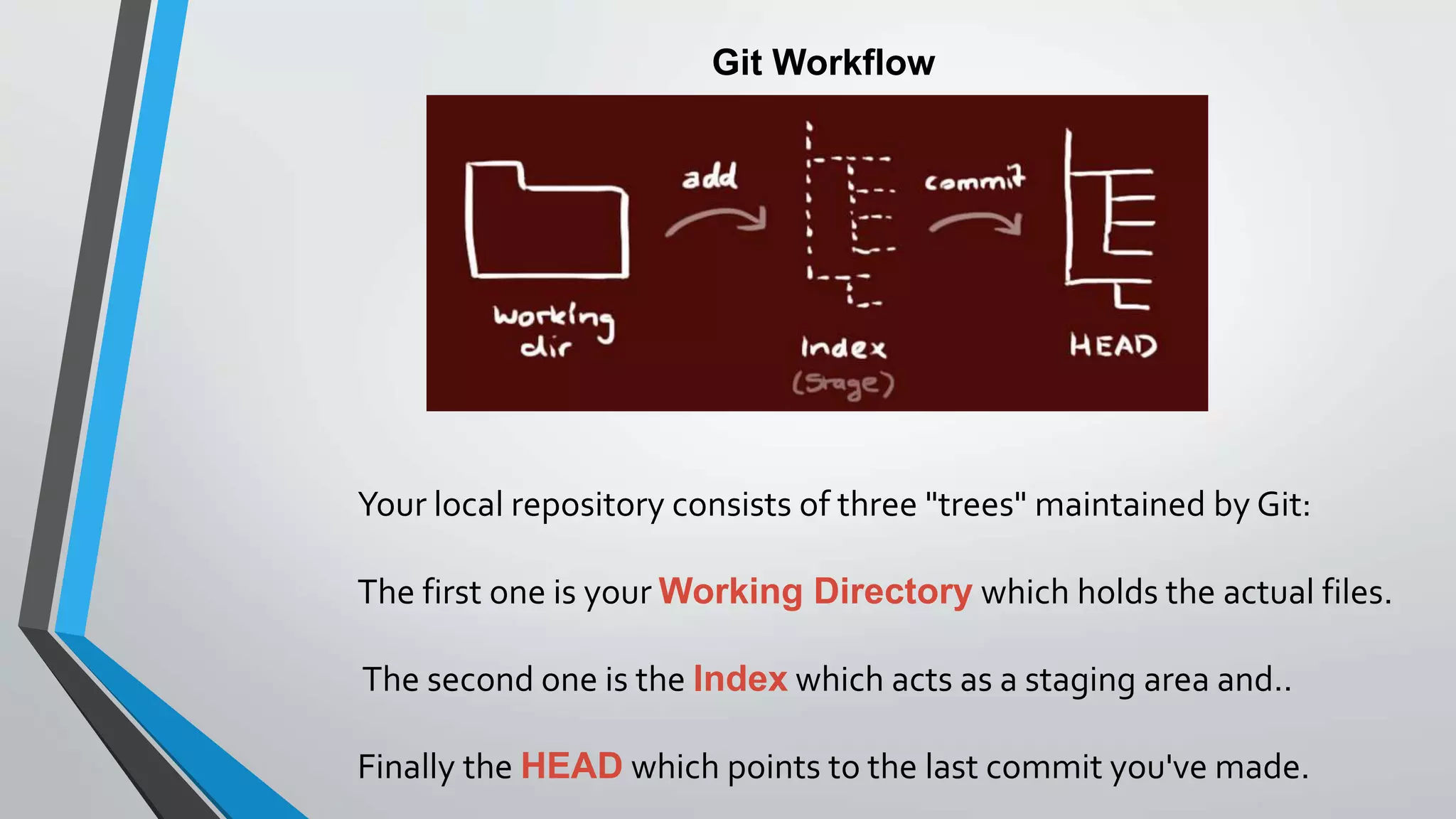
Your local repository consists of three "trees" maintained by Git:
The first one is your Working Directory which holds the actual files.
The second one is the Index which acts as a staging area and..
Finally the HEAD which points to the last commit you've made.
Typical Git Workflow
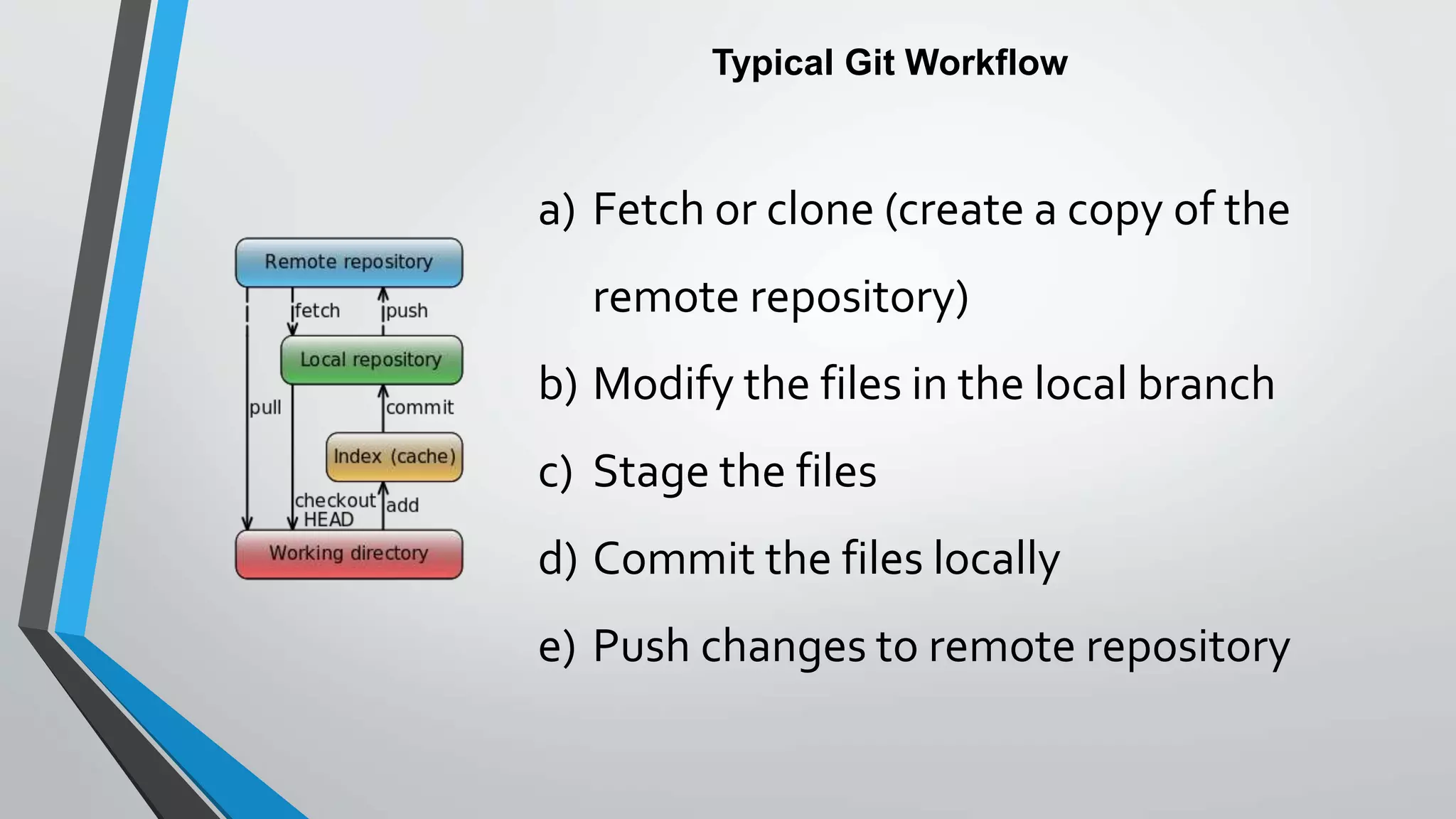
a) Fetch or clone (create a copy of the
remote repository)
b) Modify the files in the local branch
c) Stage the files
d) Commit the files locally
e) Push changes to remote repository
Git Terminology
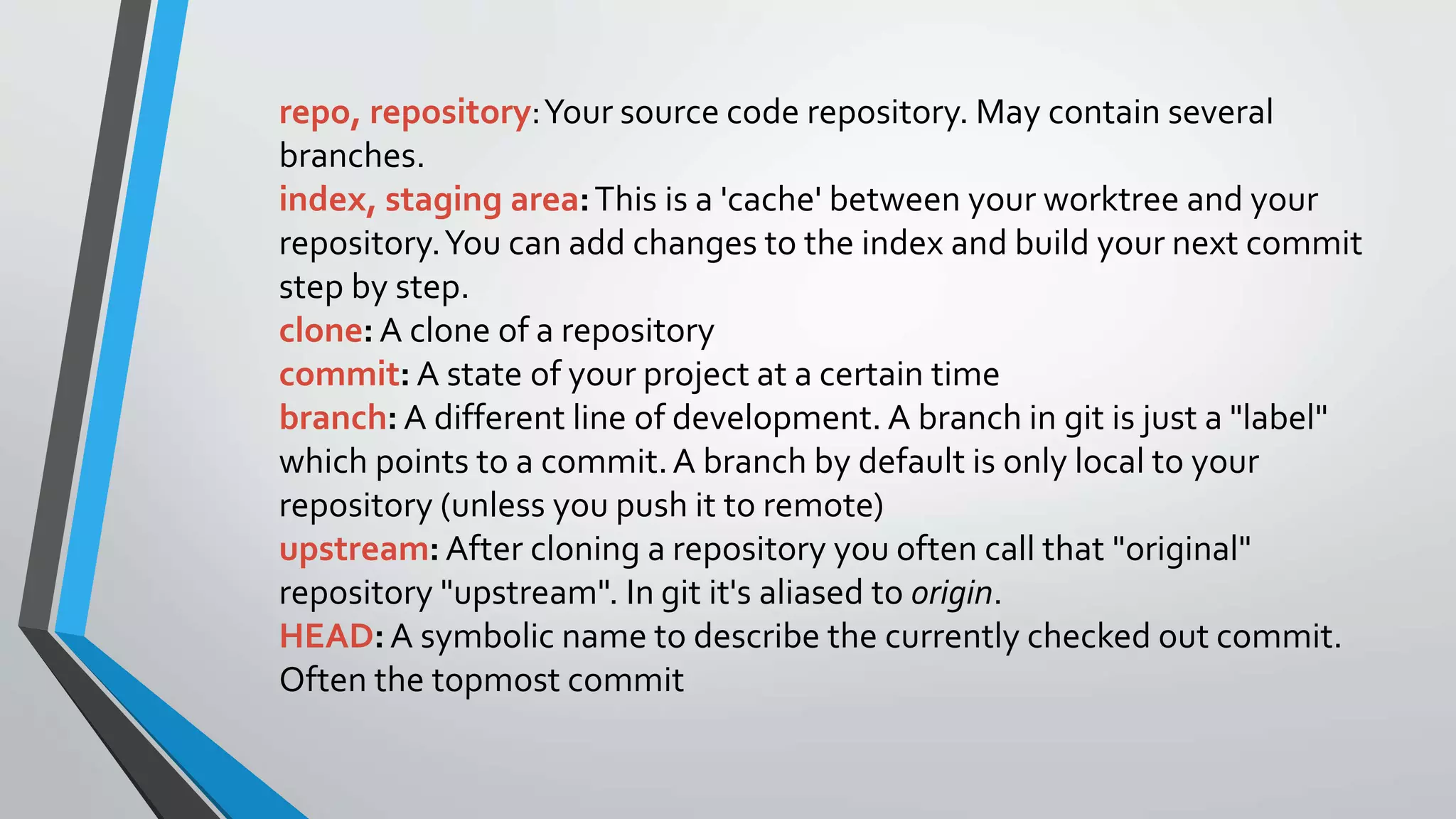
repo, repository:Your source code repository. May contain several
branches.
index, staging area:This is a 'cache' between your worktree and your
repository.You can add changes to the index and build your next commit
step by step.
clone: A clone of a repository
commit: A state of your project at a certain time
branch: A different line of development. A branch in git is just a "label"
which points to a commit.A branch by default is only local to your
repository (unless you push it to remote)
upstream: After cloning a repository you often call that "original"
repository "upstream". In git it's aliased to origin.
HEAD:A symbolic name to describe the currently checked out commit.
Often the topmost commit
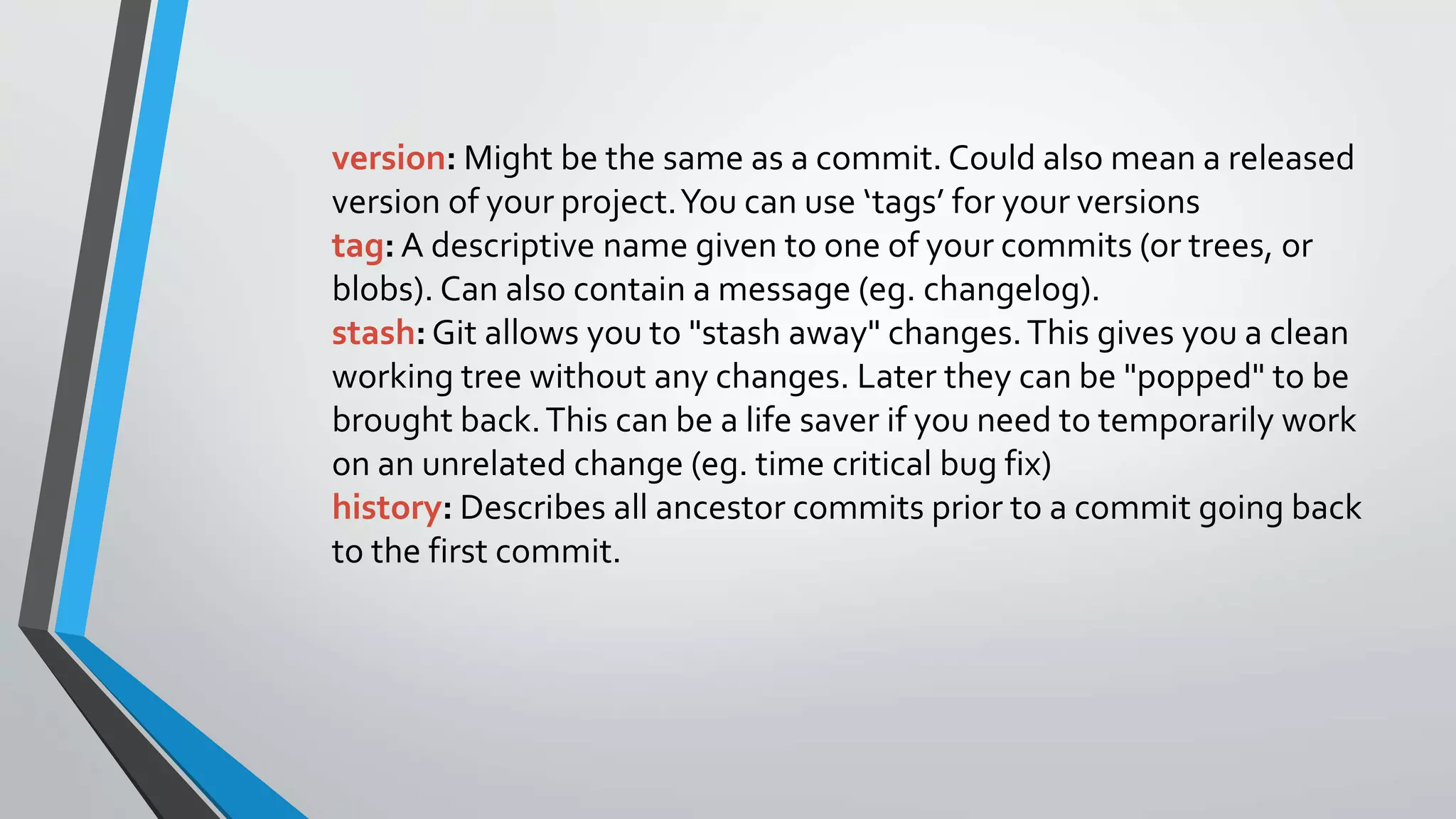
version: Might be the same as a commit. Could also mean a released
version of your project.You can use ‘tags’ for your versions
tag: A descriptive name given to one of your commits (or trees, or
blobs). Can also contain a message (eg. changelog).
stash:Git allows you to "stash away" changes.This gives you a clean
working tree without any changes. Later they can be "popped" to be
brought back.This can be a life saver if you need to temporarily work
on an unrelated change (eg. time critical bug fix)
history: Describes all ancestor commits prior to a commit going back
to the first commit.
Picking your own Git
Eclipse or commandline
Git speaks and listens
Git supports many protocols to transfer (push, fetch, pull) between repos:
• Rsync
• http[s]://host.xz[:port]/path/to/repo.git/
• git://host.xz[:port]/path/to/repo.git/
• ssh://[user@]host.xz[:port]/path/to/repo.git/
In the core, Git also has import/export with CVS, SVN
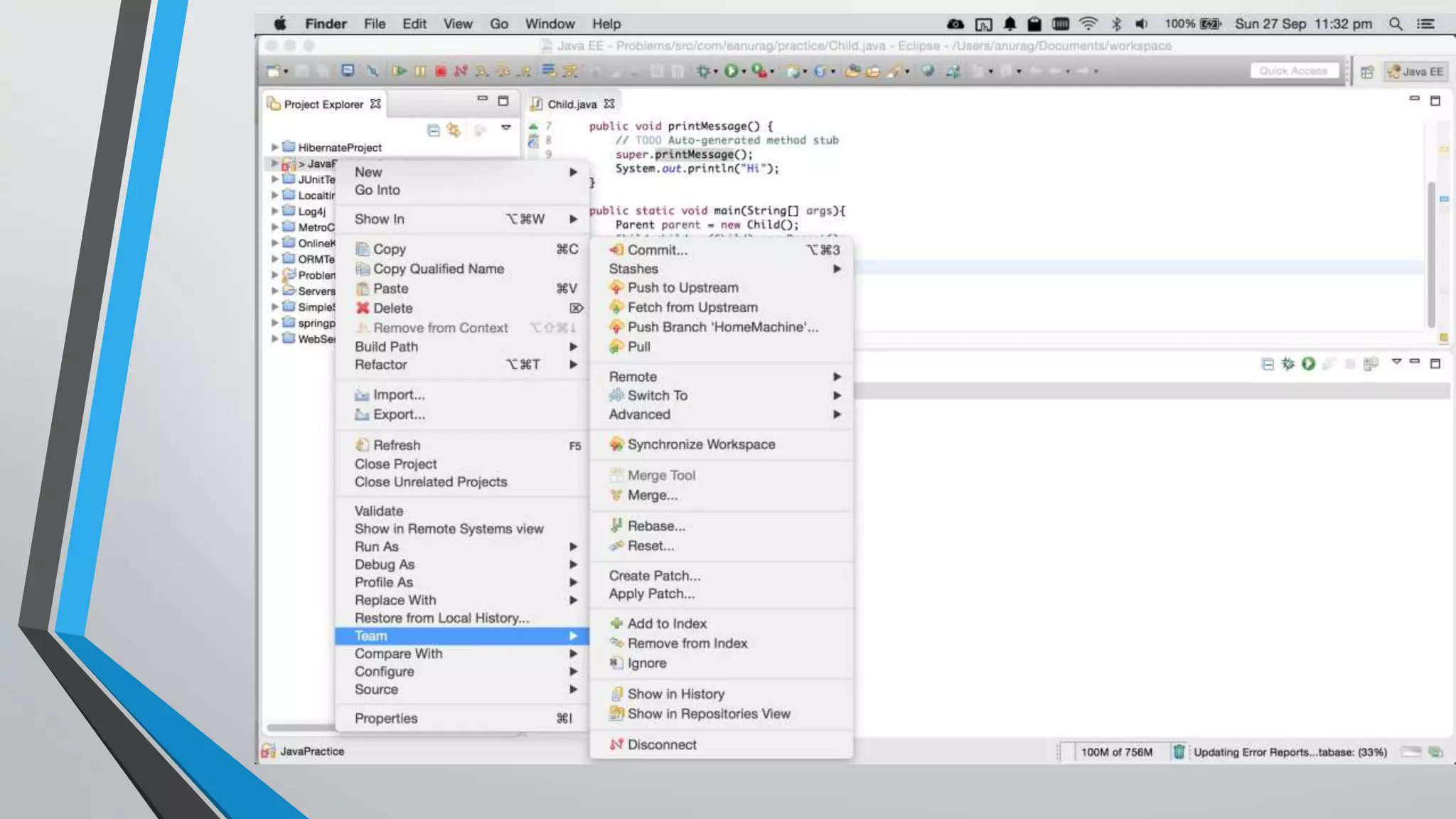
Demo to clone a Git repo in Eclipse
from Github
Git yourself Up and
Running…
global configuration, init, clone,
checkout/branching, .gitignore
Git global configuration
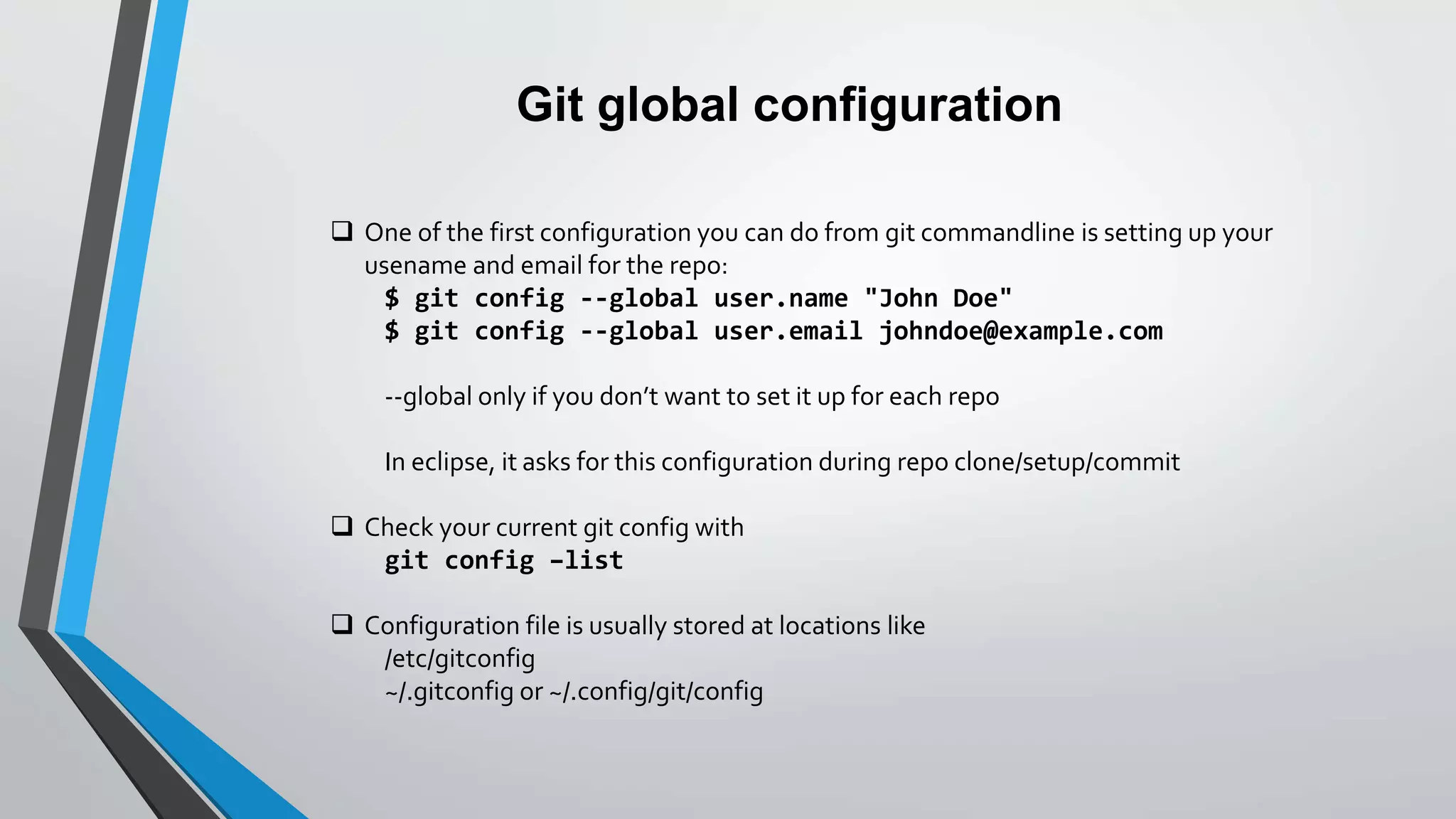
 One of the first configuration you can do from git commandline is setting up your
usename and email for the repo:
$ git config --global user.name "John Doe"
$ git config --global user.email johndoe@example.com
--global only if you don’t want to set it up for each repo
In eclipse, it asks for this configuration during repo clone/setup/commit
 Check your current git config with
git config –list
 Configuration file is usually stored at locations like
/etc/gitconfig
~/.gitconfig or ~/.config/git/config
Init a new Git repo
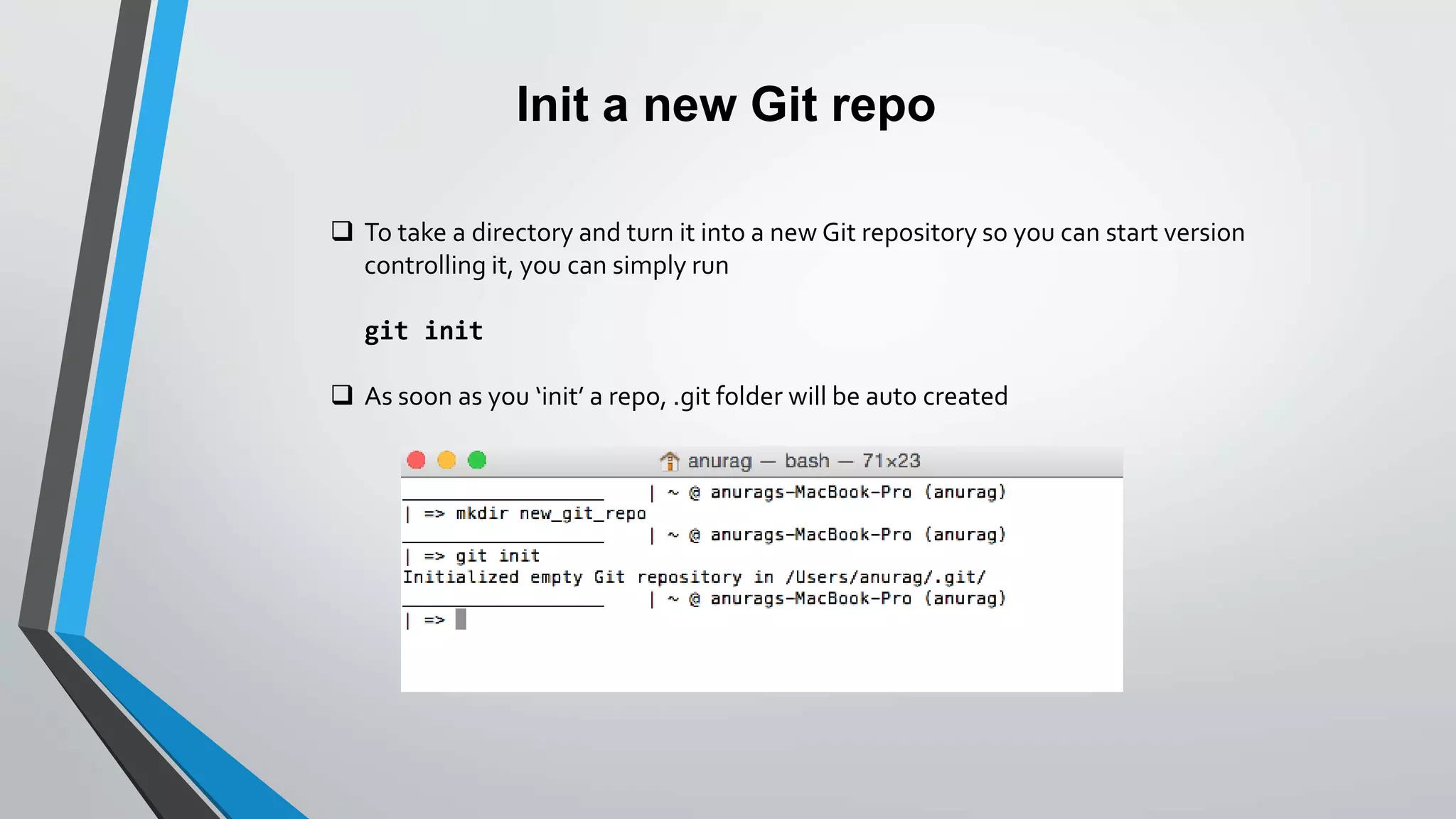
 To take a directory and turn it into a new Git repository so you can start version
controlling it, you can simply run
git init
 As soon as you ‘init’ a repo, .git folder will be auto created
Cloning a remote repo
 The git clone command is actually combination of several actions
• It creates a new directory and goes into it
• runs git init to make it an empty Git repository
• adds a remote (git remote add) to the URL that you pass it (by default
named origin)
• runs a git fetch from that remote repository
• and then checks out the latest commit into your working directory with git
checkout.
$ git clone git@github.com:eanurag/JavaPractice.git
new_git_repo
$ cd new_git_repo
Branching
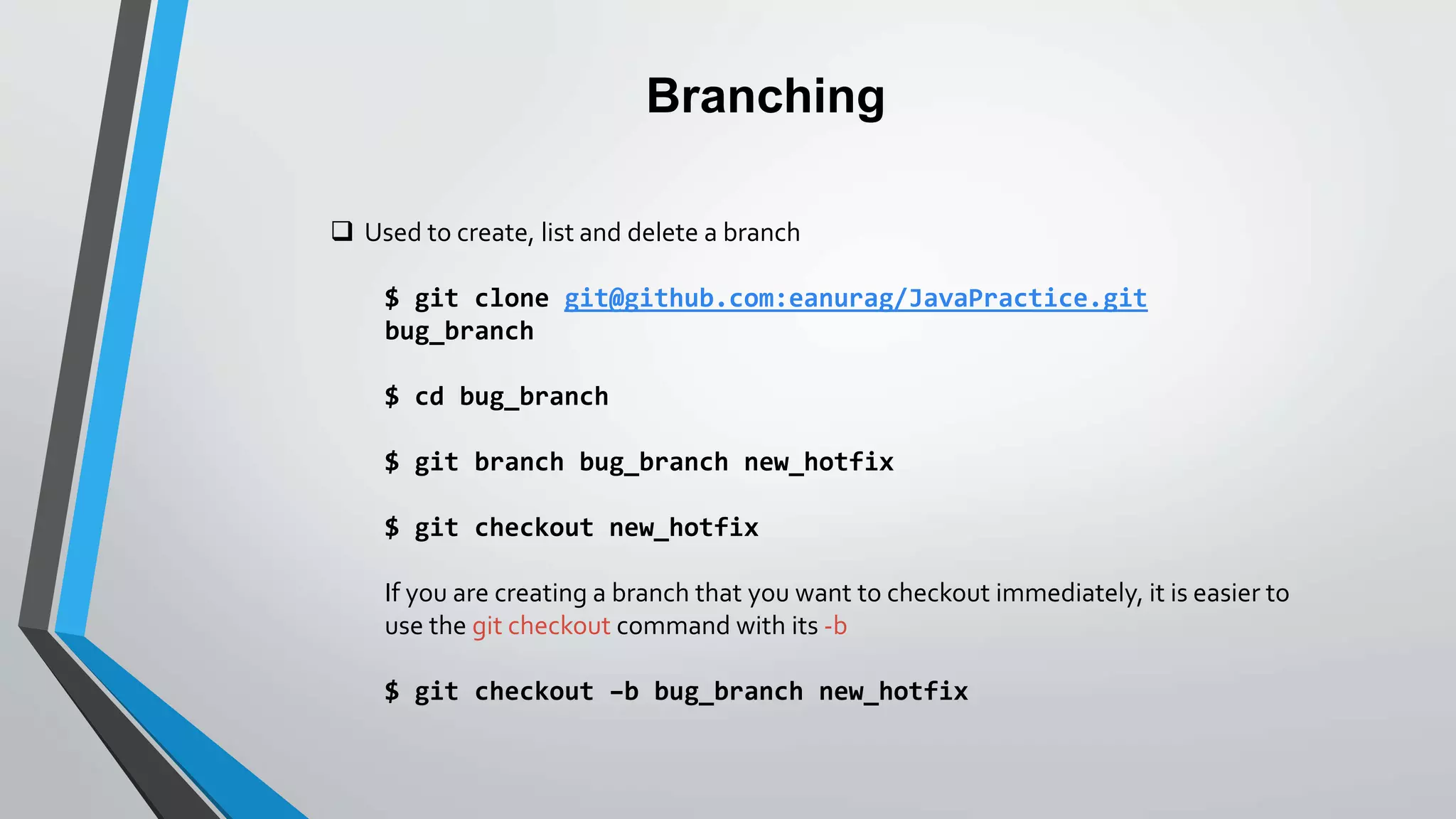
 Used to create, list and delete a branch
$ git clone git@github.com:eanurag/JavaPractice.git
bug_branch
$ cd bug_branch
$ git branch bug_branch new_hotfix
$ git checkout new_hotfix
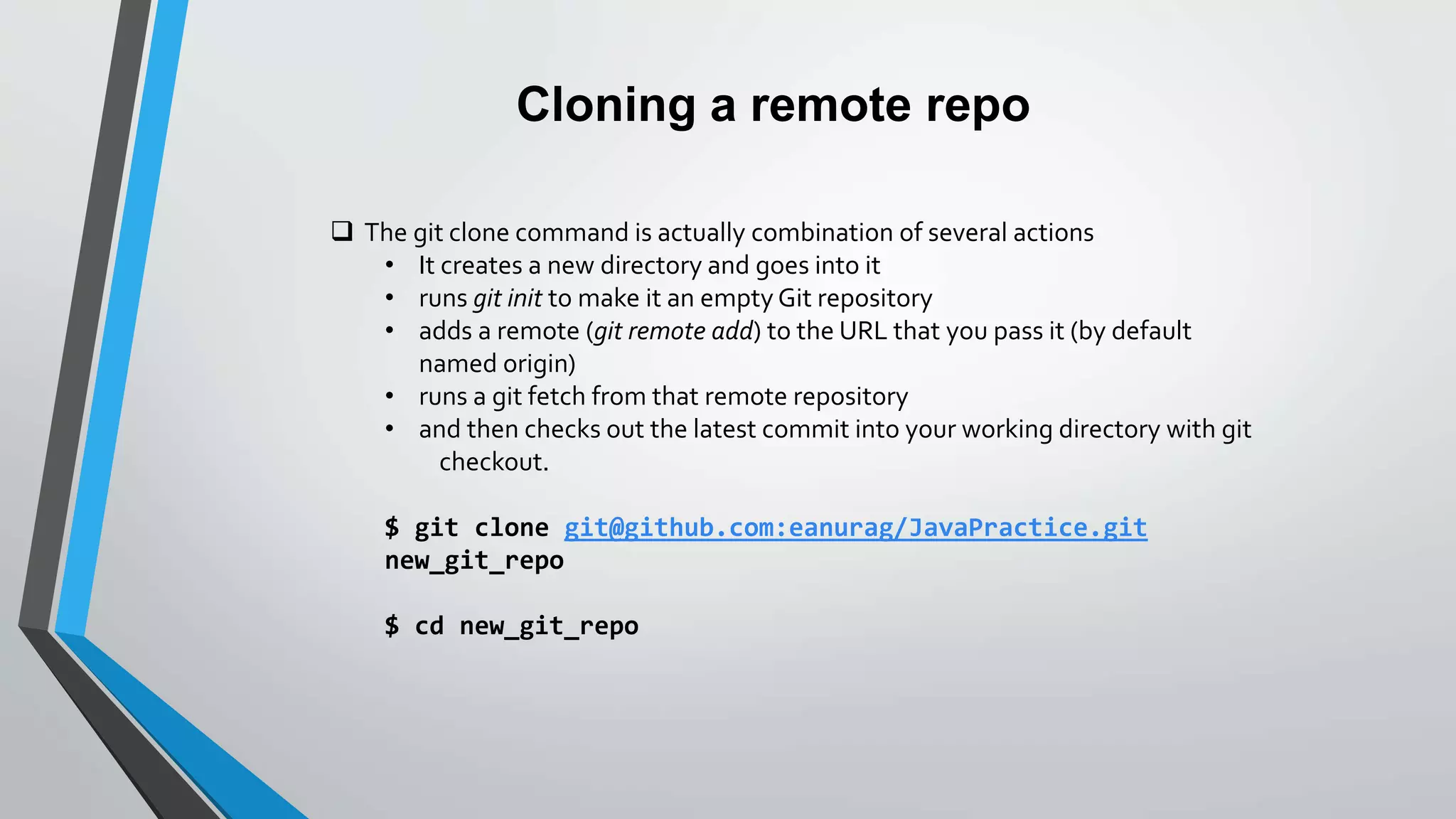
If you are creating a branch that you want to checkout immediately, it is easier to
use the git checkout command with its -b
$ git checkout –b bug_branch new_hotfix
Checkout
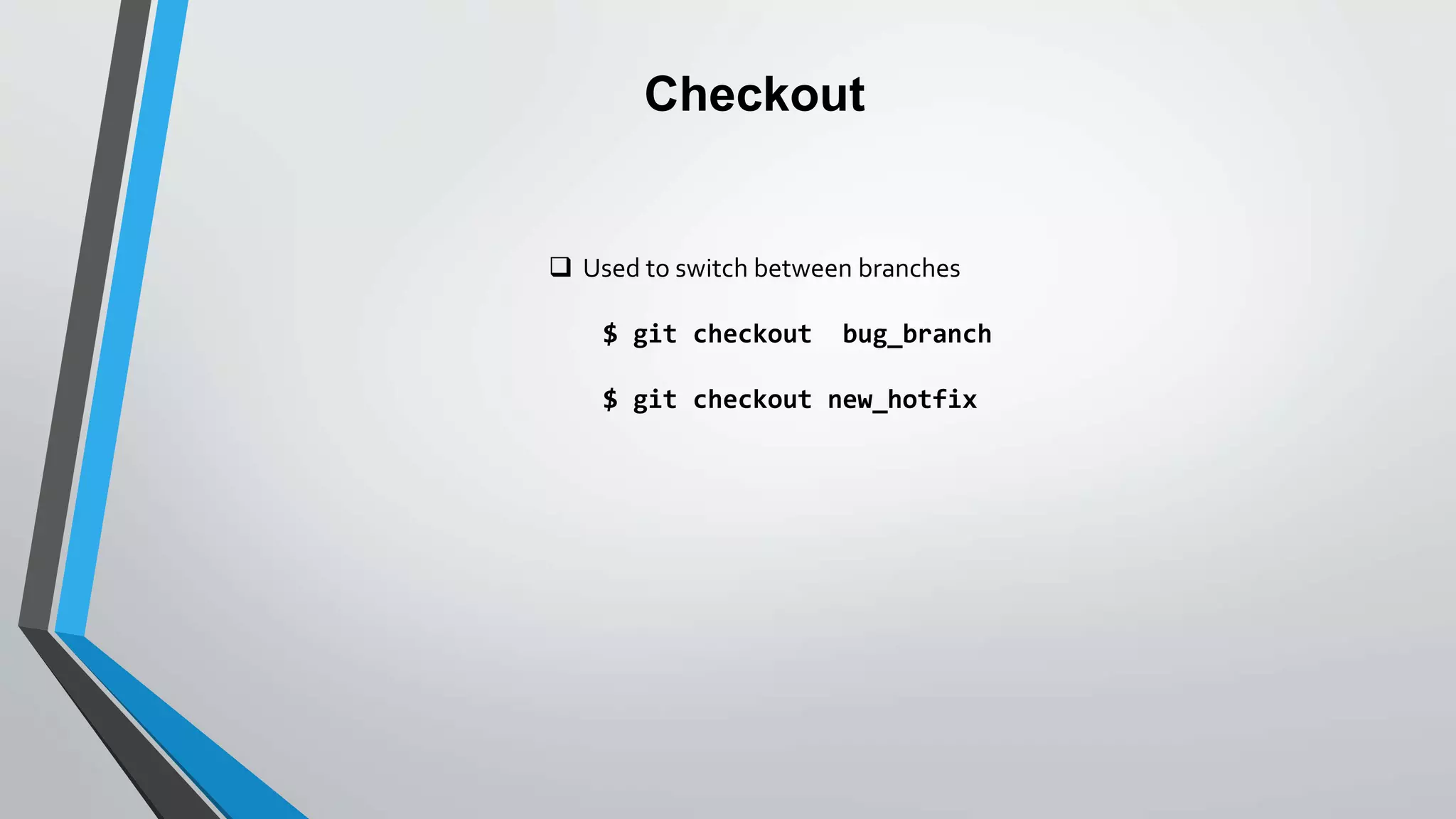
 Used to switch between branches
$ git checkout bug_branch
$ git checkout new_hotfix
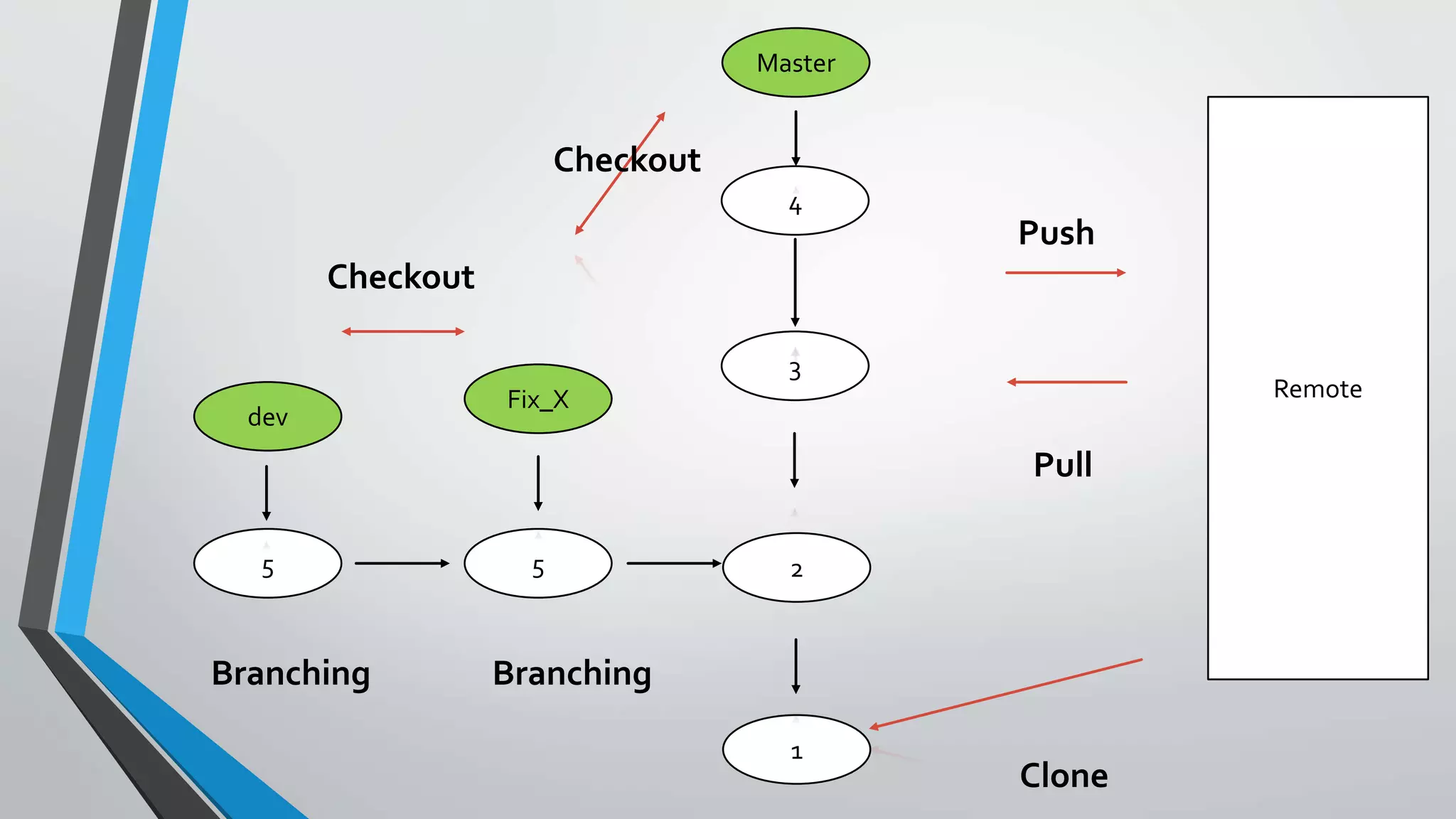
4
2
1
3
Master
55
dev
Fix_X Remote
Push
Pull
Clone
BranchingBranching
Checkout
Checkout
.gitignore
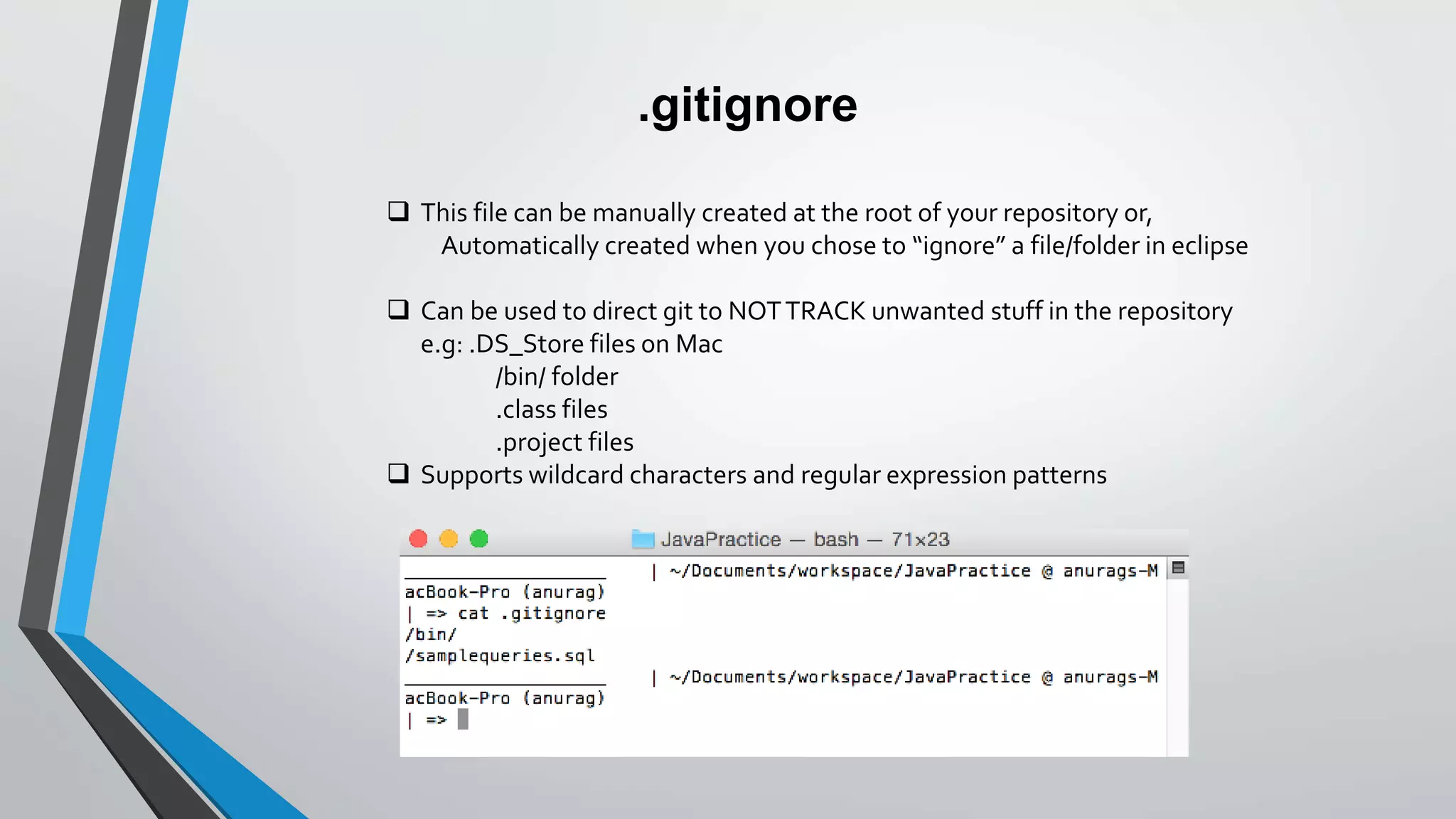
.gitignore
 This file can be manually created at the root of your repository or,
Automatically created when you chose to “ignore” a file/folder in eclipse
 Can be used to direct git to NOTTRACK unwanted stuff in the repository
e.g: .DS_Store files on Mac
/bin/ folder
.class files
.project files
 Supports wildcard characters and regular expression patterns
Git your basics right!
push, pull, commit, log, stash, diff
Tracking files & Status
 You can explicitly ask git to track files by “add”ing them
git add [filename]
git add .
 At any point of time, you can check the status of your git repo by typing
git status
=> git status
On branch master
You are currently reverting commit 6520818.
(fix conflicts and run "git revert --continue")
(use "git revert --abort" to cancel the revert operation)
Unmerged paths:
(use "git reset HEAD <file>..." to unstage)
(use "git add <file>..." to mark resolution)
both modified: a.txt
Untracked files:
(use "git add <file>..." to include in what will be committed)
.DS_Store
no changes added to commit
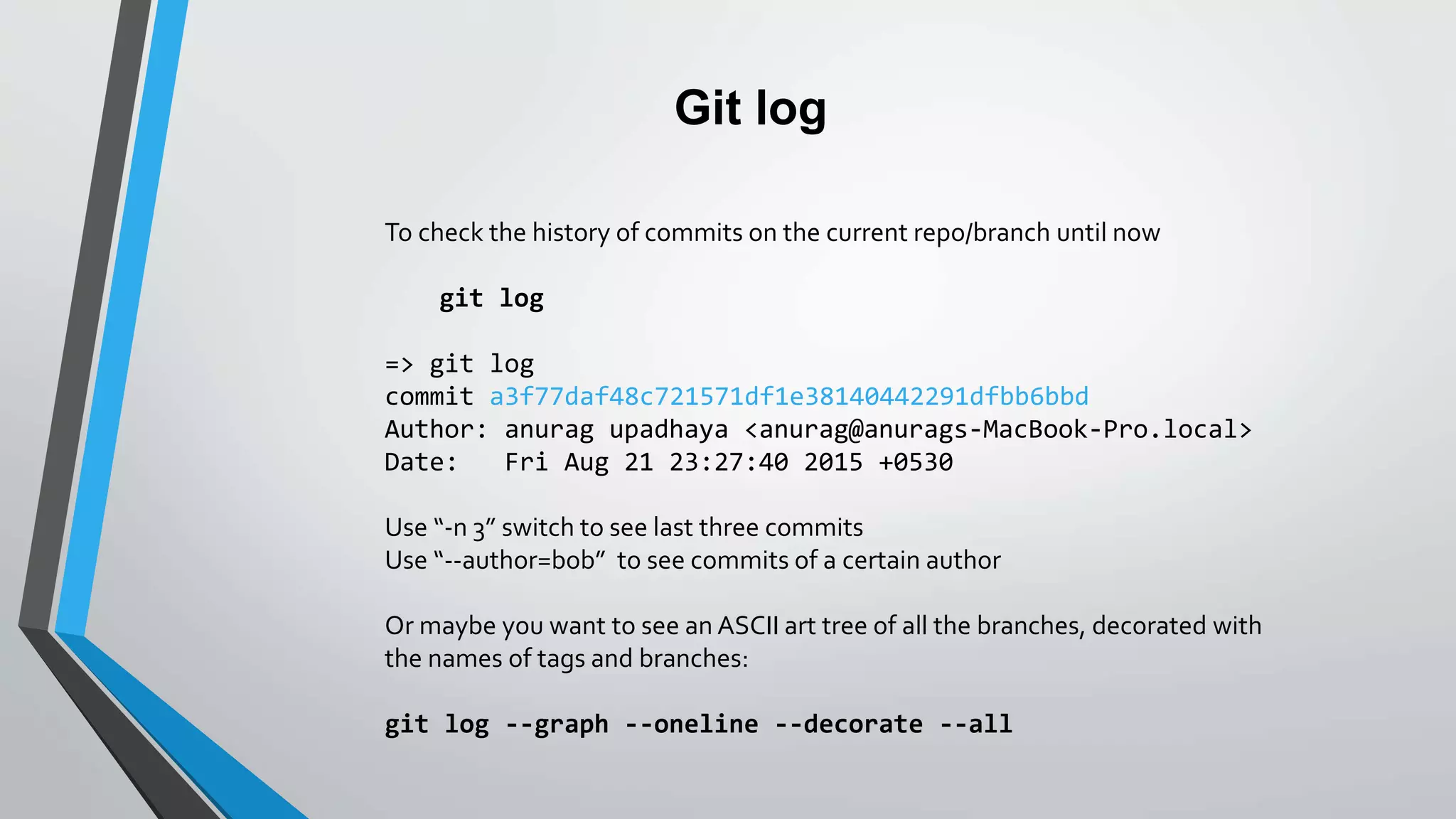
Git log
To check the history of commits on the current repo/branch until now
git log
=> git log
commit a3f77daf48c721571df1e38140442291dfbb6bbd
Author: anurag upadhaya <anurag@anurags-MacBook-Pro.local>
Date: Fri Aug 21 23:27:40 2015 +0530
Use “-n 3” switch to see last three commits
Use “--author=bob” to see commits of a certain author
Or maybe you want to see an ASCII art tree of all the branches, decorated with
the names of tags and branches:
git log --graph --oneline --decorate --all
Commit
 Stores the current contents of the index in a new commit along with a log message
from the user describing the changes
git commit -m “Commit Message”
 Commit message should be proper, for example
/*
[project_name][bug] - Fixed JS Bug - Description
Description of bug
*/
In above example, it will be easy to find all js related entry or bug related entry
using "git log"
Push & Pull
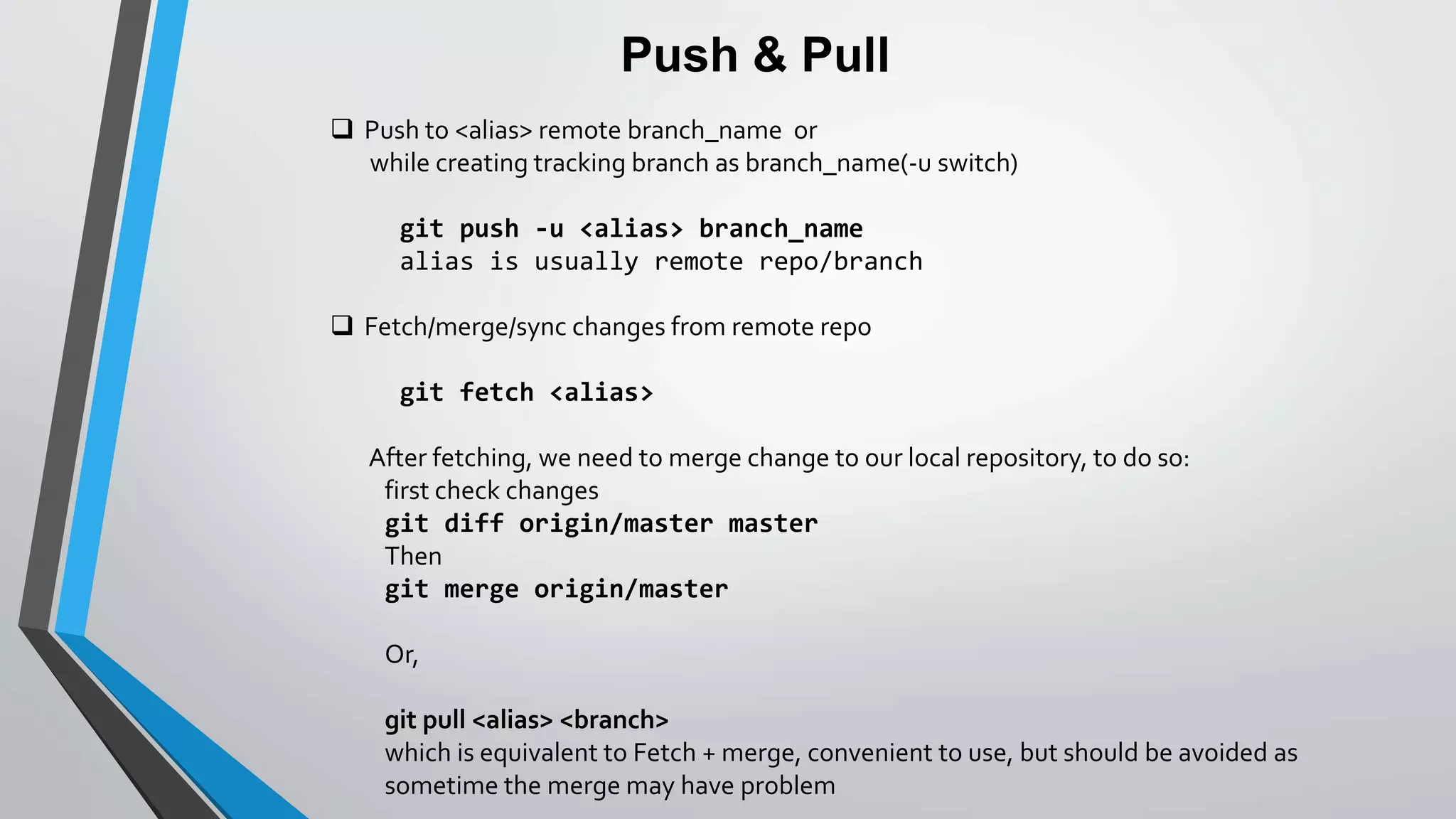
 Push to <alias> remote branch_name or
while creating tracking branch as branch_name(-u switch)
git push -u <alias> branch_name
alias is usually remote repo/branch
 Fetch/merge/sync changes from remote repo
git fetch <alias>
After fetching, we need to merge change to our local repository, to do so:
first check changes
git diff origin/master master
Then
git merge origin/master
Or,
git pull <alias> <branch>
which is equivalent to Fetch + merge, convenient to use, but should be avoided as
sometime the merge may have problem
A word about Pull & Push
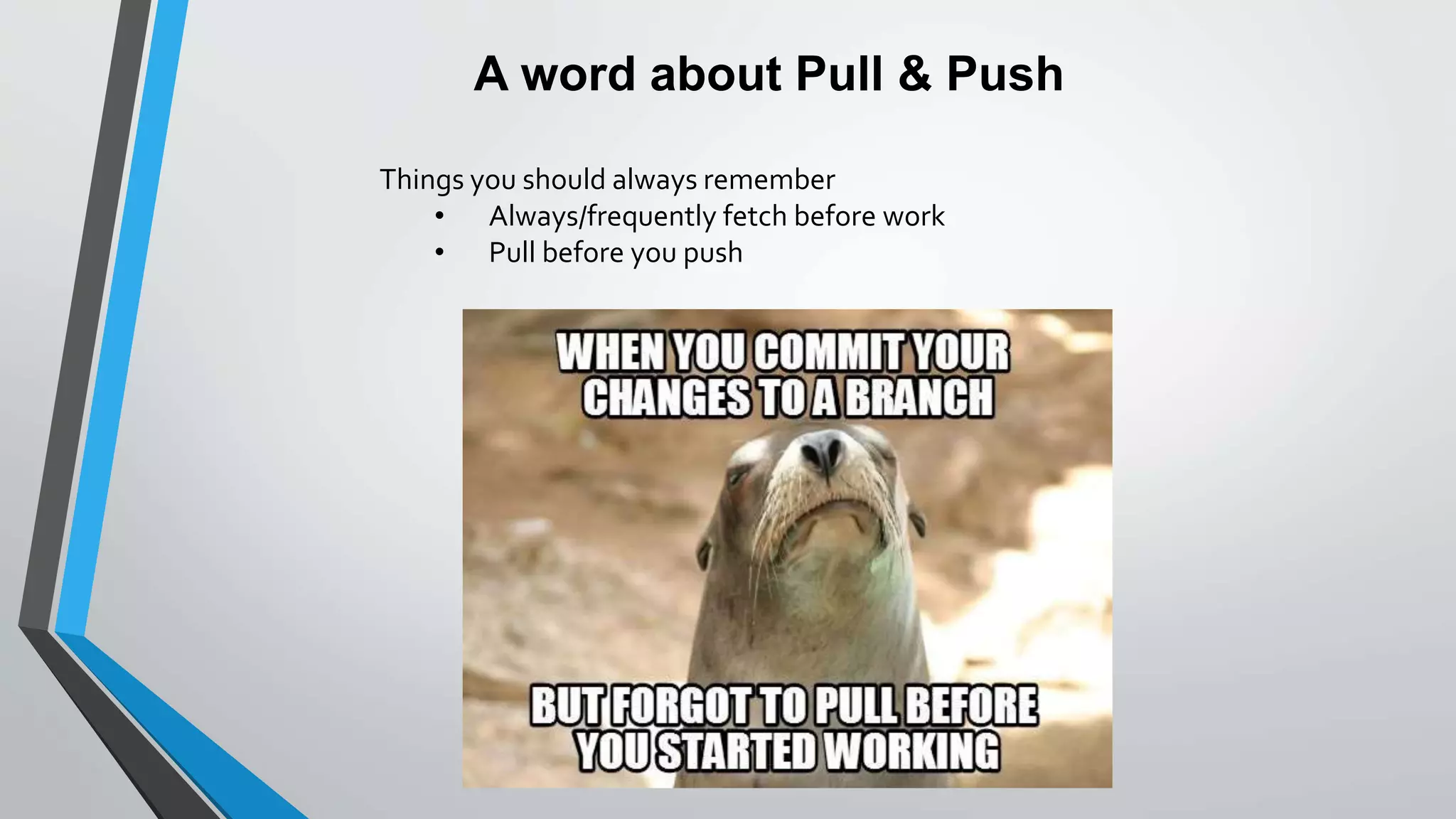
Things you should always remember
• Always/frequently fetch before work
• Pull before you push
Stash aka temp stack
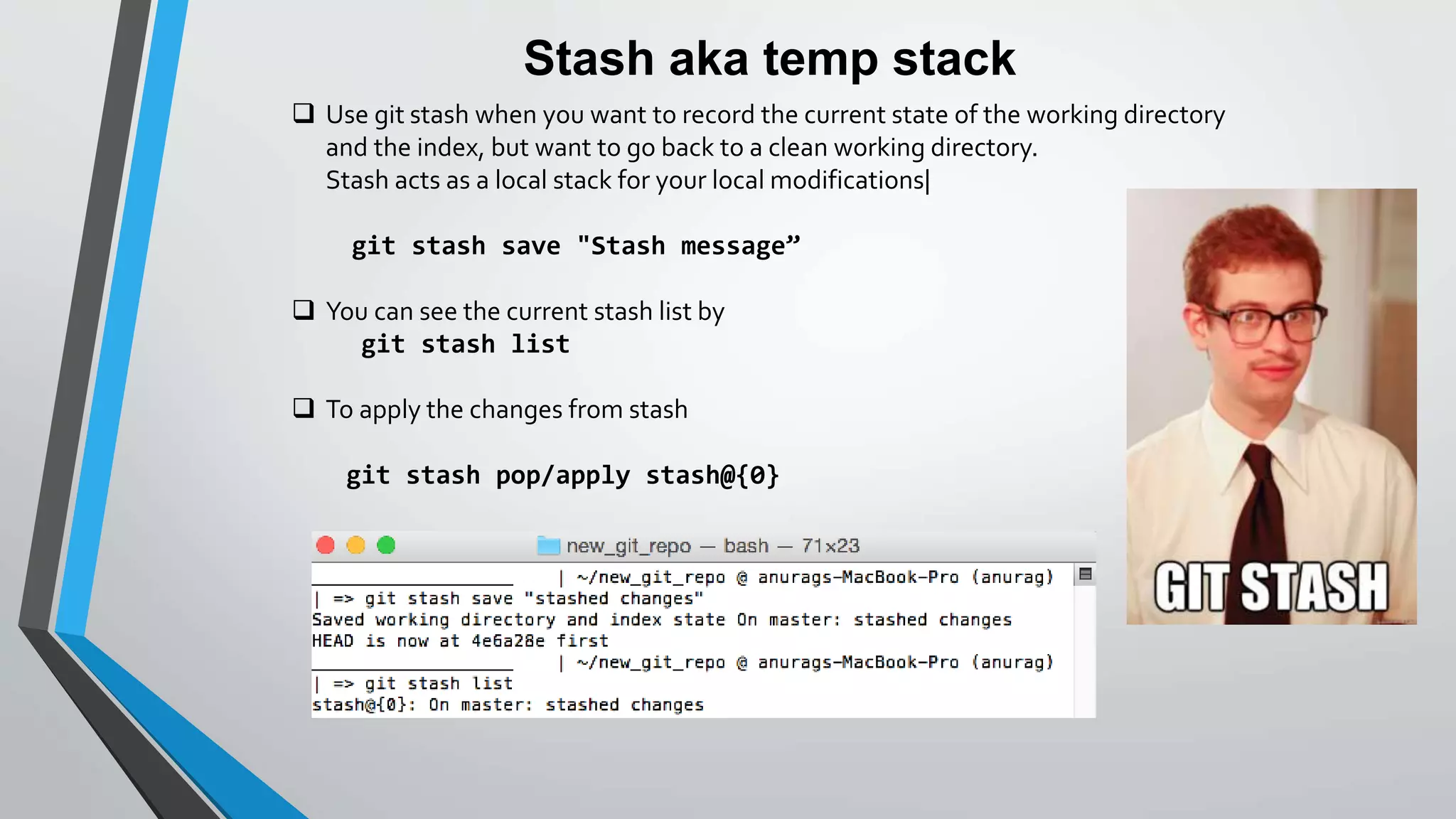
 Use git stash when you want to record the current state of the working directory
and the index, but want to go back to a clean working directory.
Stash acts as a local stack for your local modifications|
git stash save "Stash message”
 You can see the current stash list by
git stash list
 To apply the changes from stash
git stash pop/apply stash@{0}
Playing fair with Team
(advance concepts) merge and rebase
Merge
To update your local repo to the newest commit, your can execute
git pull
in your working directory to fetch and merge remote changes.
or,
git merge <branch>
to merge another branch into your active branch.
In both the cases git tries to auto-merge changes. Unfortunately, this is not always
possible and results in conflicts.You are responsible to merge those conflicts manually
by editing the files shown by git.
Merge
A---B---C topic
/
D---E---F---G master
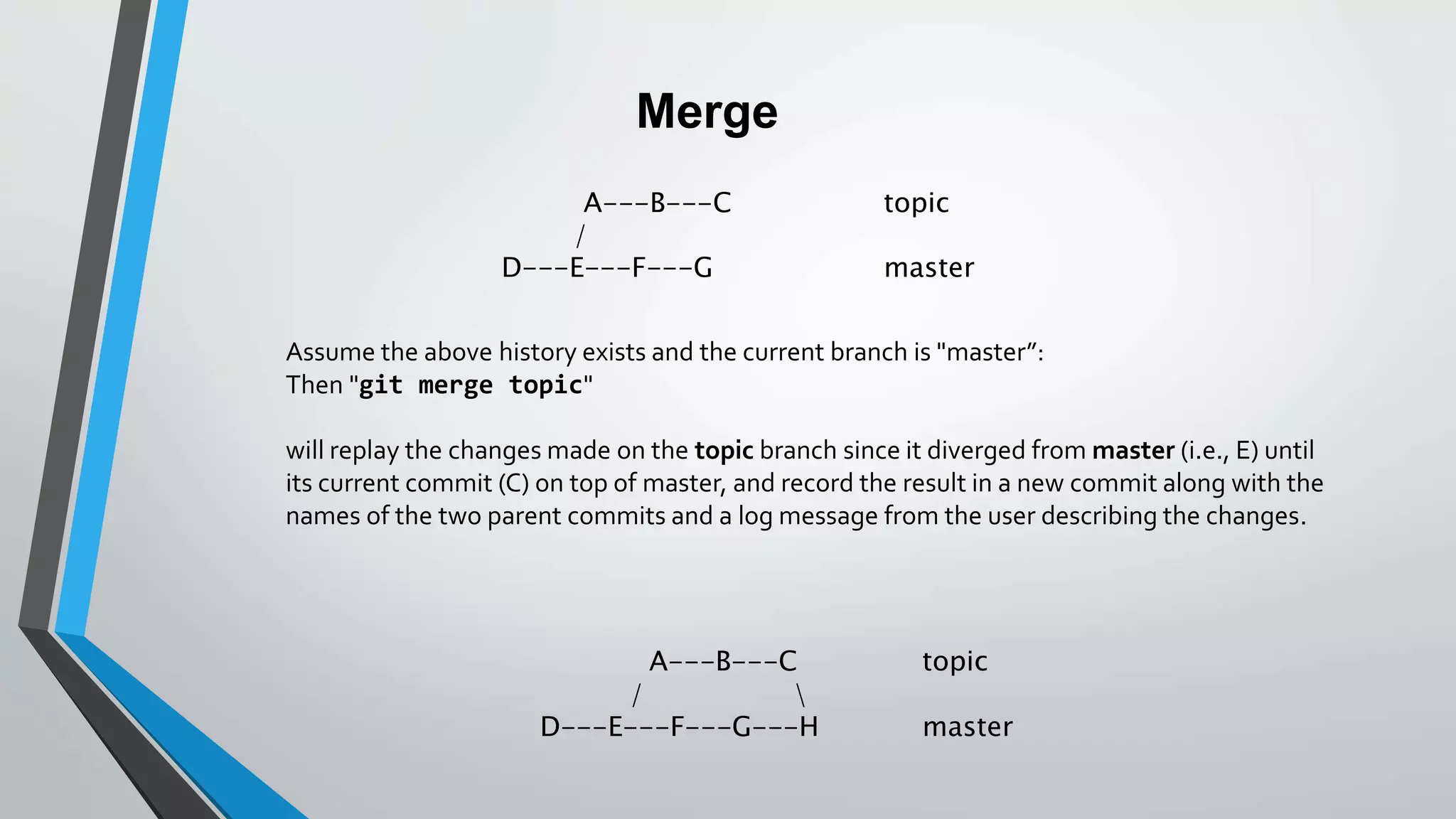
Assume the above history exists and the current branch is "master”:
Then "git merge topic"
will replay the changes made on the topic branch since it diverged from master (i.e., E) until
its current commit (C) on top of master, and record the result in a new commit along with the
names of the two parent commits and a log message from the user describing the changes.
A---B---C topic
/ 
D---E---F---G---H master
Rebase
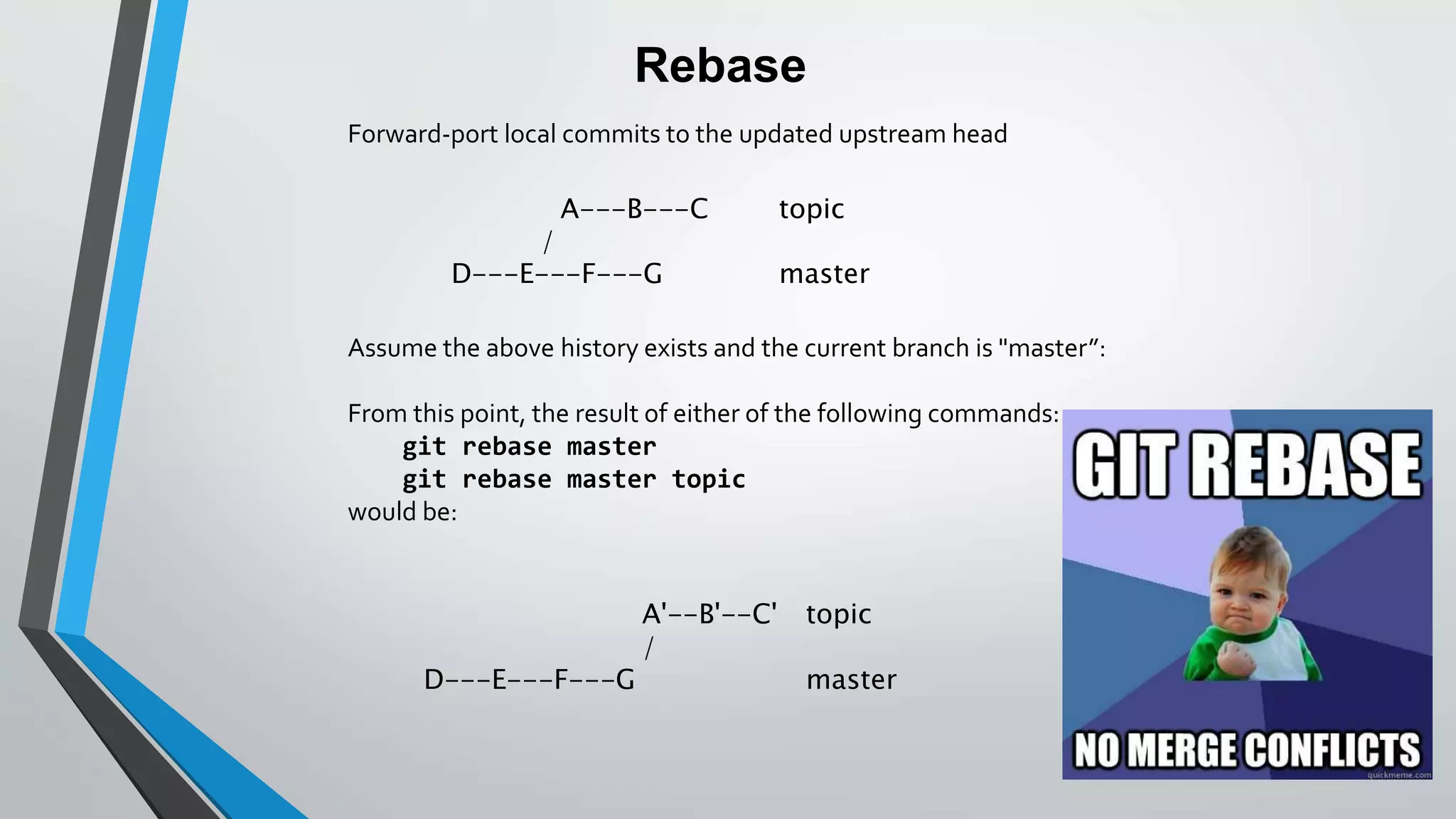
Forward-port local commits to the updated upstream head
A---B---C topic
/
D---E---F---G master
Assume the above history exists and the current branch is "master”:
From this point, the result of either of the following commands:
git rebase master
git rebase master topic
would be:
A'--B'--C' topic
/
D---E---F---G master
Saving the Day
(advance concepts) checkout, revert and
reset
Checkout
Lets assume you have made and “commit”ed changes.
And now you want file to revert back to a few commits earlier:
git checkout {sha1-code}
It will change file to {sha1-code} and stage it as modified.After it one can just commit
the change.
** by checkout, the changes will not be lost.
Revert
Now let assume we need to revert back a commit:
git revert {sha1-code}
It will revert back to that what was before {sha1-code}commit.
**revert will not save or stage your changes
Reset
RESET are of three types :
--soft
Does not touch the index nor the working tree at all (but resets the head to
<commit>, just like all modes do).
This leaves all your changed files "Changes to be committed", as git status
would put it.
--mixed
Resets the index but not the working tree (i.e., the changed files are preserved
but not marked for commit) and
reports what has not been updated.This is the default action.
--hard
Resets the index and working tree. Any changes to tracked files in the working
tree since <commit> are discarded.
git reset --soft {sha1-code}
git reset --mixed {sha1-code}
git reset --hard {sha1-code}
Git’ing it Right!
Best Practices
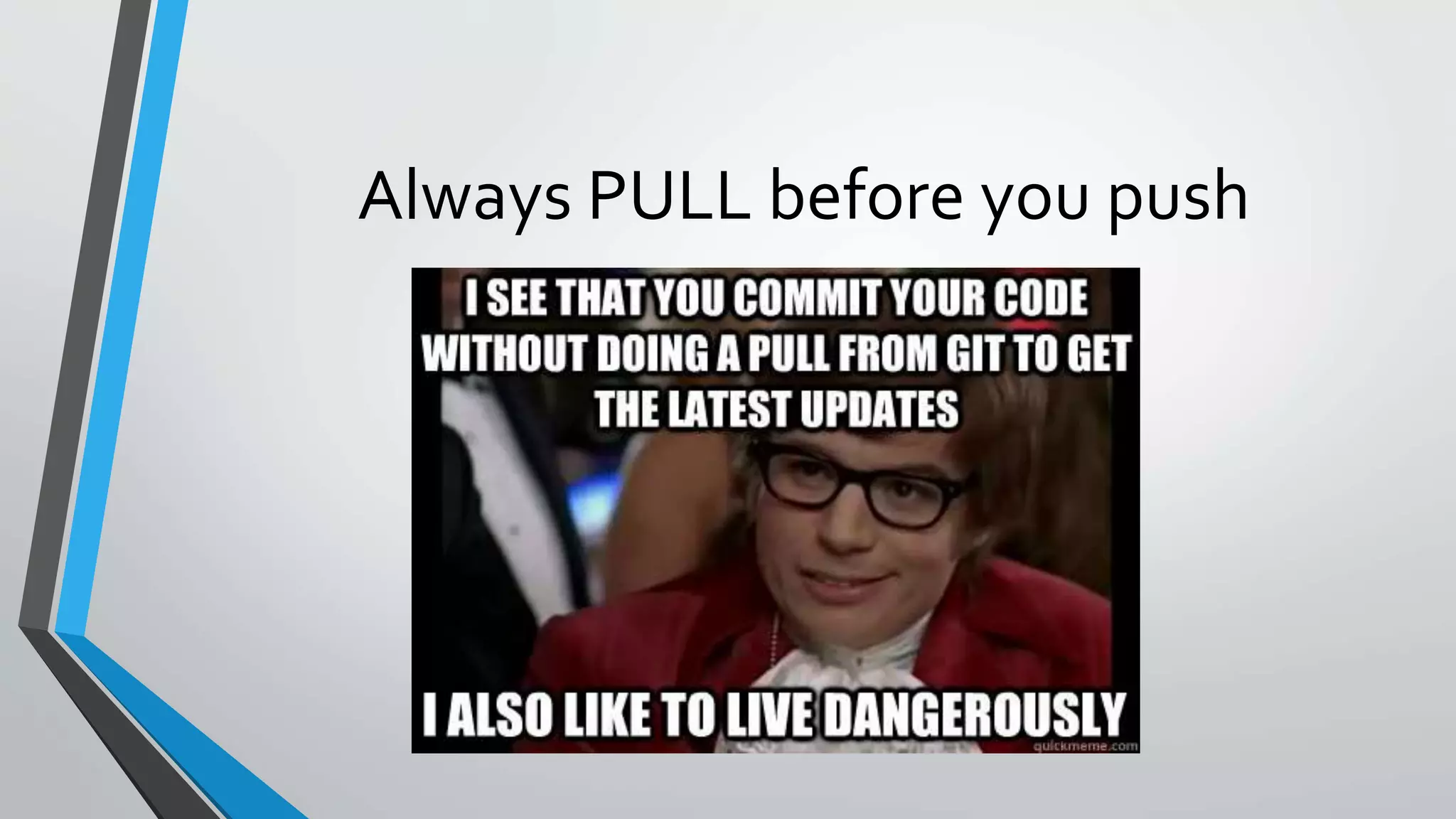
Always PULL before you push
Handle merge conflicts carefully
Never ‘push –force’ if it has conflicts
NEVER EVER commit to Master

Git 101 for Beginners

  • 1.
    Beginners 101 t0Git ..and how to take care of your source code
  • 2.
    What you seeis what you Learn:  VersionControl Systems (why, Central v/s Distributed)  What is Git? (and what it’s Not)  Git Internals (SHA1, Deltas)  It’s all about the Repo (repositories)  GitTerminology (master, origin, commits, branch)  Picking your own Git (eclipse, commandline, SourceTree)  Git yourself up and running… (global configuration, init, clone, checkout/branching, .gitignore)  Git your basics right! (push, pull, commit, log, stash, diff etc.)  Playing fair with your team (merge and rebase)  Saving the day (checkout and reset)  Git’ing it Right (Best practices)
  • 3.
  • 4.
  • 5.
    Version control (orrevision control, or source control) is all about managing multiple versions of your source code Used in all “real” world projects for team collaboration Some well-known version control systems are CVS, SVN and Git Version Control systems act great as a “Time machine”  Gives you an option for going back and forth between versions.You can diff, revert etc. Version control is essential for working with your team  Greatly simplifies concurrent work, merging changes
  • 6.
  • 7.
  • 8.
    Centralized Version ControlSystems  Centralized version control systems are based on the idea that there is a single “central” copy of your project somewhere (probably on a server), and programmers will “commit” their changes to this central copy  Typical workflow ->You need to checkout a source file, edit it and then check-it- back-in  Where it wins - Programmers no longer have to keep many copies of files on their hard drives manually, because the version control tool can talk to the central copy and retrieve any version they need on the fly  Big problem - Most of the functionality depends on you being connected to the central server  CVS, SVN and Perforce fall into this category
  • 9.
    Distributed Version ControlSystems  Systems do not necessarily rely on a central server to store all the versions of a project’s files. Instead, every developer “clones” a copy of a repository and has the full history of the project on their own hard drive.  Typical workflow -> clone, pull, commit and then push  Win – Any action apart from “push” and “pull” is extremely fast because the tool only needs to access the hard drive, not a remote server.  Moto - Commit fast, commit locally. Push group of changesets at once.  Everything apart from “push” and “pull” can be done without an internet connection.You can literally work on a flight and keep committing your changes.
  • 10.
  • 11.
     Git wasoriginally developed by LinuxTorvalds as version control for Linux kernel  Git is a distributed version control system  Git manages changes to a tree of files over time  Git is especially optimized for:  Distributed development  Large file counts  Complex merging  Making branches and quickly switching from one to another  Very fast and robust
  • 12.
     You cancount on Git – Facebook,Twitter, Google and even that new startup in Bangalore is using it.  Git workflow can be a bit difficult getting used to, since people have long been working on big code base with SVN and CVS. Also people, in general, are not too comfortable with too many “commit”ments.
  • 13.
    Git Internals or behindthe scenes magic..
  • 14.
     Git keepsall its data inside a special directory called .git at the top level of your repository.This is usually called the object store.  Git knows about 4 types of objects: blob -- each file that you add to the repo is turned into a blob object tree -- each directory is turned into a tree object commit -- a commit is a snapshot of your working tree at a point in time, although it contains a lot of other information also tag -- we will see this type a bit later  Git maintains Index – information about current working directory and the changes made to it. What in the world is ‘SHA’? A commit in Git is uniquely identified by a 160-bit hex value (the 'SHA').The secret recipe of calculation is: • SHA of the parent commit(s) • commit message • author name/email/timestamp • It's just a large, apparently random looking, number, which is actually a cryptographically-strong checksum which looks like a30236028b7ddd65f01321af42f904479eaff549 • It is also GLOBALLY unique! No commit in any repo anywhere in the world will ‘practically’ have the same SHA.
  • 15.
    A very importantunderstanding in the workflow of Git is that it is very different from most version control systems that you may be familiar with: Subversion, CVS, Perforce, Mercurial and the like all use Delta Storage systems - they store the differences between one commit and the next. Git does not do this - it stores a snapshot of what all the files in your project look like in a tree structure each time you commit. When you create/clone a git repo, a .git directory is created. This is what it looks like.
  • 16.
    It’s all aboutthe Repo or why the Repo Rules m/
  • 17.
     A repository('repo') is a graph of commits.  Hey!Why are the arrows pointing backwards? • Well... every commit knows what its parent commit is. But it can't know what it's child commits are -- they haven't been made yet! • Therefor a repo is like a singly linked list • Top of the linked list has a name – The name is called BRANCH name  A good workflow in a project will have more than one branch 4 2 1 3 Master 5 5 dev Fix_X Branch Name commits
  • 18.
    Git Workflow Your localrepository consists of three "trees" maintained by Git: The first one is your Working Directory which holds the actual files. The second one is the Index which acts as a staging area and.. Finally the HEAD which points to the last commit you've made.
  • 19.
    Typical Git Workflow a)Fetch or clone (create a copy of the remote repository) b) Modify the files in the local branch c) Stage the files d) Commit the files locally e) Push changes to remote repository
  • 20.
  • 21.
    repo, repository:Your sourcecode repository. May contain several branches. index, staging area:This is a 'cache' between your worktree and your repository.You can add changes to the index and build your next commit step by step. clone: A clone of a repository commit: A state of your project at a certain time branch: A different line of development. A branch in git is just a "label" which points to a commit.A branch by default is only local to your repository (unless you push it to remote) upstream: After cloning a repository you often call that "original" repository "upstream". In git it's aliased to origin. HEAD:A symbolic name to describe the currently checked out commit. Often the topmost commit
  • 22.
    version: Might bethe same as a commit. Could also mean a released version of your project.You can use ‘tags’ for your versions tag: A descriptive name given to one of your commits (or trees, or blobs). Can also contain a message (eg. changelog). stash:Git allows you to "stash away" changes.This gives you a clean working tree without any changes. Later they can be "popped" to be brought back.This can be a life saver if you need to temporarily work on an unrelated change (eg. time critical bug fix) history: Describes all ancestor commits prior to a commit going back to the first commit.
  • 23.
    Picking your ownGit Eclipse or commandline
  • 25.
    Git speaks andlistens Git supports many protocols to transfer (push, fetch, pull) between repos: • Rsync • http[s]://host.xz[:port]/path/to/repo.git/ • git://host.xz[:port]/path/to/repo.git/ • ssh://[user@]host.xz[:port]/path/to/repo.git/ In the core, Git also has import/export with CVS, SVN
  • 26.
    Demo to clonea Git repo in Eclipse from Github
  • 27.
    Git yourself Upand Running… global configuration, init, clone, checkout/branching, .gitignore
  • 28.
    Git global configuration One of the first configuration you can do from git commandline is setting up your usename and email for the repo: $ git config --global user.name "John Doe" $ git config --global user.email johndoe@example.com --global only if you don’t want to set it up for each repo In eclipse, it asks for this configuration during repo clone/setup/commit  Check your current git config with git config –list  Configuration file is usually stored at locations like /etc/gitconfig ~/.gitconfig or ~/.config/git/config
  • 29.
    Init a newGit repo  To take a directory and turn it into a new Git repository so you can start version controlling it, you can simply run git init  As soon as you ‘init’ a repo, .git folder will be auto created
  • 30.
    Cloning a remoterepo  The git clone command is actually combination of several actions • It creates a new directory and goes into it • runs git init to make it an empty Git repository • adds a remote (git remote add) to the URL that you pass it (by default named origin) • runs a git fetch from that remote repository • and then checks out the latest commit into your working directory with git checkout. $ git clone git@github.com:eanurag/JavaPractice.git new_git_repo $ cd new_git_repo
  • 31.
    Branching  Used tocreate, list and delete a branch $ git clone git@github.com:eanurag/JavaPractice.git bug_branch $ cd bug_branch $ git branch bug_branch new_hotfix $ git checkout new_hotfix If you are creating a branch that you want to checkout immediately, it is easier to use the git checkout command with its -b $ git checkout –b bug_branch new_hotfix
  • 32.
    Checkout  Used toswitch between branches $ git checkout bug_branch $ git checkout new_hotfix
  • 33.
  • 34.
  • 35.
    .gitignore  This filecan be manually created at the root of your repository or, Automatically created when you chose to “ignore” a file/folder in eclipse  Can be used to direct git to NOTTRACK unwanted stuff in the repository e.g: .DS_Store files on Mac /bin/ folder .class files .project files  Supports wildcard characters and regular expression patterns
  • 36.
    Git your basicsright! push, pull, commit, log, stash, diff
  • 37.
    Tracking files &Status  You can explicitly ask git to track files by “add”ing them git add [filename] git add .  At any point of time, you can check the status of your git repo by typing git status => git status On branch master You are currently reverting commit 6520818. (fix conflicts and run "git revert --continue") (use "git revert --abort" to cancel the revert operation) Unmerged paths: (use "git reset HEAD <file>..." to unstage) (use "git add <file>..." to mark resolution) both modified: a.txt Untracked files: (use "git add <file>..." to include in what will be committed) .DS_Store no changes added to commit
  • 38.
    Git log To checkthe history of commits on the current repo/branch until now git log => git log commit a3f77daf48c721571df1e38140442291dfbb6bbd Author: anurag upadhaya <anurag@anurags-MacBook-Pro.local> Date: Fri Aug 21 23:27:40 2015 +0530 Use “-n 3” switch to see last three commits Use “--author=bob” to see commits of a certain author Or maybe you want to see an ASCII art tree of all the branches, decorated with the names of tags and branches: git log --graph --oneline --decorate --all
  • 39.
    Commit  Stores thecurrent contents of the index in a new commit along with a log message from the user describing the changes git commit -m “Commit Message”  Commit message should be proper, for example /* [project_name][bug] - Fixed JS Bug - Description Description of bug */ In above example, it will be easy to find all js related entry or bug related entry using "git log"
  • 40.
    Push & Pull Push to <alias> remote branch_name or while creating tracking branch as branch_name(-u switch) git push -u <alias> branch_name alias is usually remote repo/branch  Fetch/merge/sync changes from remote repo git fetch <alias> After fetching, we need to merge change to our local repository, to do so: first check changes git diff origin/master master Then git merge origin/master Or, git pull <alias> <branch> which is equivalent to Fetch + merge, convenient to use, but should be avoided as sometime the merge may have problem
  • 41.
    A word aboutPull & Push Things you should always remember • Always/frequently fetch before work • Pull before you push
  • 42.
    Stash aka tempstack  Use git stash when you want to record the current state of the working directory and the index, but want to go back to a clean working directory. Stash acts as a local stack for your local modifications| git stash save "Stash message”  You can see the current stash list by git stash list  To apply the changes from stash git stash pop/apply stash@{0}
  • 43.
    Playing fair withTeam (advance concepts) merge and rebase
  • 44.
    Merge To update yourlocal repo to the newest commit, your can execute git pull in your working directory to fetch and merge remote changes. or, git merge <branch> to merge another branch into your active branch. In both the cases git tries to auto-merge changes. Unfortunately, this is not always possible and results in conflicts.You are responsible to merge those conflicts manually by editing the files shown by git.
  • 45.
    Merge A---B---C topic / D---E---F---G master Assumethe above history exists and the current branch is "master”: Then "git merge topic" will replay the changes made on the topic branch since it diverged from master (i.e., E) until its current commit (C) on top of master, and record the result in a new commit along with the names of the two parent commits and a log message from the user describing the changes. A---B---C topic / D---E---F---G---H master
  • 46.
    Rebase Forward-port local commitsto the updated upstream head A---B---C topic / D---E---F---G master Assume the above history exists and the current branch is "master”: From this point, the result of either of the following commands: git rebase master git rebase master topic would be: A'--B'--C' topic / D---E---F---G master
  • 47.
    Saving the Day (advanceconcepts) checkout, revert and reset
  • 48.
    Checkout Lets assume youhave made and “commit”ed changes. And now you want file to revert back to a few commits earlier: git checkout {sha1-code} It will change file to {sha1-code} and stage it as modified.After it one can just commit the change. ** by checkout, the changes will not be lost.
  • 49.
    Revert Now let assumewe need to revert back a commit: git revert {sha1-code} It will revert back to that what was before {sha1-code}commit. **revert will not save or stage your changes
  • 50.
    Reset RESET are ofthree types : --soft Does not touch the index nor the working tree at all (but resets the head to <commit>, just like all modes do). This leaves all your changed files "Changes to be committed", as git status would put it. --mixed Resets the index but not the working tree (i.e., the changed files are preserved but not marked for commit) and reports what has not been updated.This is the default action. --hard Resets the index and working tree. Any changes to tracked files in the working tree since <commit> are discarded. git reset --soft {sha1-code} git reset --mixed {sha1-code} git reset --hard {sha1-code}
  • 51.
  • 52.
  • 53.
  • 54.
    Never ‘push –force’if it has conflicts
  • 55.