git 101: Force sensitive to Jedi Padawan
What is git?
What is ‘git’?
● Distributed Version Control System
● Git is version control for files & directories
● Runs on the command line / terminal
● Stores file versioning information
in a hidden folder at the root of the project
● Version information exists as (relatively lightweight)
difference information between files and file versions
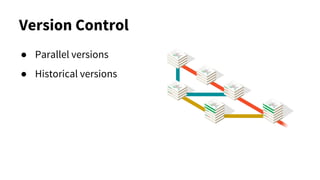
Version Control
● Parallel versions
● Historical versions
Command Line
● Installed system-wide
● Runs on the command line
● Uses SSH Keys (with optional passwords)
● You can also use a GUI for the complex stuff
Everything exists locally
● Without the .git directory, it can’t work
● Everyone has a complete* copy of
the branches and history of the project
● Git is self-sufficient - no remote services needed for
branching or commits
Pushing & Remotes
● Unless you push your code to a remote repository,
it won’t leave your machine
● You can make peer-to-peer pushes
● It’s best to manage sharing and reduce conflicts
by pushing to a single designated remote location
● Pushing puts all of the historical and branching
information into the remote repo
Merges & Conflicts
● Most of the time, git can auto-merge two (or more)
changesets, because they don’t overlap
● Conflicts occur when the file data changes overlap
What does git give you?
● Complete version history
● Easy visualisation of changes
● Ability to work with multiple developers
and effortlessly merge changes
● Parallel versions of source code
● Ability to switch versions or roll back changes
Are you ready to begin?
Core git commands
● commit
● push
● pull
● branch
● checkout
● merge
➔ Save a change
➔ Send changes to a remote
➔ Get changes from a remote
➔ Create a new branch
➔ Switch to a branch or historical version
➔ Combine branches
Getting set up
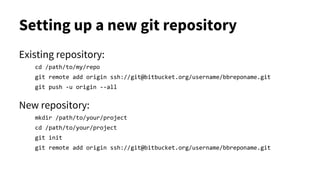
Setting up a new git repository
Existing repository:
cd /path/to/my/repo
git remote add origin ssh://git@bitbucket.org/username/bbreponame.git
git push -u origin --all
New repository:
mkdir /path/to/your/project
cd /path/to/your/project
git init
git remote add origin ssh://git@bitbucket.org/username/bbreponame.git
Saving changes
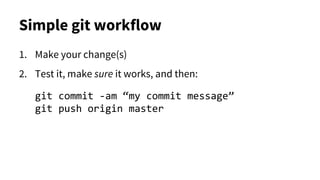
Simple git workflow
1. Make your change(s)
2. Test it, make sure it works, and then:
git commit -am “my commit message”
git push origin master
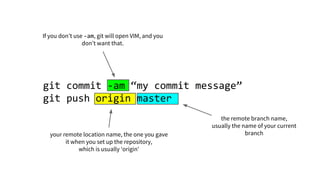
git commit -am “my commit message”
git push origin master
If you don’t use -am, git will open VIM, and you
don’t want that.
your remote location name, the one you gave
it when you set up the repository,
which is usually ‘origin’
the remote branch name,
usually the name of your current
branch
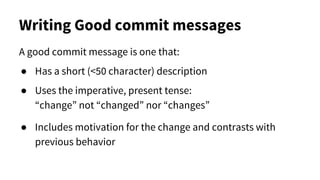
Writing Good commit messages
A good commit message is one that:
● Has a short (<50 character) description
● Uses the imperative, present tense:
“change” not “changed” nor “changes”
● Includes motivation for the change and contrasts with
previous behavior
Making Good commits
● A commit message becomes your
only referral point in the projects’ history
● Your commit must represent a stable point
in your source code history - no half-baked commits!
● Only include relevant files and changes
● Treat every commit as if it were the final release
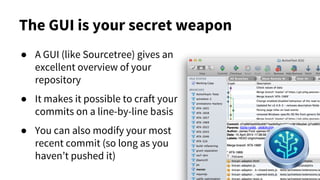
The GUI is your secret weapon
● A GUI (like Sourcetree) gives an
excellent overview of your
repository
● It makes it possible to craft your
commits on a line-by-line basis
● You can also modify your most
recent commit (so long as you
haven’t pushed it)
Synchronizing
with other repositories
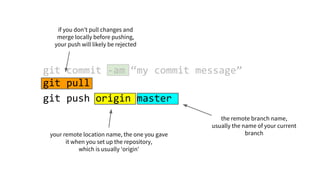
your remote location name, the one you gave
it when you set up the repository,
which is usually ‘origin’
the remote branch name,
usually the name of your current
branch
git commit -am “my commit message”
git pull
git push origin master
if you don’t pull changes and
merge locally before pushing,
your push will likely be rejected
Pulling and Merging
● git fetch will retrieve version information from a remote,
but does nothing with it
● If your push is rejected, it’s likely because the remote is
more up-to-date than your local branch, and you need to
git pull those changes
● Pulling changes will automatically merge them if able;
but if it can’t, you’ll get conflicts that will need to be
resolved manually
Dealing with Conflict
Dealing with conflicts
● A conflict occurs when two changesets are trying to modify
the same lines of code
● Resolving conflicts involves manually picking which of the
two competing modifications are accepted
● Resolving a conflict doesn’t necessarily mean that the code
will still work - you’re going to have to figure that bit out
yourself and edit the file manually
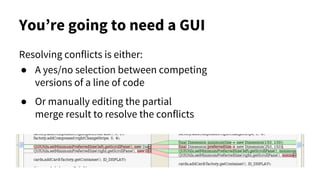
Resolving conflicts is either:
● A yes/no selection between competing
versions of a line of code
● Or manually editing the partial
merge result to resolve the conflicts
You’re going to need a GUI
Avoiding Conflict
● Conflicts occur when you have an overlap, so don’t
reformat, move or refactor code when there’s a chance
someone else has also modified it
● Commit little and often
● Keep your branches up-to-date: Pull changes frequently
● Sort out your crlf settings before you start
● Some conflicts can’t be avoided
Branching
Understanding Branches
Branches:
● Are alternate versions of the working copy of your entire
project, with their own history
● Can be created from, and merged back into other branches
● Can be created explicitly, or implicitly when merging two
versions of the ‘same’ branch
● Allow you to work on features in isolation
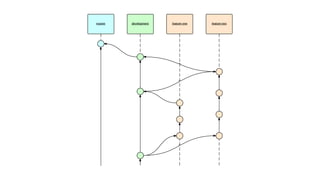
Branching strategy
● master is the stable release
● development is for work in progress
● Individual features should have their own branch
● features are branched from development
● Completed features are merged in from development
● Stable development versions are merged in from master
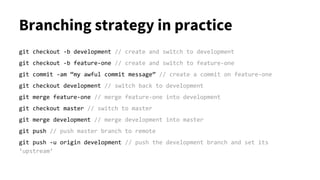
Branching strategy in practice
git checkout -b development // create and switch to development
git checkout -b feature-one // create and switch to feature-one
git commit -am “my awful commit message” // create a commit on feature-one
git checkout development // switch back to development
git merge feature-one // merge feature-one into development
git checkout master // switch to master
git merge development // merge development into master
git push // push master branch to remote
git push -u origin development // push the development branch and set its
‘upstream’
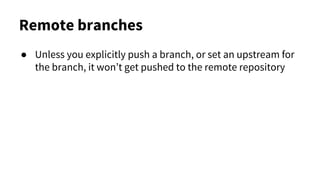
Remote branches
● Unless you explicitly push a branch, or set an upstream for
the branch, it won’t get pushed to the remote repository
Useful tricks
Don’t use fast-forward merges
● The default behaviour of
a merge is to ‘fast
forward’ the original
when possible
● Fast-forwarding
branches doesn’t add an
extra commit for the
merge, which is cleaner
but loses some context
Stashing
● A ‘stash’ is a representation of the differences between your
last commit, and your current working copy.
● In order to switch branches, your current working copy
must not conflict with the branch you’re checking out.
● Been working on the wrong branch?
Stash changes. Checkout the correct branch. Apply stash.
● Got half-finished code but now you’ve got to drop
everything to fix a bug? Stash it. Come back later.
Git Reset
● So long as you haven’t pushed your change to a remote
repository, everything is changeable
● git reset will make it completely forget your commits
● It’s useful if you’ve made changes to the wrong branch
● It can be dangerous
Cherry Picking
● Merging branches brings across the entire history of both
branches and mashes them together.
● A ‘cherry pick’ takes just the changes from a single commit
and can apply them to another branch
● It’s useful, but treat it as an indication that you’ve done
something wrong if you need to use it.
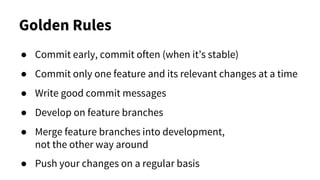
Golden Rules
Golden Rules
● Commit early, commit often (when it’s stable)
● Commit only one feature and its relevant changes at a time
● Write good commit messages
● Develop on feature branches
● Merge feature branches into development,
not the other way around
● Push your changes on a regular basis
Remember
● Git is your time machine
● Git is your safety net
That’s all folks
Bonus
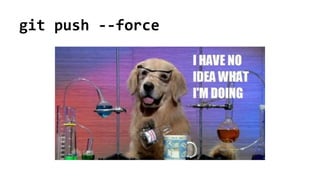
git push --force

Git 101: Force-sensitive to Jedi padawan

  • 1.
    git 101: Forcesensitive to Jedi Padawan
  • 3.
  • 4.
    What is ‘git’? ●Distributed Version Control System ● Git is version control for files & directories ● Runs on the command line / terminal ● Stores file versioning information in a hidden folder at the root of the project ● Version information exists as (relatively lightweight) difference information between files and file versions
  • 5.
    Version Control ● Parallelversions ● Historical versions
  • 6.
    Command Line ● Installedsystem-wide ● Runs on the command line ● Uses SSH Keys (with optional passwords) ● You can also use a GUI for the complex stuff
  • 7.
    Everything exists locally ●Without the .git directory, it can’t work ● Everyone has a complete* copy of the branches and history of the project ● Git is self-sufficient - no remote services needed for branching or commits
  • 8.
    Pushing & Remotes ●Unless you push your code to a remote repository, it won’t leave your machine ● You can make peer-to-peer pushes ● It’s best to manage sharing and reduce conflicts by pushing to a single designated remote location ● Pushing puts all of the historical and branching information into the remote repo
  • 9.
    Merges & Conflicts ●Most of the time, git can auto-merge two (or more) changesets, because they don’t overlap ● Conflicts occur when the file data changes overlap
  • 10.
    What does gitgive you? ● Complete version history ● Easy visualisation of changes ● Ability to work with multiple developers and effortlessly merge changes ● Parallel versions of source code ● Ability to switch versions or roll back changes
  • 11.
    Are you readyto begin?
  • 12.
    Core git commands ●commit ● push ● pull ● branch ● checkout ● merge ➔ Save a change ➔ Send changes to a remote ➔ Get changes from a remote ➔ Create a new branch ➔ Switch to a branch or historical version ➔ Combine branches
  • 13.
  • 14.
    Setting up anew git repository Existing repository: cd /path/to/my/repo git remote add origin ssh://git@bitbucket.org/username/bbreponame.git git push -u origin --all New repository: mkdir /path/to/your/project cd /path/to/your/project git init git remote add origin ssh://git@bitbucket.org/username/bbreponame.git
  • 15.
  • 16.
    Simple git workflow 1.Make your change(s) 2. Test it, make sure it works, and then: git commit -am “my commit message” git push origin master
  • 17.
    git commit -am“my commit message” git push origin master If you don’t use -am, git will open VIM, and you don’t want that. your remote location name, the one you gave it when you set up the repository, which is usually ‘origin’ the remote branch name, usually the name of your current branch
  • 18.
    Writing Good commitmessages A good commit message is one that: ● Has a short (<50 character) description ● Uses the imperative, present tense: “change” not “changed” nor “changes” ● Includes motivation for the change and contrasts with previous behavior
  • 19.
    Making Good commits ●A commit message becomes your only referral point in the projects’ history ● Your commit must represent a stable point in your source code history - no half-baked commits! ● Only include relevant files and changes ● Treat every commit as if it were the final release
  • 20.
    The GUI isyour secret weapon ● A GUI (like Sourcetree) gives an excellent overview of your repository ● It makes it possible to craft your commits on a line-by-line basis ● You can also modify your most recent commit (so long as you haven’t pushed it)
  • 21.
  • 22.
    your remote locationname, the one you gave it when you set up the repository, which is usually ‘origin’ the remote branch name, usually the name of your current branch git commit -am “my commit message” git pull git push origin master if you don’t pull changes and merge locally before pushing, your push will likely be rejected
  • 23.
    Pulling and Merging ●git fetch will retrieve version information from a remote, but does nothing with it ● If your push is rejected, it’s likely because the remote is more up-to-date than your local branch, and you need to git pull those changes ● Pulling changes will automatically merge them if able; but if it can’t, you’ll get conflicts that will need to be resolved manually
  • 24.
  • 25.
    Dealing with conflicts ●A conflict occurs when two changesets are trying to modify the same lines of code ● Resolving conflicts involves manually picking which of the two competing modifications are accepted ● Resolving a conflict doesn’t necessarily mean that the code will still work - you’re going to have to figure that bit out yourself and edit the file manually
  • 26.
    Resolving conflicts iseither: ● A yes/no selection between competing versions of a line of code ● Or manually editing the partial merge result to resolve the conflicts You’re going to need a GUI
  • 27.
    Avoiding Conflict ● Conflictsoccur when you have an overlap, so don’t reformat, move or refactor code when there’s a chance someone else has also modified it ● Commit little and often ● Keep your branches up-to-date: Pull changes frequently ● Sort out your crlf settings before you start ● Some conflicts can’t be avoided
  • 28.
  • 29.
    Understanding Branches Branches: ● Arealternate versions of the working copy of your entire project, with their own history ● Can be created from, and merged back into other branches ● Can be created explicitly, or implicitly when merging two versions of the ‘same’ branch ● Allow you to work on features in isolation
  • 30.
    Branching strategy ● masteris the stable release ● development is for work in progress ● Individual features should have their own branch ● features are branched from development ● Completed features are merged in from development ● Stable development versions are merged in from master
  • 32.
    Branching strategy inpractice git checkout -b development // create and switch to development git checkout -b feature-one // create and switch to feature-one git commit -am “my awful commit message” // create a commit on feature-one git checkout development // switch back to development git merge feature-one // merge feature-one into development git checkout master // switch to master git merge development // merge development into master git push // push master branch to remote git push -u origin development // push the development branch and set its ‘upstream’
  • 33.
    Remote branches ● Unlessyou explicitly push a branch, or set an upstream for the branch, it won’t get pushed to the remote repository
  • 34.
  • 35.
    Don’t use fast-forwardmerges ● The default behaviour of a merge is to ‘fast forward’ the original when possible ● Fast-forwarding branches doesn’t add an extra commit for the merge, which is cleaner but loses some context
  • 36.
    Stashing ● A ‘stash’is a representation of the differences between your last commit, and your current working copy. ● In order to switch branches, your current working copy must not conflict with the branch you’re checking out. ● Been working on the wrong branch? Stash changes. Checkout the correct branch. Apply stash. ● Got half-finished code but now you’ve got to drop everything to fix a bug? Stash it. Come back later.
  • 37.
    Git Reset ● Solong as you haven’t pushed your change to a remote repository, everything is changeable ● git reset will make it completely forget your commits ● It’s useful if you’ve made changes to the wrong branch ● It can be dangerous
  • 38.
    Cherry Picking ● Mergingbranches brings across the entire history of both branches and mashes them together. ● A ‘cherry pick’ takes just the changes from a single commit and can apply them to another branch ● It’s useful, but treat it as an indication that you’ve done something wrong if you need to use it.
  • 39.
  • 40.
    Golden Rules ● Commitearly, commit often (when it’s stable) ● Commit only one feature and its relevant changes at a time ● Write good commit messages ● Develop on feature branches ● Merge feature branches into development, not the other way around ● Push your changes on a regular basis
  • 41.
    Remember ● Git isyour time machine ● Git is your safety net
  • 42.
  • 43.
  • 44.