Fieldtrip GB
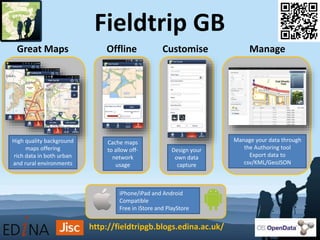
High quality background
maps offering
rich data in both urban
and rural environments
Cache maps
to allow off-
network
usage
Design your
own data
capture
Manage your data through
the Authoring tool
Export data to
csv/KML/GeoJSON
Great Maps ManageCustomiseOffline
iPhone/iPad and Android
Compatible
Free in iStore and PlayStore
http://fieldtripgb.blogs.edina.ac.uk/
FieldTrip GB
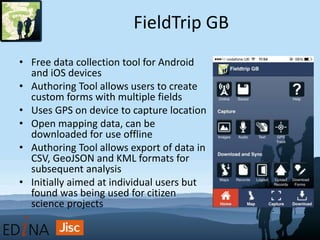
• Free data collection tool for Android
and iOS devices
• Authoring Tool allows users to create
custom forms with multiple fields
• Uses GPS on device to capture location
• Open mapping data, can be
downloaded for use offline
• Authoring Tool allows export of data in
CSV, GeoJSON and KML formats for
subsequent analysis
• Initially aimed at individual users but
found was being used for citizen
science projects
Creating Custom Data Capture Forms
• Custom forms created in Authoring Tool
• Available field types:
– Free text
– Radio buttons
– Check boxes
– Range slider
– Drop down lists
– Photographs
– Audio
• Fields can be made mandatory
• Forms are saved to your DropBox account
Downloading Forms
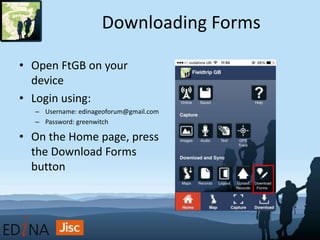
• Open FtGB on your
device
• Login using:
– Username: edinageoforum@gmail.com
– Password: greenwitch
• On the Home page, press
the Download Forms
button
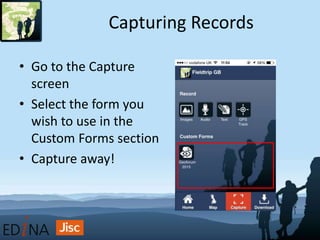
Capturing Records
• Go to the Capture
screen
• Select the form you
wish to use in the
Custom Forms section
• Capture away!
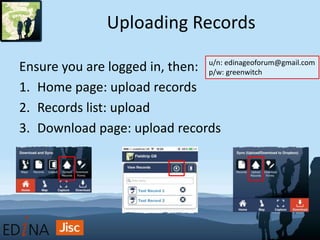
Uploading Records
Ensure you are logged in, then:
1. Home page: upload records
2. Records list: upload
3. Download page: upload records
u/n: edinageoforum@gmail.com
p/w: greenwitch
Viewing and Exporting Records
• Log in to Authoring Tool
• Retrieve all records or filter by form (and date)
• View and edit existing records
• Export records:
– GeoJSON (for use in GIS)
– KML (for use in Google Earth)
– CSV (for use in GIS and Digimap)
What’s coming?
• FieldTrip GB version 1.5
– Updates record format in Authoring Tool/DropBox
– Bug fixes, no new functionality
• Fieldtrip Open
– Based on WGS84 and Open Street Map data
– Use it beyond GB
• Overlays
– Upload KML and MBTiles
• Multipage forms
• Conditional fields
• Better integration with Digimap
• Additional cloud service integration
• GitHUB – it’s already there as an open source project
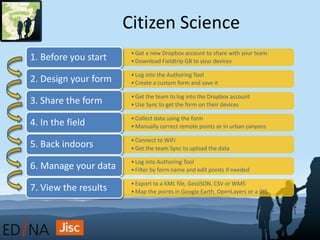
Citizen Science
•Get a new Dropbox account to share with your team
•Download Fieldtrip GB to your devices1. Before you start
•Log into the Authoring Tool
•Create a custom form and save it2. Design your form
•Get the team to log into the Dropbox account
•Use Sync to get the form on their devices3. Share the form
•Collect data using the form
•Manually correct remote points or in urban canyons4. In the field
•Connect to WiFi
•Get the team Sync to upload the data5. Back indoors
•Log into Authoring Tool
•Filter by form name and edit points if needed6. Manage your data
•Export to a KML file, GeoJSON, CSV or WMS
•Map the points in Google Earth, OpenLayers or a GIS7. View the results
http://fieldtripgb.blogs.edina.ac.uk/

Fieldtrip GB

  • 1.
    Fieldtrip GB High qualitybackground maps offering rich data in both urban and rural environments Cache maps to allow off- network usage Design your own data capture Manage your data through the Authoring tool Export data to csv/KML/GeoJSON Great Maps ManageCustomiseOffline iPhone/iPad and Android Compatible Free in iStore and PlayStore http://fieldtripgb.blogs.edina.ac.uk/
  • 2.
    FieldTrip GB • Freedata collection tool for Android and iOS devices • Authoring Tool allows users to create custom forms with multiple fields • Uses GPS on device to capture location • Open mapping data, can be downloaded for use offline • Authoring Tool allows export of data in CSV, GeoJSON and KML formats for subsequent analysis • Initially aimed at individual users but found was being used for citizen science projects
  • 3.
    Creating Custom DataCapture Forms • Custom forms created in Authoring Tool • Available field types: – Free text – Radio buttons – Check boxes – Range slider – Drop down lists – Photographs – Audio • Fields can be made mandatory • Forms are saved to your DropBox account
  • 4.
    Downloading Forms • OpenFtGB on your device • Login using: – Username: edinageoforum@gmail.com – Password: greenwitch • On the Home page, press the Download Forms button
  • 5.
    Capturing Records • Goto the Capture screen • Select the form you wish to use in the Custom Forms section • Capture away!
  • 6.
    Uploading Records Ensure youare logged in, then: 1. Home page: upload records 2. Records list: upload 3. Download page: upload records u/n: edinageoforum@gmail.com p/w: greenwitch
  • 7.
    Viewing and ExportingRecords • Log in to Authoring Tool • Retrieve all records or filter by form (and date) • View and edit existing records • Export records: – GeoJSON (for use in GIS) – KML (for use in Google Earth) – CSV (for use in GIS and Digimap)
  • 8.
    What’s coming? • FieldTripGB version 1.5 – Updates record format in Authoring Tool/DropBox – Bug fixes, no new functionality • Fieldtrip Open – Based on WGS84 and Open Street Map data – Use it beyond GB • Overlays – Upload KML and MBTiles • Multipage forms • Conditional fields • Better integration with Digimap • Additional cloud service integration • GitHUB – it’s already there as an open source project
  • 9.
    Citizen Science •Get anew Dropbox account to share with your team •Download Fieldtrip GB to your devices1. Before you start •Log into the Authoring Tool •Create a custom form and save it2. Design your form •Get the team to log into the Dropbox account •Use Sync to get the form on their devices3. Share the form •Collect data using the form •Manually correct remote points or in urban canyons4. In the field •Connect to WiFi •Get the team Sync to upload the data5. Back indoors •Log into Authoring Tool •Filter by form name and edit points if needed6. Manage your data •Export to a KML file, GeoJSON, CSV or WMS •Map the points in Google Earth, OpenLayers or a GIS7. View the results
  • 10.