Digital maps: past, present; on your desktop 
and in the palm of your hand 
SAGT Annual Conference - 25th October 
2014 
Carol Blackwood 
EDINA, University of Edinburgh
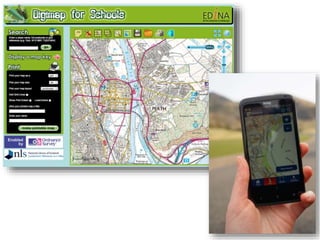
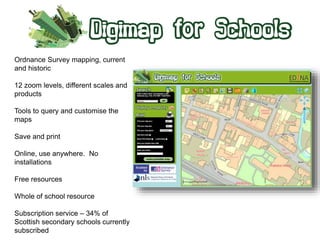
Ordnance Survey mapping, current 
and historic 
12 zoom levels, different scales and 
products 
Tools to query and customise the 
maps 
Save and print 
Online, use anywhere. No 
installations 
Free resources 
Whole of school resource 
Subscription service – 34% of 
Scottish secondary schools currently 
subscribed
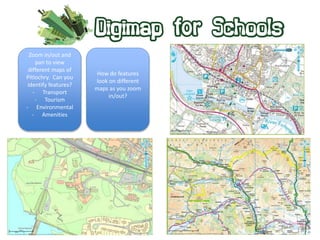
Zoom in/out and 
pan to view 
different maps of 
Pitlochry. Can you 
identify features? 
- Transport 
- Tourism 
- Environmental 
- Amenities 
How do features 
look on different 
maps as you zoom 
in/out?
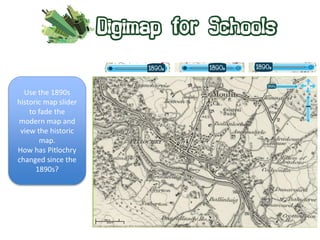
Use the 1890s 
historic map slider 
to fade the 
modern map and 
view the historic 
map. 
How has Pitlochry 
changed since the 
1890s?
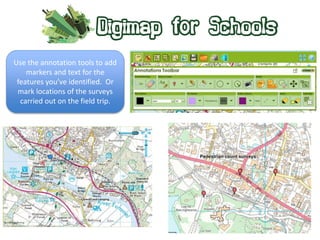
Use the annotation tools to add 
markers and text for the 
features you’ve identified. Or 
mark locations of the surveys 
carried out on the field trip.
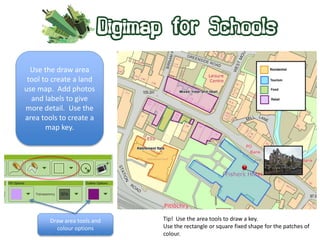
Use the draw area 
tool to create a land 
use map. Add photos 
and labels to give 
more detail. Use the 
area tools to create a 
map key. 
Draw area tools and 
colour options 
Tip! Use the area tools to draw a key. 
Use the rectangle or square fixed shape for the patches of 
colour.
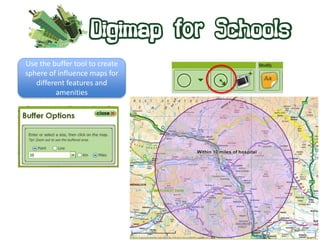
Use the buffer tool to create 
sphere of influence maps for 
different features and 
amenities
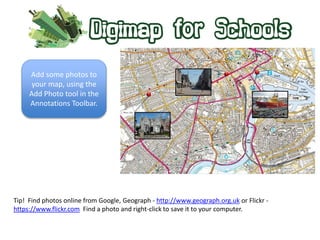
Add some photos to 
your map, using the 
Add Photo tool in the 
Annotations Toolbar. 
Tip! Find photos online from Google, Geograph - http://www.geograph.org.uk or Flickr - 
https://www.flickr.com Find a photo and right-click to save it to your computer.
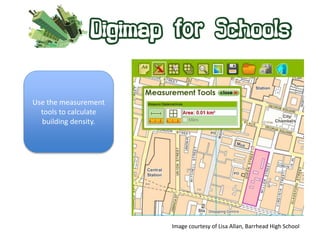
Use the measurement 
tools to calculate 
building density. 
Image courtesy of Lisa Allan, Barrhead High School
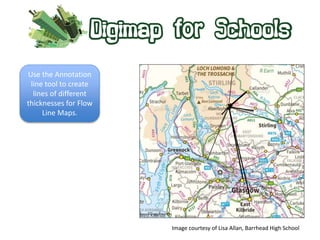
Use the Annotation 
line tool to create 
lines of different 
thicknesses for Flow 
Line Maps. 
Image courtesy of Lisa Allan, Barrhead High School
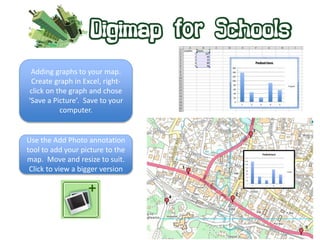
Adding graphs to your map. 
Create graph in Excel, right-click 
on the graph and chose 
‘Save a Picture’. Save to your 
computer. 
Use the Add Photo annotation 
tool to add your picture to the 
map. Move and resize to suit. 
Click to view a bigger version
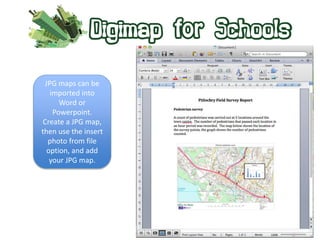
JPG maps can be 
imported into 
Word or 
Powerpoint. 
Create a JPG map, 
then use the insert 
photo from file 
option, and add 
your JPG map.
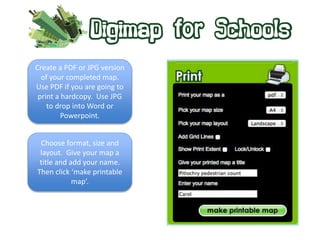
Create a PDF or JPG version 
of your completed map. 
Use PDF if you are going to 
print a hardcopy. Use JPG 
to drop into Word or 
Powerpoint. 
Choose format, size and 
layout. Give your map a 
title and add your name. 
Then click ‘make printable 
map’.
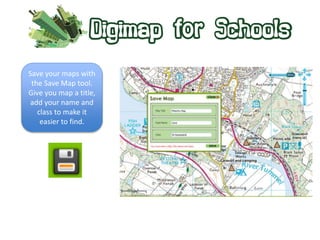
Save your maps with 
the Save Map tool. 
Give you map a title, 
add your name and 
class to make it 
easier to find.
www.digimapforschools.edina.ac.uk
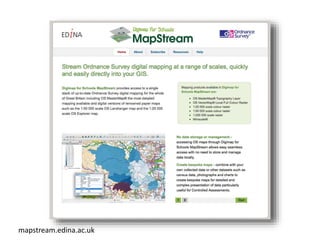
mapstream.edina.ac.uk
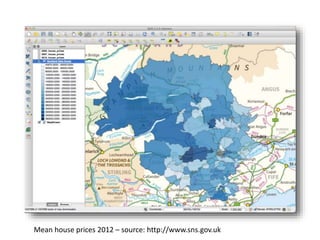
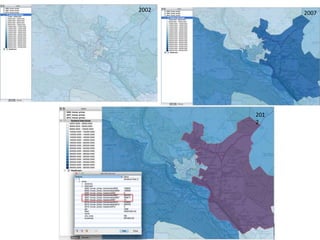
Mean house prices 2012 – source: http://www.sns.gov.uk
201 
2 
2002 
2007
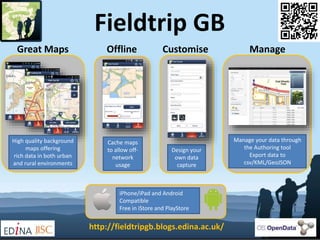
Fieldtrip GB 
Great Maps Offline Customise Manage 
High quality background 
maps offering 
rich data in both urban 
and rural environments 
Cache maps 
to allow off-network 
usage 
Design your 
own data 
capture 
Manage your data through 
the Authoring tool 
Export data to 
csv/KML/GeoJSON 
iPhone/iPad and Android 
Compatible 
Free in iStore and PlayStore 
http://fieldtripgb.blogs.edina.ac.uk/
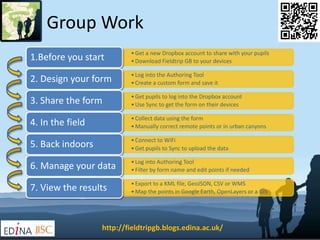
Group Work 
• Get a new Dropbox account to share with your pupils 
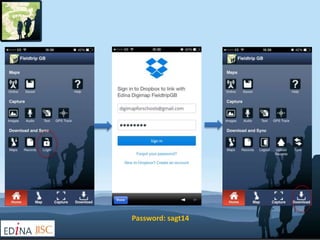
• Download Fieldtrip GB to your devices 1.Before you start 
• Log into the Authoring Tool 
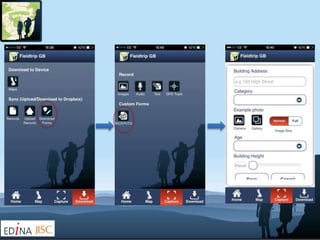
• Create a custom form and save it 2. Design your form 
• Get pupils to log into the Dropbox account 
• Use Sync to get the form on their devices 3. Share the form 
• Collect data using the form 
•Manually correct remote points or in urban canyons 4. In the field 
• Connect to WiFi 
• Get pupils to Sync to upload the data 5. Back indoors 
• Log into Authoring Tool 
• Filter by form name and edit points if needed 6. Manage your data 
• Export to a KML file, GeoJSON, CSV or WMS 
•Map the points in Google Earth, OpenLayers or a GIS 7. View the results 
http://fieldtripgb.blogs.edina.ac.uk/
Password: sagt14
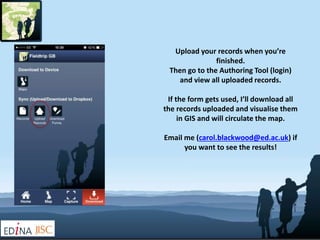
Upload your records when you’re 
finished. 
Then go to the Authoring Tool (login) 
and view all uploaded records. 
If the form gets used, I’ll download all 
the records uploaded and visualise them 
in GIS and will circulate the map. 
Email me (carol.blackwood@ed.ac.uk) if 
you want to see the results!

Digital maps: past, present; on your desktop and in the palm of your hand

  • 1.
    Digital maps: past,present; on your desktop and in the palm of your hand SAGT Annual Conference - 25th October 2014 Carol Blackwood EDINA, University of Edinburgh
  • 4.
    Ordnance Survey mapping,current and historic 12 zoom levels, different scales and products Tools to query and customise the maps Save and print Online, use anywhere. No installations Free resources Whole of school resource Subscription service – 34% of Scottish secondary schools currently subscribed
  • 5.
    Zoom in/out and pan to view different maps of Pitlochry. Can you identify features? - Transport - Tourism - Environmental - Amenities How do features look on different maps as you zoom in/out?
  • 7.
    Use the 1890s historic map slider to fade the modern map and view the historic map. How has Pitlochry changed since the 1890s?
  • 8.
    Use the annotationtools to add markers and text for the features you’ve identified. Or mark locations of the surveys carried out on the field trip.
  • 9.
    Use the drawarea tool to create a land use map. Add photos and labels to give more detail. Use the area tools to create a map key. Draw area tools and colour options Tip! Use the area tools to draw a key. Use the rectangle or square fixed shape for the patches of colour.
  • 10.
    Use the buffertool to create sphere of influence maps for different features and amenities
  • 11.
    Add some photosto your map, using the Add Photo tool in the Annotations Toolbar. Tip! Find photos online from Google, Geograph - http://www.geograph.org.uk or Flickr - https://www.flickr.com Find a photo and right-click to save it to your computer.
  • 12.
    Use the measurement tools to calculate building density. Image courtesy of Lisa Allan, Barrhead High School
  • 13.
    Use the Annotation line tool to create lines of different thicknesses for Flow Line Maps. Image courtesy of Lisa Allan, Barrhead High School
  • 14.
    Adding graphs toyour map. Create graph in Excel, right-click on the graph and chose ‘Save a Picture’. Save to your computer. Use the Add Photo annotation tool to add your picture to the map. Move and resize to suit. Click to view a bigger version
  • 15.
    JPG maps canbe imported into Word or Powerpoint. Create a JPG map, then use the insert photo from file option, and add your JPG map.
  • 16.
    Create a PDFor JPG version of your completed map. Use PDF if you are going to print a hardcopy. Use JPG to drop into Word or Powerpoint. Choose format, size and layout. Give your map a title and add your name. Then click ‘make printable map’.
  • 17.
    Save your mapswith the Save Map tool. Give you map a title, add your name and class to make it easier to find.
  • 18.
  • 19.
  • 20.
    Mean house prices2012 – source: http://www.sns.gov.uk
  • 21.
  • 22.
    Fieldtrip GB GreatMaps Offline Customise Manage High quality background maps offering rich data in both urban and rural environments Cache maps to allow off-network usage Design your own data capture Manage your data through the Authoring tool Export data to csv/KML/GeoJSON iPhone/iPad and Android Compatible Free in iStore and PlayStore http://fieldtripgb.blogs.edina.ac.uk/
  • 23.
    Group Work •Get a new Dropbox account to share with your pupils • Download Fieldtrip GB to your devices 1.Before you start • Log into the Authoring Tool • Create a custom form and save it 2. Design your form • Get pupils to log into the Dropbox account • Use Sync to get the form on their devices 3. Share the form • Collect data using the form •Manually correct remote points or in urban canyons 4. In the field • Connect to WiFi • Get pupils to Sync to upload the data 5. Back indoors • Log into Authoring Tool • Filter by form name and edit points if needed 6. Manage your data • Export to a KML file, GeoJSON, CSV or WMS •Map the points in Google Earth, OpenLayers or a GIS 7. View the results http://fieldtripgb.blogs.edina.ac.uk/
  • 25.
  • 27.
    Upload your recordswhen you’re finished. Then go to the Authoring Tool (login) and view all uploaded records. If the form gets used, I’ll download all the records uploaded and visualise them in GIS and will circulate the map. Email me (carol.blackwood@ed.ac.uk) if you want to see the results!

Editor's Notes

  • #6 Before you go, use maps to explore the area that you are going to visit. Identify features that may be of interest and worth visiting. After you get back, explore the maps to identify features you saw when there. How do different features look on the different maps as you zoom in and out. Helps maps skills and getting used to looking at different types of mapping. Could be a refresher for looking at OS mapping. Also helps to get familiar with Digimap for Schools if pupils are new to using the service.
  • #7 Our you could print off some paper maps for exploring the area before going, or for use in the field to annotate by hand. Or you can print paper maps. The benefit being different products, different details centred anywhere you like
  • #8 Use the 1890s historic map to explore the area in the 1890s. How much change has there been? Won’t be able to look in detail, but can assess the growth of the town, has the transport network changed? 1890s mapping provided by NLS. Only timespan we have at the moment and scale, but we hope to add more. The 1890s mapping is useful for looking at landscape change on a broader scale, urban expansion eg.
  • #9 Comprehensive annotations tools that allow you to add your own data to map – markers, lines, areas, text and photos. Use the annotation tools to customise your map and start adding features for amenities, particular tourist locations, location of survey counts.
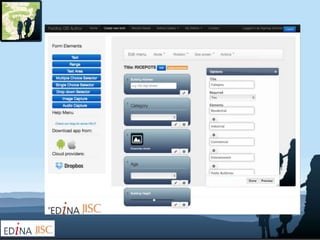
  • #10 Using the annotation tools, create a land use map. Might have made a paper version in the field, create a digital copy to then print or add to your notes that can be taken in to exam. Using the area tools, you can digitise around the building footprint, and categorise according to the classifications used e.g. RICEPOTS You can also add photos to show examples of building or land use types. Using the area tools, you can also create a key for your map. This is a bit fiddly, but not that difficult.
  • #11 The buffer tool. Buffering is a type of spatial analysis to investigate proximity
  • #19 Brief demonstration to show main areas – searching, maps, tools.
  • #20 Another service offering that we have that I’ll briefly mention is Digimap for Schools MapStream. Mapstream allows you to stream the mapping stack used in Digimap for Schools directly into a GIS. It use a standard data streaming method called a WMS – web map service. This means standard GIS software will be able to handle the data. So you get access to all the OS backdrop mapping that you see in DfS, But with the advantage that you can combine it with your own data in a GIS. It is a subscription service, so would be additional to a DfS subscription. But if you’re using GIS or thinking about it, but want to be able to get up to date OS mapping. This is the service to use.
  • #22 Explore the change in number of sales and average house price. How does that relate to pitchlory being a tourist town? Does it? Can see that 2007 was a healthier year, more sales and a higher average price. Before the down turn. Data zones may not be detailed enough for looking at the effect, but hopefully illustrates the idea. Having the backdrop mapping from Mapstream gives the map context.