Texts and Graphics
1
LESSON OBJECTIVES
• To learn how to Use the different tools to draw shapes and lines.
• To learn how to import images, audios and videos to the library and
the stage.
• To understand merge drawing .
• To change the properties of shapes and pictures.
• To create text
• To Modify text ( size, color, rotation and type).
• To learn how to check spelling.
2
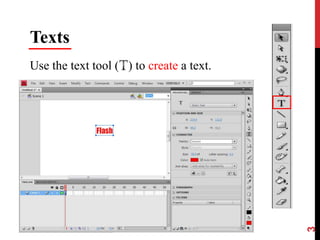
Texts
Use the text tool ( ) to create a text.
3
4
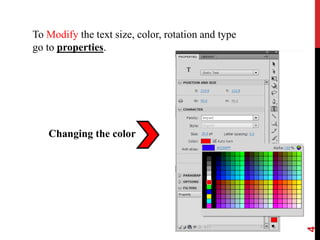
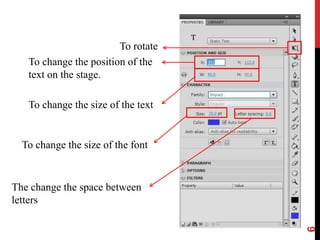
To Modify the text size, color, rotation and type
go to properties.
Changing the color
5
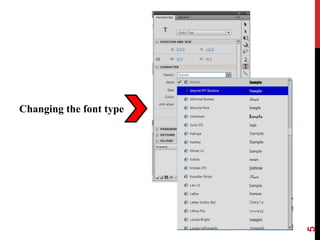
Changing the font type
6
To change the position of the
text on the stage.
To change the size of the text
To change the size of the font
The change the space between
letters
To rotate
7
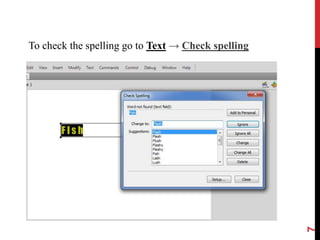
To check the spelling go to Text → Check spelling
8
Graphics
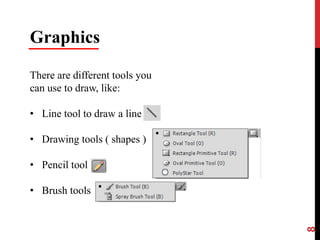
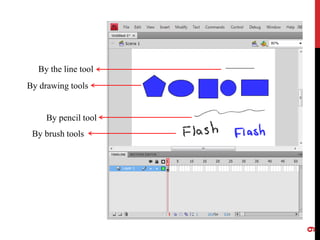
There are different tools you
can use to draw, like:
• Line tool to draw a line
• Drawing tools ( shapes )
• Pencil tool
• Brush tools
9
By the line tool
By drawing tools
By pencil tool
By brush tools
10
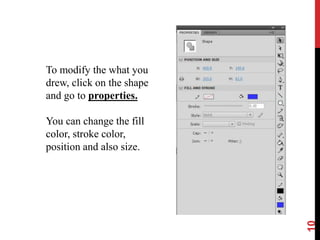
To modify the what you
drew, click on the shape
and go to properties.
You can change the fill
color, stroke color,
position and also size.
11
Merge drawing
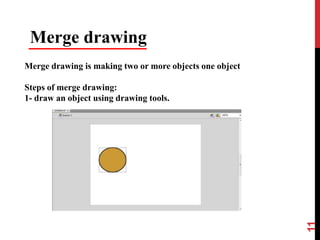
Merge drawing is making two or more objects one object
Steps of merge drawing:
1- draw an object using drawing tools.
12
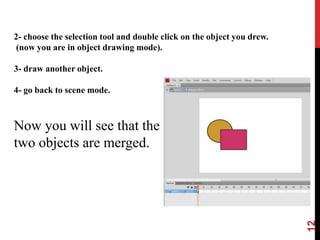
2- choose the selection tool and double click on the object you drew.
(now you are in object drawing mode).
3- draw another object.
4- go back to scene mode.
Now you will see that the
two objects are merged.
13
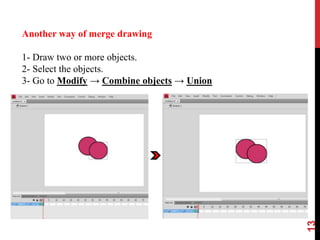
Another way of merge drawing
1- Draw two or more objects.
2- Select the objects.
3- Go to Modify → Combine objects → Union
14
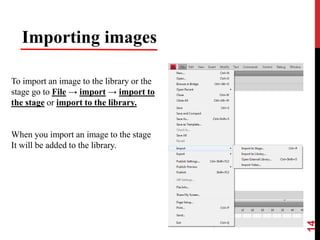
Importing images
To import an image to the library or the
stage go to File → import → import to
the stage or import to the library.
When you import an image to the stage
It will be added to the library.
15
Reference
http://www.quepublishing.com/articles/article.aspx?p=1312651&seqNum=2

Adobe Flash - Texts and graphics

  • 1.
  • 2.
    LESSON OBJECTIVES • Tolearn how to Use the different tools to draw shapes and lines. • To learn how to import images, audios and videos to the library and the stage. • To understand merge drawing . • To change the properties of shapes and pictures. • To create text • To Modify text ( size, color, rotation and type). • To learn how to check spelling. 2
  • 3.
    Texts Use the texttool ( ) to create a text. 3
  • 4.
    4 To Modify thetext size, color, rotation and type go to properties. Changing the color
  • 5.
  • 6.
    6 To change theposition of the text on the stage. To change the size of the text To change the size of the font The change the space between letters To rotate
  • 7.
    7 To check thespelling go to Text → Check spelling
  • 8.
    8 Graphics There are differenttools you can use to draw, like: • Line tool to draw a line • Drawing tools ( shapes ) • Pencil tool • Brush tools
  • 9.
    9 By the linetool By drawing tools By pencil tool By brush tools
  • 10.
    10 To modify thewhat you drew, click on the shape and go to properties. You can change the fill color, stroke color, position and also size.
  • 11.
    11 Merge drawing Merge drawingis making two or more objects one object Steps of merge drawing: 1- draw an object using drawing tools.
  • 12.
    12 2- choose theselection tool and double click on the object you drew. (now you are in object drawing mode). 3- draw another object. 4- go back to scene mode. Now you will see that the two objects are merged.
  • 13.
    13 Another way ofmerge drawing 1- Draw two or more objects. 2- Select the objects. 3- Go to Modify → Combine objects → Union
  • 14.
    14 Importing images To importan image to the library or the stage go to File → import → import to the stage or import to the library. When you import an image to the stage It will be added to the library.
  • 15.

Editor's Notes

  • #13 Source: 1- http://www.quepublishing.com/articles/article.aspx?p=1312651&seqNum=2