
LESSON 91
EXTRANET

In the late 1990’s and early 2000,
several industries started to use the
term “extranet”.

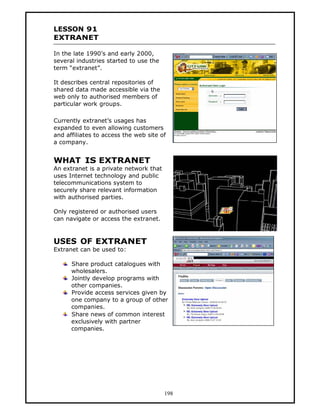
It describes central repositories of
shared data made accessible via the
web only to authorised members of
particular work groups.

Currently extranet’s usages has
expanded to even allowing customers
and affiliates to access the web site of
a company.


WHAT IS EXTRANET
An extranet is a private network that
uses Internet technology and public
telecommunications system to
securely share relevant information
with authorised parties.

Only registered or authorised users
can navigate or access the extranet.


USES OF EXTRANET
Extranet can be used to:

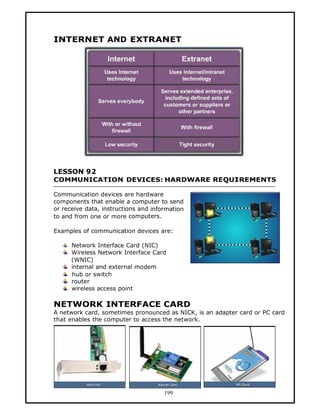
      Share product catalogues with
      wholesalers.
      Jointly develop programs with
      other companies.
      Provide access services given by
      one company to a group of other
      companies.
      Share news of common interest
      exclusively with partner
      companies.


                                        198
INTERNET AND EXTRANET


LESSON 92
COMMUNICATION DEVICES: HARDWARE REQUIREMENTS

Communication devices are hardware
components that enable a computer to send
or receive data, instructions and information
to and from one or more computers.

Examples of communication devices are:

      Network Interface Card (NIC)
      Wireless Network Interface Card
      (WNIC)
      internal and external modem
      hub or switch
      router
      wireless access point

NETWORK INTERFACE CARD
A network card, sometimes pronounced as NICK, is an adapter card or PC card
that enables the computer to access the network.


                                      199
WIRELESS NETWORK
INTERFACE CARD
Wireless Network Interface Card is a network card
that provides wireless data transmission.


NETWORK COMMUNICATION CHANNELS
There are two types of modem, internal modem and external modem. An
internal modem only works in stand-alone computers. It is built into the
computer.

An external modem is separated from the computer and is also mobile.


HUB/SWITCH
Hub or switch is a common connection point for devices in a network. Hubs
are commonly used to connect segments of a LAN.


                                     200
ROUTER
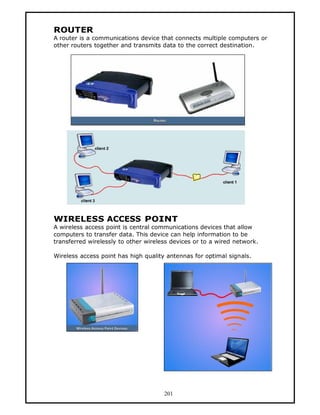
A router is a communications device that connects multiple computers or
other routers together and transmits data to the correct destination.


WIRELESS ACCESS POINT
A wireless access point is central communications devices that allow
computers to transfer data. This device can help information to be
transferred wirelessly to other wireless devices or to a wired network.

Wireless access point has high quality antennas for optimal signals.


                                      201
LESSON 93
FUNCTIONS OF COMMUNICATION DEVICES


NETWORK INTERFACE CARD
A Network Interface Card is a piece of computer hardware designed to allow
computers to communicate over a computer network. The card implements
the electronic circuitry required to communicate using a specific physical
layer and data link layer standard such as Ethernet or token ring.


                                    202
WIRELESS NETWORK INTERFACE CARD
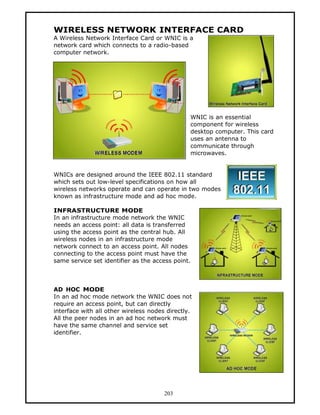
A Wireless Network Interface Card or WNIC is a
network card which connects to a radio-based
computer network.


                                                WNIC is an essential
                                                component for wireless
                                                desktop computer. This card
                                                uses an antenna to
                                                communicate through
                                                microwaves.


WNICs are designed around the IEEE 802.11 standard
which sets out low-level specifications on how all
wireless networks operate and can operate in two modes
known as infrastructure mode and ad hoc mode.

INFRASTRUCTURE MODE
In an infrastructure mode network the WNIC
needs an access point: all data is transferred
using the access point as the central hub. All
wireless nodes in an infrastructure mode
network connect to an access point. All nodes
connecting to the access point must have the
same service set identifier as the access point.


AD HOC MODE
In an ad hoc mode network the WNIC does not
require an access point, but can directly
interface with all other wireless nodes directly.
All the peer nodes in an ad hoc network must
have the same channel and service set
identifier.


                                       203
MODEM
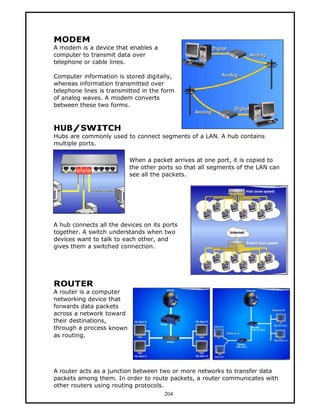
A modem is a device that enables a
computer to transmit data over
telephone or cable lines.

Computer information is stored digitally,
whereas information transmitted over
telephone lines is transmitted in the form
of analog waves. A modem converts
between these two forms.


HUB/SWITCH
Hubs are commonly used to connect segments of a LAN. A hub contains
multiple ports.

                          When a packet arrives at one port, it is copied to
                          the other ports so that all segments of the LAN can
                          see all the packets.


A hub connects all the devices on its ports
together. A switch understands when two
devices want to talk to each other, and
gives them a switched connection.


ROUTER
A router is a computer
networking device that
forwards data packets
across a network toward
their destinations,
through a process known
as routing.


A router acts as a junction between two or more networks to transfer data
packets among them. In order to route packets, a router communicates with
other routers using routing protocols.
                                       204
WIRELESS ACCESS POINT
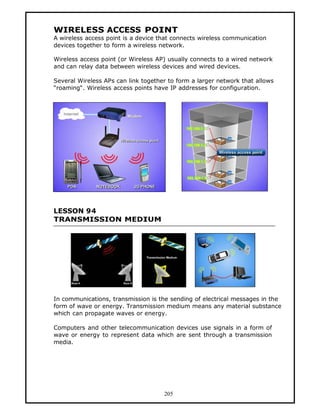
A wireless access point is a device that connects wireless communication
devices together to form a wireless network.

Wireless access point (or Wireless AP) usually connects to a wired network
and can relay data between wireless devices and wired devices.

Several Wireless APs can link together to form a larger network that allows
“roaming“. Wireless access points have IP addresses for configuration.


LESSON 94
TRANSMISSION MEDIUM


In communications, transmission is the sending of electrical messages in the
form of wave or energy. Transmission medium means any material substance
which can propagate waves or energy.

Computers and other telecommunication devices use signals in a form of
wave or energy to represent data which are sent through a transmission
media.


                                     205
TYPES OF TRANSMISSION MEDIA
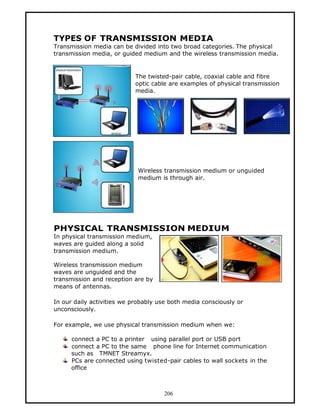
Transmission media can be divided into two broad categories. The physical
transmission media, or guided medium and the wireless transmission media.


                            The twisted-pair cable, coaxial cable and fibre
                            optic cable are examples of physical transmission
                            media.


                            Wireless transmission medium or unguided
                            medium is through air.


PHYSICAL TRANSMISSION MEDIUM
In physical transmission medium,
waves are guided along a solid
transmission medium.

Wireless transmission medium
waves are unguided and the
transmission and reception are by
means of antennas.

In our daily activities we probably use both media consciously or
unconsciously.

For example, we use physical transmission medium when we:

      connect a PC to a printer using parallel port or USB port
      connect a PC to the same phone line for Internet communication
      such as TMNET Streamyx.
      PCs are connected using twisted-pair cables to wall sockets in the
      office


                                     206
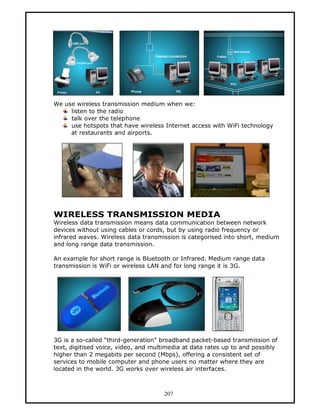
We use wireless transmission medium when we:
     listen to the radio
     talk over the telephone
     use hotspots that have wireless Internet access with WiFi technology
     at restaurants and airports.


WIRELESS TRANSMISSION MEDIA
Wireless data transmission means data communication between network
devices without using cables or cords, but by using radio frequency or
infrared waves. Wireless data transmission is categorised into short, medium
and long range data transmission.

An example for short range is Bluetooth or Infrared. Medium range data
transmission is WiFi or wireless LAN and for long range it is 3G.


3G is a so-called “third-generation” broadband packet-based transmission of
text, digitised voice, video, and multimedia at data rates up to and possibly
higher than 2 megabits per second (Mbps), offering a consistent set of
services to mobile computer and phone users no matter where they are
located in the world. 3G works over wireless air interfaces.


                                      207
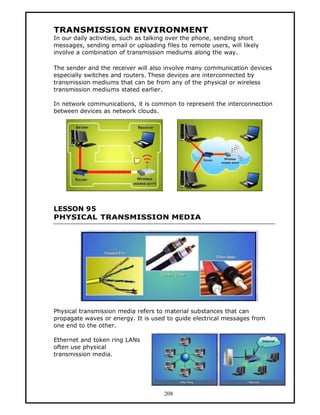
TRANSMISSION ENVIRONMENT
In our daily activities, such as talking over the phone, sending short
messages, sending email or uploading files to remote users, will likely
involve a combination of transmission mediums along the way.

The sender and the receiver will also involve many communication devices
especially switches and routers. These devices are interconnected by
transmission mediums that can be from any of the physical or wireless
transmission mediums stated earlier.

In network communications, it is common to represent the interconnection
between devices as network clouds.


LESSON 95
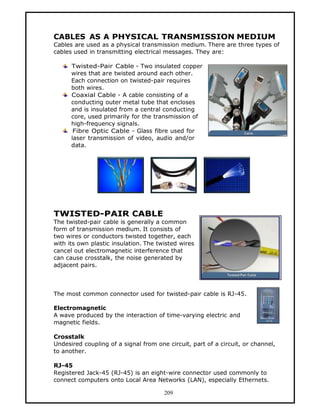
PHYSICAL TRANSMISSION MEDIA


Physical transmission media refers to material substances that can
propagate waves or energy. It is used to guide electrical messages from
one end to the other.

Ethernet and token ring LANs
often use physical
transmission media.


                                      208
CABLES AS A PHYSICAL TRANSMISSION MEDIUM
Cables are used as a physical transmission medium. There are three types of
cables used in transmitting electrical messages. They are:

      Twisted-Pair Cable - Two insulated copper
      wires that are twisted around each other.
      Each connection on twisted-pair requires
      both wires.
      Coaxial Cable - A cable consisting of a
      conducting outer metal tube that encloses
      and is insulated from a central conducting
      core, used primarily for the transmission of
      high-frequency signals.
       Fibre Optic Cable - Glass fibre used for
      laser transmission of video, audio and/or
      data.


TWISTED-PAIR CABLE
The twisted-pair cable is generally a common
form of transmission medium. It consists of
two wires or conductors twisted together, each
with its own plastic insulation. The twisted wires
cancel out electromagnetic interference that
can cause crosstalk, the noise generated by
adjacent pairs.


The most common connector used for twisted-pair cable is RJ-45.

Electromagnetic
A wave produced by the interaction of time-varying electric and
magnetic fields.

Crosstalk
Undesired coupling of a signal from one circuit, part of a circuit, or channel,
to another.

RJ-45
Registered Jack-45 (RJ-45) is an eight-wire connector used commonly to
connect computers onto Local Area Networks (LAN), especially Ethernets.

                                       209
TYPES OF TWISTED PAIR CABLE


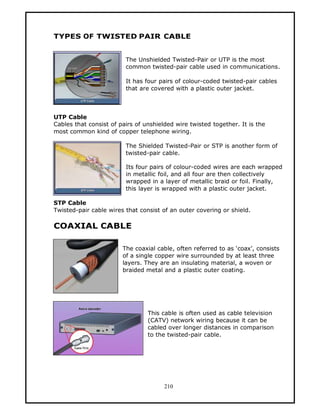
                         The Unshielded Twisted-Pair or UTP is the most
                         common twisted-pair cable used in communications.

                         It has four pairs of colour-coded twisted-pair cables
                         that are covered with a plastic outer jacket.


UTP Cable
Cables that consist of pairs of unshielded wire twisted together. It is the
most common kind of copper telephone wiring.

                         The Shielded Twisted-Pair or STP is another form of
                         twisted-pair cable.

                         Its four pairs of colour-coded wires are each wrapped
                         in metallic foil, and all four are then collectively
                         wrapped in a layer of metallic braid or foil. Finally,
                         this layer is wrapped with a plastic outer jacket.

STP Cable
Twisted-pair cable wires that consist of an outer covering or shield.

COAXIAL CABLE

                        The coaxial cable, often referred to as ‘coax’, consists
                        of a single copper wire surrounded by at least three
                        layers. They are an insulating material, a woven or
                        braided metal and a plastic outer coating.


                                 This cable is often used as cable television
                                 (CATV) network wiring because it can be
                                 cabled over longer distances in comparison
                                 to the twisted-pair cable.


                                       210
PART OF COAXIAL CABLE


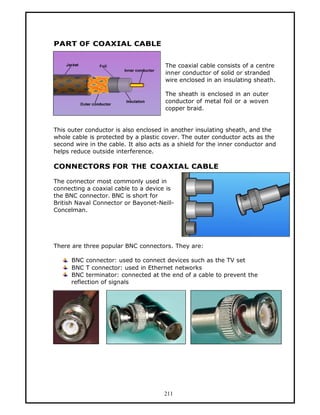
                                       The coaxial cable consists of a centre
                                       inner conductor of solid or stranded
                                       wire enclosed in an insulating sheath.

                                       The sheath is enclosed in an outer
                                       conductor of metal foil or a woven
                                       copper braid.


This outer conductor is also enclosed in another insulating sheath, and the
whole cable is protected by a plastic cover. The outer conductor acts as the
second wire in the cable. It also acts as a shield for the inner conductor and
helps reduce outside interference.

CONNECTORS FOR THE COAXIAL CABLE

The connector most commonly used in
connecting a coaxial cable to a device is
the BNC connector. BNC is short for
British Naval Connector or Bayonet-Neill-
Concelman.


There are three popular BNC connectors. They are:

      BNC connector: used to connect devices such as the TV set
      BNC T connector: used in Ethernet networks
      BNC terminator: connected at the end of a cable to prevent the
      reflection of signals


                                      211
FIBRE OPTIC CABLE
The fibre optic cable is a networking medium
that uses light for data transmission.

The intensity of light is increased and
decreased to represent binary one and zero.

Its core consists of dozens or hundreds of
thin strands of glass or plastic which uses
light to transmit signals.

Each strand, called an optical fibre, is as thin
as a human hair.


Transmission
The act of sending electrical messages (and also radiant energy that passes
through media.)

Binary
The binary system is a way of counting using just the two numbers 0 and 1.

Optical Fibre
A flexible optically transparent fibre, usually made of glass or plastic,
through which light can be transmitted by successive internal reflections.

PARTS OF A FIBRE OPTIC CABLE
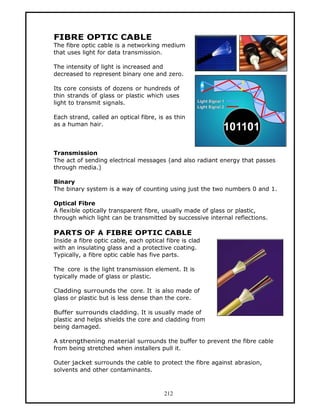
Inside a fibre optic cable, each optical fibre is clad
with an insulating glass and a protective coating.
Typically, a fibre optic cable has five parts.

The core is the light transmission element. It is
typically made of glass or plastic.

Cladding surrounds the core. It is also made of
glass or plastic but is less dense than the core.

Buffer surrounds cladding. It is usually made of
plastic and helps shields the core and cladding from
being damaged.

A strengthening material surrounds the buffer to prevent the fibre cable
from being stretched when installers pull it.

Outer jacket surrounds the cable to protect the fibre against abrasion,
solvents and other contaminants.


                                        212
CONNECTORS OF A FIBRE OPTIC CABLE

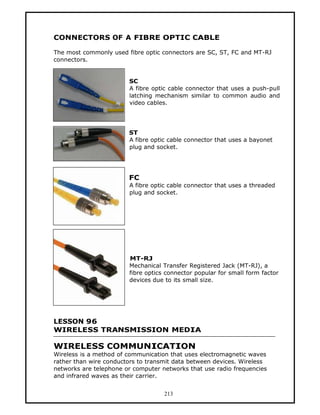
The most commonly used fibre optic connectors are SC, ST, FC and MT-RJ
connectors.


                        SC
                        A fibre optic cable connector that uses a push-pull
                        latching mechanism similar to common audio and
                        video cables.


                        ST
                        A fibre optic cable connector that uses a bayonet
                        plug and socket.


                        FC
                        A fibre optic cable connector that uses a threaded
                        plug and socket.


                        MT-RJ
                        Mechanical Transfer Registered Jack (MT-RJ), a
                        fibre optics connector popular for small form factor
                        devices due to its small size.


LESSON 96
WIRELESS TRANSMISSION MEDIA

WIRELESS COMMUNICATION
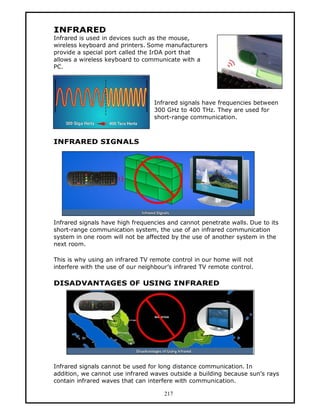
Wireless is a method of communication that uses electromagnetic waves
rather than wire conductors to transmit data between devices. Wireless
networks are telephone or computer networks that use radio frequencies
and infrared waves as their carrier.


                                    213
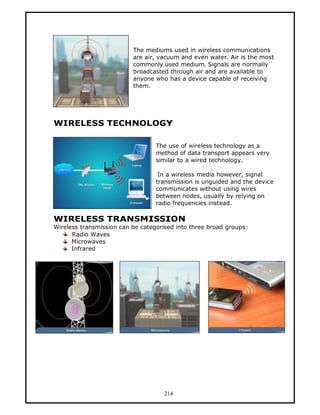
The mediums used in wireless communications
                          are air, vacuum and even water. Air is the most
                          commonly used medium. Signals are normally
                          broadcasted through air and are available to
                          anyone who has a device capable of receiving
                          them.


WIRELESS TECHNOLOGY

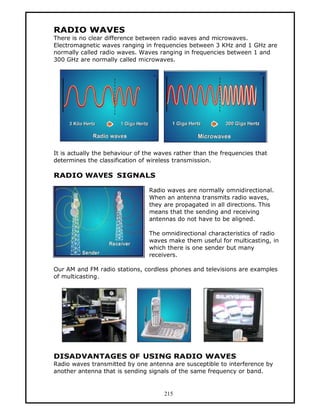
                                  The use of wireless technology as a
                                  method of data transport appears very
                                  similar to a wired technology.

                                   In a wireless media however, signal
                                  transmission is unguided and the device
                                  communicates without using wires
                                  between nodes, usually by relying on
                                  radio frequencies instead.

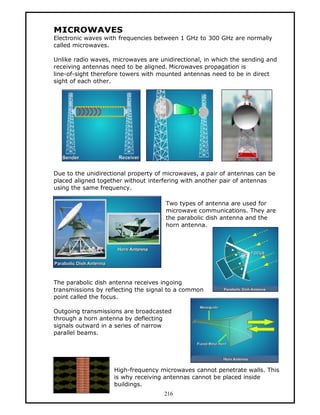
WIRELESS TRANSMISSION
Wireless transmission can be categorised into three broad groups:
      Radio Waves
      Microwaves
      Infrared


                                     214
RADIO WAVES
There is no clear difference between radio waves and microwaves.
Electromagnetic waves ranging in frequencies between 3 KHz and 1 GHz are
normally called radio waves. Waves ranging in frequencies between 1 and
300 GHz are normally called microwaves.


It is actually the behaviour of the waves rather than the frequencies that
determines the classification of wireless transmission.

RADIO WAVES SIGNALS

                                 Radio waves are normally omnidirectional.
                                 When an antenna transmits radio waves,
                                 they are propagated in all directions. This
                                 means that the sending and receiving
                                 antennas do not have to be aligned.

                                 The omnidirectional characteristics of radio
                                 waves make them useful for multicasting, in
                                 which there is one sender but many
                                 receivers.

Our AM and FM radio stations, cordless phones and televisions are examples
of multicasting.


DISADVANTAGES OF USING RADIO WAVES
Radio waves transmitted by one antenna are susceptible to interference by
another antenna that is sending signals of the same frequency or band.


                                      215
MICROWAVES
Electronic waves with frequencies between 1 GHz to 300 GHz are normally
called microwaves.

Unlike radio waves, microwaves are unidirectional, in which the sending and
receiving antennas need to be aligned. Microwaves propagation is
line-of-sight therefore towers with mounted antennas need to be in direct
sight of each other.


Due to the unidirectional property of microwaves, a pair of antennas can be
placed aligned together without interfering with another pair of antennas
using the same frequency.

                                     Two types of antenna are used for
                                     microwave communications. They are
                                     the parabolic dish antenna and the
                                     horn antenna.


The parabolic dish antenna receives ingoing
transmissions by reflecting the signal to a common
point called the focus.

Outgoing transmissions are broadcasted
through a horn antenna by deflecting
signals outward in a series of narrow
parallel beams.


                    High-frequency microwaves cannot penetrate walls. This
                    is why receiving antennas cannot be placed inside
                    buildings.
                                     216
INFRARED
Infrared is used in devices such as the mouse,
wireless keyboard and printers. Some manufacturers
provide a special port called the IrDA port that
allows a wireless keyboard to communicate with a
PC.


                                  Infrared signals have frequencies between
                                  300 GHz to 400 THz. They are used for
                                  short-range communication.


INFRARED SIGNALS


Infrared signals have high frequencies and cannot penetrate walls. Due to its
short-range communication system, the use of an infrared communication
system in one room will not be affected by the use of another system in the
next room.

This is why using an infrared TV remote control in our home will not
interfere with the use of our neighbour’s infrared TV remote control.

DISADVANTAGES OF USING INFRARED


Infrared signals cannot be used for long distance communication. In
addition, we cannot use infrared waves outside a building because sun’s rays
contain infrared waves that can interfere with communication.

                                      217
LESSON 97
SERVER SOFTWARE


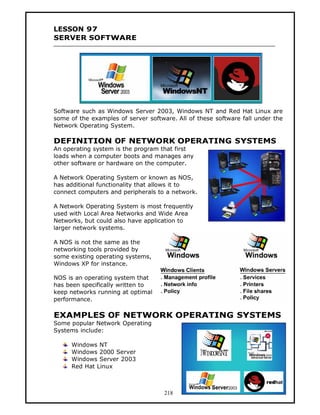
Software such as Windows Server 2003, Windows NT and Red Hat Linux are
some of the examples of server software. All of these software fall under the
Network Operating System.

DEFINITION OF NETWORK OPERATING SYSTEMS
An operating system is the program that first
loads when a computer boots and manages any
other software or hardware on the computer.

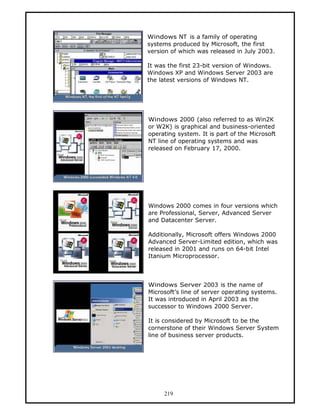
A Network Operating System or known as NOS,
has additional functionality that allows it to
connect computers and peripherals to a network.

A Network Operating System is most frequently
used with Local Area Networks and Wide Area
Networks, but could also have application to
larger network systems.

A NOS is not the same as the
networking tools provided by
some existing operating systems,
Windows XP for instance.

NOS is an operating system that
has been specifically written to
keep networks running at optimal
performance.

EXAMPLES OF NETWORK OPERATING SYSTEMS
Some popular Network Operating
Systems include:

      Windows NT
      Windows 2000 Server
      Windows Server 2003
      Red Hat Linux


                                     218
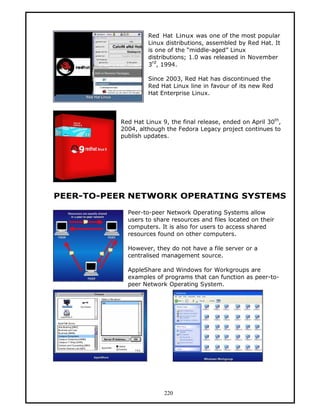
Windows NT is a family of operating
systems produced by Microsoft, the first
version of which was released in July 2003.

It was the first 23-bit version of Windows.
Windows XP and Windows Server 2003 are
the latest versions of Windows NT.


Windows 2000 (also referred to as Win2K
or W2K) is graphical and business-oriented
operating system. It is part of the Microsoft
NT line of operating systems and was
released on February 17, 2000.


Windows 2000 comes in four versions which
are Professional, Server, Advanced Server
and Datacenter Server.

Additionally, Microsoft offers Windows 2000
Advanced Server-Limited edition, which was
released in 2001 and runs on 64-bit Intel
Itanium Microprocessor.


Windows Server 2003 is the name of
Microsoft’s line of server operating systems.
It was introduced in April 2003 as the
successor to Windows 2000 Server.

It is considered by Microsoft to be the
cornerstone of their Windows Server System
line of business server products.


     219
Red Hat Linux was one of the most popular
                   Linux distributions, assembled by Red Hat. It
                   is one of the “middle-aged” Linux
                   distributions; 1.0 was released in November
                     rd
                   3 , 1994.

                   Since 2003, Red Hat has discontinued the
                   Red Hat Linux line in favour of its new Red
                   Hat Enterprise Linux.


          Red Hat Linux 9, the final release, ended on April 30th,
          2004, although the Fedora Legacy project continues to
          publish updates.


PEER-TO-PEER NETWORK OPERATING SYSTEMS

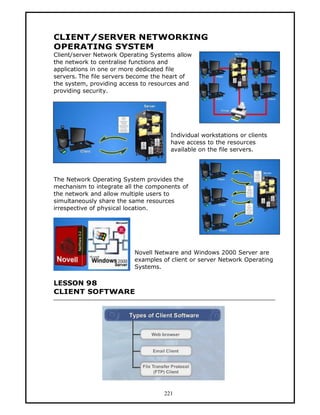
            Peer-to-peer Network Operating Systems allow
            users to share resources and files located on their
            computers. It is also for users to access shared
            resources found on other computers.

            However, they do not have a file server or a
            centralised management source.

            AppleShare and Windows for Workgroups are
            examples of programs that can function as peer-to-
            peer Network Operating System.


                         220
CLIENT/SERVER NETWORKING
OPERATING SYSTEM
Client/server Network Operating Systems allow
the network to centralise functions and
applications in one or more dedicated file
servers. The file servers become the heart of
the system, providing access to resources and
providing security.


                                      Individual workstations or clients
                                      have access to the resources
                                      available on the file servers.


The Network Operating System provides the
mechanism to integrate all the components of
the network and allow multiple users to
simultaneously share the same resources
irrespective of physical location.


                          Novell Netware and Windows 2000 Server are
                          examples of client or server Network Operating
                          Systems.

LESSON 98
CLIENT SOFTWARE


                                    221
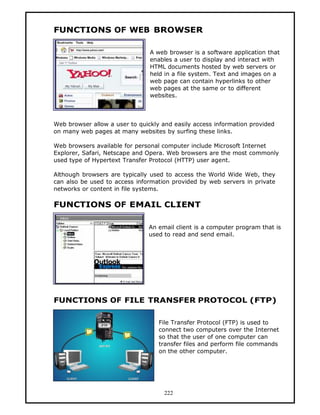
FUNCTIONS OF WEB BROWSER

                                A web browser is a software application that
                                enables a user to display and interact with
                                HTML documents hosted by web servers or
                                held in a file system. Text and images on a
                                web page can contain hyperlinks to other
                                web pages at the same or to different
                                websites.


Web browser allow a user to quickly and easily access information provided
on many web pages at many websites by surfing these links.

Web browsers available for personal computer include Microsoft Internet
Explorer, Safari, Netscape and Opera. Web browsers are the most commonly
used type of Hypertext Transfer Protocol (HTTP) user agent.

Although browsers are typically used to access the World Wide Web, they
can also be used to access information provided by web servers in private
networks or content in file systems.

FUNCTIONS OF EMAIL CLIENT

                               An email client is a computer program that is
                               used to read and send email.


FUNCTIONS OF FILE TRANSFER PROTOCOL (FTP)

                                   File Transfer Protocol (FTP) is used to
                                   connect two computers over the Internet
                                   so that the user of one computer can
                                   transfer files and perform file commands
                                   on the other computer.


                                     222
LESSON 99
SETTING NETWORK FACILITIES

NETWORK INTERFACE CARD
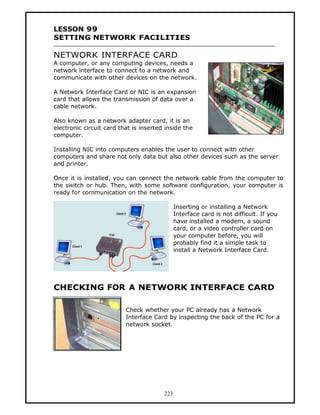
A computer, or any computing devices, needs a
network interface to connect to a network and
communicate with other devices on the network.

A Network Interface Card or NIC is an expansion
card that allows the transmission of data over a
cable network.

Also known as a network adapter card, it is an
electronic circuit card that is inserted inside the
computer.

Installing NIC into computers enables the user to connect with other
computers and share not only data but also other devices such as the server
and printer.

Once it is installed, you can connect the network cable from the computer to
the switch or hub. Then, with some software configuration, your computer is
ready for communication on the network.

                                              Inserting or installing a Network
                                              Interface card is not difficult. If you
                                              have installed a modem, a sound
                                              card, or a video controller card on
                                              your computer before, you will
                                              probably find it a simple task to
                                              install a Network Interface Card.


CHECKING FOR A NETWORK INTERFACE CARD

                          Check whether your PC already has a Network
                          Interface Card by inspecting the back of the PC for a
                          network socket.


                                        223
IDENTIFYING THE LOCATION OF THE
NETWORK INTERFACE CARD


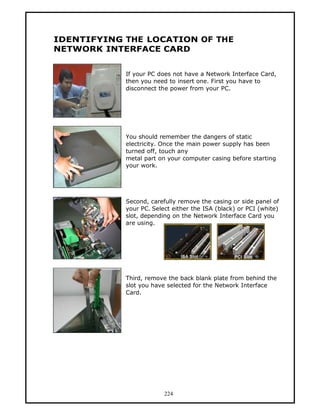
            If your PC does not have a Network Interface Card,
            then you need to insert one. First you have to
            disconnect the power from your PC.


            You should remember the dangers of static
            electricity. Once the main power supply has been
            turned off, touch any
            metal part on your computer casing before starting
            your work.


            Second, carefully remove the casing or side panel of
            your PC. Select either the ISA (black) or PCI (white)
            slot, depending on the Network Interface Card you
            are using.


            Third, remove the back blank plate from behind the
            slot you have selected for the Network Interface
            Card.


                         224
INSERTING THE NETWORK INTERFACE CARD

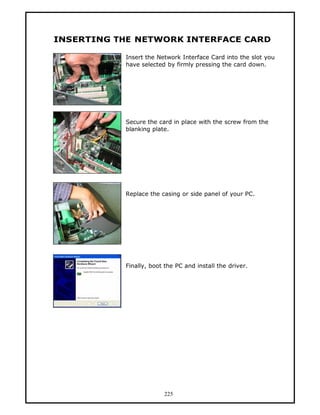
           Insert the Network Interface Card into the slot you
           have selected by firmly pressing the card down.


           Secure the card in place with the screw from the
           blanking plate.


           Replace the casing or side panel of your PC.


           Finally, boot the PC and install the driver.


                        225
LESSON 100
INSTALLING NETWORK INTERFACE CARD (NIC)

INSTALLING THE NIC DRIVER FOR WINDOWS 98
AND WINDOWS ME.

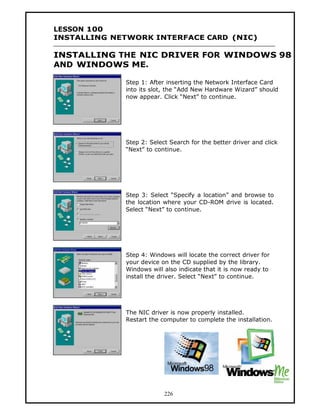
             Step 1: After inserting the Network Interface Card
             into its slot, the “Add New Hardware Wizard” should
             now appear. Click “Next” to continue.


             Step 2: Select Search for the better driver and click
             “Next” to continue.


             Step 3: Select “Specify a location” and browse to
             the location where your CD-ROM drive is located.
             Select “Next” to continue.


             Step 4: Windows will locate the correct driver for
             your device on the CD supplied by the library.
             Windows will also indicate that it is now ready to
             install the driver. Select “Next” to continue.


             The NIC driver is now properly installed.
             Restart the computer to complete the installation.


                          226
INSTALLING THE NIC DRIVER FOR WINDOWS 2000


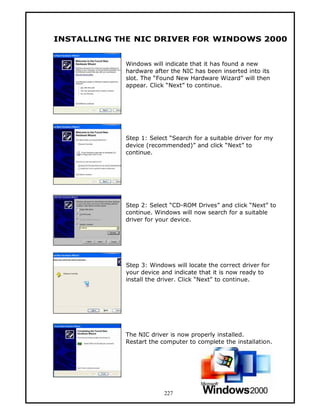
            Windows will indicate that it has found a new
            hardware after the NIC has been inserted into its
            slot. The “Found New Hardware Wizard” will then
            appear. Click “Next” to continue.


            Step 1: Select “Search for a suitable driver for my
            device (recommended)” and click “Next” to
            continue.


            Step 2: Select “CD-ROM Drives” and click “Next” to
            continue. Windows will now search for a suitable
            driver for your device.


            Step 3: Windows will locate the correct driver for
            your device and indicate that it is now ready to
            install the driver. Click “Next” to continue.


            The NIC driver is now properly installed.
            Restart the computer to complete the installation.


                         227
INSTALLING THE NIC DRIVER FOR WINDOWS XP


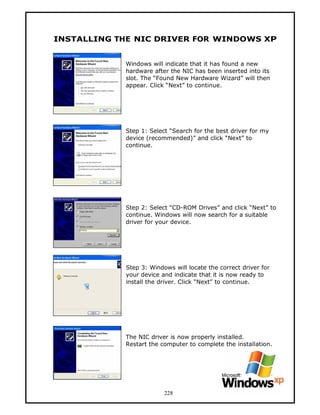
            Windows will indicate that it has found a new
            hardware after the NIC has been inserted into its
            slot. The “Found New Hardware Wizard” will then
            appear. Click “Next” to continue.


            Step 1: Select “Search for the best driver for my
            device (recommended)” and click “Next” to
            continue.


            Step 2: Select “CD-ROM Drives” and click “Next” to
            continue. Windows will now search for a suitable
            driver for your device.


            Step 3: Windows will locate the correct driver for
            your device and indicate that it is now ready to
            install the driver. Click “Next” to continue.


            The NIC driver is now properly installed.
            Restart the computer to complete the installation.


                         228
INSTALLING A WIRELESS NETWORK
INTERFACE CARD DRIVER


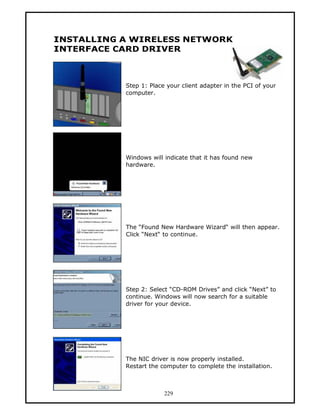
           Step 1: Place your client adapter in the PCI of your
           computer.


           Windows will indicate that it has found new
           hardware.


           The “Found New Hardware Wizard“ will then appear.
           Click “Next“ to continue.


           Step 2: Select “CD-ROM Drives” and click “Next” to
           continue. Windows will now search for a suitable
           driver for your device.


           The NIC driver is now properly installed.
           Restart the computer to complete the installation.


                        229
LESSON 101
CRIMPING STRAIGHT CABLE

STRAIGHT CABLE
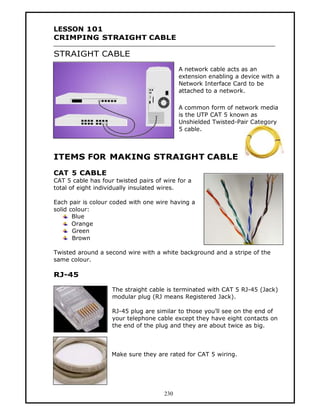
                                            A network cable acts as an
                                            extension enabling a device with a
                                            Network Interface Card to be
                                            attached to a network.

                                            A common form of network media
                                            is the UTP CAT 5 known as
                                            Unshielded Twisted-Pair Category
                                            5 cable.


ITEMS FOR MAKING STRAIGHT CABLE

CAT 5 CABLE
CAT 5 cable has four twisted pairs of wire for a
total of eight individually insulated wires.

Each pair is colour coded with one wire having a
solid colour:
       Blue
       Orange
       Green
       Brown

Twisted around a second wire with a white background and a stripe of the
same colour.

RJ-45

                    The straight cable is terminated with CAT 5 RJ-45 (Jack)
                    modular plug (RJ means Registered Jack).

                    RJ-45 plug are similar to those you’ll see on the end of
                    your telephone cable except they have eight contacts on
                    the end of the plug and they are about twice as big.


                    Make sure they are rated for CAT 5 wiring.


                                      230
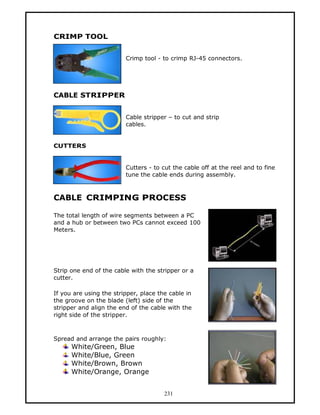
CRIMP TOOL


                         Crimp tool - to crimp RJ-45 connectors.


CABLE STRIPPER


                         Cable stripper — to cut and strip
                         cables.


CUTTERS


                         Cutters - to cut the cable off at the reel and to fine
                         tune the cable ends during assembly.


CABLE CRIMPING PROCESS

The total length of wire segments between a PC
and a hub or between two PCs cannot exceed 100
Meters.


Strip one end of the cable with the stripper or a
cutter.

If you are using the stripper, place the cable in
the groove on the blade (left) side of the
stripper and align the end of the cable with the
right side of the stripper.


Spread and arrange the pairs roughly:
      White/Green, Blue
      White/Blue, Green
      White/Brown, Brown
      White/Orange, Orange


                                       231
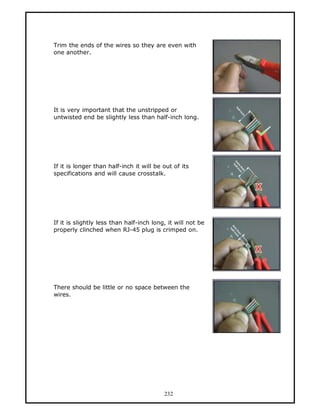
Trim the ends of the wires so they are even with
one another.


It is very important that the unstripped or
untwisted end be slightly less than half-inch long.


If it is longer than half-inch it will be out of its
specifications and will cause crosstalk.


If it is slightly less than half-inch long, it will not be
properly clinched when RJ-45 plug is crimped on.


There should be little or no space between the
wires.


                                          232
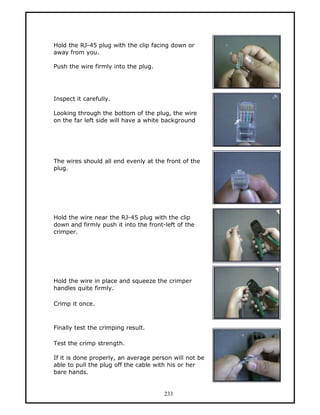
Hold the RJ-45 plug with the clip facing down or
away from you.

Push the wire firmly into the plug.


Inspect it carefully.

Looking through the bottom of the plug, the wire
on the far left side will have a white background


The wires should all end evenly at the front of the
plug.


Hold the wire near the RJ-45 plug with the clip
down and firmly push it into the front-left of the
crimper.


Hold the wire in place and squeeze the crimper
handles quite firmly.

Crimp it once.


Finally test the crimping result.

Test the crimp strength.

If it is done properly, an average person will not be
able to pull the plug off the cable with his or her
bare hands.


                                       233
LESSON 102
CRIMPING CROSSOVER CABLE


                                        This cable can be used to
                                        directly connect two computers
                                        to each other without the use of
                                        a hub or switch.


TOOLS FOR CABLE CRIMPING
   What you need are some tools such as a cable, connectors, crimper,
   stripper and cutter.
   Be sure the cable you are using is properly rated for CAT 5.
   Crossover cables are terminated with CAT 5 RJ-45.

STRIPPING CATEGORY 5 CABLE


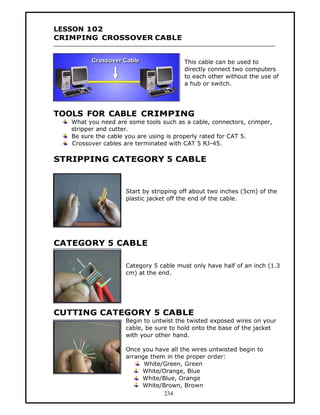
                    Start by stripping off about two inches (5cm) of the
                    plastic jacket off the end of the cable.


CATEGORY 5 CABLE

                    Category 5 cable must only have half of an inch (1.3
                    cm) at the end.


CUTTING CATEGORY 5 CABLE
                    Begin to untwist the twisted exposed wires on your
                    cable, be sure to hold onto the base of the jacket
                    with your other hand.

                    Once you have all the wires untwisted begin to
                    arrange them in the proper order:
                          White/Green, Green
                         White/Orange, Blue
                         White/Blue, Orange
                         White/Brown, Brown
                                234
Once you get all the wired arranged in the proper
                        order, make sure your wire cutters are within reach
                        then grasp at the point where they enter the jacket.

                        Grab your cutters now. Line them up along your
                        prepared wires about half an inch or 1.3 cm above
                        the jacket.

Be sure at this point that you are both half an inch or 1.3 cm above the
jacket, and that your cutters are aligned straight across the wires.


FITTING RJ-45 PLUG
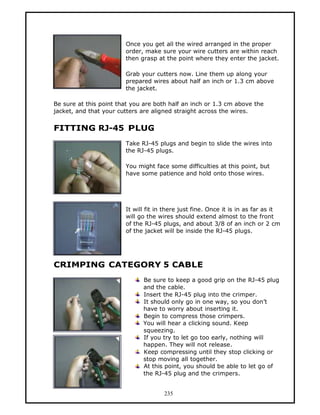
                        Take RJ-45 plugs and begin to slide the wires into
                        the RJ-45 plugs.

                        You might face some difficulties at this point, but
                        have some patience and hold onto those wires.


                        It will fit in there just fine. Once it is in as far as it
                        will go the wires should extend almost to the front
                        of the RJ-45 plugs, and about 3/8 of an inch or 2 cm
                        of the jacket will be inside the RJ-45 plugs.


CRIMPING CATEGORY 5 CABLE
                              Be sure to keep a good grip on the RJ-45 plug
                              and the cable.
                              Insert the RJ-45 plug into the crimper.
                              It should only go in one way, so you don’t
                              have to worry about inserting it.
                              Begin to compress those crimpers.
                              You will hear a clicking sound. Keep
                              squeezing.
                              If you try to let go too early, nothing will
                              happen. They will not release.
                              Keep compressing until they stop clicking or
                              stop moving all together.
                              At this point, you should be able to let go of
                              the RJ-45 plug and the crimpers.


                                      235
EXAMINING THE CRIMPED CATEGORY 5 CABLE

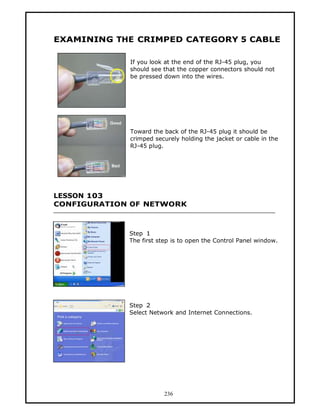
             If you look at the end of the RJ-45 plug, you
             should see that the copper connectors should not
             be pressed down into the wires.


             Toward the back of the RJ-45 plug it should be
             crimped securely holding the jacket or cable in the
             RJ-45 plug.


LESSON 103
CONFIGURATION OF NETWORK


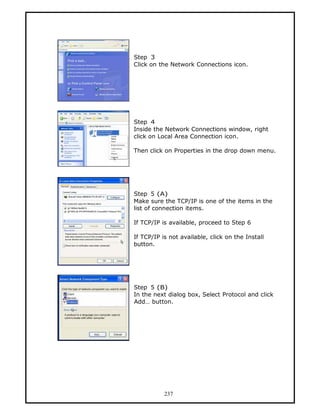
             Step 1
             The first step is to open the Control Panel window.


             Step 2
             Select Network and Internet Connections.


                        236
Step 3
Click on the Network Connections icon.


Step 4
Inside the Network Connections window, right
click on Local Area Connection icon.

Then click on Properties in the drop down menu.


Step 5 (A)
Make sure the TCP/IP is one of the items in the
list of connection items.

If TCP/IP is available, proceed to Step 6

If TCP/IP is not available, click on the Install
button.


Step 5 (B)
In the next dialog box, Select Protocol and click
Add… button.


           237
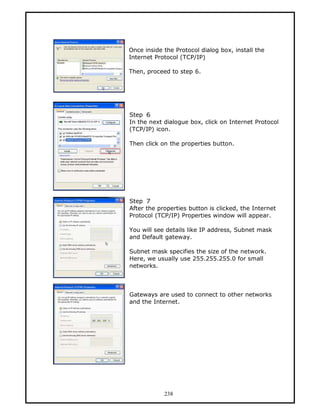
Once inside the Protocol dialog box, install the
Internet Protocol (TCP/IP)

Then, proceed to step 6.


Step 6
In the next dialogue box, click on Internet Protocol
(TCP/IP) icon.

Then click on the properties button.


Step 7
After the properties button is clicked, the Internet
Protocol (TCP/IP) Properties window will appear.

You will see details like IP address, Subnet mask
and Default gateway.

Subnet mask specifies the size of the network.
Here, we usually use 255.255.255.0 for small
networks.


Gateways are used to connect to other networks
and the Internet.


            238
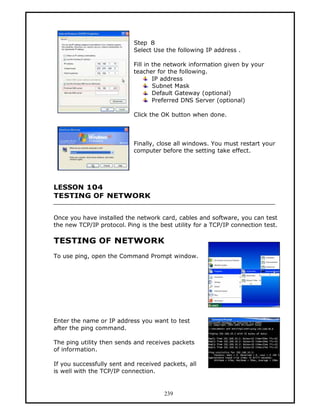
Step 8
                            Select Use the following IP address .

                            Fill in the network information given by your
                            teacher for the following.
                                    IP address
                                    Subnet Mask
                                    Default Gateway (optional)
                                    Preferred DNS Server (optional)

                            Click the OK button when done.


                            Finally, close all windows. You must restart your
                            computer before the setting take effect.


LESSON 104
TESTING OF NETWORK


Once you have installed the network card, cables and software, you can test
the new TCP/IP protocol. Ping is the best utility for a TCP/IP connection test.

TESTING OF NETWORK
To use ping, open the Command Prompt window.


Enter the name or IP address you want to test
after the ping command.

The ping utility then sends and receives packets
of information.

If you successfully sent and received packets, all
is well with the TCP/IP connection.


                                       239
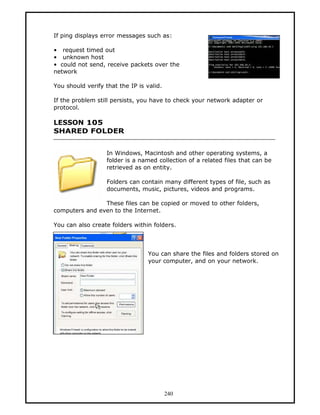
If ping displays error messages such as:

• request timed out
• unknown host
• could not send, receive packets over the
network

You should verify that the IP is valid.

If the problem still persists, you have to check your network adapter or
protocol.

LESSON 105
SHARED FOLDER


                   In Windows, Macintosh and other operating systems, a
                   folder is a named collection of a related files that can be
                   retrieved as on entity.

                   Folders can contain many different types of file, such as
                   documents, music, pictures, videos and programs.

                These files can be copied or moved to other folders,
computers and even to the Internet.

You can also create folders within folders.


                                  You can share the files and folders stored on
                                  your computer, and on your network.


                                          240
LESSON 106
WIRELESS AND MOBILE


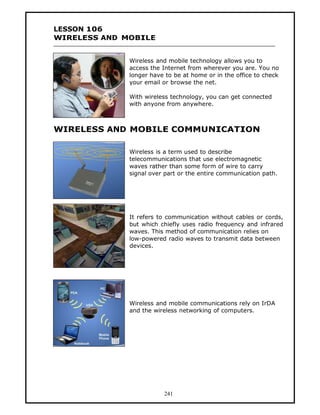
              Wireless and mobile technology allows you to
              access the Internet from wherever you are. You no
              longer have to be at home or in the office to check
              your email or browse the net.

              With wireless technology, you can get connected
              with anyone from anywhere.


WIRELESS AND MOBILE COMMUNICATION

              Wireless is a term used to describe
              telecommunications that use electromagnetic
              waves rather than some form of wire to carry
              signal over part or the entire communication path.


              It refers to communication without cables or cords,
              but which chiefly uses radio frequency and infrared
              waves. This method of communication relies on
              low-powered radio waves to transmit data between
              devices.


              Wireless and mobile communications rely on IrDA
              and the wireless networking of computers.


                         241
Wireless
Wireless is a term used to describe telecommunications that use
electromagnetic waves rather than some form of wire to carry signal over
part or the entire communication path.

Telecommunication
The science of information transport using wire, radio, optical, or
electromagnetic channels to transmit and receive signals for voice or data
communications.

Electromagnetic Waves
A wave produced by the interaction of time-varying electric and magnetic
fields.

Radio Frequency
Frequency of electromagnetic waves used for radio and television
broadcasting.

Infrared Wave
Electromagnetic waves in the frequency range just below visible light
corresponding to radiated heat. IR waves are often used for remote controls.

IrDA
Infrared Data Association (IrDA) is an organisation that defines the infrared
communications protocol. A protocol used by many laptops and mobile
cellular phones to exchange data at short ranges.

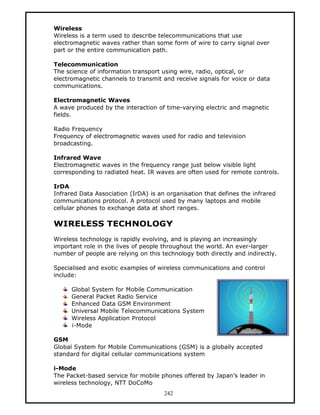
WIRELESS TECHNOLOGY
Wireless technology is rapidly evolving, and is playing an increasingly
important role in the lives of people throughout the world. An ever-larger
number of people are relying on this technology both directly and indirectly.

Specialised and exotic examples of wireless communications and control
include:

      Global System for Mobile Communication
      General Packet Radio Service
      Enhanced Data GSM Environment
      Universal Mobile Telecommunications System
      Wireless Application Protocol
      i-Mode

GSM
Global System for Mobile Communications (GSM) is a globally accepted
standard for digital cellular communications system

i-Mode
The Packet-based service for mobile phones offered by Japan’s leader in
wireless technology, NTT DoCoMo
                                      242
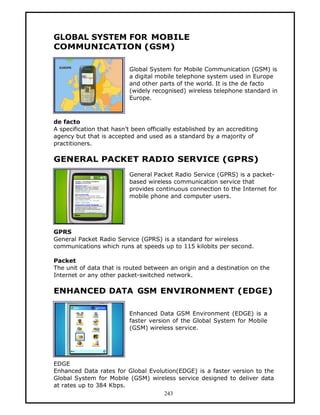
GLOBAL SYSTEM FOR MOBILE
COMMUNICATION (GSM)

                           Global System for Mobile Communication (GSM) is
                           a digital mobile telephone system used in Europe
                           and other parts of the world. It is the de facto
                           (widely recognised) wireless telephone standard in
                           Europe.


de facto
A specification that hasn’t been officially established by an accrediting
agency but that is accepted and used as a standard by a majority of
practitioners.

GENERAL PACKET RADIO SERVICE (GPRS)
                           General Packet Radio Service (GPRS) is a packet-
                           based wireless communication service that
                           provides continuous connection to the Internet for
                           mobile phone and computer users.


GPRS
General Packet Radio Service (GPRS) is a standard for wireless
communications which runs at speeds up to 115 kilobits per second.

Packet
The unit of data that is routed between an origin and a destination on the
Internet or any other packet-switched network.

ENHANCED DATA GSM ENVIRONMENT (EDGE)

                           Enhanced Data GSM Environment (EDGE) is a
                           faster version of the Global System for Mobile
                           (GSM) wireless service.


EDGE
Enhanced Data rates for Global Evolution(EDGE) is a faster version to the
Global System for Mobile (GSM) wireless service designed to deliver data
at rates up to 384 Kbps.
                                    243
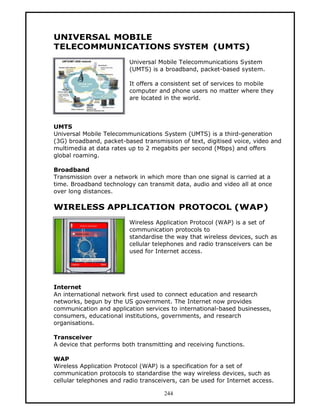
UNIVERSAL MOBILE
TELECOMMUNICATIONS SYSTEM (UMTS)
                          Universal Mobile Telecommunications System
                          (UMTS) is a broadband, packet-based system.

                          It offers a consistent set of services to mobile
                          computer and phone users no matter where they
                          are located in the world.


UMTS
Universal Mobile Telecommunications System (UMTS) is a third-generation
(3G) broadband, packet-based transmission of text, digitised voice, video and
multimedia at data rates up to 2 megabits per second (Mbps) and offers
global roaming.

Broadband
Transmission over a network in which more than one signal is carried at a
time. Broadband technology can transmit data, audio and video all at once
over long distances.

WIRELESS APPLICATION PROTOCOL (WAP)
                          Wireless Application Protocol (WAP) is a set of
                          communication protocols to
                          standardise the way that wireless devices, such as
                          cellular telephones and radio transceivers can be
                          used for Internet access.


Internet
An international network first used to connect education and research
networks, begun by the US government. The Internet now provides
communication and application services to international-based businesses,
consumers, educational institutions, governments, and research
organisations.

Transceiver
A device that performs both transmitting and receiving functions.

WAP
Wireless Application Protocol (WAP) is a specification for a set of
communication protocols to standardise the way wireless devices, such as
cellular telephones and radio transceivers, can be used for Internet access.

                                      244
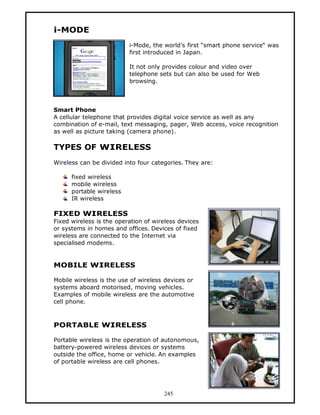
i-MODE
                          i-Mode, the world’s first “smart phone service“ was
                          first introduced in Japan.

                          It not only provides colour and video over
                          telephone sets but can also be used for Web
                          browsing.


Smart Phone
A cellular telephone that provides digital voice service as well as any
combination of e-mail, text messaging, pager, Web access, voice recognition
as well as picture taking (camera phone).

TYPES OF WIRELESS
Wireless can be divided into four categories. They are:

      fixed wireless
      mobile wireless
      portable wireless
      IR wireless

FIXED WIRELESS
Fixed wireless is the operation of wireless devices
or systems in homes and offices. Devices of fixed
wireless are connected to the Internet via
specialised modems.


MOBILE WIRELESS

Mobile wireless is the use of wireless devices or
systems aboard motorised, moving vehicles.
Examples of mobile wireless are the automotive
cell phone.


PORTABLE WIRELESS

Portable wireless is the operation of autonomous,
battery-powered wireless devices or systems
outside the office, home or vehicle. An examples
of portable wireless are cell phones.


                                      245
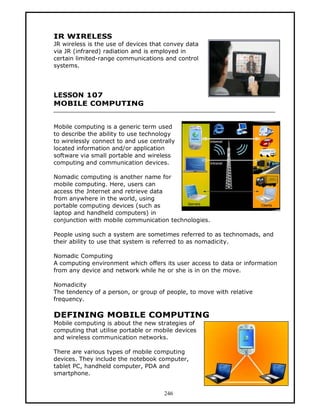
IR WIRELESS
JR wireless is the use of devices that convey data
via JR (infrared) radiation and is employed in
certain limited-range communications and control
systems.


LESSON 107
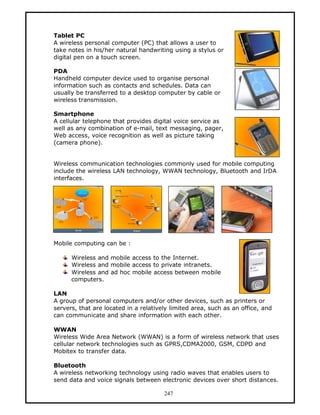
MOBILE COMPUTING


Mobile computing is a generic term used
to describe the ability to use technology
to wirelessly connect to and use centrally
located information and/or application
software via small portable and wireless
computing and communication devices.

Nomadic computing is another name for
mobile computing. Here, users can
access the Jnternet and retrieve data
from anywhere in the world, using
portable computing devices (such as
laptop and handheld computers) in
conjunction with mobile communication technologies.

People using such a system are sometimes referred to as technomads, and
their ability to use that system is referred to as nomadicity.

Nomadic Computing
A computing environment which offers its user access to data or information
from any device and network while he or she is in on the move.

Nomadicity
The tendency of a person, or group of people, to move with relative
frequency.

DEFINING MOBILE COMPUTING
Mobile computing is about the new strategies of
computing that utilise portable or mobile devices
and wireless communication networks.

There are various types of mobile computing
devices. They include the notebook computer,
tablet PC, handheld computer, PDA and
smartphone.


                                      246
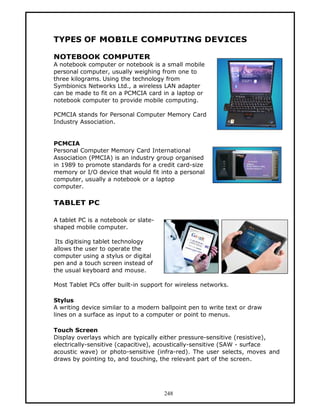
Tablet PC
A wireless personal computer (PC) that allows a user to
take notes in his/her natural handwriting using a stylus or
digital pen on a touch screen.

PDA
Handheld computer device used to organise personal
information such as contacts and schedules. Data can
usually be transferred to a desktop computer by cable or
wireless transmission.

Smartphone
A cellular telephone that provides digital voice service as
well as any combination of e-mail, text messaging, pager,
Web access, voice recognition as well as picture taking
(camera phone).


Wireless communication technologies commonly used for mobile computing
include the wireless LAN technology, WWAN technology, Bluetooth and IrDA
interfaces.


Mobile computing can be :

      Wireless and mobile access to the Internet.
      Wireless and mobile access to private intranets.
      Wireless and ad hoc mobile access between mobile
      computers.

LAN
A group of personal computers and/or other devices, such as printers or
servers, that are located in a relatively limited area, such as an office, and
can communicate and share information with each other.

WWAN
Wireless Wide Area Network (WWAN) is a form of wireless network that uses
cellular network technologies such as GPRS,CDMA2000, GSM, CDPD and
Mobitex to transfer data.

Bluetooth
A wireless networking technology using radio waves that enables users to
send data and voice signals between electronic devices over short distances.

                                       247
TYPES OF MOBILE COMPUTING DEVICES

NOTEBOOK COMPUTER
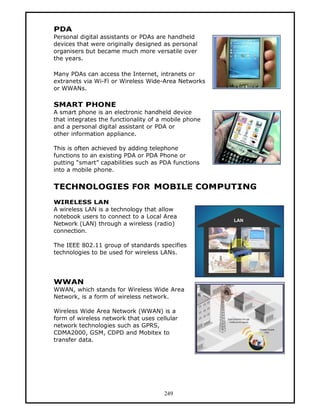
A notebook computer or notebook is a small mobile
personal computer, usually weighing from one to
three kilograms. Using the technology from
Symbionics Networks Ltd., a wireless LAN adapter
can be made to fit on a PCMCIA card in a laptop or
notebook computer to provide mobile computing.

PCMCIA stands for Personal Computer Memory Card
Industry Association.


PCMCIA
Personal Computer Memory Card International
Association (PMCIA) is an industry group organised
in 1989 to promote standards for a credit card-size
memory or I/O device that would fit into a personal
computer, usually a notebook or a laptop
computer.

TABLET PC

A tablet PC is a notebook or slate-
shaped mobile computer.

 Its digitising tablet technology
allows the user to operate the
computer using a stylus or digital
pen and a touch screen instead of
the usual keyboard and mouse.

Most Tablet PCs offer built-in support for wireless networks.

Stylus
A writing device similar to a modern ballpoint pen to write text or draw
lines on a surface as input to a computer or point to menus.

Touch Screen
Display overlays which are typically either pressure-sensitive (resistive),
electrically-sensitive (capacitive), acoustically-sensitive (SAW - surface
acoustic wave) or photo-sensitive (infra-red). The user selects, moves and
draws by pointing to, and touching, the relevant part of the screen.


                                      248
PDA
Personal digital assistants or PDAs are handheld
devices that were originally designed as personal
organisers but became much more versatile over
the years.

Many PDAs can access the Internet, intranets or
extranets via Wi-Fi or Wireless Wide-Area Networks
or WWANs.

SMART PHONE
A smart phone is an electronic handheld device
that integrates the functionality of a mobile phone
and a personal digital assistant or PDA or
other information appliance.

This is often achieved by adding telephone
functions to an existing PDA or PDA Phone or
putting “smart” capabilities such as PDA functions
into a mobile phone.


TECHNOLOGIES FOR MOBILE COMPUTING
WIRELESS LAN
A wireless LAN is a technology that allow
notebook users to connect to a Local Area
Network (LAN) through a wireless (radio)
connection.

The IEEE 802.11 group of standards specifies
technologies to be used for wireless LANs.


WWAN
WWAN, which stands for Wireless Wide Area
Network, is a form of wireless network.

Wireless Wide Area Network (WWAN) is a
form of wireless network that uses cellular
network technologies such as GPRS,
CDMA2000, GSM, CDPD and Mobitex to
transfer data.


                                      249
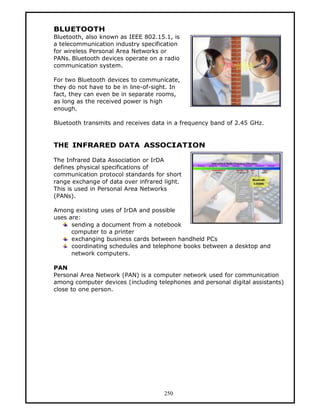
BLUETOOTH
Bluetooth, also known as IEEE 802.15.1, is
a telecommunication industry specification
for wireless Personal Area Networks or
PANs. Bluetooth devices operate on a radio
communication system.

For two Bluetooth devices to communicate,
they do not have to be in line-of-sight. In
fact, they can even be in separate rooms,
as long as the received power is high
enough.

Bluetooth transmits and receives data in a frequency band of 2.45 GHz.


THE INFRARED DATA ASSOCIATION

The Infrared Data Association or IrDA
defines physical specifications of
communication protocol standards for short
range exchange of data over infrared light.
This is used in Personal Area Networks
(PANs).

Among existing uses of IrDA and possible
uses are:
      sending a document from a notebook
      computer to a printer
      exchanging business cards between handheld PCs
      coordinating schedules and telephone books between a desktop and
      network computers.

PAN
Personal Area Network (PAN) is a computer network used for communication
among computer devices (including telephones and personal digital assistants)
close to one person.


                                     250
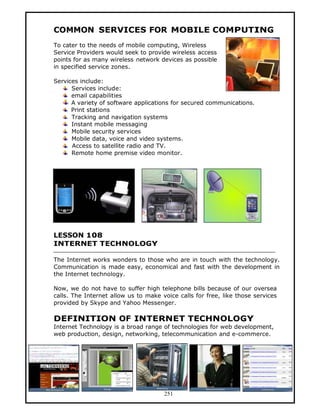
COMMON SERVICES FOR MOBILE COMPUTING
To cater to the needs of mobile computing, Wireless
Service Providers would seek to provide wireless access
points for as many wireless network devices as possible
in specified service zones.

Services include:
      Services include:
      email capabilities
      A variety of software applications for secured communications.
      Print stations
      Tracking and navigation systems
      Instant mobile messaging
      Mobile security services
      Mobile data, voice and video systems.
      Access to satellite radio and TV.
      Remote home premise video monitor.


LESSON 108
INTERNET TECHNOLOGY

The Internet works wonders to those who are in touch with the technology.
Communication is made easy, economical and fast with the development in
the Internet technology.

Now, we do not have to suffer high telephone bills because of our oversea
calls. The Internet allow us to make voice calls for free, like those services
provided by Skype and Yahoo Messenger.

DEFINITION OF INTERNET TECHNOLOGY
Internet Technology is a broad range of technologies for web development,
web production, design, networking, telecommunication and e-commerce.


                                      251
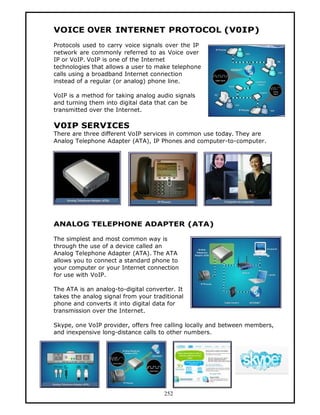
VOICE OVER INTERNET PROTOCOL (V0IP)
Protocols used to carry voice signals over the IP
network are commonly referred to as Voice over
IP or VoIP. VoIP is one of the Internet
technologies that allows a user to make telephone
calls using a broadband Internet connection
instead of a regular (or analog) phone line.

VoIP is a method for taking analog audio signals
and turning them into digital data that can be
transmitted over the Internet.

V0IP SERVICES
There are three different VoIP services in common use today. They are
Analog Telephone Adapter (ATA), IP Phones and computer-to-computer.


ANALOG TELEPHONE ADAPTER (ATA)

The simplest and most common way is
through the use of a device called an
Analog Telephone Adapter (ATA). The ATA
allows you to connect a standard phone to
your computer or your Internet connection
for use with VoIP.

The ATA is an analog-to-digital converter. It
takes the analog signal from your traditional
phone and converts it into digital data for
transmission over the Internet.

Skype, one VoIP provider, offers free calling locally and between members,
and inexpensive long-distance calls to other numbers.


                                      252
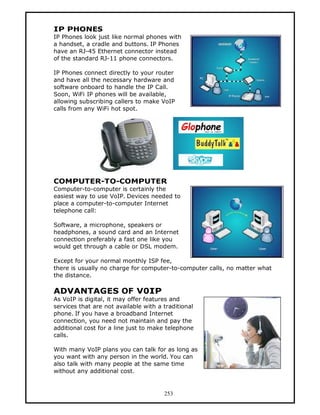
IP PHONES
IP Phones look just like normal phones with
a handset, a cradle and buttons. IP Phones
have an RJ-45 Ethernet connector instead
of the standard RJ-11 phone connectors.

IP Phones connect directly to your router
and have all the necessary hardware and
software onboard to handle the IP Call.
Soon, WiFi IP phones will be available,
allowing subscribing callers to make VoIP
calls from any WiFi hot spot.


COMPUTER-TO-COMPUTER
Computer-to-computer is certainly the
easiest way to use VoIP. Devices needed to
place a computer-to-computer Internet
telephone call:

Software, a microphone, speakers or
headphones, a sound card and an Internet
connection preferably a fast one like you
would get through a cable or DSL modem.

Except for your normal monthly ISP fee,
there is usually no charge for computer-to-computer calls, no matter what
the distance.

ADVANTAGES OF V0IP
As VoIP is digital, it may offer features and
services that are not available with a traditional
phone. If you have a broadband Internet
connection, you need not maintain and pay the
additional cost for a line just to make telephone
calls.

With many VoIP plans you can talk for as long as
you want with any person in the world. You can
also talk with many people at the same time
without any additional cost.


                                       253
DISADVANTAGES OF V0IP
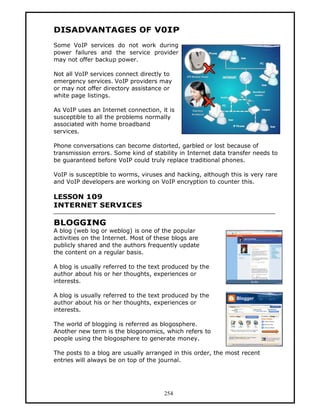
Some VoIP services do not work during
power failures and the service provider
may not offer backup power.

Not all VoIP services connect directly to
emergency services. VoIP providers may
or may not offer directory assistance or
white page listings.

As VoIP uses an Internet connection, it is
susceptible to all the problems normally
associated with home broadband
services.

Phone conversations can become distorted, garbled or lost because of
transmission errors. Some kind of stability in Internet data transfer needs to
be guaranteed before VoIP could truly replace traditional phones.

VoIP is susceptible to worms, viruses and hacking, although this is very rare
and VoIP developers are working on VoIP encryption to counter this.

LESSON 109
INTERNET SERVICES

BLOGGING
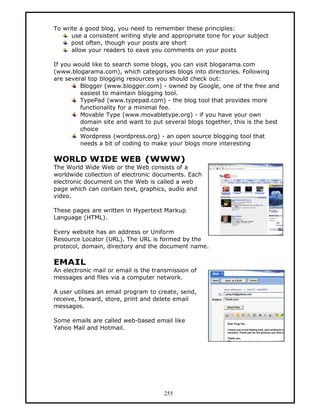
A blog (web log or weblog) is one of the popular
activities on the Internet. Most of these blogs are
publicly shared and the authors frequently update
the content on a regular basis.

A blog is usually referred to the text produced by the
author about his or her thoughts, experiences or
interests.

A blog is usually referred to the text produced by the
author about his or her thoughts, experiences or
interests.

The world of blogging is referred as blogosphere.
Another new term is the blogonomics, which refers to
people using the blogosphere to generate money.

The posts to a blog are usually arranged in this order, the most recent
entries will always be on top of the journal.


                                      254
To write a good blog, you need to remember these principles:
      use a consistent writing style and appropriate tone for your subject
      post often, though your posts are short
      allow your readers to eave you comments on your posts

If you would like to search some blogs, you can visit blogarama.com
(www.blogarama.com), which categorises blogs into directories. Following
are several top blogging resources you should check out:
         Blogger (www.blogger.com) - owned by Google, one of the free and
         easiest to maintain blogging tool.
         TypePad (www.typepad.com) - the blog tool that provides more
         functionality for a minimal fee.
         Movable Type (www.movabletype.org) - if you have your own
         domain site and want to put several blogs together, this is the best
         choice
         Wordpress (wordpress.org) - an open source blogging tool that
         needs a bit of coding to make your blogs more interesting

WORLD WIDE WEB (WWW)
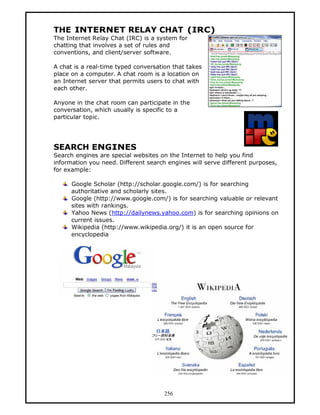
The World Wide Web or the Web consists of a
worldwide collection of electronic documents. Each
electronic document on the Web is called a web
page which can contain text, graphics, audio and
video.

These pages are written in Hypertext Markup
Language (HTML).

Every website has an address or Uniform
Resource Locator (URL). The URL is formed by the
protocol, domain, directory and the document name.

EMAIL
An electronic mail or email is the transmission of
messages and files via a computer network.

A user utilises an email program to create, send,
receive, forward, store, print and delete email
messages.

Some emails are called web-based email like
Yahoo Mail and Hotmail.


                                      255
THE INTERNET RELAY CHAT (IRC)
The Internet Relay Chat (IRC) is a system for
chatting that involves a set of rules and
conventions, and client/server software.

A chat is a real-time typed conversation that takes
place on a computer. A chat room is a location on
an Internet server that permits users to chat with
each other.

Anyone in the chat room can participate in the
conversation, which usually is specific to a
particular topic.


SEARCH ENGINES
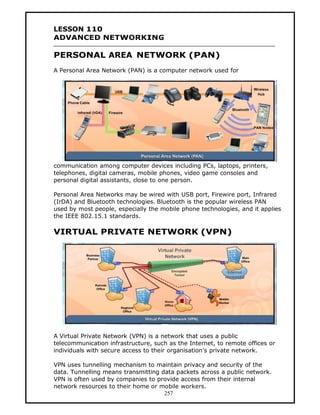
Search engines are special websites on the Internet to help you find
information you need. Different search engines will serve different purposes,
for example:

      Google Scholar (http://scholar.google.com/) is for searching
      authoritative and scholarly sites.
      Google (http://www.google.com/) is for searching valuable or relevant
      sites with rankings.
      Yahoo News (http://dailynews.yahoo.com) is for searching opinions on
      current issues.
      Wikipedia (http://www.wikipedia.org/) it is an open source for
      encyclopedia


                                      256
LESSON 110
ADVANCED NETWORKING

PERSONAL AREA NETWORK (PAN)
A Personal Area Network (PAN) is a computer network used for


communication among computer devices including PCs, laptops, printers,
telephones, digital cameras, mobile phones, video game consoles and
personal digital assistants, close to one person.

Personal Area Networks may be wired with USB port, Firewire port, Infrared
(IrDA) and Bluetooth technologies. Bluetooth is the popular wireless PAN
used by most people, especially the mobile phone technologies, and it applies
the IEEE 802.15.1 standards.

VIRTUAL PRIVATE NETWORK (VPN)


A Virtual Private Network (VPN) is a network that uses a public
telecommunication infrastructure, such as the Internet, to remote offices or
individuals with secure access to their organisation’s private network.

VPN uses tunnelling mechanism to maintain privacy and security of the
data. Tunnelling means transmitting data packets across a public network.
VPN is often used by companies to provide access from their internal
network resources to their home or mobile workers.
                                     257
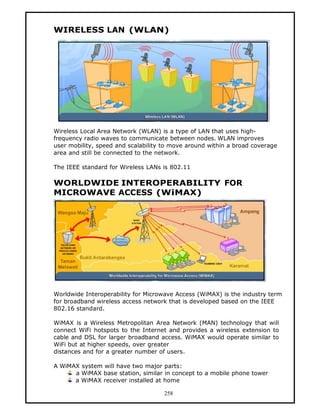
WIRELESS LAN (WLAN)


Wireless Local Area Network (WLAN) is a type of LAN that uses high-
frequency radio waves to communicate between nodes. WLAN improves
user mobility, speed and scalability to move around within a broad coverage
area and still be connected to the network.

The IEEE standard for Wireless LANs is 802.11

WORLDWIDE INTEROPERABILITY FOR
MICROWAVE ACCESS (WiMAX)


Worldwide Interoperability for Microwave Access (WiMAX) is the industry term
for broadband wireless access network that is developed based on the IEEE
802.16 standard.

WiMAX is a Wireless Metropolitan Area Network (MAN) technology that will
connect WiFi hotspots to the Internet and provides a wireless extension to
cable and DSL for larger broadband access. WiMAX would operate similar to
WiFi but at higher speeds, over greater
distances and for a greater number of users.

A WiMAX system will have two major parts:
      a WiMAX base station, similar in concept to a mobile phone tower
      a WiMAX receiver installed at home

                                     258

Form4 cd6

  • 1.
    LESSON 91 EXTRANET In thelate 1990’s and early 2000, several industries started to use the term “extranet”. It describes central repositories of shared data made accessible via the web only to authorised members of particular work groups. Currently extranet’s usages has expanded to even allowing customers and affiliates to access the web site of a company. WHAT IS EXTRANET An extranet is a private network that uses Internet technology and public telecommunications system to securely share relevant information with authorised parties. Only registered or authorised users can navigate or access the extranet. USES OF EXTRANET Extranet can be used to: Share product catalogues with wholesalers. Jointly develop programs with other companies. Provide access services given by one company to a group of other companies. Share news of common interest exclusively with partner companies. 198
  • 2.
    INTERNET AND EXTRANET LESSON92 COMMUNICATION DEVICES: HARDWARE REQUIREMENTS Communication devices are hardware components that enable a computer to send or receive data, instructions and information to and from one or more computers. Examples of communication devices are: Network Interface Card (NIC) Wireless Network Interface Card (WNIC) internal and external modem hub or switch router wireless access point NETWORK INTERFACE CARD A network card, sometimes pronounced as NICK, is an adapter card or PC card that enables the computer to access the network. 199
  • 3.
    WIRELESS NETWORK INTERFACE CARD WirelessNetwork Interface Card is a network card that provides wireless data transmission. NETWORK COMMUNICATION CHANNELS There are two types of modem, internal modem and external modem. An internal modem only works in stand-alone computers. It is built into the computer. An external modem is separated from the computer and is also mobile. HUB/SWITCH Hub or switch is a common connection point for devices in a network. Hubs are commonly used to connect segments of a LAN. 200
  • 4.
    ROUTER A router isa communications device that connects multiple computers or other routers together and transmits data to the correct destination. WIRELESS ACCESS POINT A wireless access point is central communications devices that allow computers to transfer data. This device can help information to be transferred wirelessly to other wireless devices or to a wired network. Wireless access point has high quality antennas for optimal signals. 201
  • 5.
    LESSON 93 FUNCTIONS OFCOMMUNICATION DEVICES NETWORK INTERFACE CARD A Network Interface Card is a piece of computer hardware designed to allow computers to communicate over a computer network. The card implements the electronic circuitry required to communicate using a specific physical layer and data link layer standard such as Ethernet or token ring. 202
  • 6.
    WIRELESS NETWORK INTERFACECARD A Wireless Network Interface Card or WNIC is a network card which connects to a radio-based computer network. WNIC is an essential component for wireless desktop computer. This card uses an antenna to communicate through microwaves. WNICs are designed around the IEEE 802.11 standard which sets out low-level specifications on how all wireless networks operate and can operate in two modes known as infrastructure mode and ad hoc mode. INFRASTRUCTURE MODE In an infrastructure mode network the WNIC needs an access point: all data is transferred using the access point as the central hub. All wireless nodes in an infrastructure mode network connect to an access point. All nodes connecting to the access point must have the same service set identifier as the access point. AD HOC MODE In an ad hoc mode network the WNIC does not require an access point, but can directly interface with all other wireless nodes directly. All the peer nodes in an ad hoc network must have the same channel and service set identifier. 203
  • 7.
    MODEM A modem isa device that enables a computer to transmit data over telephone or cable lines. Computer information is stored digitally, whereas information transmitted over telephone lines is transmitted in the form of analog waves. A modem converts between these two forms. HUB/SWITCH Hubs are commonly used to connect segments of a LAN. A hub contains multiple ports. When a packet arrives at one port, it is copied to the other ports so that all segments of the LAN can see all the packets. A hub connects all the devices on its ports together. A switch understands when two devices want to talk to each other, and gives them a switched connection. ROUTER A router is a computer networking device that forwards data packets across a network toward their destinations, through a process known as routing. A router acts as a junction between two or more networks to transfer data packets among them. In order to route packets, a router communicates with other routers using routing protocols. 204
  • 8.
    WIRELESS ACCESS POINT Awireless access point is a device that connects wireless communication devices together to form a wireless network. Wireless access point (or Wireless AP) usually connects to a wired network and can relay data between wireless devices and wired devices. Several Wireless APs can link together to form a larger network that allows “roaming“. Wireless access points have IP addresses for configuration. LESSON 94 TRANSMISSION MEDIUM In communications, transmission is the sending of electrical messages in the form of wave or energy. Transmission medium means any material substance which can propagate waves or energy. Computers and other telecommunication devices use signals in a form of wave or energy to represent data which are sent through a transmission media. 205
  • 9.
    TYPES OF TRANSMISSIONMEDIA Transmission media can be divided into two broad categories. The physical transmission media, or guided medium and the wireless transmission media. The twisted-pair cable, coaxial cable and fibre optic cable are examples of physical transmission media. Wireless transmission medium or unguided medium is through air. PHYSICAL TRANSMISSION MEDIUM In physical transmission medium, waves are guided along a solid transmission medium. Wireless transmission medium waves are unguided and the transmission and reception are by means of antennas. In our daily activities we probably use both media consciously or unconsciously. For example, we use physical transmission medium when we: connect a PC to a printer using parallel port or USB port connect a PC to the same phone line for Internet communication such as TMNET Streamyx. PCs are connected using twisted-pair cables to wall sockets in the office 206
  • 10.
    We use wirelesstransmission medium when we: listen to the radio talk over the telephone use hotspots that have wireless Internet access with WiFi technology at restaurants and airports. WIRELESS TRANSMISSION MEDIA Wireless data transmission means data communication between network devices without using cables or cords, but by using radio frequency or infrared waves. Wireless data transmission is categorised into short, medium and long range data transmission. An example for short range is Bluetooth or Infrared. Medium range data transmission is WiFi or wireless LAN and for long range it is 3G. 3G is a so-called “third-generation” broadband packet-based transmission of text, digitised voice, video, and multimedia at data rates up to and possibly higher than 2 megabits per second (Mbps), offering a consistent set of services to mobile computer and phone users no matter where they are located in the world. 3G works over wireless air interfaces. 207
  • 11.
    TRANSMISSION ENVIRONMENT In ourdaily activities, such as talking over the phone, sending short messages, sending email or uploading files to remote users, will likely involve a combination of transmission mediums along the way. The sender and the receiver will also involve many communication devices especially switches and routers. These devices are interconnected by transmission mediums that can be from any of the physical or wireless transmission mediums stated earlier. In network communications, it is common to represent the interconnection between devices as network clouds. LESSON 95 PHYSICAL TRANSMISSION MEDIA Physical transmission media refers to material substances that can propagate waves or energy. It is used to guide electrical messages from one end to the other. Ethernet and token ring LANs often use physical transmission media. 208
  • 12.
    CABLES AS APHYSICAL TRANSMISSION MEDIUM Cables are used as a physical transmission medium. There are three types of cables used in transmitting electrical messages. They are: Twisted-Pair Cable - Two insulated copper wires that are twisted around each other. Each connection on twisted-pair requires both wires. Coaxial Cable - A cable consisting of a conducting outer metal tube that encloses and is insulated from a central conducting core, used primarily for the transmission of high-frequency signals. Fibre Optic Cable - Glass fibre used for laser transmission of video, audio and/or data. TWISTED-PAIR CABLE The twisted-pair cable is generally a common form of transmission medium. It consists of two wires or conductors twisted together, each with its own plastic insulation. The twisted wires cancel out electromagnetic interference that can cause crosstalk, the noise generated by adjacent pairs. The most common connector used for twisted-pair cable is RJ-45. Electromagnetic A wave produced by the interaction of time-varying electric and magnetic fields. Crosstalk Undesired coupling of a signal from one circuit, part of a circuit, or channel, to another. RJ-45 Registered Jack-45 (RJ-45) is an eight-wire connector used commonly to connect computers onto Local Area Networks (LAN), especially Ethernets. 209
  • 13.
    TYPES OF TWISTEDPAIR CABLE The Unshielded Twisted-Pair or UTP is the most common twisted-pair cable used in communications. It has four pairs of colour-coded twisted-pair cables that are covered with a plastic outer jacket. UTP Cable Cables that consist of pairs of unshielded wire twisted together. It is the most common kind of copper telephone wiring. The Shielded Twisted-Pair or STP is another form of twisted-pair cable. Its four pairs of colour-coded wires are each wrapped in metallic foil, and all four are then collectively wrapped in a layer of metallic braid or foil. Finally, this layer is wrapped with a plastic outer jacket. STP Cable Twisted-pair cable wires that consist of an outer covering or shield. COAXIAL CABLE The coaxial cable, often referred to as ‘coax’, consists of a single copper wire surrounded by at least three layers. They are an insulating material, a woven or braided metal and a plastic outer coating. This cable is often used as cable television (CATV) network wiring because it can be cabled over longer distances in comparison to the twisted-pair cable. 210
  • 14.
    PART OF COAXIALCABLE The coaxial cable consists of a centre inner conductor of solid or stranded wire enclosed in an insulating sheath. The sheath is enclosed in an outer conductor of metal foil or a woven copper braid. This outer conductor is also enclosed in another insulating sheath, and the whole cable is protected by a plastic cover. The outer conductor acts as the second wire in the cable. It also acts as a shield for the inner conductor and helps reduce outside interference. CONNECTORS FOR THE COAXIAL CABLE The connector most commonly used in connecting a coaxial cable to a device is the BNC connector. BNC is short for British Naval Connector or Bayonet-Neill- Concelman. There are three popular BNC connectors. They are: BNC connector: used to connect devices such as the TV set BNC T connector: used in Ethernet networks BNC terminator: connected at the end of a cable to prevent the reflection of signals 211
  • 15.
    FIBRE OPTIC CABLE Thefibre optic cable is a networking medium that uses light for data transmission. The intensity of light is increased and decreased to represent binary one and zero. Its core consists of dozens or hundreds of thin strands of glass or plastic which uses light to transmit signals. Each strand, called an optical fibre, is as thin as a human hair. Transmission The act of sending electrical messages (and also radiant energy that passes through media.) Binary The binary system is a way of counting using just the two numbers 0 and 1. Optical Fibre A flexible optically transparent fibre, usually made of glass or plastic, through which light can be transmitted by successive internal reflections. PARTS OF A FIBRE OPTIC CABLE Inside a fibre optic cable, each optical fibre is clad with an insulating glass and a protective coating. Typically, a fibre optic cable has five parts. The core is the light transmission element. It is typically made of glass or plastic. Cladding surrounds the core. It is also made of glass or plastic but is less dense than the core. Buffer surrounds cladding. It is usually made of plastic and helps shields the core and cladding from being damaged. A strengthening material surrounds the buffer to prevent the fibre cable from being stretched when installers pull it. Outer jacket surrounds the cable to protect the fibre against abrasion, solvents and other contaminants. 212
  • 16.
    CONNECTORS OF AFIBRE OPTIC CABLE The most commonly used fibre optic connectors are SC, ST, FC and MT-RJ connectors. SC A fibre optic cable connector that uses a push-pull latching mechanism similar to common audio and video cables. ST A fibre optic cable connector that uses a bayonet plug and socket. FC A fibre optic cable connector that uses a threaded plug and socket. MT-RJ Mechanical Transfer Registered Jack (MT-RJ), a fibre optics connector popular for small form factor devices due to its small size. LESSON 96 WIRELESS TRANSMISSION MEDIA WIRELESS COMMUNICATION Wireless is a method of communication that uses electromagnetic waves rather than wire conductors to transmit data between devices. Wireless networks are telephone or computer networks that use radio frequencies and infrared waves as their carrier. 213
  • 17.
    The mediums usedin wireless communications are air, vacuum and even water. Air is the most commonly used medium. Signals are normally broadcasted through air and are available to anyone who has a device capable of receiving them. WIRELESS TECHNOLOGY The use of wireless technology as a method of data transport appears very similar to a wired technology. In a wireless media however, signal transmission is unguided and the device communicates without using wires between nodes, usually by relying on radio frequencies instead. WIRELESS TRANSMISSION Wireless transmission can be categorised into three broad groups: Radio Waves Microwaves Infrared 214
  • 18.
    RADIO WAVES There isno clear difference between radio waves and microwaves. Electromagnetic waves ranging in frequencies between 3 KHz and 1 GHz are normally called radio waves. Waves ranging in frequencies between 1 and 300 GHz are normally called microwaves. It is actually the behaviour of the waves rather than the frequencies that determines the classification of wireless transmission. RADIO WAVES SIGNALS Radio waves are normally omnidirectional. When an antenna transmits radio waves, they are propagated in all directions. This means that the sending and receiving antennas do not have to be aligned. The omnidirectional characteristics of radio waves make them useful for multicasting, in which there is one sender but many receivers. Our AM and FM radio stations, cordless phones and televisions are examples of multicasting. DISADVANTAGES OF USING RADIO WAVES Radio waves transmitted by one antenna are susceptible to interference by another antenna that is sending signals of the same frequency or band. 215
  • 19.
    MICROWAVES Electronic waves withfrequencies between 1 GHz to 300 GHz are normally called microwaves. Unlike radio waves, microwaves are unidirectional, in which the sending and receiving antennas need to be aligned. Microwaves propagation is line-of-sight therefore towers with mounted antennas need to be in direct sight of each other. Due to the unidirectional property of microwaves, a pair of antennas can be placed aligned together without interfering with another pair of antennas using the same frequency. Two types of antenna are used for microwave communications. They are the parabolic dish antenna and the horn antenna. The parabolic dish antenna receives ingoing transmissions by reflecting the signal to a common point called the focus. Outgoing transmissions are broadcasted through a horn antenna by deflecting signals outward in a series of narrow parallel beams. High-frequency microwaves cannot penetrate walls. This is why receiving antennas cannot be placed inside buildings. 216
  • 20.
    INFRARED Infrared is usedin devices such as the mouse, wireless keyboard and printers. Some manufacturers provide a special port called the IrDA port that allows a wireless keyboard to communicate with a PC. Infrared signals have frequencies between 300 GHz to 400 THz. They are used for short-range communication. INFRARED SIGNALS Infrared signals have high frequencies and cannot penetrate walls. Due to its short-range communication system, the use of an infrared communication system in one room will not be affected by the use of another system in the next room. This is why using an infrared TV remote control in our home will not interfere with the use of our neighbour’s infrared TV remote control. DISADVANTAGES OF USING INFRARED Infrared signals cannot be used for long distance communication. In addition, we cannot use infrared waves outside a building because sun’s rays contain infrared waves that can interfere with communication. 217
  • 21.
    LESSON 97 SERVER SOFTWARE Softwaresuch as Windows Server 2003, Windows NT and Red Hat Linux are some of the examples of server software. All of these software fall under the Network Operating System. DEFINITION OF NETWORK OPERATING SYSTEMS An operating system is the program that first loads when a computer boots and manages any other software or hardware on the computer. A Network Operating System or known as NOS, has additional functionality that allows it to connect computers and peripherals to a network. A Network Operating System is most frequently used with Local Area Networks and Wide Area Networks, but could also have application to larger network systems. A NOS is not the same as the networking tools provided by some existing operating systems, Windows XP for instance. NOS is an operating system that has been specifically written to keep networks running at optimal performance. EXAMPLES OF NETWORK OPERATING SYSTEMS Some popular Network Operating Systems include: Windows NT Windows 2000 Server Windows Server 2003 Red Hat Linux 218
  • 22.
    Windows NT isa family of operating systems produced by Microsoft, the first version of which was released in July 2003. It was the first 23-bit version of Windows. Windows XP and Windows Server 2003 are the latest versions of Windows NT. Windows 2000 (also referred to as Win2K or W2K) is graphical and business-oriented operating system. It is part of the Microsoft NT line of operating systems and was released on February 17, 2000. Windows 2000 comes in four versions which are Professional, Server, Advanced Server and Datacenter Server. Additionally, Microsoft offers Windows 2000 Advanced Server-Limited edition, which was released in 2001 and runs on 64-bit Intel Itanium Microprocessor. Windows Server 2003 is the name of Microsoft’s line of server operating systems. It was introduced in April 2003 as the successor to Windows 2000 Server. It is considered by Microsoft to be the cornerstone of their Windows Server System line of business server products. 219
  • 23.
    Red Hat Linuxwas one of the most popular Linux distributions, assembled by Red Hat. It is one of the “middle-aged” Linux distributions; 1.0 was released in November rd 3 , 1994. Since 2003, Red Hat has discontinued the Red Hat Linux line in favour of its new Red Hat Enterprise Linux. Red Hat Linux 9, the final release, ended on April 30th, 2004, although the Fedora Legacy project continues to publish updates. PEER-TO-PEER NETWORK OPERATING SYSTEMS Peer-to-peer Network Operating Systems allow users to share resources and files located on their computers. It is also for users to access shared resources found on other computers. However, they do not have a file server or a centralised management source. AppleShare and Windows for Workgroups are examples of programs that can function as peer-to- peer Network Operating System. 220
  • 24.
    CLIENT/SERVER NETWORKING OPERATING SYSTEM Client/serverNetwork Operating Systems allow the network to centralise functions and applications in one or more dedicated file servers. The file servers become the heart of the system, providing access to resources and providing security. Individual workstations or clients have access to the resources available on the file servers. The Network Operating System provides the mechanism to integrate all the components of the network and allow multiple users to simultaneously share the same resources irrespective of physical location. Novell Netware and Windows 2000 Server are examples of client or server Network Operating Systems. LESSON 98 CLIENT SOFTWARE 221
  • 25.
    FUNCTIONS OF WEBBROWSER A web browser is a software application that enables a user to display and interact with HTML documents hosted by web servers or held in a file system. Text and images on a web page can contain hyperlinks to other web pages at the same or to different websites. Web browser allow a user to quickly and easily access information provided on many web pages at many websites by surfing these links. Web browsers available for personal computer include Microsoft Internet Explorer, Safari, Netscape and Opera. Web browsers are the most commonly used type of Hypertext Transfer Protocol (HTTP) user agent. Although browsers are typically used to access the World Wide Web, they can also be used to access information provided by web servers in private networks or content in file systems. FUNCTIONS OF EMAIL CLIENT An email client is a computer program that is used to read and send email. FUNCTIONS OF FILE TRANSFER PROTOCOL (FTP) File Transfer Protocol (FTP) is used to connect two computers over the Internet so that the user of one computer can transfer files and perform file commands on the other computer. 222
  • 26.
    LESSON 99 SETTING NETWORKFACILITIES NETWORK INTERFACE CARD A computer, or any computing devices, needs a network interface to connect to a network and communicate with other devices on the network. A Network Interface Card or NIC is an expansion card that allows the transmission of data over a cable network. Also known as a network adapter card, it is an electronic circuit card that is inserted inside the computer. Installing NIC into computers enables the user to connect with other computers and share not only data but also other devices such as the server and printer. Once it is installed, you can connect the network cable from the computer to the switch or hub. Then, with some software configuration, your computer is ready for communication on the network. Inserting or installing a Network Interface card is not difficult. If you have installed a modem, a sound card, or a video controller card on your computer before, you will probably find it a simple task to install a Network Interface Card. CHECKING FOR A NETWORK INTERFACE CARD Check whether your PC already has a Network Interface Card by inspecting the back of the PC for a network socket. 223
  • 27.
    IDENTIFYING THE LOCATIONOF THE NETWORK INTERFACE CARD If your PC does not have a Network Interface Card, then you need to insert one. First you have to disconnect the power from your PC. You should remember the dangers of static electricity. Once the main power supply has been turned off, touch any metal part on your computer casing before starting your work. Second, carefully remove the casing or side panel of your PC. Select either the ISA (black) or PCI (white) slot, depending on the Network Interface Card you are using. Third, remove the back blank plate from behind the slot you have selected for the Network Interface Card. 224
  • 28.
    INSERTING THE NETWORKINTERFACE CARD Insert the Network Interface Card into the slot you have selected by firmly pressing the card down. Secure the card in place with the screw from the blanking plate. Replace the casing or side panel of your PC. Finally, boot the PC and install the driver. 225
  • 29.
    LESSON 100 INSTALLING NETWORKINTERFACE CARD (NIC) INSTALLING THE NIC DRIVER FOR WINDOWS 98 AND WINDOWS ME. Step 1: After inserting the Network Interface Card into its slot, the “Add New Hardware Wizard” should now appear. Click “Next” to continue. Step 2: Select Search for the better driver and click “Next” to continue. Step 3: Select “Specify a location” and browse to the location where your CD-ROM drive is located. Select “Next” to continue. Step 4: Windows will locate the correct driver for your device on the CD supplied by the library. Windows will also indicate that it is now ready to install the driver. Select “Next” to continue. The NIC driver is now properly installed. Restart the computer to complete the installation. 226
  • 30.
    INSTALLING THE NICDRIVER FOR WINDOWS 2000 Windows will indicate that it has found a new hardware after the NIC has been inserted into its slot. The “Found New Hardware Wizard” will then appear. Click “Next” to continue. Step 1: Select “Search for a suitable driver for my device (recommended)” and click “Next” to continue. Step 2: Select “CD-ROM Drives” and click “Next” to continue. Windows will now search for a suitable driver for your device. Step 3: Windows will locate the correct driver for your device and indicate that it is now ready to install the driver. Click “Next” to continue. The NIC driver is now properly installed. Restart the computer to complete the installation. 227
  • 31.
    INSTALLING THE NICDRIVER FOR WINDOWS XP Windows will indicate that it has found a new hardware after the NIC has been inserted into its slot. The “Found New Hardware Wizard” will then appear. Click “Next” to continue. Step 1: Select “Search for the best driver for my device (recommended)” and click “Next” to continue. Step 2: Select “CD-ROM Drives” and click “Next” to continue. Windows will now search for a suitable driver for your device. Step 3: Windows will locate the correct driver for your device and indicate that it is now ready to install the driver. Click “Next” to continue. The NIC driver is now properly installed. Restart the computer to complete the installation. 228
  • 32.
    INSTALLING A WIRELESSNETWORK INTERFACE CARD DRIVER Step 1: Place your client adapter in the PCI of your computer. Windows will indicate that it has found new hardware. The “Found New Hardware Wizard“ will then appear. Click “Next“ to continue. Step 2: Select “CD-ROM Drives” and click “Next” to continue. Windows will now search for a suitable driver for your device. The NIC driver is now properly installed. Restart the computer to complete the installation. 229
  • 33.
    LESSON 101 CRIMPING STRAIGHTCABLE STRAIGHT CABLE A network cable acts as an extension enabling a device with a Network Interface Card to be attached to a network. A common form of network media is the UTP CAT 5 known as Unshielded Twisted-Pair Category 5 cable. ITEMS FOR MAKING STRAIGHT CABLE CAT 5 CABLE CAT 5 cable has four twisted pairs of wire for a total of eight individually insulated wires. Each pair is colour coded with one wire having a solid colour: Blue Orange Green Brown Twisted around a second wire with a white background and a stripe of the same colour. RJ-45 The straight cable is terminated with CAT 5 RJ-45 (Jack) modular plug (RJ means Registered Jack). RJ-45 plug are similar to those you’ll see on the end of your telephone cable except they have eight contacts on the end of the plug and they are about twice as big. Make sure they are rated for CAT 5 wiring. 230
  • 34.
    CRIMP TOOL Crimp tool - to crimp RJ-45 connectors. CABLE STRIPPER Cable stripper — to cut and strip cables. CUTTERS Cutters - to cut the cable off at the reel and to fine tune the cable ends during assembly. CABLE CRIMPING PROCESS The total length of wire segments between a PC and a hub or between two PCs cannot exceed 100 Meters. Strip one end of the cable with the stripper or a cutter. If you are using the stripper, place the cable in the groove on the blade (left) side of the stripper and align the end of the cable with the right side of the stripper. Spread and arrange the pairs roughly: White/Green, Blue White/Blue, Green White/Brown, Brown White/Orange, Orange 231
  • 35.
    Trim the endsof the wires so they are even with one another. It is very important that the unstripped or untwisted end be slightly less than half-inch long. If it is longer than half-inch it will be out of its specifications and will cause crosstalk. If it is slightly less than half-inch long, it will not be properly clinched when RJ-45 plug is crimped on. There should be little or no space between the wires. 232
  • 36.
    Hold the RJ-45plug with the clip facing down or away from you. Push the wire firmly into the plug. Inspect it carefully. Looking through the bottom of the plug, the wire on the far left side will have a white background The wires should all end evenly at the front of the plug. Hold the wire near the RJ-45 plug with the clip down and firmly push it into the front-left of the crimper. Hold the wire in place and squeeze the crimper handles quite firmly. Crimp it once. Finally test the crimping result. Test the crimp strength. If it is done properly, an average person will not be able to pull the plug off the cable with his or her bare hands. 233
  • 37.
    LESSON 102 CRIMPING CROSSOVERCABLE This cable can be used to directly connect two computers to each other without the use of a hub or switch. TOOLS FOR CABLE CRIMPING What you need are some tools such as a cable, connectors, crimper, stripper and cutter. Be sure the cable you are using is properly rated for CAT 5. Crossover cables are terminated with CAT 5 RJ-45. STRIPPING CATEGORY 5 CABLE Start by stripping off about two inches (5cm) of the plastic jacket off the end of the cable. CATEGORY 5 CABLE Category 5 cable must only have half of an inch (1.3 cm) at the end. CUTTING CATEGORY 5 CABLE Begin to untwist the twisted exposed wires on your cable, be sure to hold onto the base of the jacket with your other hand. Once you have all the wires untwisted begin to arrange them in the proper order: White/Green, Green White/Orange, Blue White/Blue, Orange White/Brown, Brown 234
  • 38.
    Once you getall the wired arranged in the proper order, make sure your wire cutters are within reach then grasp at the point where they enter the jacket. Grab your cutters now. Line them up along your prepared wires about half an inch or 1.3 cm above the jacket. Be sure at this point that you are both half an inch or 1.3 cm above the jacket, and that your cutters are aligned straight across the wires. FITTING RJ-45 PLUG Take RJ-45 plugs and begin to slide the wires into the RJ-45 plugs. You might face some difficulties at this point, but have some patience and hold onto those wires. It will fit in there just fine. Once it is in as far as it will go the wires should extend almost to the front of the RJ-45 plugs, and about 3/8 of an inch or 2 cm of the jacket will be inside the RJ-45 plugs. CRIMPING CATEGORY 5 CABLE Be sure to keep a good grip on the RJ-45 plug and the cable. Insert the RJ-45 plug into the crimper. It should only go in one way, so you don’t have to worry about inserting it. Begin to compress those crimpers. You will hear a clicking sound. Keep squeezing. If you try to let go too early, nothing will happen. They will not release. Keep compressing until they stop clicking or stop moving all together. At this point, you should be able to let go of the RJ-45 plug and the crimpers. 235
  • 39.
    EXAMINING THE CRIMPEDCATEGORY 5 CABLE If you look at the end of the RJ-45 plug, you should see that the copper connectors should not be pressed down into the wires. Toward the back of the RJ-45 plug it should be crimped securely holding the jacket or cable in the RJ-45 plug. LESSON 103 CONFIGURATION OF NETWORK Step 1 The first step is to open the Control Panel window. Step 2 Select Network and Internet Connections. 236
  • 40.
    Step 3 Click onthe Network Connections icon. Step 4 Inside the Network Connections window, right click on Local Area Connection icon. Then click on Properties in the drop down menu. Step 5 (A) Make sure the TCP/IP is one of the items in the list of connection items. If TCP/IP is available, proceed to Step 6 If TCP/IP is not available, click on the Install button. Step 5 (B) In the next dialog box, Select Protocol and click Add… button. 237
  • 41.
    Once inside theProtocol dialog box, install the Internet Protocol (TCP/IP) Then, proceed to step 6. Step 6 In the next dialogue box, click on Internet Protocol (TCP/IP) icon. Then click on the properties button. Step 7 After the properties button is clicked, the Internet Protocol (TCP/IP) Properties window will appear. You will see details like IP address, Subnet mask and Default gateway. Subnet mask specifies the size of the network. Here, we usually use 255.255.255.0 for small networks. Gateways are used to connect to other networks and the Internet. 238
  • 42.
    Step 8 Select Use the following IP address . Fill in the network information given by your teacher for the following. IP address Subnet Mask Default Gateway (optional) Preferred DNS Server (optional) Click the OK button when done. Finally, close all windows. You must restart your computer before the setting take effect. LESSON 104 TESTING OF NETWORK Once you have installed the network card, cables and software, you can test the new TCP/IP protocol. Ping is the best utility for a TCP/IP connection test. TESTING OF NETWORK To use ping, open the Command Prompt window. Enter the name or IP address you want to test after the ping command. The ping utility then sends and receives packets of information. If you successfully sent and received packets, all is well with the TCP/IP connection. 239
  • 43.
    If ping displayserror messages such as: • request timed out • unknown host • could not send, receive packets over the network You should verify that the IP is valid. If the problem still persists, you have to check your network adapter or protocol. LESSON 105 SHARED FOLDER In Windows, Macintosh and other operating systems, a folder is a named collection of a related files that can be retrieved as on entity. Folders can contain many different types of file, such as documents, music, pictures, videos and programs. These files can be copied or moved to other folders, computers and even to the Internet. You can also create folders within folders. You can share the files and folders stored on your computer, and on your network. 240
  • 44.
    LESSON 106 WIRELESS ANDMOBILE Wireless and mobile technology allows you to access the Internet from wherever you are. You no longer have to be at home or in the office to check your email or browse the net. With wireless technology, you can get connected with anyone from anywhere. WIRELESS AND MOBILE COMMUNICATION Wireless is a term used to describe telecommunications that use electromagnetic waves rather than some form of wire to carry signal over part or the entire communication path. It refers to communication without cables or cords, but which chiefly uses radio frequency and infrared waves. This method of communication relies on low-powered radio waves to transmit data between devices. Wireless and mobile communications rely on IrDA and the wireless networking of computers. 241
  • 45.
    Wireless Wireless is aterm used to describe telecommunications that use electromagnetic waves rather than some form of wire to carry signal over part or the entire communication path. Telecommunication The science of information transport using wire, radio, optical, or electromagnetic channels to transmit and receive signals for voice or data communications. Electromagnetic Waves A wave produced by the interaction of time-varying electric and magnetic fields. Radio Frequency Frequency of electromagnetic waves used for radio and television broadcasting. Infrared Wave Electromagnetic waves in the frequency range just below visible light corresponding to radiated heat. IR waves are often used for remote controls. IrDA Infrared Data Association (IrDA) is an organisation that defines the infrared communications protocol. A protocol used by many laptops and mobile cellular phones to exchange data at short ranges. WIRELESS TECHNOLOGY Wireless technology is rapidly evolving, and is playing an increasingly important role in the lives of people throughout the world. An ever-larger number of people are relying on this technology both directly and indirectly. Specialised and exotic examples of wireless communications and control include: Global System for Mobile Communication General Packet Radio Service Enhanced Data GSM Environment Universal Mobile Telecommunications System Wireless Application Protocol i-Mode GSM Global System for Mobile Communications (GSM) is a globally accepted standard for digital cellular communications system i-Mode The Packet-based service for mobile phones offered by Japan’s leader in wireless technology, NTT DoCoMo 242
  • 46.
    GLOBAL SYSTEM FORMOBILE COMMUNICATION (GSM) Global System for Mobile Communication (GSM) is a digital mobile telephone system used in Europe and other parts of the world. It is the de facto (widely recognised) wireless telephone standard in Europe. de facto A specification that hasn’t been officially established by an accrediting agency but that is accepted and used as a standard by a majority of practitioners. GENERAL PACKET RADIO SERVICE (GPRS) General Packet Radio Service (GPRS) is a packet- based wireless communication service that provides continuous connection to the Internet for mobile phone and computer users. GPRS General Packet Radio Service (GPRS) is a standard for wireless communications which runs at speeds up to 115 kilobits per second. Packet The unit of data that is routed between an origin and a destination on the Internet or any other packet-switched network. ENHANCED DATA GSM ENVIRONMENT (EDGE) Enhanced Data GSM Environment (EDGE) is a faster version of the Global System for Mobile (GSM) wireless service. EDGE Enhanced Data rates for Global Evolution(EDGE) is a faster version to the Global System for Mobile (GSM) wireless service designed to deliver data at rates up to 384 Kbps. 243
  • 47.
    UNIVERSAL MOBILE TELECOMMUNICATIONS SYSTEM(UMTS) Universal Mobile Telecommunications System (UMTS) is a broadband, packet-based system. It offers a consistent set of services to mobile computer and phone users no matter where they are located in the world. UMTS Universal Mobile Telecommunications System (UMTS) is a third-generation (3G) broadband, packet-based transmission of text, digitised voice, video and multimedia at data rates up to 2 megabits per second (Mbps) and offers global roaming. Broadband Transmission over a network in which more than one signal is carried at a time. Broadband technology can transmit data, audio and video all at once over long distances. WIRELESS APPLICATION PROTOCOL (WAP) Wireless Application Protocol (WAP) is a set of communication protocols to standardise the way that wireless devices, such as cellular telephones and radio transceivers can be used for Internet access. Internet An international network first used to connect education and research networks, begun by the US government. The Internet now provides communication and application services to international-based businesses, consumers, educational institutions, governments, and research organisations. Transceiver A device that performs both transmitting and receiving functions. WAP Wireless Application Protocol (WAP) is a specification for a set of communication protocols to standardise the way wireless devices, such as cellular telephones and radio transceivers, can be used for Internet access. 244
  • 48.
    i-MODE i-Mode, the world’s first “smart phone service“ was first introduced in Japan. It not only provides colour and video over telephone sets but can also be used for Web browsing. Smart Phone A cellular telephone that provides digital voice service as well as any combination of e-mail, text messaging, pager, Web access, voice recognition as well as picture taking (camera phone). TYPES OF WIRELESS Wireless can be divided into four categories. They are: fixed wireless mobile wireless portable wireless IR wireless FIXED WIRELESS Fixed wireless is the operation of wireless devices or systems in homes and offices. Devices of fixed wireless are connected to the Internet via specialised modems. MOBILE WIRELESS Mobile wireless is the use of wireless devices or systems aboard motorised, moving vehicles. Examples of mobile wireless are the automotive cell phone. PORTABLE WIRELESS Portable wireless is the operation of autonomous, battery-powered wireless devices or systems outside the office, home or vehicle. An examples of portable wireless are cell phones. 245
  • 49.
    IR WIRELESS JR wirelessis the use of devices that convey data via JR (infrared) radiation and is employed in certain limited-range communications and control systems. LESSON 107 MOBILE COMPUTING Mobile computing is a generic term used to describe the ability to use technology to wirelessly connect to and use centrally located information and/or application software via small portable and wireless computing and communication devices. Nomadic computing is another name for mobile computing. Here, users can access the Jnternet and retrieve data from anywhere in the world, using portable computing devices (such as laptop and handheld computers) in conjunction with mobile communication technologies. People using such a system are sometimes referred to as technomads, and their ability to use that system is referred to as nomadicity. Nomadic Computing A computing environment which offers its user access to data or information from any device and network while he or she is in on the move. Nomadicity The tendency of a person, or group of people, to move with relative frequency. DEFINING MOBILE COMPUTING Mobile computing is about the new strategies of computing that utilise portable or mobile devices and wireless communication networks. There are various types of mobile computing devices. They include the notebook computer, tablet PC, handheld computer, PDA and smartphone. 246
  • 50.
    Tablet PC A wirelesspersonal computer (PC) that allows a user to take notes in his/her natural handwriting using a stylus or digital pen on a touch screen. PDA Handheld computer device used to organise personal information such as contacts and schedules. Data can usually be transferred to a desktop computer by cable or wireless transmission. Smartphone A cellular telephone that provides digital voice service as well as any combination of e-mail, text messaging, pager, Web access, voice recognition as well as picture taking (camera phone). Wireless communication technologies commonly used for mobile computing include the wireless LAN technology, WWAN technology, Bluetooth and IrDA interfaces. Mobile computing can be : Wireless and mobile access to the Internet. Wireless and mobile access to private intranets. Wireless and ad hoc mobile access between mobile computers. LAN A group of personal computers and/or other devices, such as printers or servers, that are located in a relatively limited area, such as an office, and can communicate and share information with each other. WWAN Wireless Wide Area Network (WWAN) is a form of wireless network that uses cellular network technologies such as GPRS,CDMA2000, GSM, CDPD and Mobitex to transfer data. Bluetooth A wireless networking technology using radio waves that enables users to send data and voice signals between electronic devices over short distances. 247
  • 51.
    TYPES OF MOBILECOMPUTING DEVICES NOTEBOOK COMPUTER A notebook computer or notebook is a small mobile personal computer, usually weighing from one to three kilograms. Using the technology from Symbionics Networks Ltd., a wireless LAN adapter can be made to fit on a PCMCIA card in a laptop or notebook computer to provide mobile computing. PCMCIA stands for Personal Computer Memory Card Industry Association. PCMCIA Personal Computer Memory Card International Association (PMCIA) is an industry group organised in 1989 to promote standards for a credit card-size memory or I/O device that would fit into a personal computer, usually a notebook or a laptop computer. TABLET PC A tablet PC is a notebook or slate- shaped mobile computer. Its digitising tablet technology allows the user to operate the computer using a stylus or digital pen and a touch screen instead of the usual keyboard and mouse. Most Tablet PCs offer built-in support for wireless networks. Stylus A writing device similar to a modern ballpoint pen to write text or draw lines on a surface as input to a computer or point to menus. Touch Screen Display overlays which are typically either pressure-sensitive (resistive), electrically-sensitive (capacitive), acoustically-sensitive (SAW - surface acoustic wave) or photo-sensitive (infra-red). The user selects, moves and draws by pointing to, and touching, the relevant part of the screen. 248
  • 52.
    PDA Personal digital assistantsor PDAs are handheld devices that were originally designed as personal organisers but became much more versatile over the years. Many PDAs can access the Internet, intranets or extranets via Wi-Fi or Wireless Wide-Area Networks or WWANs. SMART PHONE A smart phone is an electronic handheld device that integrates the functionality of a mobile phone and a personal digital assistant or PDA or other information appliance. This is often achieved by adding telephone functions to an existing PDA or PDA Phone or putting “smart” capabilities such as PDA functions into a mobile phone. TECHNOLOGIES FOR MOBILE COMPUTING WIRELESS LAN A wireless LAN is a technology that allow notebook users to connect to a Local Area Network (LAN) through a wireless (radio) connection. The IEEE 802.11 group of standards specifies technologies to be used for wireless LANs. WWAN WWAN, which stands for Wireless Wide Area Network, is a form of wireless network. Wireless Wide Area Network (WWAN) is a form of wireless network that uses cellular network technologies such as GPRS, CDMA2000, GSM, CDPD and Mobitex to transfer data. 249
  • 53.
    BLUETOOTH Bluetooth, also knownas IEEE 802.15.1, is a telecommunication industry specification for wireless Personal Area Networks or PANs. Bluetooth devices operate on a radio communication system. For two Bluetooth devices to communicate, they do not have to be in line-of-sight. In fact, they can even be in separate rooms, as long as the received power is high enough. Bluetooth transmits and receives data in a frequency band of 2.45 GHz. THE INFRARED DATA ASSOCIATION The Infrared Data Association or IrDA defines physical specifications of communication protocol standards for short range exchange of data over infrared light. This is used in Personal Area Networks (PANs). Among existing uses of IrDA and possible uses are: sending a document from a notebook computer to a printer exchanging business cards between handheld PCs coordinating schedules and telephone books between a desktop and network computers. PAN Personal Area Network (PAN) is a computer network used for communication among computer devices (including telephones and personal digital assistants) close to one person. 250
  • 54.
    COMMON SERVICES FORMOBILE COMPUTING To cater to the needs of mobile computing, Wireless Service Providers would seek to provide wireless access points for as many wireless network devices as possible in specified service zones. Services include: Services include: email capabilities A variety of software applications for secured communications. Print stations Tracking and navigation systems Instant mobile messaging Mobile security services Mobile data, voice and video systems. Access to satellite radio and TV. Remote home premise video monitor. LESSON 108 INTERNET TECHNOLOGY The Internet works wonders to those who are in touch with the technology. Communication is made easy, economical and fast with the development in the Internet technology. Now, we do not have to suffer high telephone bills because of our oversea calls. The Internet allow us to make voice calls for free, like those services provided by Skype and Yahoo Messenger. DEFINITION OF INTERNET TECHNOLOGY Internet Technology is a broad range of technologies for web development, web production, design, networking, telecommunication and e-commerce. 251
  • 55.
    VOICE OVER INTERNETPROTOCOL (V0IP) Protocols used to carry voice signals over the IP network are commonly referred to as Voice over IP or VoIP. VoIP is one of the Internet technologies that allows a user to make telephone calls using a broadband Internet connection instead of a regular (or analog) phone line. VoIP is a method for taking analog audio signals and turning them into digital data that can be transmitted over the Internet. V0IP SERVICES There are three different VoIP services in common use today. They are Analog Telephone Adapter (ATA), IP Phones and computer-to-computer. ANALOG TELEPHONE ADAPTER (ATA) The simplest and most common way is through the use of a device called an Analog Telephone Adapter (ATA). The ATA allows you to connect a standard phone to your computer or your Internet connection for use with VoIP. The ATA is an analog-to-digital converter. It takes the analog signal from your traditional phone and converts it into digital data for transmission over the Internet. Skype, one VoIP provider, offers free calling locally and between members, and inexpensive long-distance calls to other numbers. 252
  • 56.
    IP PHONES IP Phoneslook just like normal phones with a handset, a cradle and buttons. IP Phones have an RJ-45 Ethernet connector instead of the standard RJ-11 phone connectors. IP Phones connect directly to your router and have all the necessary hardware and software onboard to handle the IP Call. Soon, WiFi IP phones will be available, allowing subscribing callers to make VoIP calls from any WiFi hot spot. COMPUTER-TO-COMPUTER Computer-to-computer is certainly the easiest way to use VoIP. Devices needed to place a computer-to-computer Internet telephone call: Software, a microphone, speakers or headphones, a sound card and an Internet connection preferably a fast one like you would get through a cable or DSL modem. Except for your normal monthly ISP fee, there is usually no charge for computer-to-computer calls, no matter what the distance. ADVANTAGES OF V0IP As VoIP is digital, it may offer features and services that are not available with a traditional phone. If you have a broadband Internet connection, you need not maintain and pay the additional cost for a line just to make telephone calls. With many VoIP plans you can talk for as long as you want with any person in the world. You can also talk with many people at the same time without any additional cost. 253
  • 57.
    DISADVANTAGES OF V0IP SomeVoIP services do not work during power failures and the service provider may not offer backup power. Not all VoIP services connect directly to emergency services. VoIP providers may or may not offer directory assistance or white page listings. As VoIP uses an Internet connection, it is susceptible to all the problems normally associated with home broadband services. Phone conversations can become distorted, garbled or lost because of transmission errors. Some kind of stability in Internet data transfer needs to be guaranteed before VoIP could truly replace traditional phones. VoIP is susceptible to worms, viruses and hacking, although this is very rare and VoIP developers are working on VoIP encryption to counter this. LESSON 109 INTERNET SERVICES BLOGGING A blog (web log or weblog) is one of the popular activities on the Internet. Most of these blogs are publicly shared and the authors frequently update the content on a regular basis. A blog is usually referred to the text produced by the author about his or her thoughts, experiences or interests. A blog is usually referred to the text produced by the author about his or her thoughts, experiences or interests. The world of blogging is referred as blogosphere. Another new term is the blogonomics, which refers to people using the blogosphere to generate money. The posts to a blog are usually arranged in this order, the most recent entries will always be on top of the journal. 254
  • 58.
    To write agood blog, you need to remember these principles: use a consistent writing style and appropriate tone for your subject post often, though your posts are short allow your readers to eave you comments on your posts If you would like to search some blogs, you can visit blogarama.com (www.blogarama.com), which categorises blogs into directories. Following are several top blogging resources you should check out: Blogger (www.blogger.com) - owned by Google, one of the free and easiest to maintain blogging tool. TypePad (www.typepad.com) - the blog tool that provides more functionality for a minimal fee. Movable Type (www.movabletype.org) - if you have your own domain site and want to put several blogs together, this is the best choice Wordpress (wordpress.org) - an open source blogging tool that needs a bit of coding to make your blogs more interesting WORLD WIDE WEB (WWW) The World Wide Web or the Web consists of a worldwide collection of electronic documents. Each electronic document on the Web is called a web page which can contain text, graphics, audio and video. These pages are written in Hypertext Markup Language (HTML). Every website has an address or Uniform Resource Locator (URL). The URL is formed by the protocol, domain, directory and the document name. EMAIL An electronic mail or email is the transmission of messages and files via a computer network. A user utilises an email program to create, send, receive, forward, store, print and delete email messages. Some emails are called web-based email like Yahoo Mail and Hotmail. 255
  • 59.
    THE INTERNET RELAYCHAT (IRC) The Internet Relay Chat (IRC) is a system for chatting that involves a set of rules and conventions, and client/server software. A chat is a real-time typed conversation that takes place on a computer. A chat room is a location on an Internet server that permits users to chat with each other. Anyone in the chat room can participate in the conversation, which usually is specific to a particular topic. SEARCH ENGINES Search engines are special websites on the Internet to help you find information you need. Different search engines will serve different purposes, for example: Google Scholar (http://scholar.google.com/) is for searching authoritative and scholarly sites. Google (http://www.google.com/) is for searching valuable or relevant sites with rankings. Yahoo News (http://dailynews.yahoo.com) is for searching opinions on current issues. Wikipedia (http://www.wikipedia.org/) it is an open source for encyclopedia 256
  • 60.
    LESSON 110 ADVANCED NETWORKING PERSONALAREA NETWORK (PAN) A Personal Area Network (PAN) is a computer network used for communication among computer devices including PCs, laptops, printers, telephones, digital cameras, mobile phones, video game consoles and personal digital assistants, close to one person. Personal Area Networks may be wired with USB port, Firewire port, Infrared (IrDA) and Bluetooth technologies. Bluetooth is the popular wireless PAN used by most people, especially the mobile phone technologies, and it applies the IEEE 802.15.1 standards. VIRTUAL PRIVATE NETWORK (VPN) A Virtual Private Network (VPN) is a network that uses a public telecommunication infrastructure, such as the Internet, to remote offices or individuals with secure access to their organisation’s private network. VPN uses tunnelling mechanism to maintain privacy and security of the data. Tunnelling means transmitting data packets across a public network. VPN is often used by companies to provide access from their internal network resources to their home or mobile workers. 257
  • 61.
    WIRELESS LAN (WLAN) WirelessLocal Area Network (WLAN) is a type of LAN that uses high- frequency radio waves to communicate between nodes. WLAN improves user mobility, speed and scalability to move around within a broad coverage area and still be connected to the network. The IEEE standard for Wireless LANs is 802.11 WORLDWIDE INTEROPERABILITY FOR MICROWAVE ACCESS (WiMAX) Worldwide Interoperability for Microwave Access (WiMAX) is the industry term for broadband wireless access network that is developed based on the IEEE 802.16 standard. WiMAX is a Wireless Metropolitan Area Network (MAN) technology that will connect WiFi hotspots to the Internet and provides a wireless extension to cable and DSL for larger broadband access. WiMAX would operate similar to WiFi but at higher speeds, over greater distances and for a greater number of users. A WiMAX system will have two major parts: a WiMAX base station, similar in concept to a mobile phone tower a WiMAX receiver installed at home 258