Email Basics
•
   What is an email address
•
   How to create and access email
•
   Parts of an Email: address like, subject line, body,
•
   What an inbox, outbox, sent box is.
•
   Attach a document and open an attachment
•
   Create an address book and add names
•
   Ways to organize your emails.
•
   Tips for writing effective emails.
•
   Advanced parts of an email – CC, BCC, signature
What is Email?

• Compare email to regular mail: what are the basic similarities?

   • Means of exchanging message, sharing information, advertising, and more

   • They have the same parts: sender, recipient, message body, etc.

   • Both have Junk Mail :(

• Compare email to regular mail: How are they different?

   • Email is (almost) instantaneous

   • Email is free (you don’t need a stamp to send an email)
How do most people get their email addresses

• Your workplace gives you an email address
   • john.doe@gcsu.edu
   • johndoe@yourcompanyname.com
• Your internet service provider gives you
  one
   • johndoe@windstream.net
   • johndoe@cox.net
   • johndoe@bellsouth.net
• Using free services
   • johndoe@yahoo.com
   • johndoe@gmail.com
   • johndoe@hotmail.com
   • johndoe@rocketmail.com
Separate Work Email and Personal Email
Do not give your work email address to your friends. Do not give your
personal address to work people. Keep them very separate and distinct.


• Workplaces often monitor you accounts.


• Receiving personal email on the job may distract your from doing your job.


• If you change jobs, you’ll be without a way for people to contact you.
How to create an
email account
There are lots of free email
providers. We’re going to create
an email using gmail, Google’s
free email service
Step 1: Gmail.com
Type www.gmail.com in the
address bar of your browser.
Once you’re there, click “Create
an Account”
Step 2: Choose the
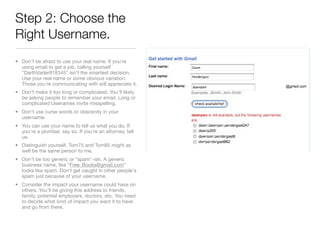
Right Username.
• Don't be afraid to use your real name. If you're
  using email to get a job, calling yourself
  "DarthVader918345" isn't the smartest decision.
  Use your real name or some obvious variation.
  Those you're communicating with will appreciate it.
• Don’t make it too long or complicated. You’ll likely
  be asking people to remember your email. Long or
  complicated Usenames invite misspelling.
• Don't use curse words or obscenity in your
  username.
• You can use your name to tell us what you do. If
  you're a plumber, say so. If you're an attorney, tell
  us.
• Distinguish yourself. Tom75 and Tom85 might as
  well be the same person to me.
• Don't be too generic or "spam"-ish. A generic
  business name, like "Free_Books@gmail.com"
  looks like spam. Don't get caught in other people's
  spam just because of your username.
• Consider the impact your username could have on
  others. You'll be giving this address to friends,
  family, potential employers, doctors, etc. You need
  to decide what kind of impact you want it to have
  and go from there.
Step 3: Choose a
Password
• Tips for creating a secure password:
    • Include punctuation marks and/or numbers.
    • Mix capital and lowercase letters.
    • Include similar looking substitutions, such
      as the number zero for the letter 'O' or '$'
      for the letter 'S'
    • Create a unique acronym.
    • Include phonetic replacements, such as
      'Luv 2 Laf' for 'Love to Laugh'.
• Things to avoid:
    • Don't use a password that contains
      personal information (name, birth date, etc.)
    • Don't use words or acronyms that can be
      found in a dictionary
    • Don't use keyboard patterns (asdf) or
      sequential numbers (1234).
    • Don't make your password all numbers,
      uppercase letters or lowercase letters.
    • Don't use repeating characters (aa11).
Step 4: Choose a
Security Question
Security questions are used in case you
forget your password. Google will ask
you to answer the security question
correctly before allowing you to access
your email.

  • Choose a question only you know the
    answer to - make sure the question
    isn't associated with your password.


  • Pick a question that can't be answered
    through research (for example, avoid
    your mother's maiden name, your birth
    date, your first or last name, your
    social security number, your phone
    number, your pet's name, etc.).


  • Make sure your answer is memorable,
    but not easy to guess. Use an answer
    that is a complete sentence for even
    more security.
Step 5: Word
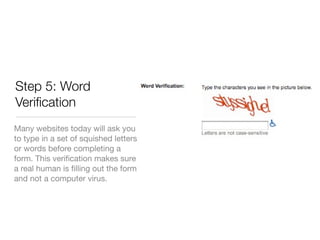
Verification
Many websites today will ask you
to type in a set of squished letters
or words before completing a
form. This verification makes sure
a real human is filling out the form
and not a computer virus.
Step 6: Terms of
Service
In order to receive a free email
from Google, you must agree to
their terms of service. This
includes how ads are displayed
on your page, the privacy policy
and the program.
You Have Email!
You’ve just received your free
gmail account. This page tells you
a little about some Gmail features.
Click “Show me my Account” to
get started!
Your Gmail Inbox
Look. We’ve already got 3
   emails in our inbox! The
 emails in Bold are the ones I
    haven’t opened yet.


Your Gmail Inbox
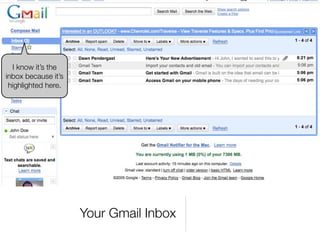
I know it’s the
inbox because it’s
 highlighted here.


                     Your Gmail Inbox
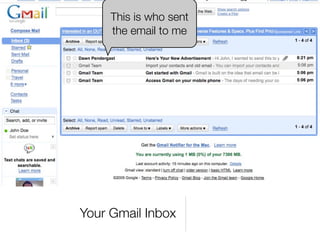
This is who sent
     the email to me


Your Gmail Inbox
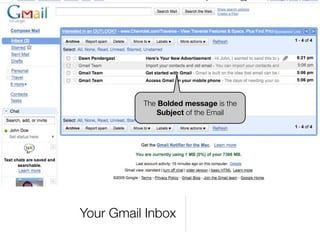
The Bolded message is the
             Subject of the Email


Your Gmail Inbox
The grey is the first part
                     of the email’s body.


Your Gmail Inbox
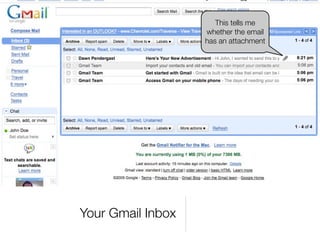
This tells me
                   whether the email
                   has an attachment


Your Gmail Inbox
It also tells you
                   when the email
                       was sent.


Your Gmail Inbox
Look. Here’s
 the ads they were
talking about in the
  terms of service.


                       Your Gmail Inbox
I can use this to search my
  mail or the entire internet


       Your Gmail Inbox
This tells you how many
                   emails are in your inbox.


Your Gmail Inbox
Open the email by
  clicking on it.


Your Gmail Inbox
Parts of an Email
This is the email
                   subject.


Parts of an Email
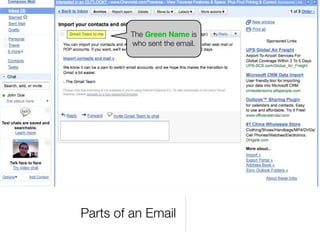
The Green Name is
        who sent the email.


Parts of an Email
This is the body of
                  the email.


Parts of an Email
To reply to the Gmail Team, you can click
 “Reply” or just start click in the box below.
This will automatically format a reply with a
“Re:Import your contacts and old email” as
            the subject of the email


             Parts of an Email
You can forward email to someone the
same way your might forward your postal
  mail. Forward messages will appear
“FW:Import your contacts and old email”


    Parts of an Email
Look. More
                       Ads.


Parts of an Email
Parts of an Email
You can click
 either link to
return to your
     inbox.


                  Parts of an Email
Opening an
Email Attachment
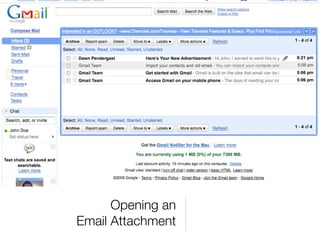
Let’s click on this
             email with an
              attachment


      Opening an
Email Attachment
Opening an
Email Attachment
Below the email body are the
                   email attachments. This email has
                    two attachments. A PDF and a
                   Word Document. To the left is the
                        size of the documents.

                       “K” stands for Kilobytes.
                      1000 Kilobytes make of up
                   MegaByte (MB). Google gives you
                     space for 7396 MBs of email
      Opening an               storage.

Email Attachment
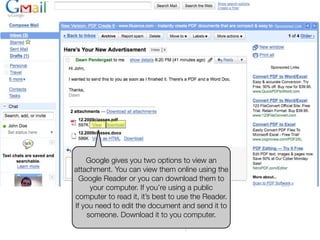
Google gives you two options to view an
attachment. You can view them online using the
  Google Reader or you can download them to
     your computer. If you’re using a public
computer to read it, it’s best to use the Reader.
      Opening an
If you need to edit the document and send it to
    someone. Download it to you computer.
Email Attachment
Let’s view the PDF with
the Google Reader first.
     Click on “view”


      Opening an
Email Attachment
The Google Reader is
          separate from your email
         and will automatically open
        a new window or tab in your
                   browser.

         You can read, search, print
          and download this PDF.


Google Reader
Downloading an
   Attachment
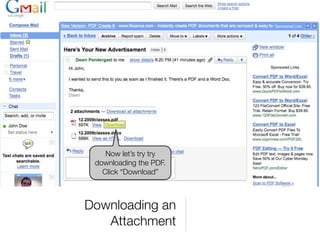
Now let’s try try
 downloading the PDF.
   Click “Download”


Downloading an
   Attachment
Downloading an
   Attachment
In order to download the PDF,
you’ll need to save it to a location
  on your computer. So toggle
           “Save File.”

  ****If you just open it, the file will
     be automatically saved to a
temporary location where you may
         not be able to find it.
               Downloading an
                  Attachment
Downloading an
   Attachment
Once you click “save,” the
 computer will pull up the places
you can save the document. Most
 people download documents to
 their desktops for easy access.
    Click “Desktop” on the left


                         Downloading an
                            Attachment
You can also change the title
        of the document before
                saving it.


Downloading an
   Attachment
When you’re ready,
                    click Save.
Downloading an
   Attachment
In order to view the
     attachment you’ll have
            to minimize
          (Don’t close it!)
     your browser and look
     for it on your desktop.


Downloading an
   Attachment
Downloading an
   Attachment
There’s the attachment saved on
          your Desktop.

 Now let’s try re-attach it to an
              email.

Go back to the Browser Window
    that you just minimized.


Downloading an
   Attachment
Downloading an
   Attachment
To write a completely new
    email (not a reply or a
forward), click “compose mail”


                       Downloading an
                          Attachment
Composing an Email
 with an Attachment
Dawnpen@gmail.com, heather.holder@gcsu.edu, milldred@mildredsplace.com


                                                              The “To:” line should contain
                                                                the email address you’re
                                                             sending the email to. You can
                                                               add more than one email
                                                             address by adding commas.


Composing an Email
 with an Attachment
Dawnpen@gmail.com, heather.holder@gcsu.edu, milldred@mildredsplace.com


   December Classes Schedule


    The Subject Line should
     summarize the email
     you’re about to write.


Composing an Email
 with an Attachment
Dawnpen@gmail.com, heather.holder@gcsu.edu, milldred@mildredsplace.com


               December Classes Schedule


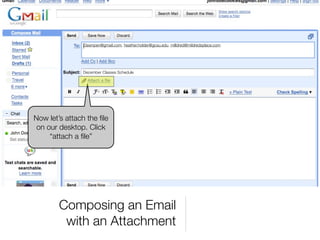
Now let’s attach the file
 on our desktop. Click
     “attach a file”


        Composing an Email
         with an Attachment

Email Curriculum

  • 1.
    Email Basics • What is an email address • How to create and access email • Parts of an Email: address like, subject line, body, • What an inbox, outbox, sent box is. • Attach a document and open an attachment • Create an address book and add names • Ways to organize your emails. • Tips for writing effective emails. • Advanced parts of an email – CC, BCC, signature
  • 2.
    What is Email? •Compare email to regular mail: what are the basic similarities? • Means of exchanging message, sharing information, advertising, and more • They have the same parts: sender, recipient, message body, etc. • Both have Junk Mail :( • Compare email to regular mail: How are they different? • Email is (almost) instantaneous • Email is free (you don’t need a stamp to send an email)
  • 3.
    How do mostpeople get their email addresses • Your workplace gives you an email address • john.doe@gcsu.edu • johndoe@yourcompanyname.com • Your internet service provider gives you one • johndoe@windstream.net • johndoe@cox.net • johndoe@bellsouth.net • Using free services • johndoe@yahoo.com • johndoe@gmail.com • johndoe@hotmail.com • johndoe@rocketmail.com
  • 4.
    Separate Work Emailand Personal Email Do not give your work email address to your friends. Do not give your personal address to work people. Keep them very separate and distinct. • Workplaces often monitor you accounts. • Receiving personal email on the job may distract your from doing your job. • If you change jobs, you’ll be without a way for people to contact you.
  • 5.
    How to createan email account There are lots of free email providers. We’re going to create an email using gmail, Google’s free email service
  • 6.
    Step 1: Gmail.com Typewww.gmail.com in the address bar of your browser. Once you’re there, click “Create an Account”
  • 7.
    Step 2: Choosethe Right Username. • Don't be afraid to use your real name. If you're using email to get a job, calling yourself "DarthVader918345" isn't the smartest decision. Use your real name or some obvious variation. Those you're communicating with will appreciate it. • Don’t make it too long or complicated. You’ll likely be asking people to remember your email. Long or complicated Usenames invite misspelling. • Don't use curse words or obscenity in your username. • You can use your name to tell us what you do. If you're a plumber, say so. If you're an attorney, tell us. • Distinguish yourself. Tom75 and Tom85 might as well be the same person to me. • Don't be too generic or "spam"-ish. A generic business name, like "Free_Books@gmail.com" looks like spam. Don't get caught in other people's spam just because of your username. • Consider the impact your username could have on others. You'll be giving this address to friends, family, potential employers, doctors, etc. You need to decide what kind of impact you want it to have and go from there.
  • 8.
    Step 3: Choosea Password • Tips for creating a secure password: • Include punctuation marks and/or numbers. • Mix capital and lowercase letters. • Include similar looking substitutions, such as the number zero for the letter 'O' or '$' for the letter 'S' • Create a unique acronym. • Include phonetic replacements, such as 'Luv 2 Laf' for 'Love to Laugh'. • Things to avoid: • Don't use a password that contains personal information (name, birth date, etc.) • Don't use words or acronyms that can be found in a dictionary • Don't use keyboard patterns (asdf) or sequential numbers (1234). • Don't make your password all numbers, uppercase letters or lowercase letters. • Don't use repeating characters (aa11).
  • 9.
    Step 4: Choosea Security Question Security questions are used in case you forget your password. Google will ask you to answer the security question correctly before allowing you to access your email. • Choose a question only you know the answer to - make sure the question isn't associated with your password. • Pick a question that can't be answered through research (for example, avoid your mother's maiden name, your birth date, your first or last name, your social security number, your phone number, your pet's name, etc.). • Make sure your answer is memorable, but not easy to guess. Use an answer that is a complete sentence for even more security.
  • 10.
    Step 5: Word Verification Manywebsites today will ask you to type in a set of squished letters or words before completing a form. This verification makes sure a real human is filling out the form and not a computer virus.
  • 11.
    Step 6: Termsof Service In order to receive a free email from Google, you must agree to their terms of service. This includes how ads are displayed on your page, the privacy policy and the program.
  • 12.
    You Have Email! You’vejust received your free gmail account. This page tells you a little about some Gmail features. Click “Show me my Account” to get started!
  • 13.
  • 14.
    Look. We’ve alreadygot 3 emails in our inbox! The emails in Bold are the ones I haven’t opened yet. Your Gmail Inbox
  • 15.
    I know it’sthe inbox because it’s highlighted here. Your Gmail Inbox
  • 16.
    This is whosent the email to me Your Gmail Inbox
  • 17.
    The Bolded messageis the Subject of the Email Your Gmail Inbox
  • 18.
    The grey isthe first part of the email’s body. Your Gmail Inbox
  • 19.
    This tells me whether the email has an attachment Your Gmail Inbox
  • 20.
    It also tellsyou when the email was sent. Your Gmail Inbox
  • 21.
    Look. Here’s theads they were talking about in the terms of service. Your Gmail Inbox
  • 22.
    I can usethis to search my mail or the entire internet Your Gmail Inbox
  • 23.
    This tells youhow many emails are in your inbox. Your Gmail Inbox
  • 24.
    Open the emailby clicking on it. Your Gmail Inbox
  • 25.
  • 26.
    This is theemail subject. Parts of an Email
  • 27.
    The Green Nameis who sent the email. Parts of an Email
  • 28.
    This is thebody of the email. Parts of an Email
  • 29.
    To reply tothe Gmail Team, you can click “Reply” or just start click in the box below. This will automatically format a reply with a “Re:Import your contacts and old email” as the subject of the email Parts of an Email
  • 30.
    You can forwardemail to someone the same way your might forward your postal mail. Forward messages will appear “FW:Import your contacts and old email” Parts of an Email
  • 31.
    Look. More Ads. Parts of an Email
  • 32.
  • 33.
    You can click either link to return to your inbox. Parts of an Email
  • 34.
  • 35.
    Let’s click onthis email with an attachment Opening an Email Attachment
  • 36.
  • 37.
    Below the emailbody are the email attachments. This email has two attachments. A PDF and a Word Document. To the left is the size of the documents. “K” stands for Kilobytes. 1000 Kilobytes make of up MegaByte (MB). Google gives you space for 7396 MBs of email Opening an storage. Email Attachment
  • 38.
    Google gives youtwo options to view an attachment. You can view them online using the Google Reader or you can download them to your computer. If you’re using a public computer to read it, it’s best to use the Reader. Opening an If you need to edit the document and send it to someone. Download it to you computer. Email Attachment
  • 39.
    Let’s view thePDF with the Google Reader first. Click on “view” Opening an Email Attachment
  • 40.
    The Google Readeris separate from your email and will automatically open a new window or tab in your browser. You can read, search, print and download this PDF. Google Reader
  • 41.
    Downloading an Attachment
  • 42.
    Now let’s trytry downloading the PDF. Click “Download” Downloading an Attachment
  • 43.
    Downloading an Attachment
  • 44.
    In order todownload the PDF, you’ll need to save it to a location on your computer. So toggle “Save File.” ****If you just open it, the file will be automatically saved to a temporary location where you may not be able to find it. Downloading an Attachment
  • 45.
    Downloading an Attachment
  • 46.
    Once you click“save,” the computer will pull up the places you can save the document. Most people download documents to their desktops for easy access. Click “Desktop” on the left Downloading an Attachment
  • 47.
    You can alsochange the title of the document before saving it. Downloading an Attachment
  • 48.
    When you’re ready, click Save. Downloading an Attachment
  • 49.
    In order toview the attachment you’ll have to minimize (Don’t close it!) your browser and look for it on your desktop. Downloading an Attachment
  • 50.
    Downloading an Attachment
  • 51.
    There’s the attachmentsaved on your Desktop. Now let’s try re-attach it to an email. Go back to the Browser Window that you just minimized. Downloading an Attachment
  • 52.
    Downloading an Attachment
  • 53.
    To write acompletely new email (not a reply or a forward), click “compose mail” Downloading an Attachment
  • 54.
    Composing an Email with an Attachment
  • 55.
    Dawnpen@gmail.com, heather.holder@gcsu.edu, milldred@mildredsplace.com The “To:” line should contain the email address you’re sending the email to. You can add more than one email address by adding commas. Composing an Email with an Attachment
  • 56.
    Dawnpen@gmail.com, heather.holder@gcsu.edu, milldred@mildredsplace.com December Classes Schedule The Subject Line should summarize the email you’re about to write. Composing an Email with an Attachment
  • 57.
    Dawnpen@gmail.com, heather.holder@gcsu.edu, milldred@mildredsplace.com December Classes Schedule Now let’s attach the file on our desktop. Click “attach a file” Composing an Email with an Attachment