INFORMATION COMMUNICATION TECHNOLOGY Term 2~ Week 4.3 Specific Objective ~ 2.1.2 Specific Objectives~2.1.3
Objectives Identify two features of the browser window. Browse the internet with the help of some features of the browser window
Required Previous Knowledge Students can mention the various bars within the MS Word Environment. E.g. Title bar, menu bar. Identify the type of application for browsing the internet.
REVIEW THE MS WORD ENVIRONMENT TOOLBARS AND MENU BAR
WEB BROWSERS
Web Browser Environment The browser window allows users to browser the internet or navigate through the web for information.  Popular web browsers are: Microsoft Internet Explorer Mozilla Firefox  Netscape Navigator
NETSCAPE NAVIGATOR (OPEN SOURCE)
 
MOZILLA FIREFOX (OPEN SOURCE)
 
INTERNET EXPLORER (CLOSED SOURCE)
 
Millions of users are exposed to it daily since it is the default browser for all Microsoft Windows System Software. It is loosing market share to other more powerful web browsers. Microsoft Internet Explorer
Usage Share of Web Browsers January 2008
THE WEB BROWSER ENVIRONMENT
Web Browser Environment As Microsoft Internet Explorer is the most popular web browser it will be the focus of our lessons and notes. As with Word Processors there are more similarities then differences between one web browser and another.
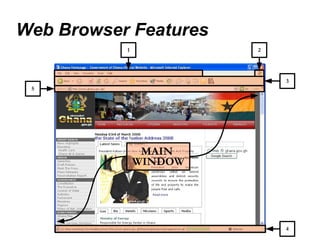
Web Browser Features Menu Bar Throbber Icon Standard Toolbar Stop Reload Forward Back Status Bar Address Bar  Main Window History Bookmarks / Favourites
Web Browser Features 1 5 4 3 MAIN  WINDOW 2
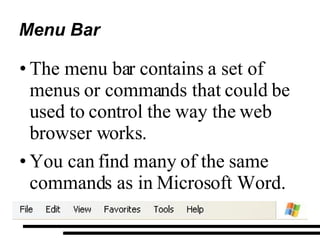
Menu Bar The menu bar contains a set of menus or commands that could be used to control the way the web browser works. You can find many of the same commands as in Microsoft Word.
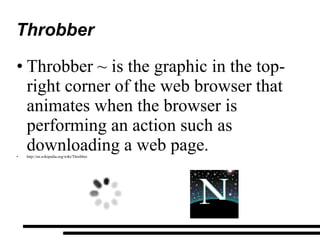
Throbber Throbber ~ is the graphic in the top-right corner of the web browser that animates when the browser is performing an action such as downloading a web page. http://en.wikipedia.org/wiki/Throbber
Standard Toolbar (1 of 5) Contains icons to common commands. Back Forward Stop Reload Home Page Search Favourites /  Bookmarks 1 2 3 4 5 6 7
Back / Forward Standard Toolbar (2 of 5) Back  ~ Returns to a  previously visited site. Forward  ~ Returns to a more recent visited site. Navigates forward or backward through the web pages you have visited. Similar to the UNDO and REDO Commands.
Stop / Reload Standard Toolbar (3 of 5) Stop  ~ Stops loading the current page. Useful if: The page has  "stalled"i.e. is taking a long time to load. There are  large images. Reload  ~ Retrieves the most recent version of the page. Useful if you . . . Had stopped loading the page. Viewing an older version of  the page.
Home Page Standard Toolbar (4 of 5) Takes you directly to the page set as the browsers default Home Page. For many web browsers this maybe: www.google.com www.yahoo.com www.bbc.co.uk
Search / Favourites / Bookmarks Standard Toolbar (5 of 5) Search  ~ Displays the search panel in the Explorer bar to look for a particular web page. Favourites  ~ Displays  a list of Favourites web pages you have bookmarked for quick access or adds a web page to this list.
Status Bar (1 of 3) Found at the bottom of the Window.  It shows information about the current web site.  The Status bar displays helpful information while you work.  1 2 3
Status Bar (2 of 3) Displays the location of the page. How much of the page has been downloaded. Shows you whether you are connected to the internet or off-line 1 2 3
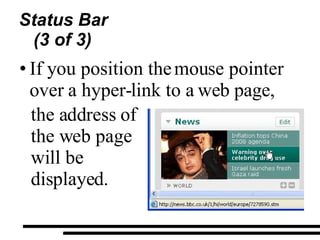
Status Bar (3 of 3) If you position the mouse pointer over a hyper-link to a web page,  the address of the web page will be displayed.
Shows the location of the web page you are currently browsing. Where you type the address/url of the web page you want to visit etc.  You can type a location and click the Go button to access a particular website. Address Bar
Main Window It is the main portion of the Internet Explorer environment. It displays the web page currently being viewed. MAIN  WINDOW
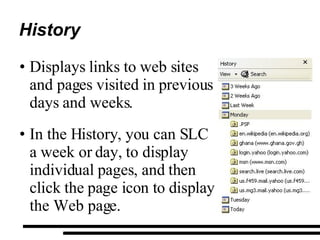
History Displays links to web sites and pages visited in previous days and weeks. In the History, you can SLC a week or day, to display individual pages, and then click the page icon to display the Web page.
History ~ 1 of 2 By The Numbers SLC VIEW on the Menu Bar, select EXPLORER BAR then History.  The History bar appears. SLC a week or day, then a Web site folder to display individual pages, and then click the page icon to display the Web page.
History ~ 2 of 2 By The Numbers To sort or search the History bar, click the arrow next to the View button at the top of the History bar.
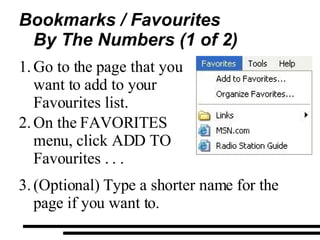
Bookmarks / Favourites To add a page to your list of favourite pages. To open one of your favourite pages, on the Favourites menu, click the page you want to open.  As your list of favourite pages grows, you can organise them by moving them into sub-folders.
Bookmarks / Favourites By The Numbers (1 of 2) Go to the page that you want to add to your Favourites list.  On the  FAVORITES  menu, click ADD TO Favourites . . . (Optional) Type a shorter name for the page if you want to.
Bookmarks / Favourites By The Numbers (2 of 2) To open one of your favourite pages, SLC on the Favourites  menu, and click the page you want to open. As your list of favourite pages  grows, you can organise them  by moving them into sub-folders
Hyper ~ Link Is a link / navigation element in a document to another section of the same document or to a different website. Typically identified as  being underlined . Changes colour when selected or if the link has already been clicked/visited. http://en.wikipedia.org/wiki/Hyper-link
DEMONSTRATION
Demonstration Browse the internet with the help of the features of the Browser window.  Review: Different mouse pointers and how they change while viewing the web Hyper-Link Static text / images.
HOME WORK
Home Work Identify 3 features of a web browser window  In your own words explain their functions.
QUESTIONS

Form 1 Term 2 Week 4.3

  • 1.
    INFORMATION COMMUNICATION TECHNOLOGYTerm 2~ Week 4.3 Specific Objective ~ 2.1.2 Specific Objectives~2.1.3
  • 2.
    Objectives Identify twofeatures of the browser window. Browse the internet with the help of some features of the browser window
  • 3.
    Required Previous KnowledgeStudents can mention the various bars within the MS Word Environment. E.g. Title bar, menu bar. Identify the type of application for browsing the internet.
  • 4.
    REVIEW THE MSWORD ENVIRONMENT TOOLBARS AND MENU BAR
  • 5.
  • 6.
    Web Browser EnvironmentThe browser window allows users to browser the internet or navigate through the web for information. Popular web browsers are: Microsoft Internet Explorer Mozilla Firefox Netscape Navigator
  • 7.
  • 8.
  • 9.
  • 10.
  • 11.
  • 12.
  • 13.
    Millions of usersare exposed to it daily since it is the default browser for all Microsoft Windows System Software. It is loosing market share to other more powerful web browsers. Microsoft Internet Explorer
  • 14.
    Usage Share ofWeb Browsers January 2008
  • 15.
    THE WEB BROWSERENVIRONMENT
  • 16.
    Web Browser EnvironmentAs Microsoft Internet Explorer is the most popular web browser it will be the focus of our lessons and notes. As with Word Processors there are more similarities then differences between one web browser and another.
  • 17.
    Web Browser FeaturesMenu Bar Throbber Icon Standard Toolbar Stop Reload Forward Back Status Bar Address Bar Main Window History Bookmarks / Favourites
  • 18.
    Web Browser Features1 5 4 3 MAIN WINDOW 2
  • 19.
    Menu Bar Themenu bar contains a set of menus or commands that could be used to control the way the web browser works. You can find many of the same commands as in Microsoft Word.
  • 20.
    Throbber Throbber ~is the graphic in the top-right corner of the web browser that animates when the browser is performing an action such as downloading a web page. http://en.wikipedia.org/wiki/Throbber
  • 21.
    Standard Toolbar (1of 5) Contains icons to common commands. Back Forward Stop Reload Home Page Search Favourites / Bookmarks 1 2 3 4 5 6 7
  • 22.
    Back / ForwardStandard Toolbar (2 of 5) Back ~ Returns to a previously visited site. Forward ~ Returns to a more recent visited site. Navigates forward or backward through the web pages you have visited. Similar to the UNDO and REDO Commands.
  • 23.
    Stop / ReloadStandard Toolbar (3 of 5) Stop ~ Stops loading the current page. Useful if: The page has "stalled"i.e. is taking a long time to load. There are large images. Reload ~ Retrieves the most recent version of the page. Useful if you . . . Had stopped loading the page. Viewing an older version of the page.
  • 24.
    Home Page StandardToolbar (4 of 5) Takes you directly to the page set as the browsers default Home Page. For many web browsers this maybe: www.google.com www.yahoo.com www.bbc.co.uk
  • 25.
    Search / Favourites/ Bookmarks Standard Toolbar (5 of 5) Search ~ Displays the search panel in the Explorer bar to look for a particular web page. Favourites ~ Displays a list of Favourites web pages you have bookmarked for quick access or adds a web page to this list.
  • 26.
    Status Bar (1of 3) Found at the bottom of the Window. It shows information about the current web site. The Status bar displays helpful information while you work. 1 2 3
  • 27.
    Status Bar (2of 3) Displays the location of the page. How much of the page has been downloaded. Shows you whether you are connected to the internet or off-line 1 2 3
  • 28.
    Status Bar (3of 3) If you position the mouse pointer over a hyper-link to a web page, the address of the web page will be displayed.
  • 29.
    Shows the locationof the web page you are currently browsing. Where you type the address/url of the web page you want to visit etc. You can type a location and click the Go button to access a particular website. Address Bar
  • 30.
    Main Window Itis the main portion of the Internet Explorer environment. It displays the web page currently being viewed. MAIN WINDOW
  • 31.
    History Displays linksto web sites and pages visited in previous days and weeks. In the History, you can SLC a week or day, to display individual pages, and then click the page icon to display the Web page.
  • 32.
    History ~ 1of 2 By The Numbers SLC VIEW on the Menu Bar, select EXPLORER BAR then History. The History bar appears. SLC a week or day, then a Web site folder to display individual pages, and then click the page icon to display the Web page.
  • 33.
    History ~ 2of 2 By The Numbers To sort or search the History bar, click the arrow next to the View button at the top of the History bar.
  • 34.
    Bookmarks / FavouritesTo add a page to your list of favourite pages. To open one of your favourite pages, on the Favourites menu, click the page you want to open. As your list of favourite pages grows, you can organise them by moving them into sub-folders.
  • 35.
    Bookmarks / FavouritesBy The Numbers (1 of 2) Go to the page that you want to add to your Favourites list. On the FAVORITES menu, click ADD TO Favourites . . . (Optional) Type a shorter name for the page if you want to.
  • 36.
    Bookmarks / FavouritesBy The Numbers (2 of 2) To open one of your favourite pages, SLC on the Favourites menu, and click the page you want to open. As your list of favourite pages grows, you can organise them by moving them into sub-folders
  • 37.
    Hyper ~ LinkIs a link / navigation element in a document to another section of the same document or to a different website. Typically identified as being underlined . Changes colour when selected or if the link has already been clicked/visited. http://en.wikipedia.org/wiki/Hyper-link
  • 38.
  • 39.
    Demonstration Browse theinternet with the help of the features of the Browser window. Review: Different mouse pointers and how they change while viewing the web Hyper-Link Static text / images.
  • 40.
  • 41.
    Home Work Identify3 features of a web browser window In your own words explain their functions.
  • 42.