Visual Basic 6 Programming. Lecture 6 : February 2005 Dr. Andrew Paul Myers
Week 6 – Data Files (A short addendum on arrays). Why use data files? File types.  Dealing with the filing system. Opening and closing files. Reading from and writing to files. Error trapping.
More on Arrays. Arrays in VB can be multidimensional. Dim sngData1(50,50) As Integer Dim strWords (10, 10, 1 To 20) As String How many elements are there in each of these arrays?
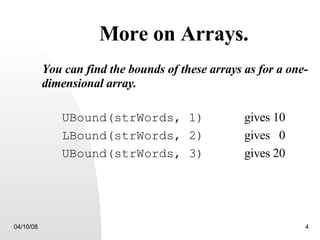
More on Arrays. You can find the bounds of these arrays as for a one-dimensional array. UBound(strWords, 1)   gives 10 LBound(strWords, 2)   gives  0 UBound(strWords, 3)   gives 20
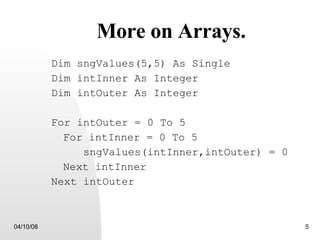
More on Arrays. Dim sngValues(5,5) As Single Dim intInner As Integer Dim intOuter As Integer For intOuter = 0 To 5 For intInner = 0 To 5 sngValues(intInner,intOuter) = 0 Next intInner Next intOuter
Why use data files? Programming can be slow and painful. Programs are useful if they can be used repetitively for different data. Putting data in the code is very restrictive. Typing in numbers to a textbox is little better. Data is often available in digital form from a source.
Data File Types. File Contents: Text files (ASCII codes). C omma  S eparated  V ariable   (CSV) files, a type of text file. Binary files. Written for compactness of data and speed. File Access: Sequential. Random Access (only applies to binary files).
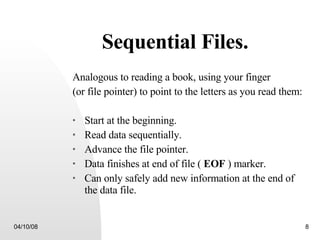
Sequential Files. Analogous to reading a book, using your finger  (or file pointer) to point to the letters as you read them: Start at the beginning. Read data sequentially. Advance the file pointer. Data finishes at end of file (  EOF  ) marker. Can only safely add new information at the end of the data file.
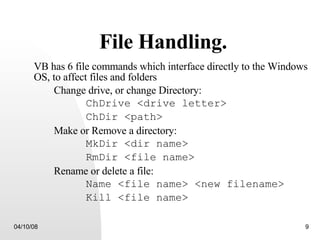
File Handling. VB has 6 file commands which interface directly to the Windows OS, to affect files and folders Change drive, or change Directory: ChDrive <drive letter> ChDir <path> Make or Remove a directory: MkDir <dir name> RmDir <file name> Rename or delete a file: Name <file name> <new filename> Kill <file name>
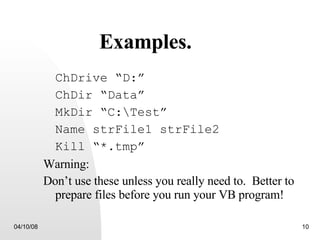
Examples. ChDrive “D:” ChDir “Data” MkDir “C:\Test” Name strFile1 strFile2 Kill “*.tmp” Warning: Don’t use these unless you really need to.  Better to prepare files before you run your VB program!
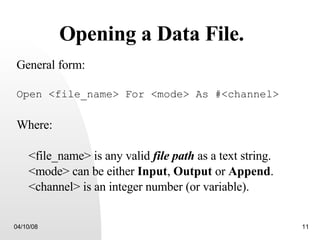
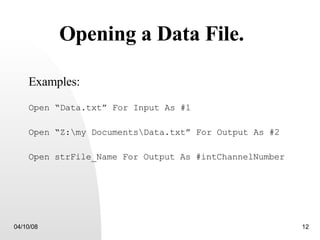
Opening a Data File. General form: Open <file_name> For <mode> As #<channel> Where: <file_name> is any valid  file path  as a text string. <mode> can be either  Input ,  Output  or  Append . <channel> is an integer number (or variable).
Opening a Data File. Examples: Open “Data.txt” For Input As #1 Open “Z:\my Documents\Data.txt” For Output As #2 Open strFile_Name For Output As #intChannelNumber
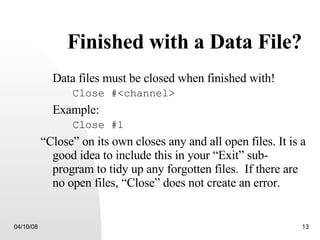
Finished with a Data File? Data files must be closed when finished with! Close #<channel> Example: Close #1 “ Close” on its own closes any and all open files. It is a good idea to include this in your “Exit” sub-program to tidy up any forgotten files.  If there are no open files, “Close” does not create an error.
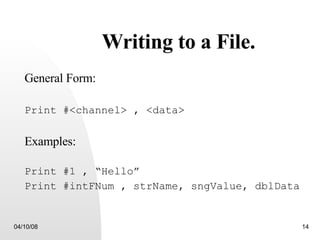
Writing to a File. General Form: Print #<channel> , <data> Examples: Print #1 , “Hello” Print #intFNum , strName, sngValue, dblData
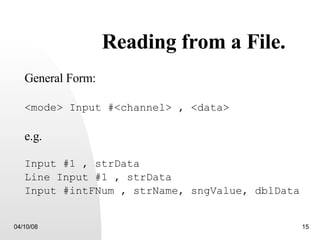
Reading from a File. General Form: <mode> Input #<channel> , <data> e.g. Input #1 , strData Line Input #1 , strData  Input #intFNum , strName, sngValue, dblData
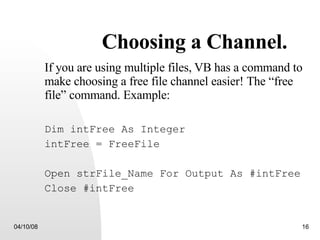
Choosing a Channel. If you are using multiple files,   VB has a command to make choosing a free file channel easier! The “free file” command. Example: Dim intFree As Integer intFree = FreeFile Open strFile_Name For Output As #intFree Close #intFree
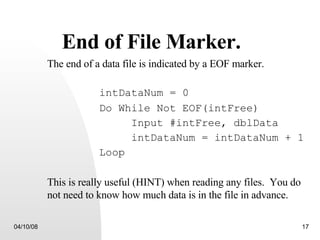
End of File Marker. The end of a data file is indicated by a EOF marker. intDataNum = 0 Do While Not EOF(intFree) Input #intFree, dblData intDataNum = intDataNum + 1 Loop This is really useful (HINT) when reading any files.  You do not need to know how much data is in the file in advance.
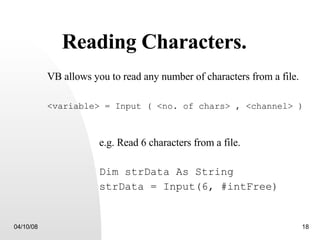
Reading Characters. VB allows you to read any number of characters from a file. <variable> = Input ( <no. of chars> , <channel> ) e.g. Read 6 characters from a file. Dim strData As String strData = Input(6, #intFree)
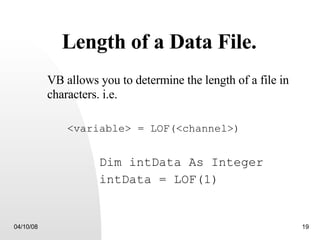
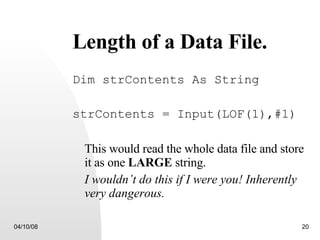
Length of a Data File. VB allows you to determine the length of a file in characters. i.e. <variable> = LOF(<channel>) Dim intData As Integer intData = LOF(1)
Length of a Data File. Dim strContents As String strContents = Input(LOF(1),#1) This would read the whole data file and store it as one  LARGE  string.  I wouldn’t do this if I were you! Inherently very dangerous.
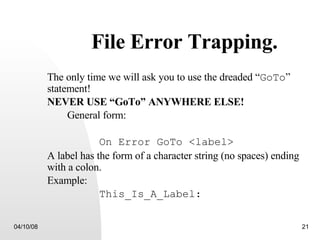
File Error Trapping. The only time we will ask you to use the dreaded “ GoTo ” statement!  NEVER USE “GoTo” ANYWHERE ELSE! General form: On Error GoTo <label> A label has the form of a character string (no spaces) ending with a colon. Example: This_Is_A_Label:
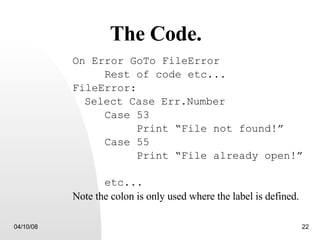
The Code. On Error GoTo FileError Rest of code etc... FileError: Select Case Err.Number Case 53 Print “File not found!” Case 55 Print “File already open!” etc... Note the colon is only used where the label is defined.

1

  • 1.
    Visual Basic 6Programming. Lecture 6 : February 2005 Dr. Andrew Paul Myers
  • 2.
    Week 6 –Data Files (A short addendum on arrays). Why use data files? File types. Dealing with the filing system. Opening and closing files. Reading from and writing to files. Error trapping.
  • 3.
    More on Arrays.Arrays in VB can be multidimensional. Dim sngData1(50,50) As Integer Dim strWords (10, 10, 1 To 20) As String How many elements are there in each of these arrays?
  • 4.
    More on Arrays.You can find the bounds of these arrays as for a one-dimensional array. UBound(strWords, 1) gives 10 LBound(strWords, 2) gives 0 UBound(strWords, 3) gives 20
  • 5.
    More on Arrays.Dim sngValues(5,5) As Single Dim intInner As Integer Dim intOuter As Integer For intOuter = 0 To 5 For intInner = 0 To 5 sngValues(intInner,intOuter) = 0 Next intInner Next intOuter
  • 6.
    Why use datafiles? Programming can be slow and painful. Programs are useful if they can be used repetitively for different data. Putting data in the code is very restrictive. Typing in numbers to a textbox is little better. Data is often available in digital form from a source.
  • 7.
    Data File Types.File Contents: Text files (ASCII codes). C omma S eparated V ariable (CSV) files, a type of text file. Binary files. Written for compactness of data and speed. File Access: Sequential. Random Access (only applies to binary files).
  • 8.
    Sequential Files. Analogousto reading a book, using your finger (or file pointer) to point to the letters as you read them: Start at the beginning. Read data sequentially. Advance the file pointer. Data finishes at end of file ( EOF ) marker. Can only safely add new information at the end of the data file.
  • 9.
    File Handling. VBhas 6 file commands which interface directly to the Windows OS, to affect files and folders Change drive, or change Directory: ChDrive <drive letter> ChDir <path> Make or Remove a directory: MkDir <dir name> RmDir <file name> Rename or delete a file: Name <file name> <new filename> Kill <file name>
  • 10.
    Examples. ChDrive “D:”ChDir “Data” MkDir “C:\Test” Name strFile1 strFile2 Kill “*.tmp” Warning: Don’t use these unless you really need to. Better to prepare files before you run your VB program!
  • 11.
    Opening a DataFile. General form: Open <file_name> For <mode> As #<channel> Where: <file_name> is any valid file path as a text string. <mode> can be either Input , Output or Append . <channel> is an integer number (or variable).
  • 12.
    Opening a DataFile. Examples: Open “Data.txt” For Input As #1 Open “Z:\my Documents\Data.txt” For Output As #2 Open strFile_Name For Output As #intChannelNumber
  • 13.
    Finished with aData File? Data files must be closed when finished with! Close #<channel> Example: Close #1 “ Close” on its own closes any and all open files. It is a good idea to include this in your “Exit” sub-program to tidy up any forgotten files. If there are no open files, “Close” does not create an error.
  • 14.
    Writing to aFile. General Form: Print #<channel> , <data> Examples: Print #1 , “Hello” Print #intFNum , strName, sngValue, dblData
  • 15.
    Reading from aFile. General Form: <mode> Input #<channel> , <data> e.g. Input #1 , strData Line Input #1 , strData Input #intFNum , strName, sngValue, dblData
  • 16.
    Choosing a Channel.If you are using multiple files, VB has a command to make choosing a free file channel easier! The “free file” command. Example: Dim intFree As Integer intFree = FreeFile Open strFile_Name For Output As #intFree Close #intFree
  • 17.
    End of FileMarker. The end of a data file is indicated by a EOF marker. intDataNum = 0 Do While Not EOF(intFree) Input #intFree, dblData intDataNum = intDataNum + 1 Loop This is really useful (HINT) when reading any files. You do not need to know how much data is in the file in advance.
  • 18.
    Reading Characters. VBallows you to read any number of characters from a file. <variable> = Input ( <no. of chars> , <channel> ) e.g. Read 6 characters from a file. Dim strData As String strData = Input(6, #intFree)
  • 19.
    Length of aData File. VB allows you to determine the length of a file in characters. i.e. <variable> = LOF(<channel>) Dim intData As Integer intData = LOF(1)
  • 20.
    Length of aData File. Dim strContents As String strContents = Input(LOF(1),#1) This would read the whole data file and store it as one LARGE string. I wouldn’t do this if I were you! Inherently very dangerous.
  • 21.
    File Error Trapping.The only time we will ask you to use the dreaded “ GoTo ” statement! NEVER USE “GoTo” ANYWHERE ELSE! General form: On Error GoTo <label> A label has the form of a character string (no spaces) ending with a colon. Example: This_Is_A_Label:
  • 22.
    The Code. OnError GoTo FileError Rest of code etc... FileError: Select Case Err.Number Case 53 Print “File not found!” Case 55 Print “File already open!” etc... Note the colon is only used where the label is defined.