File System Discovery
          BY

    Mohamed Elshawaf
Question ?

•
    What do you know
          about
            •


      File System ?
            •
What is file system ?

●
    Method of storing and organizing computer files
      and their data.
●
    Essentially, it organizes these files into a
    database for the storage, organization,
    manipulation, and retrieval by the computer's
    operating system.


    Eg:- fat, ntfs, ext4, ext3.......
What is file system hierarchy ?


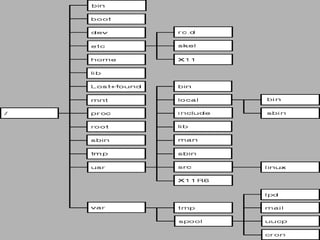
    To put it simply, it can be visualized as
    a tree with its roots and all.

    At the top of the hierarchy is invariably
    the root path which is represented by '/' and all other directories
     are created beneaththis root path in linux.
Different from Windows

    .Windows starts with drives, which are
•
     explicit
•
     – C:
•
     – D:
Root !!

•In Windows, every drive has its own
root C: is the root of the C drive
•In Linux, there is only one root, no
matter how many drives you may have
•– In Linux, / is the root
•Root is ambiguous in one respect, since
it can refer to the top of the file
structure, and is also the name of the
Administrator type account in Linux.
Attention
•Windows    uses a backslash for everything
•Linux uses a forward slash for everything
•In Windows, the logical drive (e.g. C:) is an
important part of the directory structure
•In Linux, logical drives don't mean much. You
can even mount a separate
•physical drive under a directory that is on
another drive.
•In Windows, case does not matter
•In Linux, everything is case sensitive.
Drives vs. directories


•In    Windows, drives are directories

•In    Linux, you can have several drives

•all   under one overall directory
Standard?


•Distros   can vary, but so can programs

•When   you install a program, it may not
follow the FHS in deciding where to
place its files
/

•This is the symbol for the root of the file
system in Linux
•Every directory is “under” root,
ultimately
•This is not the same as the user “root”,
which is the user with God-like powers
over the system
•The user “root” does have a directory,
called /root
Let’s
Zoooooooooooom
/bin

•Contains   many of the commands used
on the command line
•Examples include cat, chmod,dmesg,
kill, ls, mkdir more, ps, pwd, sed, su
•the above commands, and many
others, must be in /bin to meet the
standard.
•Other commands can be optionally
included, such as tar. gzip, netstat, and
ping
/boot

•Contains   files needed for boot
•
 – kernel
•
 – Grub menu (good to know if you are
dualbooting)
•
 – Lilo boot sector backups
•Contains data that is used before the
kernel starts executing user-mode
programs
/dev

•Kinda-sortaan equivalent to a mashup
of the Device Manager and
C:WindowsSystem in Windows

•Containsa file describing every device,
and these files can send data to each
device

•InLinux, everything is a file or a
directory
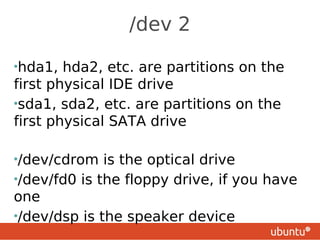
/dev 2

•hda1,  hda2, etc. are partitions on the
first physical IDE drive
•sda1, sda2, etc. are partitions on the
first physical SATA drive

•/dev/cdrom   is the optical drive
•/dev/fd0 is the floppy drive, if you have
one
•/dev/dsp is the speaker device
/etc
•Perhaps    the most important to understand

•No   binaries can be here, per the standard

•This   is just for configuration files

•Examples include /etc/inittab, /etc/fstab ,
/etc/passwd , /etc/hosts, /etc/x11, and /etc/opt
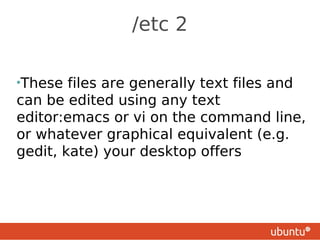
/etc 2

•These  files are generally text files and
can be edited using any text
editor:emacs or vi on the command line,
or whatever graphical equivalent (e.g.
gedit, kate) your desktop offers
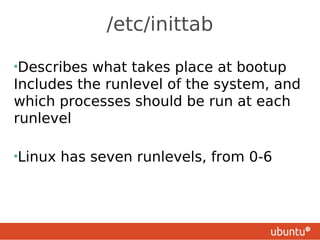
/etc/inittab

•Describes what takes place at bootup
Includes the runlevel of the system, and
which processes should be run at each
runlevel

•Linux   has seven runlevels, from 0-6
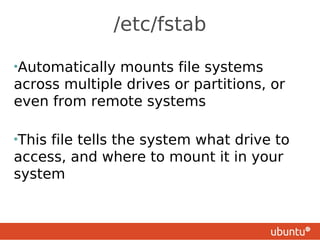
/etc/fstab

•Automatically mounts file systems
across multiple drives or partitions, or
even from remote systems

•Thisfile tells the system what drive to
access, and where to mount it in your
system
/etc/fstab

•Automatically mounts file systems
across multiple drives or partitions, or
even from remote systems

•Thisfile tells the system what drive to
access, and where to mount it in your
system
/etc/hosts

•This
    is the famous hosts file, which
matches up names with IP addresses

•Thisis like level 1 DNS. The system
looks here first.

•Thiscan be used to block sites by
putting their URL in here
/etc/passwd

•This is the password file, but it contains
more: user name, user password, user
ID, group ID, home directory, and shell.
•It can optionally contain the user's “real
name”
•Each user is on its own line
•Each user can select the shell they want
to use (most use bash these days)
/etc/opt/


•This  is a directory for the configuration
files for each system application you
install.

•Each application gets its own
subdirectory under /etc/opt/
/etc/x11

•Configuration   directory for x11, which is
the display system for graphical
interfaces in Linux
•This can vary with different distros, so
again you need to check
•/etc/x11/xorg.conf is the configuration
file that lets you specify the resolutions
your monitor and graphics card can
display, for instance
/home

•This  is where the home directories for
all of the “ordinary” users are located.
•The exception is root, which has its own
home directory, /root/
•Each user gets a directory with their
user name: e.g. /home/devmix
•This can contain configuration files for
applications that are user-specific
/home Partition?

•Your   home directory is where you
•would place all of your documents,
videos, MP3s, etc.
•It can get fairly large
•It is also the stuff you want to back up,
and you don't want to lose
•Putting it on its own partition, or even
its own physical drive, is not a bad idea
Reinstalling


•If
  you have a separate /home partition,
you can reinstall (or do a clean upgrade)
and still keep not only your data, but
many of your file configurations
/lib

•This  is the location for shared library
files that are used by system programs
•Shared library files are equivalent to
Windows' “*.dll” files
•The files here are intended to be
libraries for programs in /bin and /sbin,
i.e. needed to boot the system and run
the commands in the root file system
/lib 2
                                      •


•Also
    in this directory are kernel
modules

•Other  library locations for other
programs include /usr/lib and
/usr/local/lib
/media, /mnt

•Either directory can be a place to
mount removable media (e.g. CD, USB
drive, Floppy disk)
•/mnt is the older way, and is still used
for temporarily-mounted file systems
•Most current distro versions will mount
these devices automatically
/opt


•Intended as a place for “optional”
software, i.e. add-on packages that are
not part of the default installation
/proc

•Have  we mentioned that everything in
Linux is a file or a directory?

•Any time a process is created in Linux,
a corresponding file goes in here

•Gosh,  what would happen if you deleted
a file here?
/root


•Home   directory for the root account

•Normally,you don't want to be root,
and you don't want to go here
/sbin

•Placefor System binaries
•One of three such directories
   – /sbin
   – /usr/sbin
   – /usr/local/sbin
•Allthree hold utilities used for system
administration, and are intended for the
root user like for booting, restoring,
recovering, and/or repairing the system
/tmp

•Guess  what this one is?
•Yes, temporary files are placed here
•Assume that anything in this directory
will be deleted whenever the system is
booted
•If you want to have your own temporary
directory and not lose files at reboot,
create one in your home directory,
i.e. /home/username/temp
/usr

•Lots of stuff in here
•Back in the mists of prehistory, these
were the user directories, equivalent to
what are now /home directories
•Now /usr is for shareable data
•Not intended for software packages, in
general
/usr/bin

•Contains executable files for many
Linux commands
•These are commands that are not part
of the core Linux operating system
•They would go in /bin
•Examples of commands in here: perl,
python
/usr/include

                                        •


•General use include files, including
header files, for C and C++
programming languages
/usr/lib

•Contains
        libraries for the C and C++
programming languages

•Object files, libraries, and internal files
not intended to be executed directly by
users or shell scripts
/usr/local


•For use by System Administrator when
installing software locally
•Must not be over-written when system
software is updated
•Generally has same subdirectories as
/usr
/usr/sbin


•Non-essential    standard system binaries,
i.e. utilities

•Essential   utilities go in /sbin
/usr/share/man


•Primary   location for man pages for the
system
/usr/src


•Source code is placed here, for
reference purposes only

•Thisincludes the source code for the
Linux kernel
/var

•This
    is for files that are expected to be
updated and changed

•This      includes:
•
    –   mail directories
•
    –   print spool
•
    –   logs
•
    –   web sites
/var 2


•Because   these can be written to
constantly, they can grow over time
•On a server, you may want to put /var
on its own partition to limit the growth
•This can also prevent the /var directory
from bringing down the server by using
up all of the drive space.
/var/lock


•Contains  lock files
•These files prevent two users (or two
•programs) from trying to access the
same data at the same time
•You may need to delete a lock file from
time to time
/var/log

                                         •


•Contains   the log files generated by
programs
The end ☺

File system discovery

  • 1.
    File System Discovery BY Mohamed Elshawaf
  • 2.
    Question ? • What do you know about • File System ? •
  • 3.
    What is filesystem ? ● Method of storing and organizing computer files and their data. ● Essentially, it organizes these files into a database for the storage, organization, manipulation, and retrieval by the computer's operating system. Eg:- fat, ntfs, ext4, ext3.......
  • 4.
    What is filesystem hierarchy ?  To put it simply, it can be visualized as a tree with its roots and all.  At the top of the hierarchy is invariably the root path which is represented by '/' and all other directories are created beneaththis root path in linux.
  • 5.
    Different from Windows .Windows starts with drives, which are • explicit • – C: • – D:
  • 6.
    Root !! •In Windows,every drive has its own root C: is the root of the C drive •In Linux, there is only one root, no matter how many drives you may have •– In Linux, / is the root •Root is ambiguous in one respect, since it can refer to the top of the file structure, and is also the name of the Administrator type account in Linux.
  • 7.
    Attention •Windows uses a backslash for everything •Linux uses a forward slash for everything •In Windows, the logical drive (e.g. C:) is an important part of the directory structure •In Linux, logical drives don't mean much. You can even mount a separate •physical drive under a directory that is on another drive. •In Windows, case does not matter •In Linux, everything is case sensitive.
  • 8.
    Drives vs. directories •In Windows, drives are directories •In Linux, you can have several drives •all under one overall directory
  • 9.
    Standard? •Distros can vary, but so can programs •When you install a program, it may not follow the FHS in deciding where to place its files
  • 10.
    / •This is thesymbol for the root of the file system in Linux •Every directory is “under” root, ultimately •This is not the same as the user “root”, which is the user with God-like powers over the system •The user “root” does have a directory, called /root
  • 11.
  • 13.
    /bin •Contains many of the commands used on the command line •Examples include cat, chmod,dmesg, kill, ls, mkdir more, ps, pwd, sed, su •the above commands, and many others, must be in /bin to meet the standard. •Other commands can be optionally included, such as tar. gzip, netstat, and ping
  • 14.
    /boot •Contains files needed for boot • – kernel • – Grub menu (good to know if you are dualbooting) • – Lilo boot sector backups •Contains data that is used before the kernel starts executing user-mode programs
  • 15.
    /dev •Kinda-sortaan equivalent toa mashup of the Device Manager and C:WindowsSystem in Windows •Containsa file describing every device, and these files can send data to each device •InLinux, everything is a file or a directory
  • 16.
    /dev 2 •hda1, hda2, etc. are partitions on the first physical IDE drive •sda1, sda2, etc. are partitions on the first physical SATA drive •/dev/cdrom is the optical drive •/dev/fd0 is the floppy drive, if you have one •/dev/dsp is the speaker device
  • 17.
    /etc •Perhaps the most important to understand •No binaries can be here, per the standard •This is just for configuration files •Examples include /etc/inittab, /etc/fstab , /etc/passwd , /etc/hosts, /etc/x11, and /etc/opt
  • 18.
    /etc 2 •These files are generally text files and can be edited using any text editor:emacs or vi on the command line, or whatever graphical equivalent (e.g. gedit, kate) your desktop offers
  • 19.
    /etc/inittab •Describes what takesplace at bootup Includes the runlevel of the system, and which processes should be run at each runlevel •Linux has seven runlevels, from 0-6
  • 20.
    /etc/fstab •Automatically mounts filesystems across multiple drives or partitions, or even from remote systems •Thisfile tells the system what drive to access, and where to mount it in your system
  • 21.
    /etc/fstab •Automatically mounts filesystems across multiple drives or partitions, or even from remote systems •Thisfile tells the system what drive to access, and where to mount it in your system
  • 22.
    /etc/hosts •This is the famous hosts file, which matches up names with IP addresses •Thisis like level 1 DNS. The system looks here first. •Thiscan be used to block sites by putting their URL in here
  • 23.
    /etc/passwd •This is thepassword file, but it contains more: user name, user password, user ID, group ID, home directory, and shell. •It can optionally contain the user's “real name” •Each user is on its own line •Each user can select the shell they want to use (most use bash these days)
  • 24.
    /etc/opt/ •This isa directory for the configuration files for each system application you install. •Each application gets its own subdirectory under /etc/opt/
  • 25.
    /etc/x11 •Configuration directory for x11, which is the display system for graphical interfaces in Linux •This can vary with different distros, so again you need to check •/etc/x11/xorg.conf is the configuration file that lets you specify the resolutions your monitor and graphics card can display, for instance
  • 26.
    /home •This iswhere the home directories for all of the “ordinary” users are located. •The exception is root, which has its own home directory, /root/ •Each user gets a directory with their user name: e.g. /home/devmix •This can contain configuration files for applications that are user-specific
  • 27.
    /home Partition? •Your home directory is where you •would place all of your documents, videos, MP3s, etc. •It can get fairly large •It is also the stuff you want to back up, and you don't want to lose •Putting it on its own partition, or even its own physical drive, is not a bad idea
  • 28.
    Reinstalling •If youhave a separate /home partition, you can reinstall (or do a clean upgrade) and still keep not only your data, but many of your file configurations
  • 29.
    /lib •This isthe location for shared library files that are used by system programs •Shared library files are equivalent to Windows' “*.dll” files •The files here are intended to be libraries for programs in /bin and /sbin, i.e. needed to boot the system and run the commands in the root file system
  • 30.
    /lib 2 • •Also in this directory are kernel modules •Other library locations for other programs include /usr/lib and /usr/local/lib
  • 31.
    /media, /mnt •Either directorycan be a place to mount removable media (e.g. CD, USB drive, Floppy disk) •/mnt is the older way, and is still used for temporarily-mounted file systems •Most current distro versions will mount these devices automatically
  • 32.
    /opt •Intended as aplace for “optional” software, i.e. add-on packages that are not part of the default installation
  • 33.
    /proc •Have wementioned that everything in Linux is a file or a directory? •Any time a process is created in Linux, a corresponding file goes in here •Gosh, what would happen if you deleted a file here?
  • 34.
    /root •Home directory for the root account •Normally,you don't want to be root, and you don't want to go here
  • 35.
    /sbin •Placefor System binaries •Oneof three such directories  – /sbin  – /usr/sbin  – /usr/local/sbin •Allthree hold utilities used for system administration, and are intended for the root user like for booting, restoring, recovering, and/or repairing the system
  • 36.
    /tmp •Guess whatthis one is? •Yes, temporary files are placed here •Assume that anything in this directory will be deleted whenever the system is booted •If you want to have your own temporary directory and not lose files at reboot, create one in your home directory, i.e. /home/username/temp
  • 37.
    /usr •Lots of stuffin here •Back in the mists of prehistory, these were the user directories, equivalent to what are now /home directories •Now /usr is for shareable data •Not intended for software packages, in general
  • 38.
    /usr/bin •Contains executable filesfor many Linux commands •These are commands that are not part of the core Linux operating system •They would go in /bin •Examples of commands in here: perl, python
  • 39.
    /usr/include • •General use include files, including header files, for C and C++ programming languages
  • 40.
    /usr/lib •Contains libraries for the C and C++ programming languages •Object files, libraries, and internal files not intended to be executed directly by users or shell scripts
  • 41.
    /usr/local •For use bySystem Administrator when installing software locally •Must not be over-written when system software is updated •Generally has same subdirectories as /usr
  • 42.
    /usr/sbin •Non-essential standard system binaries, i.e. utilities •Essential utilities go in /sbin
  • 43.
    /usr/share/man •Primary location for man pages for the system
  • 44.
    /usr/src •Source code isplaced here, for reference purposes only •Thisincludes the source code for the Linux kernel
  • 45.
    /var •This is for files that are expected to be updated and changed •This includes: • – mail directories • – print spool • – logs • – web sites
  • 46.
    /var 2 •Because these can be written to constantly, they can grow over time •On a server, you may want to put /var on its own partition to limit the growth •This can also prevent the /var directory from bringing down the server by using up all of the drive space.
  • 47.
    /var/lock •Contains lockfiles •These files prevent two users (or two •programs) from trying to access the same data at the same time •You may need to delete a lock file from time to time
  • 48.
    /var/log • •Contains the log files generated by programs
  • 49.