Raspberry Pi Introduction
mobed@pens.ac.id
1
Linux
 Linux adalah kernel sistem operasi. Linux ini adalah klon UNIX yang dibuat oleh Linus
Torvalds. Linux ini bersifat gratis dan open-source yang berarti Anda dapat mengubah
apa saja di Linux dan mendistribusikannya dengan nama Anda sendiri! Ada beberapa
Distribusi Linux, yang biasa disebut “distro”, yaitu:
 Ubuntu Linux
 Red Hat Enterprise Linux
 Linux Mint
 Debian
 Fedora
 Linux banyak digunakan di server. Sekitar 90% dari internet didukung oleh server Linux.
Ini karena Linux cepat, aman, dan gratis. OS yang berjalan di sekitar 80% dari
smartphone di dunia, Android, juga dibuat dari kernel Linux. Sebagian besar virus di
dunia berjalan di Windows, tetapi tidak di Linux. Itulah mengapa Linux banyak
digunakan di dunia.
2
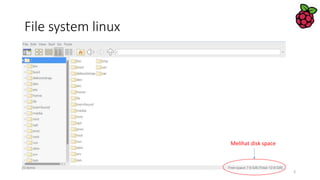
File system linux
Melihat disk space
3
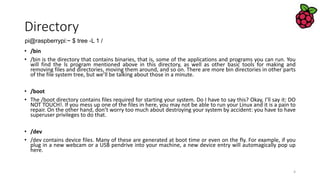
Directory
• /bin
• /bin is the directory that contains binaries, that is, some of the applications and programs you can run. You
will find the ls program mentioned above in this directory, as well as other basic tools for making and
removing files and directories, moving them around, and so on. There are more bin directories in other parts
of the file system tree, but we’ll be talking about those in a minute.
• /boot
• The /boot directory contains files required for starting your system. Do I have to say this? Okay, I’ll say it: DO
NOT TOUCH!. If you mess up one of the files in here, you may not be able to run your Linux and it is a pain to
repair. On the other hand, don’t worry too much about destroying your system by accident: you have to have
superuser privileges to do that.
• /dev
• /dev contains device files. Many of these are generated at boot time or even on the fly. For example, if you
plug in a new webcam or a USB pendrive into your machine, a new device entry will automagically pop up
here.
pi@raspberrypi:~ $ tree -L 1 /
4
Directory (2)
• /etc
• /etc is the directory where names start to get confusing. /etc gets its name from the earliest Unixes and it was literally “et cetera” because it
was the dumping ground for system files administrators were not sure where else to put. Nowadays, it would be more appropriate to say
that etc stands for “Everything to configure,” as it contains most, if not all system-wide configuration files. For example, the files that contain
the name of your system, the users and their passwords, the names of machines on your network and when and where the partitions on
your hard disks should be mounted are all in here. Again, if you are new to Linux, it may be best if you don’t touch too much in here until
you have a better understanding of how things work.
• /home
• /home is where you will find your users’ personal directories. In my case, under /home there are two directories: /home/paul, which
contains all my stuff; and /home/guest, in case anybody needs to borrow my computer.
• /lib
• /lib is where libraries live. Libraries are files containing code that your applications can use. They contain snippets of code that applications
use to draw windows on your desktop, control peripherals, or send files to your hard disk. There are more lib directories scattered around
the file system, but this one, the one hanging directly off of / is special in that, among other things, it contains the all-important kernel
modules. The kernel modules are drivers that make things like your video card, sound card, WiFi, printer, and so on, work.
5
Directory (3)
 /media
 The /media directory is where external storage will be automatically mounted when you plug it in and try to access it. As
opposed to most of the other items on this list, /media does not hail back to 1970s, mainly because inserting and
detecting storage (pendrives, USB hard disks, SD cards, external SSDs, etc) on the fly, while a computer is running, is a
relatively new thing.
 /mnt
 The /mnt directory, however, is a bit of remnant from days gone by. This is where you would manually mount storage
devices or partitions. It is not used very often nowadays.
 /opt
 The /opt directory is often where software you compile (that is, you build yourself from source code and do not install
from your distribution repositories) sometimes lands. Applications will end up in the /opt/bin directory and libraries in
the /opt/lib directory. A slight digression: another place where applications and libraries end up in is /usr/local, When
software gets installed here, there will also be /usr/local/bin and /usr/local/lib directories. What determines which
software goes where is how the developers have configured the files that control the compilation and installation
process.
6
Directory (4)
 /proc, like /dev is a virtual directory. It contains information about your computer, such as information about your CPU and the kernel
your Linux system is running. As with /dev, the files and directories are generated when your computer starts, or on the fly, as your
system is running and things change.
 /root
 /root is the home directory of the superuser (also known as the “Administrator”) of the system. It is separate from the rest of the users’
home directories BECAUSE YOU ARE NOT MEANT TO TOUCH IT. Keep your own stuff in you own directories, people.
 /run
 /run is another new directory. System processes use it to store temporary data for their own nefarious reasons. This is another one of
those DO NOT TOUCH folders.
 /sbin
 /sbin is similar to /bin, but it contains applications that only the superuser (hence the initial s) will need. You can use these applications
with the sudo command that temporarily concedes you superuser powers on many distributions. /sbin typically contains tools that can
install stuff, delete stuff and format stuff. As you can imagine, some of these instructions are lethal if you use them improperly, so handle
with care.
 /usr
 The /usr directory was where users’ home directories were originally kept back in the early days of UNIX. However, now /home is where
users kept their stuff as we saw above. These days, /usr contains a mish-mash of directories which in turn contain applications, libraries,
documentation, wallpapers, icons and a long list of other stuff that need to be shared by applications and services.
7
Directory (5)
 /srv
 The /srv directory contains data for servers. If you are running a web server from your Linux box, your HTML files for your sites would go
into /srv/http (or /srv/www). If you were running an FTP server, your files would go into /srv/ftp.
 /sys
 /sys is another virtual directory like /proc and /dev and also contains information from devices connected to your computer. In some
cases you can also manipulate those devices. I can, for example, change the brightness of the screen of my laptop by modifying the value
stored in the /sys/devices/pci0000:00/0000:00:02.0/drm/card1/card1-eDP-1/intel_backlight/brightness file (on your machine you will
probably have a different file). But to do that you have to become superuser. The reason for that is, as with so many other virtual
directories, messing with the contents and files in /sys can be dangerous and you can trash your system. DO NOT TOUCH until you are
sure you know what you are doing.
 /tmp
 /tmp contains temporary files, usually placed there by applications that you are running. The files and directories often (not always)
contain data that an application doesn’t need right now, but may need later on. You can also use /tmp to store your own temporary files
— /tmp is one of the few directories hanging off / that you can actually interact with without becoming superuser.
 /var
 /var was originally given its name because its contents was deemed variable, in that it changed frequently. Today it is a bit of a misnomer
because there are many other directories that also contain data that changes frequently, especially the virtual directories we saw above.
8
Perintah Dasar Linux
 mkdir → membuat direktori
 Penggunaan: mkdir [OPTION] DIRECTORY
 Contoh: mkdir lhn
 ls → list daftar direktori
 Penggunaan: ls [OPTION] [FILE]
 Contoh: ls, ls l, ls lhn
 cd → mengubah direktori
 Penggunaan: cd [DIRECTORY]
 Contoh: cd lhn
 pwd → cetak nama direktori saat ini
 Penggunaan: pwd
 rm menghapus file atau direktori
 Penggunaan: rm [OPTION] FILE
 Contoh: rm file1.txt , rm rf some_dir
 vim → Vi Improved, a programmers text editor
 Penggunaan: vim [OPTION] [file]
 Contoh: vim lhn.txt
 cp→ copy file dan direktori
 Penggunaan: cp [OPTION] SOURCE DEST
 Contoh: cp sample.txt sample_copy.txt
 cp sample_copy.txt target_dir
 mv → memindah (mengganti nama) file
 Penggunaan: mv [OPTION] SOURCE DEST
 Contoh: mv source.txt target_dir
 mv old.txt new.txt
 find → mencari
 Penggunaan: find [OPTION] [path] [pattern]
 Contoh: find file1.txt, find name file1.txt
9
Raspberry Pi 3 Board
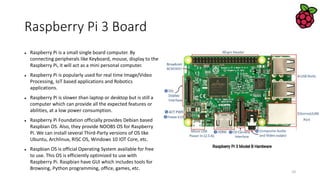
 Raspberry Pi is a small single board computer. By
connecting peripherals like Keyboard, mouse, display to the
Raspberry Pi, it will act as a mini personal computer.
 Raspberry Pi is popularly used for real time Image/Video
Processing, IoT based applications and Robotics
applications.
 Raspberry Pi is slower than laptop or desktop but is still a
computer which can provide all the expected features or
abilities, at a low power consumption.
 Raspberry Pi Foundation officially provides Debian based
Raspbian OS. Also, they provide NOOBS OS for Raspberry
Pi. We can install several Third-Party versions of OS like
Ubuntu, Archlinux, RISC OS, Windows 10 IOT Core, etc.
 Raspbian OS is official Operating System available for free
to use. This OS is efficiently optimized to use with
Raspberry Pi. Raspbian have GUI which includes tools for
Browsing, Python programming, office, games, etc.
10
Fitur Rasp Pi
 We should use SD card (minimum 8 GB
recommended) to store the OS (operating System).
 Raspberry Pi is more than computer as it provides
access to the on-chip hardware i.e. GPIOs for
developing an application. By accessing GPIO, we can
connect devices like LED, motors, sensors, etc and
can control them too.
 It has ARM based Broadcom Processor SoC along
with on-chip GPU (Graphics Processing Unit).
 The CPU speed of Raspberry Pi varies from 700 MHz
to 1.2 GHz. Also, it has on-board SDRAM that ranges
from 256 MB to 1 GB.
 Raspberry Pi also provides on-chip SPI, I2C, I2S and
UART modules.
11
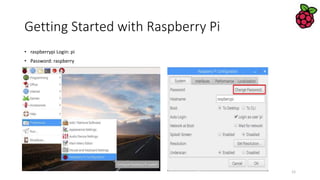
Getting Started with Raspberry Pi
• raspberrypi Login: pi
• Password: raspberry
12
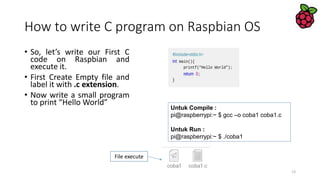
How to write C program on Raspbian OS
• So, let’s write our First C
code on Raspbian and
execute it.
• First Create Empty file and
label it with .c extension.
• Now write a small program
to print “Hello World”
Untuk Compile :
pi@raspberrypi:~ $ gcc –o coba1 coba1.c
Untuk Run :
pi@raspberrypi:~ $ ./coba1
File execute
13
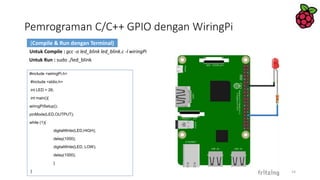
Pemrograman C/C++ GPIO dengan WiringPi
#include <wiringPi.h>
#include <stdio.h>
int LED = 26;
int main(){
wiringPiSetup();
pinMode(LED,OUTPUT);
while (1){
digitalWrite(LED,HIGH);
delay(1000);
digitalWrite(LED, LOW);
delay(1000);
}
}
Untuk Compile : gcc -o led_blink led_blink.c -l wiringPi
Untuk Run : sudo ./led_blink
14
(Compile & Run dengan Terminal)
Pemrograman C/C++ GPIO WiringPi
Menggunakan Geany IDE
15
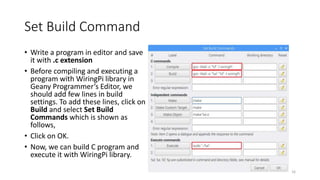
Set Build Command
• Write a program in editor and save
it with .c extension
• Before compiling and executing a
program with WiringPi library in
Geany Programmer’s Editor, we
should add few lines in build
settings. To add these lines, click on
Build and select Set Build
Commands which is shown as
follows,
• Click on OK.
• Now, we can build C program and
execute it with WiringPi library.
16

Raspberry pi introduction

  • 1.
  • 2.
    Linux  Linux adalahkernel sistem operasi. Linux ini adalah klon UNIX yang dibuat oleh Linus Torvalds. Linux ini bersifat gratis dan open-source yang berarti Anda dapat mengubah apa saja di Linux dan mendistribusikannya dengan nama Anda sendiri! Ada beberapa Distribusi Linux, yang biasa disebut “distro”, yaitu:  Ubuntu Linux  Red Hat Enterprise Linux  Linux Mint  Debian  Fedora  Linux banyak digunakan di server. Sekitar 90% dari internet didukung oleh server Linux. Ini karena Linux cepat, aman, dan gratis. OS yang berjalan di sekitar 80% dari smartphone di dunia, Android, juga dibuat dari kernel Linux. Sebagian besar virus di dunia berjalan di Windows, tetapi tidak di Linux. Itulah mengapa Linux banyak digunakan di dunia. 2
  • 3.
  • 4.
    Directory • /bin • /binis the directory that contains binaries, that is, some of the applications and programs you can run. You will find the ls program mentioned above in this directory, as well as other basic tools for making and removing files and directories, moving them around, and so on. There are more bin directories in other parts of the file system tree, but we’ll be talking about those in a minute. • /boot • The /boot directory contains files required for starting your system. Do I have to say this? Okay, I’ll say it: DO NOT TOUCH!. If you mess up one of the files in here, you may not be able to run your Linux and it is a pain to repair. On the other hand, don’t worry too much about destroying your system by accident: you have to have superuser privileges to do that. • /dev • /dev contains device files. Many of these are generated at boot time or even on the fly. For example, if you plug in a new webcam or a USB pendrive into your machine, a new device entry will automagically pop up here. pi@raspberrypi:~ $ tree -L 1 / 4
  • 5.
    Directory (2) • /etc •/etc is the directory where names start to get confusing. /etc gets its name from the earliest Unixes and it was literally “et cetera” because it was the dumping ground for system files administrators were not sure where else to put. Nowadays, it would be more appropriate to say that etc stands for “Everything to configure,” as it contains most, if not all system-wide configuration files. For example, the files that contain the name of your system, the users and their passwords, the names of machines on your network and when and where the partitions on your hard disks should be mounted are all in here. Again, if you are new to Linux, it may be best if you don’t touch too much in here until you have a better understanding of how things work. • /home • /home is where you will find your users’ personal directories. In my case, under /home there are two directories: /home/paul, which contains all my stuff; and /home/guest, in case anybody needs to borrow my computer. • /lib • /lib is where libraries live. Libraries are files containing code that your applications can use. They contain snippets of code that applications use to draw windows on your desktop, control peripherals, or send files to your hard disk. There are more lib directories scattered around the file system, but this one, the one hanging directly off of / is special in that, among other things, it contains the all-important kernel modules. The kernel modules are drivers that make things like your video card, sound card, WiFi, printer, and so on, work. 5
  • 6.
    Directory (3)  /media The /media directory is where external storage will be automatically mounted when you plug it in and try to access it. As opposed to most of the other items on this list, /media does not hail back to 1970s, mainly because inserting and detecting storage (pendrives, USB hard disks, SD cards, external SSDs, etc) on the fly, while a computer is running, is a relatively new thing.  /mnt  The /mnt directory, however, is a bit of remnant from days gone by. This is where you would manually mount storage devices or partitions. It is not used very often nowadays.  /opt  The /opt directory is often where software you compile (that is, you build yourself from source code and do not install from your distribution repositories) sometimes lands. Applications will end up in the /opt/bin directory and libraries in the /opt/lib directory. A slight digression: another place where applications and libraries end up in is /usr/local, When software gets installed here, there will also be /usr/local/bin and /usr/local/lib directories. What determines which software goes where is how the developers have configured the files that control the compilation and installation process. 6
  • 7.
    Directory (4)  /proc,like /dev is a virtual directory. It contains information about your computer, such as information about your CPU and the kernel your Linux system is running. As with /dev, the files and directories are generated when your computer starts, or on the fly, as your system is running and things change.  /root  /root is the home directory of the superuser (also known as the “Administrator”) of the system. It is separate from the rest of the users’ home directories BECAUSE YOU ARE NOT MEANT TO TOUCH IT. Keep your own stuff in you own directories, people.  /run  /run is another new directory. System processes use it to store temporary data for their own nefarious reasons. This is another one of those DO NOT TOUCH folders.  /sbin  /sbin is similar to /bin, but it contains applications that only the superuser (hence the initial s) will need. You can use these applications with the sudo command that temporarily concedes you superuser powers on many distributions. /sbin typically contains tools that can install stuff, delete stuff and format stuff. As you can imagine, some of these instructions are lethal if you use them improperly, so handle with care.  /usr  The /usr directory was where users’ home directories were originally kept back in the early days of UNIX. However, now /home is where users kept their stuff as we saw above. These days, /usr contains a mish-mash of directories which in turn contain applications, libraries, documentation, wallpapers, icons and a long list of other stuff that need to be shared by applications and services. 7
  • 8.
    Directory (5)  /srv The /srv directory contains data for servers. If you are running a web server from your Linux box, your HTML files for your sites would go into /srv/http (or /srv/www). If you were running an FTP server, your files would go into /srv/ftp.  /sys  /sys is another virtual directory like /proc and /dev and also contains information from devices connected to your computer. In some cases you can also manipulate those devices. I can, for example, change the brightness of the screen of my laptop by modifying the value stored in the /sys/devices/pci0000:00/0000:00:02.0/drm/card1/card1-eDP-1/intel_backlight/brightness file (on your machine you will probably have a different file). But to do that you have to become superuser. The reason for that is, as with so many other virtual directories, messing with the contents and files in /sys can be dangerous and you can trash your system. DO NOT TOUCH until you are sure you know what you are doing.  /tmp  /tmp contains temporary files, usually placed there by applications that you are running. The files and directories often (not always) contain data that an application doesn’t need right now, but may need later on. You can also use /tmp to store your own temporary files — /tmp is one of the few directories hanging off / that you can actually interact with without becoming superuser.  /var  /var was originally given its name because its contents was deemed variable, in that it changed frequently. Today it is a bit of a misnomer because there are many other directories that also contain data that changes frequently, especially the virtual directories we saw above. 8
  • 9.
    Perintah Dasar Linux mkdir → membuat direktori  Penggunaan: mkdir [OPTION] DIRECTORY  Contoh: mkdir lhn  ls → list daftar direktori  Penggunaan: ls [OPTION] [FILE]  Contoh: ls, ls l, ls lhn  cd → mengubah direktori  Penggunaan: cd [DIRECTORY]  Contoh: cd lhn  pwd → cetak nama direktori saat ini  Penggunaan: pwd  rm menghapus file atau direktori  Penggunaan: rm [OPTION] FILE  Contoh: rm file1.txt , rm rf some_dir  vim → Vi Improved, a programmers text editor  Penggunaan: vim [OPTION] [file]  Contoh: vim lhn.txt  cp→ copy file dan direktori  Penggunaan: cp [OPTION] SOURCE DEST  Contoh: cp sample.txt sample_copy.txt  cp sample_copy.txt target_dir  mv → memindah (mengganti nama) file  Penggunaan: mv [OPTION] SOURCE DEST  Contoh: mv source.txt target_dir  mv old.txt new.txt  find → mencari  Penggunaan: find [OPTION] [path] [pattern]  Contoh: find file1.txt, find name file1.txt 9
  • 10.
    Raspberry Pi 3Board  Raspberry Pi is a small single board computer. By connecting peripherals like Keyboard, mouse, display to the Raspberry Pi, it will act as a mini personal computer.  Raspberry Pi is popularly used for real time Image/Video Processing, IoT based applications and Robotics applications.  Raspberry Pi is slower than laptop or desktop but is still a computer which can provide all the expected features or abilities, at a low power consumption.  Raspberry Pi Foundation officially provides Debian based Raspbian OS. Also, they provide NOOBS OS for Raspberry Pi. We can install several Third-Party versions of OS like Ubuntu, Archlinux, RISC OS, Windows 10 IOT Core, etc.  Raspbian OS is official Operating System available for free to use. This OS is efficiently optimized to use with Raspberry Pi. Raspbian have GUI which includes tools for Browsing, Python programming, office, games, etc. 10
  • 11.
    Fitur Rasp Pi We should use SD card (minimum 8 GB recommended) to store the OS (operating System).  Raspberry Pi is more than computer as it provides access to the on-chip hardware i.e. GPIOs for developing an application. By accessing GPIO, we can connect devices like LED, motors, sensors, etc and can control them too.  It has ARM based Broadcom Processor SoC along with on-chip GPU (Graphics Processing Unit).  The CPU speed of Raspberry Pi varies from 700 MHz to 1.2 GHz. Also, it has on-board SDRAM that ranges from 256 MB to 1 GB.  Raspberry Pi also provides on-chip SPI, I2C, I2S and UART modules. 11
  • 12.
    Getting Started withRaspberry Pi • raspberrypi Login: pi • Password: raspberry 12
  • 13.
    How to writeC program on Raspbian OS • So, let’s write our First C code on Raspbian and execute it. • First Create Empty file and label it with .c extension. • Now write a small program to print “Hello World” Untuk Compile : pi@raspberrypi:~ $ gcc –o coba1 coba1.c Untuk Run : pi@raspberrypi:~ $ ./coba1 File execute 13
  • 14.
    Pemrograman C/C++ GPIOdengan WiringPi #include <wiringPi.h> #include <stdio.h> int LED = 26; int main(){ wiringPiSetup(); pinMode(LED,OUTPUT); while (1){ digitalWrite(LED,HIGH); delay(1000); digitalWrite(LED, LOW); delay(1000); } } Untuk Compile : gcc -o led_blink led_blink.c -l wiringPi Untuk Run : sudo ./led_blink 14 (Compile & Run dengan Terminal)
  • 15.
    Pemrograman C/C++ GPIOWiringPi Menggunakan Geany IDE 15
  • 16.
    Set Build Command •Write a program in editor and save it with .c extension • Before compiling and executing a program with WiringPi library in Geany Programmer’s Editor, we should add few lines in build settings. To add these lines, click on Build and select Set Build Commands which is shown as follows, • Click on OK. • Now, we can build C program and execute it with WiringPi library. 16