Module 4 / unit 1
Troubleshooting and Maintenance
         Fundamentals
       By kenneth Ayebazibwe
         kynaye@gmail.com
    256774185458 / 256702555890
You Will Learn…
• About your role as a PC technician in
  troubleshooting and maintenance, and tools
  available to help you in those roles
• How to approach a troubleshooting problem
• How to develop a preventive maintenance
  plan and what to include in it
Troubleshooting Perspectives
•   PC support technician
•   PC service technician
•   Bench technician
•   Help-desk technician
Essential Troubleshooting Tools
• Bootable rescue disk for any OS you might
  work on (may need several)
• Ground bracelet and/or ground mat
• Screwdrivers (flat-head, Phillips-head or cross-
  head, Torx set, particularly size T15)
• Tweezers, preferable insulated
• Chip extractor and a spring-loaded extractor
Useful Troubleshooting Tools
• Multimeter           • Pen and paper
• Needle-nose pliers   • Diagnostic cards and
• Flashlight             software
• AC outlet ground     • Utility software
  tester               • Virus detection
• Small cups or bags     software on disks
• Antistatic bags
Bootable Rescue Disk
• Can boot the PC even when the hard drive
  fails
• Ensures cleanest boot possible
Diagnostic Cards and Software
• POST diagnostic cards
• Diagnostic software
• General-purpose utility software
POST Diagnostic Cards
• Discover and report computer errors and conflicts at
  POST
• Examples:
   –   Amber Debug Card (Phoenix Technologies)
   –   PCI Error Testing/Debug Card (Trigen Industries)
   –   POSTcard V3 (Unicore Software, Inc.)
   –   Post Code Master (MSD, Inc.)
   –   POSTmortem Diagnostics Card (System Optimization, Inc.)
Diagnostic Software
• Identifies hardware problems
• Examples:
  – PC-Technician (Windsor Technologies, Inc.)
  – PC-Diagnosys (Windsor Technologies, Inc.)
General-Purpose Utility Software
• Diagnoses problems
• Repairs and maintains software on a PC
• Recovers corrupted or deleted data on hard
  drive or floppy disks
• Provides security
• Monitors system performance
• Downloads software updates from Internet
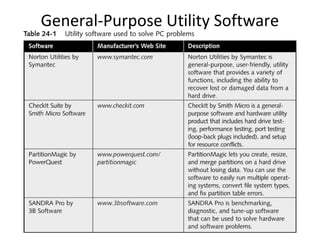
General-Purpose Utility Software
Fundamental Rules for
            Troubleshooting
• Make backups before making changes
• Approach the problem systematically
• Isolate the problem; eliminate unnecessary
  hardware and software
• Don’t overlook the obvious
• Check simple things first
• Make no assumptions
                                          continued…
Fundamental Rules for
              Troubleshooting
•   Become a researcher
•   Write things down
•   Reboot and start over
•   Establish priorities
•   Keep your cool and don’t rush
•   Don’t assume the worst
•   Know your starting point
Gathering Information
•   Interacting with the user
•   Investigating the problem on the computer
•   Isolating the problem
•   Intermittent problems
Interacting with the User
• Ask questions with diplomacy
• Find out exactly what happened when the
  computer stopped working
• Consider yourself a guest when working at the
  user’s desk
Guidelines for Working
                with a User
• Don’t take drastic action before asking the user
  about data that may not be backed up
• Provide alternatives before making decisions for the
  user
• Protect confidentiality of data on the PC
• Don’t disparage user’s choice of hardware or
  software
• If you make a mistake or must pass the problem on
  to someone with more expertise, be honest
Investigating the Problem
            on the Computer
• What OS is installed?
• What physical components are installed –
  processor, expansion cards, drives, peripheral
  devices? PC connected to network?
• What is the nature of the problem – occur
  before or after boot? Any error messages?
  Does the system hang?
• Can you duplicate the problem?
Isolating the Problem
•   Consider the possibilities
•   Eliminate simple things first
•   Eliminate the unnecessary
•   Trade good for suspected bad
•   Trade suspected bad for good
Intermittent Problems
• More challenging
• Look for patterns or clues
• Keep a log of when problems occur and
  exactly what error messages appear
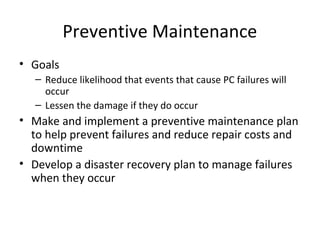
Preventive Maintenance
• Goals
   – Reduce likelihood that events that cause PC failures will
     occur
   – Lessen the damage if they do occur
• Make and implement a preventive maintenance plan
  to help prevent failures and reduce repair costs and
  downtime
• Develop a disaster recovery plan to manage failures
  when they occur
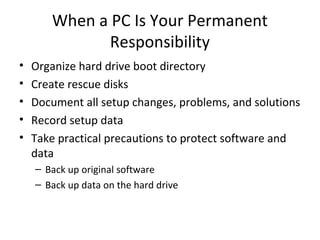
When a PC Is Your Permanent
              Responsibility
•   Organize hard drive boot directory
•   Create rescue disks
•   Document all setup changes, problems, and solutions
•   Record setup data
•   Take practical precautions to protect software and
    data
    – Back up original software
    – Back up data on the hard drive
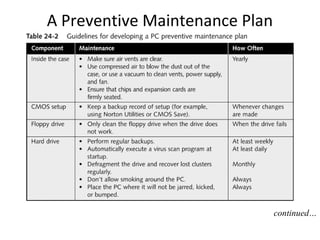
A Preventive Maintenance Plan


                                continued…
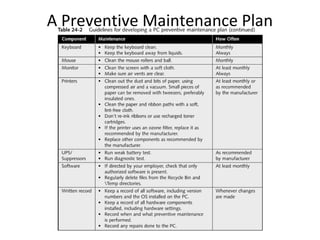
A Preventive Maintenance Plan
Moving Equipment
•   Back up hard drive
•   Remove removable disks, tape cartridges, or CDs from drives
•   Turn off power to PC and devices
•   Disconnect power cords and external devices
•   Label cable connections
•   Coil all cords and secure them
•   Pack in original shipping cartons
•   Purchase insurance
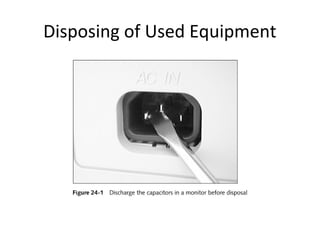
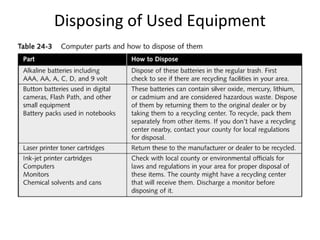
Disposing of Used Equipment
Fire Extinguishers
• Mount a fire extinguisher for Class C fires
  (ignited and heated by electricity) near your
  workbench, but not directly over it
• Know how to use the fire extinguisher
Chapter Summary
• Common-sense guidelines to solving
  computer problems
  – Avoid making situation worse by damaging
    equipment, software, or data, or by placing undue
    stress on users
  – Follow safety precautions

Module 4 unit 1

  • 1.
    Module 4 /unit 1 Troubleshooting and Maintenance Fundamentals By kenneth Ayebazibwe kynaye@gmail.com 256774185458 / 256702555890
  • 2.
    You Will Learn… •About your role as a PC technician in troubleshooting and maintenance, and tools available to help you in those roles • How to approach a troubleshooting problem • How to develop a preventive maintenance plan and what to include in it
  • 3.
    Troubleshooting Perspectives • PC support technician • PC service technician • Bench technician • Help-desk technician
  • 4.
    Essential Troubleshooting Tools •Bootable rescue disk for any OS you might work on (may need several) • Ground bracelet and/or ground mat • Screwdrivers (flat-head, Phillips-head or cross- head, Torx set, particularly size T15) • Tweezers, preferable insulated • Chip extractor and a spring-loaded extractor
  • 5.
    Useful Troubleshooting Tools •Multimeter • Pen and paper • Needle-nose pliers • Diagnostic cards and • Flashlight software • AC outlet ground • Utility software tester • Virus detection • Small cups or bags software on disks • Antistatic bags
  • 6.
    Bootable Rescue Disk •Can boot the PC even when the hard drive fails • Ensures cleanest boot possible
  • 7.
    Diagnostic Cards andSoftware • POST diagnostic cards • Diagnostic software • General-purpose utility software
  • 8.
    POST Diagnostic Cards •Discover and report computer errors and conflicts at POST • Examples: – Amber Debug Card (Phoenix Technologies) – PCI Error Testing/Debug Card (Trigen Industries) – POSTcard V3 (Unicore Software, Inc.) – Post Code Master (MSD, Inc.) – POSTmortem Diagnostics Card (System Optimization, Inc.)
  • 9.
    Diagnostic Software • Identifieshardware problems • Examples: – PC-Technician (Windsor Technologies, Inc.) – PC-Diagnosys (Windsor Technologies, Inc.)
  • 10.
    General-Purpose Utility Software •Diagnoses problems • Repairs and maintains software on a PC • Recovers corrupted or deleted data on hard drive or floppy disks • Provides security • Monitors system performance • Downloads software updates from Internet
  • 11.
  • 12.
    Fundamental Rules for Troubleshooting • Make backups before making changes • Approach the problem systematically • Isolate the problem; eliminate unnecessary hardware and software • Don’t overlook the obvious • Check simple things first • Make no assumptions continued…
  • 13.
    Fundamental Rules for Troubleshooting • Become a researcher • Write things down • Reboot and start over • Establish priorities • Keep your cool and don’t rush • Don’t assume the worst • Know your starting point
  • 14.
    Gathering Information • Interacting with the user • Investigating the problem on the computer • Isolating the problem • Intermittent problems
  • 15.
    Interacting with theUser • Ask questions with diplomacy • Find out exactly what happened when the computer stopped working • Consider yourself a guest when working at the user’s desk
  • 16.
    Guidelines for Working with a User • Don’t take drastic action before asking the user about data that may not be backed up • Provide alternatives before making decisions for the user • Protect confidentiality of data on the PC • Don’t disparage user’s choice of hardware or software • If you make a mistake or must pass the problem on to someone with more expertise, be honest
  • 17.
    Investigating the Problem on the Computer • What OS is installed? • What physical components are installed – processor, expansion cards, drives, peripheral devices? PC connected to network? • What is the nature of the problem – occur before or after boot? Any error messages? Does the system hang? • Can you duplicate the problem?
  • 18.
    Isolating the Problem • Consider the possibilities • Eliminate simple things first • Eliminate the unnecessary • Trade good for suspected bad • Trade suspected bad for good
  • 19.
    Intermittent Problems • Morechallenging • Look for patterns or clues • Keep a log of when problems occur and exactly what error messages appear
  • 20.
    Preventive Maintenance • Goals – Reduce likelihood that events that cause PC failures will occur – Lessen the damage if they do occur • Make and implement a preventive maintenance plan to help prevent failures and reduce repair costs and downtime • Develop a disaster recovery plan to manage failures when they occur
  • 21.
    When a PCIs Your Permanent Responsibility • Organize hard drive boot directory • Create rescue disks • Document all setup changes, problems, and solutions • Record setup data • Take practical precautions to protect software and data – Back up original software – Back up data on the hard drive
  • 22.
    A Preventive MaintenancePlan continued…
  • 23.
  • 24.
    Moving Equipment • Back up hard drive • Remove removable disks, tape cartridges, or CDs from drives • Turn off power to PC and devices • Disconnect power cords and external devices • Label cable connections • Coil all cords and secure them • Pack in original shipping cartons • Purchase insurance
  • 25.
  • 26.
  • 27.
    Fire Extinguishers • Mounta fire extinguisher for Class C fires (ignited and heated by electricity) near your workbench, but not directly over it • Know how to use the fire extinguisher
  • 28.
    Chapter Summary • Common-senseguidelines to solving computer problems – Avoid making situation worse by damaging equipment, software, or data, or by placing undue stress on users – Follow safety precautions