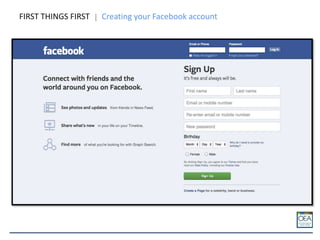
FIRST THINGS FIRST Creating your Facebook account
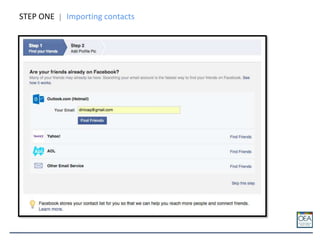
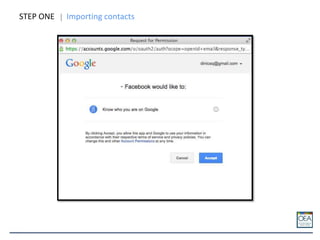
STEP ONE Importing contacts
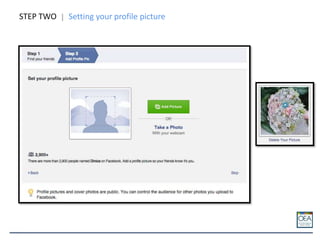
STEP TWO Setting your profile picture
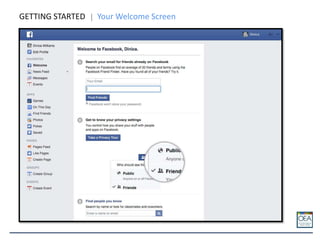
GETTING STARTED Your Welcome Screen
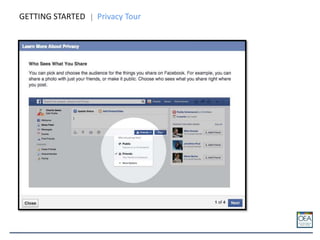
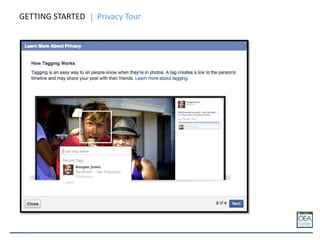
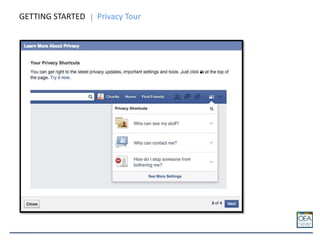
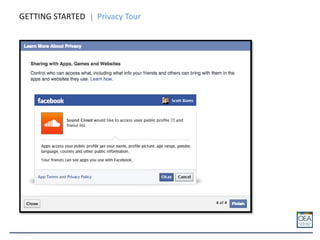
GETTING STARTED Privacy Tour
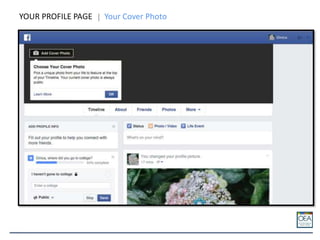
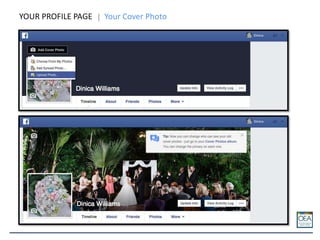
YOUR PROFILE PAGE Your Cover Photo
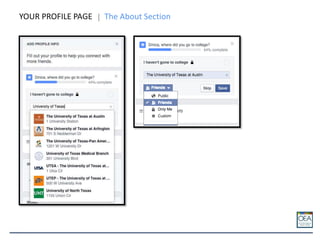
YOUR PROFILE PAGE The About Section
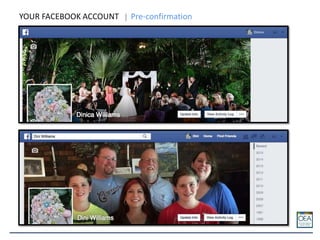
YOUR FACEBOOK ACCOUNT Pre-confirmation
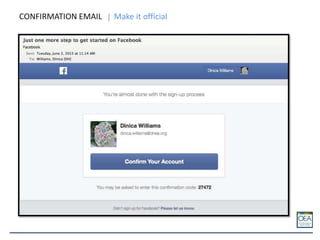
CONFIRMATION EMAIL Make it official
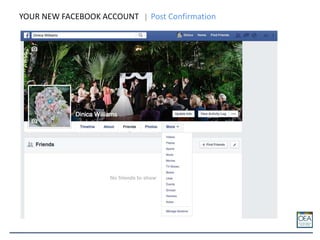
YOUR NEW FACEBOOK ACCOUNT Post Confirmation
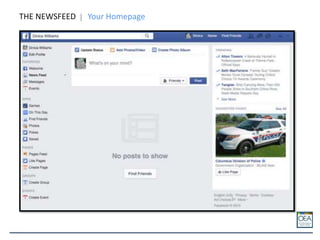
THE NEWSFEED Your Homepage
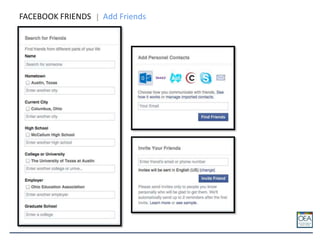
FACEBOOK FRIENDS Add Friends
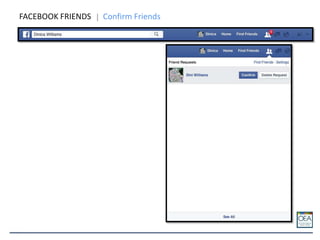
FACEBOOK FRIENDS Confirm Friends
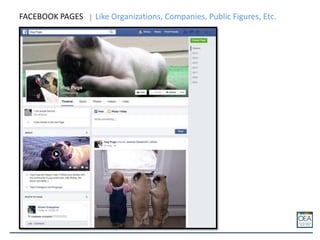
FACEBOOK PAGES Like Organizations, Companies, Public Figures, Etc.
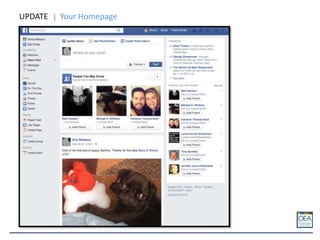
UPDATE Your Homepage
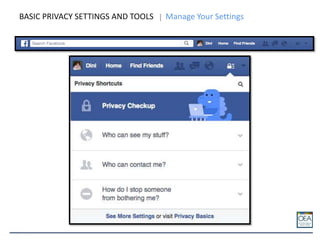
BASIC PRIVACY SETTINGS AND TOOLS Manage Your Settings
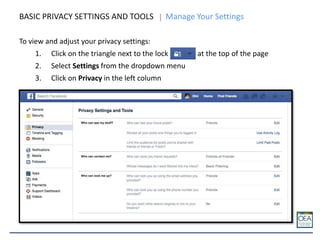
To view and adjust your privacy settings:
1. Click on the triangle next to the lock at the top of the page
2. Select Settings from the dropdown menu
3. Click on Privacy in the left column
BASIC PRIVACY SETTINGS AND TOOLS Manage Your Settings
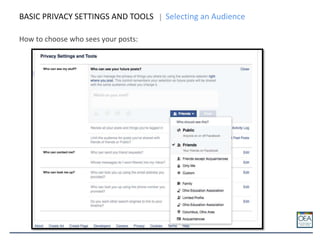
How to choose who sees your posts:
BASIC PRIVACY SETTINGS AND TOOLS Selecting an Audience
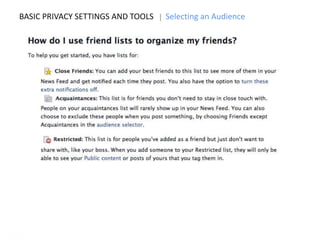
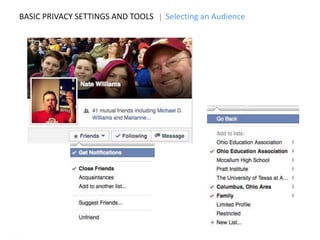
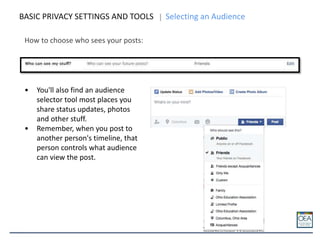
How to choose who sees your posts:
BASIC PRIVACY SETTINGS AND TOOLS Selecting an Audience
• You'll also find an audience
selector tool most places you
share status updates, photos
and other stuff.
• Remember, when you post to
another person's timeline, that
person controls what audience
can view the post.
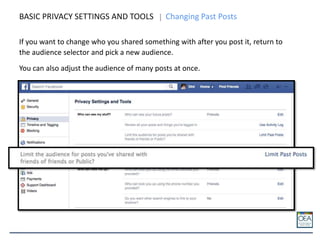
BASIC PRIVACY SETTINGS AND TOOLS Changing Past Posts
If you want to change who you shared something with after you post it, return to
the audience selector and pick a new audience.
You can also adjust the audience of many posts at once.
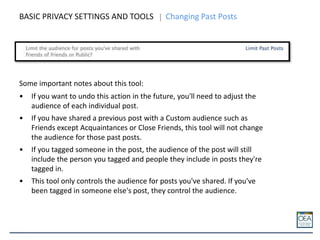
BASIC PRIVACY SETTINGS AND TOOLS Changing Past Posts
Some important notes about this tool:
• If you want to undo this action in the future, you'll need to adjust the
audience of each individual post.
• If you have shared a previous post with a Custom audience such as
Friends except Acquaintances or Close Friends, this tool will not change
the audience for those past posts.
• If you tagged someone in the post, the audience of the post will still
include the person you tagged and people they include in posts they're
tagged in.
• This tool only controls the audience for posts you've shared. If you've
been tagged in someone else's post, they control the audience.
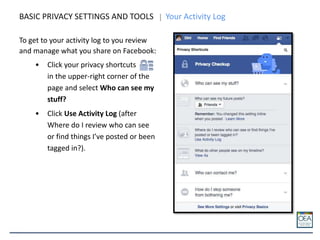
BASIC PRIVACY SETTINGS AND TOOLS Your Activity Log
To get to your activity log to you review
and manage what you share on Facebook:
• Click your privacy shortcuts
in the upper-right corner of the
page and select Who can see my
stuff?
• Click Use Activity Log (after
Where do I review who can see
or find things I’ve posted or been
tagged in?).
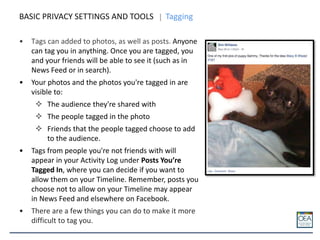
• Tags can added to photos, as well as posts. Anyone
can tag you in anything. Once you are tagged, you
and your friends will be able to see it (such as in
News Feed or in search).
• Your photos and the photos you're tagged in are
visible to:
 The audience they're shared with
 The people tagged in the photo
 Friends that the people tagged choose to add
to the audience.
• Tags from people you're not friends with will
appear in your Activity Log under Posts You’re
Tagged In, where you can decide if you want to
allow them on your Timeline. Remember, posts you
choose not to allow on your Timeline may appear
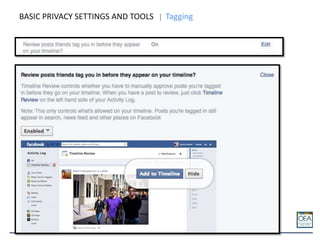
in News Feed and elsewhere on Facebook.
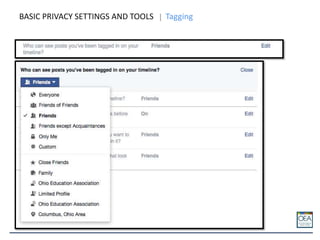
• There are a few things you can do to make it more
difficult to tag you.
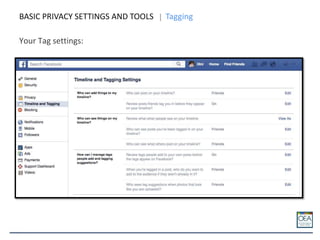
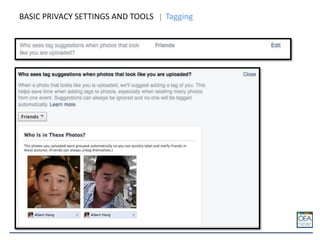
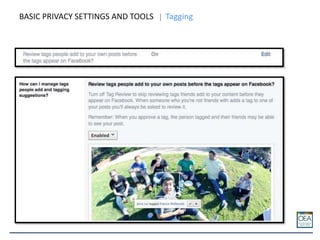
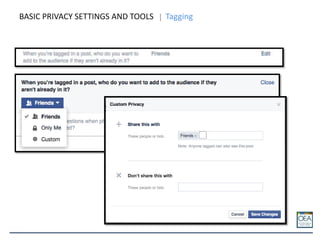
BASIC PRIVACY SETTINGS AND TOOLS Tagging
Your Tag settings:
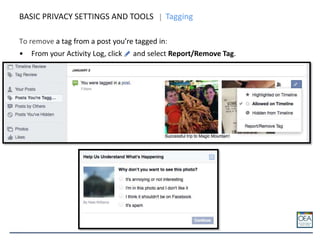
BASIC PRIVACY SETTINGS AND TOOLS Tagging
To remove a tag from a post you’re tagged in:
• From your Activity Log, click and select Report/Remove Tag.
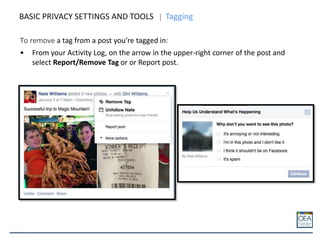
BASIC PRIVACY SETTINGS AND TOOLS Tagging
To remove a tag from a post you’re tagged in:
• From your Activity Log, on the arrow in the upper-right corner of the post and
select Report/Remove Tag or or Report post.
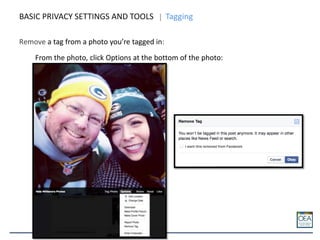
Remove a tag from a photo you’re tagged in:
From the photo, click Options at the bottom of the photo:
BASIC PRIVACY SETTINGS AND TOOLS Tagging
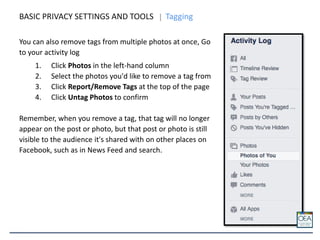
You can also remove tags from multiple photos at once, Go
to your activity log
1. Click Photos in the left-hand column
2. Select the photos you'd like to remove a tag from
3. Click Report/Remove Tags at the top of the page
4. Click Untag Photos to confirm
Remember, when you remove a tag, that tag will no longer
appear on the post or photo, but that post or photo is still
visible to the audience it's shared with on other places on
Facebook, such as in News Feed and search.
BASIC PRIVACY SETTINGS AND TOOLS Tagging
BASIC PRIVACY SETTINGS AND TOOLS Sharing
The good news: If a person shares your Friends Only post, only your friends will see
the shared post.
• However, when you comment on or "like" someone else's story, or write on
their timeline, that person gets to select the audience. For example, if a friend
posts a Public story and you comment on it, your comment will be Public. You
can see the audience someone selected for their story before you post a
comment, however, the person who posted the story may later change their
audience.
• If you do not want someone to tag you, you have to reach out to them and give
them that feedback. If that does not work, you can block them. This will prevent
them from tagging you going forward. You can also report the post.
• If you tag someone, that person and their friends can see your story no matter
what audience you selected. The same is true when you approve a tag someone
else adds to your story.
• Comments on Pages are always public.
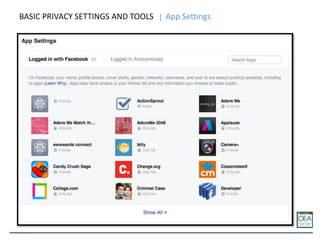
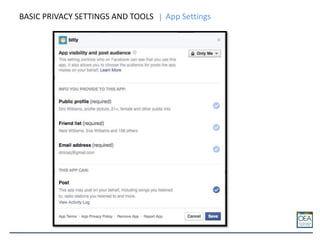
BASIC PRIVACY SETTINGS AND TOOLS App Settings
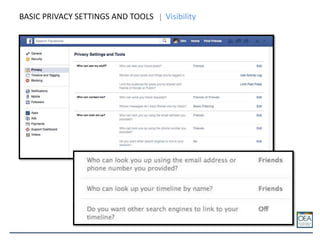
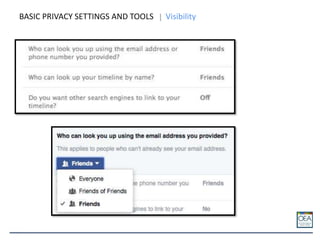
BASIC PRIVACY SETTINGS AND TOOLS Visibility
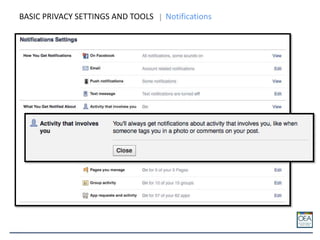
BASIC PRIVACY SETTINGS AND TOOLS Notifications
FACEBOOK RESOURCES Privacy, Pages and Groups
Facebook Privacy Settings and Tools: http://on.fb.me/ZIkhgx &
https://www.facebook.com/about/basics/
Facebook Pages Basics: http://on.fb.me/16H9UNC
Facebook Groups Basics: http://on.fb.me/170acZe
Help Center: https://www.facebook.com/help/
What’s New on Facebook: http://on.fb.me/1bwOYY3
dinica.williams@ohea.org
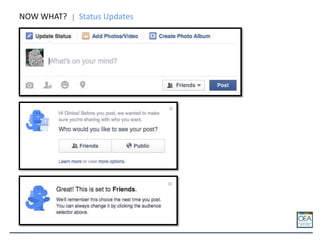
NOW WHAT? Status Updates
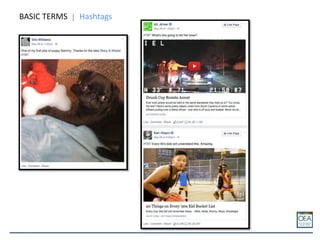
BASIC TERMS Hashtags
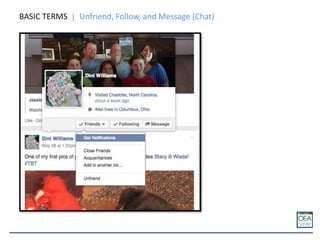
BASIC TERMS Unfriend, Follow, and Message (Chat)
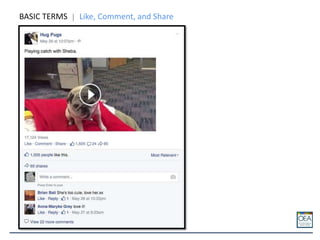
BASIC TERMS Like, Comment, and Share
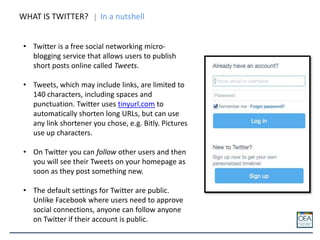
WHAT IS TWITTER? In a nutshell
• Twitter is a free social networking micro-
blogging service that allows users to publish
short posts online called Tweets.
• Tweets, which may include links, are limited to
140 characters, including spaces and
punctuation. Twitter uses tinyurl.com to
automatically shorten long URLs, but can use
any link shortener you chose, e.g. Bitly. Pictures
use up characters.
• On Twitter you can follow other users and then
you will see their Tweets on your homepage as
soon as they post something new.
• The default settings for Twitter are public.
Unlike Facebook where users need to approve
social connections, anyone can follow anyone
on Twitter if their account is public.
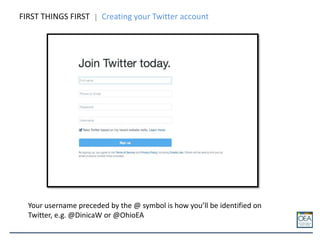
FIRST THINGS FIRST Creating your Twitter account
Your username preceded by the @ symbol is how you’ll be identified on
Twitter, e.g. @DinicaW or @OhioEA
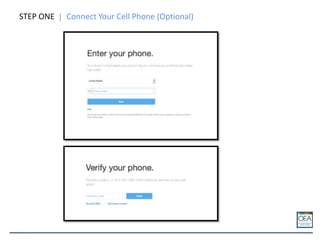
STEP ONE Connect Your Cell Phone (Optional)
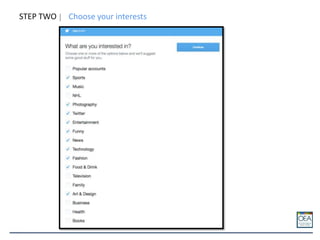
STEP TWO Choose your interests
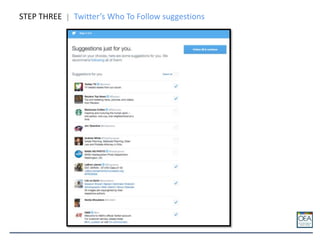
STEP THREE Twitter’s Who To Follow suggestions
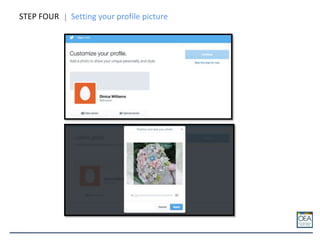
STEP FOUR Setting your profile picture
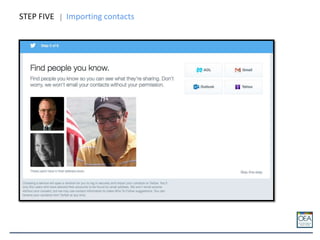
STEP FIVE Importing contacts
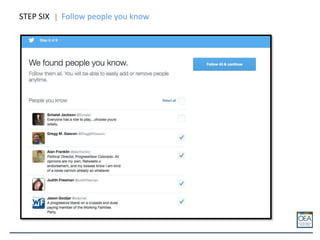
STEP SIX Follow people you know
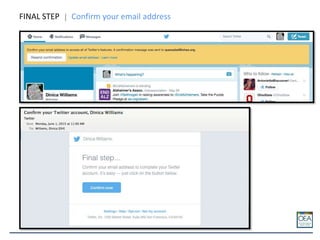
FINAL STEP Confirm your email address
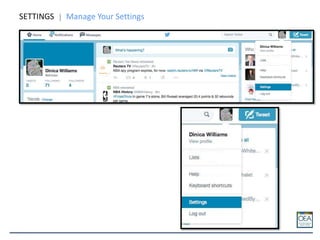
SETTINGS Manage Your Settings
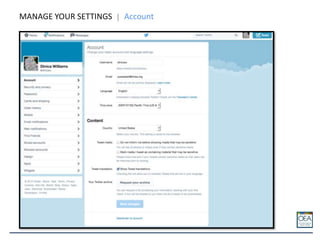
MANAGE YOUR SETTINGS Account
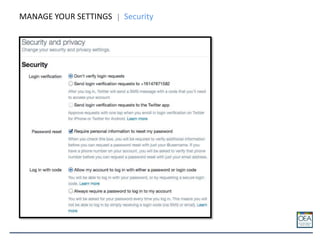
MANAGE YOUR SETTINGS Security
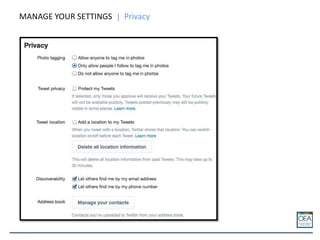
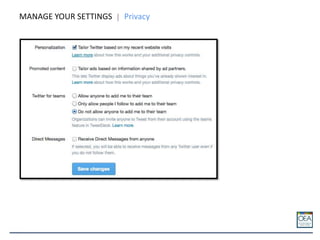
MANAGE YOUR SETTINGS Privacy
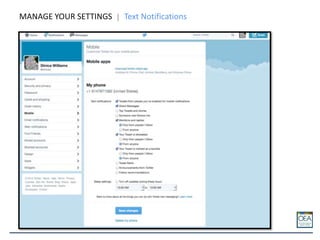
MANAGE YOUR SETTINGS Text Notifications
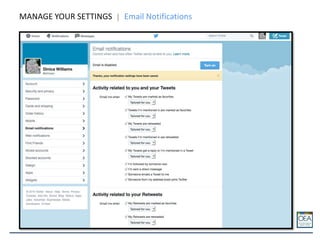
MANAGE YOUR SETTINGS Email Notifications
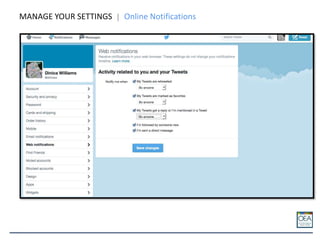
MANAGE YOUR SETTINGS Online Notifications
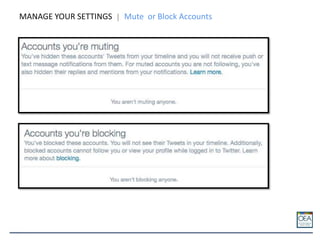
MANAGE YOUR SETTINGS Mute or Block Accounts
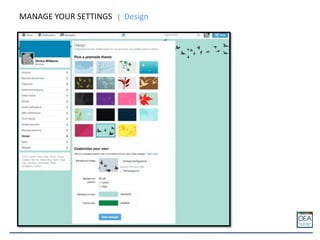
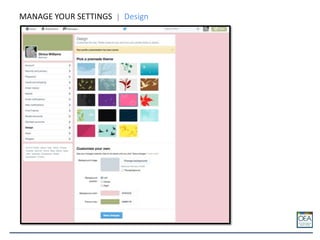
MANAGE YOUR SETTINGS Design
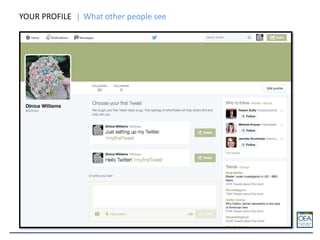
YOUR PROFILE What other people see
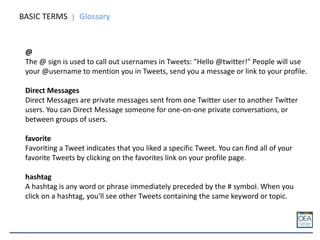
BASIC TERMS Glossary
@
The @ sign is used to call out usernames in Tweets: "Hello @twitter!" People will use
your @username to mention you in Tweets, send you a message or link to your profile.
Direct Messages
Direct Messages are private messages sent from one Twitter user to another Twitter
users. You can Direct Message someone for one-on-one private conversations, or
between groups of users.
favorite
Favoriting a Tweet indicates that you liked a specific Tweet. You can find all of your
favorite Tweets by clicking on the favorites link on your profile page.
hashtag
A hashtag is any word or phrase immediately preceded by the # symbol. When you
click on a hashtag, you'll see other Tweets containing the same keyword or topic.
BASIC TERMS Glossary
header photo
Your personal image that you upload, which appears at the top of your profile.
Home
Home is your real-time stream of Tweets from those you follow.
list
From your own account, you can create a group list of other Twitter users by topic or
interest (e.g., a list of friends, coworkers, celebrities, athletes). Twitter lists also contain
a timeline of Tweets from the specific users that were added to the list, offering you a
way to follow individual accounts as a group on Twitter.
mention
Mentioning other users in your Tweet by including the @ sign followed directly by their
username is called a “mention.” Also refers to Tweets in which your @username was
included. Similar to tagging in Facebook.
BASIC TERMS Glossary
pinned Tweets
You can pin a Tweet to the top of your profile page to keep something important to you
above the flow of time-ordered Tweets.
profile
Your profile displays information you choose to share publicly, as well as all of the
Tweets you've posted. Your profile along with your @username identify you on Twitter.
Promoted Accounts/Trends/Tweets
Bought by advertisers to appear in your Home timeline and elsewhere on the site. As
opposed to Trends and Top Tweets, which are determined by an algorithm that
calculates what is most popular at that moment.
protected/private accounts
Twitter accounts are public by default. Choosing to protect your account means that
your Tweets will only be seen by approved followers and will not appear in search.
BASIC TERMS Glossary
reply
A response to another user's Tweet that begins with the @username of the person
you're replying to is known as a reply. Reply by clicking the "reply" button next to the
Tweet you'd like to respond to. This will only show up in the timeline of people who
follow you and the other user.
Retweet
A Tweet that you forward to your followers is known as a Retweet. Often used to pass
along news or other valuable discoveries on Twitter, Retweets always retain original
attribution.
timeline
A timeline is a real-time stream of Tweets. Your Home stream, for instance, is where
you see all the Tweets shared by your friends and other people you follow.
timestamp
The date and time a Tweet was posted to Twitter. A Tweet's timestamp can be found in
grey text in the detail view of any Tweet.
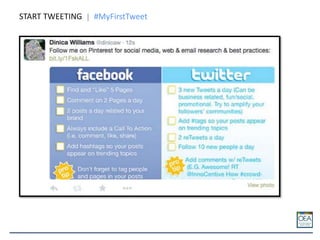
START TWEETING #MyFirstTweet
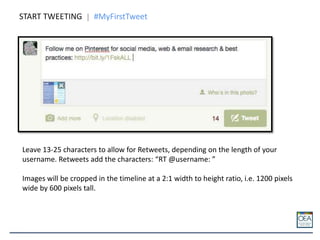
Leave 13-25 characters to allow for Retweets, depending on the length of your
username. Retweets add the characters: “RT @username: ”
Images will be cropped in the timeline at a 2:1 width to height ratio, i.e. 1200 pixels
wide by 600 pixels tall.
START TWEETING #MyFirstTweet
TWITTER RESOURCES Privacy, Pages and Groups
The Twitter Glossary: https://support.twitter.com/articles/166337-the-twitter-
glossary
Twitter Basics: https://support.twitter.com/groups/50-welcome-to-twitter
Managing your profile and account settings:
https://support.twitter.com/groups/51-me
Help Center: https://support.twitter.com/
dinica.williams@ohea.org

Facebook and Twitter 101 20150529

  • 3.
    FIRST THINGS FIRSTCreating your Facebook account
  • 4.
  • 5.
  • 6.
    STEP TWO Settingyour profile picture
  • 7.
    GETTING STARTED YourWelcome Screen
  • 8.
  • 9.
  • 10.
  • 11.
  • 12.
    YOUR PROFILE PAGEYour Cover Photo
  • 13.
    YOUR PROFILE PAGEYour Cover Photo
  • 14.
    YOUR PROFILE PAGEThe About Section
  • 15.
    YOUR FACEBOOK ACCOUNTPre-confirmation
  • 16.
  • 17.
    YOUR NEW FACEBOOKACCOUNT Post Confirmation
  • 18.
  • 19.
  • 20.
  • 21.
    FACEBOOK PAGES LikeOrganizations, Companies, Public Figures, Etc.
  • 22.
    FACEBOOK PAGES LikeOrganizations, Companies, Public Figures, Etc.
  • 23.
  • 24.
    BASIC PRIVACY SETTINGSAND TOOLS Manage Your Settings
  • 25.
    To view andadjust your privacy settings: 1. Click on the triangle next to the lock at the top of the page 2. Select Settings from the dropdown menu 3. Click on Privacy in the left column BASIC PRIVACY SETTINGS AND TOOLS Manage Your Settings
  • 26.
    How to choosewho sees your posts: BASIC PRIVACY SETTINGS AND TOOLS Selecting an Audience
  • 27.
    BASIC PRIVACY SETTINGSAND TOOLS Selecting an Audience
  • 28.
    BASIC PRIVACY SETTINGSAND TOOLS Selecting an Audience
  • 29.
    How to choosewho sees your posts: BASIC PRIVACY SETTINGS AND TOOLS Selecting an Audience • You'll also find an audience selector tool most places you share status updates, photos and other stuff. • Remember, when you post to another person's timeline, that person controls what audience can view the post.
  • 30.
    BASIC PRIVACY SETTINGSAND TOOLS Changing Past Posts If you want to change who you shared something with after you post it, return to the audience selector and pick a new audience. You can also adjust the audience of many posts at once.
  • 31.
    BASIC PRIVACY SETTINGSAND TOOLS Changing Past Posts Some important notes about this tool: • If you want to undo this action in the future, you'll need to adjust the audience of each individual post. • If you have shared a previous post with a Custom audience such as Friends except Acquaintances or Close Friends, this tool will not change the audience for those past posts. • If you tagged someone in the post, the audience of the post will still include the person you tagged and people they include in posts they're tagged in. • This tool only controls the audience for posts you've shared. If you've been tagged in someone else's post, they control the audience.
  • 32.
    BASIC PRIVACY SETTINGSAND TOOLS Your Activity Log To get to your activity log to you review and manage what you share on Facebook: • Click your privacy shortcuts in the upper-right corner of the page and select Who can see my stuff? • Click Use Activity Log (after Where do I review who can see or find things I’ve posted or been tagged in?).
  • 33.
    • Tags canadded to photos, as well as posts. Anyone can tag you in anything. Once you are tagged, you and your friends will be able to see it (such as in News Feed or in search). • Your photos and the photos you're tagged in are visible to:  The audience they're shared with  The people tagged in the photo  Friends that the people tagged choose to add to the audience. • Tags from people you're not friends with will appear in your Activity Log under Posts You’re Tagged In, where you can decide if you want to allow them on your Timeline. Remember, posts you choose not to allow on your Timeline may appear in News Feed and elsewhere on Facebook. • There are a few things you can do to make it more difficult to tag you. BASIC PRIVACY SETTINGS AND TOOLS Tagging
  • 34.
    Your Tag settings: BASICPRIVACY SETTINGS AND TOOLS Tagging
  • 35.
    BASIC PRIVACY SETTINGSAND TOOLS Tagging
  • 36.
    BASIC PRIVACY SETTINGSAND TOOLS Tagging
  • 37.
    BASIC PRIVACY SETTINGSAND TOOLS Tagging
  • 38.
    BASIC PRIVACY SETTINGSAND TOOLS Tagging
  • 39.
    BASIC PRIVACY SETTINGSAND TOOLS Tagging
  • 40.
    To remove atag from a post you’re tagged in: • From your Activity Log, click and select Report/Remove Tag. BASIC PRIVACY SETTINGS AND TOOLS Tagging
  • 41.
    BASIC PRIVACY SETTINGSAND TOOLS Tagging To remove a tag from a post you’re tagged in: • From your Activity Log, on the arrow in the upper-right corner of the post and select Report/Remove Tag or or Report post.
  • 42.
    Remove a tagfrom a photo you’re tagged in: From the photo, click Options at the bottom of the photo: BASIC PRIVACY SETTINGS AND TOOLS Tagging
  • 43.
    You can alsoremove tags from multiple photos at once, Go to your activity log 1. Click Photos in the left-hand column 2. Select the photos you'd like to remove a tag from 3. Click Report/Remove Tags at the top of the page 4. Click Untag Photos to confirm Remember, when you remove a tag, that tag will no longer appear on the post or photo, but that post or photo is still visible to the audience it's shared with on other places on Facebook, such as in News Feed and search. BASIC PRIVACY SETTINGS AND TOOLS Tagging
  • 44.
    BASIC PRIVACY SETTINGSAND TOOLS Sharing The good news: If a person shares your Friends Only post, only your friends will see the shared post. • However, when you comment on or "like" someone else's story, or write on their timeline, that person gets to select the audience. For example, if a friend posts a Public story and you comment on it, your comment will be Public. You can see the audience someone selected for their story before you post a comment, however, the person who posted the story may later change their audience. • If you do not want someone to tag you, you have to reach out to them and give them that feedback. If that does not work, you can block them. This will prevent them from tagging you going forward. You can also report the post. • If you tag someone, that person and their friends can see your story no matter what audience you selected. The same is true when you approve a tag someone else adds to your story. • Comments on Pages are always public.
  • 45.
    BASIC PRIVACY SETTINGSAND TOOLS App Settings
  • 46.
    BASIC PRIVACY SETTINGSAND TOOLS App Settings
  • 47.
    BASIC PRIVACY SETTINGSAND TOOLS Visibility
  • 48.
    BASIC PRIVACY SETTINGSAND TOOLS Visibility
  • 49.
    BASIC PRIVACY SETTINGSAND TOOLS Notifications
  • 50.
    FACEBOOK RESOURCES Privacy,Pages and Groups Facebook Privacy Settings and Tools: http://on.fb.me/ZIkhgx & https://www.facebook.com/about/basics/ Facebook Pages Basics: http://on.fb.me/16H9UNC Facebook Groups Basics: http://on.fb.me/170acZe Help Center: https://www.facebook.com/help/ What’s New on Facebook: http://on.fb.me/1bwOYY3 dinica.williams@ohea.org
  • 51.
  • 52.
  • 53.
    BASIC TERMS Unfriend,Follow, and Message (Chat)
  • 54.
    BASIC TERMS Like,Comment, and Share
  • 56.
    WHAT IS TWITTER?In a nutshell • Twitter is a free social networking micro- blogging service that allows users to publish short posts online called Tweets. • Tweets, which may include links, are limited to 140 characters, including spaces and punctuation. Twitter uses tinyurl.com to automatically shorten long URLs, but can use any link shortener you chose, e.g. Bitly. Pictures use up characters. • On Twitter you can follow other users and then you will see their Tweets on your homepage as soon as they post something new. • The default settings for Twitter are public. Unlike Facebook where users need to approve social connections, anyone can follow anyone on Twitter if their account is public.
  • 57.
    FIRST THINGS FIRSTCreating your Twitter account Your username preceded by the @ symbol is how you’ll be identified on Twitter, e.g. @DinicaW or @OhioEA
  • 58.
    STEP ONE ConnectYour Cell Phone (Optional)
  • 59.
    STEP TWO Chooseyour interests
  • 60.
    STEP THREE Twitter’sWho To Follow suggestions
  • 61.
    STEP FOUR Settingyour profile picture
  • 62.
  • 63.
    STEP SIX Followpeople you know
  • 64.
    FINAL STEP Confirmyour email address
  • 65.
  • 66.
  • 67.
  • 68.
  • 69.
  • 70.
    MANAGE YOUR SETTINGSText Notifications
  • 71.
    MANAGE YOUR SETTINGSEmail Notifications
  • 72.
    MANAGE YOUR SETTINGSOnline Notifications
  • 73.
    MANAGE YOUR SETTINGSMute or Block Accounts
  • 74.
  • 75.
  • 76.
    YOUR PROFILE Whatother people see
  • 77.
    BASIC TERMS Glossary @ The@ sign is used to call out usernames in Tweets: "Hello @twitter!" People will use your @username to mention you in Tweets, send you a message or link to your profile. Direct Messages Direct Messages are private messages sent from one Twitter user to another Twitter users. You can Direct Message someone for one-on-one private conversations, or between groups of users. favorite Favoriting a Tweet indicates that you liked a specific Tweet. You can find all of your favorite Tweets by clicking on the favorites link on your profile page. hashtag A hashtag is any word or phrase immediately preceded by the # symbol. When you click on a hashtag, you'll see other Tweets containing the same keyword or topic.
  • 78.
    BASIC TERMS Glossary headerphoto Your personal image that you upload, which appears at the top of your profile. Home Home is your real-time stream of Tweets from those you follow. list From your own account, you can create a group list of other Twitter users by topic or interest (e.g., a list of friends, coworkers, celebrities, athletes). Twitter lists also contain a timeline of Tweets from the specific users that were added to the list, offering you a way to follow individual accounts as a group on Twitter. mention Mentioning other users in your Tweet by including the @ sign followed directly by their username is called a “mention.” Also refers to Tweets in which your @username was included. Similar to tagging in Facebook.
  • 79.
    BASIC TERMS Glossary pinnedTweets You can pin a Tweet to the top of your profile page to keep something important to you above the flow of time-ordered Tweets. profile Your profile displays information you choose to share publicly, as well as all of the Tweets you've posted. Your profile along with your @username identify you on Twitter. Promoted Accounts/Trends/Tweets Bought by advertisers to appear in your Home timeline and elsewhere on the site. As opposed to Trends and Top Tweets, which are determined by an algorithm that calculates what is most popular at that moment. protected/private accounts Twitter accounts are public by default. Choosing to protect your account means that your Tweets will only be seen by approved followers and will not appear in search.
  • 80.
    BASIC TERMS Glossary reply Aresponse to another user's Tweet that begins with the @username of the person you're replying to is known as a reply. Reply by clicking the "reply" button next to the Tweet you'd like to respond to. This will only show up in the timeline of people who follow you and the other user. Retweet A Tweet that you forward to your followers is known as a Retweet. Often used to pass along news or other valuable discoveries on Twitter, Retweets always retain original attribution. timeline A timeline is a real-time stream of Tweets. Your Home stream, for instance, is where you see all the Tweets shared by your friends and other people you follow. timestamp The date and time a Tweet was posted to Twitter. A Tweet's timestamp can be found in grey text in the detail view of any Tweet.
  • 81.
    START TWEETING #MyFirstTweet Leave13-25 characters to allow for Retweets, depending on the length of your username. Retweets add the characters: “RT @username: ” Images will be cropped in the timeline at a 2:1 width to height ratio, i.e. 1200 pixels wide by 600 pixels tall.
  • 82.
  • 83.
    TWITTER RESOURCES Privacy,Pages and Groups The Twitter Glossary: https://support.twitter.com/articles/166337-the-twitter- glossary Twitter Basics: https://support.twitter.com/groups/50-welcome-to-twitter Managing your profile and account settings: https://support.twitter.com/groups/51-me Help Center: https://support.twitter.com/ dinica.williams@ohea.org