Twitter
connecting with others as part of a
global community
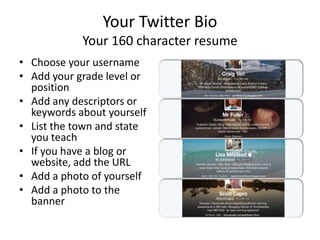
Your Twitter Bio
Your 160 character resume
• Choose your username
• Add your grade level or
position
• Add any descriptors or
keywords about yourself
• List the town and state
you teach
• If you have a blog or
website, add the URL
• Add a photo of yourself
• Add a photo to the
banner
How to upload your profile image, twitter
header, and edit your profile
• http://youtu.be/ZkP8riJvau8
Who to Follow
• Don’t just follow anyone — follow those who have the same
interests and who you like.
• People you know & check out who they are following
• Make sure to say “thanks for following”
• You can regularly update/change who you follow to suit your needs.
• Think about how you want to use it — to follow latest news? to
follow other educators? to share what you know? to connect with
others?
• Participate or check out the different weekly hashtag
conversations/chats. They are a great way to find new people to
follow.
• Check out new followers before following. Look at their bio, how
many they are following, how many follow them and their latest
tweets. This information helps you work out if they are the type of
people you like to follow.
Weekly Twitter Chats &
Educational Hashtags
• https://docs.google.com/spreadsheet/ccc?key=0AiftIdjCeWSX
dDRLRzNsVktUUGJpRWJhdUlWLS1Genc#gid=0
• http://cybraryman.com/edhashtags.html
• Tweetdeck & Hootsuite – customize your Twitter
experience & manage multiple accounts
• How to use TweetDeck
http://youtu.be/DEQPhfDYFcw
• Build your PLN- Personal Learning Network
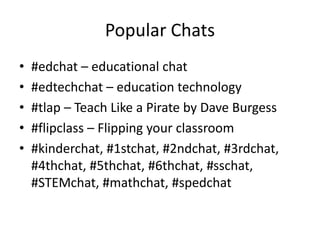
Popular Chats
• #edchat – educational chat
• #edtechchat – education technology
• #tlap – Teach Like a Pirate by Dave Burgess
• #flipclass – Flipping your classroom
• #kinderchat, #1stchat, #2ndchat, #3rdchat,
#4thchat, #5thchat, #6thchat, #sschat,
#STEMchat, #mathchat, #spedchat
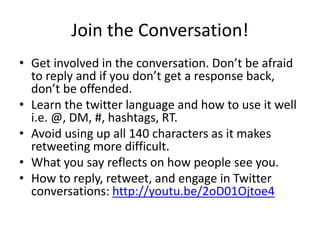
Join the Conversation!
• Get involved in the conversation. Don’t be afraid
to reply and if you don’t get a response back,
don’t be offended.
• Learn the twitter language and how to use it well
i.e. @, DM, #, hashtags, RT.
• Avoid using up all 140 characters as it makes
retweeting more difficult.
• What you say reflects on how people see you.
• How to reply, retweet, and engage in Twitter
conversations: http://youtu.be/2oD01Ojtoe4
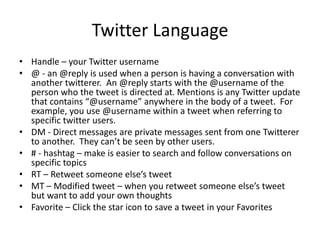
Twitter Language
• Handle – your Twitter username
• @ - an @reply is used when a person is having a conversation with
another twitterer. An @reply starts with the @username of the
person who the tweet is directed at. Mentions is any Twitter update
that contains “@username” anywhere in the body of a tweet. For
example, you use @username within a tweet when referring to
specific twitter users.
• DM - Direct messages are private messages sent from one Twitterer
to another. They can’t be seen by other users.
• # - hashtag – make is easier to search and follow conversations on
specific topics
• RT – Retweet someone else’s tweet
• MT – Modified tweet – when you retweet someone else’s tweet
but want to add your own thoughts
• Favorite – Click the star icon to save a tweet in your Favorites
@MegSnee
@MrsSoliwoda

Twitter ppt 2014

  • 1.
    Twitter connecting with othersas part of a global community
  • 2.
    Your Twitter Bio Your160 character resume • Choose your username • Add your grade level or position • Add any descriptors or keywords about yourself • List the town and state you teach • If you have a blog or website, add the URL • Add a photo of yourself • Add a photo to the banner
  • 3.
    How to uploadyour profile image, twitter header, and edit your profile • http://youtu.be/ZkP8riJvau8
  • 4.
    Who to Follow •Don’t just follow anyone — follow those who have the same interests and who you like. • People you know & check out who they are following • Make sure to say “thanks for following” • You can regularly update/change who you follow to suit your needs. • Think about how you want to use it — to follow latest news? to follow other educators? to share what you know? to connect with others? • Participate or check out the different weekly hashtag conversations/chats. They are a great way to find new people to follow. • Check out new followers before following. Look at their bio, how many they are following, how many follow them and their latest tweets. This information helps you work out if they are the type of people you like to follow.
  • 5.
    Weekly Twitter Chats& Educational Hashtags • https://docs.google.com/spreadsheet/ccc?key=0AiftIdjCeWSX dDRLRzNsVktUUGJpRWJhdUlWLS1Genc#gid=0 • http://cybraryman.com/edhashtags.html • Tweetdeck & Hootsuite – customize your Twitter experience & manage multiple accounts • How to use TweetDeck http://youtu.be/DEQPhfDYFcw • Build your PLN- Personal Learning Network
  • 6.
    Popular Chats • #edchat– educational chat • #edtechchat – education technology • #tlap – Teach Like a Pirate by Dave Burgess • #flipclass – Flipping your classroom • #kinderchat, #1stchat, #2ndchat, #3rdchat, #4thchat, #5thchat, #6thchat, #sschat, #STEMchat, #mathchat, #spedchat
  • 7.
    Join the Conversation! •Get involved in the conversation. Don’t be afraid to reply and if you don’t get a response back, don’t be offended. • Learn the twitter language and how to use it well i.e. @, DM, #, hashtags, RT. • Avoid using up all 140 characters as it makes retweeting more difficult. • What you say reflects on how people see you. • How to reply, retweet, and engage in Twitter conversations: http://youtu.be/2oD01Ojtoe4
  • 8.
    Twitter Language • Handle– your Twitter username • @ - an @reply is used when a person is having a conversation with another twitterer. An @reply starts with the @username of the person who the tweet is directed at. Mentions is any Twitter update that contains “@username” anywhere in the body of a tweet. For example, you use @username within a tweet when referring to specific twitter users. • DM - Direct messages are private messages sent from one Twitterer to another. They can’t be seen by other users. • # - hashtag – make is easier to search and follow conversations on specific topics • RT – Retweet someone else’s tweet • MT – Modified tweet – when you retweet someone else’s tweet but want to add your own thoughts • Favorite – Click the star icon to save a tweet in your Favorites
  • 9.