Twitter Guide
A beginners guide by beginners
Marianne Wallace and Rachel Bew
Occupational Therapy Interns
What is Twitter?
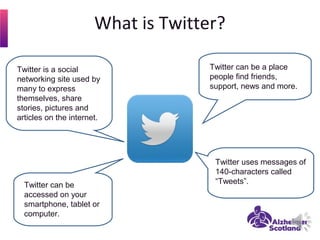
Twitter is a social
networking site used by
many to express
themselves, share
stories, pictures and
articles on the internet.
Twitter can be a place
people find friends,
support, news and more.
Twitter uses messages of
140-characters called
“Tweets”.Twitter can be
accessed on your
smartphone, tablet or
computer.
Your profile picture
can be anything.
Everybody has a
name and a
@username.
These can be
different. Think of
the @username as
an email address.
Your bio – some
information about
you and your
interests.
This shows that
you are “following”
someone. To follow
someone press
this:
Your Profile
These are people
and organisations
that you follow.
You will see
Tweets from
people you follow
on your
homepage.
These are people
that follow you -
your Tweets will
automatically
appear on their
homepage.
Your Profile
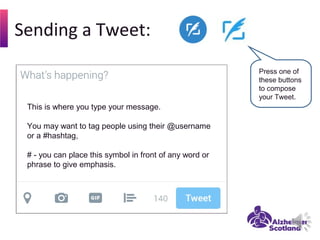
This is where you type your message.
You may want to tag people using their @username
or a #hashtag,
# - you can place this symbol in front of any word or
phrase to give emphasis.
Press one of
these buttons
to compose
your Tweet.
Sending a Tweet:
You have 140 characters for your
Tweet. If you go over this you will
need to reduce the number of
characters before sending.
This allows you to state
your location – this is
optional.
Be cautious about
sharing this information
Press here to
add a photo
Press here to
send Tweet.
Sending a Tweet:
Ideas for Tweets:
•Thoughts and ideas
•What you have been doing
•Your work with the SDWG
•Photographs
•News and articles
•Links to websites
Something to consider:
Please remember anyone
can view your Tweets.
…unless you change your account
settings to protect your Tweets (see
Staying safe online section)
You might like to mention other
people in your Tweet using their
@username. This person will then get
a “notification” that you have
“mentioned” them in a Tweet.
# - hashtag is a symbol you can place
in front of any word. You can search
for a # to see what people are saying
about that topic.
eg. Searching for #Scotland
will show Tweets about
Scotland.
What to include in a Tweet:
This is a Tweet from
Alzheimer Scotland.
Their @username is
@alzscot
Date or time
Tweet was
posted
This Tweet uses:
#dementia
@S_D_W_G
and includes an internet link.
This is the text of
your Tweet.
You have 140
characters – this
includes using
@usernames,
#hashtags and
links.
Profile Picture
What a Tweet looks like
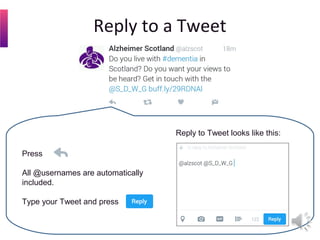
Press
All @usernames are automatically
included.
Type your Tweet and press
Reply to Tweet looks like this:
Reply to a Tweet
Retweet
Press
Select Retweet from options
Retweeting allows you to pass on information
to your followers
The retweet symbol will turn green
Press
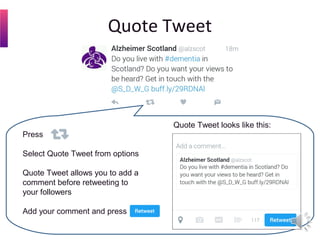
Select Quote Tweet from options
Quote Tweet allows you to add a
comment before retweeting to
your followers
Add your comment and press
Quote Tweet looks like this:
Quote Tweet
Press
This shows your appreciation for
a Tweet
The heart will turn red
Like a Tweet
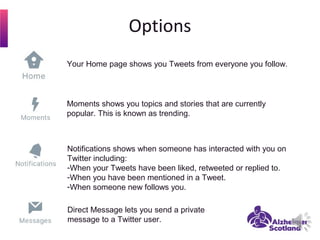
Your Home page shows you Tweets from everyone you follow.
Moments shows you topics and stories that are currently
popular. This is known as trending.
Notifications shows when someone has interacted with you on
Twitter including:
-When your Tweets have been liked, retweeted or replied to.
-When you have been mentioned in a Tweet.
-When someone new follows you.
Direct Message lets you send a private
message to a Twitter user.
Options
Twitter is safely used by millions of people around the world
everyday.
There are some areas that you might want to consider when
using Twitter to stay safe online.
Security Online
Abuse
Think
before you
Tweet
Privacy
Staying Safe Online
Security
Do not give out personal information like your password, address, date of birth, email or
phone number.
Your location when Tweeting is automatically switched off this prevents people knowing
exactly where you are.
Do not click on internet links you think might be suspicious or untrustworthy.
Be cautious of direct messages from people you do not know.
If you think your account has been hacked, change your password.
Privacy
Your Twitter profile is automatically set to ‘Public’.
Anyone can see your Tweets even if they don’t follow you or have a Twitter account.
You can opt to ‘Protect’ your Tweets which means only followers you approve can see
your Tweets. You will receive a request when new people want to follow you, which you
can approve or deny.
The ‘Protect’ function will make your account more private but will limit the visibility of
your Tweets when sharing what you do.
The ‘Protect my Tweets’ option can be found within the Privacy Settings.
Staying Safe Online
Think before you Tweet
What you Tweet stays online
Think carefully about what you Tweet before you post it.
Your Tweets could be found on an internet search even by people who do not have a
Twitter account.
Do not say anything or add pictures that you think might cause you or someone else
embarrassment.
Respect others – Everyone’s views are their own.
Staying Safe Online
Online Abuse
Remember, not everyone online is who they say they are.
Do not let people convince you to do things that you are not comfortable with.
If someone posts something private about you that you are not happy with you can ask
them to take it down or report it to Twitter.
It is ok to ‘unfollow’ someone if you no longer want to see Tweets from them.
Click on one of these buttons to ‘unfollow’:
Staying Safe Online
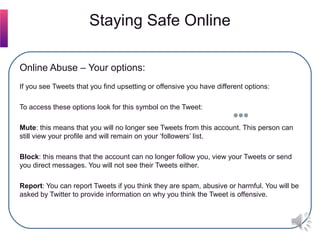
Online Abuse – Your options:
If you see Tweets that you find upsetting or offensive you have different options:
To access these options look for this symbol on the Tweet:
Mute: this means that you will no longer see Tweets from this account. This person can
still view your profile and will remain on your ‘followers’ list.
Block: this means that the account can no longer follow you, view your Tweets or send
you direct messages. You will not see their Tweets either.
Report: You can report Tweets if you think they are spam, abusive or harmful. You will be
asked by Twitter to provide information on why you think the Tweet is offensive.
Staying Safe Online
Glossary
A @username is how you're identified on Twitter.
People will use your @username to mention you in Tweets,
send you a message or link to your profile.
@username may also be called your ‘handle’.
@username
A hashtag is any word or phrase immediately preceded by the
# symbol. This can be used to add emphasis or to search for a
topic.
#hashtag
Note: The type of symbol you may seen may vary between your smartphone,
tablet or computer.
Your bio is a short (up to 160 characters) personal description
that appears in your profile.
bio
Direct Messages are private messages sent from one Twitter
user to another. You can use Direct Messages for private
conversations.
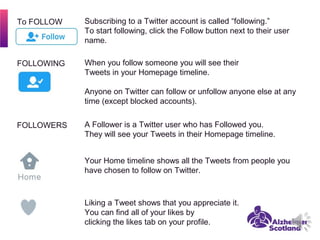
A Follower is a Twitter user who has Followed you.
They will see your Tweets in their Homepage timeline.
FOLLOWERS
Your Home timeline shows all the Tweets from people you
have chosen to follow on Twitter.
Liking a Tweet shows that you appreciate it.
You can find all of your likes by
clicking the likes tab on your profile.
Subscribing to a Twitter account is called “following.”
To start following, click the Follow button next to their user
name.
When you follow someone you will see their
Tweets in your Homepage timeline.
Anyone on Twitter can follow or unfollow anyone else at any
time (except blocked accounts).
To FOLLOW
FOLLOWING
Notifications shows when someone has interacted with you on
Twitter including:
-When your Tweets have been liked, retweeted or replied to.
-When you have been mentioned in a Tweet.
-When someone new follows you.
Your personal image found in your Profile.
It is the picture that appears next to each of your Tweets.
Profile Picture
Moments shows you topics and stories that
are currently popular.
This is known as trending.
Profile
You can access your Profile by clicking on your Profile Picture
or by clicking on the Me symbol.
Your profile displays bio and all of the Tweets you have
posted.
Your profile along with your @username identify you on
Twitter.
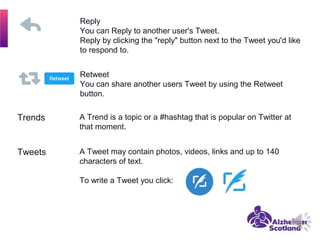
Retweet
You can share another users Tweet by using the Retweet
button.
A Trend is a topic or a #hashtag that is popular on Twitter at
that moment.
Trends
A Tweet may contain photos, videos, links and up to 140
characters of text.
To write a Tweet you click:
Tweets
Reply
You can Reply to another user's Tweet.
Reply by clicking the "reply" button next to the Tweet you'd like
to respond to.
Useful Resources
Age UK
Technology and Internet Support
www.ageuk.org.uk
BullyingUK
Twitter Safety and Cyberbullying
www.bullying.co.uk
Get Safe Online
www.getsafeonline.org
Safe – Internet Safety
www.safe.met.police.uk
Twitter Support
www.support.twitter.com

Twitter guide

  • 1.
    Twitter Guide A beginnersguide by beginners Marianne Wallace and Rachel Bew Occupational Therapy Interns
  • 2.
    What is Twitter? Twitteris a social networking site used by many to express themselves, share stories, pictures and articles on the internet. Twitter can be a place people find friends, support, news and more. Twitter uses messages of 140-characters called “Tweets”.Twitter can be accessed on your smartphone, tablet or computer.
  • 3.
    Your profile picture canbe anything. Everybody has a name and a @username. These can be different. Think of the @username as an email address. Your bio – some information about you and your interests. This shows that you are “following” someone. To follow someone press this: Your Profile
  • 4.
    These are people andorganisations that you follow. You will see Tweets from people you follow on your homepage. These are people that follow you - your Tweets will automatically appear on their homepage. Your Profile
  • 5.
    This is whereyou type your message. You may want to tag people using their @username or a #hashtag, # - you can place this symbol in front of any word or phrase to give emphasis. Press one of these buttons to compose your Tweet. Sending a Tweet:
  • 6.
    You have 140characters for your Tweet. If you go over this you will need to reduce the number of characters before sending. This allows you to state your location – this is optional. Be cautious about sharing this information Press here to add a photo Press here to send Tweet. Sending a Tweet:
  • 7.
    Ideas for Tweets: •Thoughtsand ideas •What you have been doing •Your work with the SDWG •Photographs •News and articles •Links to websites Something to consider: Please remember anyone can view your Tweets. …unless you change your account settings to protect your Tweets (see Staying safe online section) You might like to mention other people in your Tweet using their @username. This person will then get a “notification” that you have “mentioned” them in a Tweet. # - hashtag is a symbol you can place in front of any word. You can search for a # to see what people are saying about that topic. eg. Searching for #Scotland will show Tweets about Scotland. What to include in a Tweet:
  • 8.
    This is aTweet from Alzheimer Scotland. Their @username is @alzscot Date or time Tweet was posted This Tweet uses: #dementia @S_D_W_G and includes an internet link. This is the text of your Tweet. You have 140 characters – this includes using @usernames, #hashtags and links. Profile Picture What a Tweet looks like
  • 9.
    Press All @usernames areautomatically included. Type your Tweet and press Reply to Tweet looks like this: Reply to a Tweet
  • 10.
    Retweet Press Select Retweet fromoptions Retweeting allows you to pass on information to your followers The retweet symbol will turn green
  • 11.
    Press Select Quote Tweetfrom options Quote Tweet allows you to add a comment before retweeting to your followers Add your comment and press Quote Tweet looks like this: Quote Tweet
  • 12.
    Press This shows yourappreciation for a Tweet The heart will turn red Like a Tweet
  • 13.
    Your Home pageshows you Tweets from everyone you follow. Moments shows you topics and stories that are currently popular. This is known as trending. Notifications shows when someone has interacted with you on Twitter including: -When your Tweets have been liked, retweeted or replied to. -When you have been mentioned in a Tweet. -When someone new follows you. Direct Message lets you send a private message to a Twitter user. Options
  • 14.
    Twitter is safelyused by millions of people around the world everyday. There are some areas that you might want to consider when using Twitter to stay safe online. Security Online Abuse Think before you Tweet Privacy
  • 15.
    Staying Safe Online Security Donot give out personal information like your password, address, date of birth, email or phone number. Your location when Tweeting is automatically switched off this prevents people knowing exactly where you are. Do not click on internet links you think might be suspicious or untrustworthy. Be cautious of direct messages from people you do not know. If you think your account has been hacked, change your password.
  • 16.
    Privacy Your Twitter profileis automatically set to ‘Public’. Anyone can see your Tweets even if they don’t follow you or have a Twitter account. You can opt to ‘Protect’ your Tweets which means only followers you approve can see your Tweets. You will receive a request when new people want to follow you, which you can approve or deny. The ‘Protect’ function will make your account more private but will limit the visibility of your Tweets when sharing what you do. The ‘Protect my Tweets’ option can be found within the Privacy Settings. Staying Safe Online
  • 17.
    Think before youTweet What you Tweet stays online Think carefully about what you Tweet before you post it. Your Tweets could be found on an internet search even by people who do not have a Twitter account. Do not say anything or add pictures that you think might cause you or someone else embarrassment. Respect others – Everyone’s views are their own. Staying Safe Online
  • 18.
    Online Abuse Remember, noteveryone online is who they say they are. Do not let people convince you to do things that you are not comfortable with. If someone posts something private about you that you are not happy with you can ask them to take it down or report it to Twitter. It is ok to ‘unfollow’ someone if you no longer want to see Tweets from them. Click on one of these buttons to ‘unfollow’: Staying Safe Online
  • 19.
    Online Abuse –Your options: If you see Tweets that you find upsetting or offensive you have different options: To access these options look for this symbol on the Tweet: Mute: this means that you will no longer see Tweets from this account. This person can still view your profile and will remain on your ‘followers’ list. Block: this means that the account can no longer follow you, view your Tweets or send you direct messages. You will not see their Tweets either. Report: You can report Tweets if you think they are spam, abusive or harmful. You will be asked by Twitter to provide information on why you think the Tweet is offensive. Staying Safe Online
  • 20.
    Glossary A @username ishow you're identified on Twitter. People will use your @username to mention you in Tweets, send you a message or link to your profile. @username may also be called your ‘handle’. @username A hashtag is any word or phrase immediately preceded by the # symbol. This can be used to add emphasis or to search for a topic. #hashtag Note: The type of symbol you may seen may vary between your smartphone, tablet or computer. Your bio is a short (up to 160 characters) personal description that appears in your profile. bio Direct Messages are private messages sent from one Twitter user to another. You can use Direct Messages for private conversations.
  • 21.
    A Follower isa Twitter user who has Followed you. They will see your Tweets in their Homepage timeline. FOLLOWERS Your Home timeline shows all the Tweets from people you have chosen to follow on Twitter. Liking a Tweet shows that you appreciate it. You can find all of your likes by clicking the likes tab on your profile. Subscribing to a Twitter account is called “following.” To start following, click the Follow button next to their user name. When you follow someone you will see their Tweets in your Homepage timeline. Anyone on Twitter can follow or unfollow anyone else at any time (except blocked accounts). To FOLLOW FOLLOWING
  • 22.
    Notifications shows whensomeone has interacted with you on Twitter including: -When your Tweets have been liked, retweeted or replied to. -When you have been mentioned in a Tweet. -When someone new follows you. Your personal image found in your Profile. It is the picture that appears next to each of your Tweets. Profile Picture Moments shows you topics and stories that are currently popular. This is known as trending. Profile You can access your Profile by clicking on your Profile Picture or by clicking on the Me symbol. Your profile displays bio and all of the Tweets you have posted. Your profile along with your @username identify you on Twitter.
  • 23.
    Retweet You can shareanother users Tweet by using the Retweet button. A Trend is a topic or a #hashtag that is popular on Twitter at that moment. Trends A Tweet may contain photos, videos, links and up to 140 characters of text. To write a Tweet you click: Tweets Reply You can Reply to another user's Tweet. Reply by clicking the "reply" button next to the Tweet you'd like to respond to.
  • 24.
    Useful Resources Age UK Technologyand Internet Support www.ageuk.org.uk BullyingUK Twitter Safety and Cyberbullying www.bullying.co.uk Get Safe Online www.getsafeonline.org Safe – Internet Safety www.safe.met.police.uk Twitter Support www.support.twitter.com