

FACEBOOK for beginners


                         1
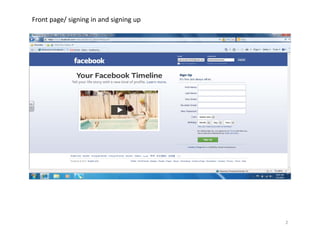
Front page/ signing in and signing up


                                        2
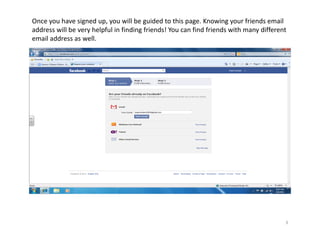
Once you have signed up, you will be guided to this page. Knowing your friends email 
address will be very helpful in finding friends! You can find friends with many different 
email address as well. 


                                      Page 


                                                                                         3
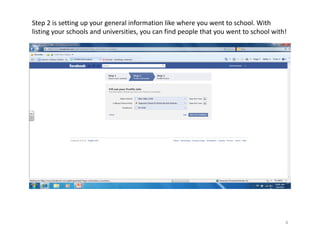
Step 2 is setting up your general information like where you went to school. With 
listing your schools and universities, you can find people that you went to school with! 


                                                                                        4
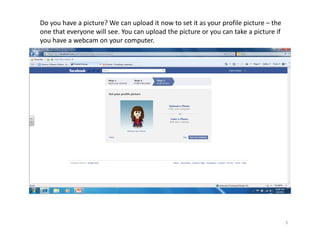
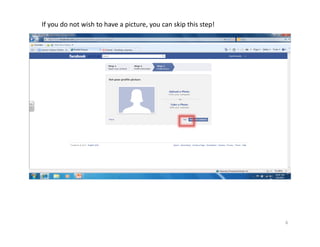
Do you have a picture? We can upload it now to set it as your profile picture – the 
one that everyone will see. You can upload the picture or you can take a picture if 
you have a webcam on your computer.


                                                                                       5
If you do not wish to have a picture, you can skip this step! 


                                                                 6
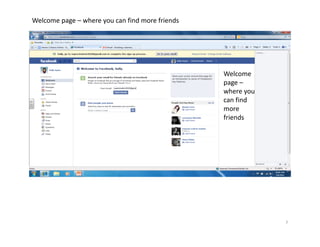
Welcome page – where you can find more friends


                                                 Welcome 
                                                 page –
                                                 where you 
                                                 can find 
                                                 more 
                                                 friends


                                                              7
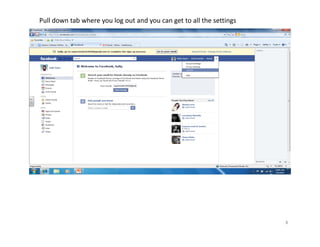
Pull down tab where you log out and you can get to all the settings


                                                                      8
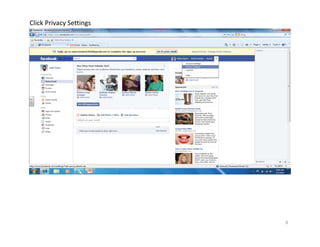
Click Privacy Settings


                         9
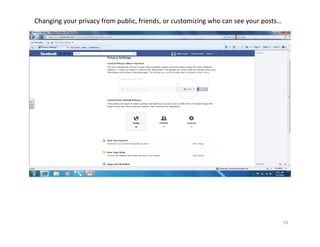
Changing your privacy from public, friends, or customizing who can see your posts…


                                                                                     10
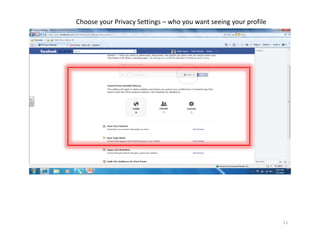
Choose your Privacy Settings – who you want seeing your profile


                                                                  11
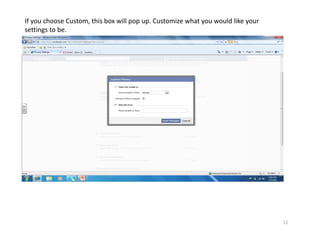
If you choose Custom, this box will pop up. Customize what you would like your 
settings to be.


                                                                                  12
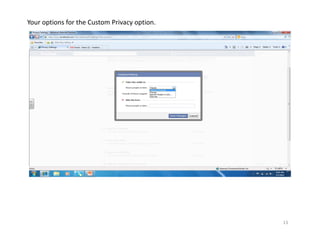
Your options for the Custom Privacy option.


                                              13
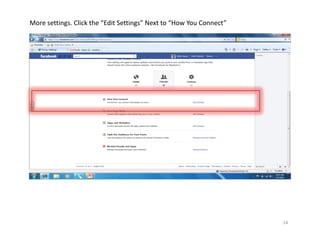
More settings. Click the “Edit Settings” Next to “How You Connect”


                                                                     14
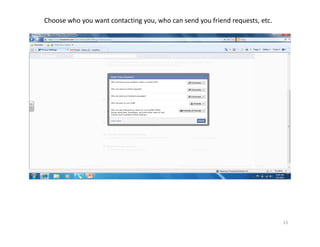
Choose who you want contacting you, who can send you friend requests, etc. 


                                                                              15
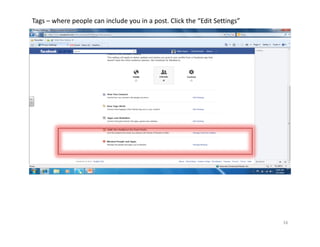
Tags – where people can include you in a post. Click the “Edit Settings”


                                                                           16
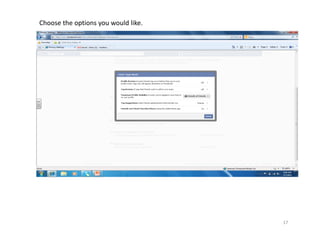
Choose the options you would like.


                                     17
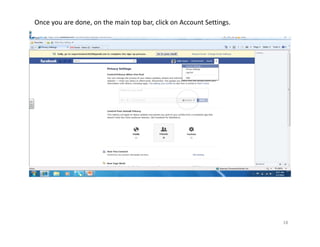
Once you are done, on the main top bar, click on Account Settings.


                                                                     18
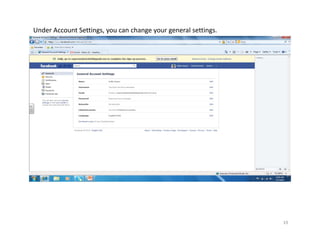
Under Account Settings, you can change your general settings.


                                                                19
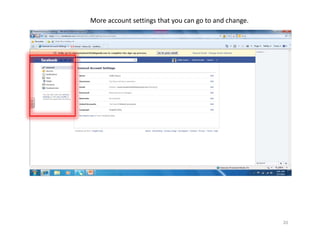
More account settings that you can go to and change.


                                                       20
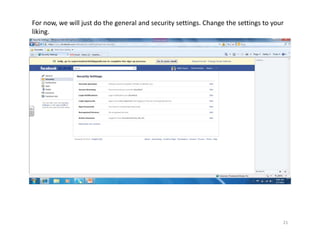
For now, we will just do the general and security settings. Change the settings to your 
liking.


                                                                                       21
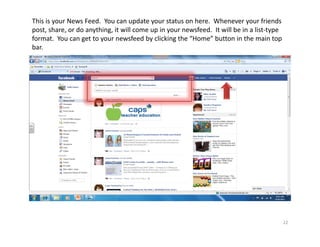
This is your News Feed.  You can update your status on here.  Whenever your friends 
post, share, or do anything, it will come up in your newsfeed.  It will be in a list‐type 
format.  You can get to your newsfeed by clicking the “Home” button in the main top 
bar.


                                                                                         22
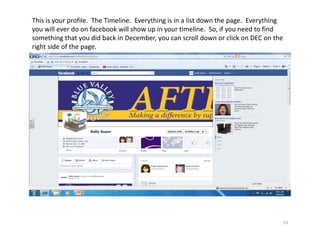
This is your profile.  The Timeline.  Everything is in a list down the page.  Everything 
you will ever do on facebook will show up in your timeline.  So, if you need to find 
something that you did back in December, you can scroll down or click on DEC on the 
right side of the page.


                                                                                        23
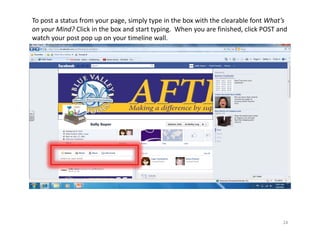
To post a status from your page, simply type in the box with the clearable font What’s 
on your Mind? Click in the box and start typing.  When you are finished, click POST and 
watch your post pop up on your timeline wall.


                                                                                      24
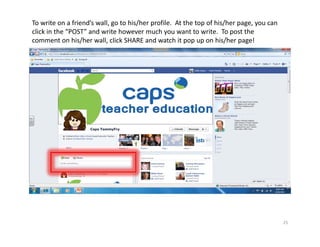
To write on a friend’s wall, go to his/her profile.  At the top of his/her page, you can 
click in the “POST” and write however much you want to write.  To post the 
comment on his/her wall, click SHARE and watch it pop up on his/her page!


                                                                                            25
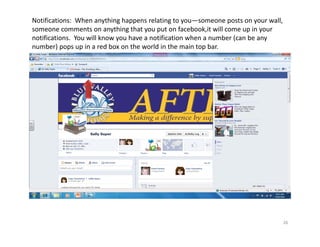
Notifications:  When anything happens relating to you—someone posts on your wall, 
someone comments on anything that you put on facebook,it will come up in your 
notifications.  You will know you have a notification when a number (can be any 
number) pops up in a red box on the world in the main top bar.


                                                                                 26
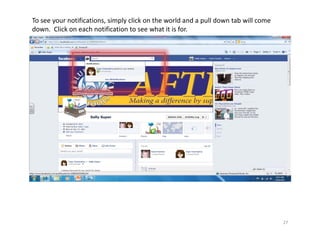
To see your notifications, simply click on the world and a pull down tab will come 
down.  Click on each notification to see what it is for.


                                                                                      27
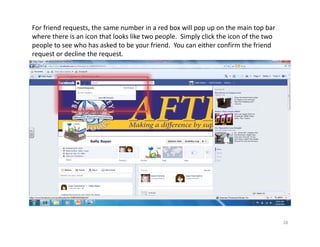
For friend requests, the same number in a red box will pop up on the main top bar 
where there is an icon that looks like two people.  Simply click the icon of the two 
people to see who has asked to be your friend.  You can either confirm the friend 
request or decline the request.


                                                                                        28
Your home on Facebook is your Facebook Profile. Here are some of the most 
commonly used terms that you’ll come across as you create your Facebook Profile and 
begin interacting with other Facebook members.
1. Friend: Your Facebook Friends are the people you connect with (or “Friend”) and 
share content and updates with on Facebook. You can send Friend requests to other 
Facebook members. You also receive Friend requests from other members which you 
can accept, decline, or ignore.
2. Like: You can click the Like link on any Facebook update to show that you like the 
content. When you Like something, the action appears as an update on your Facebook 
Wall (see “Wall” below). You can also Like any piece of content that you find across the 
Internet whenever it’s accompanied by the Facebook Like button (see “social 
plugins”).
3. Messages: Your Facebook Messages are similar to private email messages. They 
appear in your Facebook Inbox and can include text messages, chats, emails, and 
mobile messages from your Facebook Friends.
4. News Feed: Your Facebook News Feed is the continually appended feed of status 
updates that appears on your Facebook Profile home page. It shows the most recent 
activities from your Facebook Friends and Facebook Pages that you follow.
5. Notes: Using the Notes feature, you can publish messages in rich‐text format giving 
you greater flexibility than simple updates allow.

                                                                                      29
6. Notifications: You can set up your Facebook Profile so you receive email, mobile, or 
onsite updates when certain activities happen on Facebook. For example, you can be 
notified when an update is made to a Group you belong to or when someone accepts 
your Friend request.
7. Poke: If you want to get one of your Facebook Friend’s attention, you can “poke” him 
or her on Facebook. The Friend will receive a notification from Facebook letting him or 
her know that they’ve been poked (and by whom).
8. Profile: Facebook refers to your Profile as your complete picture and story on 
Facebook. It includes your Profile picture, biography, personal information, and more. 
Your Profile can be public or private. It’s your personal piece of “real estate” on 
Facebook.
9. Ticker: Your Ticker appears on the right side of your Facebook home page and is 
updated with your friends’ activities in real‐time.
10. Timeline: Your Facebook Timeline shows all of your Facebook updates and activities 
in reverse chronological order.
11. Top Story: Facebook chooses the top stories that appear at the top of your 
Facebook News Feed. These are stories that have been published since the last time 
you checked your News Feed and are visibly identified with a blue corner.
12. Wall: Your Facebook Wall is where you can publish updates and where your Friends 
can post updates directly to you.

                                                                                     30

After 55 facebook_tutorial