A Parents' Guide to 
© 2014 ConnectSafely.org
Top 5 Questions Parents Have About Instagram 
1. Why do kids love Instagram? 
Because they love media, sharing it and socializing with it on their phones, and 
Instagram makes all that doable in a simple, eye-catching way. Teens like taking, 
cropping, enhancing, sharing and commenting on photos and videos. But the 
commenting isn't just commenting – in effect, they're socializing in mixed-media 
conversations that include plenty of likes and links too. 
2. Does Instagram have a minimum age? 
Yes, it's 13, in compliance with the Children’s Online Privacy Protection Act. But 
Instagram doesn’t ask users to specify their age, and there are many younger 
children who use the service, often with their parents’ permission. Whether 
Instagram is “safe” depends more on how it’s used than on the age of the user, but 
Instagram will delete underage accounts if they’re notified and can verify the users 
are under 13. 
3. What are the risks in using Instagram? 
Though there's nothing inherently dangerous about Instagram, the main things 
parents worry about are typical of all social media: mean behavior among peers and 
inappropriate photos or videos that can hurt a child’s reputation or attract the wrong 
kind of attention. Parents are also concerned that people their kids don't know can 
reach out to them directly. Kids can learn to manage these risks, which is why we 
wrote this guide. 
4. What's the best way to help kids stay safe on Instagram? 
As with all social media, being respectful of ourselves and others makes us safer. Our 
posts and comments reflect on us and others in our photos and videos. Whether 
serious or silly, they become part of our public image. Respecting others in how 
media is shared, tagged and commented on reduces risk. While most kids are smart 
about this, it doesn't hurt for parents to be sure kids aren't posting provocative 
images or having inappropriate interactions with people they don't know, which leads 
to the next question... 
5. Should my child's profile be private? 
For many kids, part of the fun of Instagram is developing a big following – a good 
thing for parents and kids to talk about. Having a public account on Instagram means 
anyone can follow you. A private account means that you have to approve anyone 
who wants to follow you, so many parents have their kids start using Instagram with 
a private account. But there's no guarantee your child won't be seen on Instagram or 
any other photo-sharing service, because people post photos of each other. Even not 
having an Instagram account can’t ensure a child won't appear in a photo there. How 
positive or negative a young person's experience is on Instagram or anywhere online 
depends as much on the person and his or her friends as on the app. 
2
Instagram is a simple photo- and video-sharing app with a huge and growing 
following, especially among young people. Like everybody, kids use it to 
capture special moments, but also to carry on conversations in a fun way – 
using photos, filters, comments, captions, emoticons, hashtags and links 
elsewhere to talk about things and share interests. It runs on the Apple 
iPhone, iPad and iPod Touch as well as Android phones. 
Using Instagram is easy: You take a picture or up to 15 seconds of video and 
customize your media with filters and other enhancement tools. You add a 
caption and, for video, choose a cover frame to represent it. Then you hit 
Next (Android users, tap the green arrow) and choose how you want to share 
– just to your Instagram followers or outside the app, via email, Facebook, 
Twitter, and other social media services. 
Basically, there are three ways to share on Instagram: privately, publicly and 
directly. With Instagram Direct, you have the option to share a particular 
photo privately to a limited number of people (15 max), whether or not you 
follow them or they follow you. 
Instagram lets you shoot video or still images. 
If your kids are using Instagram, the best way for you to learn about how it 
works is to ask them how. Kids are often glad to teach their parents about 
their favorite tech tools, and asking them about Instagram is not only a great 
way to learn about the app itself but also about how your children interact 
with their friends in social media. That's very individual, which is why we 
suggest you ask them about it, but if you want a little general information 
about using and staying safe in Instagram, here goes: 
3 
Responsible sharing 
• You control your privacy. By default, photos and videos you share in 
Instagram can be seen by anyone (unless you share them directly) but 
you can easily make your account private so you get to approve 
anyone who wants to follow you. To do that, tap Profile on the 
bottom right, then Edit Your Profile next to your profile picture. Scroll 
down to see if “Posts Are Private" is turned on or off. If turned off, you 
can make your photos private by toggling the switch to on. (Android 
users, tap Profile and Edit Your Profile. Be sure “Posts are Private” 
is checked.) [If you update or reinstall the app, make sure your 
settings are still the way you want them.] 
• Instagram Direct is automatically private. Anyone, including people 
you don’t follow, can send you an image or video that only you and up
to 14 other people can see or comment on. If you follow that person, 
the image will be sent to your Direct folder. If you don’t follow the 
person, it'll arrive in a Request folder, and that person’s Instagrams 
will keep going to your Requests folder until you approve that person. 
If you choose to ignore the person, he or she won't be able to send 
you an Instagram unless you go back and change that setting later. 
• Privacy can't be perfect. Even if your posts are private, your profile is 
public (anyone can see your profile photo, username and bio). You can 
add up to 10 lines of text about yourself, so parents and kids may 
want to talk about what's appropriate to say on their bio screens. 
• Respect other people’s privacy. If someone else is in a photo you post, 
make sure that person's OK with your sharing or tagging them in it. 
• Your posts have impact. Think about how media you post affects 
others – whether they're in there or not. Sometimes it’s the friends not 
in the photo or video who can be hurt, because they were excluded. 
• Think about your location-sharing. The “Add to Photo Map” feature 
gives you the option of adding a location to a photo. It's turned off by 
default, but it’s “sticky” – so, once turned on, it stays on until you turn 
it off. You can always turn it back on but, for each posting you share, 
think about whether you really want people to know where it was 
snapped or recorded. 
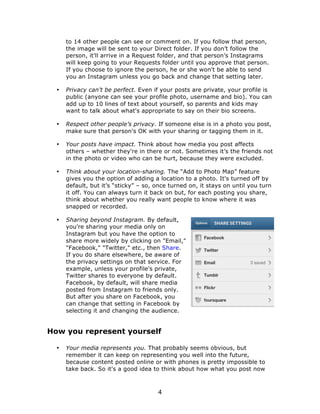
• Sharing beyond Instagram. By default, 
you're sharing your media only on 
Instagram but you have the option to 
share more widely by clicking on "Email," 
"Facebook," "Twitter," etc., then Share. 
If you do share elsewhere, be aware of 
the privacy settings on that service. For 
example, unless your profile's private, 
Twitter shares to everyone by default. 
Facebook, by default, will share media 
posted from Instagram to friends only. 
But after you share on Facebook, you 
can change that setting in Facebook by 
selecting it and changing the audience. 
How you represent yourself 
• Your media represents you. That probably seems obvious, but 
remember it can keep on representing you well into the future, 
because content posted online or with phones is pretty impossible to 
take back. So it's a good idea to think about how what you post now 
4
will reflect on you down the line. If you think it might hurt a job 
prospect, damage a relationship or upset your grandmother, consider 
not sharing it. 
• Manage your visibility. The photos you’re tagged in (videos can’t be 
tagged) appear in the "Photos of You" section of your profile (for now, 
Photos of You is only available for the iPhone and Android apps). They 
can be visible to anyone unless your account's private. Others can tag 
you in photos they post but, if you don't like the way you're shown, 
you can hide a photo from your profile or untag yourself (it'll still be 
visible on Instagram but not associated with your username and not in 
your profile). If you don't want photos to appear in Photos of You 
automatically, you can prevent that by turning off "Add Automatically" 
– just tap Profile , then the Photos of You tab and the gear 
button and choose "Add Manually." (Android users, tap the Photos 
of You tab , then the three small squares .) 
• Consider the whole image. What’s in the background of a photo or 
video could indicate where it was taken or what the people in it were 
doing at the time. Is that information you want to convey? 
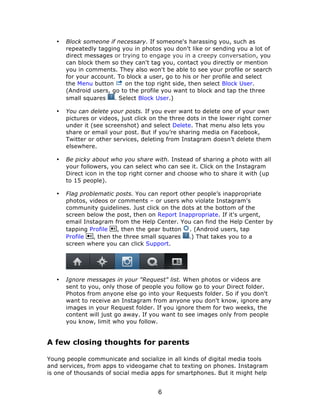
• Your media could show up anywhere. Instagram videos can be 
embedded in any website, and it’s important 
to remember that anything digital can be 
copied and shared by others. So even if you 
limit the audience, be careful not to share 
anything that could be a problem if someone 
were to pass it around. 
• Use a strong password, and don’t share 
it. This gives you some control over how 
you're represented in social media because 
other people won't be able to use your 
password to impersonate you. Also use 
different passwords for different services 
(for advice on passwords visit 
passwords.connectsafely.org). 
What to do if you're being harassed 
• You can untag yourself. Only the person who posts can tag people in 
the post, but – if that person's profile is public – anyone tagged by the 
poster can untag themselves. You can untag yourself by tapping on 
your username in a post, but only if the post is public or if you follow 
the person who tagged you. 
5
• Block someone if necessary. If someone's harassing you, such as 
repeatedly tagging you in photos you don't like or sending you a lot of 
direct messages or trying to engage you in a creepy conversation, you 
can block them so they can't tag you, contact you directly or mention 
you in comments. They also won't be able to see your profile or search 
for your account. To block a user, go to his or her profile and select 
the Menu button on the top right side, then select Block User. 
(Android users, go to the profile you want to block and tap the three 
small squares . Select Block User.) 
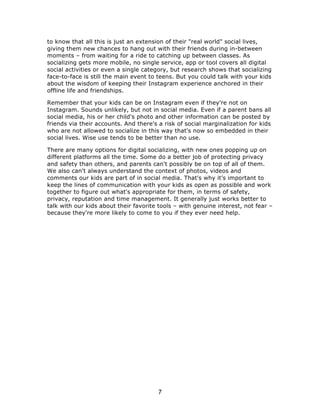
• You can delete your posts. If you ever want to delete one of your own 
pictures or videos, just click on the three dots in the lower right corner 
under it (see screenshot) and select Delete. That menu also lets you 
share or email your post. But if you’re sharing media on Facebook, 
Twitter or other services, deleting from Instagram doesn’t delete them 
elsewhere. 
• Be picky about who you share with. Instead of sharing a photo with all 
your followers, you can select who can see it. Click on the Instagram 
Direct icon in the top right corner and choose who to share it with (up 
to 15 people). 
• Flag problematic posts. You can report other people’s inappropriate 
photos, videos or comments – or users who violate Instagram's 
community guidelines. Just click on the dots at the bottom of the 
screen below the post, then on Report Inappropriate. If it's urgent, 
email Instagram from the Help Center. You can find the Help Center by 
tapping Profile , then the gear button . (Android users, tap 
Profile , then the three small squares .) That takes you to a 
screen where you can click Support. 
• Ignore messages in your "Request" list. When photos or videos are 
sent to you, only those of people you follow go to your Direct folder. 
Photos from anyone else go into your Requests folder. So if you don't 
want to receive an Instagram from anyone you don't know, ignore any 
images in your Request folder. If you ignore them for two weeks, the 
content will just go away. If you want to see images only from people 
you know, limit who you follow. 
A few closing thoughts for parents 
Young people communicate and socialize in all kinds of digital media tools 
and services, from apps to videogame chat to texting on phones. Instagram 
is one of thousands of social media apps for smartphones. But it might help 
6
to know that all this is just an extension of their "real world" social lives, 
giving them new chances to hang out with their friends during in-between 
moments – from waiting for a ride to catching up between classes. As 
socializing gets more mobile, no single service, app or tool covers all digital 
social activities or even a single category, but research shows that socializing 
face-to-face is still the main event to teens. But you could talk with your kids 
about the wisdom of keeping their Instagram experience anchored in their 
offline life and friendships. 
Remember that your kids can be on Instagram even if they're not on 
Instagram. Sounds unlikely, but not in social media. Even if a parent bans all 
social media, his or her child's photo and other information can be posted by 
friends via their accounts. And there's a risk of social marginalization for kids 
who are not allowed to socialize in this way that's now so embedded in their 
social lives. Wise use tends to be better than no use. 
There are many options for digital socializing, with new ones popping up on 
different platforms all the time. Some do a better job of protecting privacy 
and safety than others, and parents can't possibly be on top of all of them. 
We also can't always understand the context of photos, videos and 
comments our kids are part of in social media. That's why it’s important to 
keep the lines of communication with your kids as open as possible and work 
together to figure out what's appropriate for them, in terms of safety, 
privacy, reputation and time management. It generally just works better to 
talk with our kids about their favorite tools – with genuine interest, not fear – 
because they're more likely to come to you if they ever need help. 
7

Parents' Guide to Instagram - for kids

  • 1.
    A Parents' Guideto © 2014 ConnectSafely.org
  • 2.
    Top 5 QuestionsParents Have About Instagram 1. Why do kids love Instagram? Because they love media, sharing it and socializing with it on their phones, and Instagram makes all that doable in a simple, eye-catching way. Teens like taking, cropping, enhancing, sharing and commenting on photos and videos. But the commenting isn't just commenting – in effect, they're socializing in mixed-media conversations that include plenty of likes and links too. 2. Does Instagram have a minimum age? Yes, it's 13, in compliance with the Children’s Online Privacy Protection Act. But Instagram doesn’t ask users to specify their age, and there are many younger children who use the service, often with their parents’ permission. Whether Instagram is “safe” depends more on how it’s used than on the age of the user, but Instagram will delete underage accounts if they’re notified and can verify the users are under 13. 3. What are the risks in using Instagram? Though there's nothing inherently dangerous about Instagram, the main things parents worry about are typical of all social media: mean behavior among peers and inappropriate photos or videos that can hurt a child’s reputation or attract the wrong kind of attention. Parents are also concerned that people their kids don't know can reach out to them directly. Kids can learn to manage these risks, which is why we wrote this guide. 4. What's the best way to help kids stay safe on Instagram? As with all social media, being respectful of ourselves and others makes us safer. Our posts and comments reflect on us and others in our photos and videos. Whether serious or silly, they become part of our public image. Respecting others in how media is shared, tagged and commented on reduces risk. While most kids are smart about this, it doesn't hurt for parents to be sure kids aren't posting provocative images or having inappropriate interactions with people they don't know, which leads to the next question... 5. Should my child's profile be private? For many kids, part of the fun of Instagram is developing a big following – a good thing for parents and kids to talk about. Having a public account on Instagram means anyone can follow you. A private account means that you have to approve anyone who wants to follow you, so many parents have their kids start using Instagram with a private account. But there's no guarantee your child won't be seen on Instagram or any other photo-sharing service, because people post photos of each other. Even not having an Instagram account can’t ensure a child won't appear in a photo there. How positive or negative a young person's experience is on Instagram or anywhere online depends as much on the person and his or her friends as on the app. 2
  • 3.
    Instagram is asimple photo- and video-sharing app with a huge and growing following, especially among young people. Like everybody, kids use it to capture special moments, but also to carry on conversations in a fun way – using photos, filters, comments, captions, emoticons, hashtags and links elsewhere to talk about things and share interests. It runs on the Apple iPhone, iPad and iPod Touch as well as Android phones. Using Instagram is easy: You take a picture or up to 15 seconds of video and customize your media with filters and other enhancement tools. You add a caption and, for video, choose a cover frame to represent it. Then you hit Next (Android users, tap the green arrow) and choose how you want to share – just to your Instagram followers or outside the app, via email, Facebook, Twitter, and other social media services. Basically, there are three ways to share on Instagram: privately, publicly and directly. With Instagram Direct, you have the option to share a particular photo privately to a limited number of people (15 max), whether or not you follow them or they follow you. Instagram lets you shoot video or still images. If your kids are using Instagram, the best way for you to learn about how it works is to ask them how. Kids are often glad to teach their parents about their favorite tech tools, and asking them about Instagram is not only a great way to learn about the app itself but also about how your children interact with their friends in social media. That's very individual, which is why we suggest you ask them about it, but if you want a little general information about using and staying safe in Instagram, here goes: 3 Responsible sharing • You control your privacy. By default, photos and videos you share in Instagram can be seen by anyone (unless you share them directly) but you can easily make your account private so you get to approve anyone who wants to follow you. To do that, tap Profile on the bottom right, then Edit Your Profile next to your profile picture. Scroll down to see if “Posts Are Private" is turned on or off. If turned off, you can make your photos private by toggling the switch to on. (Android users, tap Profile and Edit Your Profile. Be sure “Posts are Private” is checked.) [If you update or reinstall the app, make sure your settings are still the way you want them.] • Instagram Direct is automatically private. Anyone, including people you don’t follow, can send you an image or video that only you and up
  • 4.
    to 14 otherpeople can see or comment on. If you follow that person, the image will be sent to your Direct folder. If you don’t follow the person, it'll arrive in a Request folder, and that person’s Instagrams will keep going to your Requests folder until you approve that person. If you choose to ignore the person, he or she won't be able to send you an Instagram unless you go back and change that setting later. • Privacy can't be perfect. Even if your posts are private, your profile is public (anyone can see your profile photo, username and bio). You can add up to 10 lines of text about yourself, so parents and kids may want to talk about what's appropriate to say on their bio screens. • Respect other people’s privacy. If someone else is in a photo you post, make sure that person's OK with your sharing or tagging them in it. • Your posts have impact. Think about how media you post affects others – whether they're in there or not. Sometimes it’s the friends not in the photo or video who can be hurt, because they were excluded. • Think about your location-sharing. The “Add to Photo Map” feature gives you the option of adding a location to a photo. It's turned off by default, but it’s “sticky” – so, once turned on, it stays on until you turn it off. You can always turn it back on but, for each posting you share, think about whether you really want people to know where it was snapped or recorded. • Sharing beyond Instagram. By default, you're sharing your media only on Instagram but you have the option to share more widely by clicking on "Email," "Facebook," "Twitter," etc., then Share. If you do share elsewhere, be aware of the privacy settings on that service. For example, unless your profile's private, Twitter shares to everyone by default. Facebook, by default, will share media posted from Instagram to friends only. But after you share on Facebook, you can change that setting in Facebook by selecting it and changing the audience. How you represent yourself • Your media represents you. That probably seems obvious, but remember it can keep on representing you well into the future, because content posted online or with phones is pretty impossible to take back. So it's a good idea to think about how what you post now 4
  • 5.
    will reflect onyou down the line. If you think it might hurt a job prospect, damage a relationship or upset your grandmother, consider not sharing it. • Manage your visibility. The photos you’re tagged in (videos can’t be tagged) appear in the "Photos of You" section of your profile (for now, Photos of You is only available for the iPhone and Android apps). They can be visible to anyone unless your account's private. Others can tag you in photos they post but, if you don't like the way you're shown, you can hide a photo from your profile or untag yourself (it'll still be visible on Instagram but not associated with your username and not in your profile). If you don't want photos to appear in Photos of You automatically, you can prevent that by turning off "Add Automatically" – just tap Profile , then the Photos of You tab and the gear button and choose "Add Manually." (Android users, tap the Photos of You tab , then the three small squares .) • Consider the whole image. What’s in the background of a photo or video could indicate where it was taken or what the people in it were doing at the time. Is that information you want to convey? • Your media could show up anywhere. Instagram videos can be embedded in any website, and it’s important to remember that anything digital can be copied and shared by others. So even if you limit the audience, be careful not to share anything that could be a problem if someone were to pass it around. • Use a strong password, and don’t share it. This gives you some control over how you're represented in social media because other people won't be able to use your password to impersonate you. Also use different passwords for different services (for advice on passwords visit passwords.connectsafely.org). What to do if you're being harassed • You can untag yourself. Only the person who posts can tag people in the post, but – if that person's profile is public – anyone tagged by the poster can untag themselves. You can untag yourself by tapping on your username in a post, but only if the post is public or if you follow the person who tagged you. 5
  • 6.
    • Block someoneif necessary. If someone's harassing you, such as repeatedly tagging you in photos you don't like or sending you a lot of direct messages or trying to engage you in a creepy conversation, you can block them so they can't tag you, contact you directly or mention you in comments. They also won't be able to see your profile or search for your account. To block a user, go to his or her profile and select the Menu button on the top right side, then select Block User. (Android users, go to the profile you want to block and tap the three small squares . Select Block User.) • You can delete your posts. If you ever want to delete one of your own pictures or videos, just click on the three dots in the lower right corner under it (see screenshot) and select Delete. That menu also lets you share or email your post. But if you’re sharing media on Facebook, Twitter or other services, deleting from Instagram doesn’t delete them elsewhere. • Be picky about who you share with. Instead of sharing a photo with all your followers, you can select who can see it. Click on the Instagram Direct icon in the top right corner and choose who to share it with (up to 15 people). • Flag problematic posts. You can report other people’s inappropriate photos, videos or comments – or users who violate Instagram's community guidelines. Just click on the dots at the bottom of the screen below the post, then on Report Inappropriate. If it's urgent, email Instagram from the Help Center. You can find the Help Center by tapping Profile , then the gear button . (Android users, tap Profile , then the three small squares .) That takes you to a screen where you can click Support. • Ignore messages in your "Request" list. When photos or videos are sent to you, only those of people you follow go to your Direct folder. Photos from anyone else go into your Requests folder. So if you don't want to receive an Instagram from anyone you don't know, ignore any images in your Request folder. If you ignore them for two weeks, the content will just go away. If you want to see images only from people you know, limit who you follow. A few closing thoughts for parents Young people communicate and socialize in all kinds of digital media tools and services, from apps to videogame chat to texting on phones. Instagram is one of thousands of social media apps for smartphones. But it might help 6
  • 7.
    to know thatall this is just an extension of their "real world" social lives, giving them new chances to hang out with their friends during in-between moments – from waiting for a ride to catching up between classes. As socializing gets more mobile, no single service, app or tool covers all digital social activities or even a single category, but research shows that socializing face-to-face is still the main event to teens. But you could talk with your kids about the wisdom of keeping their Instagram experience anchored in their offline life and friendships. Remember that your kids can be on Instagram even if they're not on Instagram. Sounds unlikely, but not in social media. Even if a parent bans all social media, his or her child's photo and other information can be posted by friends via their accounts. And there's a risk of social marginalization for kids who are not allowed to socialize in this way that's now so embedded in their social lives. Wise use tends to be better than no use. There are many options for digital socializing, with new ones popping up on different platforms all the time. Some do a better job of protecting privacy and safety than others, and parents can't possibly be on top of all of them. We also can't always understand the context of photos, videos and comments our kids are part of in social media. That's why it’s important to keep the lines of communication with your kids as open as possible and work together to figure out what's appropriate for them, in terms of safety, privacy, reputation and time management. It generally just works better to talk with our kids about their favorite tools – with genuine interest, not fear – because they're more likely to come to you if they ever need help. 7