E-Mail Overview
What You Will Learn
• Menu Controls
• Send and check e-mail
• Use your address book and its functions
• Attach files
• Add a signature to end of all e-mails you send.
• Configure options
E-Mail Overview
Continued
• Format received messages
• Shortcuts
• Including an active URL in a message
• Setting up a mailbox for saved messages
• Checking your e-mail from home
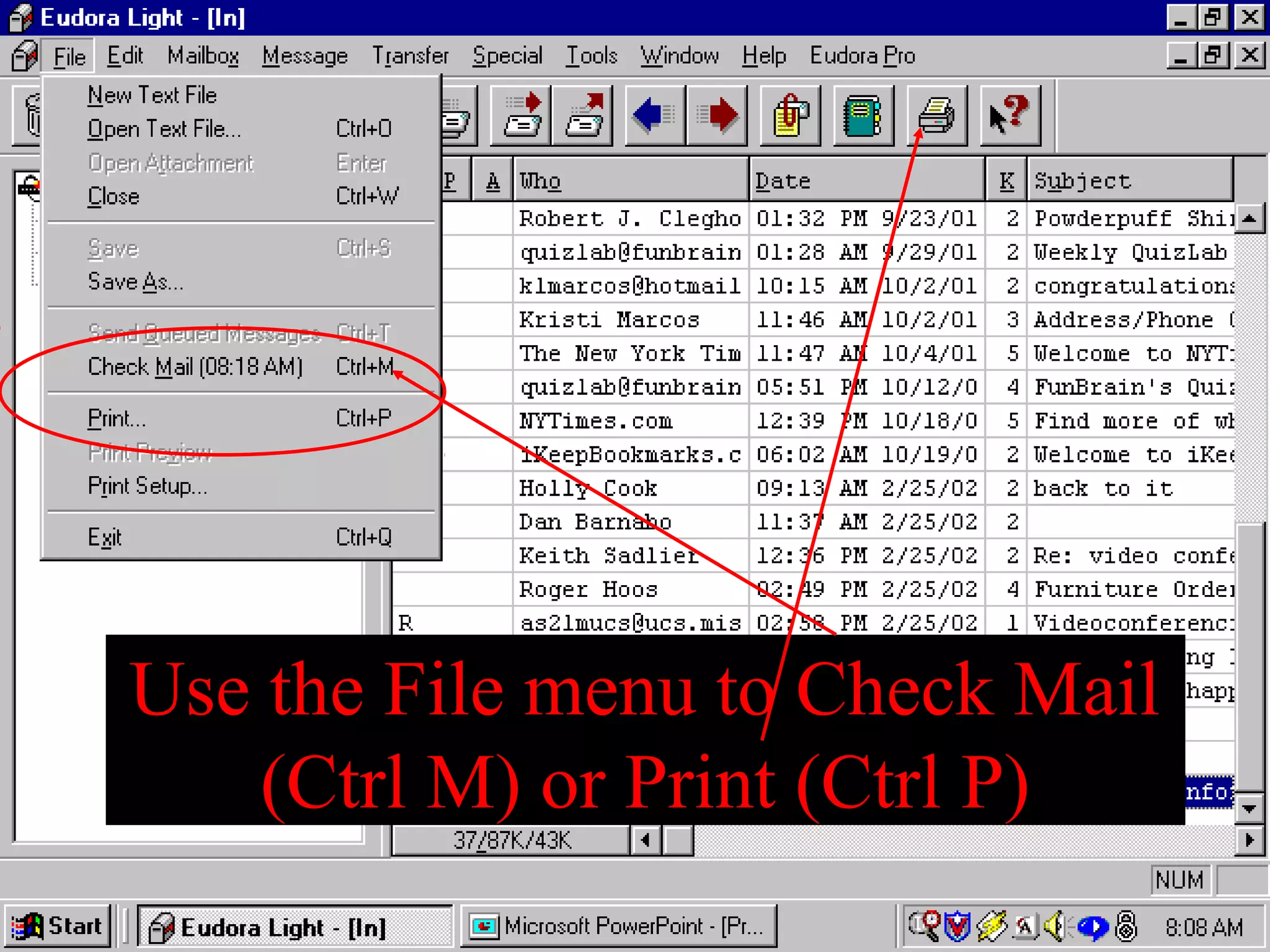
Use the File menu to Check Mail
(Ctrl M) or Print (Ctrl P)
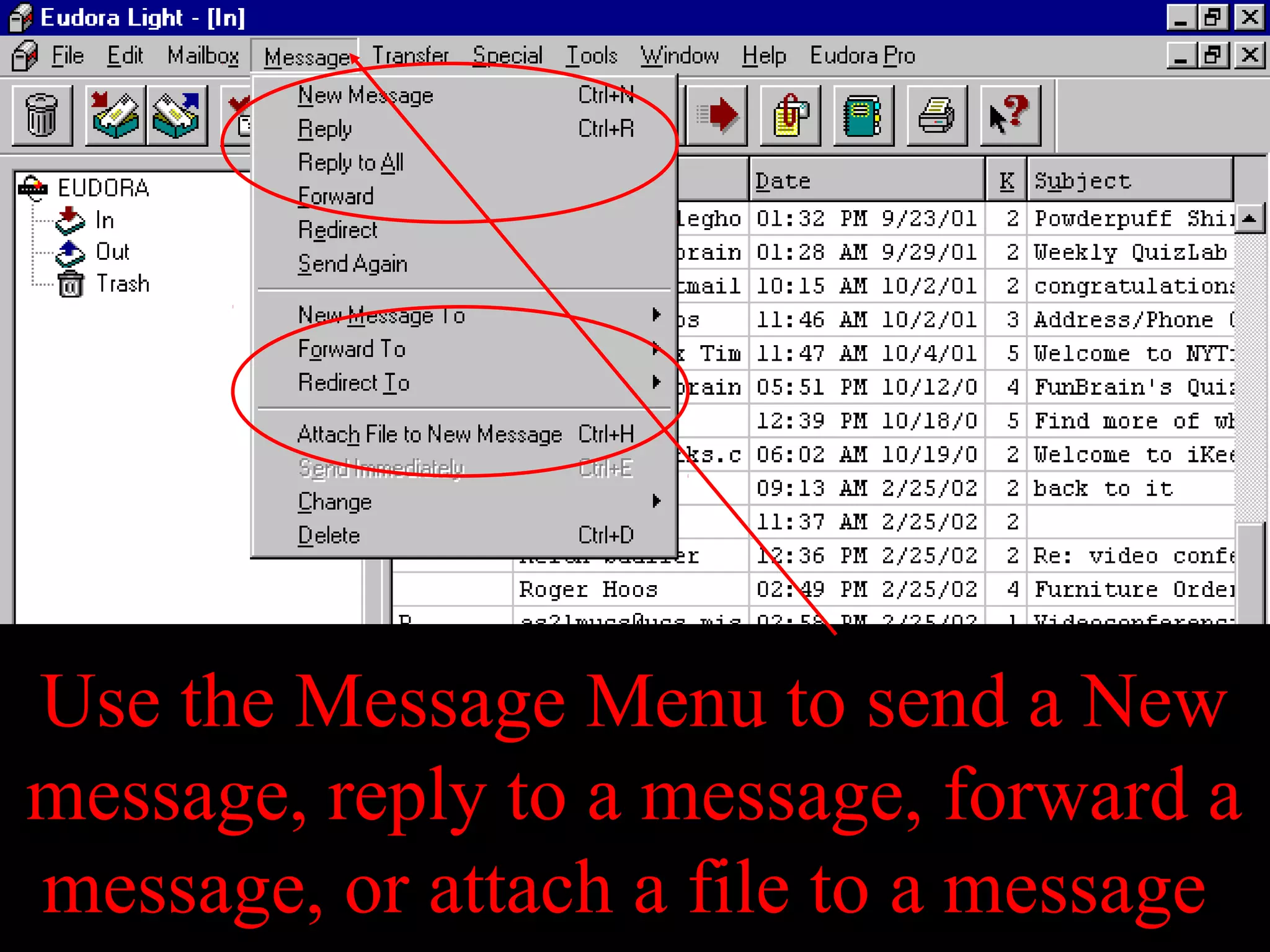
Use the Message Menu to send a New
message, reply to a message, forward a
message, or attach a file to a message
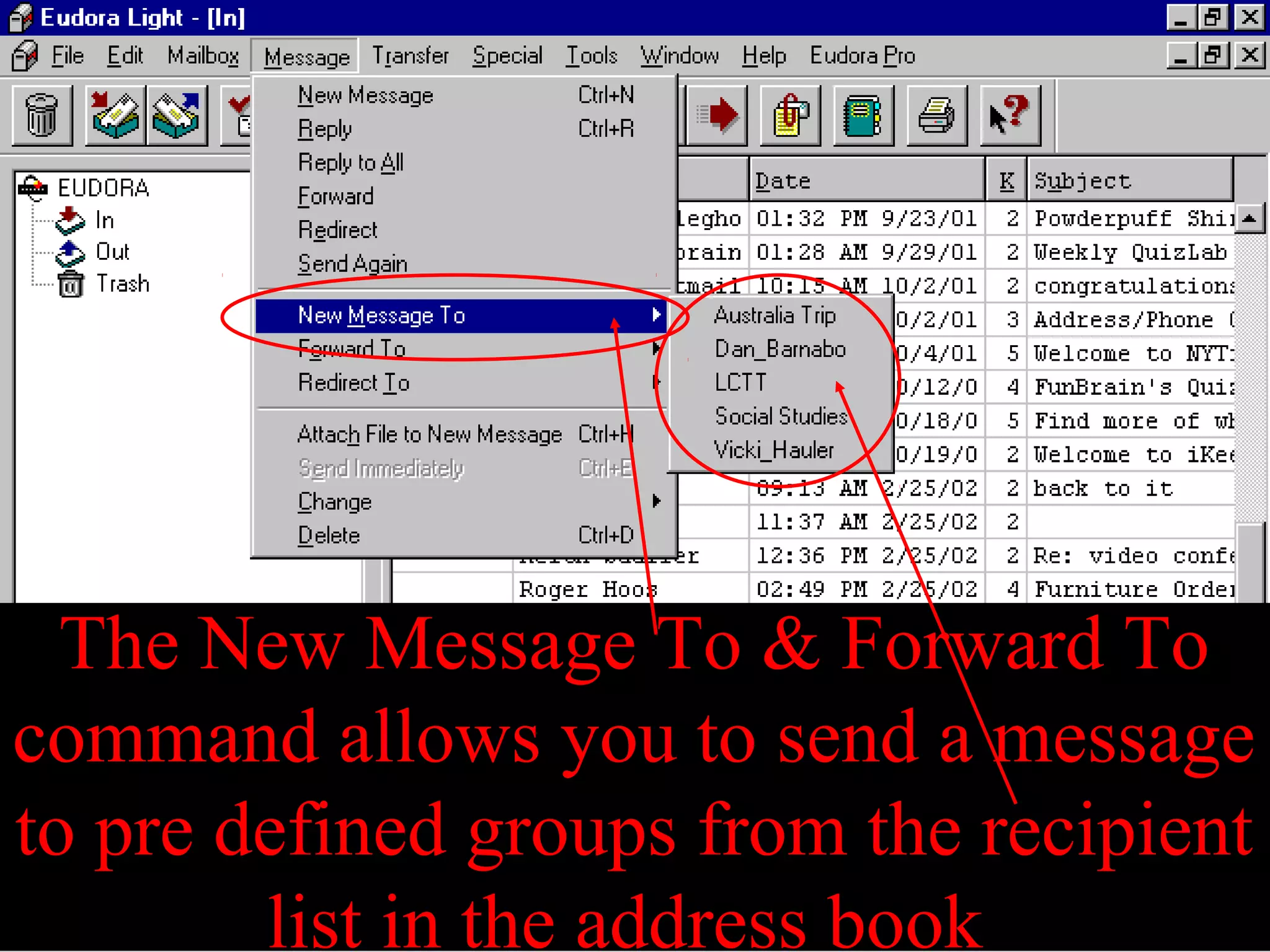
The New Message To & Forward To
command allows you to send a message
to pre defined groups from the recipient
list in the address book
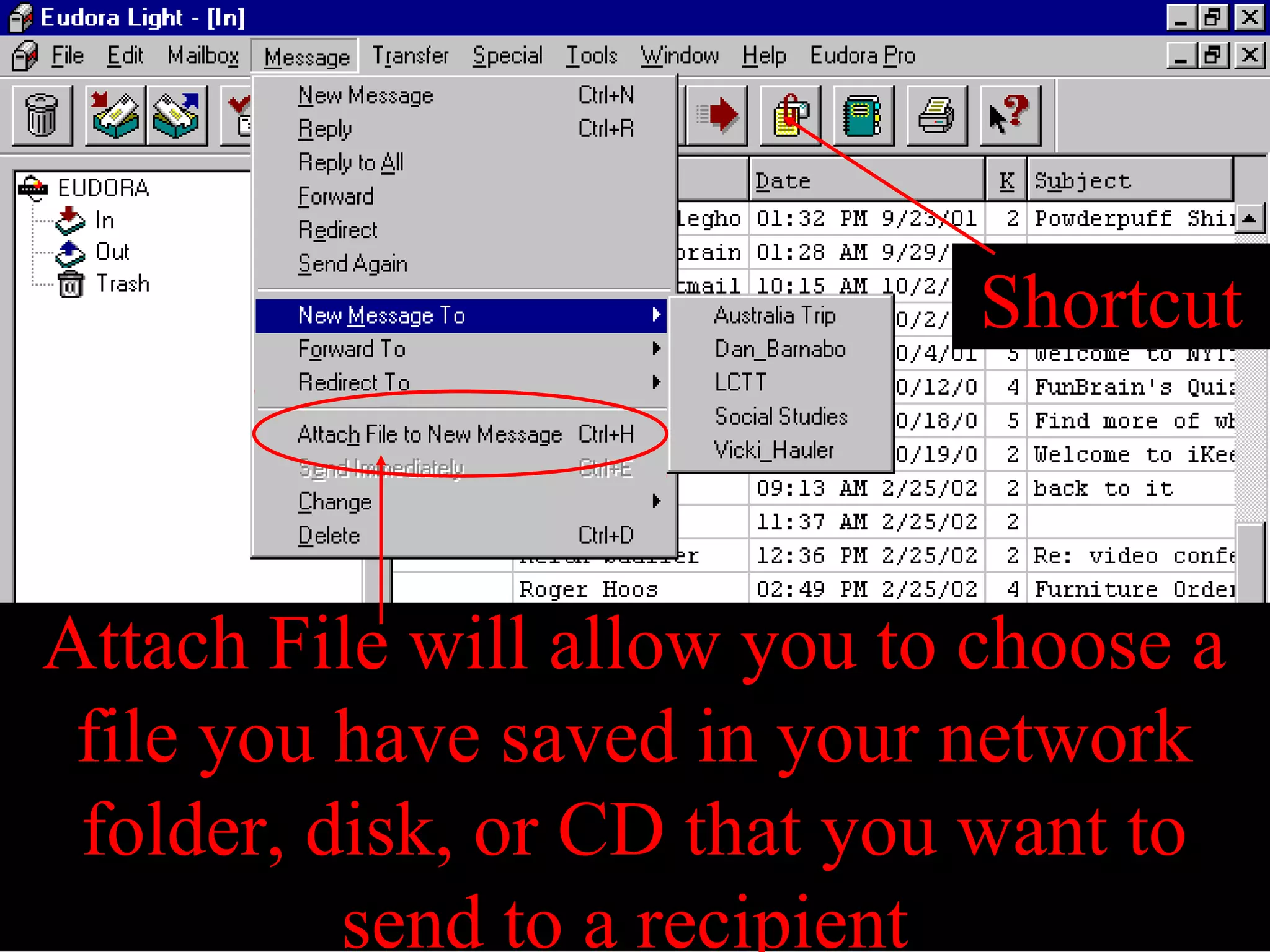
Attach File will allow you to choose a
file you have saved in your network
folder, disk, or CD that you want to
send to a recipient
Shortcut
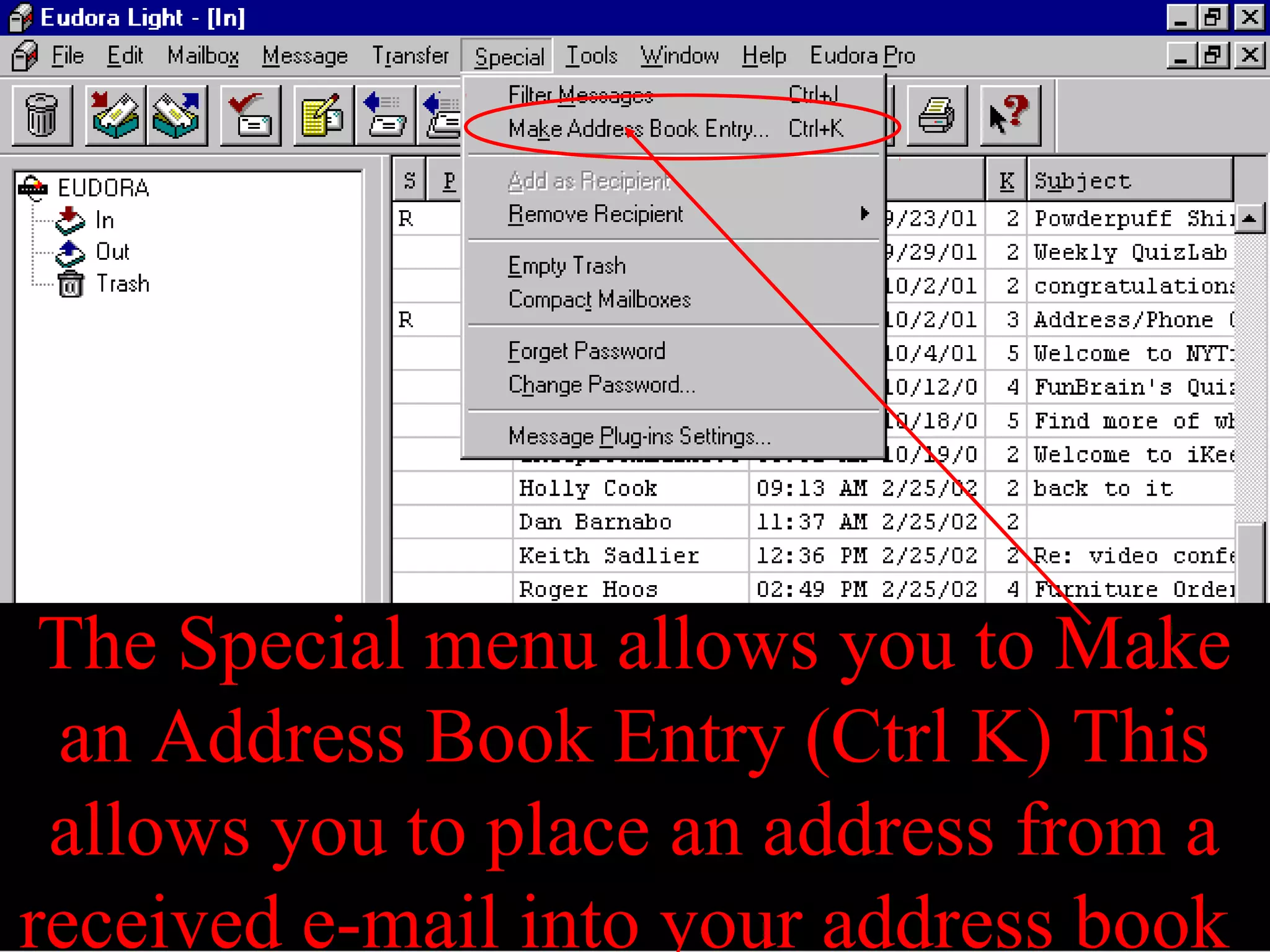
The Special menu allows you to Make
an Address Book Entry (Ctrl K) This
allows you to place an address from a
received e-mail into your address book
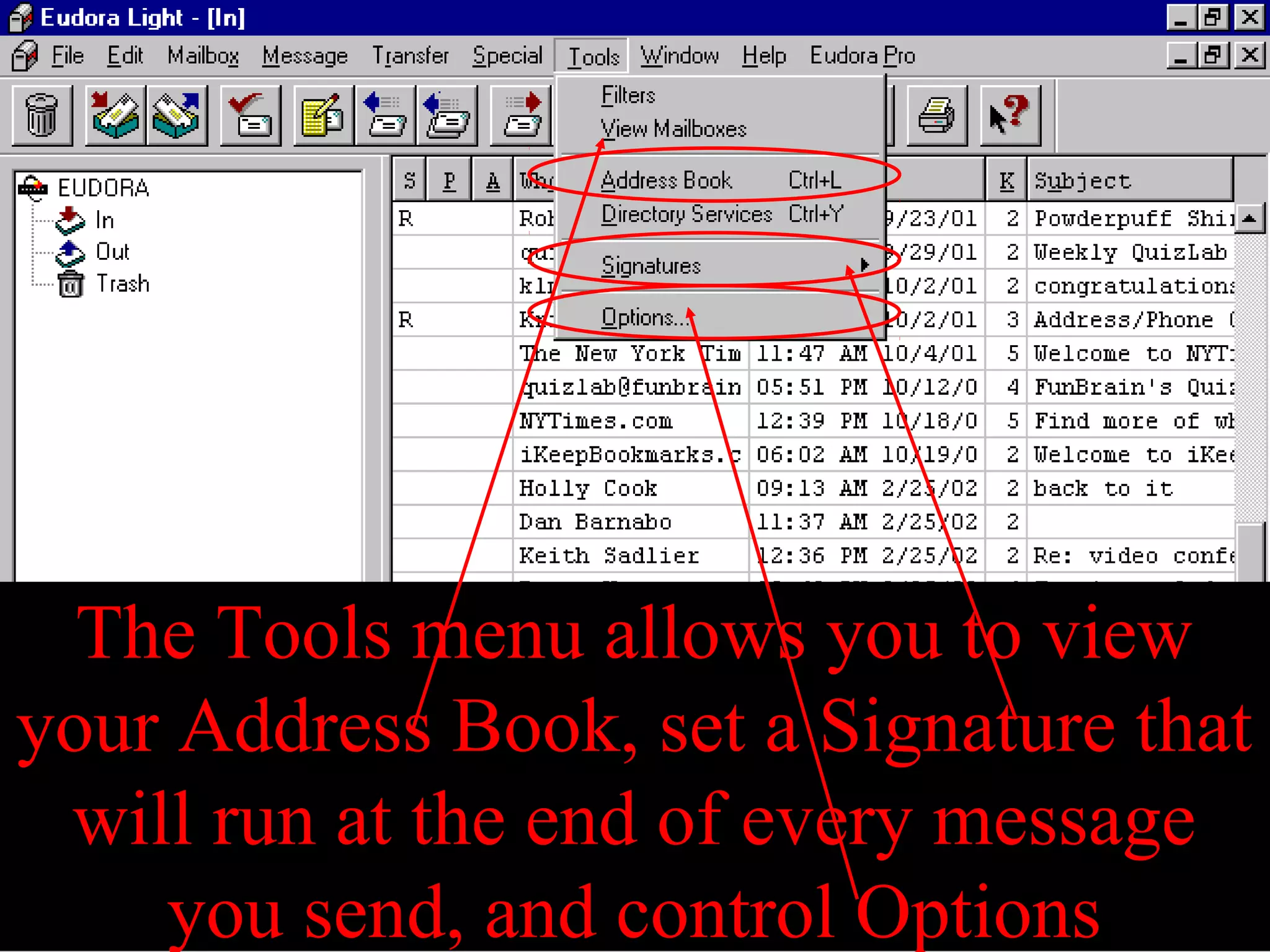
The Tools menu allows you to view
your Address Book, set a Signature that
will run at the end of every message
you send, and control Options
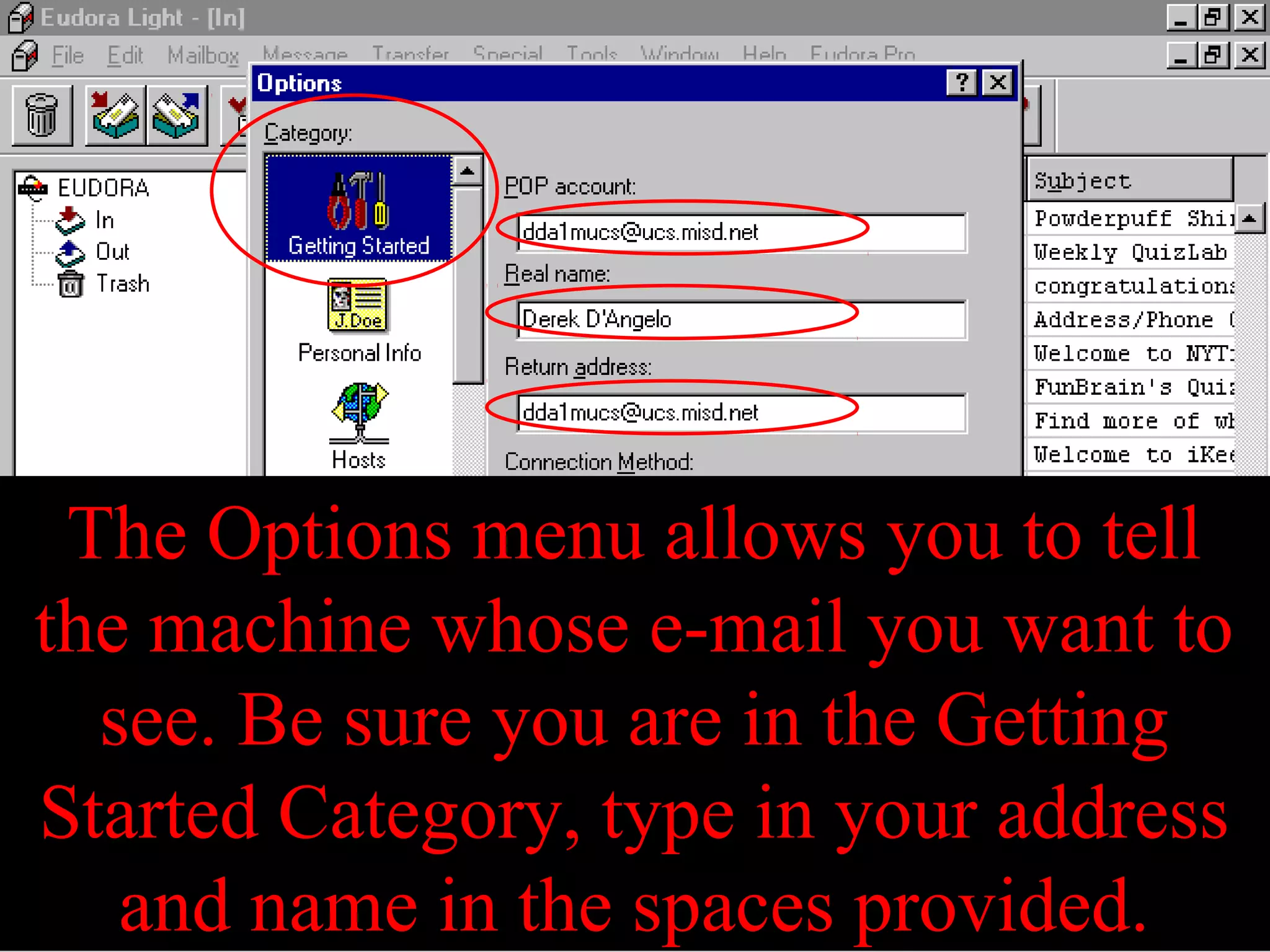
The Options menu allows you to tell
the machine whose e-mail you want to
see. Be sure you are in the Getting
Started Category, type in your address
and name in the spaces provided.

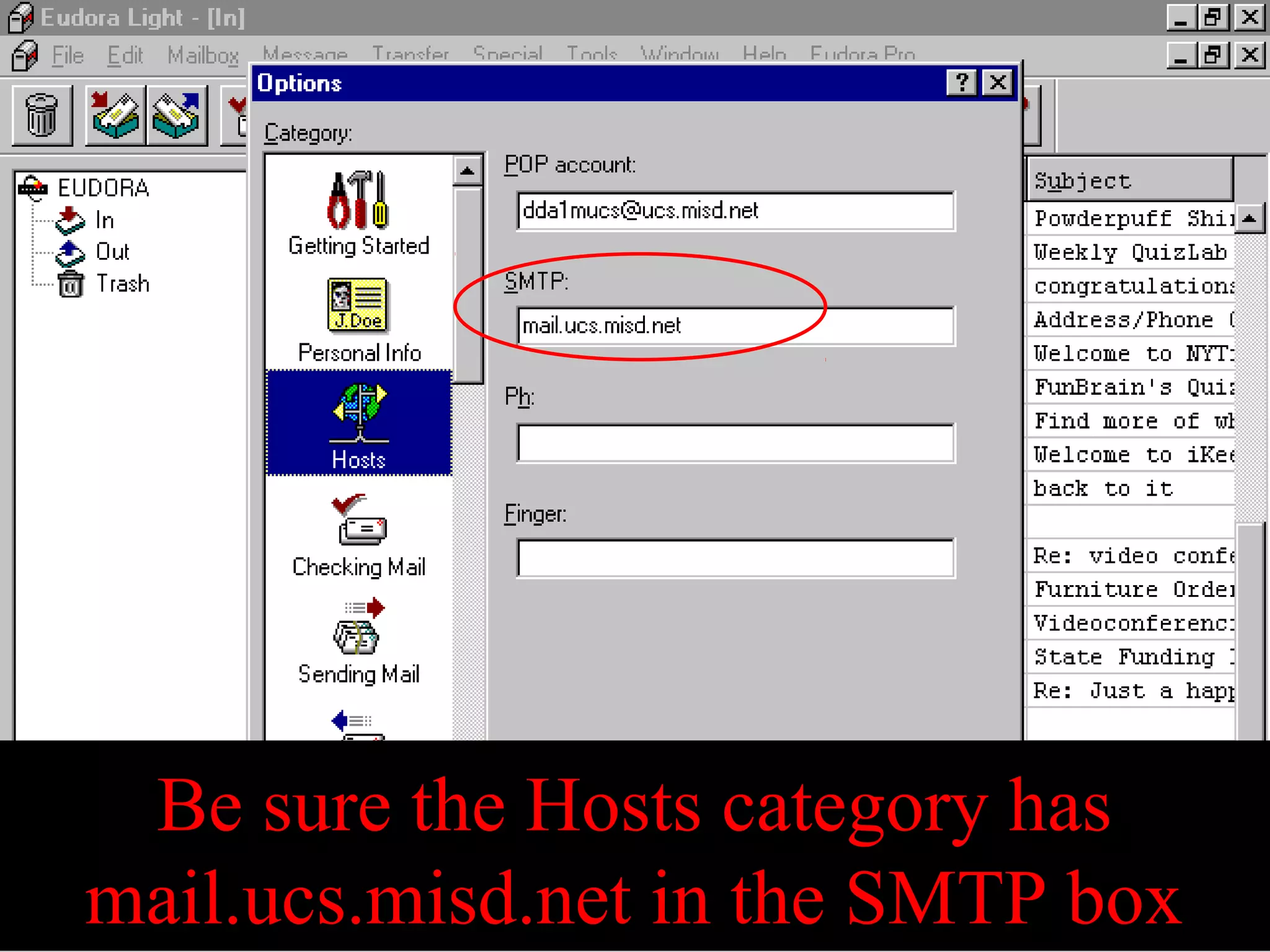
Be sure the Hosts category has
mail.ucs.misd.net in the SMTP box
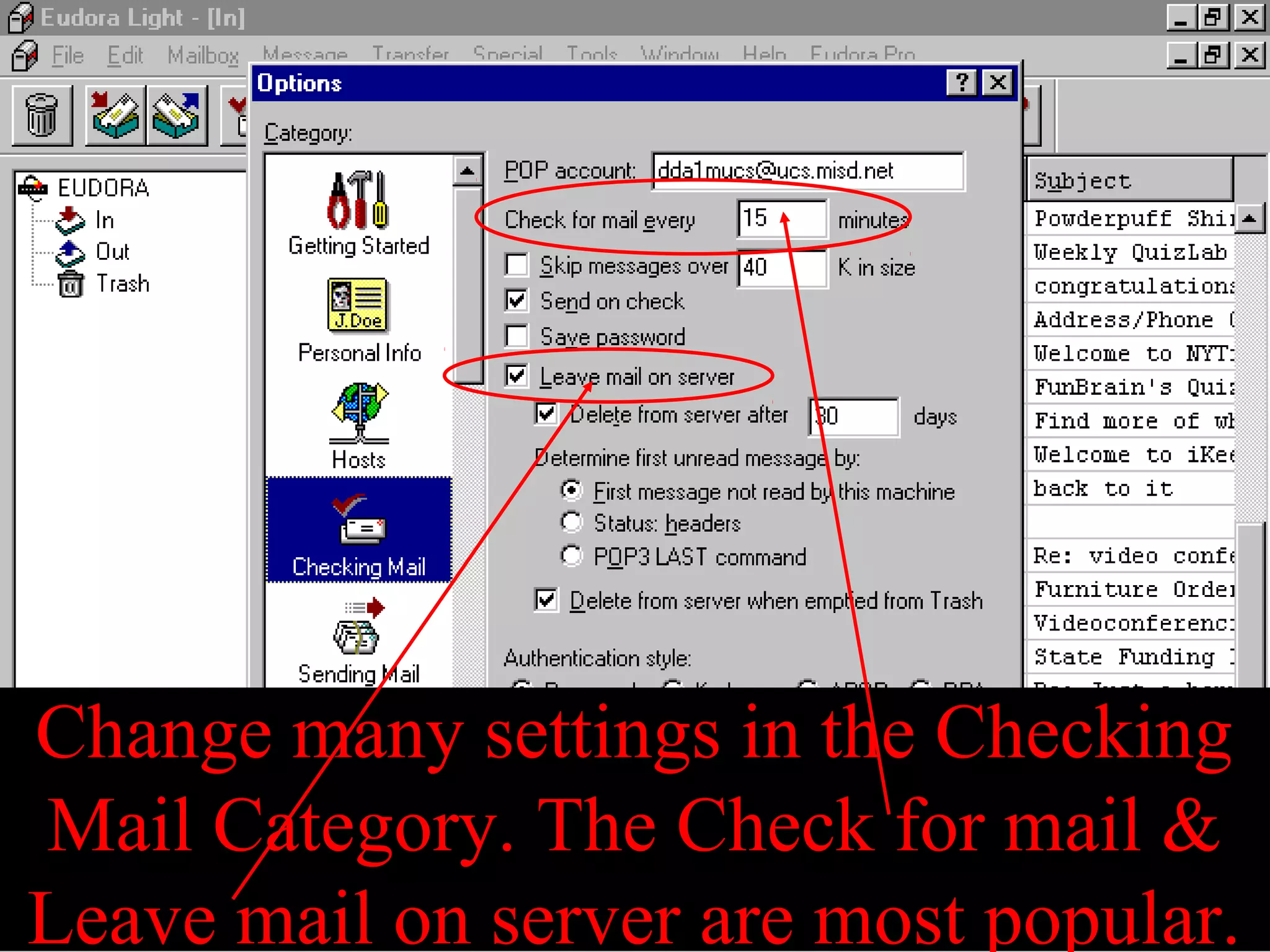
Change many settings in the Checking
Mail Category. The Check for mail &
Leave mail on server are most popular.
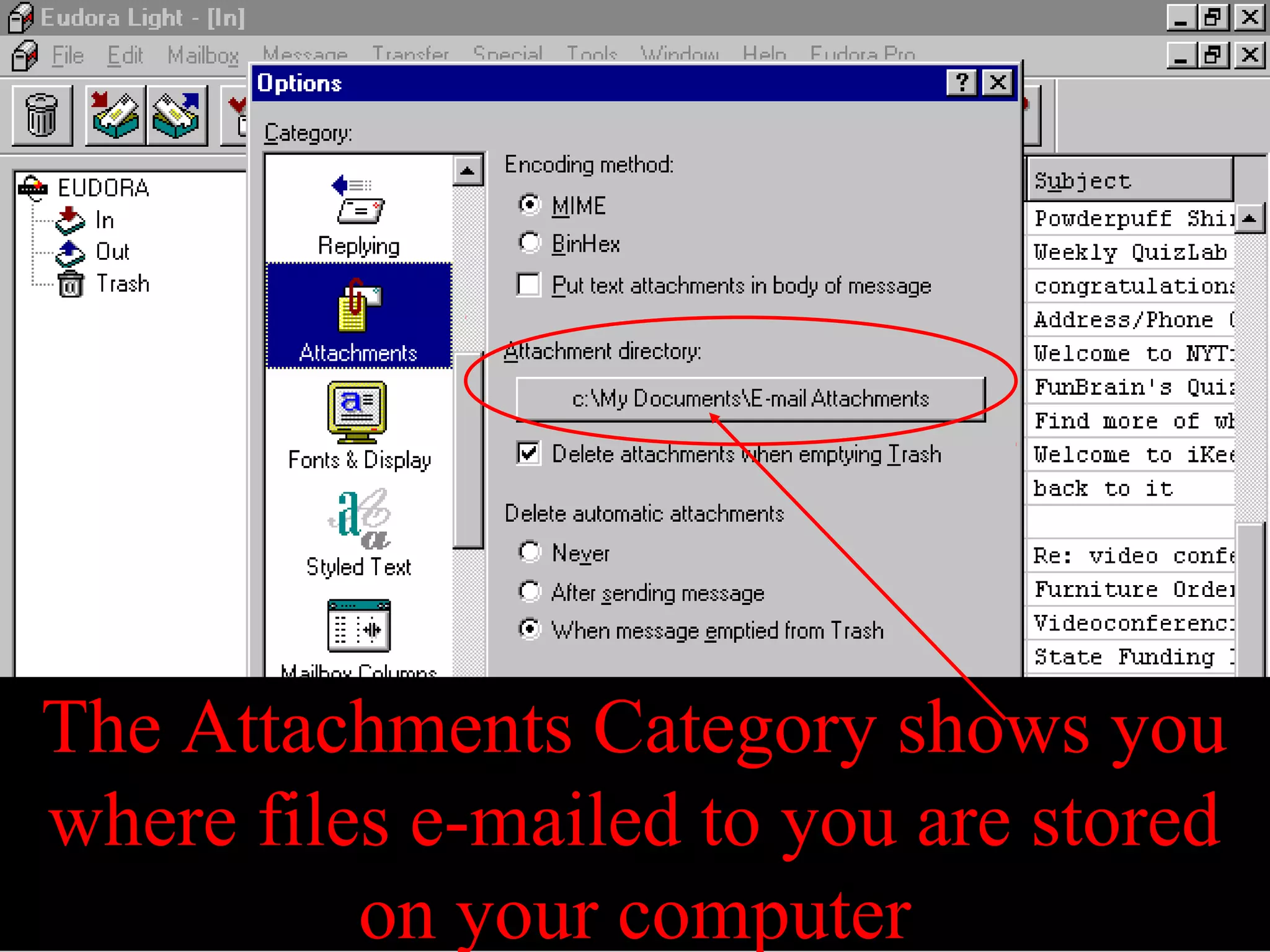
The Attachments Category shows you
where files e-mailed to you are stored
on your computer
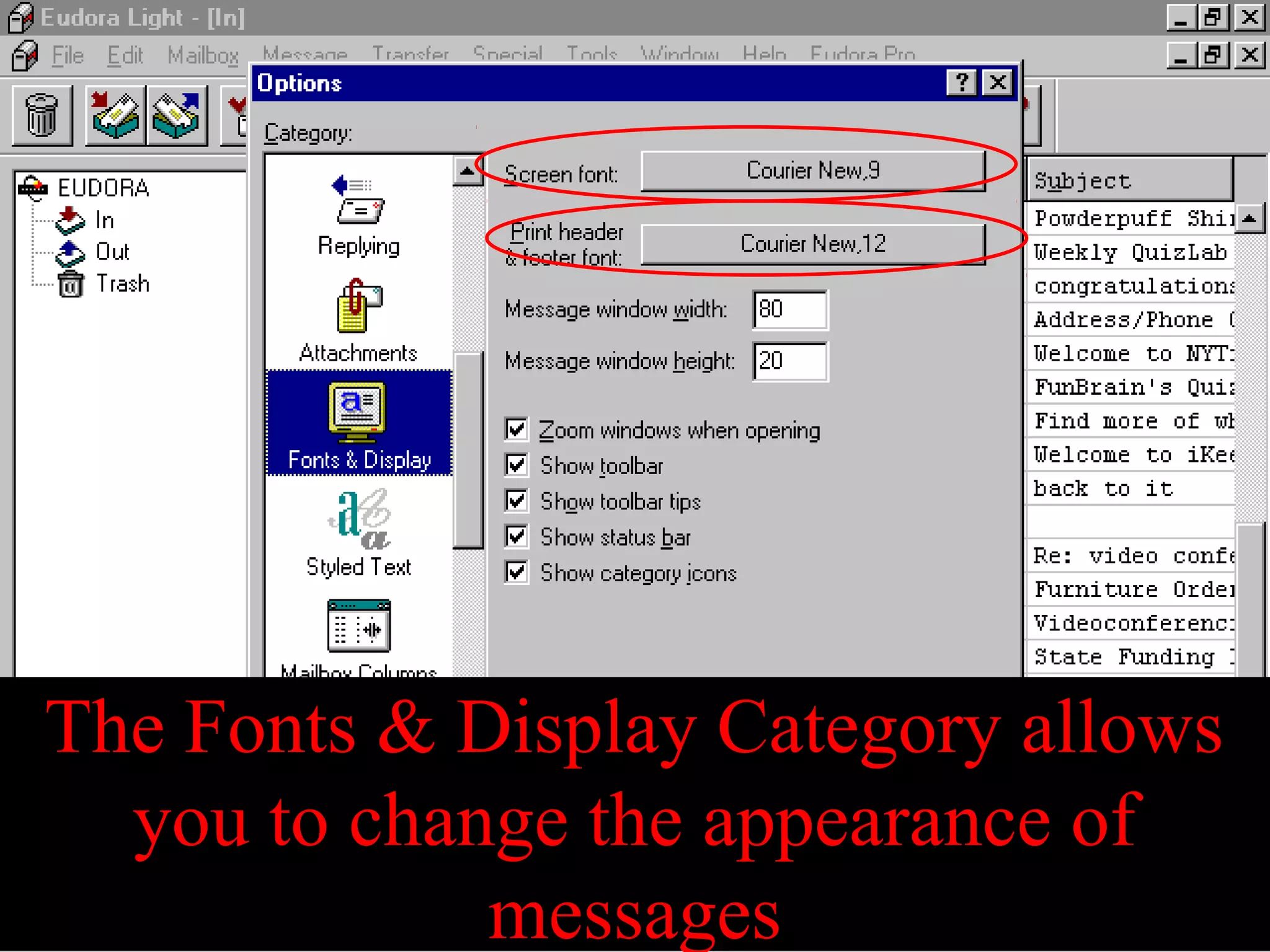
The Fonts & Display Category allows
you to change the appearance of
messages
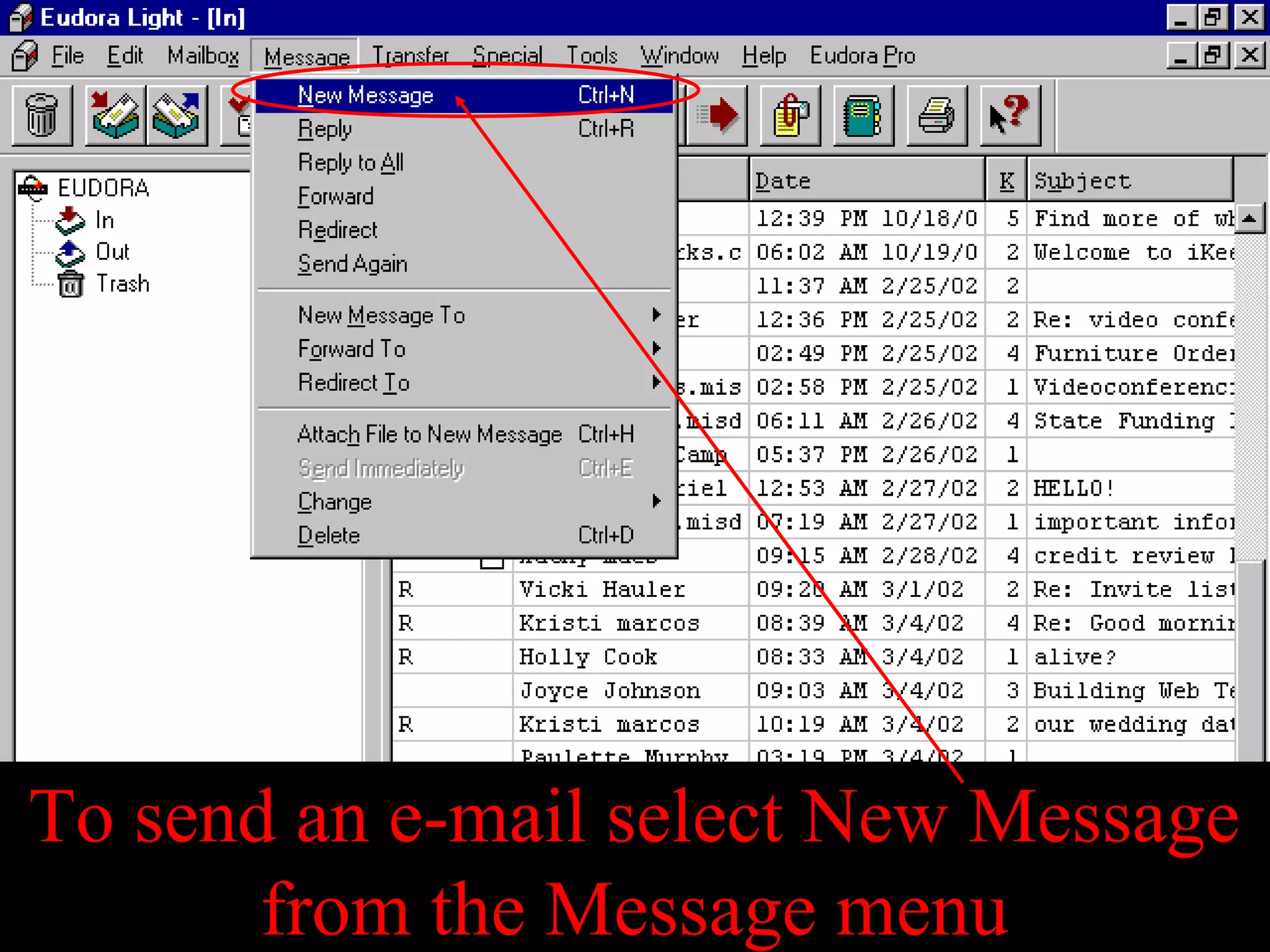
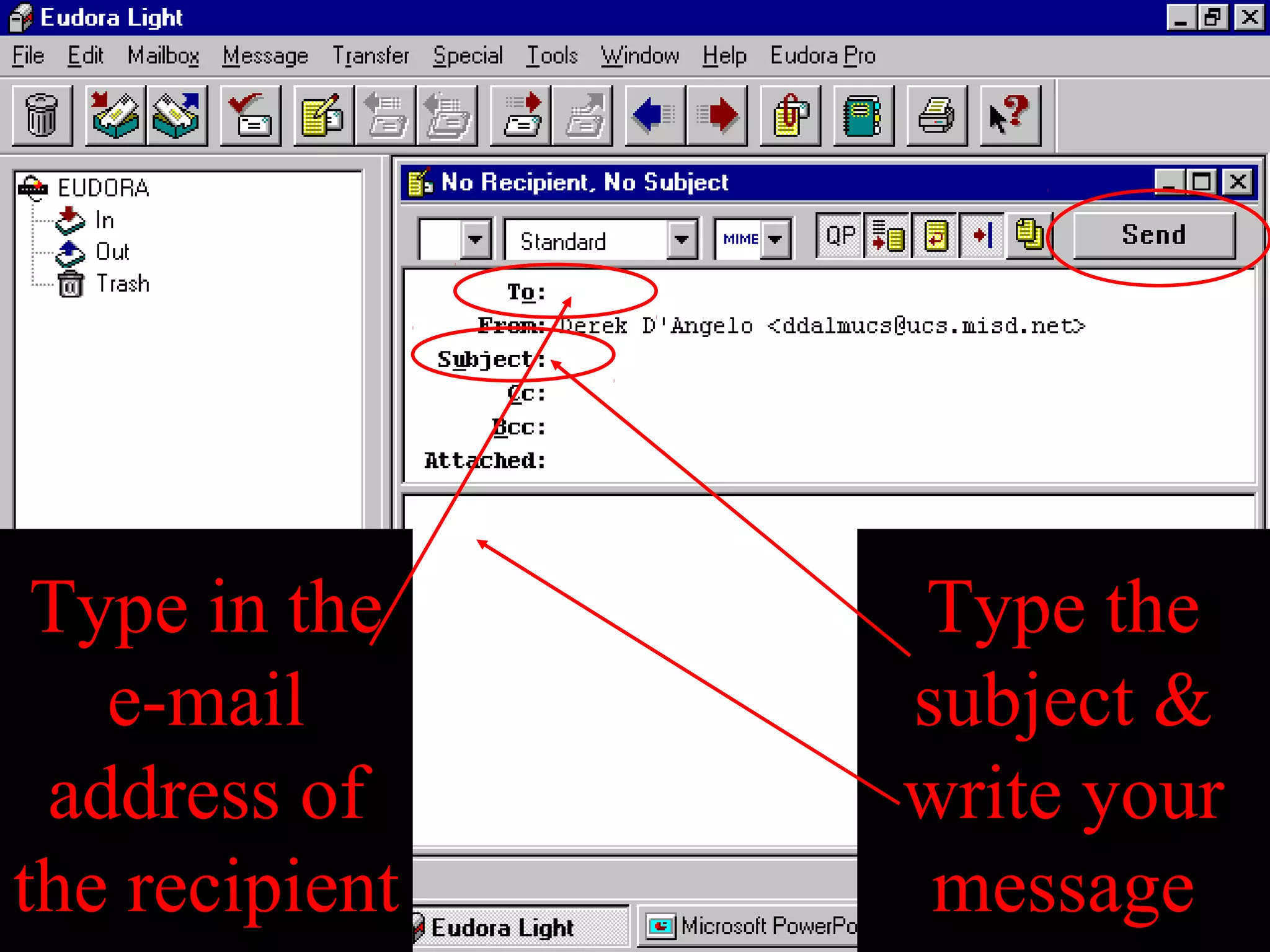
To send an e-mail select New Message
from the Message menu
Type in the
e-mail
address of
the recipient
Type the
subject &
write your
message
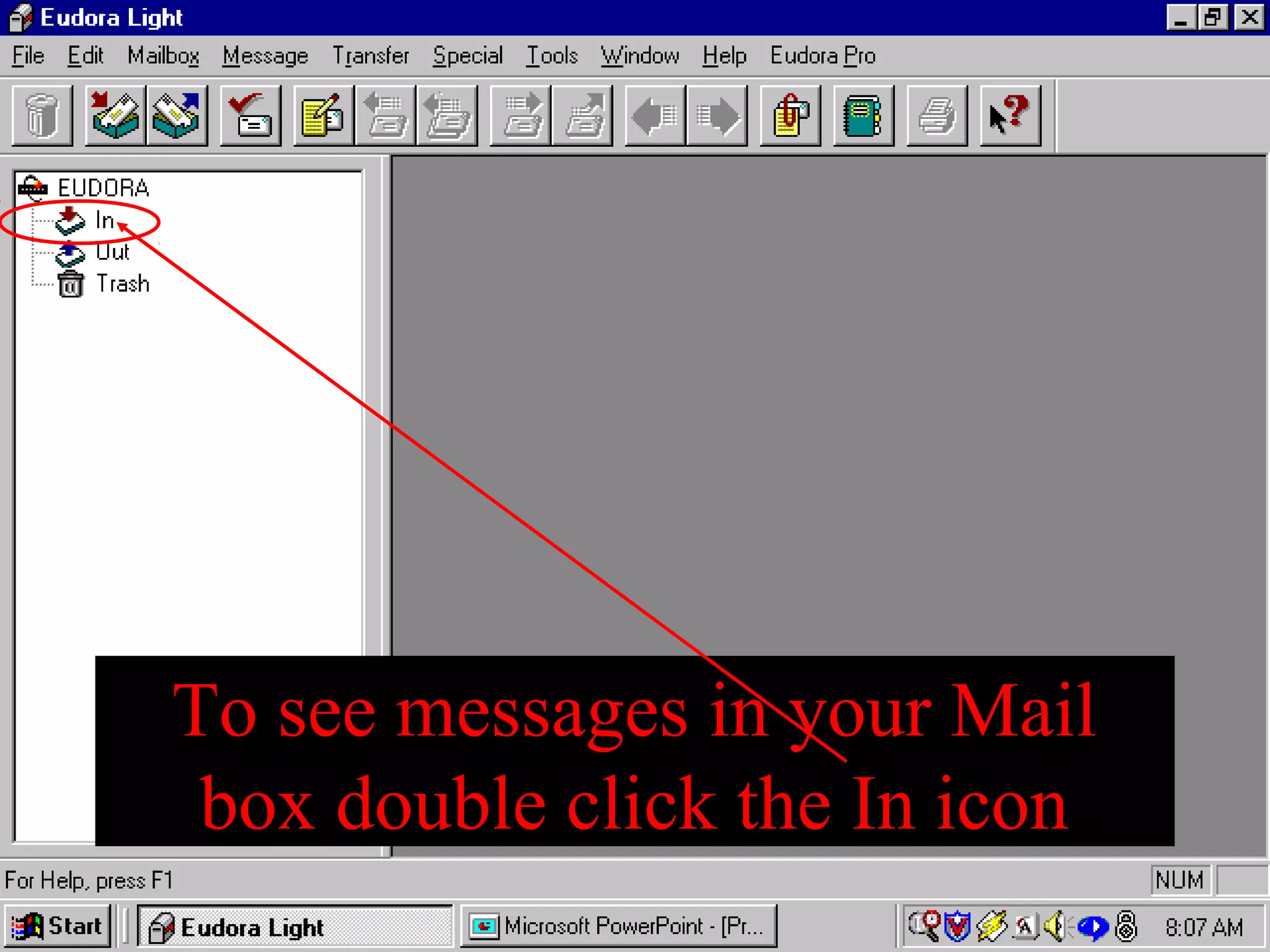
To see messages in your Mail
box double click the In icon
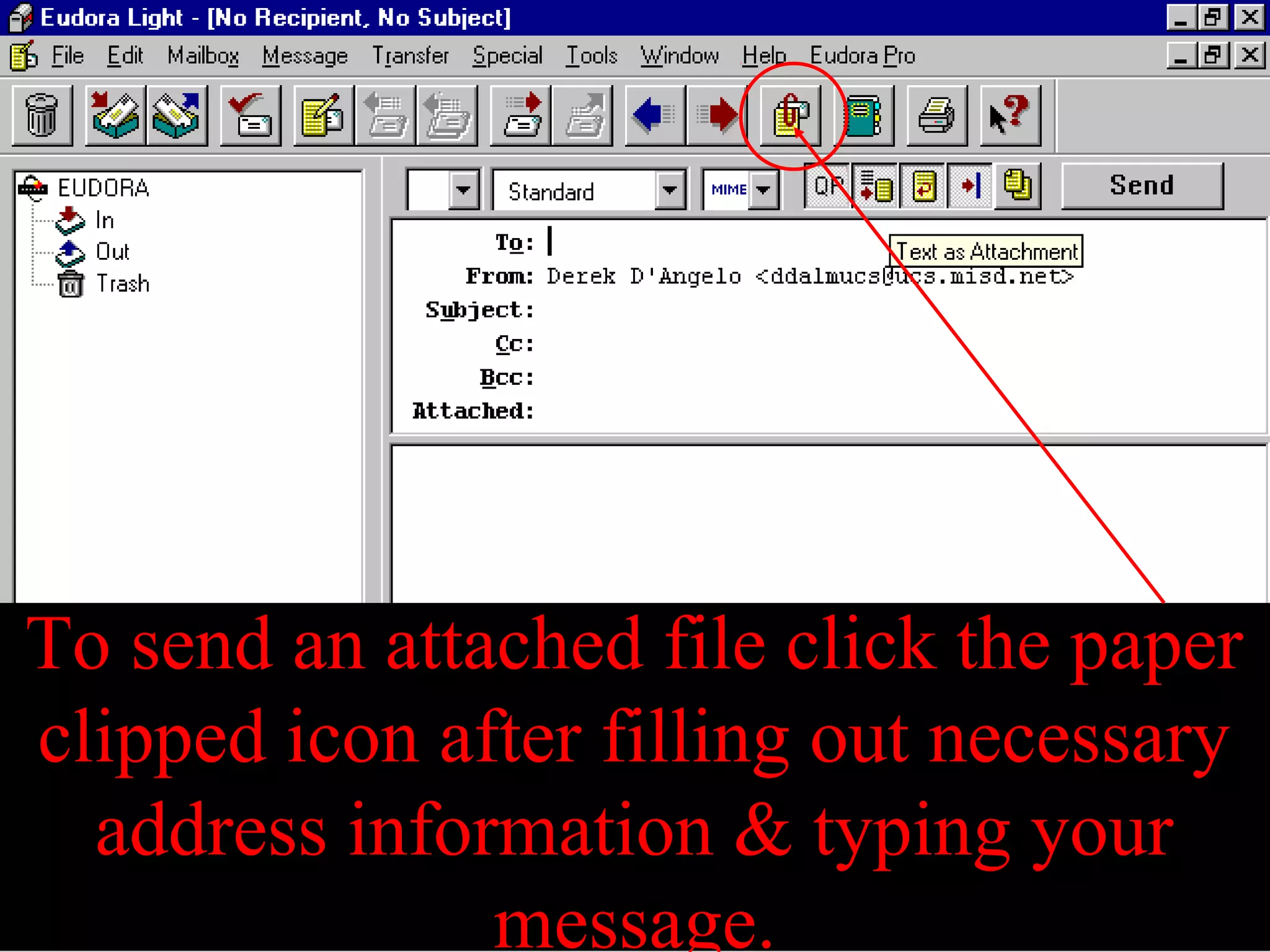
To send an attached file click the paper
clipped icon after filling out necessary
address information & typing your
message.
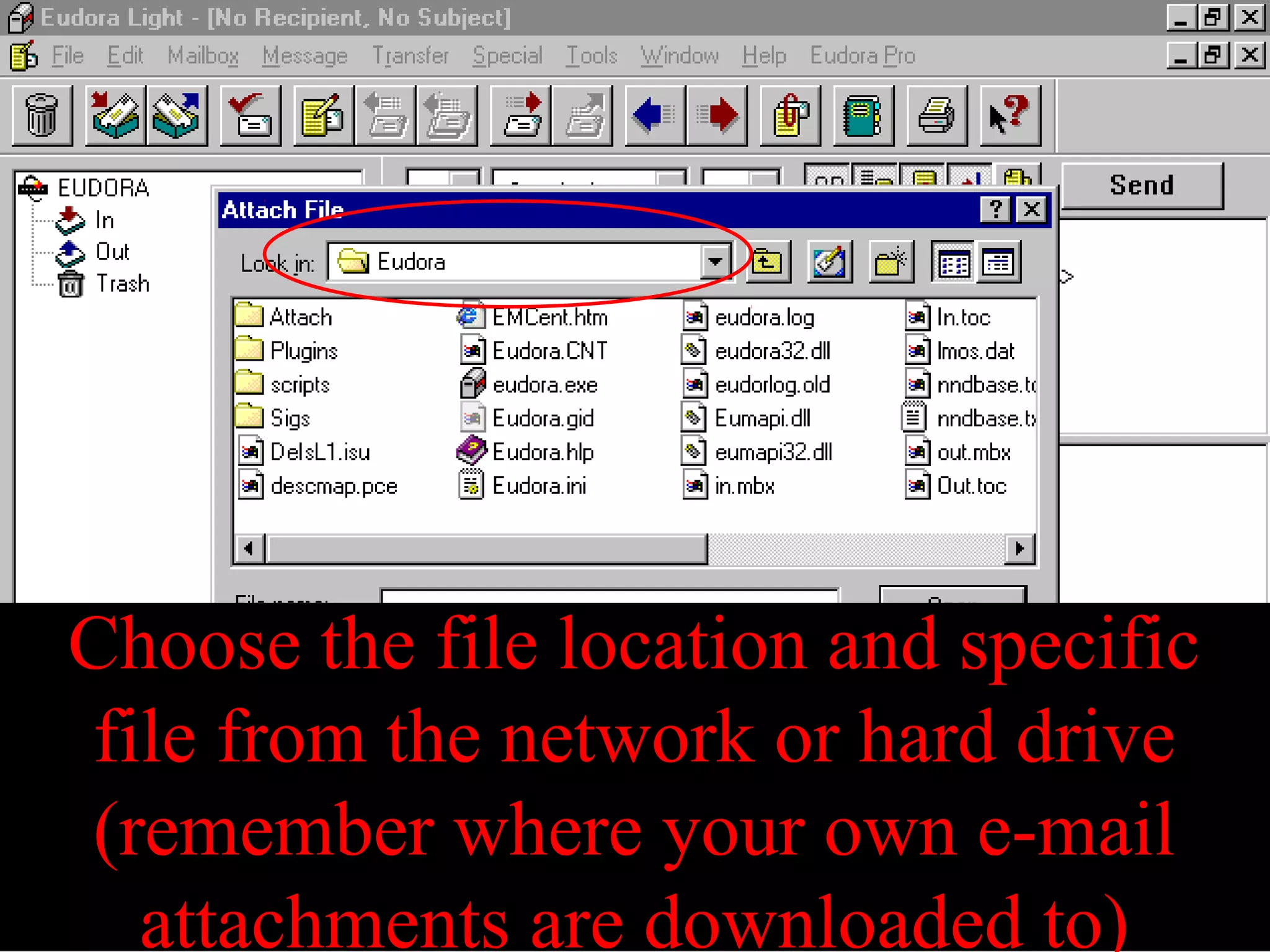
Choose the file location and specific
file from the network or hard drive
(remember where your own e-mail
attachments are downloaded to)
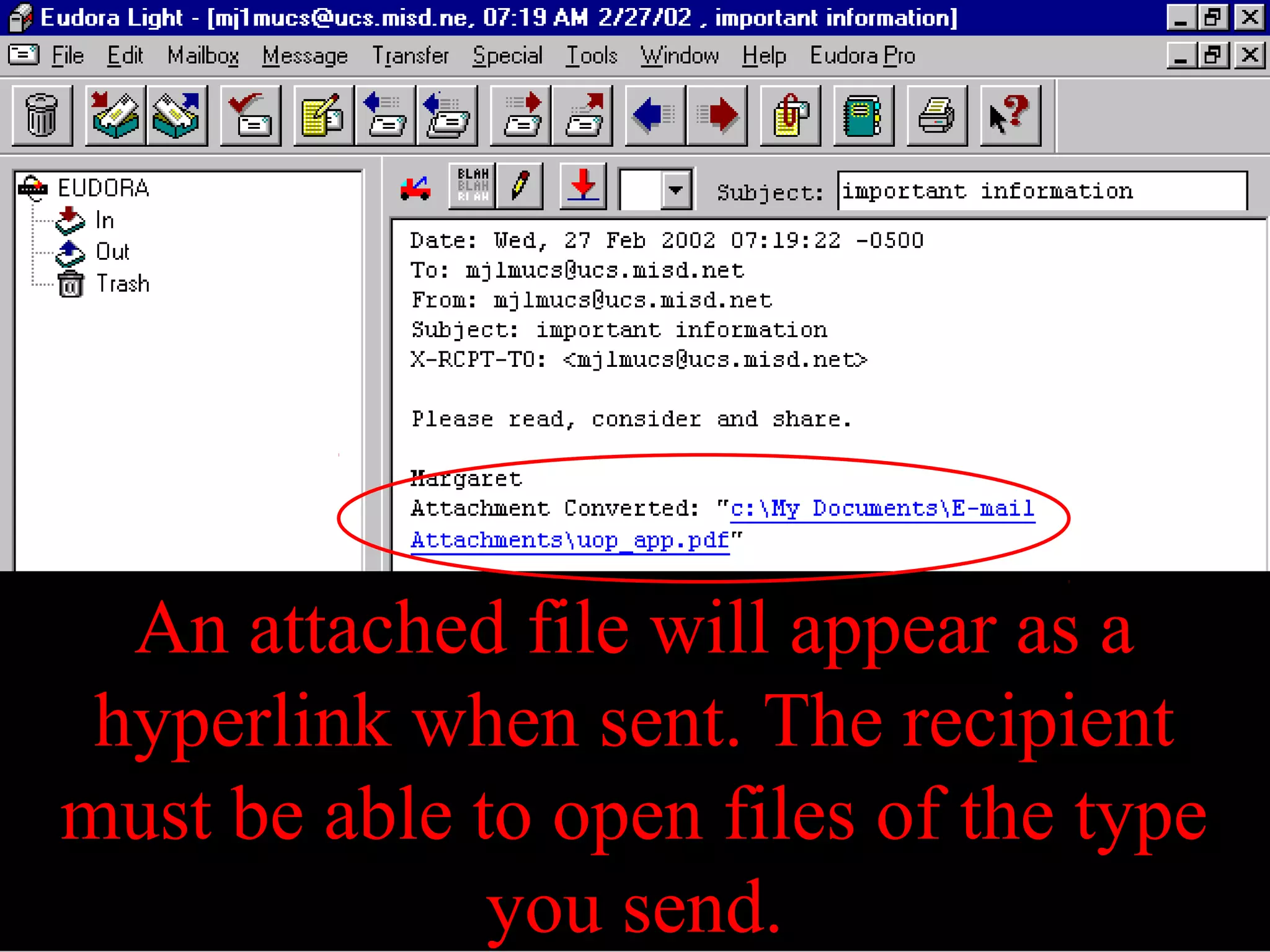
An attached file will appear as a
hyperlink when sent. The recipient
must be able to open files of the type
you send.
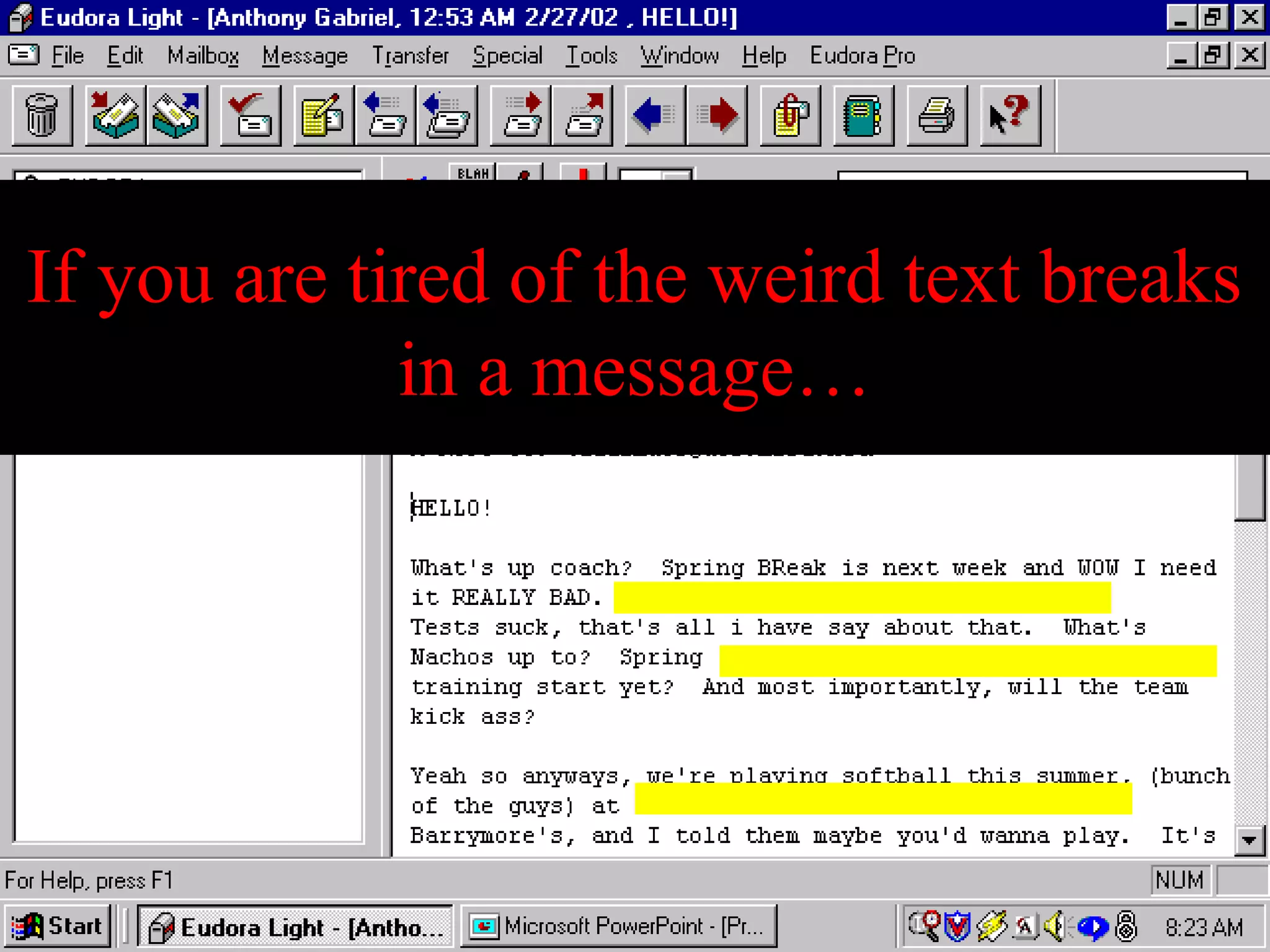
If you are tired of the weird text breaks
in a message…
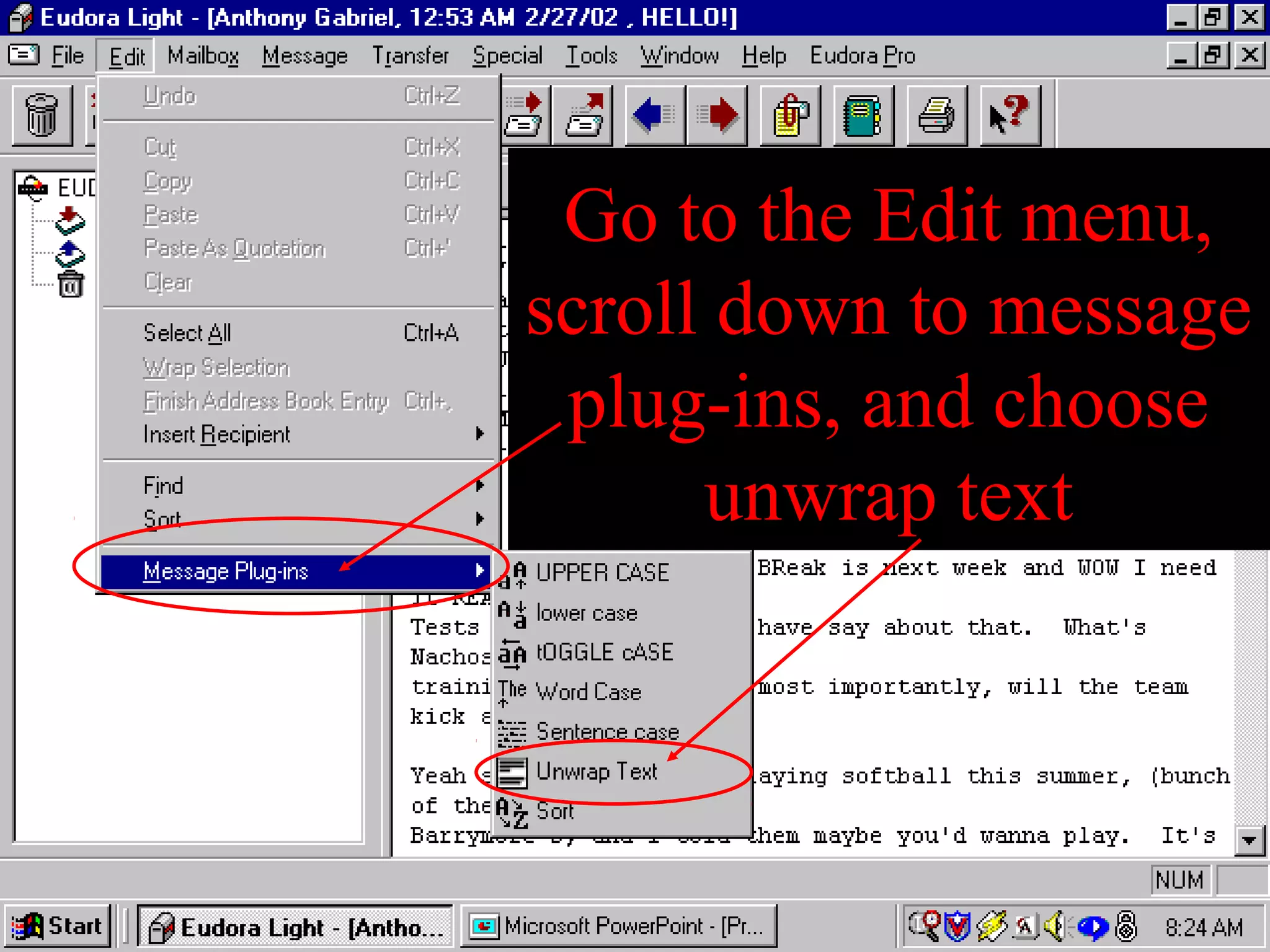
Go to the Edit menu,
scroll down to message
plug-ins, and choose
unwrap text
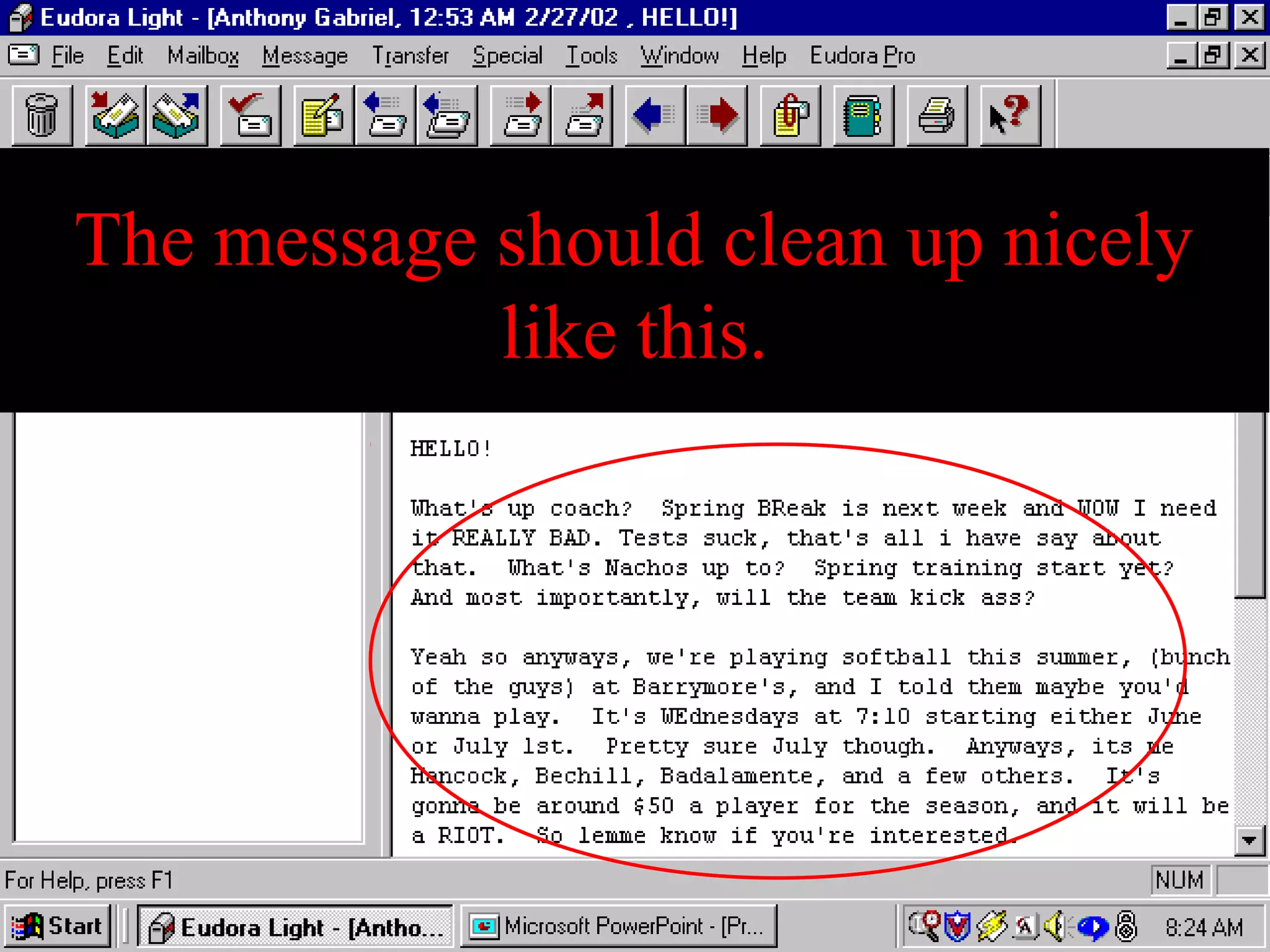
The message should clean up nicely
like this.
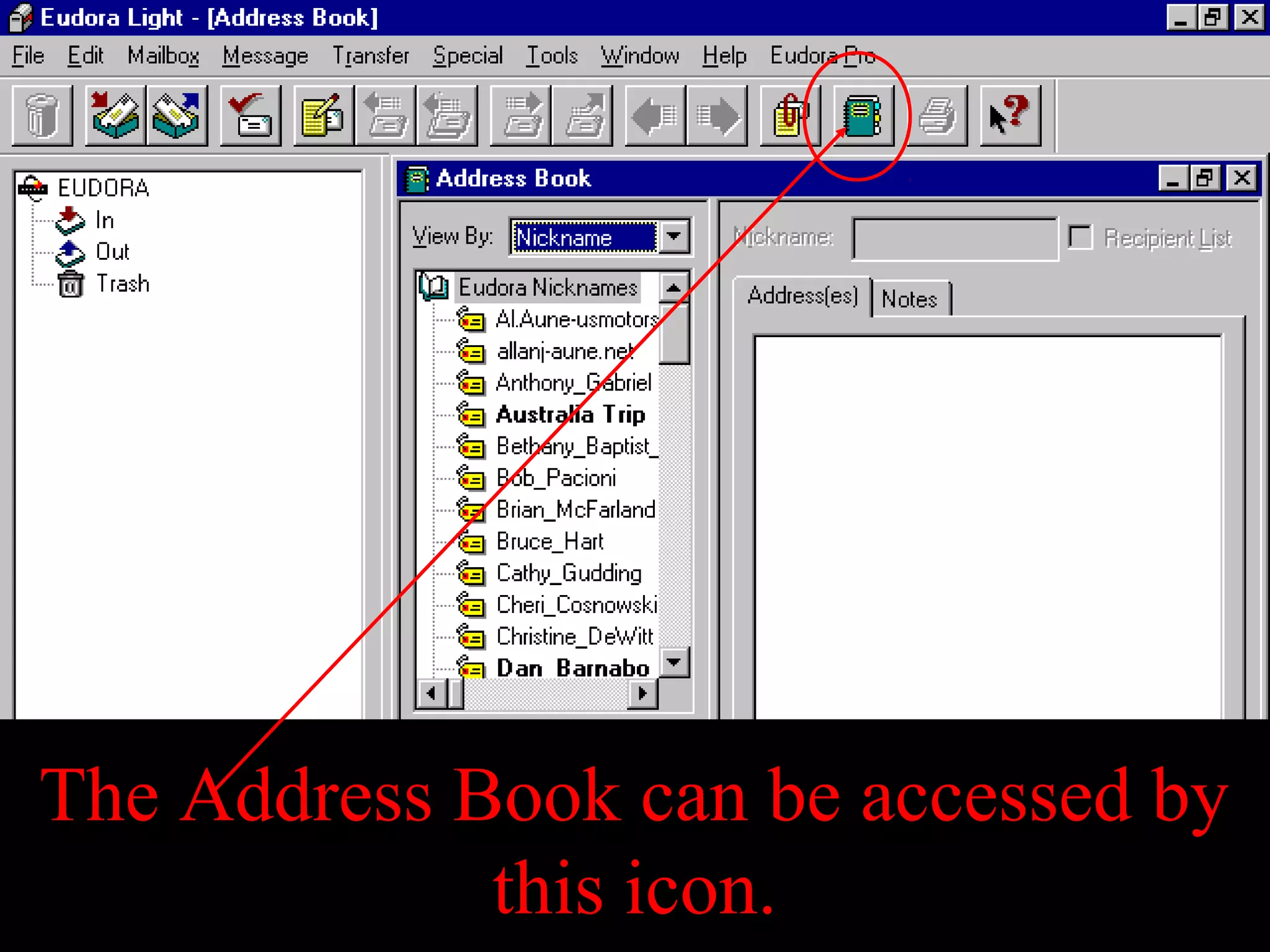
The Address Book can be accessed by
this icon.
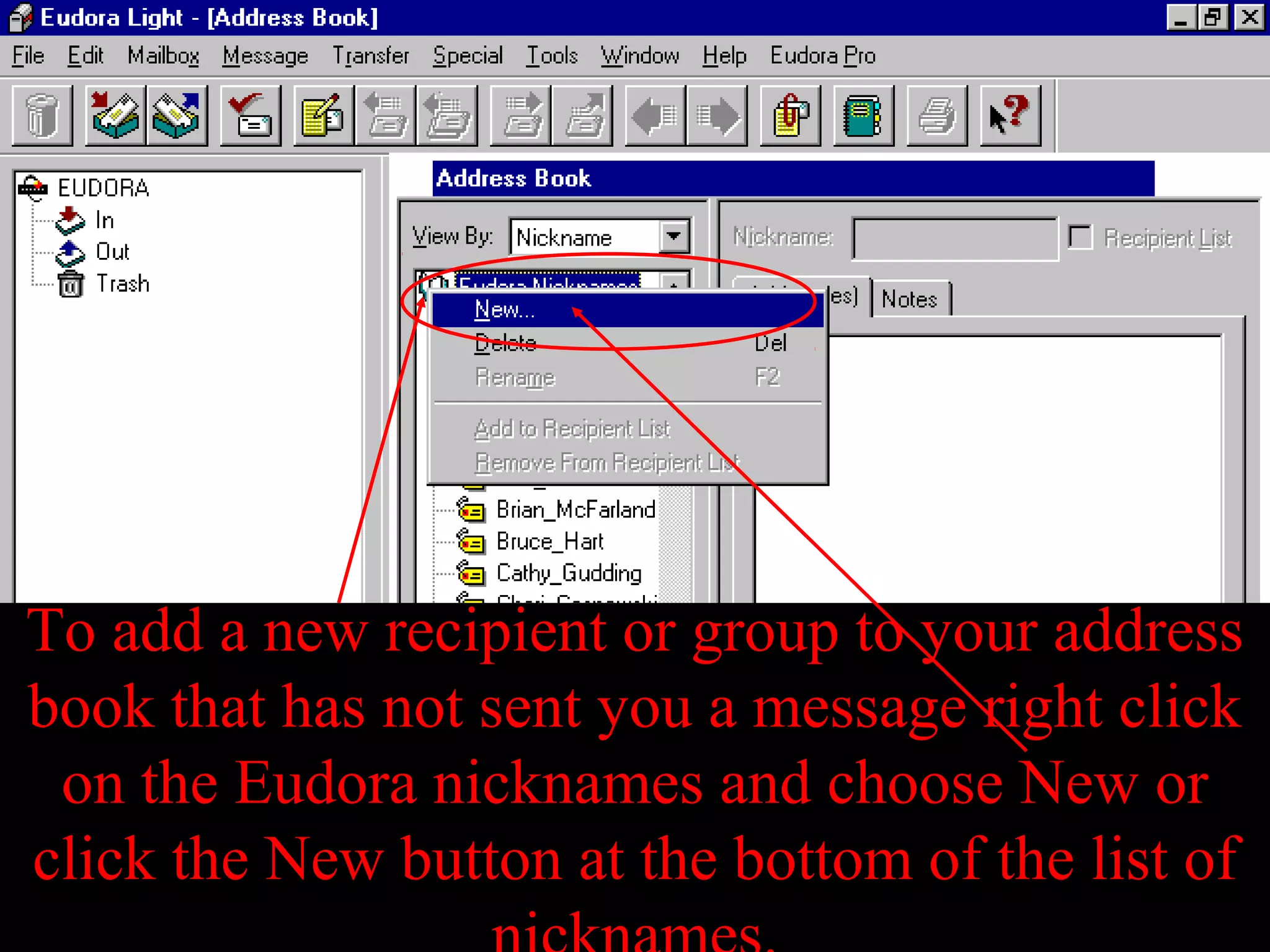
To add a new recipient or group to your address
book that has not sent you a message right click
on the Eudora nicknames and choose New or
click the New button at the bottom of the list of
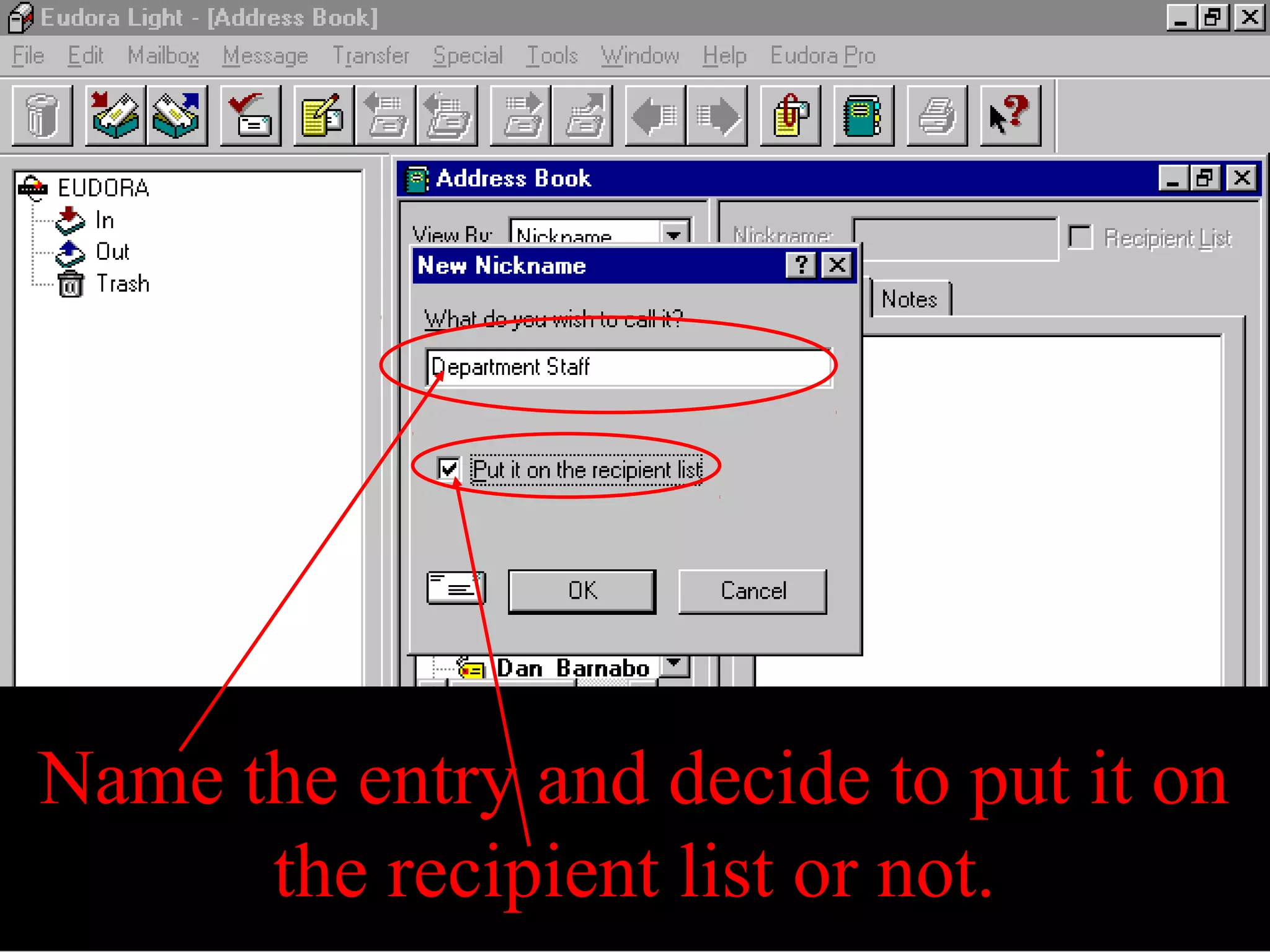
Name the entry and decide to put it on
the recipient list or not.
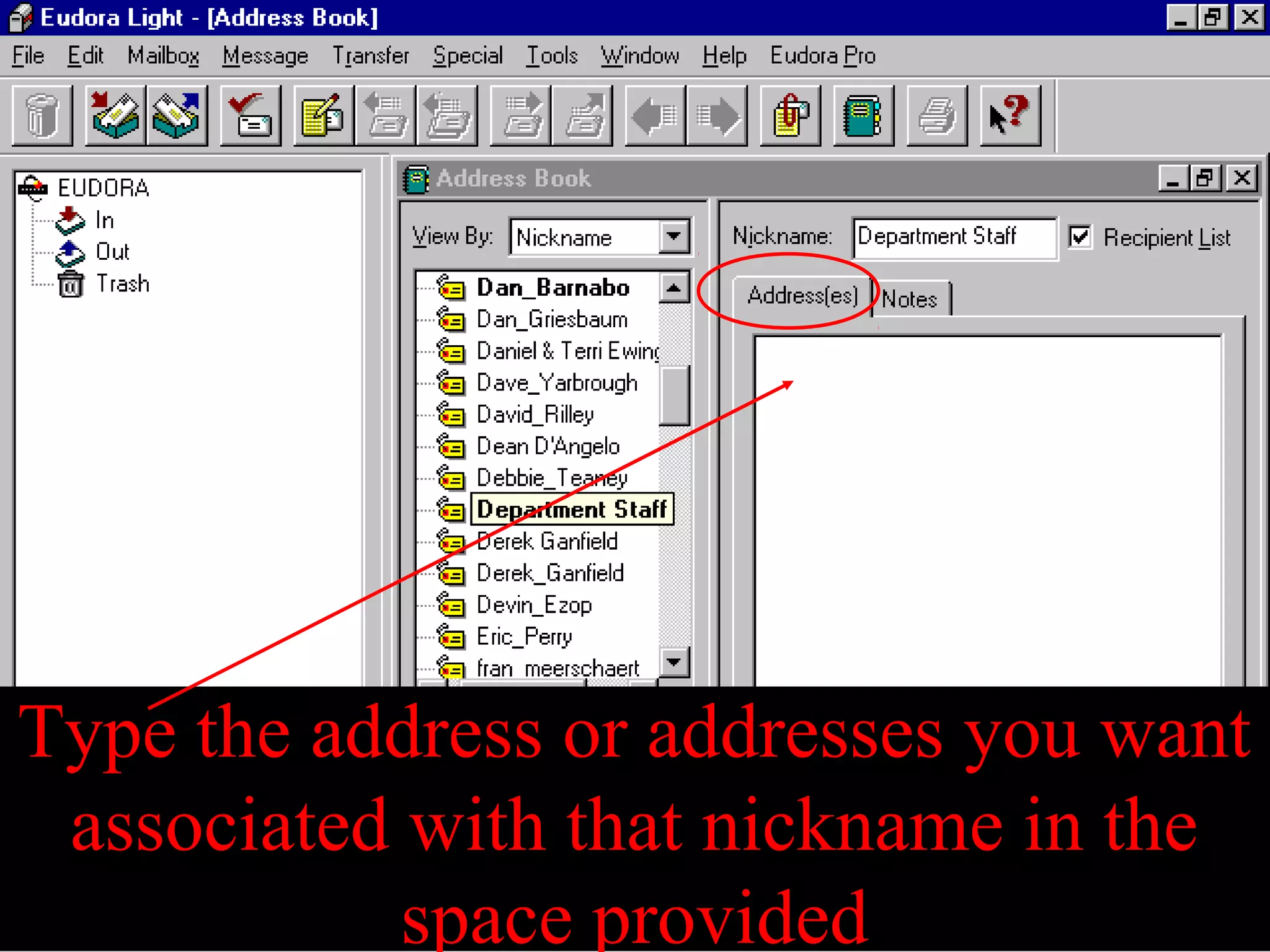
Type the address or addresses you want
associated with that nickname in the
space provided
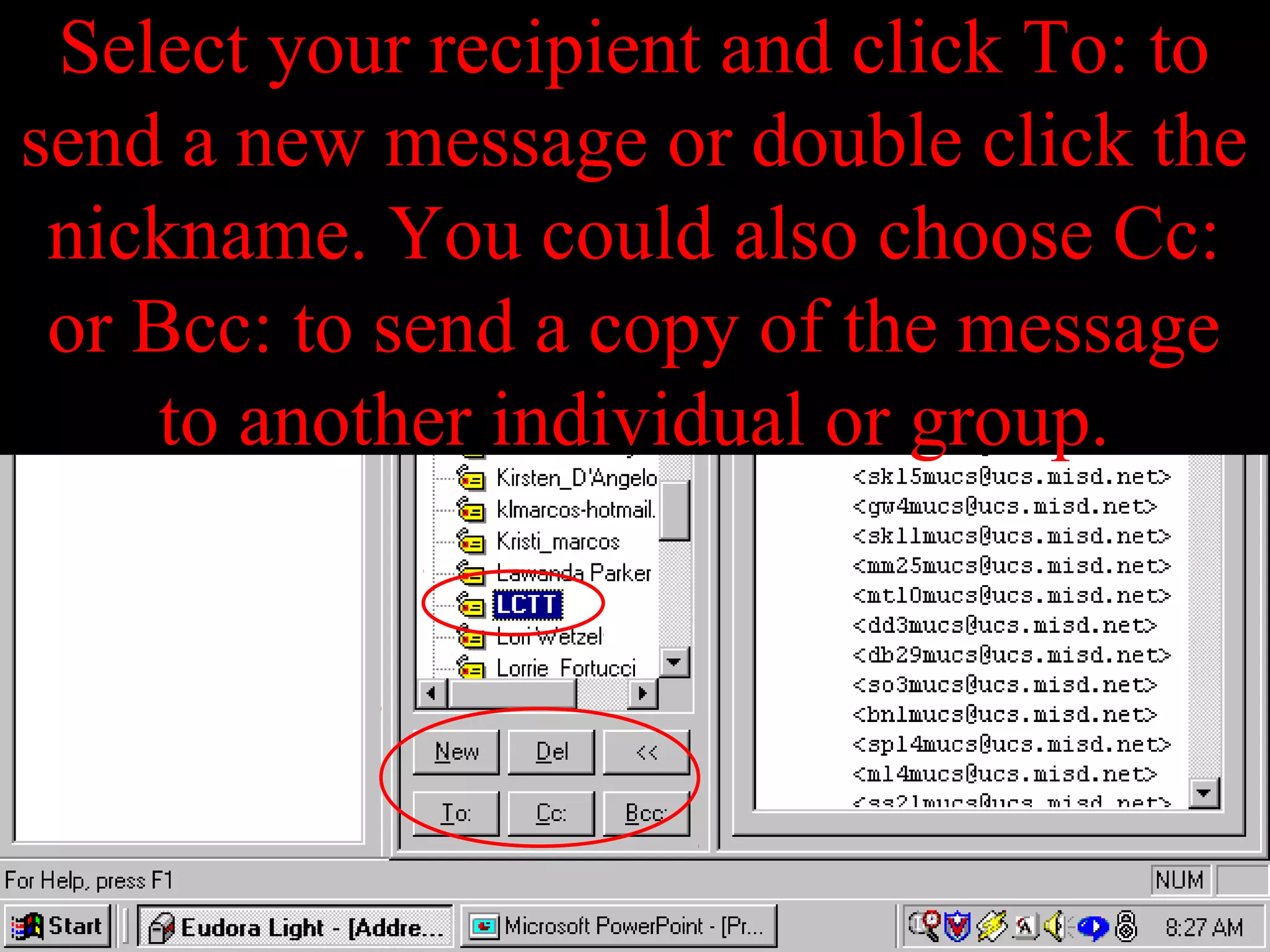
Select your recipient and click To: to
send a new message or double click the
nickname. You could also choose Cc:
or Bcc: to send a copy of the message
to another individual or group.
Shortcuts
• Ctrl + 0 Open Out mailbox
• Ctrl + 1 Open In mailbox
• Ctrl + ’ Paste as quotation
• Ctrl + , Finish nickname
• Ctrl + A Select all
• Ctrl + C Copy
• Ctrl + D Delete
• Ctrl + E Send or Queue
• Ctrl + F Find dialog
• Ctrl + H Attach document
Shortcuts
• Ctrl + J Filter messages
• Ctrl + K Make nickname
• Ctrl + L Address Book
• Ctrl + M Check mail
• Ctrl + N New message
• Ctrl + O Open file
• Ctrl + P Print
• Ctrl + Q Exit Eudora
• Ctrl + R Reply
• Ctrl + S Save
Shortcuts
• Ctrl + T Send queued messages
• Ctrl + V Paste
• Ctrl + W Close message
• Ctrl + X Cut
• Ctrl + Y Directory Services
• Ctrl + Z Undo
• arrows Move from one message to
another in a mailbox (depends on your
Miscellaneous Options).
Shortcuts
• enter Select the outlined button in
any dialog, alert, or window,
or open the selected messages
or URL.
• esc Stop any operation currently
in progress.
• F1 Display Help.
• page up, page down Scroll up or
down through the window.
Including a URL in a Message
• To include a URL (Uniform Resource
Locator) in a message, enclose it with less
than and greater than signs to ensure that
your recipient’s application can identify it
as a URL.
• For example, <http://www.eudora.com/>.
The URL is automatically highlighted as
an active URL in the recipient’s message
window.
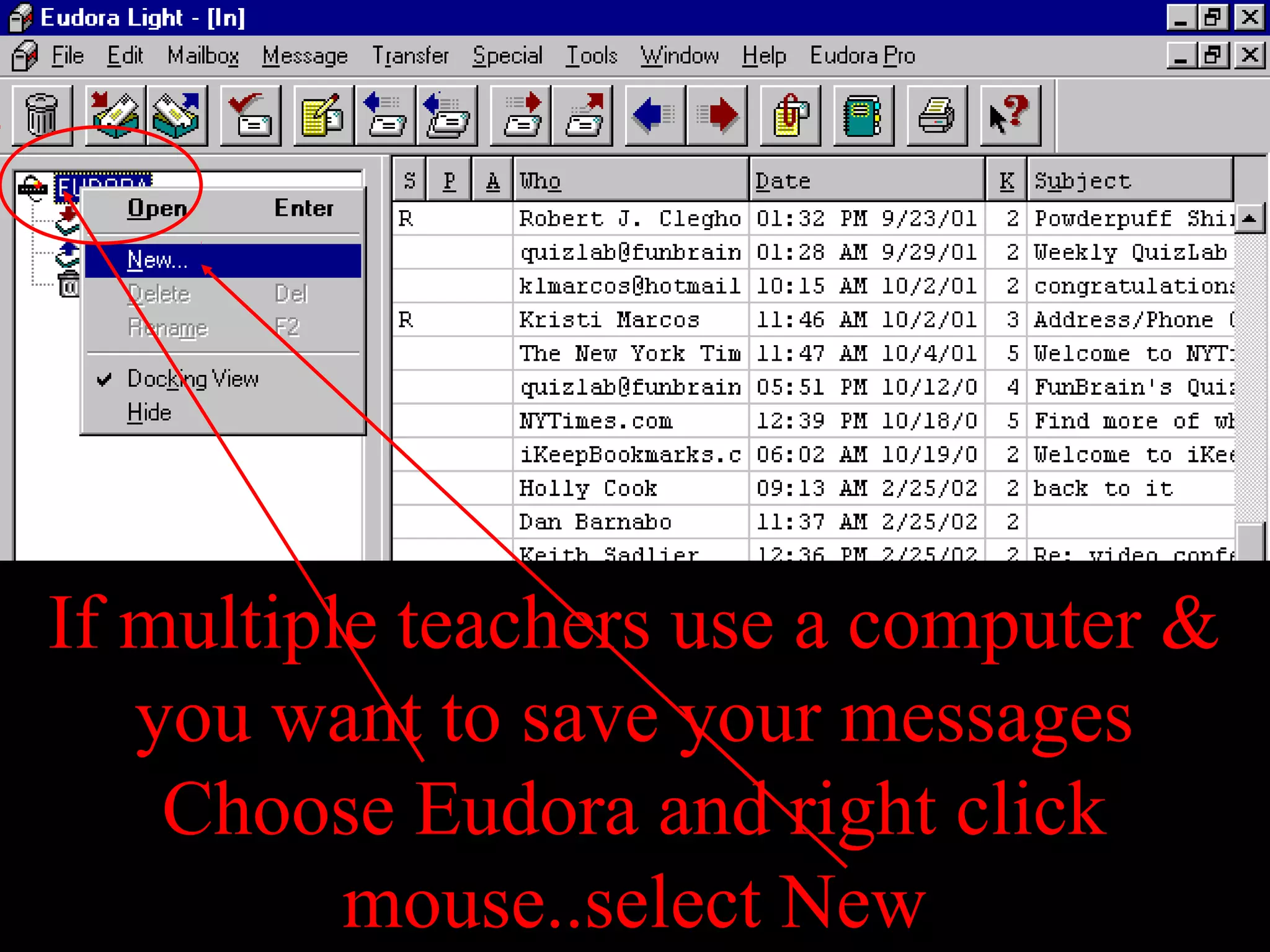
If multiple teachers use a computer &
you want to save your messages
Choose Eudora and right click
mouse..select New
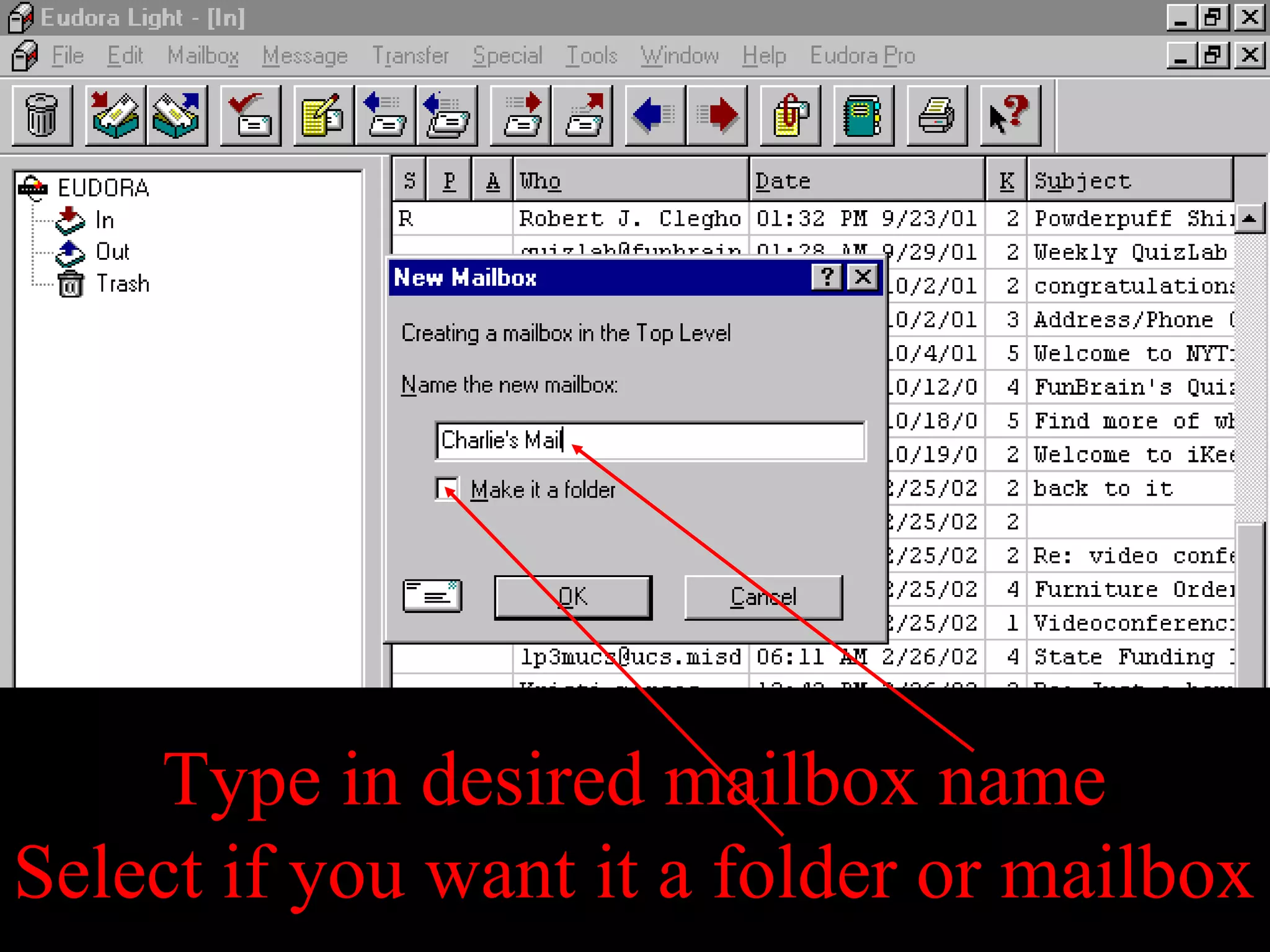
Type in desired mailbox name
Select if you want it a folder or mailbox
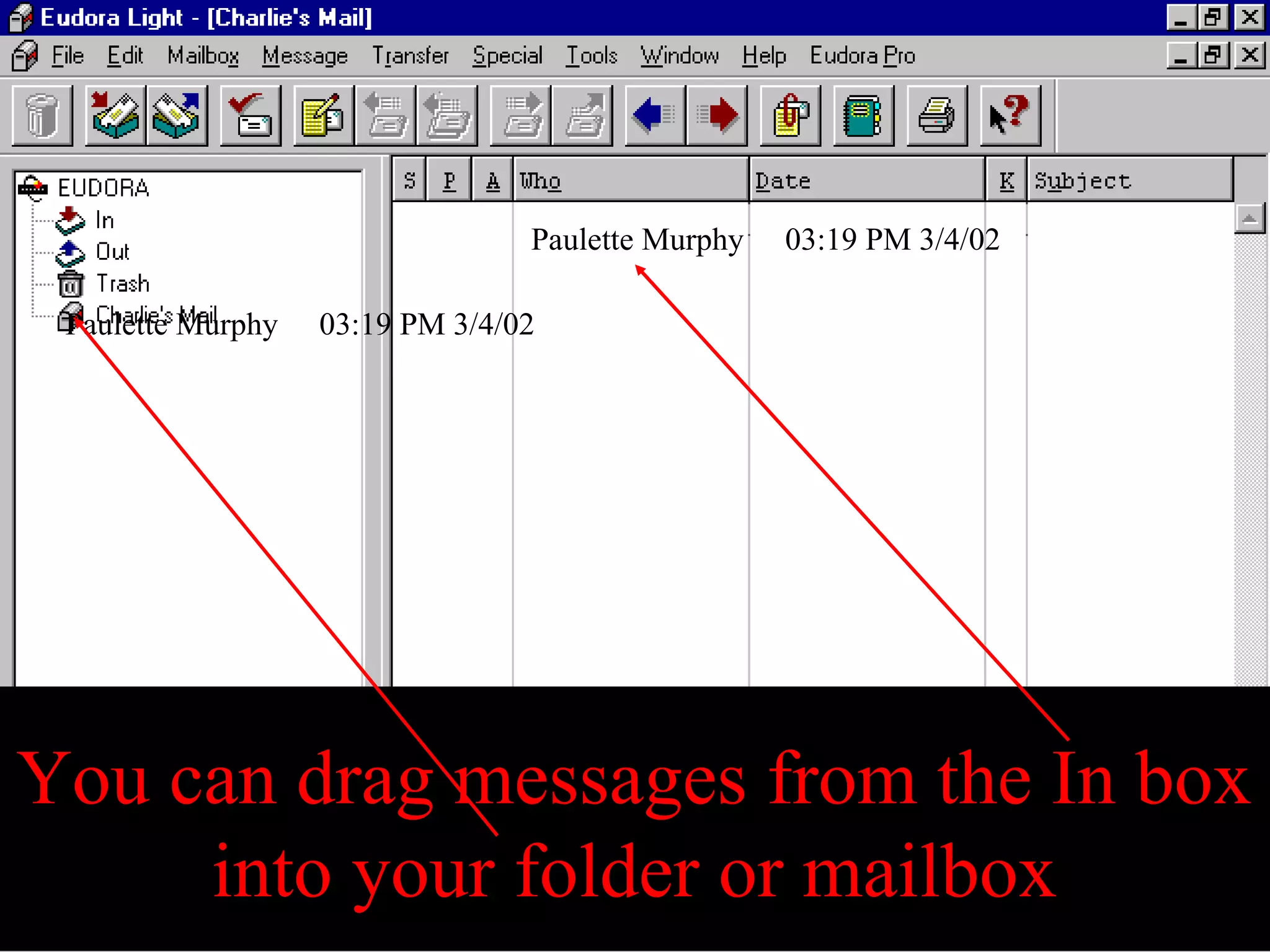
You can drag messages from the In box
into your folder or mailbox
Paulette Murphy 03:19 PM 3/4/02
Try This!
• E-mail your neighbor and me a message.
• Be sure to save and attach a file to it.
• Include a link to the ULI homepage.
• Add a signature.
To get E-mail from home
• Go to http://mail.ucs.misd.net:8383
• You will be connected to the server and be
able to read old messages left on the server
as well as new messages. Those messages
will be retrievable from school on Monday
as long as you do not delete them.

Eudora e mail instructions

  • 1.
    E-Mail Overview What YouWill Learn • Menu Controls • Send and check e-mail • Use your address book and its functions • Attach files • Add a signature to end of all e-mails you send. • Configure options
  • 2.
    E-Mail Overview Continued • Formatreceived messages • Shortcuts • Including an active URL in a message • Setting up a mailbox for saved messages • Checking your e-mail from home
  • 3.
    Use the Filemenu to Check Mail (Ctrl M) or Print (Ctrl P)
  • 4.
    Use the MessageMenu to send a New message, reply to a message, forward a message, or attach a file to a message
  • 5.
    The New MessageTo & Forward To command allows you to send a message to pre defined groups from the recipient list in the address book
  • 6.
    Attach File willallow you to choose a file you have saved in your network folder, disk, or CD that you want to send to a recipient Shortcut
  • 7.
    The Special menuallows you to Make an Address Book Entry (Ctrl K) This allows you to place an address from a received e-mail into your address book
  • 8.
    The Tools menuallows you to view your Address Book, set a Signature that will run at the end of every message you send, and control Options
  • 9.
    The Options menuallows you to tell the machine whose e-mail you want to see. Be sure you are in the Getting Started Category, type in your address and name in the spaces provided.
  • 10.
    Be sure theHosts category has mail.ucs.misd.net in the SMTP box
  • 11.
    Change many settingsin the Checking Mail Category. The Check for mail & Leave mail on server are most popular.
  • 12.
    The Attachments Categoryshows you where files e-mailed to you are stored on your computer
  • 13.
    The Fonts &Display Category allows you to change the appearance of messages
  • 14.
    To send ane-mail select New Message from the Message menu
  • 15.
    Type in the e-mail addressof the recipient Type the subject & write your message
  • 16.
    To see messagesin your Mail box double click the In icon
  • 17.
    To send anattached file click the paper clipped icon after filling out necessary address information & typing your message.
  • 18.
    Choose the filelocation and specific file from the network or hard drive (remember where your own e-mail attachments are downloaded to)
  • 19.
    An attached filewill appear as a hyperlink when sent. The recipient must be able to open files of the type you send.
  • 20.
    If you aretired of the weird text breaks in a message…
  • 21.
    Go to theEdit menu, scroll down to message plug-ins, and choose unwrap text
  • 22.
    The message shouldclean up nicely like this.
  • 23.
    The Address Bookcan be accessed by this icon.
  • 24.
    To add anew recipient or group to your address book that has not sent you a message right click on the Eudora nicknames and choose New or click the New button at the bottom of the list of
  • 25.
    Name the entryand decide to put it on the recipient list or not.
  • 26.
    Type the addressor addresses you want associated with that nickname in the space provided
  • 27.
    Select your recipientand click To: to send a new message or double click the nickname. You could also choose Cc: or Bcc: to send a copy of the message to another individual or group.
  • 28.
    Shortcuts • Ctrl +0 Open Out mailbox • Ctrl + 1 Open In mailbox • Ctrl + ’ Paste as quotation • Ctrl + , Finish nickname • Ctrl + A Select all • Ctrl + C Copy • Ctrl + D Delete • Ctrl + E Send or Queue • Ctrl + F Find dialog • Ctrl + H Attach document
  • 29.
    Shortcuts • Ctrl +J Filter messages • Ctrl + K Make nickname • Ctrl + L Address Book • Ctrl + M Check mail • Ctrl + N New message • Ctrl + O Open file • Ctrl + P Print • Ctrl + Q Exit Eudora • Ctrl + R Reply • Ctrl + S Save
  • 30.
    Shortcuts • Ctrl +T Send queued messages • Ctrl + V Paste • Ctrl + W Close message • Ctrl + X Cut • Ctrl + Y Directory Services • Ctrl + Z Undo • arrows Move from one message to another in a mailbox (depends on your Miscellaneous Options).
  • 31.
    Shortcuts • enter Selectthe outlined button in any dialog, alert, or window, or open the selected messages or URL. • esc Stop any operation currently in progress. • F1 Display Help. • page up, page down Scroll up or down through the window.
  • 32.
    Including a URLin a Message • To include a URL (Uniform Resource Locator) in a message, enclose it with less than and greater than signs to ensure that your recipient’s application can identify it as a URL. • For example, <http://www.eudora.com/>. The URL is automatically highlighted as an active URL in the recipient’s message window.
  • 33.
    If multiple teachersuse a computer & you want to save your messages Choose Eudora and right click mouse..select New
  • 34.
    Type in desiredmailbox name Select if you want it a folder or mailbox
  • 35.
    You can dragmessages from the In box into your folder or mailbox Paulette Murphy 03:19 PM 3/4/02 Paulette Murphy 03:19 PM 3/4/02
  • 36.
    Try This! • E-mailyour neighbor and me a message. • Be sure to save and attach a file to it. • Include a link to the ULI homepage. • Add a signature.
  • 37.
    To get E-mailfrom home • Go to http://mail.ucs.misd.net:8383 • You will be connected to the server and be able to read old messages left on the server as well as new messages. Those messages will be retrievable from school on Monday as long as you do not delete them.