Intro to email usage for beginners. Tips and tricks
1.
Introduction to Email…
Whatis email?!
EMAIL is electronic instant messaging
that is sent and received via the
internet.
Email messages are
retrieved/read/replied to via an
internet enabled device (i.e. phone,
tablet, computer).
NOTE: Similar to web addresses, email
addresses have no spaces!!
It may contain a period, dash, or
underline in the name before the @,
but nothing else.
2.
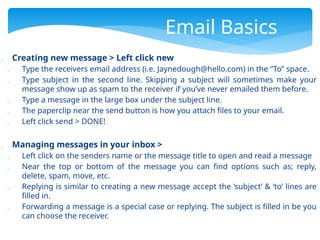
Creating newmessage > Left click new
Type the receivers email address (i.e. Jaynedough@hello.com) in the “To” space.
Type subject in the second line. Skipping a subject will sometimes make your
message show up as spam to the receiver if you’ve never emailed them before.
Type a message in the large box under the subject line.
The paperclip near the send button is how you attach files to your email.
Left click send > DONE!
Managing messages in your inbox >
Left click on the senders name or the message title to open and read a message
Near the top or bottom of the message you can find options such as; reply,
delete, spam, move, etc.
Replying is similar to creating a new message accept the ‘subject’ & ‘to’ lines are
filled in.
Forwarding a message is a special case or replying. The subject is filled in be you
can choose the receiver.
Email Basics
3.
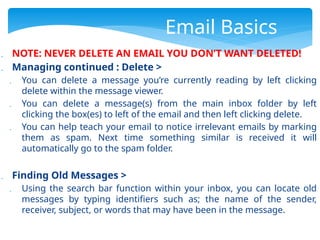
NOTE: NEVERDELETE AN EMAIL YOU DON’T WANT DELETED!
Managing continued : Delete >
You can delete a message you’re currently reading by left clicking
delete within the message viewer.
You can delete a message(s) from the main inbox folder by left
clicking the box(es) to left of the email and then left clicking delete.
You can help teach your email to notice irrelevant emails by marking
them as spam. Next time something similar is received it will
automatically go to the spam folder.
Finding Old Messages >
Using the search bar function within your inbox, you can locate old
messages by typing identifiers such as; the name of the sender,
receiver, subject, or words that may have been in the message.
Email Basics
4.
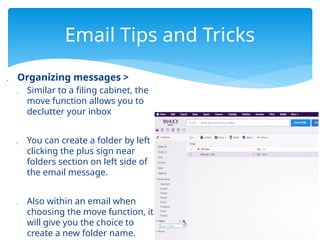
Organizing messages>
Similar to a filing cabinet, the
move function allows you to
declutter your inbox
You can create a folder by left
clicking the plus sign near
folders section on left side of
the email message.
Also within an email when
choosing the move function, it
will give you the choice to
create a new folder name.
Email Tips and Tricks
5.
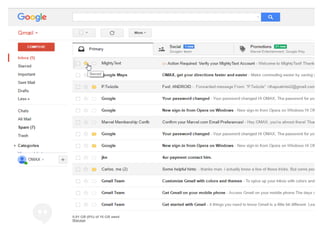
Quick wayto sort
important messages
without a folder is with
the use of starring.
When hovering over
email messages you
will find an icon in the
shape of a star
Email Tips and
Tricks
Clicking the star is a
type of filing. There’s
a link near the
folders on the left
hand side labeled
“starred” that brings
up all messages that
you have “starred”.
Picture on next slide!
7.
If youneed to type a quick document or note and
you don’t want to open office or notepad, you can
type it as new message in your email and it
automatically gets saved as a draft. You can come
back to it later without having to worry about
losing it due to your program closing.
Very useful if using a library computer when
you’re on a time limit.
Email Tips and
Tricks
8.
Email attachments:
Must be downloaded to print correctly
Google Docs, Dropbox, Office Online files:
Must be downloaded to print correctly
Printing From Email
9.
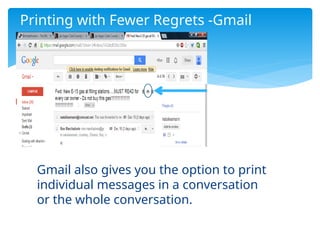
Printing with FewerRegrets -Gmail
Gmail also gives you the option to print
individual messages in a conversation
or the whole conversation.