














Equation Numbering
• The equation numbering commands allow you to insert
equation numbers in a Word document in a variety of
formats. You can also insert references to these
numbers; both numbers and references are
automatically updated whenever you add new equation
numbers to the document. Equation references can also
be placed in footnotes and endnotes.
• The equation numbers are quite separate from equations
in a Word document; if you delete an equation its
equation number (if any) is not automatically deleted.
Similarly, an equation reference is actually a reference to
an equation number, rather than a reference to the
equation itself.
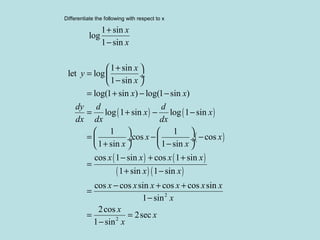
Differentiate the following with respect to x
( ) ( )
( )
( ) ( )
( ) ( )
2
1 sin
log
1 sin
1 sin
let log
1 sin
log(1 sin ) log(1 sin )
log 1 sin log 1 sin
1 1
cos cos
1 sin 1 sin
cos 1 sin cos 1 sin
1 sin 1 sin
cos cos sin cos cos sin
1 sin
x
x
x
y
x
x x
dy d d
x x
dx dx dx
x x
x x
x x x x
x x
x x x x x x
+
−
+ 
=  ÷
− 
= + − −
= + − −
   
= − − ÷  ÷
+ −   
− + +
=
+ −
− + +
=
−
2
2cos
2sec
1 sin
x
x
x
x
= =
−
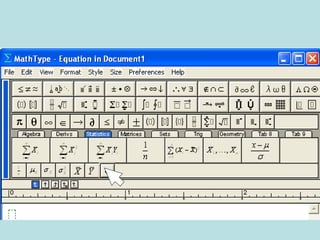
MathType Window Environment
MathType Window and Equation
Key Board Short Cuts
MS Word and Equation
Numbering
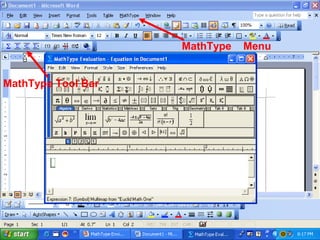
MathType Menu
MathType Tool Bar
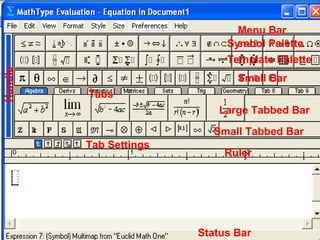
Menu Bar
Symbol Palette
Template Palette
Large Tabbed Bar
Small Bar
Small Tabbed Bar
Tab Settings
Ruler
Status Bar
Tabs
Handle
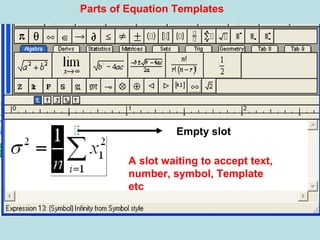
Empty slot
A slot waiting to accept text,
number, symbol, Template
etc
Parts of Equation Templates
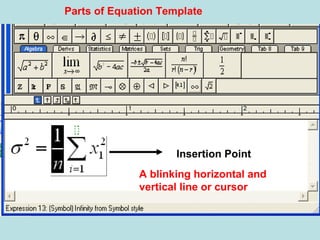
Insertion Point
A blinking horizontal and
vertical line or cursor
Parts of Equation Template
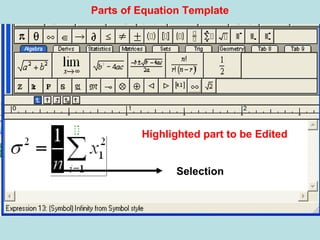
Selection
Highlighted part to be Edited
Parts of Equation Template
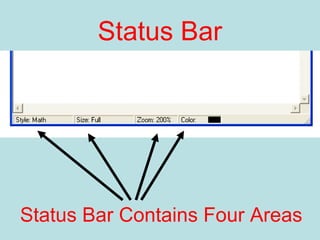
Status Bar
Status Bar Contains Four Areas
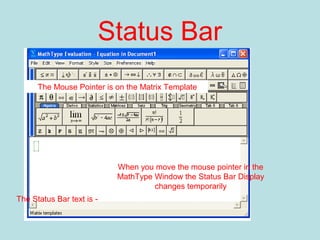
Status Bar
When you move the mouse pointer in the
MathType Window the Status Bar Display
changes temporarily
The Mouse Pointer is on the Matrix Template
The Status Bar text is -
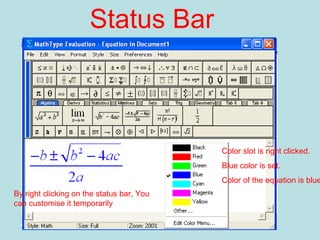
Status Bar
By right clicking on the status bar, You
can customise it temporarily
Color slot is right clicked.
Blue color is set.
Color of the equation is blue
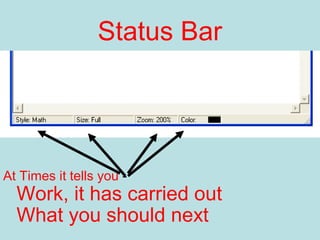
Status Bar
What you should next
At Times it tells you -
Work, it has carried out
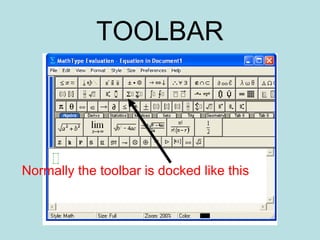
TOOLBAR
Normally the toolbar is docked like this
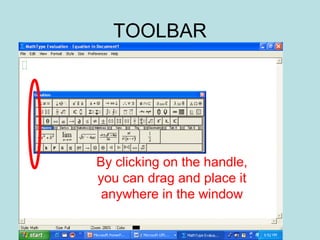
TOOLBAR
By clicking on the handle,
you can drag and place it
anywhere in the window
MathType Window and
Equation
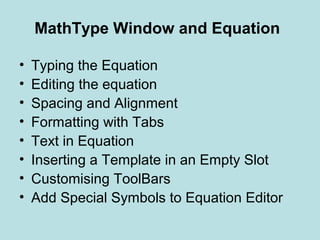
MathType Window and Equation
• Typing the Equation
• Editing the equation
• Spacing and Alignment
• Formatting with Tabs
• Text in Equation
• Inserting a Template in an Empty Slot
• Customising ToolBars
• Add Special Symbols to Equation Editor
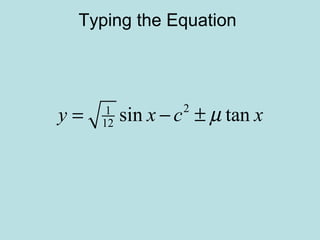
Typing the Equation
21
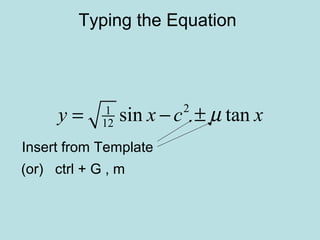
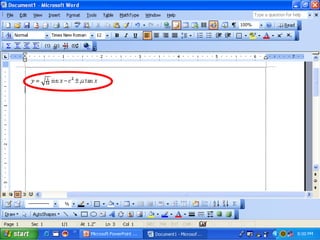
12 sin tany x c xµ= − ±
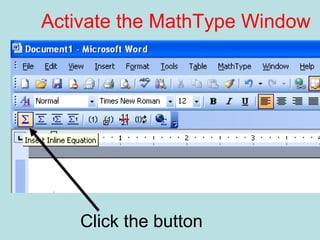
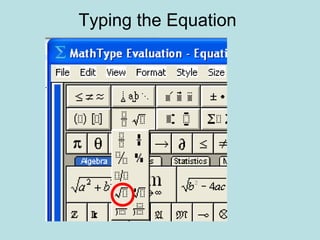
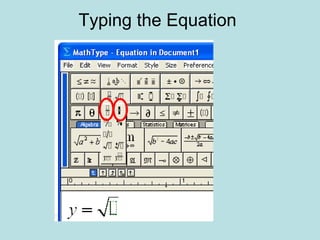
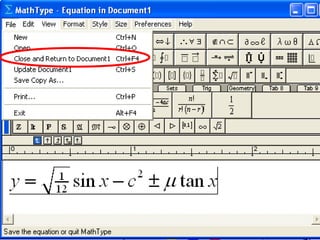
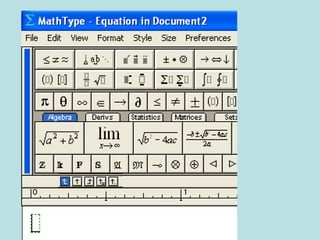
Activate the MathType Window
Click the button
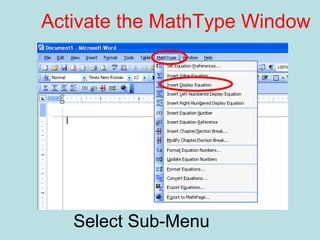
Activate the MathType Window
Select Sub-Menu
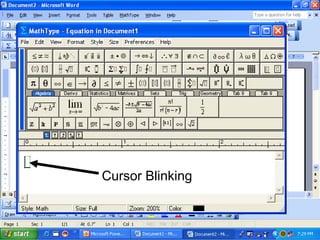
Cursor Blinking
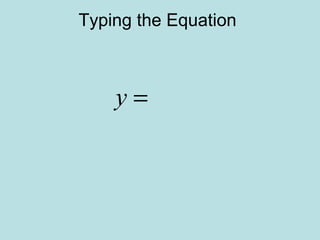
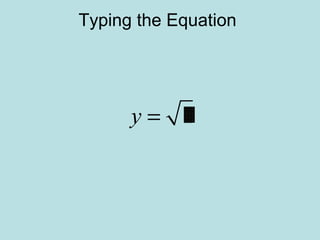
Typing the Equation
Typing the Equation
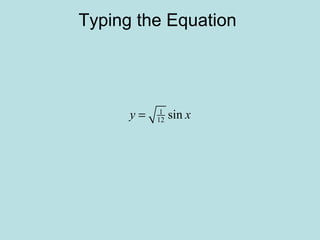
y =
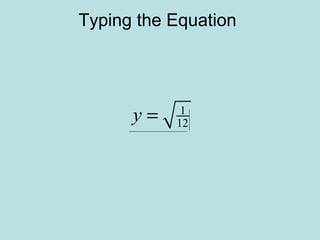
Typing the Equation
Typing the Equation
y =
Typing the Equation
Typing the Equation
1
12y =
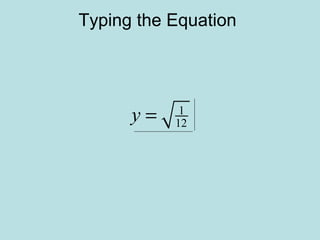
Typing the Equation
1
12y =
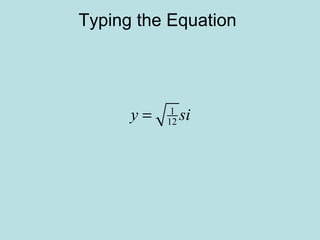
Typing the Equation
1
12y si=
Typing the Equation
1
12 siny x=
Typing the Equation
1
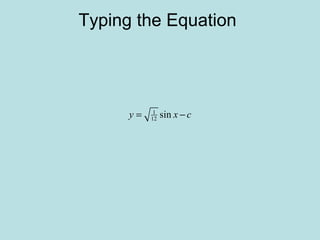
12 siny x c= −
Typing the Equation
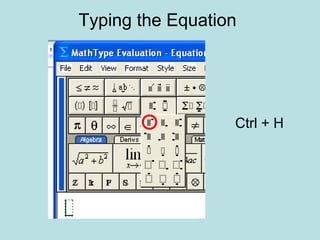
Ctrl + H
Typing the Equation
21
12 sin tany x c xµ= − ±
Insert from Template
(or) ctrl + G , m
Typing the Equation
• Open MS Word
• Click the Insert Display Equation
• MathType Window opens
• Type the equation using the proper
templates
• Remember Your spacebar is inactive
Typing the Equation
• Editor knows where to leave space
• Editor knows what are variables
• Editor knows what are texts
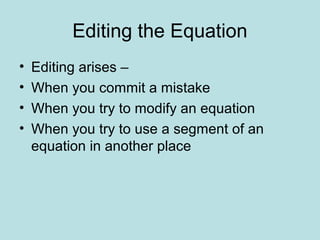
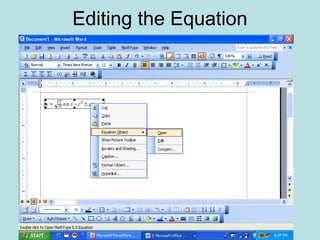
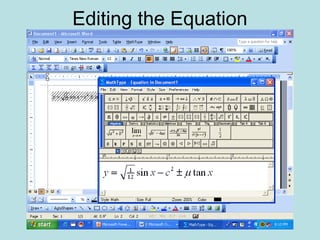
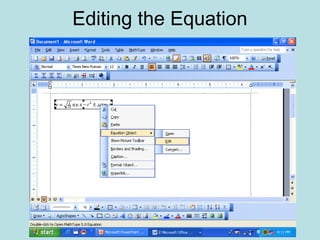
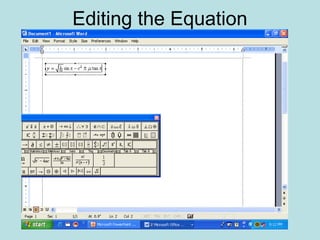
Editing the Equation
• Editing arises –
• When you commit a mistake
• When you try to modify an equation
• When you try to use a segment of an
equation in another place
Editing the Equation
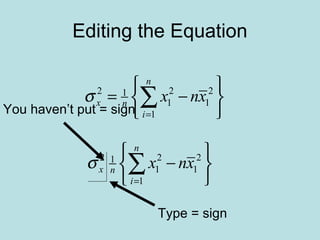
2 2 21
1 1
1
n
x n
i
x nxσ
=
 
= − 
 
∑
2 2 21
1 1
1
n
x n
i
x nxσ
=
 
− 
 
∑
You haven’t put = sign
Type = sign
Editing the Equation
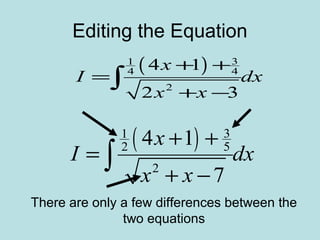
( ) 31
4 4
2
4 1
2 3
x
I dx
x x
+ +
=
+ −
∫
( ) 31
2 5
2
4 1
7
x
I dx
x x
+ +
=
+ −
∫
There are only a few differences between the
two equations
Editing the Equation
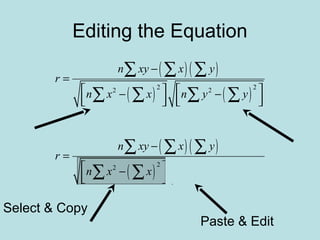
( )( )
( ) ( )
2 22 2
n xy x y
r
n x x n y y
−
=
   − −      
∑ ∑ ∑
∑ ∑ ∑ ∑
( )( )
( ) ( )
2 22 2
n xy x y
r
n x x n y y
−
=
   − −      
∑ ∑ ∑
∑ ∑ ∑ ∑
Select & Copy
Paste & Edit
Editing the Equation
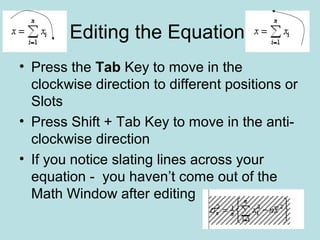
• Press the Tab Key to move in the
clockwise direction to different positions or
Slots
• Press Shift + Tab Key to move in the anti-
clockwise direction
• If you notice slating lines across your
equation - you haven’t come out of the
Math Window after editing
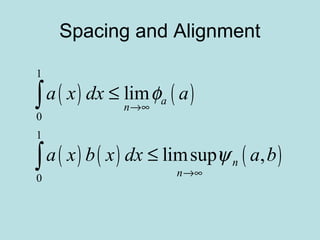
Spacing and Alignment
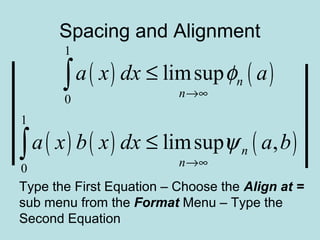
( ) ( )
( ) ( ) ( )
1
0
1
0
lim
limsup ,
a
n
n
n
a x dx a
a x b x dx a b
φ
ψ
→∞
→∞
≤
≤
∫
∫
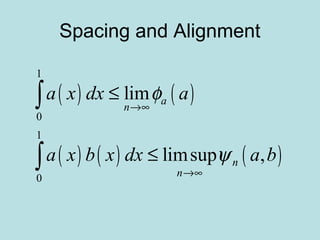
Spacing and Alignment
( ) ( )
( ) ( ) ( )
1
0
1
0
lim
limsup ,
a
n
n
n
a x dx a
a x b x dx a b
φ
ψ
→∞
→∞
≤
≤
∫
∫
Spacing and Alignment
( ) ( )
( ) ( ) ( )
1
0
1
0
limsup
limsup ,
n
n
n
n
a x dx a
a x b x dx a b
φ
ψ
→∞
→∞
≤
≤
∫
∫
Type the First Equation – Choose the Align at =
sub menu from the Format Menu – Type the
Second Equation
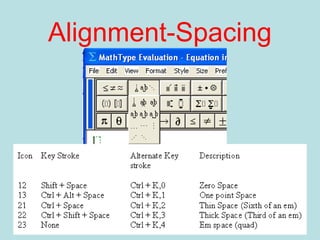
Spacing and Alignment
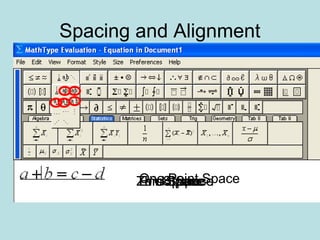
Zero SpaceOne Point SpaceThin SpaceThick SpaceEm Space
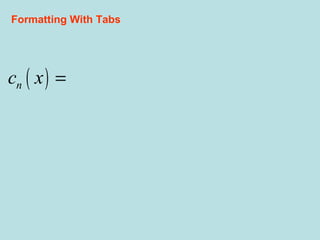
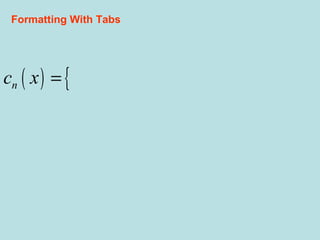
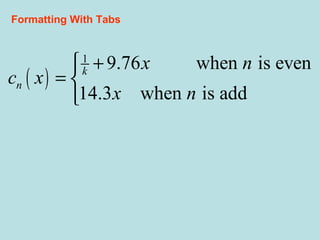
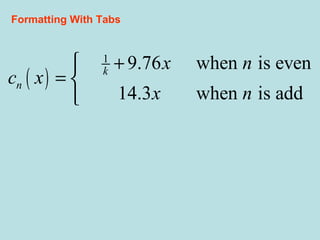
Formatting With Tabs
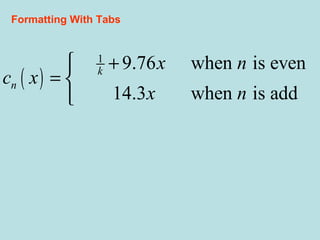
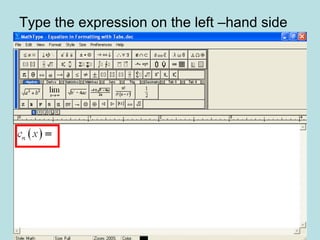
( )
1
9.76 when is even
14.3 when is add
k
n
x n
c x
x n
+
= 

Formatting With Tabs
Type the expression on the left –hand side
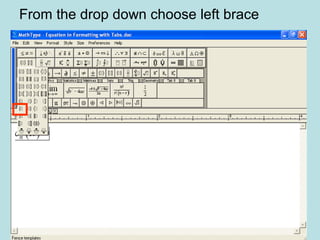
From the drop down choose left brace
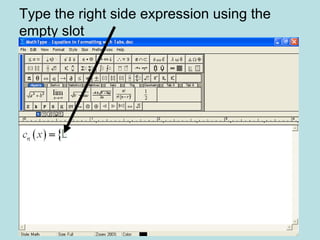
Type the right side expression using the
empty slot
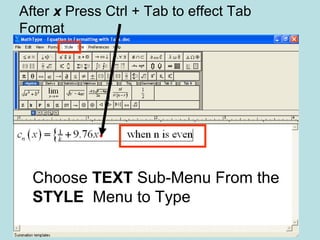
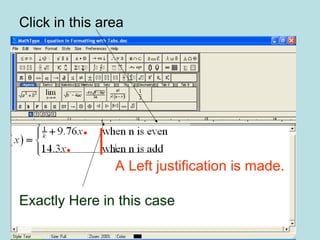
After x Press Ctrl + Tab to effect Tab
Format
Choose TEXT Sub-Menu From the
STYLE Menu to Type
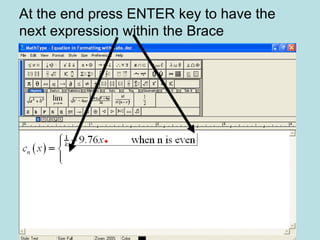
At the end press ENTER key to have the
next expression within the Brace
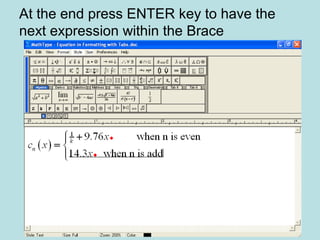
At the end press ENTER key to have the
next expression within the Brace
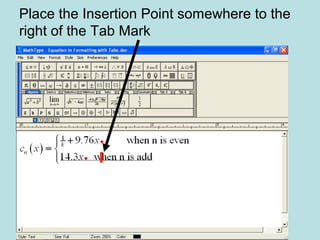
Place the Insertion Point somewhere to the
right of the Tab Mark
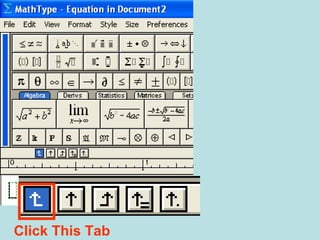
Click This Tab
Click in this area
Exactly Here in this case
A Left justification is made.
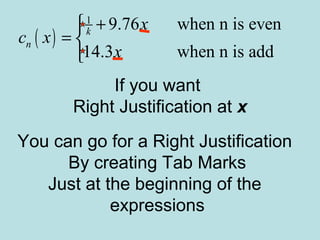
If you want
Right Justification at x
You can go for a Right Justification
By creating Tab Marks
Just at the beginning of the
expressions
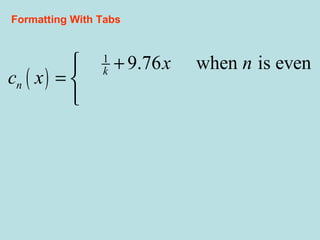
( )
1
9.76 when n is even
14.3 when n is add
k
n
x
c x
x
+
= 

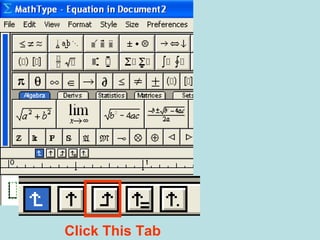
Click This Tab
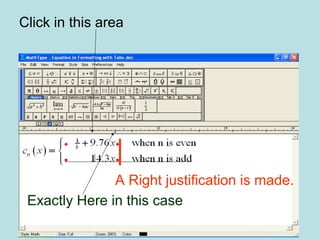
Click in this area
Exactly Here in this case
A Right justification is made.
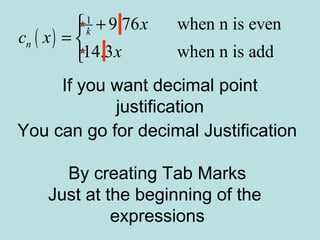
If you want decimal point
justification
You can go for decimal Justification
By creating Tab Marks
Just at the beginning of the
expressions
( )
1
9.76 when n is even
14.3 when n is add
k
n
x
c x
x
+
= 

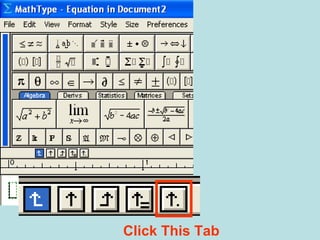
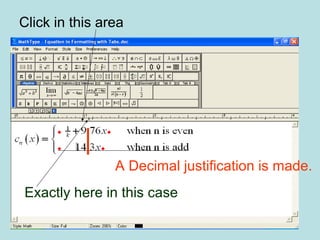
Click This Tab
Click in this area
A Decimal justification is made.
Exactly here in this case
( )
1
9.76 when is even
14.3 when is add
k
n
x n
c x
x n
+
= 

Formatting With Tabs
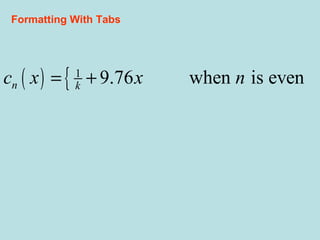
( ) { 1
9.76 when is evenn kc x x n= +
Formatting With Tabs
( ) { 1
9.76 when is evenn kc x x n= +
Formatting With Tabs
( )
1
9.76 when is even
14.3 when is add
k
n
x n
c x
x n
+
= 

Formatting With Tabs
( )
1
9.76 when is even
14.3 when is add
k
n
x n
c x
x n
+
= 

Formatting With Tabs
( )
1
9.76 when is even
14.3 when is add
k
n
x n
c x
x n
+
= 

Formatting With Tabs
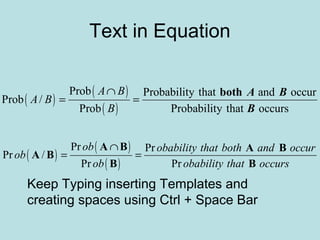
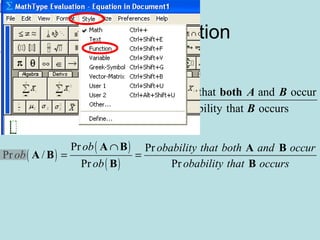
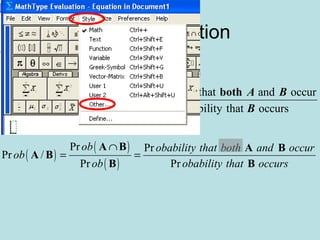
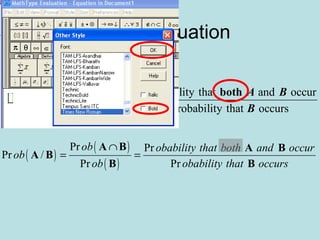
Text in Equation
( )
( )
( )
Prob Probability that and occur
Prob /
Prob Probability that occurs
A B
A B
B
∩
= =
both A B
B
( )
( )
( )
Pr Pr
Pr /
Pr Pr
ob obability that both and occur
ob
ob obability that occurs
∩
= =
A B A B
A B
B B
Keep Typing inserting Templates and
creating spaces using Ctrl + Space Bar
Text in Equation
( )
( )
( )
Prob Probability that and occur
Prob /
Prob Probability that occurs
A B
A B
B
∩
= =
both A B
B
( )
( )
( )
Pr Pr
Pr /
Pr Pr
ob obability that both and occur
ob
ob obability that occurs
∩
= =
A B A B
A B
B B
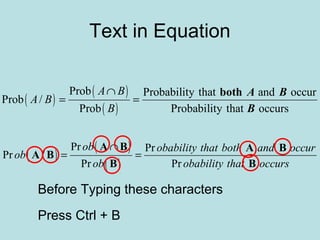
Before Typing these characters
Press Ctrl + B
Text in Equation
( )
( )
( )
Prob Probability that and occur
Prob /
Prob Probability that occurs
A B
A B
B
∩
= =
both A B
B
( )
( )
( )
Pr Pr
Pr /
Pr Pr
ob obability that both and occur
ob
ob obability that occurs
∩
= =
A B A B
A B
B B
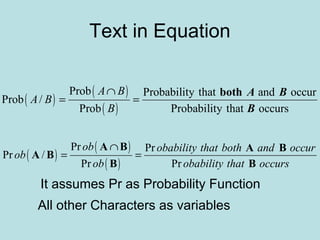
All other Characters as variables
It assumes Pr as Probability Function
Text in Equation
( )
( )
( )
Prob Probability that and occur
Prob /
Prob Probability that occurs
A B
A B
B
∩
= =
both A B
B
( )
( )
( )
Pr Pr
Pr /
Pr Pr
ob obability that both and occur
ob
ob obability that occurs
∩
= =
A B A B
A B
B B
Text in Equation
( )
( )
( )
Prob Probability that and occur
Prob /
Prob Probability that occurs
A B
A B
B
∩
= =
both A B
B
( )
( )
( )
Pr Pr
Pr /
Pr Pr
ob obability that both and occur
ob
ob obability that occurs
∩
= =
A B A B
A B
B B
Text in Equation
( )
( )
( )
Prob Probability that and occur
Prob /
Prob Probability that occurs
A B
A B
B
∩
= =
both A B
B
( )
( )
( )
Pr Pr
Pr /
Pr Pr
ob obability that both and occur
ob
ob obability that occurs
∩
= =
A B A B
A B
B B
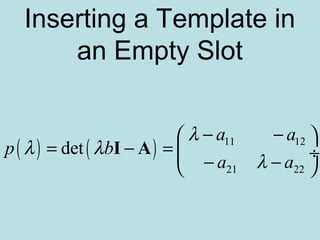
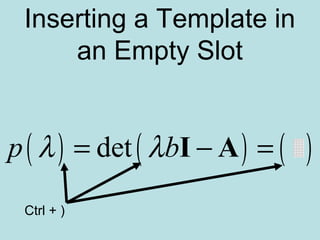
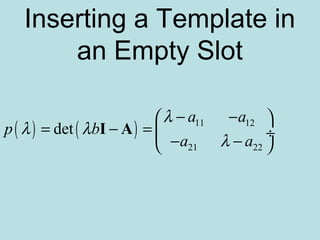
Inserting a Template in
an Empty Slot
( ) ( ) 11 12
21 22
det
a a
p b
a a
λ
λ λ
λ
− − 
= − =  ÷
− − 
I A
Inserting a Template in
an Empty Slot
( ) ( ) ( )detp bλ λ= − =I A
Ctrl + )
Inserting a Template in
an Empty Slot
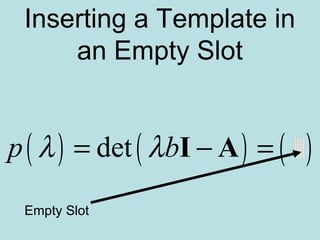
( ) ( ) ( )detp bλ λ= − =I A
Empty Slot
Inserting a Template in
an Empty Slot
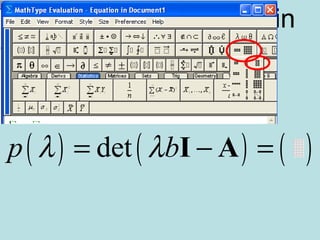
( ) ( ) ( )detp bλ λ= − =I A
Inserting a Template in
an Empty Slot
( ) ( )detp bλ λ
 
= − =  ÷
 
I A
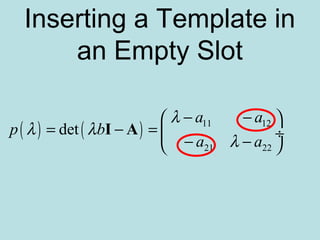
Inserting a Template in
an Empty Slot
( ) ( ) 11 12
21 22
det
a a
p b
a a
λ
λ λ
λ
− − 
= − =  ÷
− − 
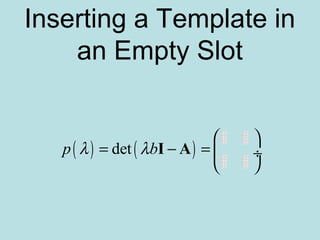
I A
Inserting a Template in
an Empty Slot
( ) ( ) 11 12
21 22
det
a a
p b
a a
λ
λ λ
λ
− − 
= − =  ÷
− − 
I A
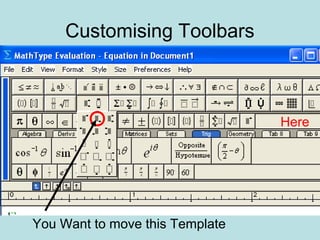
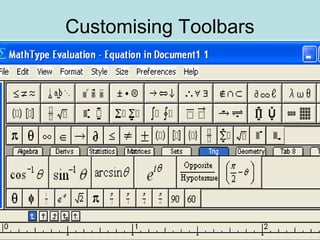
Customising Toolbars
You Want to move this Template
Here
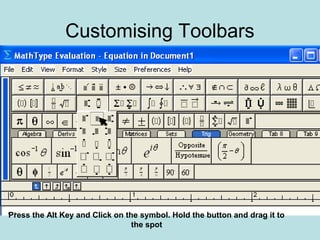
Customising Toolbars
Press the Alt Key and Click on the symbol. Hold the button and drag it to
the spot
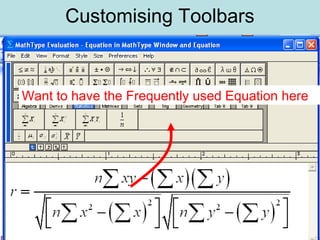
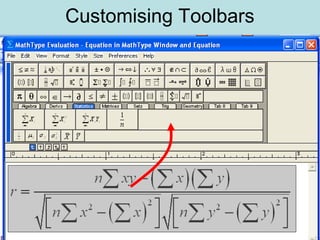
Customising Toolbars
Want to have the Frequently used Equation here
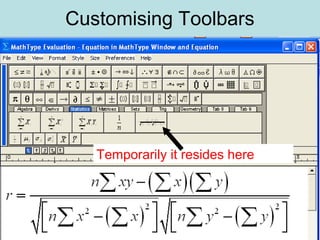
Customising Toolbars
Temporarily it resides here
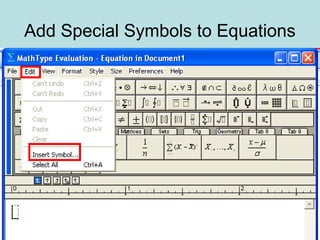
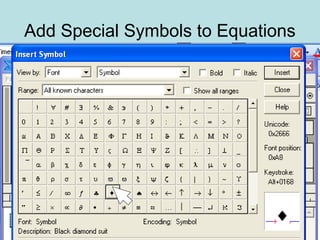
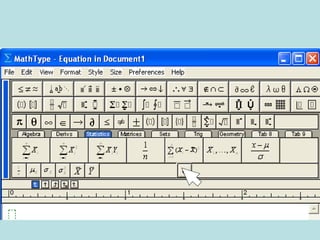
Add Special Symbols to
Equations
Add Special Symbols to Equations
MS Word
and
Equation Numbering
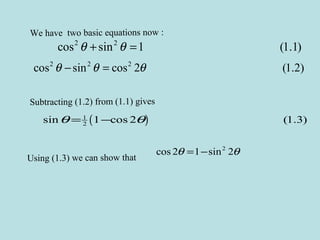
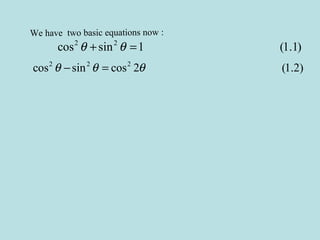
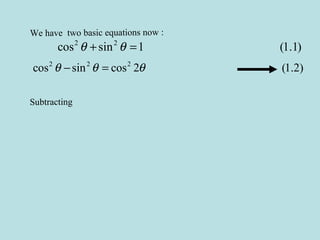
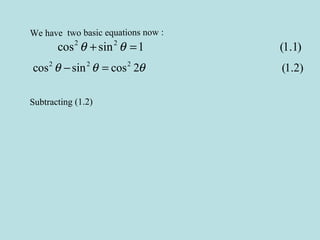
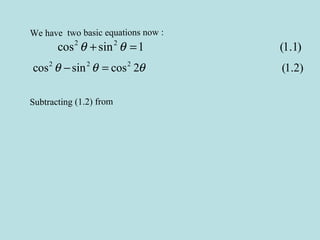
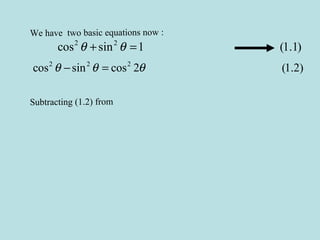
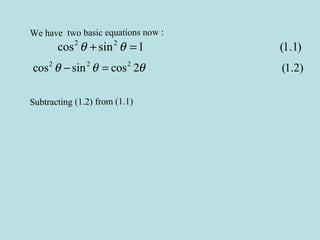
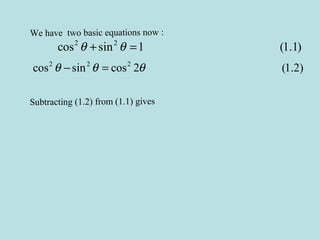
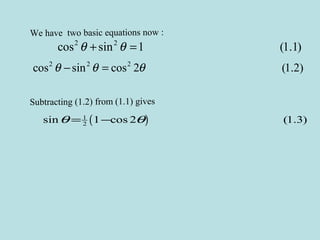
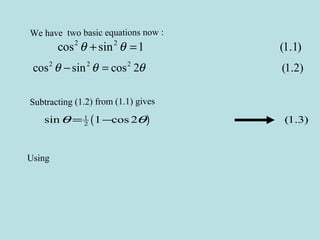
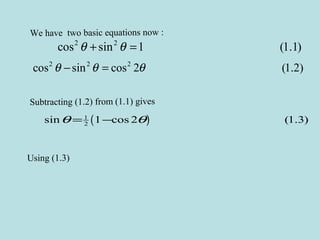
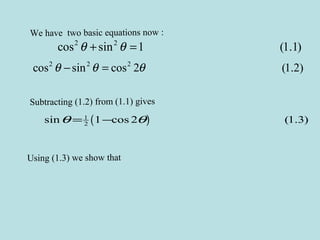
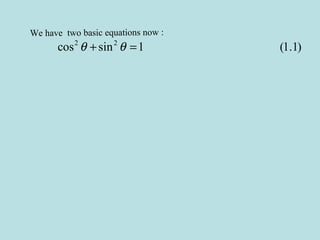
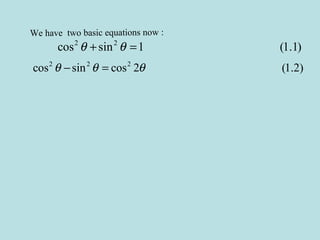
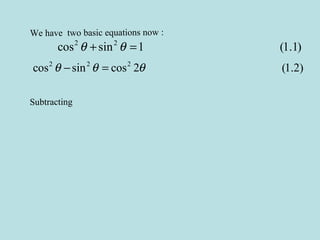
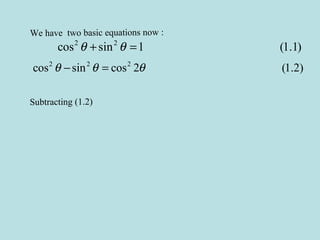
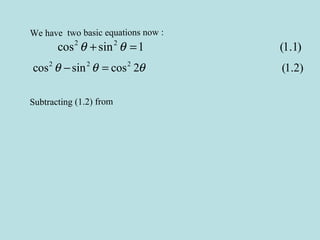
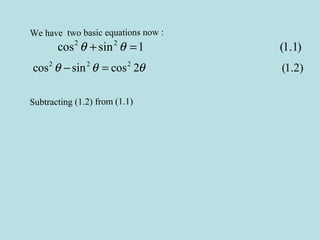
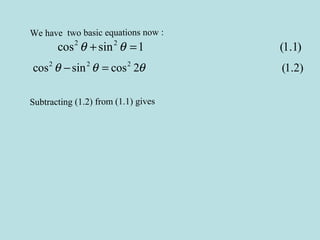
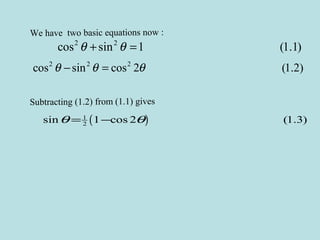
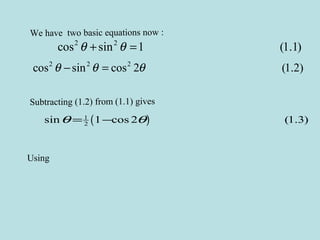
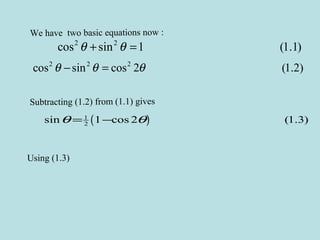
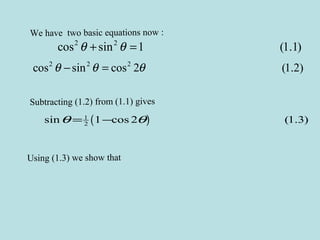
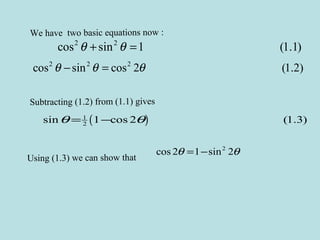
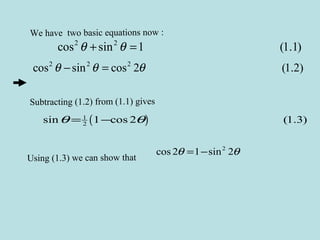
We have two basic equations now :
2 2
cos sin 1 (1.1)θ θ+ =
2 2 2
cos sin cos 2 (1.2)θ θ θ− =
Subtracting (1.2) from (1.1) gives
( )1
2sin 1 cos 2 (1.3)θ θ= −
Using (1.3) we can show that
2
cos 2 1 sin 2θ θ= −
Type the text
We have two basic equations now:
We have two basic equations now :
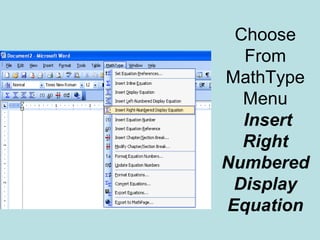
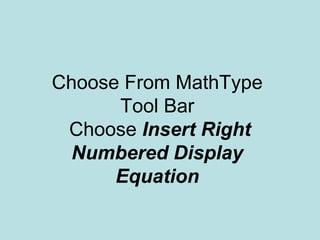
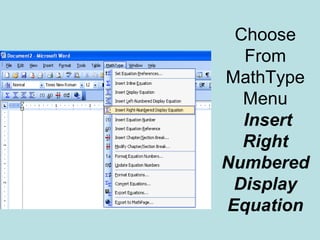
Choose
From
MathType
Menu
Insert
Right
Numbered
Display
Equation
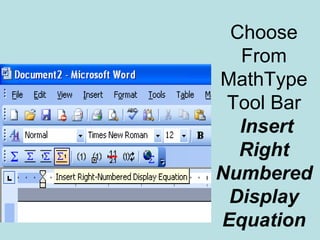
Choose
From
MathType
Tool Bar
Insert
Right
Numbered
Display
Equation
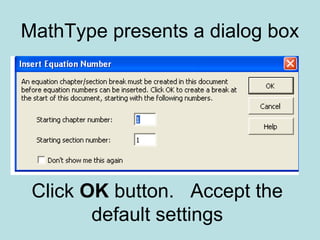
MathType presents a dialog box
Click OK button. Accept the
default settings
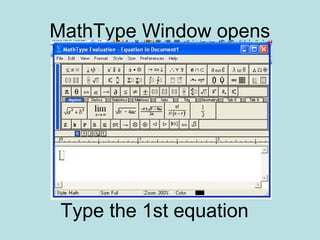
MathType Window opens
Type the 1st equation
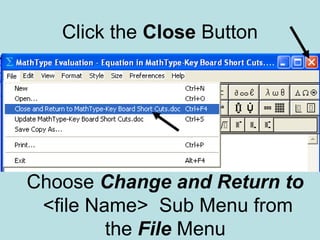
Click the Close Button
Choose Change and Return to
<file Name> Sub Menu from
the File Menu
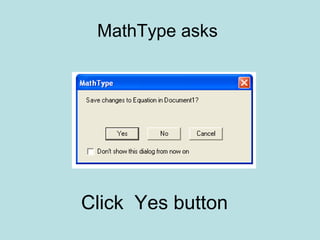
MathType asks
Click Yes button
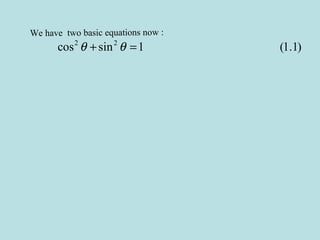
We have two basic equations now :
2 2
cos sin 1 (1.1)θ θ+ =
Choose From MathType
Tool Bar
Choose Insert Right
Numbered Display
Equation
Following the
above said method
Insert the Second
Equation
We have two basic equations now :
2 2
cos sin 1 (1.1)θ θ+ =
2 2 2
cos sin cos 2 (1.2)θ θ θ− =
Enter the Text
Subtracting in the next
line
Choose Insert Equation
Reference From the
MathType Tool bar or
from the MathType
Menu
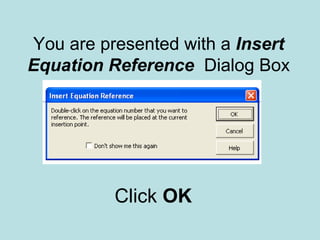
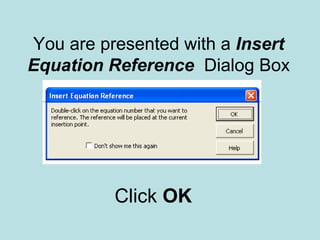
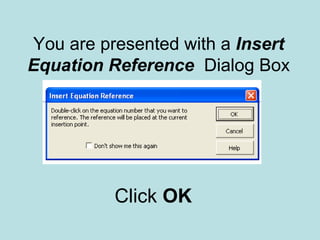
You are presented with a Insert
Equation Reference Dialog Box
Click OK
Double click on the Equation
Number (1.2).
We have two basic equations now :
2 2
cos sin 1 (1.1)θ θ+ =
2 2 2
cos sin cos 2 (1.2)θ θ θ− =
Subtracting
(1.2) appears after Subtracting
We have two basic equations now :
2 2
cos sin 1 (1.1)θ θ+ =
2 2 2
cos sin cos 2 (1.2)θ θ θ− =
Subtracting (1.2)
Type the text from
We have two basic equations now :
2 2
cos sin 1 (1.1)θ θ+ =
2 2 2
cos sin cos 2 (1.2)θ θ θ− =
Subtracting (1.2) from
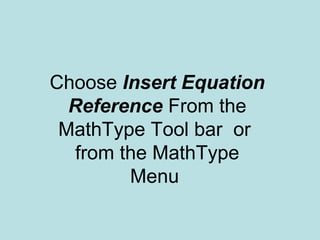
Choose Insert Equation
Reference From the
MathType Tool bar or
from the MathType
Menu
You are presented with a Insert
Equation Reference Dialog Box
Click OK
Double on the Equation Number (1.1).
We have two basic equations now :
2 2
cos sin 1 (1.1)θ θ+ =
2 2 2
cos sin cos 2 (1.2)θ θ θ− =
Subtracting (1.2) from
(1.1) appears after from
We have two basic equations now :
2 2
cos sin 1 (1.1)θ θ+ =
2 2 2
cos sin cos 2 (1.2)θ θ θ− =
Subtracting (1.2) from (1.1)
Type the text gives after(1.1)
We have two basic equations now :
2 2
cos sin 1 (1.1)θ θ+ =
2 2 2
cos sin cos 2 (1.2)θ θ θ− =
Subtracting (1.2) from (1.1) gives
Choose From MathType
Tool Bar
Choose Insert Right
Numbered Display
Equation
Following
above method
Insert the Third Equation
We have two basic equations now :
2 2
cos sin 1 (1.1)θ θ+ =
2 2 2
cos sin cos 2 (1.2)θ θ θ− =
Subtracting (1.2) from (1.1) gives
( )1
2sin 1 cos 2 (1.3)θ θ= −
Type the text
Using
Choose Insert Equation
Reference From the
MathType Tool bar or
from the MathType
Menu
You are presented with a Insert
Equation Reference Dialog Box
Click OK
Double click on the Equation
Number (1.3).
We have two basic equations now :
2 2
cos sin 1 (1.1)θ θ+ =
2 2 2
cos sin cos 2 (1.2)θ θ θ− =
Subtracting (1.2) from (1.1) gives
( )1
2sin 1 cos 2 (1.3)θ θ= −
Using
(1.3) appears after Using
We have two basic equations now :
2 2
cos sin 1 (1.1)θ θ+ =
2 2 2
cos sin cos 2 (1.2)θ θ θ− =
Subtracting (1.2) from (1.1) gives
( )1
2sin 1 cos 2 (1.3)θ θ= −
Using (1.3)
Type the text
We can show that
We have two basic equations now :
2 2
cos sin 1 (1.1)θ θ+ =
2 2 2
cos sin cos 2 (1.2)θ θ θ− =
Subtracting (1.2) from (1.1) gives
( )1
2sin 1 cos 2 (1.3)θ θ= −
Using (1.3) we show that
Choose either Insert
Inline Equation button on
the MathType Tool Bar or
Choose the sub menu
Insert Inline Equation
from the MathType Menu
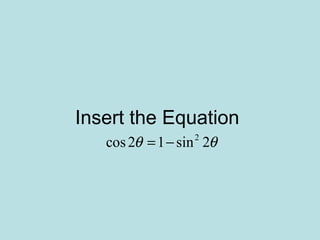
Insert the Equation
2
cos2 1 sin 2θ θ= −
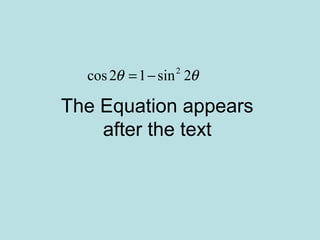
The Equation appears
after the text
2
cos2 1 sin 2θ θ= −
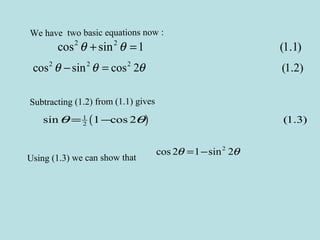
We have two basic equations now :
2 2
cos sin 1 (1.1)θ θ+ =
2 2 2
cos sin cos 2 (1.2)θ θ θ− =
Subtracting (1.2) from (1.1) gives
( )1
2sin 1 cos 2 (1.3)θ θ= −
Using (1.3) we can show that
2
cos 2 1 sin 2θ θ= −
A Quick Glance
We have two basic equations now :
2 2
cos sin 1 (1.1)θ θ+ =
We have two basic equations now :
2 2
cos sin 1 (1.1)θ θ+ =
2 2 2
cos sin cos 2 (1.2)θ θ θ− =
We have two basic equations now :
2 2
cos sin 1 (1.1)θ θ+ =
2 2 2
cos sin cos 2 (1.2)θ θ θ− =
Subtracting
We have two basic equations now :
2 2
cos sin 1 (1.1)θ θ+ =
2 2 2
cos sin cos 2 (1.2)θ θ θ− =
Subtracting (1.2)
We have two basic equations now :
2 2
cos sin 1 (1.1)θ θ+ =
2 2 2
cos sin cos 2 (1.2)θ θ θ− =
Subtracting (1.2) from
We have two basic equations now :
2 2
cos sin 1 (1.1)θ θ+ =
2 2 2
cos sin cos 2 (1.2)θ θ θ− =
Subtracting (1.2) from (1.1)
We have two basic equations now :
2 2
cos sin 1 (1.1)θ θ+ =
2 2 2
cos sin cos 2 (1.2)θ θ θ− =
Subtracting (1.2) from (1.1) gives
We have two basic equations now :
2 2
cos sin 1 (1.1)θ θ+ =
2 2 2
cos sin cos 2 (1.2)θ θ θ− =
Subtracting (1.2) from (1.1) gives
( )1
2sin 1 cos 2 (1.3)θ θ= −
We have two basic equations now :
2 2
cos sin 1 (1.1)θ θ+ =
2 2 2
cos sin cos 2 (1.2)θ θ θ− =
Subtracting (1.2) from (1.1) gives
( )1
2sin 1 cos 2 (1.3)θ θ= −
Using
We have two basic equations now :
2 2
cos sin 1 (1.1)θ θ+ =
2 2 2
cos sin cos 2 (1.2)θ θ θ− =
Subtracting (1.2) from (1.1) gives
( )1
2sin 1 cos 2 (1.3)θ θ= −
Using (1.3)
We have two basic equations now :
2 2
cos sin 1 (1.1)θ θ+ =
2 2 2
cos sin cos 2 (1.2)θ θ θ− =
Subtracting (1.2) from (1.1) gives
( )1
2sin 1 cos 2 (1.3)θ θ= −
Using (1.3) we show that
We have two basic equations now :
2 2
cos sin 1 (1.1)θ θ+ =
2 2 2
cos sin cos 2 (1.2)θ θ θ− =
Subtracting (1.2) from (1.1) gives
( )1
2sin 1 cos 2 (1.3)θ θ= −
Using (1.3) we can show that
2
cos 2 1 sin 2θ θ= −
Inserting Text and Renumbering
INSERTING A TEXT LINE
AND
EQUATION
We have two basic equations now :
2 2
cos sin 1 (1.1)θ θ+ =
2 2 2
cos sin cos 2 (1.2)θ θ θ− =
Subtracting (1.2) from (1.1) gives
( )1
2sin 1 cos 2 (1.3)θ θ= −
Using (1.3) we can show that
2
cos 2 1 sin 2θ θ= −
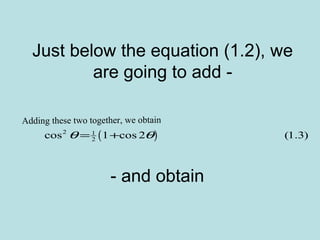
Just below the equation (1.2), we
are going to add -
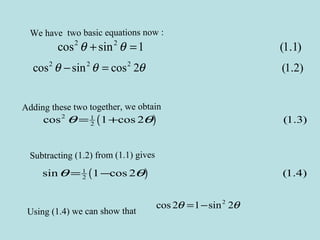
Adding these two together, we obtain
( )2 1
2cos 1 cos 2 (1.3)θ θ= +
- and obtain
We have two basic equations now :
2 2
cos sin 1 (1.1)θ θ+ =
2 2 2
cos sin cos 2 (1.2)θ θ θ− =
Subtracting (1.2) from (1.1) gives
( )1
2sin 1 cos 2 (1.4)θ θ= −
Using (1.4) we can show that
2
cos 2 1 sin 2θ θ= −
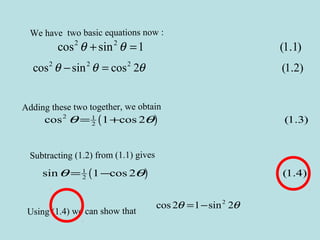
Adding these two together, we obtain
( )2 1
2cos 1 cos 2 (1.3)θ θ= +
Open the page and just below the
(1.2) equation type the text-
Adding these two together, we
obtain
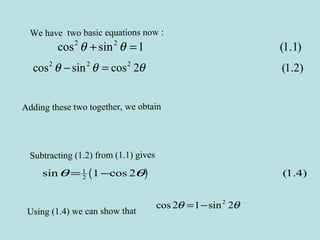
We have two basic equations now :
2 2
cos sin 1 (1.1)θ θ+ =
2 2 2
cos sin cos 2 (1.2)θ θ θ− =
Subtracting (1.2) from (1.1) gives
( )1
2sin 1 cos 2 (1.4)θ θ= −
Using (1.4) we can show that
2
cos 2 1 sin 2θ θ= −
Adding these two together, we obtain
Choose
From
MathType
Menu
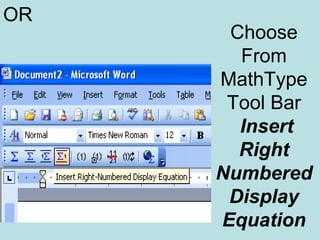
Insert
Right
Numbered
Display
Equation
Choose
From
MathType
Tool Bar
Insert
Right
Numbered
Display
Equation
OR
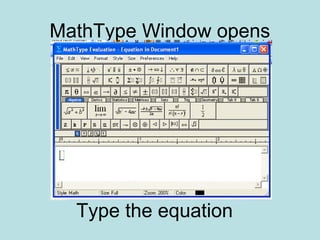
MathType Window opens
Type the equation
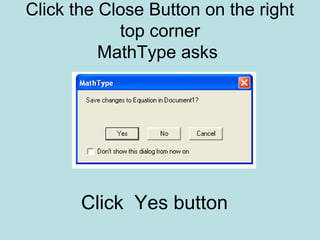
Click the Close Button on the right
top corner
MathType asks
Click Yes button
(or)
Choose Change and Return to
<file Name> Sub Menu from the
File Menu
Click the Close Button on the right
top corner
MathType asks
Click Yes button
We have two basic equations now :
2 2
cos sin 1 (1.1)θ θ+ =
2 2 2
cos sin cos 2 (1.2)θ θ θ− =
Subtracting (1.2) from (1.1) gives
( )1
2sin 1 cos 2 (1.4)θ θ= −
Using (1.4) we can show that
2
cos 2 1 sin 2θ θ= −
Adding these two together, we obtain
( )2 1
2cos 1 cos 2 (1.3)θ θ= +
Inserting Templates
Inserting Symbols
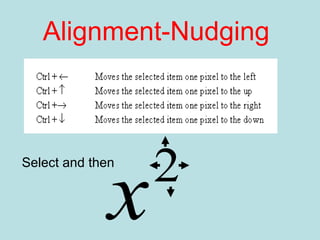
Alignment-Nudging
Alignment-Spacing
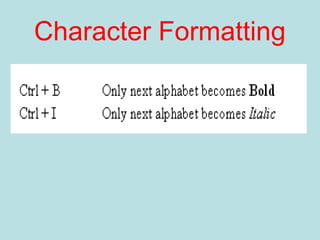
Character Formatting
Inserting Templates
Inserting Symbols
Alignment-Nudging
2
x
Select and then
Alignment-Spacing
Character Formatting
Use of MathType software with MSWord

Use of MathType software with MSWord

  • 2.
    Equation Numbering • Theequation numbering commands allow you to insert equation numbers in a Word document in a variety of formats. You can also insert references to these numbers; both numbers and references are automatically updated whenever you add new equation numbers to the document. Equation references can also be placed in footnotes and endnotes. • The equation numbers are quite separate from equations in a Word document; if you delete an equation its equation number (if any) is not automatically deleted. Similarly, an equation reference is actually a reference to an equation number, rather than a reference to the equation itself.
  • 3.
    Differentiate the followingwith respect to x ( ) ( ) ( ) ( ) ( ) ( ) ( ) 2 1 sin log 1 sin 1 sin let log 1 sin log(1 sin ) log(1 sin ) log 1 sin log 1 sin 1 1 cos cos 1 sin 1 sin cos 1 sin cos 1 sin 1 sin 1 sin cos cos sin cos cos sin 1 sin x x x y x x x dy d d x x dx dx dx x x x x x x x x x x x x x x x x + − +  =  ÷ −  = + − − = + − −     = − − ÷  ÷ + −    − + + = + − − + + = − 2 2cos 2sec 1 sin x x x x = = −
  • 4.
    MathType Window Environment MathTypeWindow and Equation Key Board Short Cuts MS Word and Equation Numbering
  • 6.
  • 7.
    Menu Bar Symbol Palette TemplatePalette Large Tabbed Bar Small Bar Small Tabbed Bar Tab Settings Ruler Status Bar Tabs Handle
  • 8.
    Empty slot A slotwaiting to accept text, number, symbol, Template etc Parts of Equation Templates
  • 9.
    Insertion Point A blinkinghorizontal and vertical line or cursor Parts of Equation Template
  • 10.
    Selection Highlighted part tobe Edited Parts of Equation Template
  • 11.
    Status Bar Status BarContains Four Areas
  • 12.
    Status Bar When youmove the mouse pointer in the MathType Window the Status Bar Display changes temporarily The Mouse Pointer is on the Matrix Template The Status Bar text is -
  • 13.
    Status Bar By rightclicking on the status bar, You can customise it temporarily Color slot is right clicked. Blue color is set. Color of the equation is blue
  • 14.
    Status Bar What youshould next At Times it tells you - Work, it has carried out
  • 15.
    TOOLBAR Normally the toolbaris docked like this
  • 16.
    TOOLBAR By clicking onthe handle, you can drag and place it anywhere in the window
  • 17.
  • 18.
    MathType Window andEquation • Typing the Equation • Editing the equation • Spacing and Alignment • Formatting with Tabs • Text in Equation • Inserting a Template in an Empty Slot • Customising ToolBars • Add Special Symbols to Equation Editor
  • 19.
    Typing the Equation 21 12sin tany x c xµ= − ±
  • 20.
    Activate the MathTypeWindow Click the button
  • 21.
    Activate the MathTypeWindow Select Sub-Menu
  • 22.
  • 23.
  • 24.
  • 25.
  • 26.
  • 27.
  • 28.
  • 29.
  • 30.
  • 31.
  • 32.
  • 33.
  • 34.
    Typing the Equation 21 12sin tany x c xµ= − ± Insert from Template (or) ctrl + G , m
  • 37.
    Typing the Equation •Open MS Word • Click the Insert Display Equation • MathType Window opens • Type the equation using the proper templates • Remember Your spacebar is inactive
  • 38.
    Typing the Equation •Editor knows where to leave space • Editor knows what are variables • Editor knows what are texts
  • 39.
    Editing the Equation •Editing arises – • When you commit a mistake • When you try to modify an equation • When you try to use a segment of an equation in another place
  • 40.
  • 41.
  • 42.
  • 43.
  • 44.
    Editing the Equation 22 21 1 1 1 n x n i x nxσ =   = −    ∑ 2 2 21 1 1 1 n x n i x nxσ =   −    ∑ You haven’t put = sign Type = sign
  • 45.
    Editing the Equation () 31 4 4 2 4 1 2 3 x I dx x x + + = + − ∫ ( ) 31 2 5 2 4 1 7 x I dx x x + + = + − ∫ There are only a few differences between the two equations
  • 46.
    Editing the Equation ()( ) ( ) ( ) 2 22 2 n xy x y r n x x n y y − =    − −       ∑ ∑ ∑ ∑ ∑ ∑ ∑ ( )( ) ( ) ( ) 2 22 2 n xy x y r n x x n y y − =    − −       ∑ ∑ ∑ ∑ ∑ ∑ ∑ Select & Copy Paste & Edit
  • 47.
    Editing the Equation •Press the Tab Key to move in the clockwise direction to different positions or Slots • Press Shift + Tab Key to move in the anti- clockwise direction • If you notice slating lines across your equation - you haven’t come out of the Math Window after editing
  • 48.
  • 49.
    Spacing and Alignment () ( ) ( ) ( ) ( ) 1 0 1 0 lim limsup , a n n n a x dx a a x b x dx a b φ ψ →∞ →∞ ≤ ≤ ∫ ∫
  • 50.
    Spacing and Alignment () ( ) ( ) ( ) ( ) 1 0 1 0 lim limsup , a n n n a x dx a a x b x dx a b φ ψ →∞ →∞ ≤ ≤ ∫ ∫
  • 51.
    Spacing and Alignment () ( ) ( ) ( ) ( ) 1 0 1 0 limsup limsup , n n n n a x dx a a x b x dx a b φ ψ →∞ →∞ ≤ ≤ ∫ ∫ Type the First Equation – Choose the Align at = sub menu from the Format Menu – Type the Second Equation
  • 52.
    Spacing and Alignment ZeroSpaceOne Point SpaceThin SpaceThick SpaceEm Space
  • 53.
  • 54.
  • 56.
    ( ) 1 9.76 whenis even 14.3 when is add k n x n c x x n + =   Formatting With Tabs
  • 57.
    Type the expressionon the left –hand side
  • 58.
    From the dropdown choose left brace
  • 59.
    Type the rightside expression using the empty slot
  • 60.
    After x PressCtrl + Tab to effect Tab Format Choose TEXT Sub-Menu From the STYLE Menu to Type
  • 61.
    At the endpress ENTER key to have the next expression within the Brace
  • 62.
    At the endpress ENTER key to have the next expression within the Brace
  • 63.
    Place the InsertionPoint somewhere to the right of the Tab Mark
  • 64.
  • 65.
    Click in thisarea Exactly Here in this case A Left justification is made.
  • 66.
    If you want RightJustification at x You can go for a Right Justification By creating Tab Marks Just at the beginning of the expressions ( ) 1 9.76 when n is even 14.3 when n is add k n x c x x + =  
  • 67.
  • 68.
    Click in thisarea Exactly Here in this case A Right justification is made.
  • 69.
    If you wantdecimal point justification You can go for decimal Justification By creating Tab Marks Just at the beginning of the expressions ( ) 1 9.76 when n is even 14.3 when n is add k n x c x x + =  
  • 70.
  • 71.
    Click in thisarea A Decimal justification is made. Exactly here in this case
  • 72.
    ( ) 1 9.76 whenis even 14.3 when is add k n x n c x x n + =   Formatting With Tabs
  • 73.
    ( ) {1 9.76 when is evenn kc x x n= + Formatting With Tabs
  • 74.
    ( ) {1 9.76 when is evenn kc x x n= + Formatting With Tabs
  • 75.
    ( ) 1 9.76 whenis even 14.3 when is add k n x n c x x n + =   Formatting With Tabs
  • 76.
    ( ) 1 9.76 whenis even 14.3 when is add k n x n c x x n + =   Formatting With Tabs
  • 77.
    ( ) 1 9.76 whenis even 14.3 when is add k n x n c x x n + =   Formatting With Tabs
  • 78.
    Text in Equation () ( ) ( ) Prob Probability that and occur Prob / Prob Probability that occurs A B A B B ∩ = = both A B B ( ) ( ) ( ) Pr Pr Pr / Pr Pr ob obability that both and occur ob ob obability that occurs ∩ = = A B A B A B B B Keep Typing inserting Templates and creating spaces using Ctrl + Space Bar
  • 79.
    Text in Equation () ( ) ( ) Prob Probability that and occur Prob / Prob Probability that occurs A B A B B ∩ = = both A B B ( ) ( ) ( ) Pr Pr Pr / Pr Pr ob obability that both and occur ob ob obability that occurs ∩ = = A B A B A B B B Before Typing these characters Press Ctrl + B
  • 80.
    Text in Equation () ( ) ( ) Prob Probability that and occur Prob / Prob Probability that occurs A B A B B ∩ = = both A B B ( ) ( ) ( ) Pr Pr Pr / Pr Pr ob obability that both and occur ob ob obability that occurs ∩ = = A B A B A B B B All other Characters as variables It assumes Pr as Probability Function
  • 81.
    Text in Equation () ( ) ( ) Prob Probability that and occur Prob / Prob Probability that occurs A B A B B ∩ = = both A B B ( ) ( ) ( ) Pr Pr Pr / Pr Pr ob obability that both and occur ob ob obability that occurs ∩ = = A B A B A B B B
  • 82.
    Text in Equation () ( ) ( ) Prob Probability that and occur Prob / Prob Probability that occurs A B A B B ∩ = = both A B B ( ) ( ) ( ) Pr Pr Pr / Pr Pr ob obability that both and occur ob ob obability that occurs ∩ = = A B A B A B B B
  • 83.
    Text in Equation () ( ) ( ) Prob Probability that and occur Prob / Prob Probability that occurs A B A B B ∩ = = both A B B ( ) ( ) ( ) Pr Pr Pr / Pr Pr ob obability that both and occur ob ob obability that occurs ∩ = = A B A B A B B B
  • 84.
    Inserting a Templatein an Empty Slot ( ) ( ) 11 12 21 22 det a a p b a a λ λ λ λ − −  = − =  ÷ − −  I A
  • 85.
    Inserting a Templatein an Empty Slot ( ) ( ) ( )detp bλ λ= − =I A Ctrl + )
  • 86.
    Inserting a Templatein an Empty Slot ( ) ( ) ( )detp bλ λ= − =I A Empty Slot
  • 87.
    Inserting a Templatein an Empty Slot ( ) ( ) ( )detp bλ λ= − =I A
  • 88.
    Inserting a Templatein an Empty Slot ( ) ( )detp bλ λ   = − =  ÷   I A
  • 89.
    Inserting a Templatein an Empty Slot ( ) ( ) 11 12 21 22 det a a p b a a λ λ λ λ − −  = − =  ÷ − −  I A
  • 90.
    Inserting a Templatein an Empty Slot ( ) ( ) 11 12 21 22 det a a p b a a λ λ λ λ − −  = − =  ÷ − −  I A
  • 91.
  • 92.
    Customising Toolbars You Wantto move this Template Here
  • 93.
    Customising Toolbars Press theAlt Key and Click on the symbol. Hold the button and drag it to the spot
  • 94.
  • 95.
    Customising Toolbars Want tohave the Frequently used Equation here
  • 96.
  • 97.
  • 98.
    Add Special Symbolsto Equations
  • 99.
    Add Special Symbolsto Equations
  • 100.
    Add Special Symbolsto Equations
  • 103.
  • 104.
    We have twobasic equations now : 2 2 cos sin 1 (1.1)θ θ+ = 2 2 2 cos sin cos 2 (1.2)θ θ θ− = Subtracting (1.2) from (1.1) gives ( )1 2sin 1 cos 2 (1.3)θ θ= − Using (1.3) we can show that 2 cos 2 1 sin 2θ θ= −
  • 105.
    Type the text Wehave two basic equations now:
  • 106.
    We have twobasic equations now :
  • 107.
  • 108.
  • 109.
    MathType presents adialog box Click OK button. Accept the default settings
  • 110.
  • 111.
    Click the CloseButton Choose Change and Return to <file Name> Sub Menu from the File Menu
  • 112.
  • 113.
    We have twobasic equations now : 2 2 cos sin 1 (1.1)θ θ+ =
  • 114.
    Choose From MathType ToolBar Choose Insert Right Numbered Display Equation
  • 115.
    Following the above saidmethod Insert the Second Equation
  • 116.
    We have twobasic equations now : 2 2 cos sin 1 (1.1)θ θ+ = 2 2 2 cos sin cos 2 (1.2)θ θ θ− =
  • 117.
  • 118.
    Choose Insert Equation ReferenceFrom the MathType Tool bar or from the MathType Menu
  • 119.
    You are presentedwith a Insert Equation Reference Dialog Box Click OK
  • 120.
    Double click onthe Equation Number (1.2).
  • 121.
    We have twobasic equations now : 2 2 cos sin 1 (1.1)θ θ+ = 2 2 2 cos sin cos 2 (1.2)θ θ θ− = Subtracting
  • 122.
  • 123.
    We have twobasic equations now : 2 2 cos sin 1 (1.1)θ θ+ = 2 2 2 cos sin cos 2 (1.2)θ θ θ− = Subtracting (1.2)
  • 124.
  • 125.
    We have twobasic equations now : 2 2 cos sin 1 (1.1)θ θ+ = 2 2 2 cos sin cos 2 (1.2)θ θ θ− = Subtracting (1.2) from
  • 126.
    Choose Insert Equation ReferenceFrom the MathType Tool bar or from the MathType Menu
  • 127.
    You are presentedwith a Insert Equation Reference Dialog Box Click OK
  • 128.
    Double on theEquation Number (1.1).
  • 129.
    We have twobasic equations now : 2 2 cos sin 1 (1.1)θ θ+ = 2 2 2 cos sin cos 2 (1.2)θ θ θ− = Subtracting (1.2) from
  • 130.
  • 131.
    We have twobasic equations now : 2 2 cos sin 1 (1.1)θ θ+ = 2 2 2 cos sin cos 2 (1.2)θ θ θ− = Subtracting (1.2) from (1.1)
  • 132.
    Type the textgives after(1.1)
  • 133.
    We have twobasic equations now : 2 2 cos sin 1 (1.1)θ θ+ = 2 2 2 cos sin cos 2 (1.2)θ θ θ− = Subtracting (1.2) from (1.1) gives
  • 134.
    Choose From MathType ToolBar Choose Insert Right Numbered Display Equation
  • 135.
  • 136.
    We have twobasic equations now : 2 2 cos sin 1 (1.1)θ θ+ = 2 2 2 cos sin cos 2 (1.2)θ θ θ− = Subtracting (1.2) from (1.1) gives ( )1 2sin 1 cos 2 (1.3)θ θ= −
  • 137.
  • 138.
    Choose Insert Equation ReferenceFrom the MathType Tool bar or from the MathType Menu
  • 139.
    You are presentedwith a Insert Equation Reference Dialog Box Click OK
  • 140.
    Double click onthe Equation Number (1.3).
  • 141.
    We have twobasic equations now : 2 2 cos sin 1 (1.1)θ θ+ = 2 2 2 cos sin cos 2 (1.2)θ θ θ− = Subtracting (1.2) from (1.1) gives ( )1 2sin 1 cos 2 (1.3)θ θ= − Using
  • 142.
  • 143.
    We have twobasic equations now : 2 2 cos sin 1 (1.1)θ θ+ = 2 2 2 cos sin cos 2 (1.2)θ θ θ− = Subtracting (1.2) from (1.1) gives ( )1 2sin 1 cos 2 (1.3)θ θ= − Using (1.3)
  • 144.
    Type the text Wecan show that
  • 145.
    We have twobasic equations now : 2 2 cos sin 1 (1.1)θ θ+ = 2 2 2 cos sin cos 2 (1.2)θ θ θ− = Subtracting (1.2) from (1.1) gives ( )1 2sin 1 cos 2 (1.3)θ θ= − Using (1.3) we show that
  • 146.
    Choose either Insert InlineEquation button on the MathType Tool Bar or Choose the sub menu Insert Inline Equation from the MathType Menu
  • 147.
    Insert the Equation 2 cos21 sin 2θ θ= −
  • 148.
    The Equation appears afterthe text 2 cos2 1 sin 2θ θ= −
  • 149.
    We have twobasic equations now : 2 2 cos sin 1 (1.1)θ θ+ = 2 2 2 cos sin cos 2 (1.2)θ θ θ− = Subtracting (1.2) from (1.1) gives ( )1 2sin 1 cos 2 (1.3)θ θ= − Using (1.3) we can show that 2 cos 2 1 sin 2θ θ= −
  • 150.
  • 151.
    We have twobasic equations now :
  • 152.
    We have twobasic equations now : 2 2 cos sin 1 (1.1)θ θ+ =
  • 153.
    We have twobasic equations now : 2 2 cos sin 1 (1.1)θ θ+ = 2 2 2 cos sin cos 2 (1.2)θ θ θ− =
  • 154.
    We have twobasic equations now : 2 2 cos sin 1 (1.1)θ θ+ = 2 2 2 cos sin cos 2 (1.2)θ θ θ− = Subtracting
  • 155.
    We have twobasic equations now : 2 2 cos sin 1 (1.1)θ θ+ = 2 2 2 cos sin cos 2 (1.2)θ θ θ− = Subtracting (1.2)
  • 156.
    We have twobasic equations now : 2 2 cos sin 1 (1.1)θ θ+ = 2 2 2 cos sin cos 2 (1.2)θ θ θ− = Subtracting (1.2) from
  • 157.
    We have twobasic equations now : 2 2 cos sin 1 (1.1)θ θ+ = 2 2 2 cos sin cos 2 (1.2)θ θ θ− = Subtracting (1.2) from (1.1)
  • 158.
    We have twobasic equations now : 2 2 cos sin 1 (1.1)θ θ+ = 2 2 2 cos sin cos 2 (1.2)θ θ θ− = Subtracting (1.2) from (1.1) gives
  • 159.
    We have twobasic equations now : 2 2 cos sin 1 (1.1)θ θ+ = 2 2 2 cos sin cos 2 (1.2)θ θ θ− = Subtracting (1.2) from (1.1) gives ( )1 2sin 1 cos 2 (1.3)θ θ= −
  • 160.
    We have twobasic equations now : 2 2 cos sin 1 (1.1)θ θ+ = 2 2 2 cos sin cos 2 (1.2)θ θ θ− = Subtracting (1.2) from (1.1) gives ( )1 2sin 1 cos 2 (1.3)θ θ= − Using
  • 161.
    We have twobasic equations now : 2 2 cos sin 1 (1.1)θ θ+ = 2 2 2 cos sin cos 2 (1.2)θ θ θ− = Subtracting (1.2) from (1.1) gives ( )1 2sin 1 cos 2 (1.3)θ θ= − Using (1.3)
  • 162.
    We have twobasic equations now : 2 2 cos sin 1 (1.1)θ θ+ = 2 2 2 cos sin cos 2 (1.2)θ θ θ− = Subtracting (1.2) from (1.1) gives ( )1 2sin 1 cos 2 (1.3)θ θ= − Using (1.3) we show that
  • 163.
    We have twobasic equations now : 2 2 cos sin 1 (1.1)θ θ+ = 2 2 2 cos sin cos 2 (1.2)θ θ θ− = Subtracting (1.2) from (1.1) gives ( )1 2sin 1 cos 2 (1.3)θ θ= − Using (1.3) we can show that 2 cos 2 1 sin 2θ θ= −
  • 164.
    Inserting Text andRenumbering
  • 165.
    INSERTING A TEXTLINE AND EQUATION
  • 166.
    We have twobasic equations now : 2 2 cos sin 1 (1.1)θ θ+ = 2 2 2 cos sin cos 2 (1.2)θ θ θ− = Subtracting (1.2) from (1.1) gives ( )1 2sin 1 cos 2 (1.3)θ θ= − Using (1.3) we can show that 2 cos 2 1 sin 2θ θ= −
  • 167.
    Just below theequation (1.2), we are going to add - Adding these two together, we obtain ( )2 1 2cos 1 cos 2 (1.3)θ θ= + - and obtain
  • 168.
    We have twobasic equations now : 2 2 cos sin 1 (1.1)θ θ+ = 2 2 2 cos sin cos 2 (1.2)θ θ θ− = Subtracting (1.2) from (1.1) gives ( )1 2sin 1 cos 2 (1.4)θ θ= − Using (1.4) we can show that 2 cos 2 1 sin 2θ θ= − Adding these two together, we obtain ( )2 1 2cos 1 cos 2 (1.3)θ θ= +
  • 169.
    Open the pageand just below the (1.2) equation type the text- Adding these two together, we obtain
  • 170.
    We have twobasic equations now : 2 2 cos sin 1 (1.1)θ θ+ = 2 2 2 cos sin cos 2 (1.2)θ θ θ− = Subtracting (1.2) from (1.1) gives ( )1 2sin 1 cos 2 (1.4)θ θ= − Using (1.4) we can show that 2 cos 2 1 sin 2θ θ= − Adding these two together, we obtain
  • 171.
  • 172.
  • 173.
  • 174.
    Click the CloseButton on the right top corner MathType asks Click Yes button
  • 175.
    (or) Choose Change andReturn to <file Name> Sub Menu from the File Menu
  • 176.
    Click the CloseButton on the right top corner MathType asks Click Yes button
  • 177.
    We have twobasic equations now : 2 2 cos sin 1 (1.1)θ θ+ = 2 2 2 cos sin cos 2 (1.2)θ θ θ− = Subtracting (1.2) from (1.1) gives ( )1 2sin 1 cos 2 (1.4)θ θ= − Using (1.4) we can show that 2 cos 2 1 sin 2θ θ= − Adding these two together, we obtain ( )2 1 2cos 1 cos 2 (1.3)θ θ= +
  • 179.
  • 180.
  • 181.
  • 182.
  • 183.
  • 184.