Catriona Moore- RSC East Midlands ILT advisor
Engaging Learners with Mobile Devices09/06/2014
Session Overview
»Opportunity to explore effective use of technology to
support teaching and learning
»Signpost to apps for particular activities and show
examples
»Discuss how apps can be used to enhance teaching and
learning
»Opportunities to share
09/06/2014 Engaging Learner with Mobile Devices 2
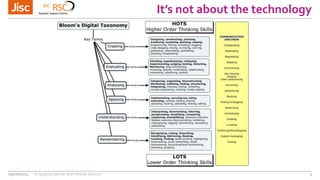
It’s not about the technology
09/06/2014 Engaging Learner with Mobile Devices 3
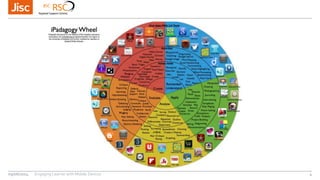
09/06/2014 Engaging Learner with Mobile Devices 4
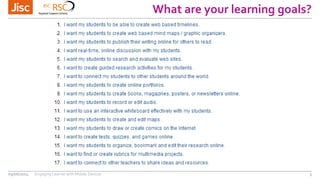
What are your learning goals?
09/06/2014 Engaging Learner with Mobile Devices 5
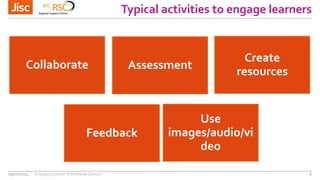
Typical activities to engage learners
09/06/2014 Engaging Learner with Mobile Devices 6
Collaborate Assessment
Create
resources
Feedback
Use
images/audio/vi
deo
QR Codes – the QR Challenge
09/06/2014 Engaging Learner with Mobile Devices 7
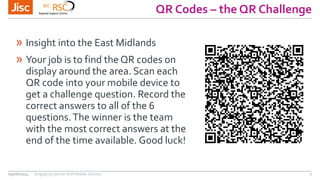
» Insight into the East Midlands
» Your job is to find the QR codes on
display around the area. Scan each
QR code into your mobile device to
get a challenge question. Record the
correct answers to all of the 6
questions.The winner is the team
with the most correct answers at the
end of the time available. Good luck!
QR Codes
09/06/2014 Engaging Learner with Mobile Devices 8
»QR resources on our moodle
»http://goo.gl/3FkcF1
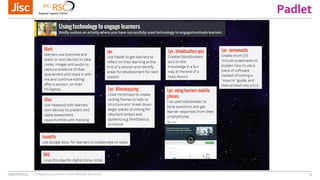
Padlet
09/06/2014 Engaging Learner with Mobile Devices 9
Share your top tools for engaging learners
09/06/2014 Engaging Learner with Mobile Devices 10
» Padlet
http://padlet.com/catriona_moore/insight
»or
»scan this QR code
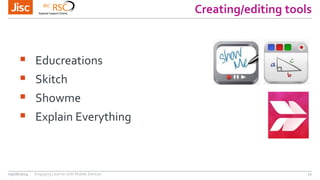
Creating/editing tools
09/06/2014 Engaging Learner with Mobile Devices 11
 Educreations
 Skitch
 Showme
 Explain Everything
Activity
»Skitch – take an image and annotate it e.g capture a
health and safety issue and explain it
»Or , use Educreations to take an image, annotate it and
narrate over it, or e.g explain how to add fractions
»Or Explain Everything
09/06/2014 Engaging Learner with Mobile Devices 12
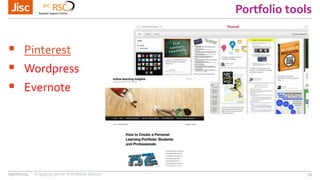
Portfolio tools
09/06/2014 Engaging Learner with Mobile Devices 13
 Pinterest
 Wordpress
 Evernote
Polleverywhere
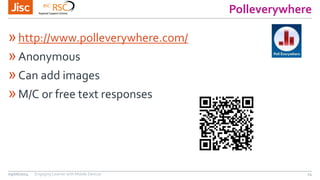
»http://www.polleverywhere.com/
»Anonymous
»Can add images
»M/C or free text responses
09/06/2014 Engaging Learner with Mobile Devices 14
Find out more…
09/06/2014 Engaging Learner with Mobile Devices 16
Except where otherwise noted, this work is licensed under CC-BY-NC-ND
Resources and links to further resources
on
RSC East Midlands Moodle
Please fill out a paper evaluation form
or scan the QR code
Find out more…
09/06/2014 Engaging Learner with Mobile Devices 17
Cat Moore
ILT Advisor
catriona.moore@rsc-em.ac.uk
www.jiscrsc.ac.uk/eastmidlands
Except where otherwise noted, this
work is licensed under CC-BY-NC-ND

Engaging learners with mobile devices

  • 1.
    Catriona Moore- RSCEast Midlands ILT advisor Engaging Learners with Mobile Devices09/06/2014
  • 2.
    Session Overview »Opportunity toexplore effective use of technology to support teaching and learning »Signpost to apps for particular activities and show examples »Discuss how apps can be used to enhance teaching and learning »Opportunities to share 09/06/2014 Engaging Learner with Mobile Devices 2
  • 3.
    It’s not aboutthe technology 09/06/2014 Engaging Learner with Mobile Devices 3
  • 4.
    09/06/2014 Engaging Learnerwith Mobile Devices 4
  • 5.
    What are yourlearning goals? 09/06/2014 Engaging Learner with Mobile Devices 5
  • 6.
    Typical activities toengage learners 09/06/2014 Engaging Learner with Mobile Devices 6 Collaborate Assessment Create resources Feedback Use images/audio/vi deo
  • 7.
    QR Codes –the QR Challenge 09/06/2014 Engaging Learner with Mobile Devices 7 » Insight into the East Midlands » Your job is to find the QR codes on display around the area. Scan each QR code into your mobile device to get a challenge question. Record the correct answers to all of the 6 questions.The winner is the team with the most correct answers at the end of the time available. Good luck!
  • 8.
    QR Codes 09/06/2014 EngagingLearner with Mobile Devices 8 »QR resources on our moodle »http://goo.gl/3FkcF1
  • 9.
  • 10.
    Share your toptools for engaging learners 09/06/2014 Engaging Learner with Mobile Devices 10 » Padlet http://padlet.com/catriona_moore/insight »or »scan this QR code
  • 11.
    Creating/editing tools 09/06/2014 EngagingLearner with Mobile Devices 11  Educreations  Skitch  Showme  Explain Everything
  • 12.
    Activity »Skitch – takean image and annotate it e.g capture a health and safety issue and explain it »Or , use Educreations to take an image, annotate it and narrate over it, or e.g explain how to add fractions »Or Explain Everything 09/06/2014 Engaging Learner with Mobile Devices 12
  • 13.
    Portfolio tools 09/06/2014 EngagingLearner with Mobile Devices 13  Pinterest  Wordpress  Evernote
  • 14.
    Polleverywhere »http://www.polleverywhere.com/ »Anonymous »Can add images »M/Cor free text responses 09/06/2014 Engaging Learner with Mobile Devices 14
  • 16.
    Find out more… 09/06/2014Engaging Learner with Mobile Devices 16 Except where otherwise noted, this work is licensed under CC-BY-NC-ND Resources and links to further resources on RSC East Midlands Moodle Please fill out a paper evaluation form or scan the QR code
  • 17.
    Find out more… 09/06/2014Engaging Learner with Mobile Devices 17 Cat Moore ILT Advisor catriona.moore@rsc-em.ac.uk www.jiscrsc.ac.uk/eastmidlands Except where otherwise noted, this work is licensed under CC-BY-NC-ND

Editor's Notes

  • #2 Go to ‘View’ menu > ‘Header and Footer…’ to edit the footers on this slide (click ‘Apply’ to change only the currently selected slide, or ‘Apply to All’ to change the footers on all slides). To add a background image to this slide; drag a picture to the placeholder or click the icon in the centre of the placeholder to browse for and add another image. Once added, the image can be cropped, resized or repositioned to suit.
  • #3 Go to ‘View’ menu > ‘Header and Footer…’ to edit the footers on this slide (click ‘Apply’ to change only the currently selected slide, or ‘Apply to All’ to change the footers on all slides).
  • #16 How will you use QR codes or how are you already using them? http://www.polleverywhere.com/free_text_polls/8slwyLiKB03CVto
  • #17 Go to ‘View’ menu > ‘Header and Footer…’ to edit the footers on this slide (click ‘Apply’ to change only the currently selected slide, or ‘Apply to All’ to change the footers on all slides).
  • #18 Go to ‘View’ menu > ‘Header and Footer…’ to edit the footers on this slide (click ‘Apply’ to change only the currently selected slide, or ‘Apply to All’ to change the footers on all slides).