Lyn Lall and Phil Hardcastle (Jisc RSC EM advisors)
16/07/2014 Flipped Learning workshop
Objectives
Understand what is meant by “Flipped Learning”
Explore a range of tools to create flipped resources
Create a flipped learning resource
Be aware of how the RSC can support you with effective
use of technology to create flipped learning resources
Session Plan
Introduction to flipped learning and some examples
Hands-on with simple screencasting tools
Screencast-o-matic
Hands-on with
• Brainshark
• TedED
• Blendspace
3
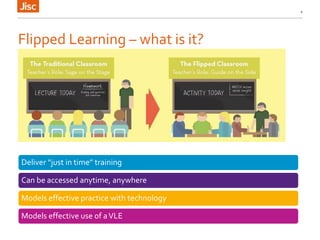
Flipped Learning – what is it?
4
Deliver “just in time” training
Can be accessed anytime, anywhere
Models effective practice with technology
Models effective use of aVLE
Benefits of flipped delivery model
• Provides flexible access to learning resources 24/7
• Gives teachers more 1:1 time helping students
• Builds stronger student/teacher relationships
• Offers a way for teachers to share information with other
colleagues, substitute teachers, students, parents, and the
community easily
• Supports differentiation, by allowing students to “rewind”
lessons and go through topics at their own pace as often as
they need
• Creates a collaborative learning environment in the
classroom
5
Screencasting – what might you use it for?
6
How to guides e.g.
Using software - e-registers, ProAchieve
Accessing the VLE
Moodle training
Screencasting tools
• Screenr (free)
• Jing (free)
• Camstudio (free)
• Wink
• Camtasia
• Snagit
• Screencast-O-Matic
• Smart recorder in the Smartnotebook software
application
• Screencast.com – free hosting of your screencasts
7
Activity
•Create a short “How to Guide” on a piece of
software of your choice
•Provide a virtual tour of a website
•Narrate a Powerpoint
•Explain an assignment
•Login to RSC EM Moodle and find the resources
for Flipped learning workshop
8
Use Screencast-o-matic to either:
Top tips for screencasting
Define the purpose of your screencast;
Keep it short ( less than five minutes – often just one or two minutes will be
sufficient);
Write a brief script/storyboard – maybe get someone to review it and offer
feedback;
Have all your materials ready
Practise first before you record so you don’t need to edit afterwards.
9
Screencasting tools
Brief overview of 10 free screen recording software tools
12 screencasting tools to produce video tutorials
10
Moving from good to outstanding
• Get your learners to create screencasts for each
other
• Create a community of staff who share
screencasts for staff development
11
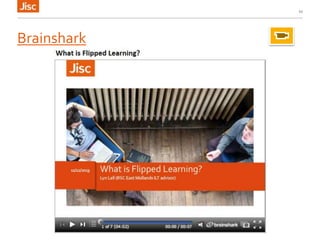
Brainshark
12
Activity
• Create an account on Brainshark
• Upload a presentation or a document to either
Brainshark
• Add narration, save and publish
• Show and tell
13
TedEd
• Create your own or
“flip” an existing lesson
• Context
• Questions – multiple
choice and free text
• Additional resources for
stretch and challenge
• Add discussion
14
http://ed.ted.com/
• Publish
• Share link with
learners
• Track views and
learner and responses
• Give feedback to
learners
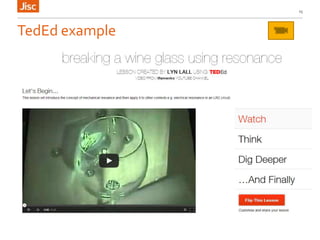
TedEd example
15
Activity
Create a Flipped resources usingTedEd
16
Blendspace (formerly EdCanvas)
• Blend resources from all over the web to create
interactive lessons
• Add images, weblinks, videos, text, quizzes, surveys
• Create classes and invite students to join and engage with
your lessons
• Track learner use and track assessments and surveys
• Respond to user comments and feedback
• Google Chrome app available. Can also be embedded into
Edmodo courses
17
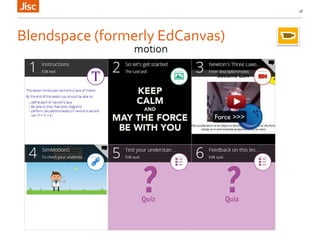
Blendspace (formerly EdCanvas)
18
Teachem
• Choose one or moreYouTube videos
• Add flashcards, questions and comments etc to
your video to make it into a more rounded
learning experience.
• Learners can take notes while watching the
videos using theTeachem SmartNote system
and email them to the teacher, or share them
with each other
• Embed the flipped learning object in aVLE
19
A tool to enhance video
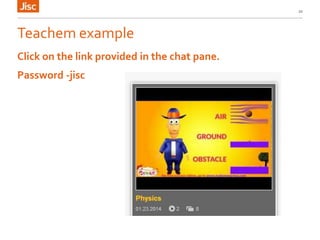
Teachem example
20
Click on the link provided in the chat pane.
Password -jisc
How can the RSC help?
• Provide advice on the process of developing online
learning resources
• Provide advice and support for using tools to
develop learning resources
• Provide advice and support on effective use of your
VLE
21
Next steps
Lynette.lall@rsc-em.ac.uk
Resources on Moodle
Evaluation http://tinyurl.com/derbyals
22

Creating flipped learning resources

  • 1.
    Lyn Lall andPhil Hardcastle (Jisc RSC EM advisors) 16/07/2014 Flipped Learning workshop
  • 2.
    Objectives Understand what ismeant by “Flipped Learning” Explore a range of tools to create flipped resources Create a flipped learning resource Be aware of how the RSC can support you with effective use of technology to create flipped learning resources
  • 3.
    Session Plan Introduction toflipped learning and some examples Hands-on with simple screencasting tools Screencast-o-matic Hands-on with • Brainshark • TedED • Blendspace 3
  • 4.
    Flipped Learning –what is it? 4 Deliver “just in time” training Can be accessed anytime, anywhere Models effective practice with technology Models effective use of aVLE
  • 5.
    Benefits of flippeddelivery model • Provides flexible access to learning resources 24/7 • Gives teachers more 1:1 time helping students • Builds stronger student/teacher relationships • Offers a way for teachers to share information with other colleagues, substitute teachers, students, parents, and the community easily • Supports differentiation, by allowing students to “rewind” lessons and go through topics at their own pace as often as they need • Creates a collaborative learning environment in the classroom 5
  • 6.
    Screencasting – whatmight you use it for? 6 How to guides e.g. Using software - e-registers, ProAchieve Accessing the VLE Moodle training
  • 7.
    Screencasting tools • Screenr(free) • Jing (free) • Camstudio (free) • Wink • Camtasia • Snagit • Screencast-O-Matic • Smart recorder in the Smartnotebook software application • Screencast.com – free hosting of your screencasts 7
  • 8.
    Activity •Create a short“How to Guide” on a piece of software of your choice •Provide a virtual tour of a website •Narrate a Powerpoint •Explain an assignment •Login to RSC EM Moodle and find the resources for Flipped learning workshop 8 Use Screencast-o-matic to either:
  • 9.
    Top tips forscreencasting Define the purpose of your screencast; Keep it short ( less than five minutes – often just one or two minutes will be sufficient); Write a brief script/storyboard – maybe get someone to review it and offer feedback; Have all your materials ready Practise first before you record so you don’t need to edit afterwards. 9
  • 10.
    Screencasting tools Brief overviewof 10 free screen recording software tools 12 screencasting tools to produce video tutorials 10
  • 11.
    Moving from goodto outstanding • Get your learners to create screencasts for each other • Create a community of staff who share screencasts for staff development 11
  • 12.
  • 13.
    Activity • Create anaccount on Brainshark • Upload a presentation or a document to either Brainshark • Add narration, save and publish • Show and tell 13
  • 14.
    TedEd • Create yourown or “flip” an existing lesson • Context • Questions – multiple choice and free text • Additional resources for stretch and challenge • Add discussion 14 http://ed.ted.com/ • Publish • Share link with learners • Track views and learner and responses • Give feedback to learners
  • 15.
  • 16.
    Activity Create a Flippedresources usingTedEd 16
  • 17.
    Blendspace (formerly EdCanvas) •Blend resources from all over the web to create interactive lessons • Add images, weblinks, videos, text, quizzes, surveys • Create classes and invite students to join and engage with your lessons • Track learner use and track assessments and surveys • Respond to user comments and feedback • Google Chrome app available. Can also be embedded into Edmodo courses 17
  • 18.
  • 19.
    Teachem • Choose oneor moreYouTube videos • Add flashcards, questions and comments etc to your video to make it into a more rounded learning experience. • Learners can take notes while watching the videos using theTeachem SmartNote system and email them to the teacher, or share them with each other • Embed the flipped learning object in aVLE 19 A tool to enhance video
  • 20.
    Teachem example 20 Click onthe link provided in the chat pane. Password -jisc
  • 21.
    How can theRSC help? • Provide advice on the process of developing online learning resources • Provide advice and support for using tools to develop learning resources • Provide advice and support on effective use of your VLE 21
  • 22.
    Next steps Lynette.lall@rsc-em.ac.uk Resources onMoodle Evaluation http://tinyurl.com/derbyals 22

Editor's Notes

  • #2 Go to ‘View’ menu > ‘Header and Footer…’ to edit the footers on this slide (click ‘Apply’ to change only the currently selected slide, or ‘Apply to All’ to change the footers on all slides). To change the image on this slide: Click once on the image to select it, and then delete it Drag a replacement picture to the placeholder or click the icon in the centre of the placeholder to browse for & add another image Once you have added your replacement image, you may need to put it into the background so that it doesn’t cover other items on the slide. Do this by right-clicking on the new image and choosing ‘Arrange’ > ‘Send to Back’ from the contextual menu