Using
EBSCOhost
 Databases
About this Tutorial
    Students:
    This tutorial will help you:
    • Access and perform research in EBSCOhost databases.
    • Narrow search results to find needed information.
    It should take you about 20 minutes to complete.

Faculty:
•     This tutorial was made using Microsoft PowerPoint 2007.
•     This tutorial will help students
       –   Broaden their research abilities.
       –   Learn to use online research tools.


                        This tutorial meets the following ACRL standards:

                                             1.1c    1.4b
                                             1.1d    2.3c
What to watch for…


Notes –
 These are to let you know
 there is important information
 you need to know about what
 is being covered.
What is EBSCOhost?


• EBSCOhost is a service provides access to the full text of over 6,000
  journals and periodicals in the fields of
  education, business, health, law, and other academic disciplines.

• Linscheid Library subscribes to more than 90 EBSCOhost databases.


• Access to EBSCOhost is a project of the Oklahoma Library Technology
  Network and is funded with state and federal funds through the
  Oklahoma Department of Libraries.
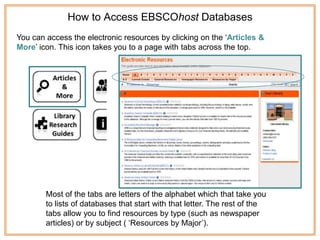
How to Access EBSCOhost Databases
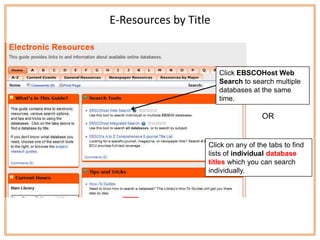
You can access the electronic resources by clicking on the „Articles &
More‟ icon. This icon takes you to a page with tabs across the top.


        Most of the tabs are letters of the alphabet which that take you
        to lists of databases that start with that letter. The rest of the
        tabs allow you to find resources by type (such as newspaper
        articles) or by subject ( „Resources by Major‟).
E-Resources by Title


                       Click EBSCOHost Web
                       Search to search multiple
                       databases at the same
                       time.

                                    OR


                   Click on any of the tabs to find
                   lists of individual database
                   titles which you can search
                   individually.
Searching Multiple Databases

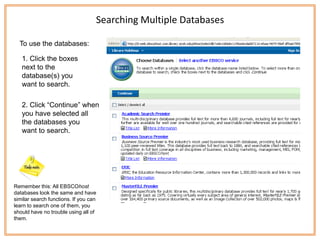
  To use the databases:

   1. Click the boxes
   next to the
   database(s) you
   want to search.

   2. Click “Continue” when
   you have selected all
   the databases you
   want to search.


Remember this: All EBSCOhost
databases look the same and have
similar search functions. If you can
learn to search one of them, you
should have no trouble using all of
them.
Input your search terms and limit your results.


   Limiting the results of your searches will help to narrow your topic. You can also
   limit your search from your results page. This will be covered in the next few
   slides.
Additional search terms can help narrow a search.
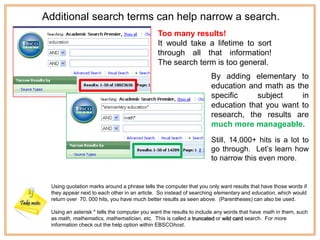
                                              Too many results!
                                              It would take a lifetime to sort
                                              through all that information!
                                              The search term is too general.
                                                                    By adding elementary to
                                                                    education and math as the
                                                                    specific    subject     in
                                                                    education that you want to
                                                                    research, the results are
                                                                    much more manageable.
                                                                    Still, 14,000+ hits is a lot to
                                                                    go through. Let‟s learn how
                                                                    to narrow this even more.


 Using quotation marks around a phrase tells the computer that you only want results that have those words if
 they appear next to each other in an article. So instead of searching elementary and education, which would
 return over 70, 000 hits, you have much better results as seen above. (Parentheses) can also be used.

 Using an asterisk * tells the computer you want the results to include any words that have math in them, such
 as math, mathematics, mathematician, etc. This is called a truncated or wild card search. For more
 information check out the help option within EBSCOhost.
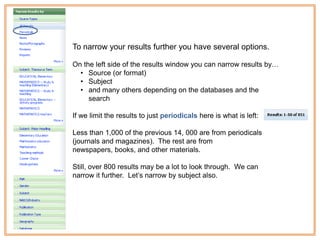
To narrow your results further you have several options.

On the left side of the results window you can narrow results by…
  • Source (or format)
  • Subject
  • and many others depending on the databases and the
     search

If we limit the results to just periodicals here is what is left:

Less than 1,000 of the previous 14, 000 are from periodicals
(journals and magazines). The rest are from
newspapers, books, and other materials.

Still, over 800 results may be a lot to look through. We can
narrow it further. Let‟s narrow by subject also.
In the initial search we used elementary
                             education and math* as search terms.
                             These search boxes are the same as
                             doing a keyword search in the library
                             catalog. It searches for these terms
                             everywhere in the record.


        Then we narrowed the search by source or format.


If we add a subject search to narrow our results even more
you may notice that a lot of the same terms that we used for
the keyword search are there too.

But this time those terms are the ones chosen by an author or
publisher as important subject topics in the article. It is not the
same search and will narrow the results even more to only
those articles that have the chosen terms as subject topics.
keyword search


      source or format


Now let‟s look at the result of a subject search if we choose
one of the options shown at the left.


Now we only have 58 articles left to look through. Much
more manageable! And if you find that the results are too
narrow you can go back to a previous results list by clicking
on the X to remove search terms.
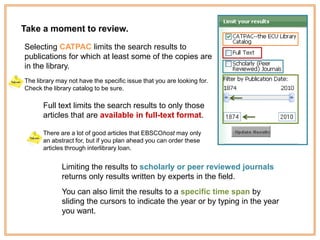
There are other options available to LIMIT your
        results too. Let’s take a look.


                         CATPAC limits the search to
                         ECU library items.

                         Full Text means the whole article
                         is available online to
                         view, save, or print.
                         Scholarly or Peer Reviewed Journals
                         narrow the search to articles written
                         by experts in the field.


                         You can move the sliders or type the
                         dates you want into the boxes to limit
                         the articles to specific publication
                         dates.
Take a moment to review.
Selecting CATPAC limits the search results to
publications for which at least some of the copies are
in the library.
The library may not have the specific issue that you are looking for.
Check the library catalog to be sure.

       Full text limits the search results to only those
       articles that are available in full-text format.

       There are a lot of good articles that EBSCOhost may only
       an abstract for, but if you plan ahead you can order these
       articles through interlibrary loan.


              Limiting the results to scholarly or peer reviewed journals
              returns only results written by experts in the field.
              You can also limit the results to a specific time span by
              sliding the cursors to indicate the year or by typing in the year
              you want.
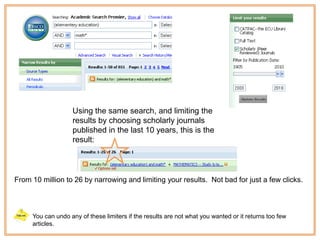
Using the same search, and limiting the
                   results by choosing scholarly journals
                   published in the last 10 years, this is the
                   result:


From 10 million to 26 by narrowing and limiting your results. Not bad for just a few clicks.


     You can undo any of these limiters if the results are not what you wanted or it returns too few
     articles.
This is an example of
what your list of results
looks like.


Remember:
PDF Full Text means
that the full article can
be viewed, instead of
just an abstract.


This CatPac logo means that
Linscheid Library owns some
issues of this journal title.
Click the logo to find out of
the library carries the specific
issue you are searching for.
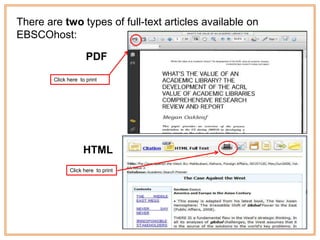
There are two types of full-text articles available on
EBSCOhost:

                      PDF

        Click here to print


                     HTML
               Click here to print
Thank you for viewing
    this tutorial on
Using Ebsco Databases.

Using EBSCO databases

  • 1.
  • 2.
    About this Tutorial Students: This tutorial will help you: • Access and perform research in EBSCOhost databases. • Narrow search results to find needed information. It should take you about 20 minutes to complete. Faculty: • This tutorial was made using Microsoft PowerPoint 2007. • This tutorial will help students – Broaden their research abilities. – Learn to use online research tools. This tutorial meets the following ACRL standards: 1.1c 1.4b 1.1d 2.3c
  • 3.
    What to watchfor… Notes – These are to let you know there is important information you need to know about what is being covered.
  • 4.
    What is EBSCOhost? •EBSCOhost is a service provides access to the full text of over 6,000 journals and periodicals in the fields of education, business, health, law, and other academic disciplines. • Linscheid Library subscribes to more than 90 EBSCOhost databases. • Access to EBSCOhost is a project of the Oklahoma Library Technology Network and is funded with state and federal funds through the Oklahoma Department of Libraries.
  • 5.
    How to AccessEBSCOhost Databases You can access the electronic resources by clicking on the „Articles & More‟ icon. This icon takes you to a page with tabs across the top. Most of the tabs are letters of the alphabet which that take you to lists of databases that start with that letter. The rest of the tabs allow you to find resources by type (such as newspaper articles) or by subject ( „Resources by Major‟).
  • 6.
    E-Resources by Title Click EBSCOHost Web Search to search multiple databases at the same time. OR Click on any of the tabs to find lists of individual database titles which you can search individually.
  • 7.
    Searching Multiple Databases To use the databases: 1. Click the boxes next to the database(s) you want to search. 2. Click “Continue” when you have selected all the databases you want to search. Remember this: All EBSCOhost databases look the same and have similar search functions. If you can learn to search one of them, you should have no trouble using all of them.
  • 8.
    Input your searchterms and limit your results. Limiting the results of your searches will help to narrow your topic. You can also limit your search from your results page. This will be covered in the next few slides.
  • 9.
    Additional search termscan help narrow a search. Too many results! It would take a lifetime to sort through all that information! The search term is too general. By adding elementary to education and math as the specific subject in education that you want to research, the results are much more manageable. Still, 14,000+ hits is a lot to go through. Let‟s learn how to narrow this even more. Using quotation marks around a phrase tells the computer that you only want results that have those words if they appear next to each other in an article. So instead of searching elementary and education, which would return over 70, 000 hits, you have much better results as seen above. (Parentheses) can also be used. Using an asterisk * tells the computer you want the results to include any words that have math in them, such as math, mathematics, mathematician, etc. This is called a truncated or wild card search. For more information check out the help option within EBSCOhost.
  • 10.
    To narrow yourresults further you have several options. On the left side of the results window you can narrow results by… • Source (or format) • Subject • and many others depending on the databases and the search If we limit the results to just periodicals here is what is left: Less than 1,000 of the previous 14, 000 are from periodicals (journals and magazines). The rest are from newspapers, books, and other materials. Still, over 800 results may be a lot to look through. We can narrow it further. Let‟s narrow by subject also.
  • 11.
    In the initialsearch we used elementary education and math* as search terms. These search boxes are the same as doing a keyword search in the library catalog. It searches for these terms everywhere in the record. Then we narrowed the search by source or format. If we add a subject search to narrow our results even more you may notice that a lot of the same terms that we used for the keyword search are there too. But this time those terms are the ones chosen by an author or publisher as important subject topics in the article. It is not the same search and will narrow the results even more to only those articles that have the chosen terms as subject topics.
  • 12.
    keyword search source or format Now let‟s look at the result of a subject search if we choose one of the options shown at the left. Now we only have 58 articles left to look through. Much more manageable! And if you find that the results are too narrow you can go back to a previous results list by clicking on the X to remove search terms.
  • 13.
    There are otheroptions available to LIMIT your results too. Let’s take a look. CATPAC limits the search to ECU library items. Full Text means the whole article is available online to view, save, or print. Scholarly or Peer Reviewed Journals narrow the search to articles written by experts in the field. You can move the sliders or type the dates you want into the boxes to limit the articles to specific publication dates.
  • 14.
    Take a momentto review. Selecting CATPAC limits the search results to publications for which at least some of the copies are in the library. The library may not have the specific issue that you are looking for. Check the library catalog to be sure. Full text limits the search results to only those articles that are available in full-text format. There are a lot of good articles that EBSCOhost may only an abstract for, but if you plan ahead you can order these articles through interlibrary loan. Limiting the results to scholarly or peer reviewed journals returns only results written by experts in the field. You can also limit the results to a specific time span by sliding the cursors to indicate the year or by typing in the year you want.
  • 15.
    Using the samesearch, and limiting the results by choosing scholarly journals published in the last 10 years, this is the result: From 10 million to 26 by narrowing and limiting your results. Not bad for just a few clicks. You can undo any of these limiters if the results are not what you wanted or it returns too few articles.
  • 16.
    This is anexample of what your list of results looks like. Remember: PDF Full Text means that the full article can be viewed, instead of just an abstract. This CatPac logo means that Linscheid Library owns some issues of this journal title. Click the logo to find out of the library carries the specific issue you are searching for.
  • 17.
    There are twotypes of full-text articles available on EBSCOhost: PDF Click here to print HTML Click here to print
  • 18.
    Thank you forviewing this tutorial on Using Ebsco Databases.