RESEARCHING TRENDS IN
EBSCO DATABASES
A Guide : By Emily Z. Brown
WHAT IS AN EBSCO DATABASE?
EBSCO is a database
platform that provides BCC
Students will access to over
25 separate academic
databases.
You can choose to search
single databases or all
EBCSO databases at one
time.
This tutorial will show you
how to do that.
FINDING AN EBSCO DATABASE
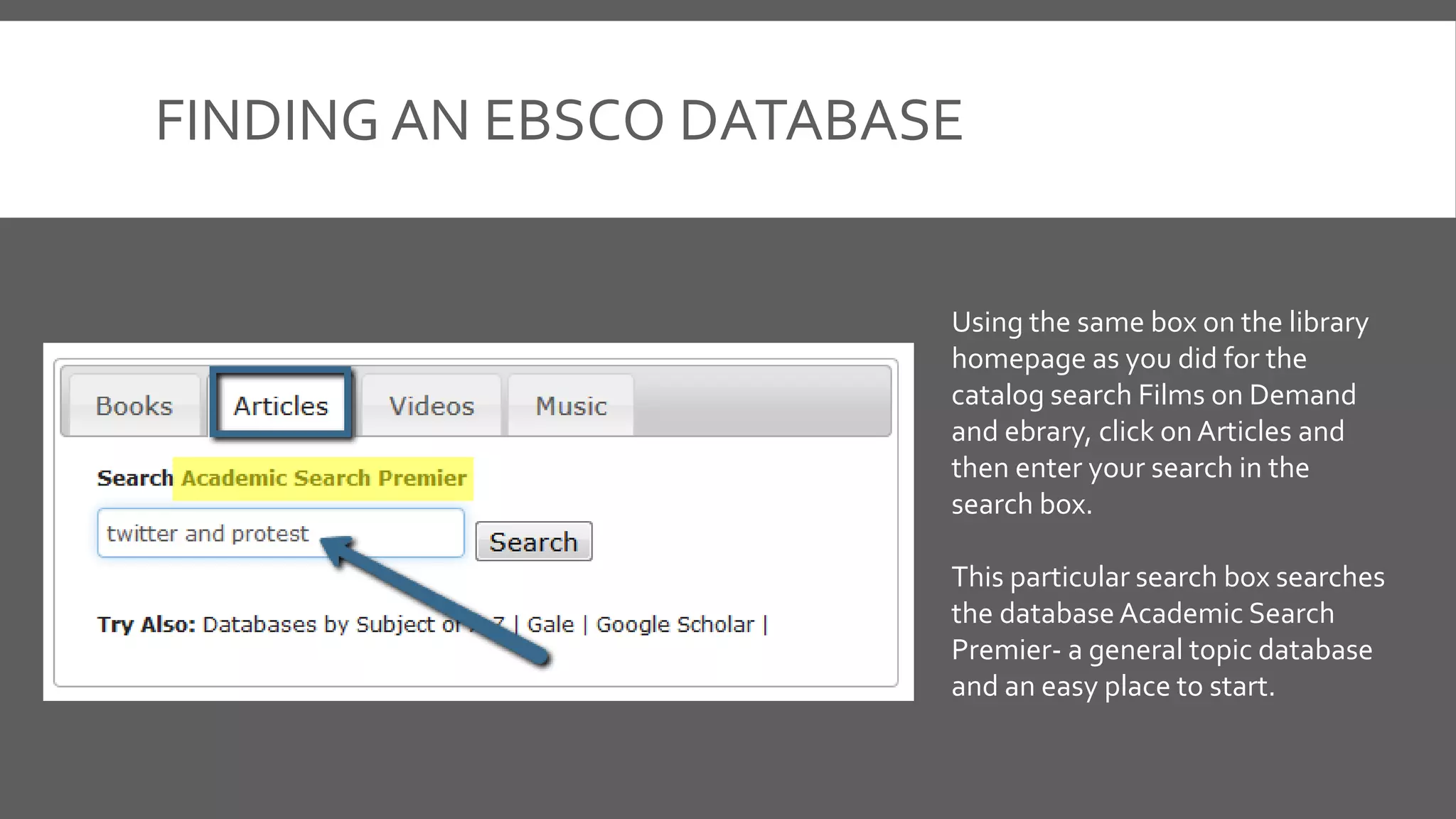
Using the same box on the library
homepage as you did for the
catalog search Films on Demand
and ebrary, click on Articles and
then enter your search in the
search box.
This particular search box searches
the databaseAcademic Search
Premier- a general topic database
and an easy place to start.
SEARCHING EBSCO DATABASES
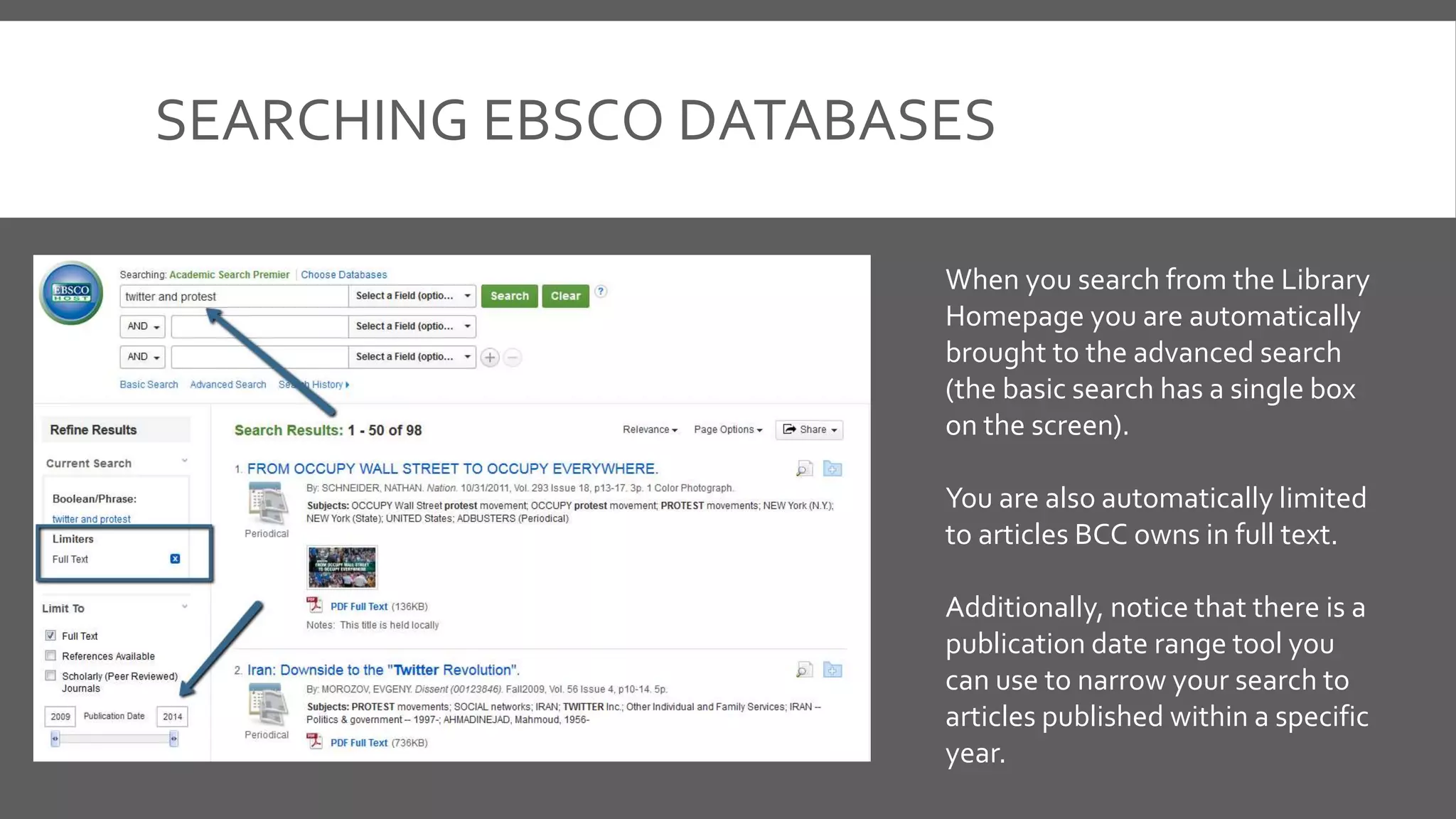
When you search from the Library
Homepage you are automatically
brought to the advanced search
(the basic search has a single box
on the screen).
You are also automatically limited
to articles BCC owns in full text.
Additionally, notice that there is a
publication date range tool you
can use to narrow your search to
articles published within a specific
year.
SEARCHING EBSCO DATABASES
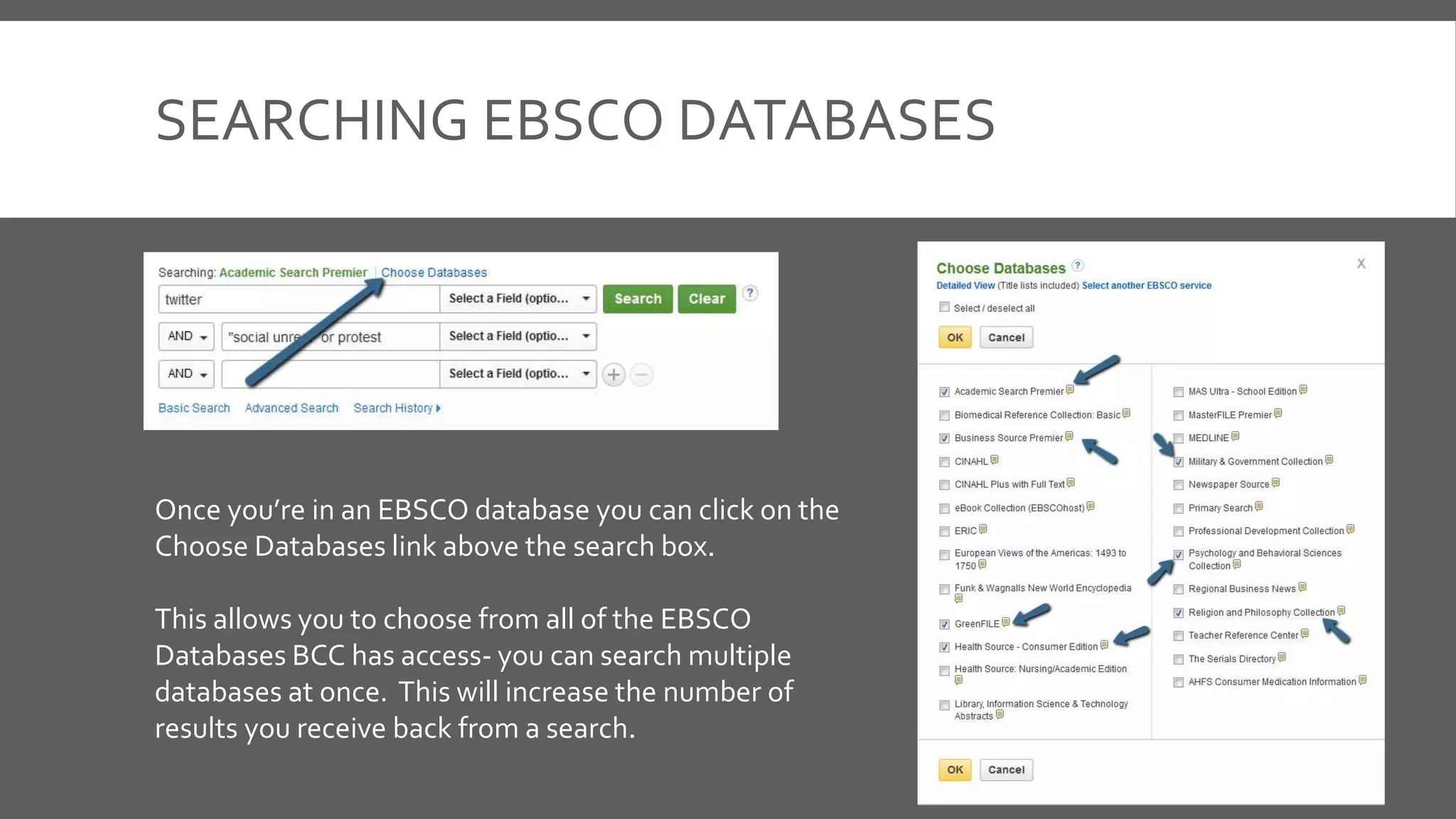
Once you’re in an EBSCO database you can click on the
Choose Databases link above the search box.
This allows you to choose from all of the EBSCO
Databases BCC has access- you can search multiple
databases at once. This will increase the number of
results you receive back from a search.
SEARCHING EBSCO DATABASES
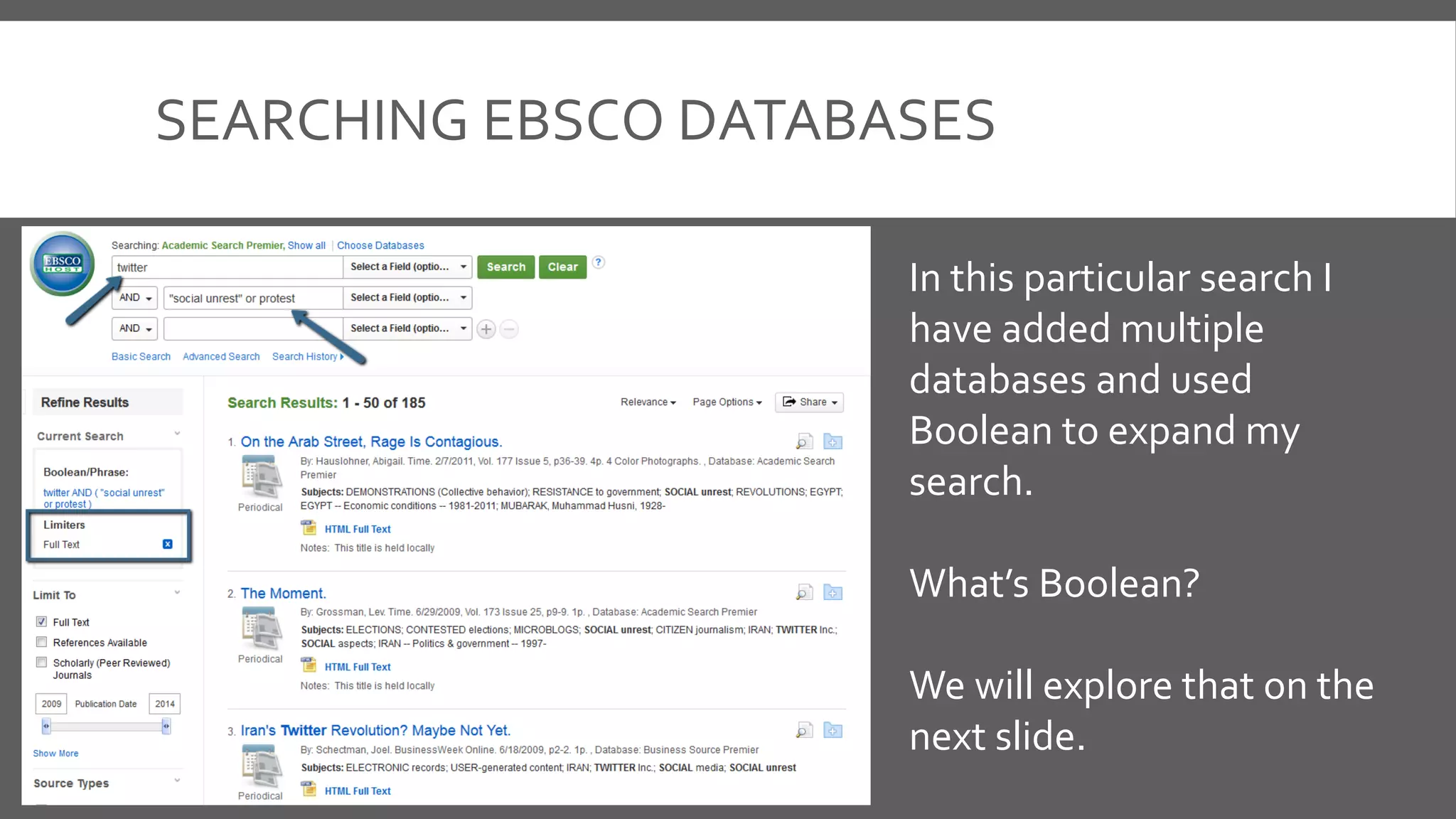
In this particular search I
have added multiple
databases and used
Boolean to expand my
search.
What’s Boolean?
We will explore that on the
next slide.
BOOLEAN
And
Or
Not
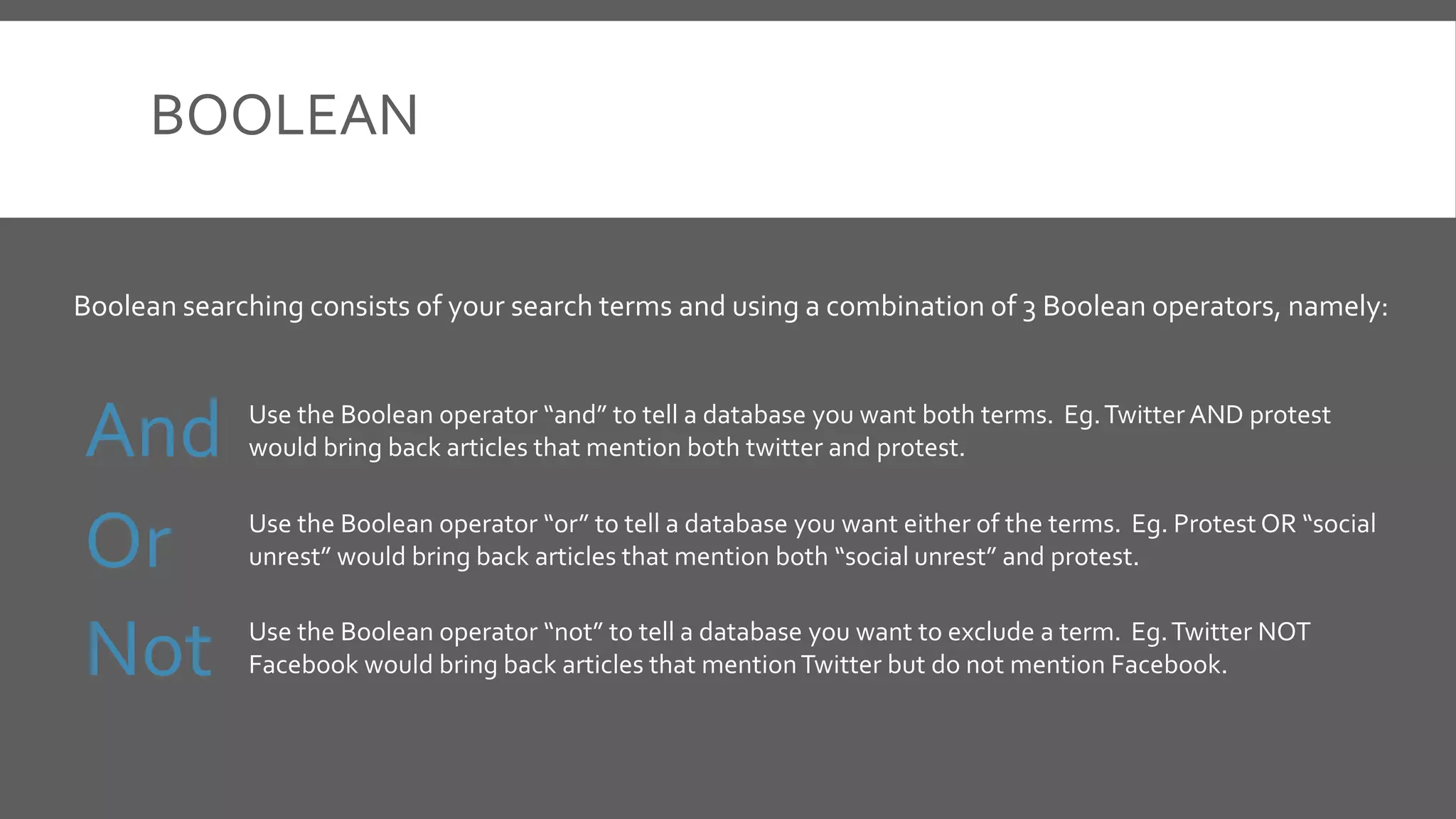
Boolean searching consists of your search terms and using a combination of 3 Boolean operators, namely:
Use the Boolean operator “and” to tell a database you want both terms. Eg.Twitter AND protest
would bring back articles that mention both twitter and protest.
Use the Boolean operator “or” to tell a database you want either of the terms. Eg. Protest OR “social
unrest” would bring back articles that mention both “social unrest” and protest.
Use the Boolean operator “not” to tell a database you want to exclude a term. Eg.Twitter NOT
Facebook would bring back articles that mentionTwitter but do not mention Facebook.
SEARCHING EBSCO DATABASES
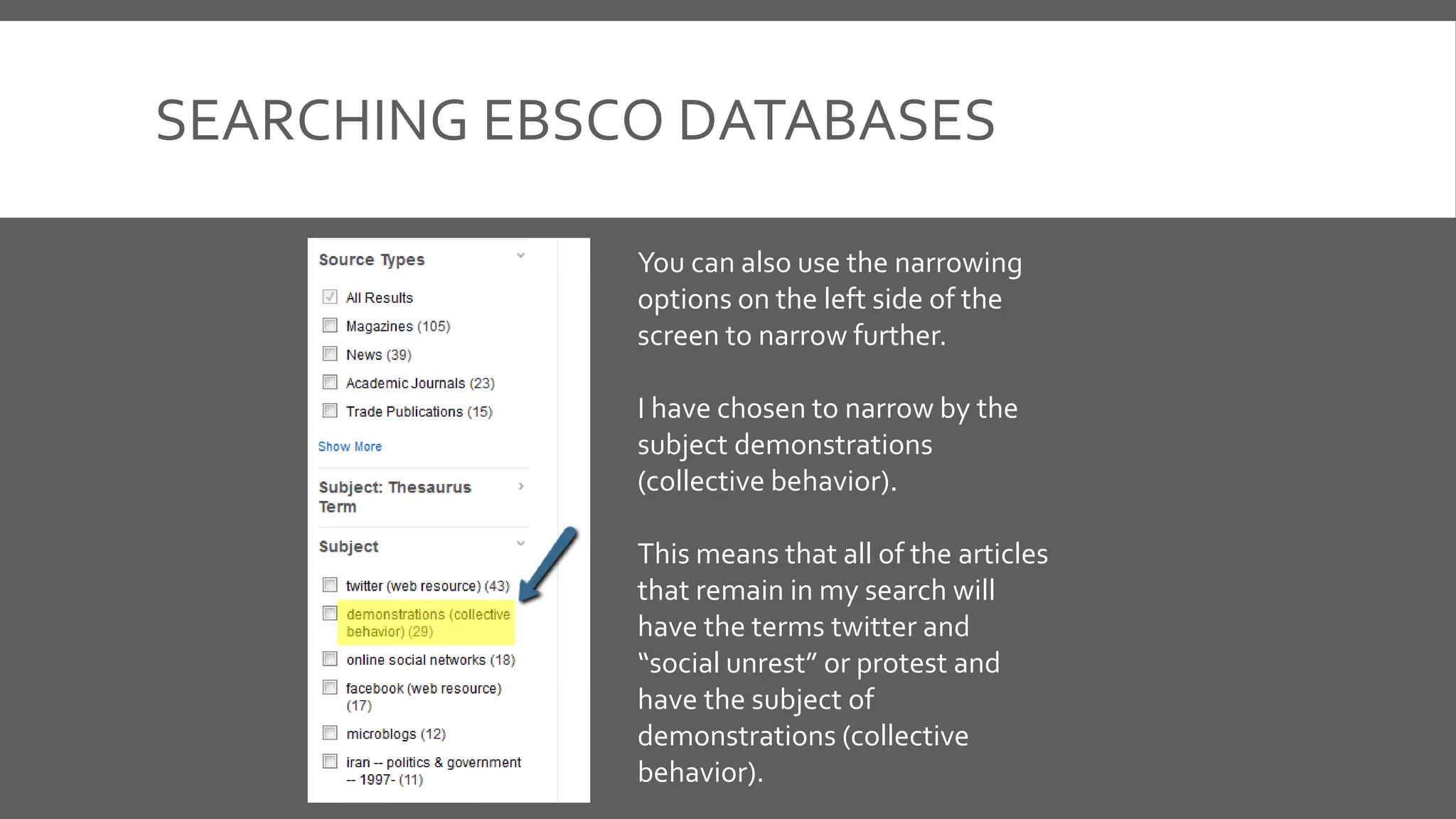
You can also use the narrowing
options on the left side of the
screen to narrow further.
I have chosen to narrow by the
subject demonstrations
(collective behavior).
This means that all of the articles
that remain in my search will
have the terms twitter and
“social unrest” or protest and
have the subject of
demonstrations (collective
behavior).
CHOOSING AN ARTICLE
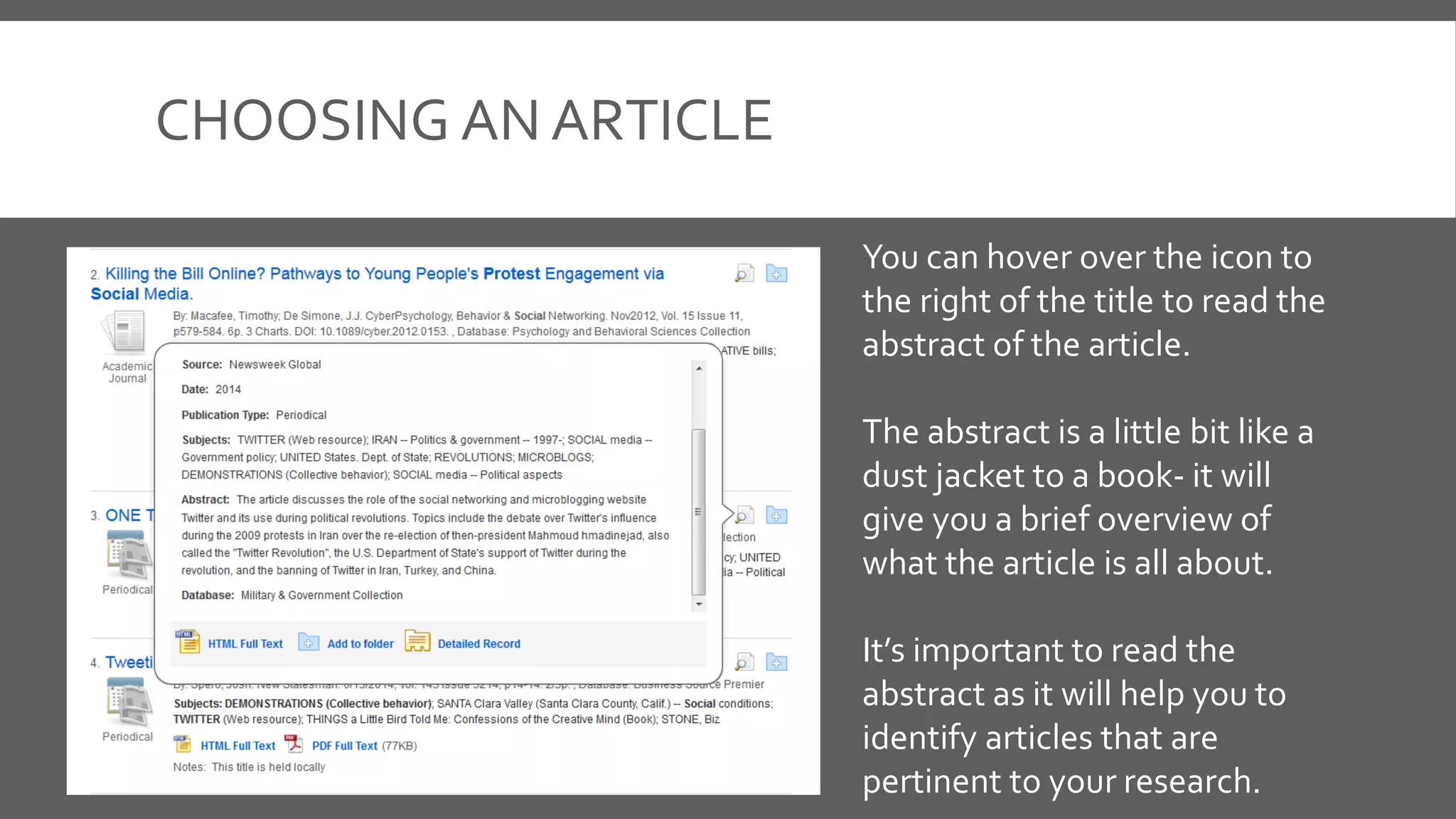
You can hover over the icon to
the right of the title to read the
abstract of the article.
The abstract is a little bit like a
dust jacket to a book- it will
give you a brief overview of
what the article is all about.
It’s important to read the
abstract as it will help you to
identify articles that are
pertinent to your research.
ALL ABOUTTHE ARTICLE RECORD
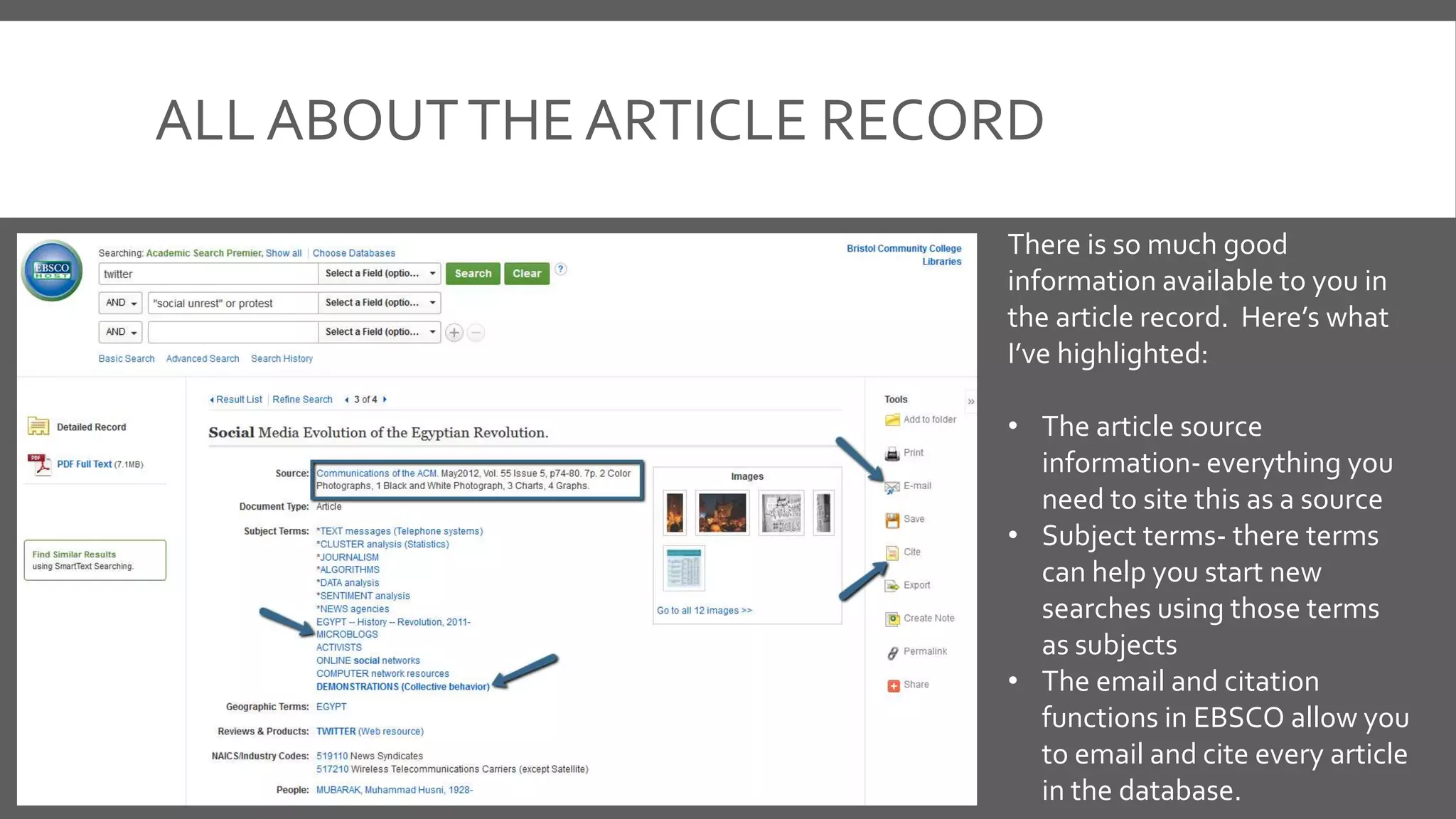
There is so much good
information available to you in
the article record. Here’s what
I’ve highlighted:
• The article source
information- everything you
need to site this as a source
• Subject terms- there terms
can help you start new
searches using those terms
as subjects
• The email and citation
functions in EBSCO allow you
to email and cite every article
in the database.
QUESTIONS
 You may be asking:
 If you’re writing a paper aboutTwitter
and the social unrest in Ferguson this
summer, why are you looking for
articles about the Arab Spring?
 Answer:
 Ferguson just happened- at the time I
write this, it’s still happening. The
repercussions aren’t recorded in
academic books or journals yet.
Finding articles that are about the
same theme or trend (twitter and
social unrest) can help me prove
that my trend has happened
before.
By linking the events in Ferguson
to events in the Middle East I can
draw correlations between the
two and make my claim stronger.
Thus concludes our exploration EBSCO databases.

Researching Trends in EBSCO Databases

  • 1.
    RESEARCHING TRENDS IN EBSCODATABASES A Guide : By Emily Z. Brown
  • 2.
    WHAT IS ANEBSCO DATABASE? EBSCO is a database platform that provides BCC Students will access to over 25 separate academic databases. You can choose to search single databases or all EBCSO databases at one time. This tutorial will show you how to do that.
  • 3.
    FINDING AN EBSCODATABASE Using the same box on the library homepage as you did for the catalog search Films on Demand and ebrary, click on Articles and then enter your search in the search box. This particular search box searches the databaseAcademic Search Premier- a general topic database and an easy place to start.
  • 4.
    SEARCHING EBSCO DATABASES Whenyou search from the Library Homepage you are automatically brought to the advanced search (the basic search has a single box on the screen). You are also automatically limited to articles BCC owns in full text. Additionally, notice that there is a publication date range tool you can use to narrow your search to articles published within a specific year.
  • 5.
    SEARCHING EBSCO DATABASES Onceyou’re in an EBSCO database you can click on the Choose Databases link above the search box. This allows you to choose from all of the EBSCO Databases BCC has access- you can search multiple databases at once. This will increase the number of results you receive back from a search.
  • 6.
    SEARCHING EBSCO DATABASES Inthis particular search I have added multiple databases and used Boolean to expand my search. What’s Boolean? We will explore that on the next slide.
  • 7.
    BOOLEAN And Or Not Boolean searching consistsof your search terms and using a combination of 3 Boolean operators, namely: Use the Boolean operator “and” to tell a database you want both terms. Eg.Twitter AND protest would bring back articles that mention both twitter and protest. Use the Boolean operator “or” to tell a database you want either of the terms. Eg. Protest OR “social unrest” would bring back articles that mention both “social unrest” and protest. Use the Boolean operator “not” to tell a database you want to exclude a term. Eg.Twitter NOT Facebook would bring back articles that mentionTwitter but do not mention Facebook.
  • 8.
    SEARCHING EBSCO DATABASES Youcan also use the narrowing options on the left side of the screen to narrow further. I have chosen to narrow by the subject demonstrations (collective behavior). This means that all of the articles that remain in my search will have the terms twitter and “social unrest” or protest and have the subject of demonstrations (collective behavior).
  • 9.
    CHOOSING AN ARTICLE Youcan hover over the icon to the right of the title to read the abstract of the article. The abstract is a little bit like a dust jacket to a book- it will give you a brief overview of what the article is all about. It’s important to read the abstract as it will help you to identify articles that are pertinent to your research.
  • 10.
    ALL ABOUTTHE ARTICLERECORD There is so much good information available to you in the article record. Here’s what I’ve highlighted: • The article source information- everything you need to site this as a source • Subject terms- there terms can help you start new searches using those terms as subjects • The email and citation functions in EBSCO allow you to email and cite every article in the database.
  • 11.
    QUESTIONS  You maybe asking:  If you’re writing a paper aboutTwitter and the social unrest in Ferguson this summer, why are you looking for articles about the Arab Spring?  Answer:  Ferguson just happened- at the time I write this, it’s still happening. The repercussions aren’t recorded in academic books or journals yet. Finding articles that are about the same theme or trend (twitter and social unrest) can help me prove that my trend has happened before. By linking the events in Ferguson to events in the Middle East I can draw correlations between the two and make my claim stronger.
  • 12.
    Thus concludes ourexploration EBSCO databases.