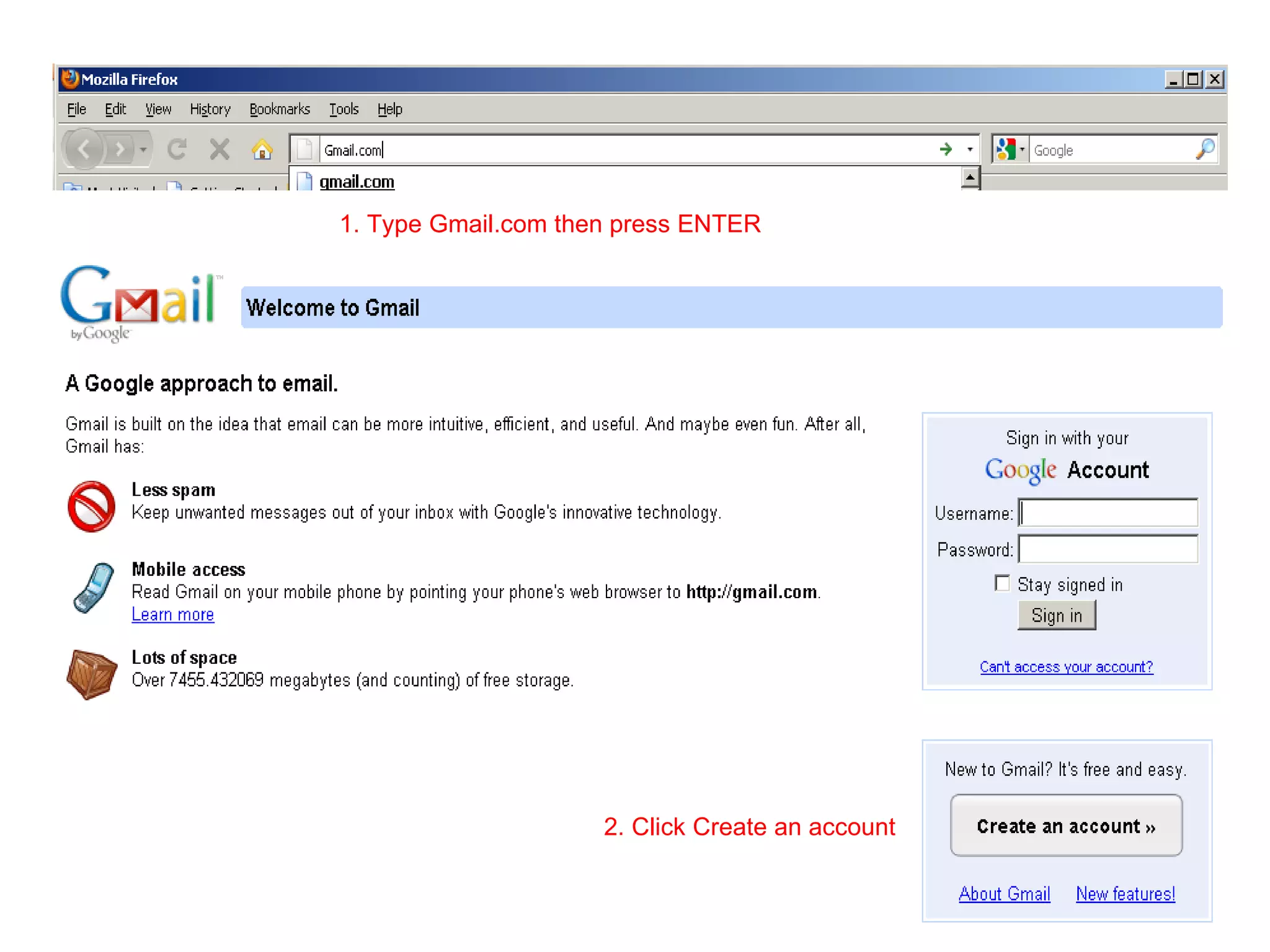
1. Type Gmail.com then press ENTER 2. Click Create an account
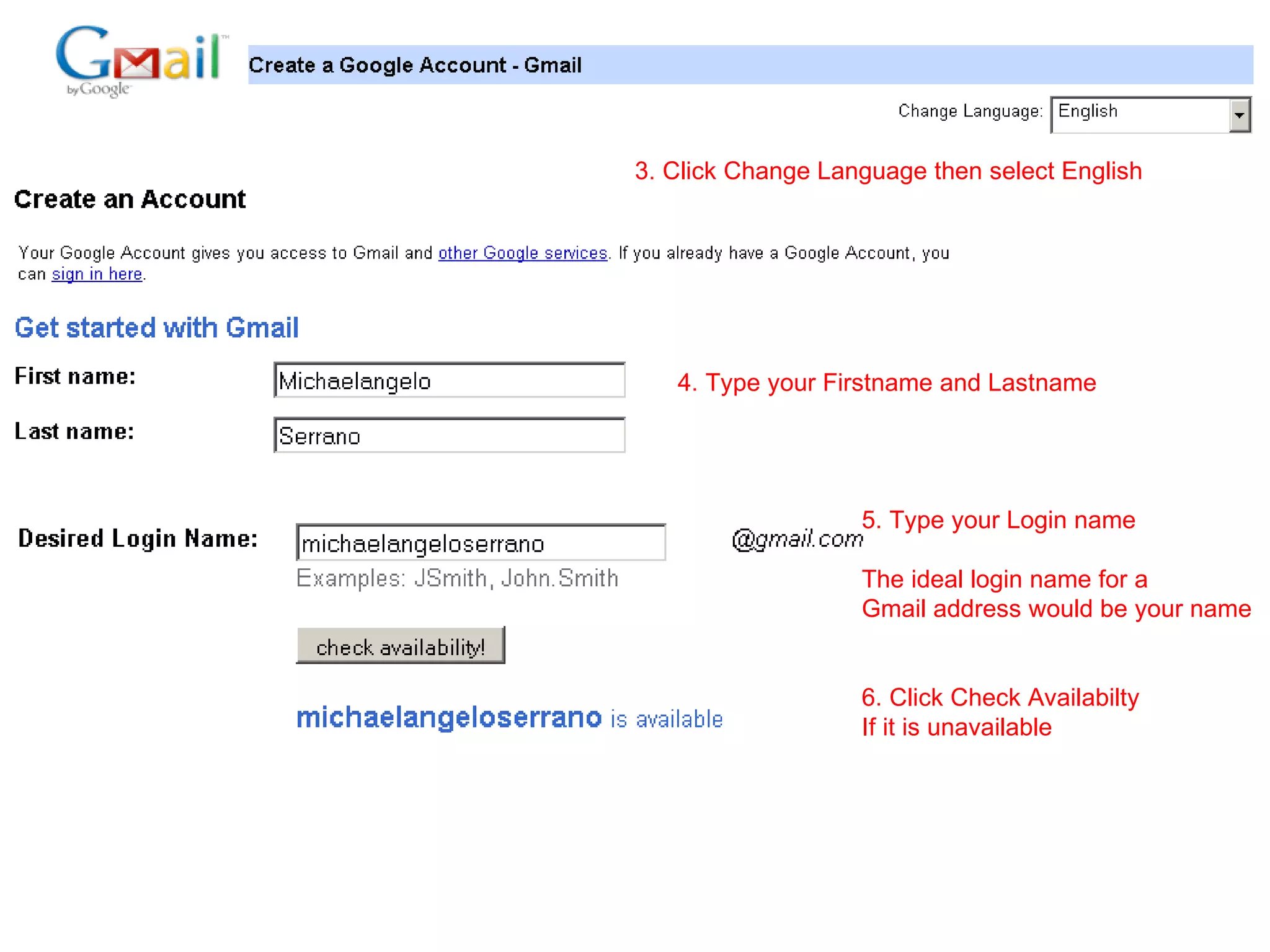
3. Click Change Language then select English 4. Type your Firstname and Lastname 5. Type your Login name The ideal login name for a  Gmail address would be your name  6. Click Check Availabilty  If it is unavailable
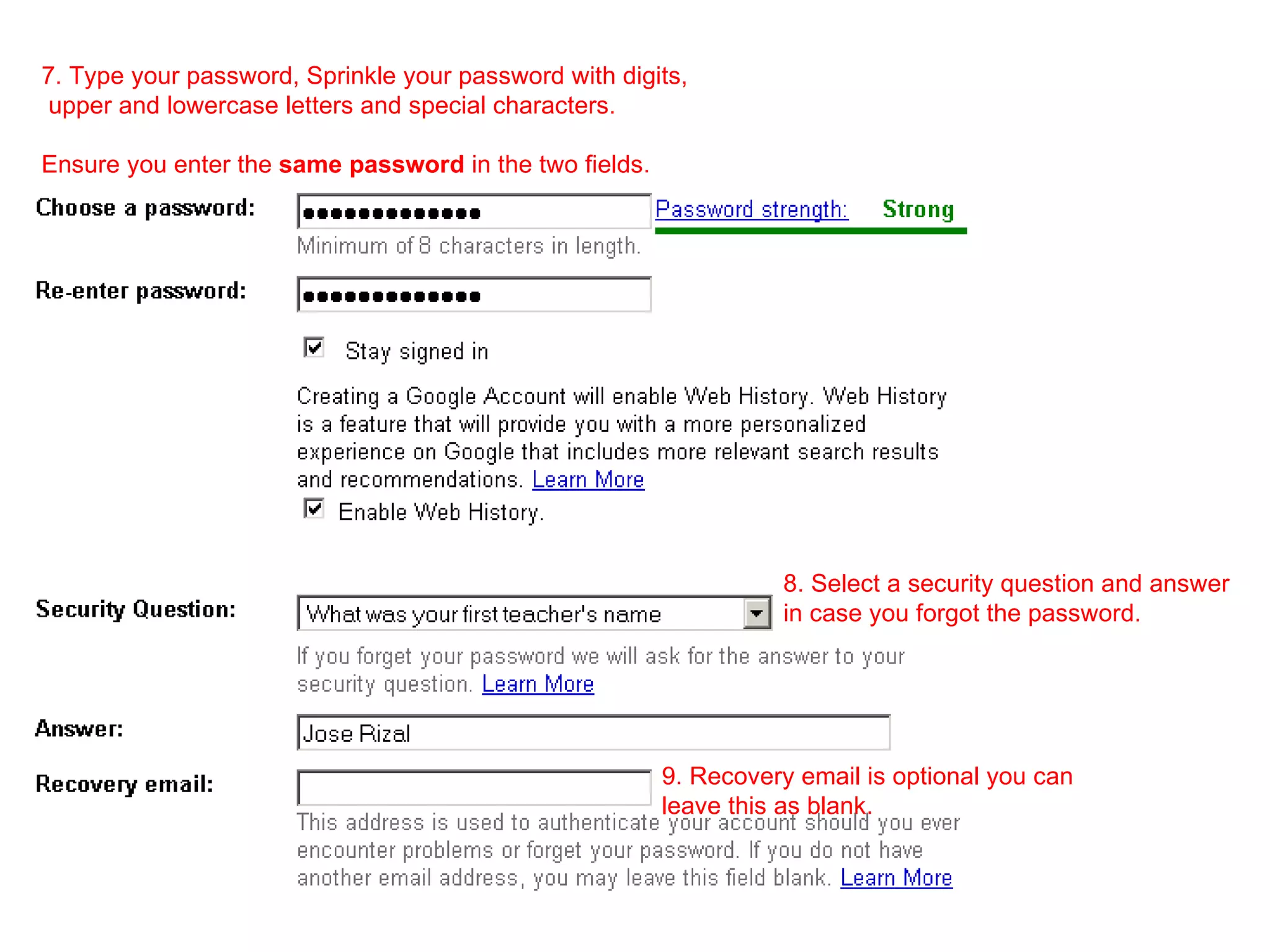
7. Type your password, Sprinkle your password with digits, upper and lowercase letters and special characters.  Ensure you enter the  same password  in the two fields. 8. Select a security question and answer in case you forgot the password. 9. Recovery email is optional you can  leave this as blank.
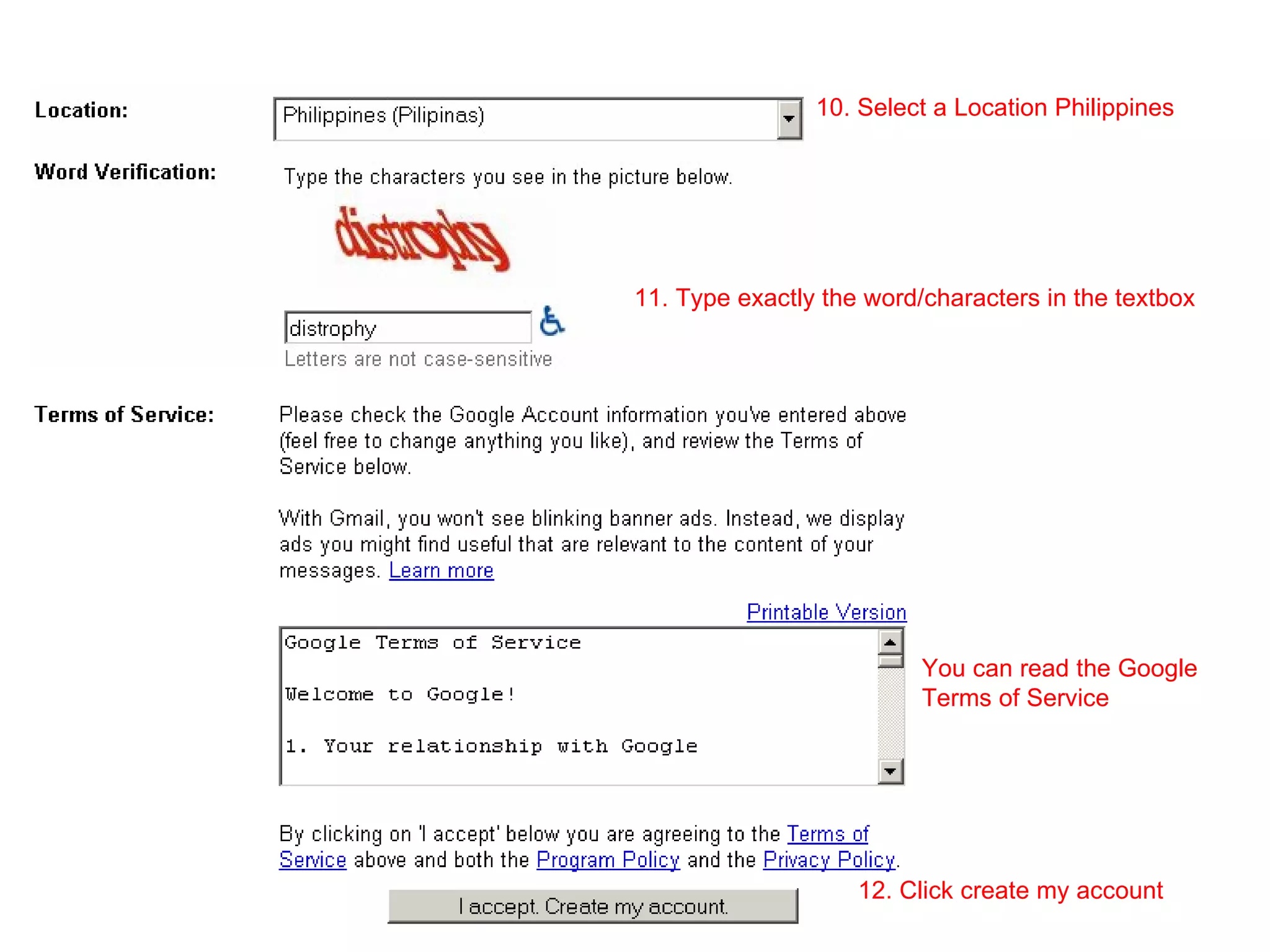
10. Select a Location Philippines 11. Type exactly the word/characters in the textbox  12. Click create my account You can read the Google Terms of Service
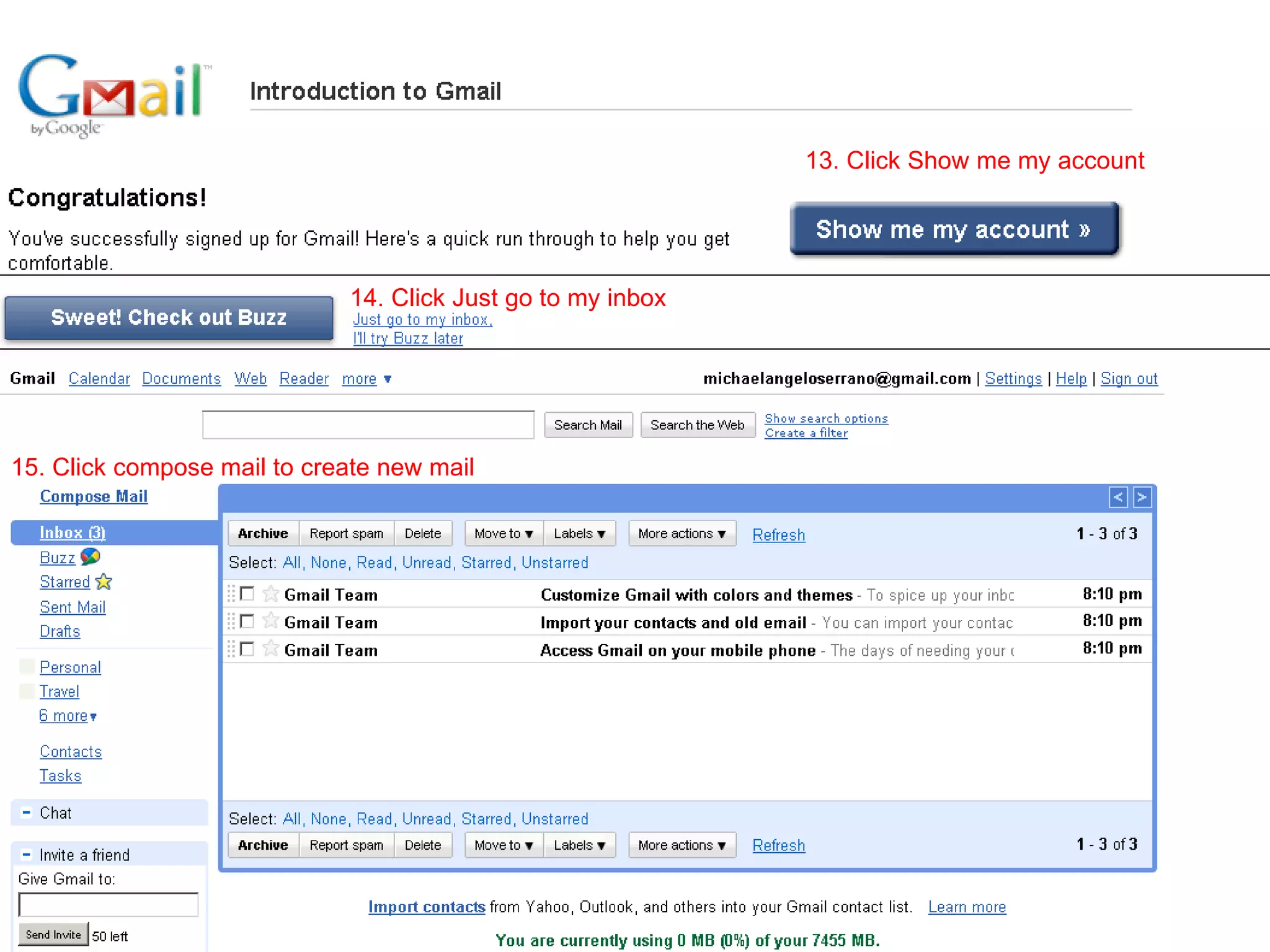
13. Click Show me my account 14. Click Just go to my inbox 15. Click compose mail to create new mail
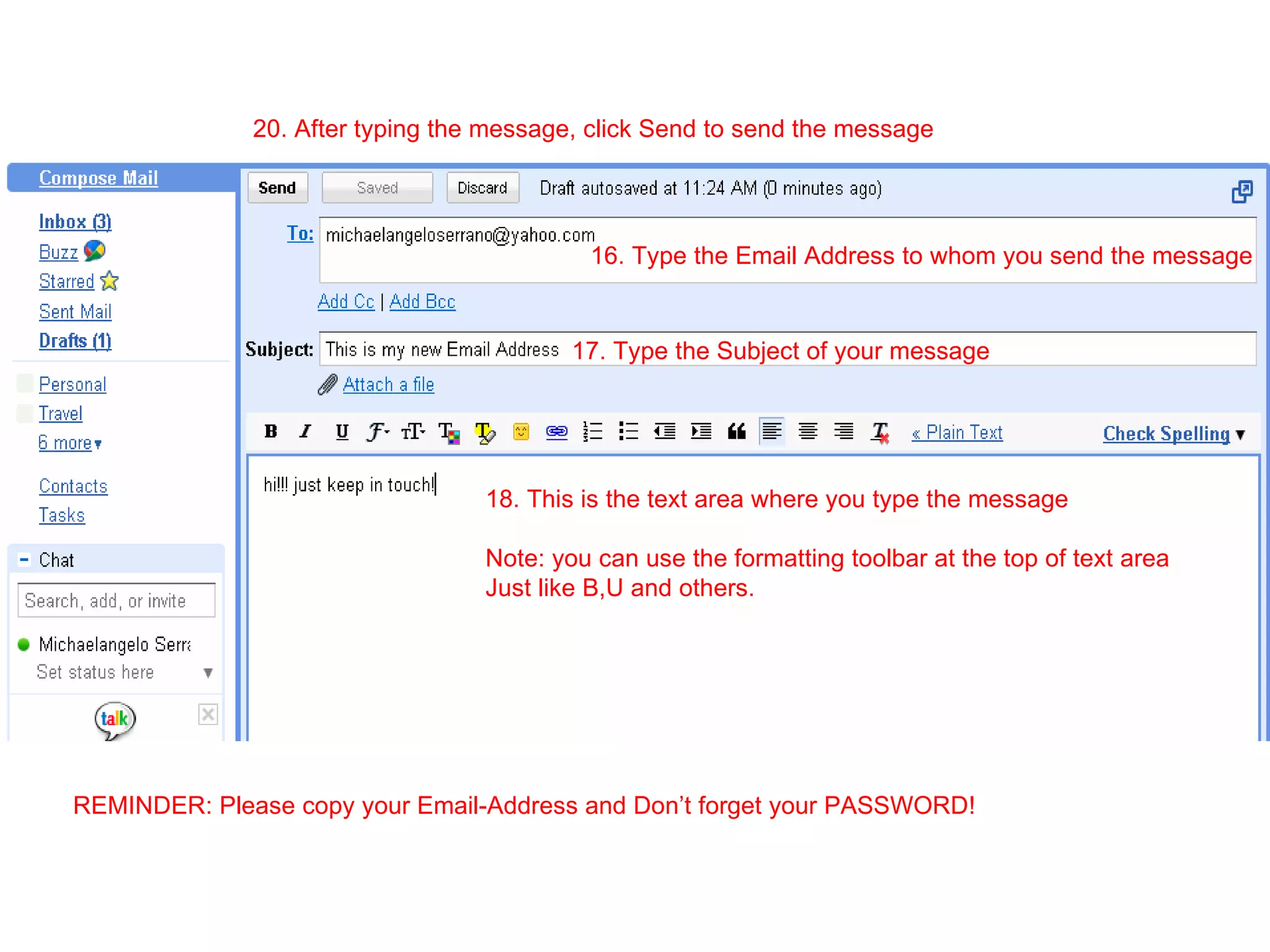
16. Type the Email Address to whom you send the message 17. Type the Subject of your message 18. This is the text area where you type the message Note: you can use the formatting toolbar at the top of text area Just like B,U and others. 20. After typing the message, click Send to send the message REMINDER: Please copy your Email-Address and Don’t forget your PASSWORD!

Email Gmail

  • 1.
    1. Type Gmail.comthen press ENTER 2. Click Create an account
  • 2.
    3. Click ChangeLanguage then select English 4. Type your Firstname and Lastname 5. Type your Login name The ideal login name for a Gmail address would be your name 6. Click Check Availabilty If it is unavailable
  • 3.
    7. Type yourpassword, Sprinkle your password with digits, upper and lowercase letters and special characters. Ensure you enter the same password in the two fields. 8. Select a security question and answer in case you forgot the password. 9. Recovery email is optional you can leave this as blank.
  • 4.
    10. Select aLocation Philippines 11. Type exactly the word/characters in the textbox 12. Click create my account You can read the Google Terms of Service
  • 5.
    13. Click Showme my account 14. Click Just go to my inbox 15. Click compose mail to create new mail
  • 6.
    16. Type theEmail Address to whom you send the message 17. Type the Subject of your message 18. This is the text area where you type the message Note: you can use the formatting toolbar at the top of text area Just like B,U and others. 20. After typing the message, click Send to send the message REMINDER: Please copy your Email-Address and Don’t forget your PASSWORD!