An Introduction To Web Based Email Gmail Basics
What is Email? Electronic format – send & receive mail Servers – Local Post Office Account + Access Yahoo -  web based
Understanding Your E-mail Address [email_address] 4 Parts to email address : User Name – Post Office Box Number @ - Means: Internet Address Server – Post Office Password – Key to the Box
Sample email addresses: [email_address] [email_address] [email_address]
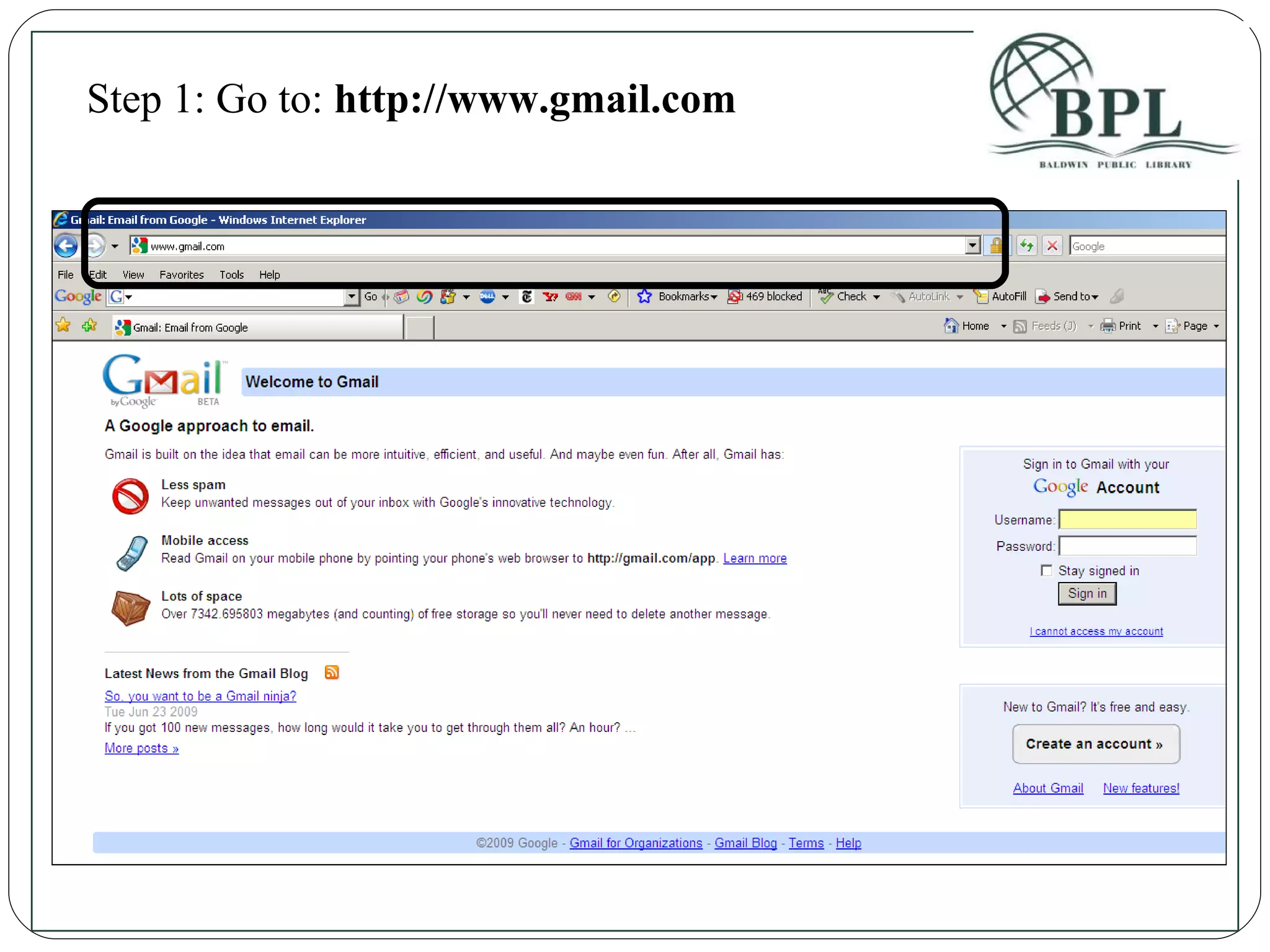
Step 1: Go to:  http://www.gmail.com
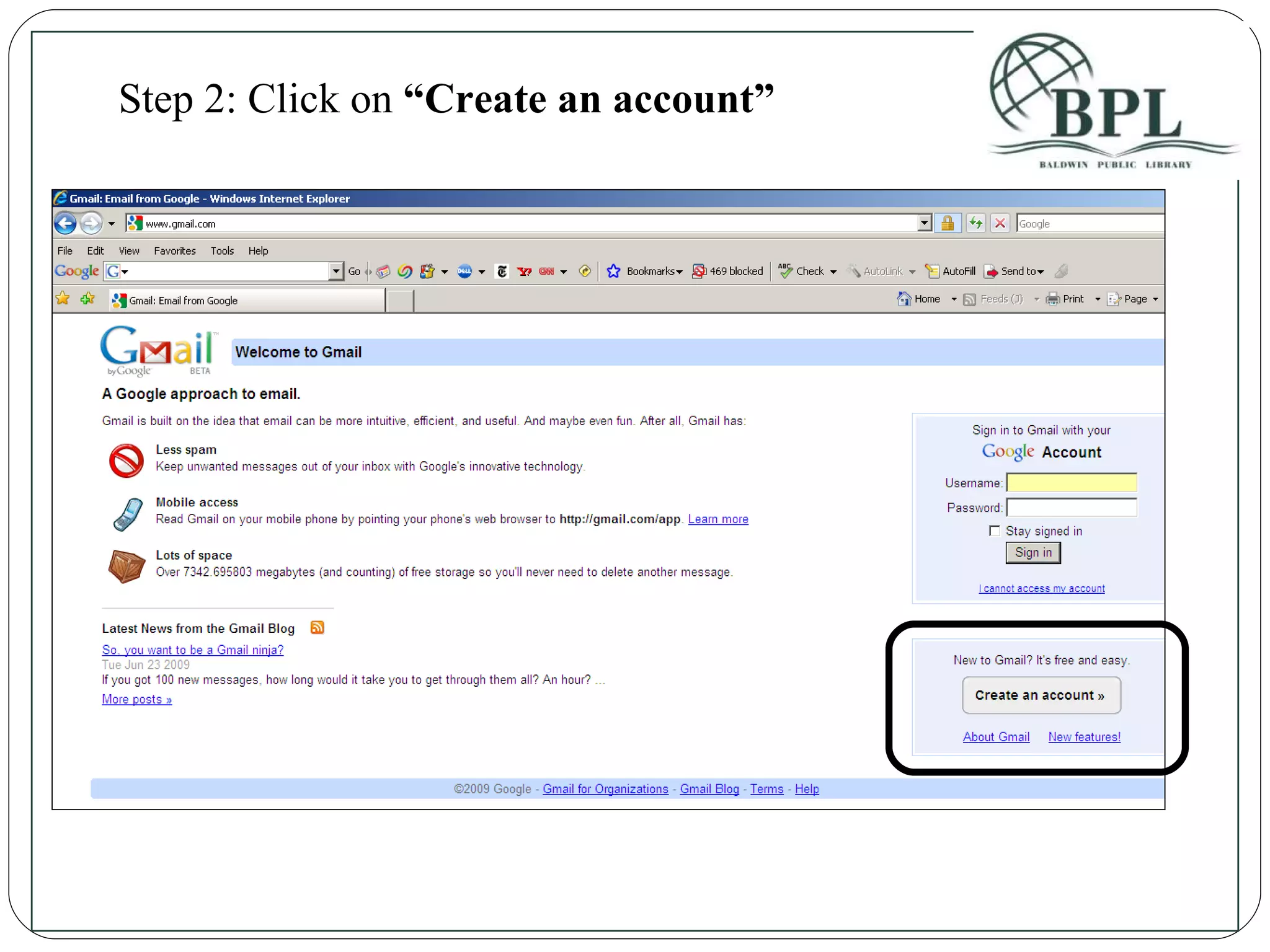
Step 2: Click on  “Create an account”
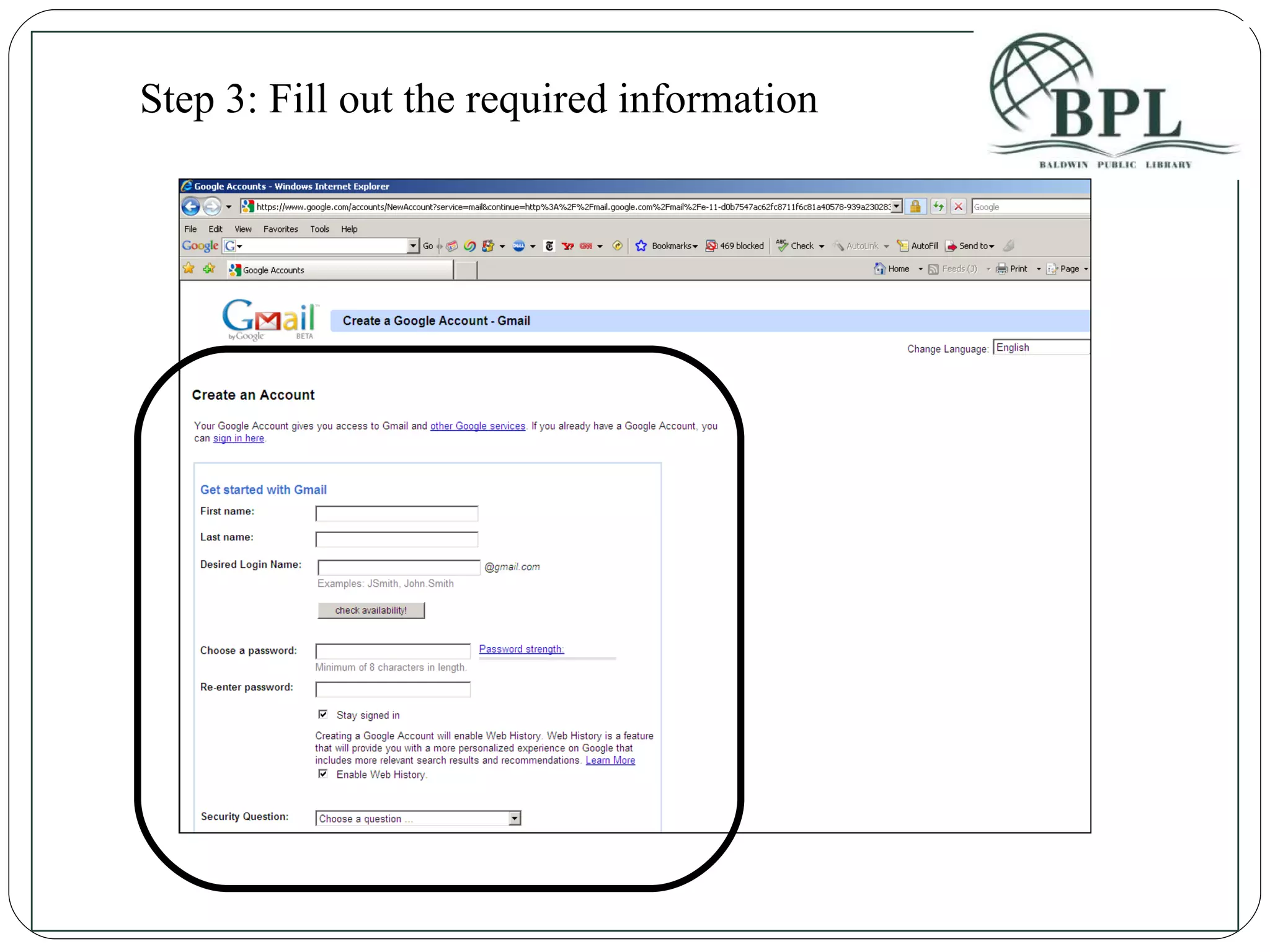
Step 3: Fill out the required information
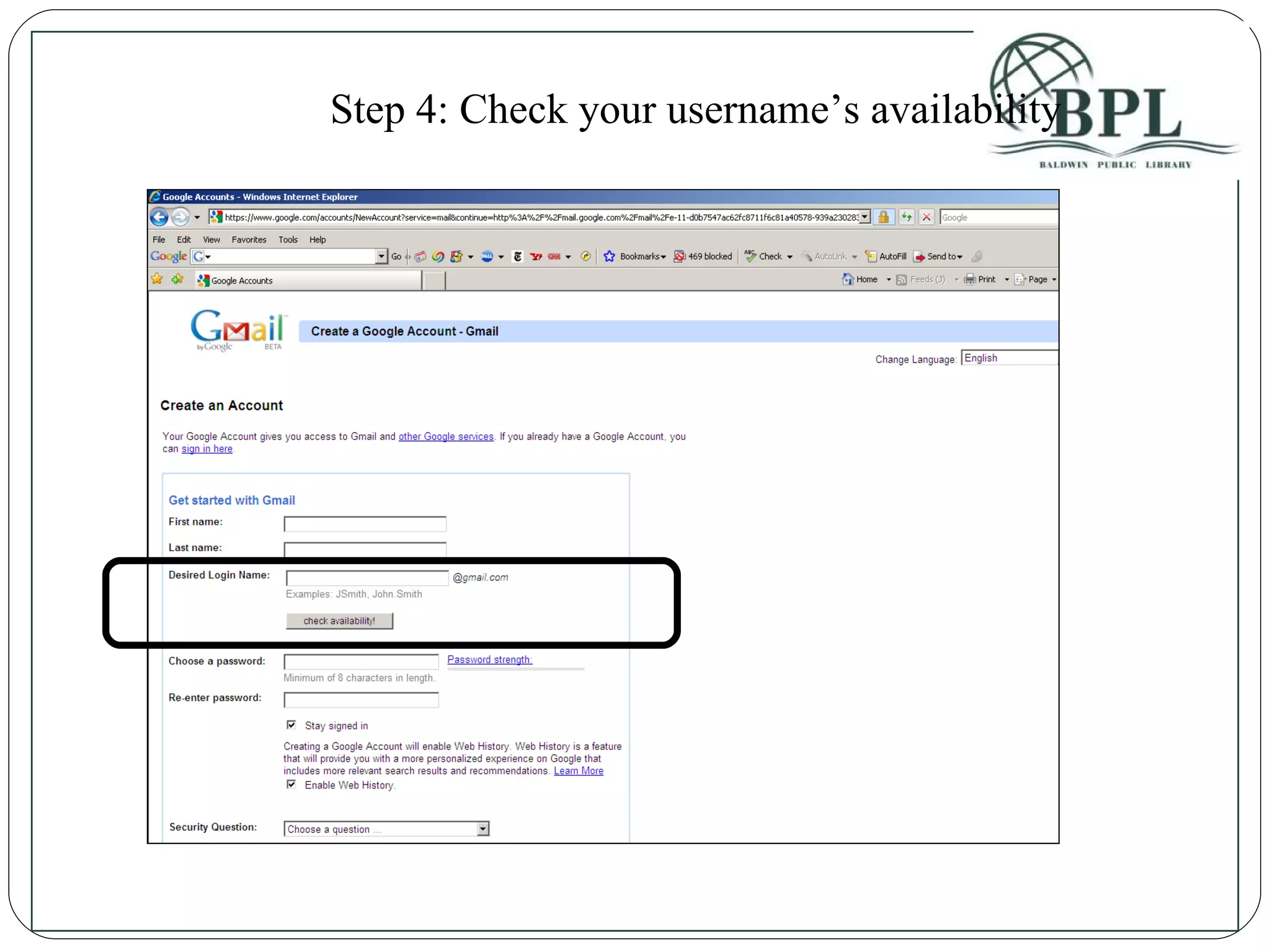
Step 4: Check your username’s availability
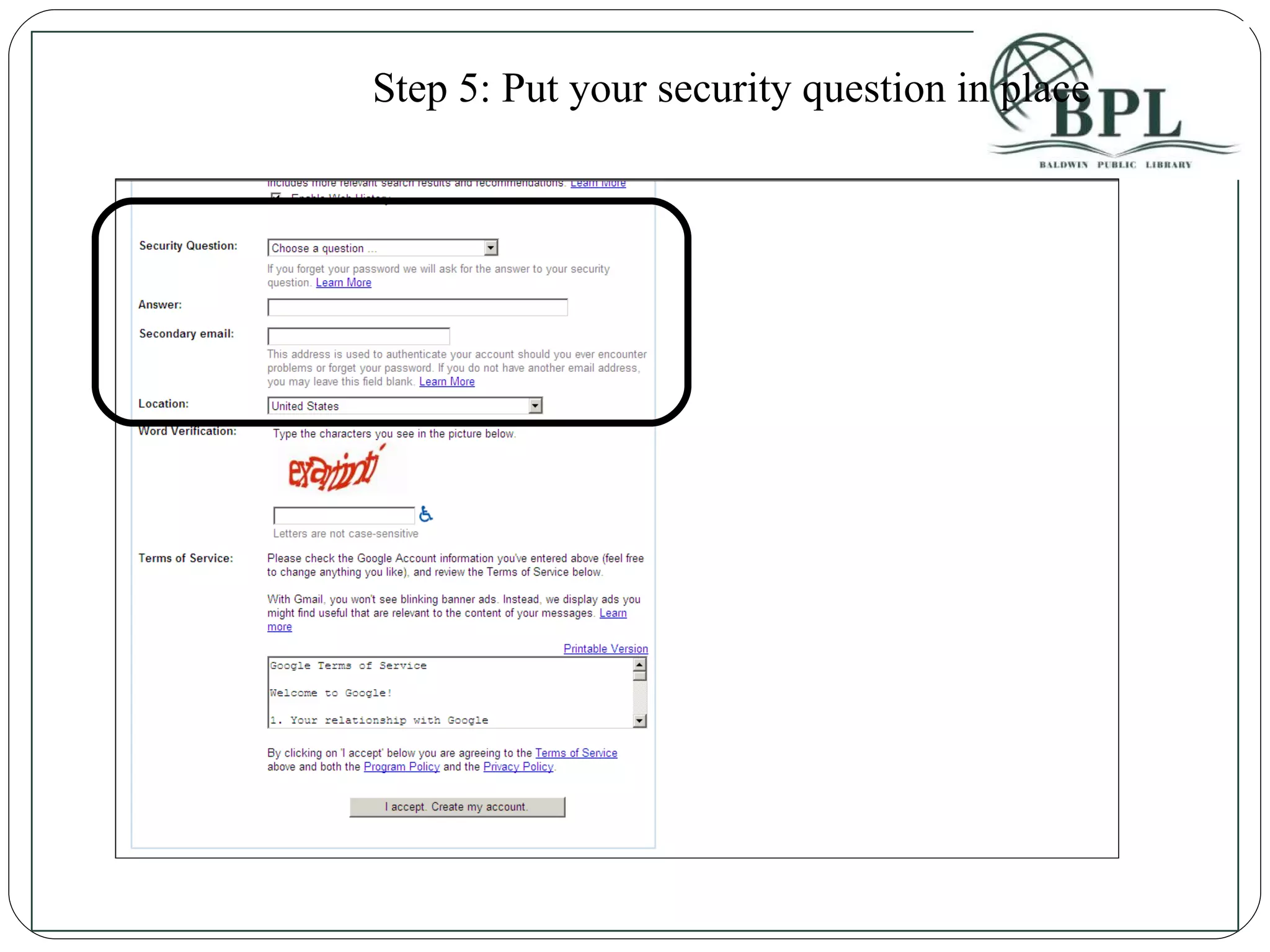
Step 5: Put your security question in place
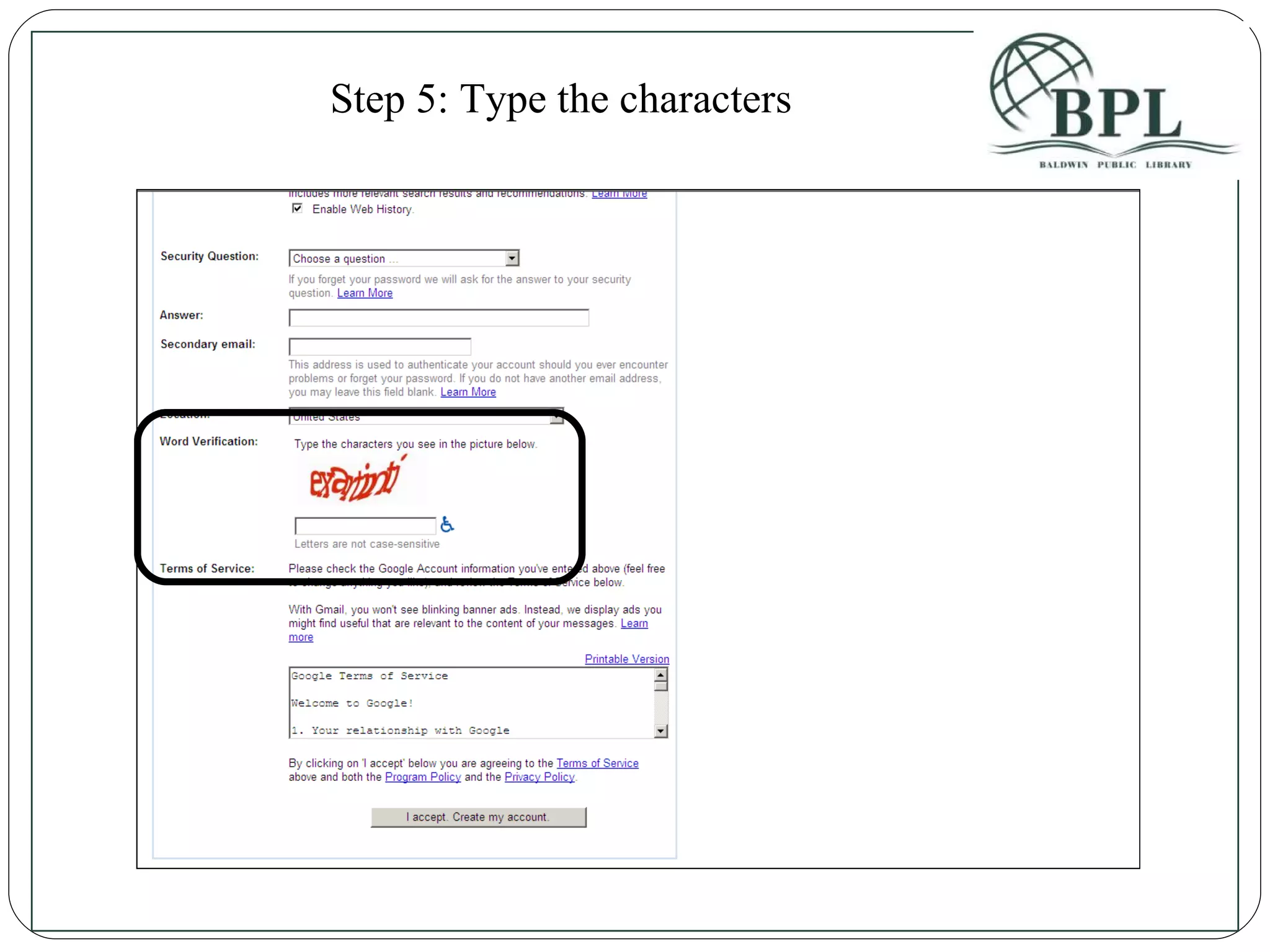
Step 5: Type the characters
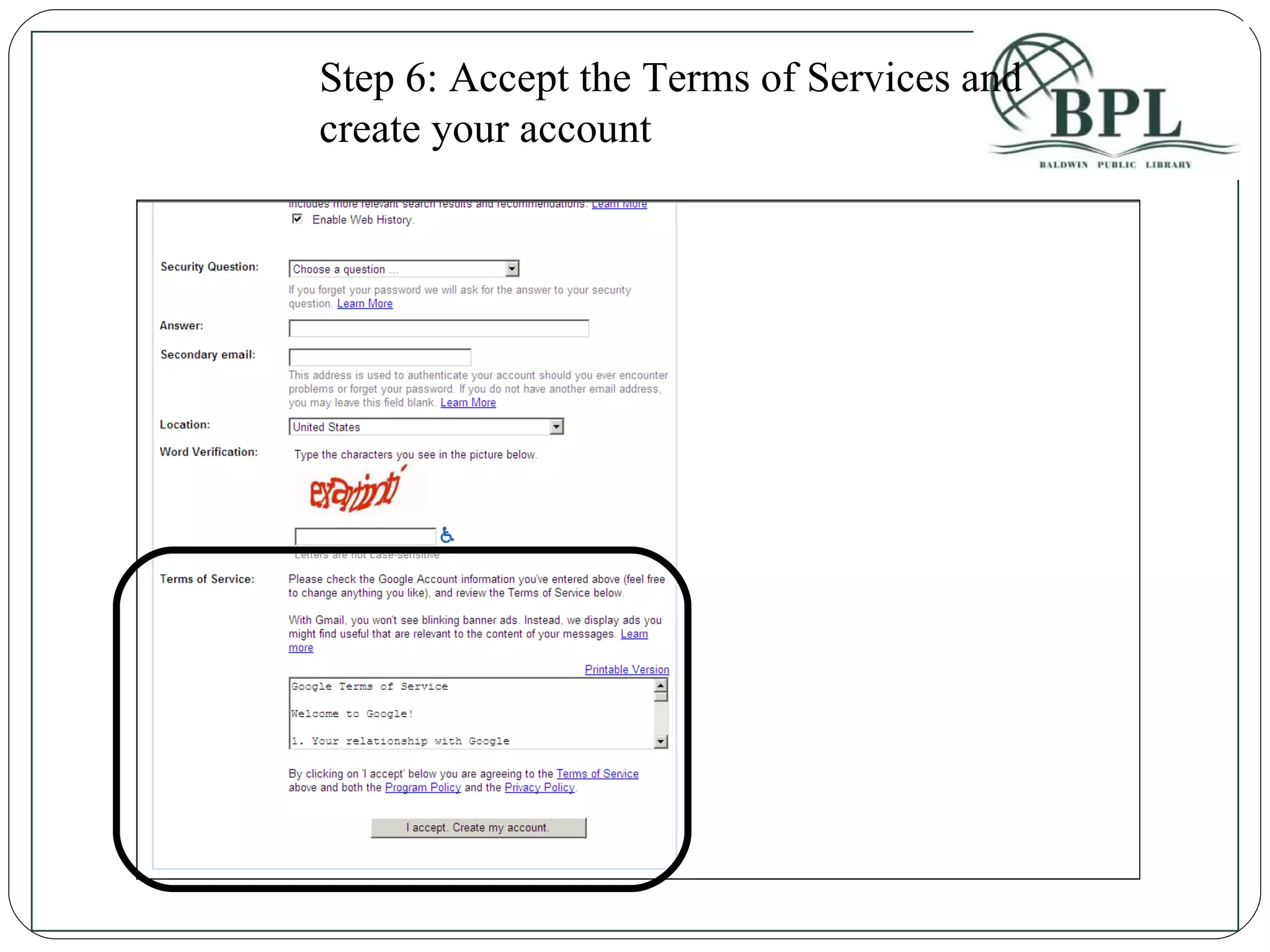
Step 6: Accept the Terms of Services and create your account
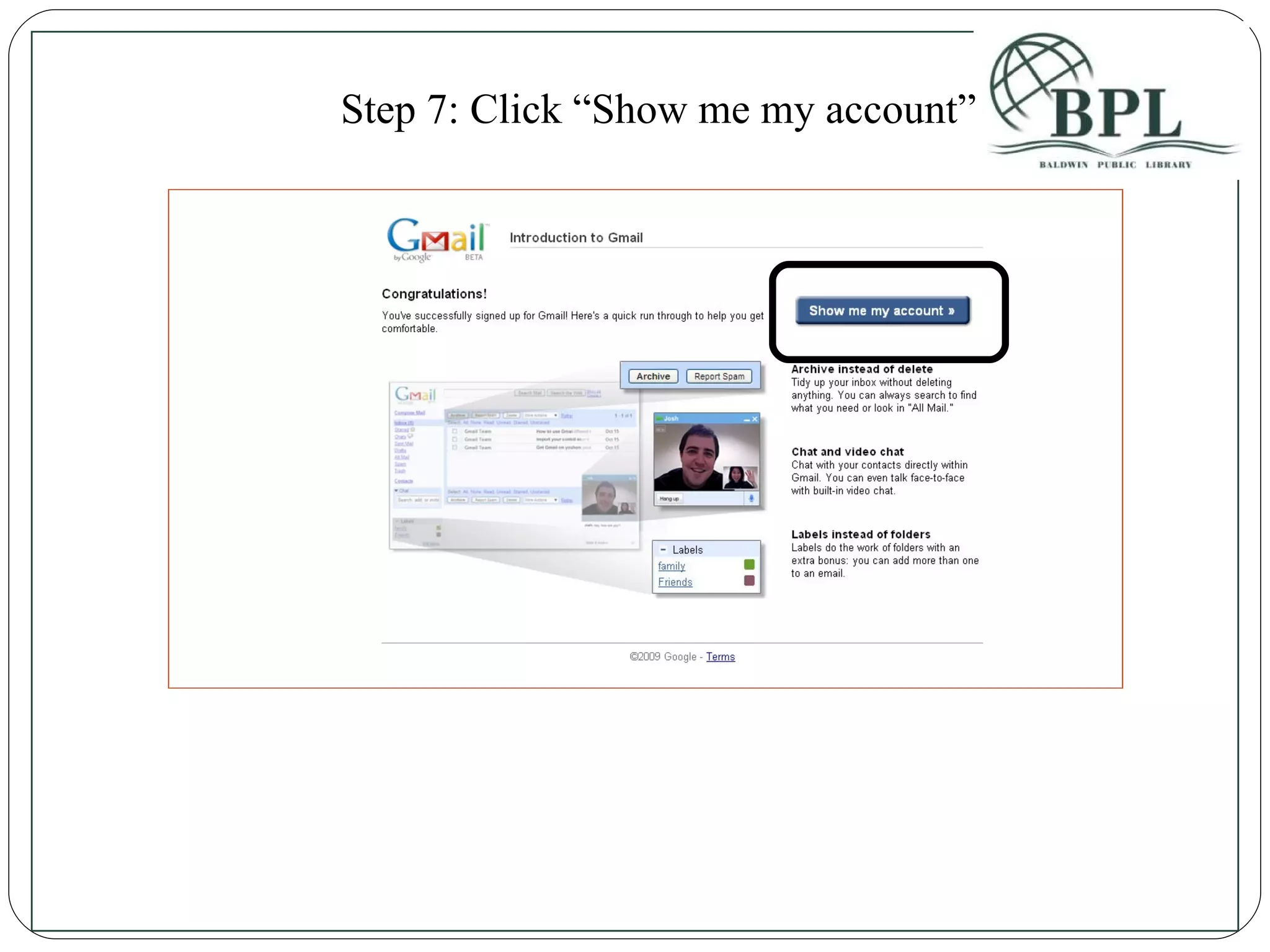
Step 7: Click “Show me my account”
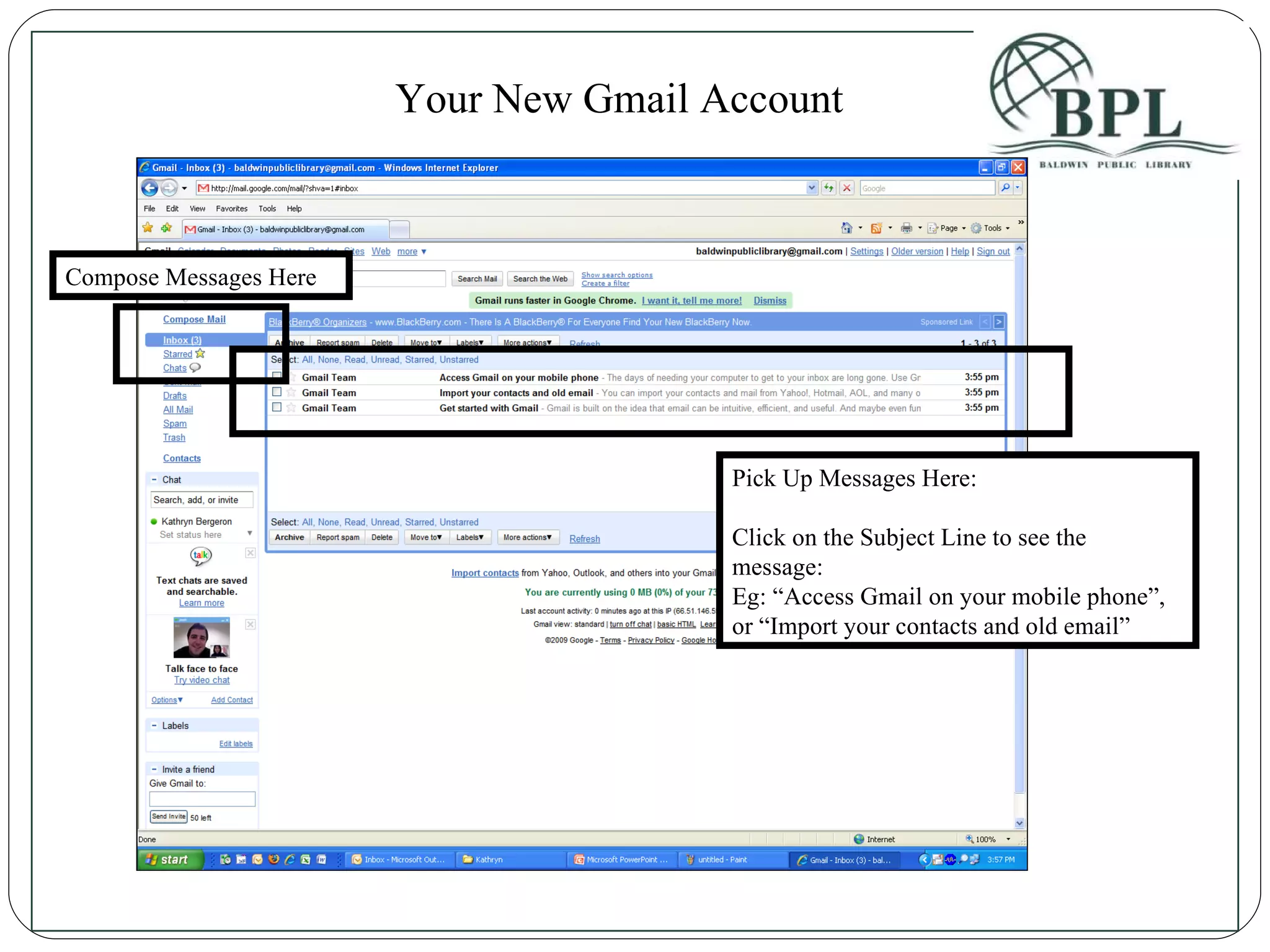
Your New Gmail Account Compose Messages Here Pick Up Messages Here: Click on the Subject Line to see the message: Eg: “Access Gmail on your mobile phone”, or “Import your contacts and old email”
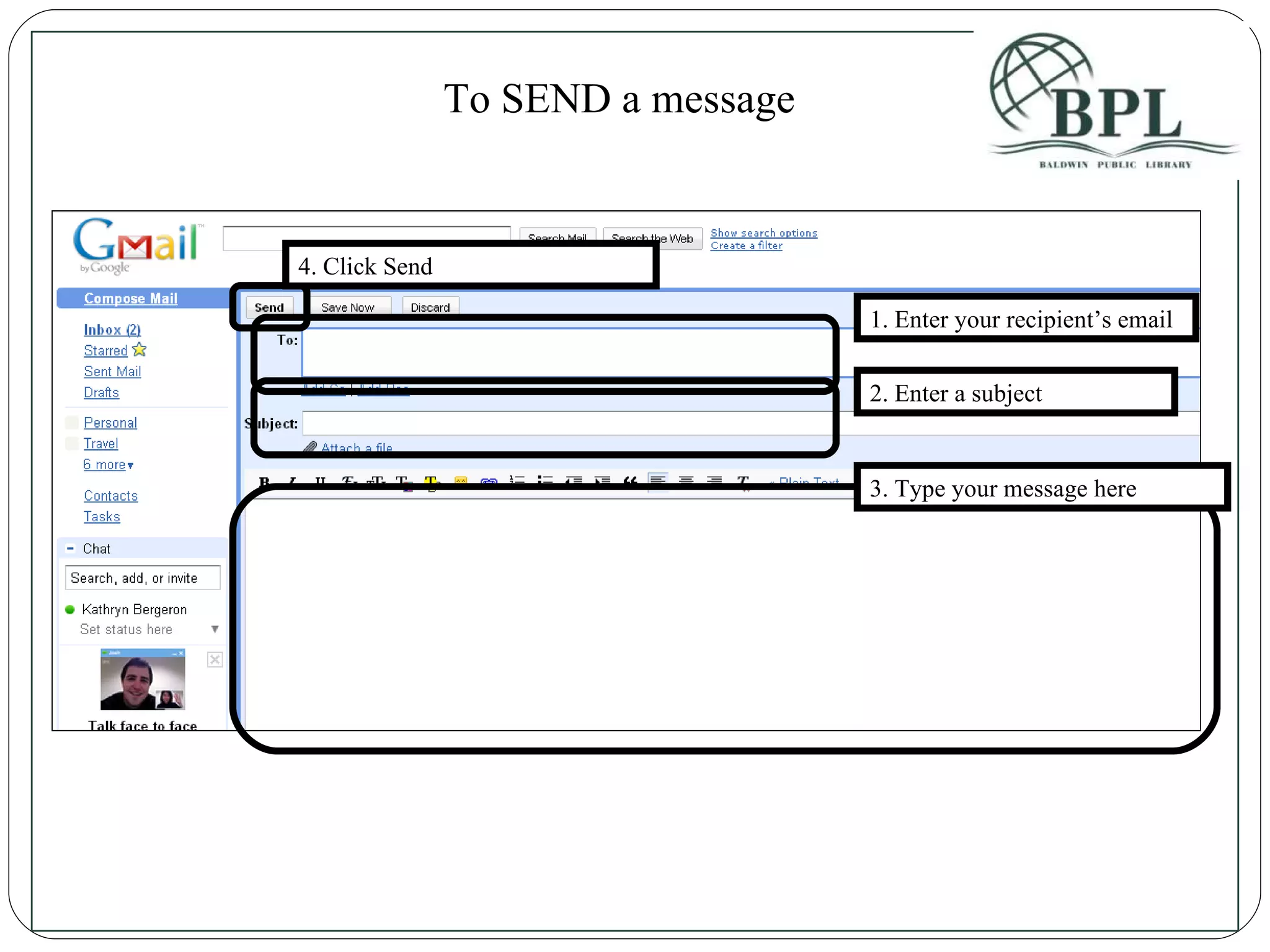
To SEND a message 1. Enter your recipient’s email 2. Enter a subject 3. Type your message here 4. Click Send
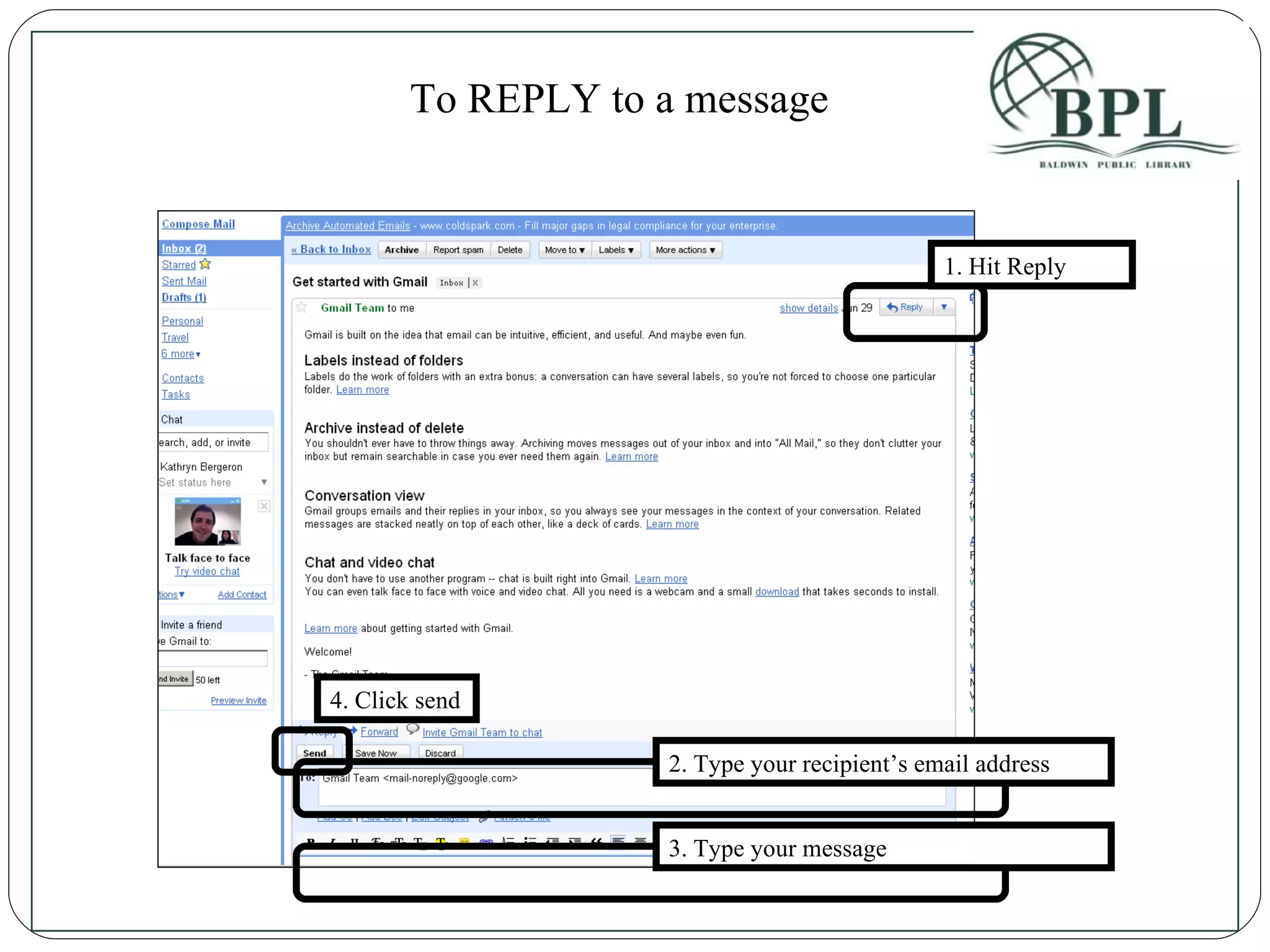
1. Hit Reply 2. Type your recipient’s email address 3. Type your message 4. Click send To REPLY to a message
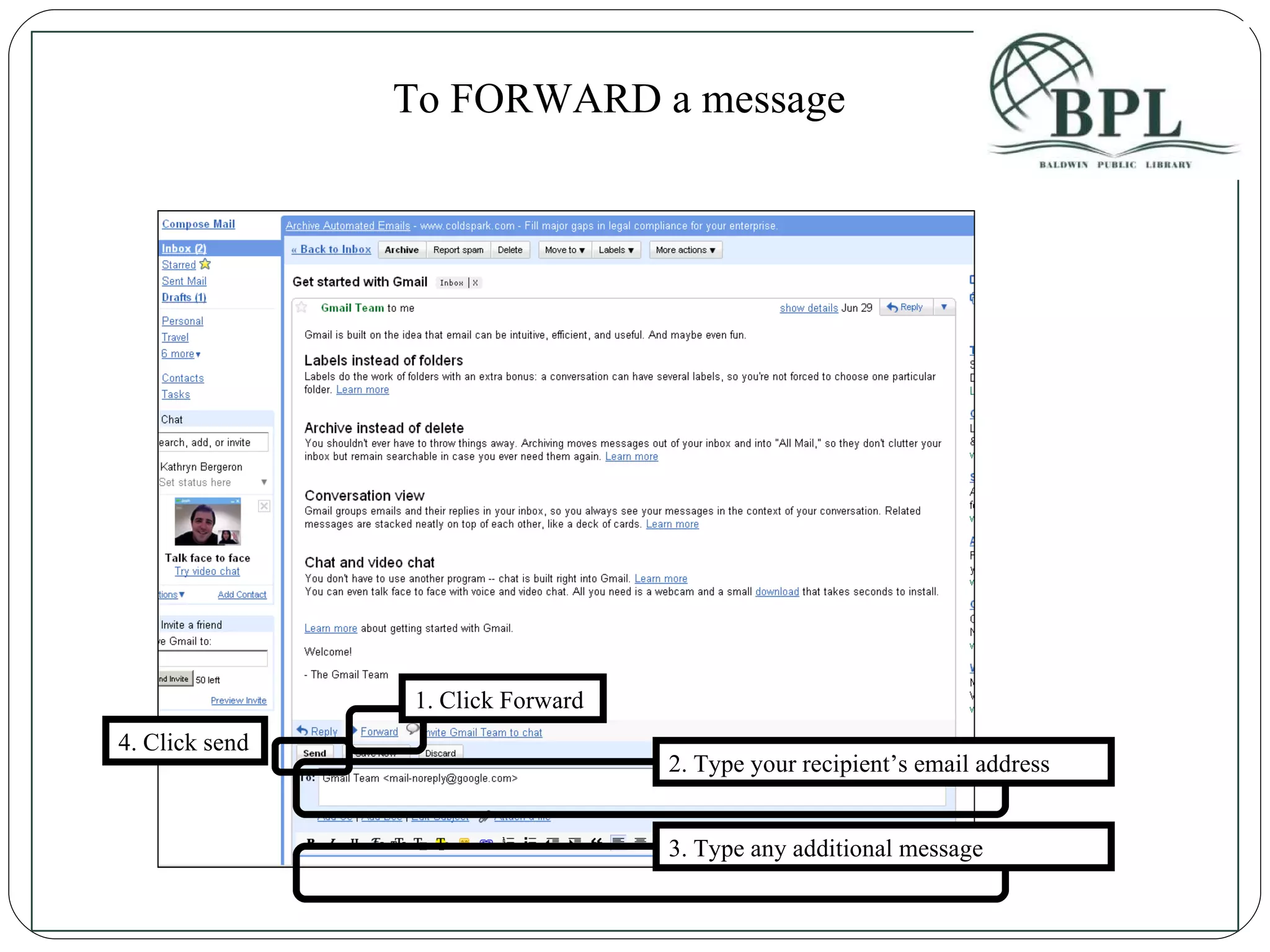
1. Click Forward 2. Type your recipient’s email address 3. Type any additional message 4. Click send To FORWARD a message
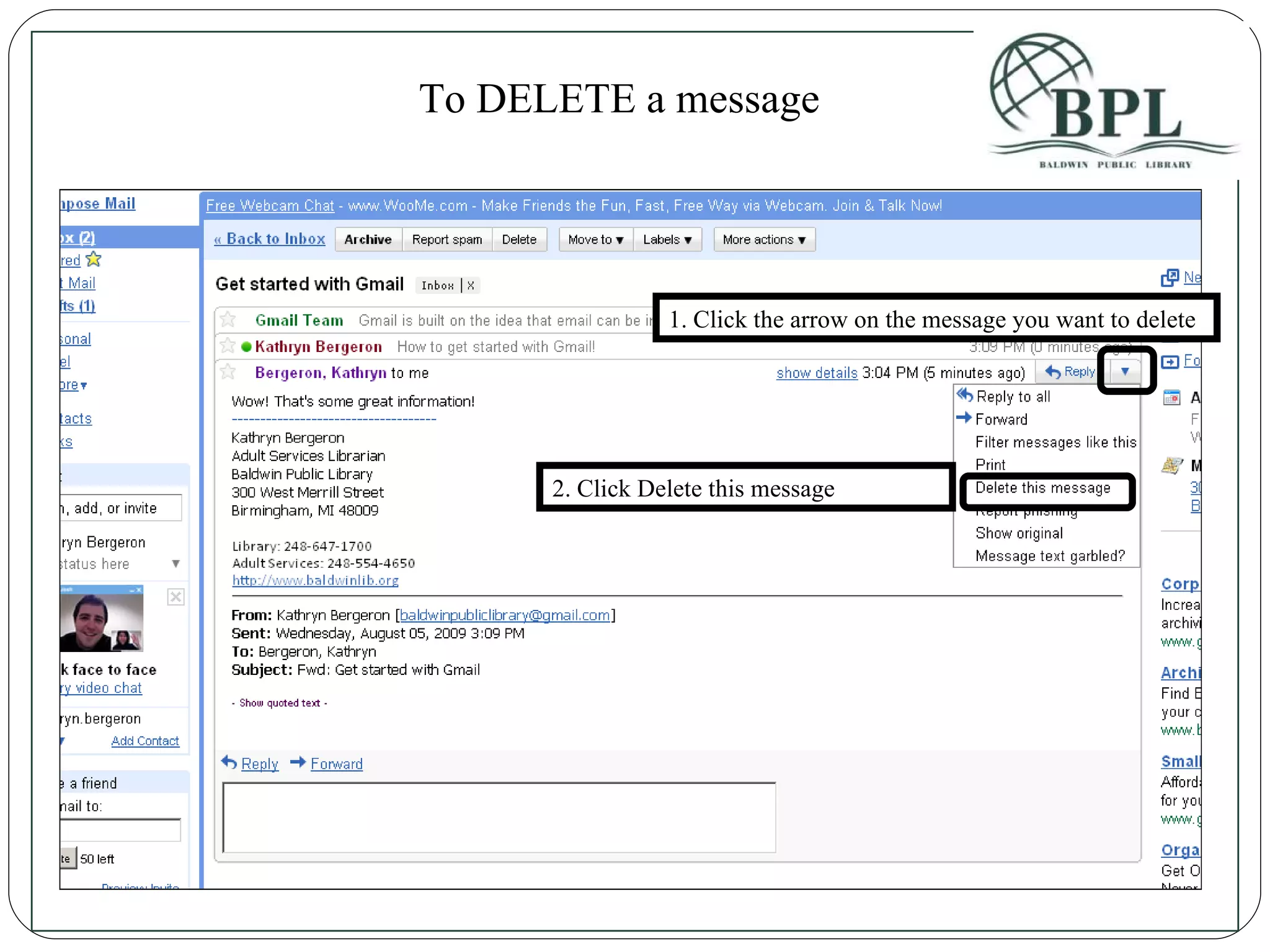
1. Click the arrow on the message you want to delete 2. Click Delete this message To DELETE a message
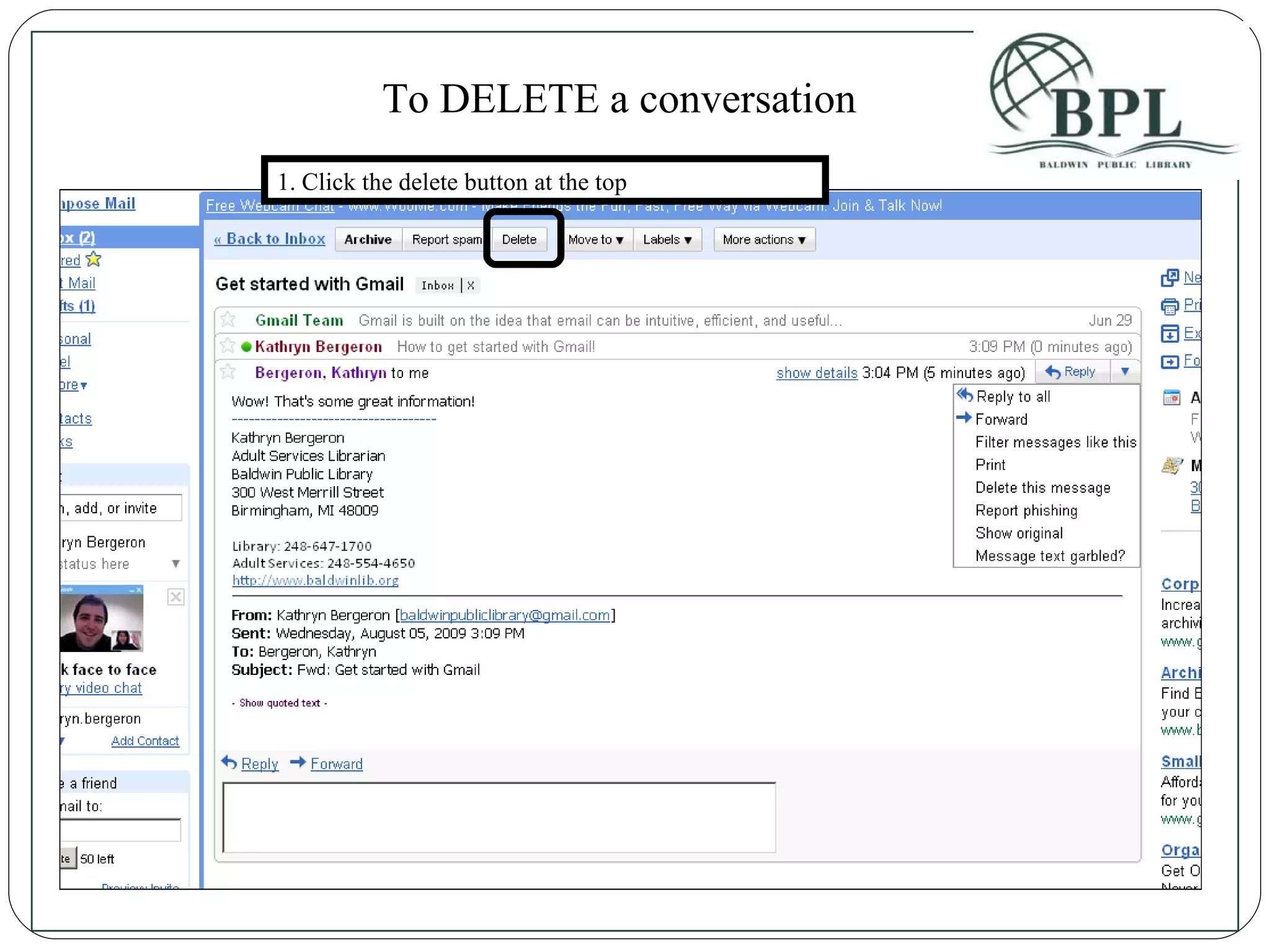
1. Click the delete button at the top To DELETE a conversation
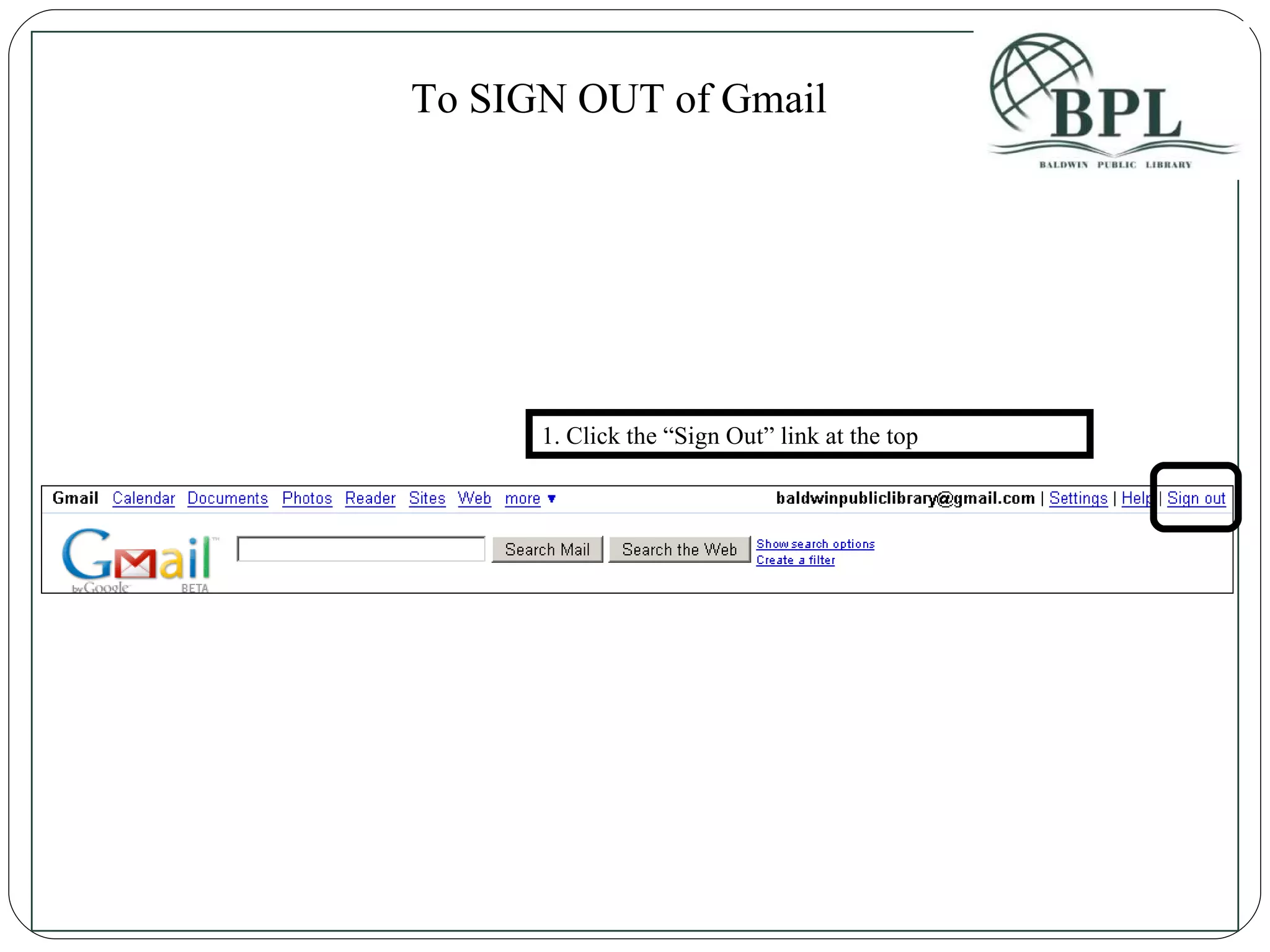
1. Click the “Sign Out” link at the top To SIGN OUT of Gmail
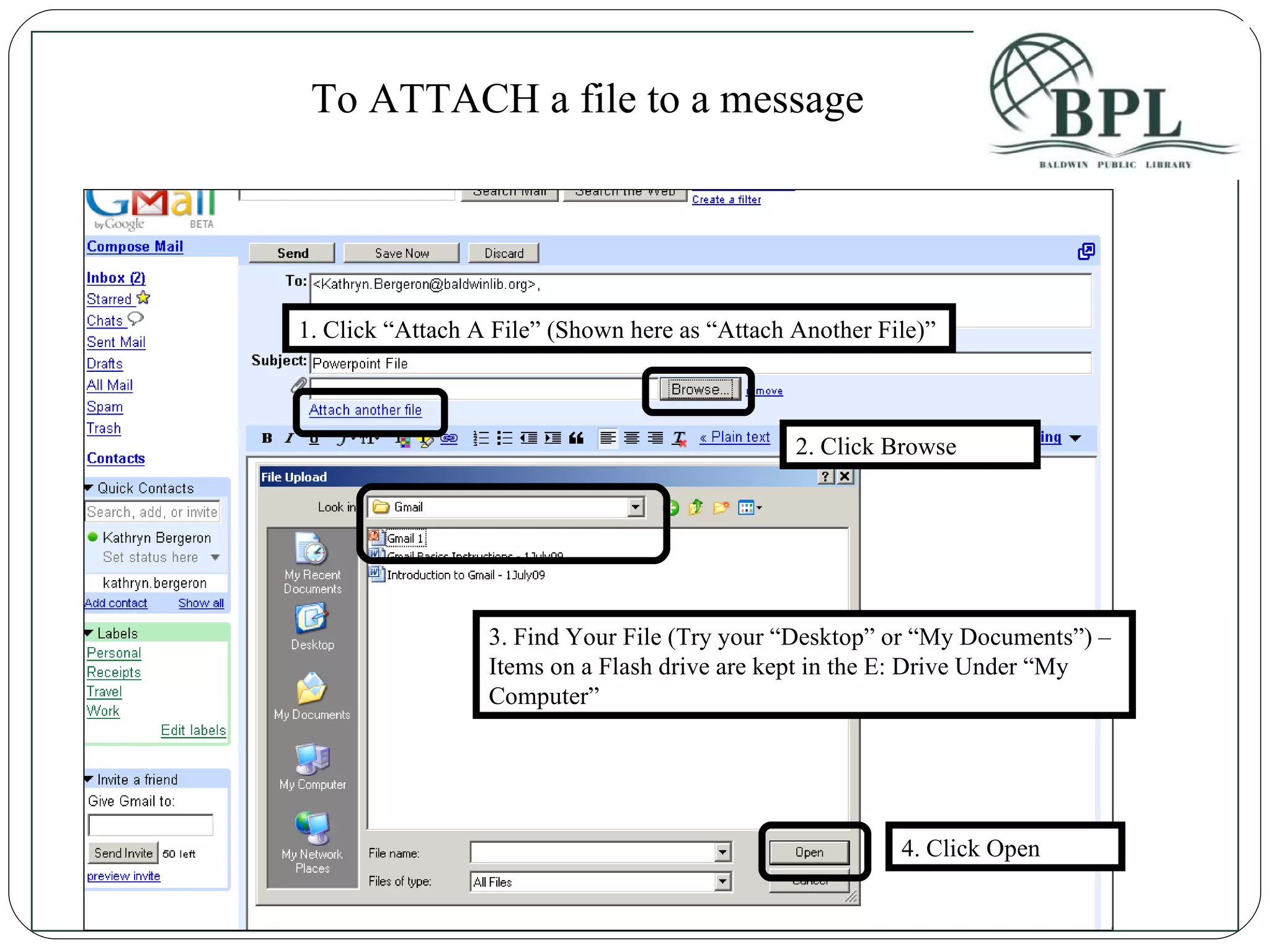
1. Click “Attach A File” (Shown here as “Attach Another File)” To ATTACH a file to a message 2. Click Browse 3. Find Your File (Try your “Desktop” or “My Documents”) – Items on a Flash drive are kept in the E: Drive Under “My Computer” 4. Click Open
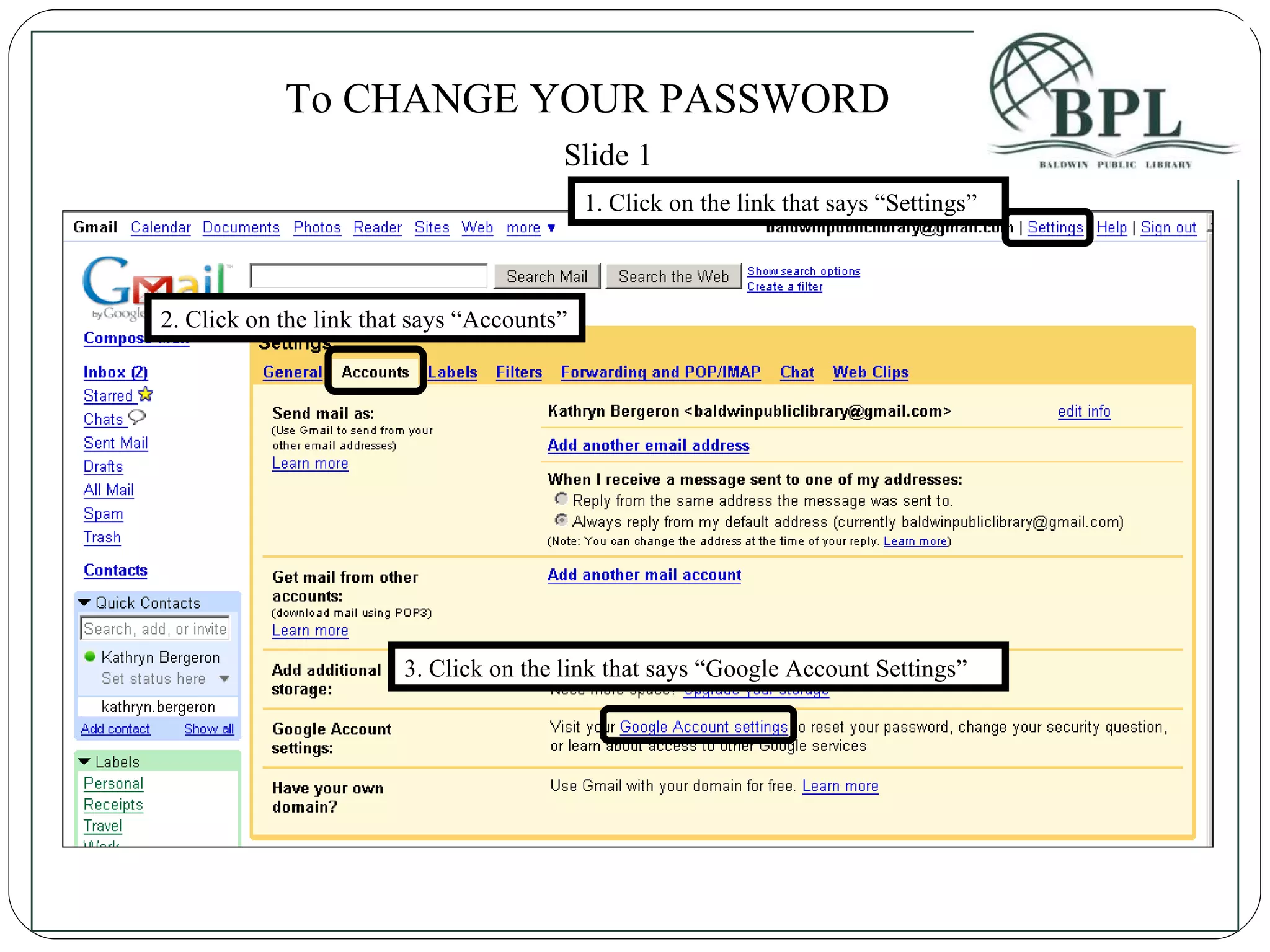
1. Click on the link that says “Settings” To CHANGE YOUR PASSWORD 2. Click on the link that says “Accounts” 3. Click on the link that says “Google Account Settings” Slide 1
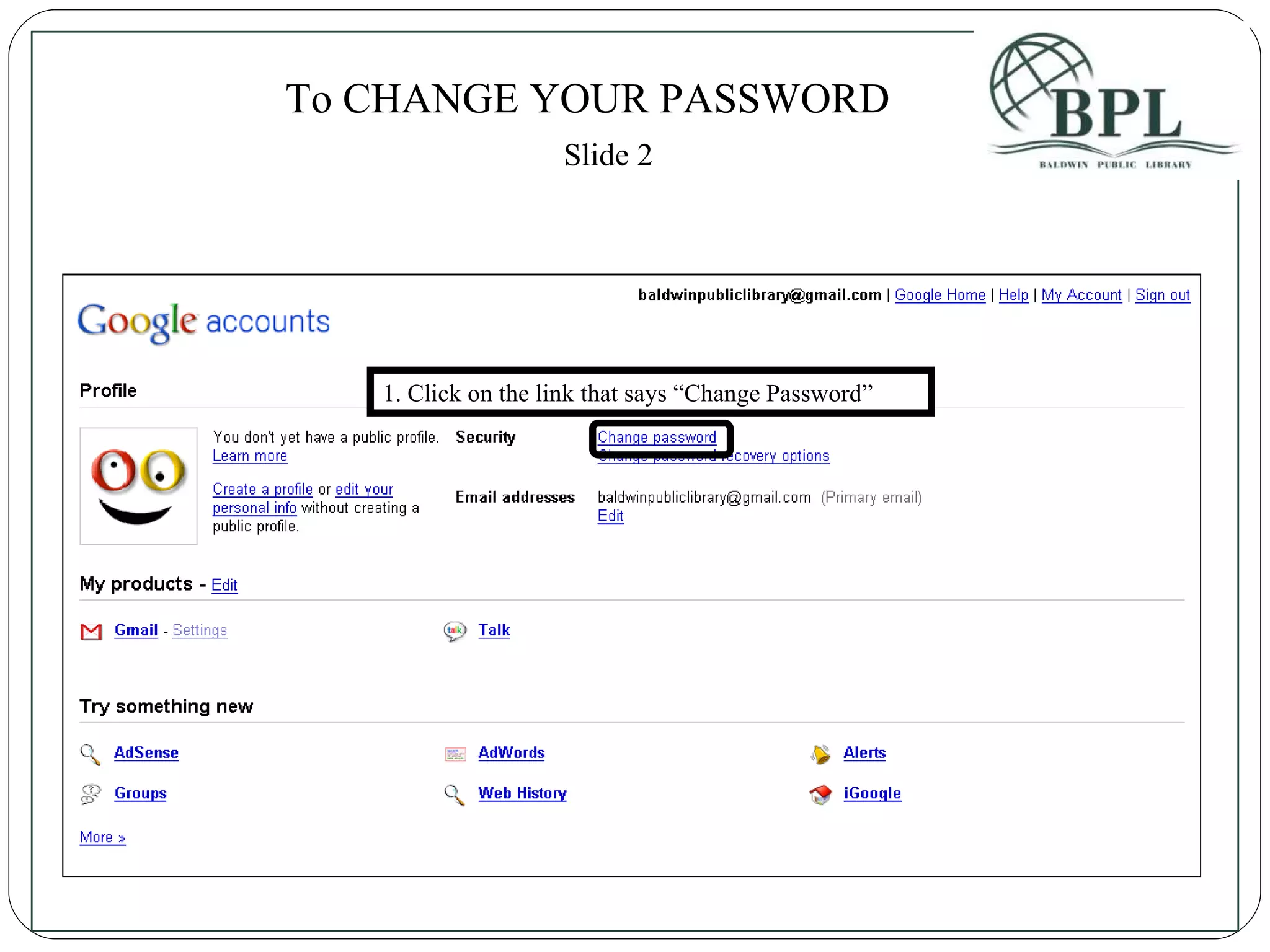
1. Click on the link that says “Change Password” To CHANGE YOUR PASSWORD Slide 2

Ծանոթացում Gmail–ին

  • 1.
    An Introduction ToWeb Based Email Gmail Basics
  • 2.
    What is Email?Electronic format – send & receive mail Servers – Local Post Office Account + Access Yahoo - web based
  • 3.
    Understanding Your E-mailAddress [email_address] 4 Parts to email address : User Name – Post Office Box Number @ - Means: Internet Address Server – Post Office Password – Key to the Box
  • 4.
    Sample email addresses:[email_address] [email_address] [email_address]
  • 5.
    Step 1: Goto: http://www.gmail.com
  • 6.
    Step 2: Clickon “Create an account”
  • 7.
    Step 3: Fillout the required information
  • 8.
    Step 4: Checkyour username’s availability
  • 9.
    Step 5: Putyour security question in place
  • 10.
    Step 5: Typethe characters
  • 11.
    Step 6: Acceptthe Terms of Services and create your account
  • 12.
    Step 7: Click“Show me my account”
  • 13.
    Your New GmailAccount Compose Messages Here Pick Up Messages Here: Click on the Subject Line to see the message: Eg: “Access Gmail on your mobile phone”, or “Import your contacts and old email”
  • 14.
    To SEND amessage 1. Enter your recipient’s email 2. Enter a subject 3. Type your message here 4. Click Send
  • 15.
    1. Hit Reply2. Type your recipient’s email address 3. Type your message 4. Click send To REPLY to a message
  • 16.
    1. Click Forward2. Type your recipient’s email address 3. Type any additional message 4. Click send To FORWARD a message
  • 17.
    1. Click thearrow on the message you want to delete 2. Click Delete this message To DELETE a message
  • 18.
    1. Click thedelete button at the top To DELETE a conversation
  • 19.
    1. Click the“Sign Out” link at the top To SIGN OUT of Gmail
  • 20.
    1. Click “AttachA File” (Shown here as “Attach Another File)” To ATTACH a file to a message 2. Click Browse 3. Find Your File (Try your “Desktop” or “My Documents”) – Items on a Flash drive are kept in the E: Drive Under “My Computer” 4. Click Open
  • 21.
    1. Click onthe link that says “Settings” To CHANGE YOUR PASSWORD 2. Click on the link that says “Accounts” 3. Click on the link that says “Google Account Settings” Slide 1
  • 22.
    1. Click onthe link that says “Change Password” To CHANGE YOUR PASSWORD Slide 2