VIRTUAL ASSISTANT TOOLS
Presented by: Lovella Garvida
http://vatools.blogspot.ae/
Creating Your Gmail Account
How to create a Gmail account?
This presentation is intended for the use of
aspiring VAs and internet newbies. It is a step by
step, easy to follow visual guide that contains
instructions in order to create a Gmail account as
easy as 1, 2, 3!
Just follow the steps and you’re done before
you know it.
Have fun creating your first Gmail account!
Are you ready?
Let’s get started!
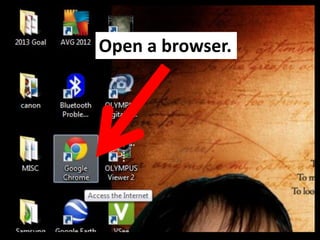
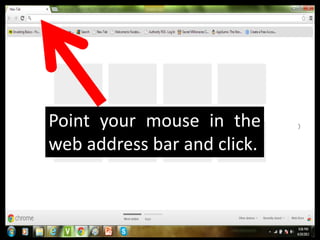
Open a browser.
Point your mouse in the
web address bar and click.
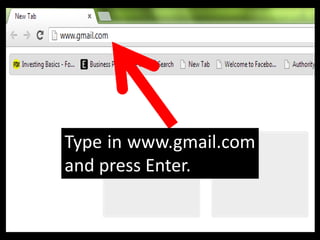
Type in www.gmail.com
and press Enter.
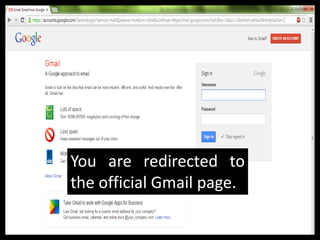
You are redirected to
the official Gmail page.
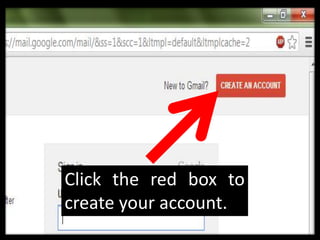
Click the red box to
create your account.
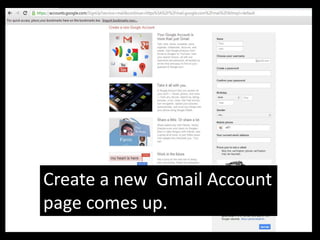
Create a new Gmail Account
page comes up.
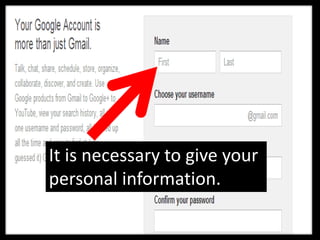
It is necessary to give your
personal information.
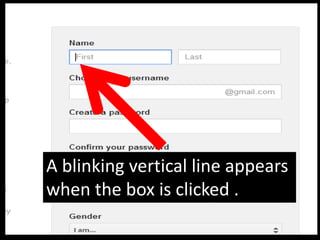
A blinking vertical line appears
when the box is clicked .
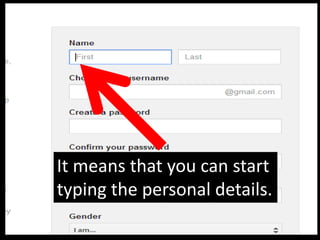
It means that you can start
typing the personal details.
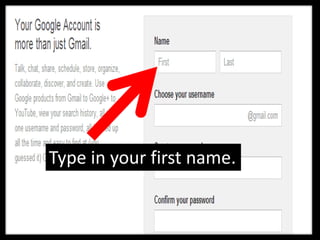
Type in your first name.
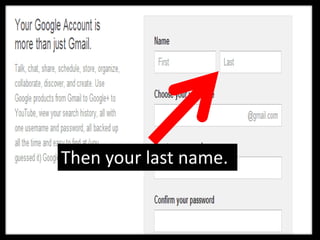
Then your last name.
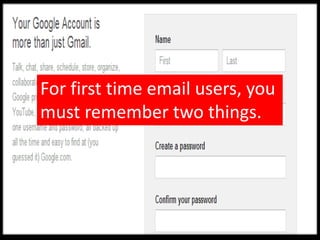
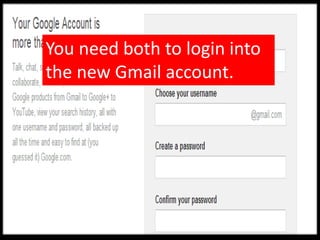
For first time email users, you
must remember two things.
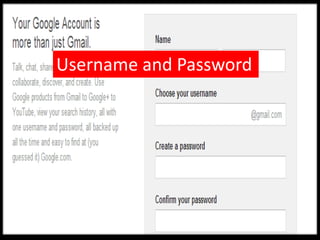
Username and Password
You need both to login into
the new Gmail account.
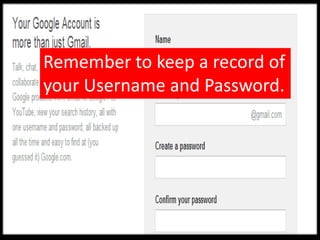
Remember to keep a record of
your Username and Password.
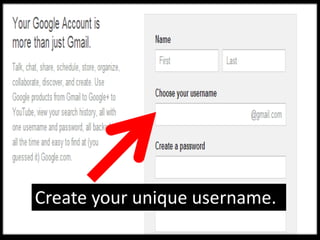
Create your unique username.
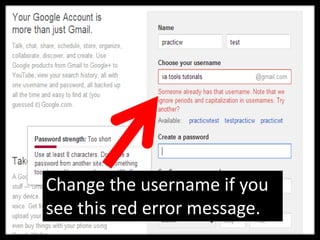
Change the username if you
see this red error message.
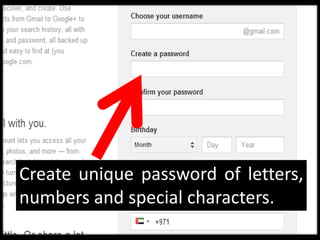
Create unique password of letters,
numbers and special characters.
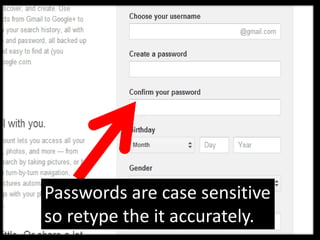
Passwords are case sensitive
so retype the it accurately.
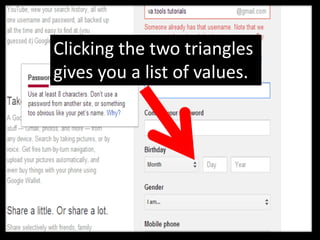
Clicking the two triangles
gives you a list of values.
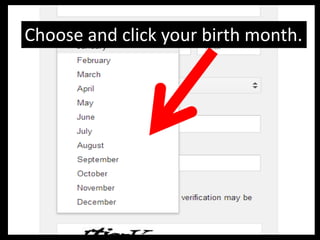
Choose and click your birth month.
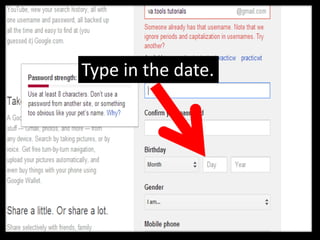
Type in the date.
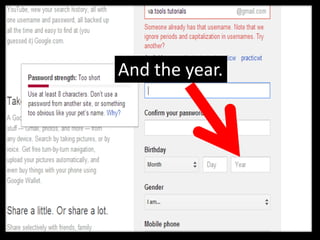
And the year.
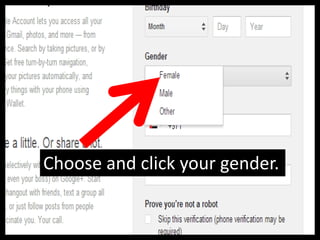
Choose and click your gender.
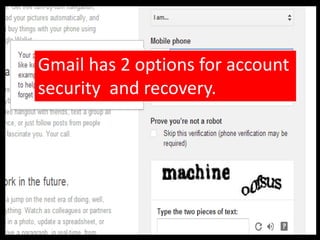
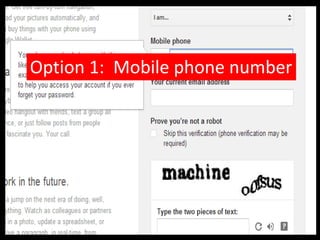
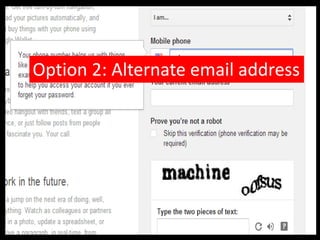
Gmail has 2 options for account
security and recovery.
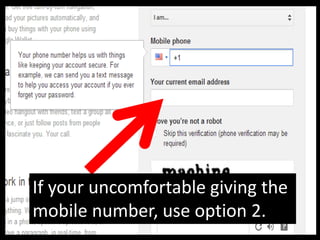
Option 1: Mobile phone number
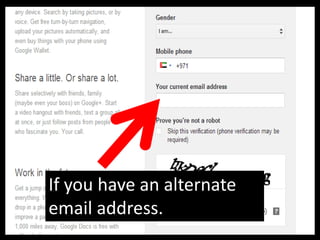
Option 2: Alternate email address
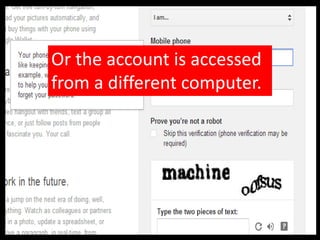
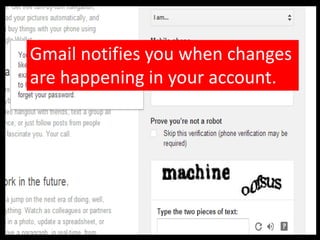
Gmail notifies you when changes
are happening in your account.
Or the account is accessed
from a different computer.
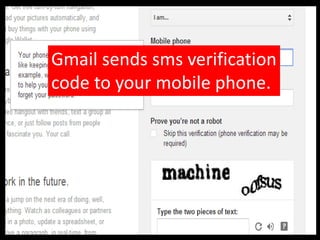
Gmail sends sms verification
code to your mobile phone.
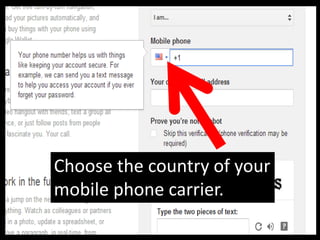
Choose the country of your
mobile phone carrier.
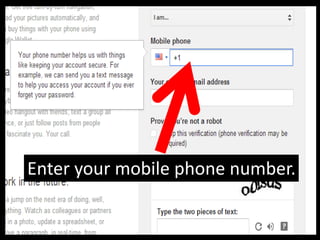
Enter your mobile phone number.
If your uncomfortable giving the
mobile number, use option 2.
If you have an alternate
email address.
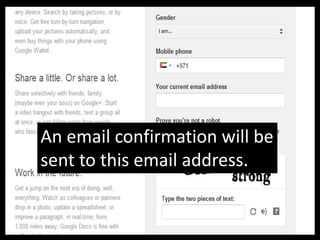
An email confirmation will be
sent to this email address.
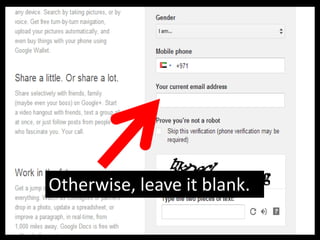
Otherwise, leave it blank.
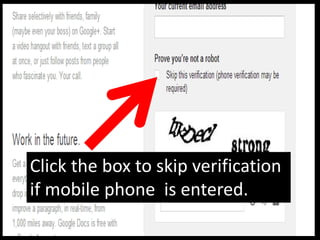
Click the box to skip verification
if mobile phone is entered.
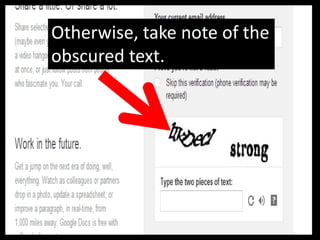
Otherwise, take note of the
obscured text.
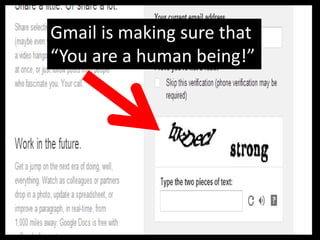
Gmail is making sure that
“You are a human being!”
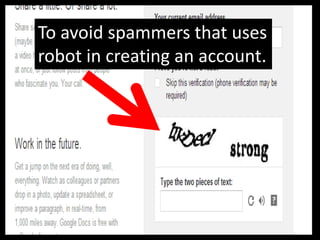
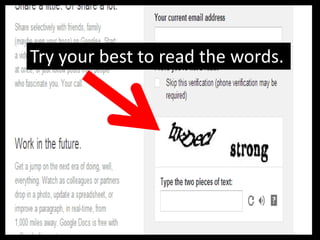
To avoid spammers that uses
robot in creating an account.
Try your best to read the words.
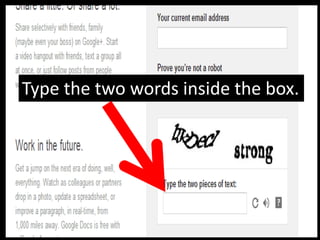
Type the two words inside the box.
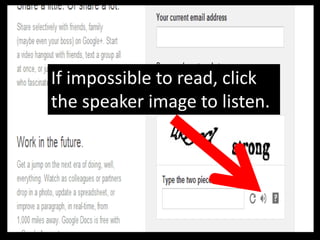
If impossible to read, click
the speaker image to listen.
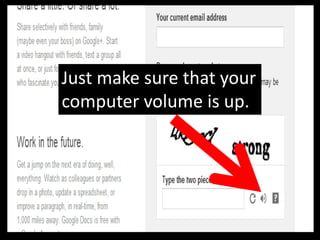
Just make sure that your
computer volume is up.
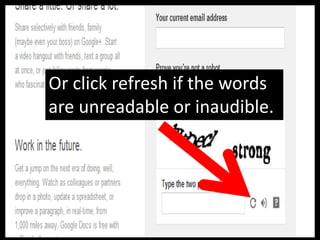
Or click refresh if the words
are unreadable or inaudible.
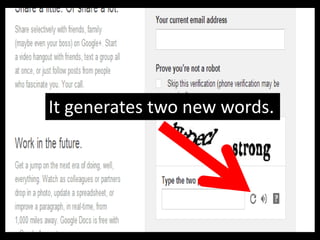
It generates two new words.
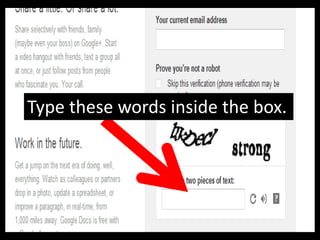
Type these words inside the box.
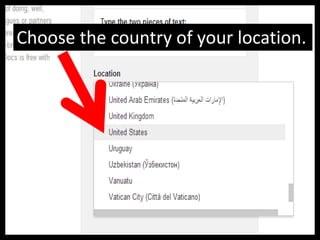
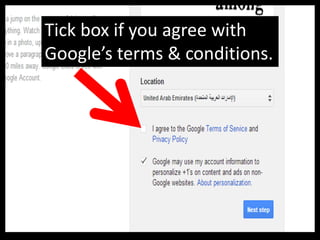
Choose the country of your location.
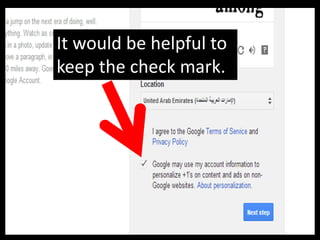
Tick box if you agree with
Google’s terms & conditions.
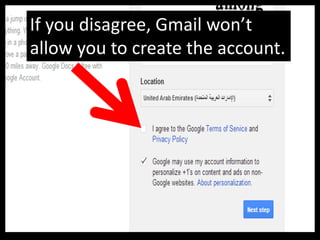
If you disagree, Gmail won’t
allow you to create the account.
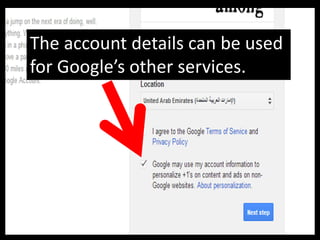
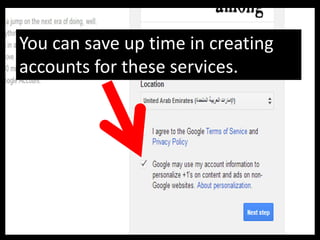
The account details can be used
for Google’s other services.
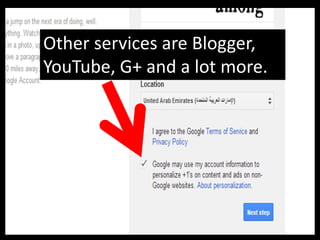
Other services are Blogger,
YouTube, G+ and a lot more.
It would be helpful to
keep the check mark.
You can save up time in creating
accounts for these services.
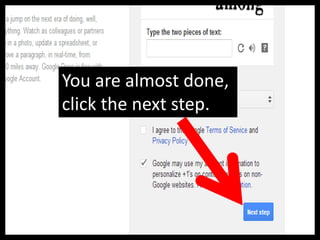
You are almost done,
click the next step.
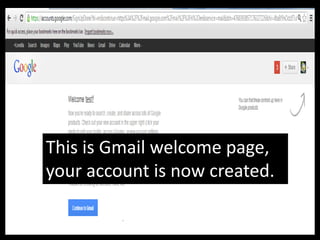
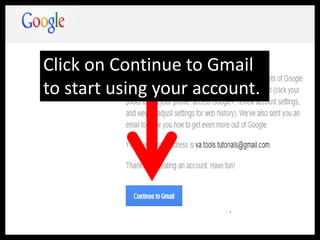
This is Gmail welcome page,
your account is now created.
Click on Continue to Gmail
to start using your account.
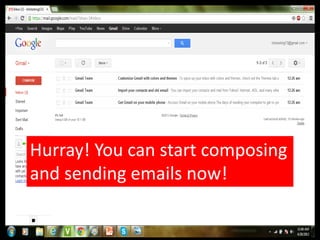
Hurray! You can start composing
and sending emails now!
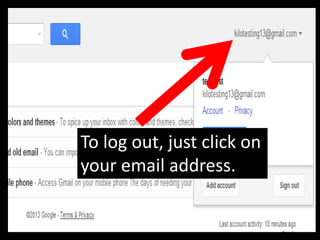
To log out, just click on
your email address.
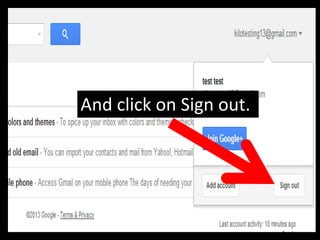
And click on Sign out.
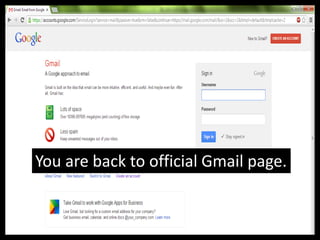
You are back to official Gmail page.
Job well done!
You have just created a new Gmail account!
Thanks for visiting and see you next in the next tutorial!
Gmail tutorial official

Gmail tutorial official